Custom Fields
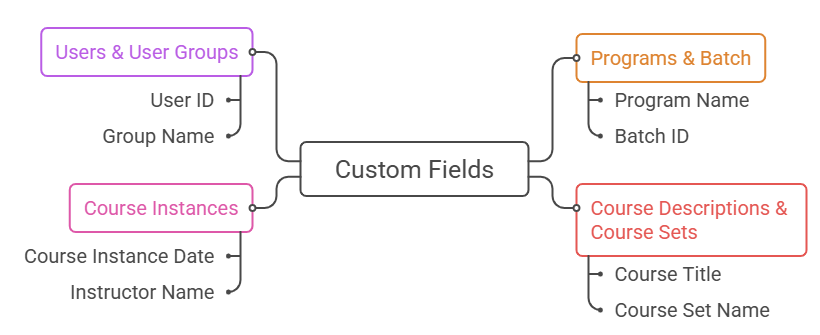
A Custom Field is an additional data entry point that you create yourself. While Learnexify comes with standard fields (like Name and Email), Custom Fields allow you to capture extra information for:
- Programs & batch
- Course Descriptions & Course Sets
- Course Instances
- Users & User Groups
To begin managing your unique data points:
- Open the Side Drawer menu.
- Click on Admin.
- Select Custom fields.

As shown in the image below, you will see a series of tabs across the top: Program, Batch, Course Description, Course Instance, User, User Group, and Course Set.
Important Note: While there are many tabs, the procedure for creating categories and fields is exactly the same for every tab. Once you understand how to create a field for a "User," you can apply the same steps to a "Program" or any other entity listed.
Before you can add a field, you must create a category.

Why you must create a category before you create a field? Categories organize your data. Instead of a messy list of 50 fields, you can group them logically.
Example: Create a category called "Academic History" to group fields like "Previous University" and "Major."
To create a category:
- Click Create a new category button
- Enter a unique name
- Then, Click Save Changes.

Once your category is ready, click Create a new field.

Common settings:
You will need to fill in the following:
- Short name: The system's internal ID (must be unique).
- Name: The label users will see on the screen.
- Category: Select the category you created in the previous step.
- Data type: Define the info type (e.g., Integer for numbers, Date for calendars, or Long Text for paragraphs).
Advanced Options:
- Should the data be unique?
Ensures no two records (such as users or programs) can have the exact same information in this field. - Multivalued: Allows a single field to store and display multiple separate pieces of data at once.
- Default value: Automatically pre-fills the field with a standard value to save time during manual data entry.

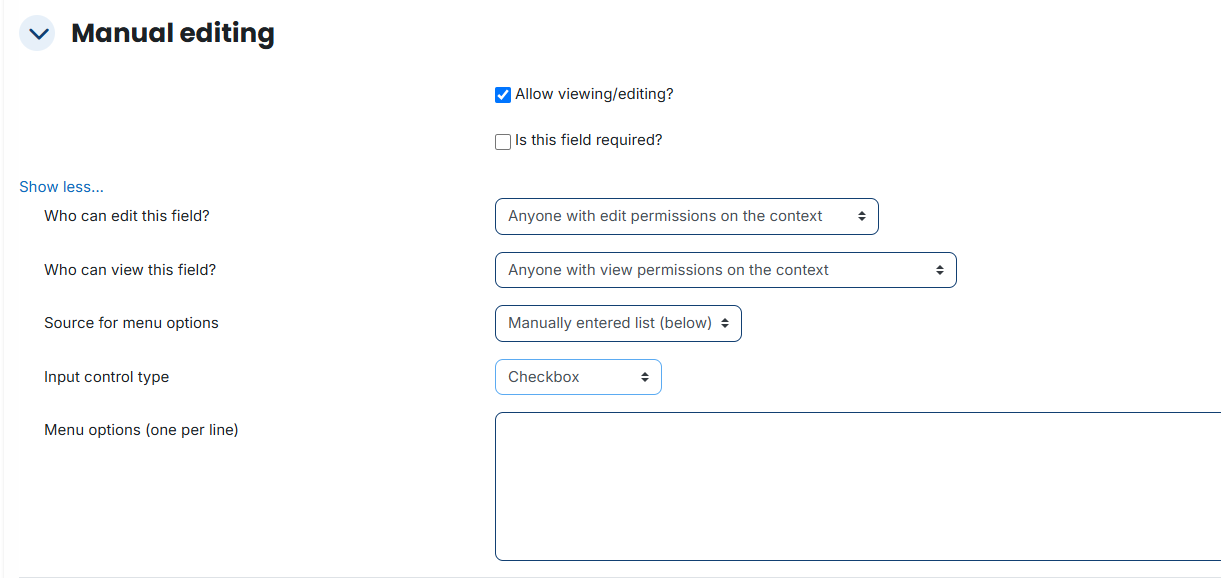
Manual Editing:
This section defines how administrators interact with the field:
Allow viewing/editing: Determines if the info can be changed manually.
Is this field required: If checked, the record cannot be saved until this box is filled.
Click on the show more button to see more settings:
Controls which user roles have the authority to modify the information stored in this field.
Who can edit this field?
- Anyone with edit permissions on the context: Grants access to any user who already has standard editing or viewing rights for that specific user or program.
- Only users with moodle/user:update capabilities: Restricts access to high-level administrators with specific system-wide permissions.
- Nobody: Makes the field "Read-Only," meaning the data can be seen (if view permissions allow) but never changed manually.
Manages data privacy by determining who is allowed to see the information in this field.
Source for menu options:
- Manually Entered list (below)
- Moodle themes
Defines whether the list of choices for a dropdown menu is typed in manually or pulled from existing system data (like Moodle themes).

Input control type:
This is how the field looks on the screen:
- Checkbox: Used for simple binary choices, such as "Yes/No" or "Enabled/Disabled."
- Drop-down menu: Allows users to select a single option from a pre-defined list of choices.
- Text input: A single-line box designed for short pieces of information like names or ID codes.
- Text area: A larger, multi-line box used for entering long descriptions or paragraphs.
- Date/Time: Provides a calendar and clock picker to select a specific day or time.
- Password input: Masks the characters (using dots or asterisks) to keep sensitive data hidden during entry.

Moodle Synchronization
This setting controls how Learnexify talks to the Moodle platform. This is vital for keeping student and employee records perfectly aligned without manual double-entry.
- No synchronization: The data stays only in Learnexify reports.
- Copy values to Moodle: Entering data here automatically updates the user's Moodle profile.
- Use values from Moodle: Learnexify pulls existing data from Moodle so you don't have to re-type it.

Once you have configured the permissions and the input style, click Save Changes to activate the field.
If you are creating a dropdown menu, ensure your Menu Options list is finalized before saving.
