**Important Note:** You can change the text of the message, but never change the text inside the percentage marks, or the data will not populate correctly.
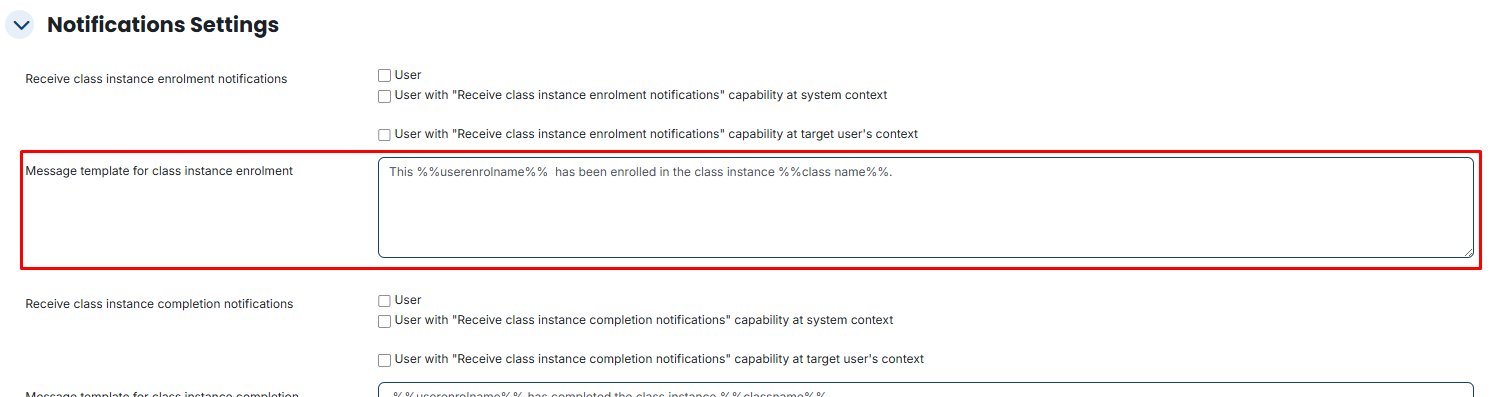 ### Course Instance Enrolment Notifications: Triggered the moment a student is successfully added to a specific class. - Enable the User checkbox so students get an instant professional confirmation email and a bell alert on their dashboard. **How to Trigger:** Go to Side Drawer > Program > Manage Course Instance. Edit a class, go to the Enrollment tab, and click Enroll Students to add a user. - User: The student gets an email and a bell alert confirming they joined the class. - System Context: The global admin is notified that a new enrollment happened somewhere on the site. - Target User's Context: The student’s specific department manager is notified.  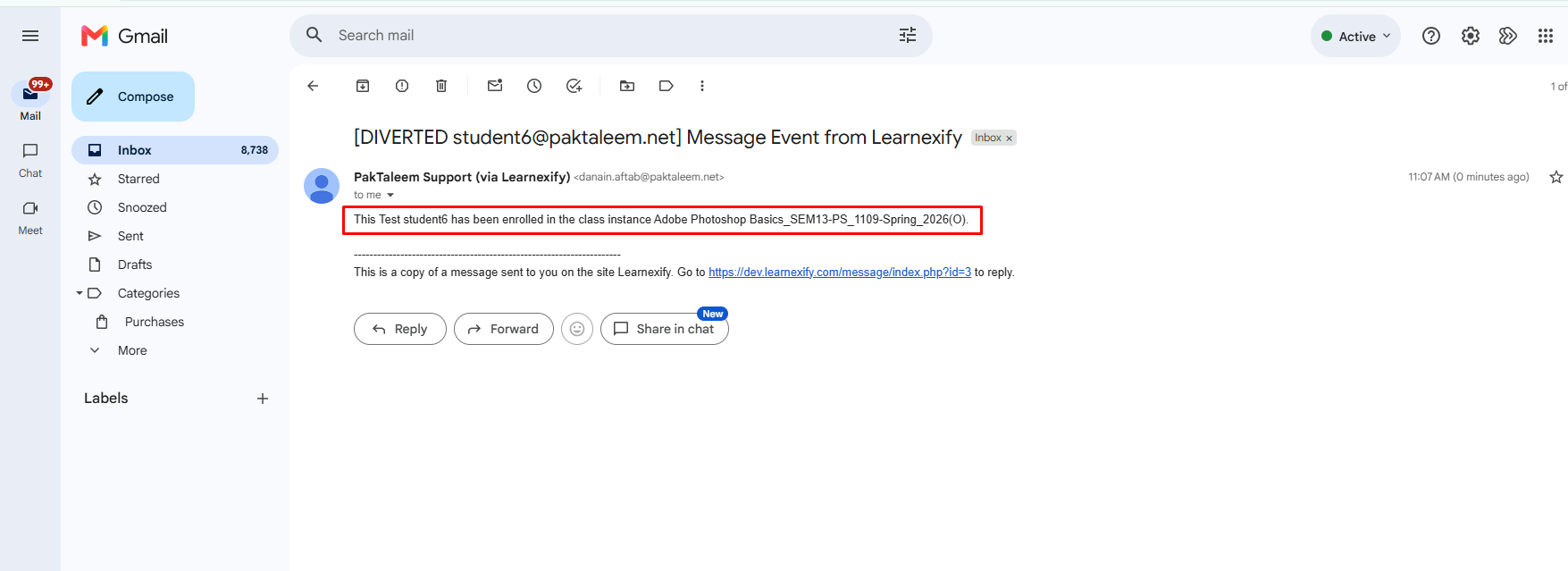 ### 2. Course Instance Completion Notifications: Triggered when an instructor or the system marks a student's status as "Completed" with a passing grade. - Ideal for sending automated "Congratulations" messages. **How to Trigger:** Go to Manage Course Instance > Enrollment. Edit a student’s record and change their status to "Completed" with a passing grade. - **User:** The student receives a congratulatory success email. - **System Context:** The registrar is notified to update official graduation or completion records. - **Target User's Context:** The manager is notified that their team member has finished the training.  ### 3. Course Instance "Not Started" Notifications: Triggered for users who are enrolled but have not yet logged into the attached Moodle course. - **Timing Setting:** Use the field "Number of days after enrolment". - **Setting to 0:** Sends the reminder immediately if they haven't logged in. - **Setting to 2:** Waits 48 hours before sending a "nudge." **How to Trigger:** The system checks if a user is enrolled but has not logged into the attached Moodle course. - **Setting:** Use the "Number of days after enrolment" field to decide when to send this "nudge." - **User:** The inactive student gets a reminder to log in and begin. - **System Context:** Global admins can monitor if an entire course has low engagement. - **Target User's Context:** The manager sees which of their staff haven't started their mandatory training.  ### 4. Course Instance "Not Completed" Notifications (Deadline Warning) Triggered for students who are currently enrolled but have not reached "Completed" status as the class end-date approaches. - **Timing Setting:** Use "Number of days before Course Instance ends". Setting this to 1 ensures a final warning is sent 24 hours before the deadline. **How to Trigger:** Triggered when the class End Date is approaching, but the student is still in "Enrolled" status and not "Completed." - **Setting:** Use "Number of days before Course Instance ends" to set the deadline warning (e.g., 2 days before). - **User:** The student gets a warning that their time is running out. - **System Context:** Admins see which classes are at risk of low completion rates. - **Target User's Context:** Managers can follow up with specific employees to ensure they finish on time.  ### 5. Program Level Notifications These focus on entire degrees or diplomas rather than individual classes. - **Program Completed:** Sent only when all requirements for a full program are met. **How to Trigger:** This happens automatically when a user completes all courses required within a specific Program (e.g., completing all 10 courses of a Diploma). - **User:** The student gets a "Program Graduation" notice. - **System Context:** The central office is notified to issue a formal diploma or certificate. - **Target User's Context:** The department head sees that a student has finished their full curriculum.  - **Program Not Completed:** A high-level warning sent before the overall program enrollment expires. **How to Trigger:** Sent when the student's Program Enrollment is about to expire, but they haven't finished all the courses. - **Setting:** Set the lead time in "Number of days before program ends." - **User/Admin/Manager:** All receive a high-level warning that the entire program certification is at risk of failing.  ### 6. Batches Enrolment Notifications Triggered when a user is placed in a batches (a specific batch or cohort, like "Batch of 2026"). This informs the user they have been placed on a specific learning pathway. **How to Trigger:** Go to Side Drawer > Program > Manage batches. Assign a user to a specific batches (e.g., "Batch 2026"). - **User:** The student is welcomed to their new study "pathway" or cohort. - **System Context:** Global admins monitor how many users are being placed into specific batches. - **Target User's Context:** The manager sees that their employee has been placed on a specific career or learning path.  ### 7. Expiration Notifications (Recertification) Essential for compliance and mandatory annual training. - **Course Description Expiration:** Alerts the user when their individual course certificate is about to lapse. **How to Trigger:** Triggered based on the Expiration Date set inside a Course Description. - **User:** The student is told their certification for this specific course is expiring and they must re-take it. - **System Context:** Compliance officers see who is becoming "un-certified." - **Target User's Context:** Managers see who needs to be scheduled for recertification.  - **Program Expiration:** Alerts the user when their entire professional certification is due for renewal. **How to Trigger:** Similar to course expiration, but for an entire Program. - **Setting:** Define the warning period in "Number of days before program expires." - **User/Admin/Manager:** All are alerted to begin the full program renewal process to stay compliant with institutional rules. - **Lead Time:** Typically set to 6 or 12 months to allow the user time to re-enroll and finish the training before their current status expires.  ### 8. Waitlist & Final Closing Alerts Located at the very bottom of the Notifications page under "Notify Users When": **Added to a waitlist:** Tells the user the class is full but they are in the queue. **Trigger:** - Enroll a user into a class that has already reached its "Max # of Students" limit. - Enrolled from a waitlist: The most critical alert; tells the user a seat opened and they can now start. **Trigger:** - Unenroll a student from a full class. The system automatically moves the first person from the waitlist into the class **Not Completed Before End Date:** A final "closing" notice sent the moment the class officially ends to users who didn't finish. **Trigger:** - The clock reaches the End Date/Time of a class. Every student still marked as "Enrolled" (and not Complete) gets this final "Time Up" notice.  ### How Notifications are Delivered Learnexify uses a simultaneous delivery system. When a notification triggers: **Email:** A copy is sent immediately to the user's inbox. **Web Alert:** A red badge appears on the Notification Bell in the top header. 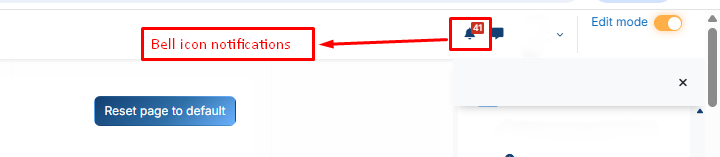**System Requirement:** For these emails to go out, your Scheduled Tasks (Cron Jobs) must be running. You can check the health of these tasks in the Administrator Dashboard.