# Manage Batches
# Learnexify Batch
Once courses have been set up and added to a program, the next step in Learnexify is to configure batches. A batch represents an instance of a program, and each batch must be linked to a specific program.
In most cases, the course instances within a batch correspond directly to the course descriptions defined in the program. This helps maintain a structured and consistent learning path for learners based on the program setup.
### **How to Create a Batch:**
Before creating a batch, ensure that the program has already been properly set up and that courses/course descriptions have been added to it.
Once this is done, follow these steps:
Go to the **Dashboard** and open the side drawer menu. Click on **Programs** and then select **Manage batches.**
[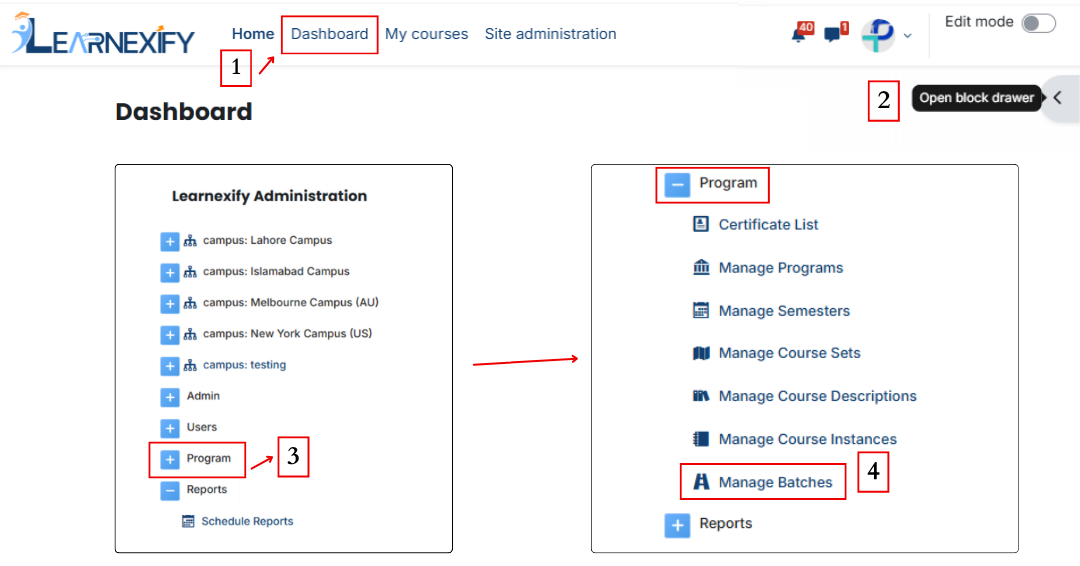](https://wiki.paktaleem.net/uploads/images/gallery/2026-07/lVkpage-edits3.png)
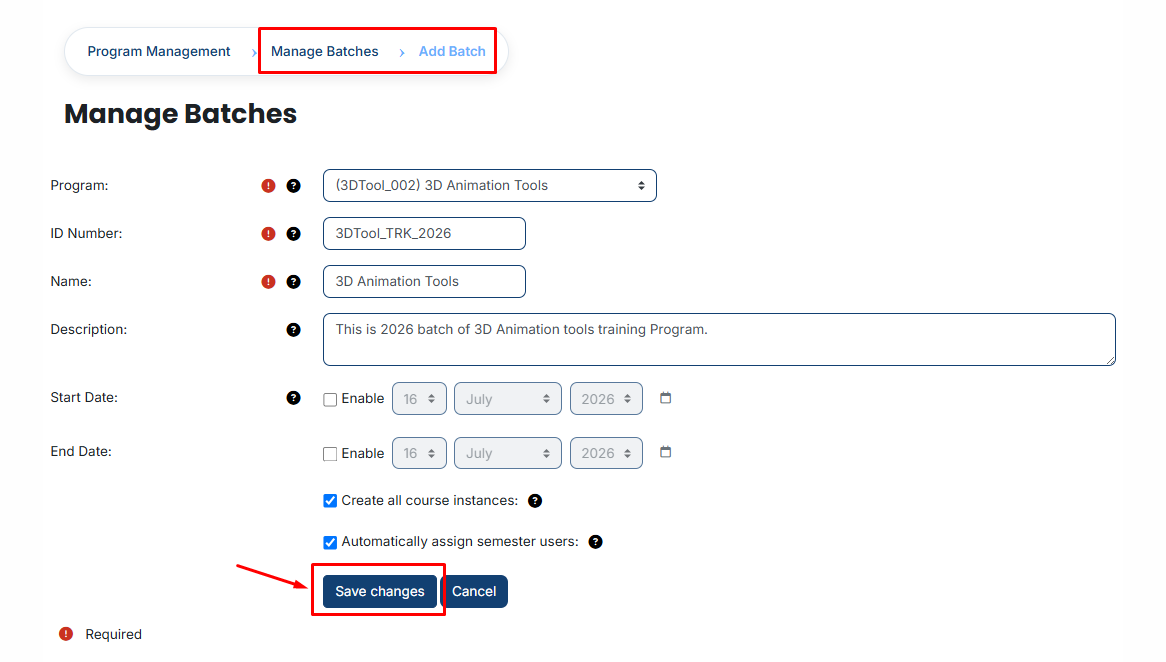
Click on the **Add batch button.** A form will appear where you need to enter the **basic batch details.**
Fill in the following fields:
- **Program Selection:** Select the program from the dropdown list
- **ID Number:** Enter the unique ID for the batch
- **Name:** Enter the name of the batch
- **Description:** Provide a brief description of the batch
- **Start Date:** Select the start date
- **End Date:** Select the end date
You will also see **two checkbox options:**
- **Create all course instances:**
When selected, this option automatically creates all course instances for the batch based on the program structure, removing the need for manual setup.
- **Automatically assign semester users:**
When selected, all users assigned to the semester will be automatically enrolled in the batch’s course instances, ensuring automatic user assignment without manual effort.
[](https://wiki.paktaleem.net/uploads/images/gallery/2026-07/FsJimage.png)
After entering all the required information, click on the **Save Changes** button.
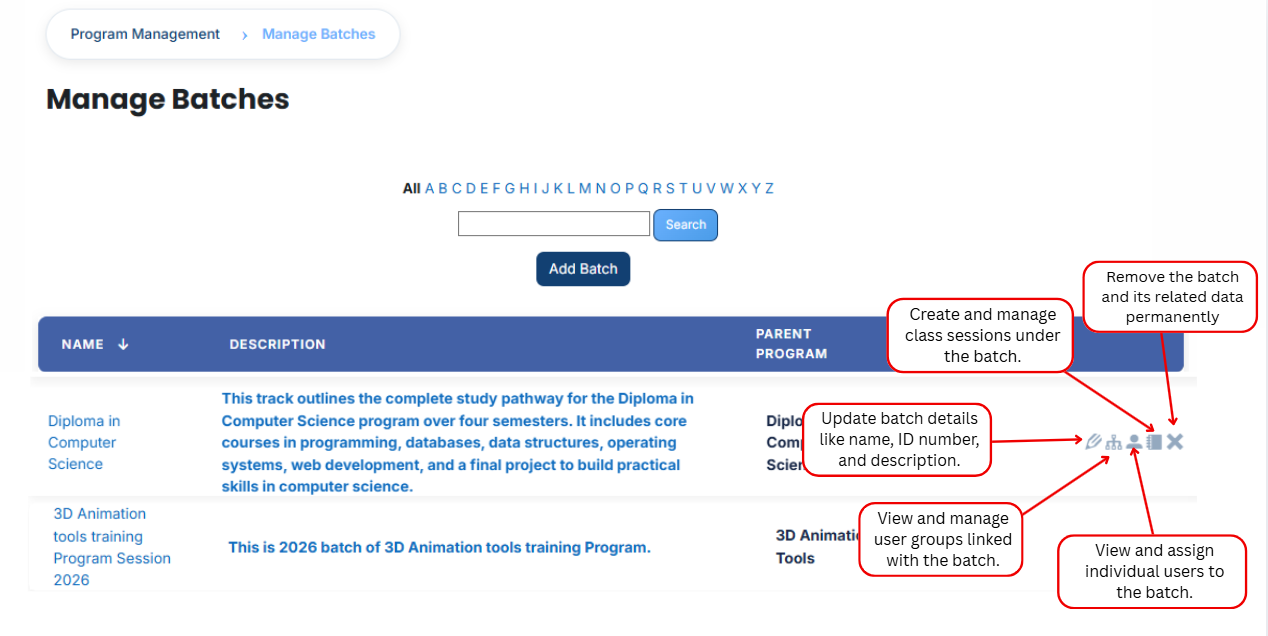
The batch will be **created successfully,** and the batch will be displayed in the batch List. An explanation of each icon is provided below.
[](https://wiki.paktaleem.net/uploads/images/gallery/2026-07/gKOimage.png)
---
# How to Edit a Batch
To edit a course set, follow the steps below:
- Start from the **Dashboard** and open the **side drawer** menu. From there, go to **Programs** and select **Manage Batches.** A list of available batches will appear on the screen.
- Locate the **batches** you want to modify and **click** on the **edit icon** next to it. The batch details page will open in **edit mode.**
**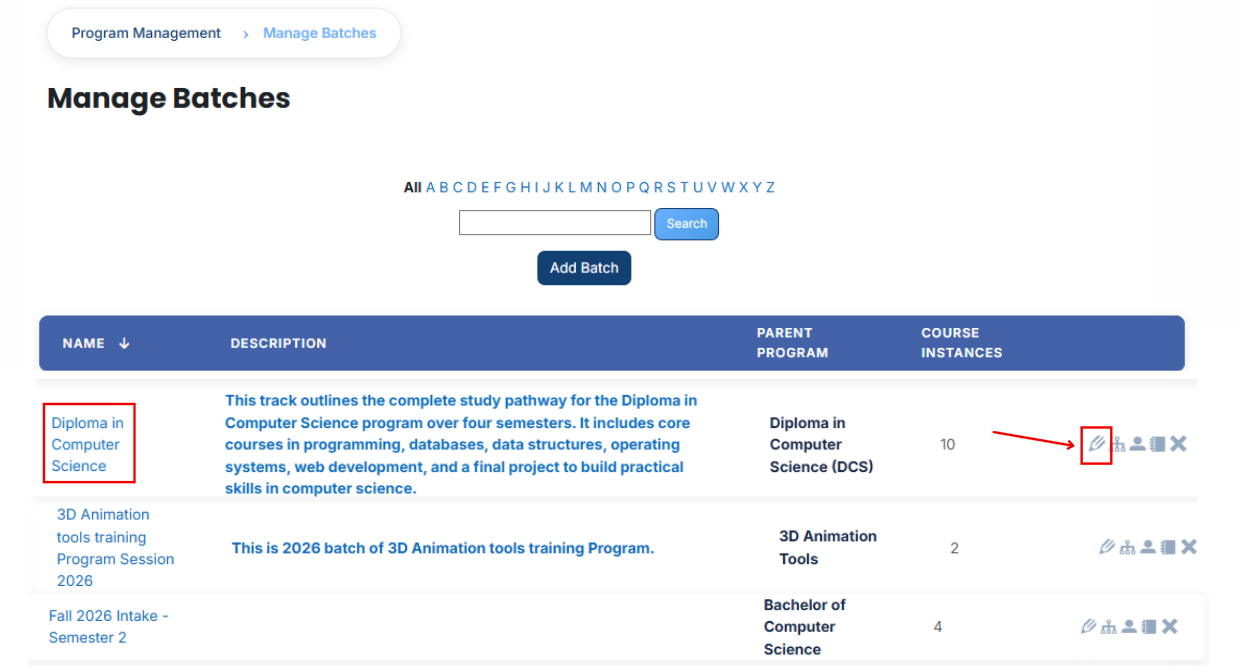**
- Make the necessary updates to the **batch's** information. After reviewing your changes, scroll down and click the **Save Changes** button to apply and **save** the updates.
---
# How to Assign Users Groups to a Batch
#### **User Groups:**
A user group is a group of users combined for easier management. Instead of assigning users individually, administrators can assign and manage multiple users as a single unit.
**Example:**
For example, a university may create a user group containing 20 users. By assigning the user group to a batch, all users in the set are associated with the batch at once, saving time and reducing manual effort.
---
### **Steps to Assign User Groups to a Batch:**
- From the Dashboard, open the side drawer menu and navigate to Programs > Manage batches. A list of available batches will be displayed.
- Locate the batch to which you want to assign a user group and click the user group icon.
[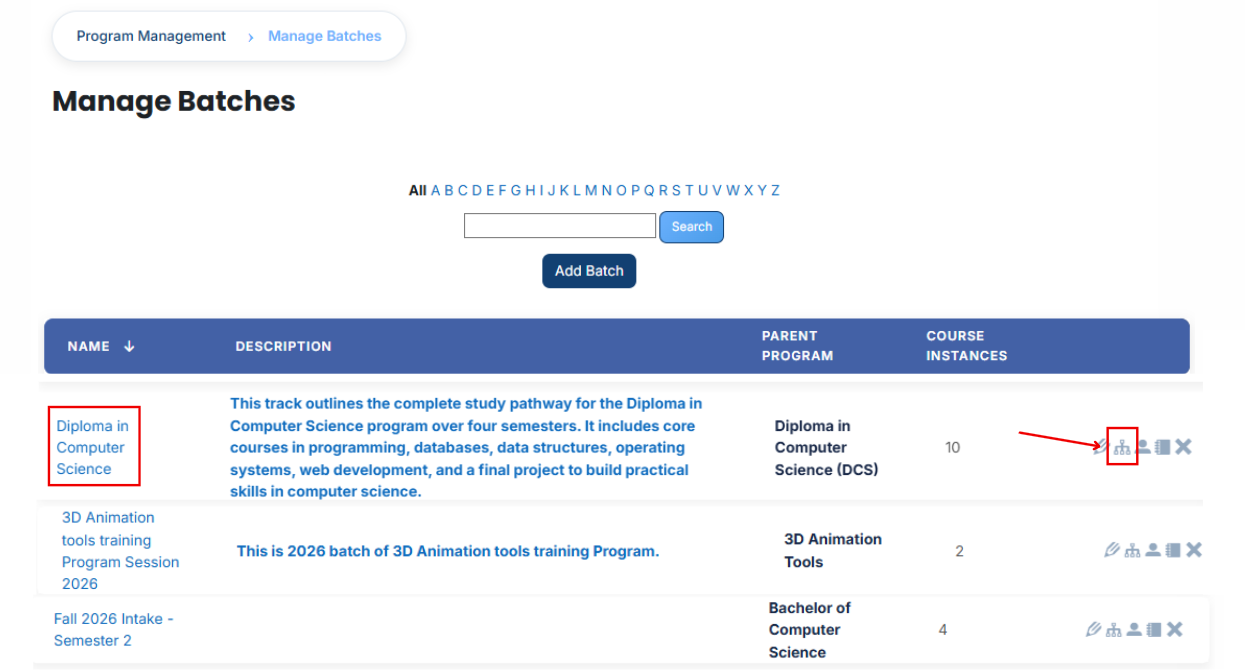](https://wiki.paktaleem.net/uploads/images/gallery/2026-07/V8Ximage.png)
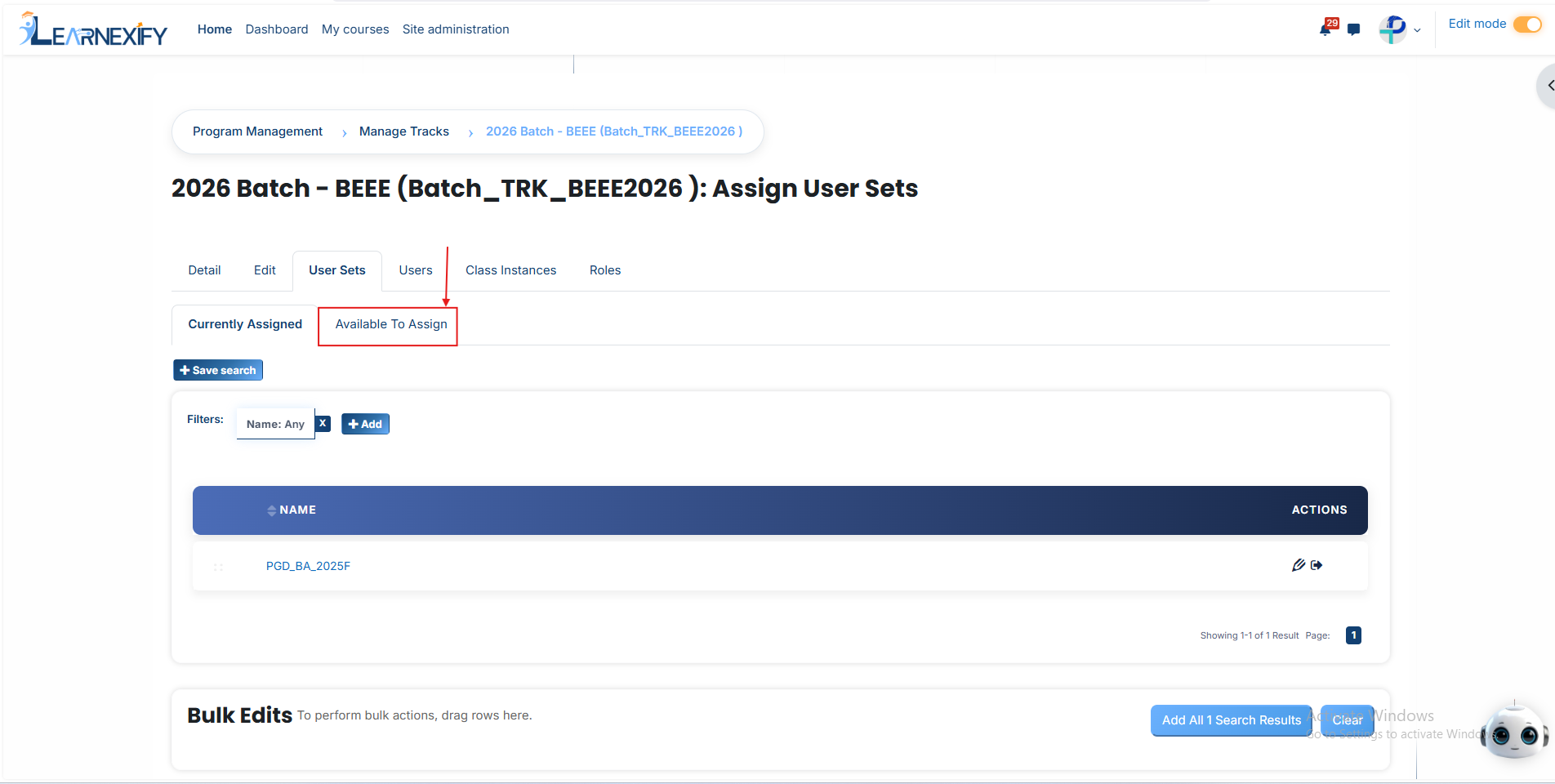
- The batch **user group** page will **open**.
- In this section, you can view the user groups currently assigned to the batch. To assign **additional** user groups, click the **Available to Assign button.**
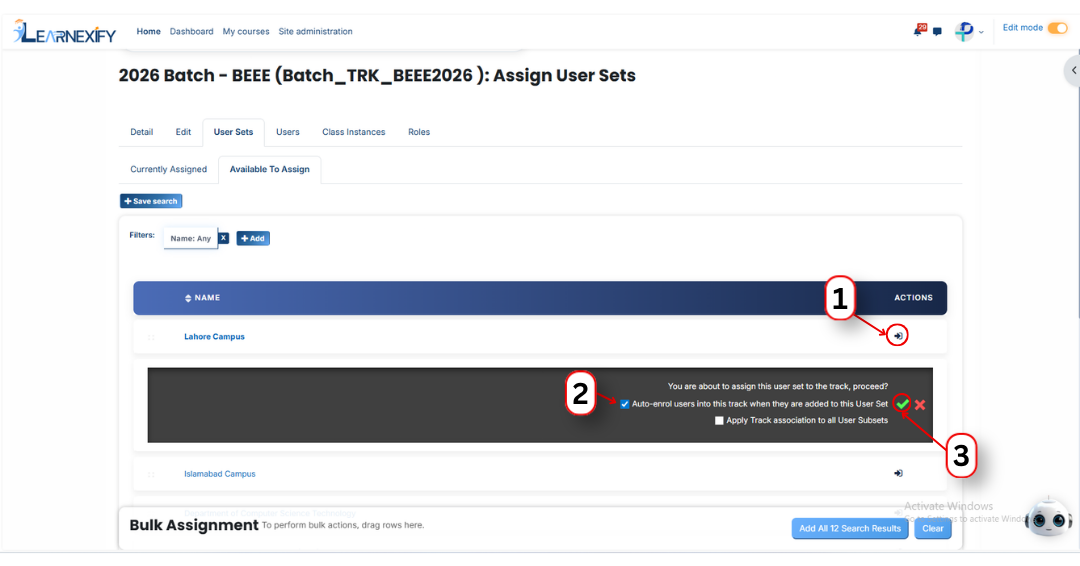
- A list of available user groups will appear. Select the **user group** you want to **assign.**
- Click the **arrow icon** to move the user group to the assignment area.
- You can then **choose** from the **following options:**
**1. Auto-enroll users into this batch when they are added to this user group** Enable this option to automatically enroll users in the batch whenever they are added to the selected user group. This eliminates the need for manual enrollment and provides immediate access to the batch.
**2. Apply batch association to all User subsets** Enable this option to apply the batch to all User Subsets within the selected user group. This ensures that users in related subsets are also assigned to the batch automatically.
- After selecting the required options, click the **green tick (✔)** to confirm the assignment.
- Next, click on the **Currently Assigned button** to view all user groups that have been **successfully assigned** to the batch.
### **Assign user groups Using Filters**
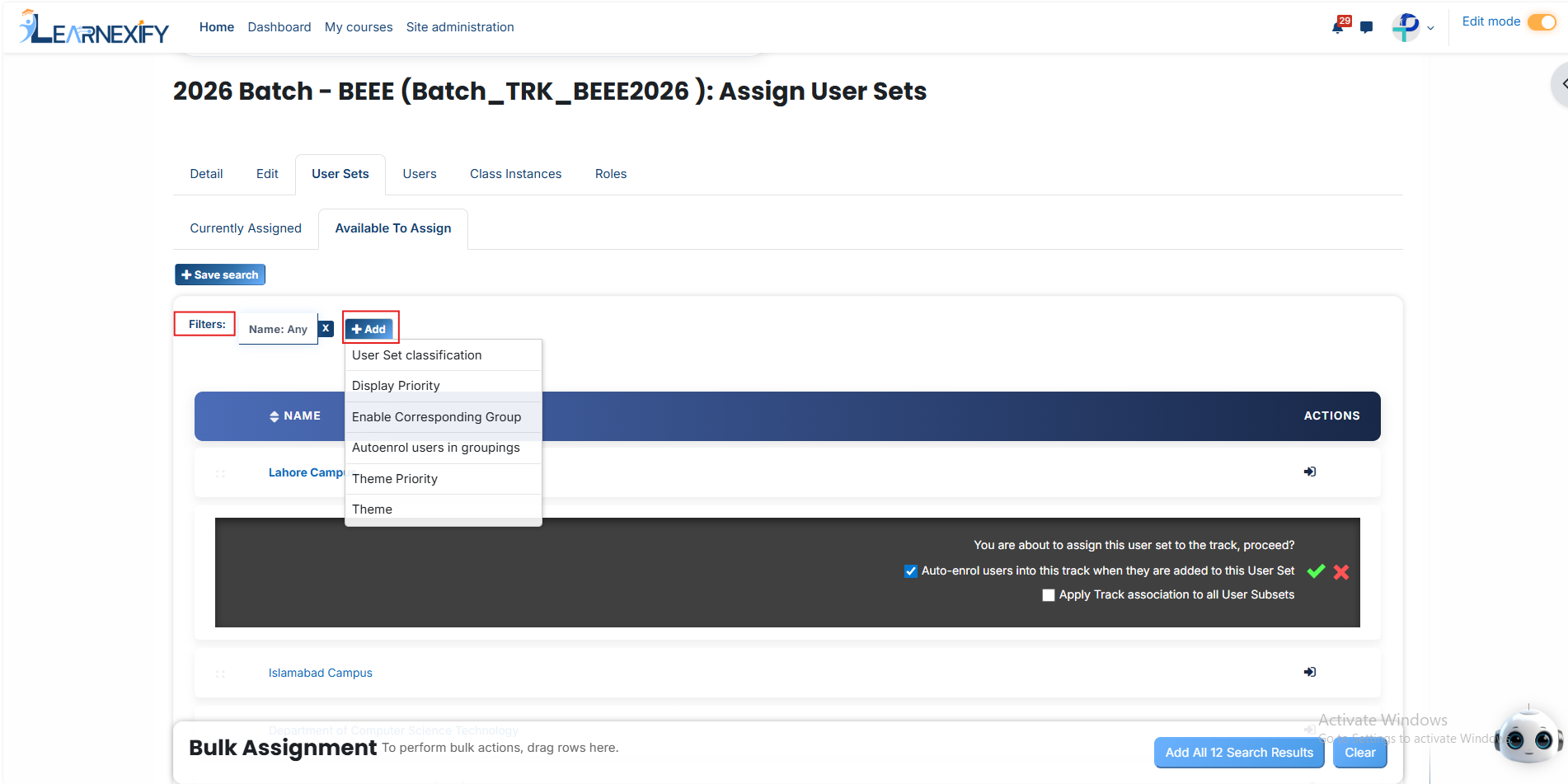
If the required user group is not visible in the **Available to Assign list**, you can use filters to locate it.
Click the **Add button** to access the **available filter options.**
#### **1. User Set Classification**
Use this filter to search for user groups based on their classification. Enter a value to display matching user groups only.
#### **2. Display Priority**
Use this filter to locate user groups according to their assigned priority level.
#### **3. Enable Corresponding Group**
This filter displays user groups that are associated with a specific group.
#### **4. Auto Enroll User in Grouping**
Use this option to find user groups configured for automatic user enrollment after assignment.
#### **5. Theme Priority**
Use this filter to search for user groups based on their theme priority.
#### **6. Theme**
Use this filter to locate user groups associated with a specific theme.
Once the **required** user group appears in the list, click on the **arrow icon** and assign it using the **green tick (✔)**.
The assigned user group will then be displayed in the **Currently Assigned section.**
#### **
Bulk User Action:**
**Purpose:**
Use this feature to assign multiple User sets efficiently.
**Method 1:**
- Select those **user groups** you want to assign.
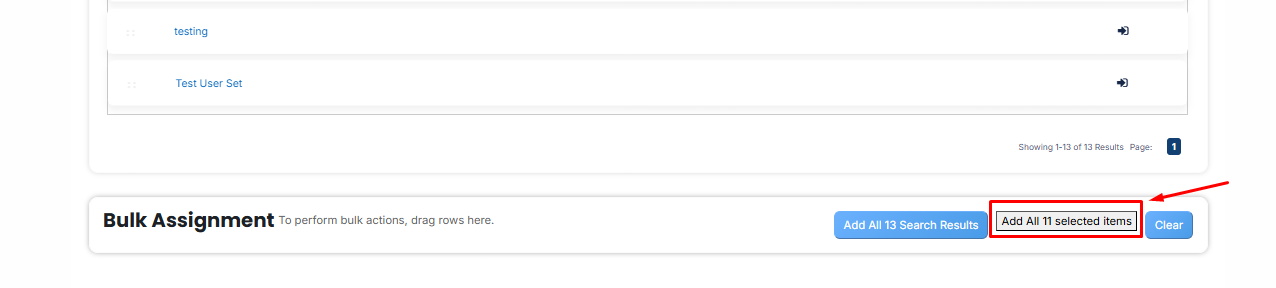
- After making your selections, **click** the **“Add All 11 Selected Items” button** to add the selected user groups.
The number displayed in the button (e.g., 11) represents the number of items currently selected and will change depending on how many items you select.
- Then click on the Assign button in the Bulk Assignment Section to move the user groups to the assigned list.
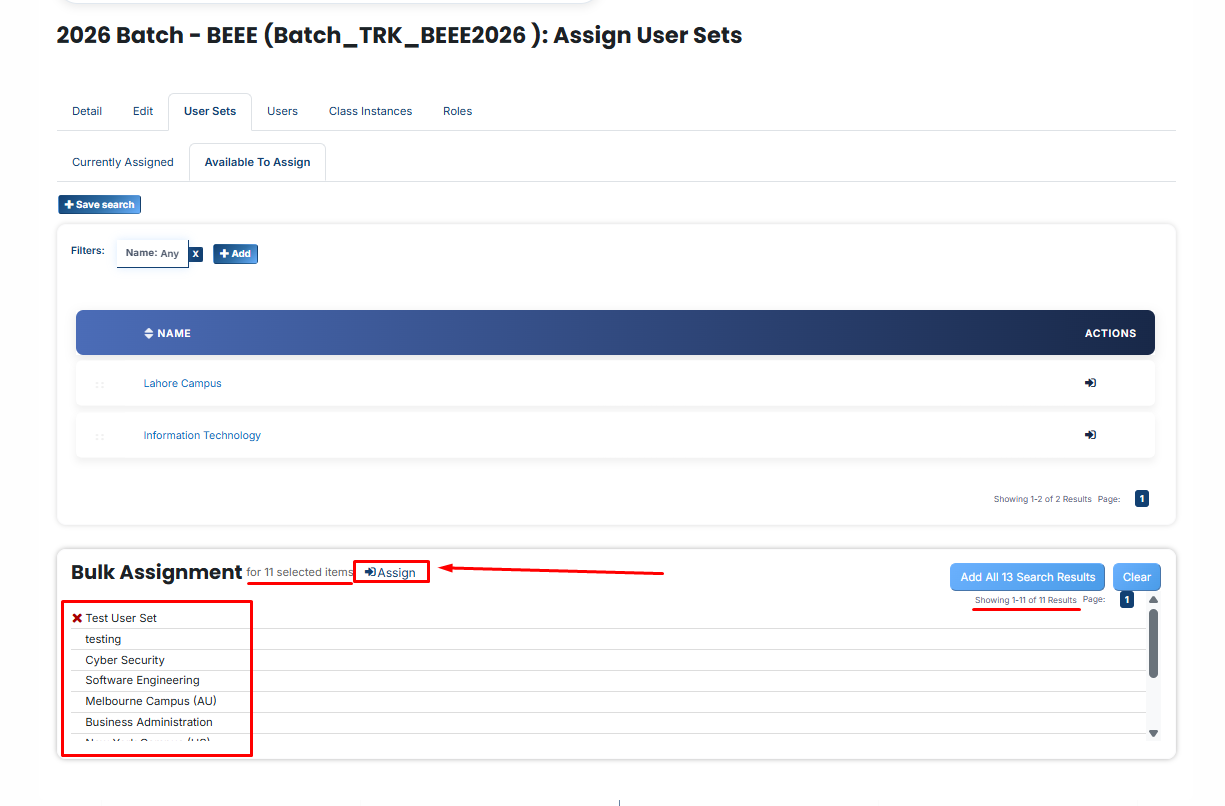
**Method 2:**
- Click the **“Add All 13 Search Results” button** to add all user groups with a single click. The number displayed in the button (e.g., 13) may vary depending on the number of user groups available in the search results.
- If you want to clear everything, click the **Clear button.**

---
# How to Assign Users to a Batch
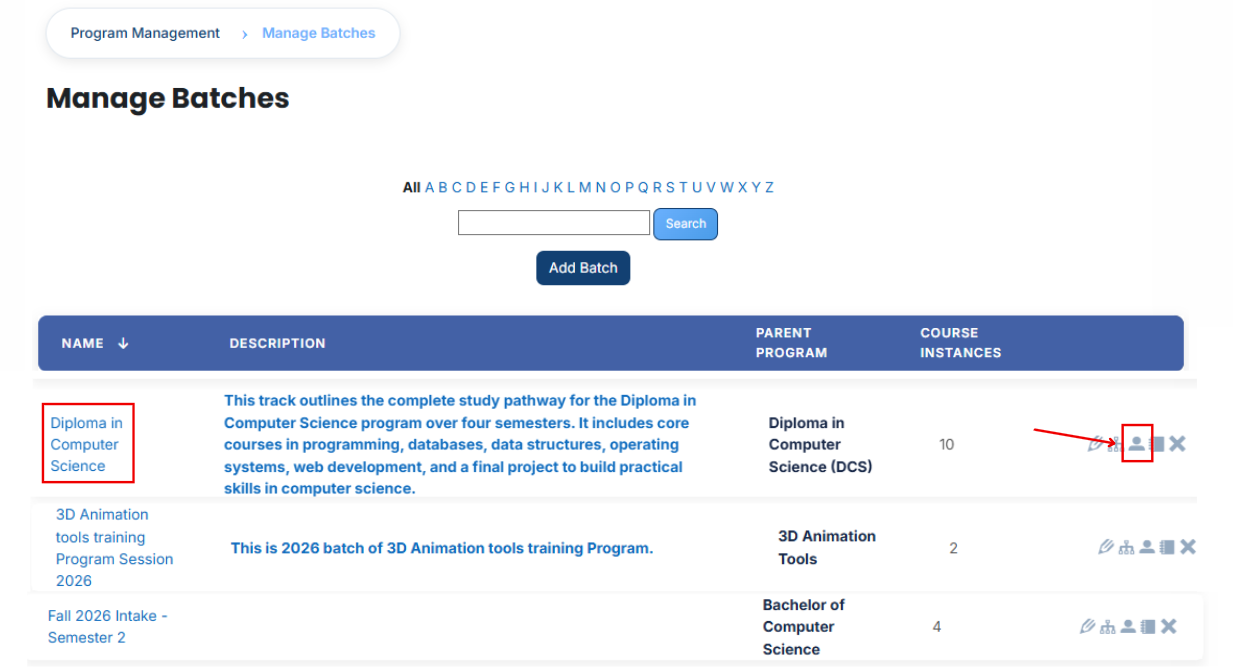
From the list of all **batches**, click the **User icon** for the batch to which you want to **assign users.**
[](https://wiki.paktaleem.net/uploads/images/gallery/2026-07/qvfimage.png)
- After opening the **Users tab,** you will see the **users currently assigned** to the batch. To assign additional users, **click** the **Available to Assign button.**
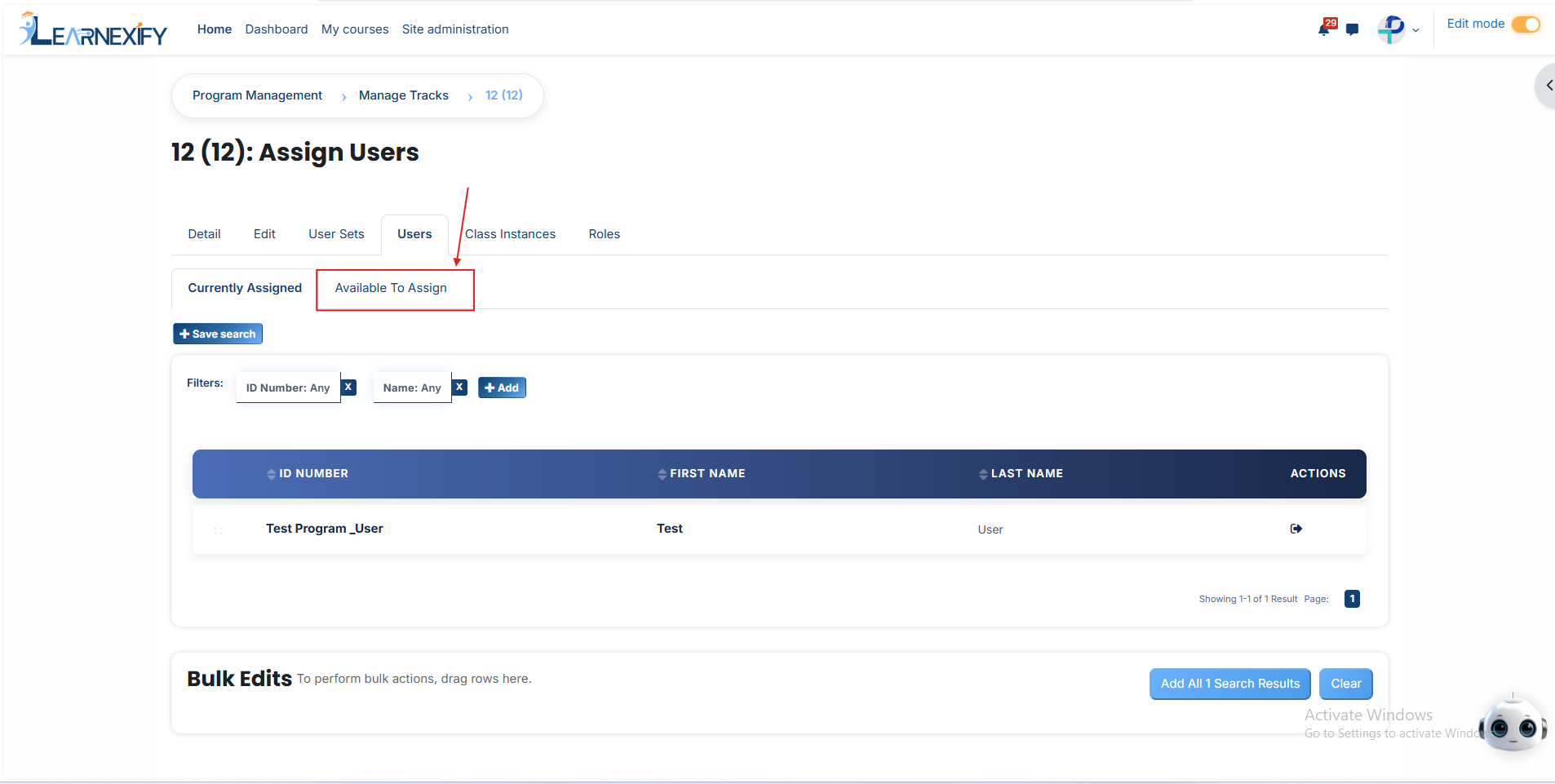
- A list of **available users** will be displayed. Select the user you want to **assign** and click the **arrow icon** to move the user to the assignment area.
- Click the **green tick (✔) to confirm** the assignment.
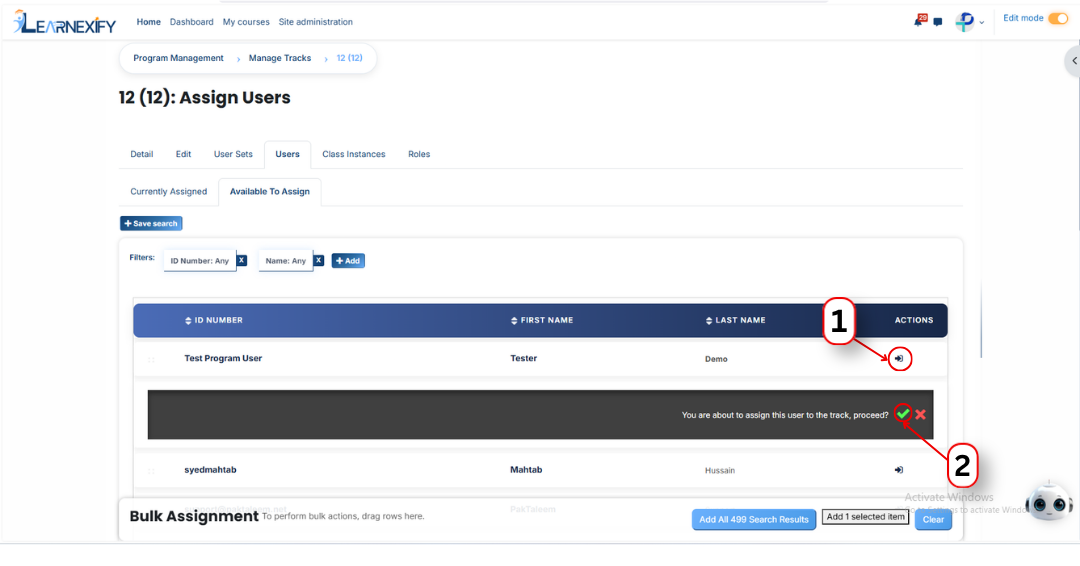
- Next, click on the **Currently Assigned button** to view all users who have been **successfully assigned** to the batch.
#### **Add a user if it is not available in the list**
If the user you want to assign is not visible in the list, follow these steps:
- Click the **Available to Assign button.**
- Click the **Add button.**
- A dropdown list of search fields will appear.
- Select the **appropriate field** (such as Email, Username, City/Town, or Country).
- Enter the user's information in the selected field.
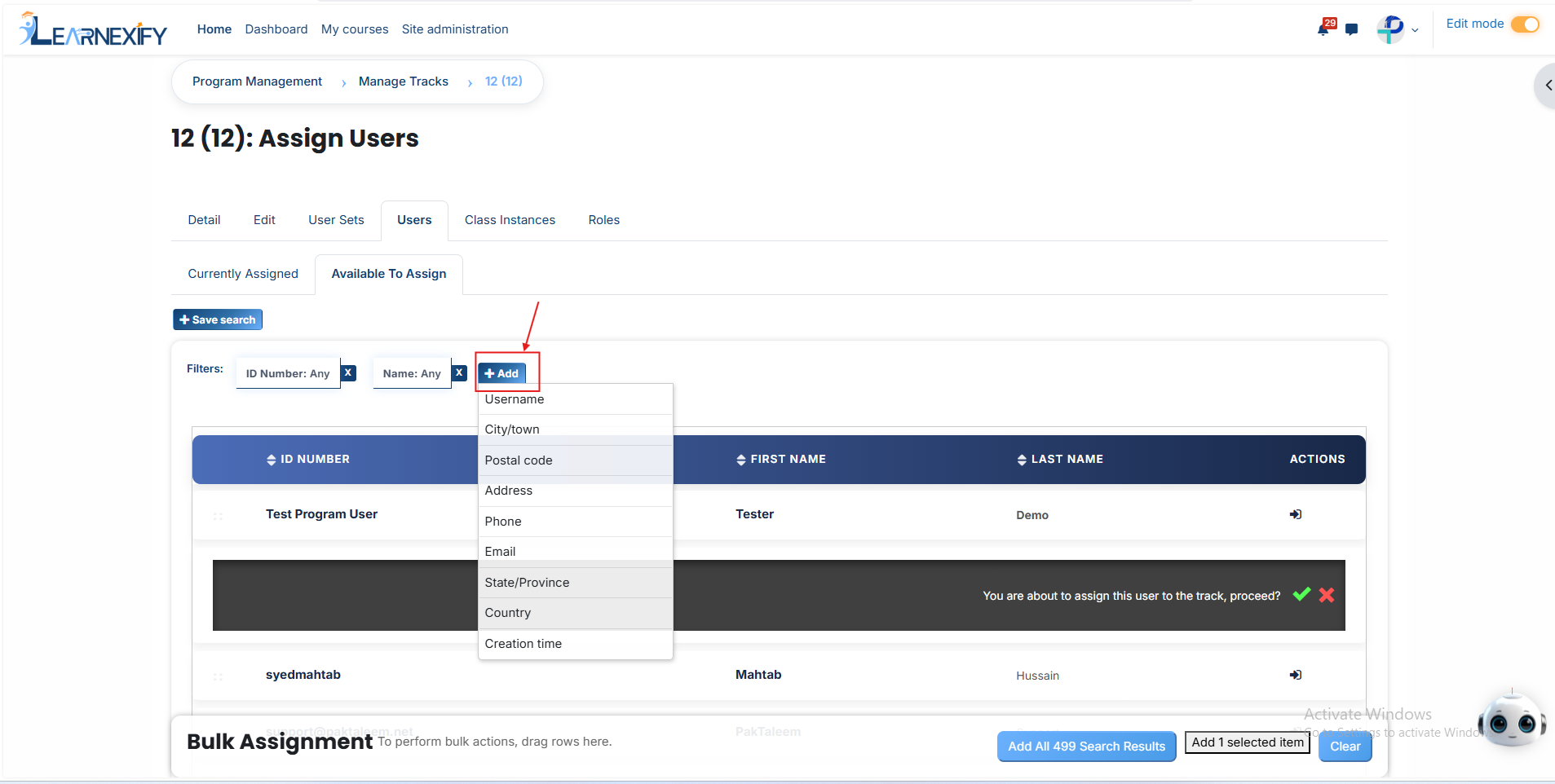
- The **matching user** will appear in the **list.** Select the user and **assign** them to the **batch.**
#### **Bulk User Action:**
**Purpose:** Use this feature to assign multiple Users efficiently.
**Method 1:**
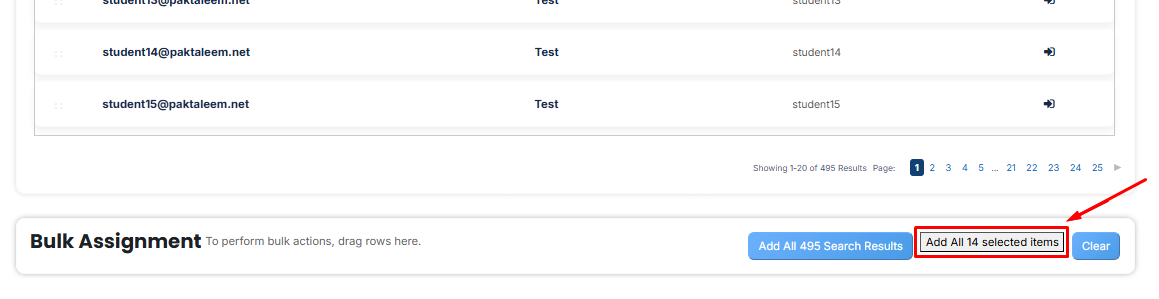
- Select those users you want to assign.
- After making your **selections, click** the **“Add All 14 Selected Items”** button to add the selected users.
The number **displayed** in the **button (e.g., 14) represents** the number of items currently selected and will change depending on how many items you select.
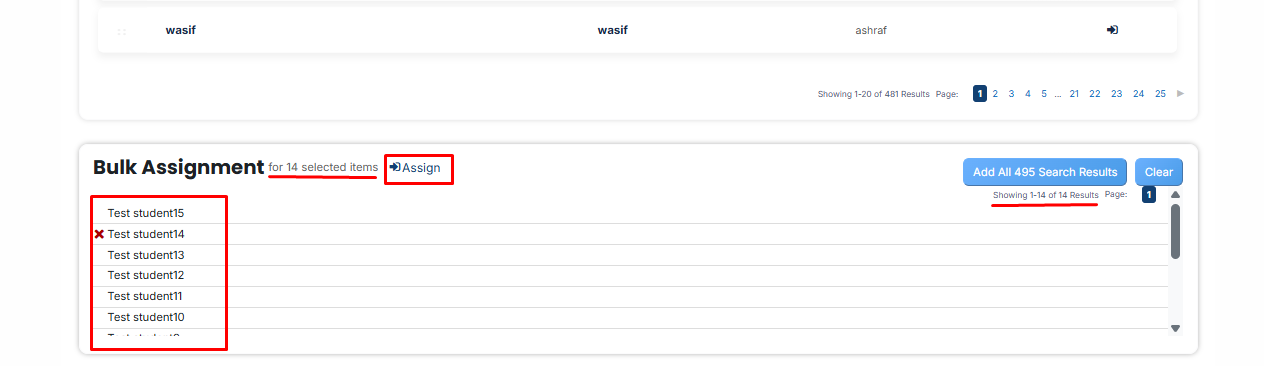
- Then click on the **Assign button** in the **Bulk Assignment Section** to move the **users** to the assigned list.
**Method 2:**
- Click the **“Add All 495 Search Results”** button to add all **users** with a single **click.** The number displayed in the **button (e.g., 495)** may vary **depending** on the number of **users available** in the search results.
- If you want to **clear everything,** click the **Clear button.**

---
# How to Assign Course Instances to a Batch
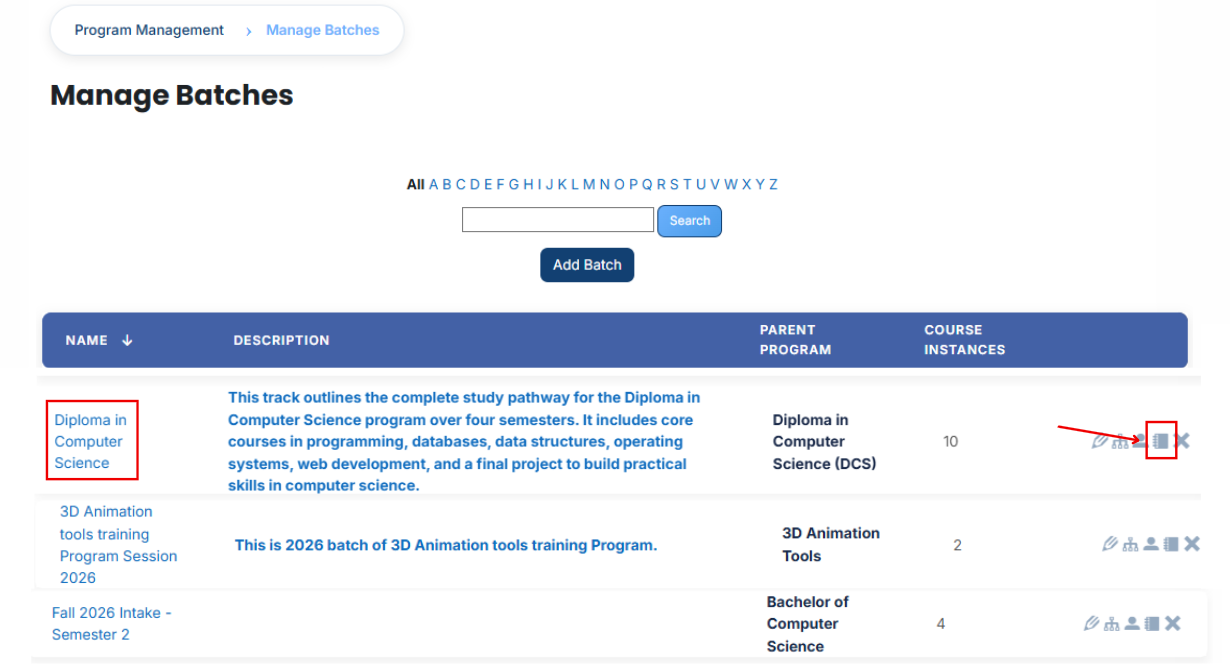
From the list of all batches, click the **course instance icon** for the batch to which you want to **assign course instances.**
[](https://wiki.paktaleem.net/uploads/images/gallery/2026-07/Oxgimage.png)
After opening the **course instances tab,** you will see the course instances **currently assigned** to the batch. To assign **additional** course instances, click the **Available to Assign button.**
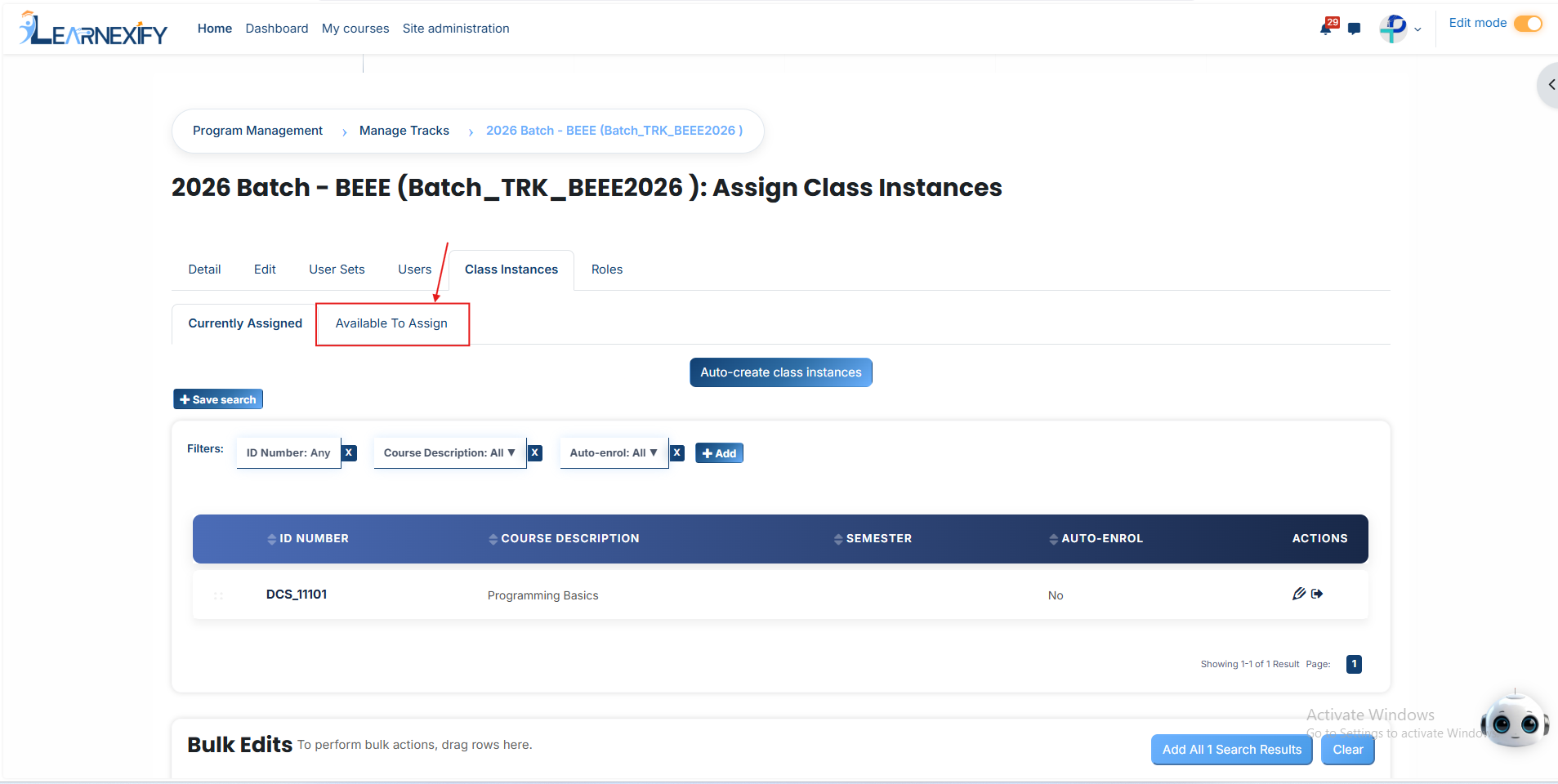
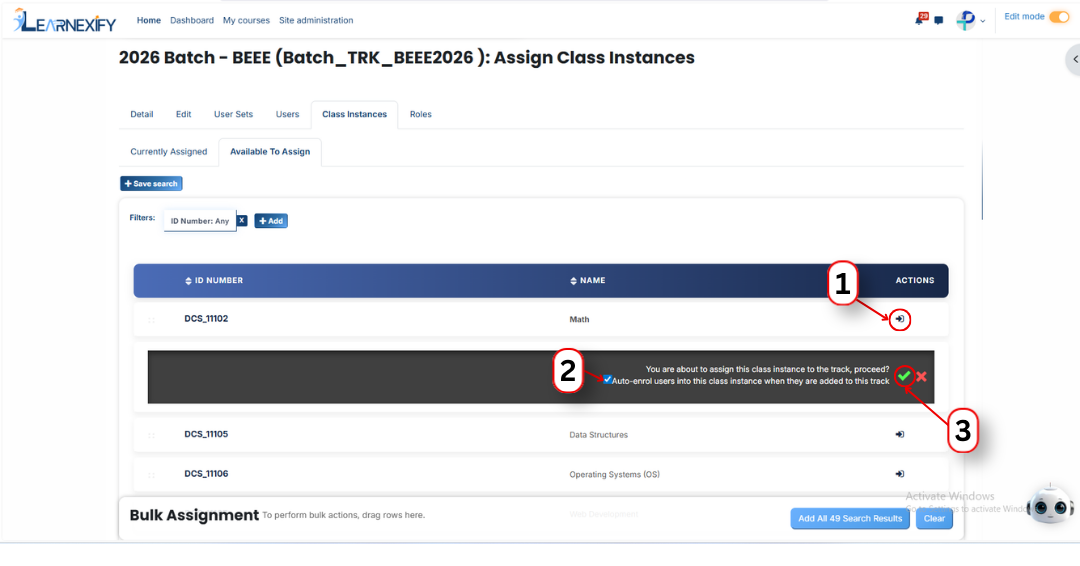
A list of **available course instances** will be displayed. Select the **course instance** you want to **assign.**
Click the **arrow icon** to move the course instance to the assignment area.
After clicking the arrow, the **following option** will appear:
**1. Auto-enroll users into this course instance when they are added to this batch** Enable this option to automatically enroll users into the course instance when they are added to the batch, ensuring users get access without manual enrollment and keeping batch and class enrollments synchronized.
After selecting the required course instance, click the **green tick (✔)** to confirm the assignment.
Next, click on the **Currently Assigned** button to view all **course instances** that have been **successfully assigned** to the batch.
#### **Assign course instances Using Filters:**
If the required course instance is **not visible** in the **list**, click the **Add button** to apply filters and search for it.
You can search using available fields such as:
- ID Number
- Start Date
- End Date
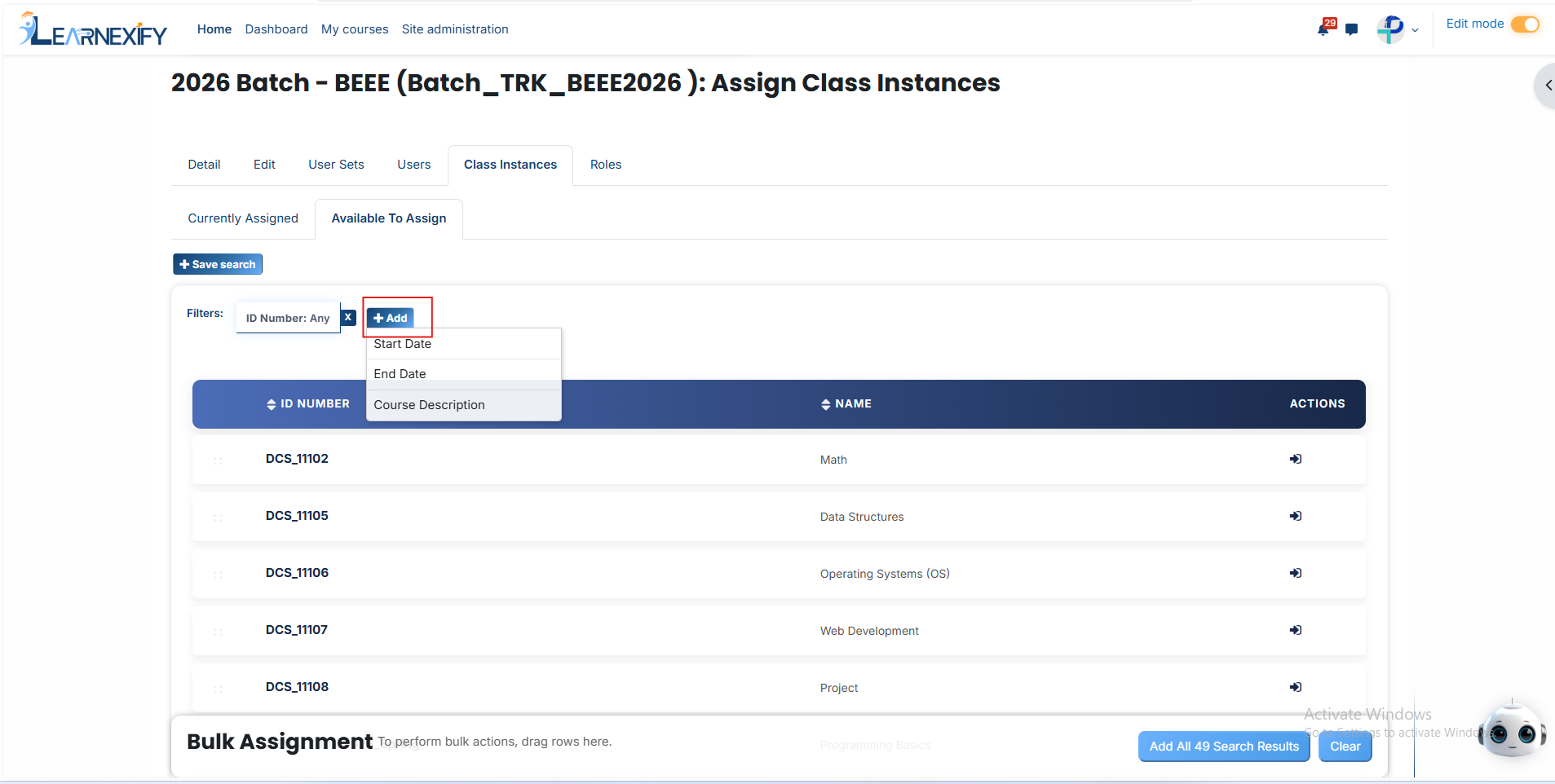
Once the required course instance appears, click the arrow icon and confirm the assignment using the **green tick** (✔).
The course instance will then **appear** in the **Currently Assigned** section.
#### **Bulk User Action:**
**Purpose:**
Use this feature to assign multiple course instances efficiently.
**Method 1:**
- Select those course instances you want to assign.
- After making your selections, click the “Add All 11 Selected Items” button to add the selected course instances.
The number displayed in the button (e.g., 11) represents the number of items currently selected and will change depending on how many items you select.
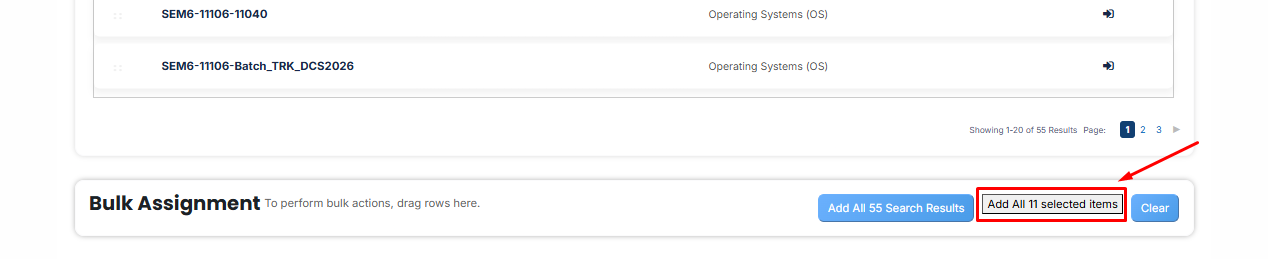
- Then click on the **Assign button** in the Bulk Assignment Section to move the **course instances** to the assigned list.
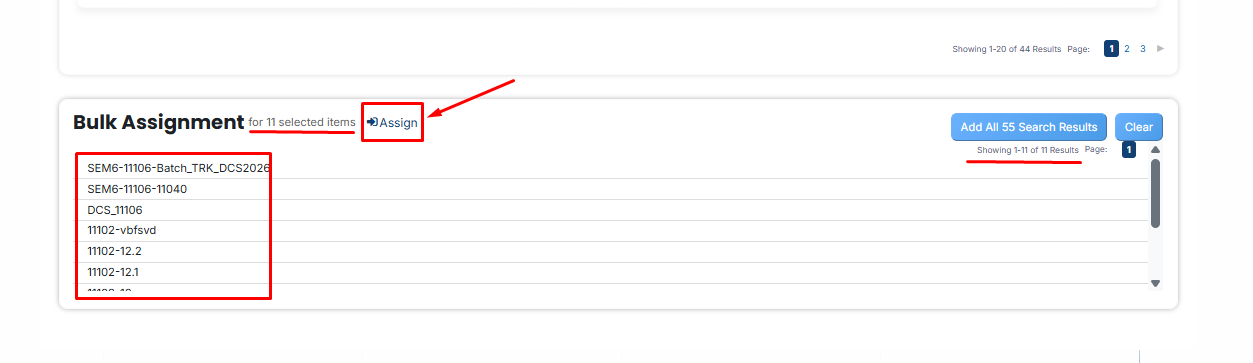
**Method 2:**
- Click the “Add All 55 Search Results” button to add all course instances with a single click. The number displayed in the button (e.g., 55) may vary depending on the number of course instances available in the search results.
- If you want to clear everything, click the Clear button.

---
# How to Assign Roles to a Batch
- Identify the specific batch you wish to modify from the main list of **batches.**
- Click that **batch name** and then click on the **Roles tab.**
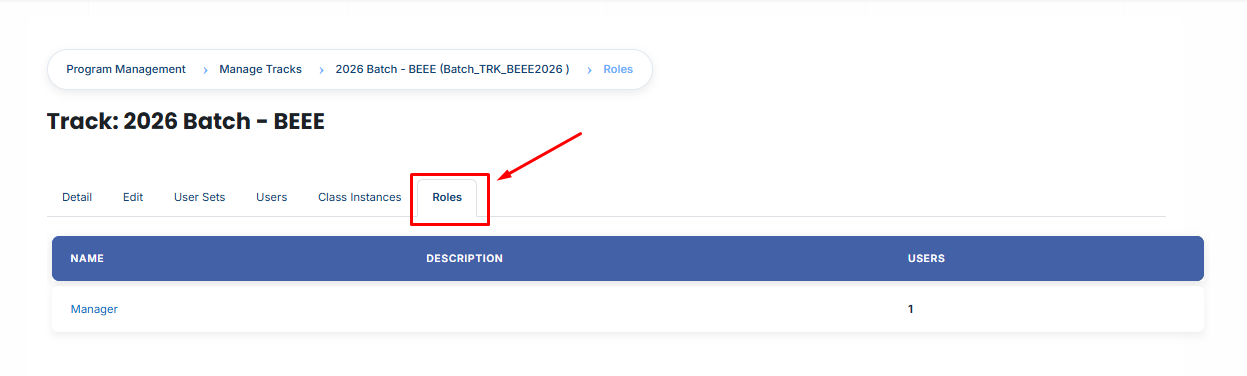
- Pick the **specific access level** you want to manage (for example: **Manager**).
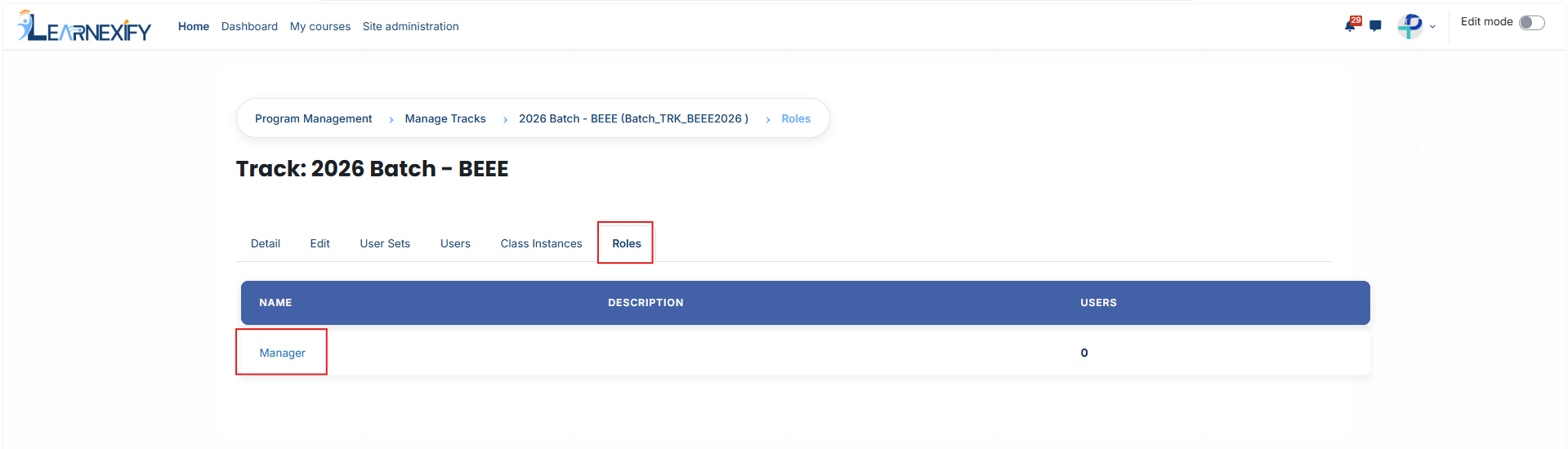
- The page will **display users** who are **already assigned** to this role; click the **Unassigned button** to see a list of other people you can add
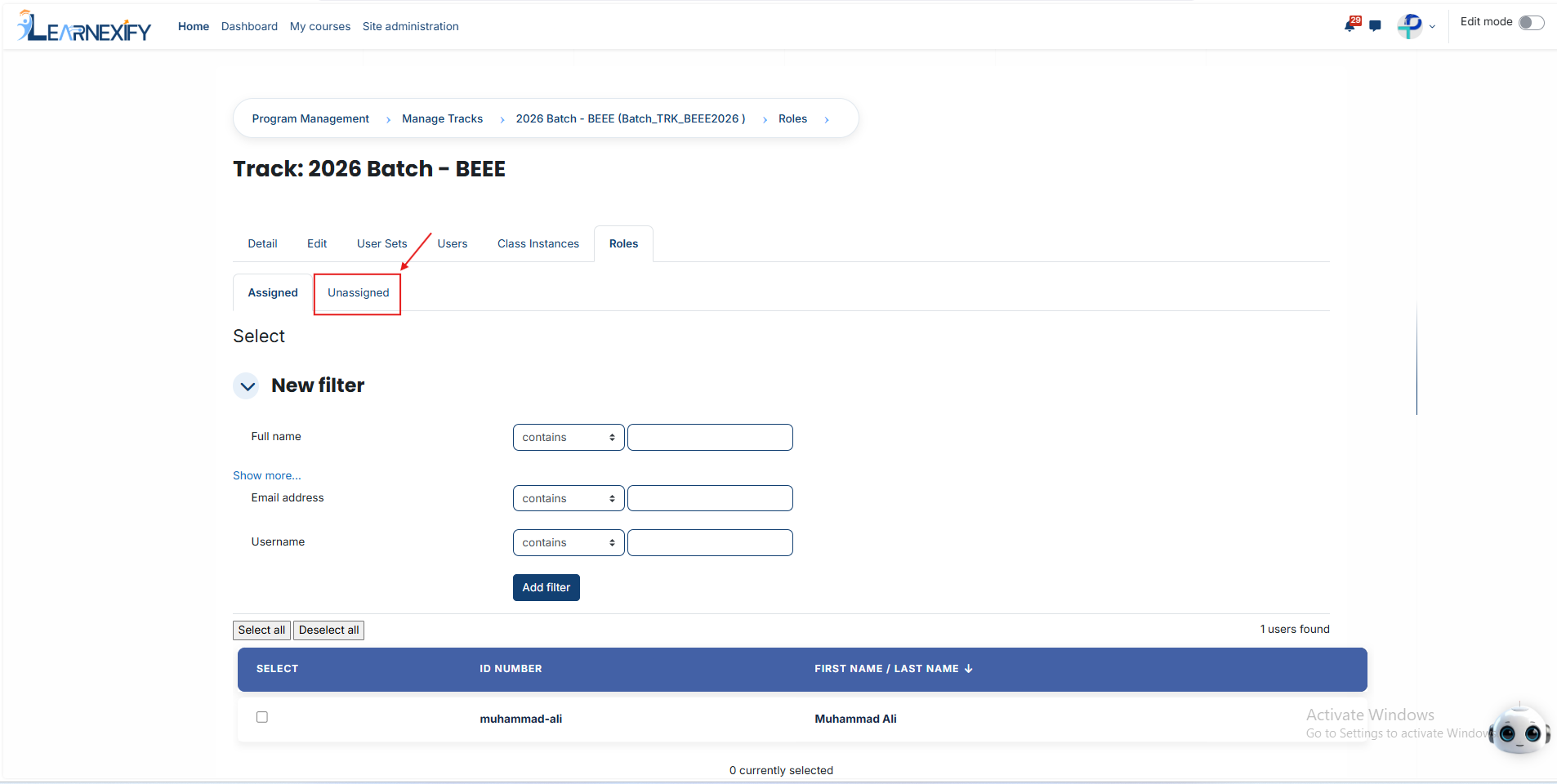
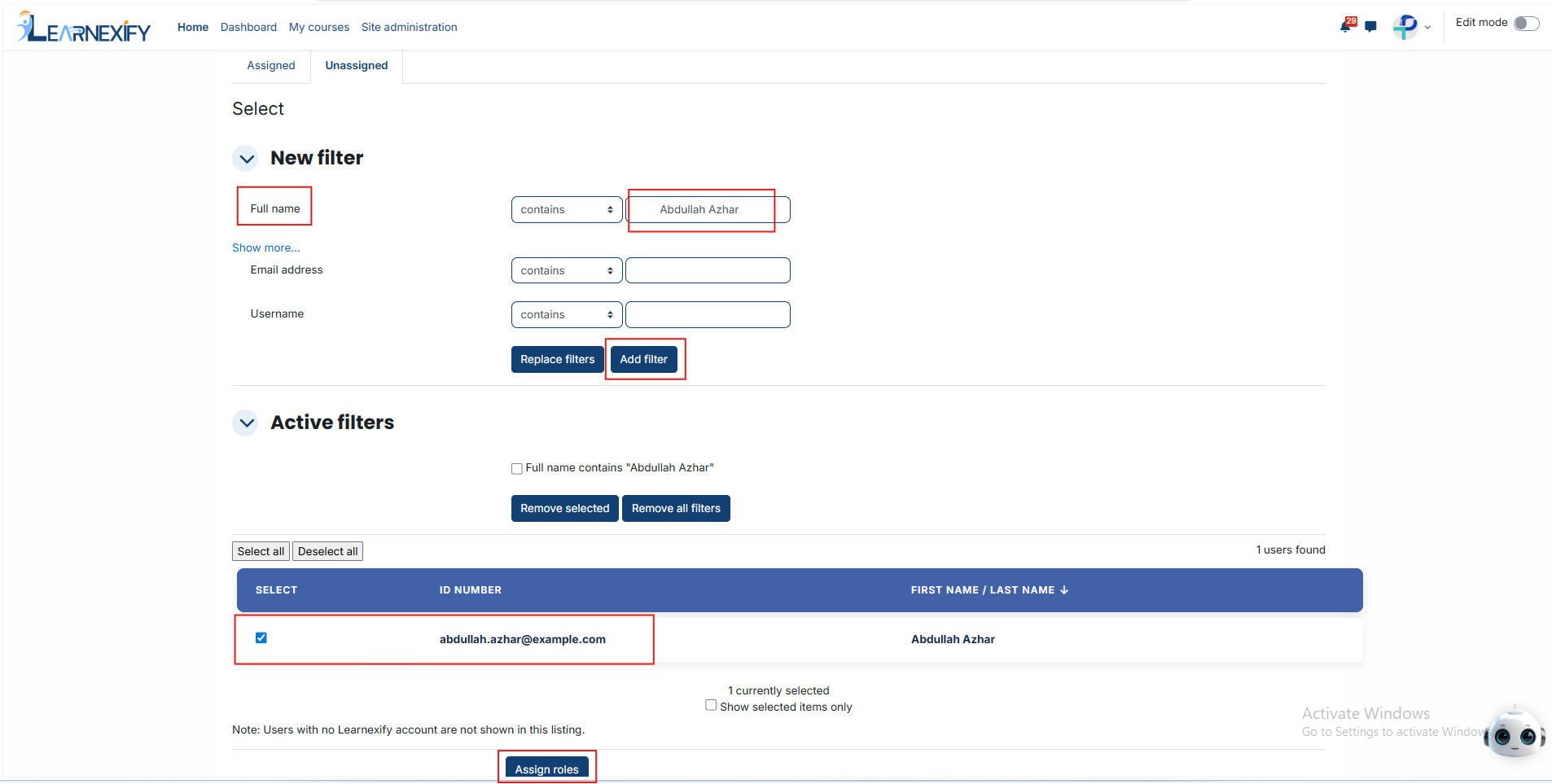
- Tick the **checkbox next** to each person you **want** to grant this role to.
- Move to the bottom of the page and click **Assign Roles** to **confirm** the update.
#### **If you need to find a specific person (Using Filters):**
- Use the Filter tool located at the top of the user list.
- Create a search rule using the person's Full Name, Username, or Email Address.
- Click the **Add Filter button** to see the matching users.
- Select the **correct individual** from the list and click **Assign Roles** to **complete** the process.
---