# Manage Programs
# Learnexify Program
Programs in Learnexify are used to organize Course Descriptions in different ways. In many cases, a collection of Course Descriptions leads to a certificate or another form of validation, indicating that a learner has achieved a certain level of mastery in the subjects included within the Program.
Additionally, Programs are used to define pre-requisite and co-requisite Course Descriptions, as well as to create batches of course instances that run according to a specific schedule or sequence.
### **How to Create a Programs:**
- After logging in, you will see the dashboard.
- Open the side drawer.
- Click on Programs and then select Manage Program.
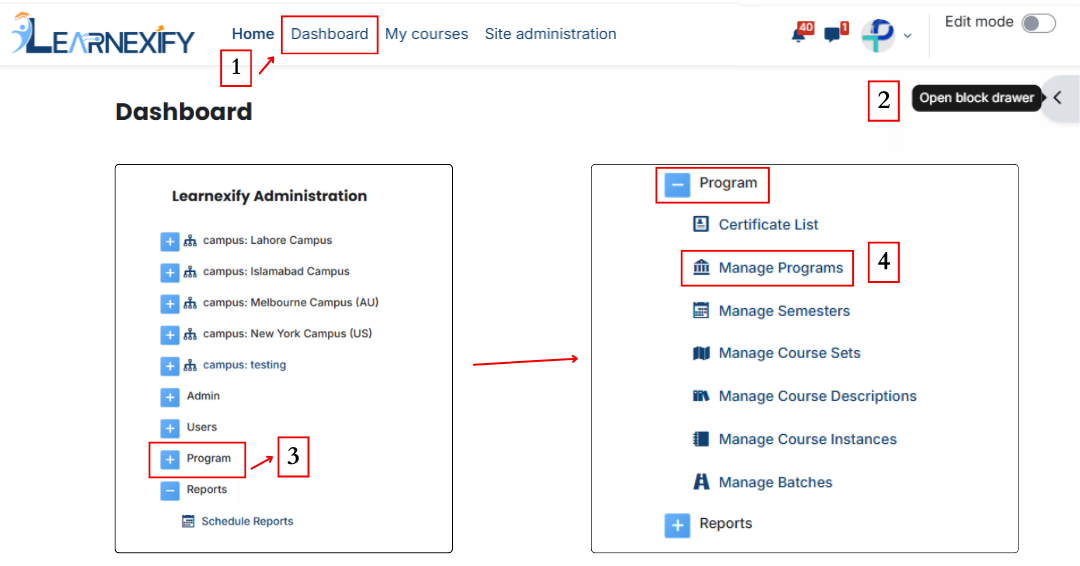
- To create a new program, click on the “Add Program” option.
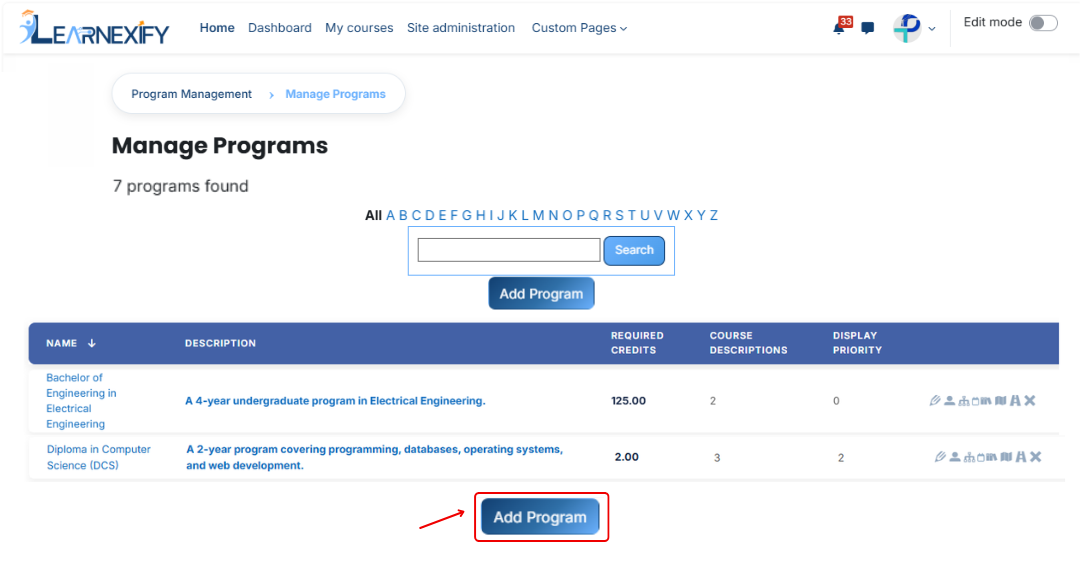
After clicking the '**Add Program'** button, a form will open **containing** the **following fields:**
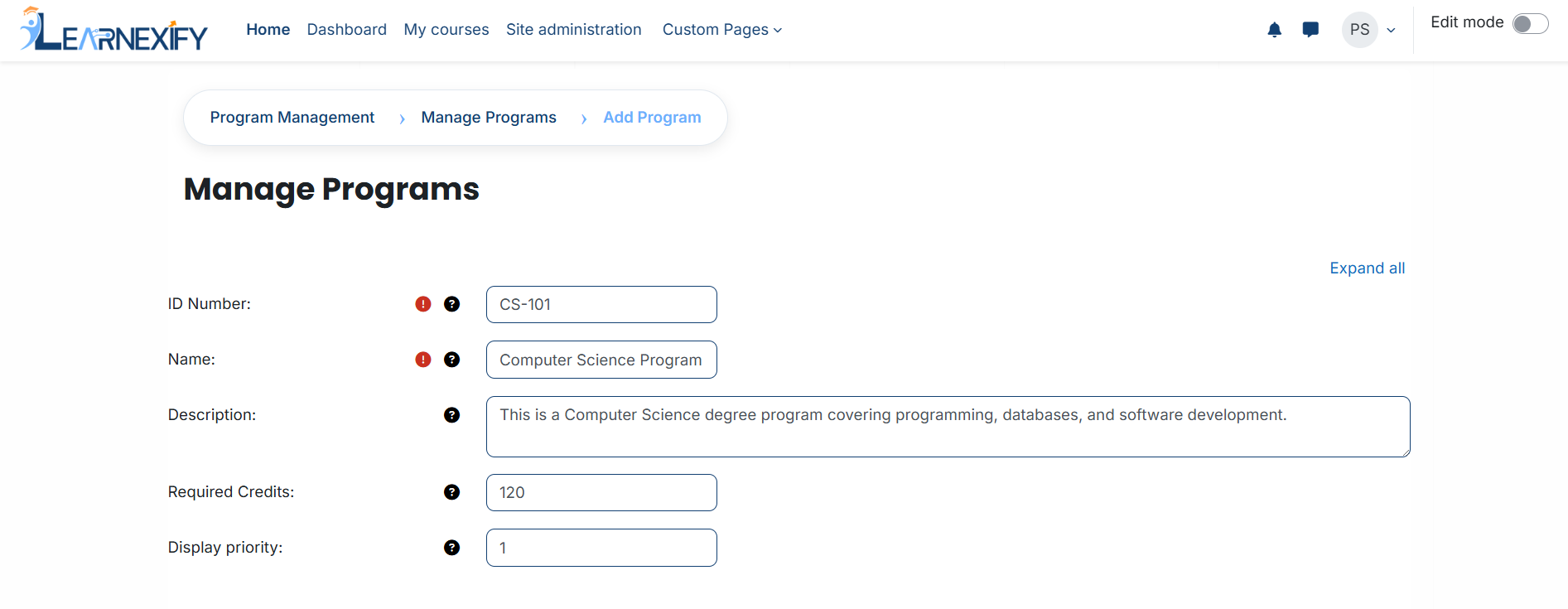
- **ID Number:** The ID Number is a unique code used to uniquely identify each program in the system.
- **Name:** The Name field defines the title of the program and helps users identify it easily.
- **Description:** The Description provides an overview of the program and explains what students
will learn.
- **Required Credits:** Required Credits indicate the total number of credit hours needed to complete the program.
- **Display Priority**
Display Priority defines the order of programs in the list. Higher numbers appear first.
[](https://wiki.paktaleem.net/uploads/images/gallery/2026-07/P5Dimage.png)
### **Time setting:**
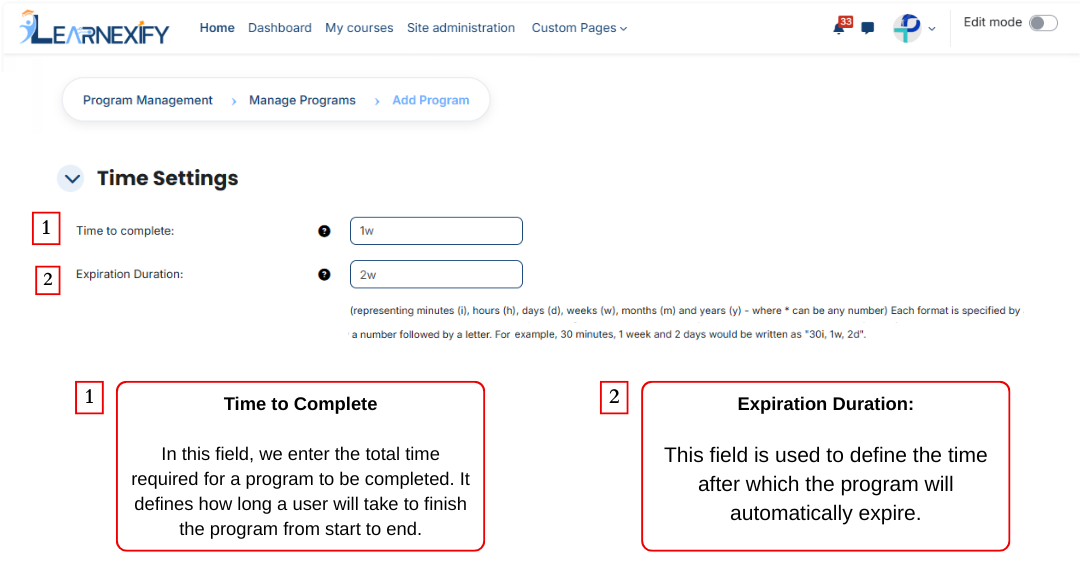
The next feature is Time Setting, and it is used to control the duration of a program. It defines how long a program will remain active and how much time a user gets to complete it. With this feature, the program is properly time-managed and works within a fixed schedule. These are the two fields of the Time Setting feature.
To specify a duration, use the following abbreviations:
- i = Minutes
- h = Hours
- d = Days
- w = Weeks
- m = Months
- y = Years
**Examples:** 2y (2 years) or 1w 2d (1 week and 2 days).
### 
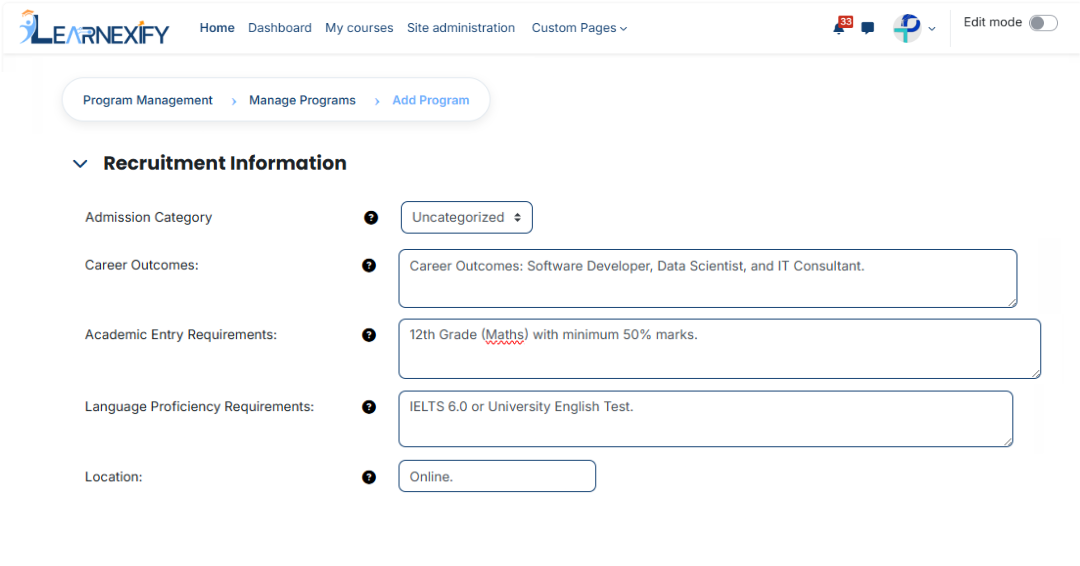
### **Recruitment Information:**
The Recruitment Information feature is used in a program to define and manage all important details related to admissions or enrollment. This feature is primarily developed for universities and other educational institutions, such as colleges. It helps students clearly understand the qualifications and eligibility requirements needed before joining a program.
It also explains what benefits or career outcomes a student will get after completing the program.
This feature contains **5** fields:
#### **1. Admission Category**
This field is used to define the admission category of the program.
**Purpose:**
- Defines the type of program displayed on the admission catalog page.
- Helps organize programs within the system for better management.
- Enables users to easily find relevant programs by browsing or expanding the appropriate category.
#### **2. Career Outcomes**
This field is used to inform students about the career opportunities they may get after completing the program.
**Purpose:**
- Guide students about outcomes after program completion
- Show future career opportunities
#### **3. Academic Entry Requirements**
This field is used to define the required educational qualification for admission.
**Purpose:**
- Set eligibility criteria
- Define required education level
#### **4. Language Proficiency Requirements**
This field is used to define the required language proficiency for students.
**Purpose:**
- Set required language level
- Improve learning understanding
#### **5. Location**
This field is used to define the location where the program is available.
**Purpose:**
- Show program location
- Define online or campus availability
### **Additional Program Details:**
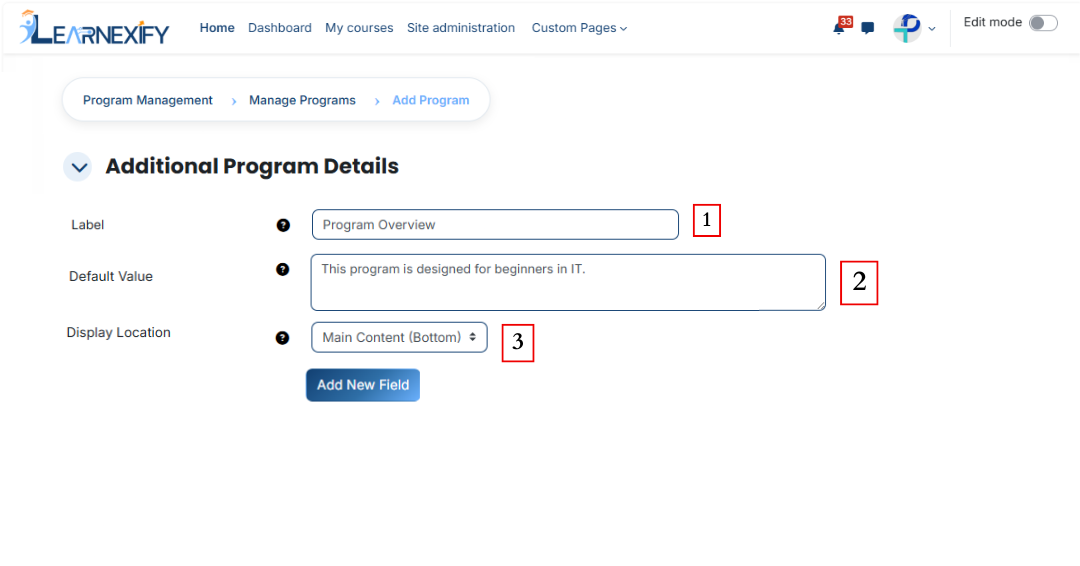
Additional Program Details feature is used to add extra information about a program apart from the main description. It also defines where this extra information will be displayed in the program interface so that users can easily view it in the relevant section of the program page. In this feature, you can also add new fields.
#### **1. Label**
This field is used to define the name or title of additional information. It helps identify what the added information is related to.
**Purpose:**
- To identify the field
- To define the title of the information
- To maintain clarity in the system
#### **2. Default Value**
This field is used to set a predefined value for the label, which is automatically displayed when an additional program detail is created.
**Purpose:**
- To provide pre-filled content in the field
- To make data entry easier
#### **3. Display Location**
This field is used to define where the additional information will be displayed within the program catlog page. It allows us to decide whether the extra information should appear above or below the main content, or in the sidebar at the top or bottom.
**Purpose:**
- To set the exact position of additional information on the page
- To organize the page layout properly
- To display information in the correct section for better user experience.
**Options:**
- Main Content (Top)
- Main Content (Bottom)
- Sidebar (Top)
- Sidebar (Bottom)
If you want to add a new field, you can add it by clicking the “**Add New Field**” button.
### **Payments:**
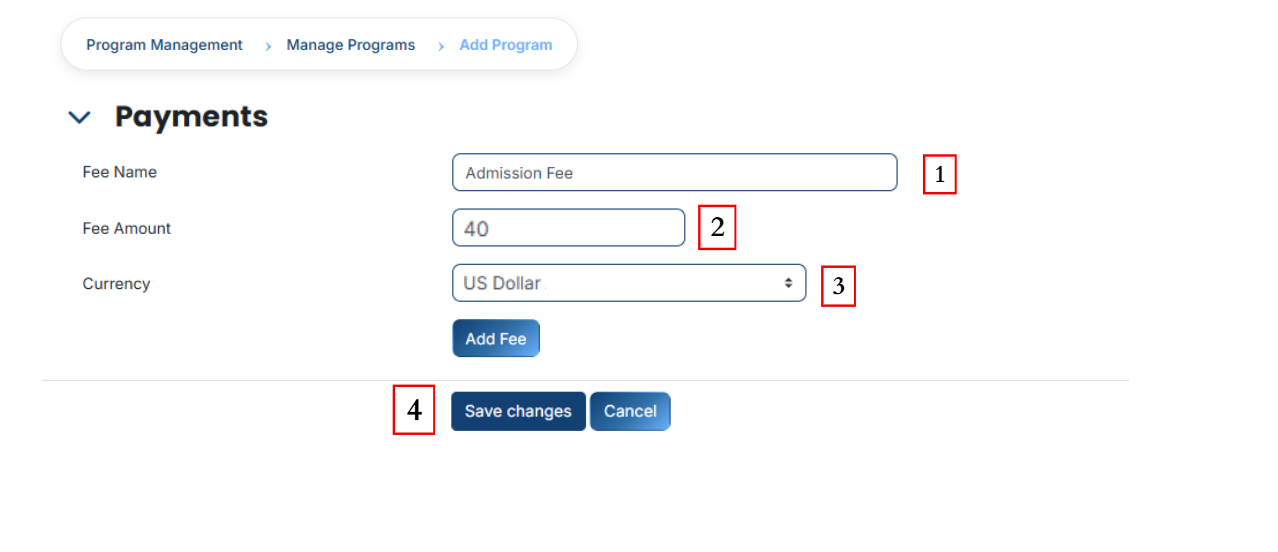
Payments feature is used to manage and configure admission fee-related settings. In this section, we define the admission fee that is charged from students for enrolling in a program.
#### **1. Fee Name**
Fee Name is used to define the title of the payment. It tells what type of fee is being charged from students.
**Purpose:**
- To make it clear to students what the fee is for
#### **2. Fee Amount**
This field is used to define the total admission fee amount that a student needs to pay.
**Purpose:**
- To set the exact fee value
- To help in payment and calculation
**Example:**
40
#### **3. Currency**
This field is used to define the currency in which the student will pay the fee.
**Purpose:**
- To specify the payment currency
- To ensure correct financial transactions
**Example:**
USD Dollar
[](https://wiki.paktaleem.net/uploads/images/gallery/2026-07/4vLimage.png)
- To complete this process, scroll down and click on the **Save Changes** button.
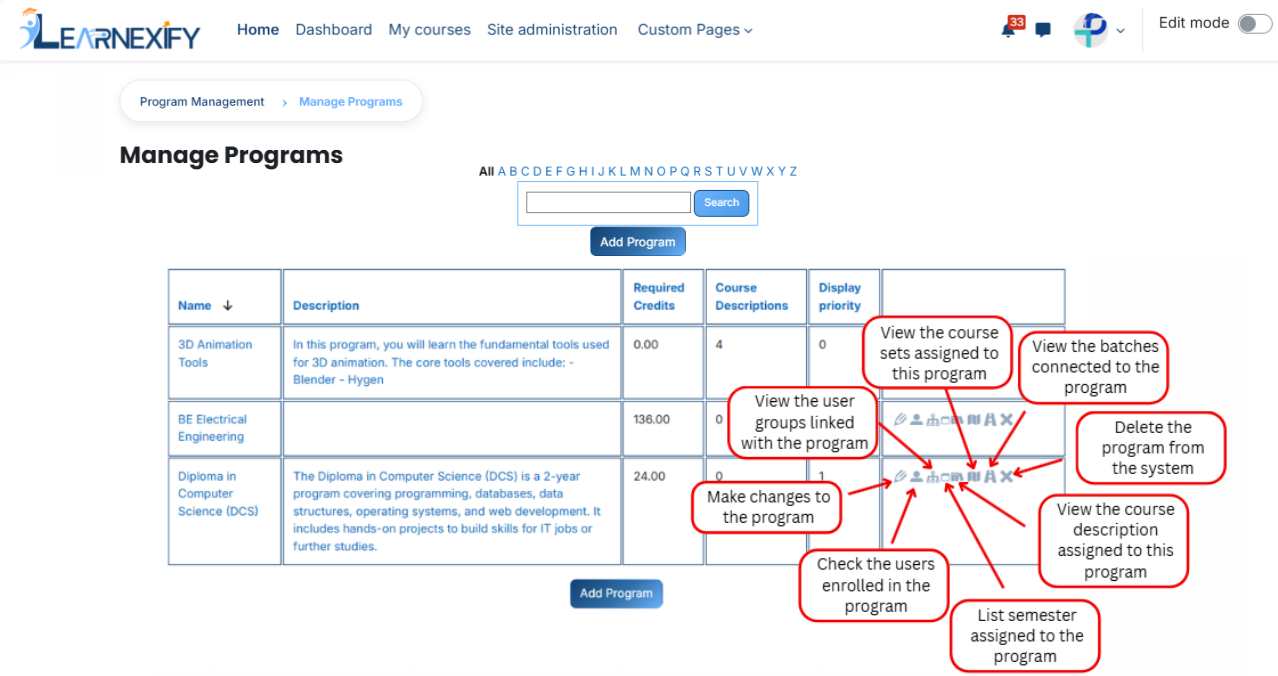
After clicking **'Save Changes'**, the program will be displayed in the **Program List**. An explanation of each **icon** is provided below.
# How to Edit a Program
To edit a **program**, follow these steps:
- To **edit** an **existing program,** navigate to the Dashboard and open the **Side Drawer Menu.** From there, click on **Programs** and select **Manage Programs.** Once the list of programs is displayed, locate the specific program you wish to **modify** and **click** on its **Edit icon.**
[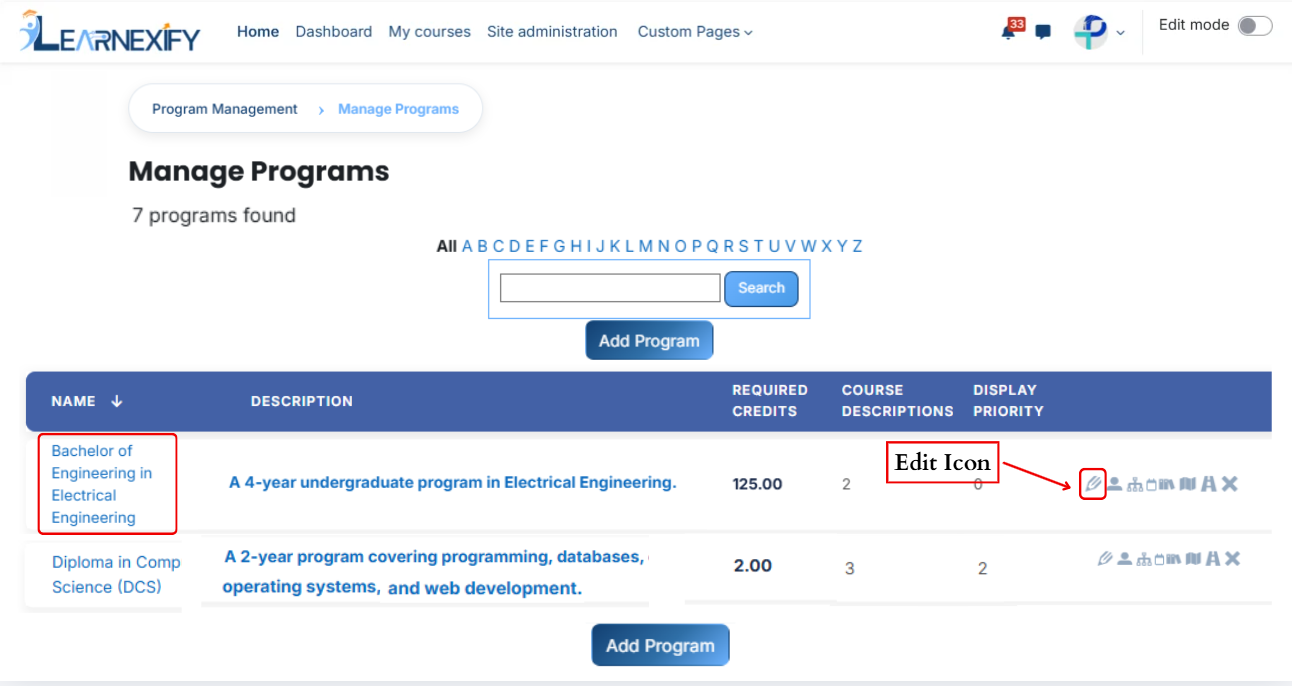](https://wiki.paktaleem.net/uploads/images/gallery/2026-07/Speimage.png)
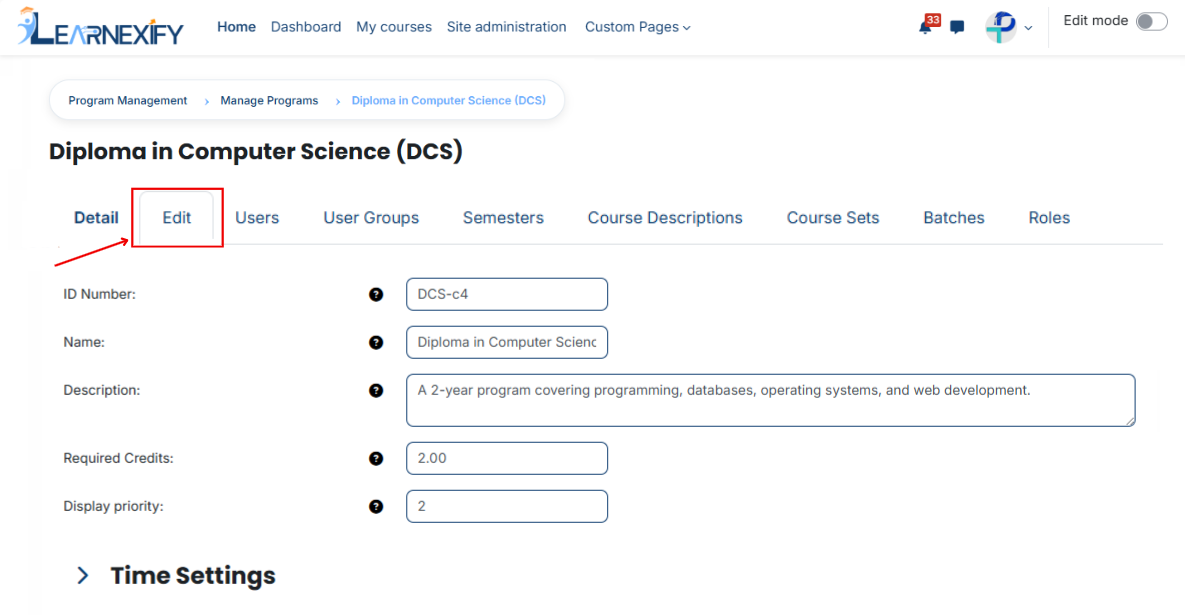
- The program details page will open in **editable mode**
[](https://wiki.paktaleem.net/uploads/images/gallery/2026-07/5Mvimage.png)
- Update the **required** **program details**
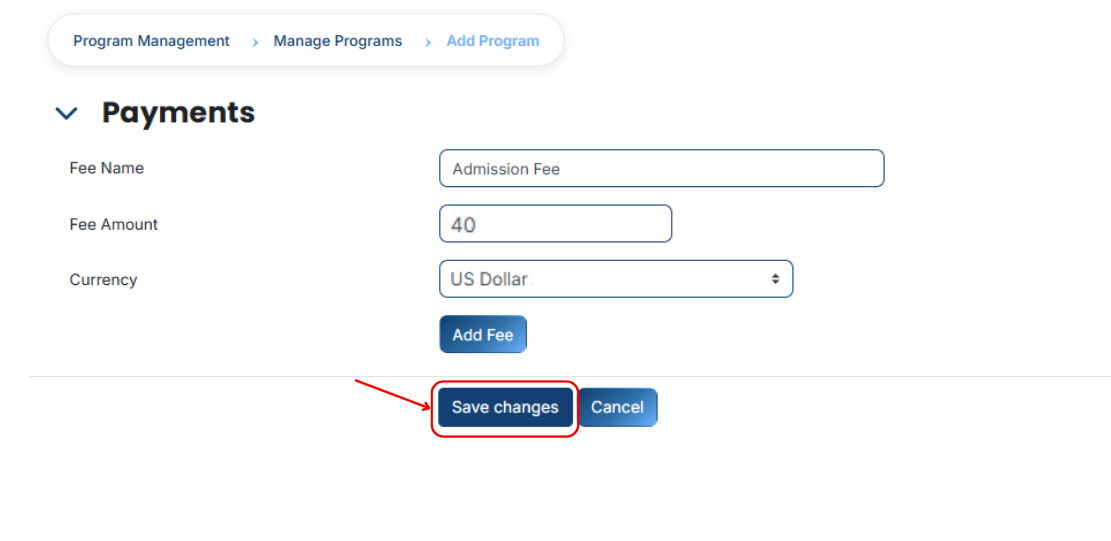
- Scroll down and **click** on the **Save Changes** button to apply updates
[](https://wiki.paktaleem.net/uploads/images/gallery/2026-07/WLTimage.png)
---
# How to Assign Users to a Program
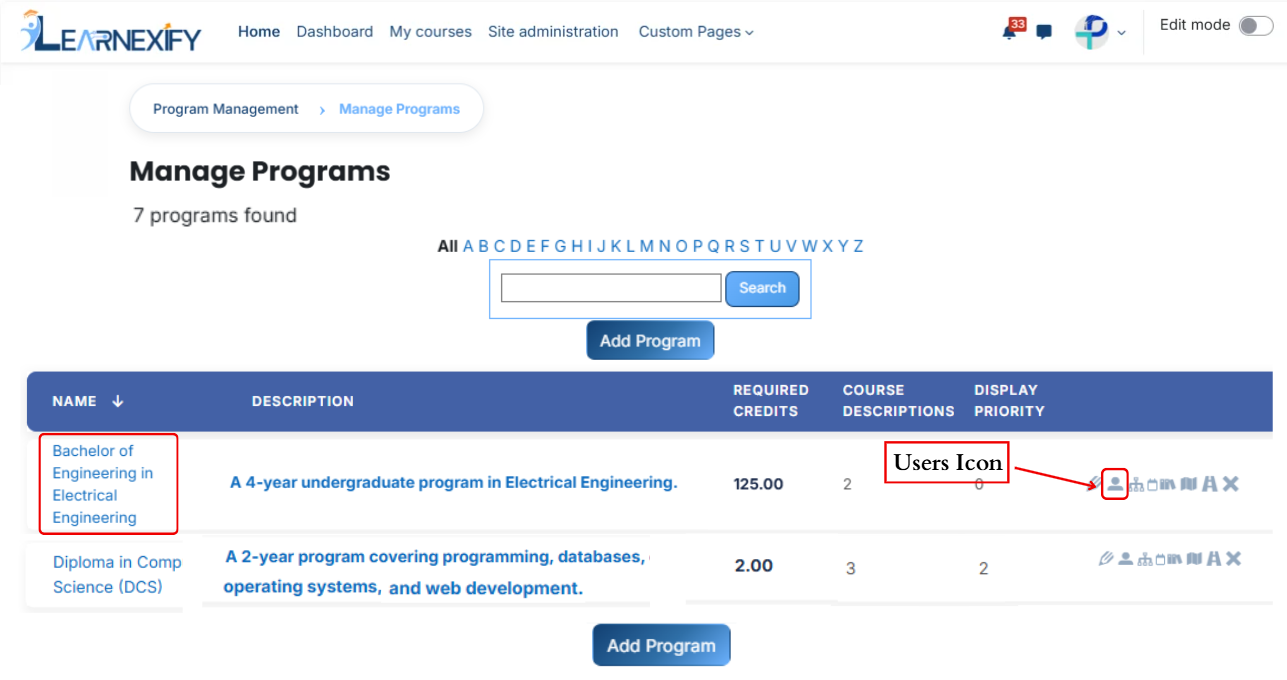
- From the Program List, select the **Users icon** for the **desired program**. Clicking this will open the **Users tab,** where you can **assign users** to the program.
[](https://wiki.paktaleem.net/uploads/images/gallery/2026-07/AXLimage.png)
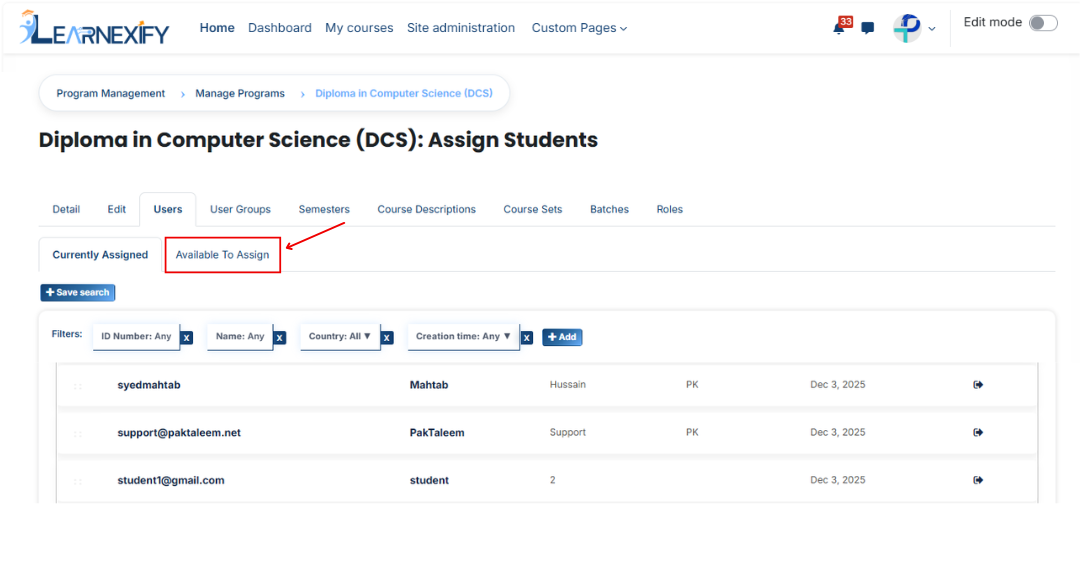
- After opening the Users tab
- Here you will see the assigned user in the **Currently Assigned tab.**
- If you want to assign more users **Click** on the **Available to Assign** button.
- A list of available users will be displayed
- Select the users you want to assign
- First Click on the **arrow icon** to move the user to the assigned list
- Click on the **green tick (✔)** to confirm the assignment
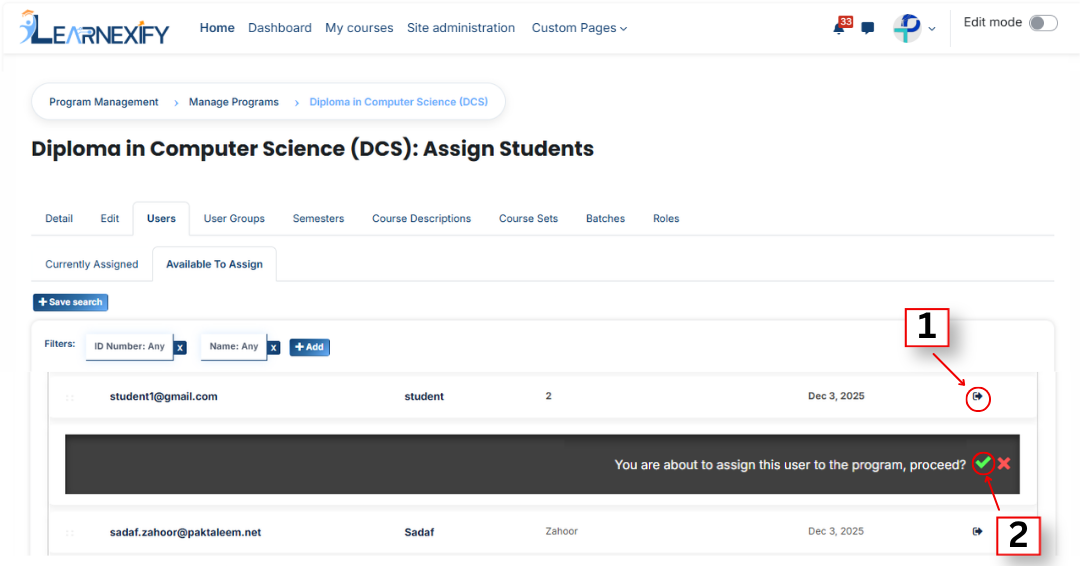
- After that, click on the **Currently Assigned** button
- Here, you will see the users who have been **successfully assigned** to the program
#### **Bulk User Action:**
****Purpose:** **Use this feature to assign multiple Users efficiently. ****
**Method 1:**
- Select those multiple users you want to assign.
- After making your selections, click the **“Add All 7 Selected Items”** button to add the selected users.
The number displayed in the button (e.g., 7) represents the number of items currently selected and will change depending on how many items you select.

- Then click on the Assign button in the Bulk Assignment Section to move the user to the assigned list.
**Method 2:**
- Click the **“Add All 491 Search Results”** button to add all user with a **single click**. The number displayed in the button **(e.g., 491)** may vary depending on the number of user available in the search results.
- If you want to clear everything, click the **Clear button.**

#### **Add a User if Not Found in Available List**
If the user you want to assign is not available in the list, follow these steps:
- Click on the **Available to Assign button**
- Then click on the **Add** button.
- A dropdown list will appear
- Select the required field **(e.g., Email, username, city e.t.c)**
- Enter the user’s details in the selected field according to the chosen option.
[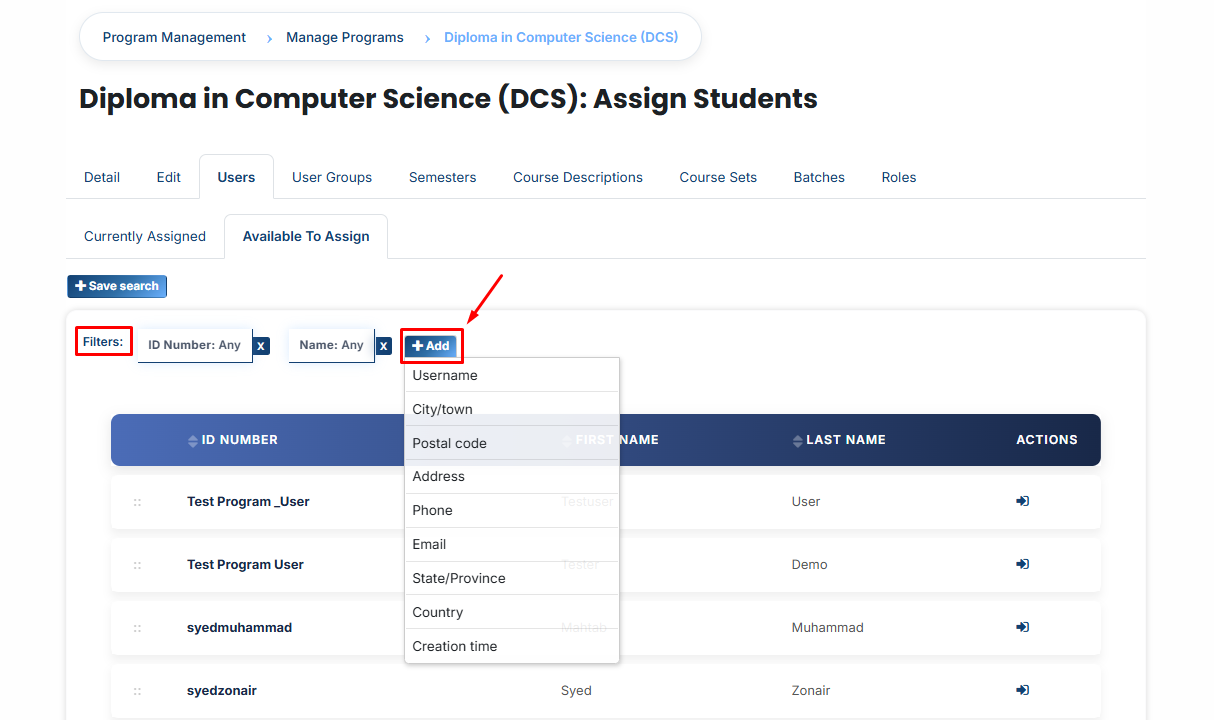](https://wiki.paktaleem.net/uploads/images/gallery/2026-07/fiEimage.png)
- The user will appear in the list
- Select the **user** and **assign** them to the program
You can also search and add a user using other details such as:
- Name
- ID Number
- Phone Number
- Username
- Country e.t.c.
---
# How to Assign Users Group to a Program
#### **User Groups**
A user group is a group of users that are combined together for easy management. Instead of assigning users one by one, multiple users can be grouped into a set and managed as a single unit.
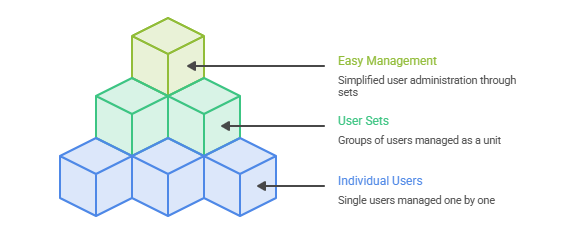
**Example:**
For example, a university creates a user group that contains 20 users. Instead of assigning each user manually to a program or semester, the admin can assign the entire user group at once.
By assigning this user group to a program, all 20 users are automatically added to that program or semester in a single step. This saves time compared to assigning users individually.
---
### **Steps to Assign User Groups to a Program**:
To assign user groups to a program, follow these steps:
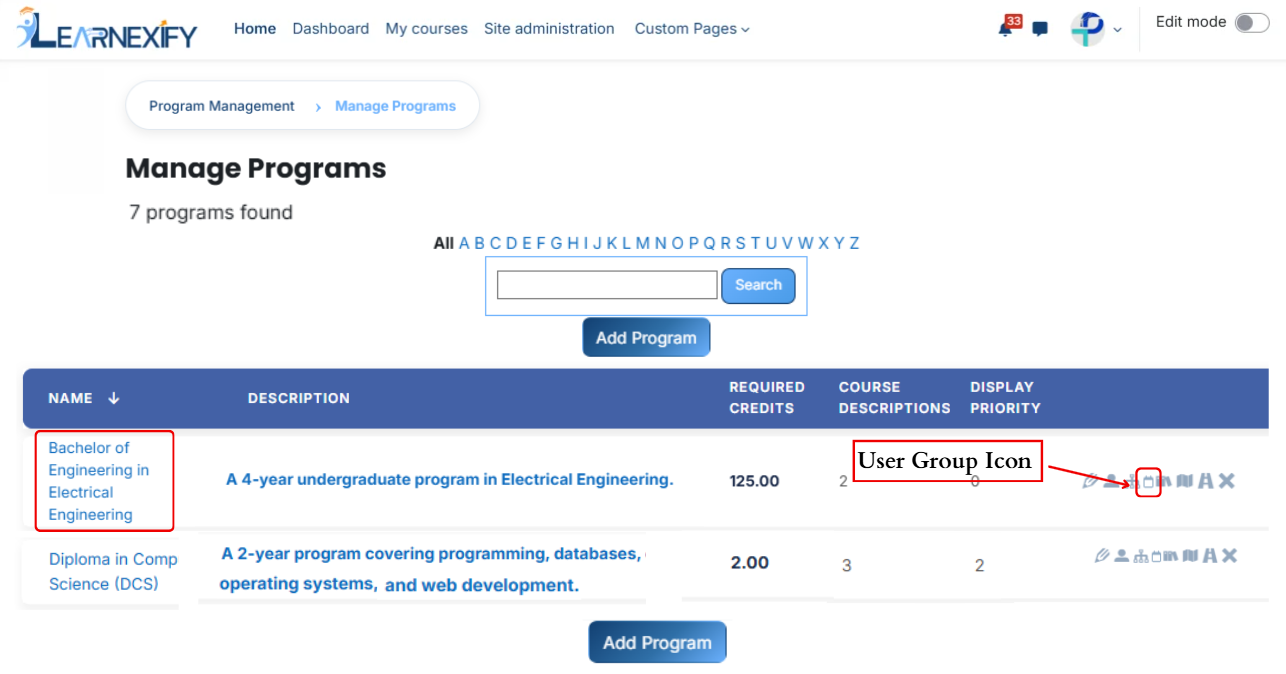
- Locate your program in the list and click the **User Groups icon**. This will direct you to the User Groups **tab**, providing the options to **assign** user groups to the **program efficiently.**
[](https://wiki.paktaleem.net/uploads/images/gallery/2026-07/axbimage.png)
- After opening user groups tab here you will see assigned user groups in the program
- If you want to assign more user groups Click on the Available to Assign button.
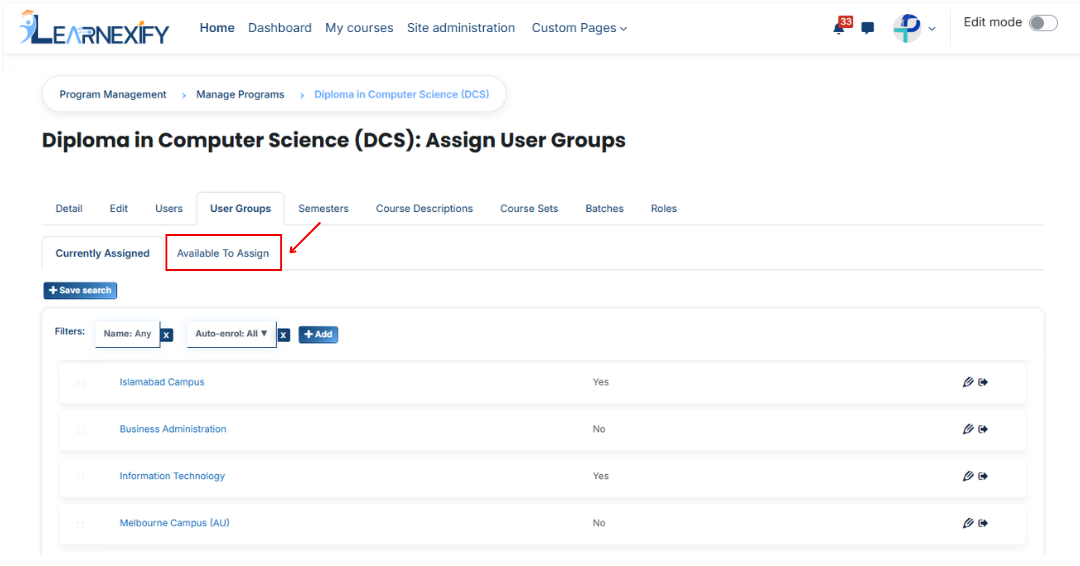
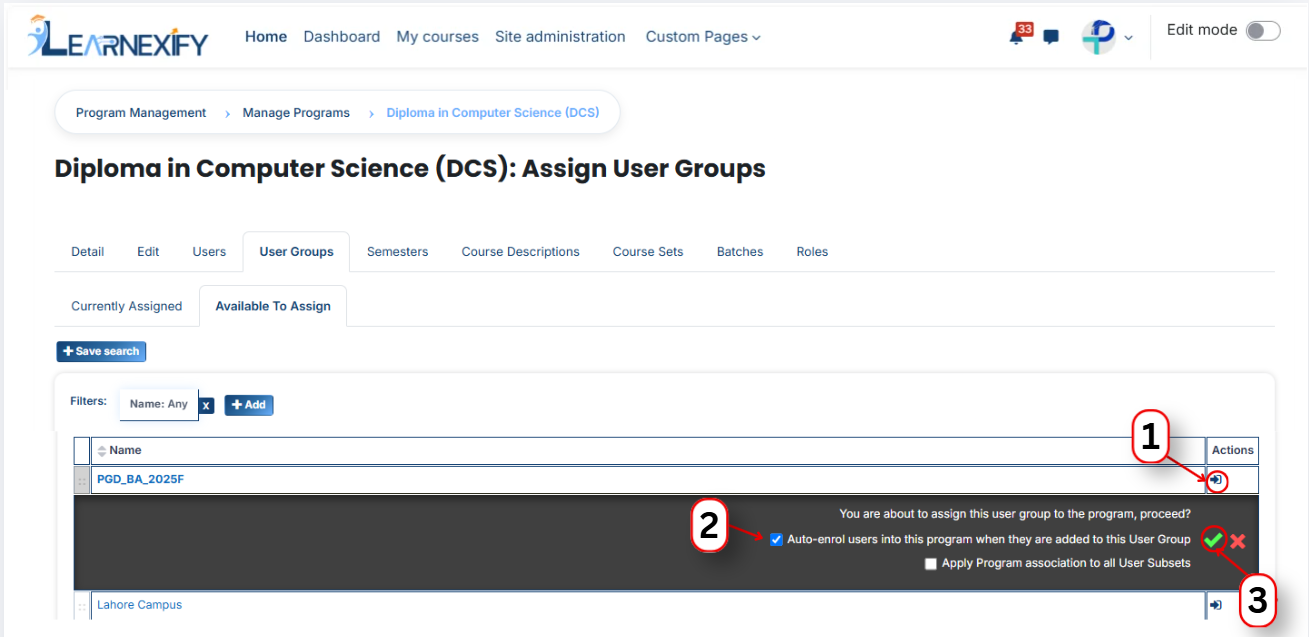
- A list of available user groups will be displayed
- Select the user groups you want to assign
- First, Click on the arrow icon to move the user to the assigned list
- Select an option (choose one):
**1. Auto-enroll users into this program when they are added to this program**
When this option is enabled, users are automatically enrolled into the program immediately after they are assigned.
This means:
- No manual enrollment is required after assigned.
- Users gain access to the program content instantly
- Enrollment happens automatically in the background
**2. Apply program association to all User subsets** When this option is enabled, the program is linked not only to directly assigned users but also to all related User Subsets.
This means:
- The program is applied across all subsets within the selected user group
- Users belonging to different subsets will also be associated with the program
- Ensures consistent program distribution across grouped users
Click on the green tick (✔) to confirm the assignment
- After that, click on the Currently Assigned button
- Here, you will see the user groups who have been successfully assigned to the program
### **Assign User Groups Using Filters**
In the “Available to Assign” section, if the required user group is not visible in the list, you can use the filter option to search for it.
Click on the Add button, and you will see different filter options:
[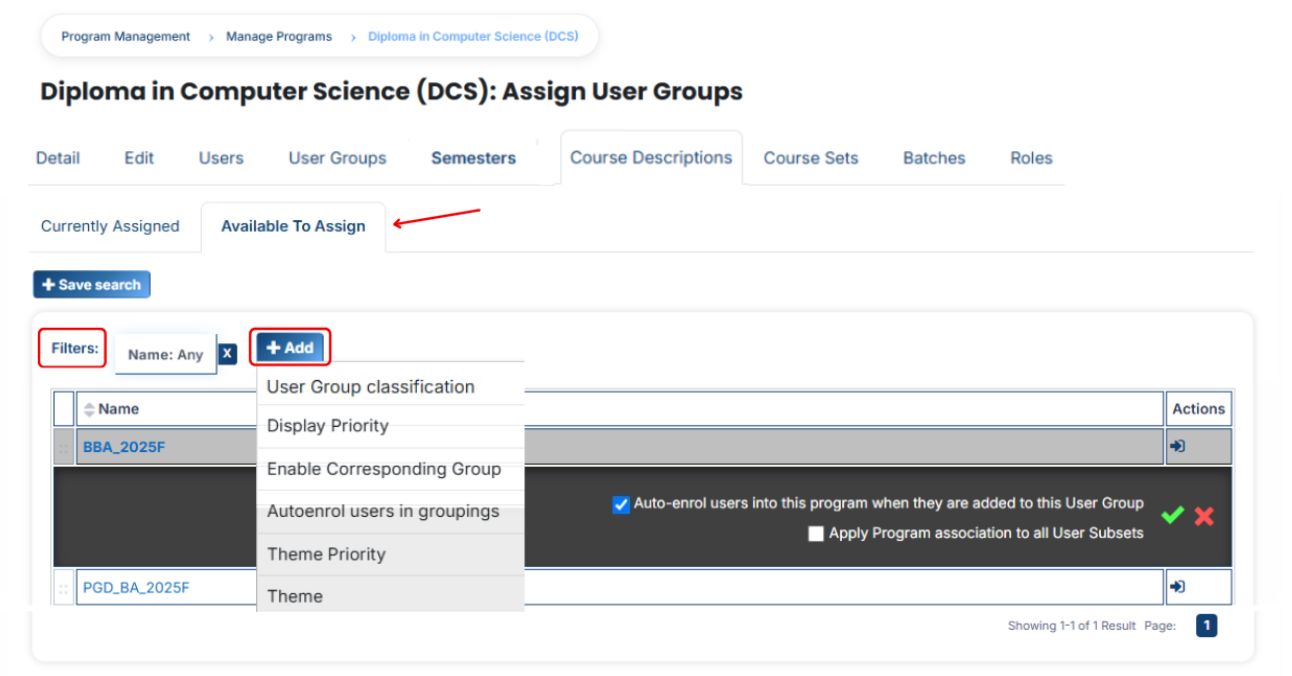](https://wiki.paktaleem.net/uploads/images/gallery/2026-07/Mdzimage.png)
#### **1. User Set Classification**
If you select this filter and type a value, the system will show only matching user groups.
For example, if you select “user group Classification” and type “campus”, then only campus-related user groups will appear.
#### **2. Display Priority**
This filter is used to find user groups based on priority.
For example, if you enter “2”, then only user groups with priority 2 will be shown.
#### **3. Enable Corresponding Group**
This filter is used to show user groups linked with a specific group.
For example, if a group is enabled and you apply this filter, only related user groups will appear.
#### **4. Auto Enroll User in Grouping**
If this option is selected, users inside the user group will be automatically enrolled into the program after assignment.
For example, once a user group is assigned, users will instantly get access without manual enrollment.
#### **5. Theme Priority**
This filter helps to find user groups based on theme priority.
For example, if you set priority “1”, then user groups with theme priority 1 will be displayed.
#### **6. Theme**
This filter is used to search user groups based on a theme.
For example, if you type “flexpath”, then all user groups related to that theme will appear.
Once the correct user group appears, click on the arrow icon and assign it using the green tick (✔).
The user group will then appear in the “Currently Assigned” list.
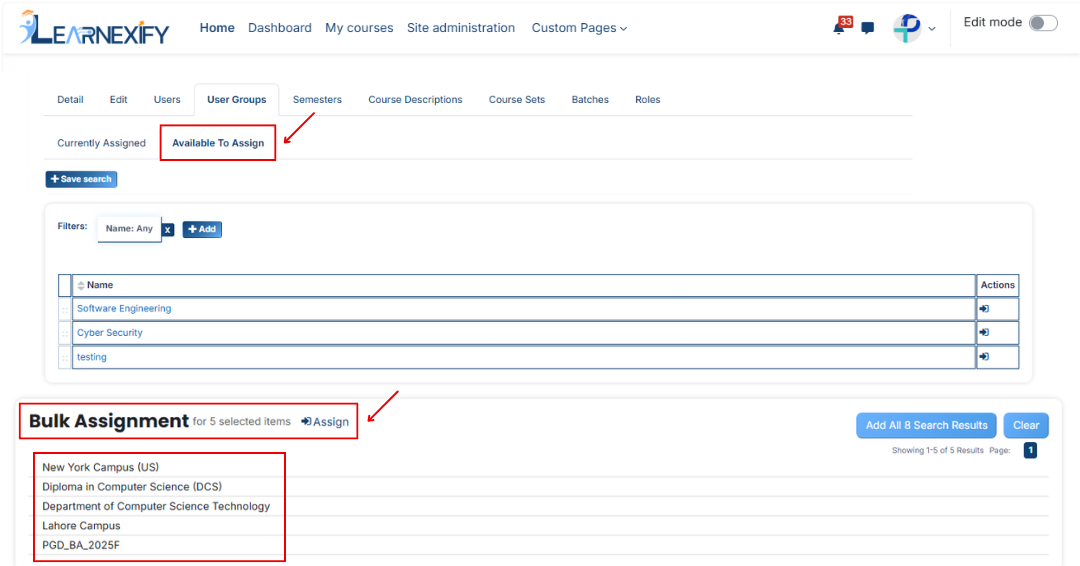
#### **Bulk User Action:****Purpose:**
Use this feature to assign multiple user sets efficiently.
**Method 1:**
- Select those multiple user groups you want to assign
- After making your selections, click the **“Add All 5 Selected Items”** button to add the **selected user groups.**
The number displayed in the button **(e.g., 5)** represents the number of items currently selected and will change depending on how many items you select.

- Then click on the **Assign button** in the **Bulk Assignment Section** to move the user groups to the assigned list.
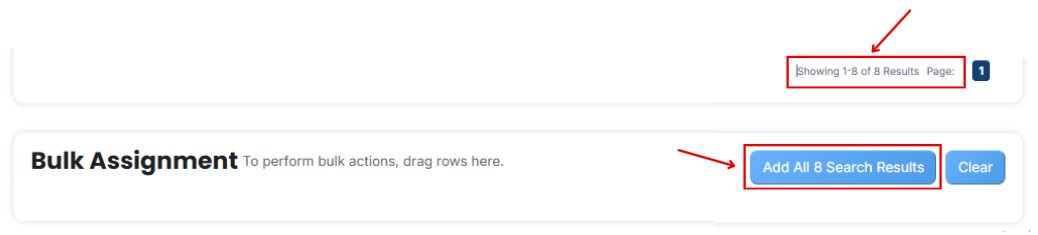
**Method 2:**
- Click the “Add All 10 Search Results” button to add all user groups with a single click. The number displayed in the button (e.g., 10 ) may vary depending on the number of user groups available in the search results.
- If you want to clear everything, click the Clear button.
---
# How to Assign Semesters in a Program
#### **Semesters**
A Semester is a fixed academic period used in universities to divide an academic year into smaller parts. Each semester represents a specific stage of study in which students take a defined set of courses and complete related academic activities such as lectures, assignments, and exams.

In most universities, a degree program is divided into multiple semesters (for example: Semester 1, Semester 2, Semester 3, etc.), and students progress from one semester to the next as they complete their courses
---
#### **Steps to Assign User Groups to a Program:**
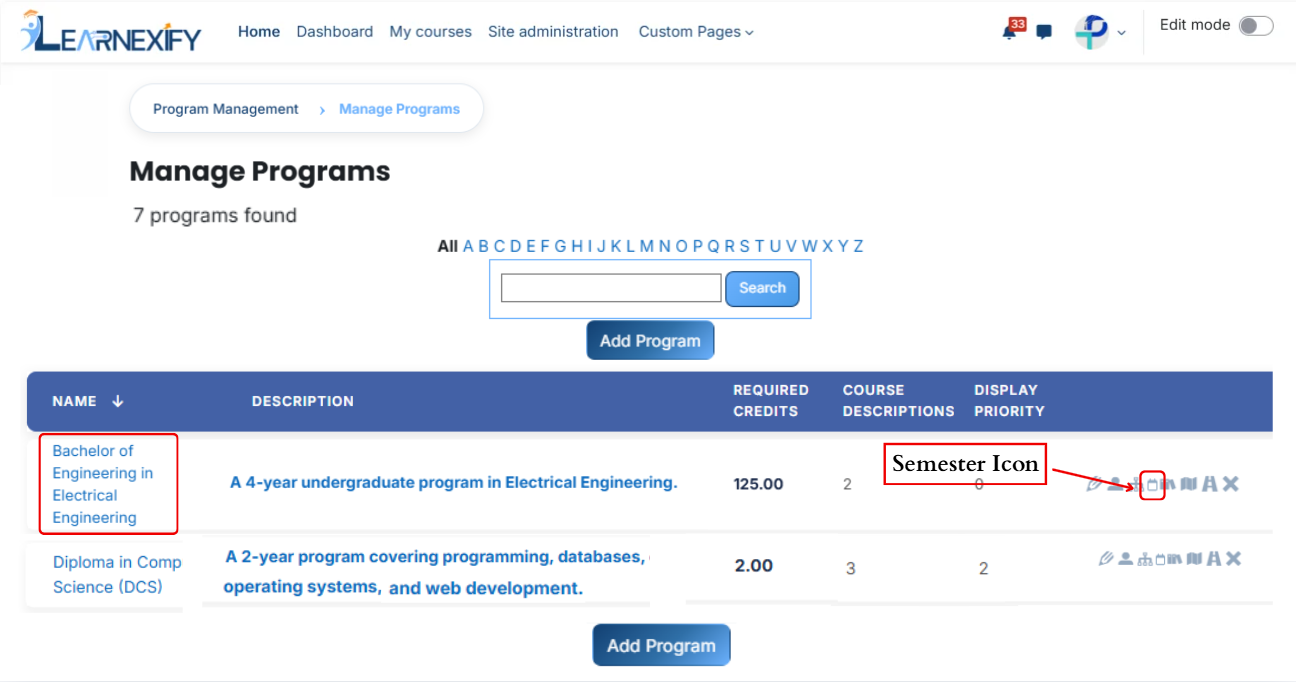
- In the **Program List**, click the **Semesters icon** for the desired program to open the tab and assign semesters.
[](https://wiki.paktaleem.net/uploads/images/gallery/2026-07/yszimage.png)
- Here you will see the list of assigned semesters.
- To **assign additional** semesters, click on the **'Available to Assign' button.**
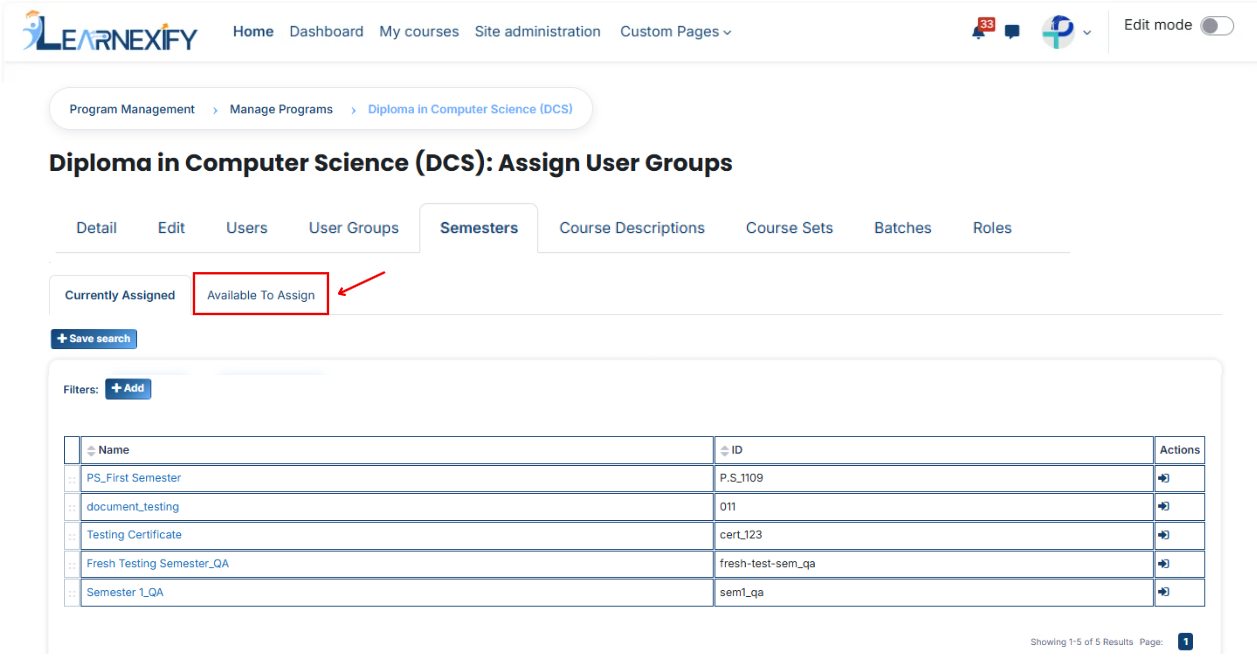
- Select the **semester** you want to assign to the program.
- Click on the arrow button to move the selected semester.
- After clicking the **arrow button**, click on the **green tick** to confirm the assignment.
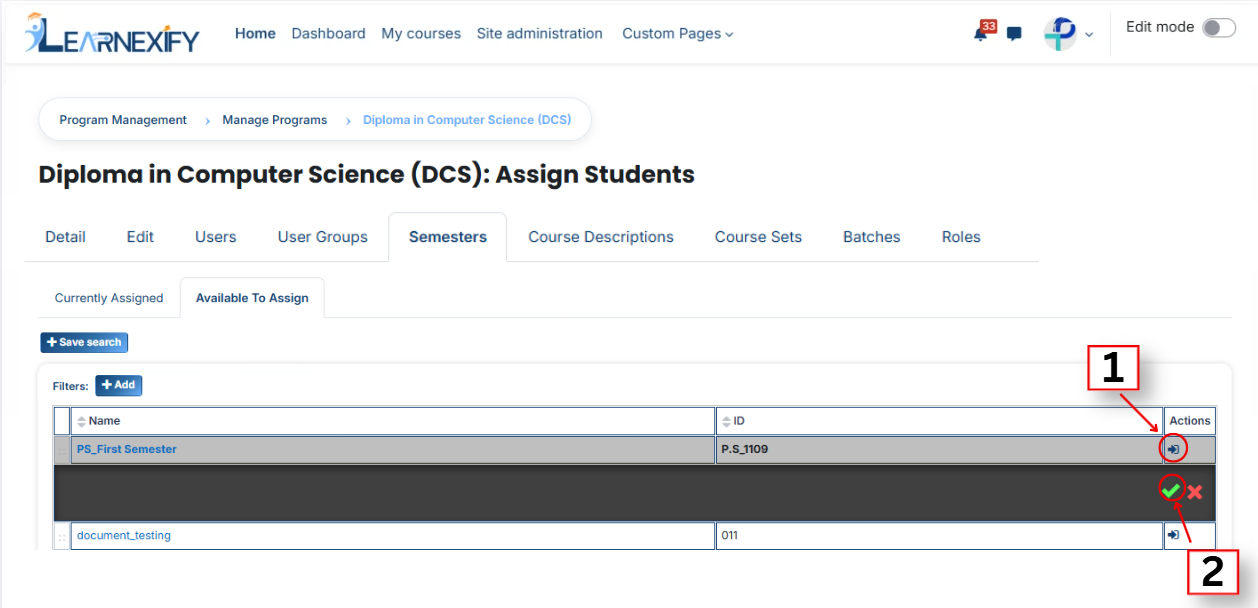
- Go to the **Currently Assigned** section, where you can see the assigned semester.
- If you don’t find your semester, select the required field and enter the details according to the semester.then assign a semester in the program.
#### **Bulk User Action:**
**Purpose:**
Use this feature to assign multiple Semesters efficiently.
**Method 1:**
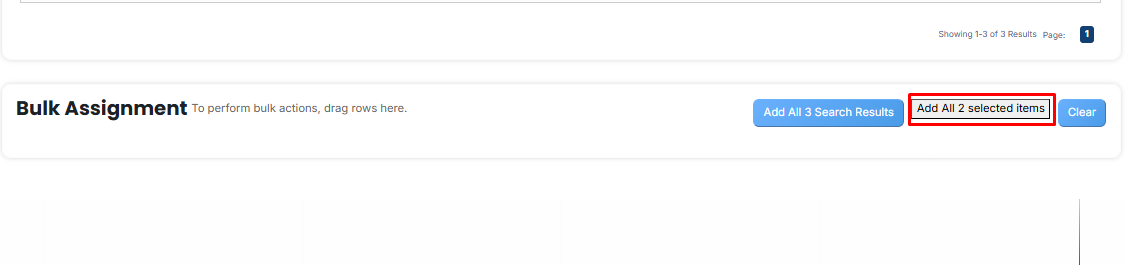
- Select those multiple **semesters** you want to assign in the program.
- After making your selections, click the **“Add All 2 Selected Items”** button to add the selected semesters.
The number displayed in the button **(e.g., 2)** represents the number of items currently selected and will change depending on how many items you select.
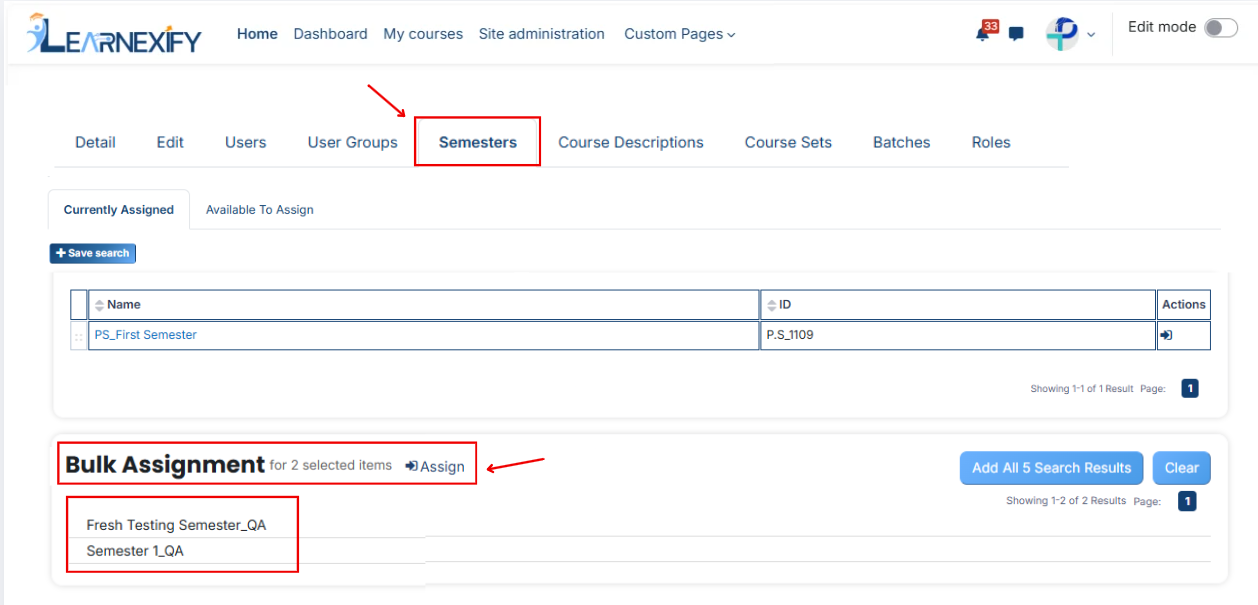
- Then click on the **Assign button** in the **Bulk Assignment** Section to move the semesters to the **assigned list.**
**Method 2:**
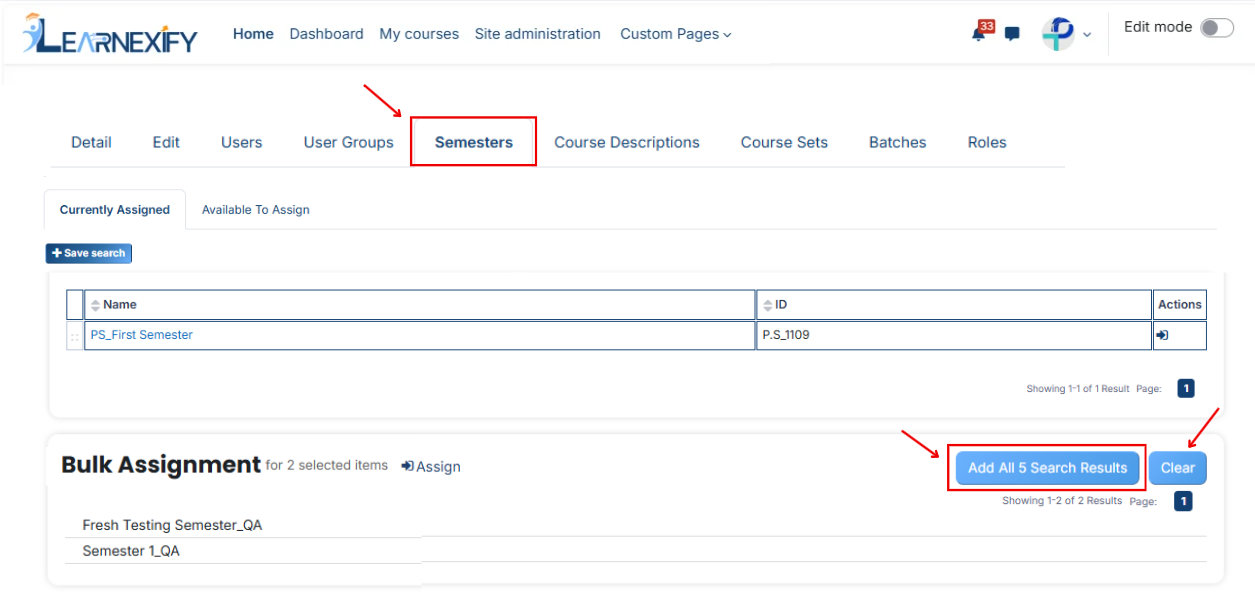
- Click the **“Add All 3 Search Results”** button to **add all semesters** with a single click. The number displayed in the button (e.g., 3) may vary depending on the number of semesters available in the search results.
- If you want to clear everything, click the **Clear button.**
---
# How to Assign Course Description in a Program
#### **Course Description**
A Course Description is a short summary that explains the content, topics, and learning objectives of a course. It helps students and teachers understand what will be taught in the course and what its main purpose is.

---
#### **
Follow these steps to assign a Course Description to a program:**
- Open the **Learnexify dashboard** and go to the **user menu.** Click on Programs and then select **Manage Program.** Here you will see the list of all semesters.
- In which program you want to assign **Course Description,** click on the **Course Description icon.**
[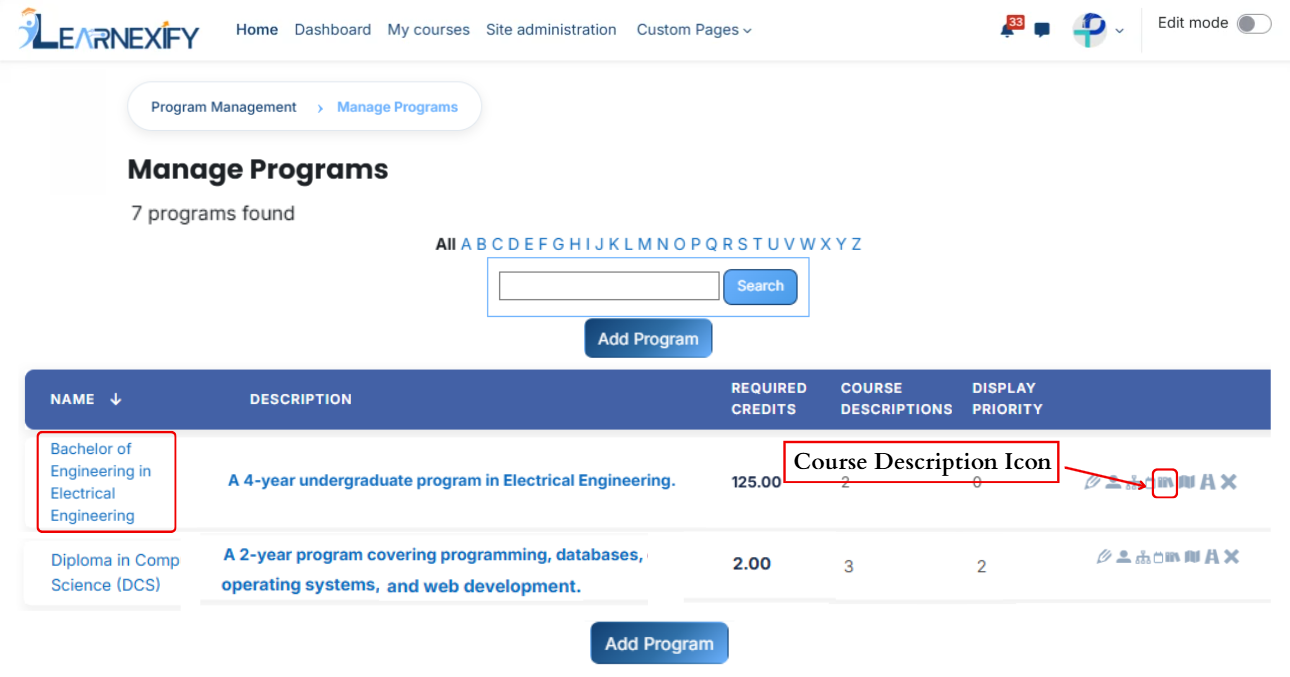](https://wiki.paktaleem.net/uploads/images/gallery/2026-07/gfSimage.png)
- Here you will see the list of assigned semesters.
- Click on the Available to Assign button to assign more course descriptions in the program.
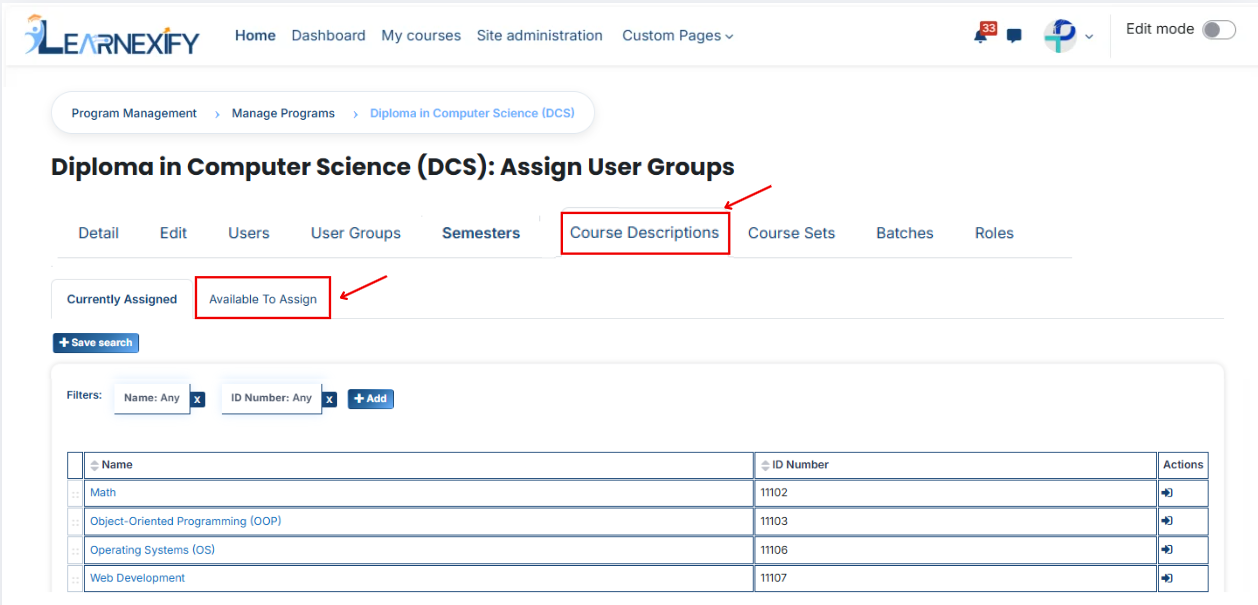
- Select the course description you want to assign to the program.
- Click on the arrow button to move the selected semester.
- Fill the details:
#### **1. Required**This field is used to decide whether the course description is compulsory or optional.
- If a Course Description is set as Required when assigning it in a program, it becomes mandatory for learners to complete it.
- If we select Not Required, then it will be optional and not mandatory.
**Example:**
If we select Required, then the system will force this course description to be included in the program.
#### **2. Frequency**
This field defines how many times the course description should be applied.
**Example:**
If we enter 2, it means the course description will be applied twice as per the defined time period.
#### ** 3. Time Period**
This field defines the time unit for the frequency.
- Days
- Weeks
- Months
- Years
**Example:**
If we select Years, and frequency is 1, then the course description will apply once every year.
#### **4. Position**
This field defines the order or sequence in which the course description will appear.
**Example:**
If we enter 1, it will appear first.
If we enter 2, it will appear after the first one.
[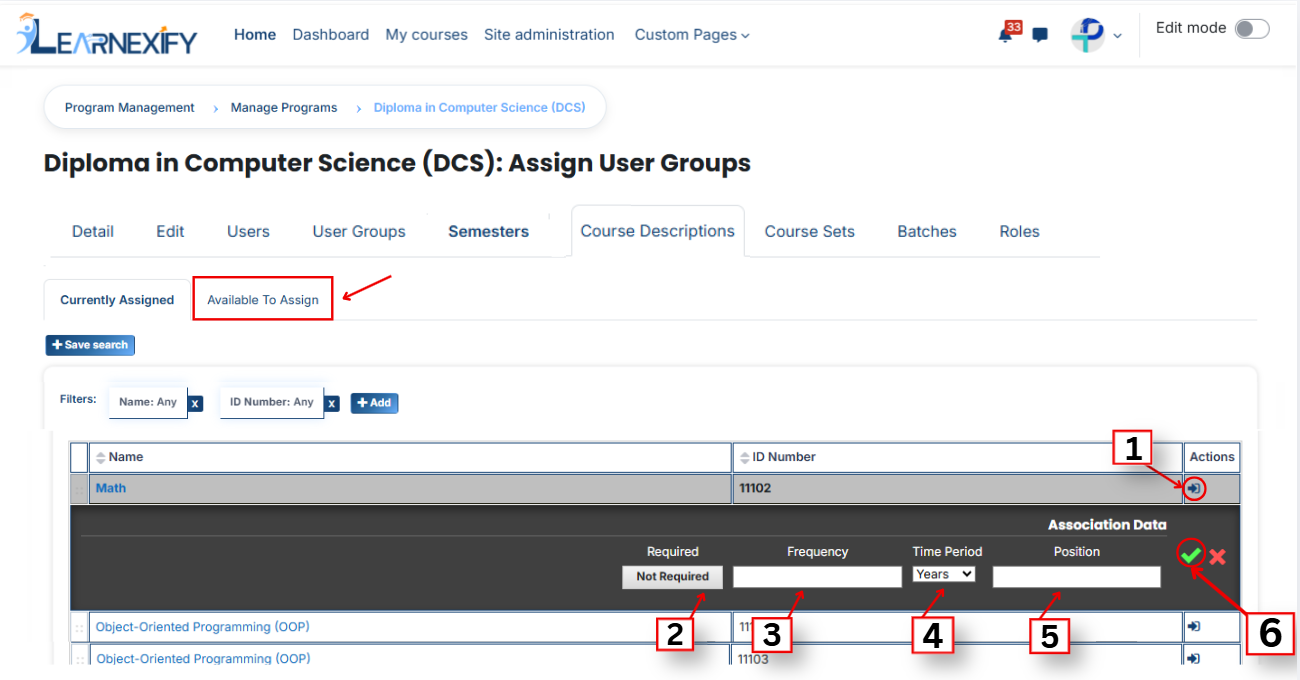](https://wiki.paktaleem.net/uploads/images/gallery/2026-07/iuFimage.png)
- After filling the details, click on the green tick to confirm the assignment.
- Go to the Currently Assigned section, where you can see the assigned course description.
- If you cannot find your course description, select the required field and enter the details according to the course description on the “Available to Assign” page.
#### **Bulk User Action:****Purpose:**
Use this feature to assign multiple course descriptions efficiently.**Method 1:**
- Select those multiple course descriptions you want to assign in the program.
- After making your selections, click the **“Add All 6 Selected Items”** button to add the selected course descriptions.
The number displayed in the button **(e.g., 6)** represents the number of items currently selected and will change depending on how many items you select.

- Then click on the Assign button in the Bulk Assignment Section to move the course descriptions to the assigned list.
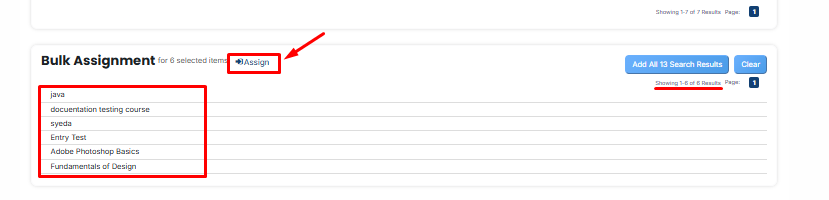
**Method 2:**
- Click the **“Add All 13 Search Results”** button to add all course descriptions with a **single click.** The number displayed in the button **(e.g., 13)** may vary depending on the number of course descriptions available in the search results.
- If you want to **clear everything,** click the **Clear button.**

---
# How to Assign Course Sets in a Program
#### **Course sets**
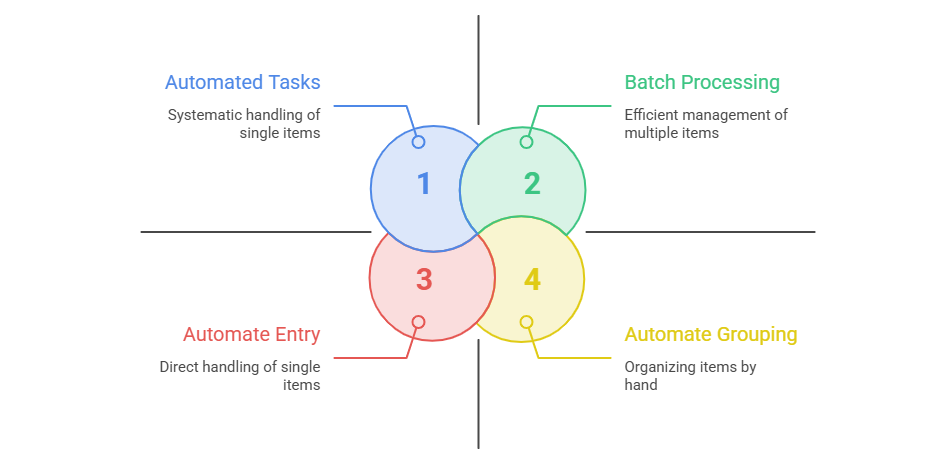
Course Set is a group of related courses that are combined together to simplify management and assignment within a program or semester. It allows administrators to assign multiple courses at once instead of adding them individually.
---
#### **
Assigning Course sets to a Program:**
- Access the Program List and select the **Course Sets icon** to manage and **link course sets** directly to your **specific program.**
[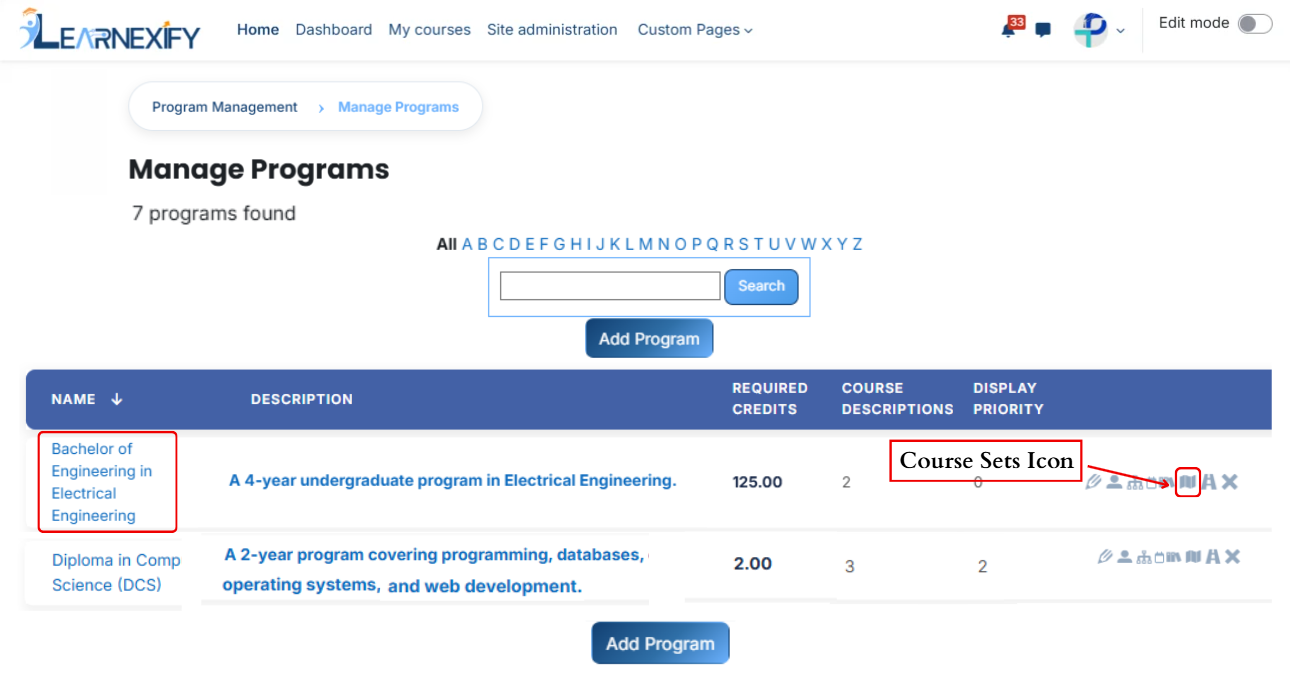](https://wiki.paktaleem.net/uploads/images/gallery/2026-07/i5timage.png)
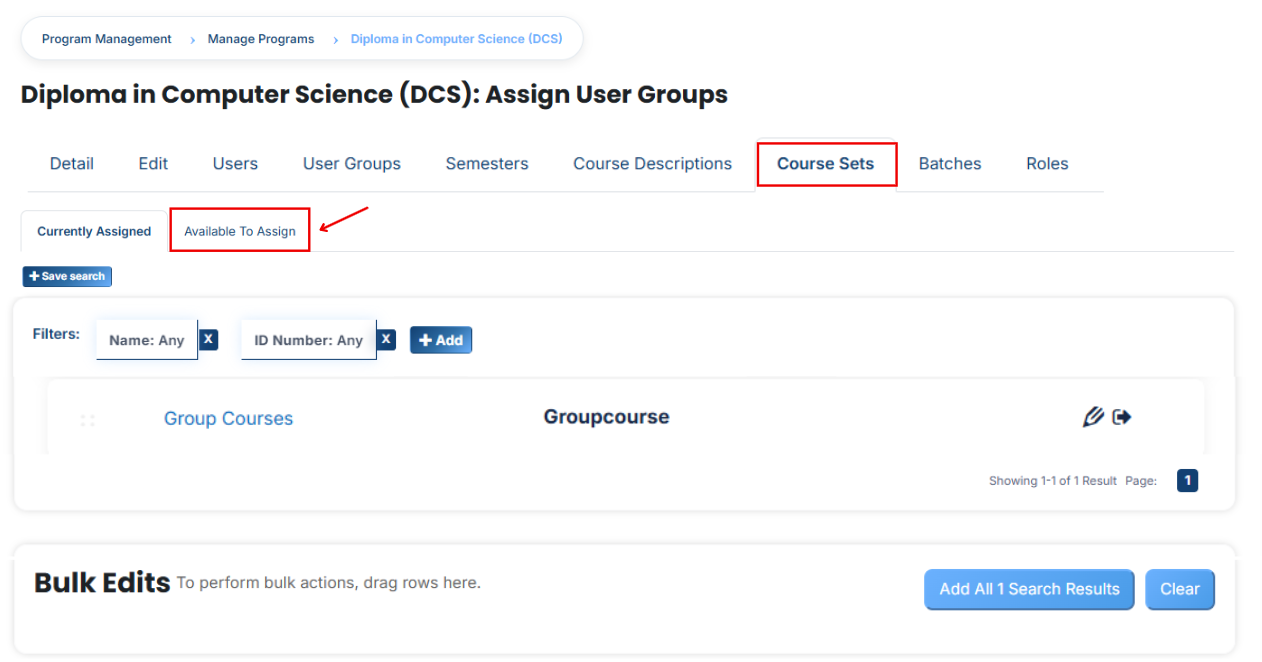
- Here you will see the list of assigned course sets.
- If you want to **assign** more **course sets** in the program, Click on the **Available to Assign button.**
- Select the course sets you want to assign to the program.
- Click on the arrow button to move the selected course set.
- Fill the details:
#### **1. Required Credits**This means the learner must complete a specific number of credits to fulfill the requirement of the program or course set. For example, if 10 credits are required, the student must complete courses totaling 10 credits.
#### **2. AND/OR Condition**This defines how the requirements work together:
- AND means both conditions must be completed (required credits + required courses).
- OR means either condition can be fulfilled (either required credits or required courses).
#### **3. Required Courses**
This means specific courses are mandatory. The learner must complete all the listed courses in the course set.
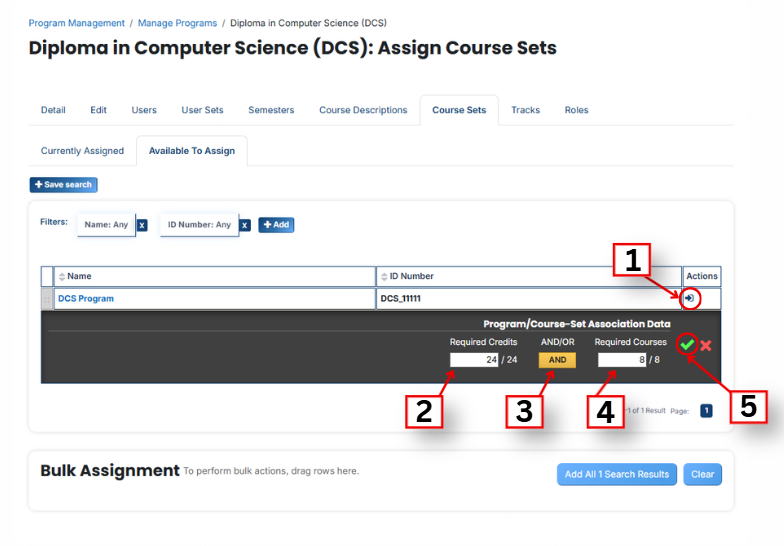
- After clicking the arrow button, click on the green tick to confirm the assignment.
- Go to the Currently Assigned section, where you can see the assigned course sets.
- If you cannot find your course set, select the required field and enter the details according to the course sets on the “Available to Assign” page.
#### **Bulk User Action:**
**Purpose:**
Use this feature to assign multiple Course Sets efficiently.
**Method 1:**
- Select those multiple course sets you want to assign in the program.
- After making your selections, click the **“Add All 2 Selected Items”** button to add the **selected course sets.**
The number displayed in the button (e.g., 2) represents the number of items currently selected and will change depending on how many items you select.

- Then click on the **Assign button** in the **Bulk Assignment** Section to move the **course sets** to the **assigned list.**
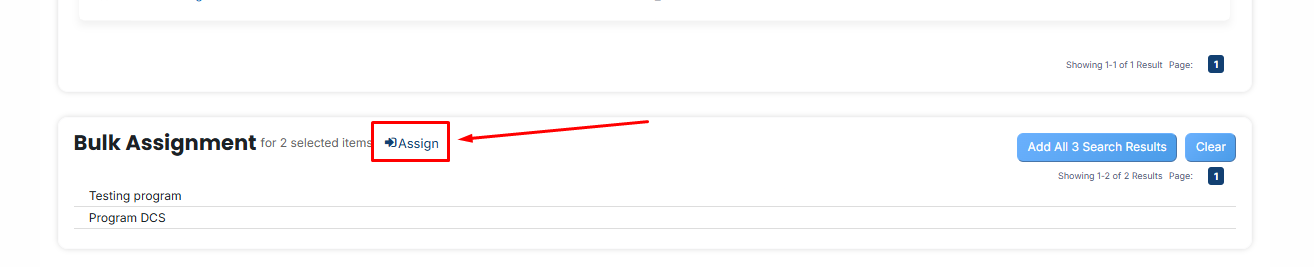
**Method 2:**
- Click the “Add All 13 Search Results” button to add all course sets with a single click. The number displayed in the button (e.g., 13) may vary depending on the number of course sets available in the search results.
- If you want to clear everything, click the Clear button.

---
# How to Add a Batch in a Program
#### **Batches**
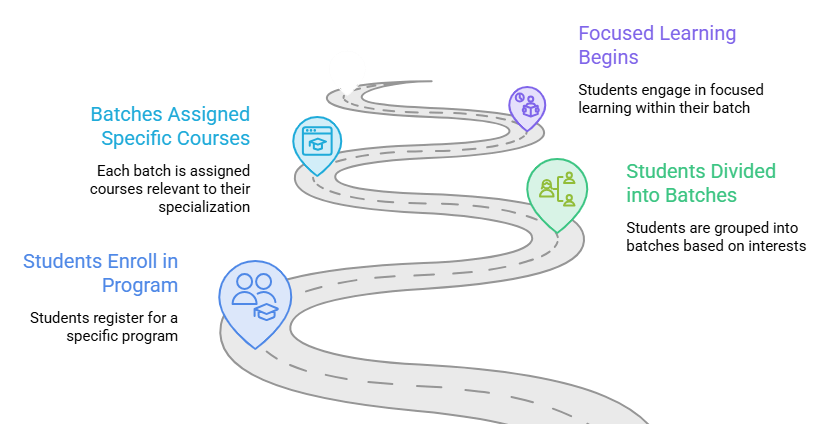
Batches in Learnexify is a system in which students within a program are divided into different learning paths based on their interests and specialization. Each batch has its own specific courses that provide focused learning in that particular field.
#### **Add a Batch in a Program:**
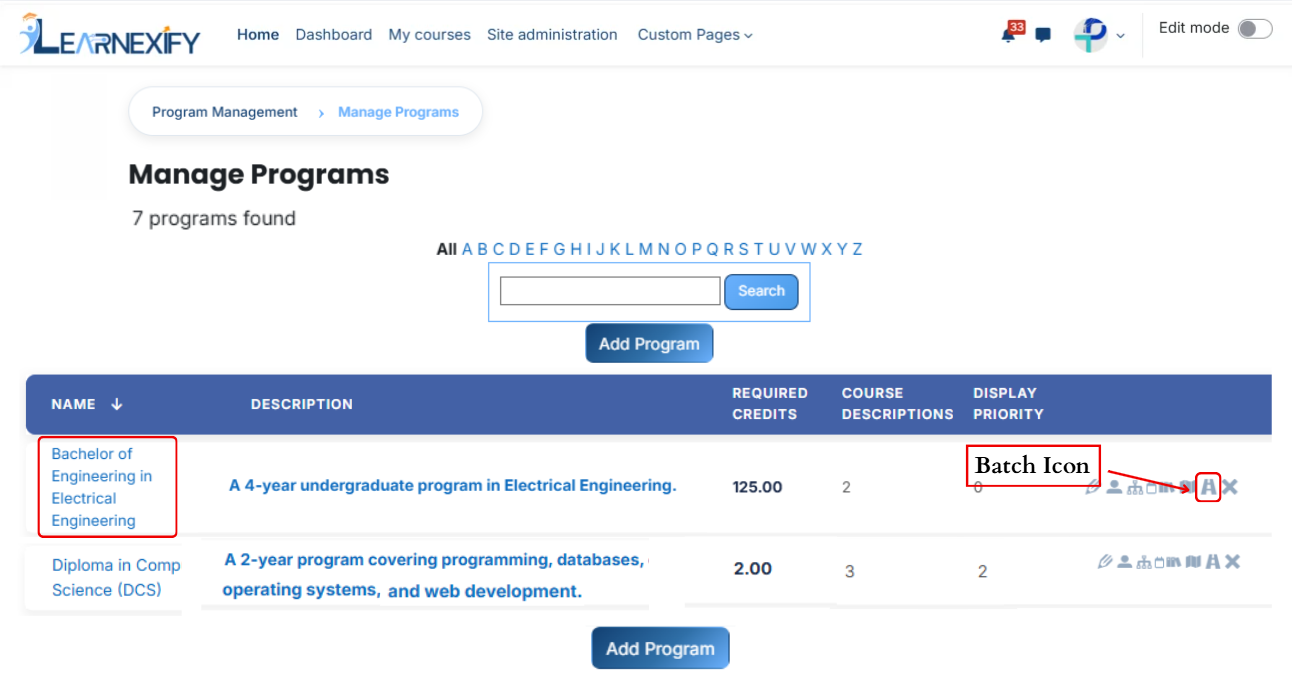
- From the **Program List**, select the **Batches icon** to organize and **add batches** to your program.
[](https://wiki.paktaleem.net/uploads/images/gallery/2026-07/lqCimage.png)
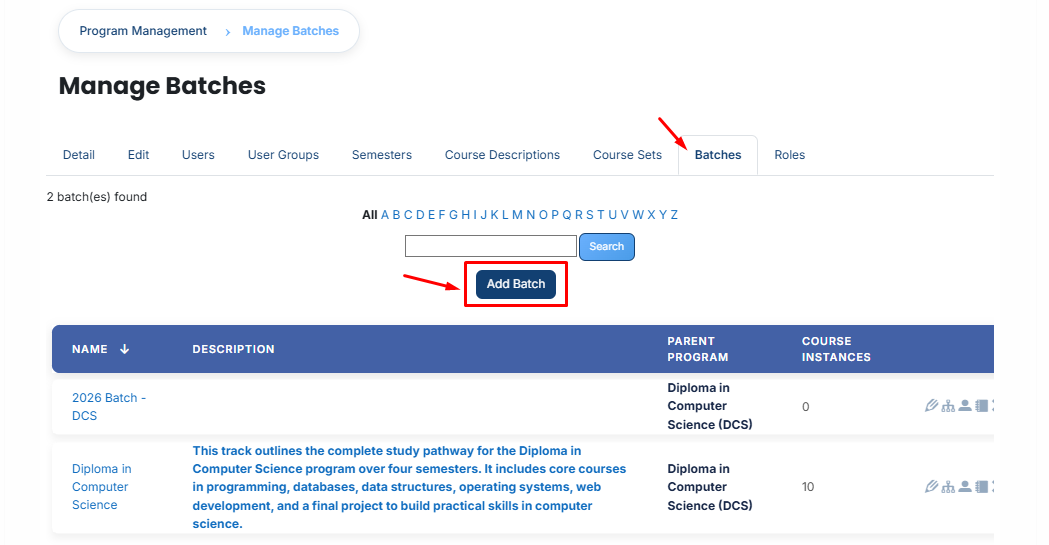
- After **opening** the Batch tab, click on the **Add Batch button.**
[](https://wiki.paktaleem.net/uploads/images/gallery/2026-07/8Gcimage.png)
- When you click on the Add button, a new page will open.
- Fill in the blanks:
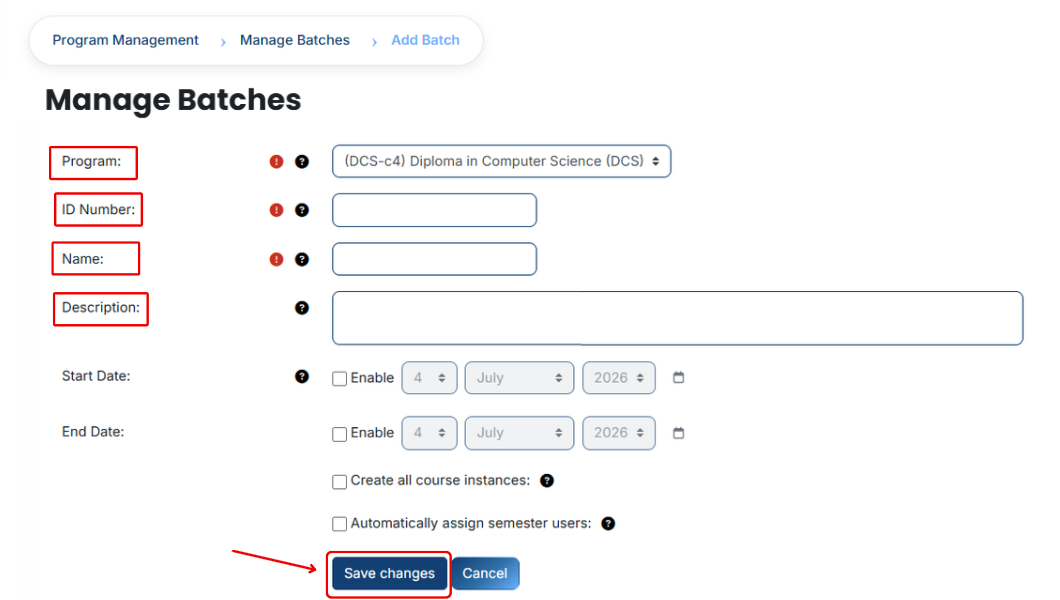
#### **Required Fields:**
**Program**
The Program field defines the main academic program under which the batch is created. It shows which degree or discipline this batch belongs to.
Example: (DCS-c4) Diploma in Computer Science (DCS)
**ID Number**
The ID Number is a unique code used to uniquely identify each batch in the system. It ensures that every batch has a distinct identity and no duplication occurs.
Example: 11111
Name
The Name field defines the title of the batch and helps users easily identify the specialization or focus area of the batch.
Example: Diploma in Computer Science
#### **Not Required Feilds:**
**Description**
The Description provides a short overview of the batch and explains the specialization area. It helps users understand what this batch is about and what knowledge or skills it focuses on.
Example: This batch outlines the complete study pathway for the Diploma in Computer Science program over four semesters. It includes core courses in programming, databases, data structures, operating systems, web development, and a final project to build practical skills in computer science.
**Start Date**
The Start Date defines when the batch becomes active and available for assignment in the system.
Example: 28 April 2026
**End Date**
The End Date defines when the batch will expire or stop being active in the system.
Example: 1 May 2026
**Create all course instances**
This option is used to automatically create and assign all related course instances (such as course or batch structures) for the selected batch, so manual setup is not required.
- After filling in all the **required fields**, click on the **Save Changes** button.
- Once you click the Save button, the system will process the data.
- After **successful** saving, the **batch** will be added to the **relevant program.**
---
# How to Assign Roles in a Program
#### **Roles**
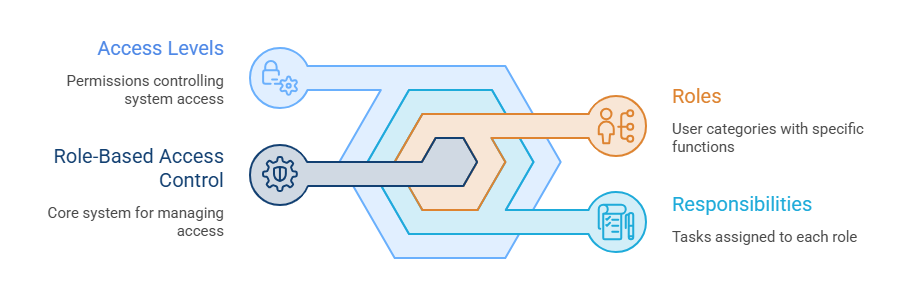
Roles is a system through which users are assigned their responsibilities and access levels. In this system, it is defined who will be a teacher, who will be a manager, and who will be a student. Each role has its own functions and permissions that control its access within the system.
#### **Assign Roles in a Program**
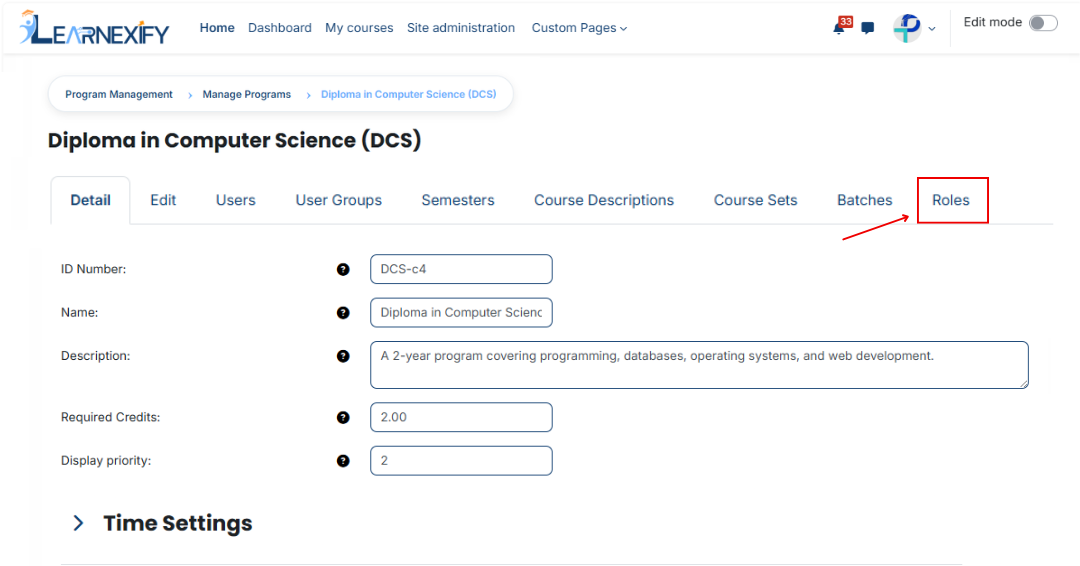
- Open the Program and click on the Roles tab.
- Review the list of available roles.
- Click on the role to which you want to assign users.
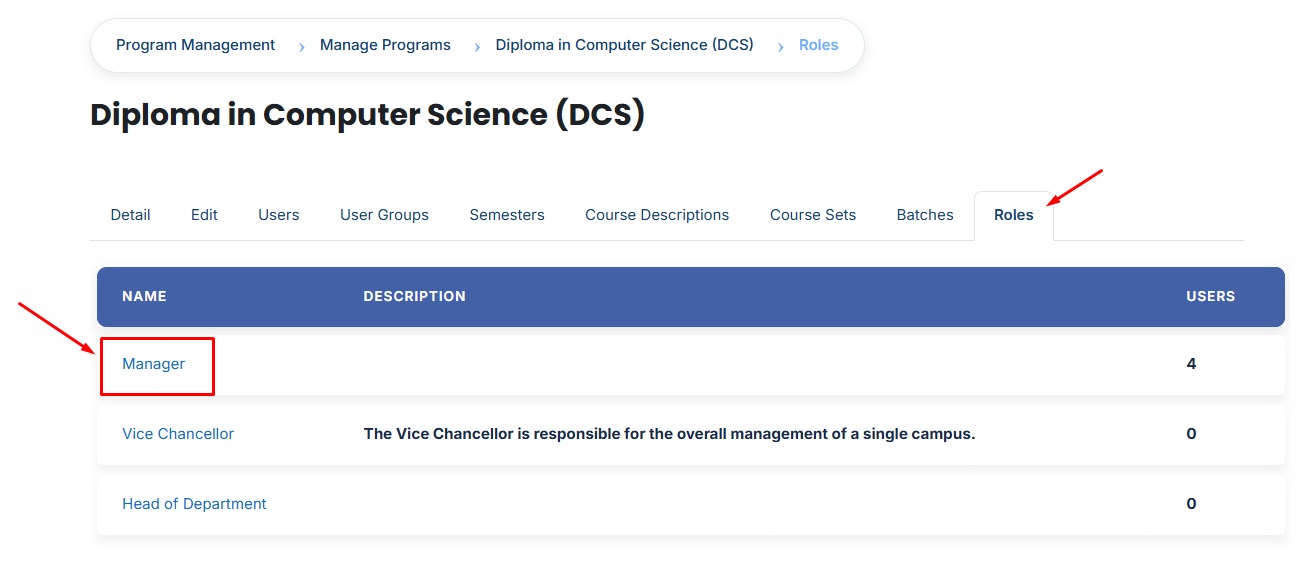
- A page will open displaying all users currently assigned to the selected role.
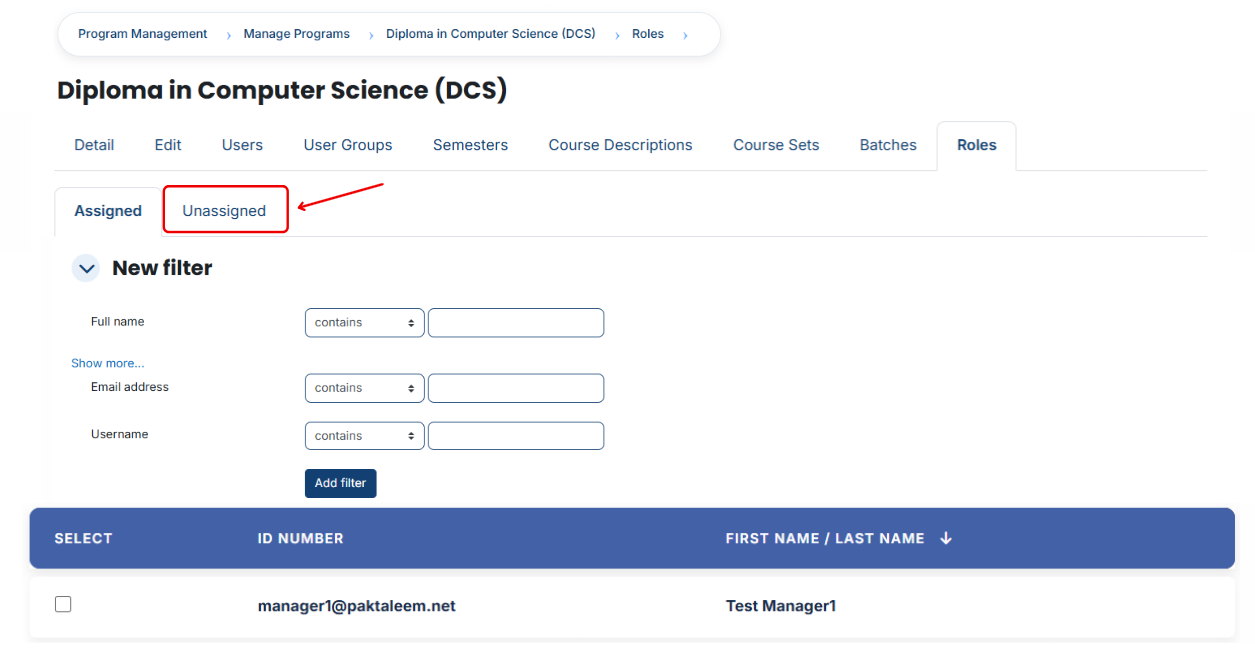
- To assign additional users, click the Unassigned button. This will display all users who are currently unassigned to the selected role.
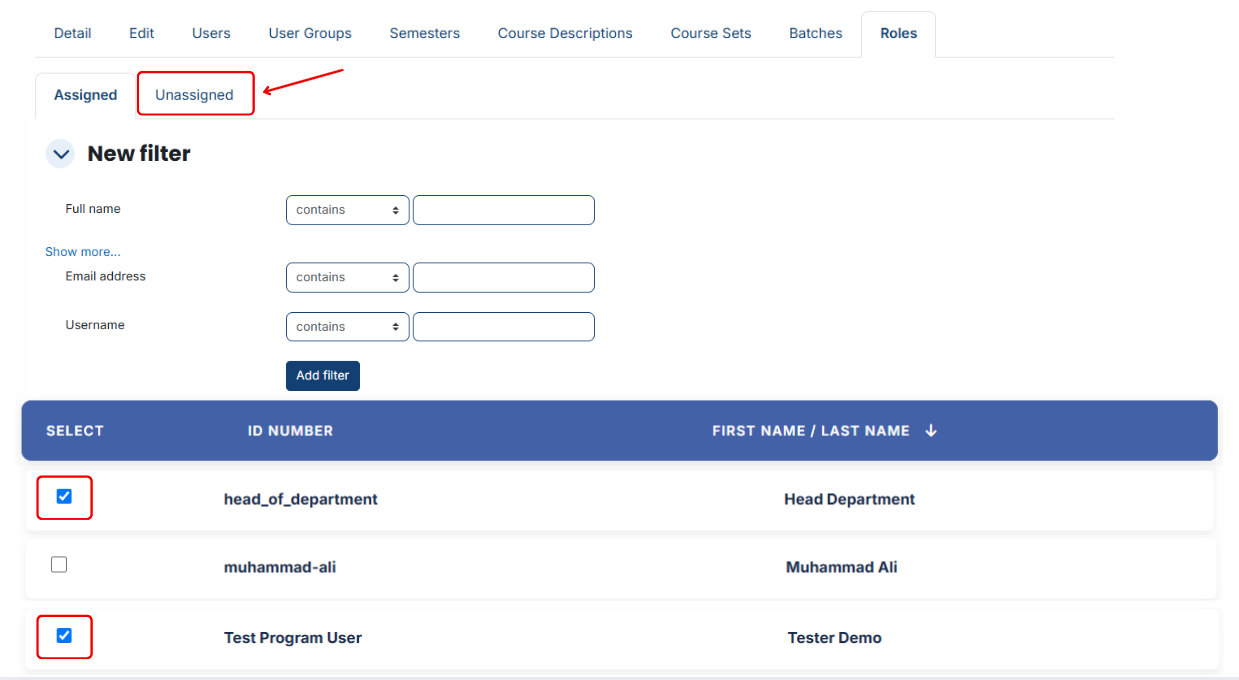
- Select the user(s) you want to assign.
- Scroll down and click **Assign Roles.**
#### **Using Filters:**
If you cannot find the required user:
- Use the **Filter** option.
- Add a filter using **Email Address, Username, or Full Name.**
- Click **Add Filter.**
- Select the required user from the filtered results.
- Scroll down and click **Assign Roles** to complete the assignment.
# How to Create a Program
##### **How to Create a Program**
#### **Program:**
Programs in Learnexify are used to organize Course Descriptions in different ways. In many cases, a collection of Course Descriptions leads to a certificate or another form of validation, indicating that a learner has achieved a certain level of mastery in the subjects included within the Program.
Additionally, Programs are used to define pre-requisite and co-requisite Course Descriptions, as well as to create batches of course instances that run according to a specific schedule or sequence.
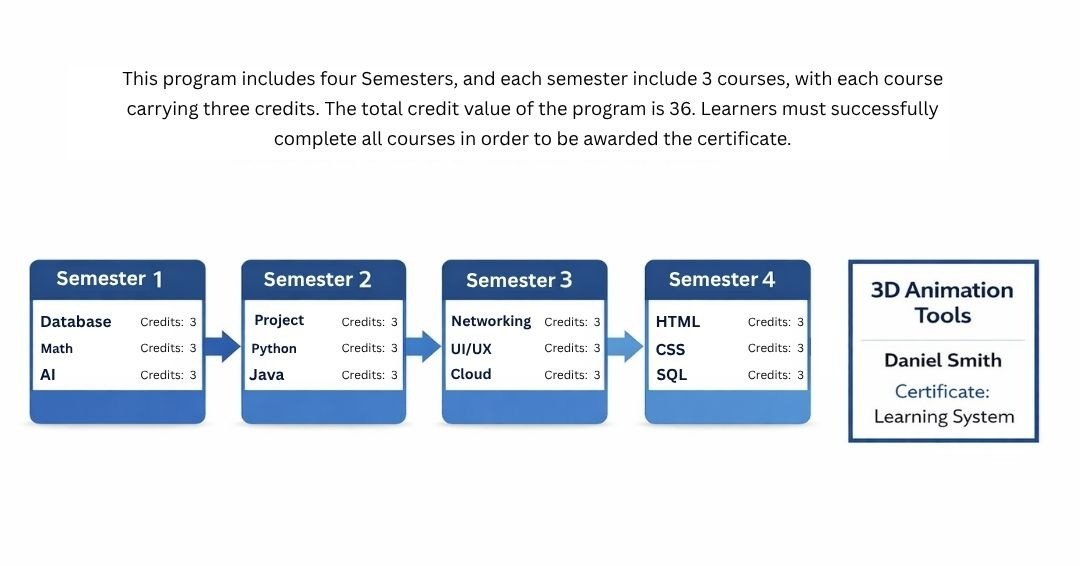
**For Example:**
#### **Creating Programs:**
**Steps:**
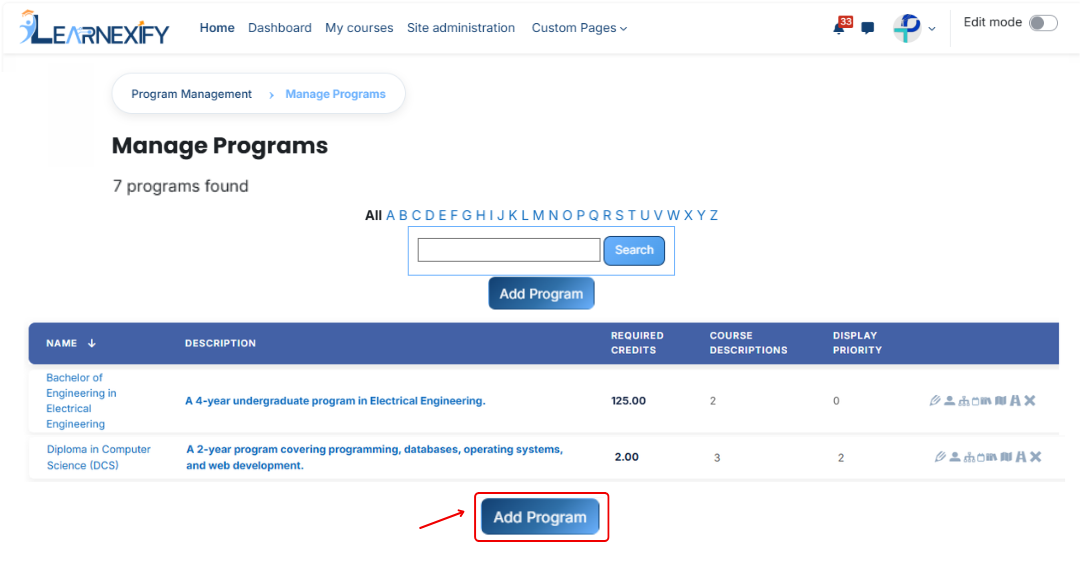
1. After logging in, you will see the dashboard.
2. Open the side drawer.
3. Click on Programs and then select Manage Program.
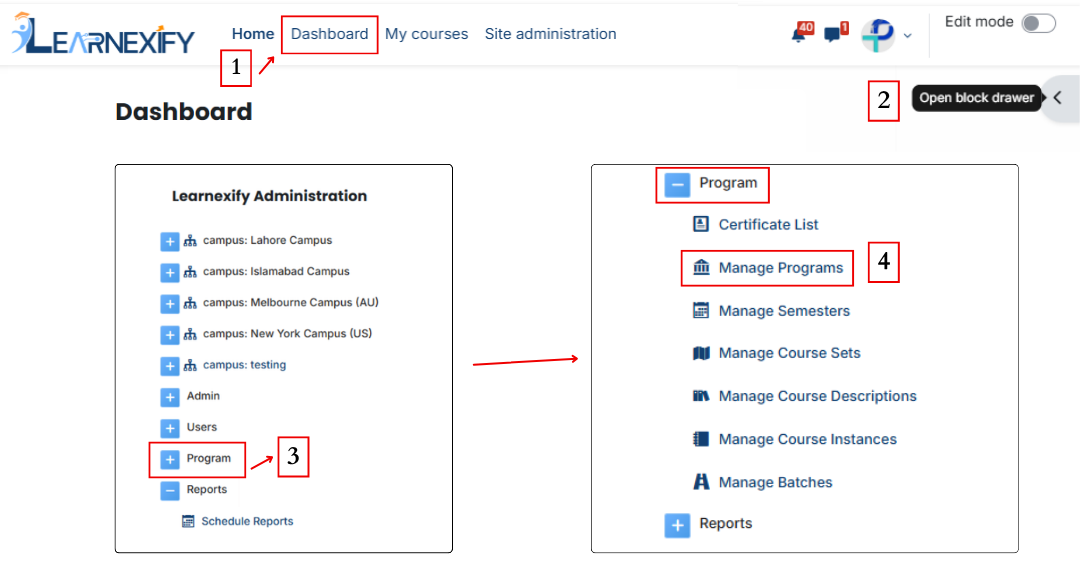
4. To create a new program, click on the “Add Program” option.
####
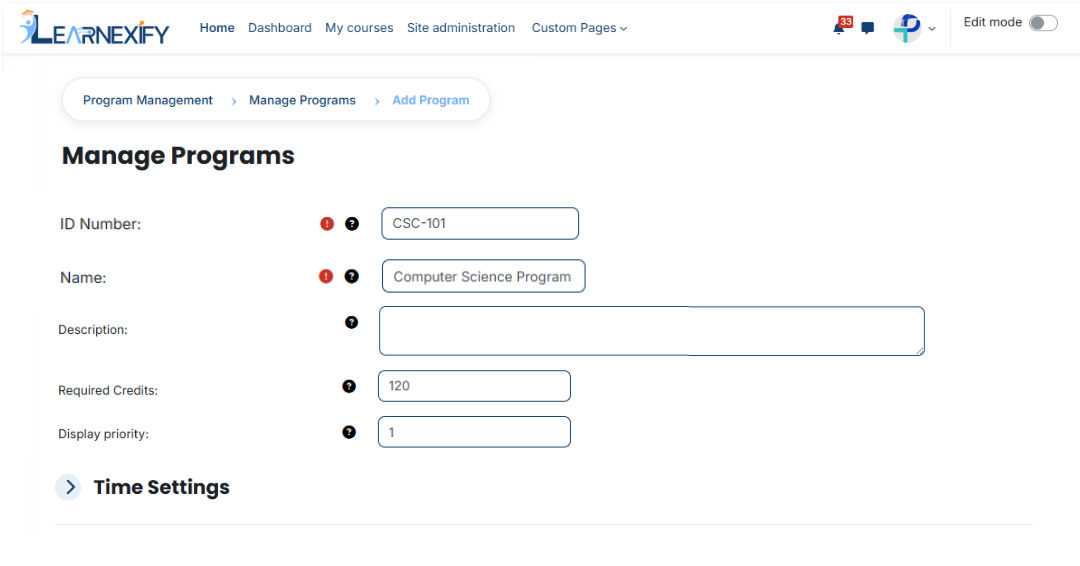
**Fill in the details (required):**
**ID Number:** The ID Number is a unique code used to uniquely identify each program in the system.
Example: CS-101
**Name:**
The Name field defines the title of the program and helps users identify it easily.
Example: Computer Science Program
**Description:**
The Description provides an overview of the program and explains what students
will learn.
Example: This is a Computer Science degree program covering programming,
databases, and software development.
**Required Credits:**
Required Credits indicate the total number of credit hours needed to complete the program.
Example: 120
**Display Priority:**
Display Priority defines the order of programs in the list. Higher numbers appear first.
Example: 1
#### **Time setting:**
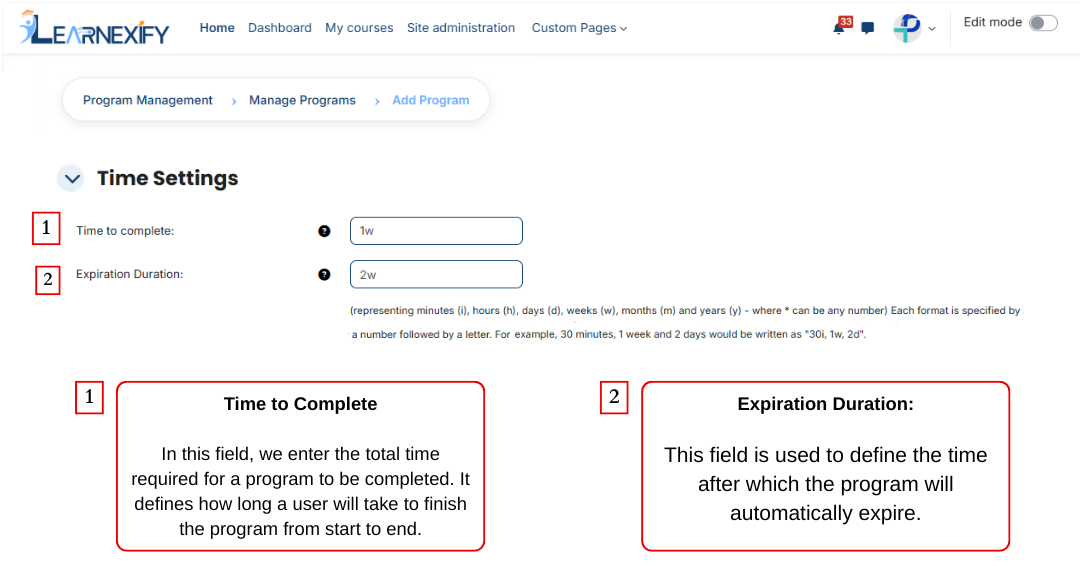
The next feature is Time Setting, and it is used to control the duration of a program. It defines how long a program will remain active and how much time a user gets to complete it. With this feature, the program is properly time-managed and works within a fixed schedule. These are the two fields of the Time Setting feature.
To specify a duration, use the following abbreviations:
- i = Minutes
- h = Hours
- d = Days
- w = Weeks
- m = Months
- y = Years
Examples: 2y (2 years) or 1w 2d (1 week and 2 days).
For additional information, a document has been prepared for this expiration duration feature. You can view it by clicking on the given link.
### 
### Recruitment Information:
Recruitment Information feature is used in a program to define and manage all important details related to admission or enrollment. It helps students clearly understand which qualification is required before joining the program.
It also explains what benefits or career outcomes a student will get after completing the program.
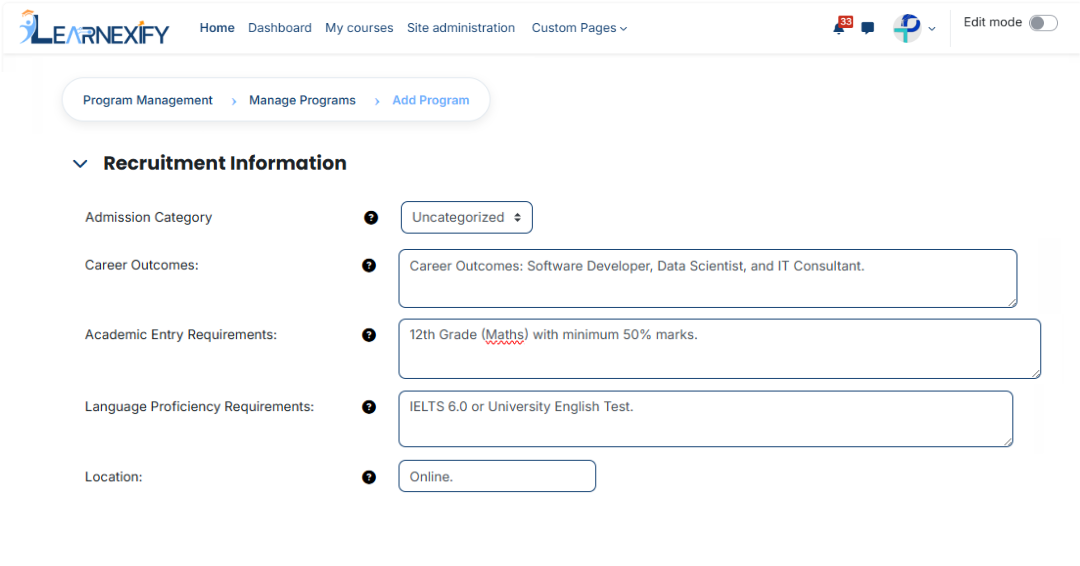
This feature contains 5 fields
#### **Admission Category:**
This field is used to define the admission category of the program.
##### **Purpose****:**
- Define the type of admission
- Categorize programs
- Maintain organization in the system
**Example:** Uncategorized
#### **Career Outcomes:**
This field is used to inform students about the career opportunities they may get after completing the program.
##### **Purpose:**
- Guide students about outcomes after program completion
- Show future career opportunities
**Example:** Software Developer, Web Developer, Data Analyst
#### **Academic Entry Requirements:**
This field is used to define the required educational qualification for admission.
##### **Purpose:**
- Set eligibility criteria
- Define required education level
**Example:** Intermediate or Bachelor’s degree
#### **Language Proficiency Requirements:**
This field is used to define the required language proficiency for students.
**Purpose:**
- Set required language level
- Improve learning understanding
**Example:** Basic English understanding or IELTS score (if required)
#### **Location:**
This field is used to define the location where the program is available.
##### **Purpose:**
- Show program location
- Define online or campus availability
**Example:** Online / Chiniot
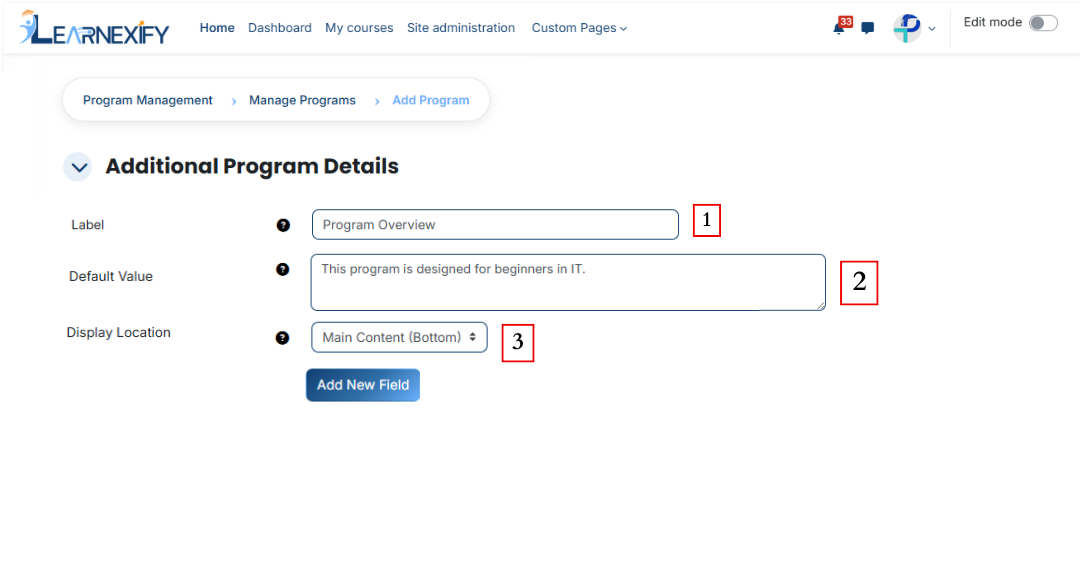
### Additional Program Details:
Additional Program Details feature is used to add extra information about a program apart from the main description. It also defines where this extra information will be displayed in the program interface so that users can easily view it in the relevant section of the program page. In this feature, you can also add new fields.
#### **Label:**
This field is used to define the name or title of additional information. It helps identify what the added information is related to.
**Purpose:**
- To identify the field
- To define the title of the information
- To maintain clarity in the system
**Example: **Program Overview, Duration Info, Requirements
####
**Default Value:**
This field is used to set a predefined value for the label, which is automatically displayed when an additional program detail is created.
##### **Purpose:**
- To provide pre-filled content in the field
- To make data entry easier
**Example:** This program is designed for beginners in IT.
#### **Display Location:**
This field is used to define where the additional information will be displayed within the program content. It allows us to decide whether the extra information should appear above or below the main content, or in the sidebar at the top or bottom.
**Purpose:**
- To set the exact position of additional information on the page
- To organize the page layout properly
- To display information in the correct section for better user experience.
**Options:**
- Main Content (Top)
- Main Content (Bottom)
- Sidebar (Top)
- Sidebar (Bottom)
**Example:** Displays the information above the main program content when Main Content (Top) is selected.
- **New field:** If you want to add a new field, you can add it by clicking the “Add New Field” button.
### Payments:
#### Payments feature is used to manage and configure admission fee-related settings. In this section, we define the admission fee that is charged from students for enrolling in a program.
#### **Fee Name:**
Fee Name is used to define the title of the payment. It tells what type of fee is being charged from students.
##### Purpose:
- To make it clear to students what the fee is for
##### **Example:** Admission Fee
#### **Fee Amount:**
This field is used to define the total admission fee amount that a student needs to pay.
##### **Purpose:**
- To set the exact fee value
- To help in payment and calculation
##### **Example:** 3000
#### **Currency:**
This field is used to define the currency in which the student will pay the fee.
##### Purpose:
- To specify the payment currency
- To ensure correct financial transactions
**Example:** Pakistani Rupee, US dollars
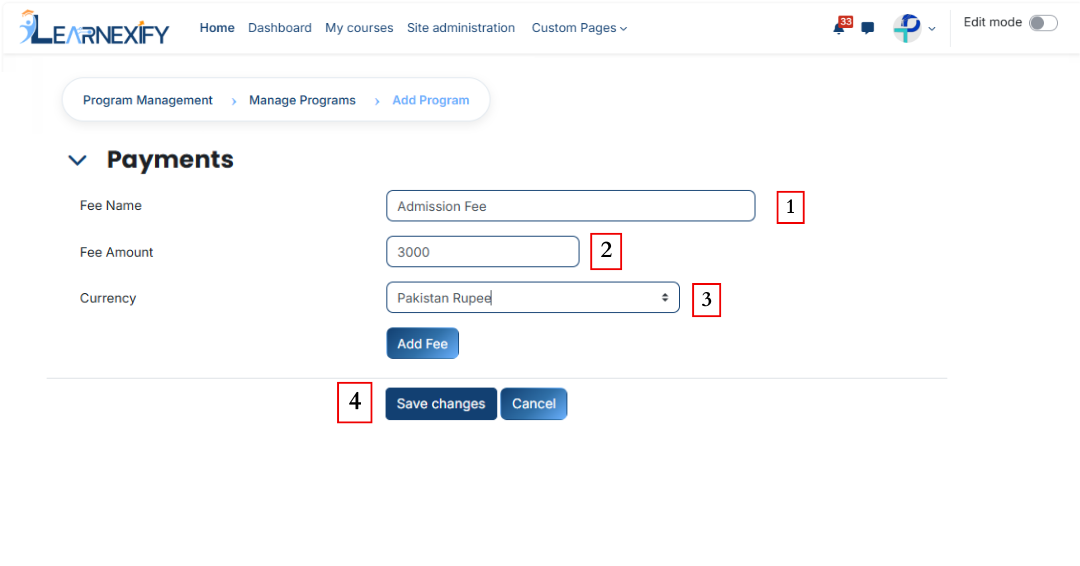
- To complete this process, scroll down and click on the **Save Changes** button.