# Manage Semesters
# Learnexify Semester
A semester is a fixed academic period used in universities to divide an academic year into smaller parts, where students take specific courses and complete learning, assignments, and exams. Its main purpose is to keep the academic system structured and manageable.
A degree program has multiple semesters (such as Semester 1, Semester 2, Semester 3, etc.), and students progress step by step until they complete their program.
### **How to create a semester:**
- After login, the dashboard will open.
- Open the side drawer menu.
- Click on Programs and then select Manage Semesters.
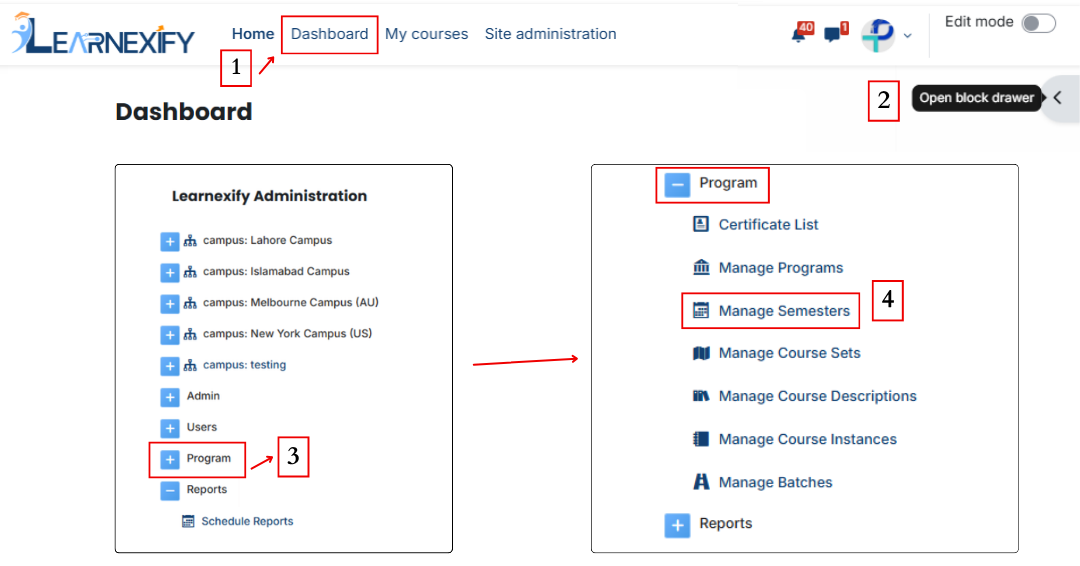
- Click the Add Semester button.
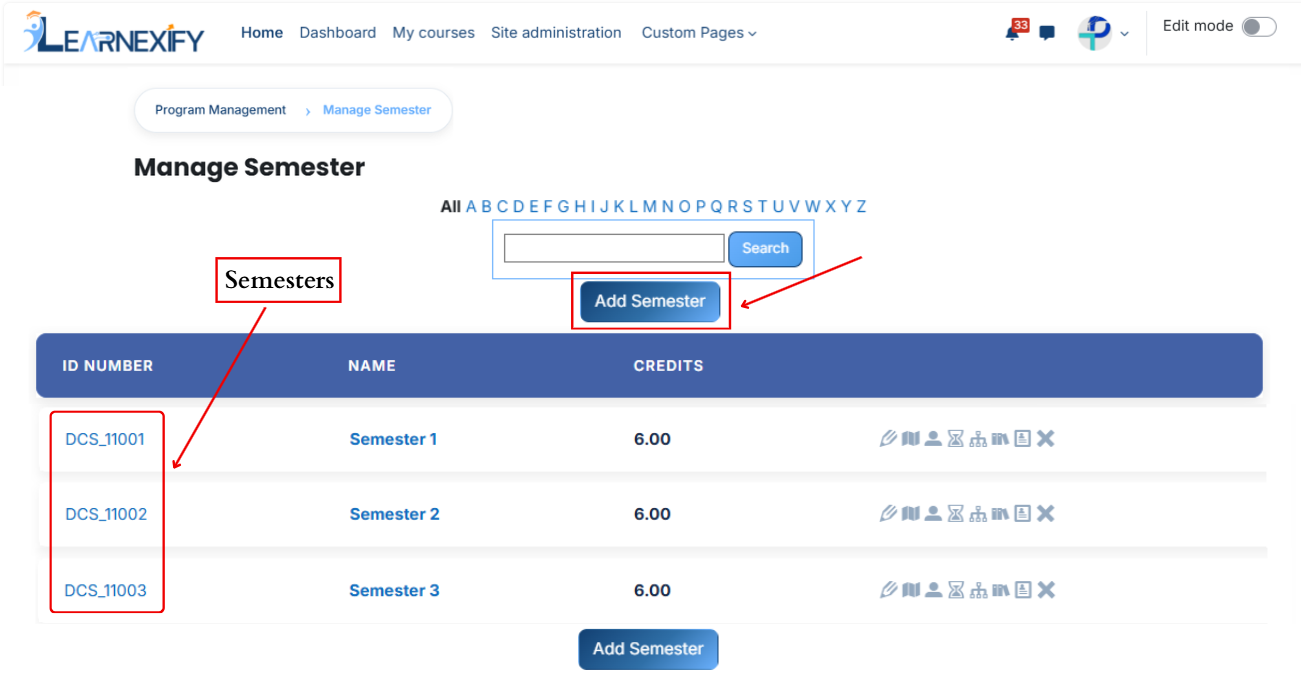
- The semester creation page will be displayed.
- Fill in the details:
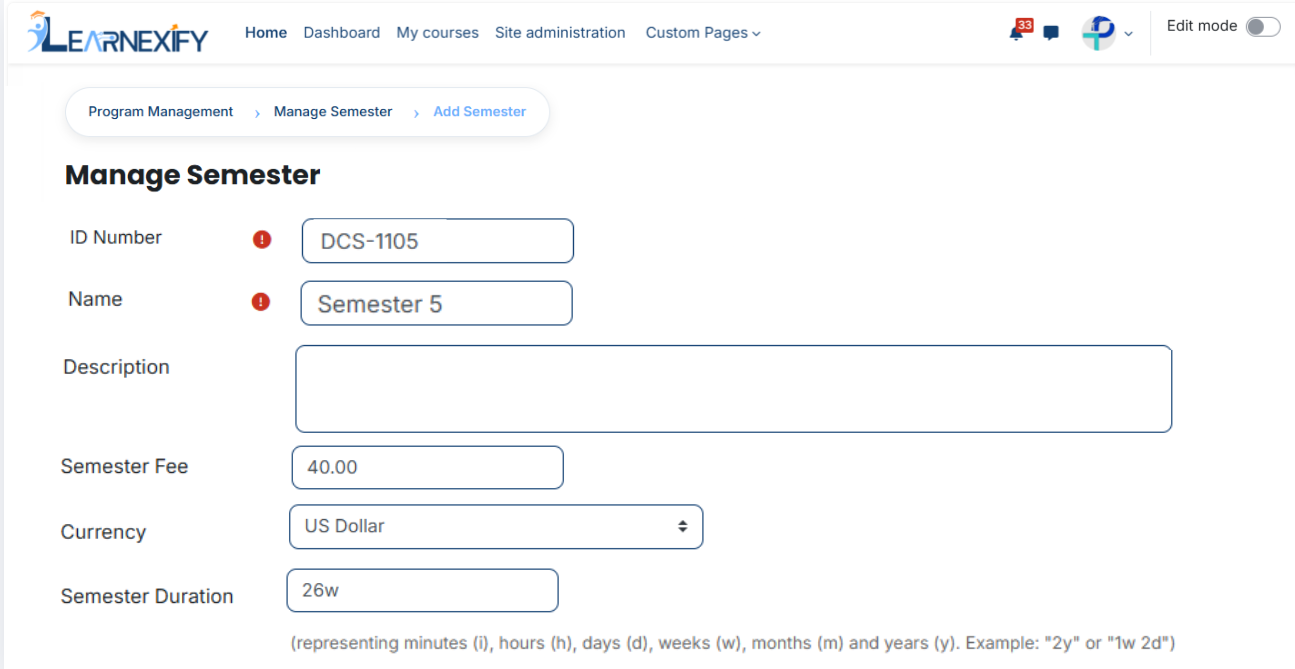
- **ID Number** The ID Number is a unique identifier used to distinguish each semester in the system so that no two semesters have the same identity.
Example: SEM-EE-001
- **Name** The Name field is used to define the semester title, which helps users easily recognize and differentiate it from other semesters.
Example: Semester 1 – Electrical Engineering
- **Description** The Description field gives a brief explanation of the semester, including its level and the purpose of studies during this period.
Example: This semester introduces basic electrical engineering concepts and provides foundational knowledge for higher-level studies.
- **Semester Fee** The Semester Fee defines the total amount required to enroll in the semester.
Example: 2000
- **Currency** The Currency field specifies the payment currency in which the semester fee is charged.
Example: US Dollar
- **Semester Duration** Semester Duration defines how long the semester will run using time formats such as weeks, months, or years.
Example: 1y,
To specify a duration, use the following abbreviations:
- i = Minutes
- h = Hours
- d = Days
- w = Weeks
- m = Months
- y = Years
Examples: 2y (2 years) or 1w 2d (1 week and 2 days).
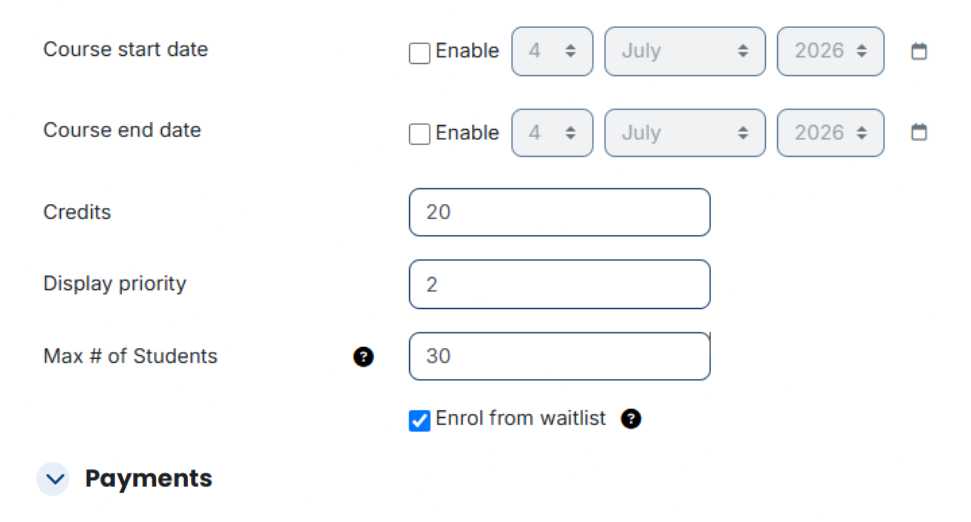
- **Course Start Date** The Course Start Date indicates the date when semester courses begin.
Example: 15 April 2026
- **Course End Date** The Course End Date indicates the date when semester courses finish.
Example: 15 April 2027
- **Credits** Credits represent the academic workload assigned to the semester based on course completion requirements.
Example: 18.00
- **Display Priority** Display Priority defines the order in which the semester appears in lists or menus within the system.
Example: 1
- **Max # of Students** This field defines the maximum number of students that can be enrolled in a semester.
Example: 50
- **Enrol from Waitlist** This option allows students from the waitlist to be automatically enrolled when seats become available in the semester.
Example: Enabled
### **Payments:**
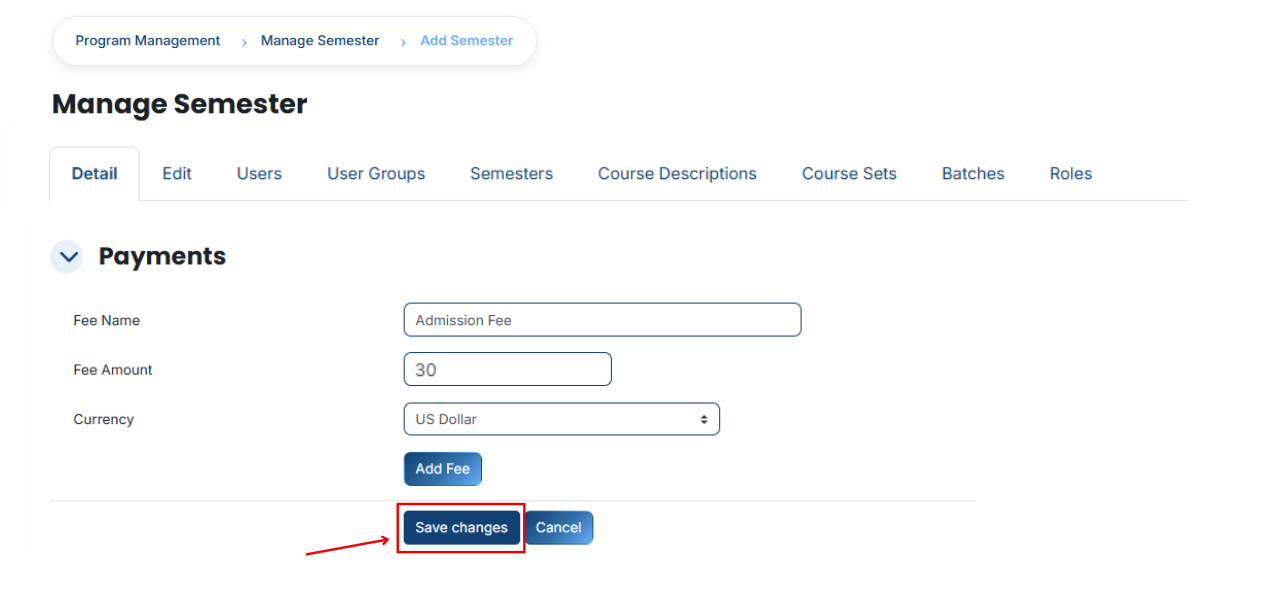
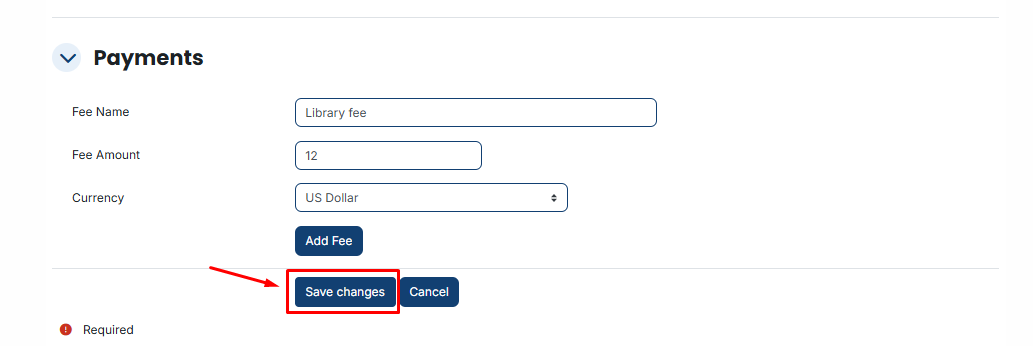
Payments feature is used to manage and configure semester fee settings within the system. In this section, administrators can define the fee amount, set the currency, and control how the semester fee is applied to students. It helps ensure that all students are charged correctly when they enroll in a semester and allows easy management of fee-related settings.
[](https://wiki.paktaleem.net/uploads/images/gallery/2026-07/pZEimage.png)
#### **1. Fee Name**
Fee Name is the title that defines the type of payment, helping identify what the fee is being charged for.
**Example:**
Semester Fee
#### **2. Fee Amount**
Fee Amount is the total amount that a student has to pay for a specific fee.
**Example:**
30
#### **3. Currency**
Currency defines the type of money in which the fee will be charged.
**Example:**
USD Dollar
- To finish the **process**, scroll down and click on the **Save Changes** button to save the changes.
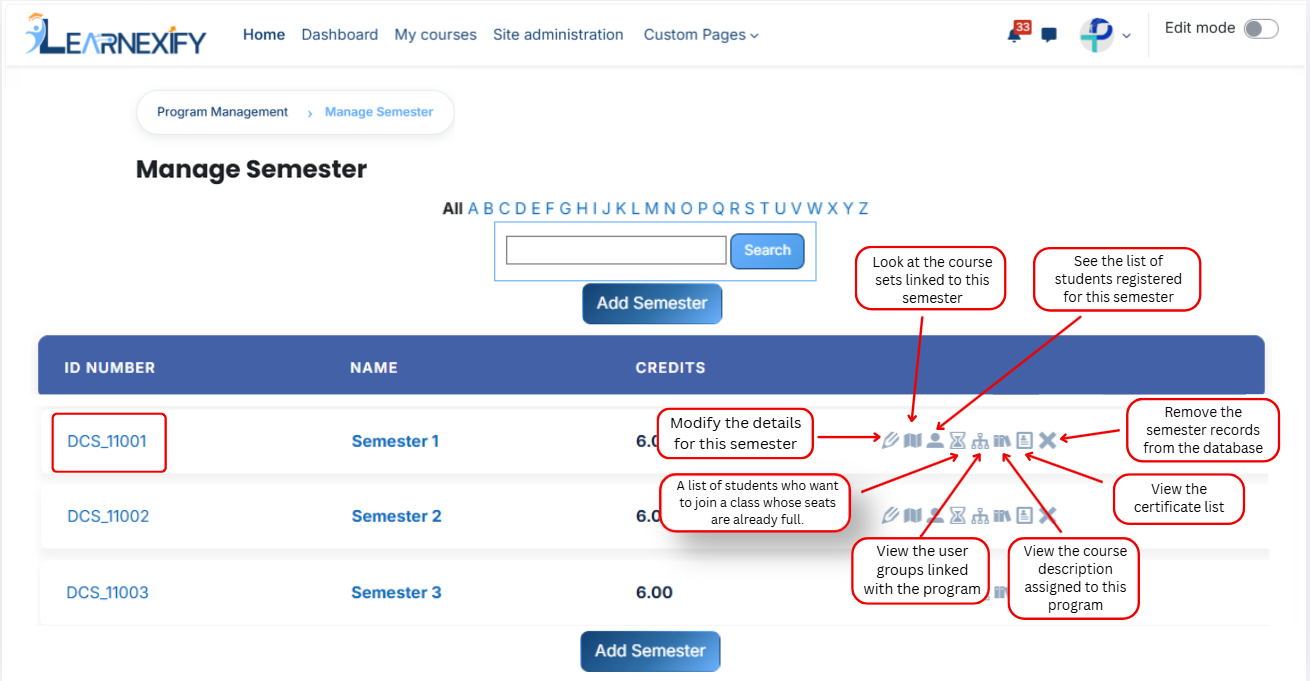
- After clicking **'Save Changes'**, the semester will be displayed in the semester List. An explanation of **each icon** is **provided below.**
# How to edit a Semester
To edit a program, follow these steps:
- On the Dashboard
- Open the Side Drawer Menu
- Click on **Programs**
- Select **Manage semester**
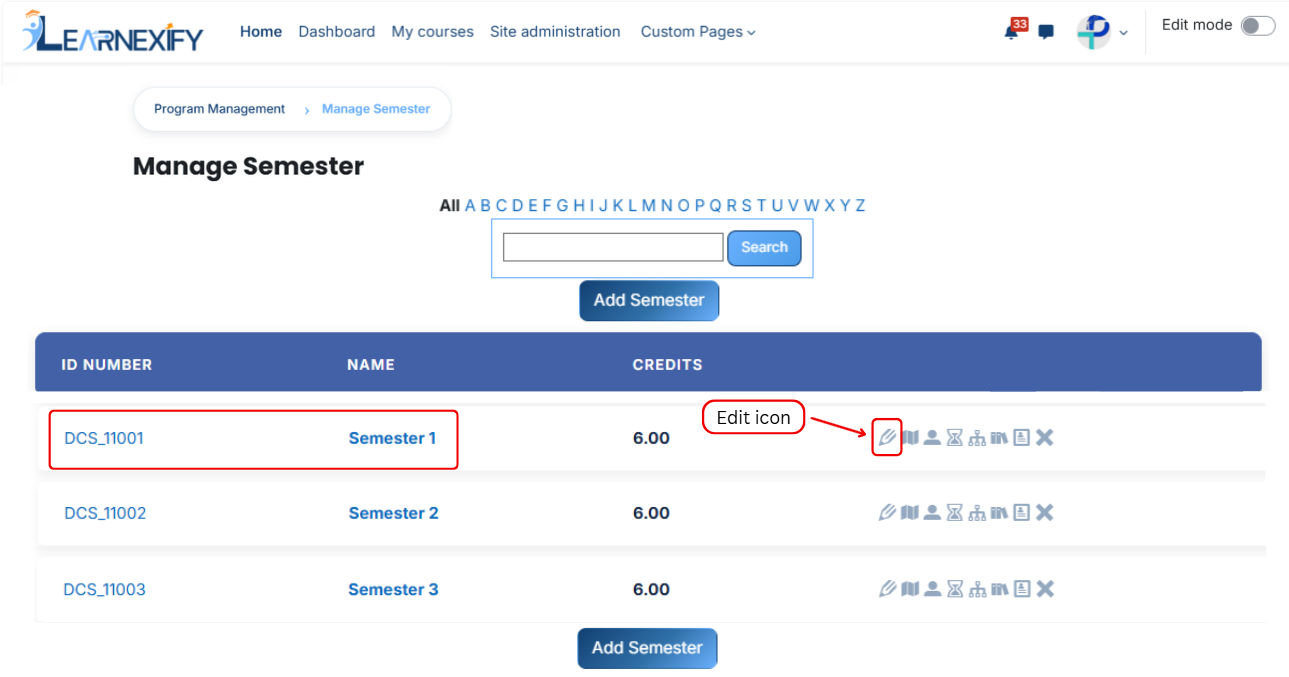
- A list of semesters will be displayed.
- Click the **edit icon** of the **semester** you want to edit.
- The semester details page will open in **editable mode.**
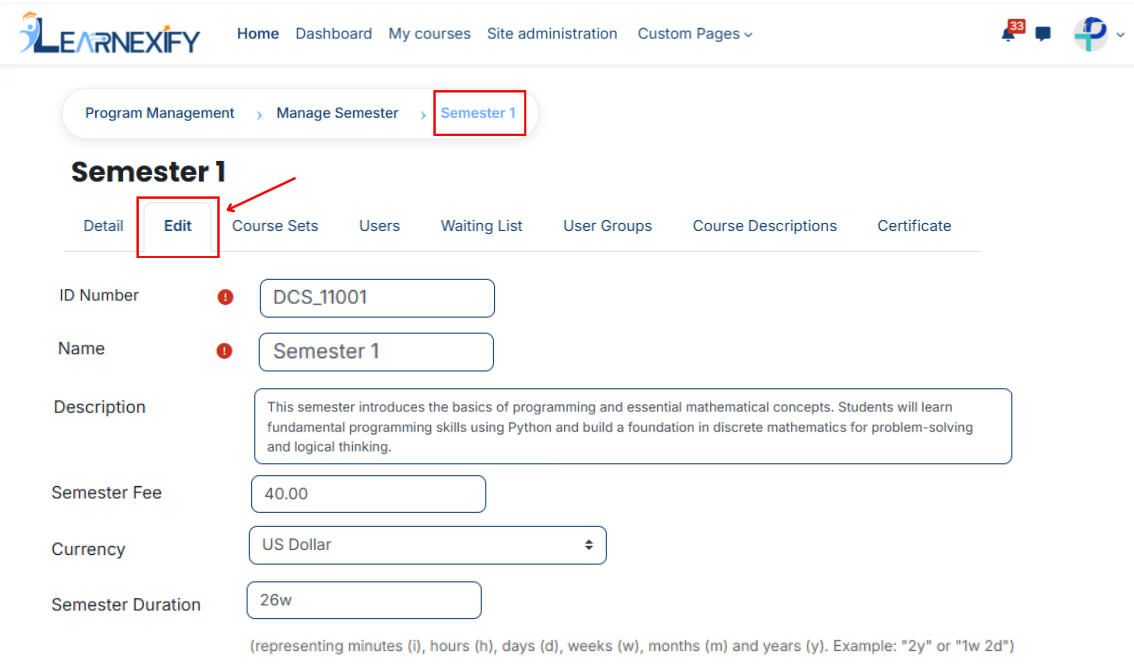
- Update the required semester details
- Scroll down and click on the Save Changes button to apply updates
[](https://wiki.paktaleem.net/uploads/images/gallery/2026-07/jTtimage.png)
---
# How to Assign Course sets to a Semester:
- **Path:** Dashboard ⟶ Side Drawer Menu ⟶ Learnexify Administration Block ⟶ Programs ⟶ Manage semester
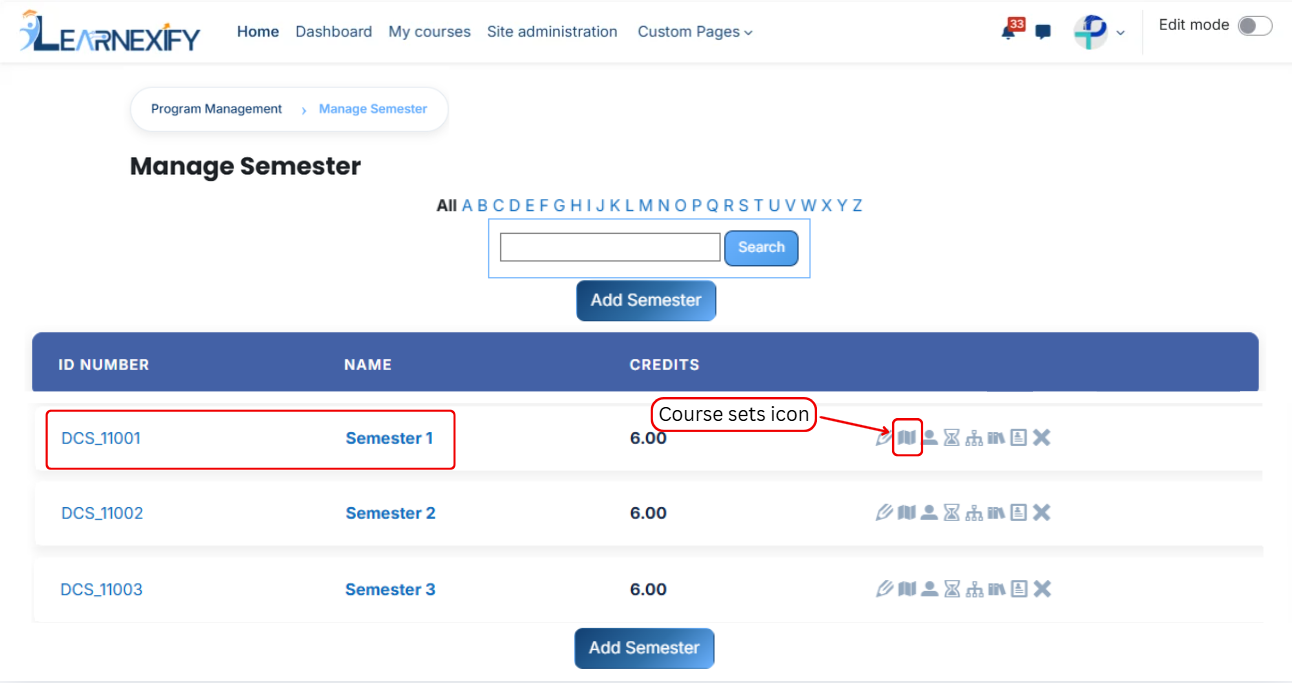
- A list of semesters will be displayed.
- Click the **course sets icon** of the semester you want to **assign course sets.**
[](https://wiki.paktaleem.net/uploads/images/gallery/2026-07/vUVimage.png)
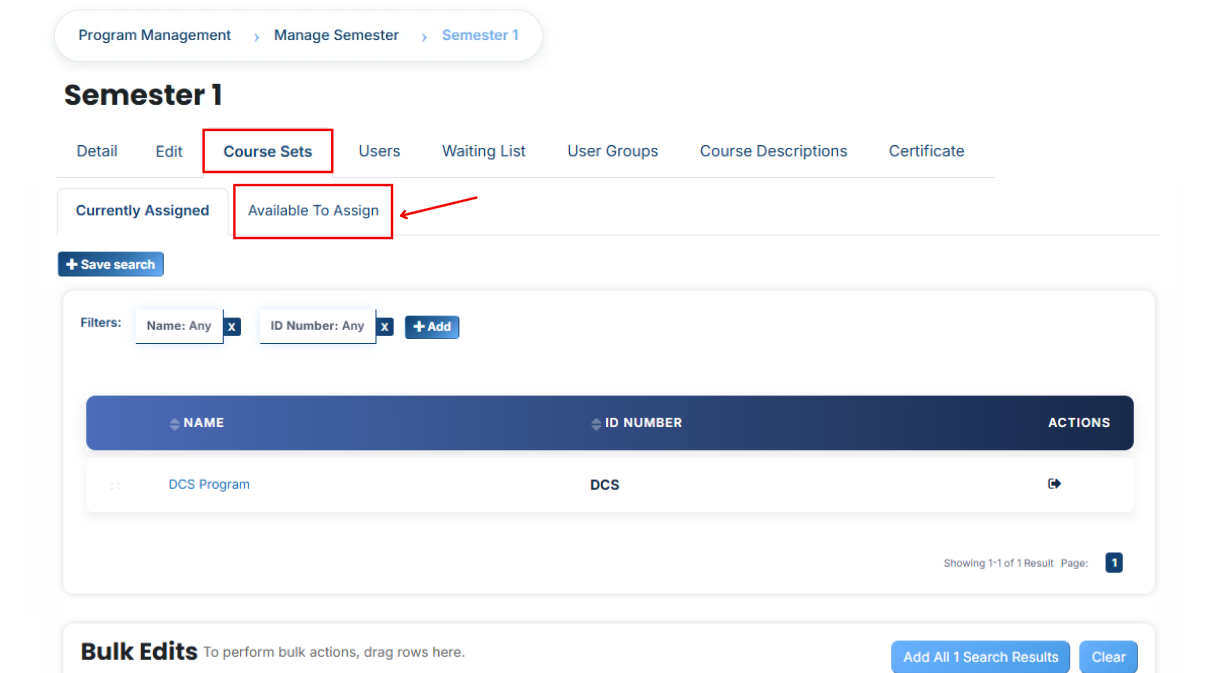
- After opening the **course sets** tab
- Here you will see assigned course sets in the program
- If you want to assign more **Course sets** Click on the **Available to Assign button**
[](https://wiki.paktaleem.net/uploads/images/gallery/2026-07/8I6image.png)
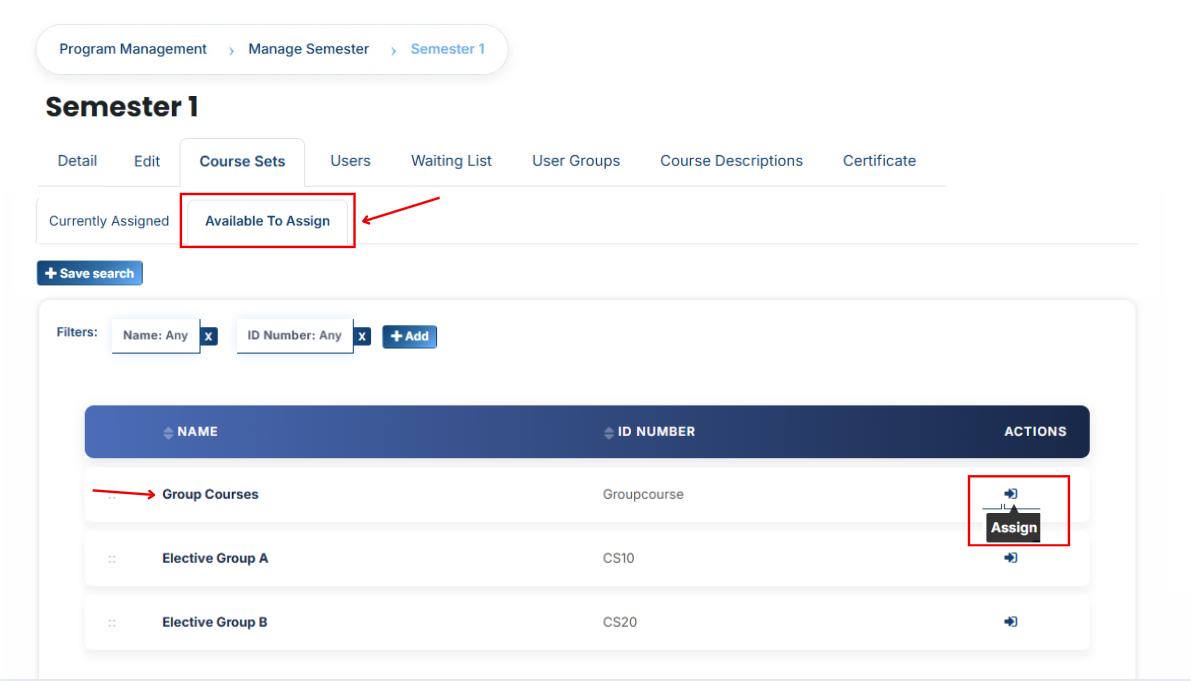
- A list of available course sets will be displayed
- Find the course set you want to **assign.**
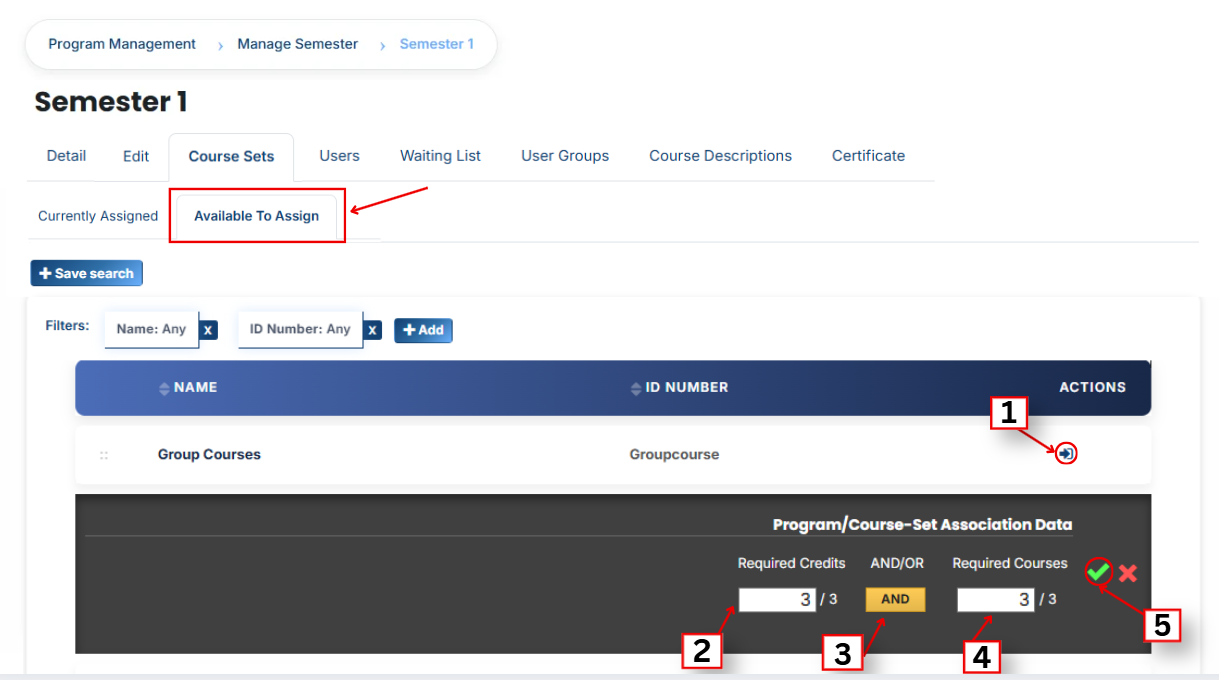
- First **Click** on the **arrow icon** to move the **course sets** to the assigned list
[](https://wiki.paktaleem.net/uploads/images/gallery/2026-07/DHsimage.png)
- **Fill the details:**
#### **1. Required Credits**
This requirement specifies the total number of credits a learner must successfully complete to satisfy the program or course set requirements. For example, if the requirement is 10 credits, the learner must complete courses whose combined credit value equals or exceeds 10 credits.
#### **2. AND/OR Condition**
This defines how the requirements work together:
- AND means both conditions must be completed (required credits + required courses).
- OR means either condition can be fulfilled (either required credits or required courses).
#### **3. Required Courses**
This means specific courses are mandatory. The learner must complete all the listed courses in the course set.
- Click on the green tick (✔) to confirm the assignment
[](https://wiki.paktaleem.net/uploads/images/gallery/2026-07/Nnuimage.png)
- After that, click on the Currently Assigned button
- Here, you will see the course sets who have been successfully assigned to the program
### **Add a Course sets if Not Found in Available List**
If the course sets you want to assign is not available in the list, follow these steps:
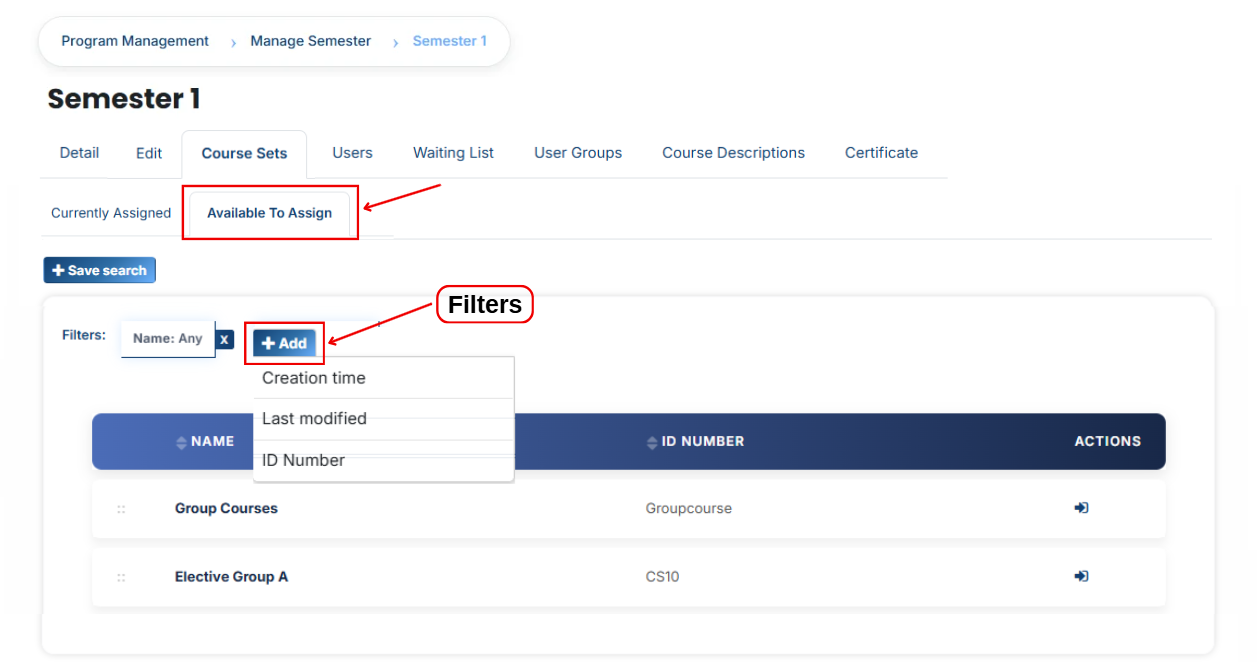
- Click on the **Available to Assign** button
- Then click on the **Add button.**
- A dropdown list will appear
- Select the **field**
- Enter course sets details in the selected field according to the chosen option.
- **Creation Time:** Displays the date and time when the course set was created.
- **Last Modified:** Displays the date and time when the course set was last updated or edited.
[](https://wiki.paktaleem.net/uploads/images/gallery/2026-07/uF5image.png)
- The course set will appear in the list
- Select the course sets and assign them to the program
#### **Bulk User Action:**
**Purpose:**
Use this feature to assign multiple Course Sets efficiently.
**Method 1:**
- Select those multiple **course sets** you want to assign.
- After making your selections, click the **“Add All 2 Selected Items”** button to add the selected course sets.
The number displayed in the button (e.g., 2) represents the number of items currently selected and will change depending on how many items you select.

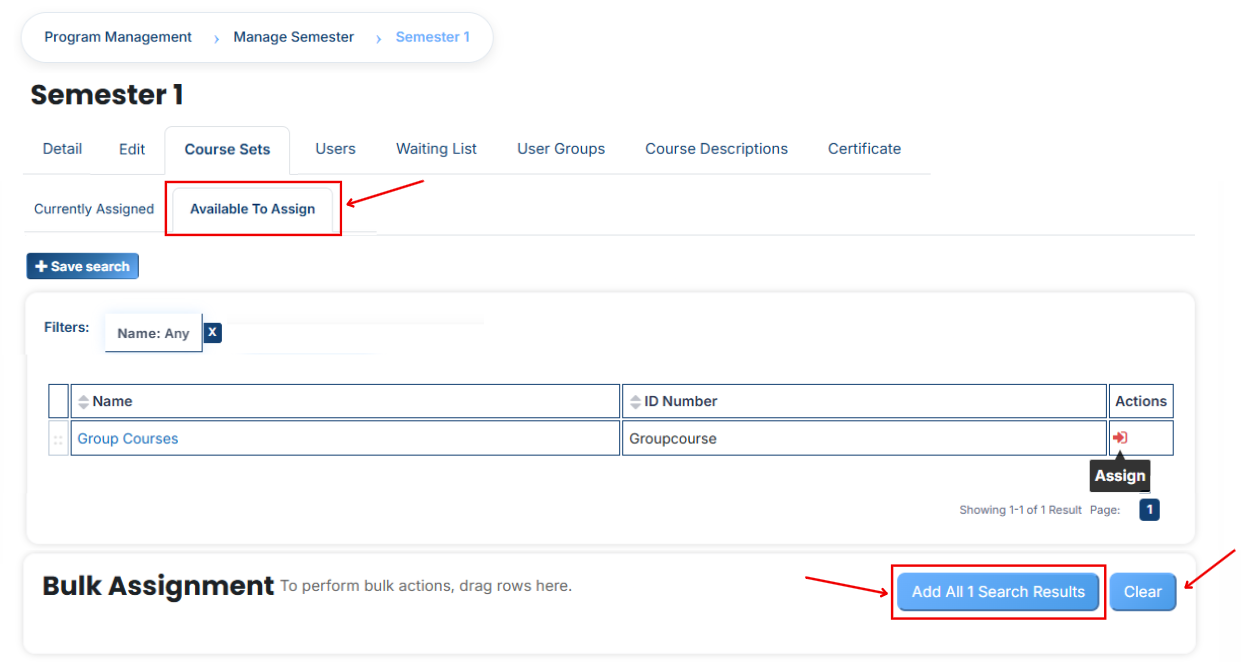
- Then click on the Assign button in the Bulk Assignment Section to move the course sets to the assigned list.
**Method 2:**
- Click the **“Add All 2 Search Results”** button to add **all course sets** with a single click. The number displayed in the button **(e.g., 2)** may vary depending on the number of course sets available in the search results.
- If you want to **clear everything** form the **bulk assignment section**, click the **Clear button.**
# How to Assign Users to a Semester:
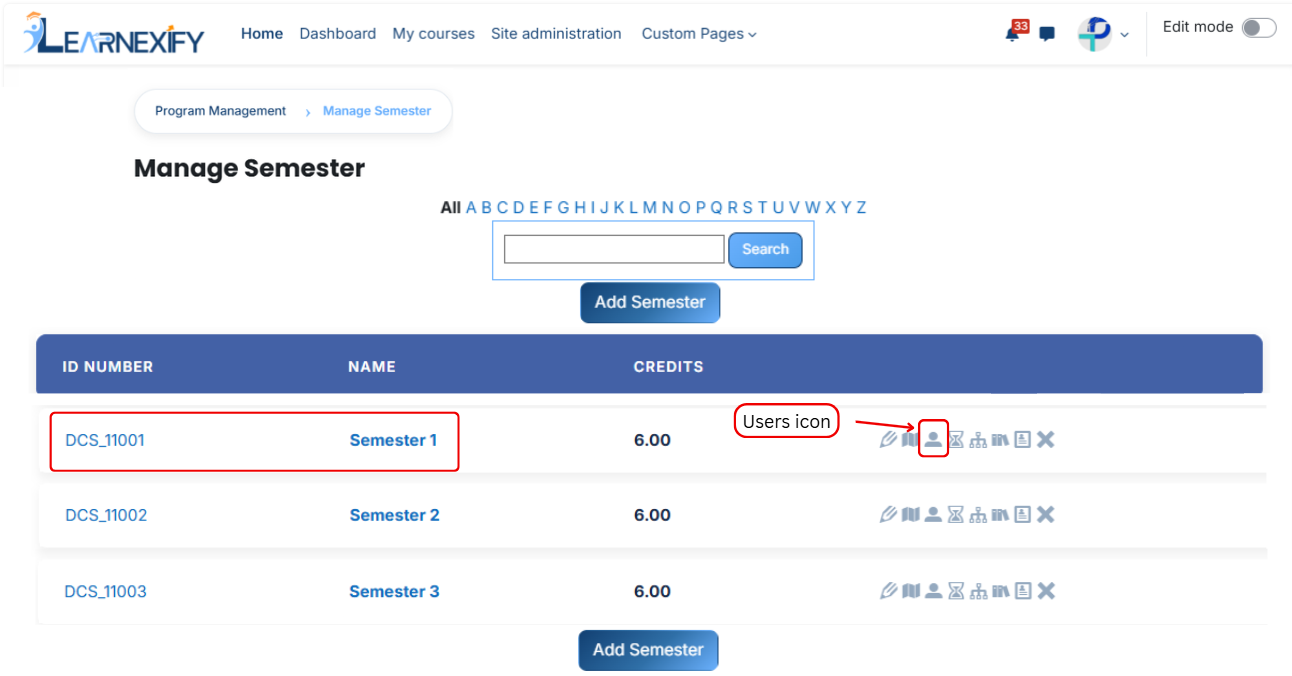
From the list of **all semesters**, click the **users icon** of the **semester** to which you want to **assign users.**
- After opening the **Users tab**
- Here you will see **assigned user** in the program
- If you want to assign more users **Click** on the **Available to Assign button**
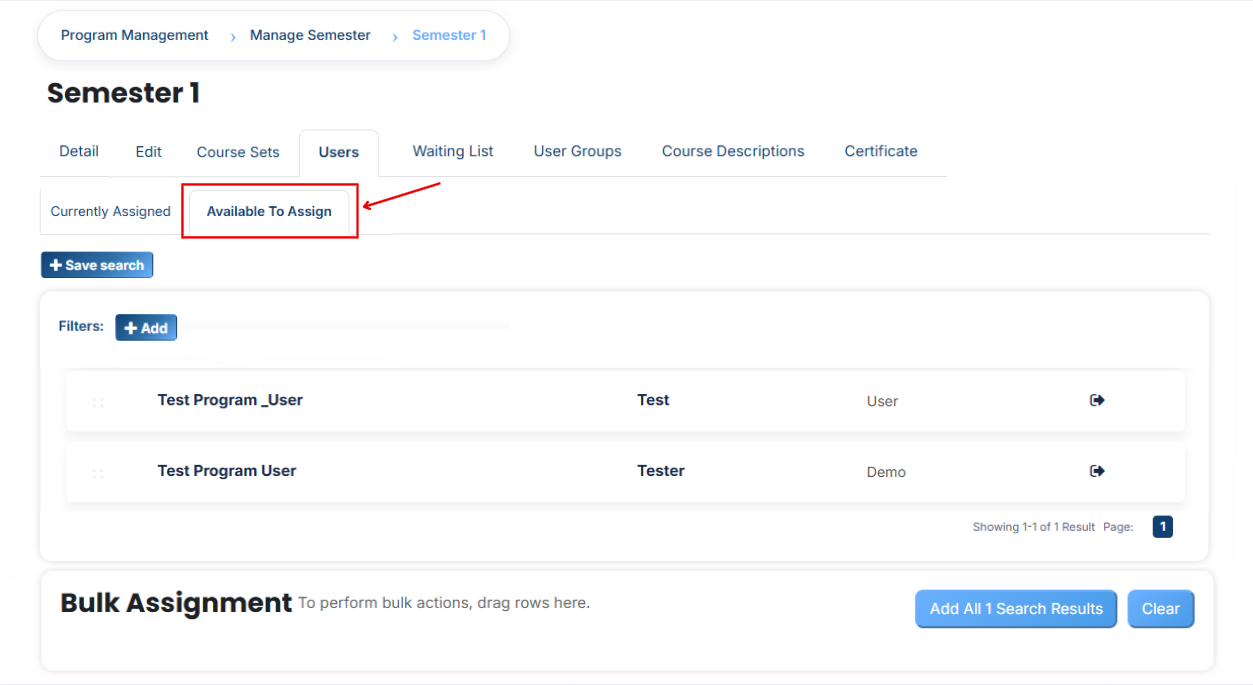
- A list of **available users** will be displayed
- Select the user you want to **assign**
- First **Click** on the **arrow icon** to move the **user** to the assigned list
- Click on the green tick (✔) to confirm the assignment
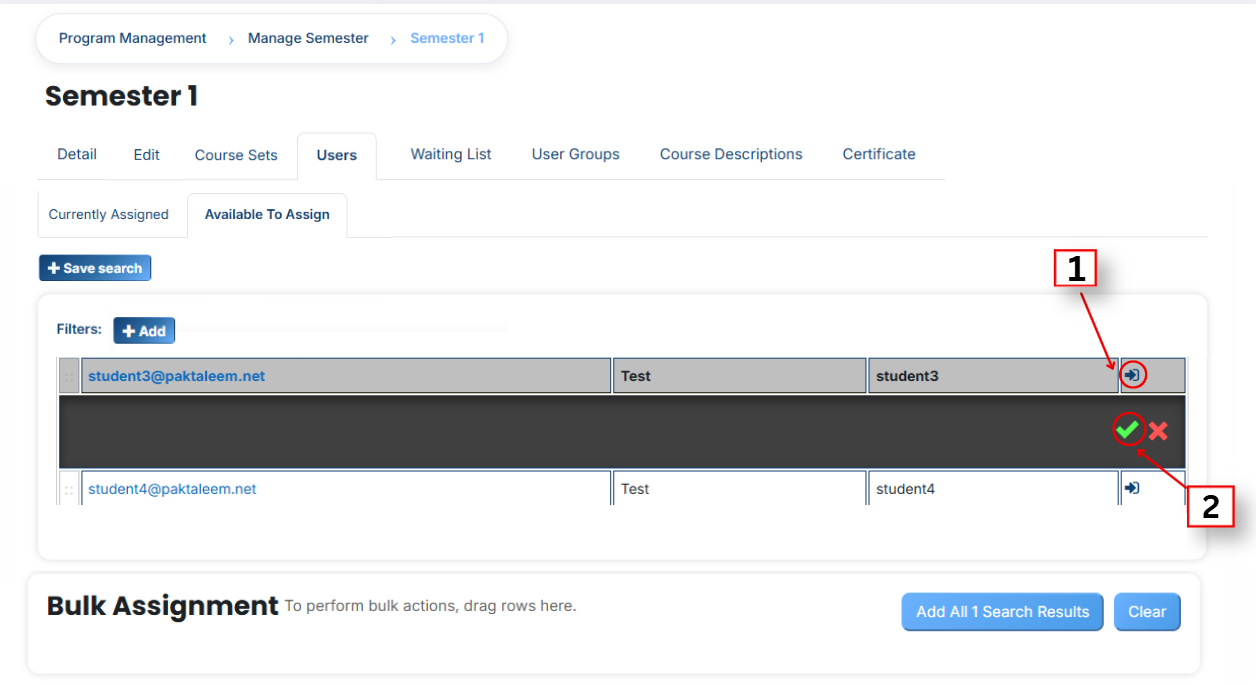
- After that, click on the **Currently Assigned button**
- Here, you will see the **users** who have been **successfully assigned** to the semester
### Add a user if it is not available in the list.
If the user you want to assign is not available in the list, follow these steps:
- Click on the **Available to Assign button**
- Then click on the **Add button.**
- A dropdown list will appear
- Select the **required field** (e.g., Email, username, city e.t.c)
- Enter the user’s details in the selected field according to the chosen option.
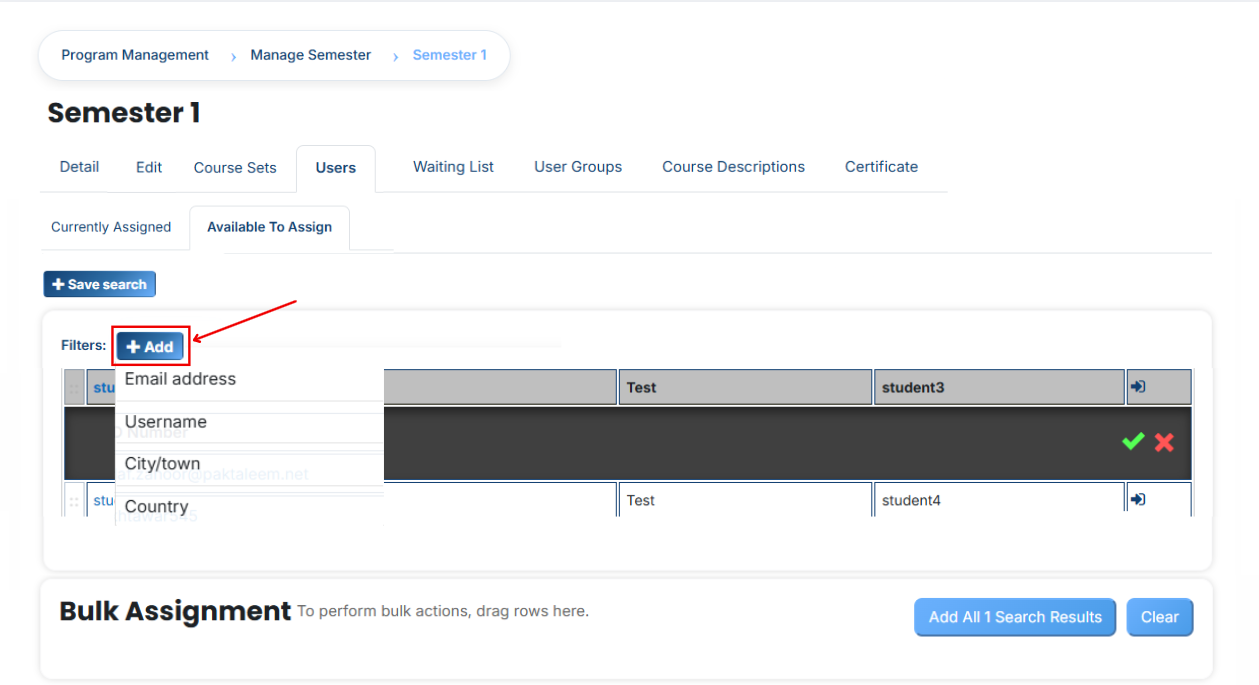
- The user will appear in the list
- Select the user and assign them to the semester
You can also **search** and **add** a user using other **details** such as:
- Email address
- Username
- City/town
- Country e.t.c.
#### **Bulk User Action:**
**Purpose:**
Use this feature to assign multiple Users efficiently.
**Method 1:**
- Select those multiple users you want to assign.
- After making your selections, click the **“Add All 5 Selected Items”** button to add the selected users.
The number **displayed** in the button **(e.g., 5)** represents the number of items currently selected and will change depending on how many items you select.
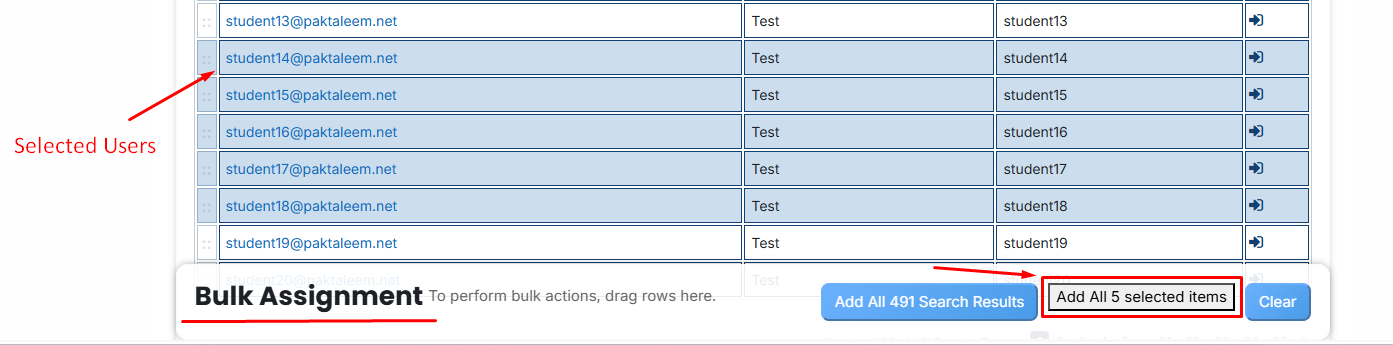
- Then click on the Assign button in the Bulk Assignment Section to move the user to the assigned list.
**Method 2:**
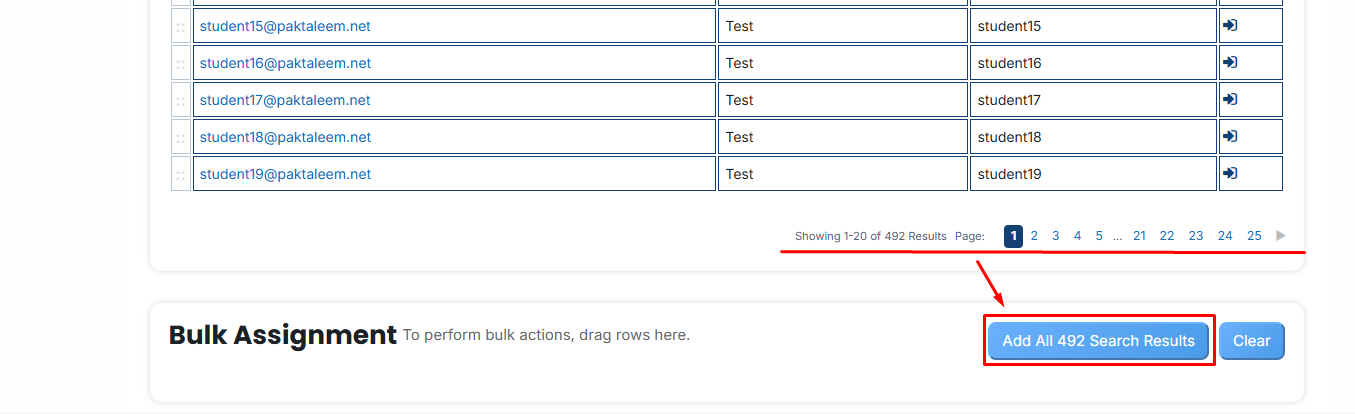
- Click the **“Add All 500 Search Results”** button to **add all users** with a **single** click. The number **displayed** in the button (e.g., 492 ) may vary depending on the number of users available in the search results.
- If you want to **clear everything**, click the **Clear button.**
# How to Add Users to the Waiting List in a Semester
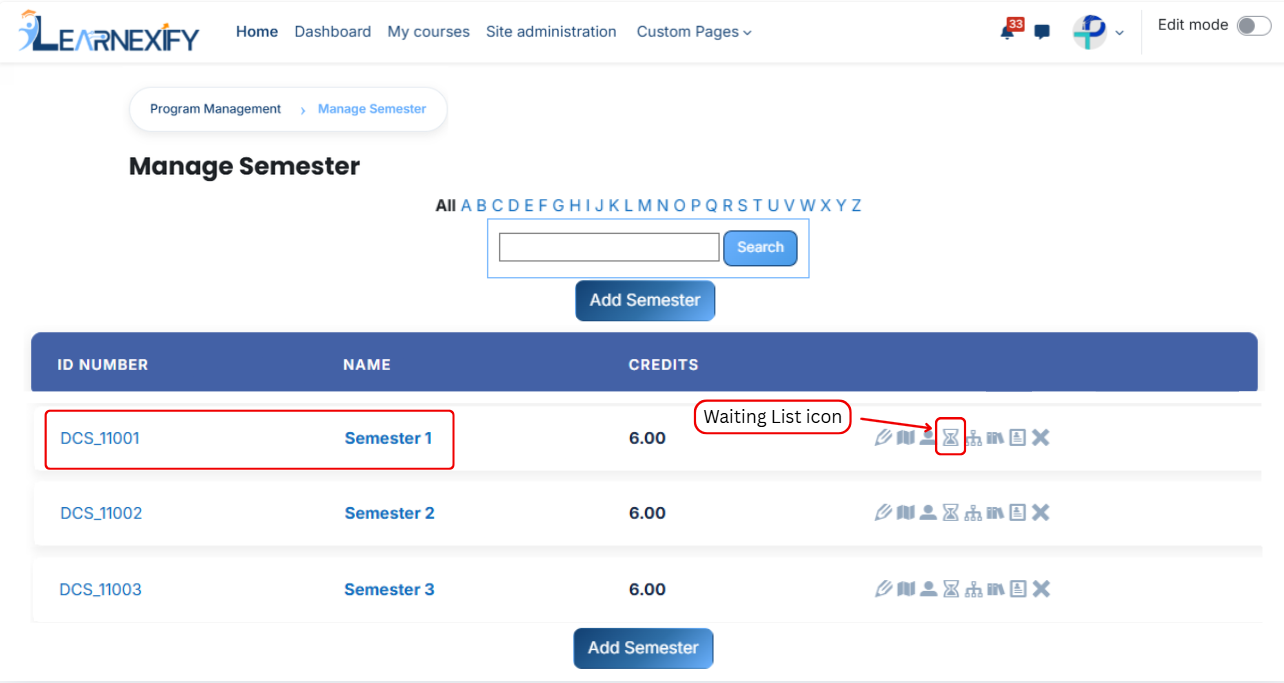
From the list of all **semesters,** click the **waiting list icon** of the semester to which you want to **add users** to the **waiting list.**
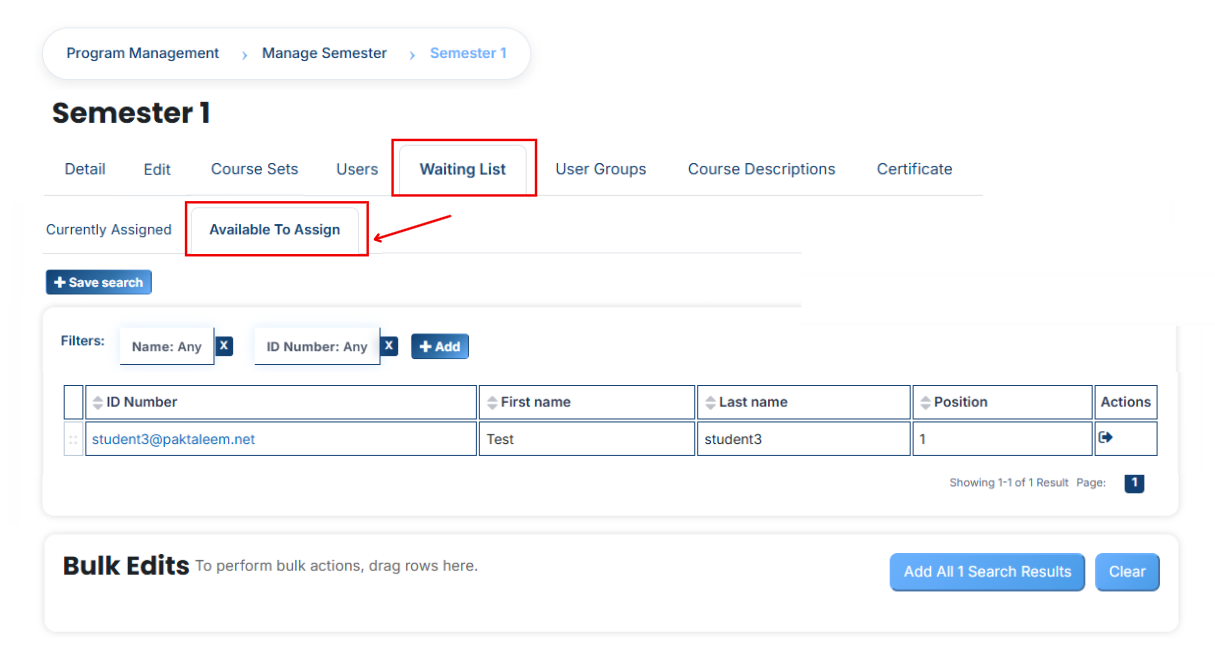
After opening the **Waiting list** tab,you will see the users already **assigned** to the **waiting list** for the semester. If you want to add more users to the waiting list, click on the **Available to Assign button.**
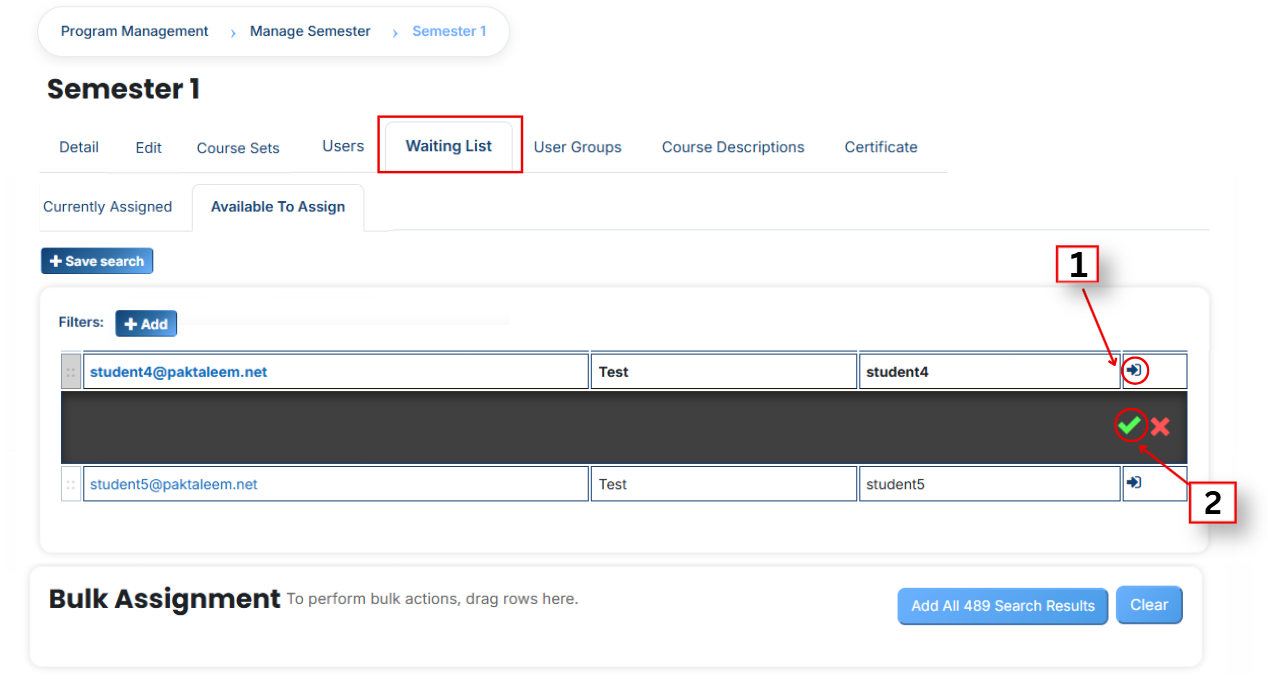
A list of available users will be displayed. Select the user you want to add to the waiting list.
First, click on the **arrow icon** to move the user to the **waiting list.**
Then, click on the green tick (✔) to confirm the **assignment.**
After that, click on the Currently Assigned button.
Here, you will see the users who have been successfully added to the waiting list.
### **Add a User if It Is Not Available in the List**
If the user you want to add to the waiting list is not available in the list, follow these steps:
- Click on the **Available to Assign button.**
- Then click on the **Add button.**
- A dropdown list will appear.
- Select the **required field** (e.g., Email, Username, City, etc.).
- Enter the user’s details in the selected field according to the chosen option.
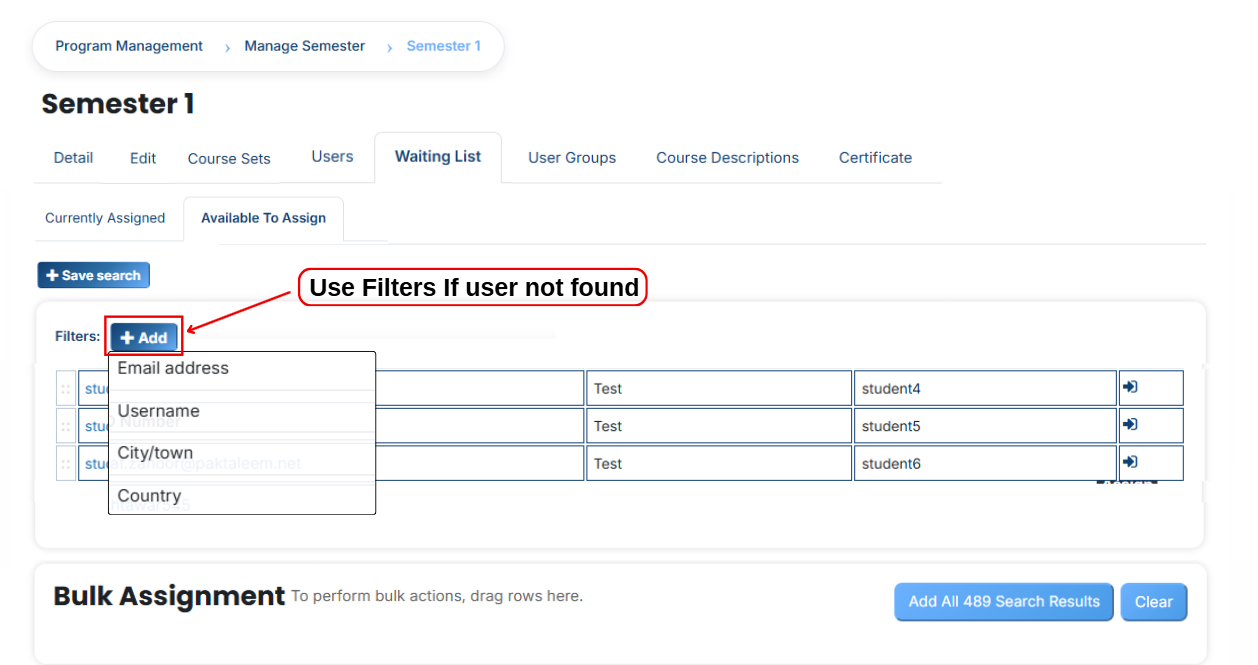
The user will appear in the list.
Select the **user** and add them to the **waiting list.**
You can also search and add a user using other details such as:
- Email address
- Username
- City/Town
- Country, etc.
# How to Assign User Groups to a Semester
To assign user groups to a semester, follow these steps:
- Open the semester list.
- In the semester where you want to add the user group, click on the user groups icon.
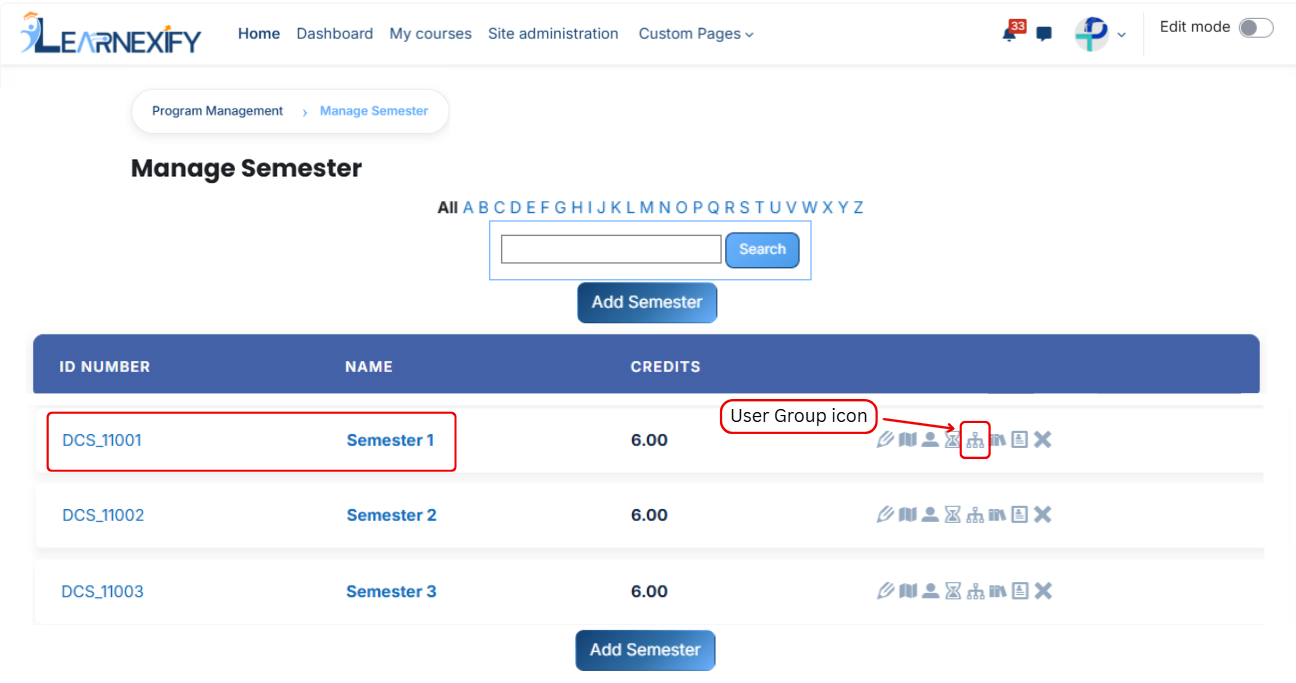
After opening the user groups tab:
- Here, you will see the **user groups** already **assigned** to the semester.
- If you want to assign more user groups, click on the **Available to Assign** button.
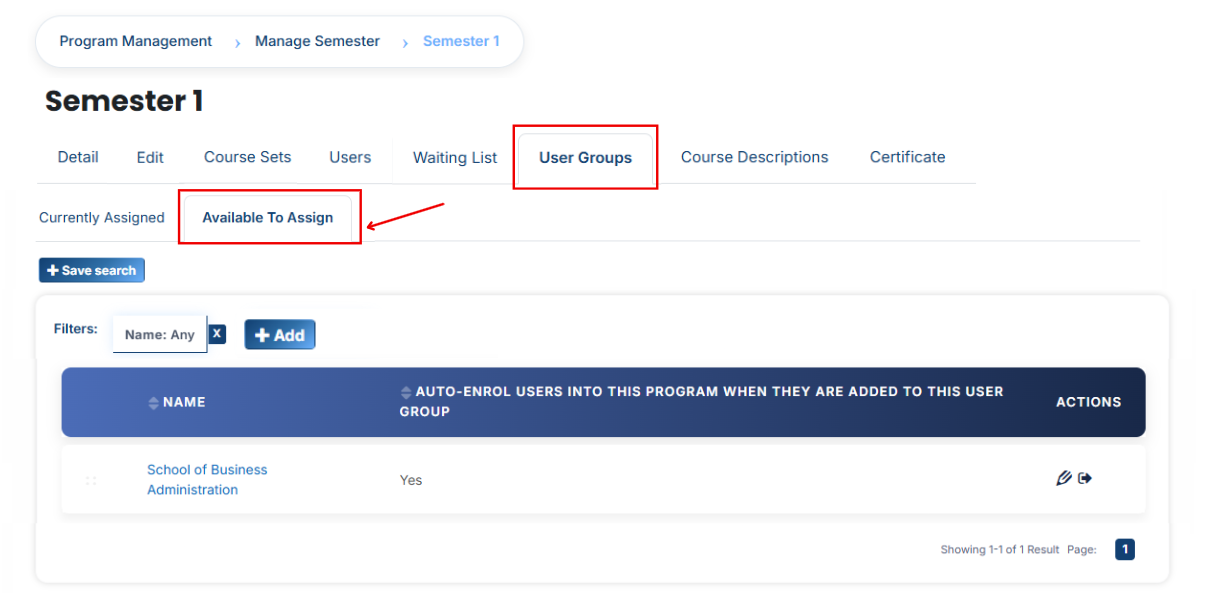
A list of available user groups will be displayed.
- Select the user group(s) you want to **assign.**
- First, click on the **arrow icon** to move the **user group** to the assigned list.
Select an option:
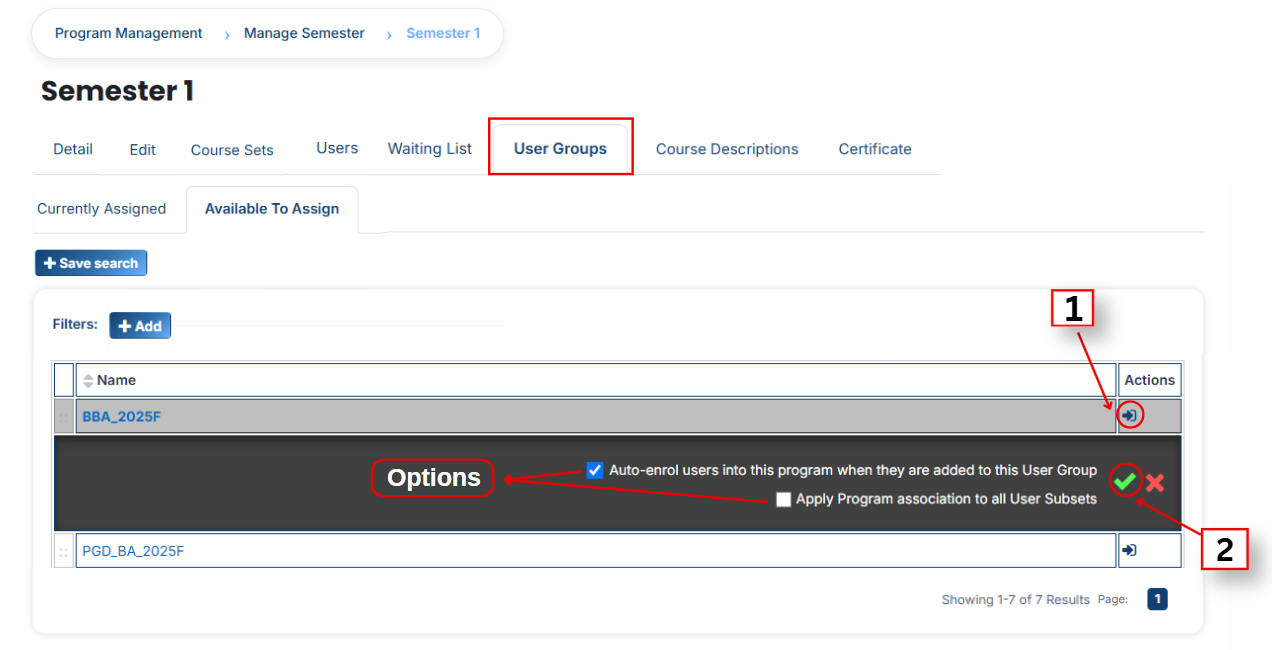
**1. Auto-enroll users into this semester when they are added to this semester** When this option is enabled, assigning a user group to a semester automatically assigns all users within that user group to the semester.
This means:
- All users included in the user group are automatically added to the semester.
- There is no need to assign each user individually.
- User assignments can be managed centrally through the user group.
- This saves time and reduces administrative effort.
**2. Apply program association to all User Subsets** When this option is enabled, the semester is assigned not only to the selected user group but also to all of its associated User Subsets.
This means:
- The semester is automatically applied to all User Subsets within the selected user group.
- Users in those User Subsets are also linked to the semester.
- There is no need to assign the semester separately to each User Subset.
- This ensures consistent assignment across all related user groups.
After that, select an option and **click the green tick (✔)** to confirm the assignment.
After that, click on the **Currently Assigned** button.
- Here, you will see the user groups that have been successfully assigned to the semester.
### **Assign User Groups Using Filters**
In the **“Available to Assign”** section, if the required user group is **not visible** in the **list**, you can use the **filter option** to search for it.
Click on the **Add button**, and you will see **different filter options:**
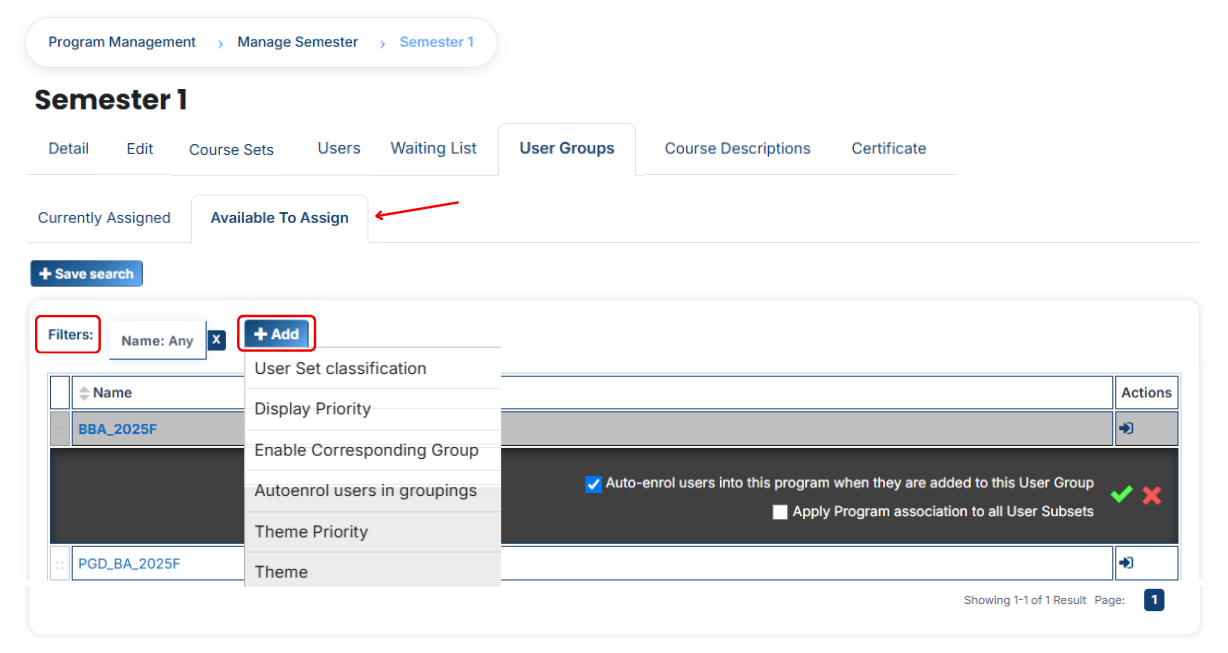
#### **1. User Group Classification**
If you select this filter and type a value, the system will show only matching user groups.
For example, if you select “user group Classification” and type “campus”, then only campus-related user groups will appear.
#### **2. Display Priority**
This filter is used to find user groups based on priority.
For example, if you enter “2”, then only user groups with priority 2 will be shown.
#### **3. Enable Corresponding Group**
This filter is used to show user groups linked with a specific group.
For example, if a group is enabled and you apply this filter, only related user groups will appear.
#### **4. Auto Enroll User in Grouping**
If this option is selected, users inside the user group will be automatically enrolled into the semester after assignment.
For example, once a user group is assigned, users will instantly get access without manual enrollment.
#### **5. Theme Priority**
This filter helps to find user groups based on theme priority.
For example, if you set priority “1”, then user groups with theme priority 1 will be displayed.
#### **6. Theme**
This filter is used to search user groups based on a theme.
For example, if you type “flexpath”, then all user groups related to that theme will appear.
Once the correct **user group appears,** click on the **arrow icon** and assign it using the **green tick (✔).**
The user group will then appear in the **“Currently Assigned” list.**
#### **Bulk User Action:**
**Purpose:** Use this feature to assign multiple user sets efficiently.
**Method 1:**
- Select those multiple **user groups** you want to assign.
- After making your selections, click the **“Add All 15 Selected Items”** button to add the selected user sets.
The number displayed in the button **(e.g., 15)** represents the number of items currently selected and will change depending on how many items you select.

- Then click on the Assign button in the Bulk Assignment Section to move the user groups to the assigned list.
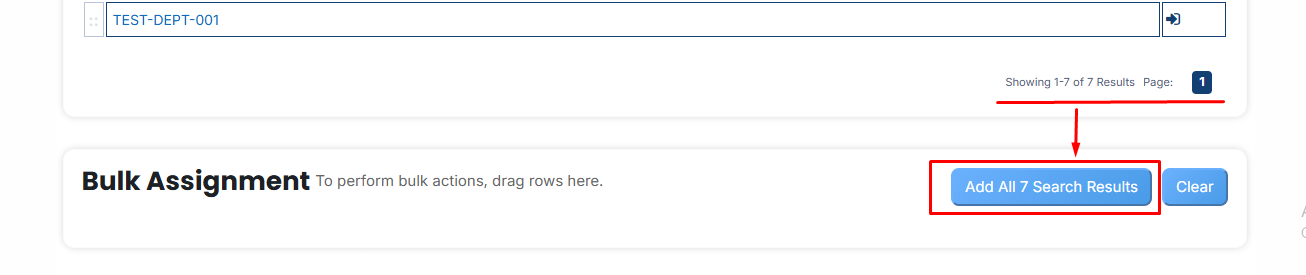
**Method 2:**
- Click the **“Add All 500 Search Results” button** to add **all users** with a single click. The number displayed in the button (e.g., 500 ) may vary depending on the **number** of **user available** in the search **results.**
- If you want to clear everything, **click the Clear button.**
---
# How to Assign Course Descriptions to a Semester
Now, open the Learnexify dashboard and go to the user menu. Click on Programs and then select Manage Semester. Here you will see the list of all semesters.
In which semester you want to add the Course Description, click on the Course Description icon.
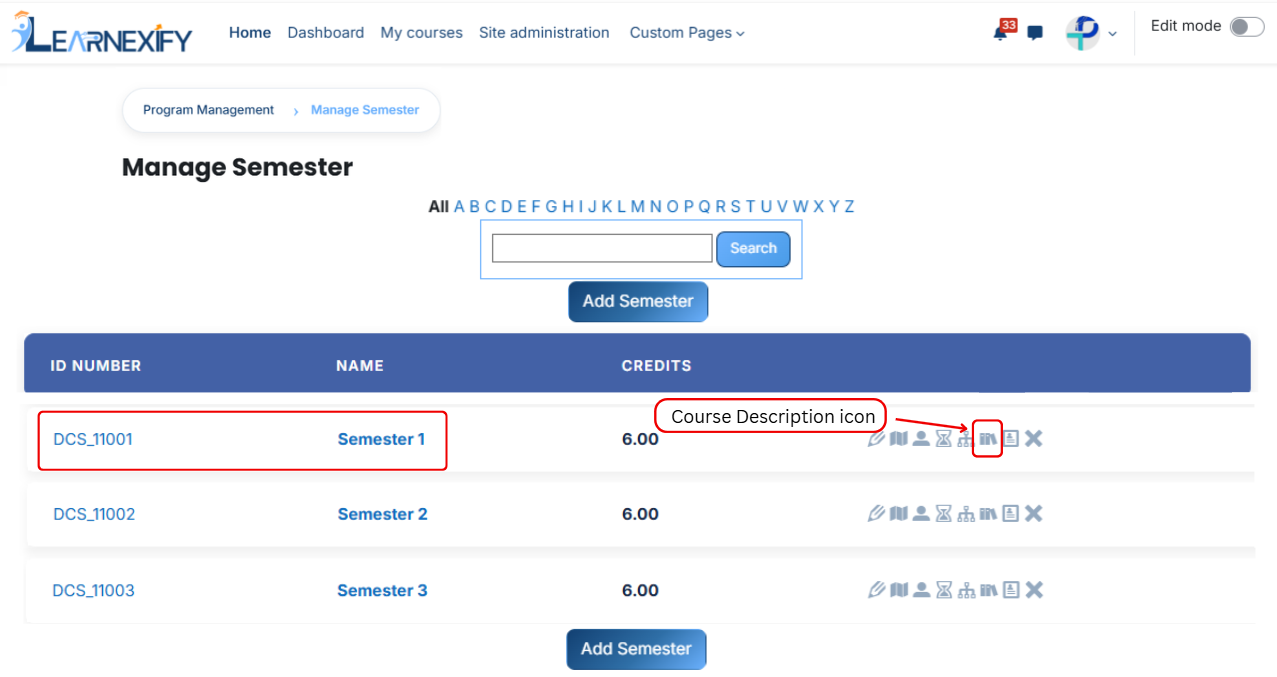
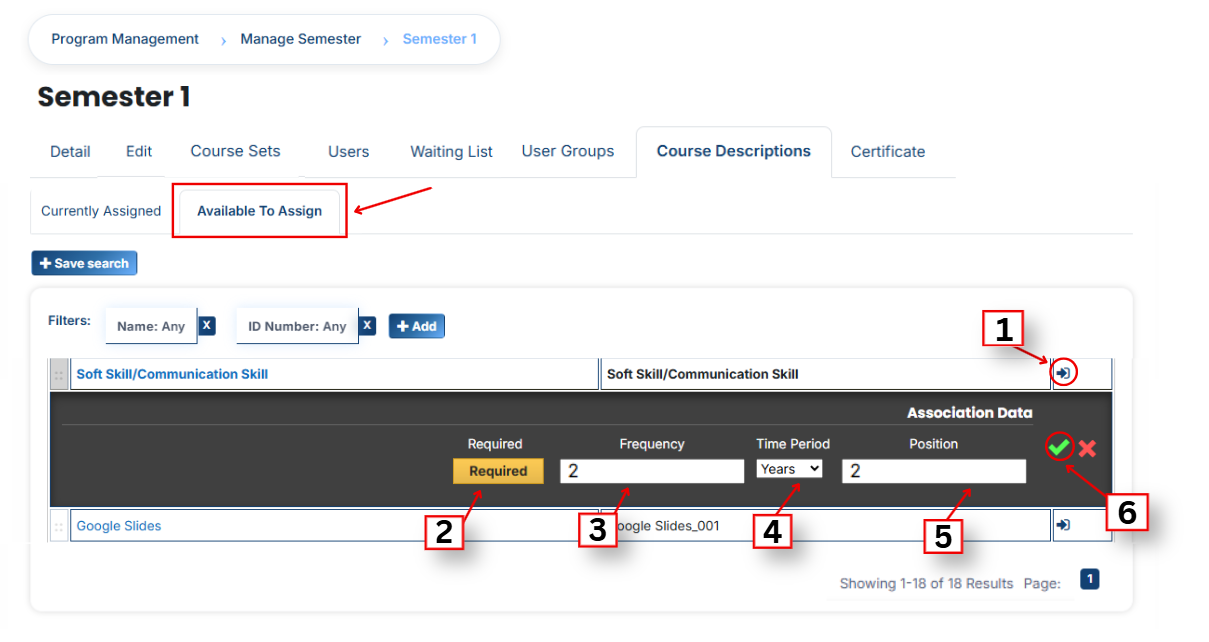
- Here after opening the course description tab, you will see the already assigned course descriptions. To add a new one, click on the **Available to Assign button.**
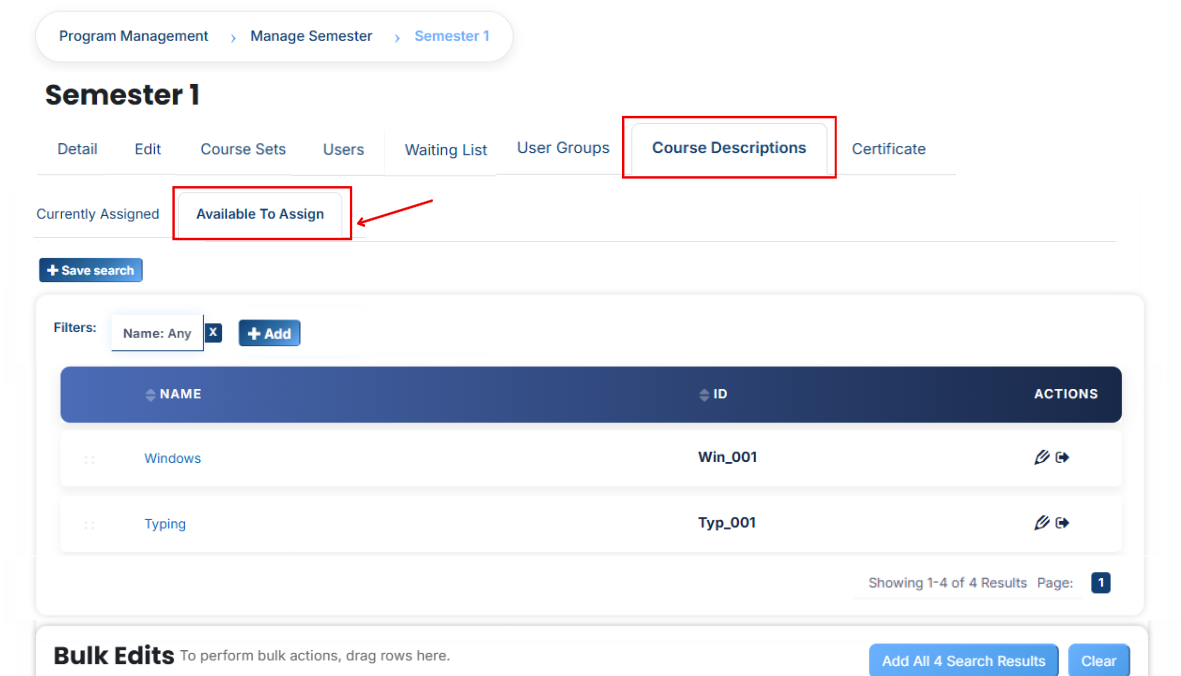
A list of available course descriptions will be displayed. Click on the arrow icon next to the course description you want to assign.
After clicking on the **arrow icon,** **configure** the following **details:**
- **Required:** Determines whether learners must complete this course description as part of the semester. When enabled, it is compulsory; when disabled, it is optional.
- **Frequency:** Controls the number of times the course description is scheduled or made available during the selected duration.
- **Time Period:** Sets the duration type that works with the frequency value, such as days, weeks, months, or years.
- **Position:** Controls where the course description appears in the sequence. Smaller position values are displayed earlier, while larger values appear later in the list.
After filling in all details, click on the **green tick (✔)** to confirm the assignment.
**View Assigned Course Descriptions** Then go to the Currently Assigned section to confirm that the course description has been successfully assigned.
#### **Use Filters to Search Course Descriptions**
If the **required course description** is not **available** in the list, you can use filters to search for it.
Click on the **Add button** and apply filters such as:
- **Name –** Search by course name
- **ID Number –** Search using a unique ID
- **Pre Test –** Shows courses that include a pre-test: This filter shows courses where learners are tested before starting the course. It helps to check what students already know before learning begins.
- **Post Test –** Shows courses that include a post-test: This filter shows courses where learners are tested after completing the course. It helps to check what students have learned after finishing the course.
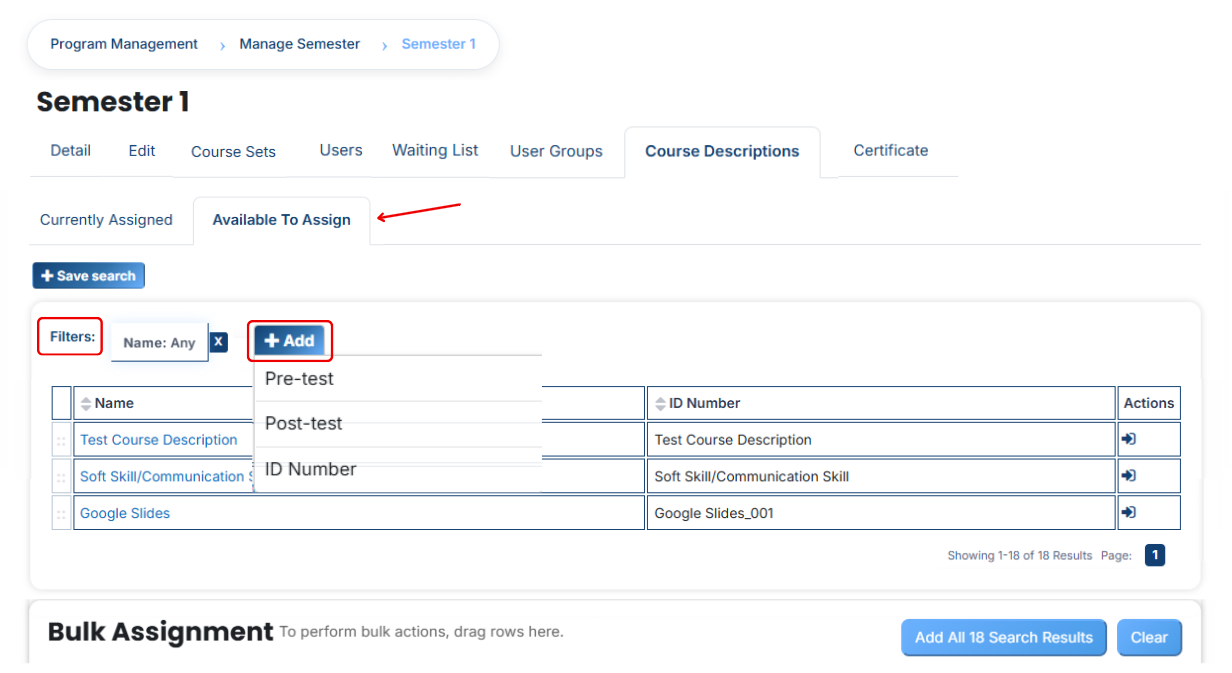
Once the required course description appears, click the arrow icon and assign it using the **green tick (✔).** It will then appear in the **Currently Assigned list.**
#### **Bulk User Action:**
**Purpose:** Use this feature to assign multiple Course Descriptions efficiently.
**Method 1:**
- Select those **multiple Course Descriptions** you want to **assign.**
- After making your selections, **click the “Add All 4 Selected Items”** button to **add** the **selected Course Descriptions.**
The number displayed in the button **(e.g., 4) represents** the number of items **currently selected** and will change depending on how many items you select.

- Then click on the Assign button in the Bulk Assignment Section to move the Course Descriptions to the assigned list.
**Method 2:**
- Click the “**Add All 18 Search Results”** button to **add** all **Course Descriptions** with a single click. The number displayed in the button **(e.g., 18 )** may vary depending on the number of Course Descriptions **available** in the search results.
- If you want to **clear everything,** click the **Clear button.**

---