# Program
# Manage Programs
# Learnexify Program
Programs in Learnexify are used to organize Course Descriptions in different ways. In many cases, a collection of Course Descriptions leads to a certificate or another form of validation, indicating that a learner has achieved a certain level of mastery in the subjects included within the Program.
Additionally, Programs are used to define pre-requisite and co-requisite Course Descriptions, as well as to create batches of course instances that run according to a specific schedule or sequence.
### **How to Create a Programs:**
- After logging in, you will see the dashboard.
- Open the side drawer.
- Click on Programs and then select Manage Program.
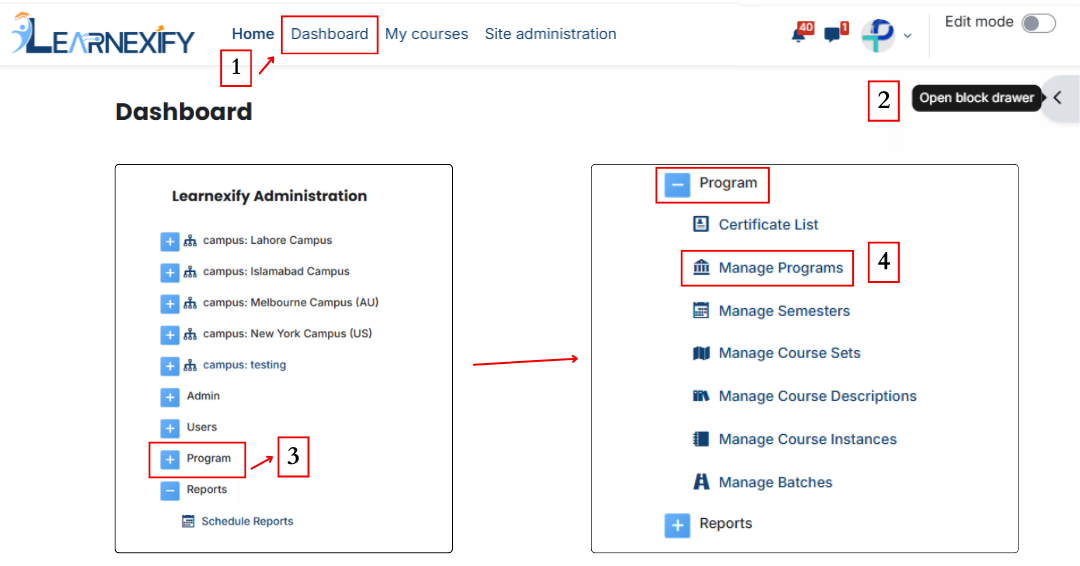
- To create a new program, click on the “Add Program” option.
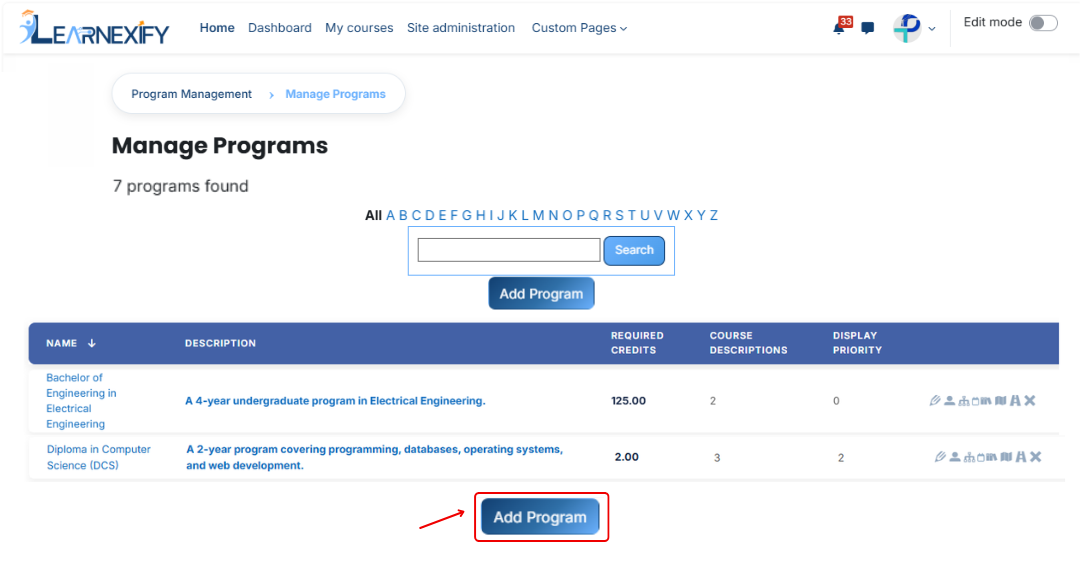
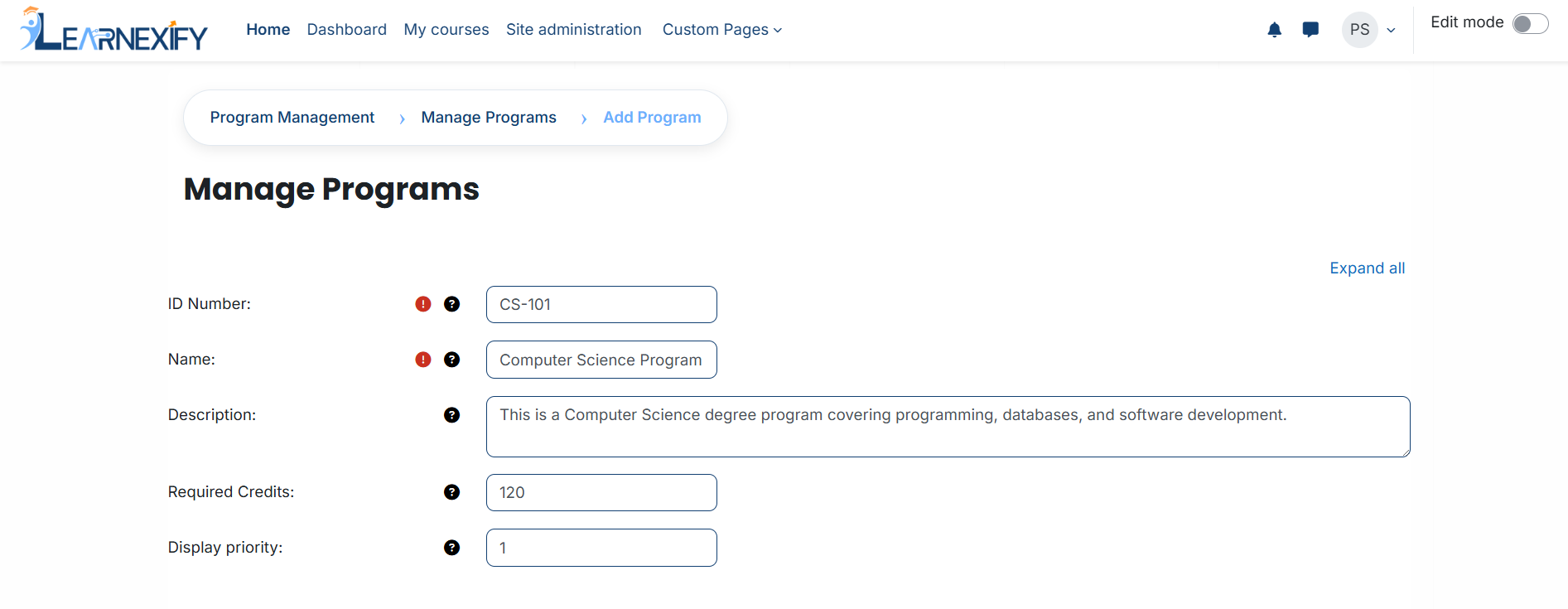
After clicking the '**Add Program'** button, a form will open **containing** the **following fields:**
- **ID Number:** The ID Number is a unique code used to uniquely identify each program in the system.
- **Name:** The Name field defines the title of the program and helps users identify it easily.
- **Description:** The Description provides an overview of the program and explains what students
will learn.
- **Required Credits:** Required Credits indicate the total number of credit hours needed to complete the program.
- **Display Priority**
Display Priority defines the order of programs in the list. Higher numbers appear first.
[](https://wiki.paktaleem.net/uploads/images/gallery/2026-07/P5Dimage.png)
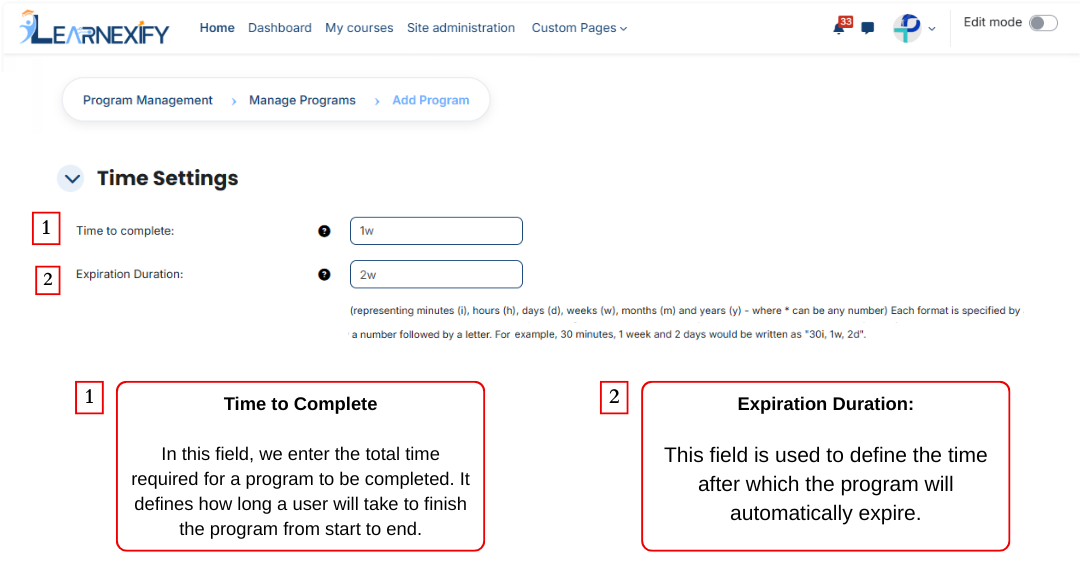
### **Time setting:**
The next feature is Time Setting, and it is used to control the duration of a program. It defines how long a program will remain active and how much time a user gets to complete it. With this feature, the program is properly time-managed and works within a fixed schedule. These are the two fields of the Time Setting feature.
To specify a duration, use the following abbreviations:
- i = Minutes
- h = Hours
- d = Days
- w = Weeks
- m = Months
- y = Years
**Examples:** 2y (2 years) or 1w 2d (1 week and 2 days).
### 
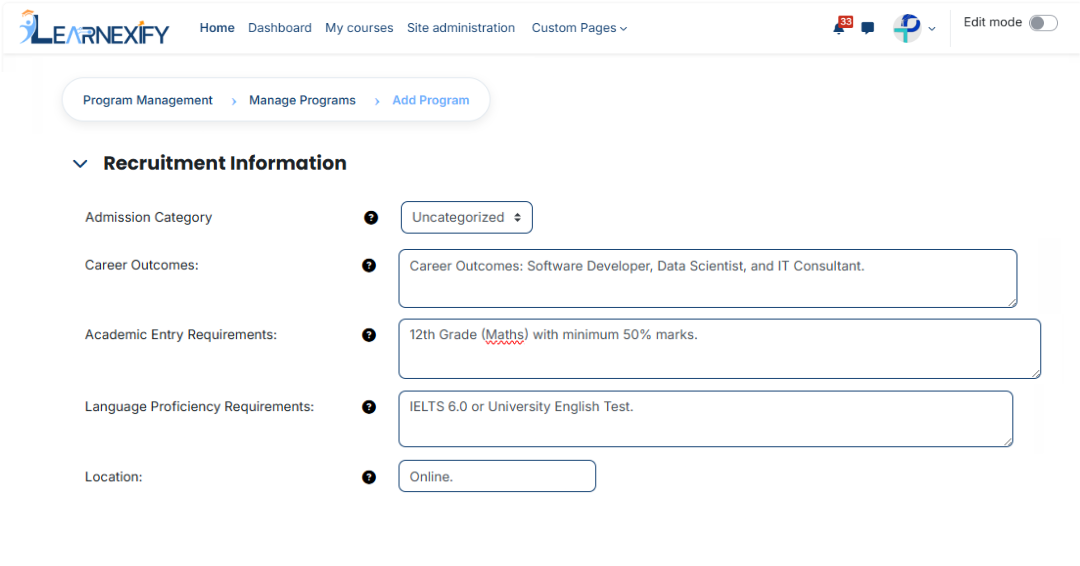
### **Recruitment Information:**
The Recruitment Information feature is used in a program to define and manage all important details related to admissions or enrollment. This feature is primarily developed for universities and other educational institutions, such as colleges. It helps students clearly understand the qualifications and eligibility requirements needed before joining a program.
It also explains what benefits or career outcomes a student will get after completing the program.
This feature contains **5** fields:
#### **1. Admission Category**
This field is used to define the admission category of the program.
**Purpose:**
- Defines the type of program displayed on the admission catalog page.
- Helps organize programs within the system for better management.
- Enables users to easily find relevant programs by browsing or expanding the appropriate category.
#### **2. Career Outcomes**
This field is used to inform students about the career opportunities they may get after completing the program.
**Purpose:**
- Guide students about outcomes after program completion
- Show future career opportunities
#### **3. Academic Entry Requirements**
This field is used to define the required educational qualification for admission.
**Purpose:**
- Set eligibility criteria
- Define required education level
#### **4. Language Proficiency Requirements**
This field is used to define the required language proficiency for students.
**Purpose:**
- Set required language level
- Improve learning understanding
#### **5. Location**
This field is used to define the location where the program is available.
**Purpose:**
- Show program location
- Define online or campus availability
### **Additional Program Details:**
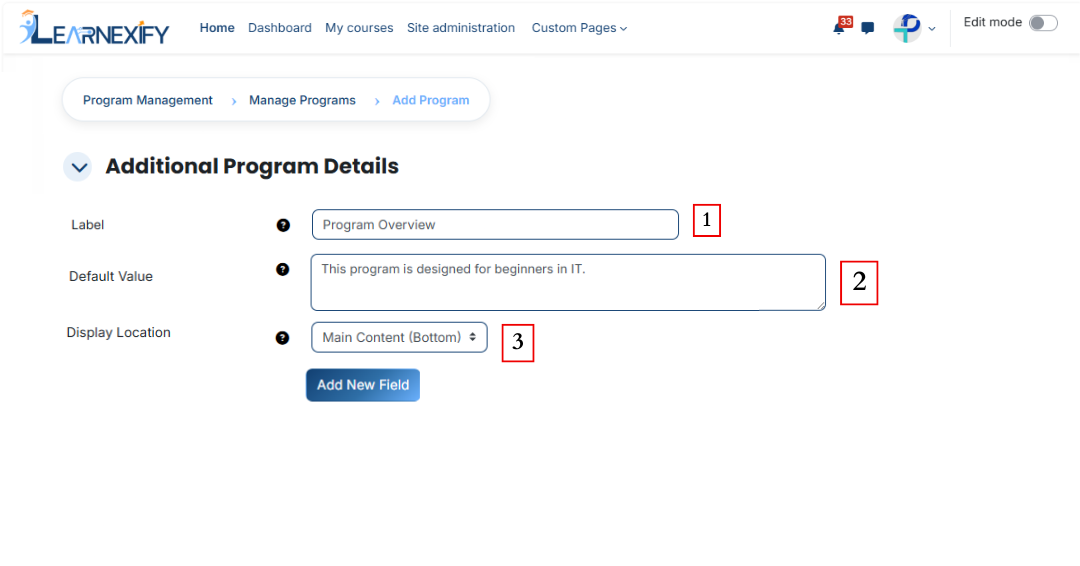
Additional Program Details feature is used to add extra information about a program apart from the main description. It also defines where this extra information will be displayed in the program interface so that users can easily view it in the relevant section of the program page. In this feature, you can also add new fields.
#### **1. Label**
This field is used to define the name or title of additional information. It helps identify what the added information is related to.
**Purpose:**
- To identify the field
- To define the title of the information
- To maintain clarity in the system
#### **2. Default Value**
This field is used to set a predefined value for the label, which is automatically displayed when an additional program detail is created.
**Purpose:**
- To provide pre-filled content in the field
- To make data entry easier
#### **3. Display Location**
This field is used to define where the additional information will be displayed within the program catlog page. It allows us to decide whether the extra information should appear above or below the main content, or in the sidebar at the top or bottom.
**Purpose:**
- To set the exact position of additional information on the page
- To organize the page layout properly
- To display information in the correct section for better user experience.
**Options:**
- Main Content (Top)
- Main Content (Bottom)
- Sidebar (Top)
- Sidebar (Bottom)
If you want to add a new field, you can add it by clicking the “**Add New Field**” button.
### **Payments:**
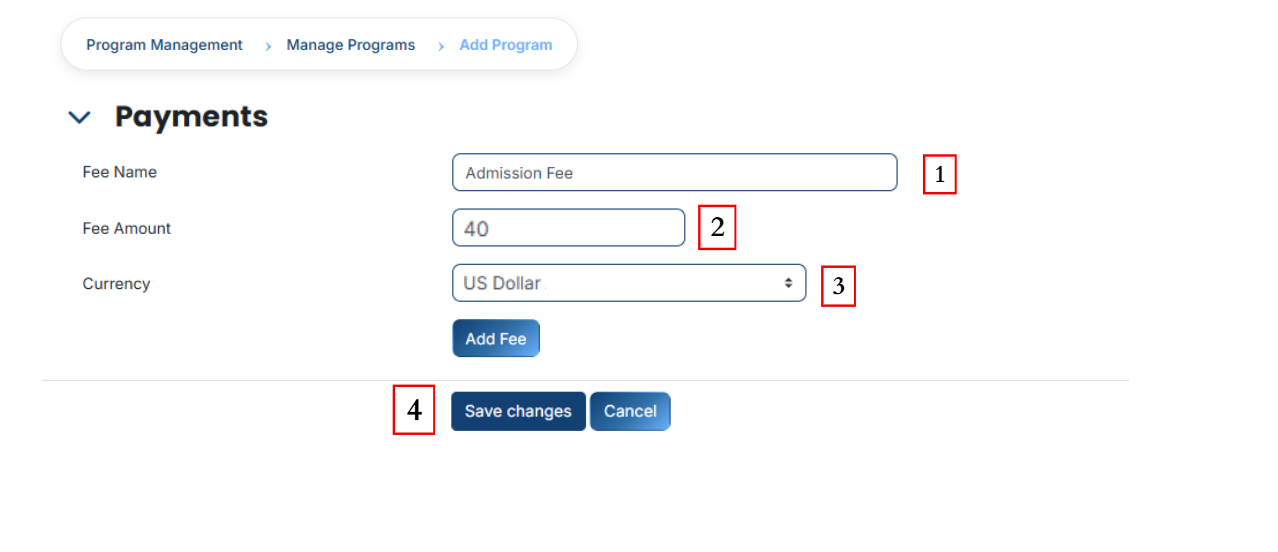
Payments feature is used to manage and configure admission fee-related settings. In this section, we define the admission fee that is charged from students for enrolling in a program.
#### **1. Fee Name**
Fee Name is used to define the title of the payment. It tells what type of fee is being charged from students.
**Purpose:**
- To make it clear to students what the fee is for
#### **2. Fee Amount**
This field is used to define the total admission fee amount that a student needs to pay.
**Purpose:**
- To set the exact fee value
- To help in payment and calculation
**Example:**
40
#### **3. Currency**
This field is used to define the currency in which the student will pay the fee.
**Purpose:**
- To specify the payment currency
- To ensure correct financial transactions
**Example:**
USD Dollar
[](https://wiki.paktaleem.net/uploads/images/gallery/2026-07/4vLimage.png)
- To complete this process, scroll down and click on the **Save Changes** button.
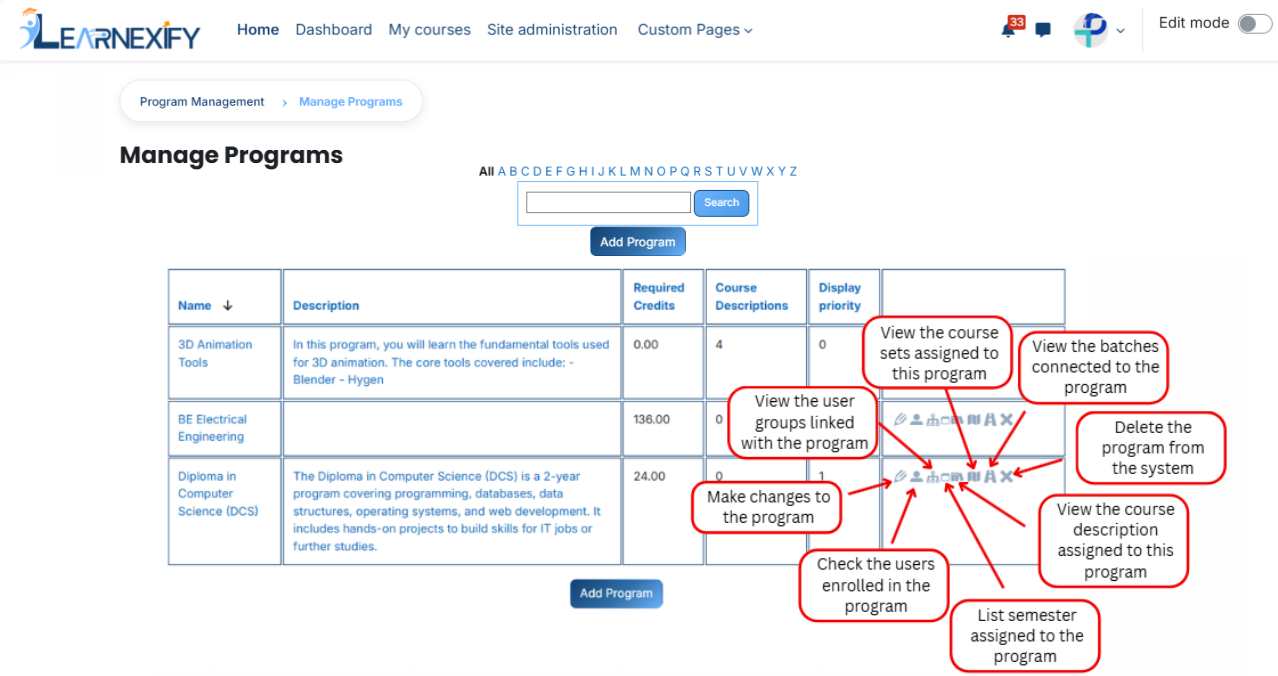
After clicking **'Save Changes'**, the program will be displayed in the **Program List**. An explanation of each **icon** is provided below.
# How to Edit a Program
To edit a **program**, follow these steps:
- To **edit** an **existing program,** navigate to the Dashboard and open the **Side Drawer Menu.** From there, click on **Programs** and select **Manage Programs.** Once the list of programs is displayed, locate the specific program you wish to **modify** and **click** on its **Edit icon.**
[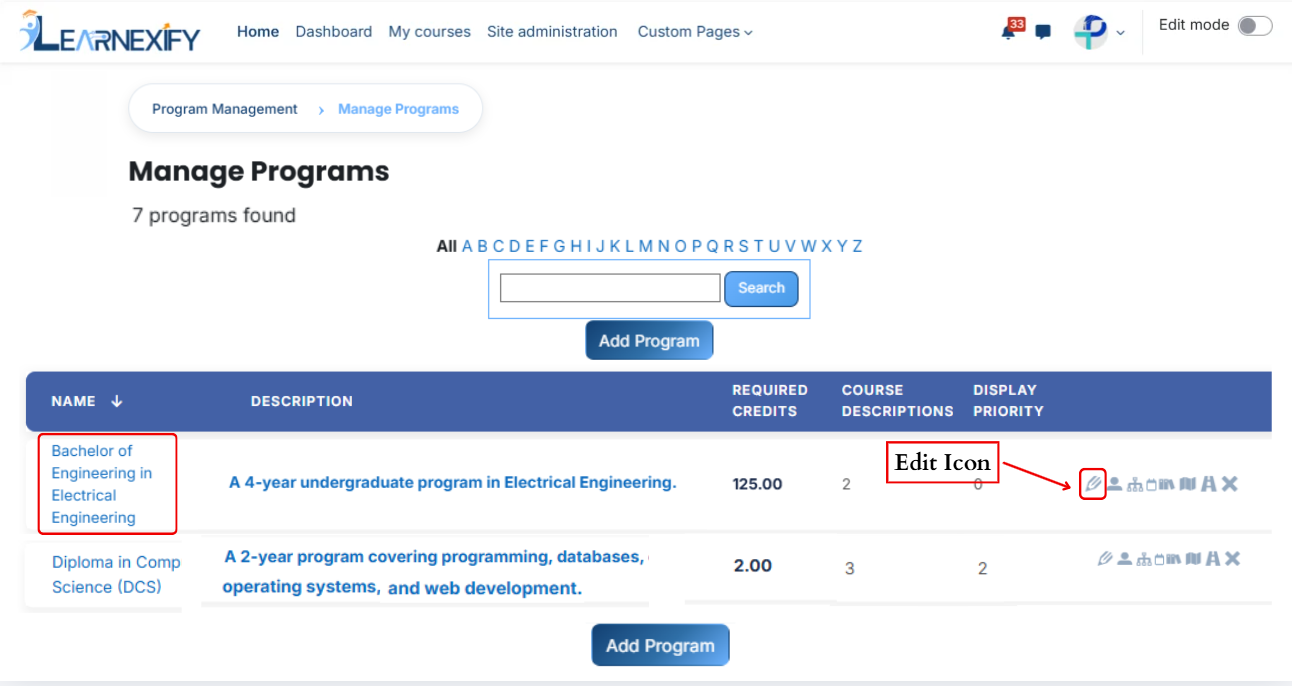](https://wiki.paktaleem.net/uploads/images/gallery/2026-07/Speimage.png)
- The program details page will open in **editable mode**
[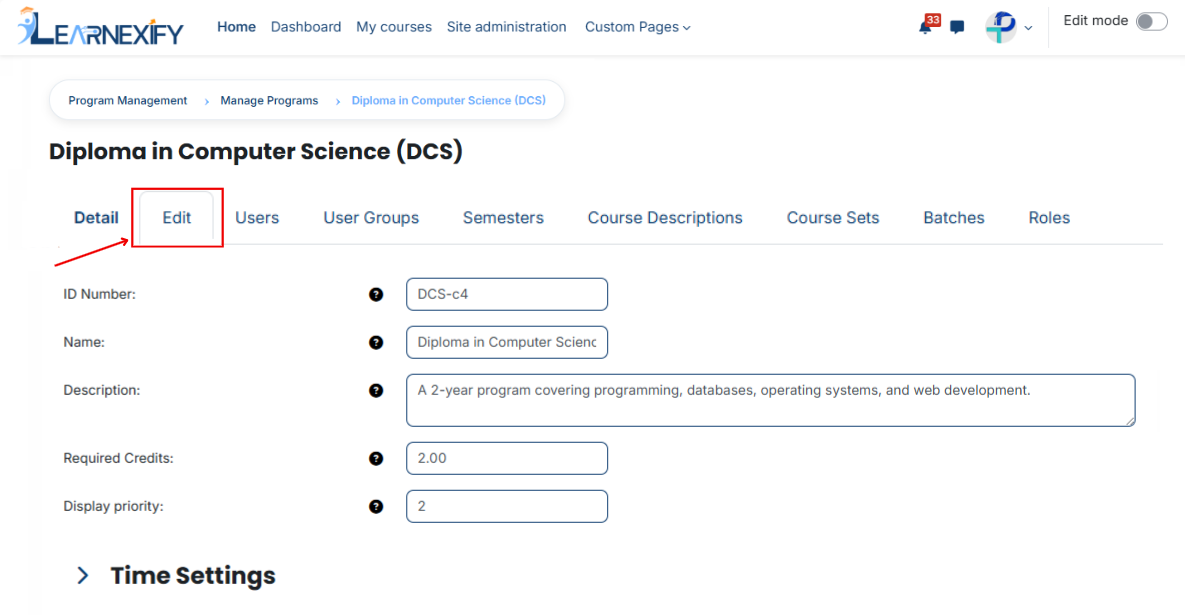](https://wiki.paktaleem.net/uploads/images/gallery/2026-07/5Mvimage.png)
- Update the **required** **program details**
- Scroll down and **click** on the **Save Changes** button to apply updates
[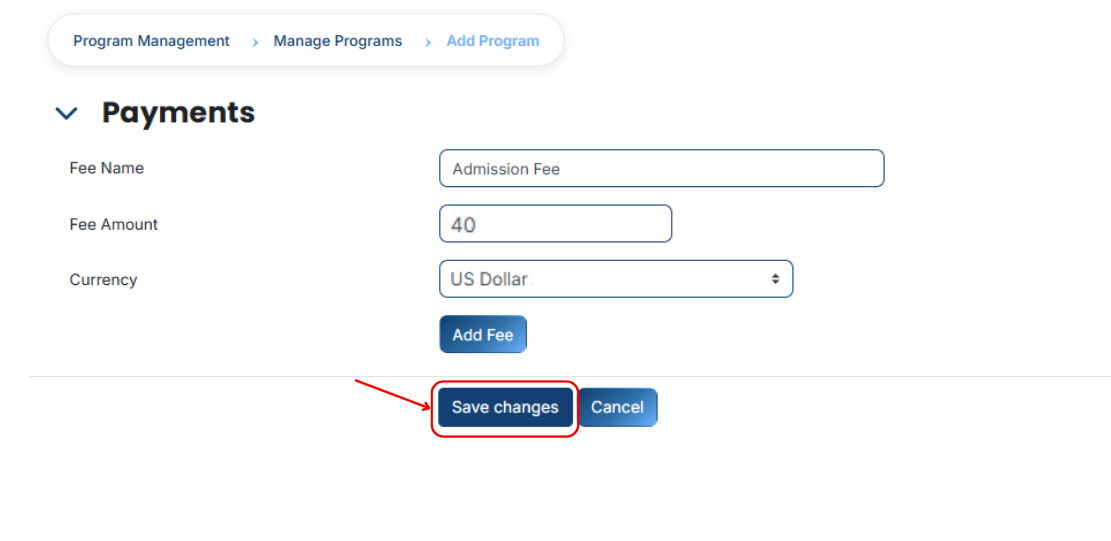](https://wiki.paktaleem.net/uploads/images/gallery/2026-07/WLTimage.png)
---
# How to Assign Users to a Program
- From the Program List, select the **Users icon** for the **desired program**. Clicking this will open the **Users tab,** where you can **assign users** to the program.
[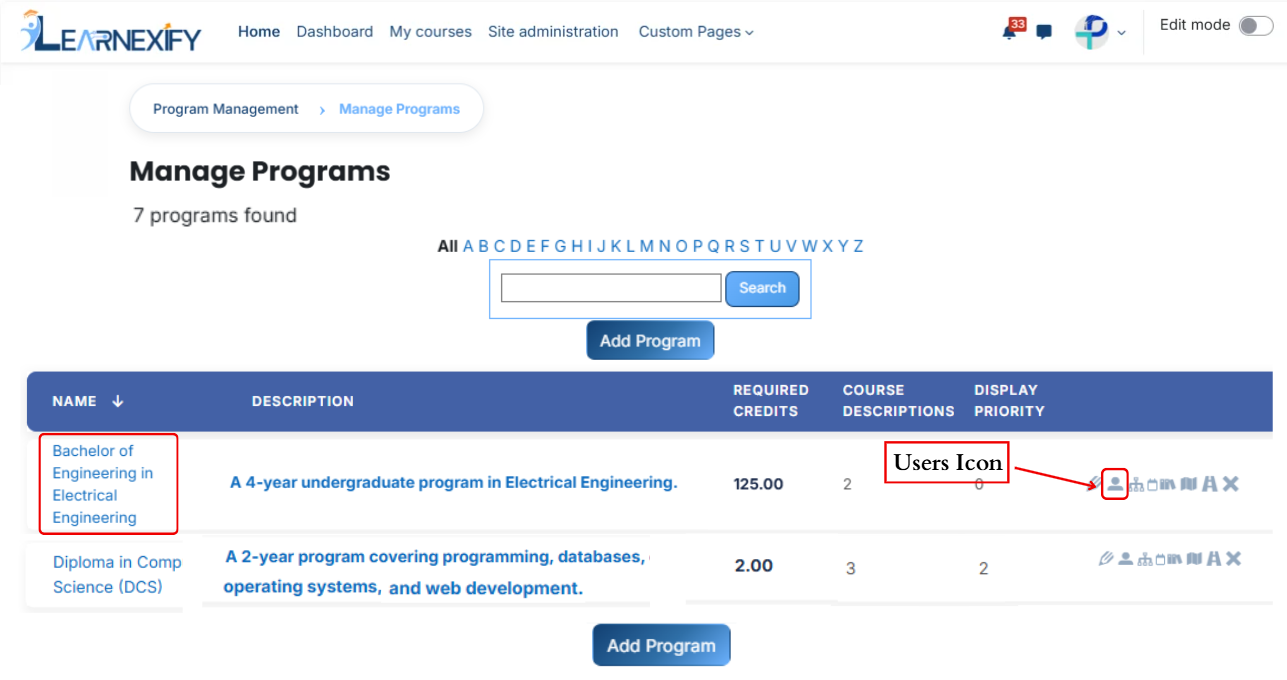](https://wiki.paktaleem.net/uploads/images/gallery/2026-07/AXLimage.png)
- After opening the Users tab
- Here you will see the assigned user in the **Currently Assigned tab.**
- If you want to assign more users **Click** on the **Available to Assign** button.
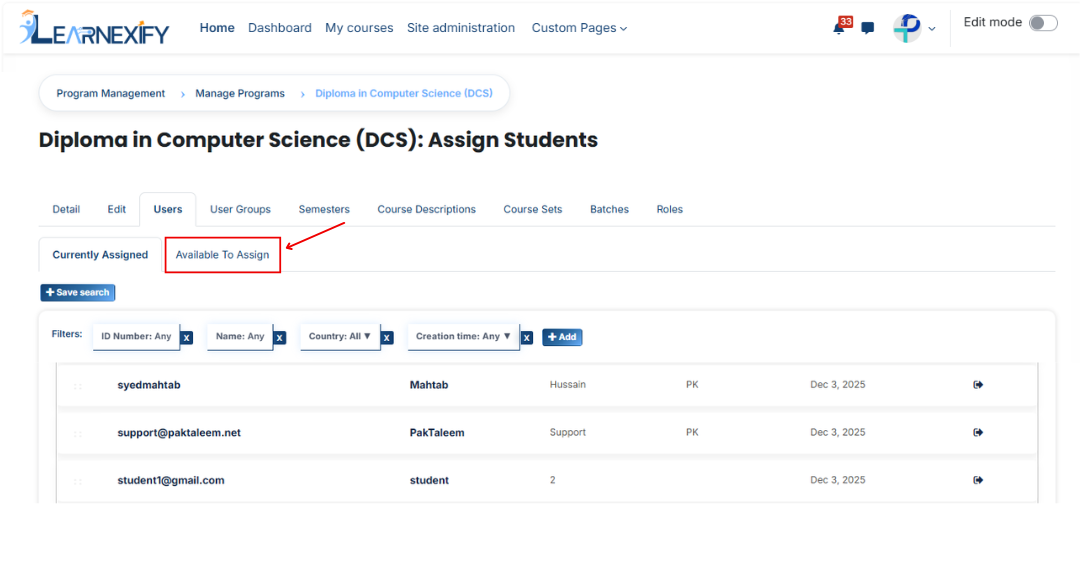
- A list of available users will be displayed
- Select the users you want to assign
- First Click on the **arrow icon** to move the user to the assigned list
- Click on the **green tick (✔)** to confirm the assignment
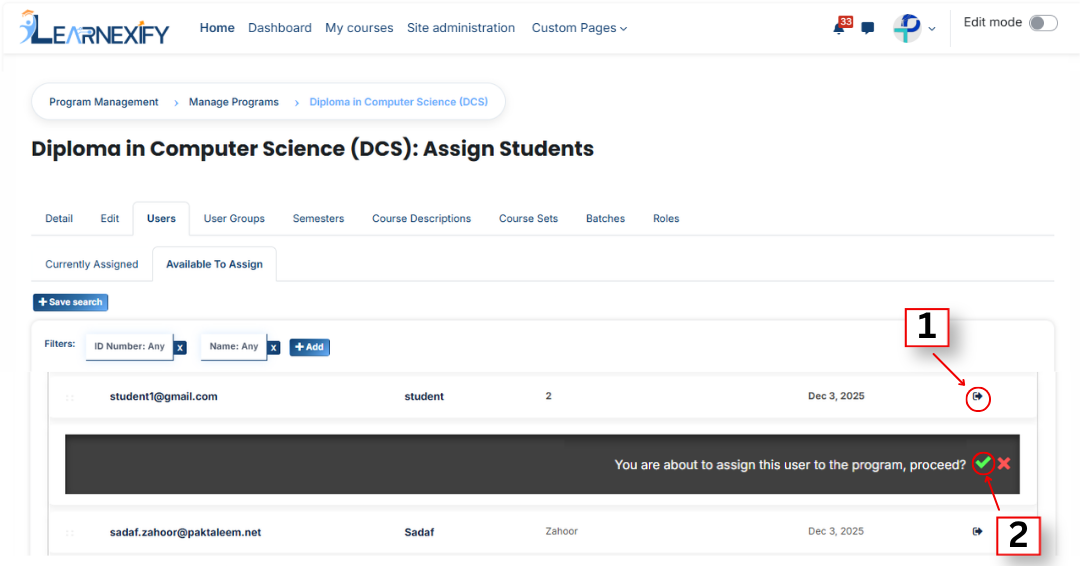
- After that, click on the **Currently Assigned** button
- Here, you will see the users who have been **successfully assigned** to the program
#### **Bulk User Action:**
****Purpose:** **Use this feature to assign multiple Users efficiently. ****
**Method 1:**
- Select those multiple users you want to assign.
- After making your selections, click the **“Add All 7 Selected Items”** button to add the selected users.
The number displayed in the button (e.g., 7) represents the number of items currently selected and will change depending on how many items you select.

- Then click on the Assign button in the Bulk Assignment Section to move the user to the assigned list.
**Method 2:**
- Click the **“Add All 491 Search Results”** button to add all user with a **single click**. The number displayed in the button **(e.g., 491)** may vary depending on the number of user available in the search results.
- If you want to clear everything, click the **Clear button.**

#### **Add a User if Not Found in Available List**
If the user you want to assign is not available in the list, follow these steps:
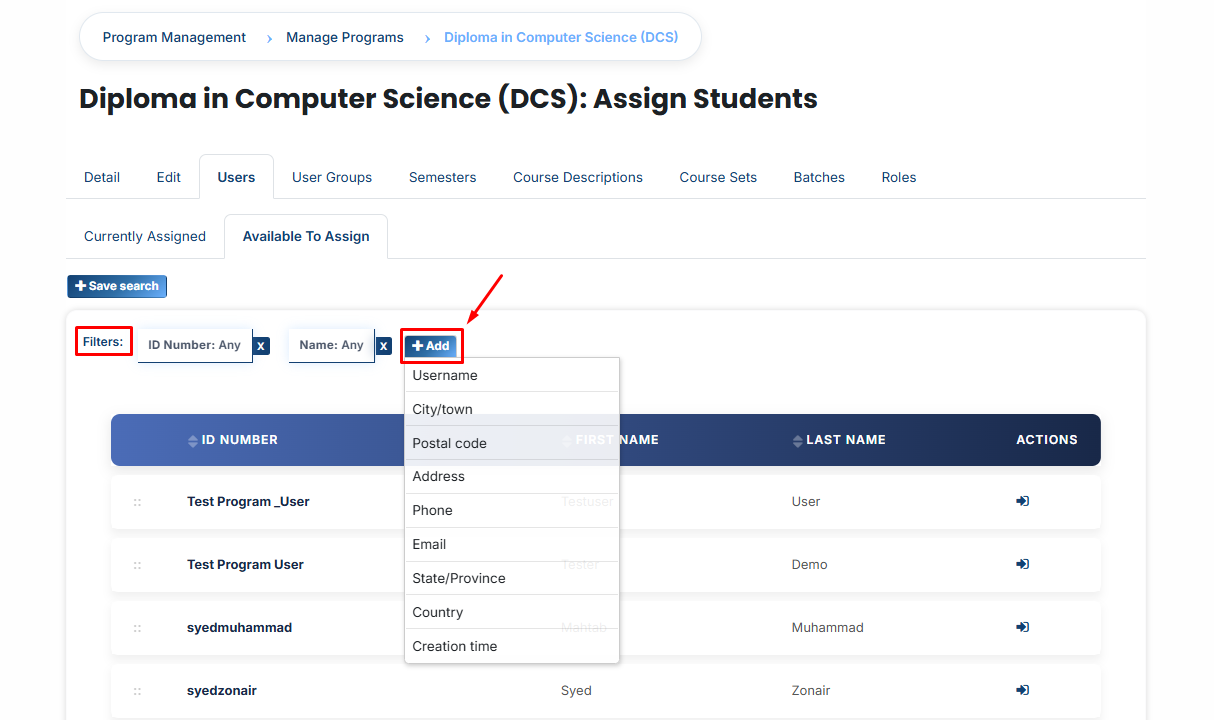
- Click on the **Available to Assign button**
- Then click on the **Add** button.
- A dropdown list will appear
- Select the required field **(e.g., Email, username, city e.t.c)**
- Enter the user’s details in the selected field according to the chosen option.
[](https://wiki.paktaleem.net/uploads/images/gallery/2026-07/fiEimage.png)
- The user will appear in the list
- Select the **user** and **assign** them to the program
You can also search and add a user using other details such as:
- Name
- ID Number
- Phone Number
- Username
- Country e.t.c.
---
# How to Assign Users Group to a Program
#### **User Groups**
A user group is a group of users that are combined together for easy management. Instead of assigning users one by one, multiple users can be grouped into a set and managed as a single unit.
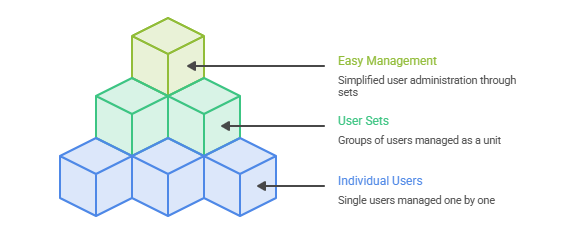
**Example:**
For example, a university creates a user group that contains 20 users. Instead of assigning each user manually to a program or semester, the admin can assign the entire user group at once.
By assigning this user group to a program, all 20 users are automatically added to that program or semester in a single step. This saves time compared to assigning users individually.
---
### **Steps to Assign User Groups to a Program**:
To assign user groups to a program, follow these steps:
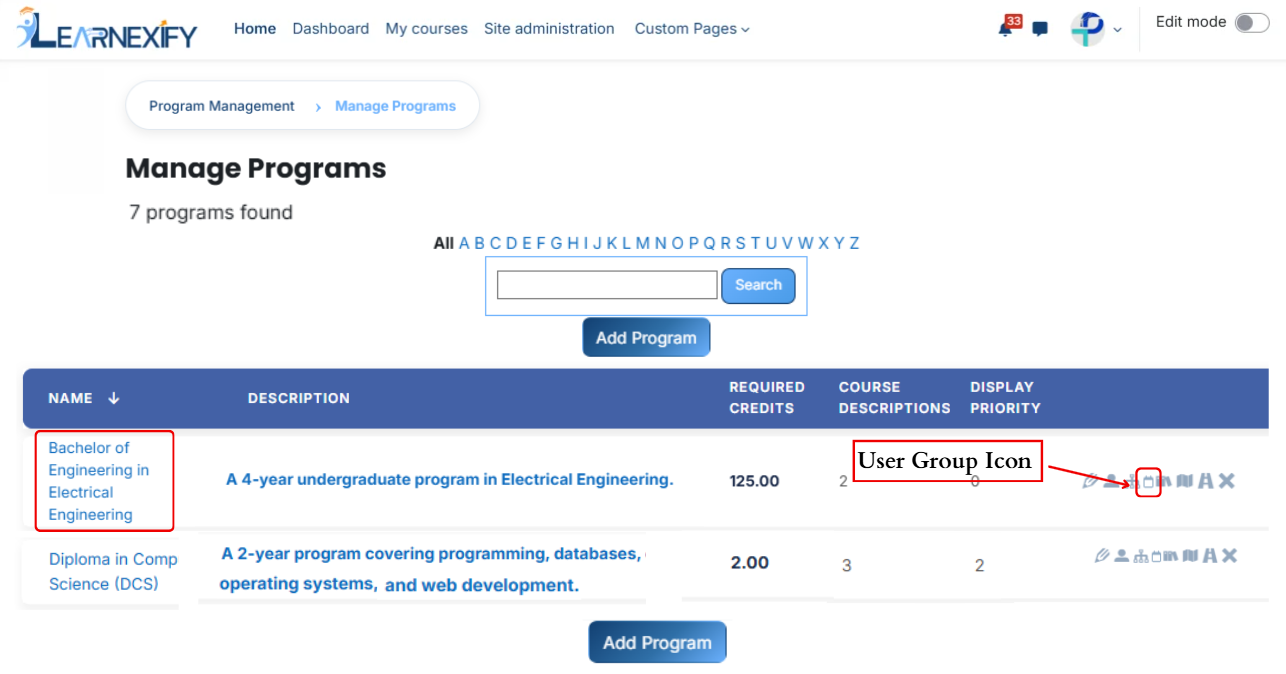
- Locate your program in the list and click the **User Groups icon**. This will direct you to the User Groups **tab**, providing the options to **assign** user groups to the **program efficiently.**
[](https://wiki.paktaleem.net/uploads/images/gallery/2026-07/axbimage.png)
- After opening user groups tab here you will see assigned user groups in the program
- If you want to assign more user groups Click on the Available to Assign button.
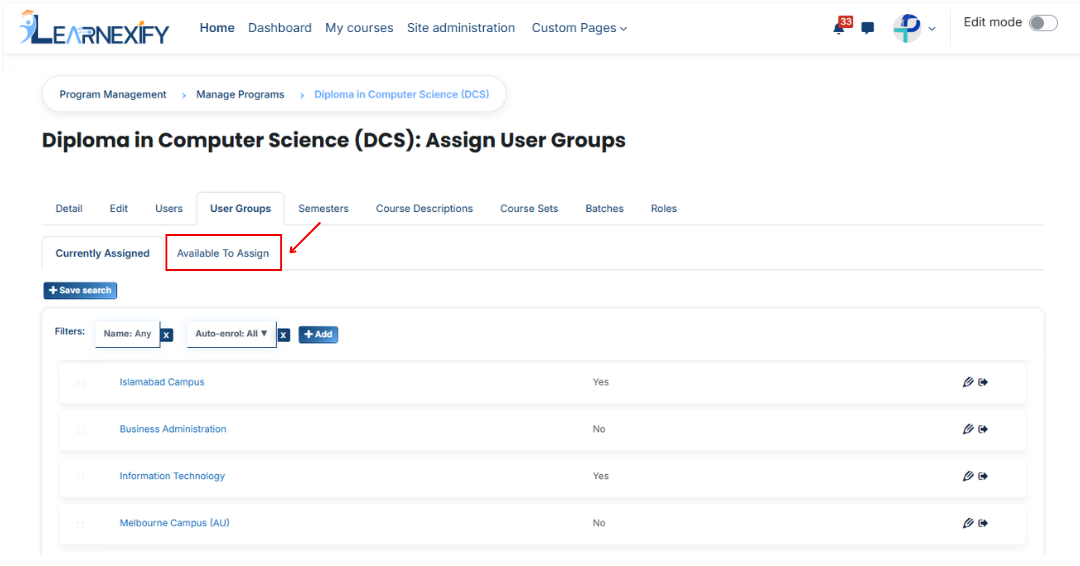
- A list of available user groups will be displayed
- Select the user groups you want to assign
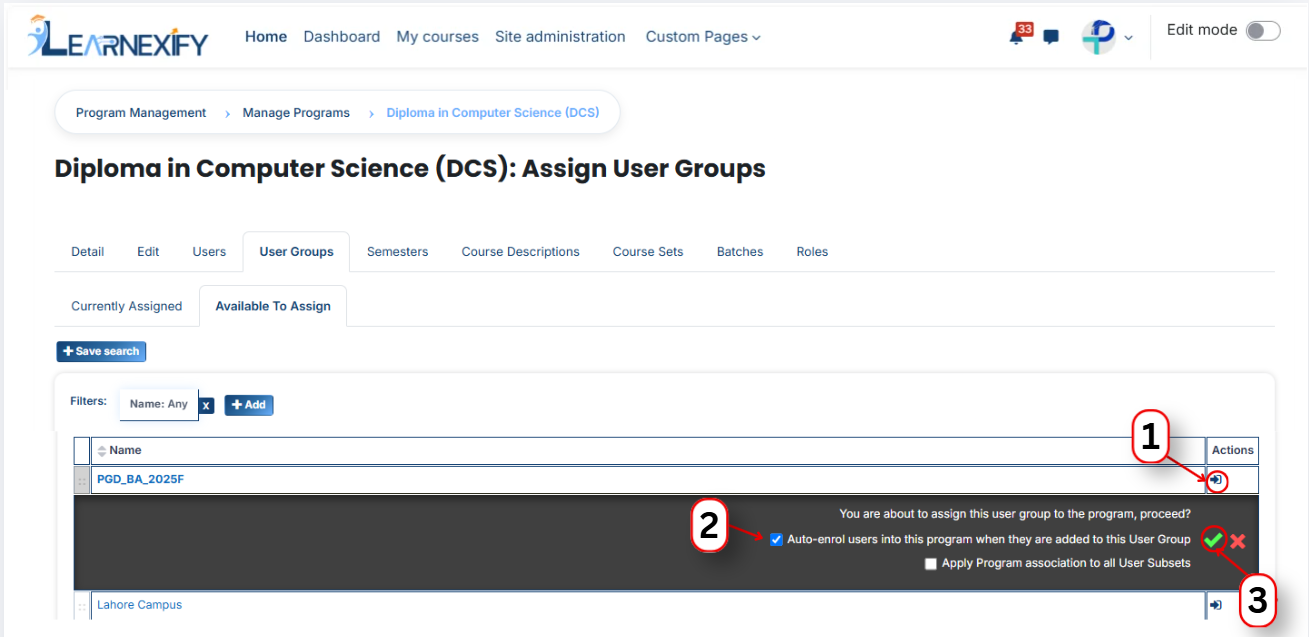
- First, Click on the arrow icon to move the user to the assigned list
- Select an option (choose one):
**1. Auto-enroll users into this program when they are added to this program**
When this option is enabled, users are automatically enrolled into the program immediately after they are assigned.
This means:
- No manual enrollment is required after assigned.
- Users gain access to the program content instantly
- Enrollment happens automatically in the background
**2. Apply program association to all User subsets** When this option is enabled, the program is linked not only to directly assigned users but also to all related User Subsets.
This means:
- The program is applied across all subsets within the selected user group
- Users belonging to different subsets will also be associated with the program
- Ensures consistent program distribution across grouped users
Click on the green tick (✔) to confirm the assignment
- After that, click on the Currently Assigned button
- Here, you will see the user groups who have been successfully assigned to the program
### **Assign User Groups Using Filters**
In the “Available to Assign” section, if the required user group is not visible in the list, you can use the filter option to search for it.
Click on the Add button, and you will see different filter options:
[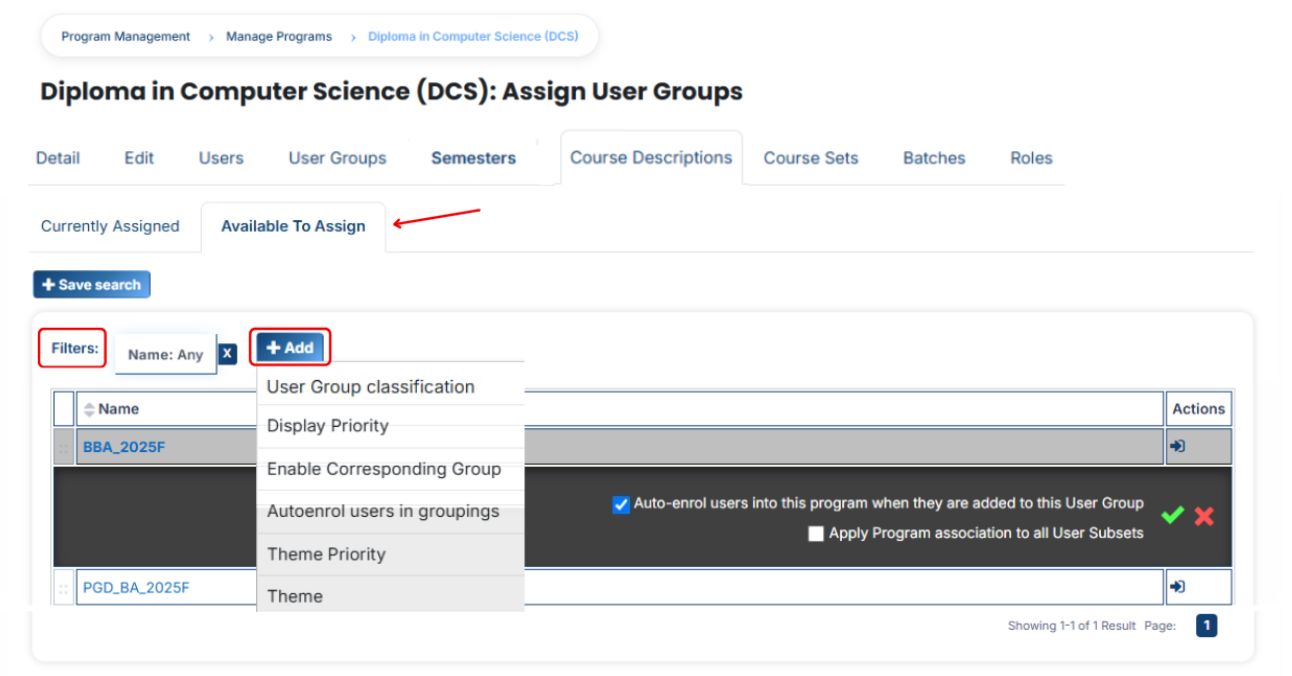](https://wiki.paktaleem.net/uploads/images/gallery/2026-07/Mdzimage.png)
#### **1. User Set Classification**
If you select this filter and type a value, the system will show only matching user groups.
For example, if you select “user group Classification” and type “campus”, then only campus-related user groups will appear.
#### **2. Display Priority**
This filter is used to find user groups based on priority.
For example, if you enter “2”, then only user groups with priority 2 will be shown.
#### **3. Enable Corresponding Group**
This filter is used to show user groups linked with a specific group.
For example, if a group is enabled and you apply this filter, only related user groups will appear.
#### **4. Auto Enroll User in Grouping**
If this option is selected, users inside the user group will be automatically enrolled into the program after assignment.
For example, once a user group is assigned, users will instantly get access without manual enrollment.
#### **5. Theme Priority**
This filter helps to find user groups based on theme priority.
For example, if you set priority “1”, then user groups with theme priority 1 will be displayed.
#### **6. Theme**
This filter is used to search user groups based on a theme.
For example, if you type “flexpath”, then all user groups related to that theme will appear.
Once the correct user group appears, click on the arrow icon and assign it using the green tick (✔).
The user group will then appear in the “Currently Assigned” list.
#### **Bulk User Action:****Purpose:**
Use this feature to assign multiple user sets efficiently.
**Method 1:**
- Select those multiple user groups you want to assign
- After making your selections, click the **“Add All 5 Selected Items”** button to add the **selected user groups.**
The number displayed in the button **(e.g., 5)** represents the number of items currently selected and will change depending on how many items you select.

- Then click on the **Assign button** in the **Bulk Assignment Section** to move the user groups to the assigned list.
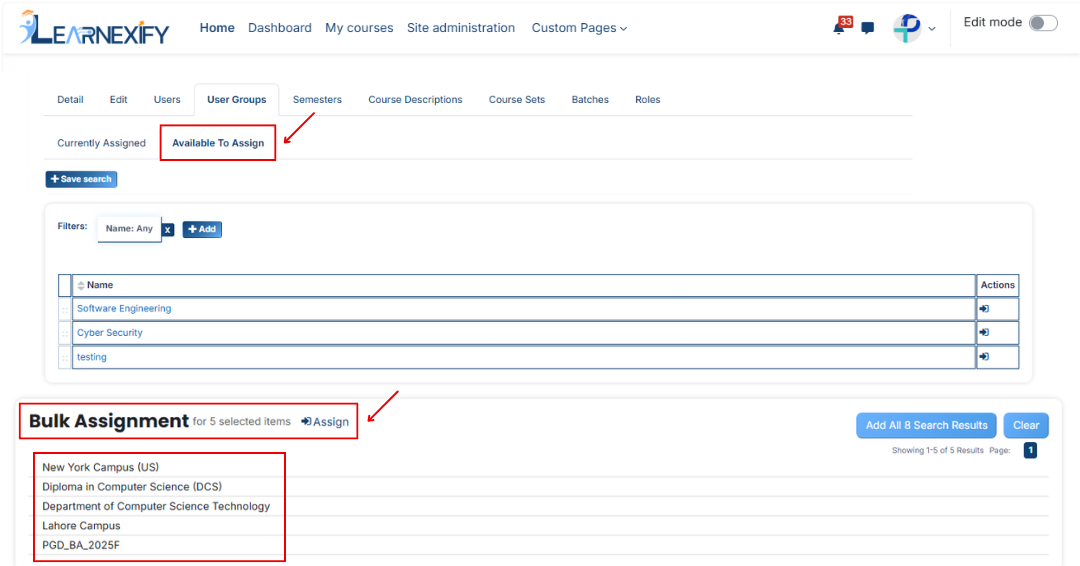
**Method 2:**
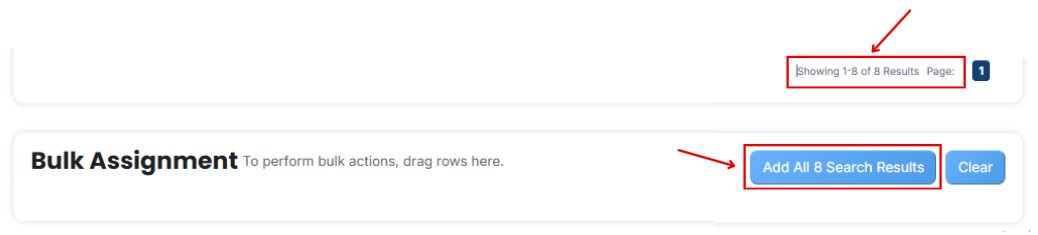
- Click the “Add All 10 Search Results” button to add all user groups with a single click. The number displayed in the button (e.g., 10 ) may vary depending on the number of user groups available in the search results.
- If you want to clear everything, click the Clear button.
---
# How to Assign Semesters in a Program
#### **Semesters**
A Semester is a fixed academic period used in universities to divide an academic year into smaller parts. Each semester represents a specific stage of study in which students take a defined set of courses and complete related academic activities such as lectures, assignments, and exams.
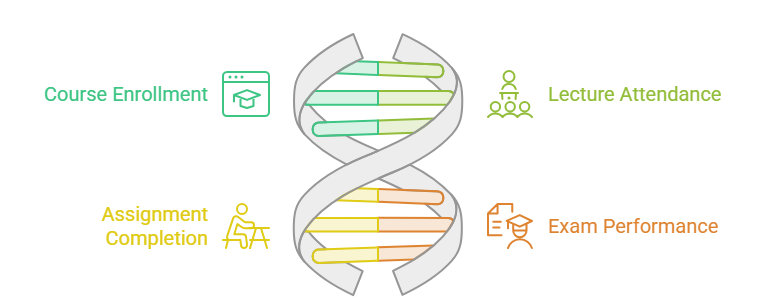
In most universities, a degree program is divided into multiple semesters (for example: Semester 1, Semester 2, Semester 3, etc.), and students progress from one semester to the next as they complete their courses
---
#### **Steps to Assign User Groups to a Program:**
- In the **Program List**, click the **Semesters icon** for the desired program to open the tab and assign semesters.
[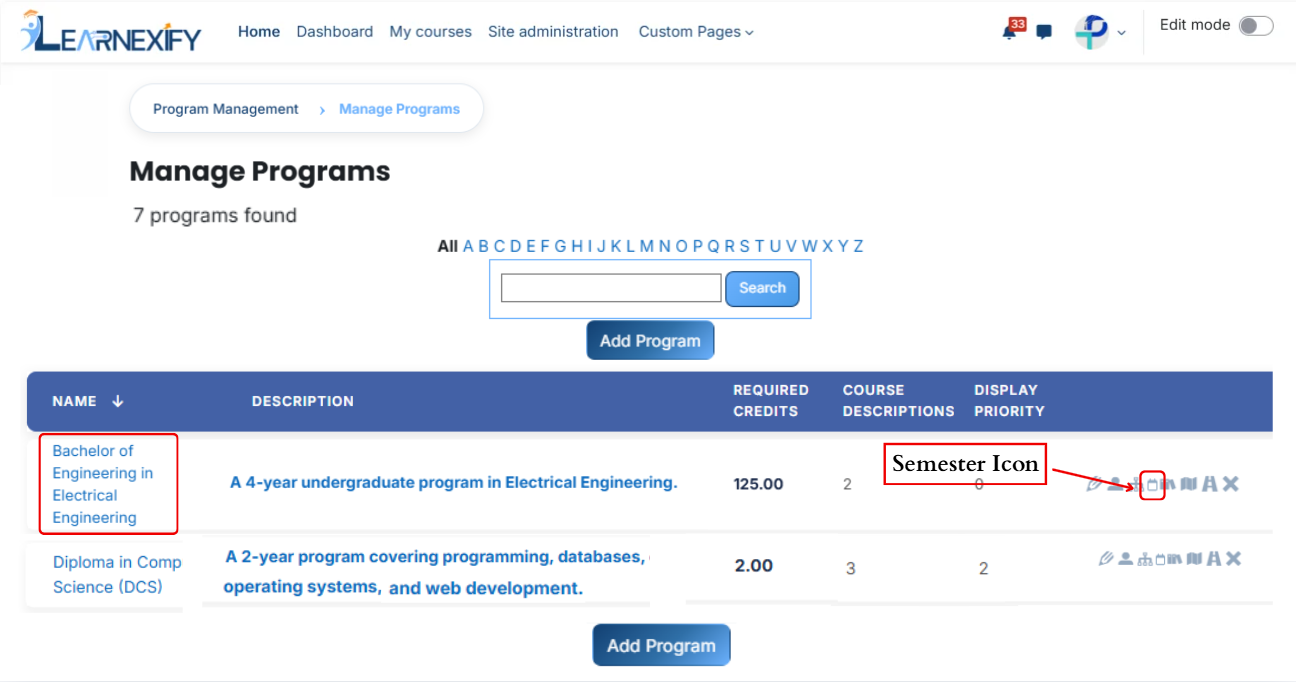](https://wiki.paktaleem.net/uploads/images/gallery/2026-07/yszimage.png)
- Here you will see the list of assigned semesters.
- To **assign additional** semesters, click on the **'Available to Assign' button.**
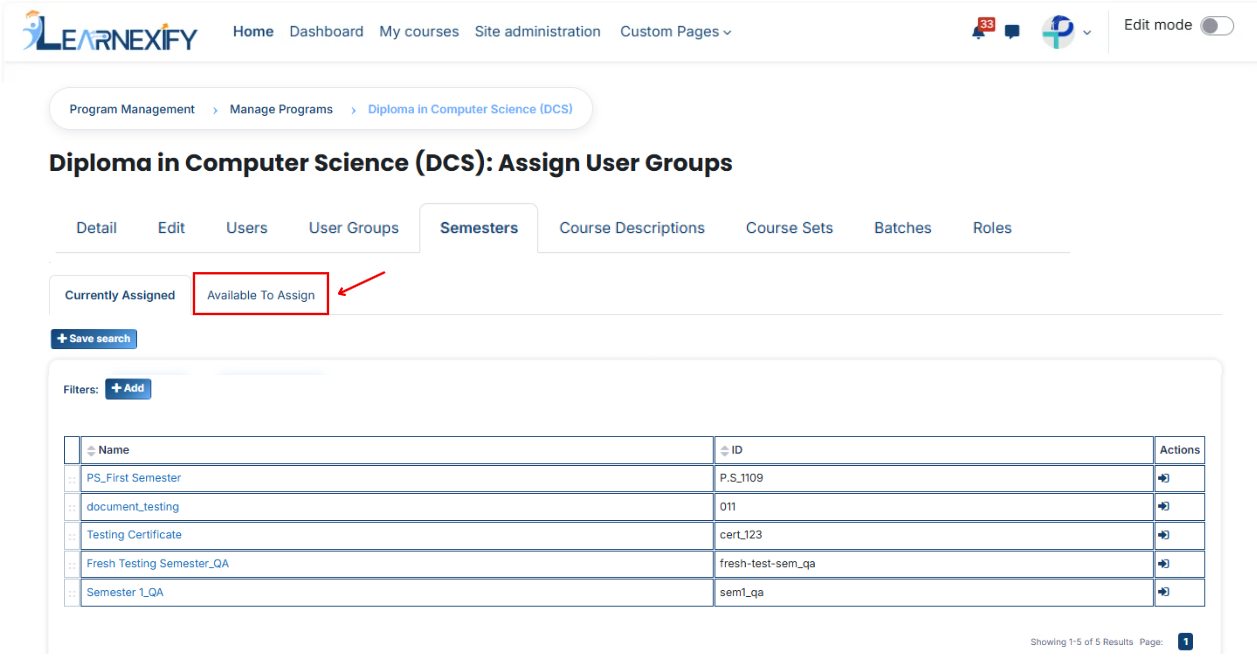
- Select the **semester** you want to assign to the program.
- Click on the arrow button to move the selected semester.
- After clicking the **arrow button**, click on the **green tick** to confirm the assignment.
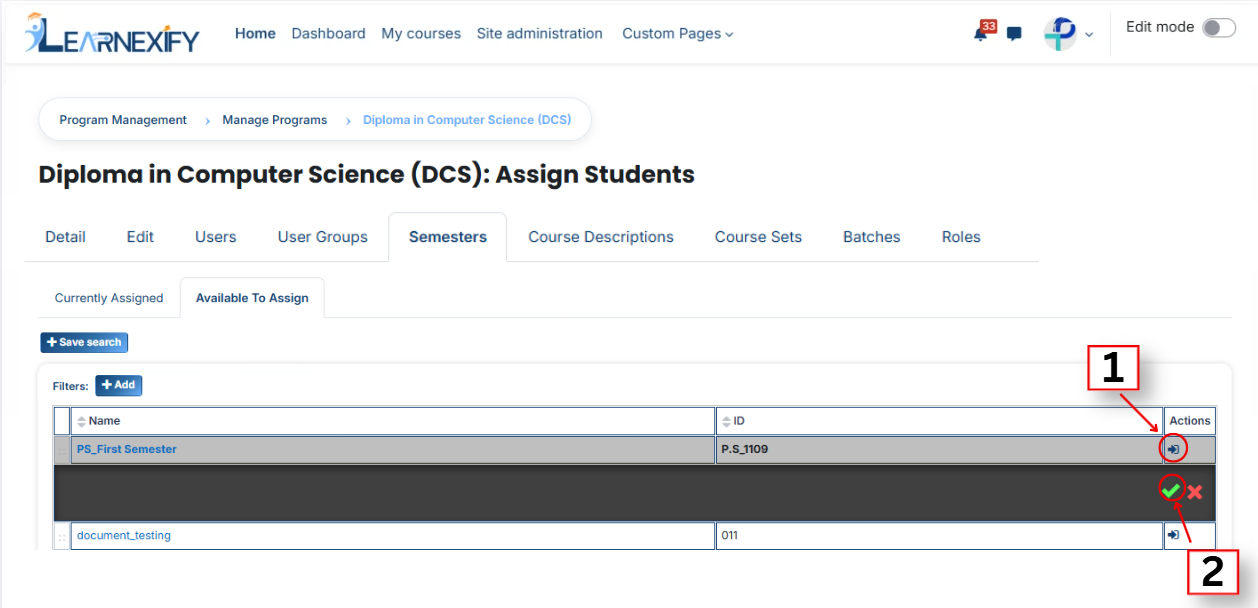
- Go to the **Currently Assigned** section, where you can see the assigned semester.
- If you don’t find your semester, select the required field and enter the details according to the semester.then assign a semester in the program.
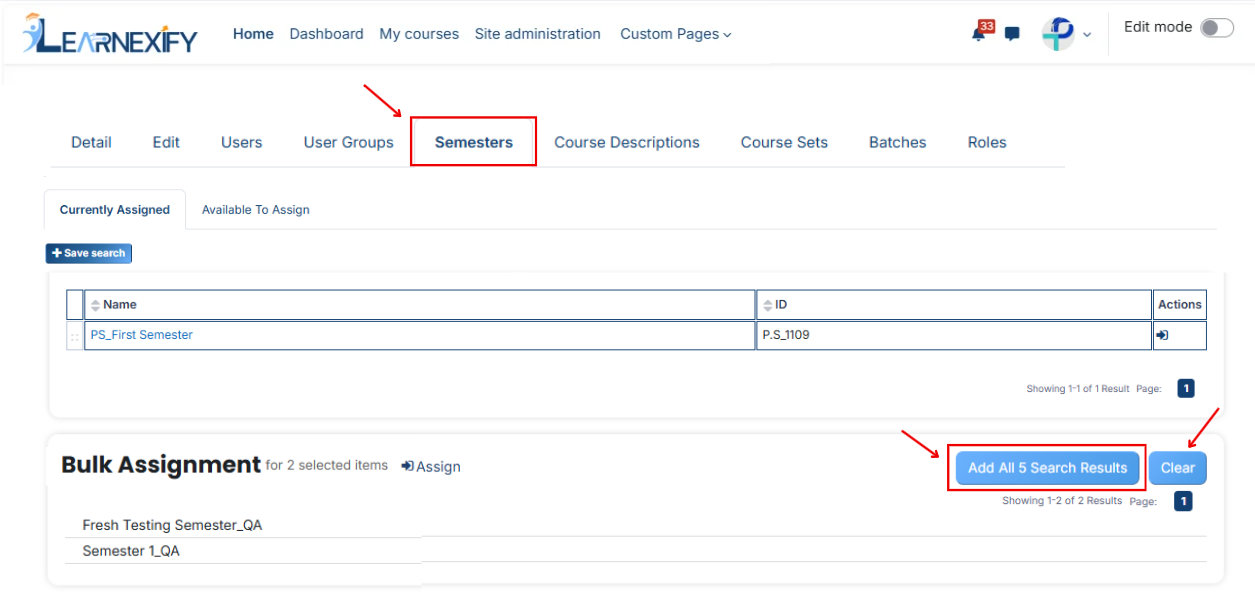
#### **Bulk User Action:**
**Purpose:**
Use this feature to assign multiple Semesters efficiently.
**Method 1:**
- Select those multiple **semesters** you want to assign in the program.
- After making your selections, click the **“Add All 2 Selected Items”** button to add the selected semesters.
The number displayed in the button **(e.g., 2)** represents the number of items currently selected and will change depending on how many items you select.
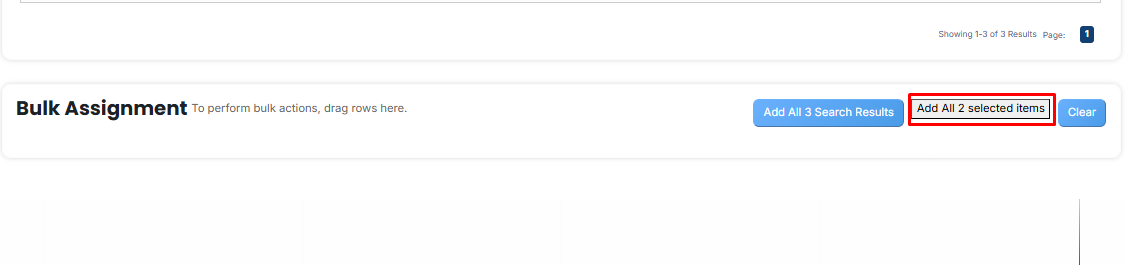
- Then click on the **Assign button** in the **Bulk Assignment** Section to move the semesters to the **assigned list.**
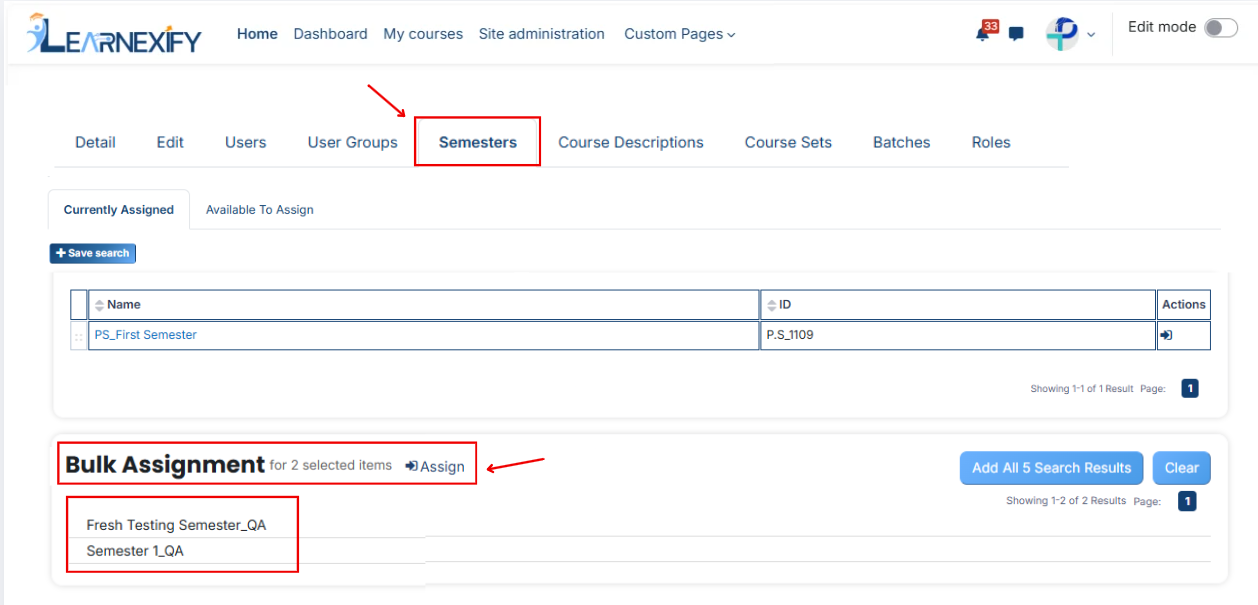
**Method 2:**
- Click the **“Add All 3 Search Results”** button to **add all semesters** with a single click. The number displayed in the button (e.g., 3) may vary depending on the number of semesters available in the search results.
- If you want to clear everything, click the **Clear button.**
---
# How to Assign Course Description in a Program
#### **Course Description**
A Course Description is a short summary that explains the content, topics, and learning objectives of a course. It helps students and teachers understand what will be taught in the course and what its main purpose is.

---
#### **
Follow these steps to assign a Course Description to a program:**
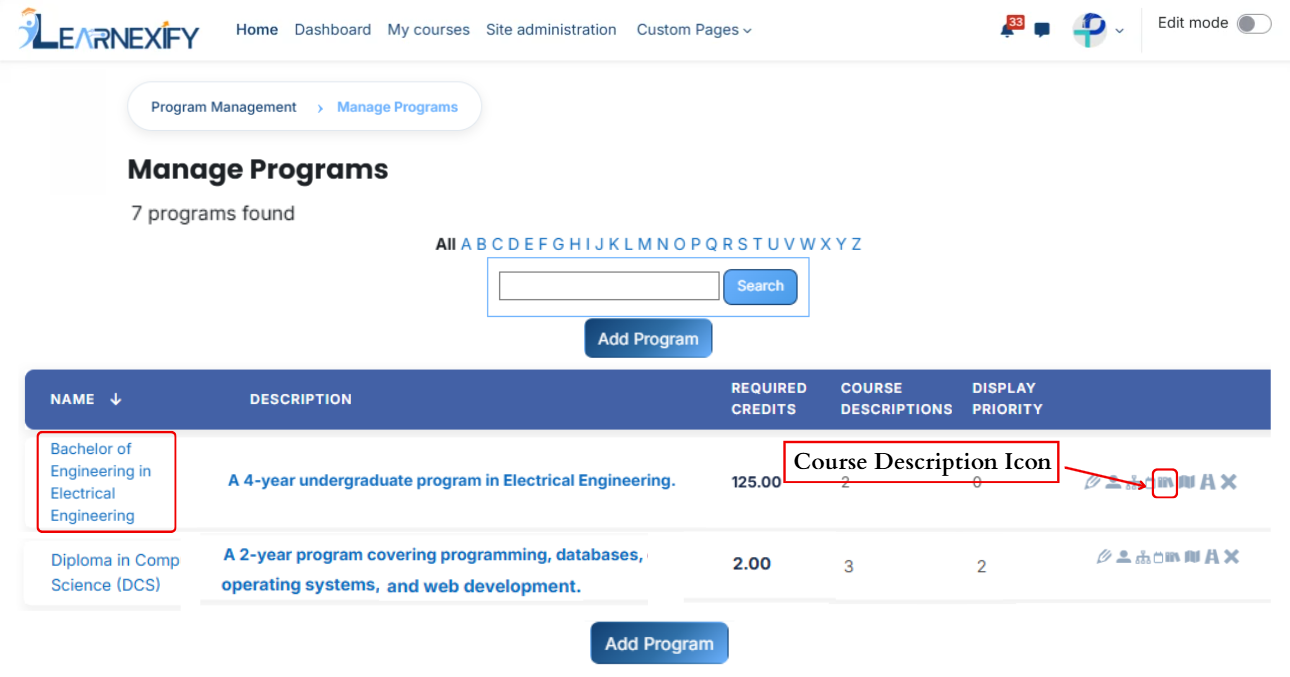
- Open the **Learnexify dashboard** and go to the **user menu.** Click on Programs and then select **Manage Program.** Here you will see the list of all semesters.
- In which program you want to assign **Course Description,** click on the **Course Description icon.**
[](https://wiki.paktaleem.net/uploads/images/gallery/2026-07/gfSimage.png)
- Here you will see the list of assigned semesters.
- Click on the Available to Assign button to assign more course descriptions in the program.
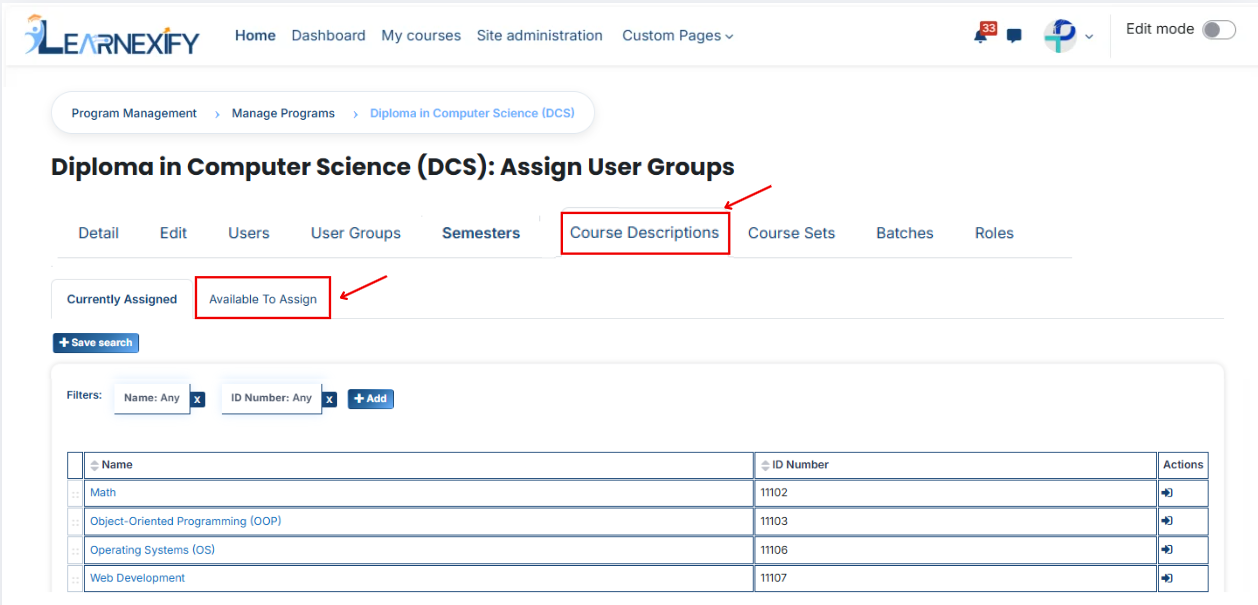
- Select the course description you want to assign to the program.
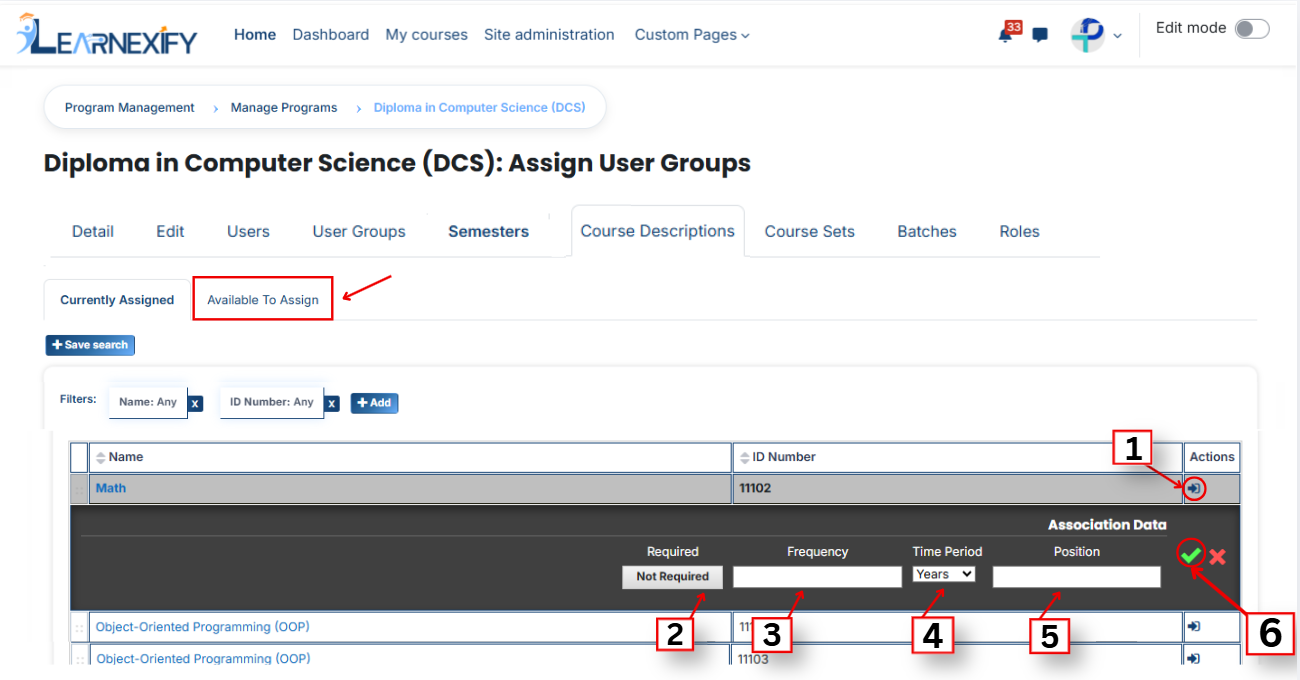
- Click on the arrow button to move the selected semester.
- Fill the details:
#### **1. Required**This field is used to decide whether the course description is compulsory or optional.
- If a Course Description is set as Required when assigning it in a program, it becomes mandatory for learners to complete it.
- If we select Not Required, then it will be optional and not mandatory.
**Example:**
If we select Required, then the system will force this course description to be included in the program.
#### **2. Frequency**
This field defines how many times the course description should be applied.
**Example:**
If we enter 2, it means the course description will be applied twice as per the defined time period.
#### ** 3. Time Period**
This field defines the time unit for the frequency.
- Days
- Weeks
- Months
- Years
**Example:**
If we select Years, and frequency is 1, then the course description will apply once every year.
#### **4. Position**
This field defines the order or sequence in which the course description will appear.
**Example:**
If we enter 1, it will appear first.
If we enter 2, it will appear after the first one.
[](https://wiki.paktaleem.net/uploads/images/gallery/2026-07/iuFimage.png)
- After filling the details, click on the green tick to confirm the assignment.
- Go to the Currently Assigned section, where you can see the assigned course description.
- If you cannot find your course description, select the required field and enter the details according to the course description on the “Available to Assign” page.
#### **Bulk User Action:****Purpose:**
Use this feature to assign multiple course descriptions efficiently.**Method 1:**
- Select those multiple course descriptions you want to assign in the program.
- After making your selections, click the **“Add All 6 Selected Items”** button to add the selected course descriptions.
The number displayed in the button **(e.g., 6)** represents the number of items currently selected and will change depending on how many items you select.

- Then click on the Assign button in the Bulk Assignment Section to move the course descriptions to the assigned list.
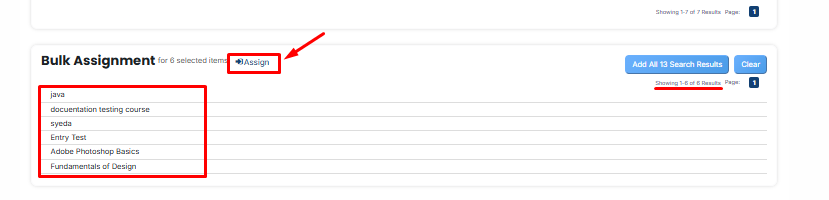
**Method 2:**
- Click the **“Add All 13 Search Results”** button to add all course descriptions with a **single click.** The number displayed in the button **(e.g., 13)** may vary depending on the number of course descriptions available in the search results.
- If you want to **clear everything,** click the **Clear button.**

---
# How to Assign Course Sets in a Program
#### **Course sets**
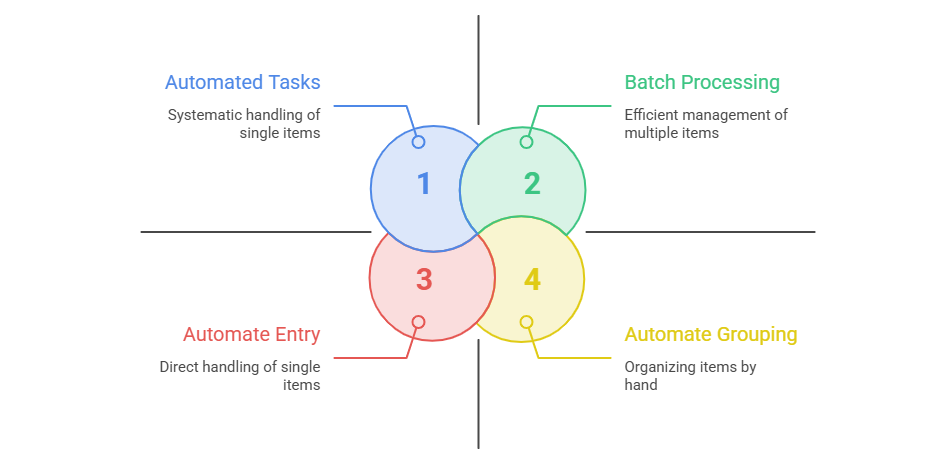
Course Set is a group of related courses that are combined together to simplify management and assignment within a program or semester. It allows administrators to assign multiple courses at once instead of adding them individually.
---
#### **
Assigning Course sets to a Program:**
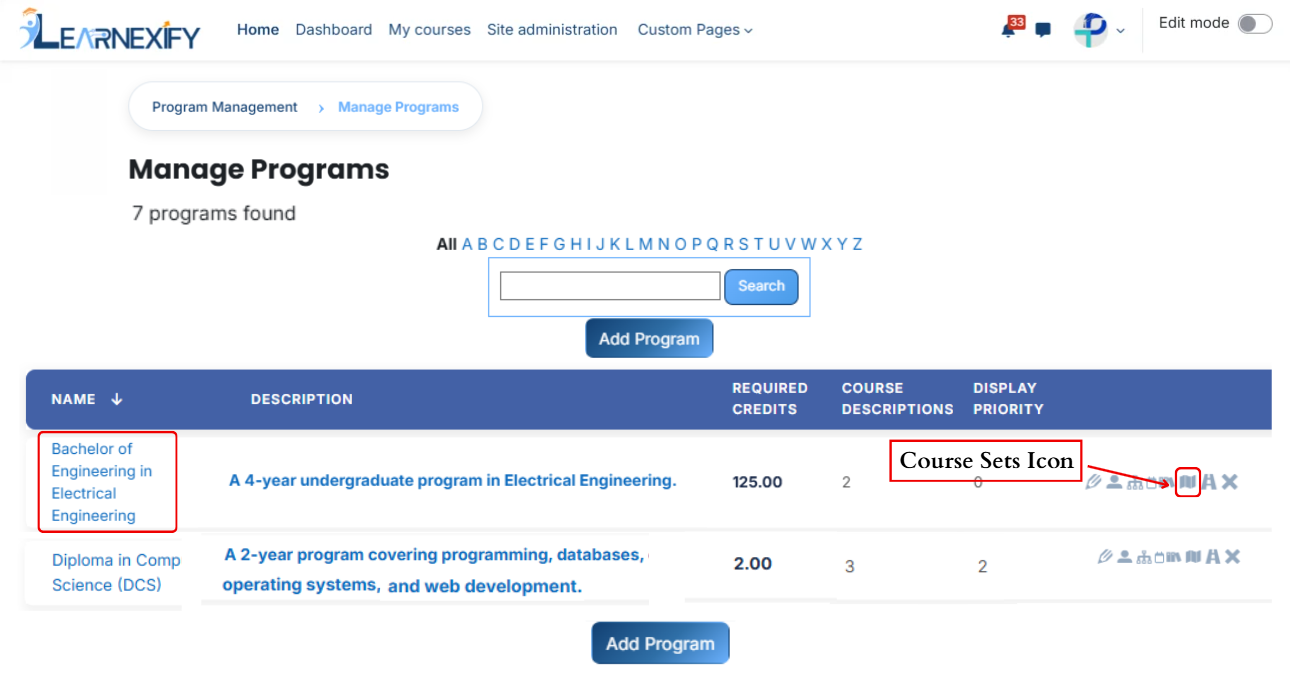
- Access the Program List and select the **Course Sets icon** to manage and **link course sets** directly to your **specific program.**
[](https://wiki.paktaleem.net/uploads/images/gallery/2026-07/i5timage.png)
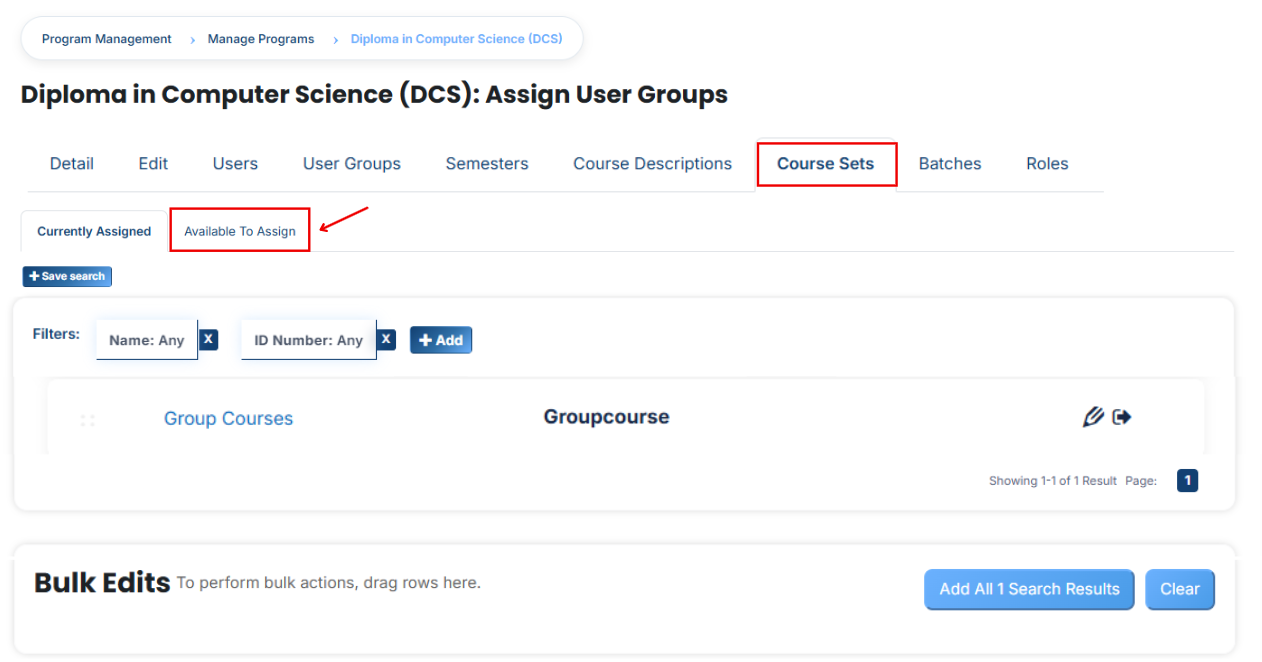
- Here you will see the list of assigned course sets.
- If you want to **assign** more **course sets** in the program, Click on the **Available to Assign button.**
- Select the course sets you want to assign to the program.
- Click on the arrow button to move the selected course set.
- Fill the details:
#### **1. Required Credits**This means the learner must complete a specific number of credits to fulfill the requirement of the program or course set. For example, if 10 credits are required, the student must complete courses totaling 10 credits.
#### **2. AND/OR Condition**This defines how the requirements work together:
- AND means both conditions must be completed (required credits + required courses).
- OR means either condition can be fulfilled (either required credits or required courses).
#### **3. Required Courses**
This means specific courses are mandatory. The learner must complete all the listed courses in the course set.
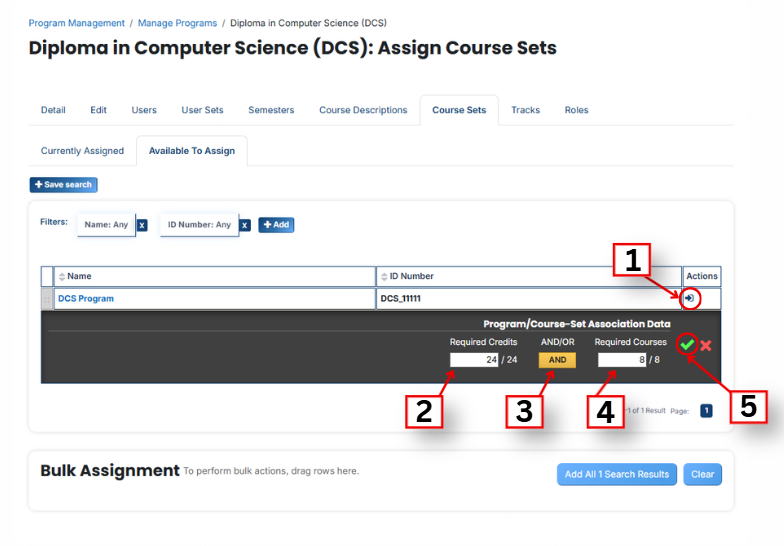
- After clicking the arrow button, click on the green tick to confirm the assignment.
- Go to the Currently Assigned section, where you can see the assigned course sets.
- If you cannot find your course set, select the required field and enter the details according to the course sets on the “Available to Assign” page.
#### **Bulk User Action:**
**Purpose:**
Use this feature to assign multiple Course Sets efficiently.
**Method 1:**
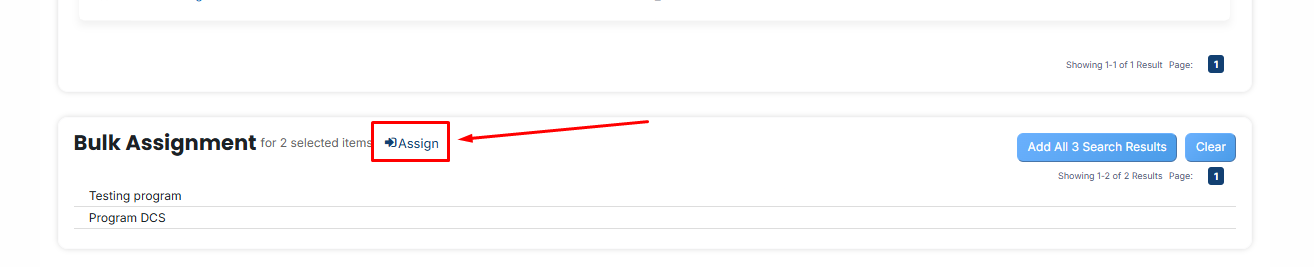
- Select those multiple course sets you want to assign in the program.
- After making your selections, click the **“Add All 2 Selected Items”** button to add the **selected course sets.**
The number displayed in the button (e.g., 2) represents the number of items currently selected and will change depending on how many items you select.

- Then click on the **Assign button** in the **Bulk Assignment** Section to move the **course sets** to the **assigned list.**
**Method 2:**
- Click the “Add All 13 Search Results” button to add all course sets with a single click. The number displayed in the button (e.g., 13) may vary depending on the number of course sets available in the search results.
- If you want to clear everything, click the Clear button.

---
# How to Add a Batch in a Program
#### **Batches**
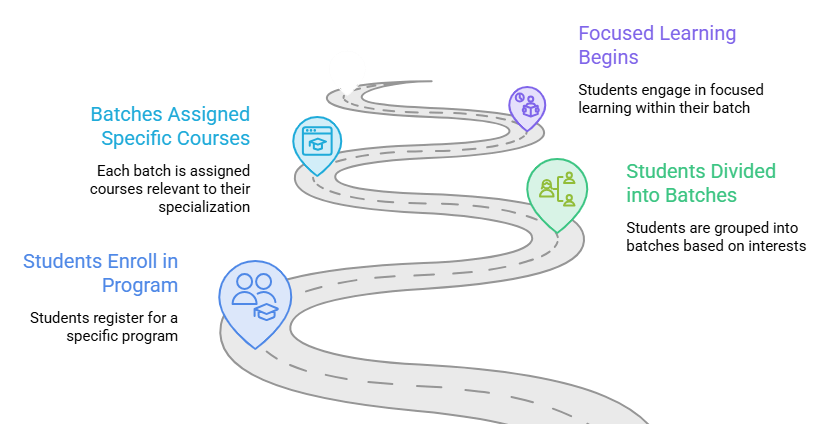
Batches in Learnexify is a system in which students within a program are divided into different learning paths based on their interests and specialization. Each batch has its own specific courses that provide focused learning in that particular field.
#### **Add a Batch in a Program:**
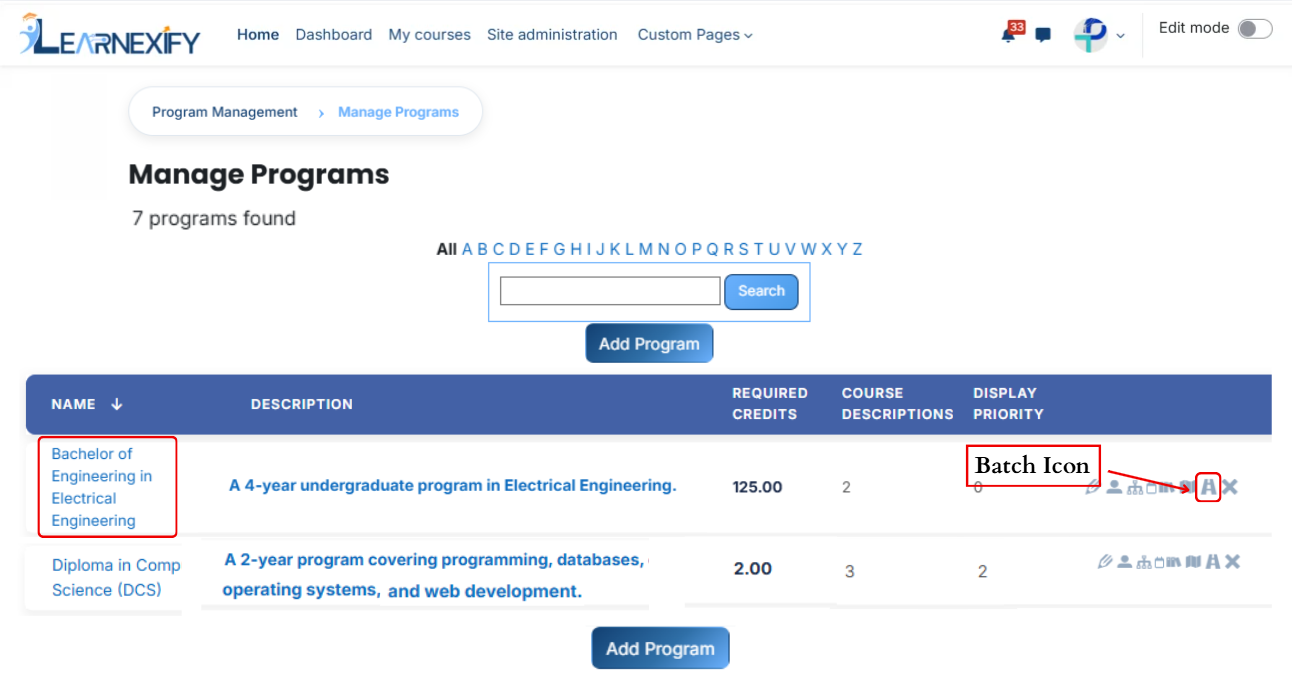
- From the **Program List**, select the **Batches icon** to organize and **add batches** to your program.
[](https://wiki.paktaleem.net/uploads/images/gallery/2026-07/lqCimage.png)
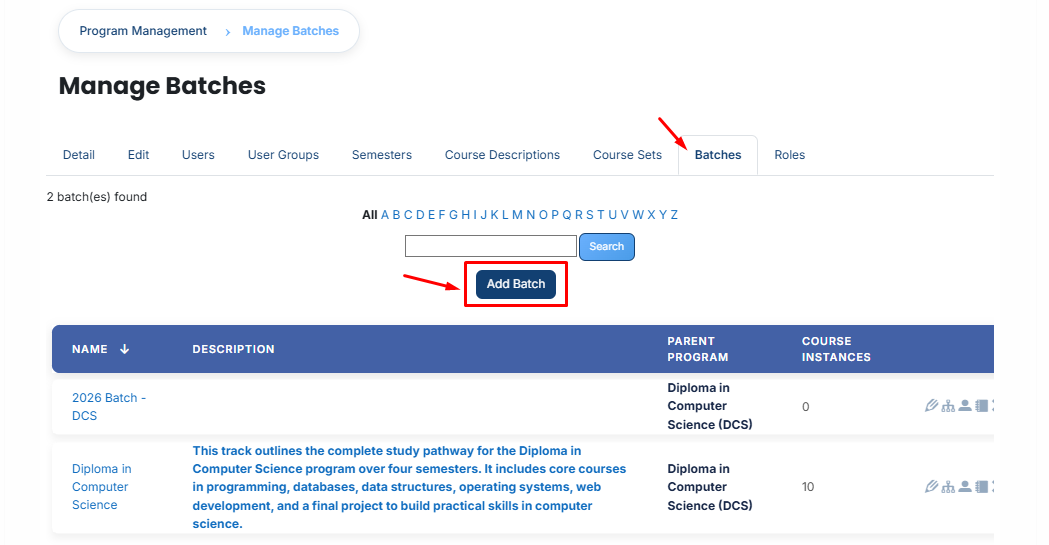
- After **opening** the Batch tab, click on the **Add Batch button.**
[](https://wiki.paktaleem.net/uploads/images/gallery/2026-07/8Gcimage.png)
- When you click on the Add button, a new page will open.
- Fill in the blanks:
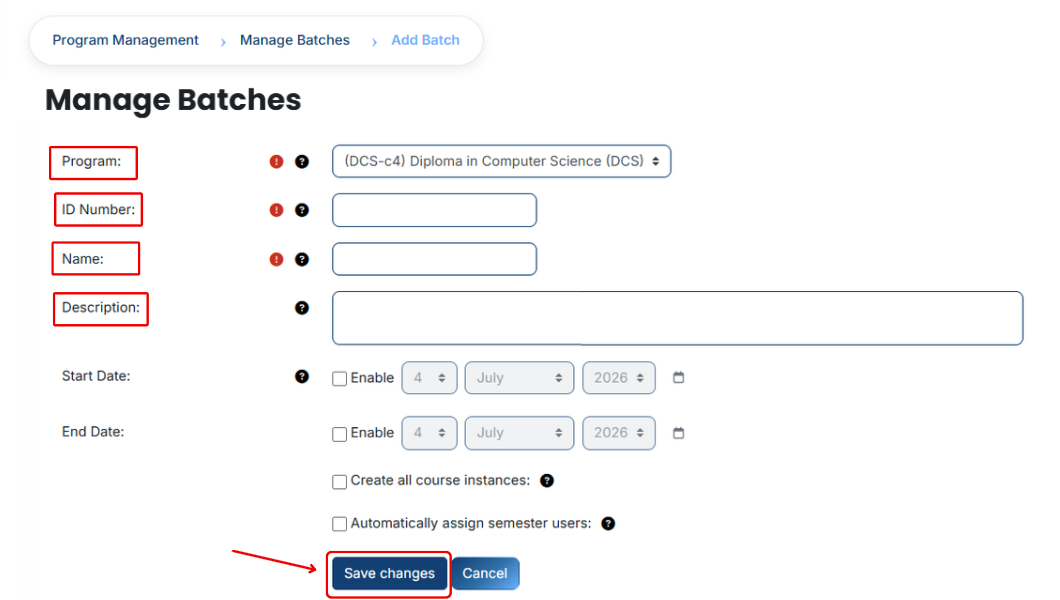
#### **Required Fields:**
**Program**
The Program field defines the main academic program under which the batch is created. It shows which degree or discipline this batch belongs to.
Example: (DCS-c4) Diploma in Computer Science (DCS)
**ID Number**
The ID Number is a unique code used to uniquely identify each batch in the system. It ensures that every batch has a distinct identity and no duplication occurs.
Example: 11111
Name
The Name field defines the title of the batch and helps users easily identify the specialization or focus area of the batch.
Example: Diploma in Computer Science
#### **Not Required Feilds:**
**Description**
The Description provides a short overview of the batch and explains the specialization area. It helps users understand what this batch is about and what knowledge or skills it focuses on.
Example: This batch outlines the complete study pathway for the Diploma in Computer Science program over four semesters. It includes core courses in programming, databases, data structures, operating systems, web development, and a final project to build practical skills in computer science.
**Start Date**
The Start Date defines when the batch becomes active and available for assignment in the system.
Example: 28 April 2026
**End Date**
The End Date defines when the batch will expire or stop being active in the system.
Example: 1 May 2026
**Create all course instances**
This option is used to automatically create and assign all related course instances (such as course or batch structures) for the selected batch, so manual setup is not required.
- After filling in all the **required fields**, click on the **Save Changes** button.
- Once you click the Save button, the system will process the data.
- After **successful** saving, the **batch** will be added to the **relevant program.**
---
# How to Assign Roles in a Program
#### **Roles**
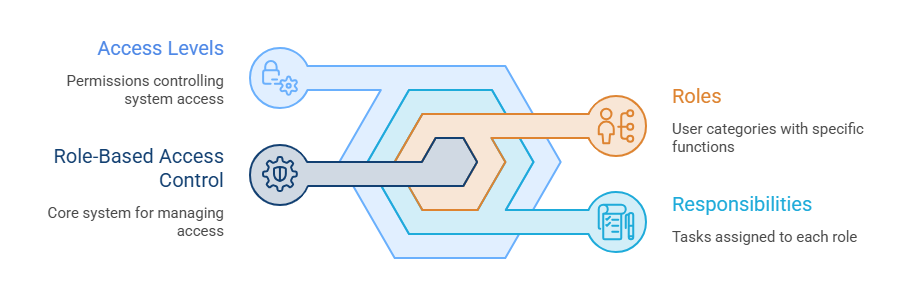
Roles is a system through which users are assigned their responsibilities and access levels. In this system, it is defined who will be a teacher, who will be a manager, and who will be a student. Each role has its own functions and permissions that control its access within the system.
#### **Assign Roles in a Program**
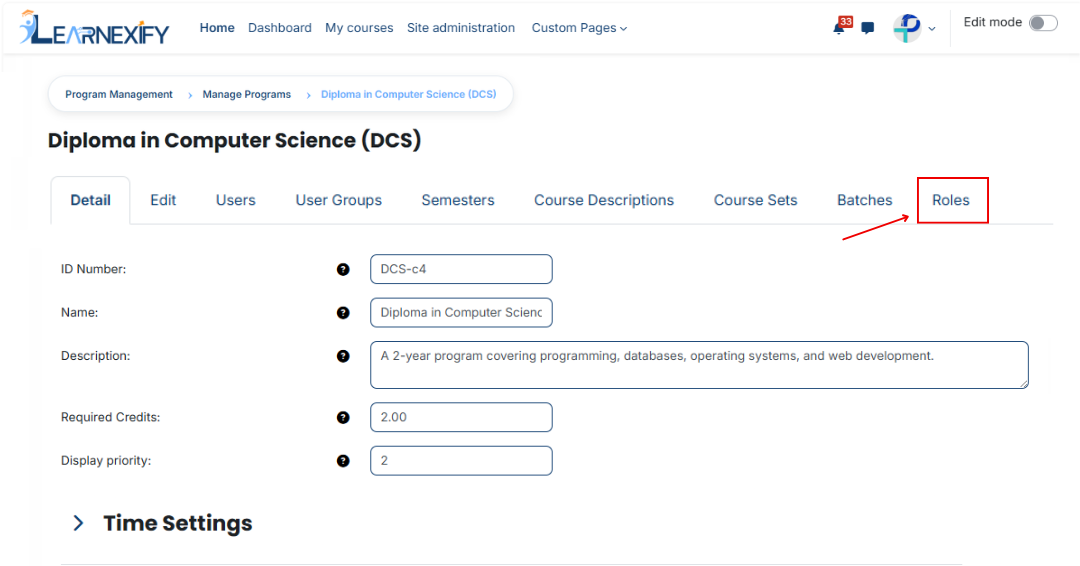
- Open the Program and click on the Roles tab.
- Review the list of available roles.
- Click on the role to which you want to assign users.
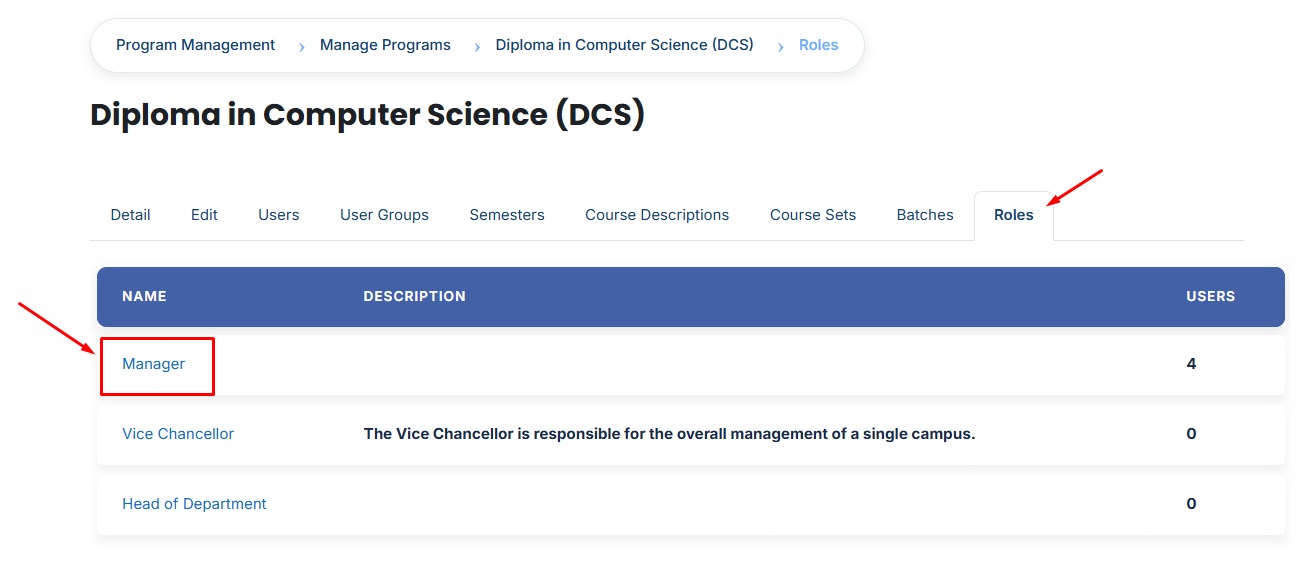
- A page will open displaying all users currently assigned to the selected role.
- To assign additional users, click the Unassigned button. This will display all users who are currently unassigned to the selected role.
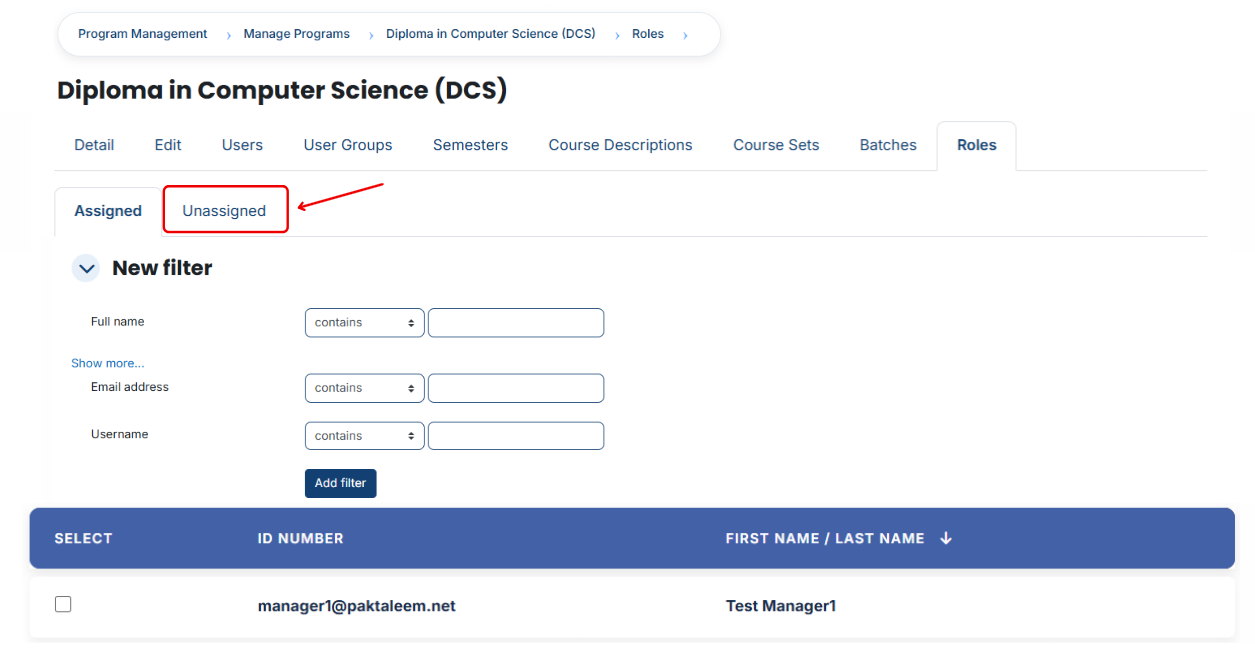
- Select the user(s) you want to assign.
- Scroll down and click **Assign Roles.**
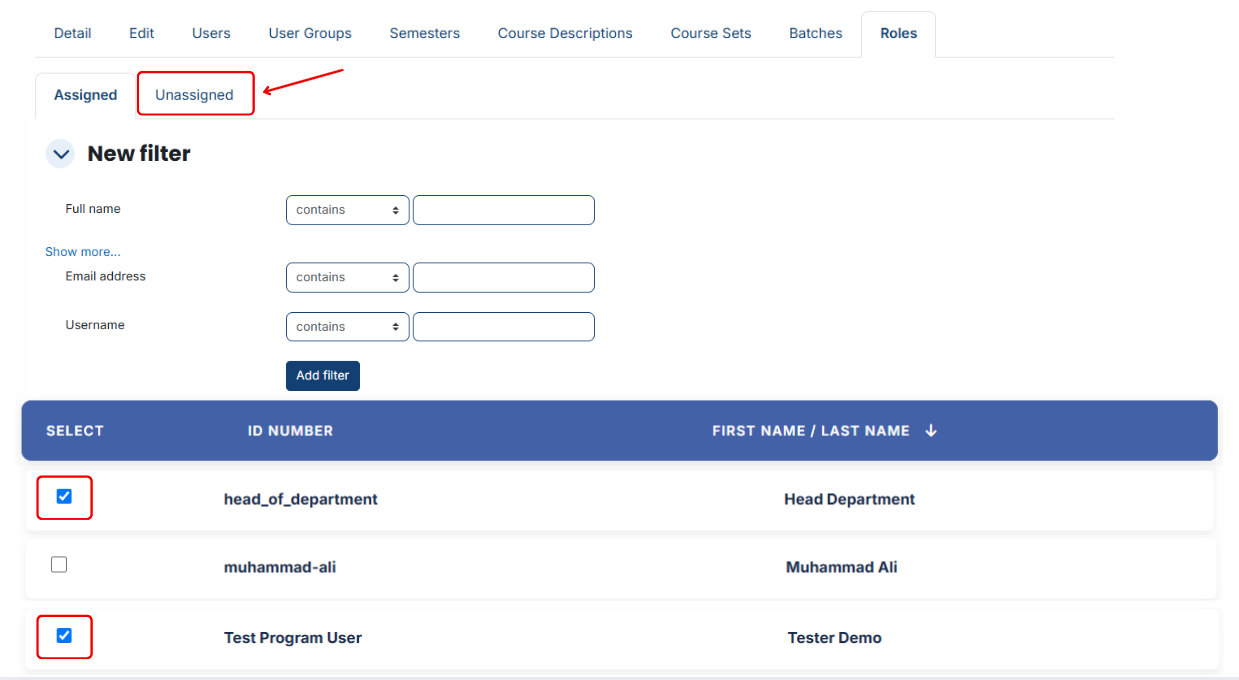
#### **Using Filters:**
If you cannot find the required user:
- Use the **Filter** option.
- Add a filter using **Email Address, Username, or Full Name.**
- Click **Add Filter.**
- Select the required user from the filtered results.
- Scroll down and click **Assign Roles** to complete the assignment.
# How to Create a Program
##### **How to Create a Program**
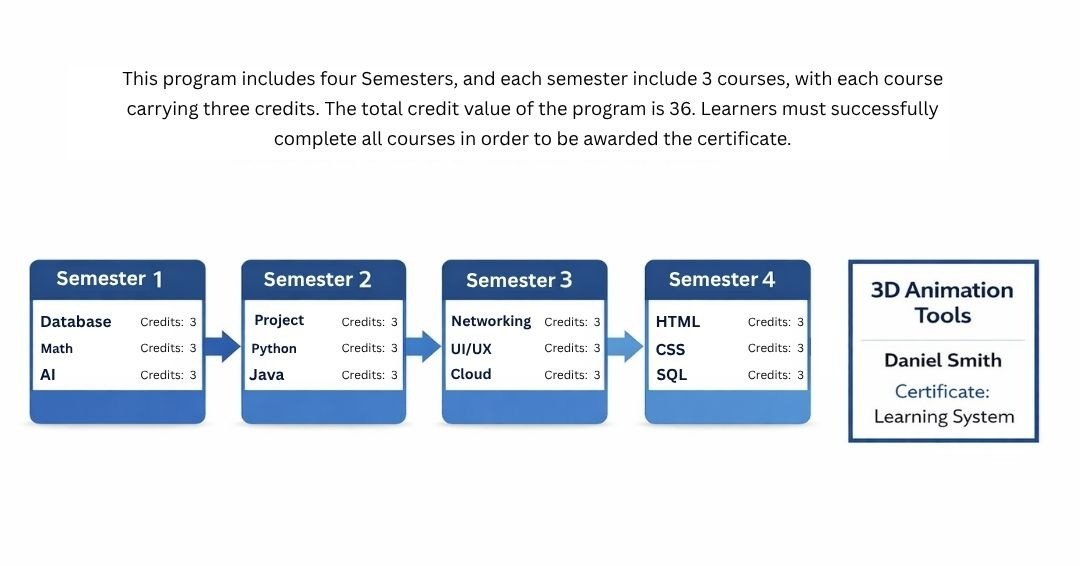
#### **Program:**
Programs in Learnexify are used to organize Course Descriptions in different ways. In many cases, a collection of Course Descriptions leads to a certificate or another form of validation, indicating that a learner has achieved a certain level of mastery in the subjects included within the Program.
Additionally, Programs are used to define pre-requisite and co-requisite Course Descriptions, as well as to create batches of course instances that run according to a specific schedule or sequence.
**For Example:**
#### **Creating Programs:**
**Steps:**
1. After logging in, you will see the dashboard.
2. Open the side drawer.
3. Click on Programs and then select Manage Program.
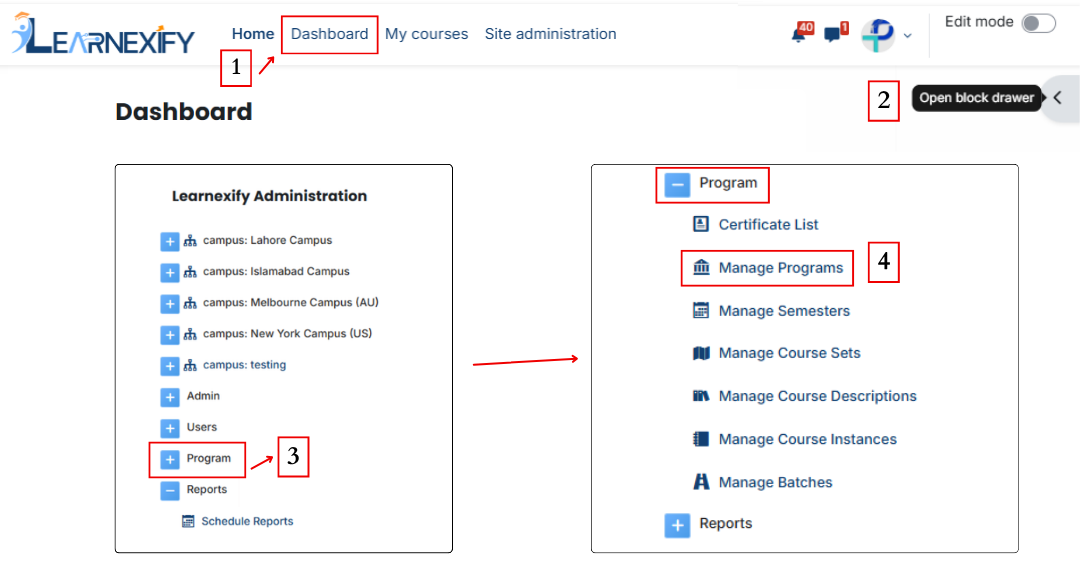
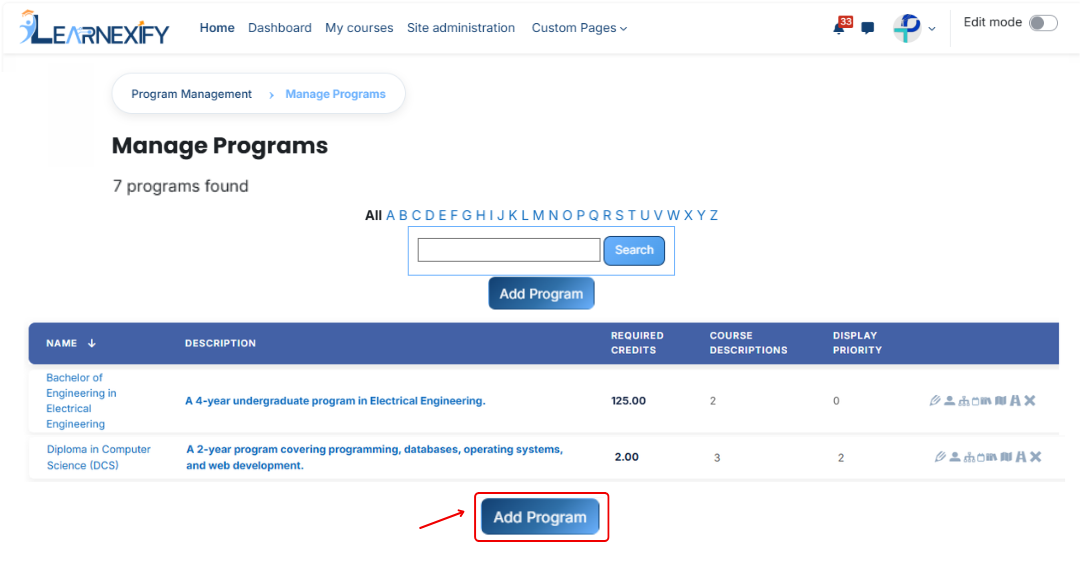
4. To create a new program, click on the “Add Program” option.
####
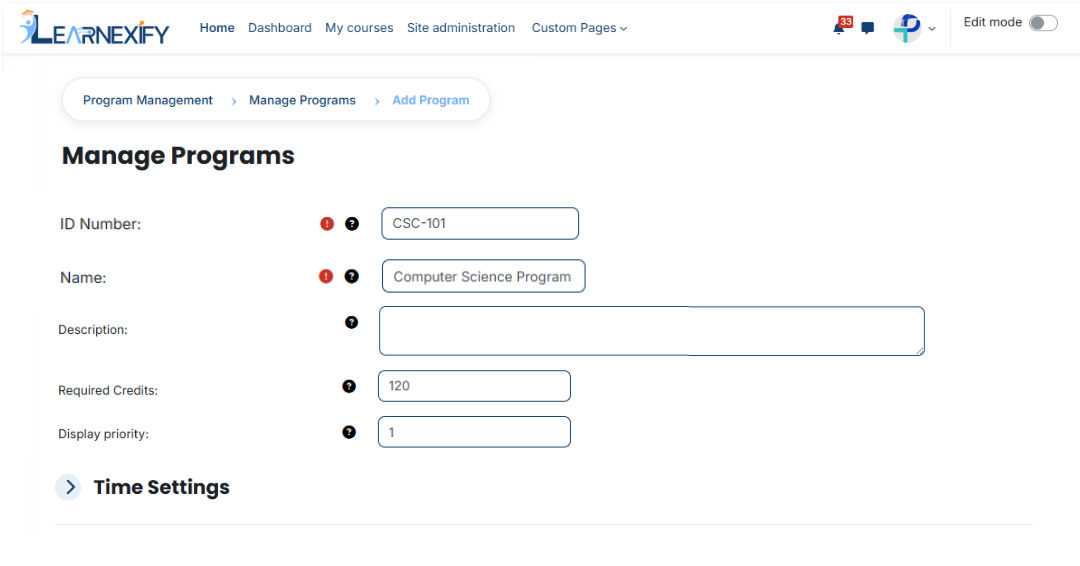
**Fill in the details (required):**
**ID Number:** The ID Number is a unique code used to uniquely identify each program in the system.
Example: CS-101
**Name:**
The Name field defines the title of the program and helps users identify it easily.
Example: Computer Science Program
**Description:**
The Description provides an overview of the program and explains what students
will learn.
Example: This is a Computer Science degree program covering programming,
databases, and software development.
**Required Credits:**
Required Credits indicate the total number of credit hours needed to complete the program.
Example: 120
**Display Priority:**
Display Priority defines the order of programs in the list. Higher numbers appear first.
Example: 1
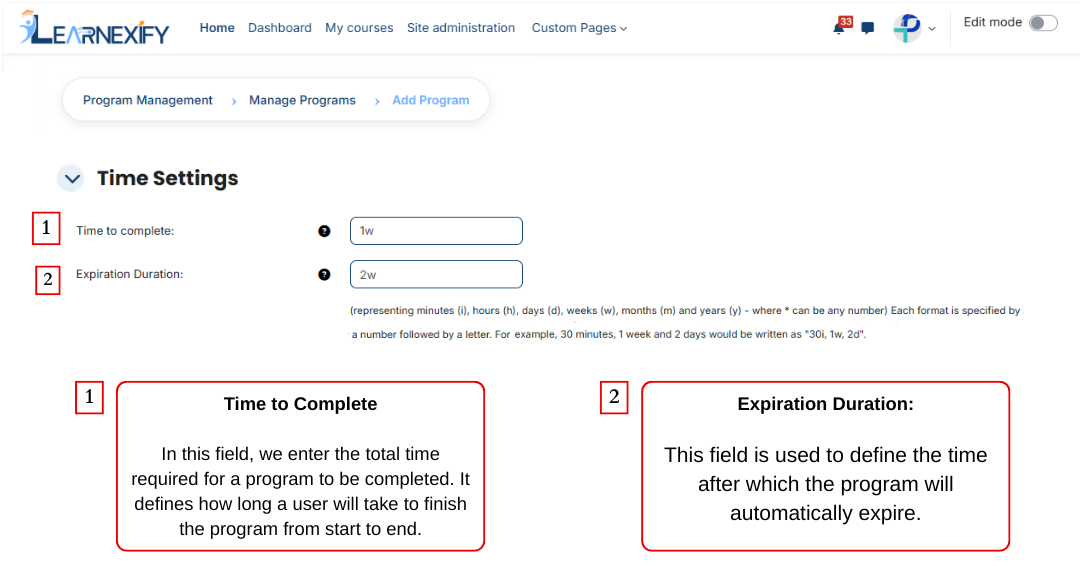
#### **Time setting:**
The next feature is Time Setting, and it is used to control the duration of a program. It defines how long a program will remain active and how much time a user gets to complete it. With this feature, the program is properly time-managed and works within a fixed schedule. These are the two fields of the Time Setting feature.
To specify a duration, use the following abbreviations:
- i = Minutes
- h = Hours
- d = Days
- w = Weeks
- m = Months
- y = Years
Examples: 2y (2 years) or 1w 2d (1 week and 2 days).
For additional information, a document has been prepared for this expiration duration feature. You can view it by clicking on the given link.
### 
### Recruitment Information:
Recruitment Information feature is used in a program to define and manage all important details related to admission or enrollment. It helps students clearly understand which qualification is required before joining the program.
It also explains what benefits or career outcomes a student will get after completing the program.
This feature contains 5 fields
#### **Admission Category:**
This field is used to define the admission category of the program.
##### **Purpose****:**
- Define the type of admission
- Categorize programs
- Maintain organization in the system
**Example:** Uncategorized
#### **Career Outcomes:**
This field is used to inform students about the career opportunities they may get after completing the program.
##### **Purpose:**
- Guide students about outcomes after program completion
- Show future career opportunities
**Example:** Software Developer, Web Developer, Data Analyst
#### **Academic Entry Requirements:**
This field is used to define the required educational qualification for admission.
##### **Purpose:**
- Set eligibility criteria
- Define required education level
**Example:** Intermediate or Bachelor’s degree
#### **Language Proficiency Requirements:**
This field is used to define the required language proficiency for students.
**Purpose:**
- Set required language level
- Improve learning understanding
**Example:** Basic English understanding or IELTS score (if required)
#### **Location:**
This field is used to define the location where the program is available.
##### **Purpose:**
- Show program location
- Define online or campus availability
**Example:** Online / Chiniot
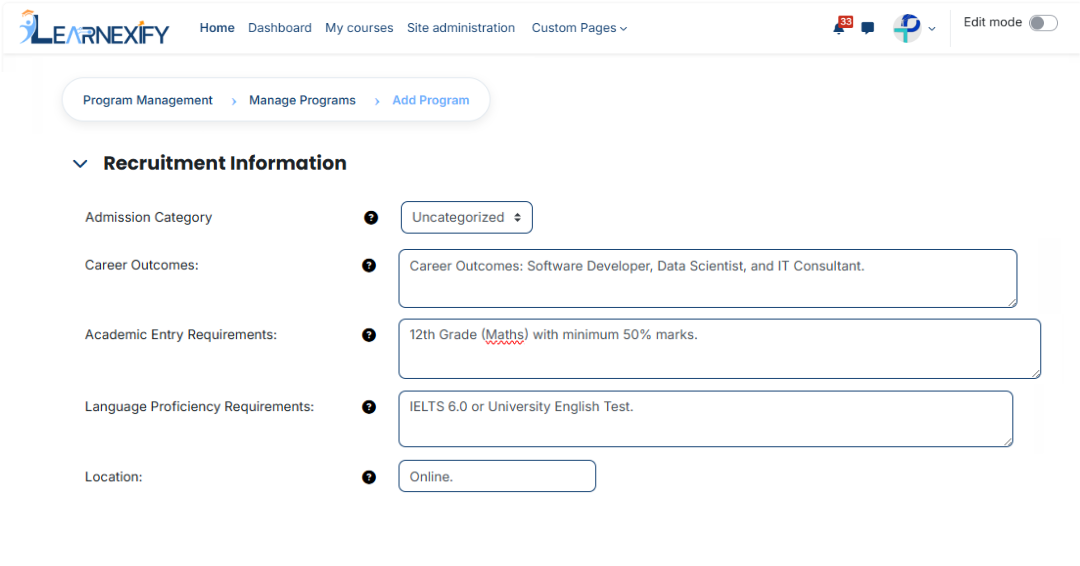
### Additional Program Details:
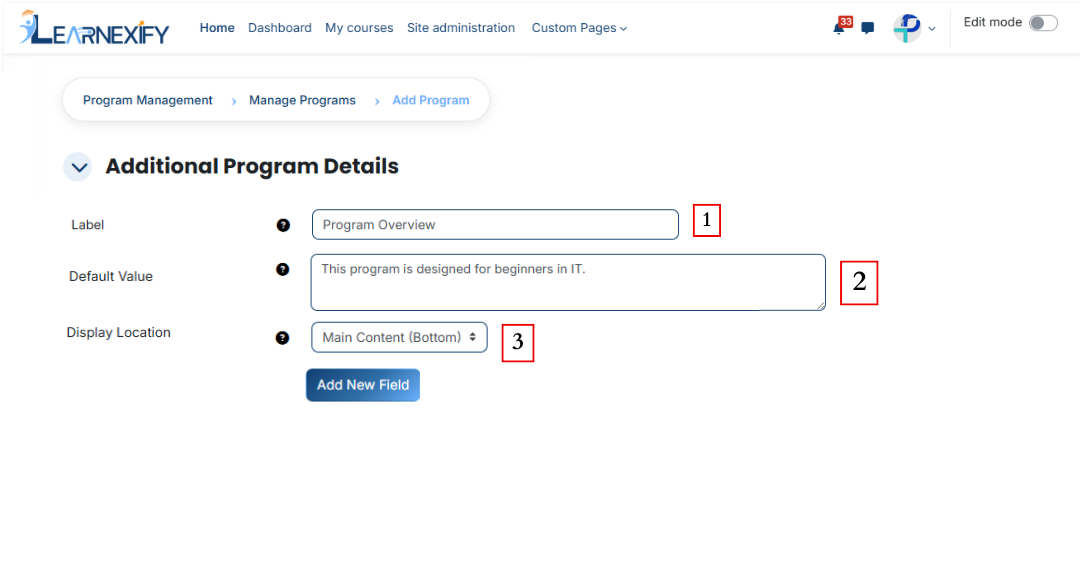
Additional Program Details feature is used to add extra information about a program apart from the main description. It also defines where this extra information will be displayed in the program interface so that users can easily view it in the relevant section of the program page. In this feature, you can also add new fields.
#### **Label:**
This field is used to define the name or title of additional information. It helps identify what the added information is related to.
**Purpose:**
- To identify the field
- To define the title of the information
- To maintain clarity in the system
**Example: **Program Overview, Duration Info, Requirements
####
**Default Value:**
This field is used to set a predefined value for the label, which is automatically displayed when an additional program detail is created.
##### **Purpose:**
- To provide pre-filled content in the field
- To make data entry easier
**Example:** This program is designed for beginners in IT.
#### **Display Location:**
This field is used to define where the additional information will be displayed within the program content. It allows us to decide whether the extra information should appear above or below the main content, or in the sidebar at the top or bottom.
**Purpose:**
- To set the exact position of additional information on the page
- To organize the page layout properly
- To display information in the correct section for better user experience.
**Options:**
- Main Content (Top)
- Main Content (Bottom)
- Sidebar (Top)
- Sidebar (Bottom)
**Example:** Displays the information above the main program content when Main Content (Top) is selected.
- **New field:** If you want to add a new field, you can add it by clicking the “Add New Field” button.
### Payments:
#### Payments feature is used to manage and configure admission fee-related settings. In this section, we define the admission fee that is charged from students for enrolling in a program.
#### **Fee Name:**
Fee Name is used to define the title of the payment. It tells what type of fee is being charged from students.
##### Purpose:
- To make it clear to students what the fee is for
##### **Example:** Admission Fee
#### **Fee Amount:**
This field is used to define the total admission fee amount that a student needs to pay.
##### **Purpose:**
- To set the exact fee value
- To help in payment and calculation
##### **Example:** 3000
#### **Currency:**
This field is used to define the currency in which the student will pay the fee.
##### Purpose:
- To specify the payment currency
- To ensure correct financial transactions
**Example:** Pakistani Rupee, US dollars
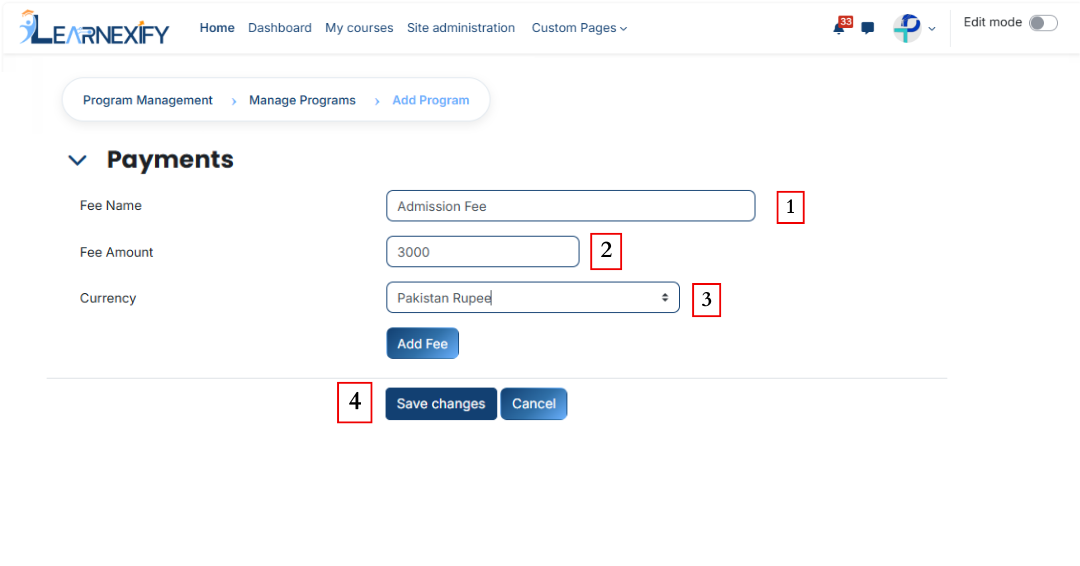
- To complete this process, scroll down and click on the **Save Changes** button.
# Manage Semesters
# Learnexify Semester
A semester is a fixed academic period used in universities to divide an academic year into smaller parts, where students take specific courses and complete learning, assignments, and exams. Its main purpose is to keep the academic system structured and manageable.
A degree program has multiple semesters (such as Semester 1, Semester 2, Semester 3, etc.), and students progress step by step until they complete their program.
### **How to create a semester:**
- After login, the dashboard will open.
- Open the side drawer menu.
- Click on Programs and then select Manage Semesters.
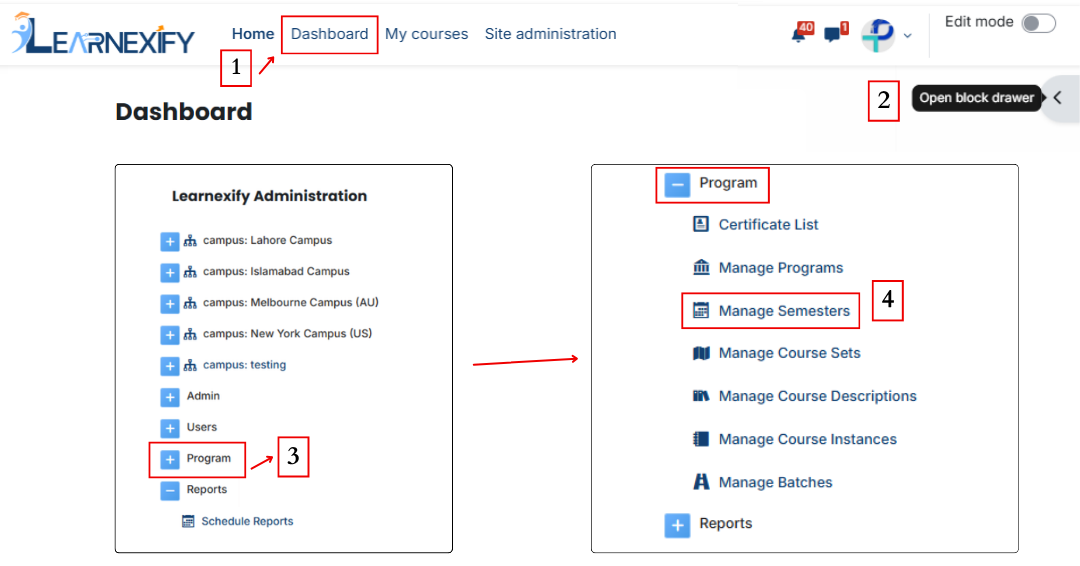
- Click the Add Semester button.
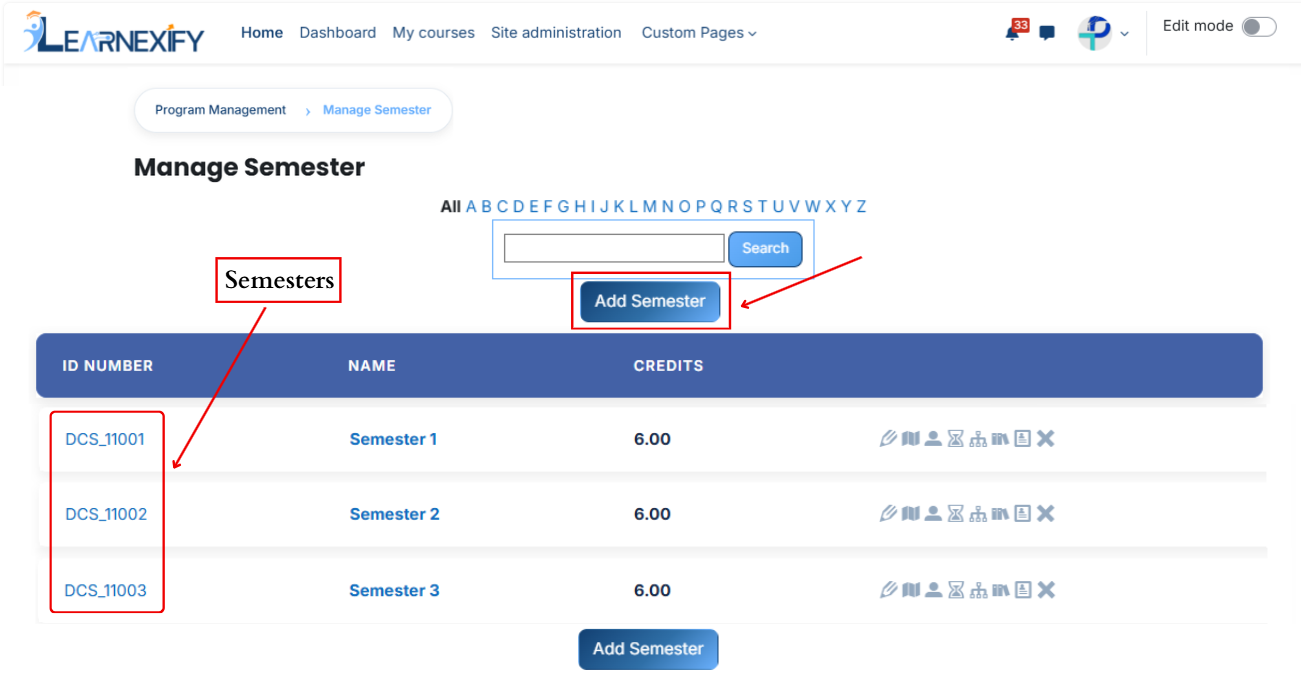
- The semester creation page will be displayed.
- Fill in the details:
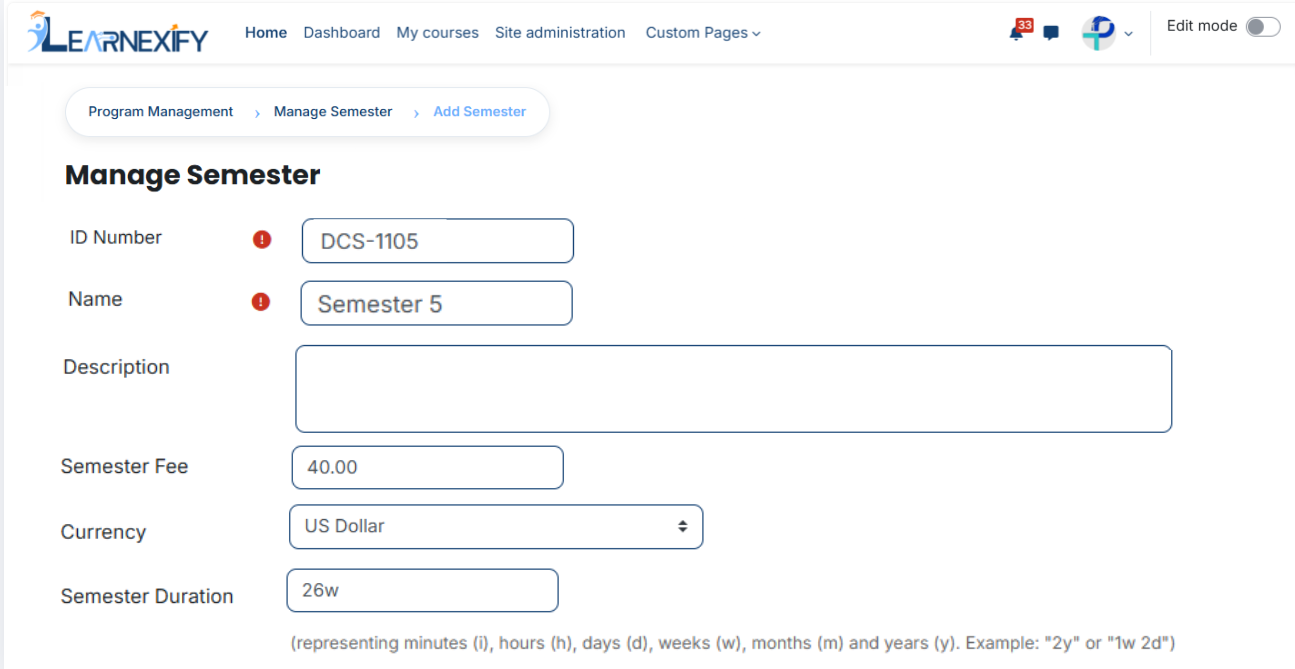
- **ID Number** The ID Number is a unique identifier used to distinguish each semester in the system so that no two semesters have the same identity.
Example: SEM-EE-001
- **Name** The Name field is used to define the semester title, which helps users easily recognize and differentiate it from other semesters.
Example: Semester 1 – Electrical Engineering
- **Description** The Description field gives a brief explanation of the semester, including its level and the purpose of studies during this period.
Example: This semester introduces basic electrical engineering concepts and provides foundational knowledge for higher-level studies.
- **Semester Fee** The Semester Fee defines the total amount required to enroll in the semester.
Example: 2000
- **Currency** The Currency field specifies the payment currency in which the semester fee is charged.
Example: US Dollar
- **Semester Duration** Semester Duration defines how long the semester will run using time formats such as weeks, months, or years.
Example: 1y,
To specify a duration, use the following abbreviations:
- i = Minutes
- h = Hours
- d = Days
- w = Weeks
- m = Months
- y = Years
Examples: 2y (2 years) or 1w 2d (1 week and 2 days).
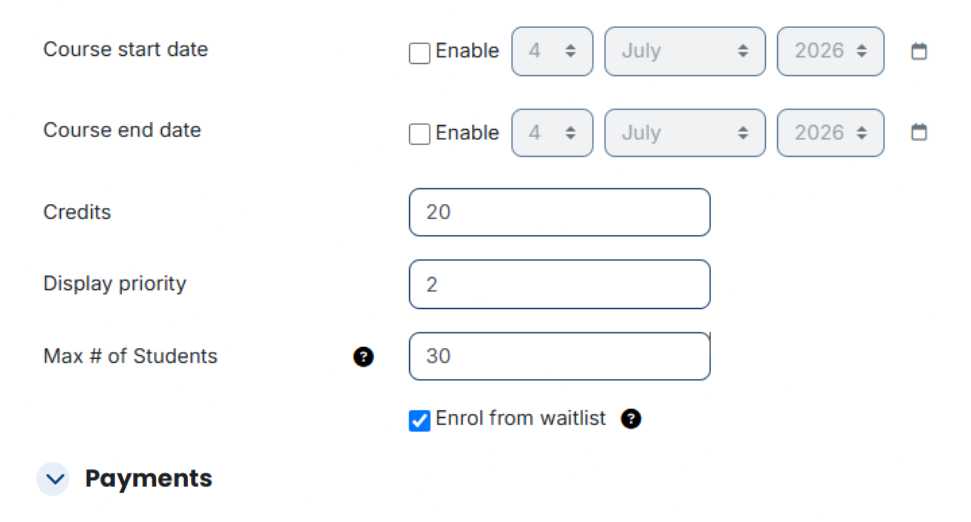
- **Course Start Date** The Course Start Date indicates the date when semester courses begin.
Example: 15 April 2026
- **Course End Date** The Course End Date indicates the date when semester courses finish.
Example: 15 April 2027
- **Credits** Credits represent the academic workload assigned to the semester based on course completion requirements.
Example: 18.00
- **Display Priority** Display Priority defines the order in which the semester appears in lists or menus within the system.
Example: 1
- **Max # of Students** This field defines the maximum number of students that can be enrolled in a semester.
Example: 50
- **Enrol from Waitlist** This option allows students from the waitlist to be automatically enrolled when seats become available in the semester.
Example: Enabled
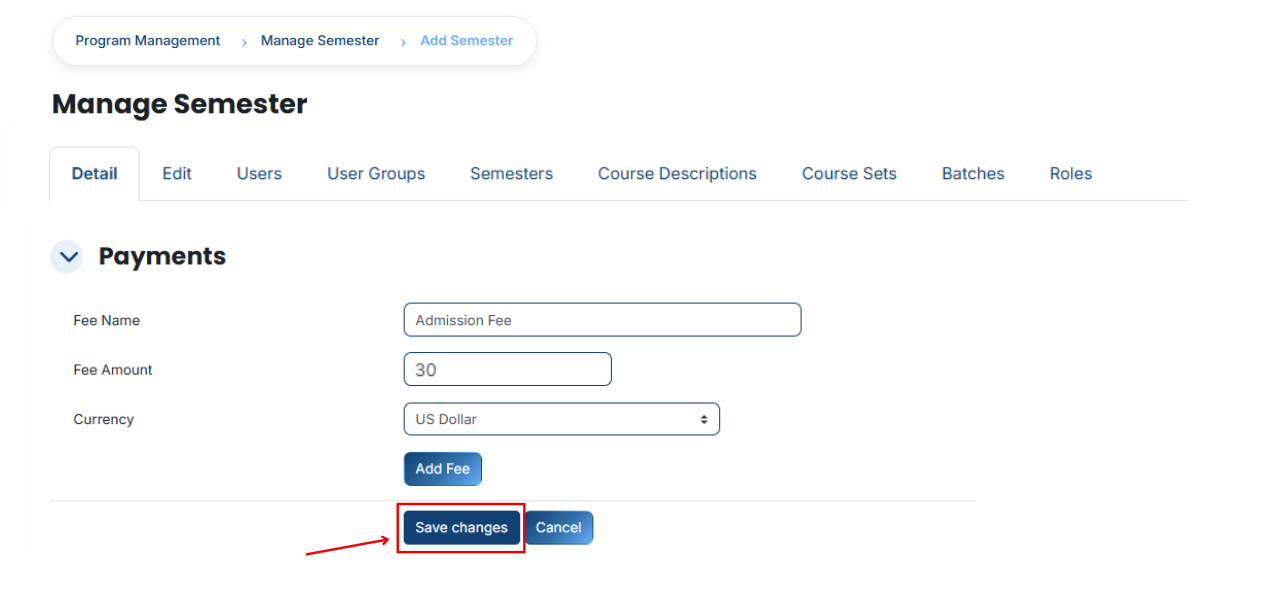
### **Payments:**
Payments feature is used to manage and configure semester fee settings within the system. In this section, administrators can define the fee amount, set the currency, and control how the semester fee is applied to students. It helps ensure that all students are charged correctly when they enroll in a semester and allows easy management of fee-related settings.
[](https://wiki.paktaleem.net/uploads/images/gallery/2026-07/pZEimage.png)
#### **1. Fee Name**
Fee Name is the title that defines the type of payment, helping identify what the fee is being charged for.
**Example:**
Semester Fee
#### **2. Fee Amount**
Fee Amount is the total amount that a student has to pay for a specific fee.
**Example:**
30
#### **3. Currency**
Currency defines the type of money in which the fee will be charged.
**Example:**
USD Dollar
- To finish the **process**, scroll down and click on the **Save Changes** button to save the changes.
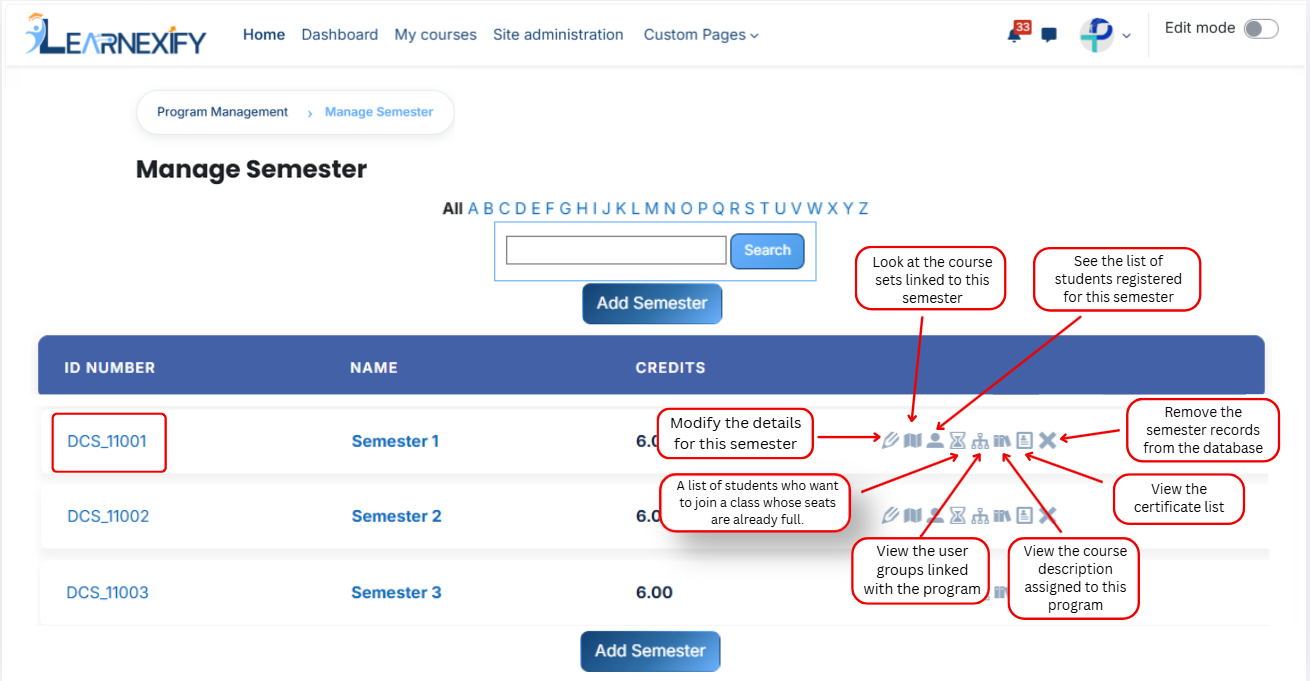
- After clicking **'Save Changes'**, the semester will be displayed in the semester List. An explanation of **each icon** is **provided below.**
# How to edit a Semester
To edit a program, follow these steps:
- On the Dashboard
- Open the Side Drawer Menu
- Click on **Programs**
- Select **Manage semester**
- A list of semesters will be displayed.
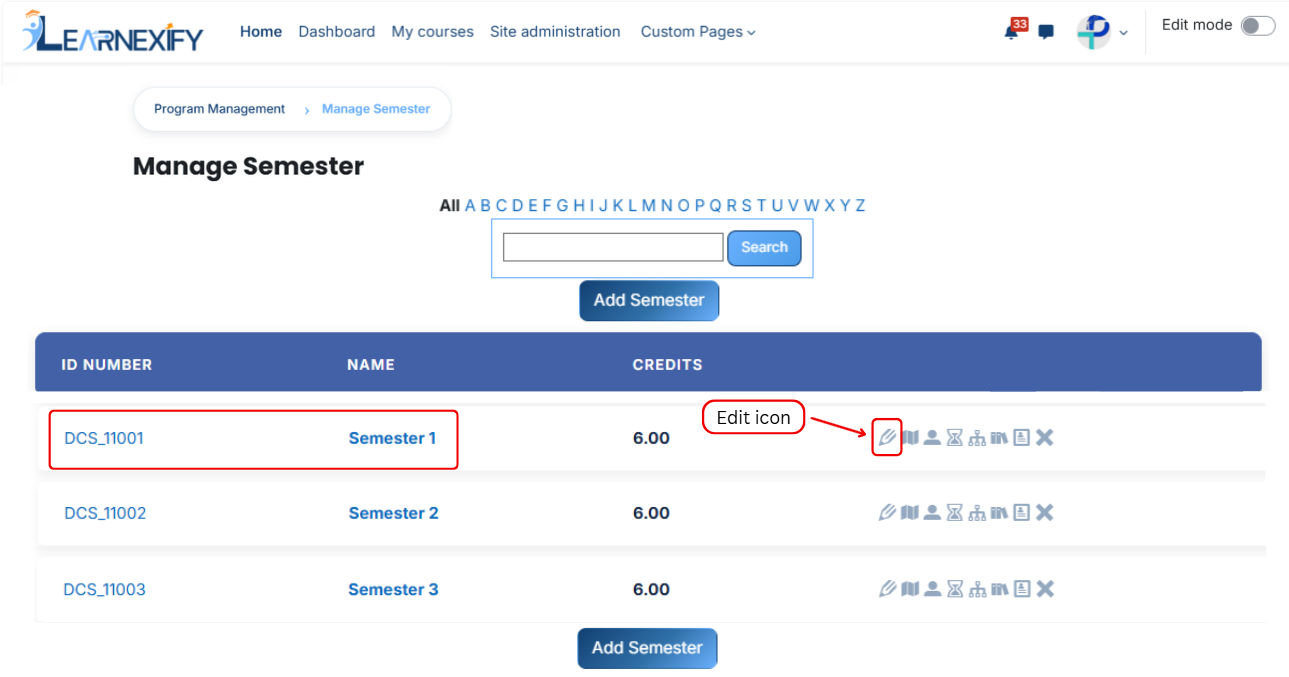
- Click the **edit icon** of the **semester** you want to edit.
- The semester details page will open in **editable mode.**
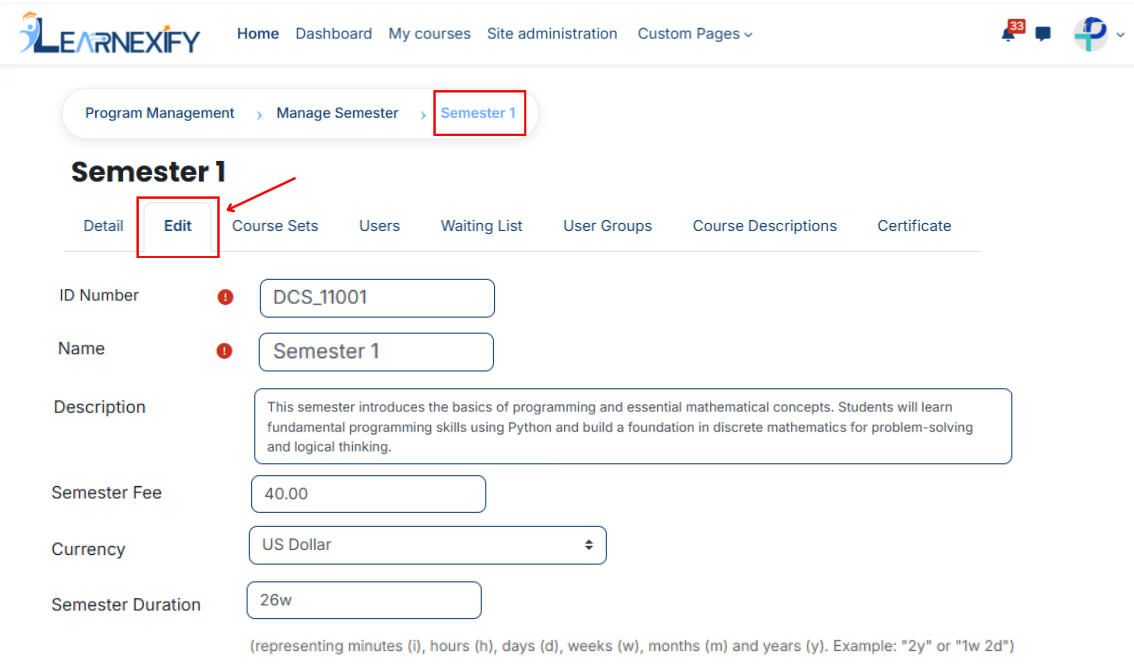
- Update the required semester details
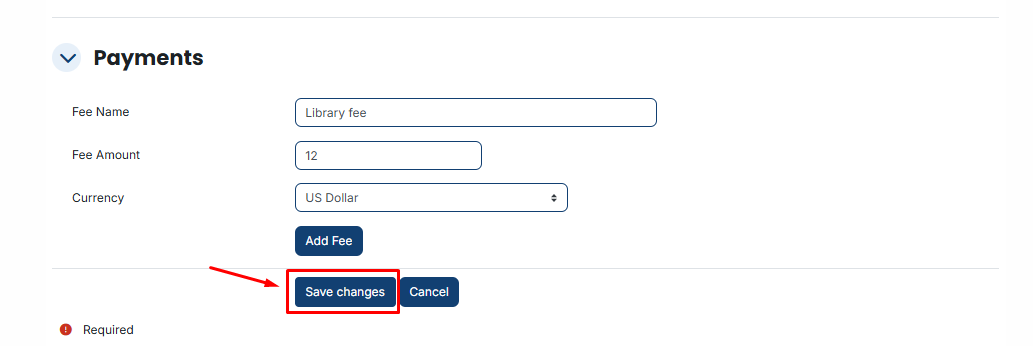
- Scroll down and click on the Save Changes button to apply updates
[](https://wiki.paktaleem.net/uploads/images/gallery/2026-07/jTtimage.png)
---
# How to Assign Course sets to a Semester:
- **Path:** Dashboard ⟶ Side Drawer Menu ⟶ Learnexify Administration Block ⟶ Programs ⟶ Manage semester
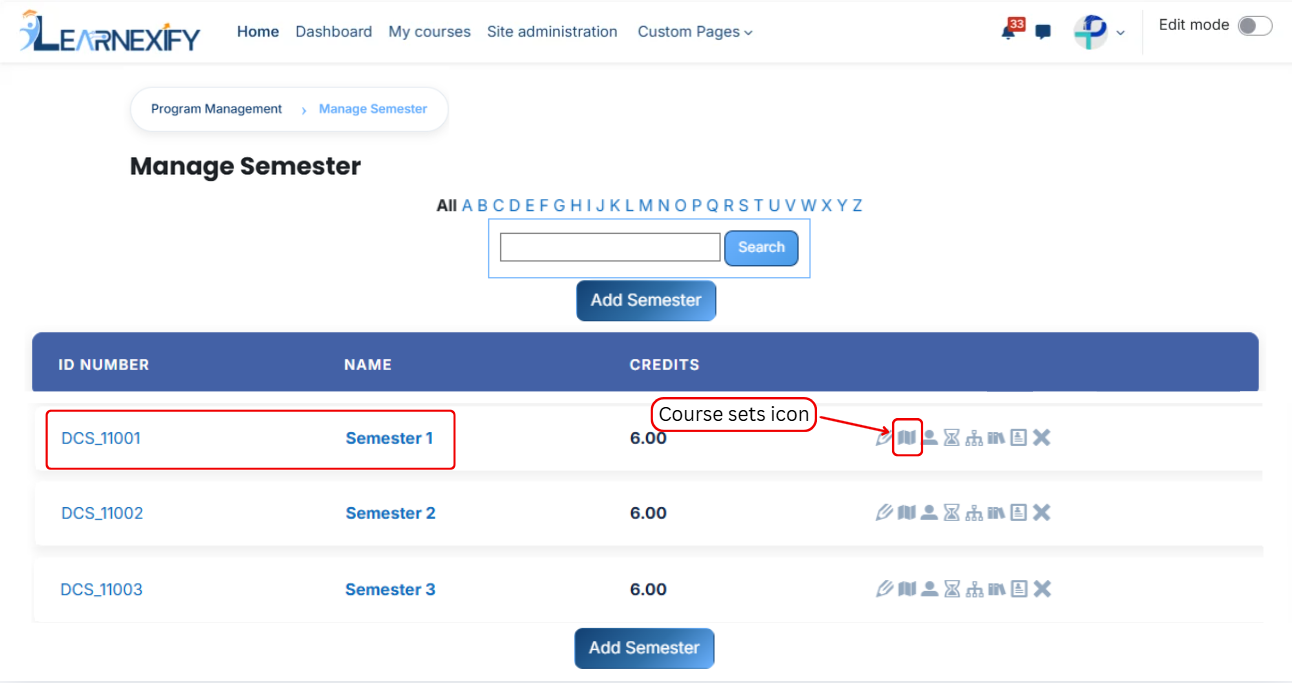
- A list of semesters will be displayed.
- Click the **course sets icon** of the semester you want to **assign course sets.**
[](https://wiki.paktaleem.net/uploads/images/gallery/2026-07/vUVimage.png)
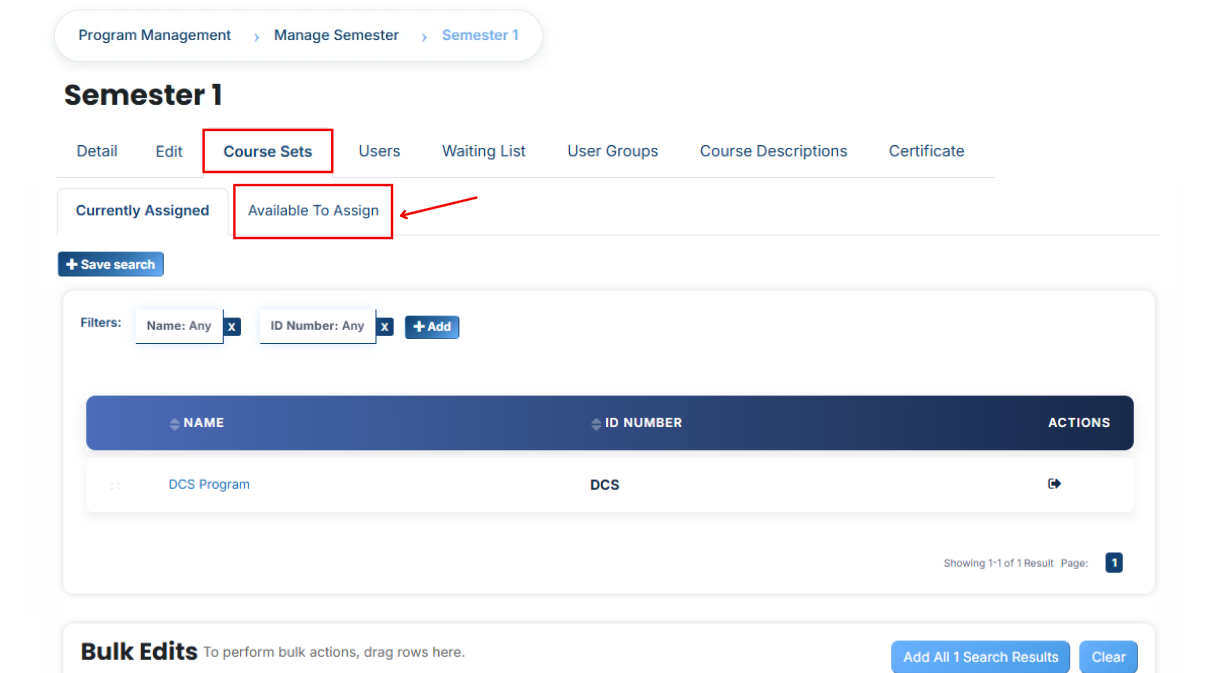
- After opening the **course sets** tab
- Here you will see assigned course sets in the program
- If you want to assign more **Course sets** Click on the **Available to Assign button**
[](https://wiki.paktaleem.net/uploads/images/gallery/2026-07/8I6image.png)
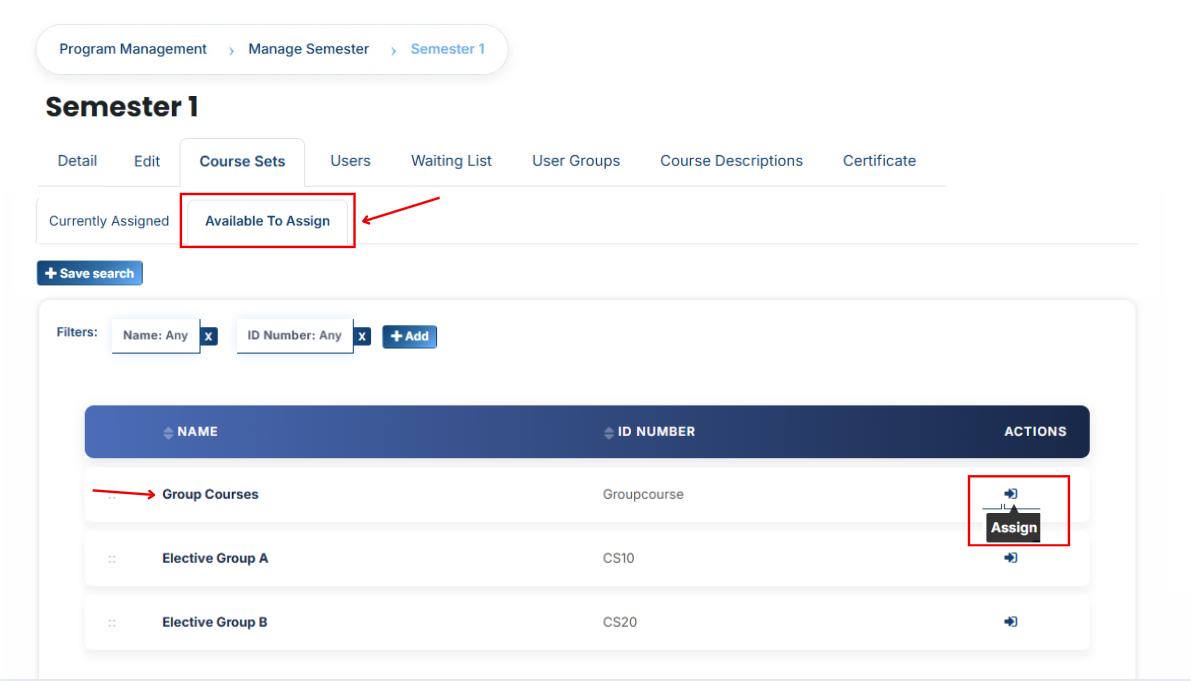
- A list of available course sets will be displayed
- Find the course set you want to **assign.**
- First **Click** on the **arrow icon** to move the **course sets** to the assigned list
[](https://wiki.paktaleem.net/uploads/images/gallery/2026-07/DHsimage.png)
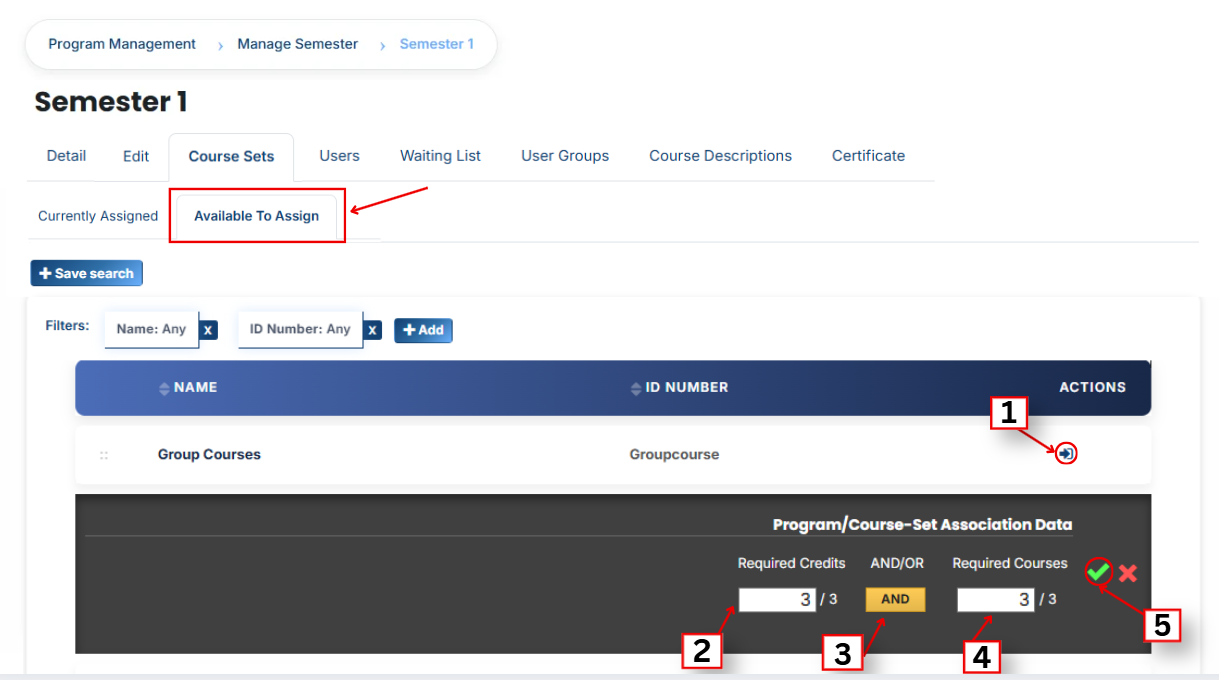
- **Fill the details:**
#### **1. Required Credits**
This requirement specifies the total number of credits a learner must successfully complete to satisfy the program or course set requirements. For example, if the requirement is 10 credits, the learner must complete courses whose combined credit value equals or exceeds 10 credits.
#### **2. AND/OR Condition**This defines how the requirements work together:
- AND means both conditions must be completed (required credits + required courses).
- OR means either condition can be fulfilled (either required credits or required courses).
#### **3. Required Courses**This means specific courses are mandatory. The learner must complete all the listed courses in the course set.
- Click on the green tick (✔) to confirm the assignment
[](https://wiki.paktaleem.net/uploads/images/gallery/2026-07/Nnuimage.png)
- After that, click on the Currently Assigned button
- Here, you will see the course sets who have been successfully assigned to the program
### **Add a Course sets if Not Found in Available List**
If the course sets you want to assign is not available in the list, follow these steps:
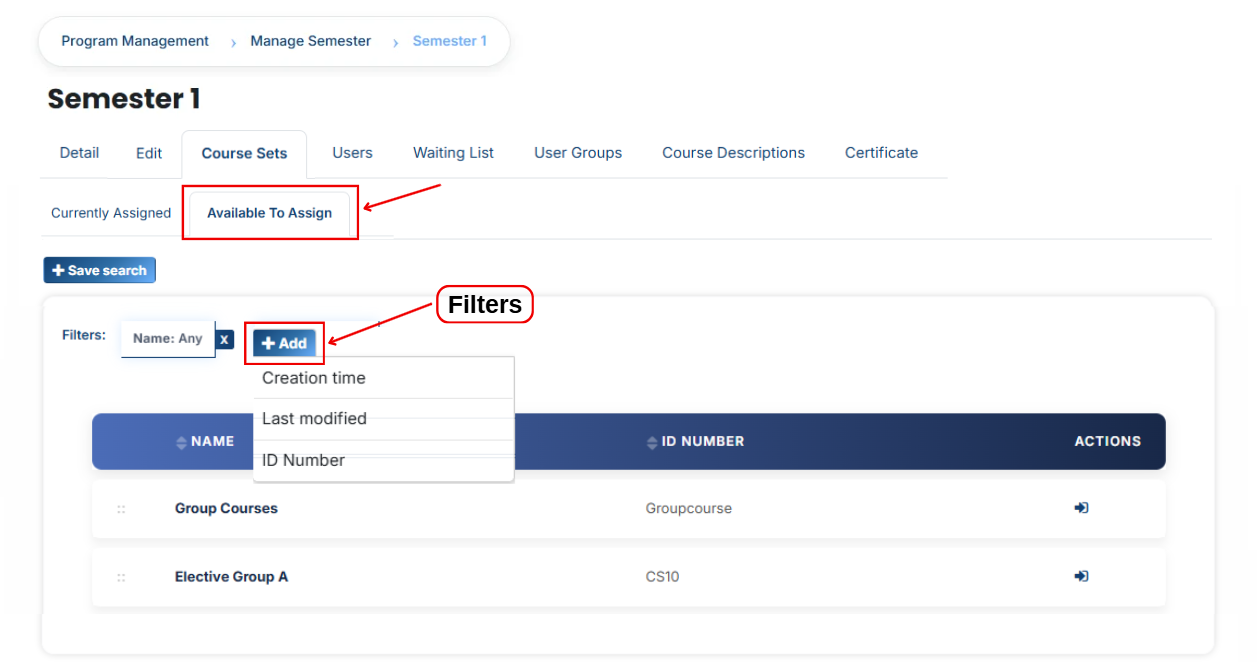
- Click on the **Available to Assign** button
- Then click on the **Add button.**
- A dropdown list will appear
- Select the **field**
- Enter course sets details in the selected field according to the chosen option.
- **Creation Time:** Displays the date and time when the course set was created.
- **Last Modified:** Displays the date and time when the course set was last updated or edited.
[](https://wiki.paktaleem.net/uploads/images/gallery/2026-07/uF5image.png)
- The course set will appear in the list
- Select the course sets and assign them to the program
#### **Bulk User Action:**
**Purpose:**
Use this feature to assign multiple Course Sets efficiently.
**Method 1:**
- Select those multiple **course sets** you want to assign.
- After making your selections, click the **“Add All 2 Selected Items”** button to add the selected course sets.
The number displayed in the button (e.g., 2) represents the number of items currently selected and will change depending on how many items you select.

- Then click on the Assign button in the Bulk Assignment Section to move the course sets to the assigned list.
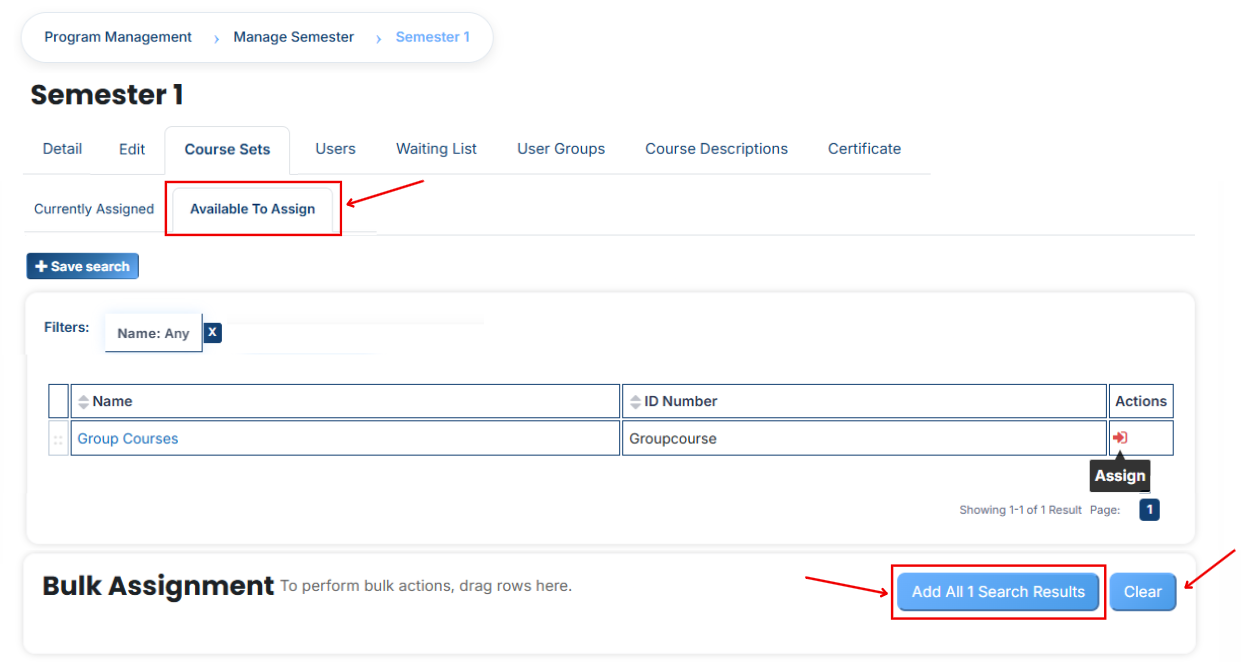
**Method 2:**
- Click the **“Add All 2 Search Results”** button to add **all course sets** with a single click. The number displayed in the button **(e.g., 2)** may vary depending on the number of course sets available in the search results.
- If you want to **clear everything** form the **bulk assignment section**, click the **Clear button.**
# How to Assign Users to a Semester:
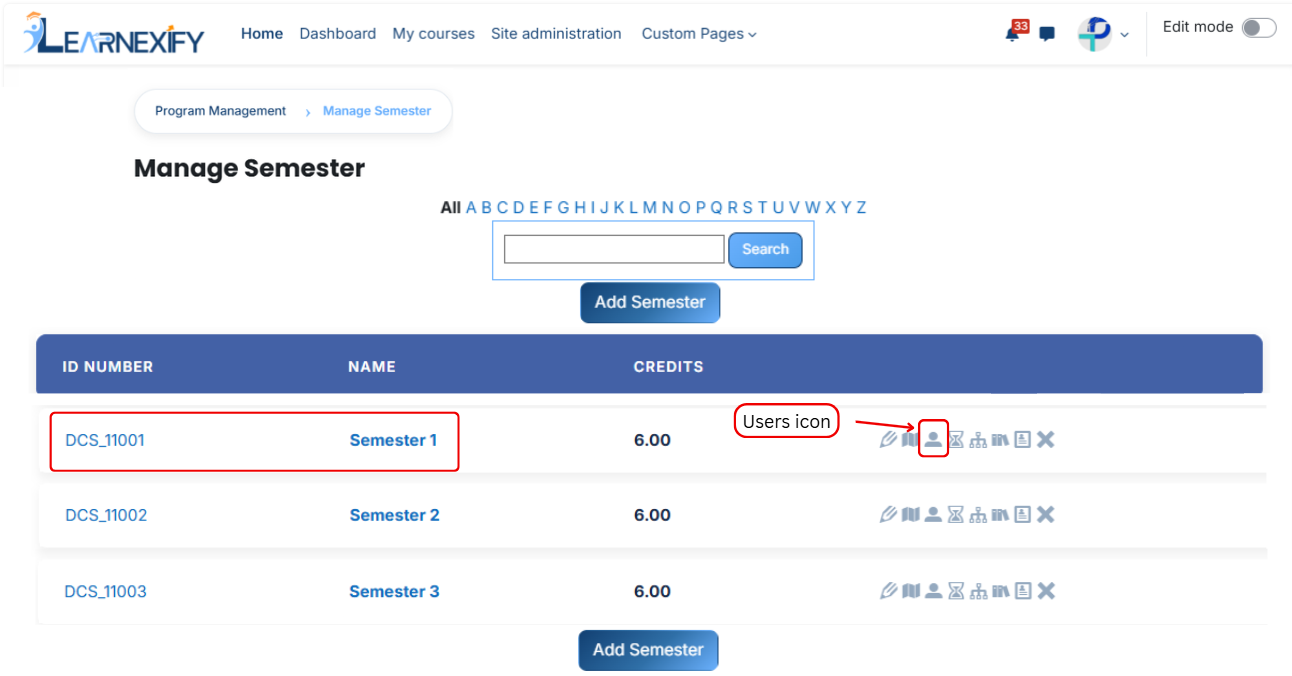
From the list of **all semesters**, click the **users icon** of the **semester** to which you want to **assign users.**
- After opening the **Users tab**
- Here you will see **assigned user** in the program
- If you want to assign more users **Click** on the **Available to Assign button**
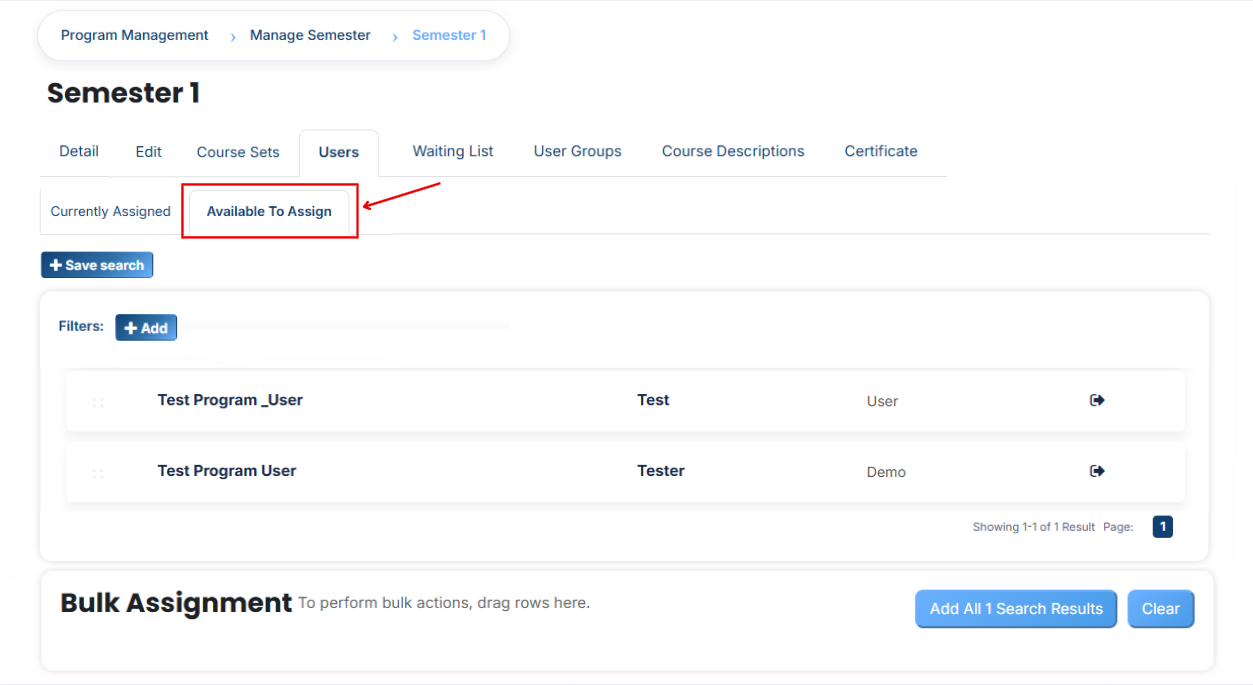
- A list of **available users** will be displayed
- Select the user you want to **assign**
- First **Click** on the **arrow icon** to move the **user** to the assigned list
- Click on the green tick (✔) to confirm the assignment
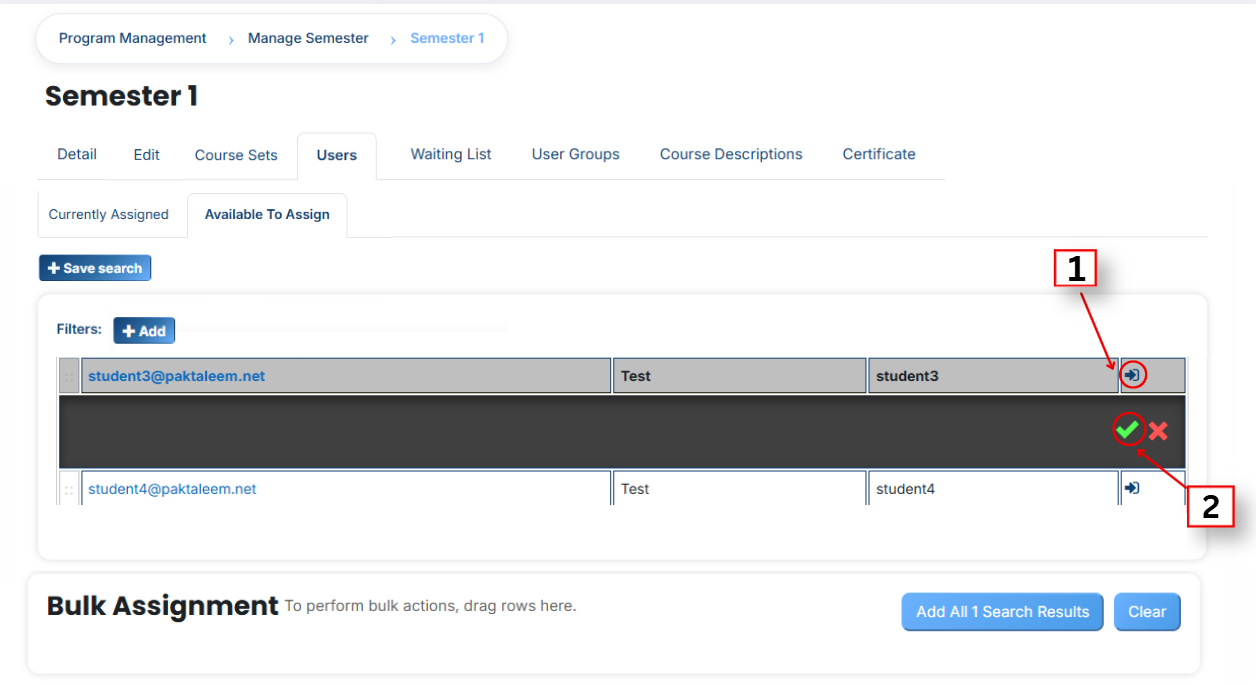
- After that, click on the **Currently Assigned button**
- Here, you will see the **users** who have been **successfully assigned** to the semester
### Add a user if it is not available in the list.
If the user you want to assign is not available in the list, follow these steps:
- Click on the **Available to Assign button**
- Then click on the **Add button.**
- A dropdown list will appear
- Select the **required field** (e.g., Email, username, city e.t.c)
- Enter the user’s details in the selected field according to the chosen option.
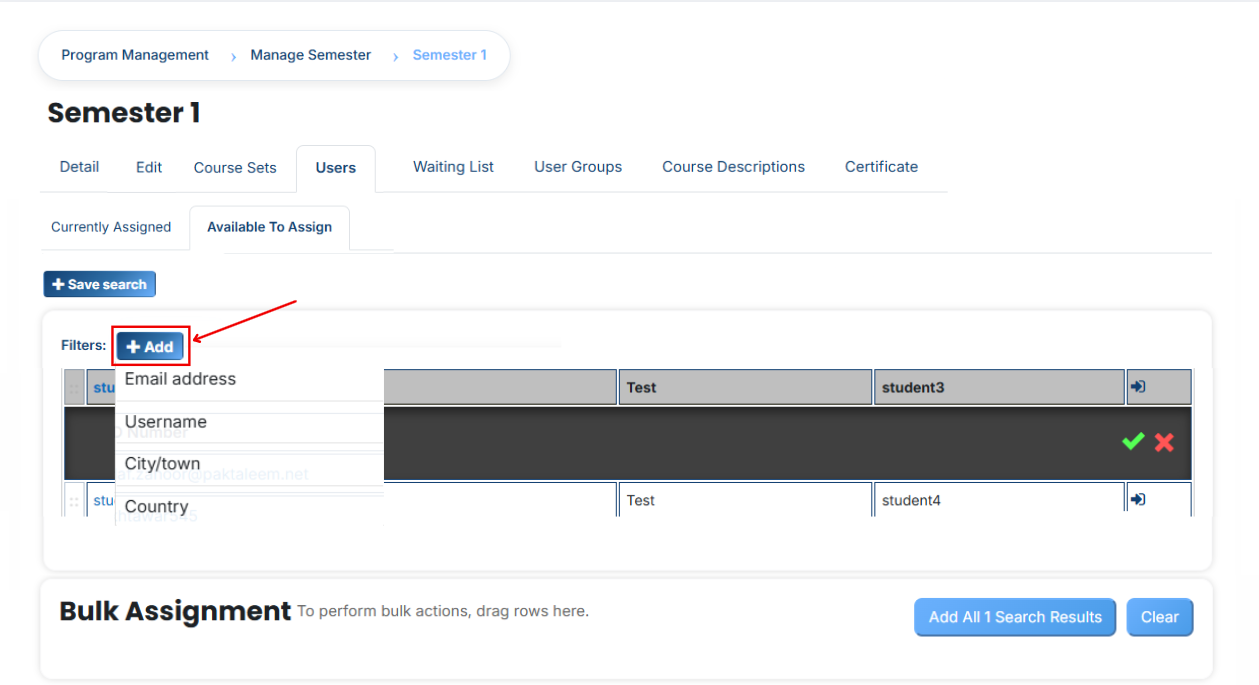
- The user will appear in the list
- Select the user and assign them to the semester
You can also **search** and **add** a user using other **details** such as:
- Email address
- Username
- City/town
- Country e.t.c.
#### **Bulk User Action:**
**Purpose:**
Use this feature to assign multiple Users efficiently.
**Method 1:**
- Select those multiple users you want to assign.
- After making your selections, click the **“Add All 5 Selected Items”** button to add the selected users.
The number **displayed** in the button **(e.g., 5)** represents the number of items currently selected and will change depending on how many items you select.
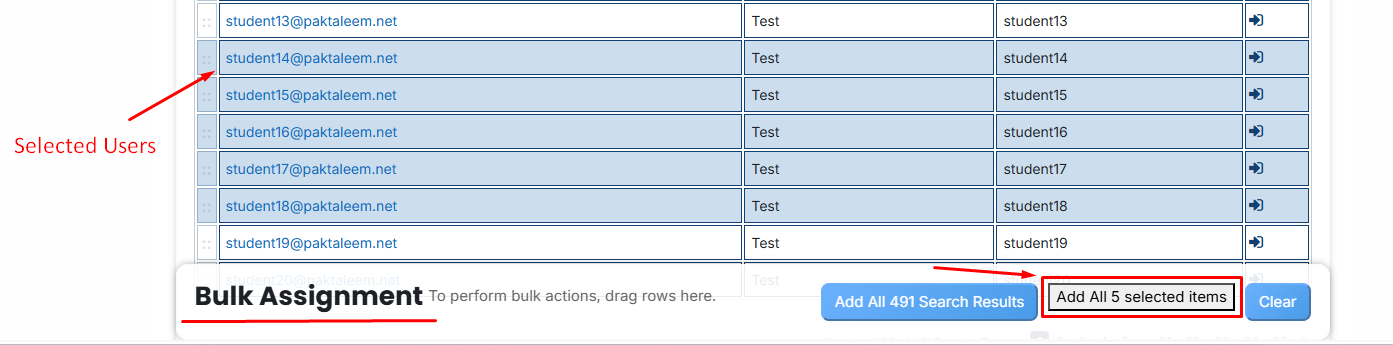
- Then click on the Assign button in the Bulk Assignment Section to move the user to the assigned list.
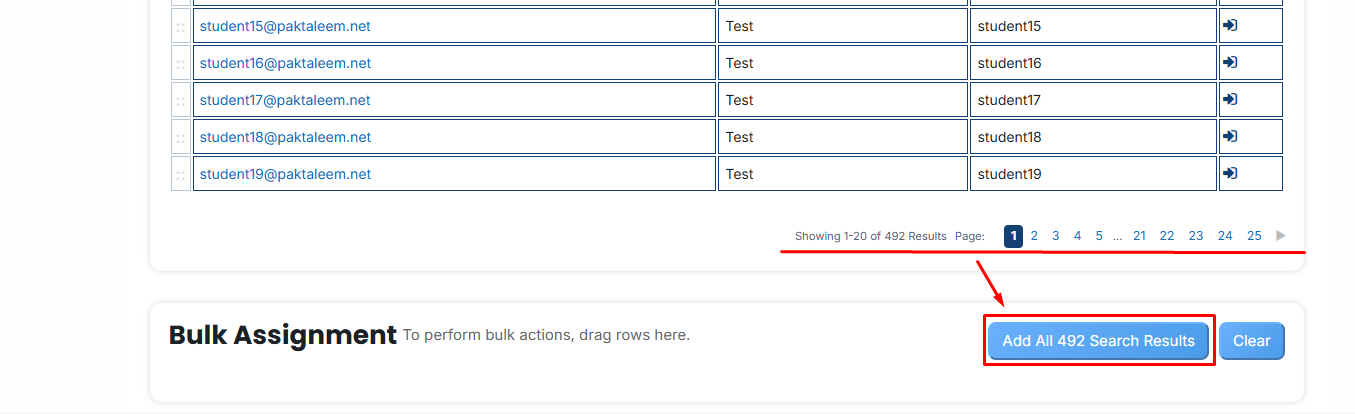
**Method 2:**
- Click the **“Add All 500 Search Results”** button to **add all users** with a **single** click. The number **displayed** in the button (e.g., 492 ) may vary depending on the number of users available in the search results.
- If you want to **clear everything**, click the **Clear button.**
# How to Add Users to the Waiting List in a Semester
From the list of all **semesters,** click the **waiting list icon** of the semester to which you want to **add users** to the **waiting list.**
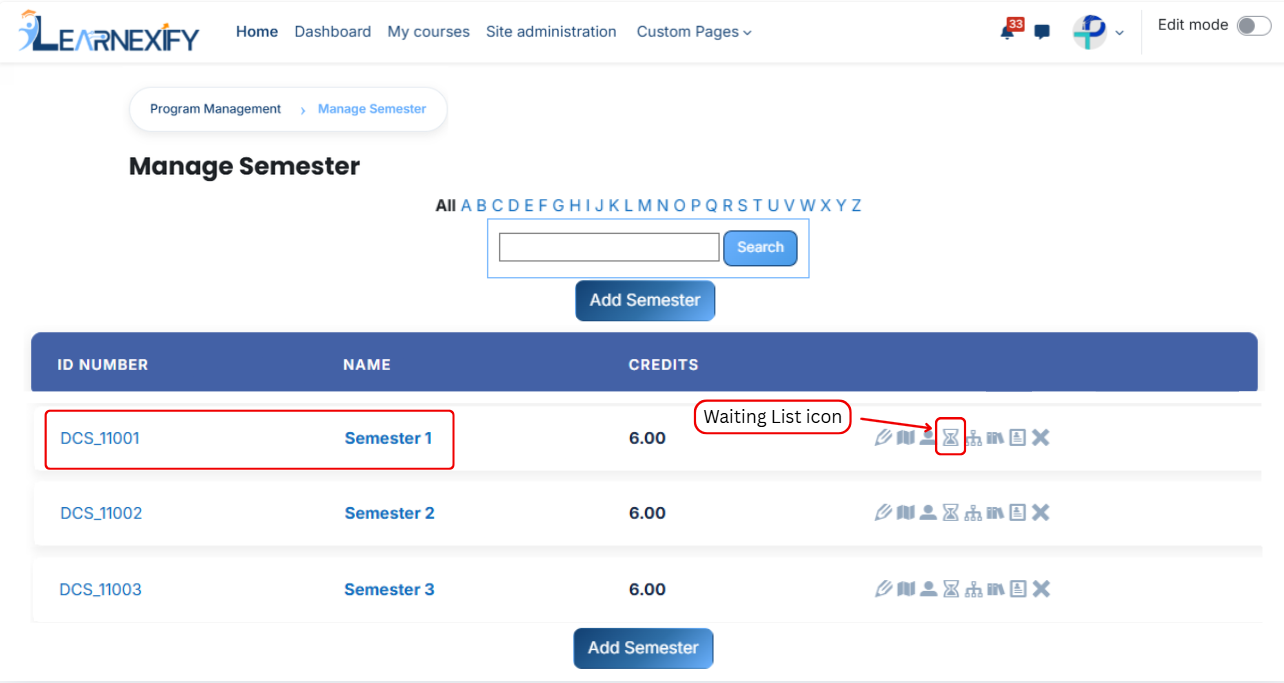
After opening the **Waiting list** tab,you will see the users already **assigned** to the **waiting list** for the semester. If you want to add more users to the waiting list, click on the **Available to Assign button.**
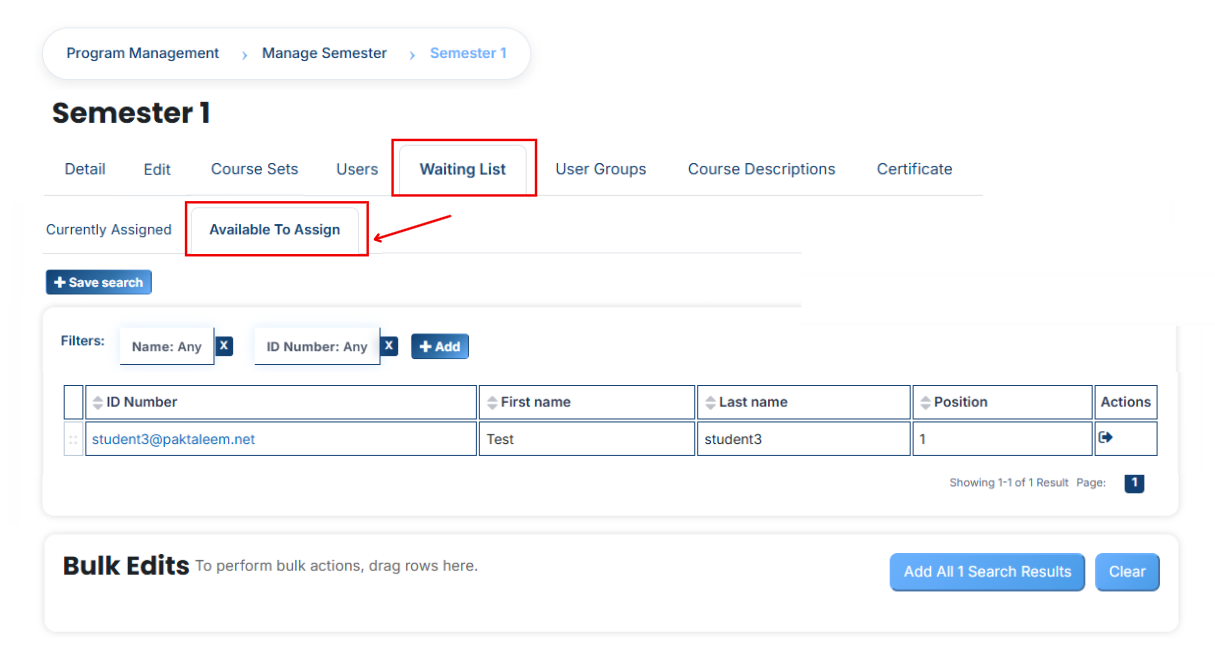
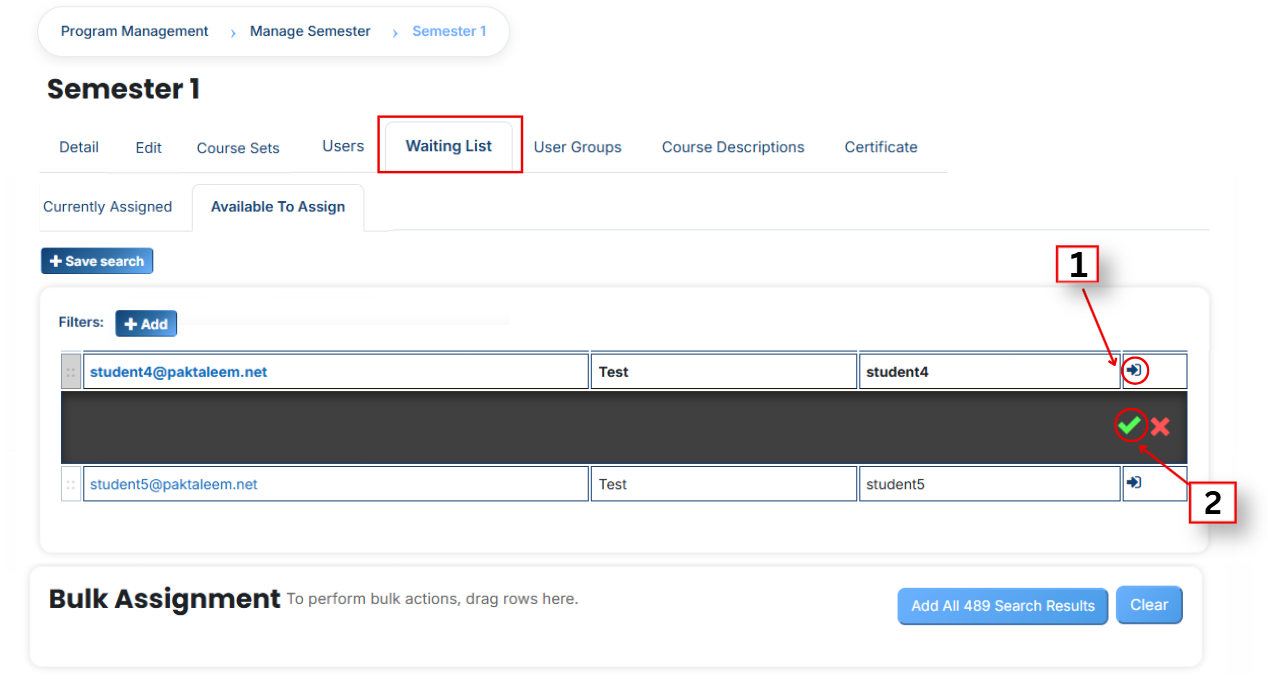
A list of available users will be displayed. Select the user you want to add to the waiting list.
First, click on the **arrow icon** to move the user to the **waiting list.**
Then, click on the green tick (✔) to confirm the **assignment.**
After that, click on the Currently Assigned button.
Here, you will see the users who have been successfully added to the waiting list.
### **Add a User if It Is Not Available in the List**
If the user you want to add to the waiting list is not available in the list, follow these steps:
- Click on the **Available to Assign button.**
- Then click on the **Add button.**
- A dropdown list will appear.
- Select the **required field** (e.g., Email, Username, City, etc.).
- Enter the user’s details in the selected field according to the chosen option.
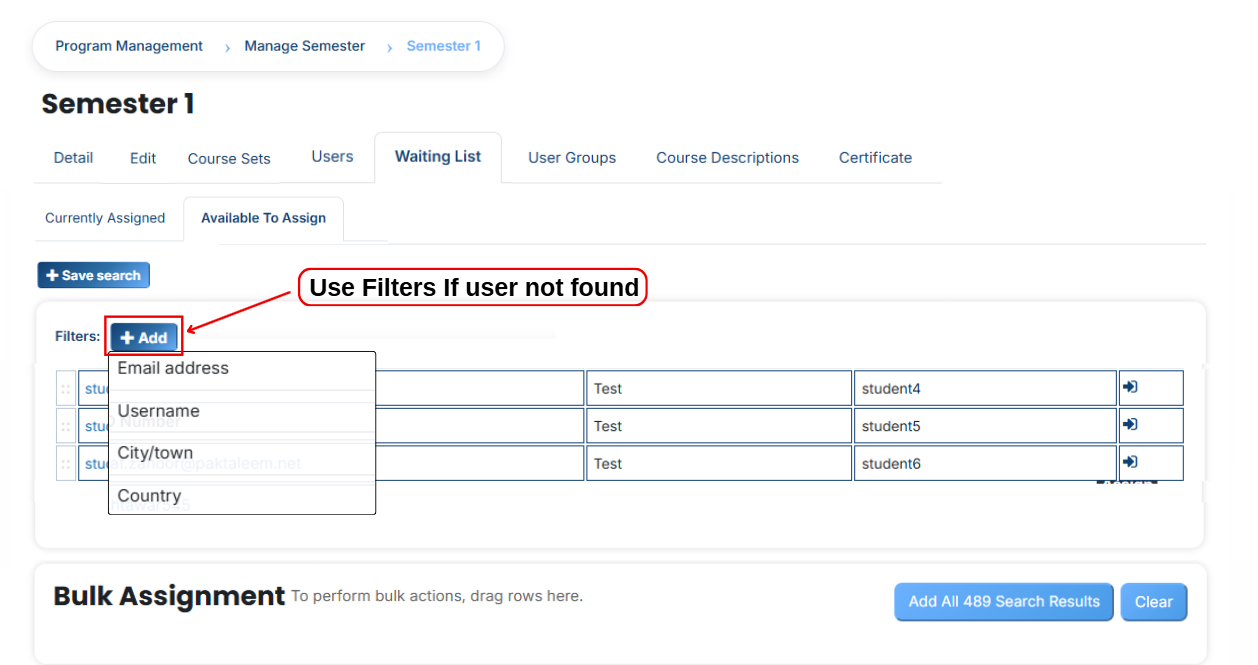
The user will appear in the list.
Select the **user** and add them to the **waiting list.**
You can also search and add a user using other details such as:
- Email address
- Username
- City/Town
- Country, etc.
# How to Assign User Groups to a Semester
To assign user groups to a semester, follow these steps:
- Open the semester list.
- In the semester where you want to add the user group, click on the user groups icon.
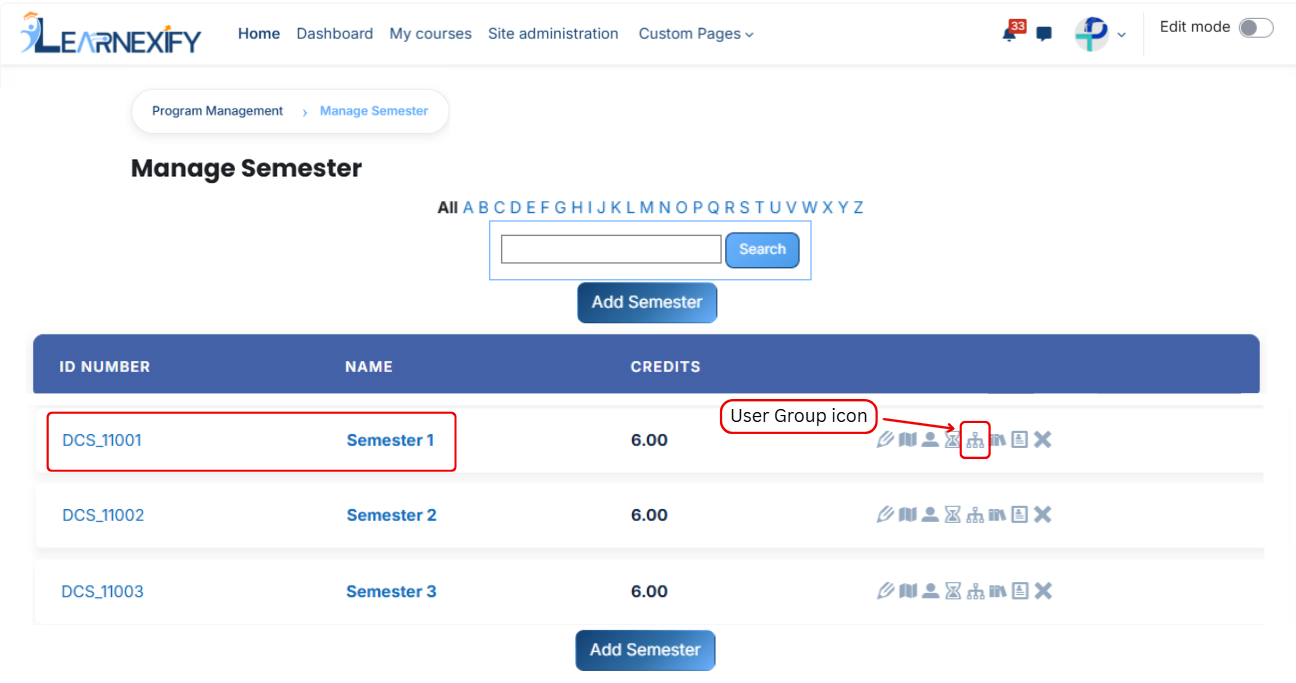
After opening the user groups tab:
- Here, you will see the **user groups** already **assigned** to the semester.
- If you want to assign more user groups, click on the **Available to Assign** button.
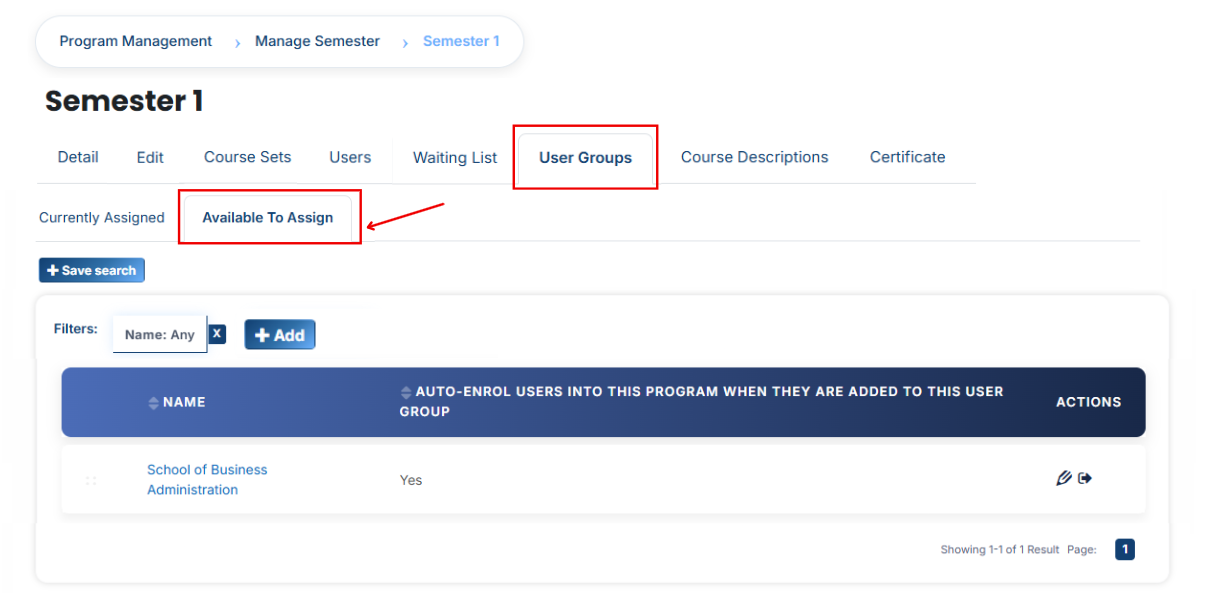
A list of available user groups will be displayed.
- Select the user group(s) you want to **assign.**
- First, click on the **arrow icon** to move the **user group** to the assigned list.
Select an option:
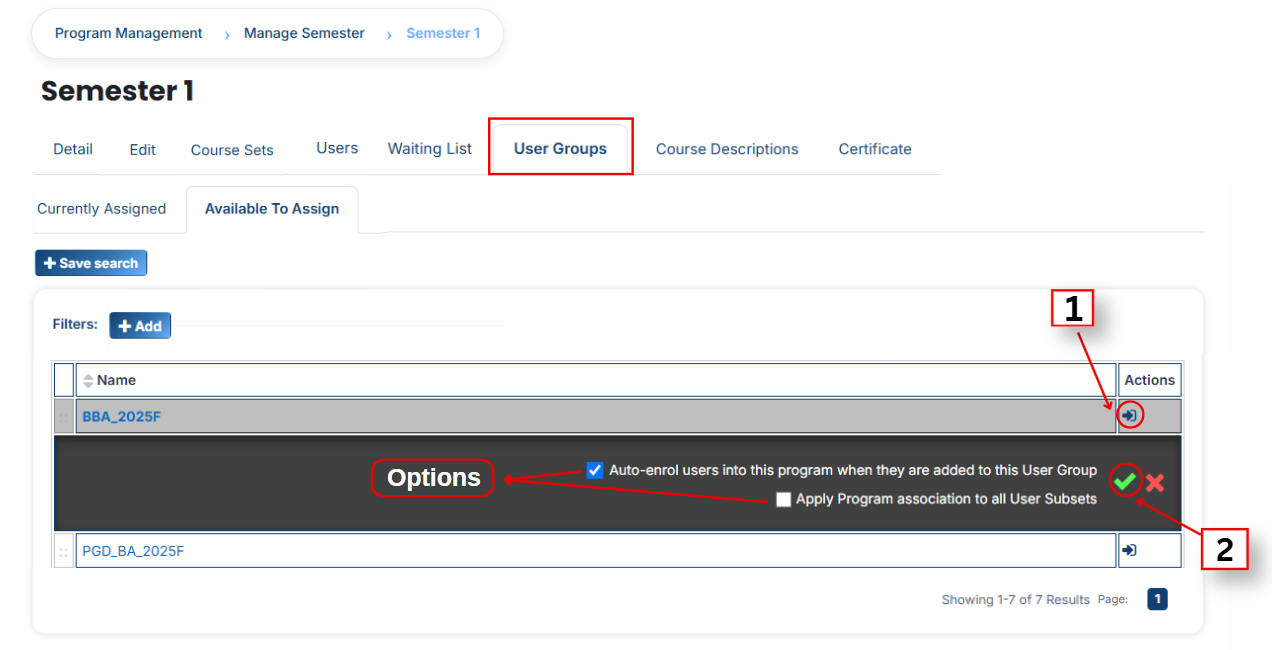
**1. Auto-enroll users into this semester when they are added to this semester** When this option is enabled, assigning a user group to a semester automatically assigns all users within that user group to the semester.
This means:
- All users included in the user group are automatically added to the semester.
- There is no need to assign each user individually.
- User assignments can be managed centrally through the user group.
- This saves time and reduces administrative effort.
**2. Apply program association to all User Subsets** When this option is enabled, the semester is assigned not only to the selected user group but also to all of its associated User Subsets.
This means:
- The semester is automatically applied to all User Subsets within the selected user group.
- Users in those User Subsets are also linked to the semester.
- There is no need to assign the semester separately to each User Subset.
- This ensures consistent assignment across all related user groups.
After that, select an option and **click the green tick (✔)** to confirm the assignment.
After that, click on the **Currently Assigned** button.
- Here, you will see the user groups that have been successfully assigned to the semester.
### **Assign User Groups Using Filters**
In the **“Available to Assign”** section, if the required user group is **not visible** in the **list**, you can use the **filter option** to search for it.
Click on the **Add button**, and you will see **different filter options:**
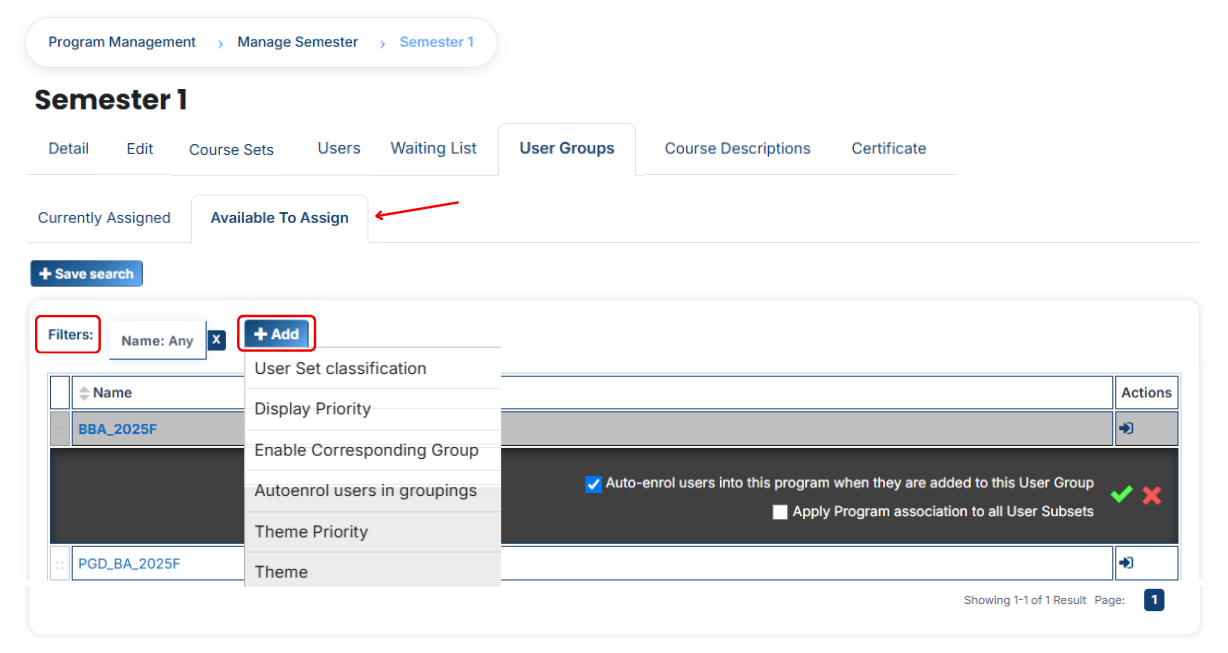
#### **1. User Group Classification**
If you select this filter and type a value, the system will show only matching user groups.
For example, if you select “user group Classification” and type “campus”, then only campus-related user groups will appear.
#### **2. Display Priority**
This filter is used to find user groups based on priority.
For example, if you enter “2”, then only user groups with priority 2 will be shown.
#### **3. Enable Corresponding Group**
This filter is used to show user groups linked with a specific group.
For example, if a group is enabled and you apply this filter, only related user groups will appear.
#### **4. Auto Enroll User in Grouping**
If this option is selected, users inside the user group will be automatically enrolled into the semester after assignment.
For example, once a user group is assigned, users will instantly get access without manual enrollment.
#### **5. Theme Priority**
This filter helps to find user groups based on theme priority.
For example, if you set priority “1”, then user groups with theme priority 1 will be displayed.
#### **6. Theme**
This filter is used to search user groups based on a theme.
For example, if you type “flexpath”, then all user groups related to that theme will appear.
Once the correct **user group appears,** click on the **arrow icon** and assign it using the **green tick (✔).**
The user group will then appear in the **“Currently Assigned” list.**
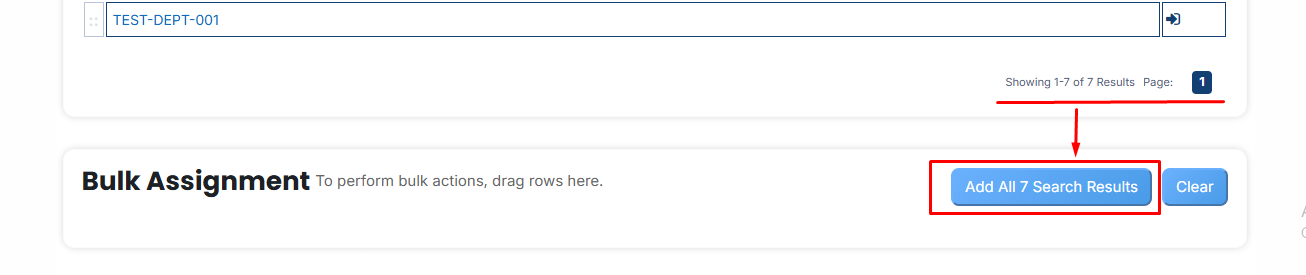
#### **Bulk User Action:****Purpose:** Use this feature to assign multiple user sets efficiently.**Method 1:**
- Select those multiple **user groups** you want to assign.
- After making your selections, click the **“Add All 15 Selected Items”** button to add the selected user sets.
The number displayed in the button **(e.g., 15)** represents the number of items currently selected and will change depending on how many items you select.

- Then click on the Assign button in the Bulk Assignment Section to move the user groups to the assigned list.
**Method 2:**
- Click the **“Add All 500 Search Results” button** to add **all users** with a single click. The number displayed in the button (e.g., 500 ) may vary depending on the **number** of **user available** in the search **results.**
- If you want to clear everything, **click the Clear button.**
---
# How to Assign Course Descriptions to a Semester
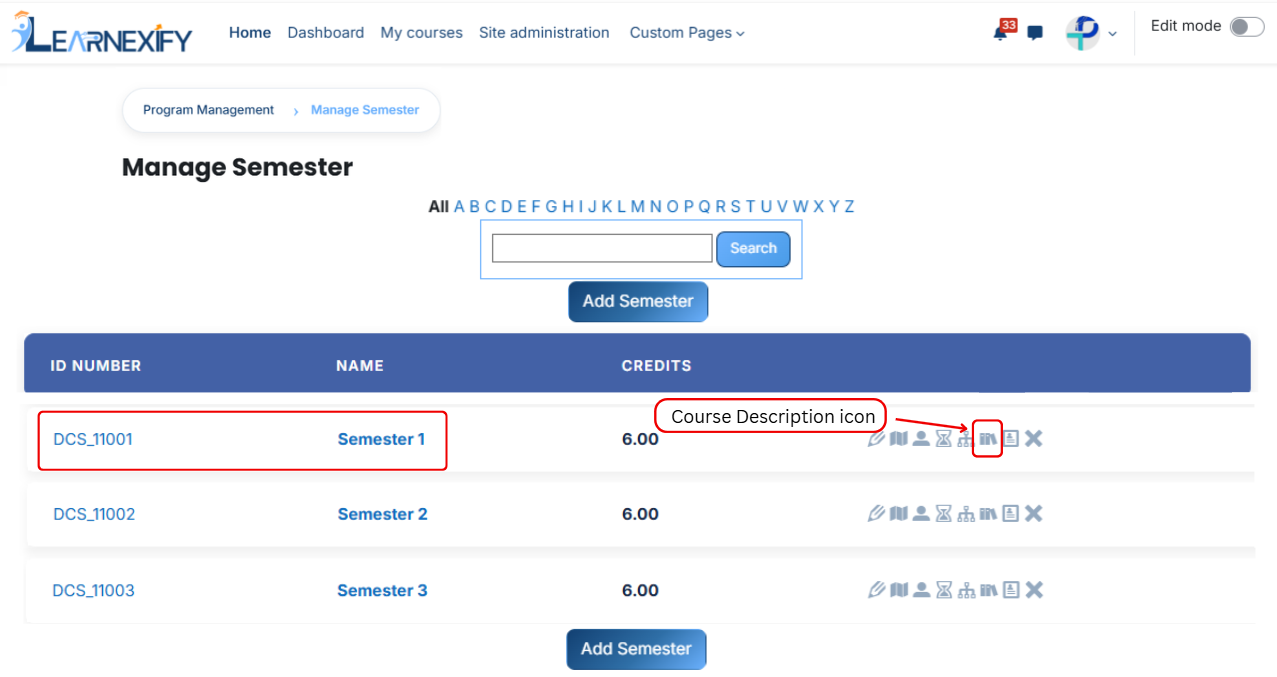
Now, open the Learnexify dashboard and go to the user menu. Click on Programs and then select Manage Semester. Here you will see the list of all semesters.
In which semester you want to add the Course Description, click on the Course Description icon.
- Here after opening the course description tab, you will see the already assigned course descriptions. To add a new one, click on the **Available to Assign button.**
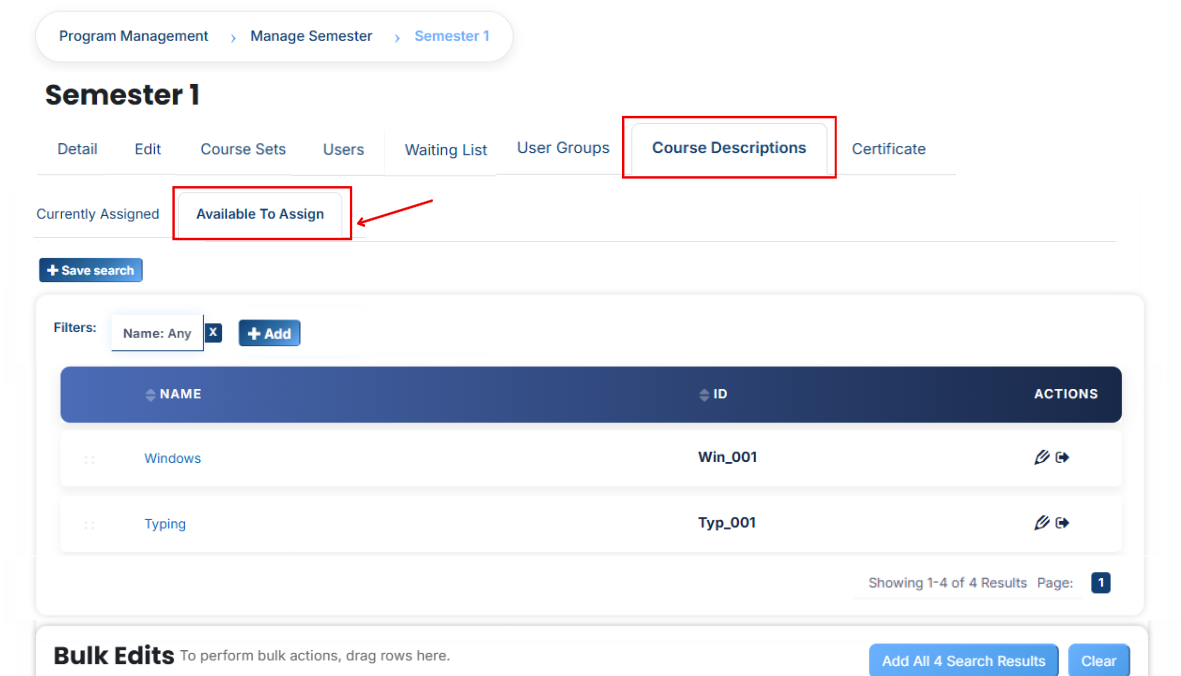
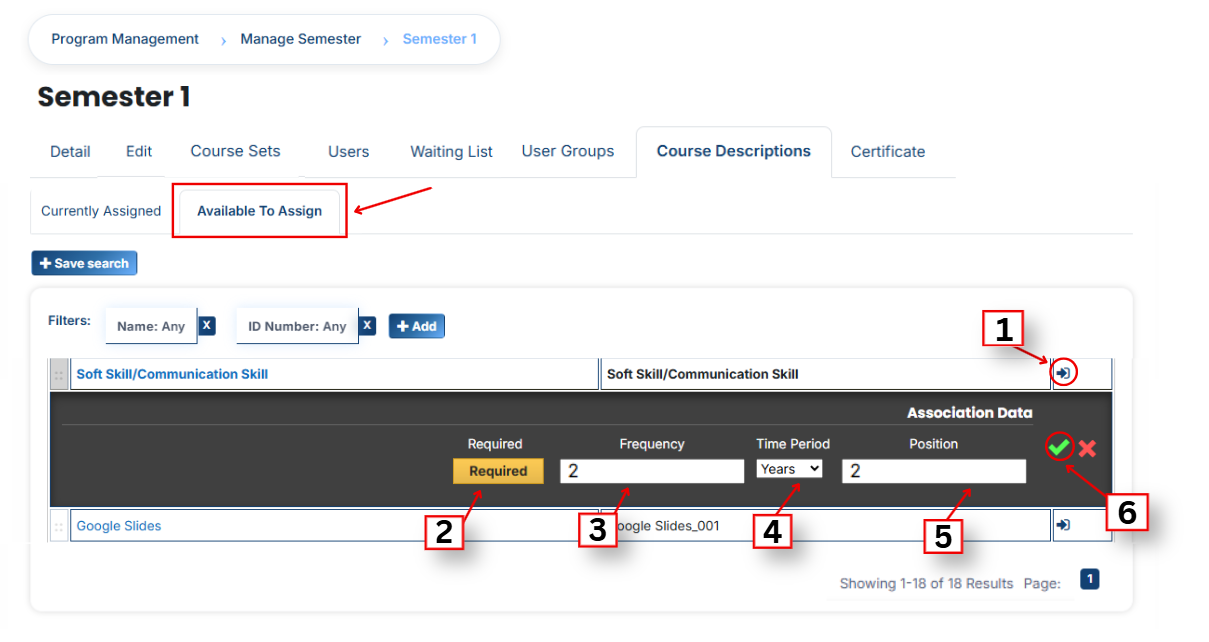
A list of available course descriptions will be displayed. Click on the arrow icon next to the course description you want to assign.
After clicking on the **arrow icon,** **configure** the following **details:**
- **Required:** Determines whether learners must complete this course description as part of the semester. When enabled, it is compulsory; when disabled, it is optional.
- **Frequency:** Controls the number of times the course description is scheduled or made available during the selected duration.
- **Time Period:** Sets the duration type that works with the frequency value, such as days, weeks, months, or years.
- **Position:** Controls where the course description appears in the sequence. Smaller position values are displayed earlier, while larger values appear later in the list.
After filling in all details, click on the **green tick (✔)** to confirm the assignment.
**View Assigned Course Descriptions** Then go to the Currently Assigned section to confirm that the course description has been successfully assigned.
#### **Use Filters to Search Course Descriptions**
If the **required course description** is not **available** in the list, you can use filters to search for it.
Click on the **Add button** and apply filters such as:
- **Name –** Search by course name
- **ID Number –** Search using a unique ID
- **Pre Test –** Shows courses that include a pre-test: This filter shows courses where learners are tested before starting the course. It helps to check what students already know before learning begins.
- **Post Test –** Shows courses that include a post-test: This filter shows courses where learners are tested after completing the course. It helps to check what students have learned after finishing the course.
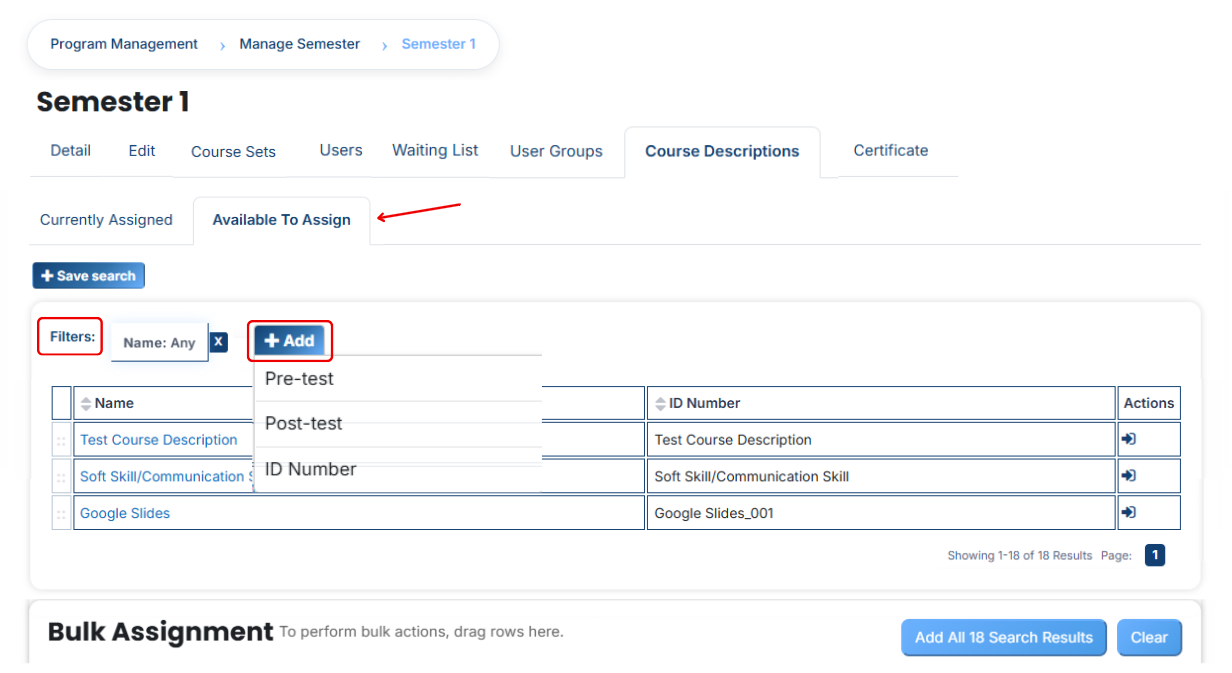
Once the required course description appears, click the arrow icon and assign it using the **green tick (✔).** It will then appear in the **Currently Assigned list.**
#### **Bulk User Action:****Purpose:** Use this feature to assign multiple Course Descriptions efficiently.**Method 1:**
- Select those **multiple Course Descriptions** you want to **assign.**
- After making your selections, **click the “Add All 4 Selected Items”** button to **add** the **selected Course Descriptions.**
The number displayed in the button **(e.g., 4) represents** the number of items **currently selected** and will change depending on how many items you select.

- Then click on the Assign button in the Bulk Assignment Section to move the Course Descriptions to the assigned list.
**Method 2:**
- Click the “**Add All 18 Search Results”** button to **add** all **Course Descriptions** with a single click. The number displayed in the button **(e.g., 18 )** may vary depending on the number of Course Descriptions **available** in the search results.
- If you want to **clear everything,** click the **Clear button.**

---
# Manage Course Sets
# Learnexify Course Set
The Course Sets feature is used to organize multiple courses into a structured group that can be assigned to any Learnexify Program. At the program level, each course set can have defined credits and required course conditions that must be completed.
The purpose of this feature is to provide a clear structure for managing courses and programs, making administration easier and ensuring that all data remains organized and consistent.
---
### **How to Create a Course sets**
- After logging in, you will see the dashboard.
- Open the **side menu.**
- Click on **Program** and then select **Manage Course Sets.**
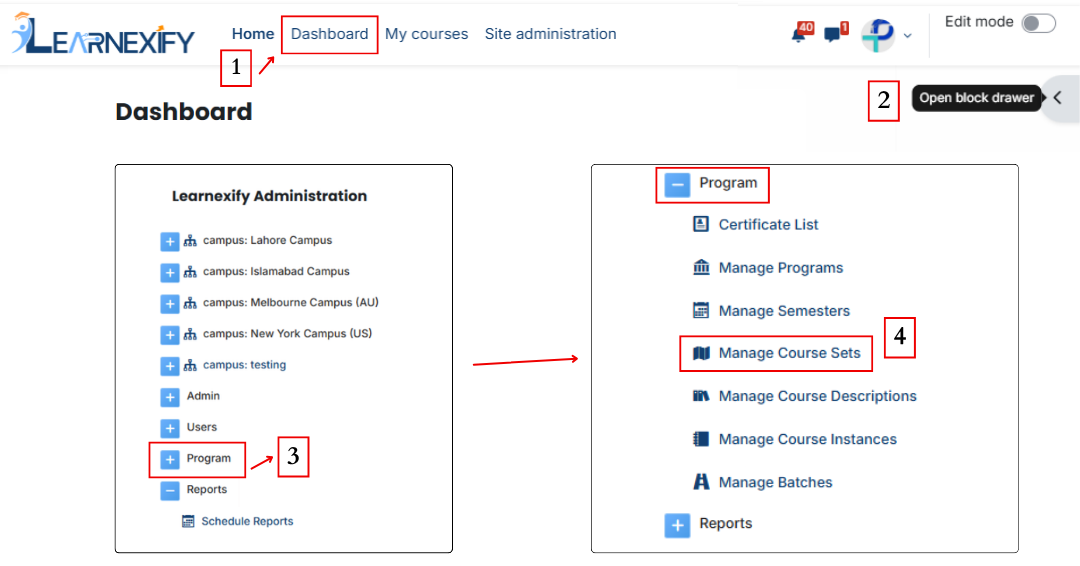
- A page will open displaying the existing course sets. To create a new course set, click on the Add Course Set button.
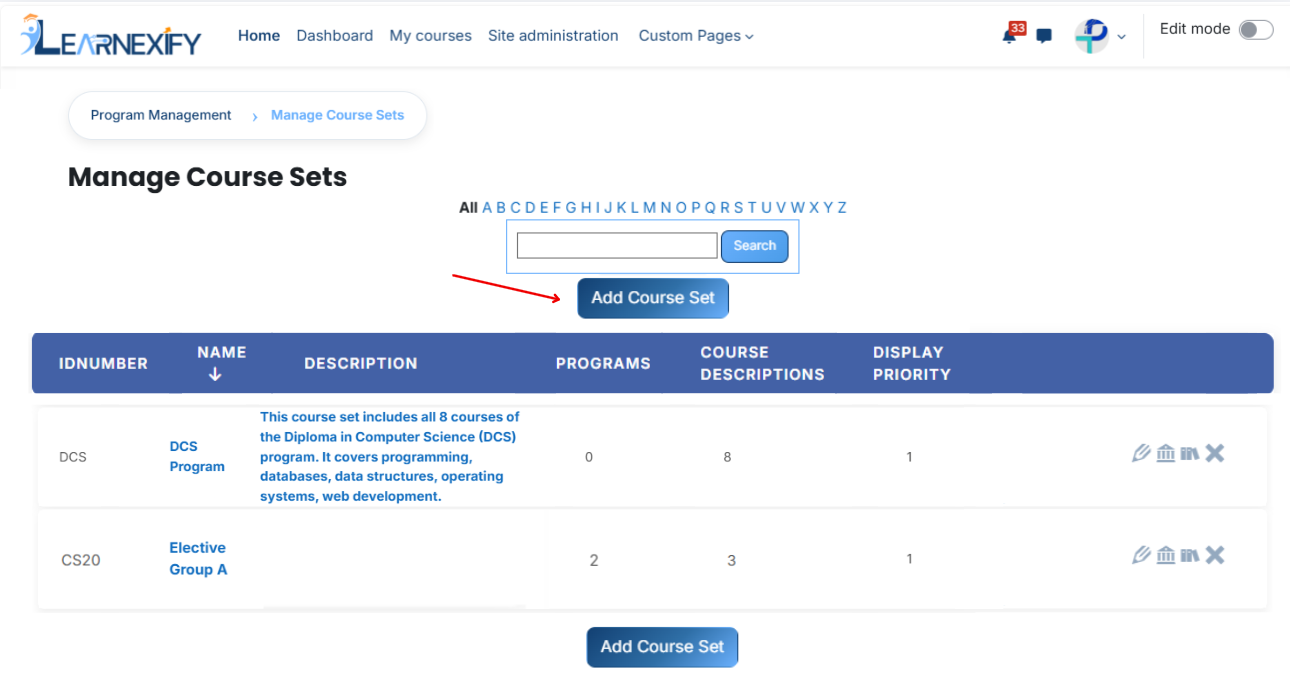
The **form page** will **open.** Enter the **required details:**
- **ID Number:** Enter a unique ID to identify the course set.
- **Name:** Enter the title of the course set.
- **Description:** Provide a short overview of the course set.
- **Display Priority:** Set the order in which the course set will appear in the list.
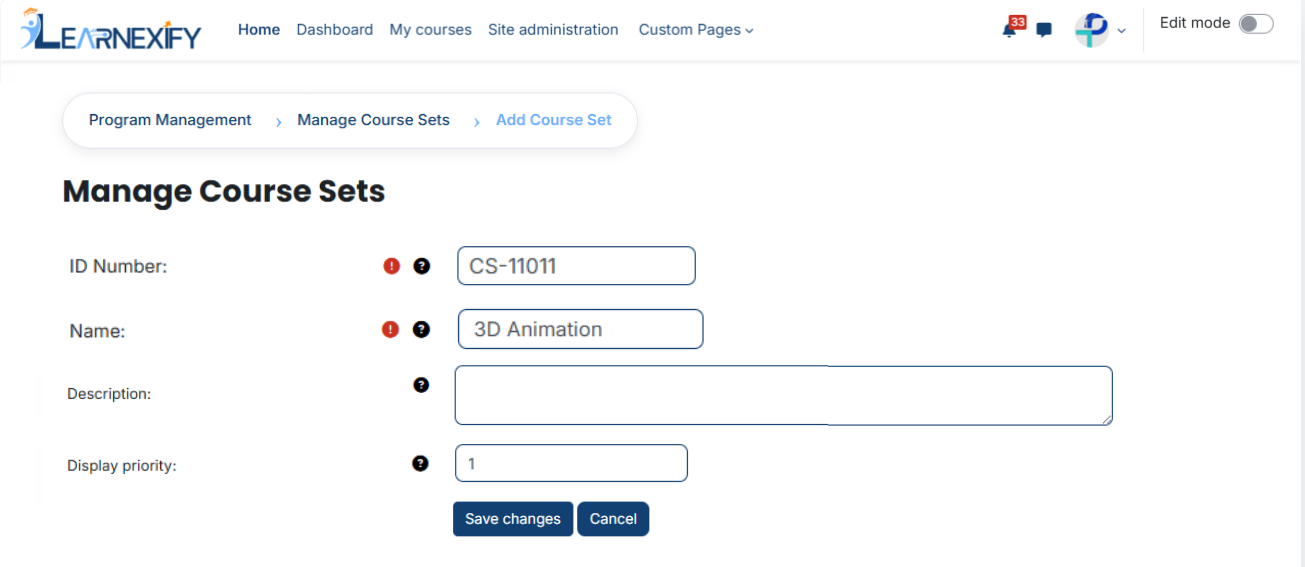
After entering all details, click on the **Save Changes button** to create the **course set.**
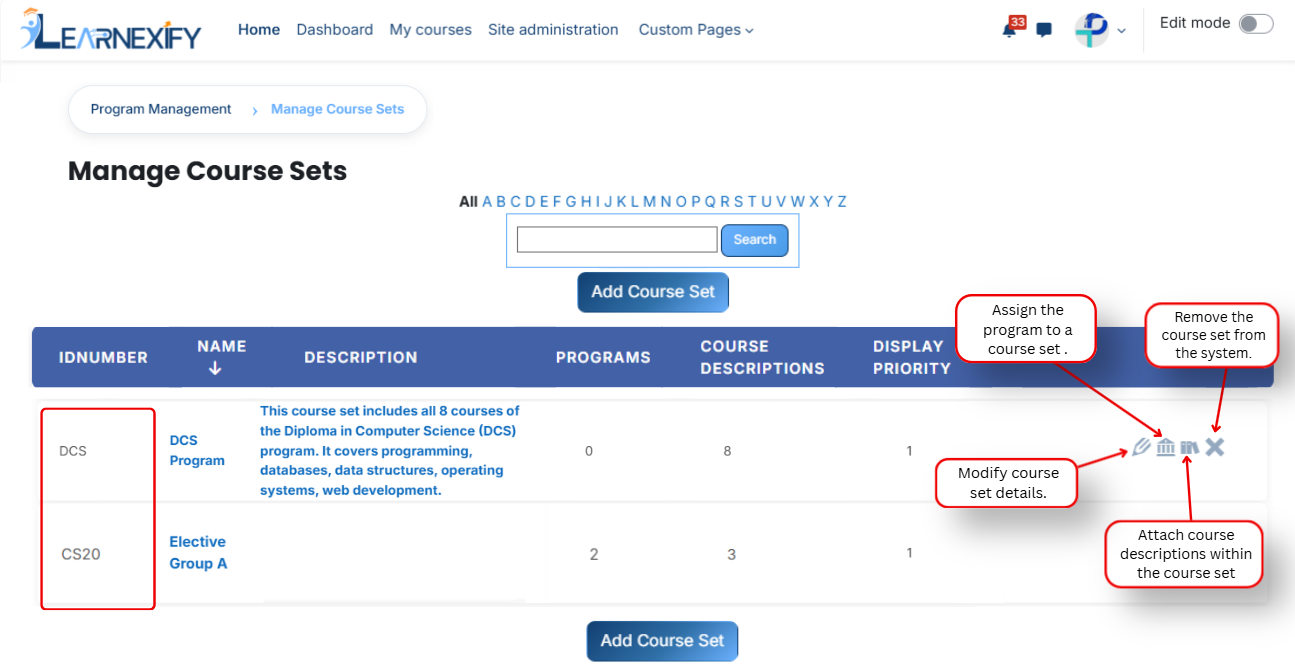
After clicking 'Save Changes', the course set will be displayed in the course set . An explanation of each icon is provided below.
---
# How to Edit a Course set:
To edit a **course set**, follow the **steps** below:
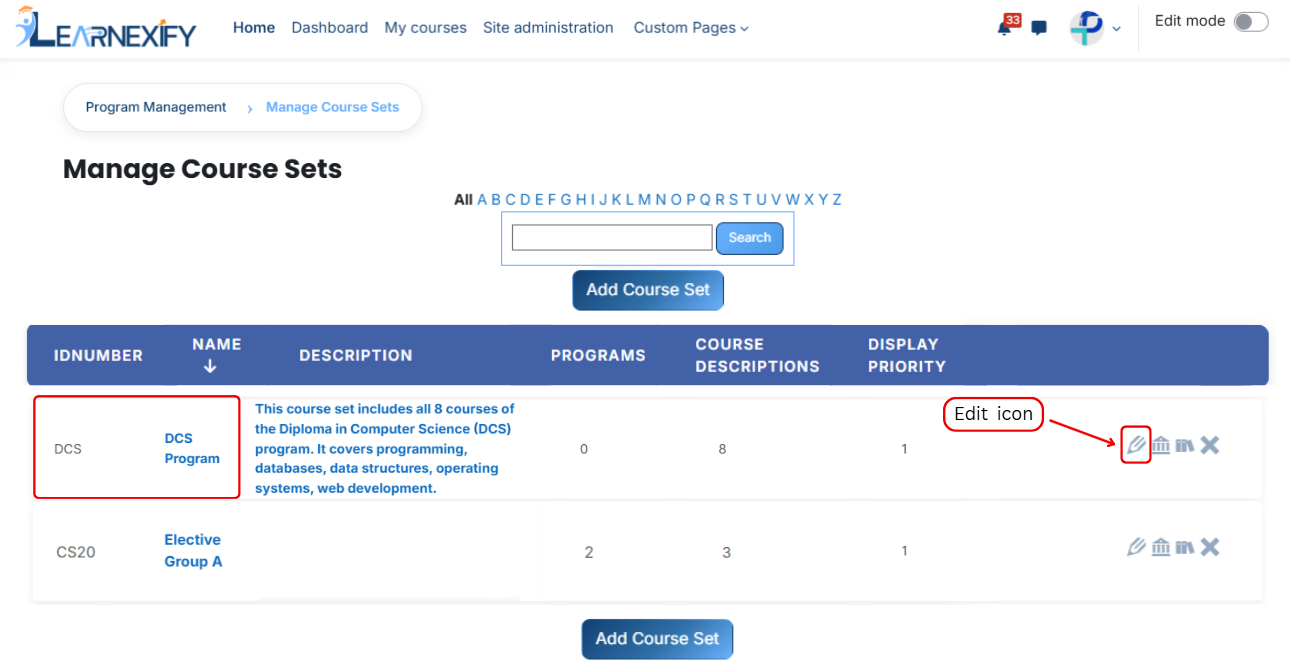
- Start from the Dashboard and open the **side drawer menu.** From there, **go to Programs** and **select Manage Course Sets.** A list of available course sets will appear on the screen.
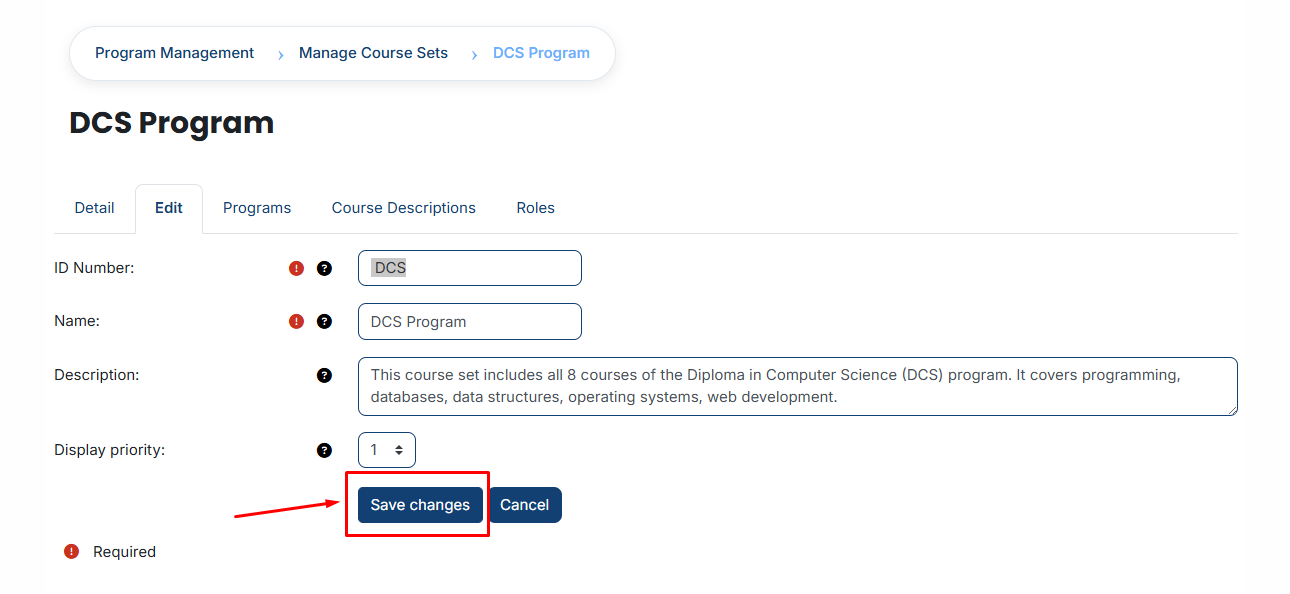
- Locate the **course set** you want to **modify** and click on the **edit icon** next to it. The course set details page will open in **edit mode.**
- Make the necessary updates to the course set information. After reviewing your changes, scroll down and click the **Save Changes button** to apply and **save the updates.**
[](https://wiki.paktaleem.net/uploads/images/gallery/2026-07/CBoimage.png)
# How to Assign Program in a Course set:
#### **Program:**
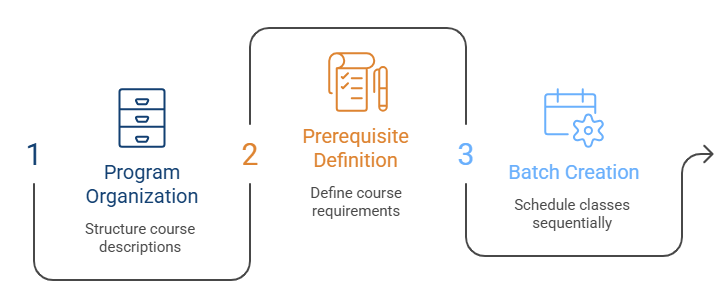
Programs in Learnexify organize Course Descriptions and can lead to certificates or other validations showing learner mastery. They also define pre-requisites and co-requisites and create structured class batches based on a set schedule or sequence.
---
From the list of all **course sets,** click on the **Program icon** of the **course set** to which you want to **assign a program.**
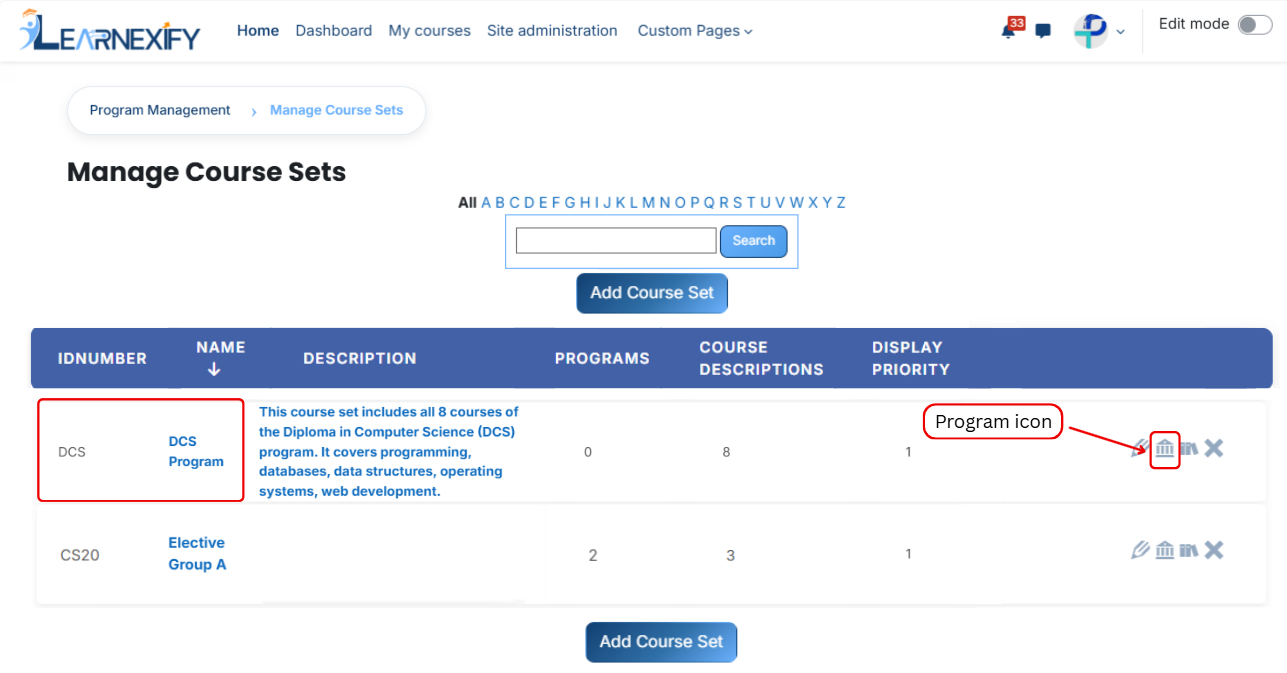
- Once the program **tab opens,** you will see the programs already assigned to that course set. To assign **additional** programs, click on the **Available to Assign button.**
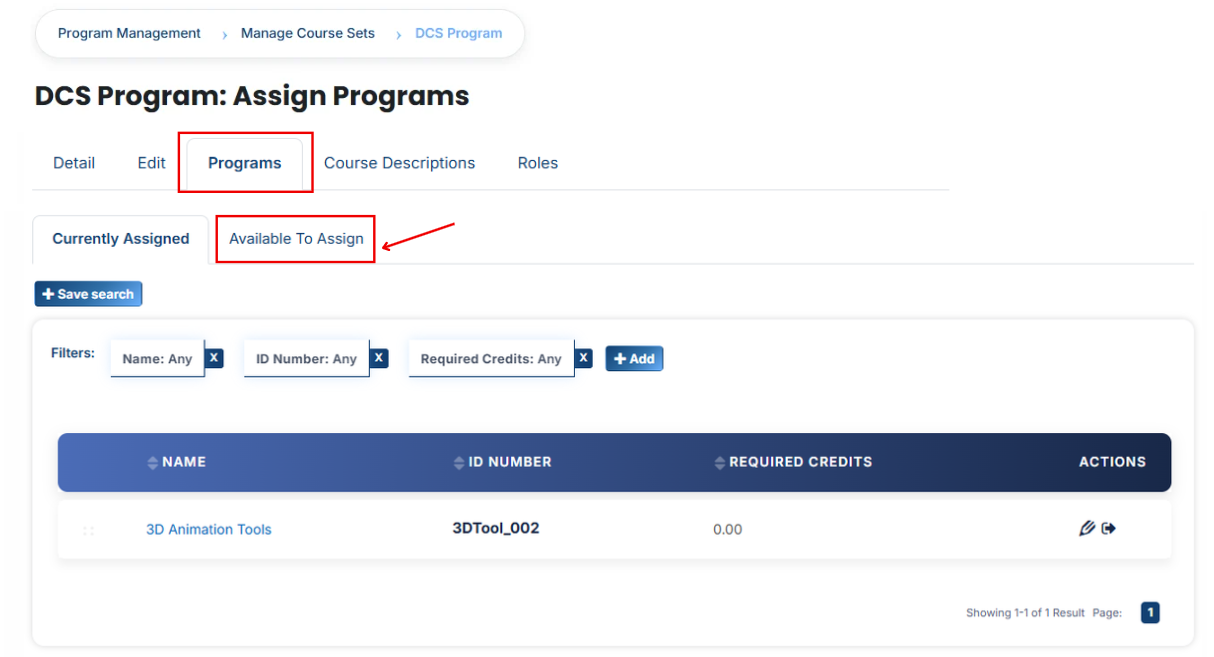
A list of available programs will be displayed. Select the **program** you want to assign.
When you click the **arrow icon** in the program list, the **Program/Course-Set Association panel** will open. This panel is used to assign the program and define its requirements.
#### **Program Requirements**
**Required Credits:**
Specify the number of credits a learner must complete out of the total required (e.g., 18/18).
**AND/OR Condition:**
Defines how the requirements are evaluated:
- AND = All conditions must be completed
- OR = Any one condition can be completed
**Required Courses:**
Define the number of courses that must be completed within the course set (e.g., 6/6).
- After filling in all **required fields**, click the **green tick (✔)** to confirm and **save** the assignment.
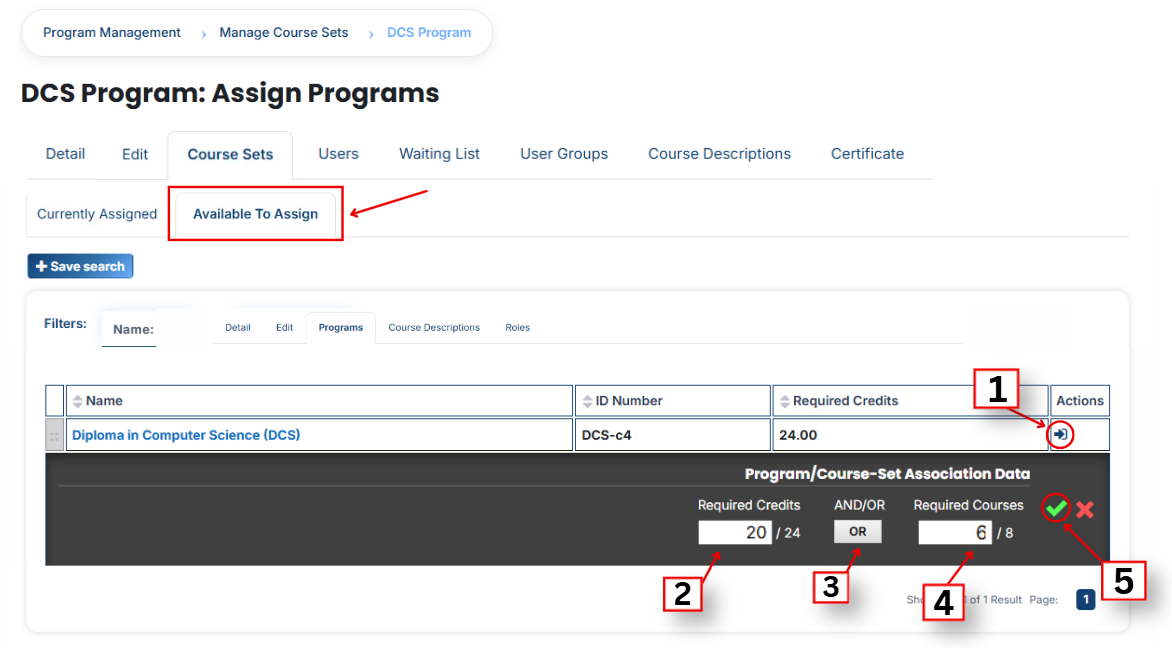
- Next, click on the **Currently Assigned button.** Here, you can view all programs that have been successfully **assigned** to the course set.
---
# How to Assign Course Descriptions to a Course Set
To assign course descriptions, first open the Learnexify dashboard and navigate to the user menu. Click on Programs, then select Manage Course Sets. You will see a list of all available course sets.
Select the course set in which you want to add course descriptions, then click on the Course Description icon.
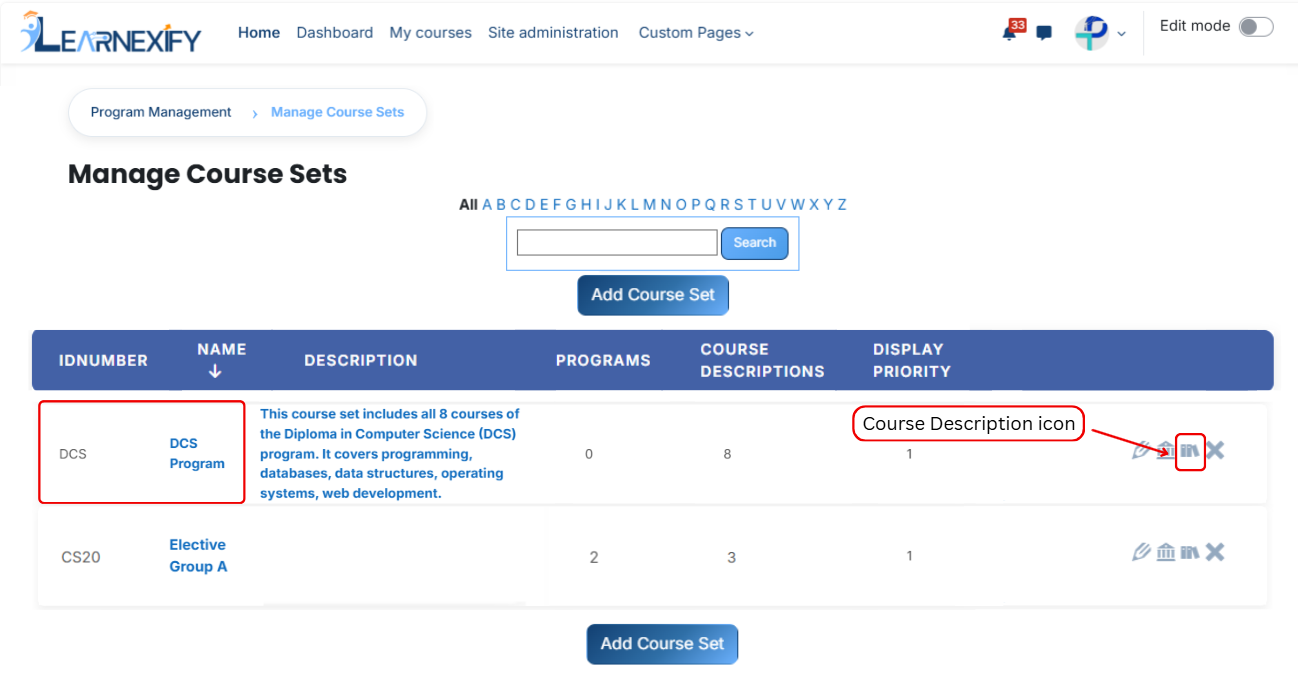
After opening the **Course Description tab,** you will see the **already assigned course descriptions.** To add a new one, click on the **Available to Assign button.**
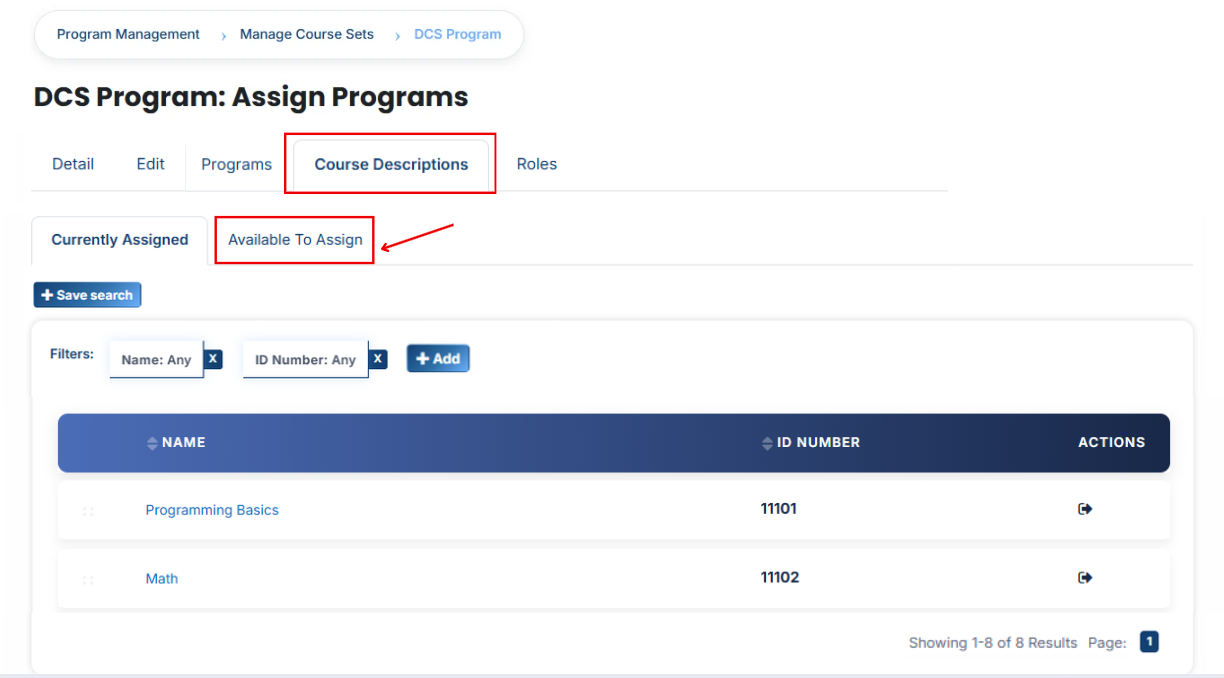
A list of available course descriptions will appear. Click on the arrow icon next to the course description you want to assign, then confirm the selection by clicking the green tick (✔).
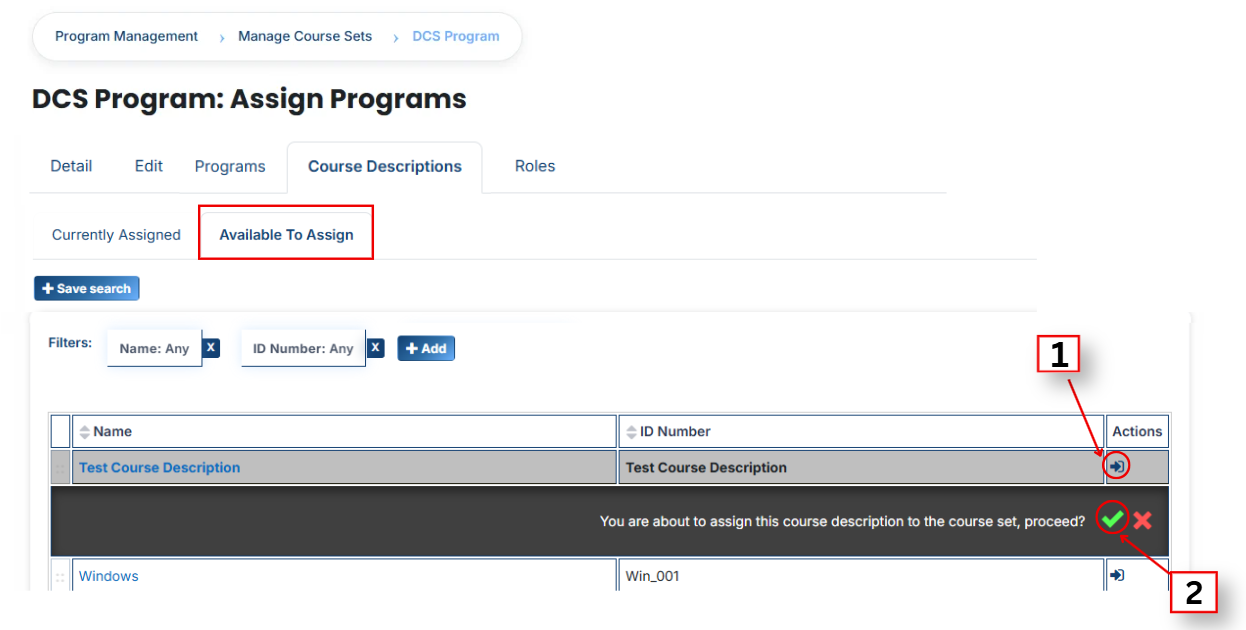
**View Assigned Course Descriptions**
Go to the Currently Assigned section to verify that the course description has been successfully assigned to the course set.
#### **Using Filters to Search Course Descriptions**
If the required course description is not available in the list, you can use filters to find it more easily. Click on the Add button and apply the following filters:
- **Name:** Search by course name
- **ID Number:** Search using a unique identifier
- **Credits:** Filter by required or assigned credit hours
- **Completion Grade: F**ilter by the grade required to complete the course
- **Cost:** Filter by course or program fee
- **Creation Time:** Filter by when the course was created
- **Pre-Test:** Displays courses that include a pre-test (used to assess learner knowledge before starting the course)
- **Post-Test:** Displays courses that include a post-test (used to evaluate learner progress after course completion)
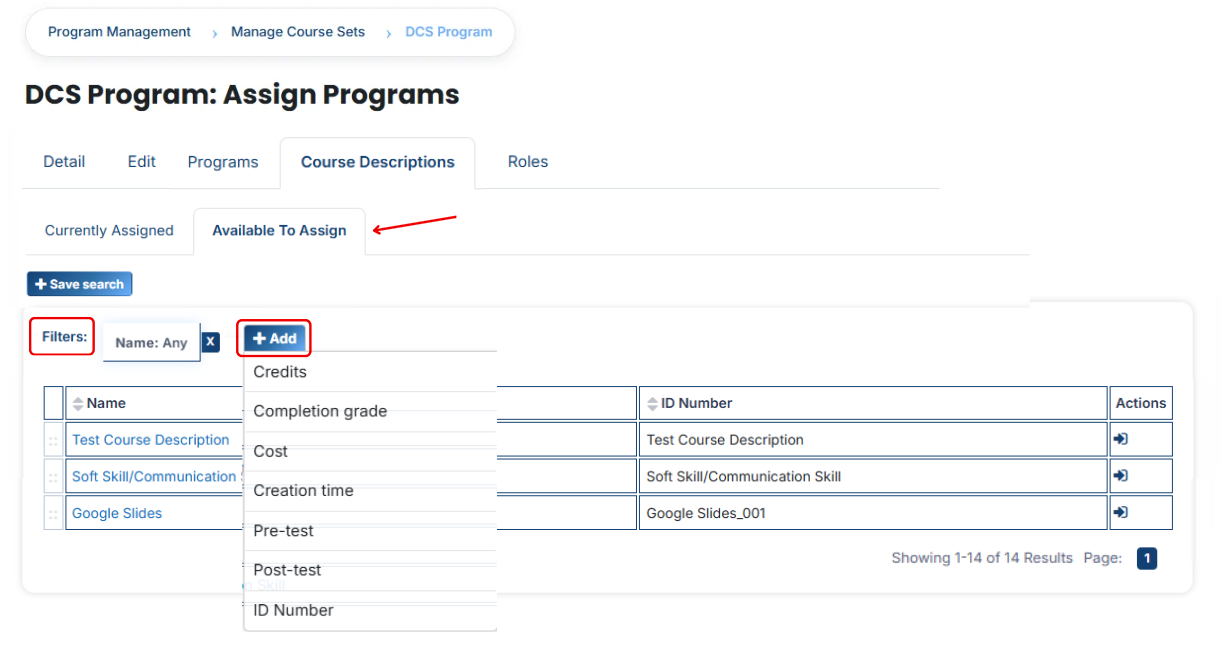
Once the **required course description appears**, click the **arrow icon** and assign it using the **green tick (✔).** It will then be added to the Currently Assigned list.
---
# How to Assign Roles in a Course Set:
- Identify the particular **course set** you wish to **modify** from the main list.
- Click that course set name and then click on the **Roles tab.**
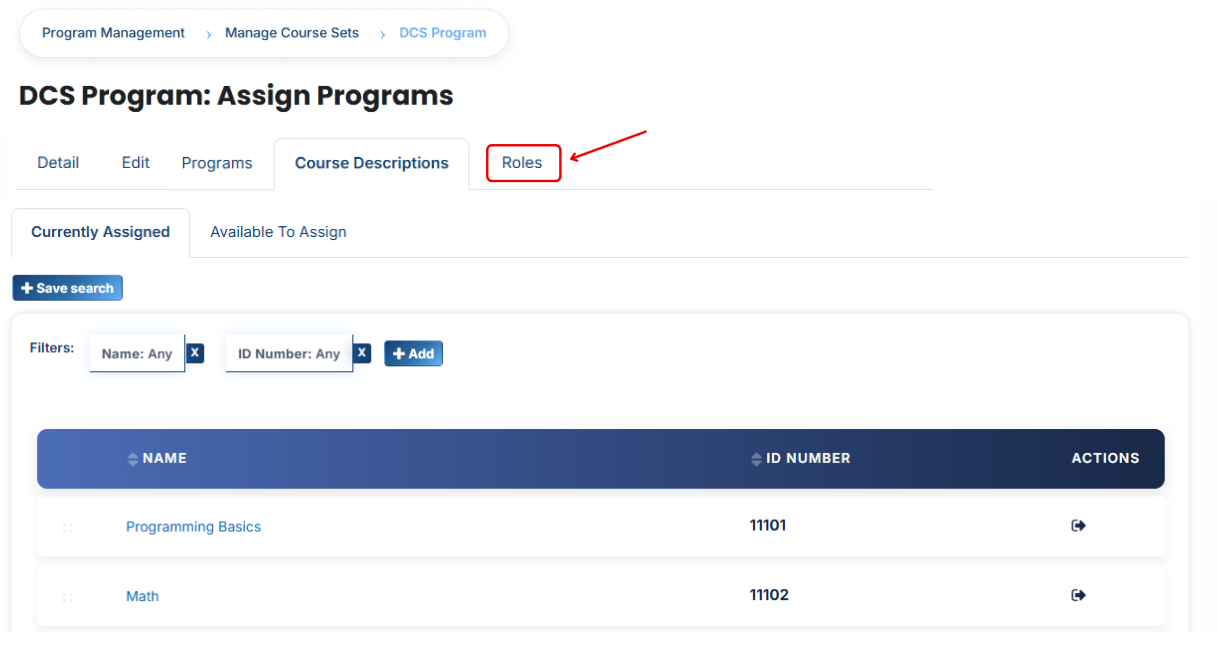
- Pick the specific access level you want to manage (for example: Manager, Course Creator, or Student).
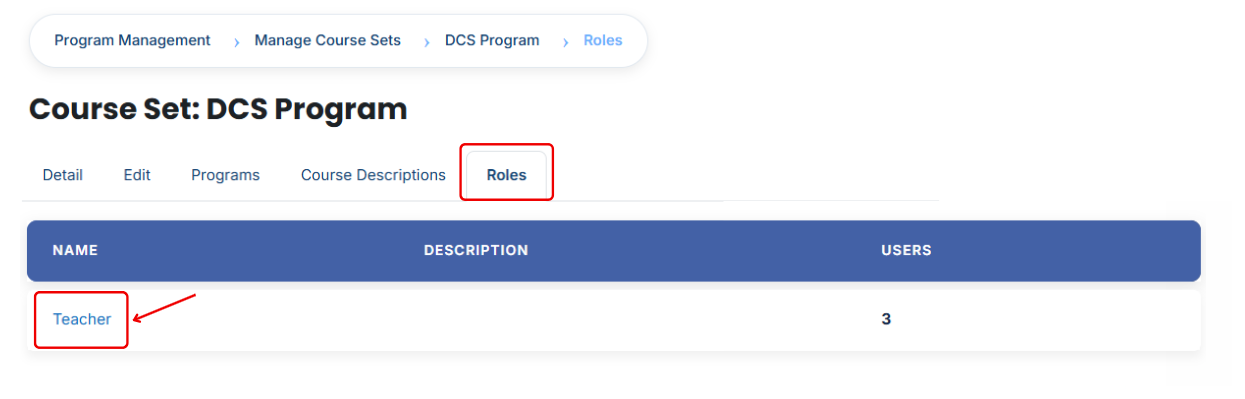
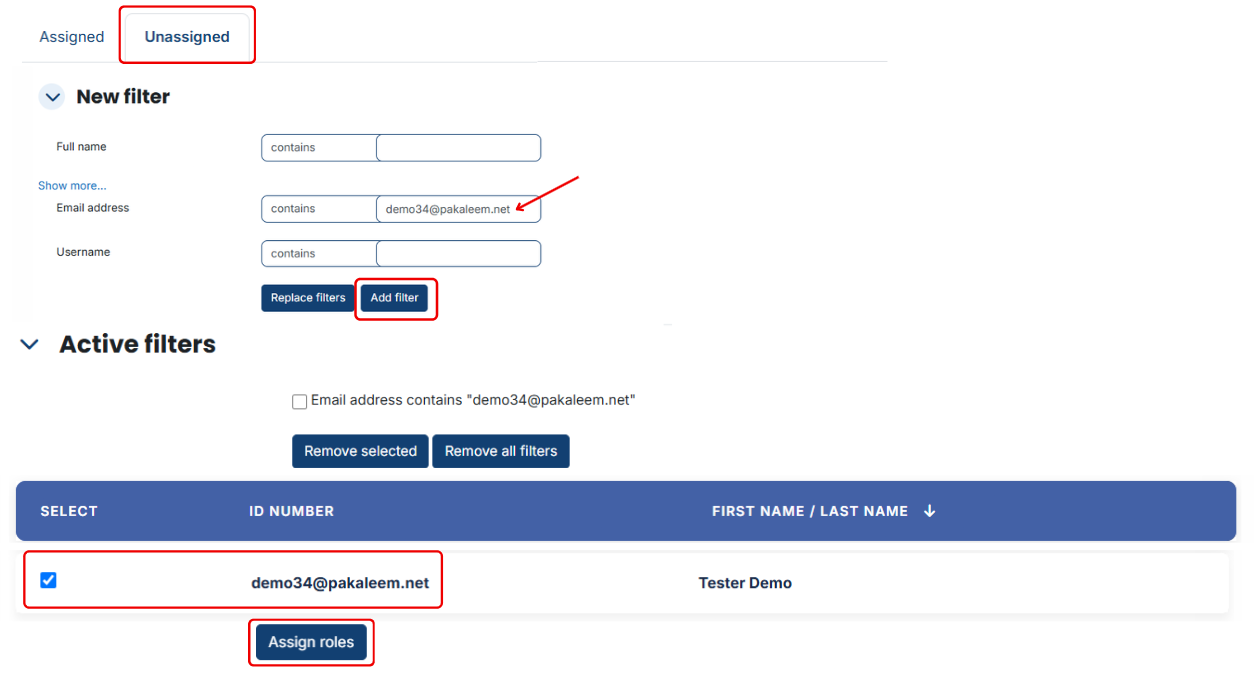
- The page will show people already in that role; click the Unassigned button to see a list of other people you can add.
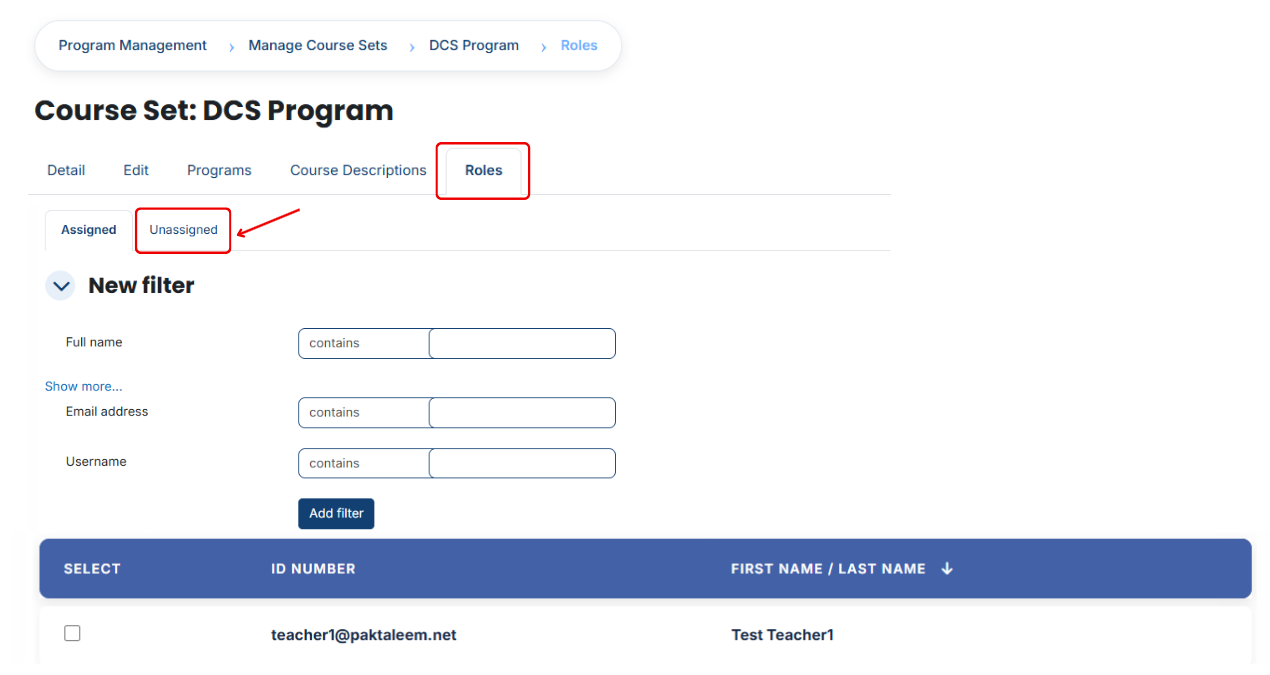
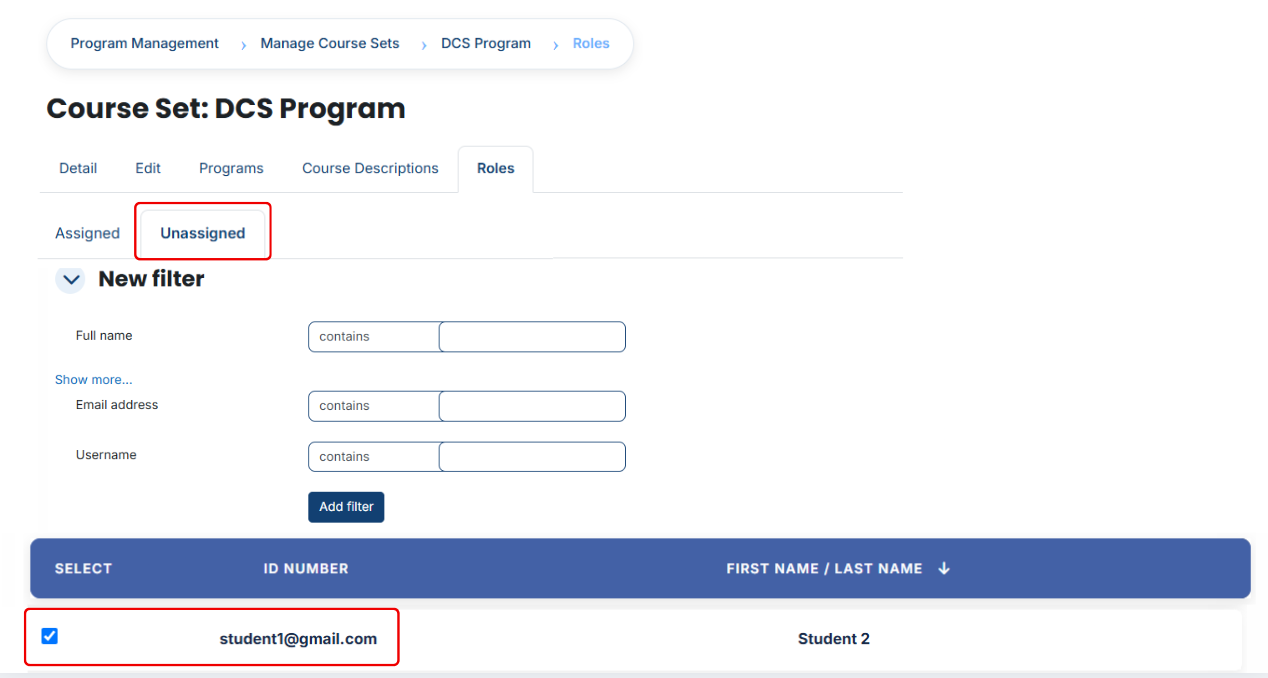
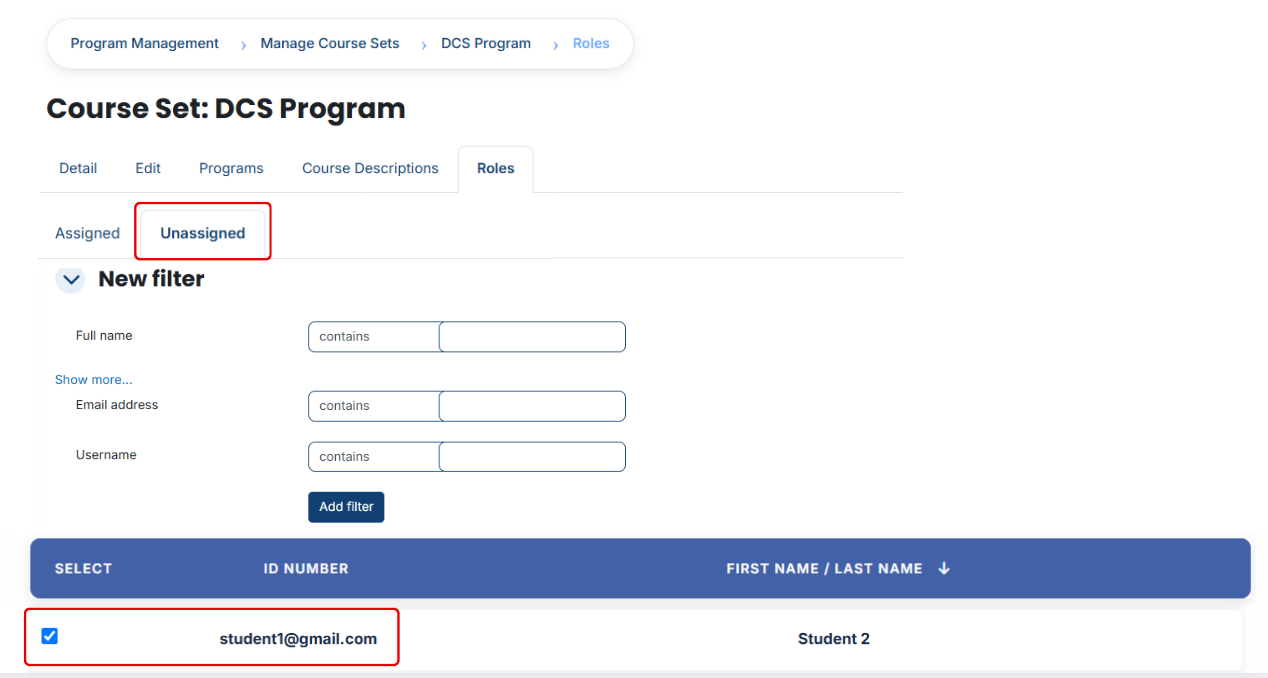
- Tick the checkbox next to each person you want to grant this role to.
- Move to the bottom of the page and click Assign Roles to confirm the update.
[](https://wiki.paktaleem.net/uploads/images/gallery/2026-07/5f5df0e3-5be6-4b39-9690-ffa1637e5531.png)
- If you need to find a **specific person (Using Filters):**
- Use the Filter tool located at the top of the **user list.**
- Create a search rule using the person's Full Name, Username, or Email Address.
- Click the Add Filter button to see the matching users.
- Select the correct individual from the list and click Assign Roles to complete the process.
---
# Manage Course Descriptions
# Learnexify Course Description
Course Descriptions in Learnexify define the complete structure and detailed information of a course. They include key details such as course identity, duration, credits, cost, grading criteria, versioning, and assessment settings.
They help ensure that every course is properly structured, clearly defined, and easy to manage within the system.
---
### **Navigation Path:**
To create a **new Course Description**, follow these steps:
- Log in to your **Learnexify dashboard.**
- Open the **Side Drawer (Menu)** from the left panel.
- Navigate to **Program** and select **Manage Course Descriptions.**
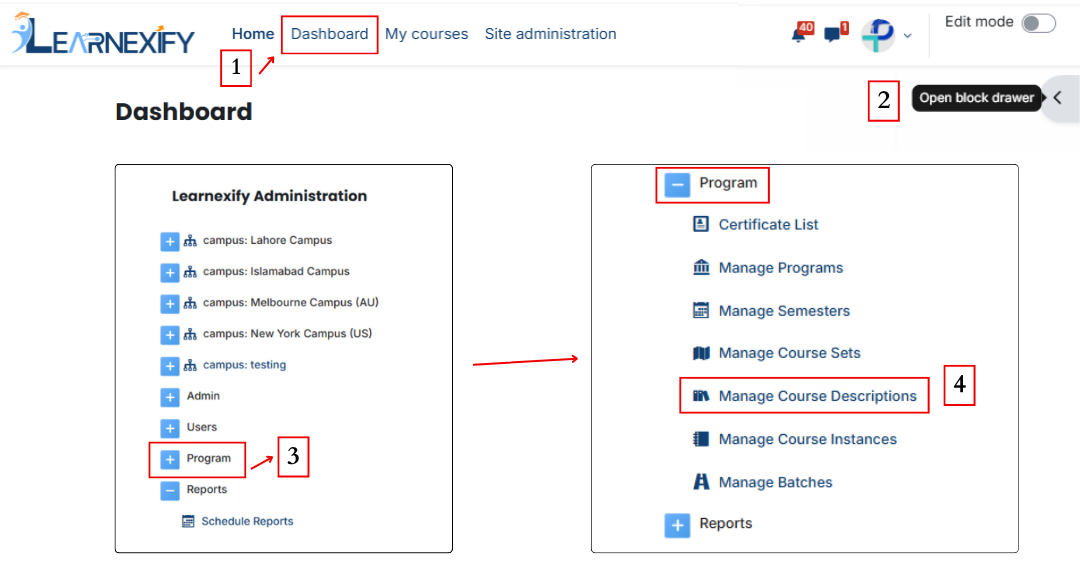
- Here you will see all existing course descriptions.
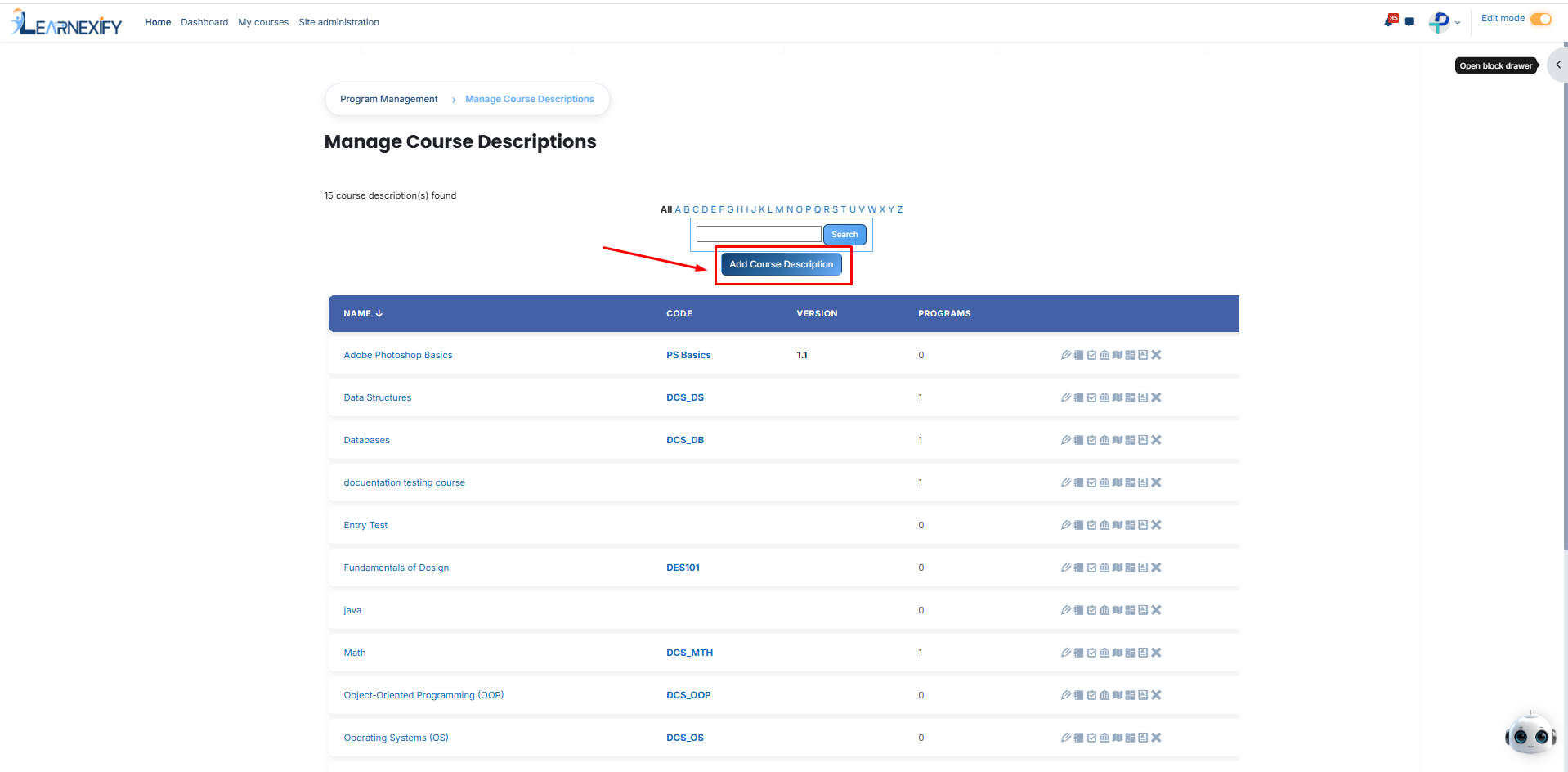
- Click on the “Add Course Description” button if you want to create a new course description. Then a form will appear.
#### **Section 1: Course Details:**
In this section, you will configure the primary settings and administrative information for the course:
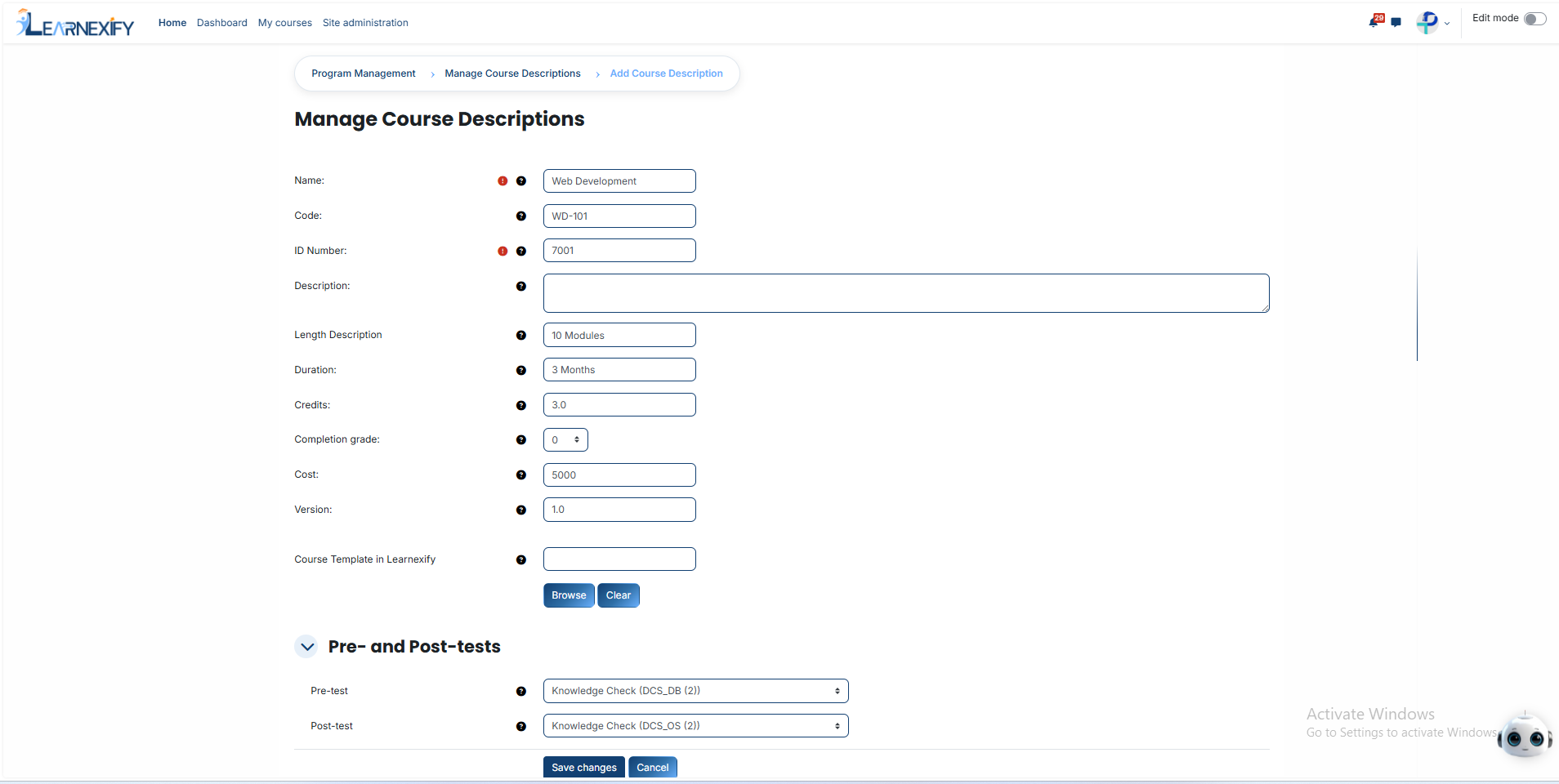
- **Name (Required):** Enter the full title of the course. This field is mandatory and is the primary way users will identify the course on the platform.
- **Code:** Assign a unique shorthand code to categorize the course within the system, making it easier to organize and search for specific modules.
- **ID Number (Required):** Enter a unique identification number required for system tracking. This ensures that every course is distinctly recognized in the database.
- **Description:** Provide a comprehensive overview or a detailed explanation of the course content, outlining what the students will learn and achieve.
- **Length Description:** Define the workload or structural size of the course in words, giving learners a clear idea of the total effort required.
- **Duration:** Specify the total timeframe allocated for the completion of the course, defining its active period for the enrolled users.
- **Credits:** Define the academic value or total credit points assigned to the course, representing the official workload weight.
- **Completion Grade:** Set the minimum grade or percentage a student must achieve to successfully pass and fulfill the course requirements.
- **Cost:** Enter the specific enrollment fee required for the course, which manages the financial aspect of the student's admission.
- **Version:** Maintain a precise record of course updates or revisions to batch different iterations and improvements made over time.
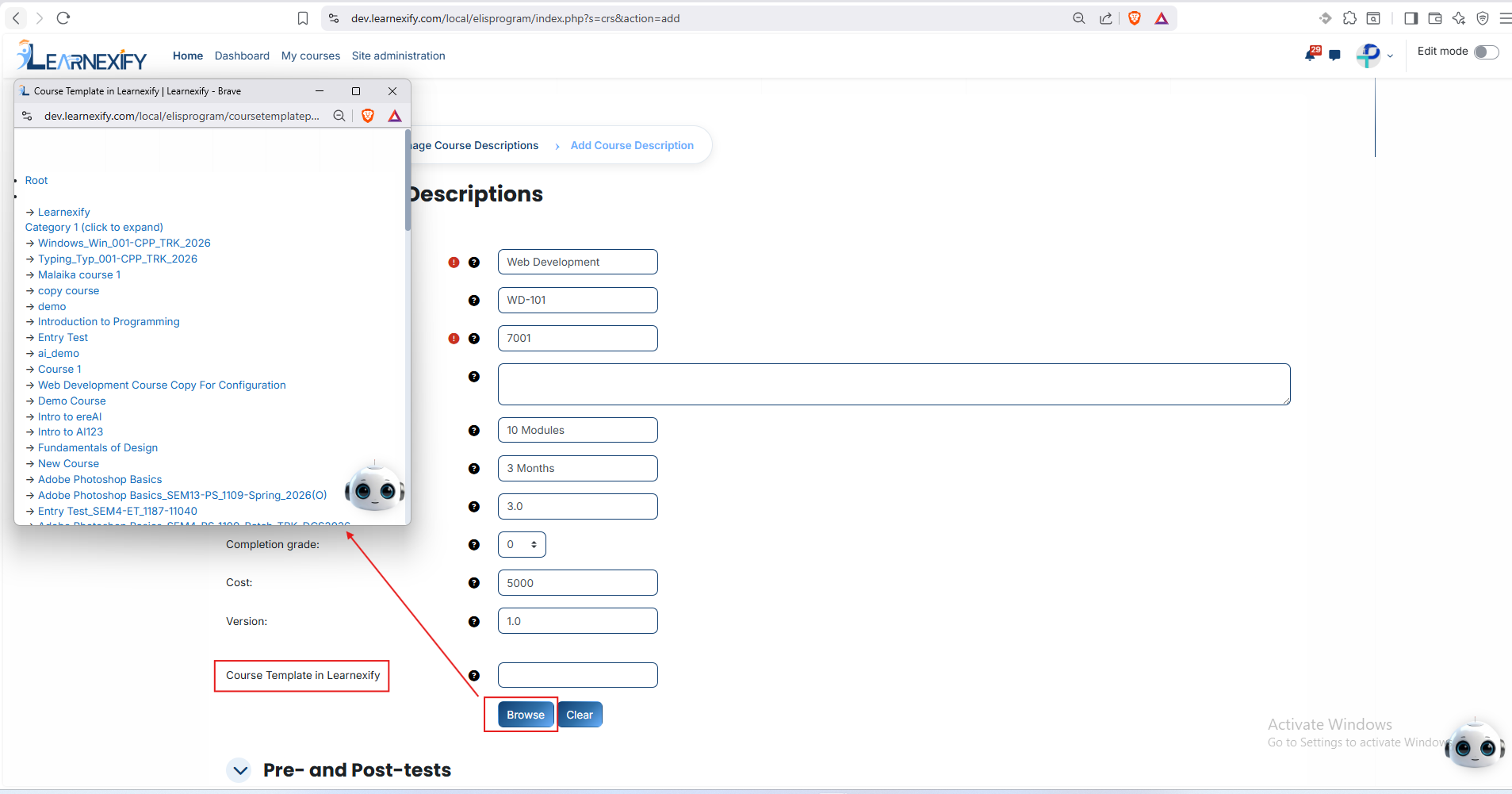
- **Course Template in Learnexify:
Functionality:** This feature is used to assign a predefined structure to your course. It determines how the learning content, assessments, and overall flow will behave within the system. Essentially, the template acts as a technical framework that ensures the course operates according to set institutional standards.
#### **How to Configure:**
- Locate the **"Browse" button** next to the template field.
- Click "Browse" to open a selection window displaying all **available templates** in the system.
- Choose the appropriate template that matches your course requirements.
- Once selected, the template name will **appear** in the field.
- If you wish to **remove or change** the selection, use the **"Clear" button** to reset the field.
#### **Section 2: Pre- and Post-tests:**
This section is used to manage the evaluation and assessment process:
- **Pre-test:** Select or configure a test to be taken before the course begins to evaluate the student’s baseline knowledge level.
- **Post-test:** Select the final assessment to be taken after course completion to measure the knowledge gained and overall learning success.
### **Finalizing the Process:**
- Save Changes: After ensuring all details are correctly filled, scroll to the bottom and click the Save Changes button to officially create the course description.
- Cancel: If you wish to exit the form without saving any information, click the Cancel button.
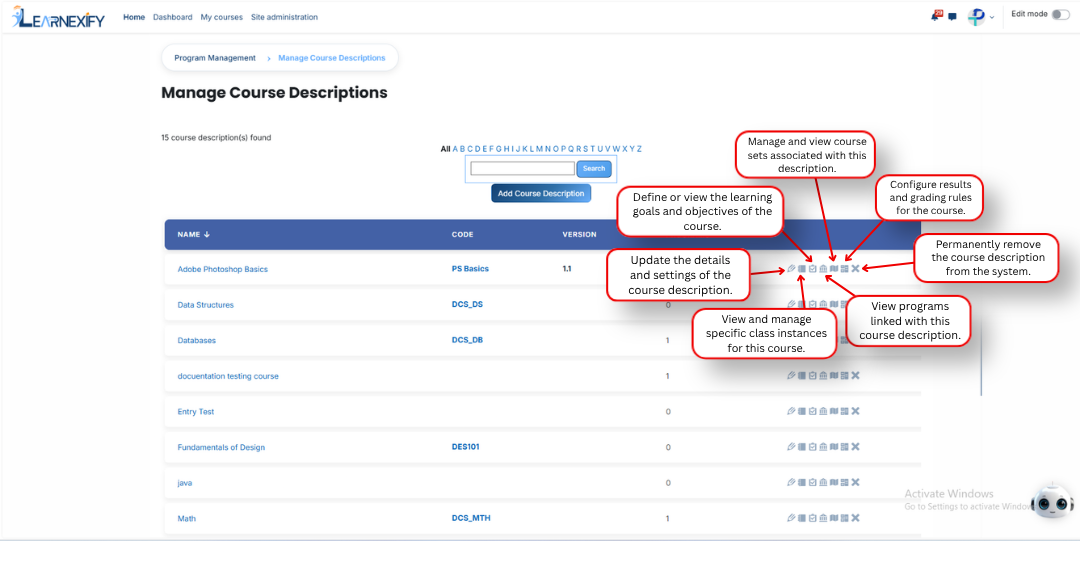
Once saved, the course will be active and visible in the Manage Course Descriptions list for further management or enrollment. An explanation of each icon is provided below.
---
# How to Edit a Course Description:
To edit a **course description**, follow the steps below:
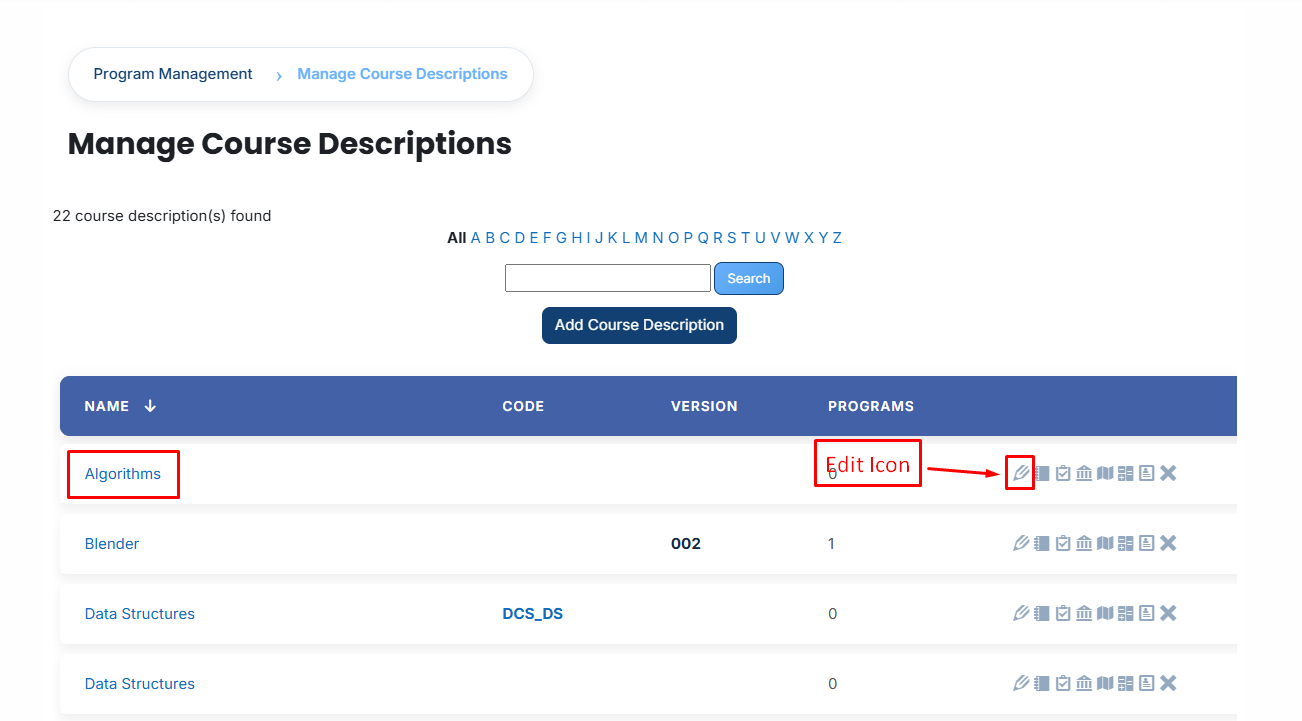
- Start by **accessing** the Dashboard and opening the **side drawer menu.** From there, navigate to **Programs** and select **Manage Course Descriptions.** A list of all **available course descriptions** will be displayed on the screen.
- Identify the course description you wish to modify and click on the **Edit icon** next to it. This action will open the course description details page in **edit mode.**
[](https://wiki.paktaleem.net/uploads/images/gallery/2026-07/Kwfimage.png)
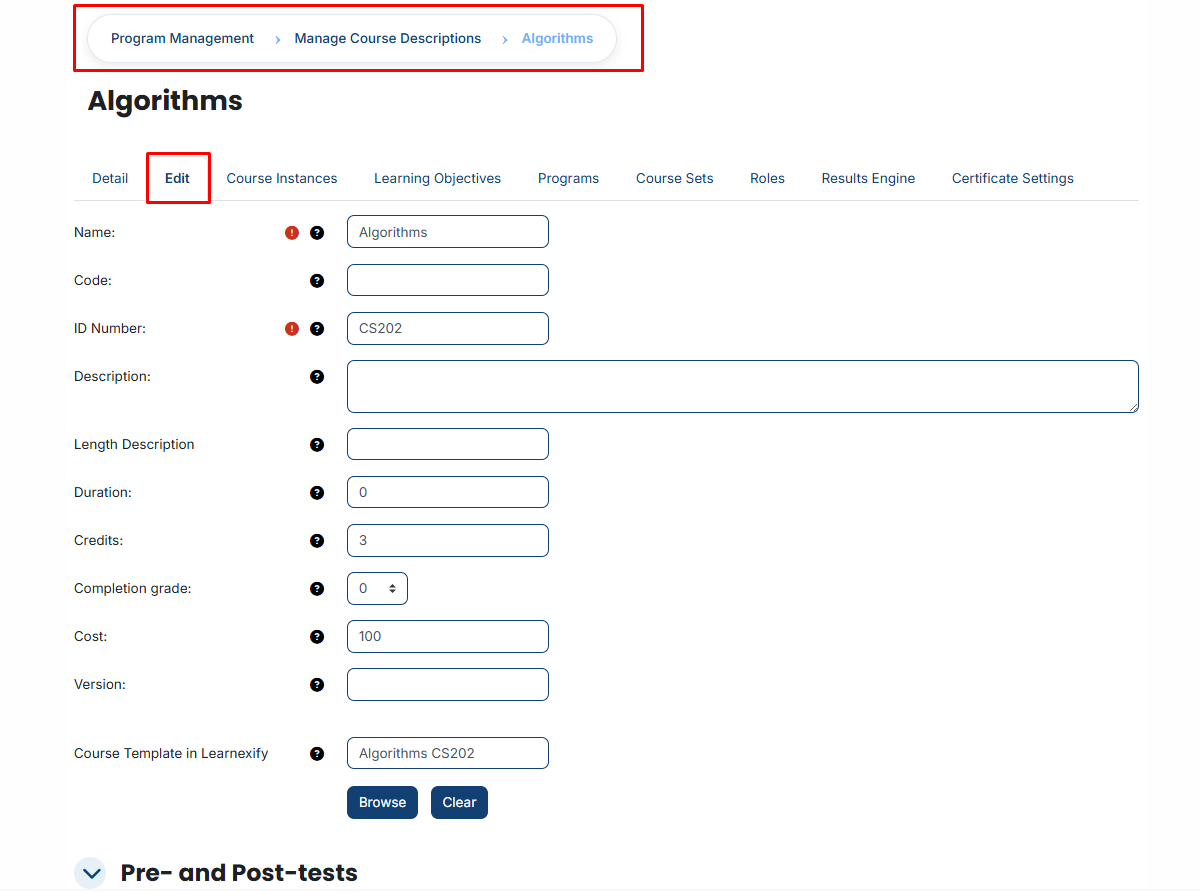
- Make the necessary updates to the **course description details** as **required.**
[](https://wiki.paktaleem.net/uploads/images/gallery/2026-07/lkGimage.png)
- After reviewing your **changes**, scroll down and click on th**e Save Changes button** to apply and save the updated information.
---
# How to Add course instance in a Course Description:
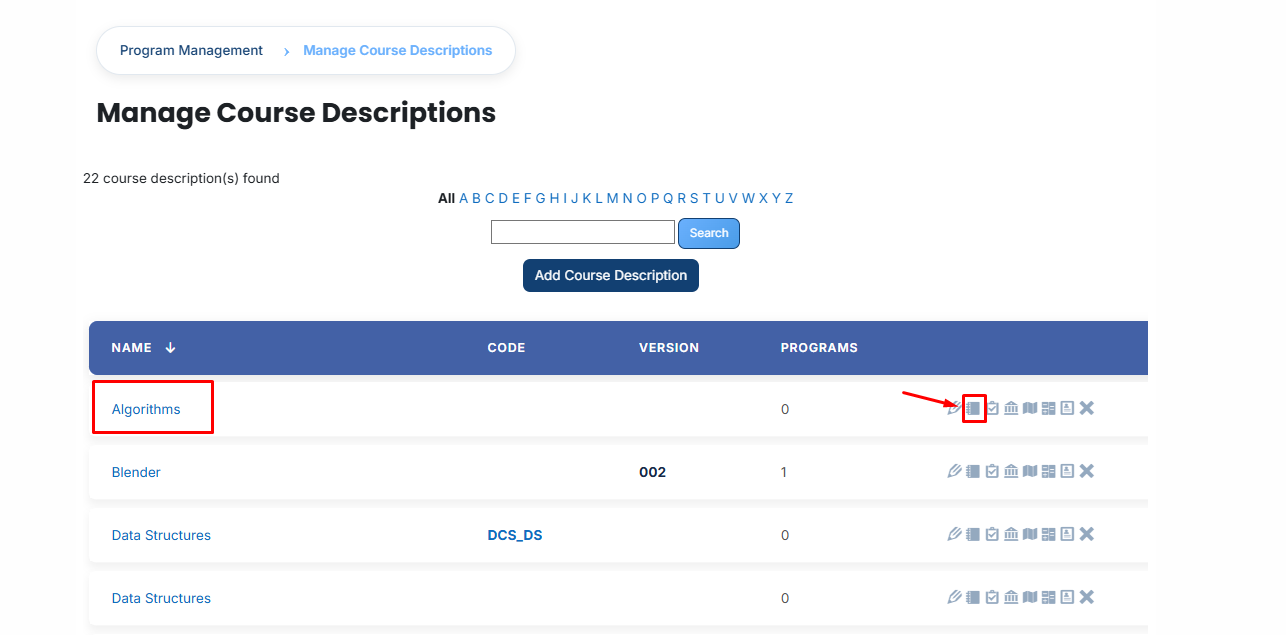
- From the list of all **available course descriptions**, locate the one you want to **add course instance.**
- Click on the **course instance icon** for the specific course description.
[](https://wiki.paktaleem.net/uploads/images/gallery/2026-07/ITMimage.png)
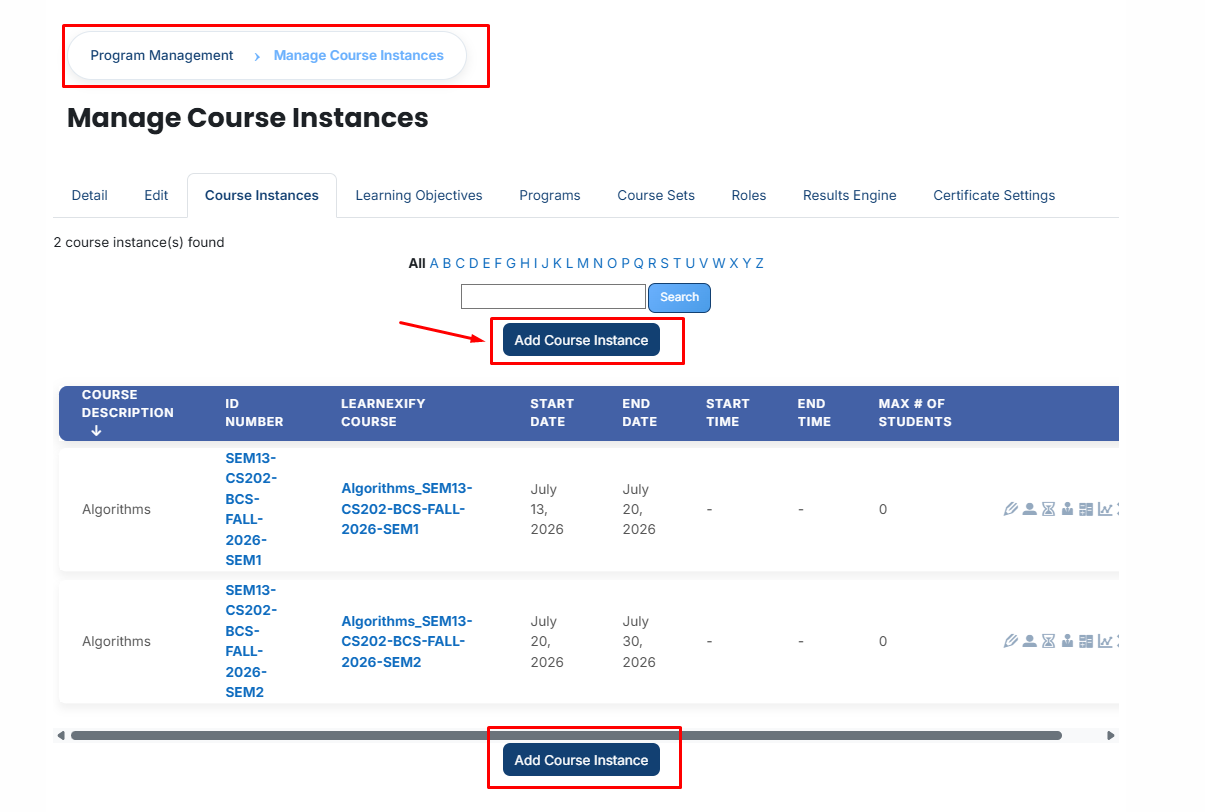
- After opening this page, you will see all your **existing course instances.**
- If you want to create a course instance, follow these steps:
- Click the **Add course instance** button (located at both the top and bottom of the list).
[](https://wiki.paktaleem.net/uploads/images/gallery/2026-07/ZUlimage.png)
- A **configuration form** will open. **Fill in the details:**
- **Course Description:** Shows the main course name and code so you know which course you are creating a class for.
- **Assigned batches:** Shows the learning batches or groups that are already added to this class.
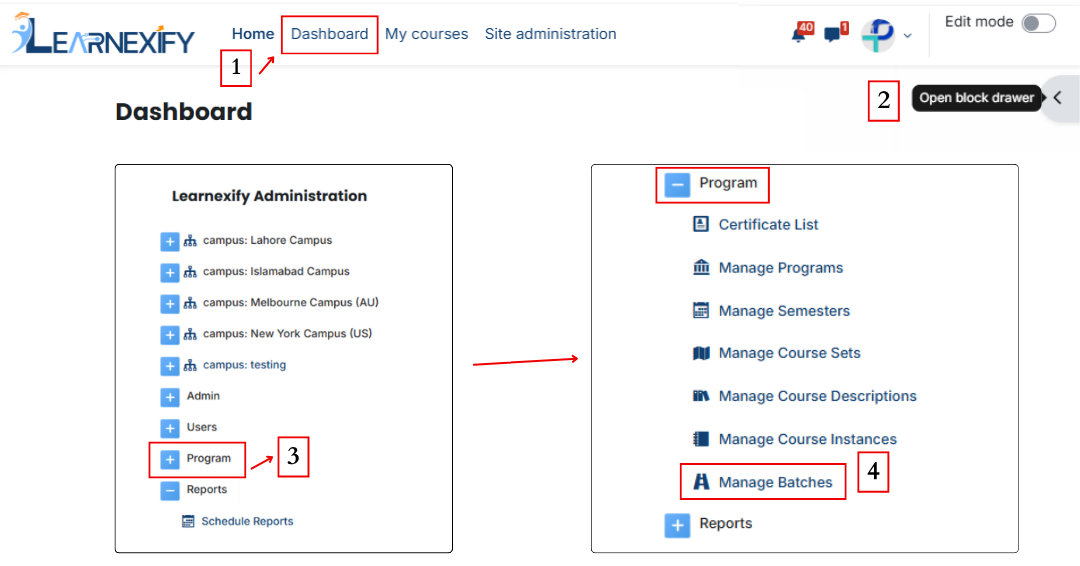
- Go to the dashboard side menu, click on **Program,** and then click on **Manage batches.**
[](https://wiki.paktaleem.net/uploads/images/gallery/2026-07/page-edits3.png)
- Open the **specific batch** you want to assign a course instance to.
- After opening the **batch**, click on the **course instance tab** where you will see your already created instances.
- If you want to assign more, click the **Available to Assign button.**
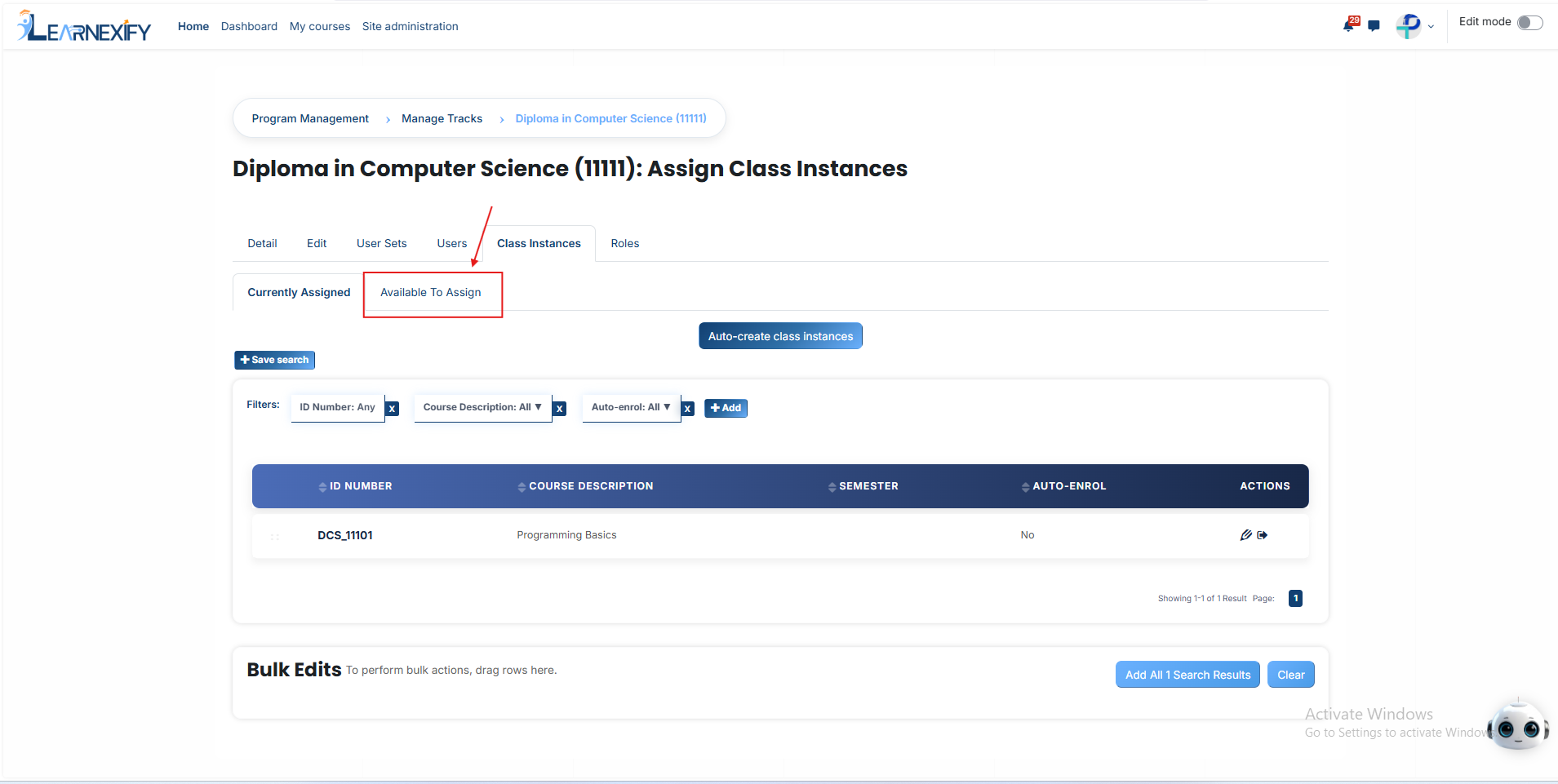
- Select the course instance you want to link and click the arrow button.
- **An option will appear: "Auto-enroll users into this course instance when they are added to this batch."**
- This allows the system to automatically enroll any student into this specific course instance as soon as they are added to the batch, saving you the time of doing it manually
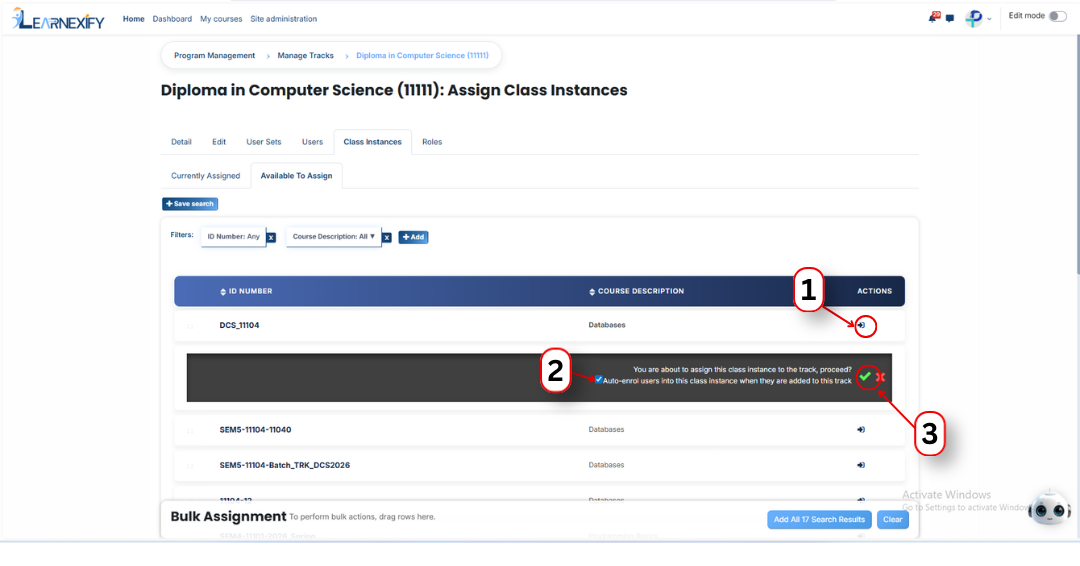
Select the option and click the **green tick icon.**
Now, go back to the **course instance creation** form and reload the page; the **batch** will now show as assigned to this course instance.
- **Unassigned batches:** Used to select and add new batches or groups to this class.
- **ID Number:** Enter a unique name or number for this class batch (This field is required).
- **Start Date:** Enable this to select the date when the course should officially start.
- **End Date:** Enable this to select the date when the course should finish.
- **Start Time:** Set the time when the class starts daily; use ‘Disable’ if there is no fixed time.
- **End Time:** Set the time when the class ends daily; use ‘Disable’ if there is no fixed time.
- **Max # of Students:** Enter the maximum number of students allowed to join this batch.
- **Expiration Duration:** Enter how long a student will have access to the course (e.g., 1m for 1 month).
- **Notification Duration:** Enter how many days/weeks before the course ends a student should get a reminder.
- **Learnexify course:** Select the course module from the list that you want to connect to this class.
- **Auto Create course from template:** If checked, the system will automatically create the online course for you using a template.
- **Auto enrol from waitlist:** If checked, the system will automatically add the next student from the waitlist if a seat becomes empty.
- **Save changes:** Click this button to save all entered information and create the class.
- **Cancel:** Click this button to close the form without saving any changes.
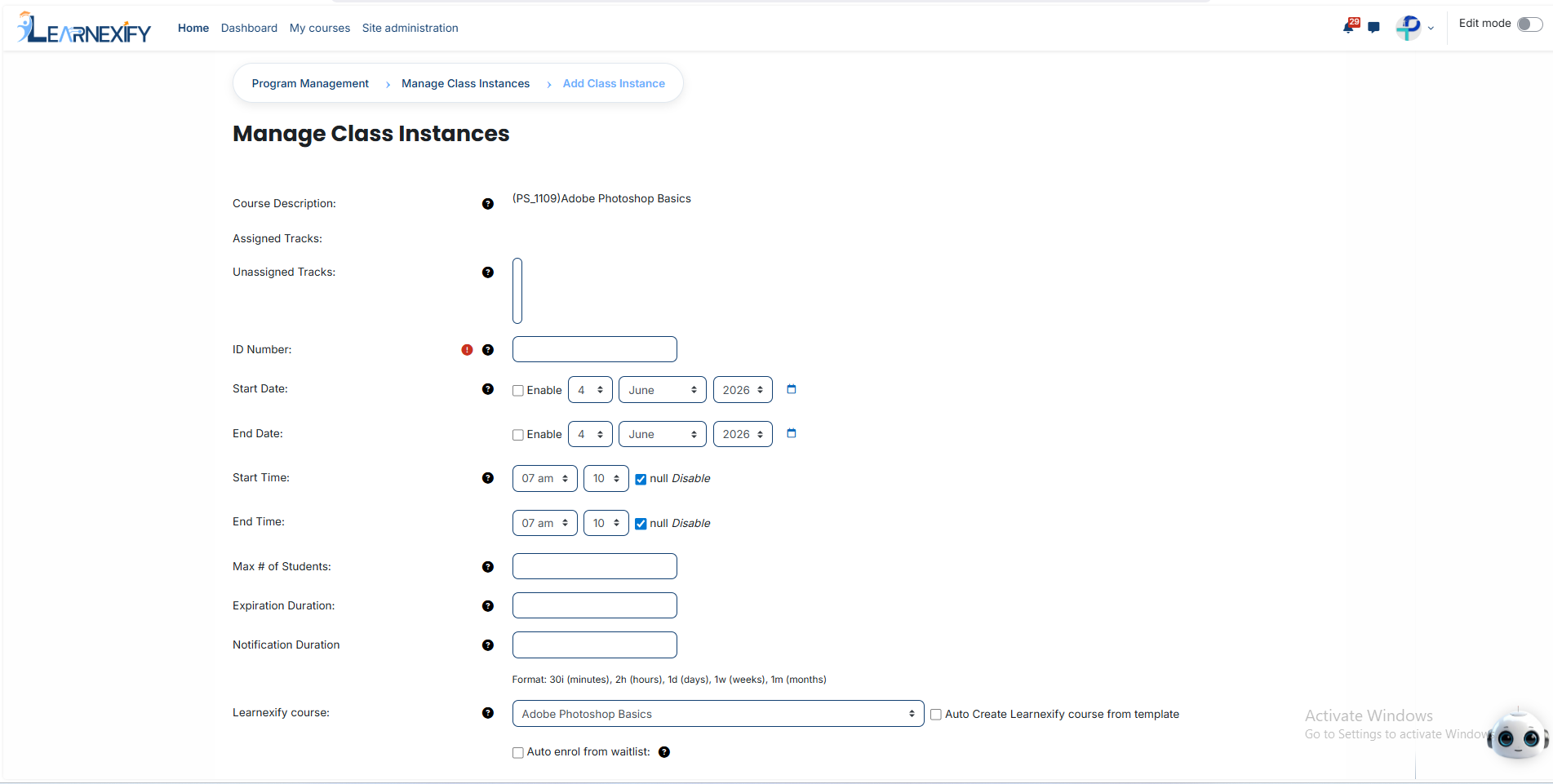
- After entering the information, scroll down and click the Save Changes button. Once saved, the new course instance will successfully appear in the list.
---
# How to Add Learning Objectives in a Course Description:
### **Learning Objectives:**
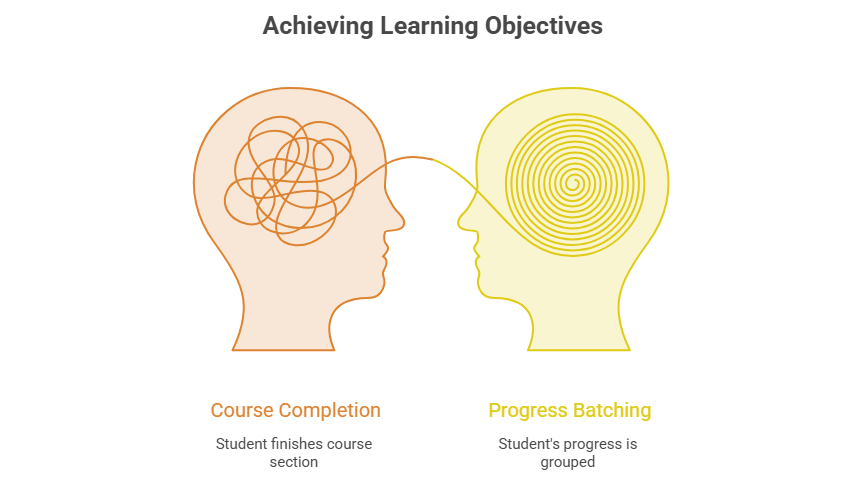
Learning Objectives are used to batch a student's progress and show exactly what they have learned after finishing a part of the course.
---
### **Steps how to add learning objectives:**
#### **1. Accessing Learning Objectives**
- From the list of all available course descriptions, locate the one you want to **add a learning objective.**
- Click on the **learning objective icon** for the specific course description.
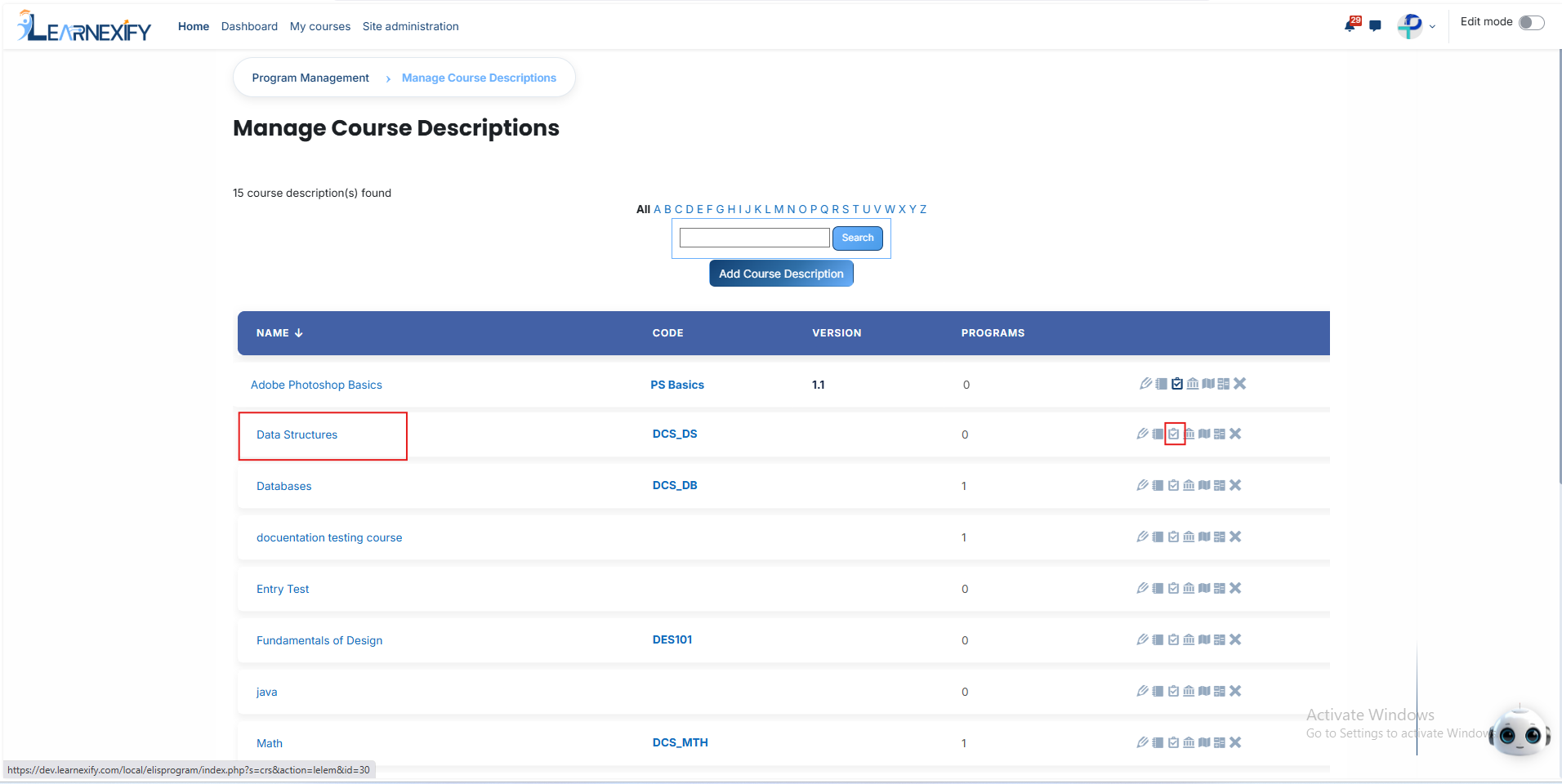
- Click the **Add Element button** to create a **new Learning Objective.**

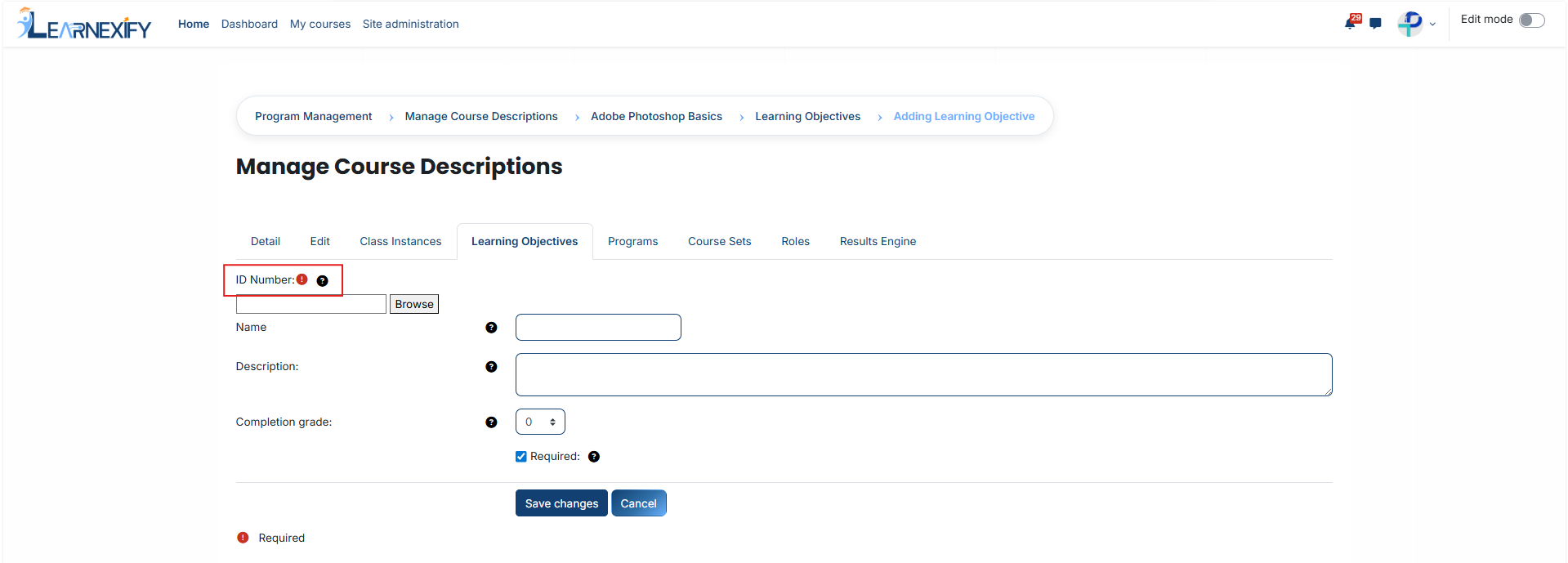
#### **2. Understanding the ID Number while creating a learning objective**
The ID Number is the most important field. It acts as a "bridge" between the learning objective and the actual task the student performs in the learning system.
**Important:** This ID must exactly match the ID in the connected system. It is case-sensitive, meaning capital and lowercase letters must be identical.
If this ID is incorrect, the system will not be able to batch the student’s score for this objective.
####
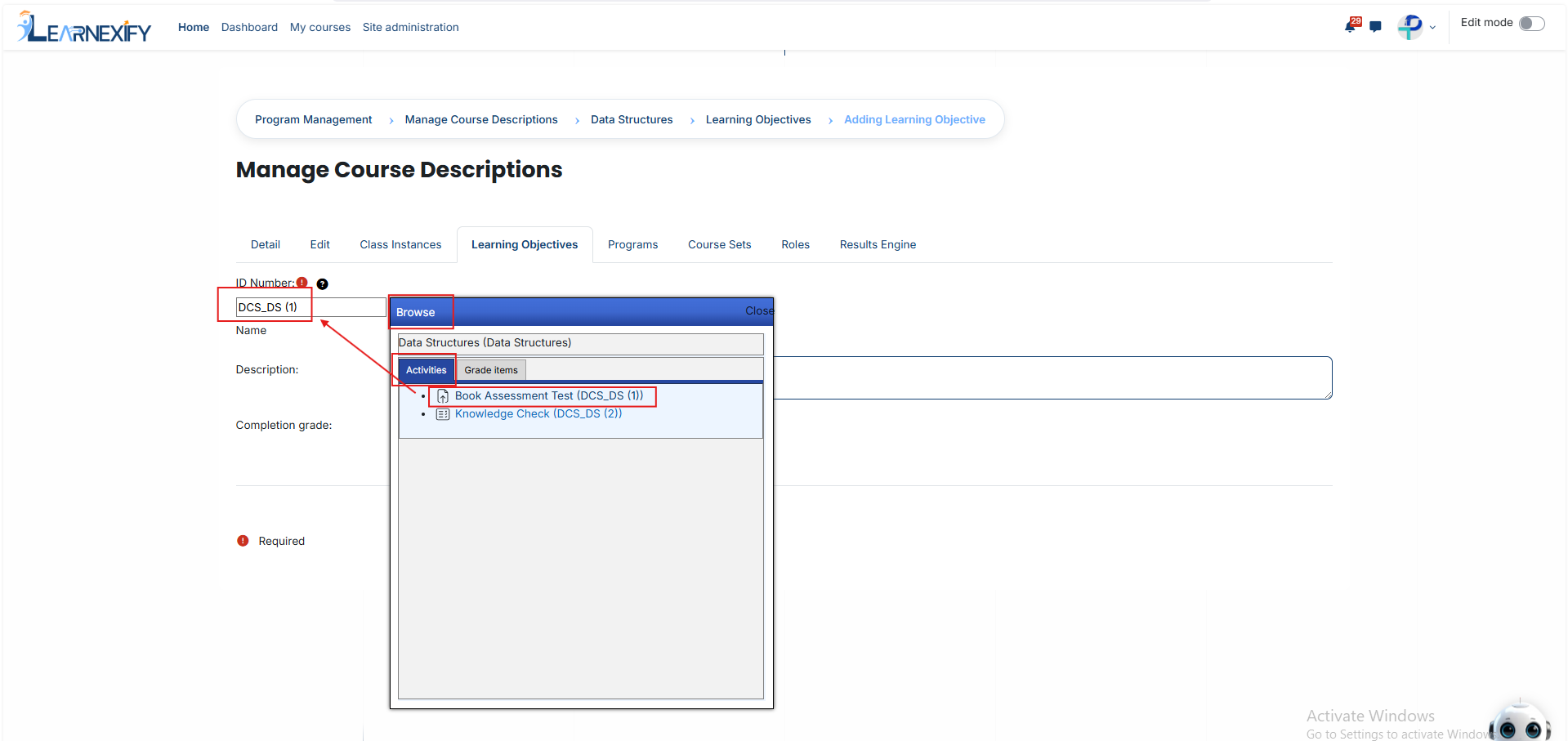
**3. Using the 'Browse' Button (Required)**
To avoid errors in typing long or complex ID numbers, use the Browse tool:
Click the **Browse button** next to the ID Number field. A window will **open showing all available Activities** (Tests, Quizzes, Scorm packages) and Grade Items within the course template.
**How to Link:** Find the specific activity you want to batch and simply click on it.
**The Result:** The system will automatically fetch the correct ID Number and fill it into the box for you. This ensures a 100% accurate link without any manual typing mistakes.
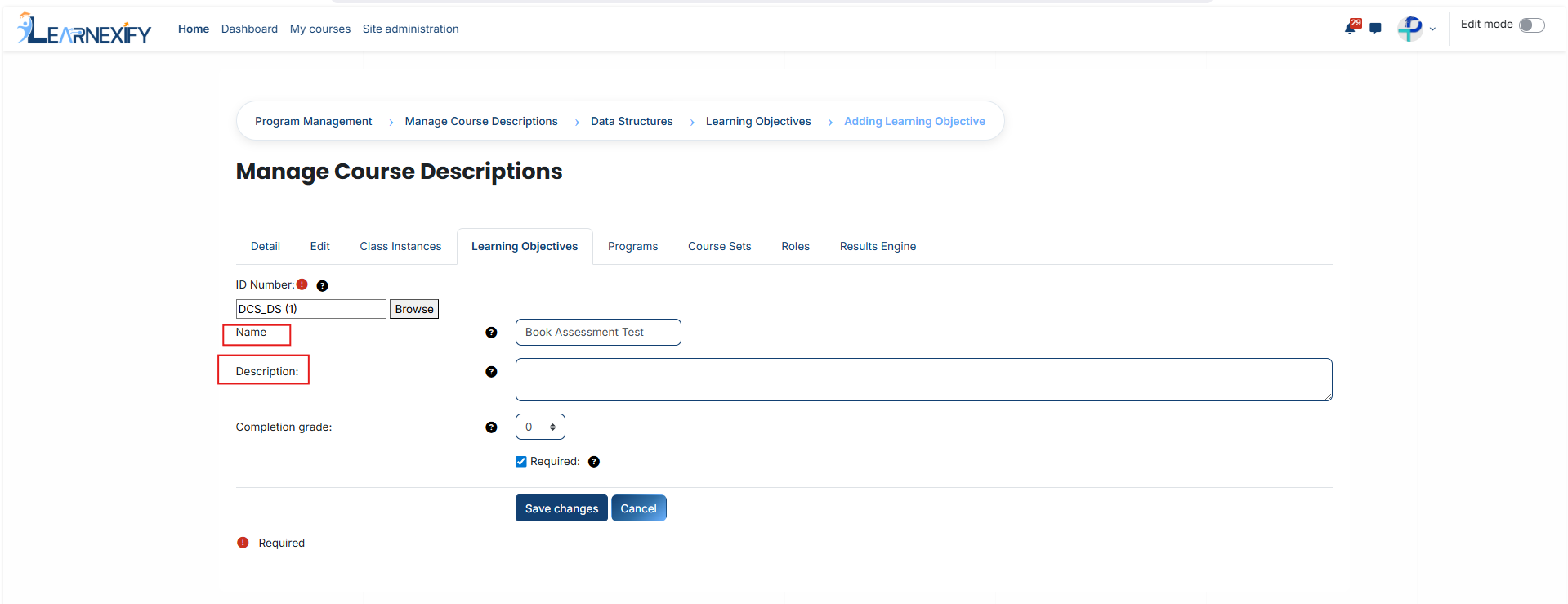
#### **4. Adding Details**
**Name:** Give the objective a clear and simple title (e.g., "Final Exam Proficiency").
**Description:** Provide a brief explanation of what the student needs to learn. This information helps make your reports easy to read and understand later.
####
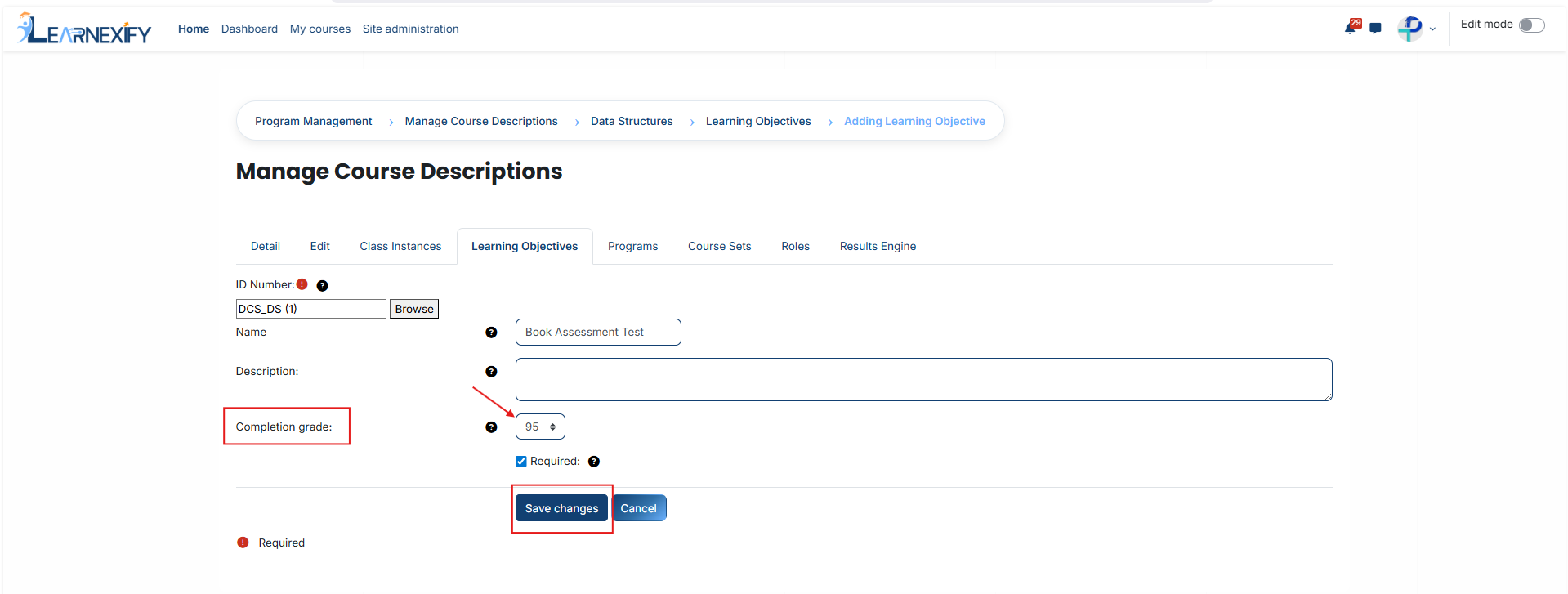
**5. Setting the Completion Grade**
The Completion Grade is the **"passing mark"** for this objective.
Enter the minimum score (usually a percentage) a student must achieve to mark this objective as **"Completed."**
**Example:** If you set this to 70, the student will only receive credit for this learning objective once they score 70% or higher on the linked activity.
Once you have selected the activity through the Browse button and set the passing grade, click **Save Changes.**
Your Learning Objective is now live and will begin tracking student performance immediately.
---
# How to Assign Program in a Course Description
- **Locate your Course:** From the main dashboard, find the specific Course Description you want to work with and click its **Program icon.**
[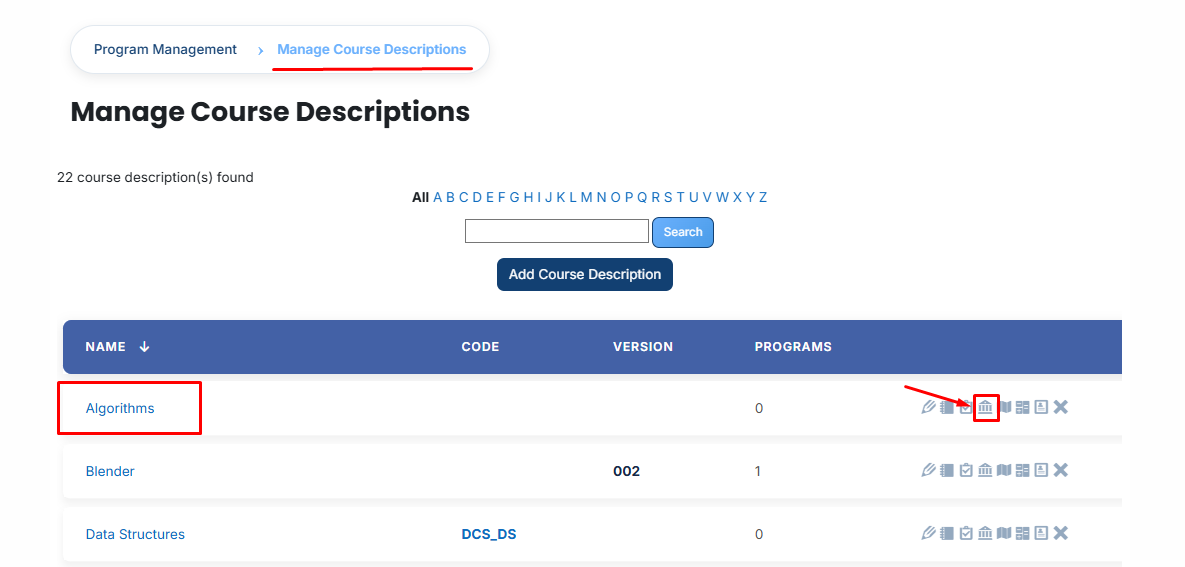](https://wiki.paktaleem.net/uploads/images/gallery/2026-07/q1Qimage.png)
- **View Assigned Programs:** Once the tab opens, you will see a list of programs already linked to this course. To add a new one, click the Available to Assign button.
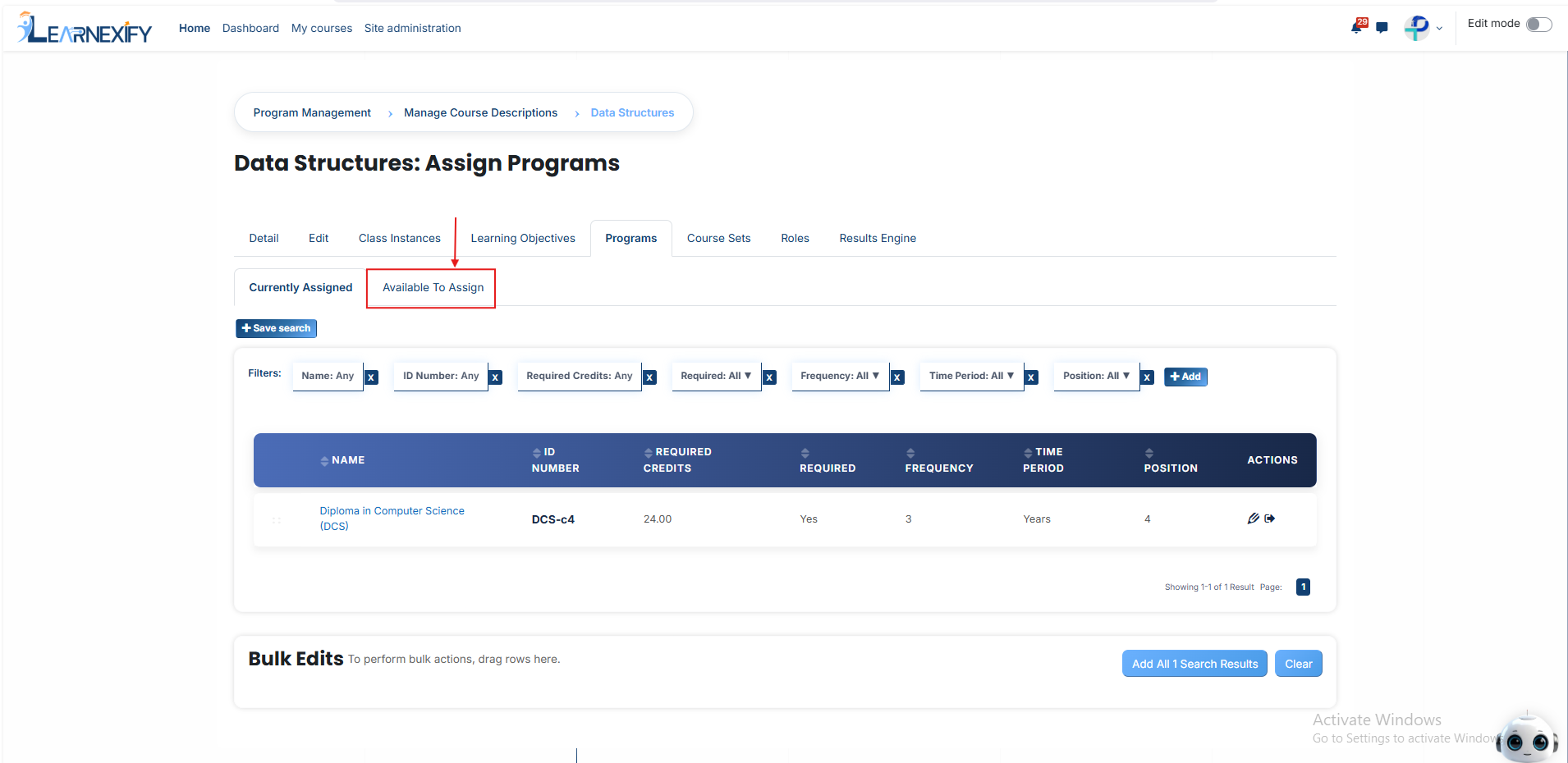
A list of available programs will be displayed. Select the **program** you want to assign.
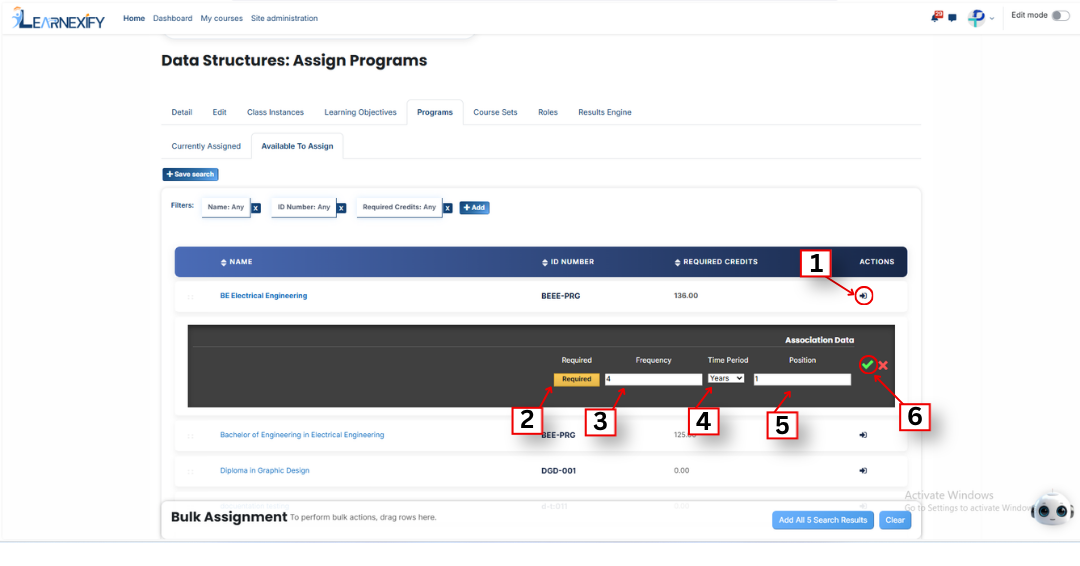
When you click the **arrow icon** in the **program list**, the **Association Data section,** fill in the following details to define how the course fits into the program:
- **Required or not:** Click this button to set whether the course is mandatory for the program.
If it is **highlighted (Yellow),** it is Required, meaning the student must pass this course to finish the program.
If it is **gray,** it is Not Required.
- **Frequency:** Enter a number here to set the time interval for the course.
- **Time Period:** Select a unit of time from the dropdown (such as Years, Months, or Weeks).
Example: If you enter 4 in Frequency and select Years in Time Period, it means the course is valid for 4 years or needs to be retaken every 4 years.
- **Position:** Enter a number to decide where this course appears in the program's list.
Example: Entering 1 will place this course at the very top of the list for that program.
- **Green Tick (✔):** Once you have entered all the details, click this icon to Save and Confirm the assignment. The program will then be officially linked to the course.
- **Red Cross (✖):** Click this icon to Cancel the process. This will close the box without saving any of the information you entered.
- After filling in all **required fields,** click the **green tick (✔)** to confirm and save the assignment.
- Next, click on the **Currently Assigned button.** Here, you can view all programs that have been successfully assigned to the course description .
### **Adding a Program if Not Available**
If the required program is not listed, follow these steps:
Navigate to the **Available to Assign** section and click the **Add button.**
A new form will appear. Provide the **following details:**
- Name: The official title used to identify the program.
- ID Number: A unique code assigned specifically to this program.
- Long Description: A full summary providing more detail about the program.
- Required Credits: The total number of points a learner must earn to complete the program.
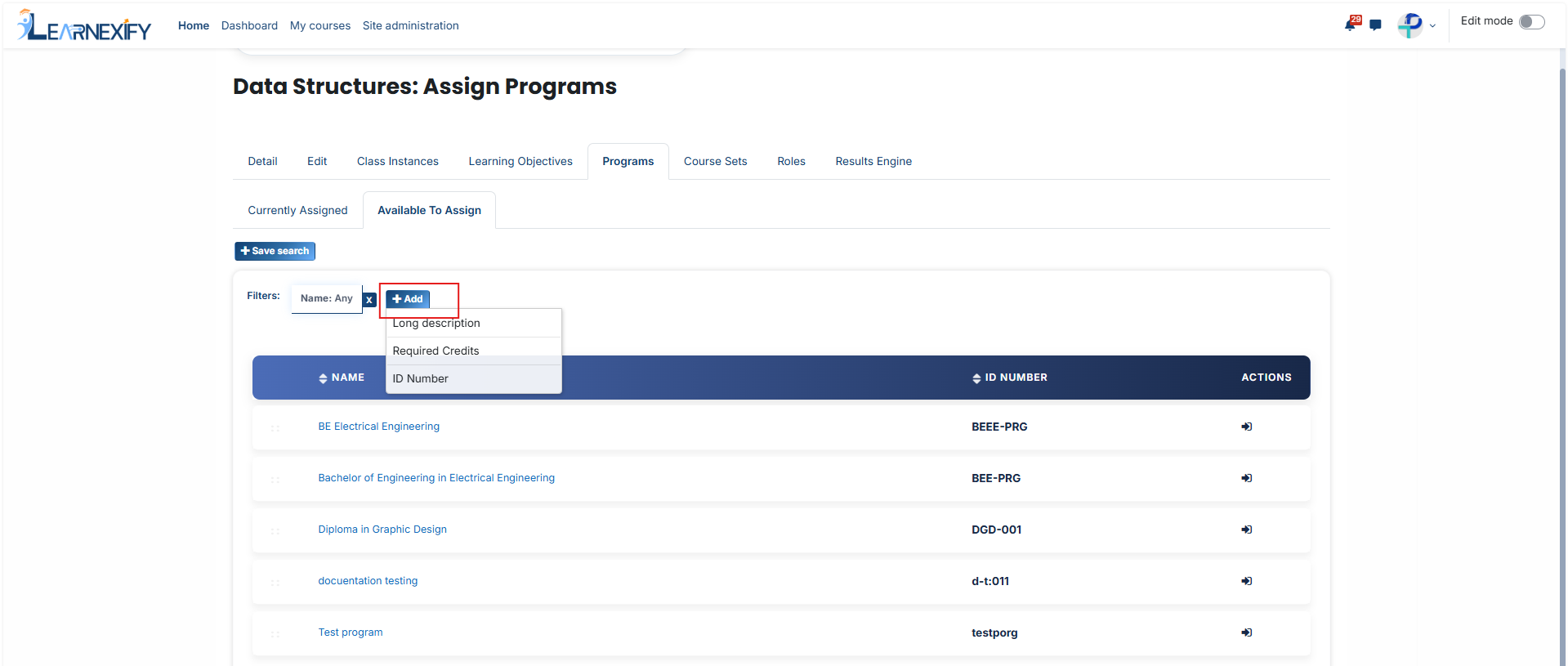
- Once you save these details, the program will appear in the available list. You can then follow the steps above to link it to your course description.
#### **Bulk User Action:**
**Purpose:**
Use this feature to assign multiple programs efficiently.
**Method 1:**
- Select those programs you **want to assign.**
- After making your selections, click the **“Add All 3 Selected Items”** button to add the selected Programs.
The number displayed in the button (e.g., 3) represents the number of items **currently selected** and will change depending on how many items you select.
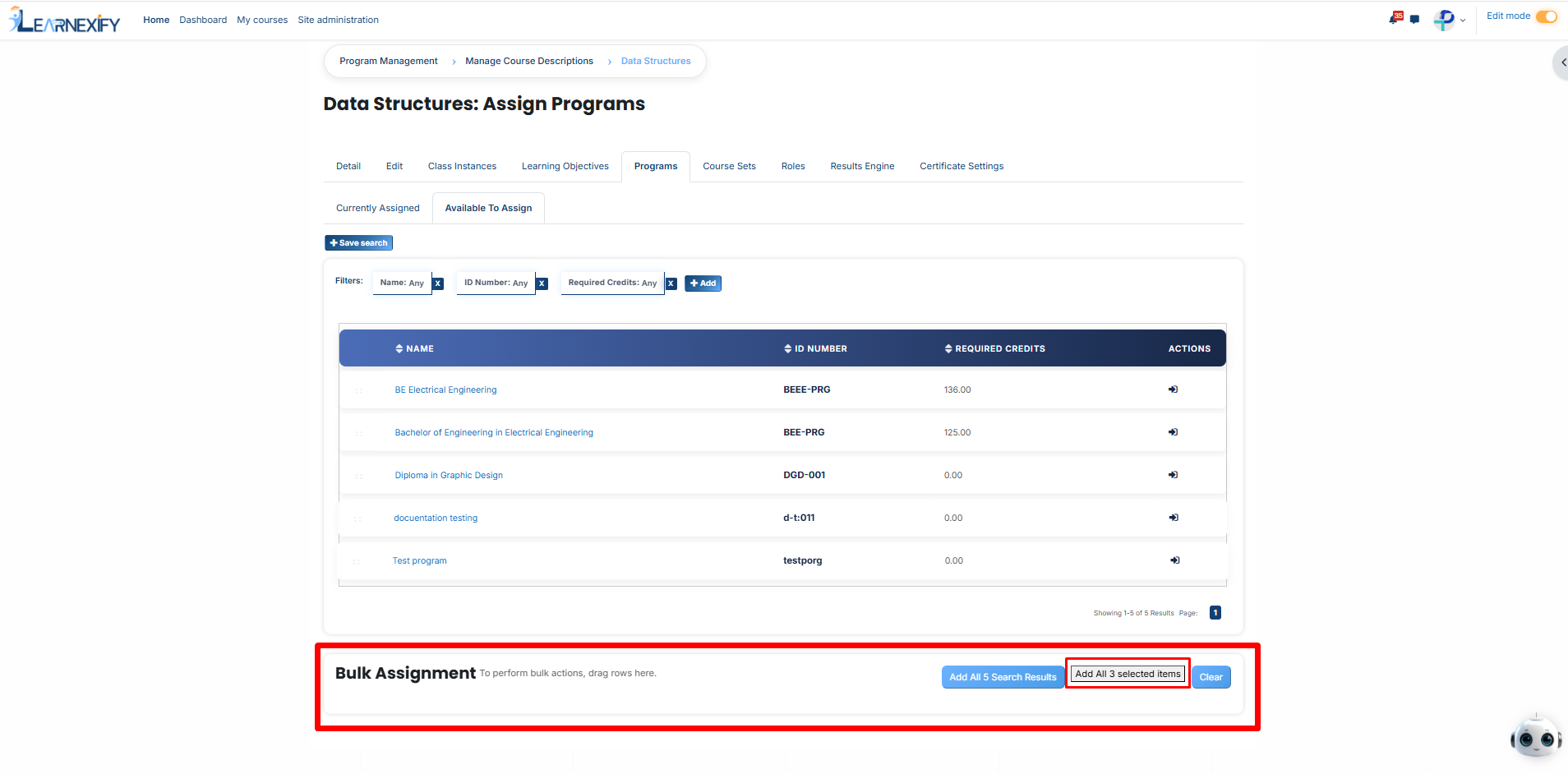
- Then click on the **Assign button** in the **Bulk Assignment Section** to move the programs to the assigned list.
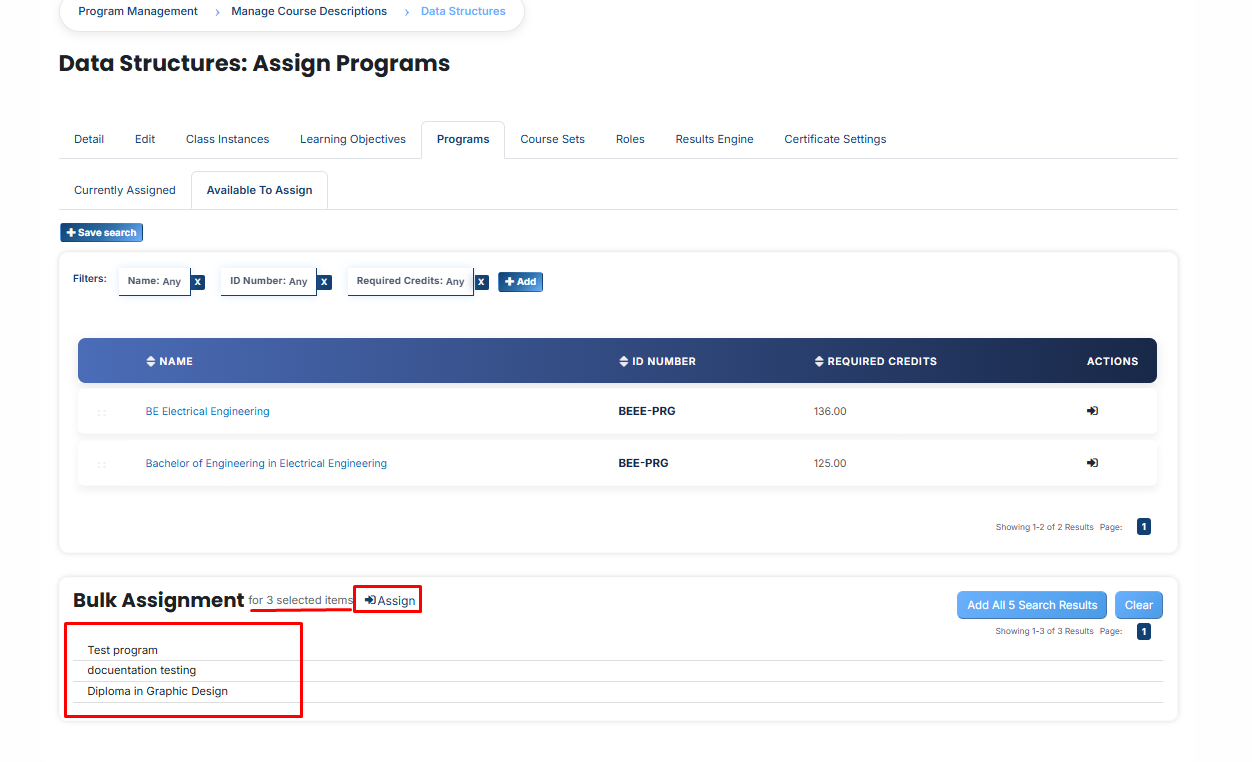
**Method 2:**
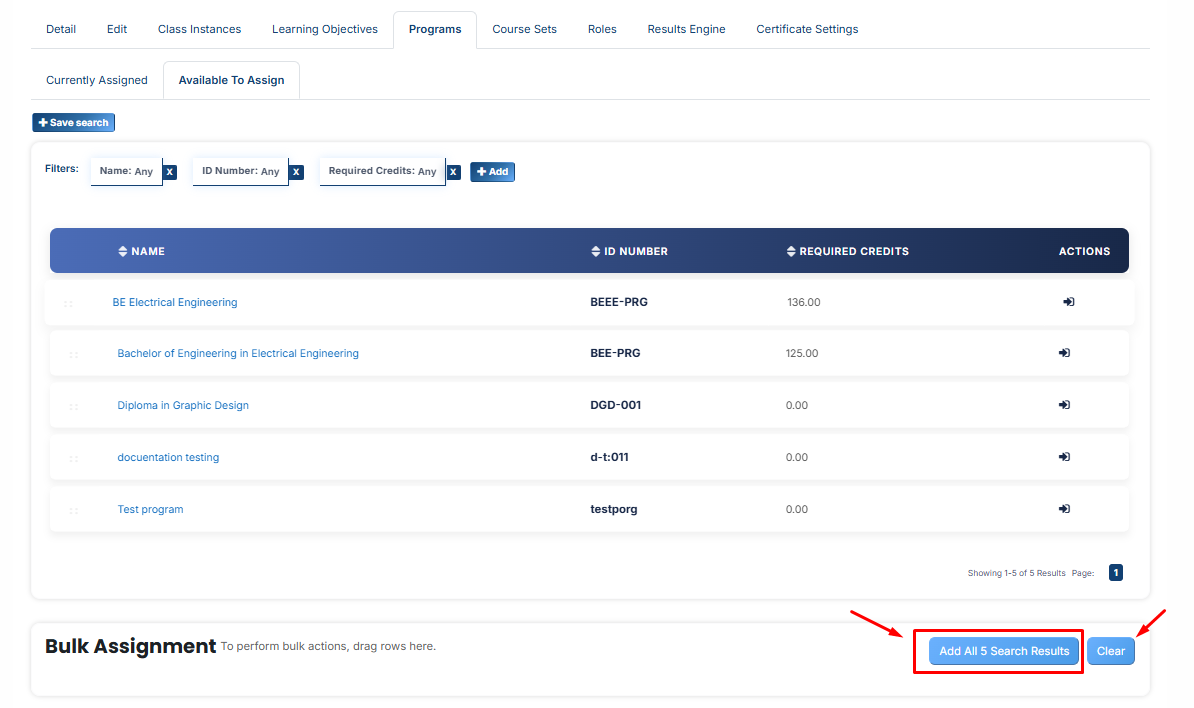
- Click the “Add All 5 Search Results” button to add all programs with a single click. The number displayed in the button (e.g., 5) may vary depending on the number of programs available in the search results.
- If you want to remove all selected programs and reset the search criteria to their default state, click the Clear button. This will clear all current selections.
---
# How to Assign Course sets in a Course Description
- Identify the specific course description you want to manage from the main list.
- Select the designated Course Sets icon for that particular course description.
[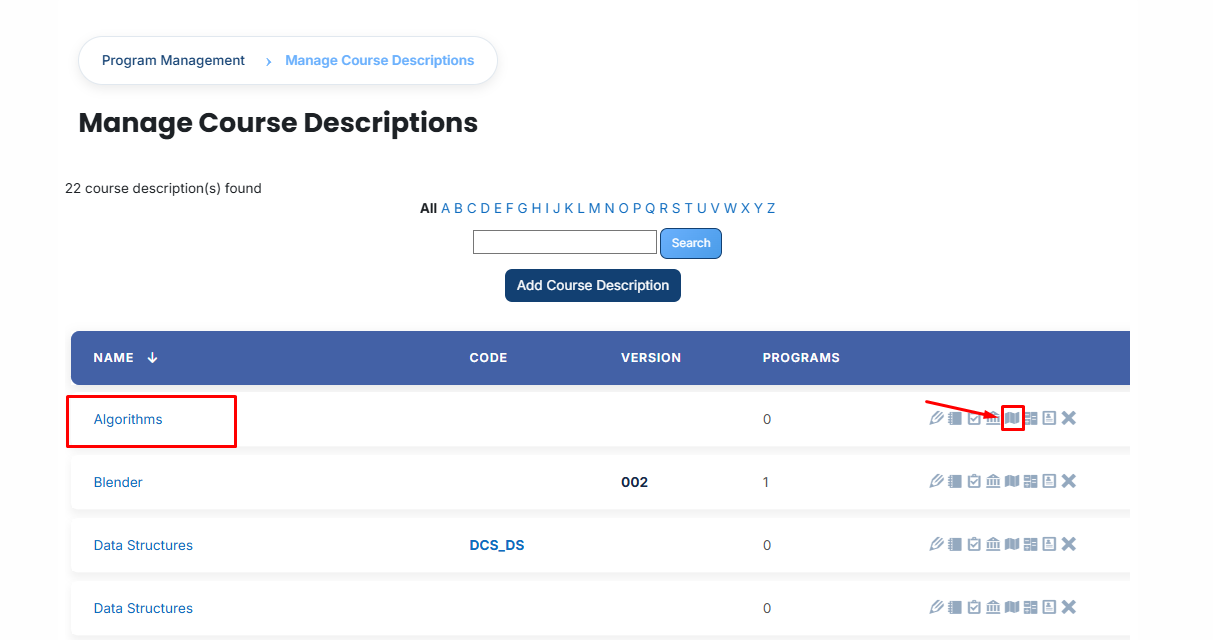](https://wiki.paktaleem.net/uploads/images/gallery/2026-07/1WKimage.png)
- Once the page opens, you will see the sets already connected to this course. To link additional ones, click the Available to Assign button.
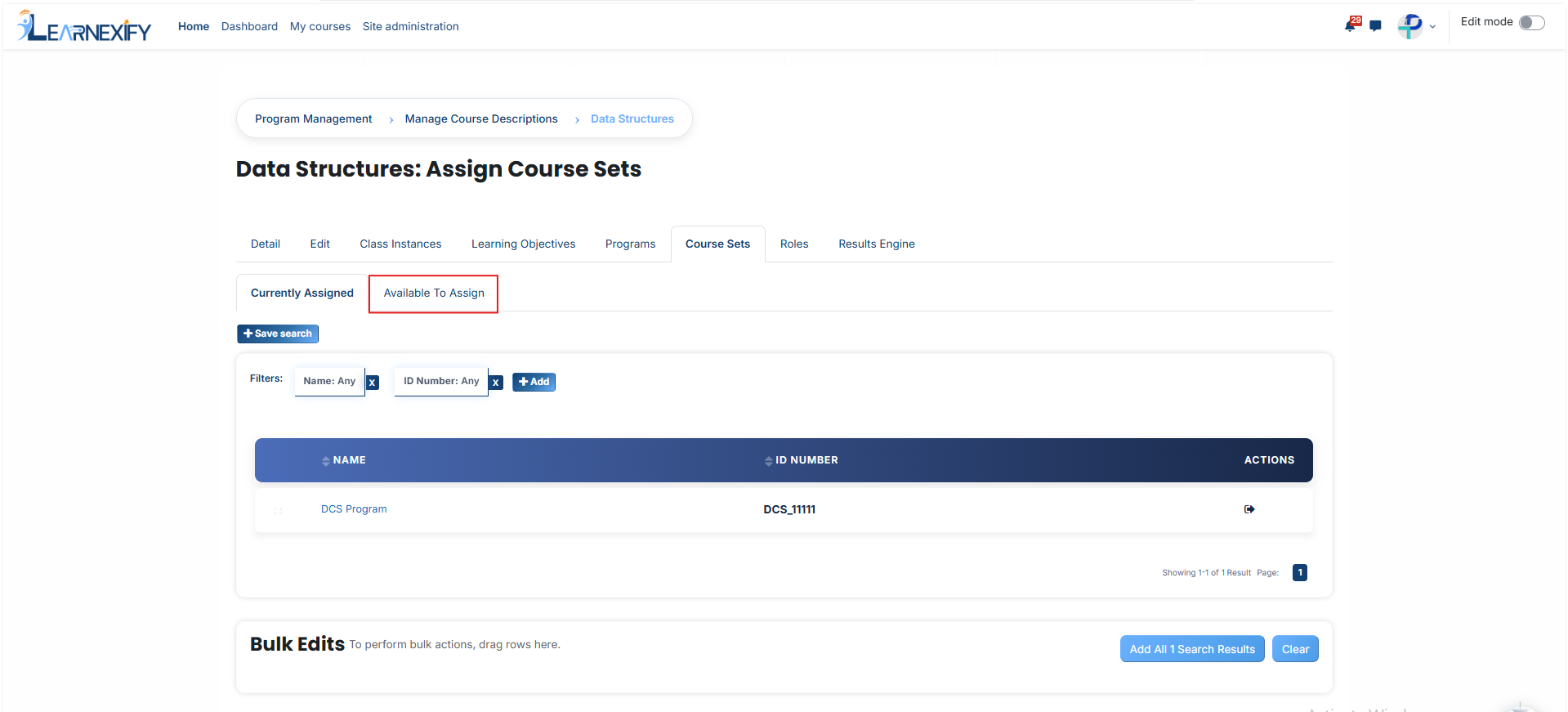
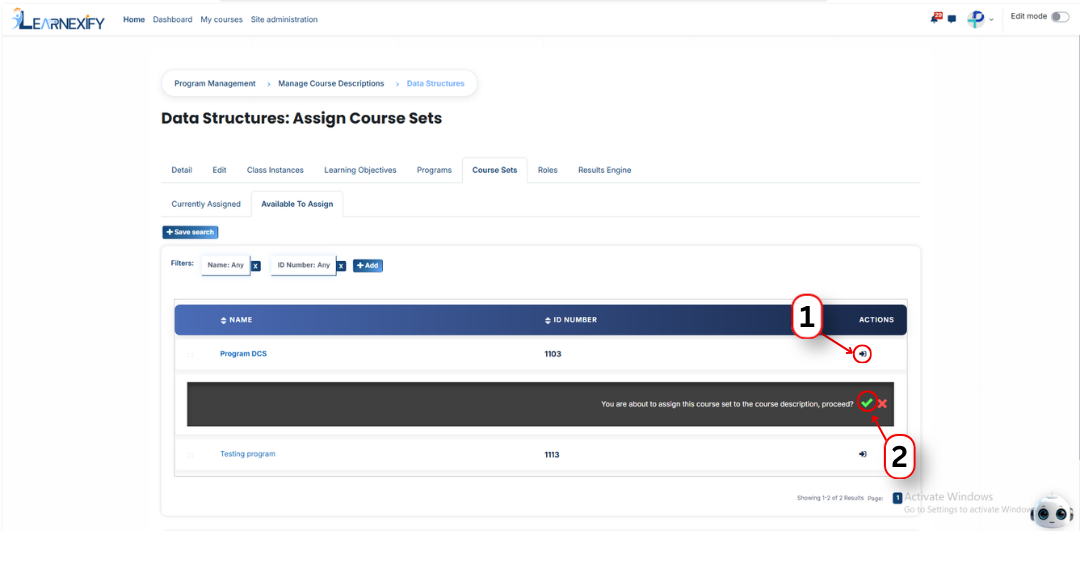
- Browse the list of available course sets. When you find the correct one, click the arrow icon to begin the process.
- Press the green checkmark (✔) to finalize and save the link.
- To confirm the setup is complete, navigate to the **Currently Assigned section** to view the **successfully linked course set.**
### **How to Create a New Course Set (If Not Found):**
- If you cannot find the specific **course set** in the list, you can locate it using the search filters:
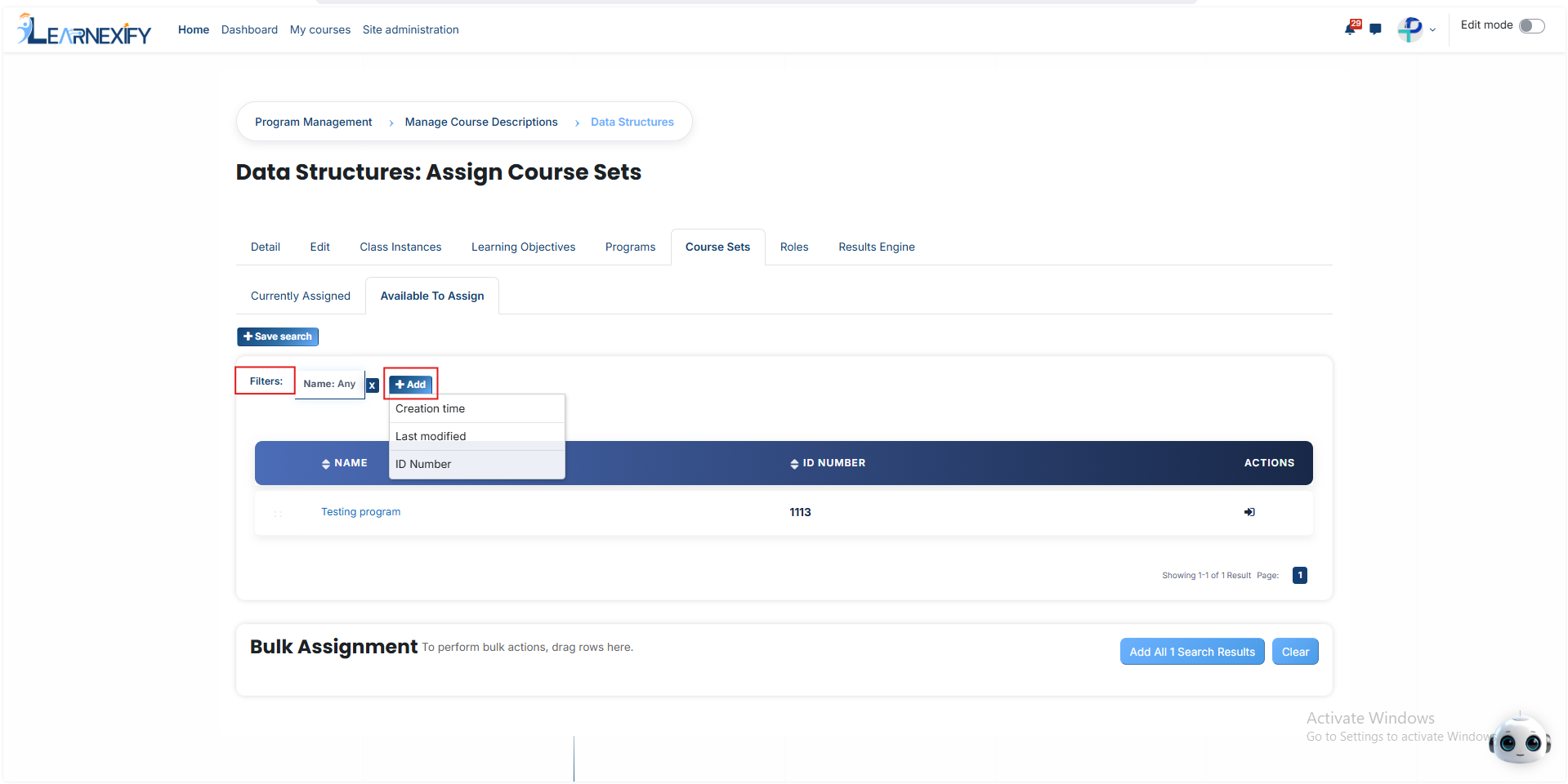
Stay in the Available to Assign section and look at the Filters area:
- Name: Type the title here to search by the name of the course set.
- ID Number: Enter the unique code to find a specific set.
- Creation time: Use this to filter results based on when the course set was originally created.
- Last modified: Use this to search based on the most recent update made to the set.
Once your required course set appears in the filtered results, you can select and assign it to your course description following the steps above.
#### **Bulk User Action:**
**Purpose:**
Use this feature to assign multiple Course sets efficiently.
**Method 1:**
- Select those course sets you want to assign.
- After making your selections, click the “Add All 1 Selected Items” button to add the selected course sets.
The number displayed in the button (e.g., 1) represents the number of items currently selected and will change depending on how many items you select.
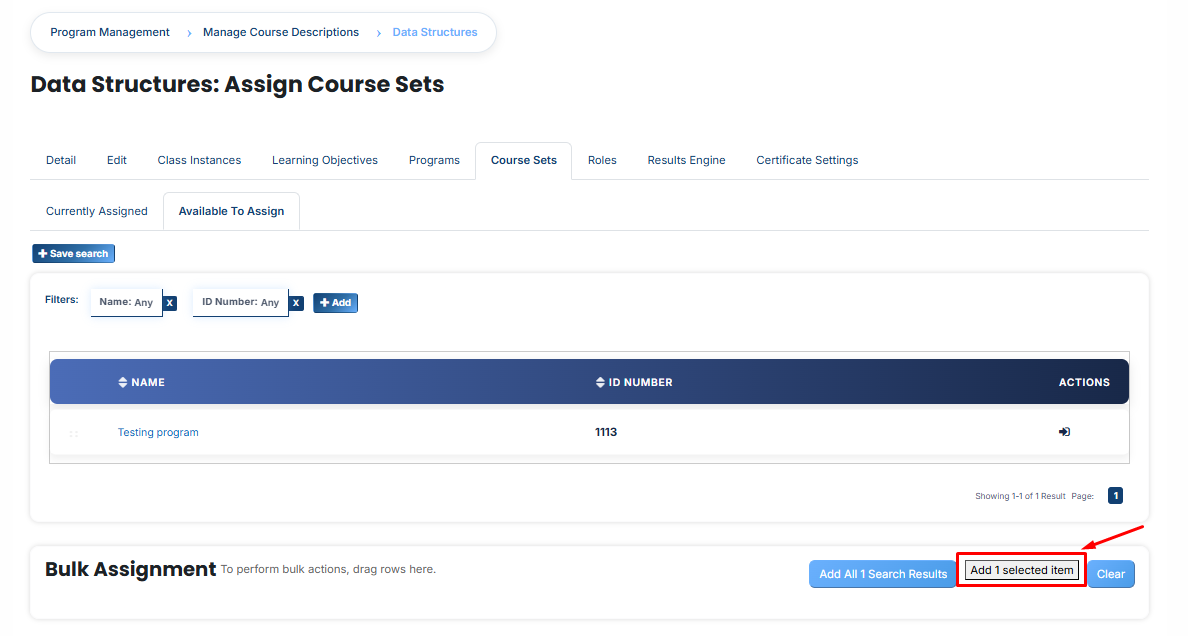
- Then click on the **Assign button** in the **Bulk Assignment Section** to move the course sets to the assigned list.

**Method 2:**
- Click the **“Add All 1 Search Results” button** to add **all course sets** with a single click. The number displayed in the button (e.g., 1) may vary depending on the number of **course sets available** in the search results.
- If you want to **clear everything**, click the **Clear button.**
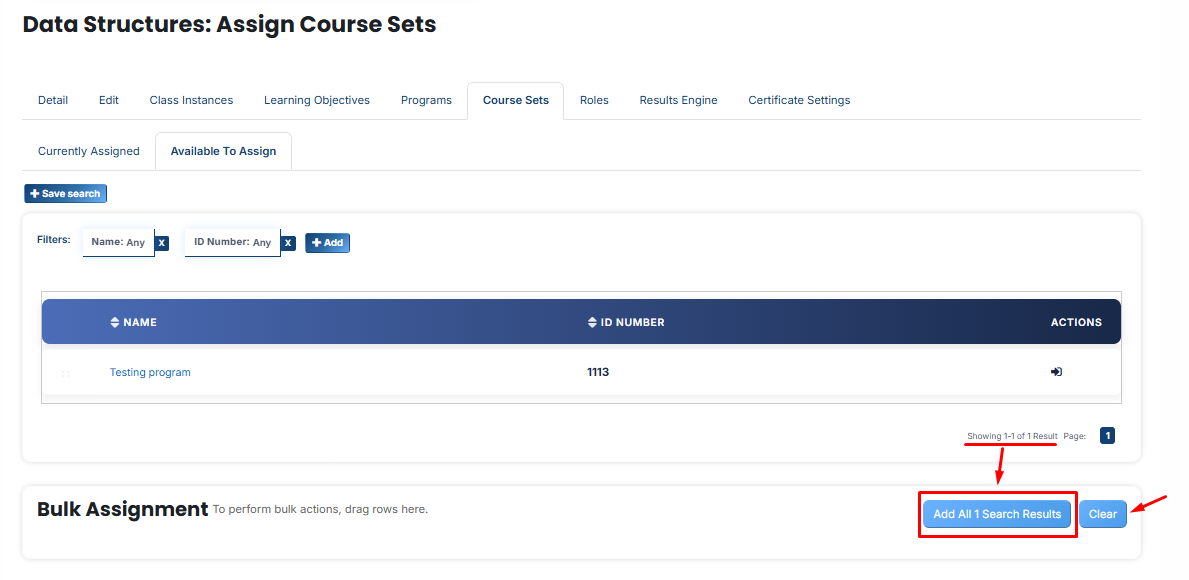
---
# How to Assign Roles in a Course Description
- Identify the particular course description you want to modify from the main list.
- Click that course description name and then click on the Roles tab.
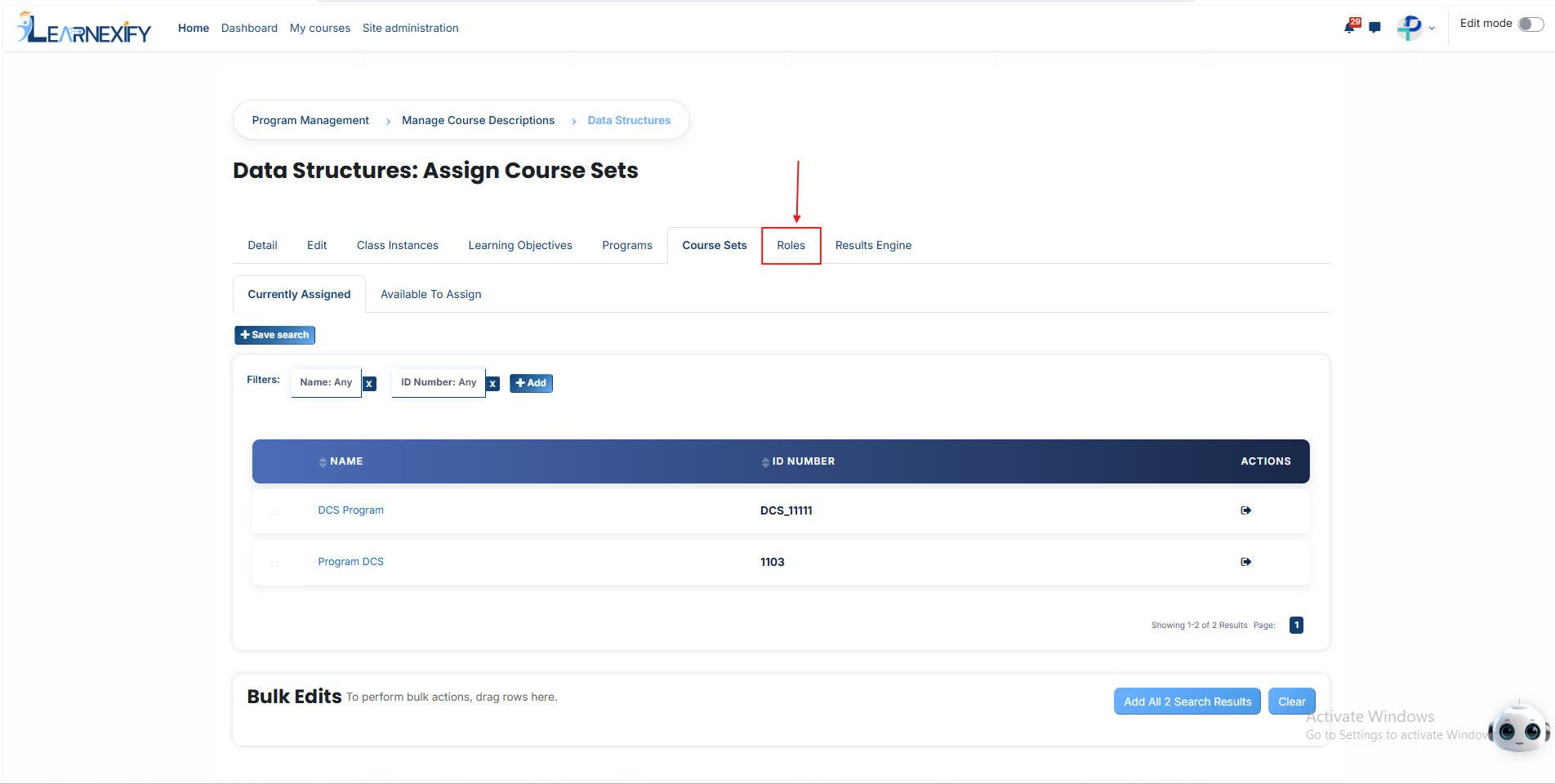
- You will see a list of available roles, such as **Course Creator** or **Editing Teacher.** Click on the **specific role name** to which you want to **add users.**
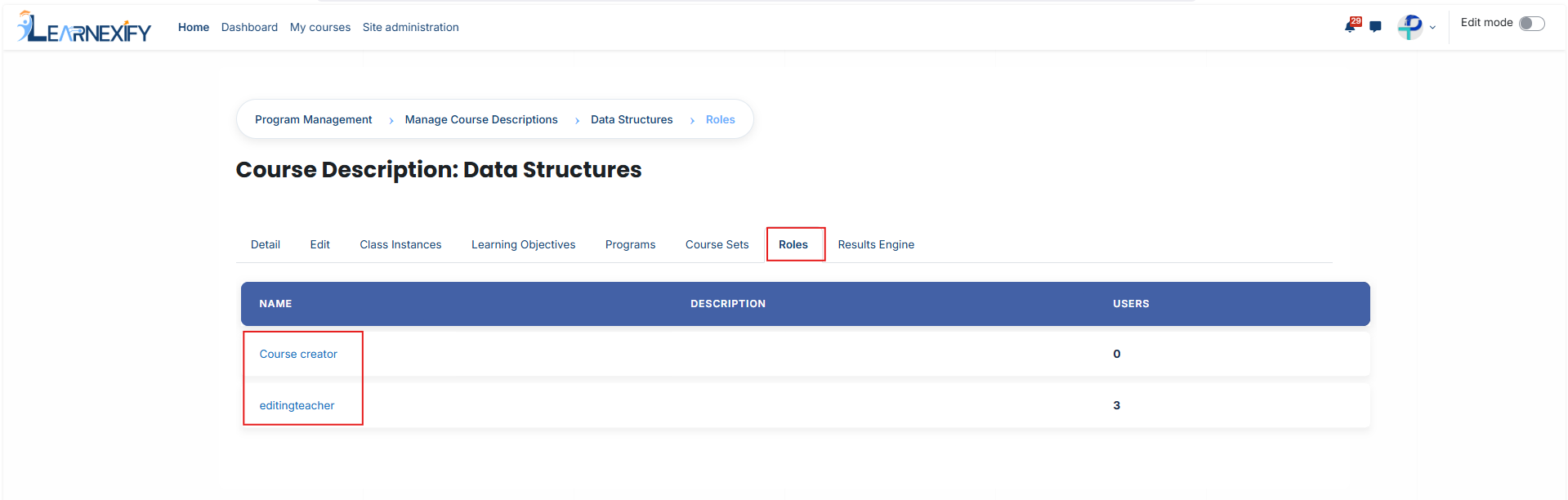
- The page will display a list of people who are **already assigned** to that **role**. To **add** new **people,** click the **Unassigned button;** this will show everyone who does not yet have this role.
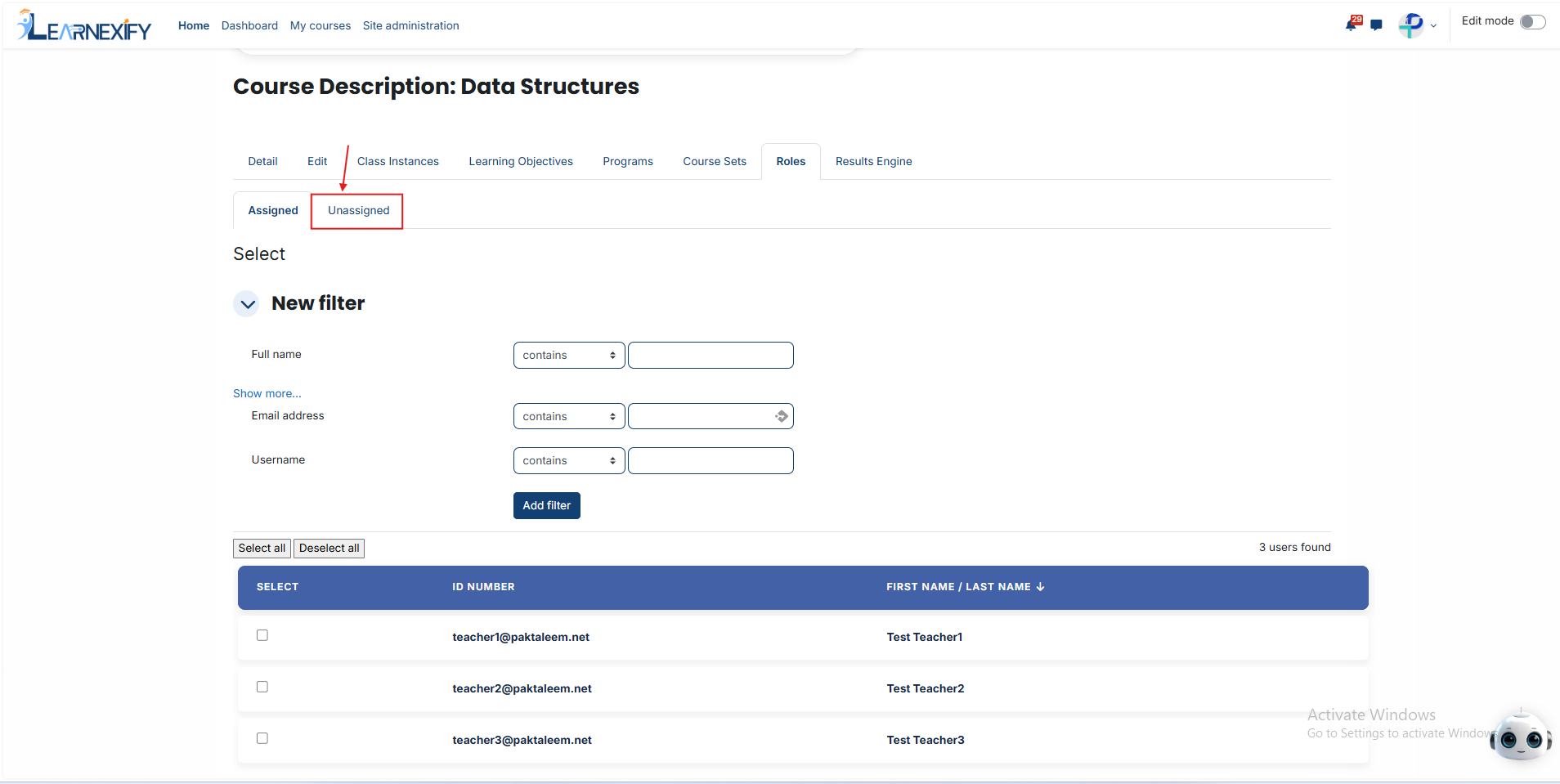
- Find the person you want to **add** and select **their name.**
- Scroll to the bottom of the **page** and click the **Assign Roles button** to **finalize** the process.
### **How to Find Specific Users (Using Filters):**
- If you are looking for a specific person and the list is **too long,** follow these steps:
- Use the Filter section at the **top** of the **user list.**
- You can search for a person by adding a **filter** for their **Email Address, Username, or Full Name.**
- After entering the information, click **Add Filter.**
- Once the system finds the **correct user** in the results, **select** their **name**, scroll down, and click **Assign Roles** to complete the assignment.
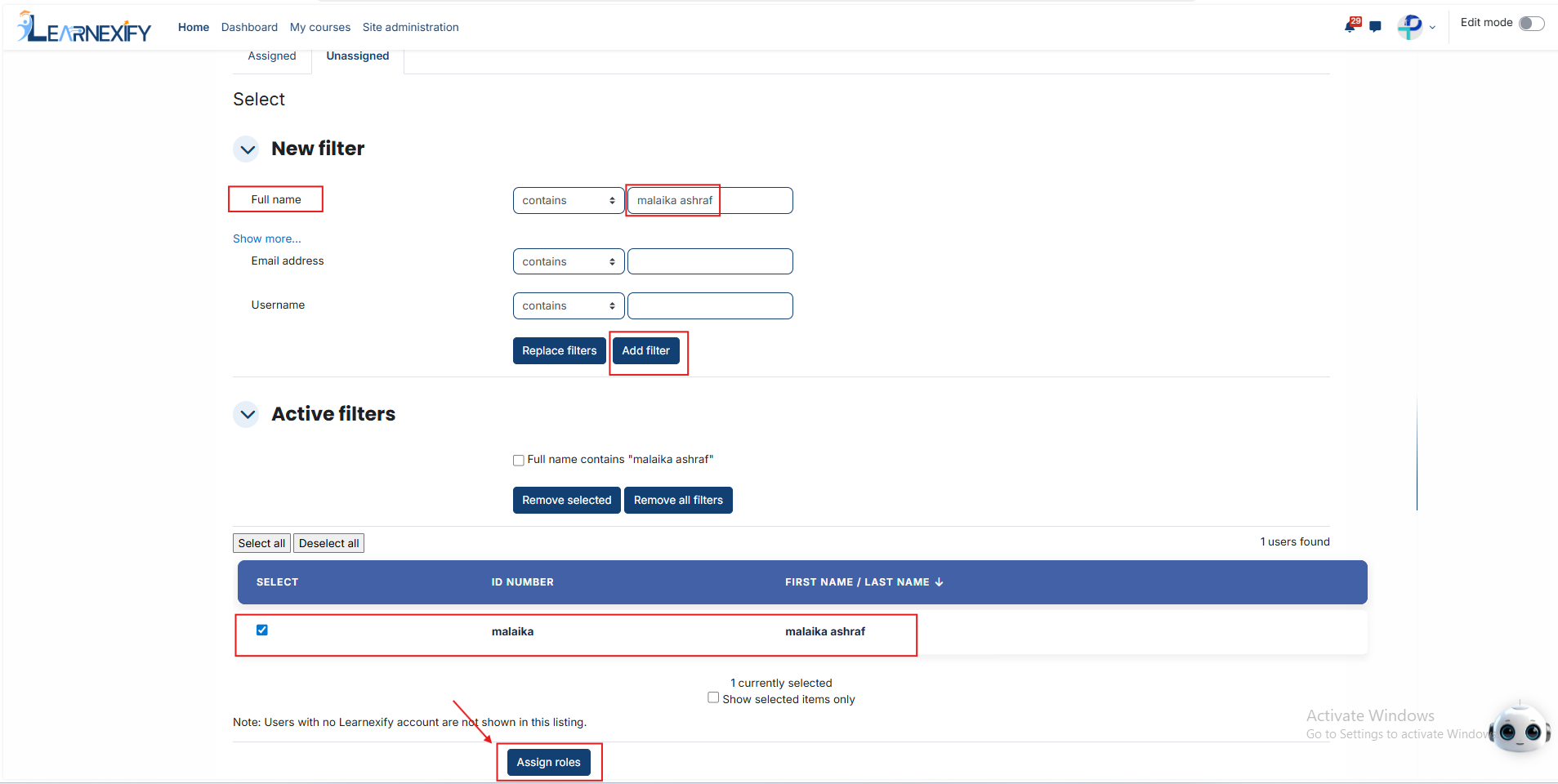
---
# How to Configure the Results Engine in a Course Description
### **Purpose of the Results Engine:**
The Results Engine is an automation tool used to trigger specific actions based on student performance. Its purpose is to automatically move students to new tracks or classes, or update their profiles, once they reach a predefined grade or completion status.
### **Why it is Required:**
It is required to eliminate manual administrative work and reduce human error. By configuring this engine, you ensure that students can progress through their learning path instantly the moment they pass, without needing an administrator to enroll them manually.
### **Configure the Results Engine:**
- From the main list of Course Descriptions, select the specific course you wish to manage and click on the Results Engine icon.
[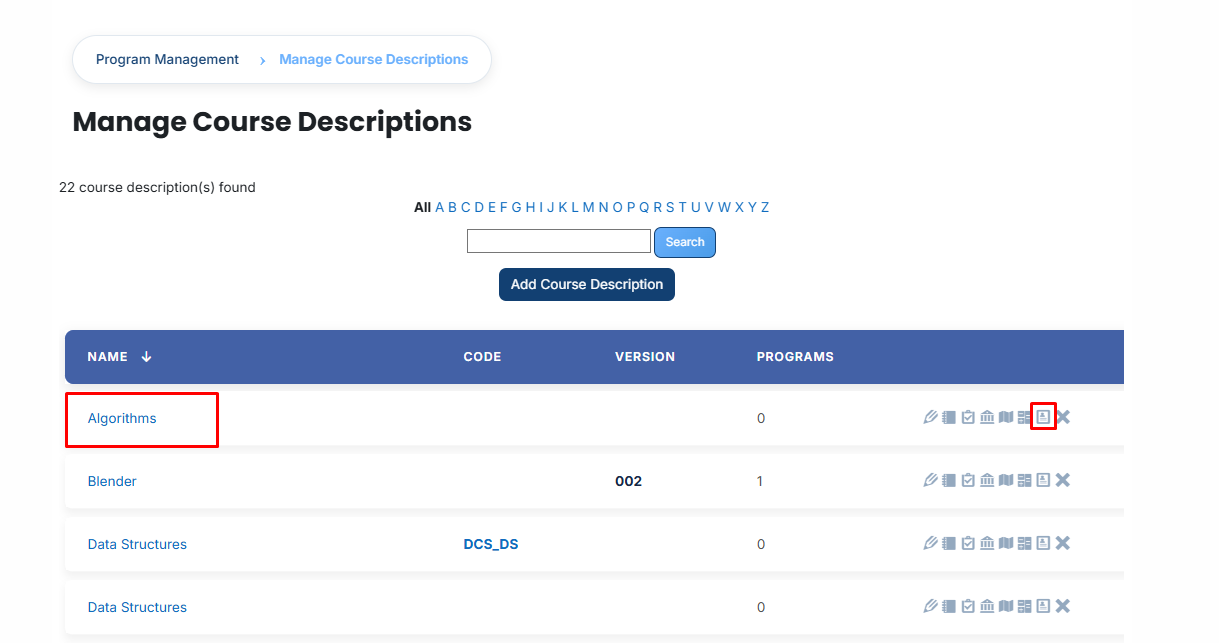](https://wiki.paktaleem.net/uploads/images/gallery/2026-07/qFHimage.png)
- Click the **Results Engine Status Report** link to access the execution history. This report provides a **detailed table** of which **course instances** were processed, their **scheduled times**, and the **actual run dates**, serving as a vital audit tool for administrators.
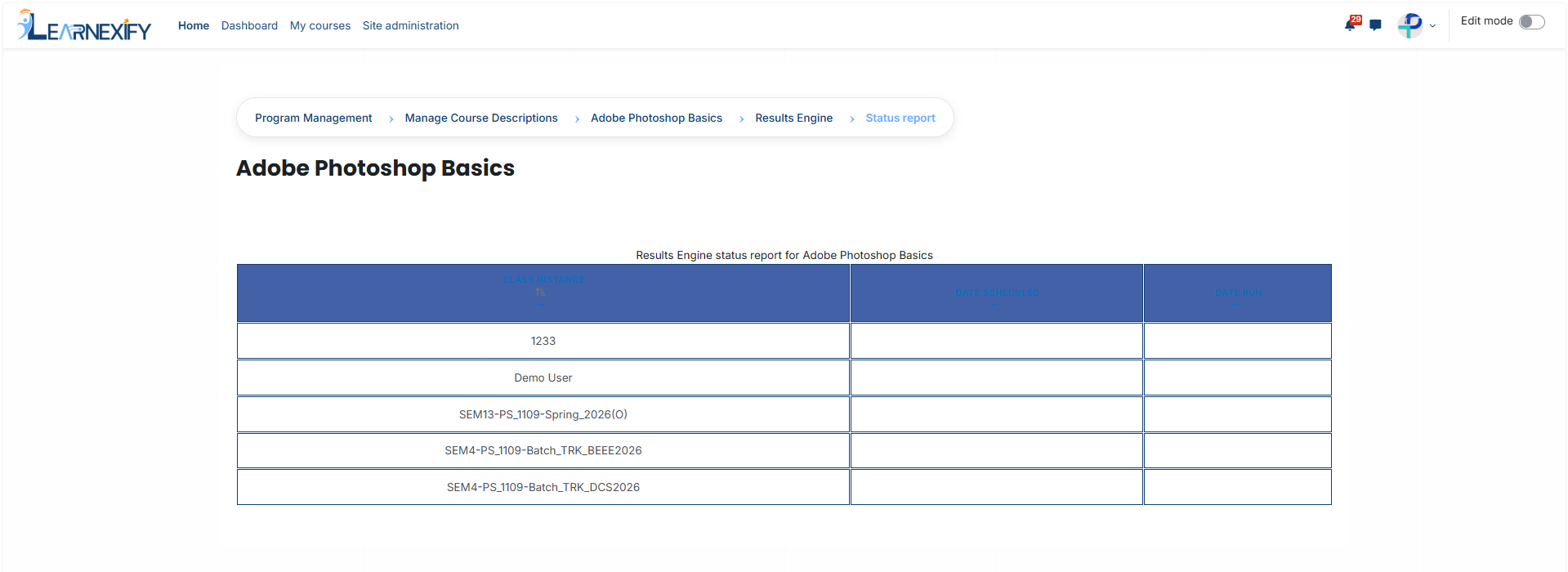
#### **Activation Rule:**
Enable the Activate this results engine checkbox to authorize the system to perform automated actions.
- **Logic:** When checked, the system actively monitors grades and executes rules. If left unchecked, the engine remains idle, and no automated updates will occur, even if rules are defined.
#### **Event Trigger (Timing Rules):**
Define exactly when the system should evaluate a learner's performance:
- **When Student grade set:** The engine triggers as soon as a score is saved.
- **Sub-option:** Use locked grades only: When enabled, the system waits until the grade is officially finalized (locked) before acting. This prevents premature automation on draft or temporary grades.
- **On \[X\] days after course instance start date:** The system waits for the specified number of days after the class begins before running the evaluation.
- **Manual trigger only:** The system remains completely passive and will only execute when an administrator manually triggers the engine via the Status Report.
#### **Evaluation Criterion: **
Use the dropdown menu to select the data source for evaluation, typically the course instance grade. This tells the engine which specific score value should be used to determine the result.
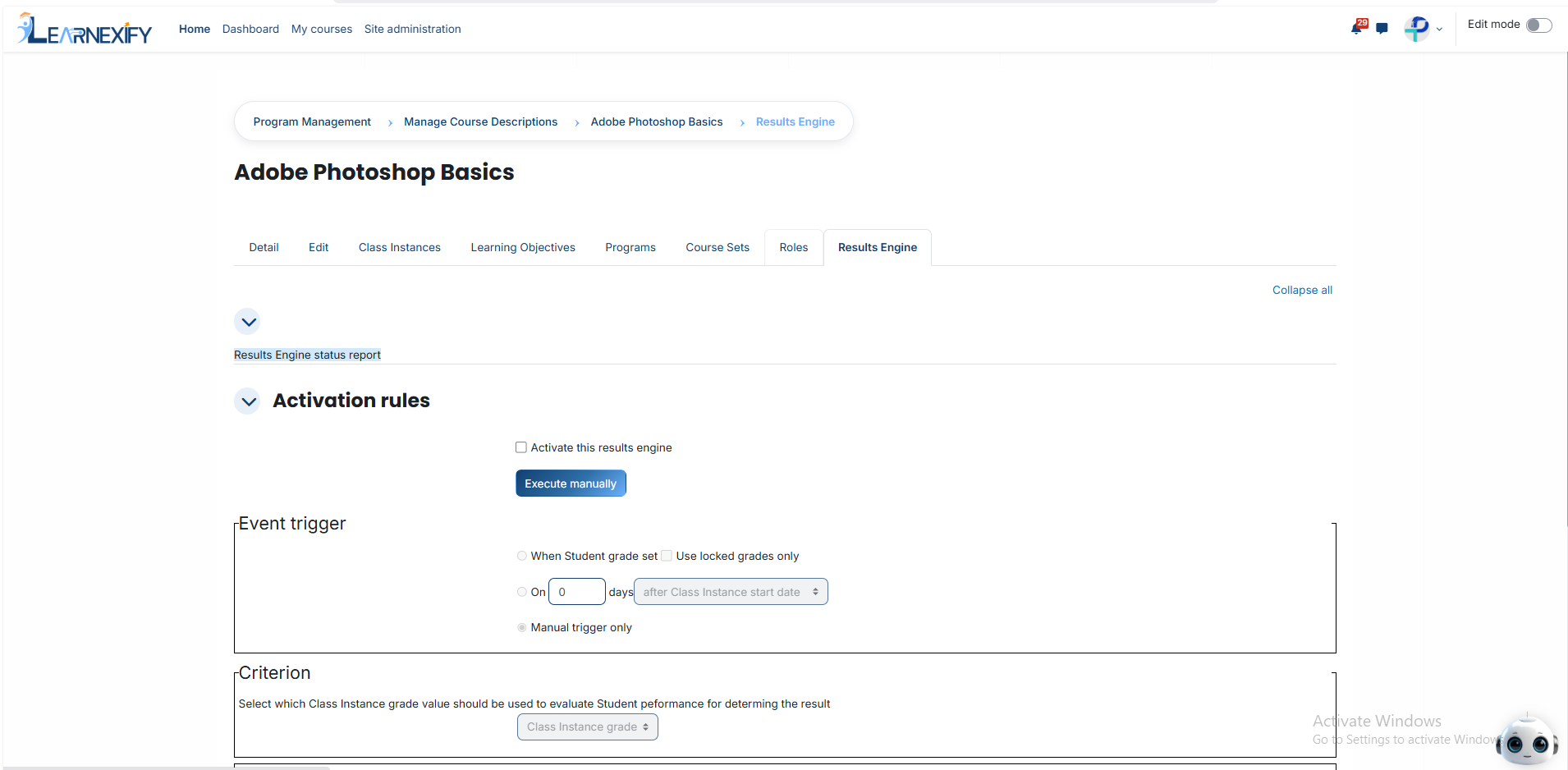
#### **Automated Actions (The If/Then Logic):**
For each action below, you must define a Score Range (Minimum and Maximum). If a learner’s score falls within that range, the system executes the assigned action:
#### **Assign to batch:**
- **Purpose:** Automatically enrolls the learner into a new learning path. This is commonly used for Promotion (moving up a level) or Remediation (assigning foundational work if a score is low).
- **Configuration:** Click Select batch to open a search window. Locate the desired batch by name or ID and select it to link the score range.
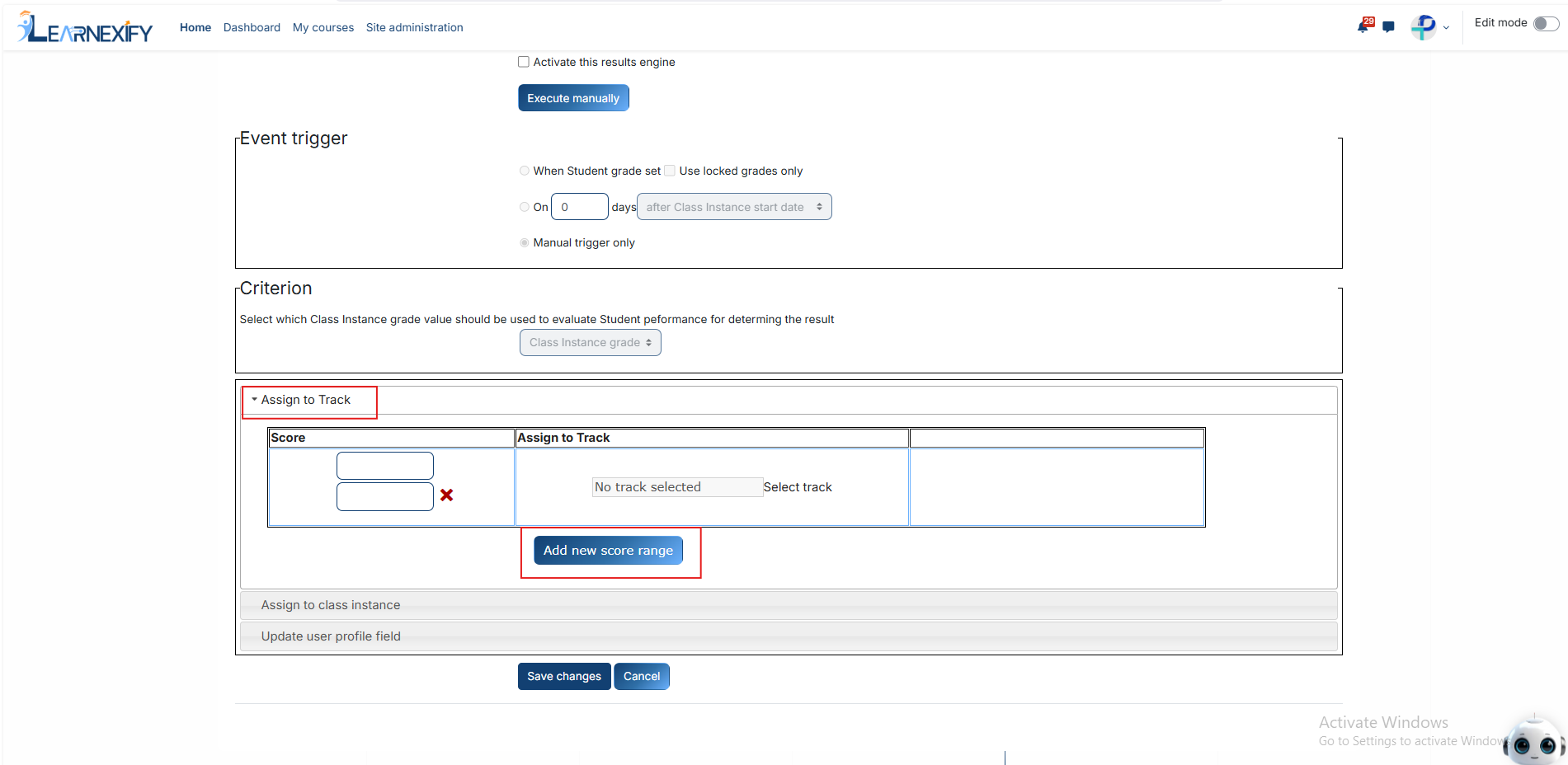
#### **Assign to course instance:**
- **Purpose:** Enrolls the learner directly into a specific class batch or section.
- **Configuration:** Click Select course instance and use the search tool to identify the target batch. This is effective for moving learners immediately into a "Retake" or "Level 2" batch.
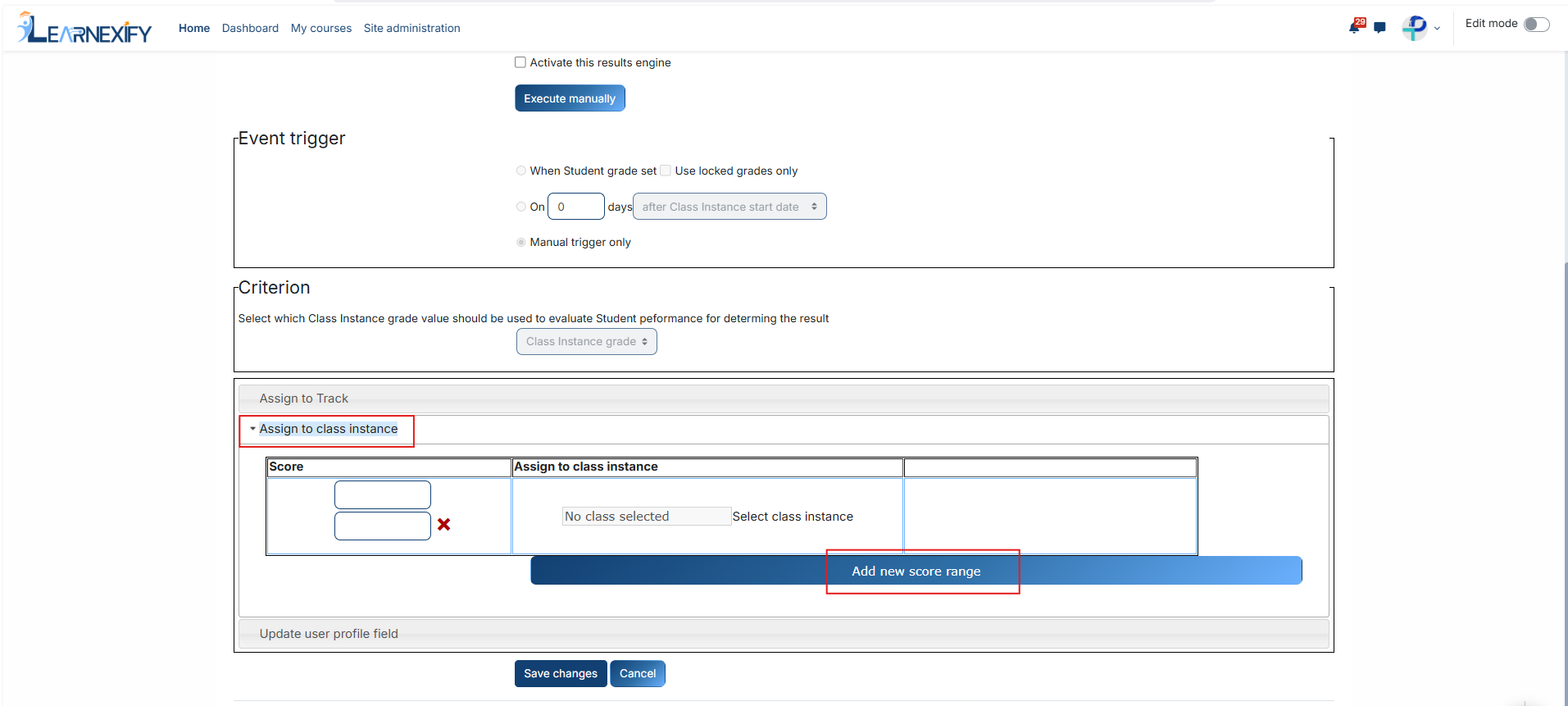
#### **Update User Profile Field:**
- **Purpose:** Modifies a permanent field in the learner’s profile to reflect their new status or skill level.
- **Configuration:** Choose a custom Profile Field (e.g., Skill Level or Certification Status). Select a Value from the menu (e.g., Master or Level 1). This allows for automated competency tracking in institutional reports.
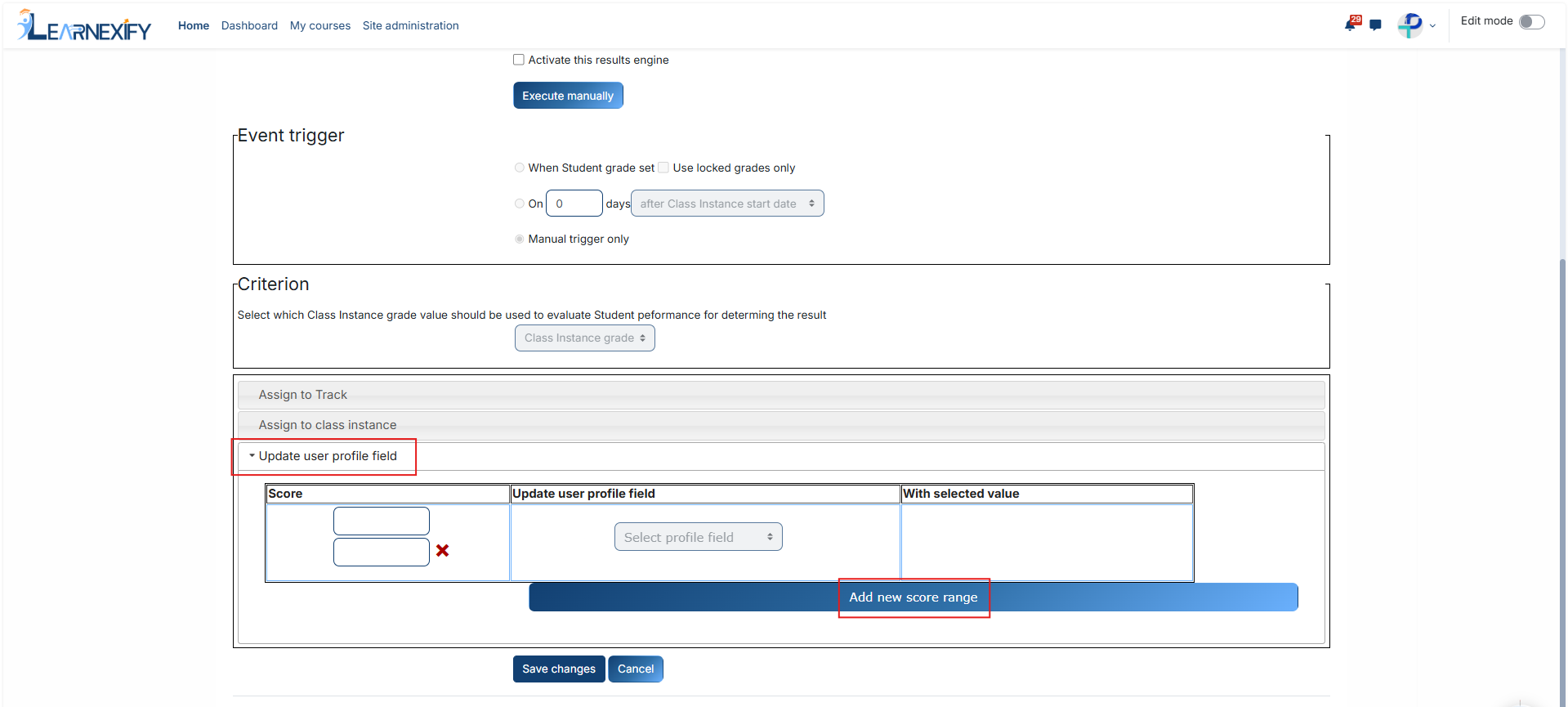
#### **Finalization:**
- - Click Add new score range to create multiple, distinct rules (e.g., one rule for failing scores and another for passing scores).
- Select Save Changes at the bottom of the page to finalize the configuration and activate the automated workflow.
---
# Manage Course Instances
# Learnexify Course Instances
A course instance in Learnexify refers to a specific, active batch or session designed for student enrollment and instruction. It acts as the operational hub for managing schedules, participant limits, daily timings, and academic workflows within a defined timeframe. Essentially, course instances allow for the structured organization and management of all active learning sessions in the system.
---
### **How to Create a course instances**
- After logging in, on the dashboard.
- Open the side drawer.
- Click on Program and select Manage course instances.
[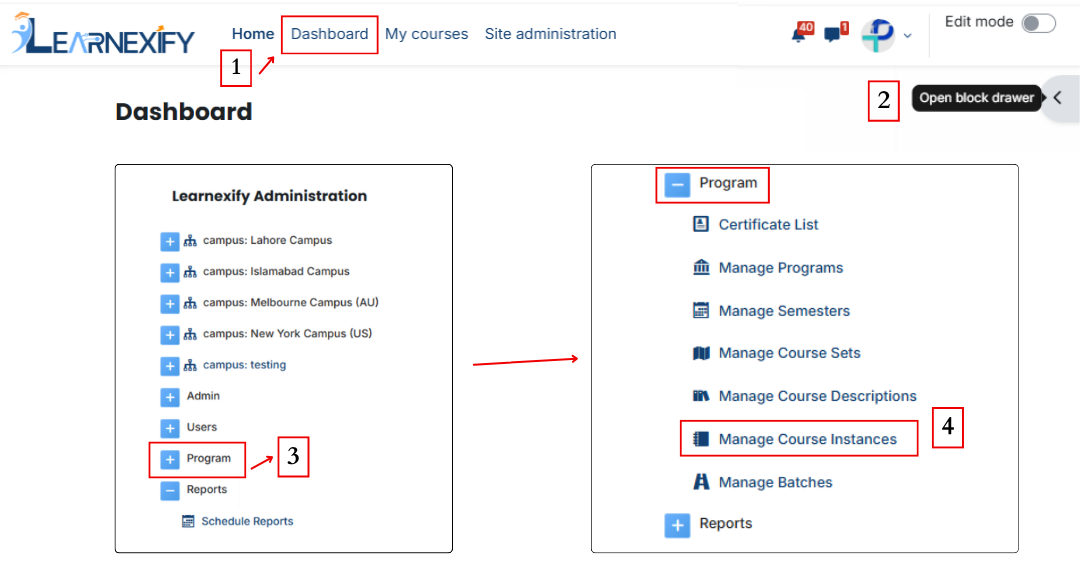](https://wiki.paktaleem.net/uploads/images/gallery/2026-07/page-edits2.png)
- Upon selection, a management page will be displayed showing a list of all **existing course instances.** To create a new **course instance**, click the “**Add course instance”** button.
[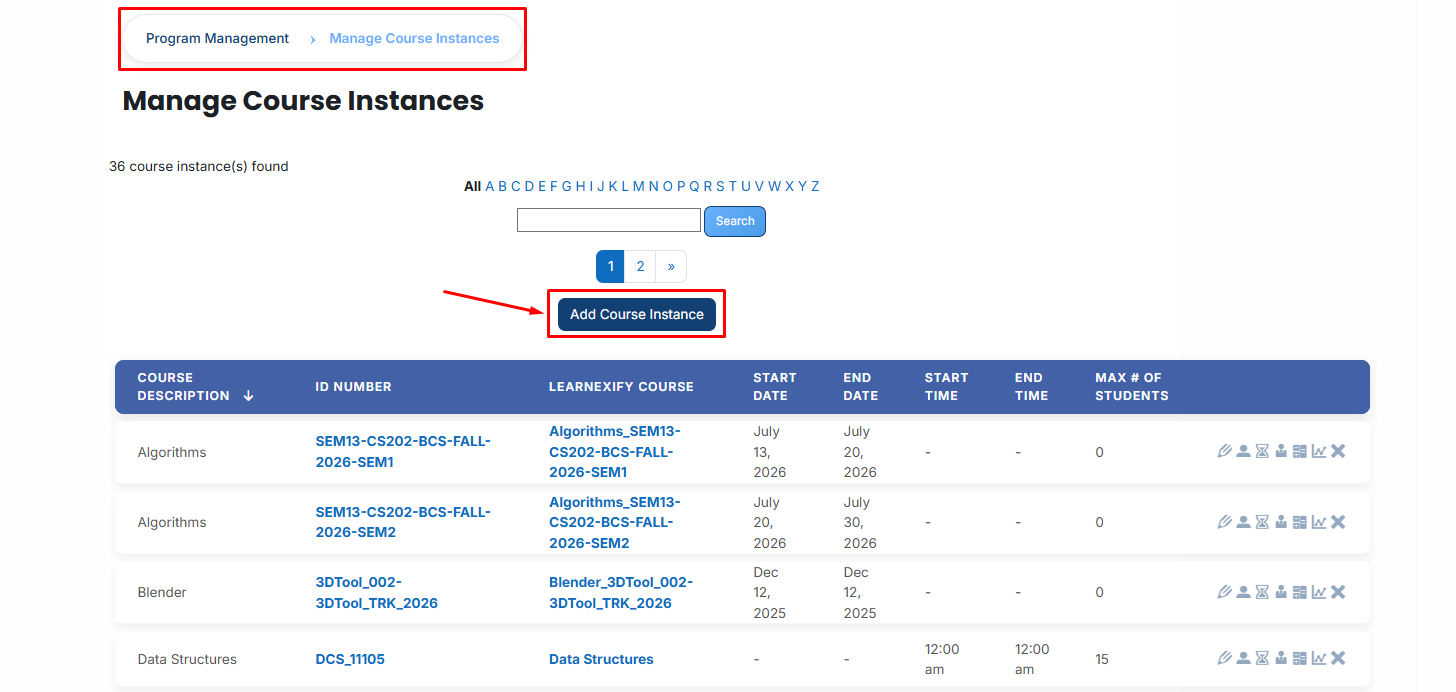](https://wiki.paktaleem.net/uploads/images/gallery/2026-07/ZO9image.png)
### **Fill in the following details:**
- **Course Description**
This field shows the main course name and code. It acts as a confirmation so you know exactly which parent course you are creating a specific class batch for.
- **Assigned batches**
This section displays the learning batches or groups that are already added to this class.
#### **How to Assign a batch:**
If you need to assign a batch to this course instance, follow these steps:
- From the Learnexify Dashboard, open the Learnexify Administration block from the Side Drawer , click on Program, and then click on Manage batches.
- Open the specific batch you want to assign a course instance to.
- After opening the batch, click on the course instance tab where you will see your already created instances.
- If you want to assign more, click the Available to Assign button.
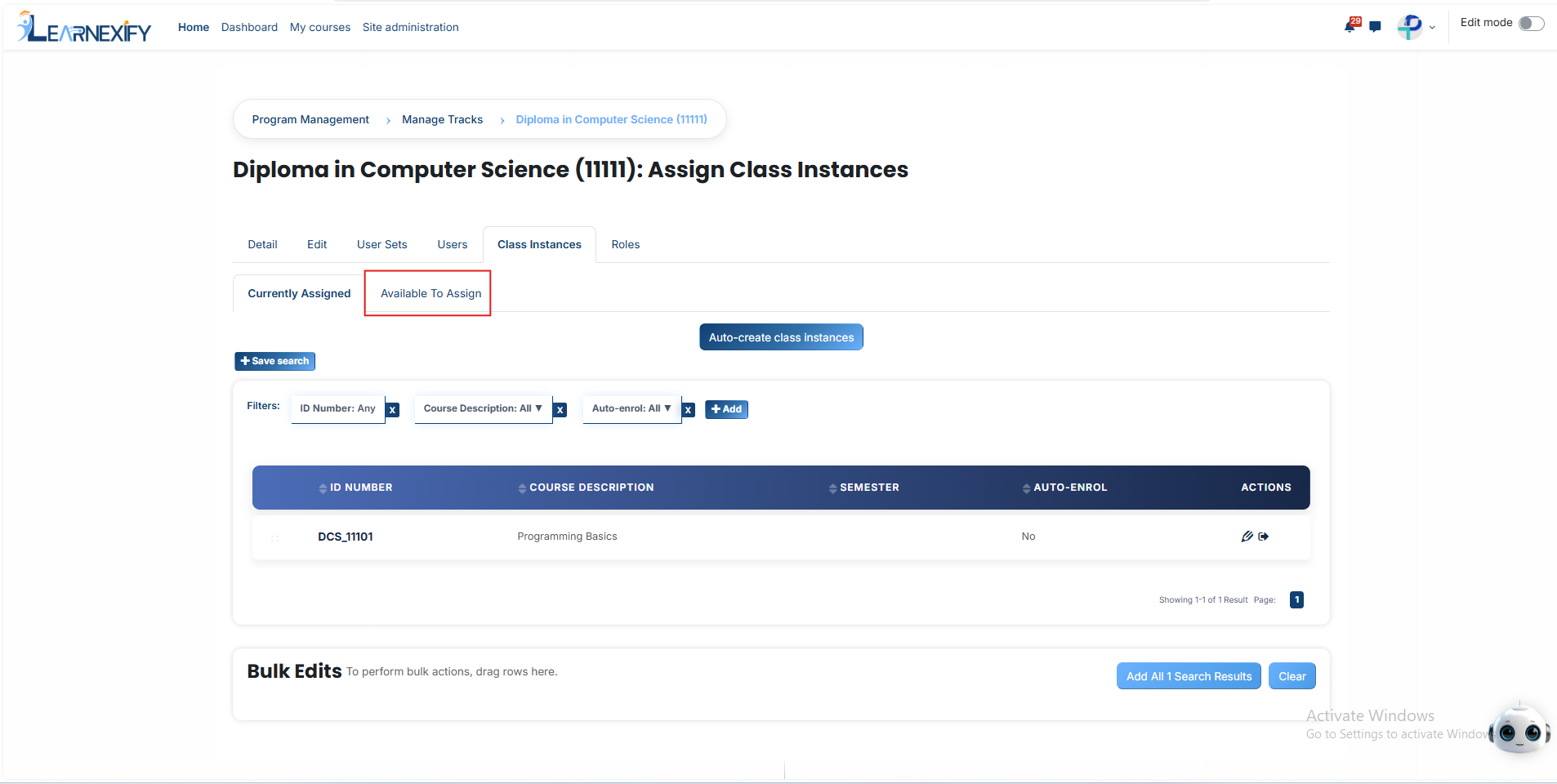
- Select the course instance you want to link and click the **arrow button.**
- **An option will appear: "Auto-enroll users into this course instance when they are added to this batch."**
- This allows the system to automatically enroll any student into this specific course instance as soon as they are added to the batch, saving you the time of doing it manually.
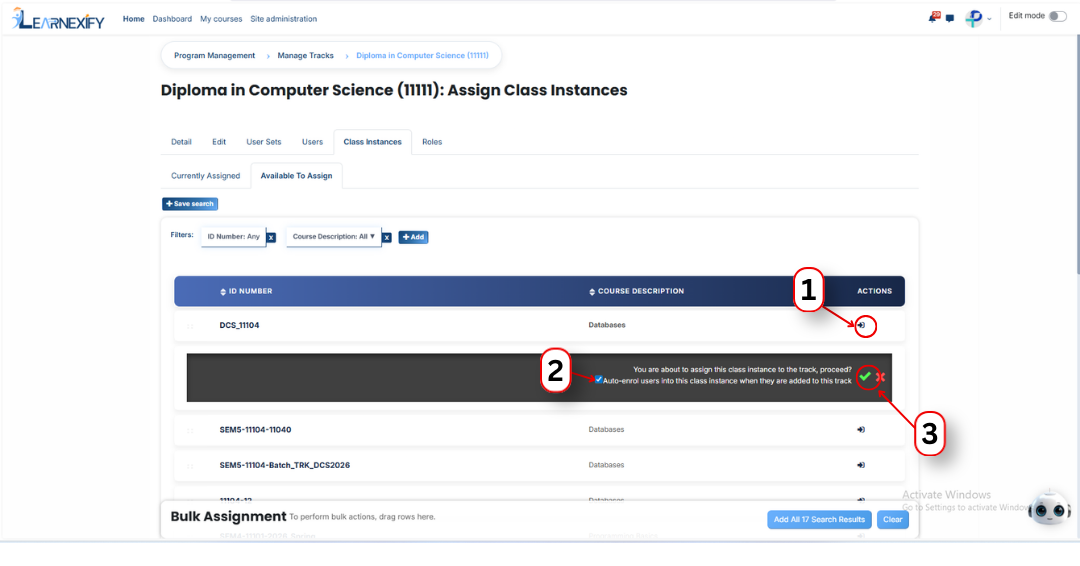
- Select the option and **click the green tick icon.**
Now, go back to the course instance creation form and reload the page; the batch will now show as assigned to this course instance.
- **Unassigned batches**
This field is used to select and add new batches or groups to this class that have not been linked yet.
- **ID Number (Required)** Enter a unique name or number for this class batch (e.g., Batch-01-2024). This field is mandatory and helps the system identify the specific session.
- **Start Date**
Check the 'Enable' box to select the specific calendar date when the course should officially start.
- **End Date**
Check the 'Enable' box to select the date when the course should officially finish.
- **Start Time**
Set the exact time when the class starts daily. Use the ‘Disable’ checkbox if there is no fixed daily time (e.g., for self-paced courses).
- **End Time**
Set the time when the class ends daily. Use ‘Disable’ if there is no fixed finishing time.
- **Max # of Students**
Enter the maximum number of students allowed to join this batch. This helps manage classroom or server capacity.
- **Expiration Duration**
Enter how long a student will have access to the course after they enroll (e.g., enter 1m for 1 month). This ensures students finish their studies within the allotted time.
- **Notification Duration**
Enter how many days or weeks before the course ends a student should receive an automated reminder. (Example: 1w for one week).
- **Learnexify Course**
Select the specific online course module from the dropdown list that you want to connect to this class. This is the material the students will actually study.
- **Auto Create Course from Template**
If checked, the system will automatically create the online course for you using a pre-defined "Master Template," saving you from setting it up manually.
- **Auto Enrol from Waitlist**
If checked, the system will automatically add the next student from the waitlist if a seat becomes empty because another student left.
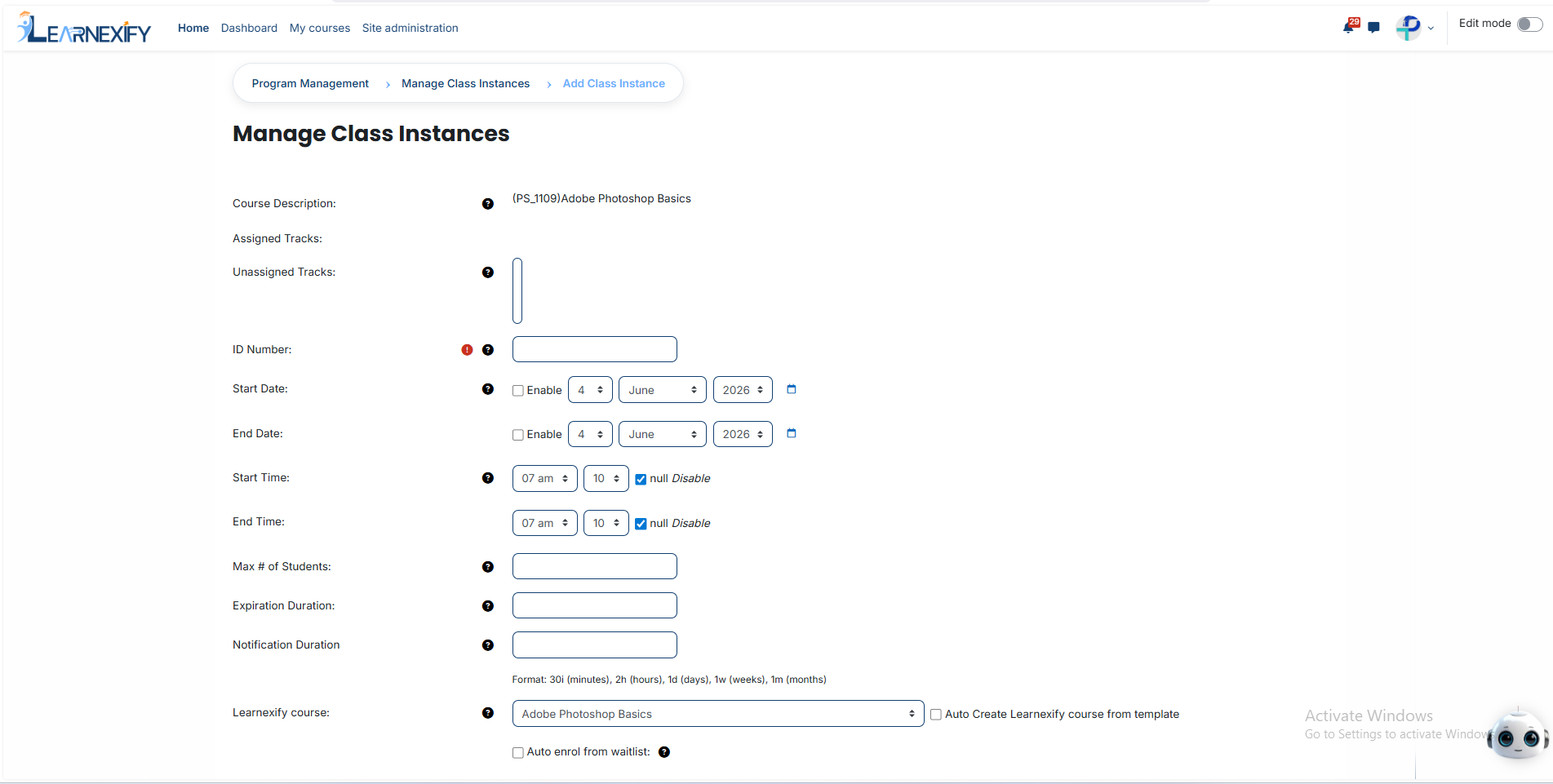
#### **Finalizing the Process:**
After entering all the required information, scroll to the bottom of the page and click the Save Changes button to successfully create the course instance.
After clicking 'Save Changes', the course instance will be displayed in the course instance list. An explanation of each icon is provided below.
[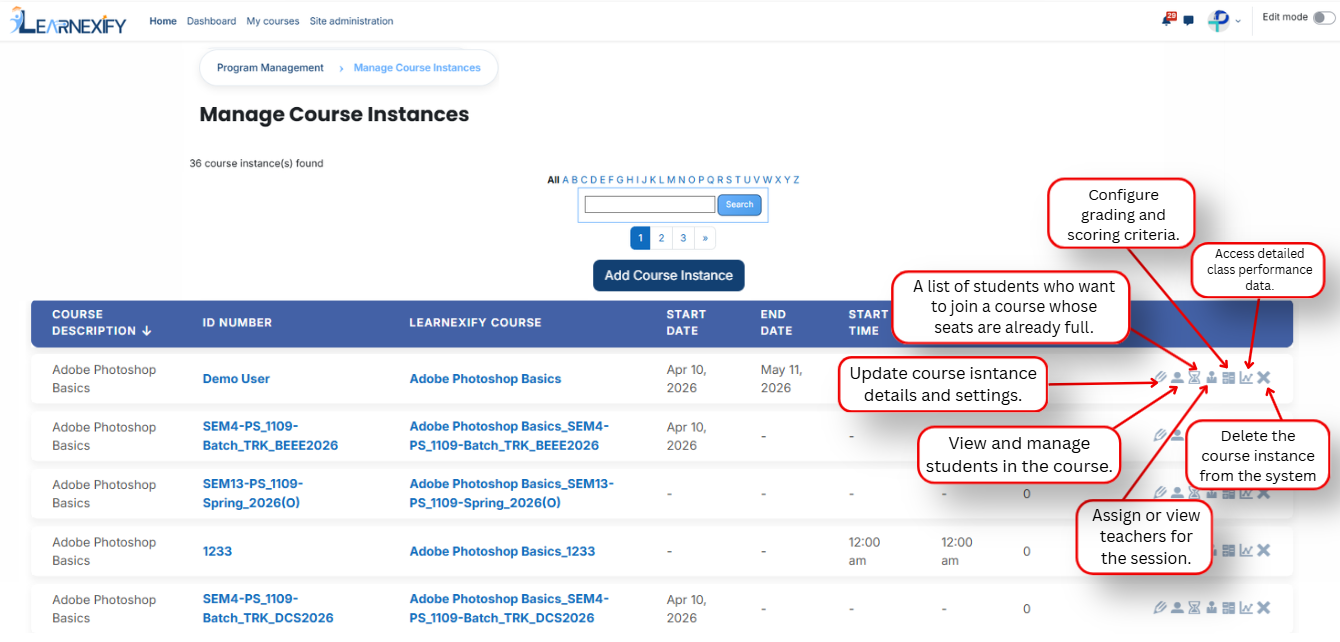](https://wiki.paktaleem.net/uploads/images/gallery/2026-07/pfYimage.png)
---
# How to Edit a Course instance
To edit a **course instance,** follow the steps below:
- Begin by navigating to the Learnexify Dashboard and expanding the side drawer menu. From the available options, select Program and then click on Manage course instances.
[](https://wiki.paktaleem.net/uploads/images/gallery/2026-07/page-edits2.png)
- A comprehensive list of all active and past **course instances** will be **displayed.** Browse through the list to identify the specific session you wish to modify.
- Click on the **Edit icon located** next to the relevant **course instance**. This action will open the **configuration** form in **edit mode**, displaying all currently saved details.
[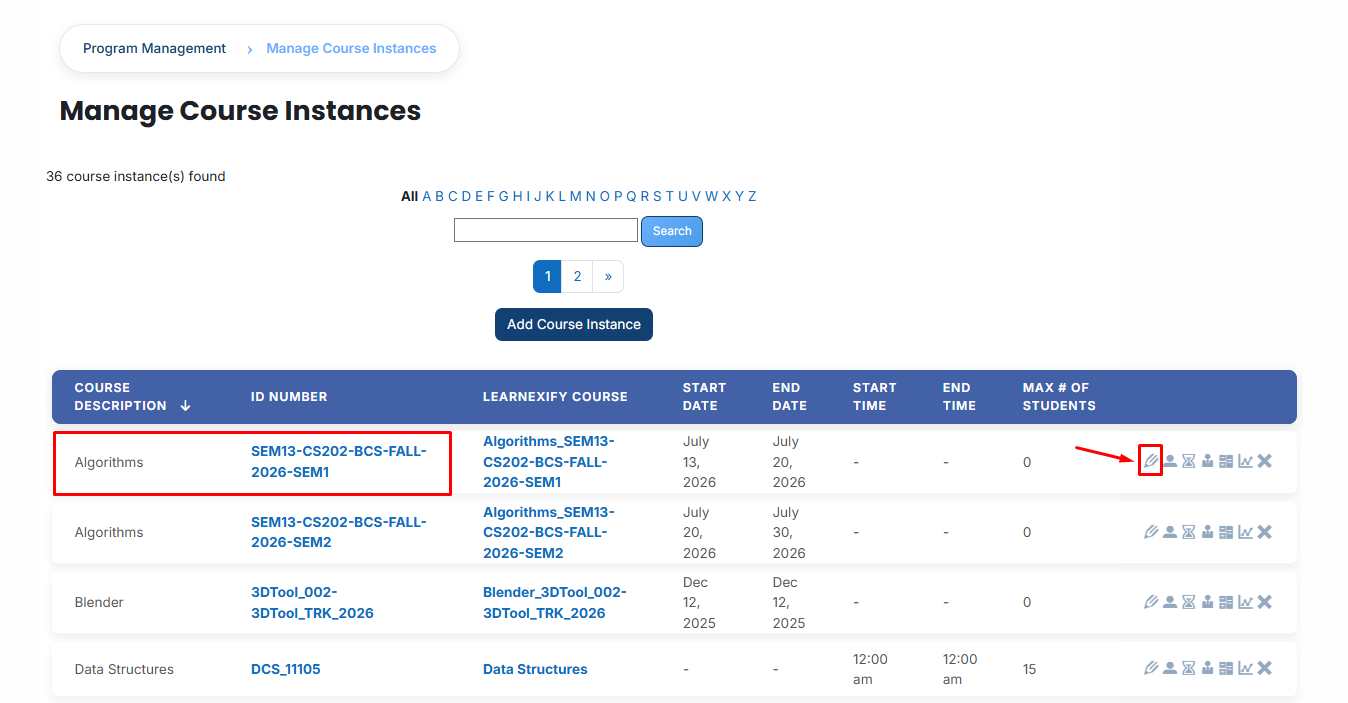](https://wiki.paktaleem.net/uploads/images/gallery/2026-07/ogCimage.png)
- Make the necessary adjustments to the fields, such as updating the Start/End Dates, modifying the Student Capacity, or re-configuring the Notification Durations.
- After reviewing your updates for accuracy, scroll to the bottom of the page and click the Save Changes button. The system will immediately apply the updates, and the modified course instance will reflect the new information in the management list.
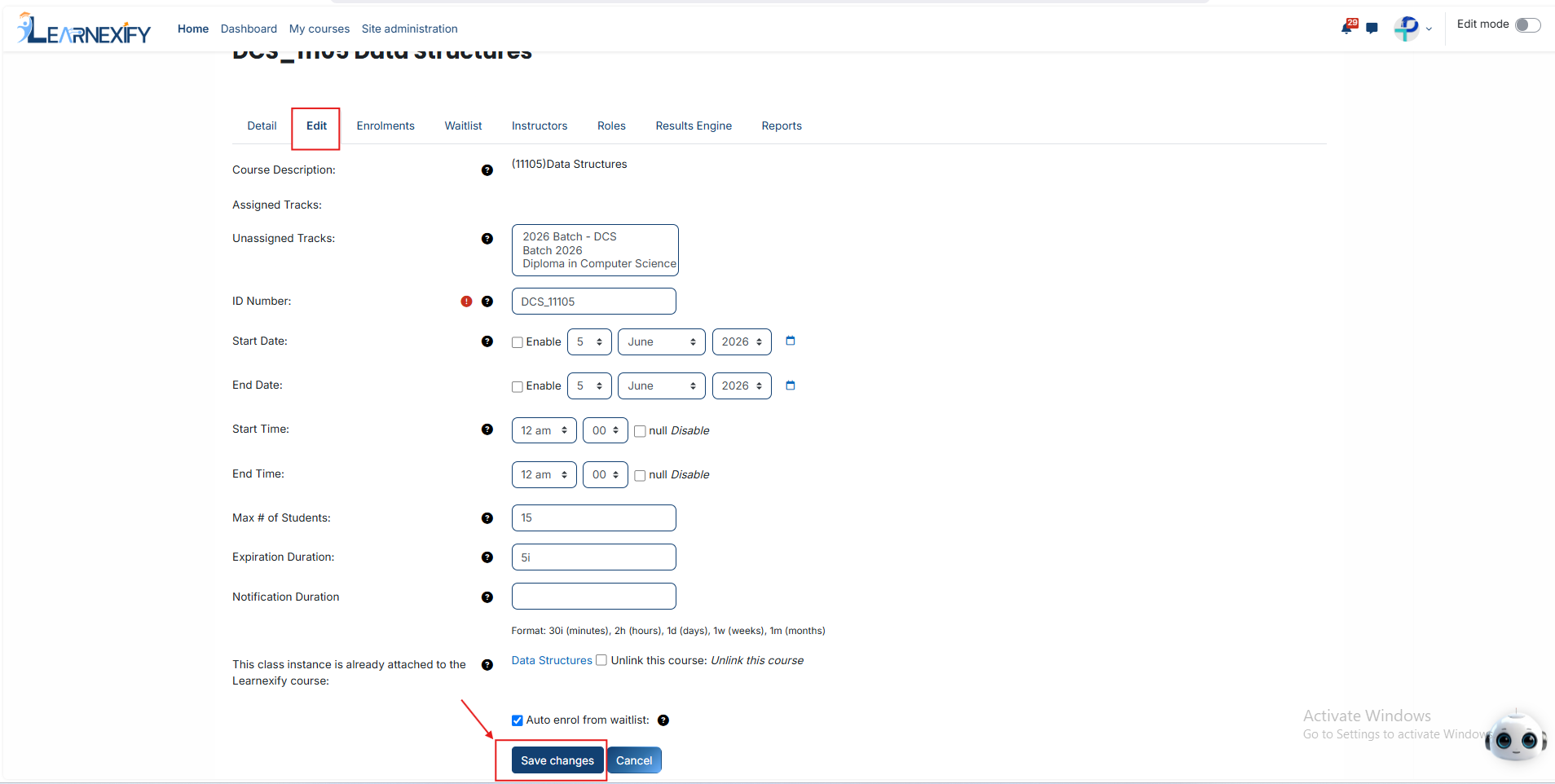
# How to Enroll Students in a Course Instance
From the list of all course instances, click the Enrollment icon for the specific course instance to which you want to enroll students.
[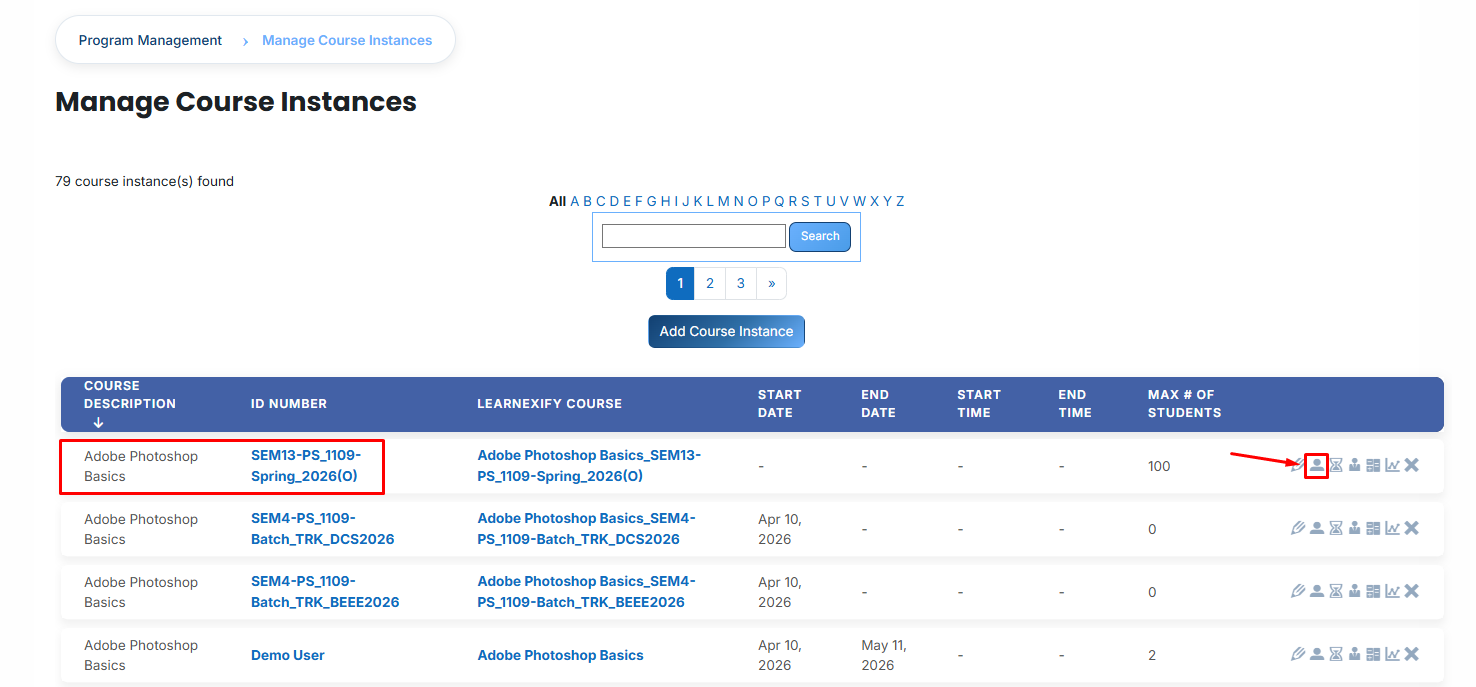](https://wiki.paktaleem.net/uploads/images/gallery/2026-07/kAeimage.png)
### **Navigating the Enrollment Interface:**
After opening the Enrollment tab, you will see a list of users who are currently registered in the course instance. To add additional students, click the Enroll Student button.
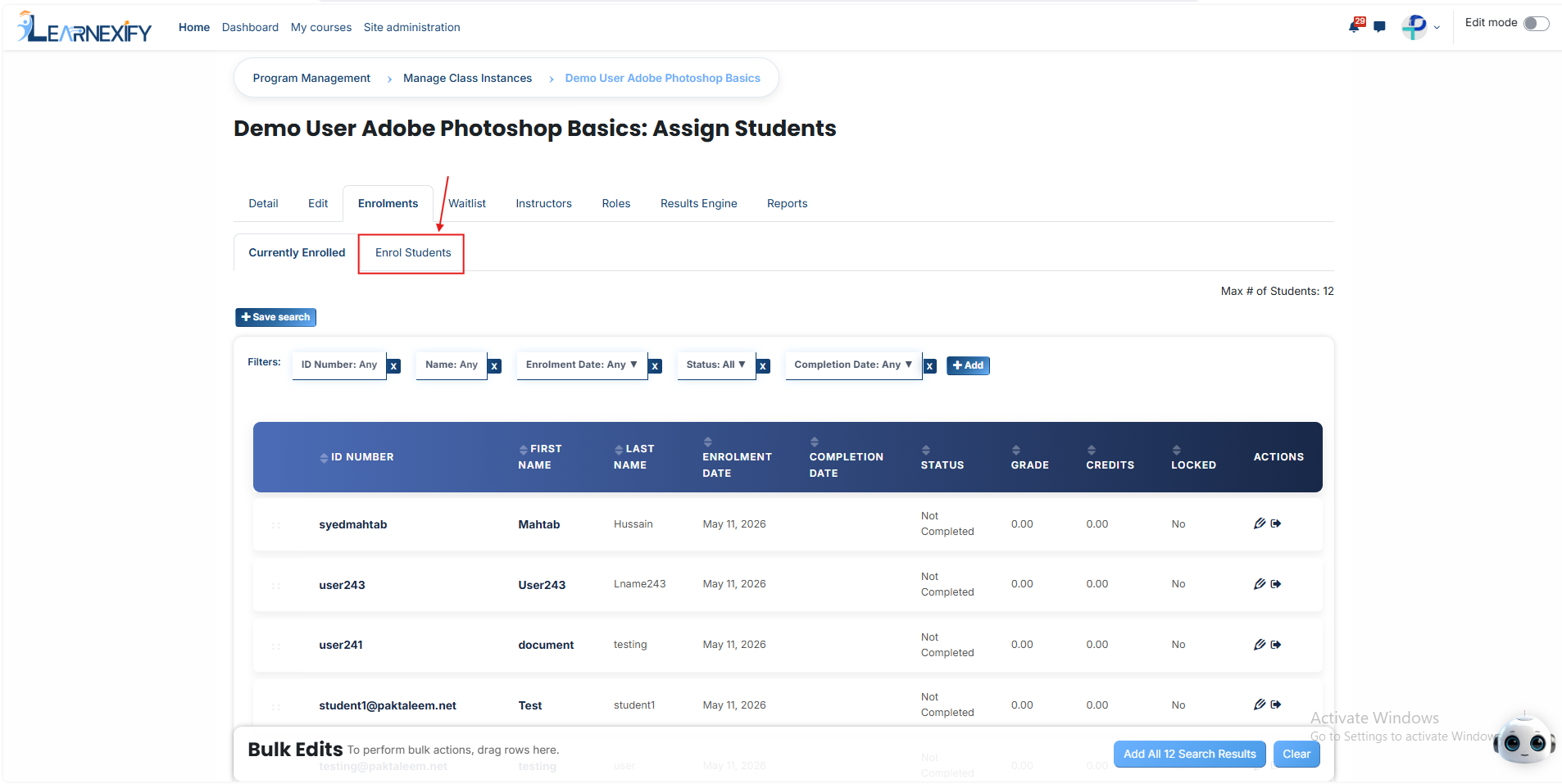
A list of available **users** will be **displayed**. Identify the **student** you want to **enroll** and click the **arrow icon** next to their **name** to open the **enrollment configuration area.**
Before finalizing, you must fill in the following **academic** and **administrative** details:
- **Enrollment Date:** Select the official date the student begins their participation in the course instance.
- **Status:** Define the current state of the enrollment, such as Active, Pending, or Inactive.
- **Grade:** Record the student’s performance or marks achieved in the course instance.
- **Credits:** Enter the academic workload or credit value assigned to the student for this course instance.
- **Locked:** Enable this toggle to freeze the enrollment data, preventing any further changes to the student's record.
- **Waitlist:** This feature is used to manage students when the course instance has reached its maximum seat capacity, placing additional users in an organized queue.
Click the **green tick (✔)** to confirm the **enrollment** and **save** the details. If you decide not to proceed, click the red cross.
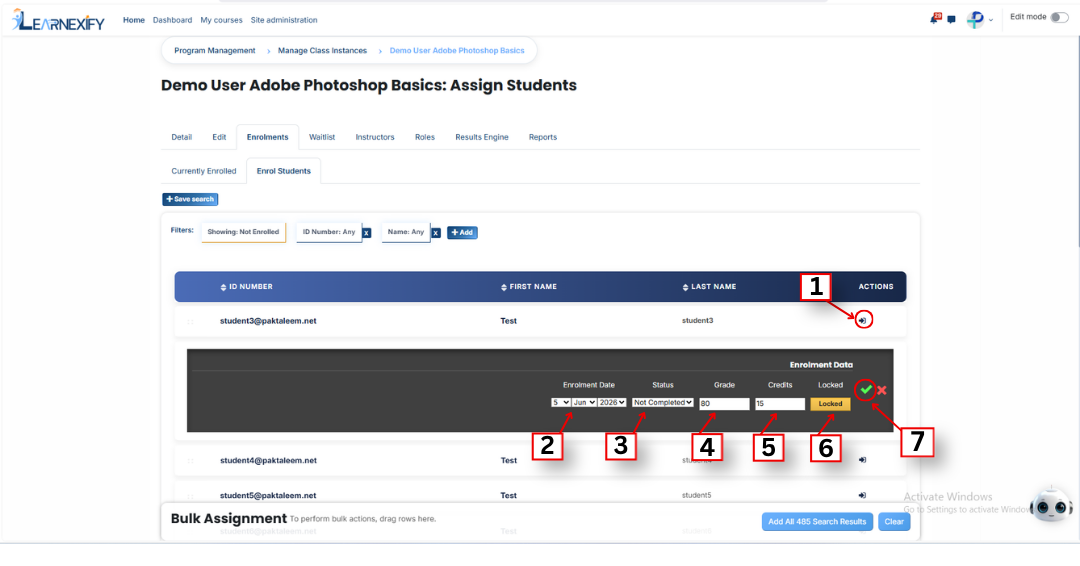
To confirm that the process was successful, click on the Currently Enrolled button. This will display all users who have been successfully added to the course instance and are now active participants.
### **Searching for Specific Users:**
If the student you want to enroll is not visible in the initial list, follow these steps to locate them:
- Click the **Enroll Student** button.
- Click the **Add button** located in the **filter section.**
- A **dropdown list** of search **fields** will appear. Select the appropriate criteria, such as:
- Email Address
- Username
- City/Town
- Country
- Enter the **user's** specific **information** in the selected **field.**
Once the matching user appears in the results, select them using the **arrow icon**, fill in the enrollment details, and **click** the **green tick (✔) to complete** the assignment.
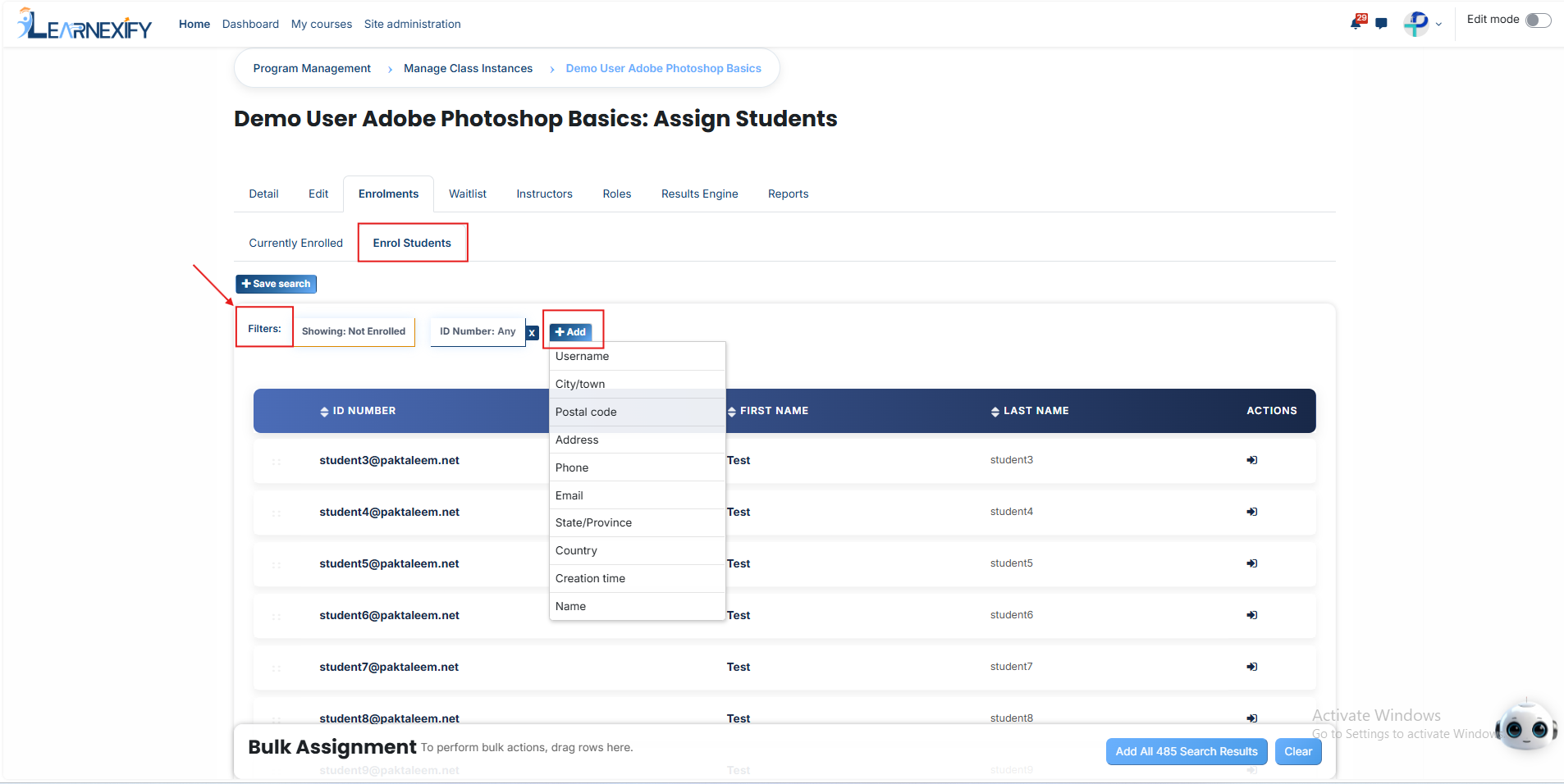
#### **Bulk User Action:**
**Purpose:**
Use this feature to assign multiple Users efficiently.
**Method 1:**
- Select those **users** you want to **assign.**
- After making your selections, click the **“Add All 13 Selected Items”** button to add the **selected users.**
The number displayed in the button (e.g., 13) represents the number of items currently selected and will change depending on how many items you select.
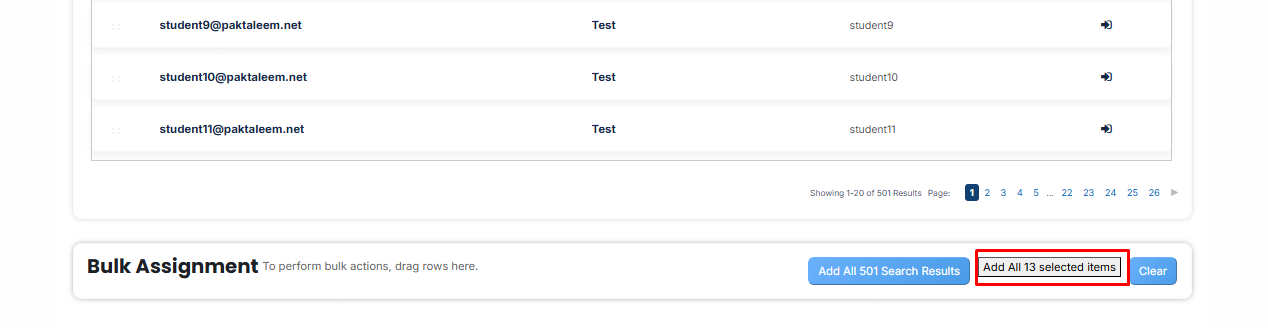
- Then click on the Assign button in the Bulk Assignment Section to move the users to the assigned list.
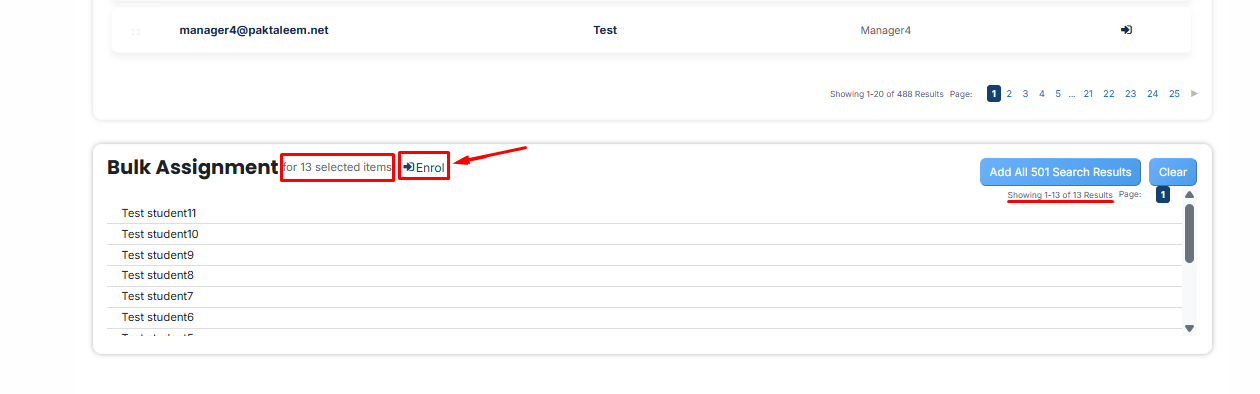
**Method 2:**
- Click the **“Add All 501 Search Results”** button to **add** all users with a single click. The number displayed in the button (e.g., 501) may vary depending on the number of users available in the search results.
- If you want to **clear everything**, click the **Clear button.**
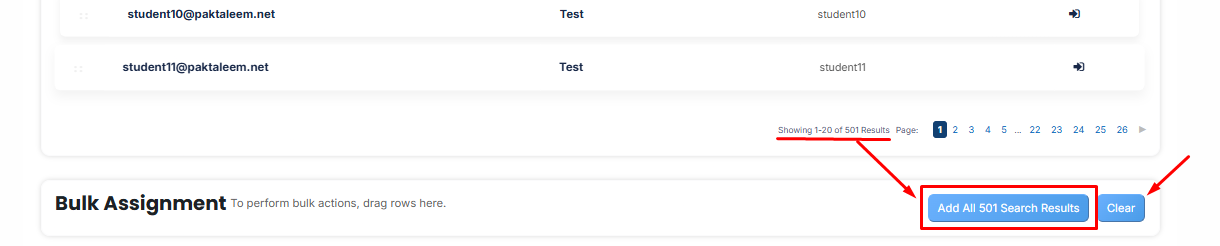
---
# How to Add Student in Waitlist
### **Waitlist:**
The Waitlist is used to manage enrollment when a course instance reaches its maximum student limit. Any additional users attempting to join are placed on the waitlist to maintain an organized queue. Once an existing student completes the course instance or a seat becomes vacant, the students from the waitlist can then be enrolled into the active session.
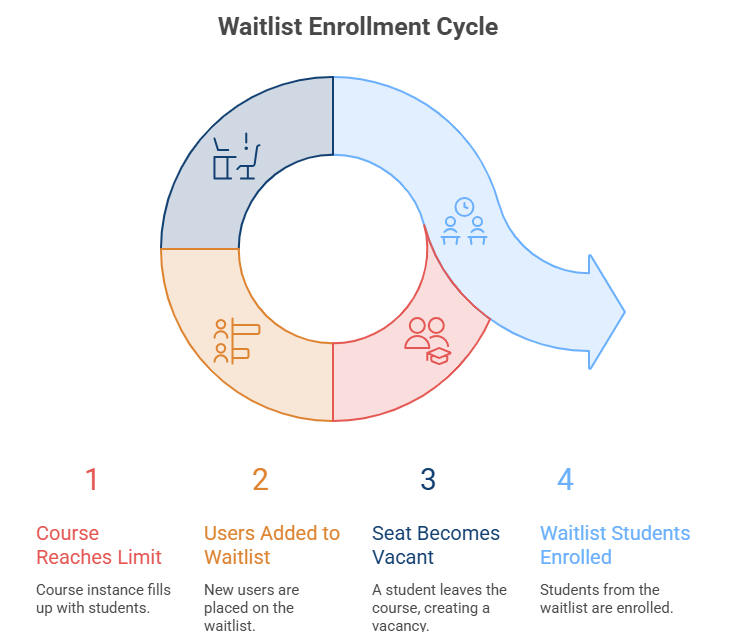
### **How to Add Student in waitlist:**
- Students are placed in the **waitlist** only when the **Maximum Student** Limit of a course instance has been **reached.**
- You can set the **maximum number** of students for a course instance in the **Edit tab.**
[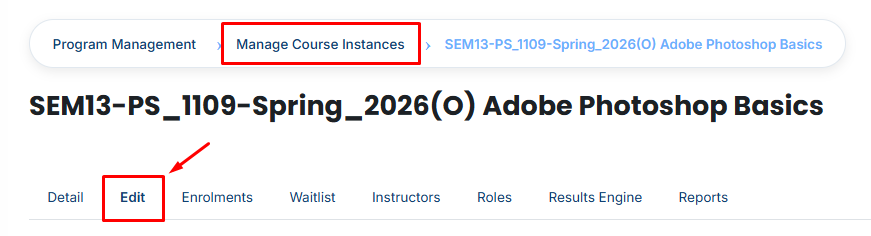](https://wiki.paktaleem.net/uploads/images/gallery/2026-07/55eimage.png)
- To initiate this process, navigate to the **list** of all **course instances** and click the **Enrollment icon.**
[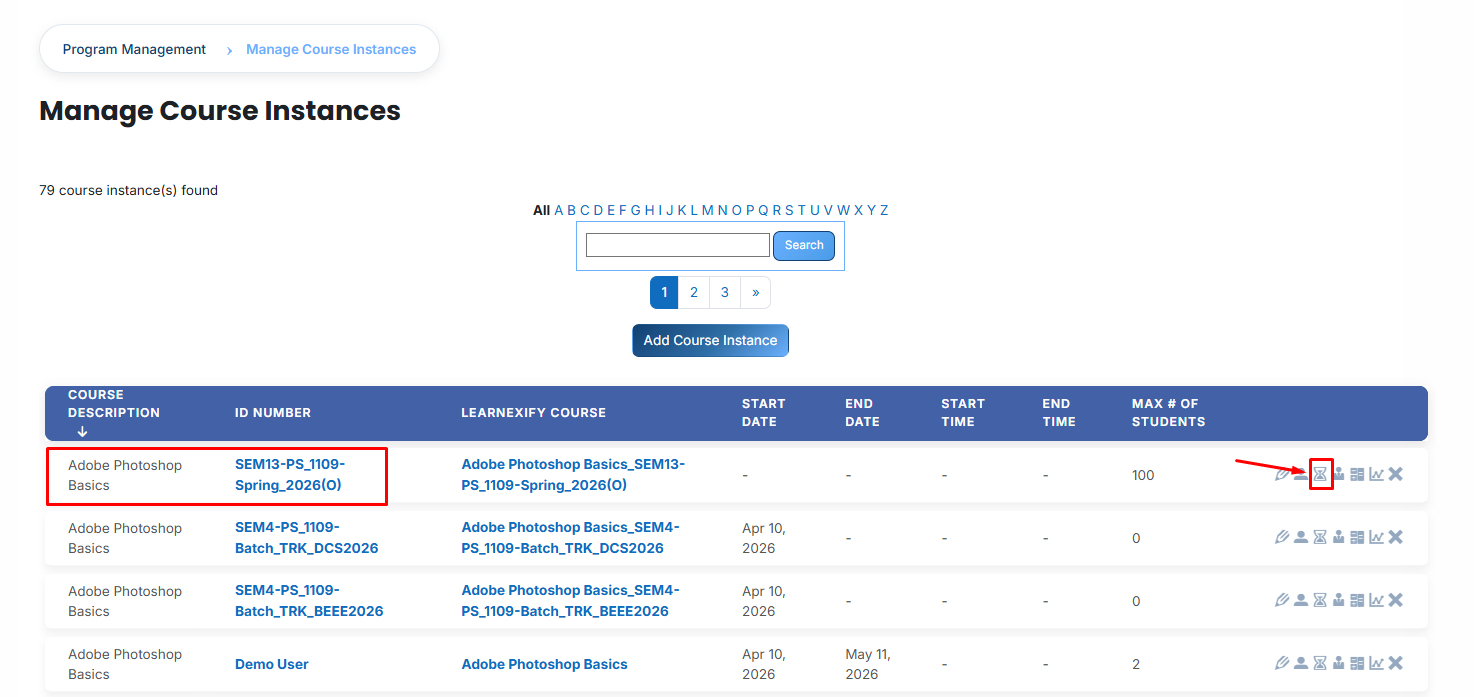](https://wiki.paktaleem.net/uploads/images/gallery/2026-07/3H0image.png)
- Once the enrollment page opens, click the Enroll Student button.
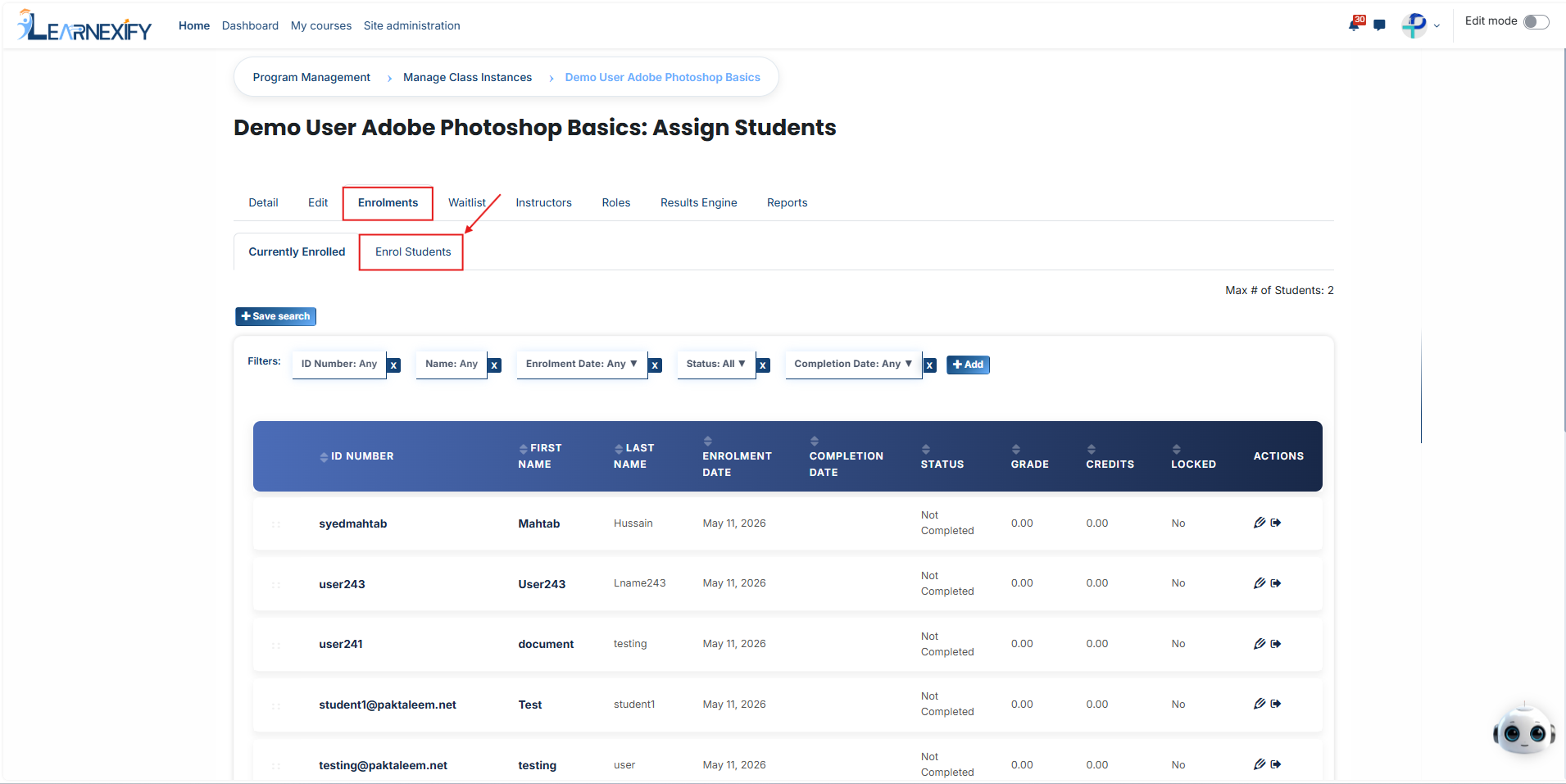
- Find the student you wish to add, click the arrow icon next to their name, fill in the required enrollment details, and click the green tick (✔).
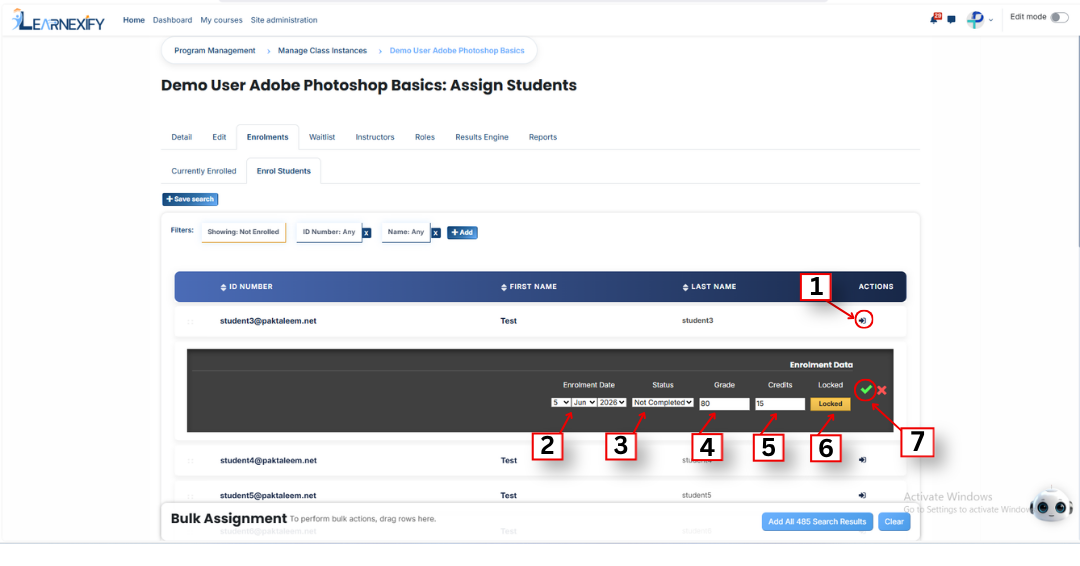
- Since the class is at full capacity, an **"Enrollment Limit" window** will appear with **three options:**
- **Over Enroll:** This option moves the student from the waitlist to the enrolled list. This means that when a seat becomes available in the class, the student becomes part of the active enrollment.
- **Add To Waitlist:** This option adds the student to the waiting list. The student remains on the waitlist and is not automatically added to the active class enrollment.
- **Skip Enrolment:** This option cancels the process completely and discards any enrollment information that has been entered.
- To proceed with the waitlist, select the **Add To Waitlist option** and click the **Submit** button. The student will now be **successfully moved** to the waitlist **queue**.
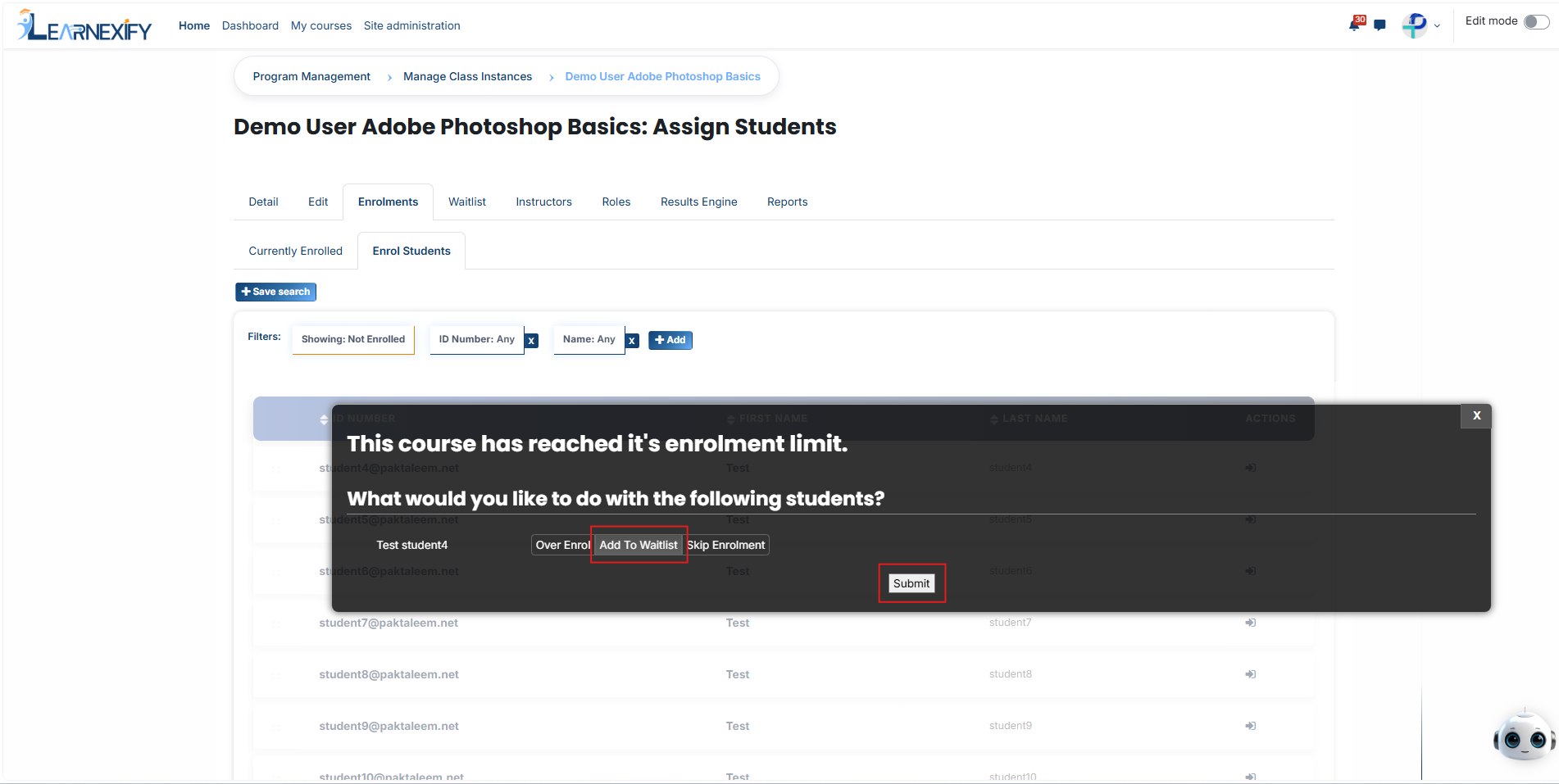
- To finalize their enrollment later, navigate to the **Waitlist tab** and select the specific student from the list.
- Go to the **"With selected users..."** dropdown menu at the **bottom** of the page.
- Select **Over Enroll** from the dropdown and click **Submit** to move the student from the waitlist into the **active** **class enrollment list.**
- Alternatively, you can select **Remove** from the dropdown and click **Submit** if you want to **delete** the student from the waiting queue entirely.
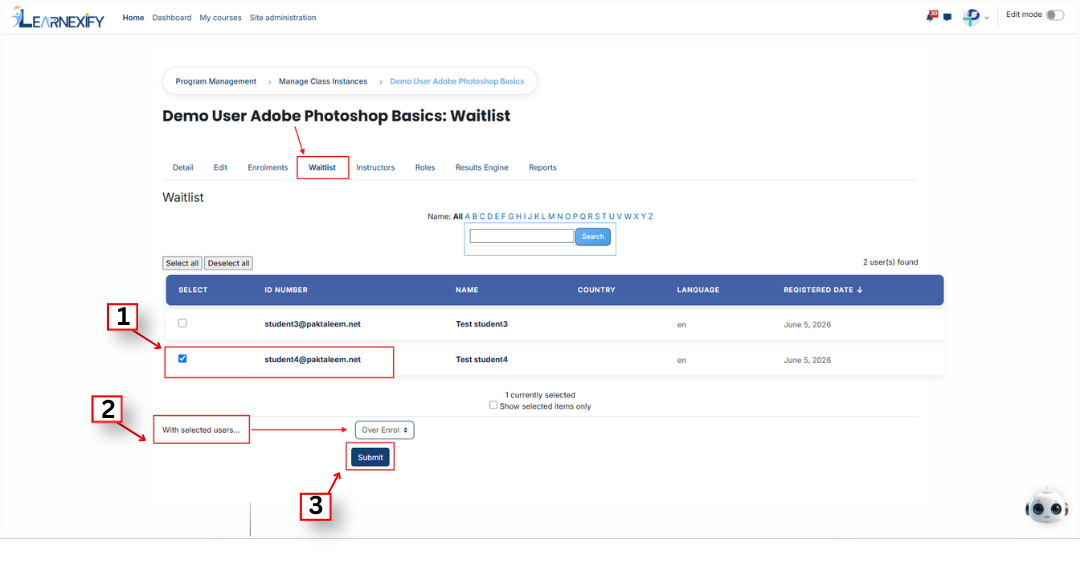
- After clicking **Submit** for the **Over Enroll** action, a **confirmation** message will appear. Click **Yes** to complete the process.
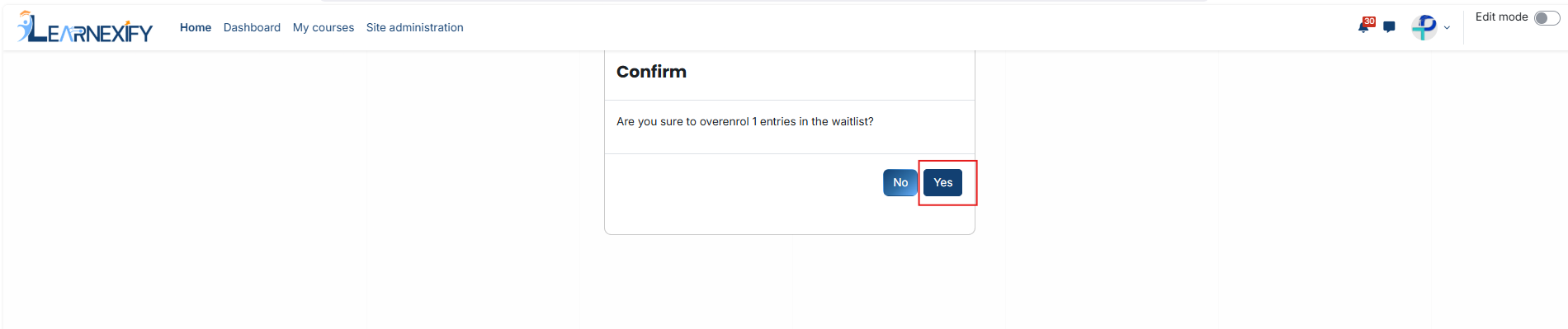
- The student will now be **successfully** moved from the **waitlist** and added to the **Currently Enrolled list** of the **course instance.**
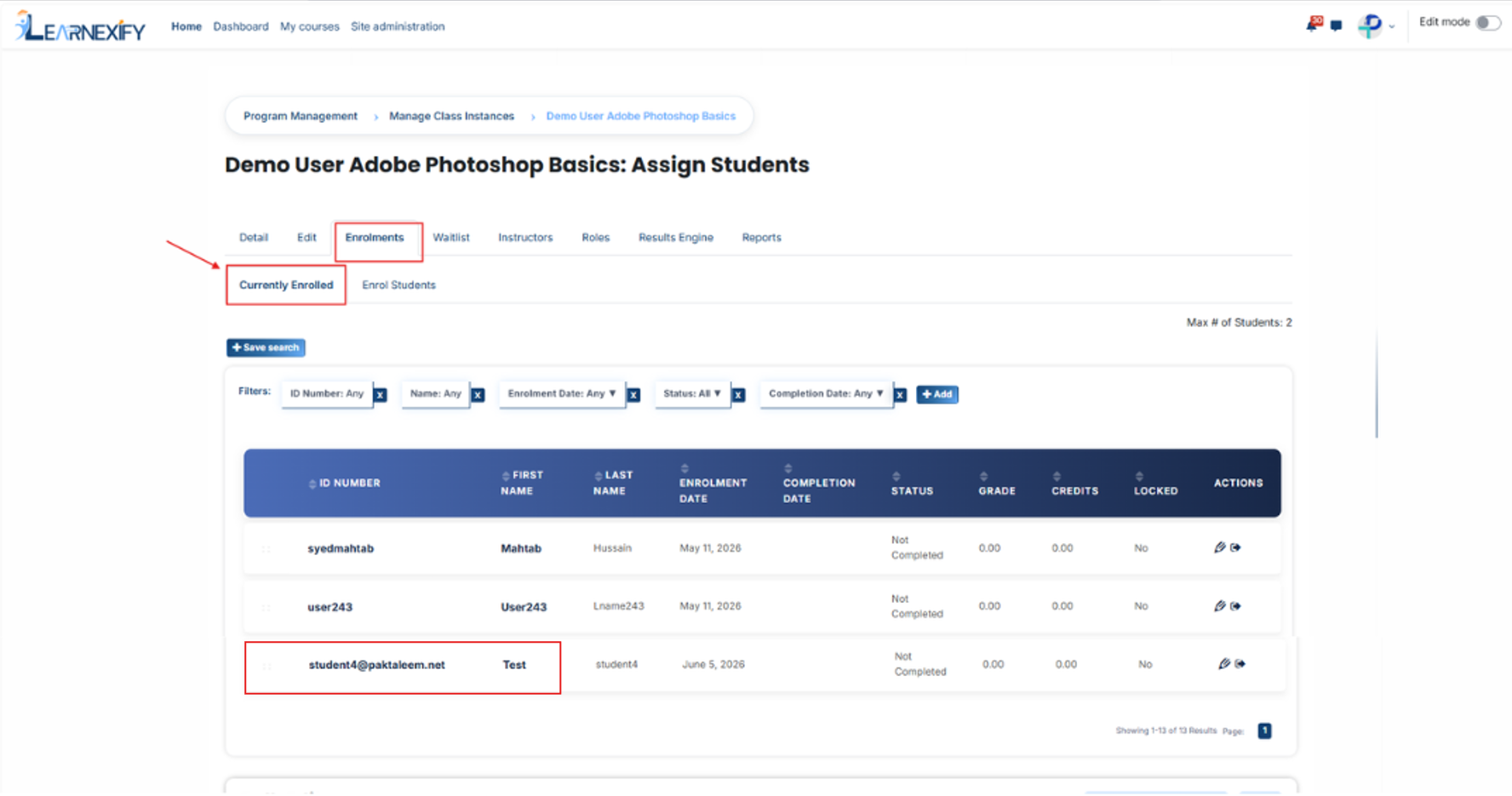
---
# How to Assign an Instructor to a Course Instance
From the list of created course instances, **open** the **specific record** you wish to manage and navigate to the **Instructor section.**
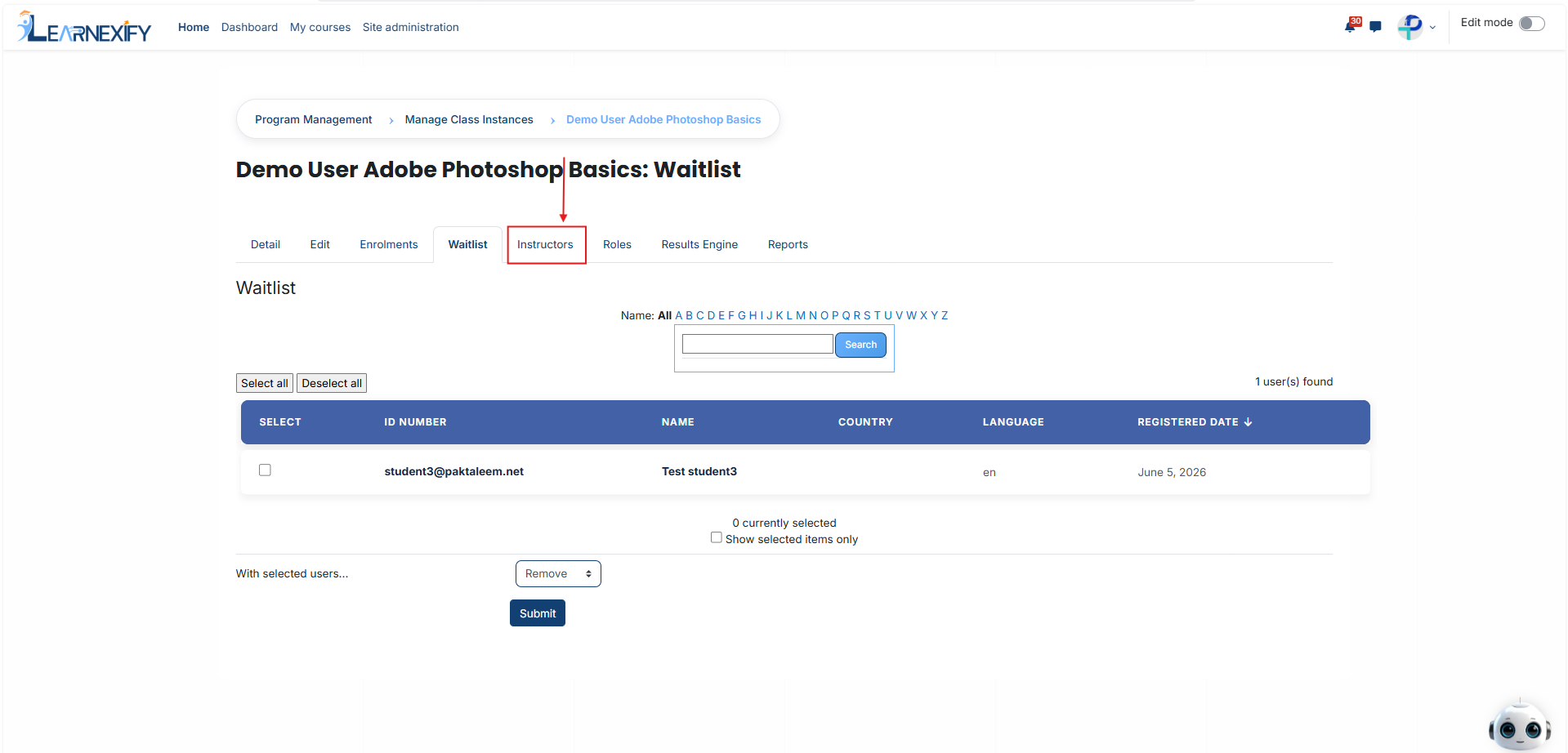
- The Instructor section displays any **staff members** already assigned to the **course instance.** To add a new **teaching staff member,** click the **Assign Instructor** button to view a list of available instructors who are not yet **connected** to this class.
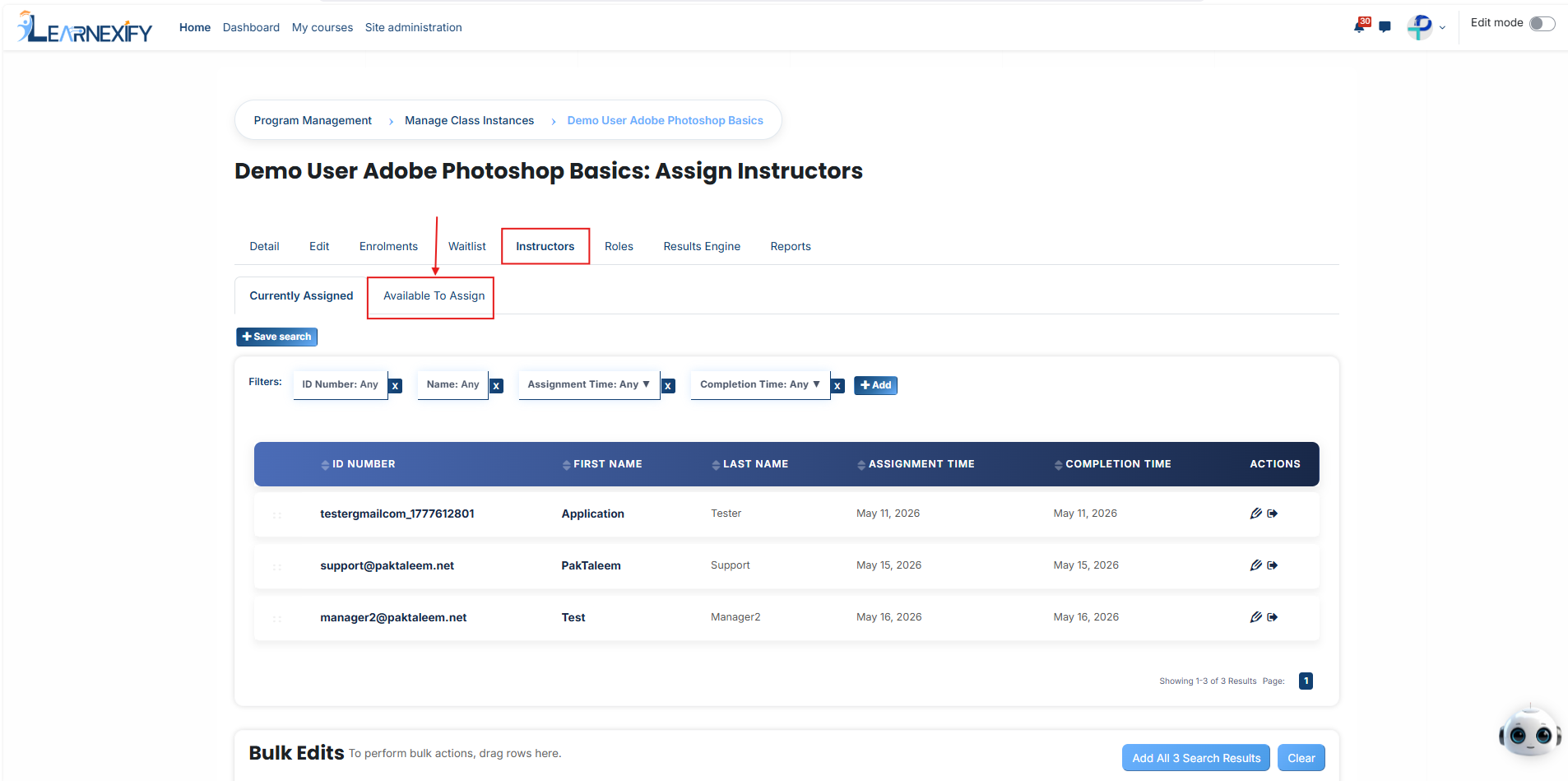
- Once you have identified the appropriate **instructor,** click the **arrow icon** next to their name to **open** the **assignment configuration fields:**
- **Assignment Date:** Enter the date the instructor officially begins their responsibility for the course instance. This allows the system to batch when they become active in the course instance.
- **Completion Date:** Define the date when the instructor’s assignment will end. This is used to manage the total duration of their responsibility for the course instance.
- After filling in these dates, click the **green tick** to successfully save the assignment. If you wish to **discard** the **entry,** click the **red cross.**
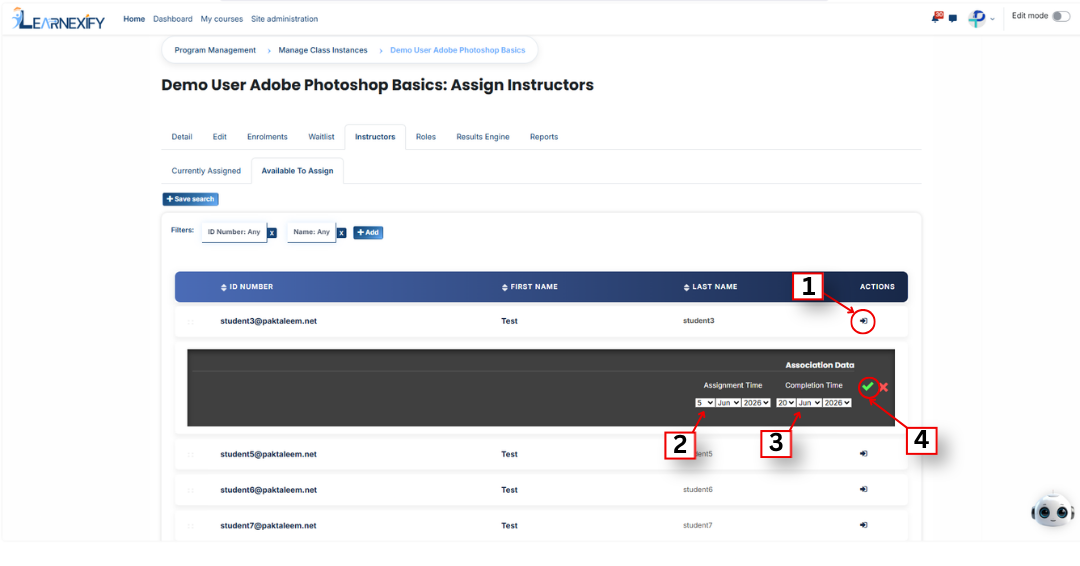
- To verify the process, open the **Currently Assigned Instructors** section to confirm that the **instructor’s** name has been added to the active list.
- If you are unable to find a specific instructor in the list, **utilize** the **filter** option for a more efficient search. Click the **Add button** and select a **filter** type, such as Username or Email.
- Enter the **relevant value** into the search field, and the system will display the **matching results.** Once the instructor appears, select them and **click** the **green tick** to finalize their assignment to the course instance.
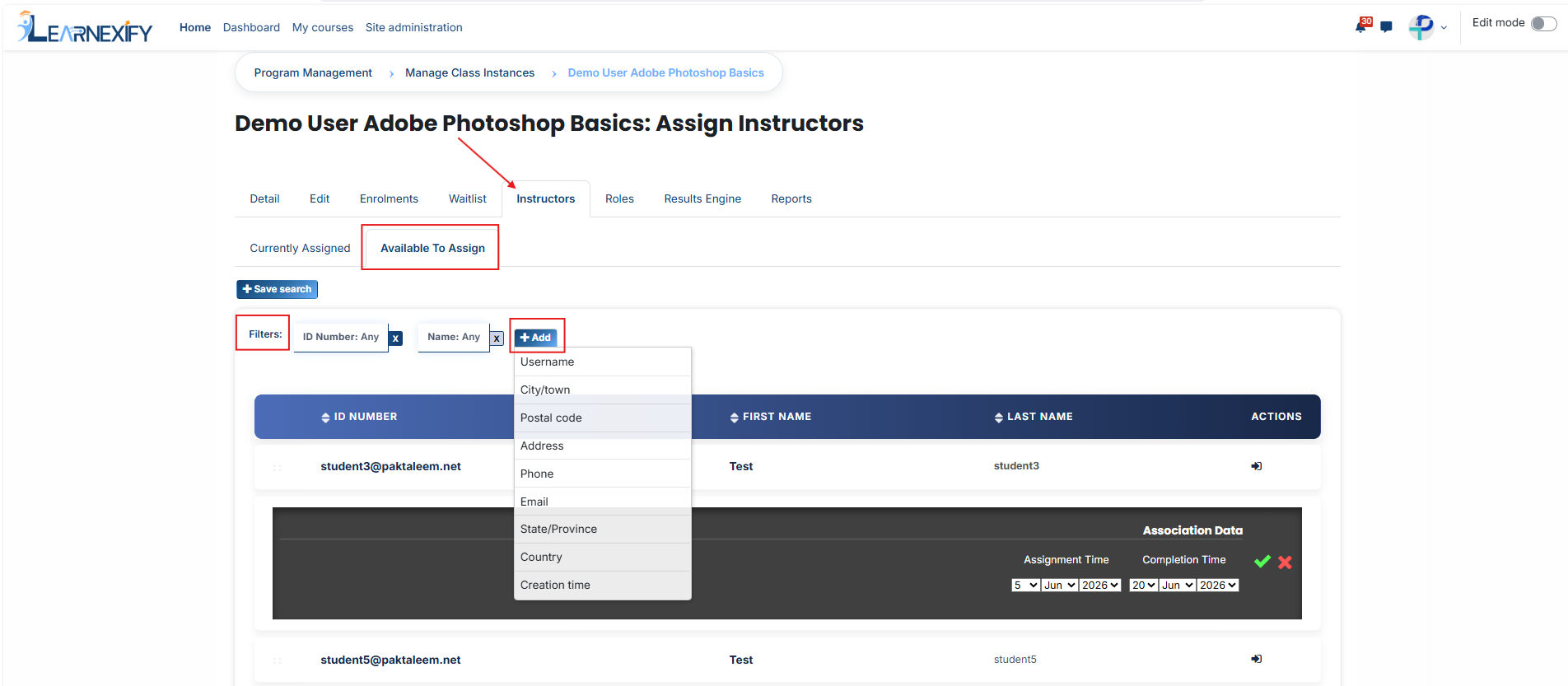
---
# How to Assign User Roles to a Course Instance
To define specific administrative permissions or access levels for a course instance, identify the relevant course instance from the management list, open it, and select the Roles tab.
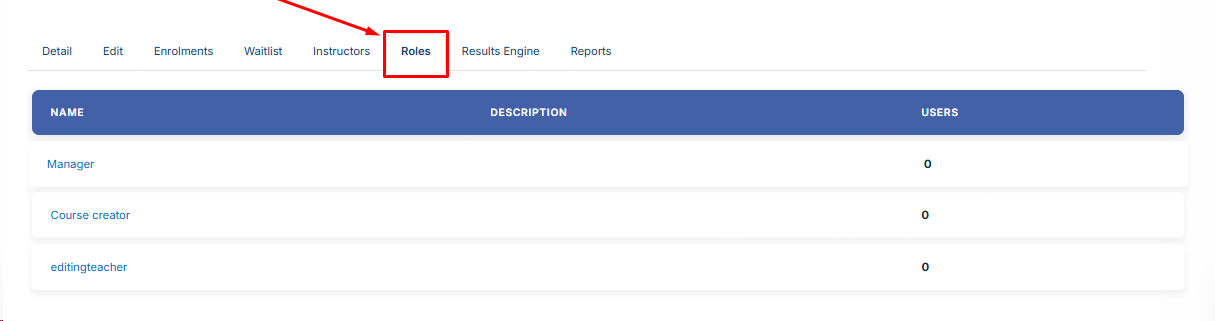
- From the available options, choose the specific permission level or administrative role (such as Manager) you wish to grant to a user for this course instance.
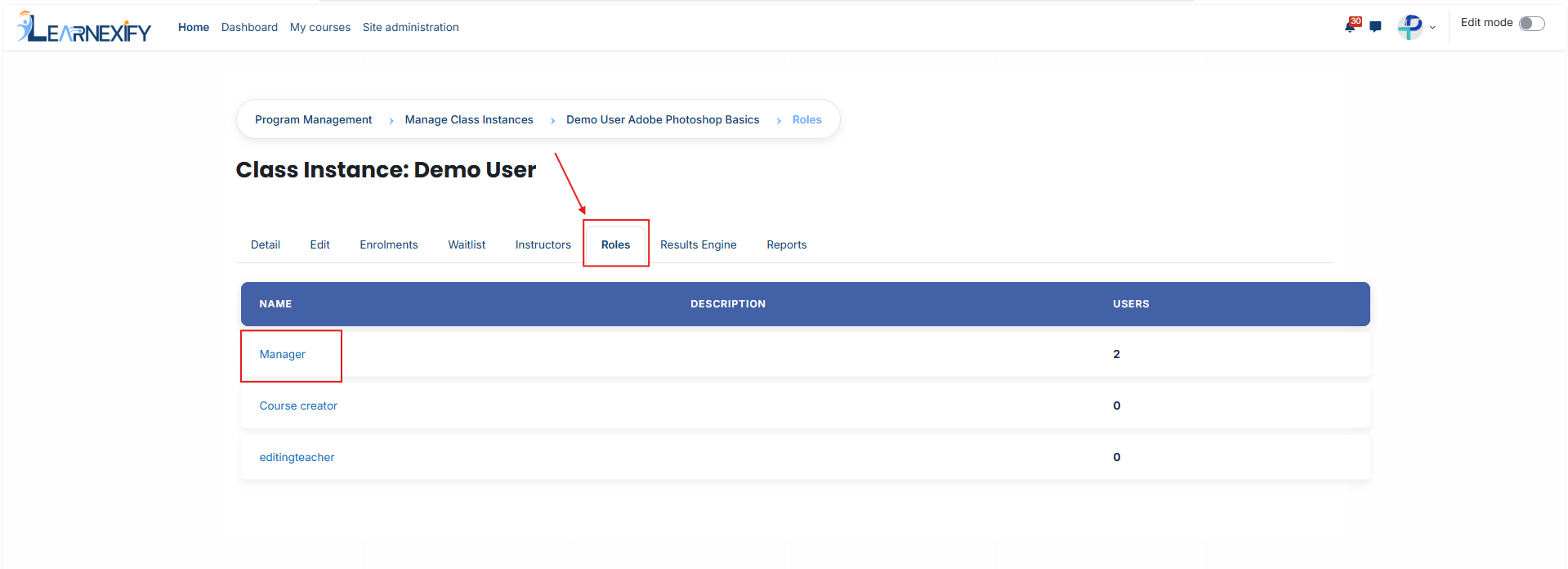
- The interface will initially display users who are already active in that role; to view a list of potential candidates you can add to the course instance, click the Unassigned button.
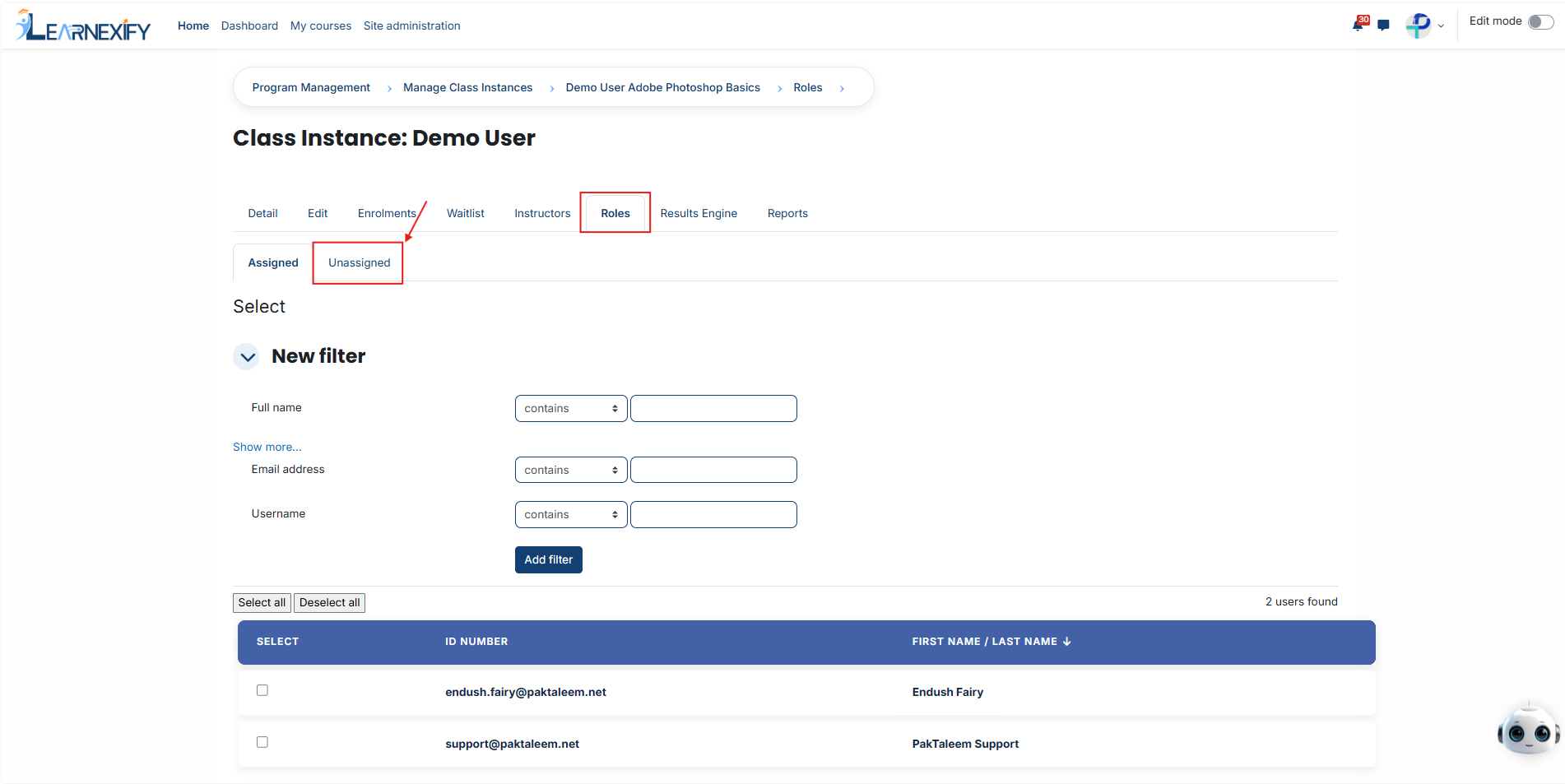
- Check the **box** next to the name of each **individual** you wish to authorize for this specific **role** within the **course instance.**
- Navigate to the **bottom** of the page and **click** the **Assign Roles** button to commit your selection and officially **update** the access levels for the **course instance.**
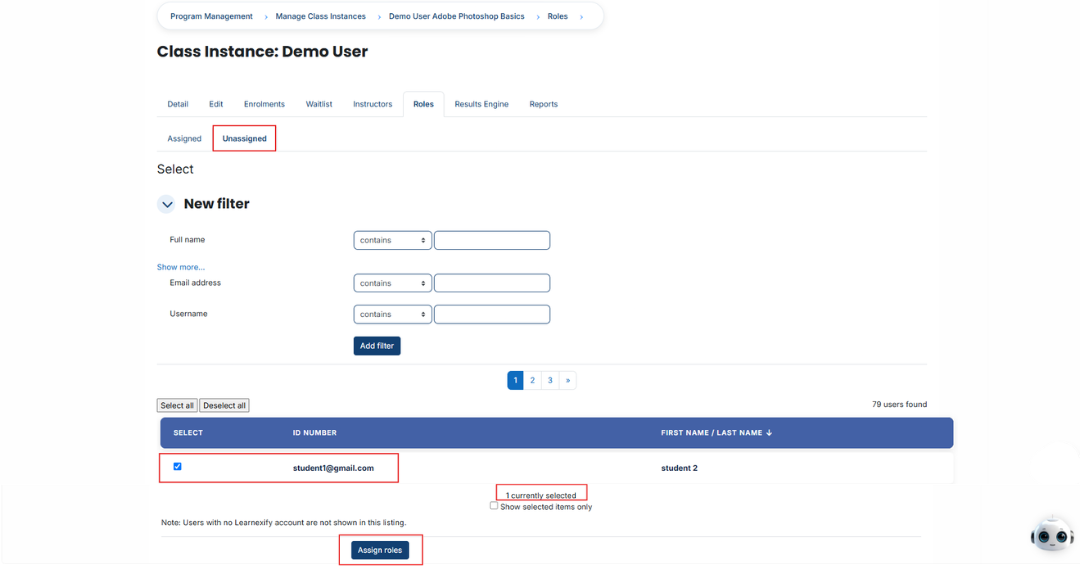
- If you need to **locate** a specific individual quickly for the course instance, utilize the filter tools located at the top of the user list.
- Create a search rule by selecting criteria such as the user's Full Name, Username, or Email Address.
- Click the **Add Filter** button to **display** the matching results from the system for the course instance.
- Once the **correct individual** is identified in the **filtered list**, select them and **click Assign Roles** to complete the authorization process for the course instance.
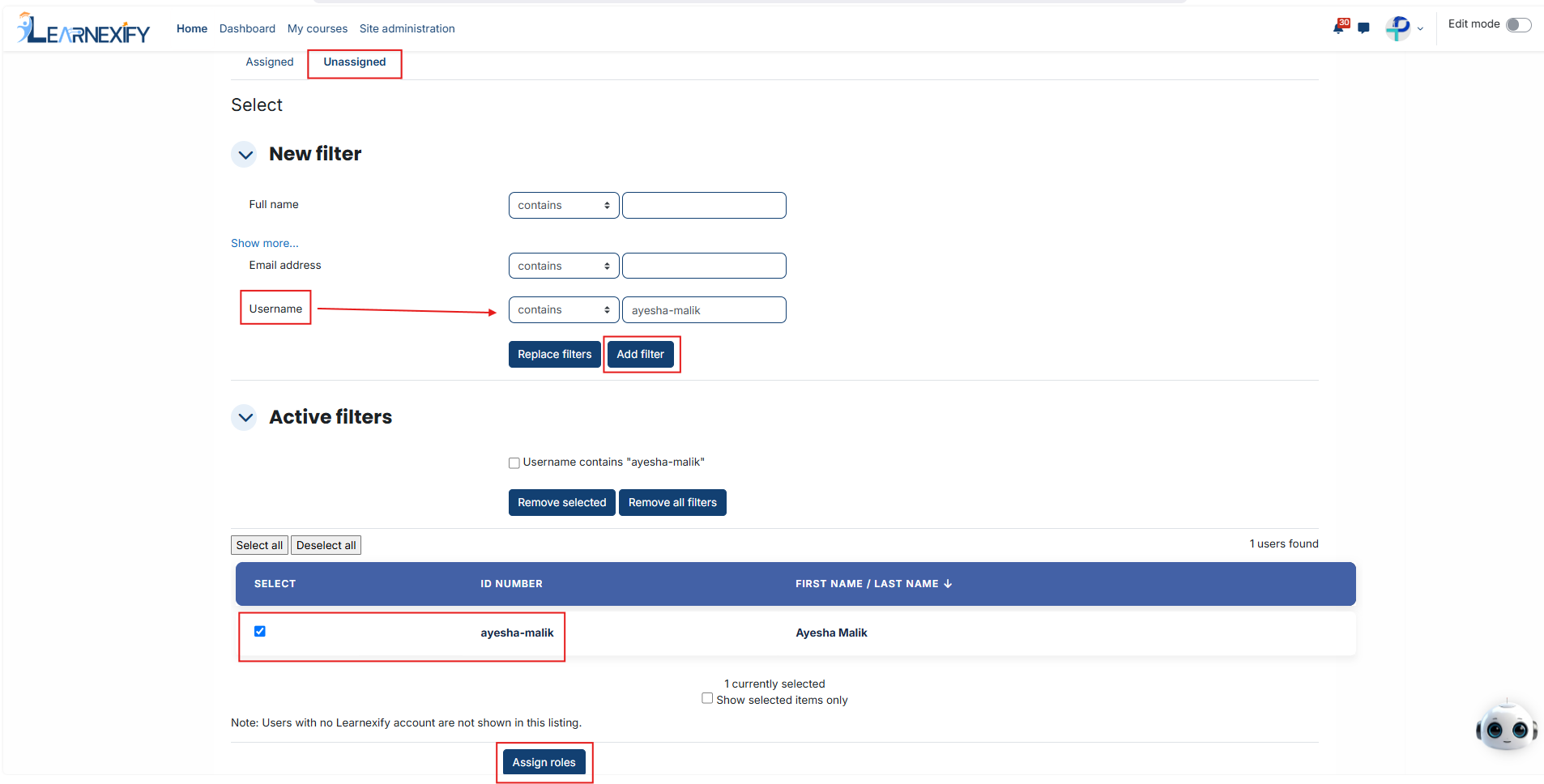
---
# How to Configure the Results Engine in a Course Instance
To set up automated workflows, identify your specific course instance and click on the **Results Engine icon.**
[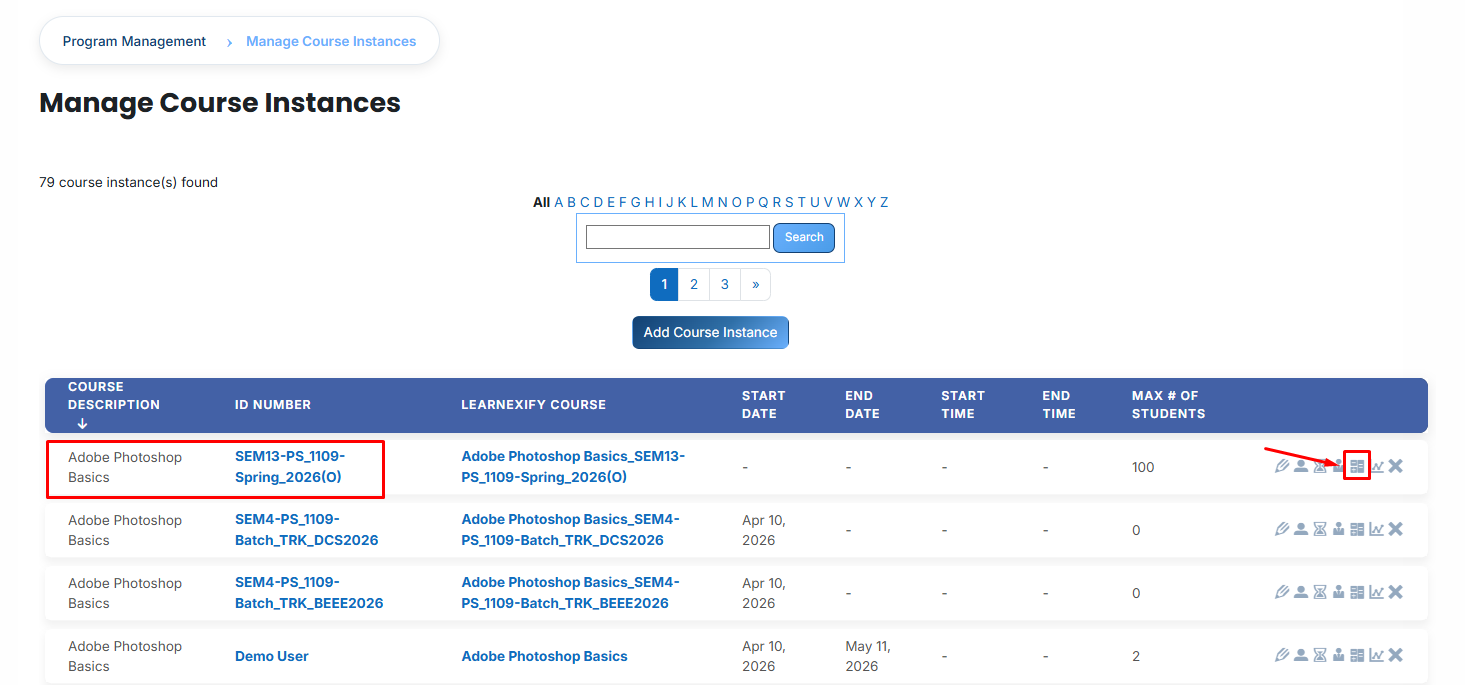](https://wiki.paktaleem.net/uploads/images/gallery/2026-07/eLrimage.png)
- Utilize the **Results Engine Status Report** link to review the **execution history.** This audit tool provides a **comprehensive overview** of processed course instances, **including scheduled run times** and actual execution dates, which is essential for administrative batching.
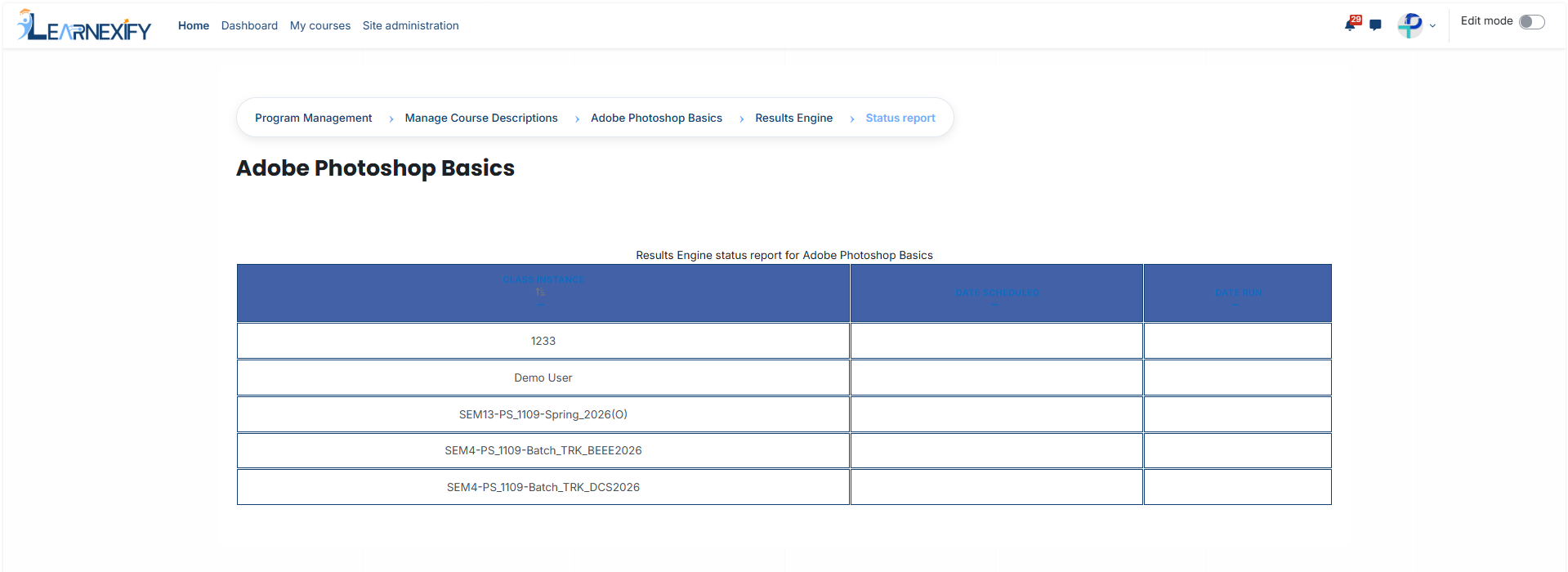
#### **Activation Rule:** Toggle the Activate this **results engine checkbox** to enable **automated monitoring**. When **active**, the system will automatically evaluate grades based on your defined rules. If **disabled**, the engine remains inactive, and no automated updates will take place.
#### **Event Trigger (Timing Rules): **
Define the specific moment the system should evaluate a learner's performance:
- - **When Student Grade is Set:** The automation triggers immediately upon a score being recorded.
- **Use Locked Grades Only:** When this sub-option is enabled, the system waits until a grade is officially finalized (locked) to prevent actions based on draft or temporary scores.
- **X Days After course instance Start Date:** The evaluation runs after a pre-defined number of days from the official start of the course instance.
- **Manual Trigger Only:** The automation remains passive and will only execute when an administrator manually initiates it via the Status Report.
#### **Evaluation Criterion:** Select the **data source** for the engine to **monitor**—typically the course instance Grade. This informs the system which specific score value to analyze when determining results.
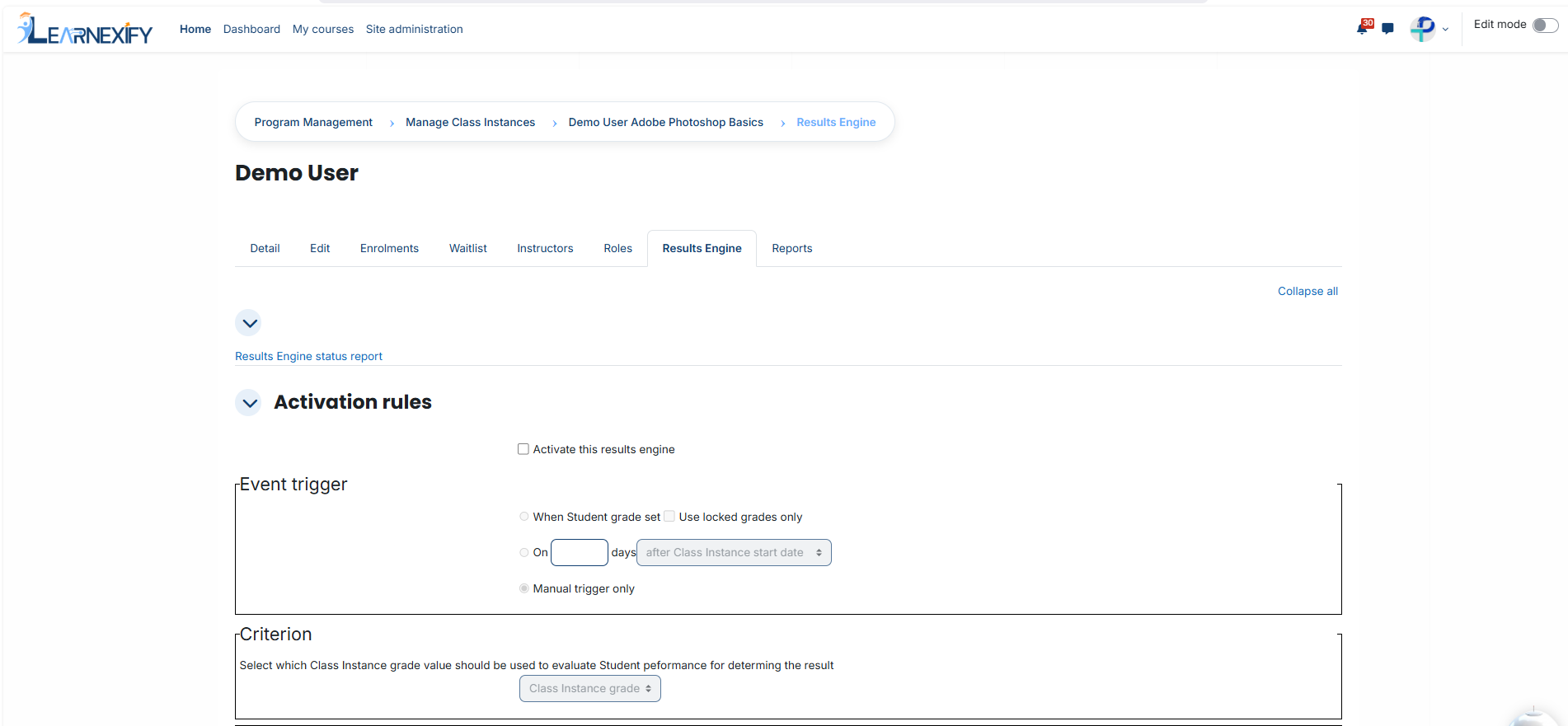
#### **Automated Actions (The If/Then Logic):**
For every rule, you must **establish a Score Range** (Minimum and Maximum). If a **learner's score falls** within these thresholds, the system executes the following actions:
#### **Assign to batch:**
- Automatically moves the **learner** into a **new learning path,** such as a **"Promotion batch"** for high achievers or a "Remediation batch" for those requiring additional support. Use the **search tool** to link the **appropriate batch.**
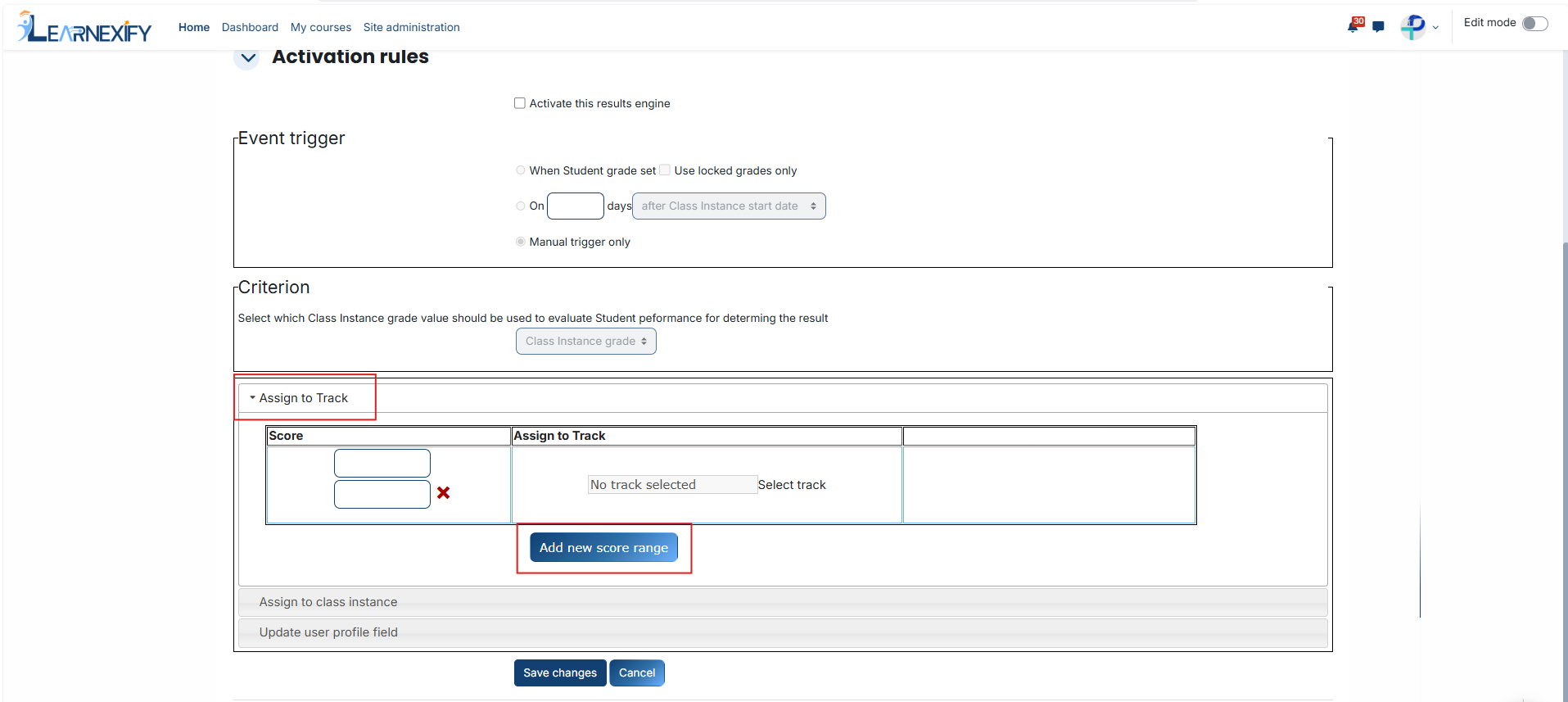
#### **Assign to course instance:**
- Enrolls the learner directly into a specific batch, such as a "Level 2" or a "Retake" course instance.
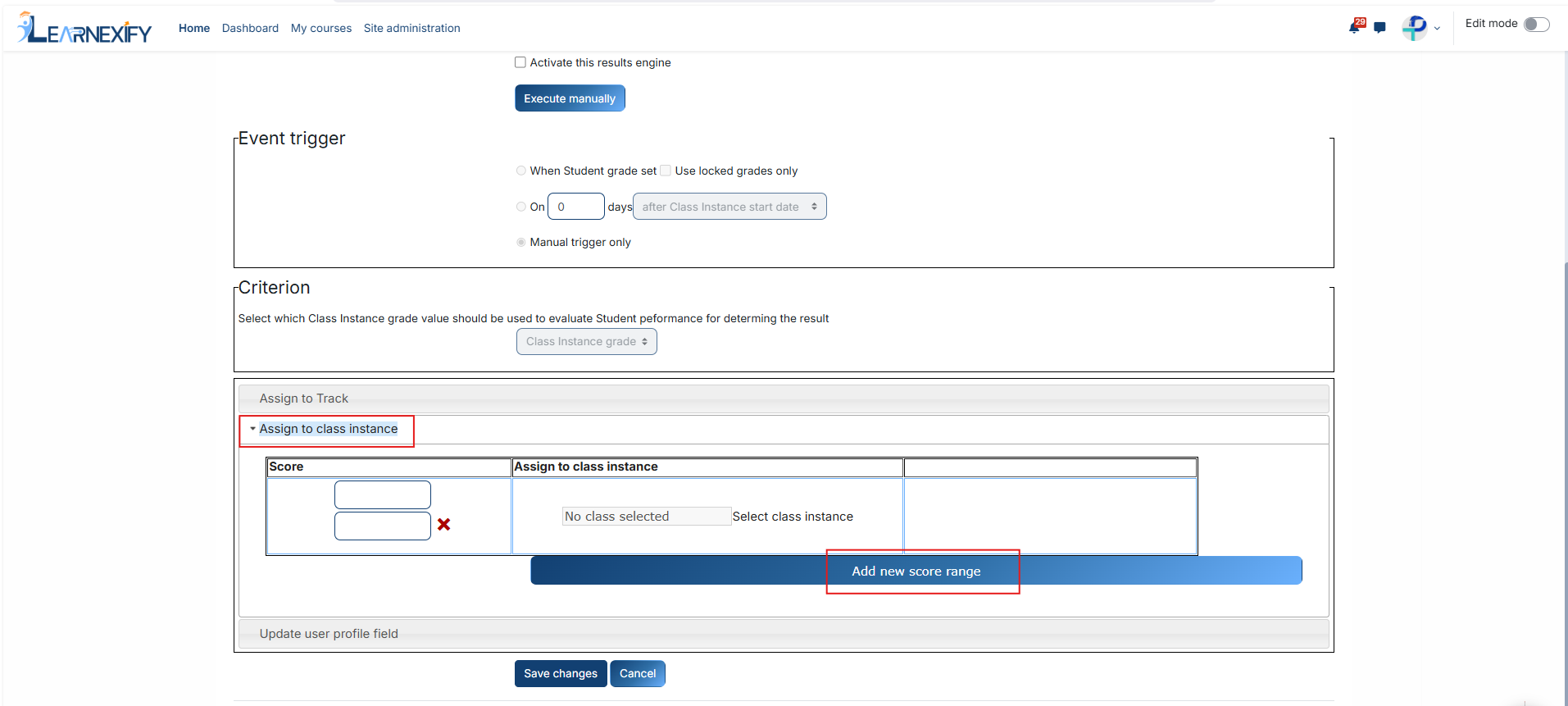
#### **Update User Profile Field:**
- Modifies a permanent field in the student's profile (e.g., Skill Level or Certification Status) to reflect their progress. This allows for automated competency batching across institutional reports.
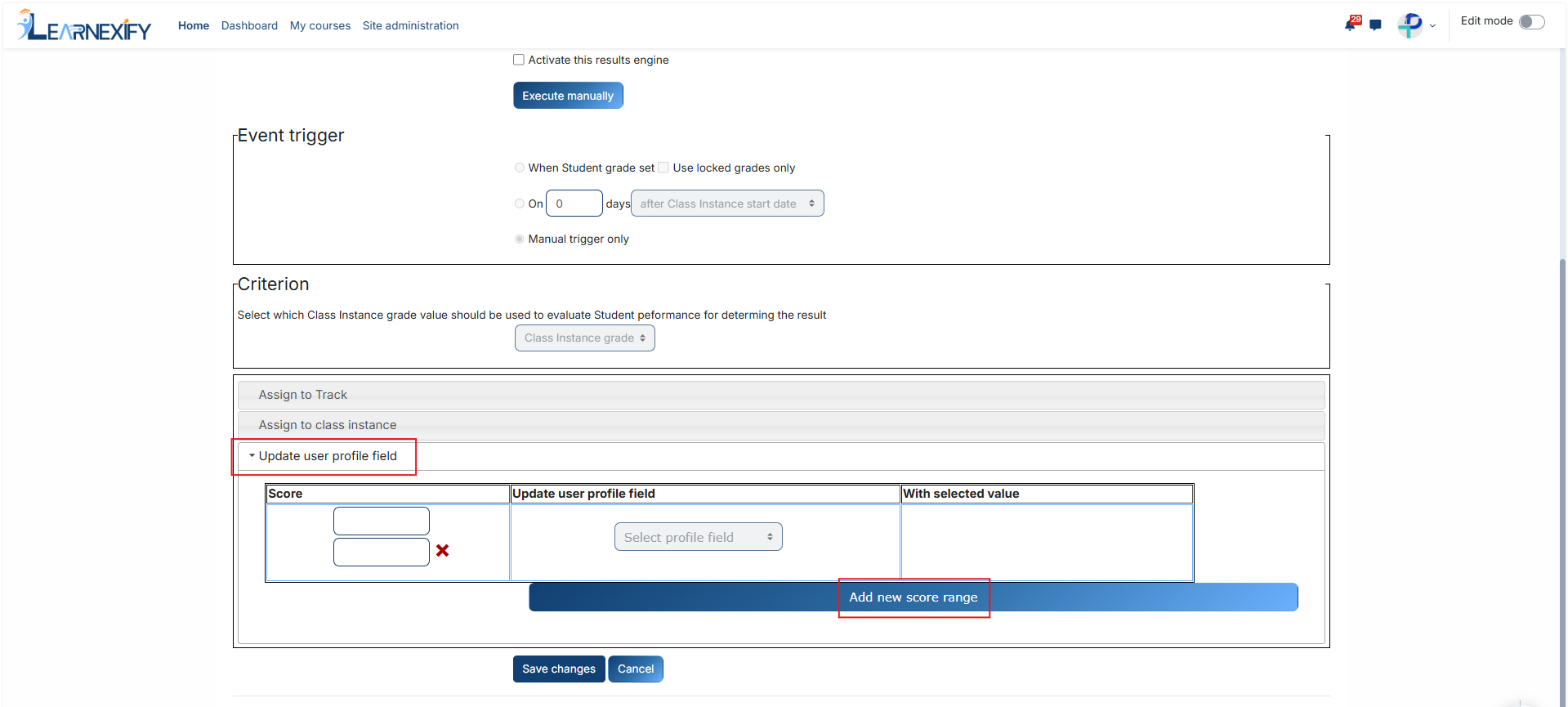
#### **Finalization:**
- Click **Add New Score Range** to create **multiple distinct rules**, such as separate actions for **passing and failing grades.**
- Select **Save Changes** at the bottom of the page to **finalize** your **settings** and activate the automated course instance workflow.
---
# Reports
From here, you can easily **access** the course instance reports. There are **two** reports **available:**
- **Course Instance Roster Report**
- **Course Instance Completion Report**
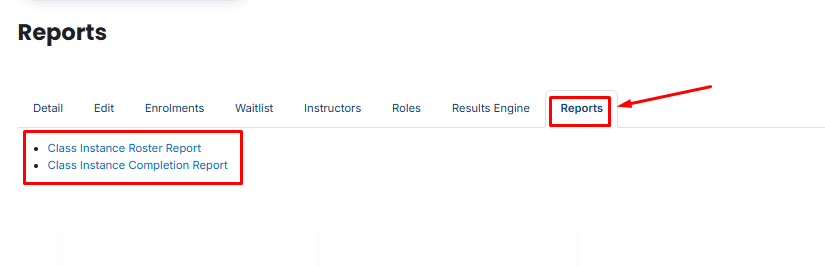
---
# Manage Batches
# Learnexify Batch
Once courses have been set up and added to a program, the next step in Learnexify is to configure batches. A batch represents an instance of a program, and each batch must be linked to a specific program.
In most cases, the course instances within a batch correspond directly to the course descriptions defined in the program. This helps maintain a structured and consistent learning path for learners based on the program setup.
### **How to Create a Batch:**
Before creating a batch, ensure that the program has already been properly set up and that courses/course descriptions have been added to it.
Once this is done, follow these steps:
Go to the **Dashboard** and open the side drawer menu. Click on **Programs** and then select **Manage batches.**
[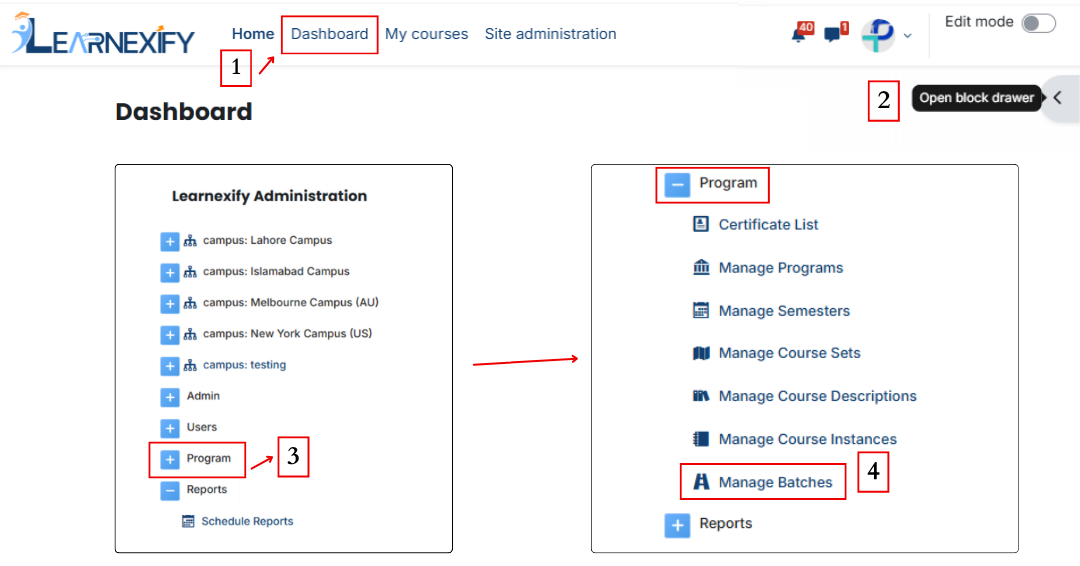](https://wiki.paktaleem.net/uploads/images/gallery/2026-07/lVkpage-edits3.png)
Click on the **Add batch button.** A form will appear where you need to enter the **basic batch details.**
Fill in the following fields:
- **Program Selection:** Select the program from the dropdown list
- **ID Number:** Enter the unique ID for the batch
- **Name:** Enter the name of the batch
- **Description:** Provide a brief description of the batch
- **Start Date:** Select the start date
- **End Date:** Select the end date
You will also see **two checkbox options:**
- **Create all course instances:**
When selected, this option automatically creates all course instances for the batch based on the program structure, removing the need for manual setup.
- **Automatically assign semester users:**
When selected, all users assigned to the semester will be automatically enrolled in the batch’s course instances, ensuring automatic user assignment without manual effort.
[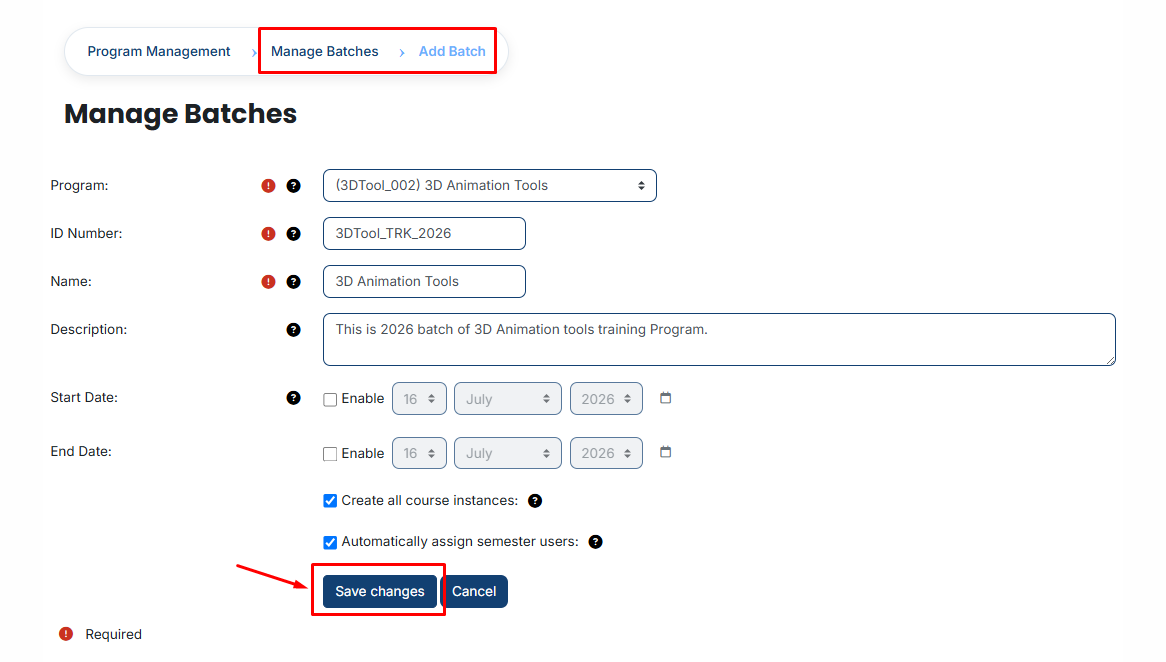](https://wiki.paktaleem.net/uploads/images/gallery/2026-07/FsJimage.png)
After entering all the required information, click on the **Save Changes** button.
The batch will be **created successfully,** and the batch will be displayed in the batch List. An explanation of each icon is provided below.
[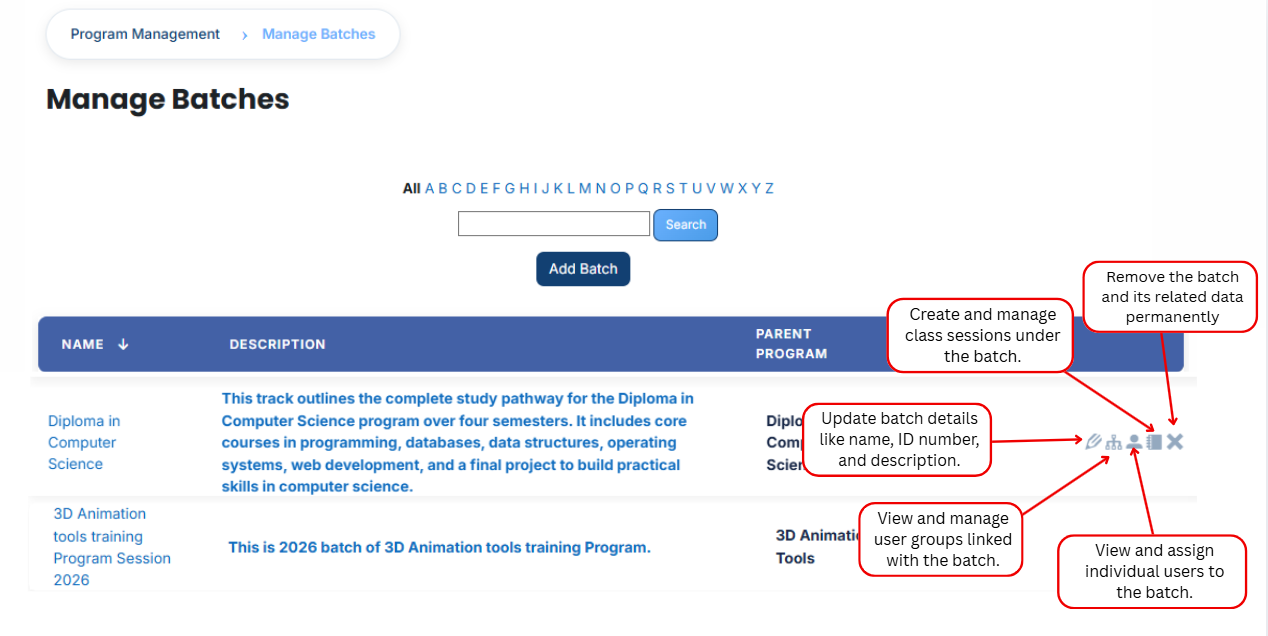](https://wiki.paktaleem.net/uploads/images/gallery/2026-07/gKOimage.png)
---
# How to Edit a Batch
To edit a course set, follow the steps below:
- Start from the **Dashboard** and open the **side drawer** menu. From there, go to **Programs** and select **Manage Batches.** A list of available batches will appear on the screen.
- Locate the **batches** you want to modify and **click** on the **edit icon** next to it. The batch details page will open in **edit mode.**
**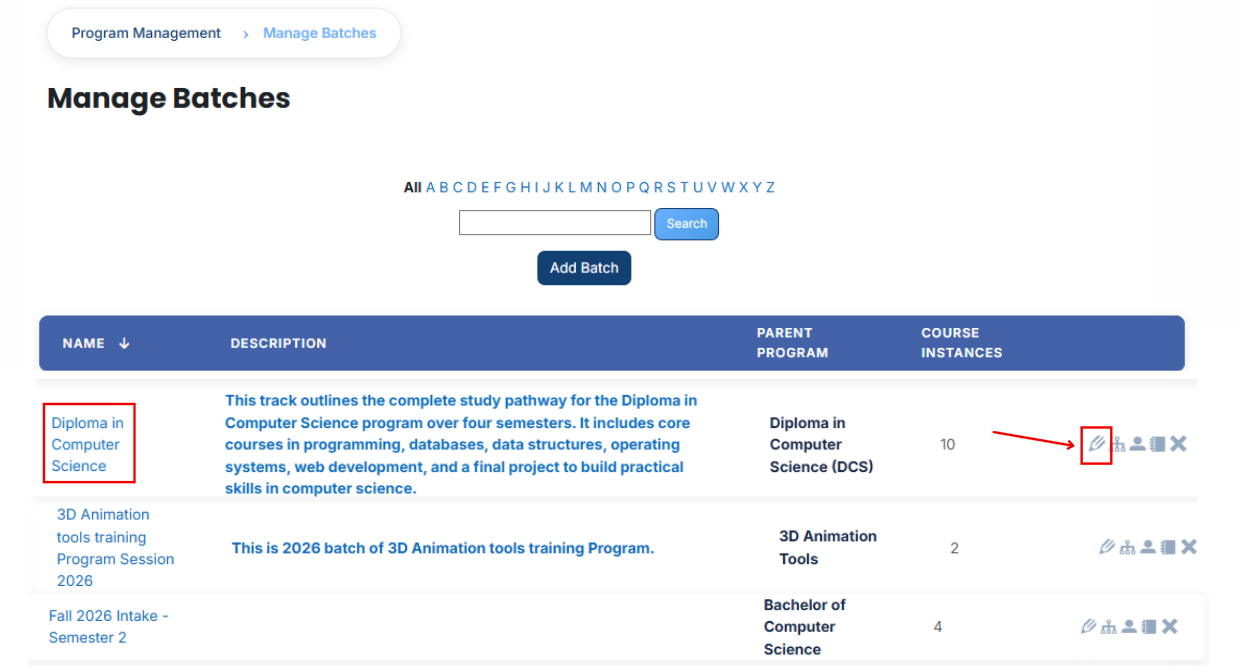**
- Make the necessary updates to the **batch's** information. After reviewing your changes, scroll down and click the **Save Changes** button to apply and **save** the updates.
---
# How to Assign Users Groups to a Batch
#### **User Groups:**
A user group is a group of users combined for easier management. Instead of assigning users individually, administrators can assign and manage multiple users as a single unit.
**Example:**
For example, a university may create a user group containing 20 users. By assigning the user group to a batch, all users in the set are associated with the batch at once, saving time and reducing manual effort.
---
### **Steps to Assign User Groups to a Batch:**
- From the Dashboard, open the side drawer menu and navigate to Programs > Manage batches. A list of available batches will be displayed.
- Locate the batch to which you want to assign a user group and click the user group icon.
[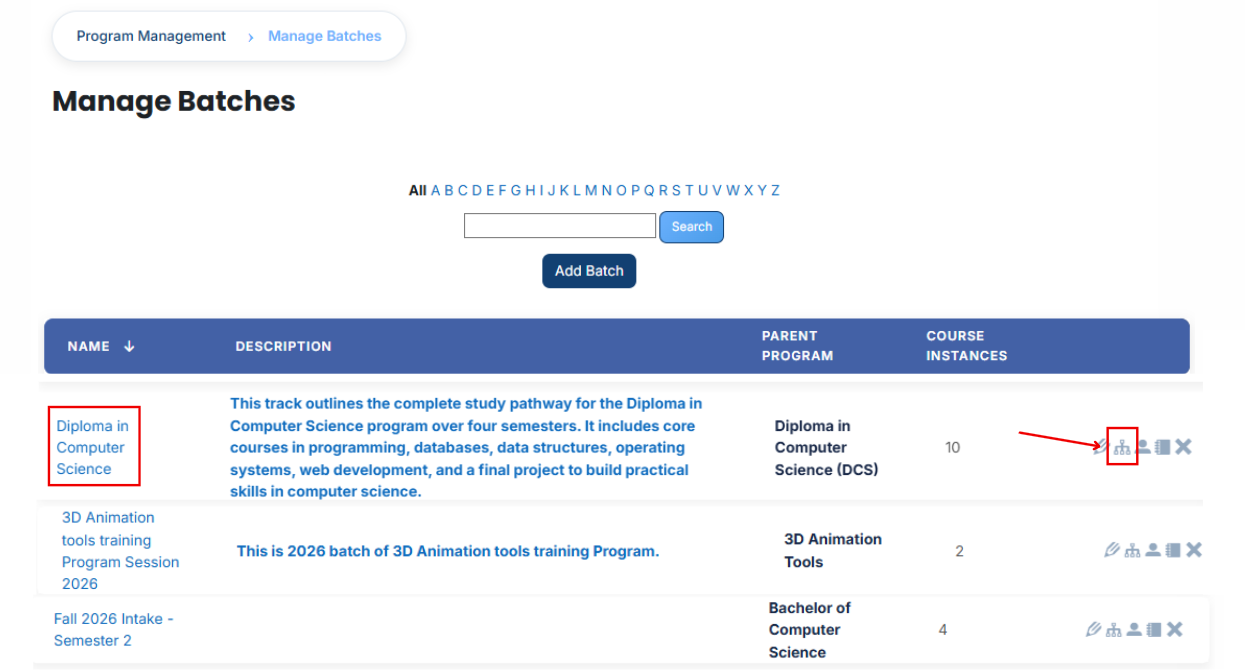](https://wiki.paktaleem.net/uploads/images/gallery/2026-07/V8Ximage.png)
- The batch **user group** page will **open**.
- In this section, you can view the user groups currently assigned to the batch. To assign **additional** user groups, click the **Available to Assign button.**
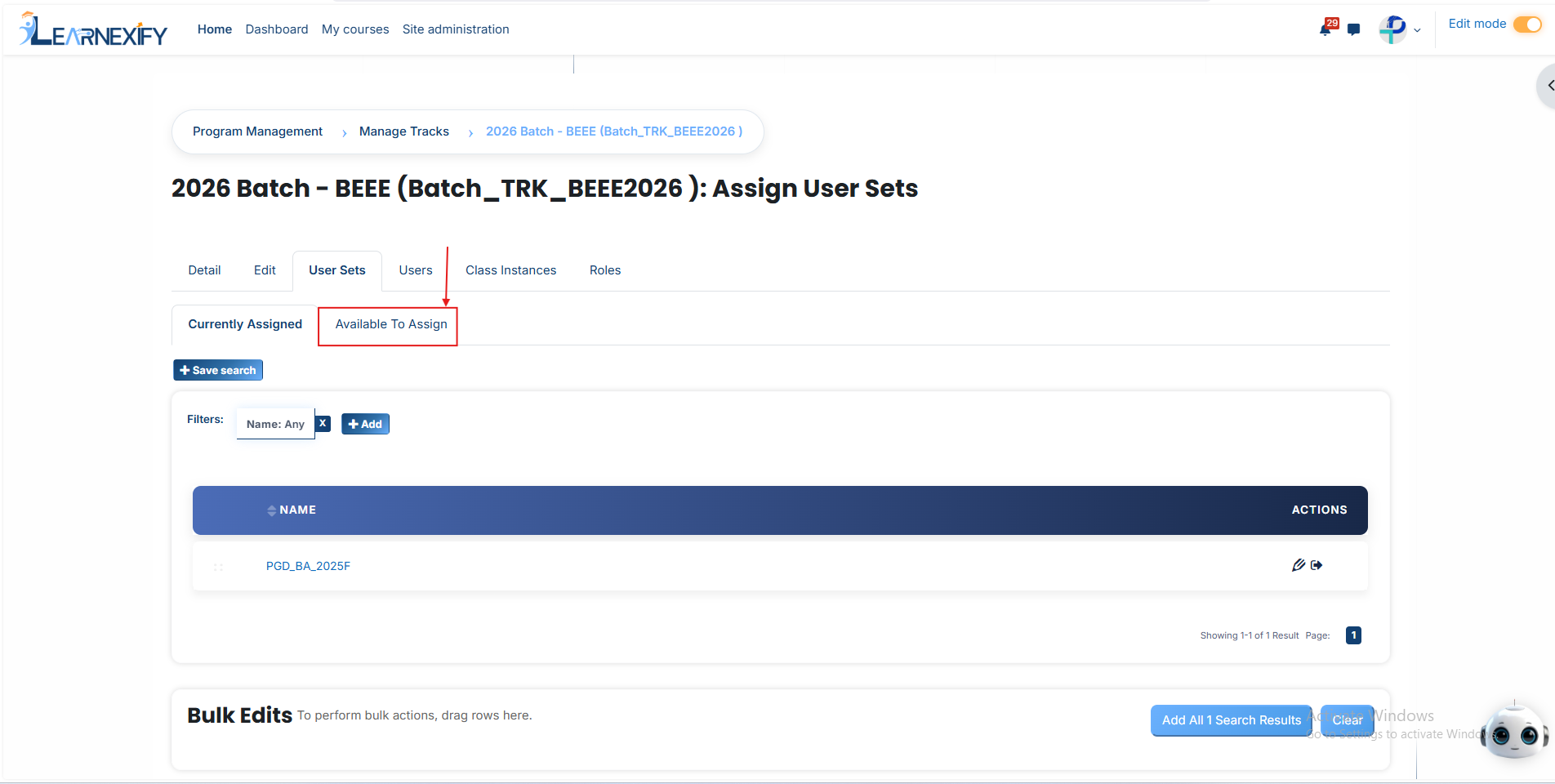
- A list of available user groups will appear. Select the **user group** you want to **assign.**
- Click the **arrow icon** to move the user group to the assignment area.
- You can then **choose** from the **following options:**
**1. Auto-enroll users into this batch when they are added to this user group** Enable this option to automatically enroll users in the batch whenever they are added to the selected user group. This eliminates the need for manual enrollment and provides immediate access to the batch.
**2. Apply batch association to all User subsets** Enable this option to apply the batch to all User Subsets within the selected user group. This ensures that users in related subsets are also assigned to the batch automatically.
- After selecting the required options, click the **green tick (✔)** to confirm the assignment.
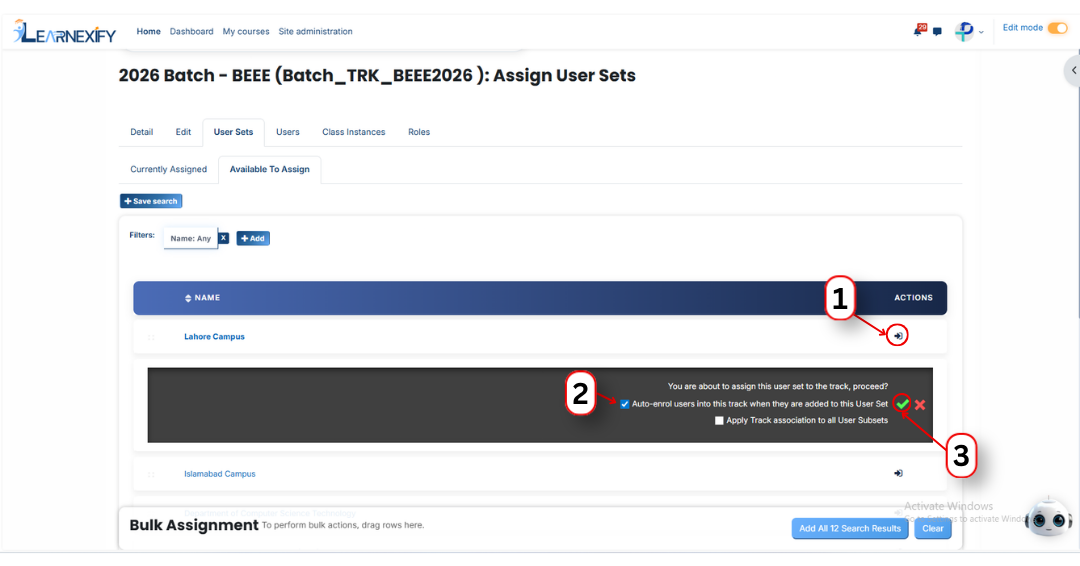
- Next, click on the **Currently Assigned button** to view all user groups that have been **successfully assigned** to the batch.
### **Assign user groups Using Filters**
If the required user group is not visible in the **Available to Assign list**, you can use filters to locate it.
Click the **Add button** to access the **available filter options.**
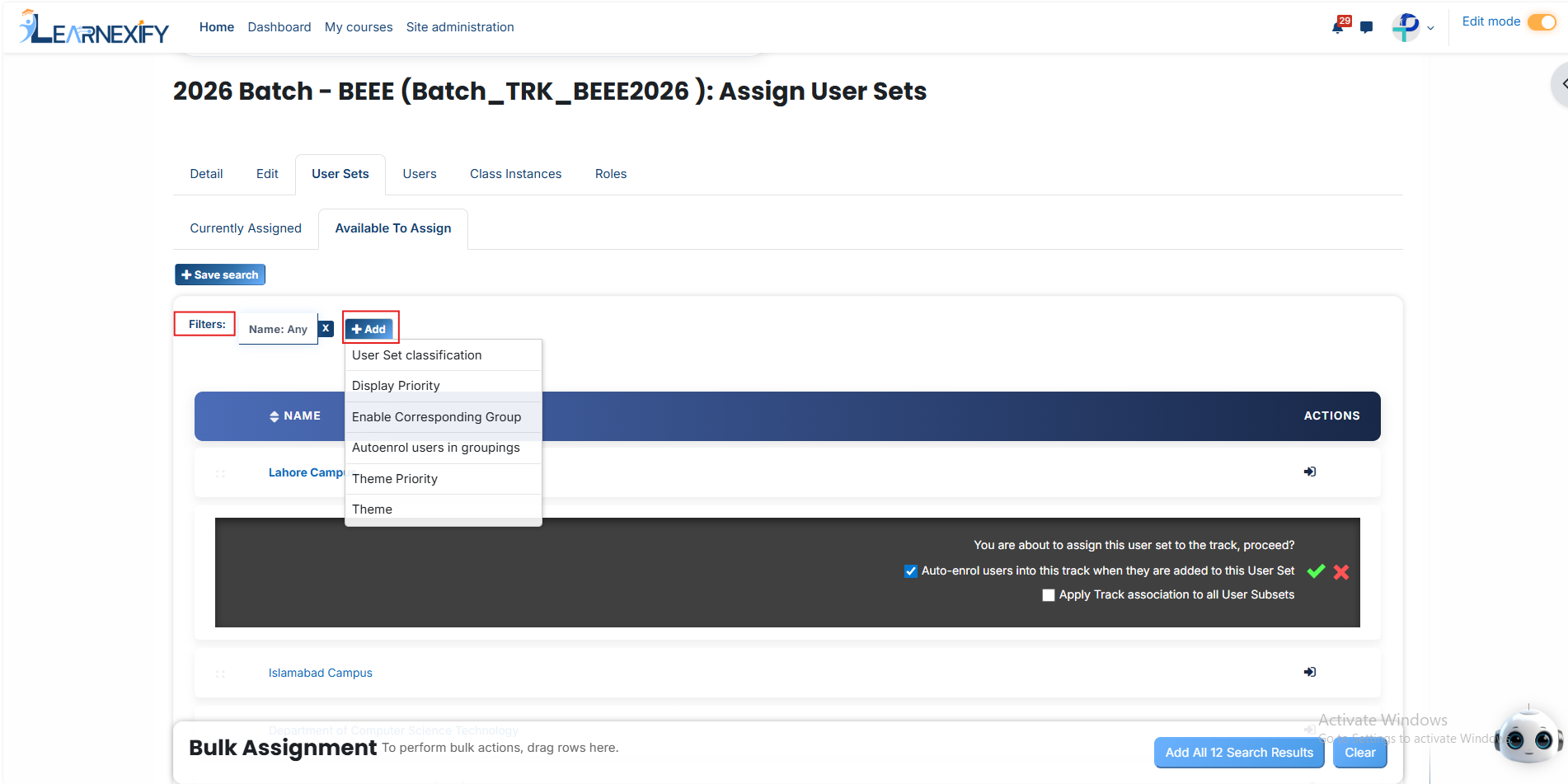
#### **1. User Set Classification**Use this filter to search for user groups based on their classification. Enter a value to display matching user groups only.
#### **2. Display Priority**Use this filter to locate user groups according to their assigned priority level.
#### **3. Enable Corresponding Group**This filter displays user groups that are associated with a specific group.
#### **4. Auto Enroll User in Grouping**Use this option to find user groups configured for automatic user enrollment after assignment.
#### **5. Theme Priority**Use this filter to search for user groups based on their theme priority.
#### **6. Theme**Use this filter to locate user groups associated with a specific theme.
Once the **required** user group appears in the list, click on the **arrow icon** and assign it using the **green tick (✔)**.
The assigned user group will then be displayed in the **Currently Assigned section.**
#### **
Bulk User Action:**
**Purpose:**
Use this feature to assign multiple User sets efficiently.**Method 1:**
- Select those **user groups** you want to assign.
- After making your selections, **click** the **“Add All 11 Selected Items” button** to add the selected user groups.
The number displayed in the button (e.g., 11) represents the number of items currently selected and will change depending on how many items you select.
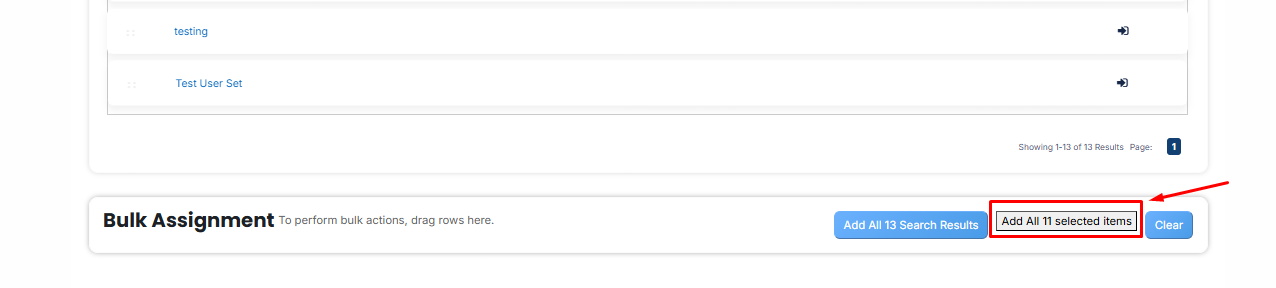
- Then click on the Assign button in the Bulk Assignment Section to move the user groups to the assigned list.
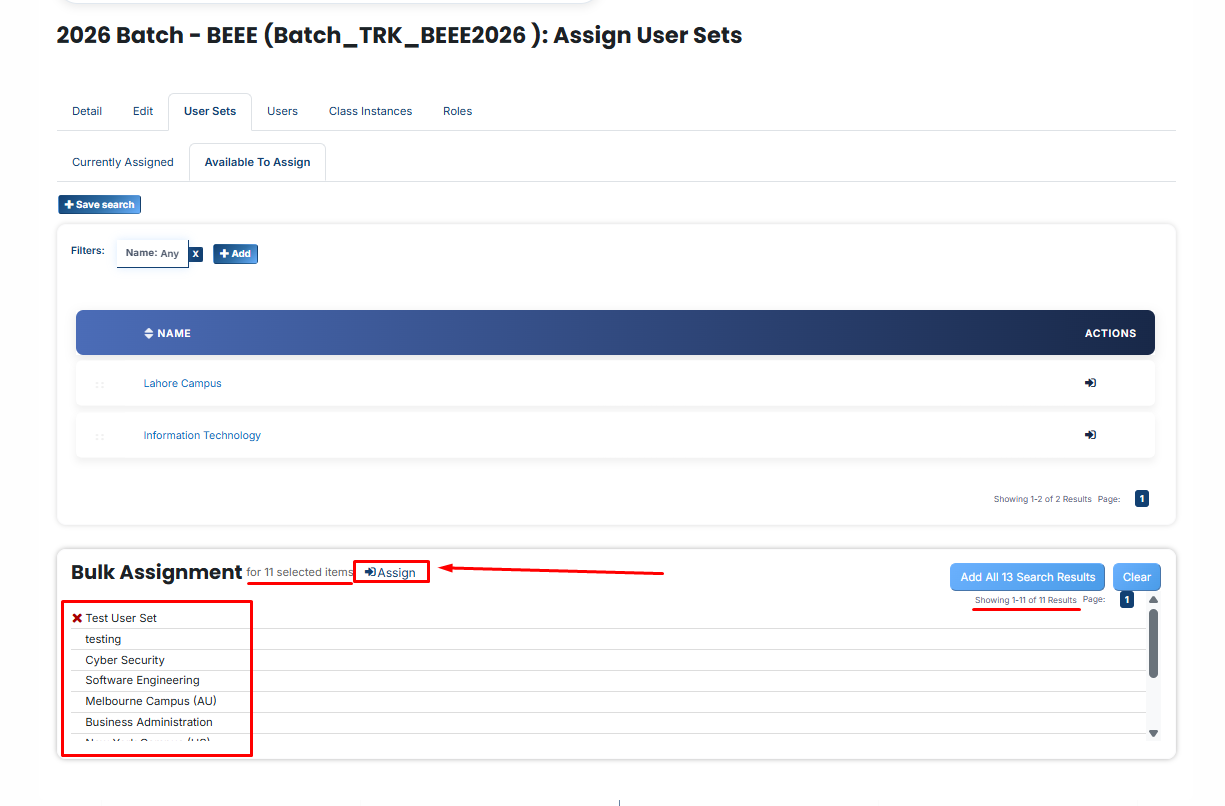
**Method 2:**
- Click the **“Add All 13 Search Results” button** to add all user groups with a single click. The number displayed in the button (e.g., 13) may vary depending on the number of user groups available in the search results.
- If you want to clear everything, click the **Clear button.**

---
# How to Assign Users to a Batch
From the list of all **batches**, click the **User icon** for the batch to which you want to **assign users.**
[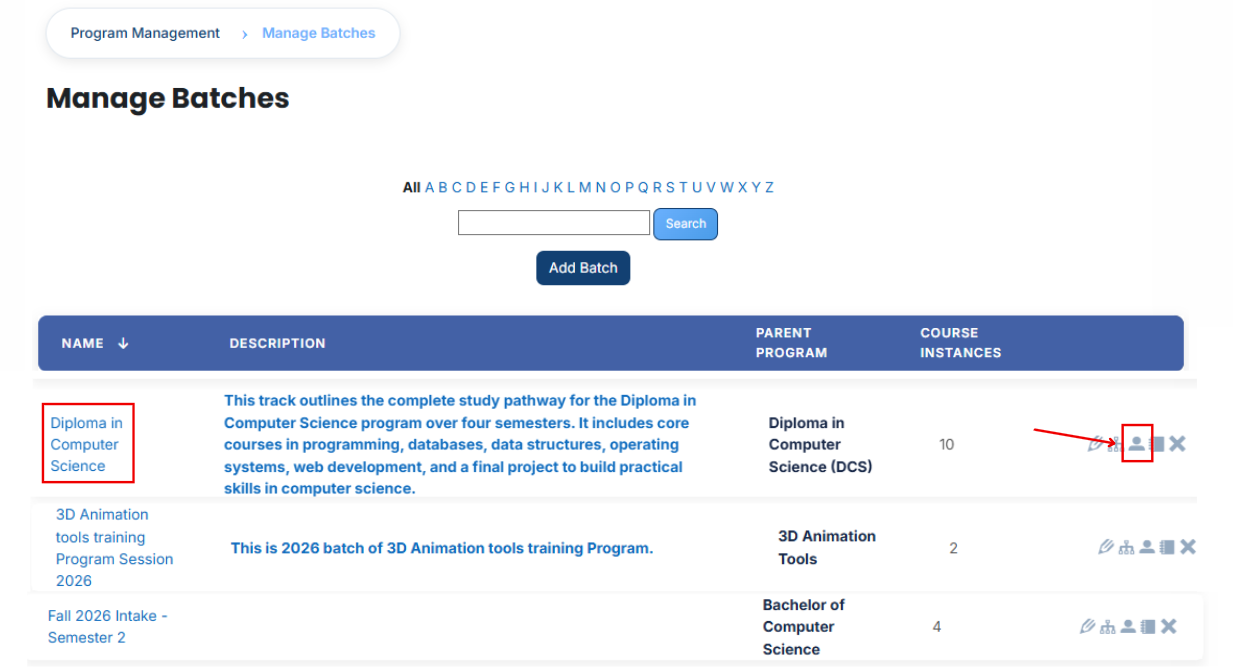](https://wiki.paktaleem.net/uploads/images/gallery/2026-07/qvfimage.png)
- After opening the **Users tab,** you will see the **users currently assigned** to the batch. To assign additional users, **click** the **Available to Assign button.**
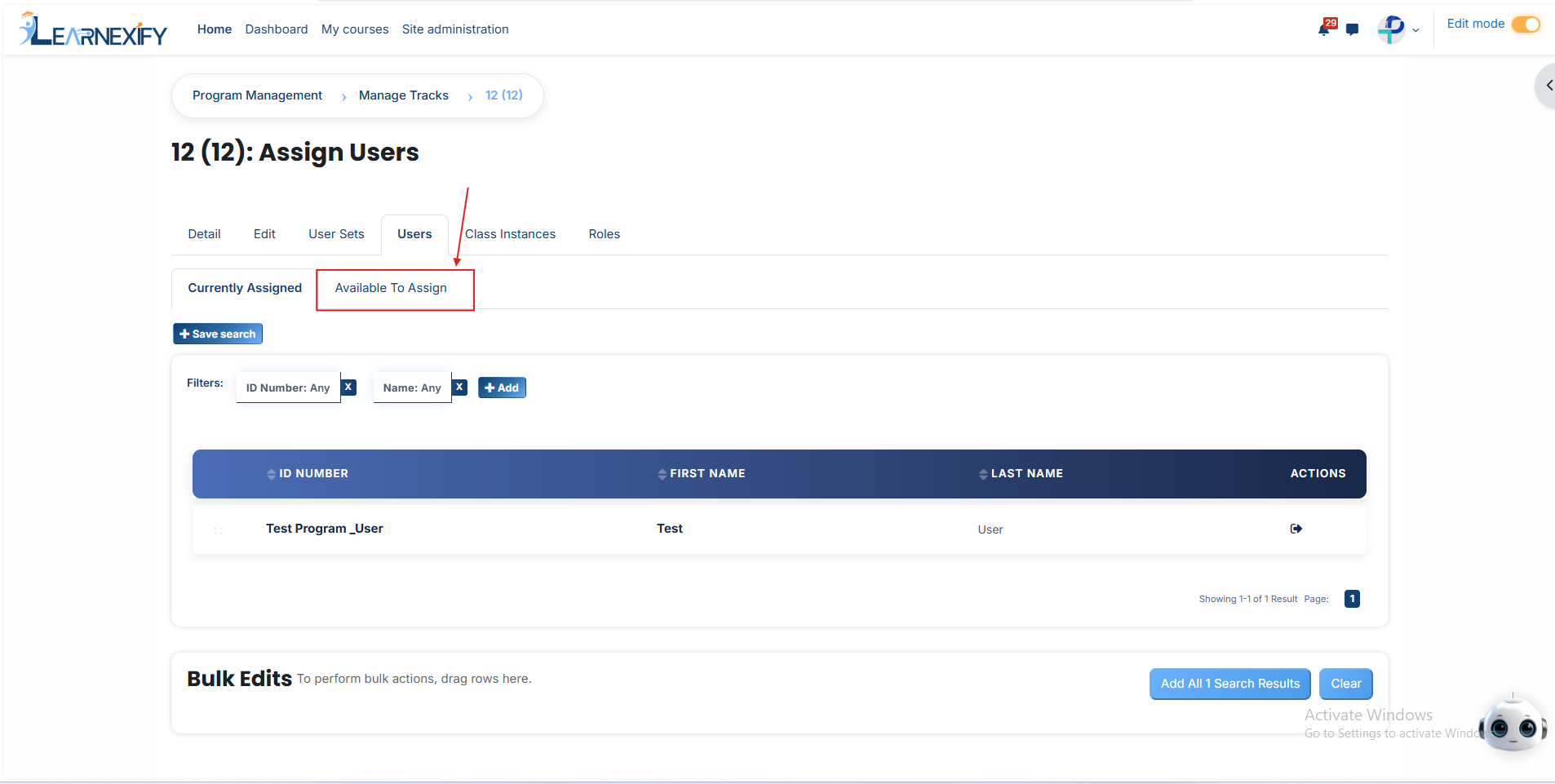
- A list of **available users** will be displayed. Select the user you want to **assign** and click the **arrow icon** to move the user to the assignment area.
- Click the **green tick (✔) to confirm** the assignment.
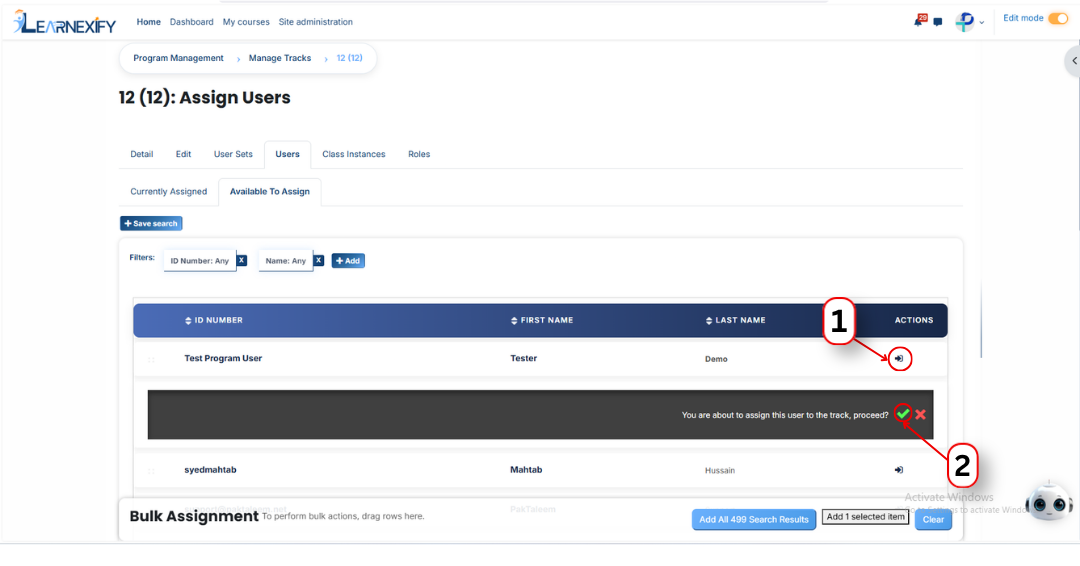
- Next, click on the **Currently Assigned button** to view all users who have been **successfully assigned** to the batch.
#### **Add a user if it is not available in the list**
If the user you want to assign is not visible in the list, follow these steps:
- Click the **Available to Assign button.**
- Click the **Add button.**
- A dropdown list of search fields will appear.
- Select the **appropriate field** (such as Email, Username, City/Town, or Country).
- Enter the user's information in the selected field.
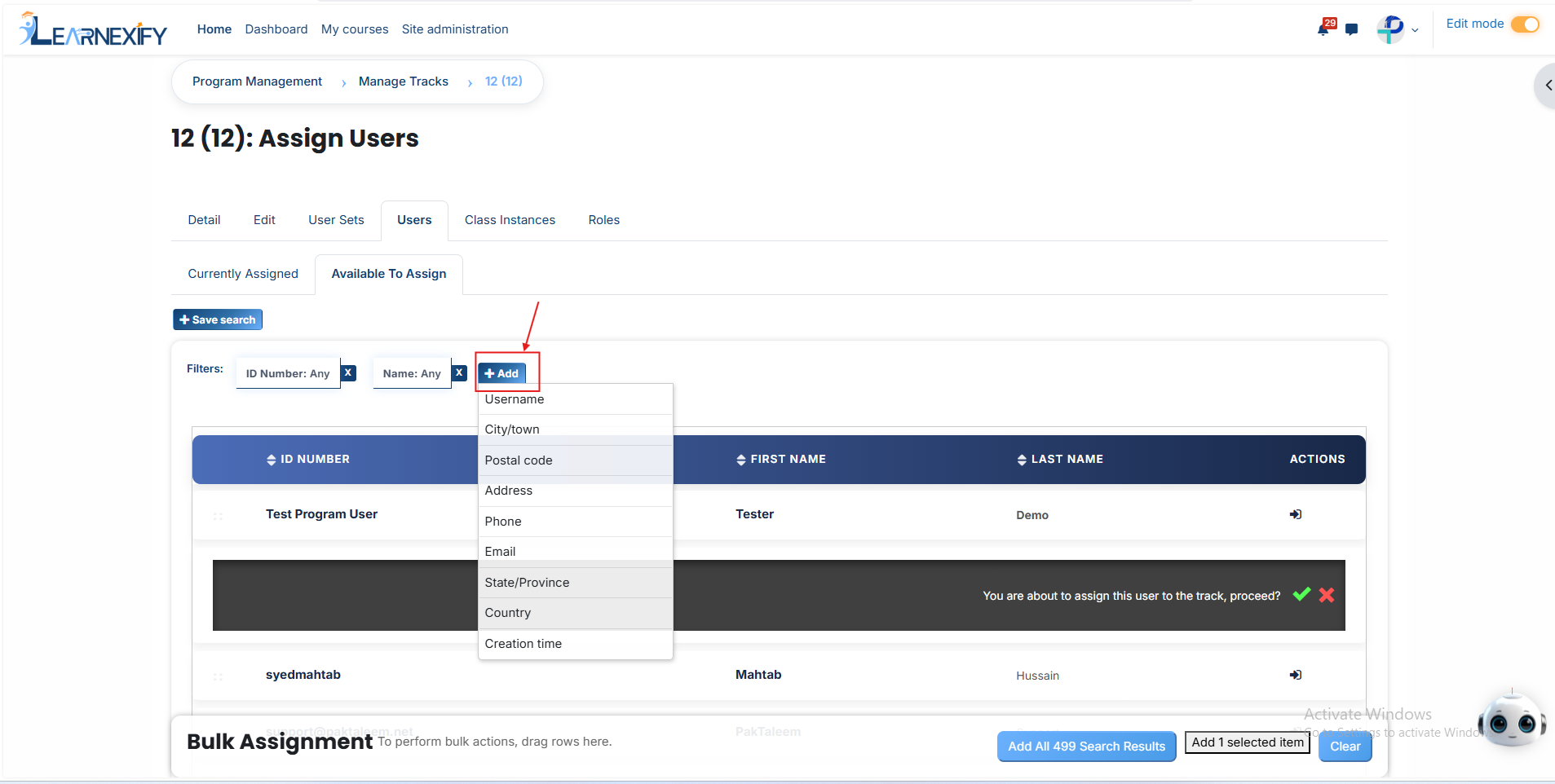
- The **matching user** will appear in the **list.** Select the user and **assign** them to the **batch.**
#### **Bulk User Action:****Purpose:** Use this feature to assign multiple Users efficiently. **Method 1:**
- Select those users you want to assign.
- After making your **selections, click** the **“Add All 14 Selected Items”** button to add the selected users.
The number **displayed** in the **button (e.g., 14) represents** the number of items currently selected and will change depending on how many items you select.
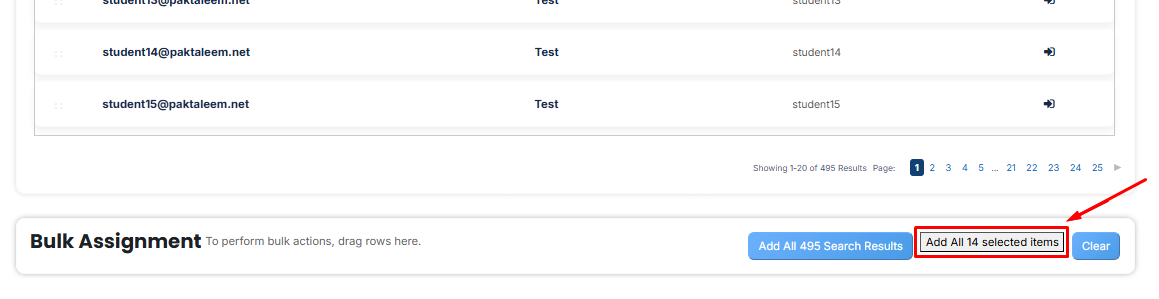
- Then click on the **Assign button** in the **Bulk Assignment Section** to move the **users** to the assigned list.
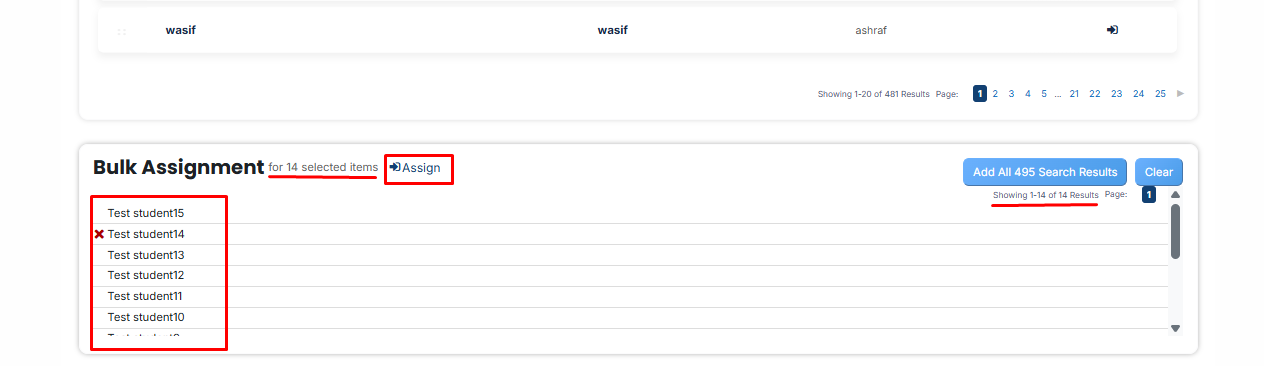
**Method 2:**
- Click the **“Add All 495 Search Results”** button to add all **users** with a single **click.** The number displayed in the **button (e.g., 495)** may vary **depending** on the number of **users available** in the search results.
- If you want to **clear everything,** click the **Clear button.**

---
# How to Assign Course Instances to a Batch
From the list of all batches, click the **course instance icon** for the batch to which you want to **assign course instances.**
[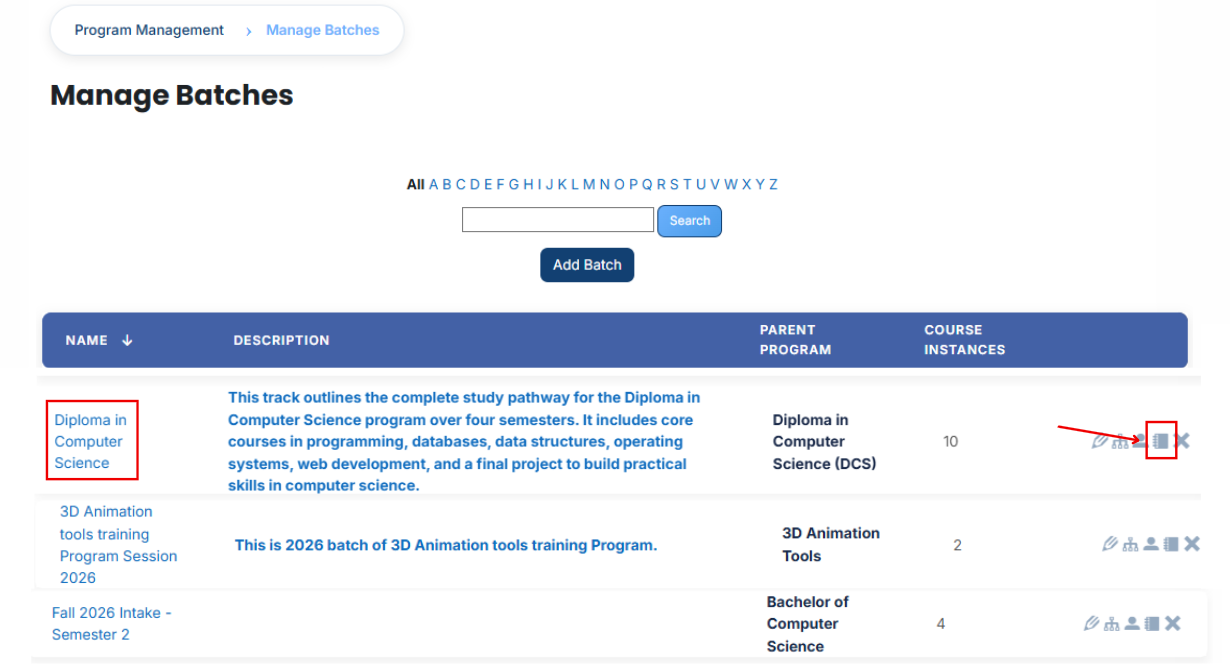](https://wiki.paktaleem.net/uploads/images/gallery/2026-07/Oxgimage.png)
After opening the **course instances tab,** you will see the course instances **currently assigned** to the batch. To assign **additional** course instances, click the **Available to Assign button.**
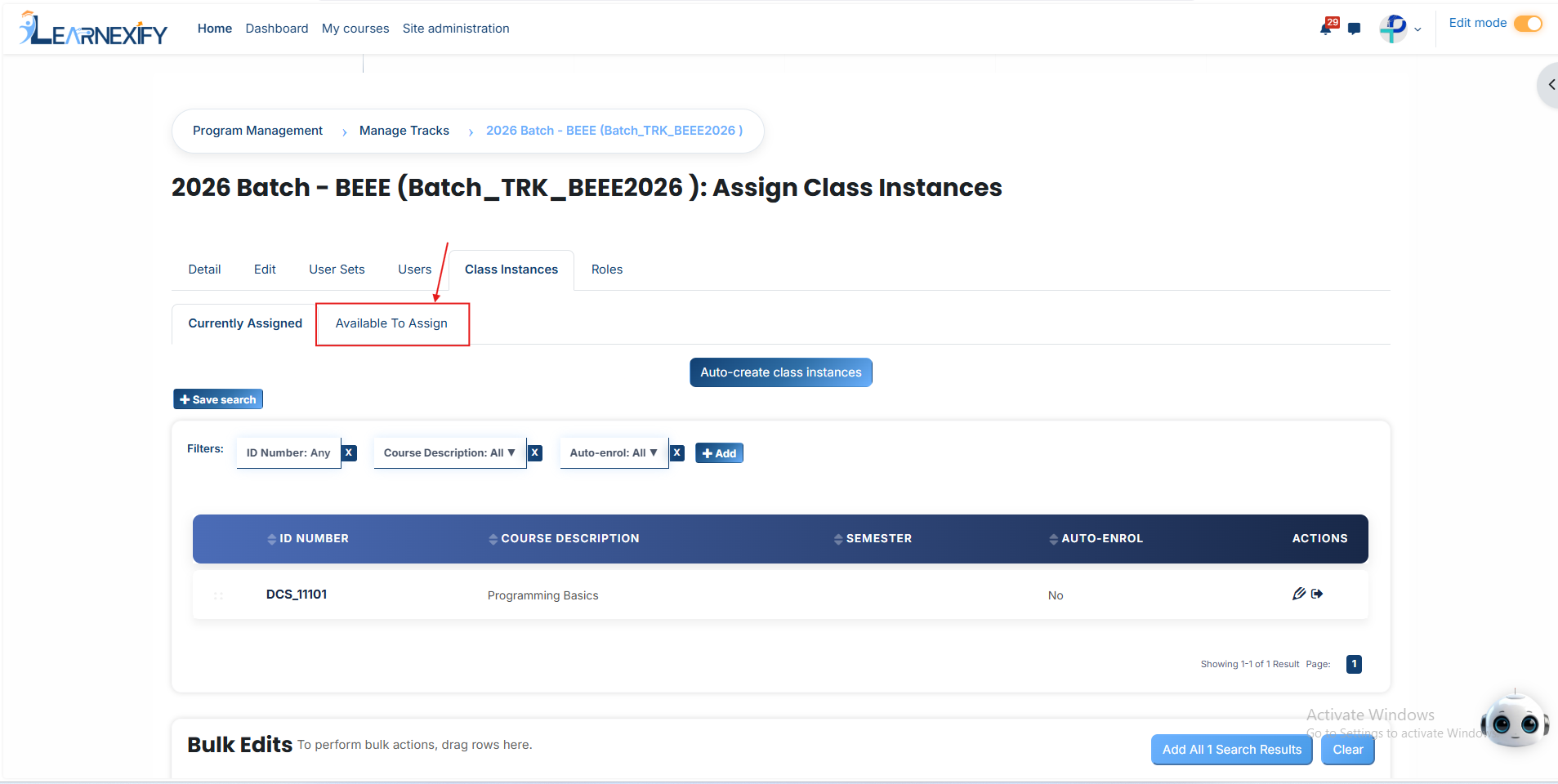
A list of **available course instances** will be displayed. Select the **course instance** you want to **assign.**
Click the **arrow icon** to move the course instance to the assignment area.
After clicking the arrow, the **following option** will appear:
**1. Auto-enroll users into this course instance when they are added to this batch** Enable this option to automatically enroll users into the course instance when they are added to the batch, ensuring users get access without manual enrollment and keeping batch and class enrollments synchronized.
After selecting the required course instance, click the **green tick (✔)** to confirm the assignment.
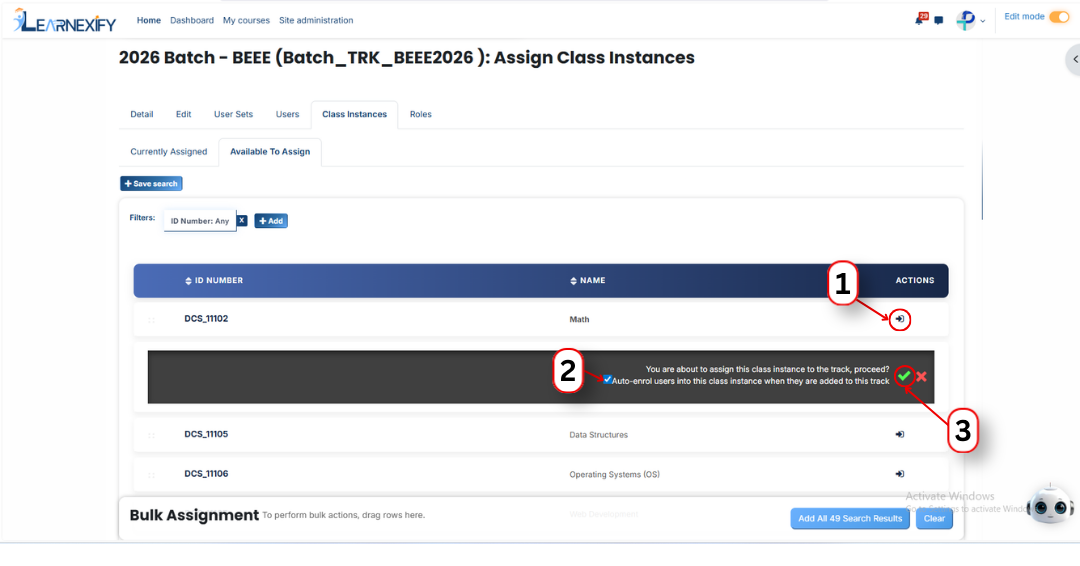
Next, click on the **Currently Assigned** button to view all **course instances** that have been **successfully assigned** to the batch.
#### **Assign course instances Using Filters:**
If the required course instance is **not visible** in the **list**, click the **Add button** to apply filters and search for it.
You can search using available fields such as:
- ID Number
- Start Date
- End Date
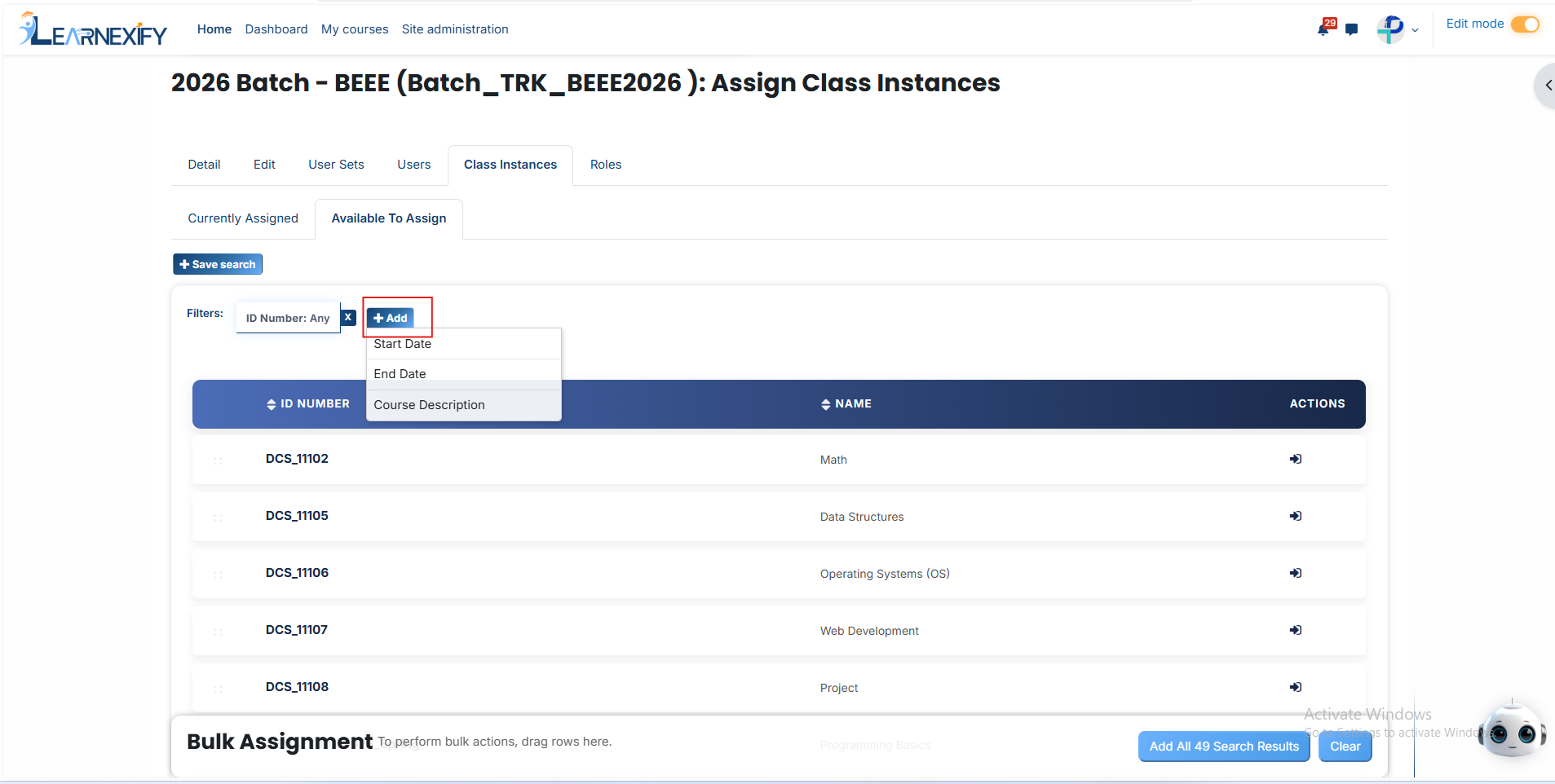
Once the required course instance appears, click the arrow icon and confirm the assignment using the **green tick** (✔).
The course instance will then **appear** in the **Currently Assigned** section.
#### **Bulk User Action:****Purpose:**
Use this feature to assign multiple course instances efficiently. **Method 1:**
- Select those course instances you want to assign.
- After making your selections, click the “Add All 11 Selected Items” button to add the selected course instances.
The number displayed in the button (e.g., 11) represents the number of items currently selected and will change depending on how many items you select.
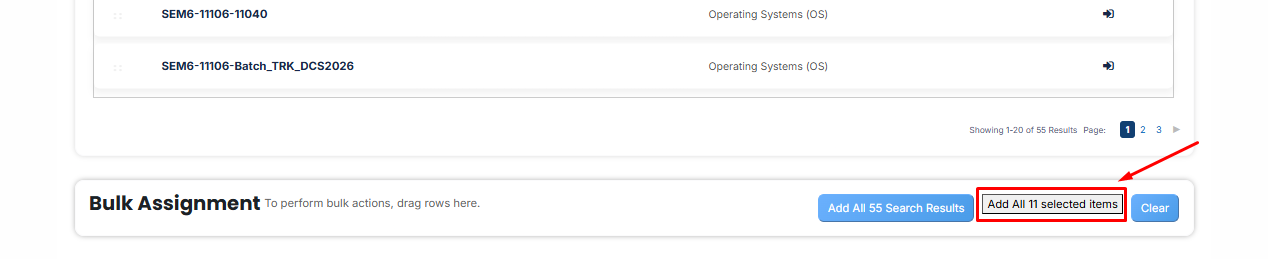
- Then click on the **Assign button** in the Bulk Assignment Section to move the **course instances** to the assigned list.
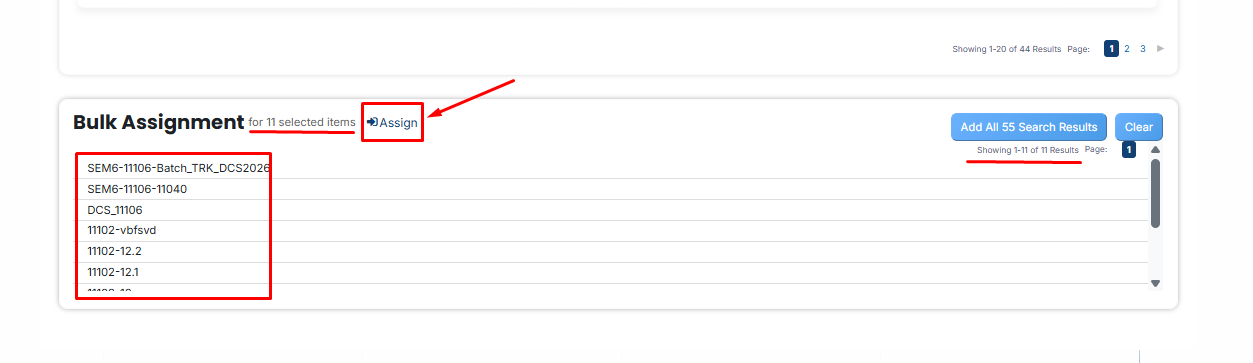
**Method 2:**
- Click the “Add All 55 Search Results” button to add all course instances with a single click. The number displayed in the button (e.g., 55) may vary depending on the number of course instances available in the search results.
- If you want to clear everything, click the Clear button.

---
# How to Assign Roles to a Batch
- Identify the specific batch you wish to modify from the main list of **batches.**
- Click that **batch name** and then click on the **Roles tab.**
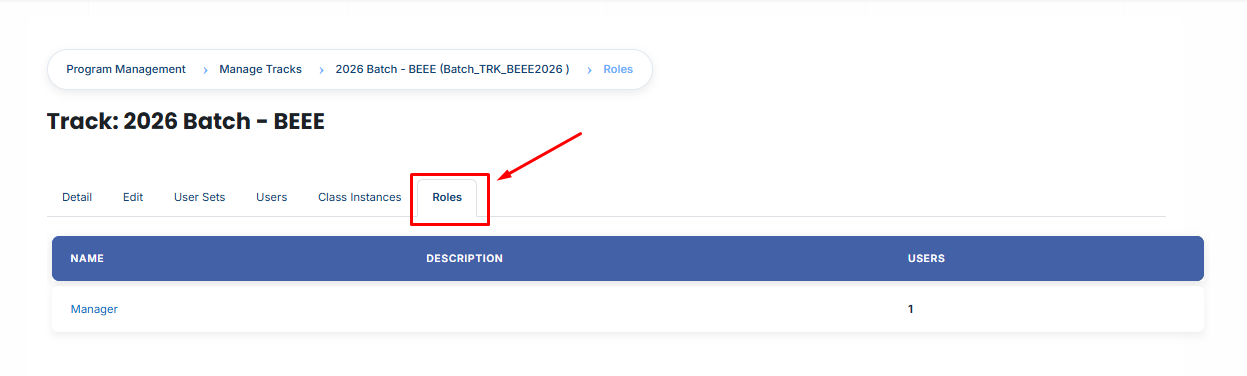
- Pick the **specific access level** you want to manage (for example: **Manager**).
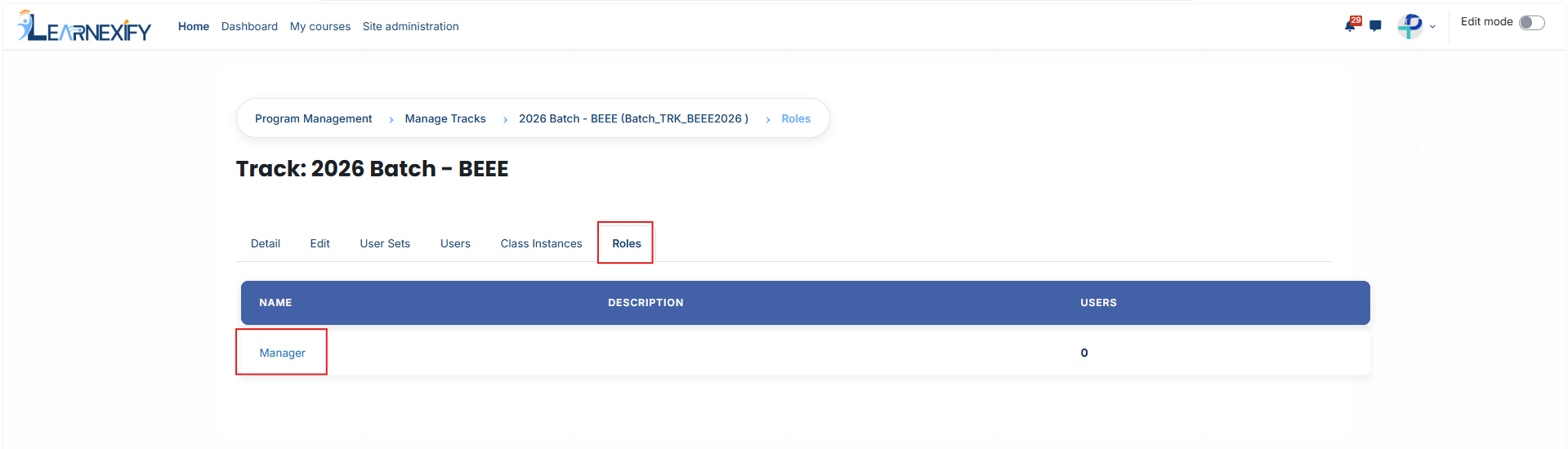
- The page will **display users** who are **already assigned** to this role; click the **Unassigned button** to see a list of other people you can add
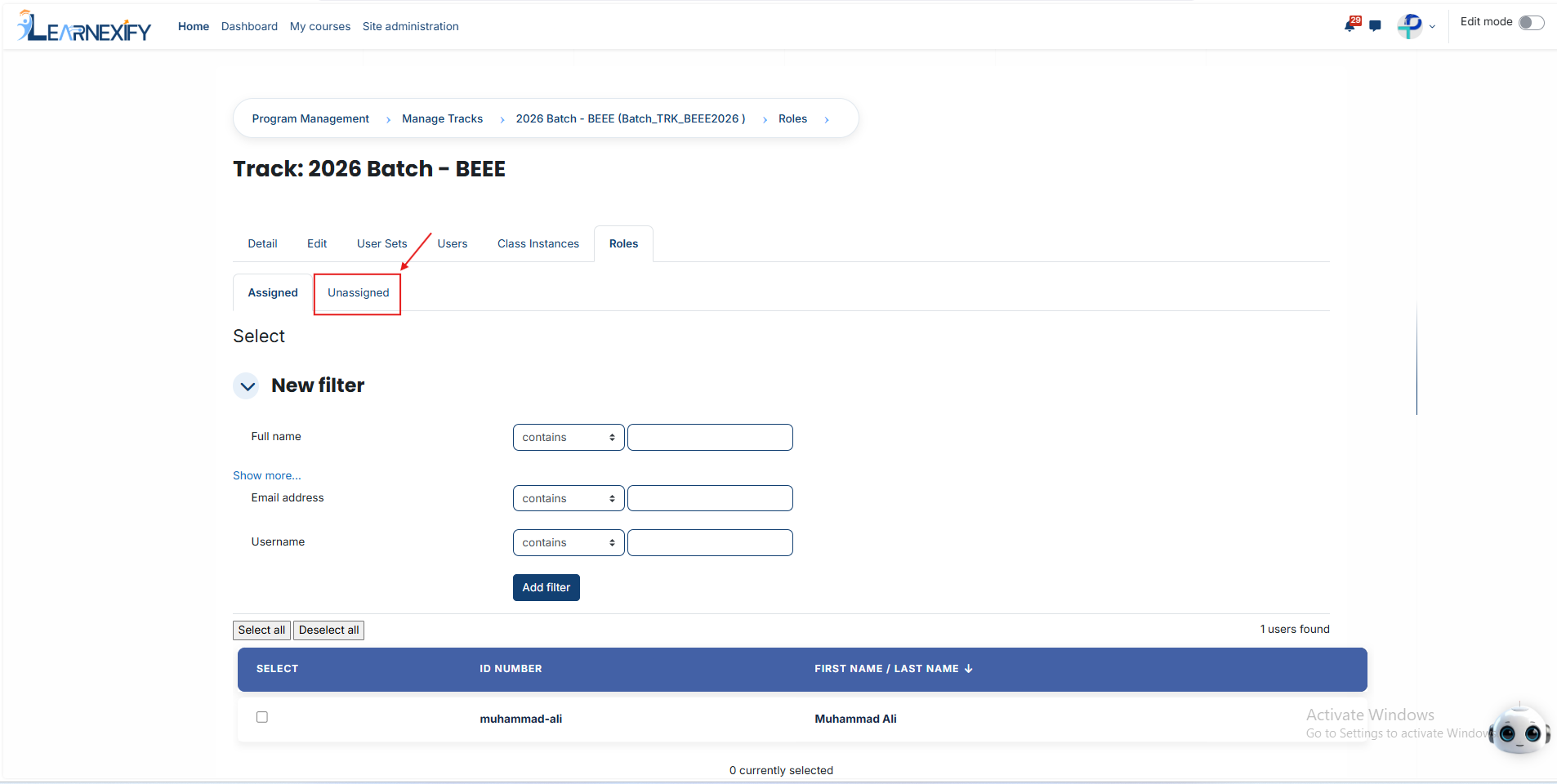
- Tick the **checkbox next** to each person you **want** to grant this role to.
- Move to the bottom of the page and click **Assign Roles** to **confirm** the update.
#### **If you need to find a specific person (Using Filters):**
- Use the Filter tool located at the top of the user list.
- Create a search rule using the person's Full Name, Username, or Email Address.
- Click the **Add Filter button** to see the matching users.
- Select the **correct individual** from the list and click **Assign Roles** to **complete** the process.
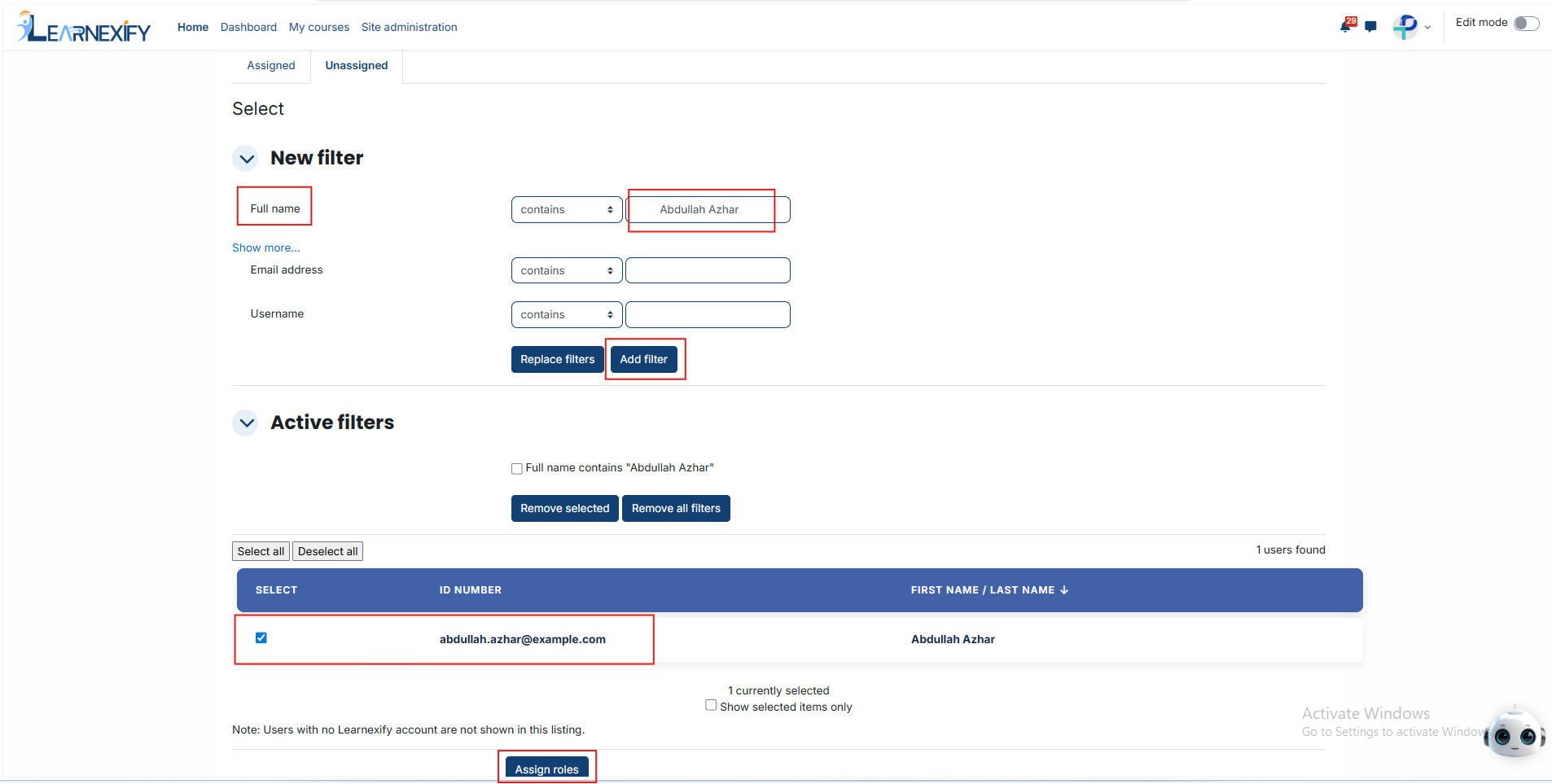
---