# How to Add Learning Objectives in a Course Description:
### **Learning Objectives:**
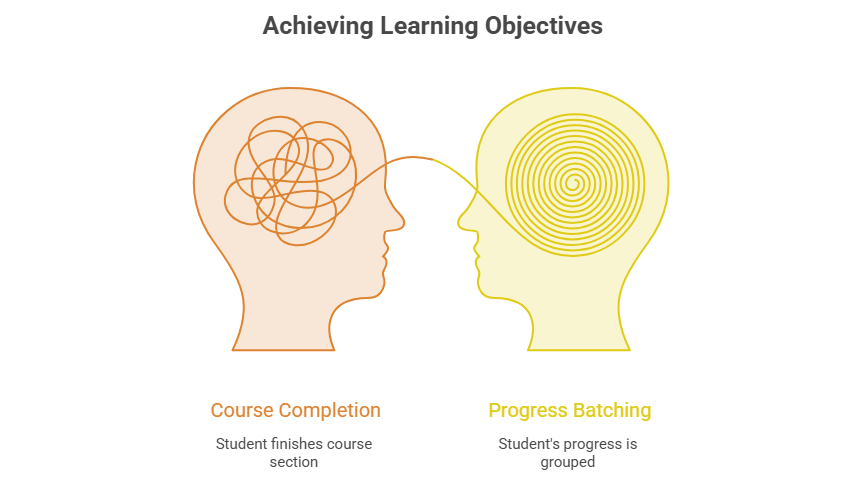
Learning Objectives are used to batch a student's progress and show exactly what they have learned after finishing a part of the course.
---
### **Steps how to add learning objectives:**
#### **1. Accessing Learning Objectives**
- From the list of all available course descriptions, locate the one you want to **add a learning objective.**
- Click on the **learning objective icon** for the specific course description.
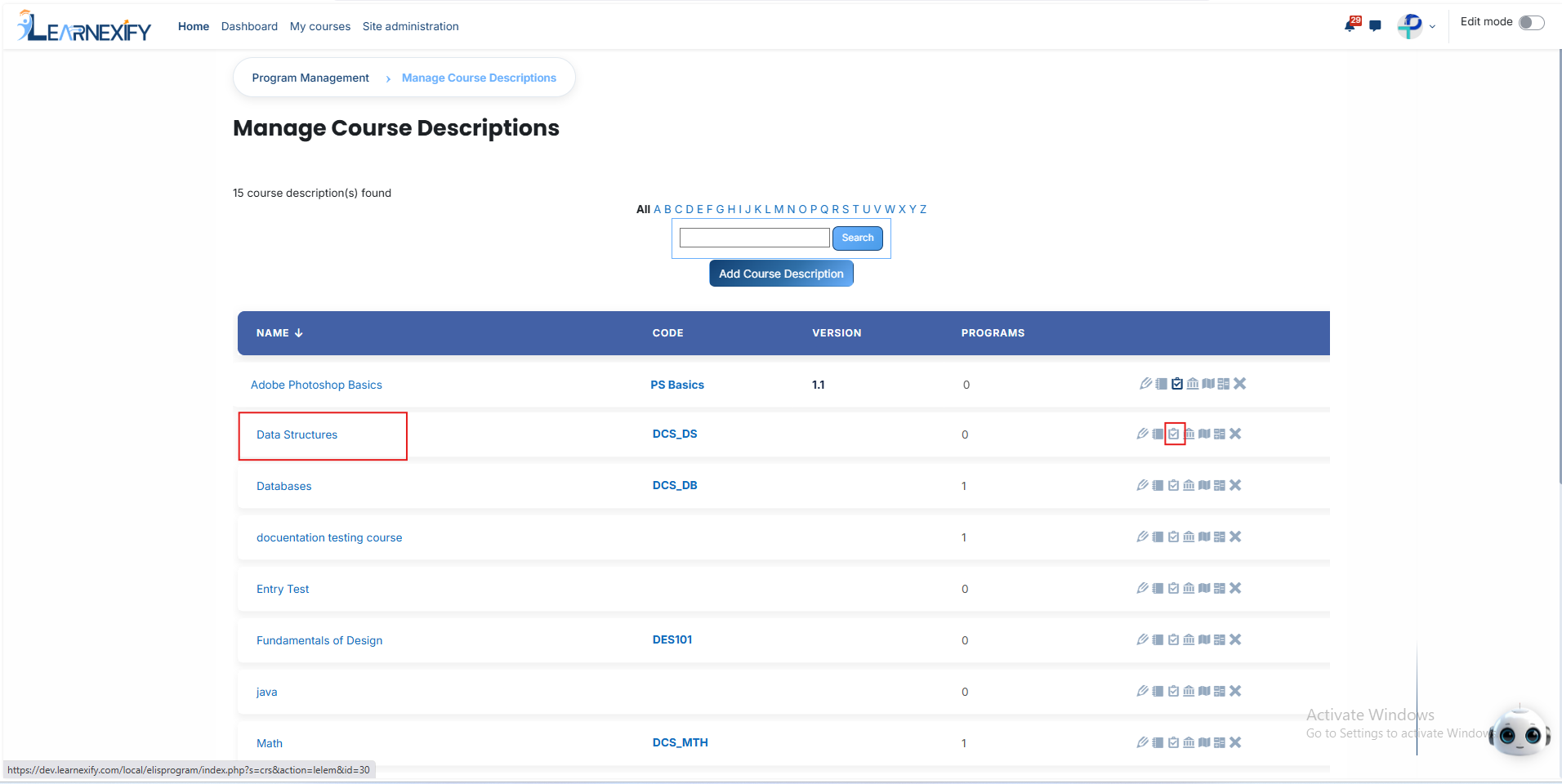
- Click the **Add Element button** to create a **new Learning Objective.**

#### **2. Understanding the ID Number while creating a learning objective**
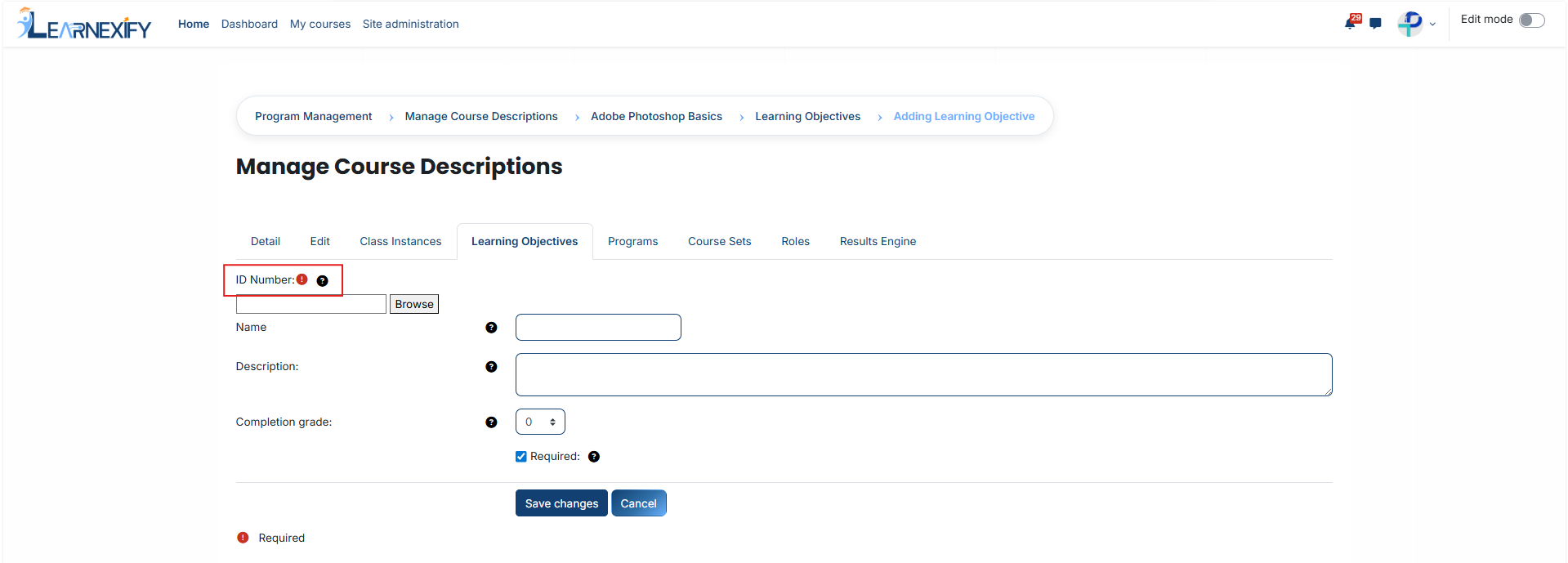
The ID Number is the most important field. It acts as a "bridge" between the learning objective and the actual task the student performs in the learning system.
**Important:** This ID must exactly match the ID in the connected system. It is case-sensitive, meaning capital and lowercase letters must be identical.
If this ID is incorrect, the system will not be able to batch the student’s score for this objective.
####
**3. Using the 'Browse' Button (Required)**
To avoid errors in typing long or complex ID numbers, use the Browse tool:
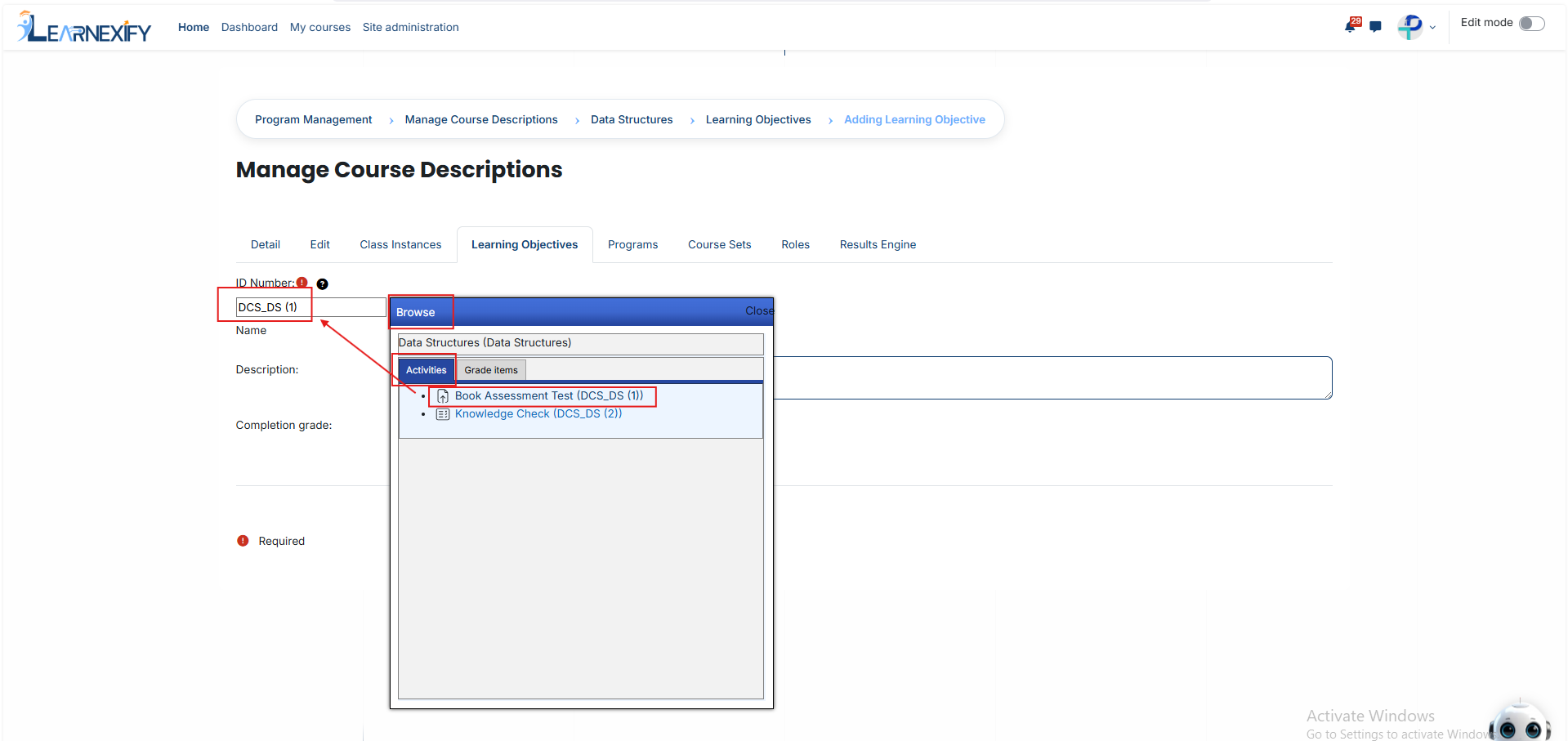
Click the **Browse button** next to the ID Number field. A window will **open showing all available Activities** (Tests, Quizzes, Scorm packages) and Grade Items within the course template.
**How to Link:** Find the specific activity you want to batch and simply click on it.
**The Result:** The system will automatically fetch the correct ID Number and fill it into the box for you. This ensures a 100% accurate link without any manual typing mistakes.
#### **4. Adding Details**
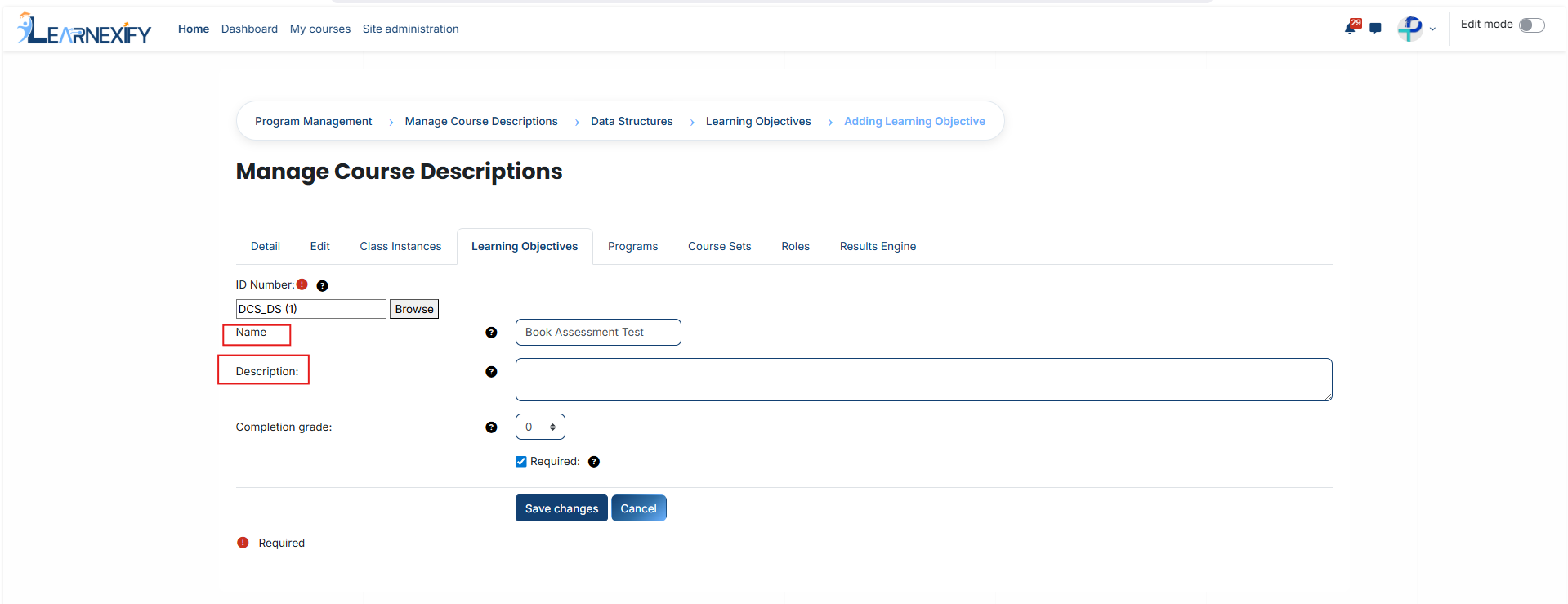
**Name:** Give the objective a clear and simple title (e.g., "Final Exam Proficiency").
**Description:** Provide a brief explanation of what the student needs to learn. This information helps make your reports easy to read and understand later.
####
**5. Setting the Completion Grade**
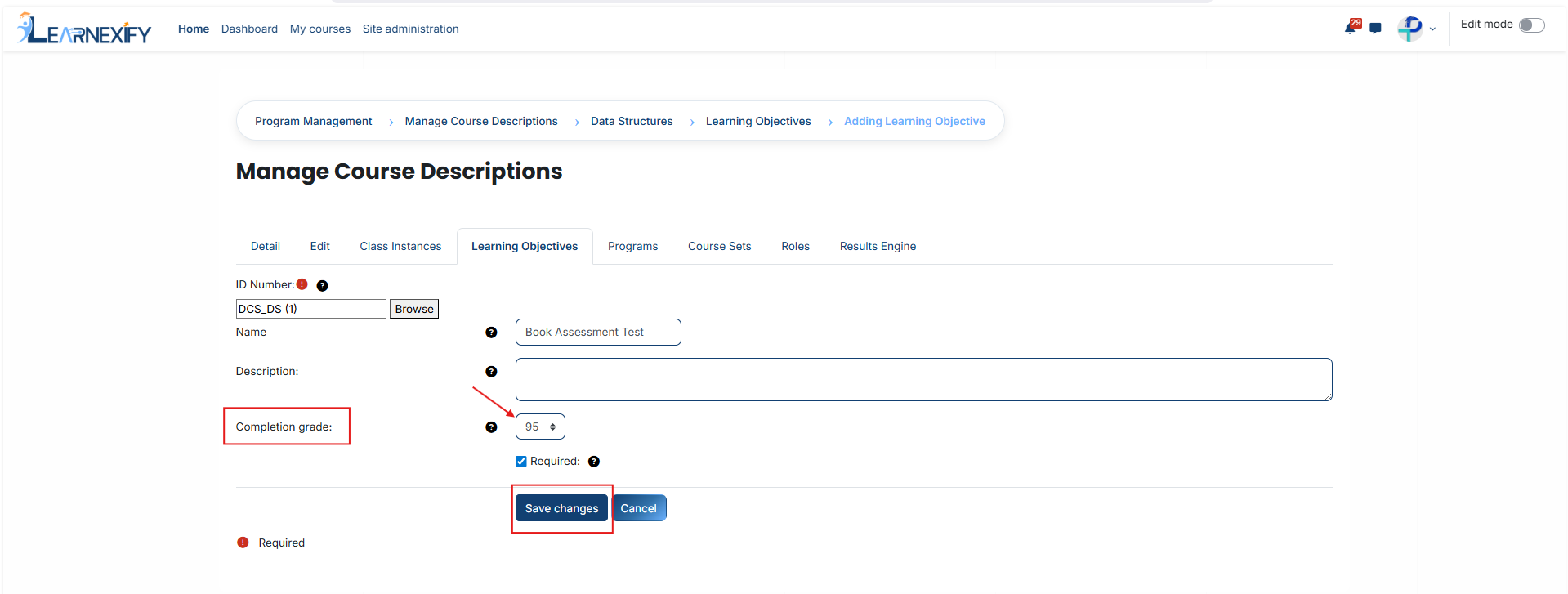
The Completion Grade is the **"passing mark"** for this objective.
Enter the minimum score (usually a percentage) a student must achieve to mark this objective as **"Completed."**
**Example:** If you set this to 70, the student will only receive credit for this learning objective once they score 70% or higher on the linked activity.
Once you have selected the activity through the Browse button and set the passing grade, click **Save Changes.**
Your Learning Objective is now live and will begin tracking student performance immediately.
---