# How to Assign Course Description in a Program
#### **Course Description**
A Course Description is a short summary that explains the content, topics, and learning objectives of a course. It helps students and teachers understand what will be taught in the course and what its main purpose is.

---
#### **
Follow these steps to assign a Course Description to a program:**
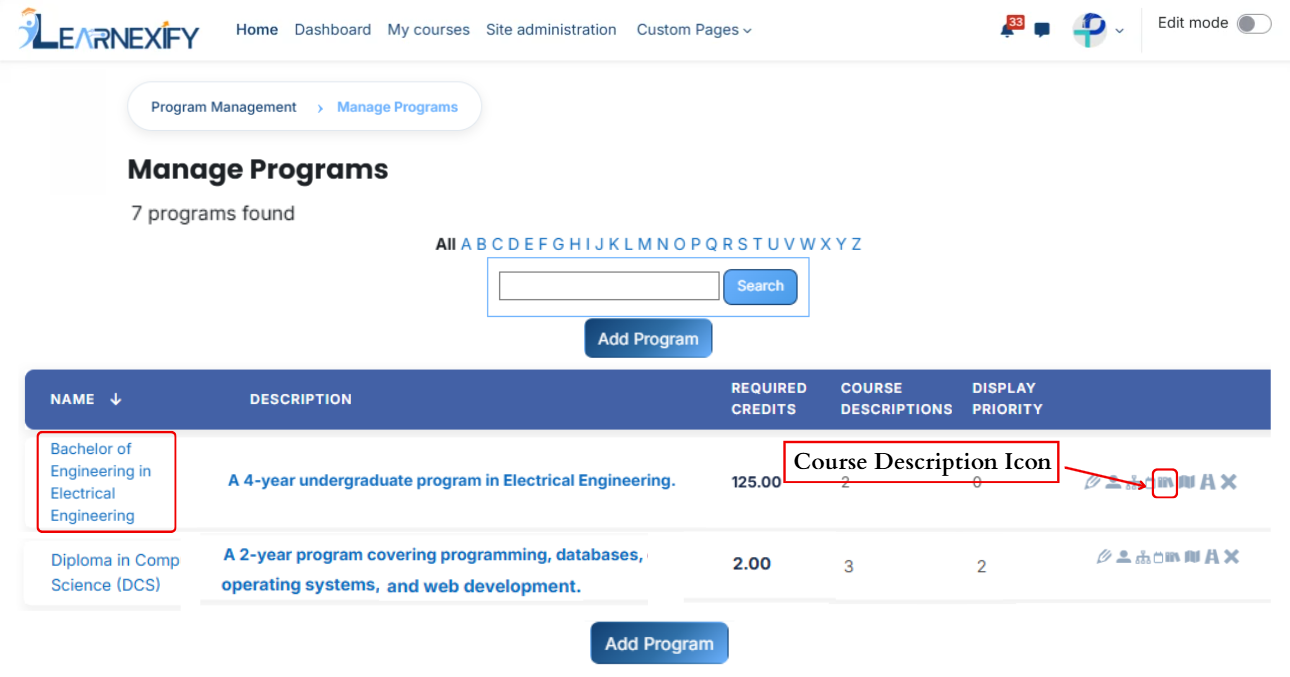
- Open the **Learnexify dashboard** and go to the **user menu.** Click on Programs and then select **Manage Program.** Here you will see the list of all semesters.
- In which program you want to assign **Course Description,** click on the **Course Description icon.**
[](https://wiki.paktaleem.net/uploads/images/gallery/2026-07/gfSimage.png)
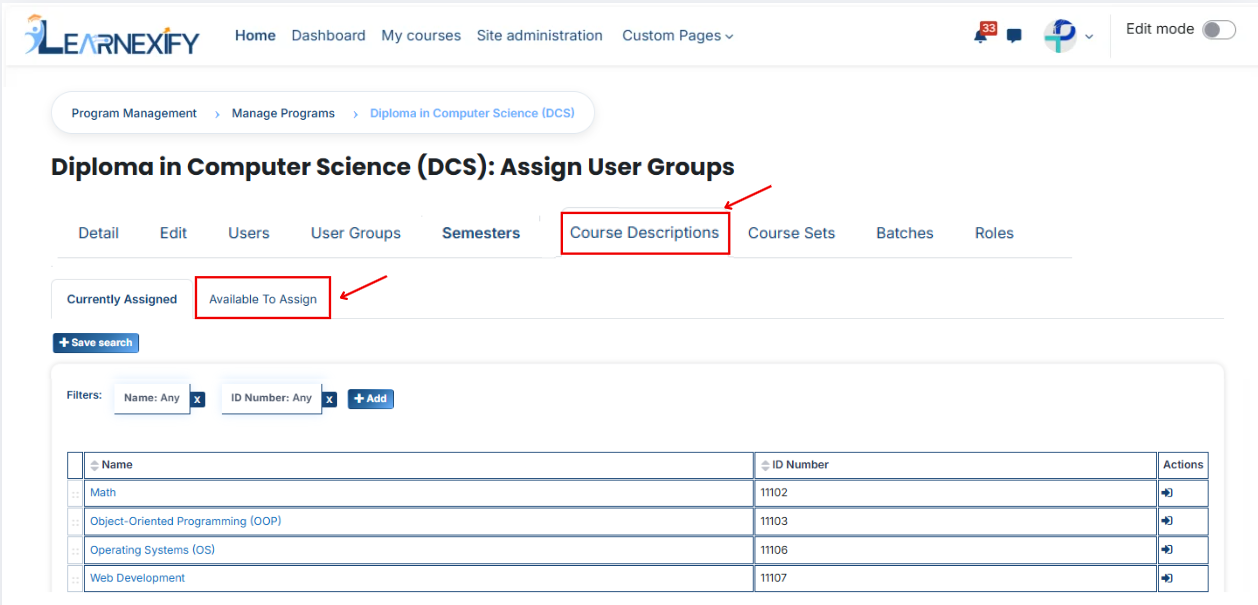
- Here you will see the list of assigned semesters.
- Click on the Available to Assign button to assign more course descriptions in the program.
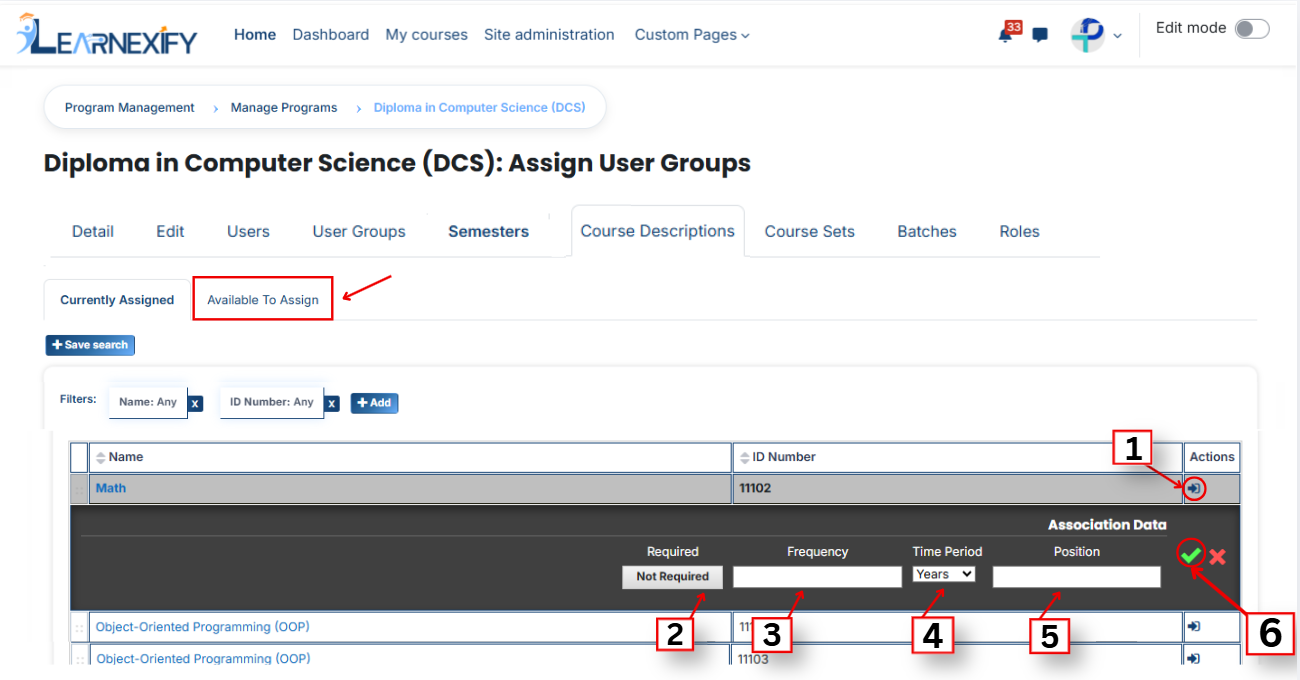
- Select the course description you want to assign to the program.
- Click on the arrow button to move the selected semester.
- Fill the details:
#### **1. Required**
This field is used to decide whether the course description is compulsory or optional.
- If a Course Description is set as Required when assigning it in a program, it becomes mandatory for learners to complete it.
- If we select Not Required, then it will be optional and not mandatory.
**Example:**
If we select Required, then the system will force this course description to be included in the program.
#### **2. Frequency**
This field defines how many times the course description should be applied.
**Example:**
If we enter 2, it means the course description will be applied twice as per the defined time period.
#### ** 3. Time Period**
This field defines the time unit for the frequency.
- Days
- Weeks
- Months
- Years
**Example:**
If we select Years, and frequency is 1, then the course description will apply once every year.
#### **4. Position**
This field defines the order or sequence in which the course description will appear.
**Example:**
If we enter 1, it will appear first.
If we enter 2, it will appear after the first one.
[](https://wiki.paktaleem.net/uploads/images/gallery/2026-07/iuFimage.png)
- After filling the details, click on the green tick to confirm the assignment.
- Go to the Currently Assigned section, where you can see the assigned course description.
- If you cannot find your course description, select the required field and enter the details according to the course description on the “Available to Assign” page.
#### **Bulk User Action:**
**Purpose:**
Use this feature to assign multiple course descriptions efficiently.
**Method 1:**
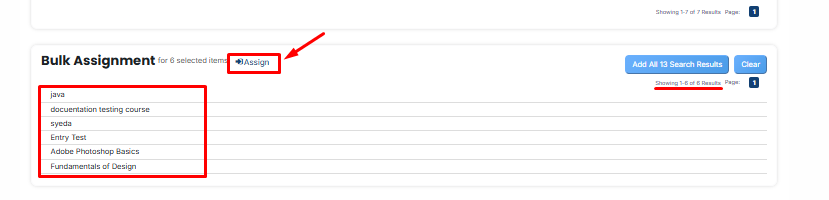
- Select those multiple course descriptions you want to assign in the program.
- After making your selections, click the **“Add All 6 Selected Items”** button to add the selected course descriptions.
The number displayed in the button **(e.g., 6)** represents the number of items currently selected and will change depending on how many items you select.

- Then click on the Assign button in the Bulk Assignment Section to move the course descriptions to the assigned list.
**Method 2:**
- Click the **“Add All 13 Search Results”** button to add all course descriptions with a **single click.** The number displayed in the button **(e.g., 13)** may vary depending on the number of course descriptions available in the search results.
- If you want to **clear everything,** click the **Clear button.**

---