How to Assign Course Instances to a Batch
From the list of all batches, click the course instance icon for the batch to which you want to assign course instances.
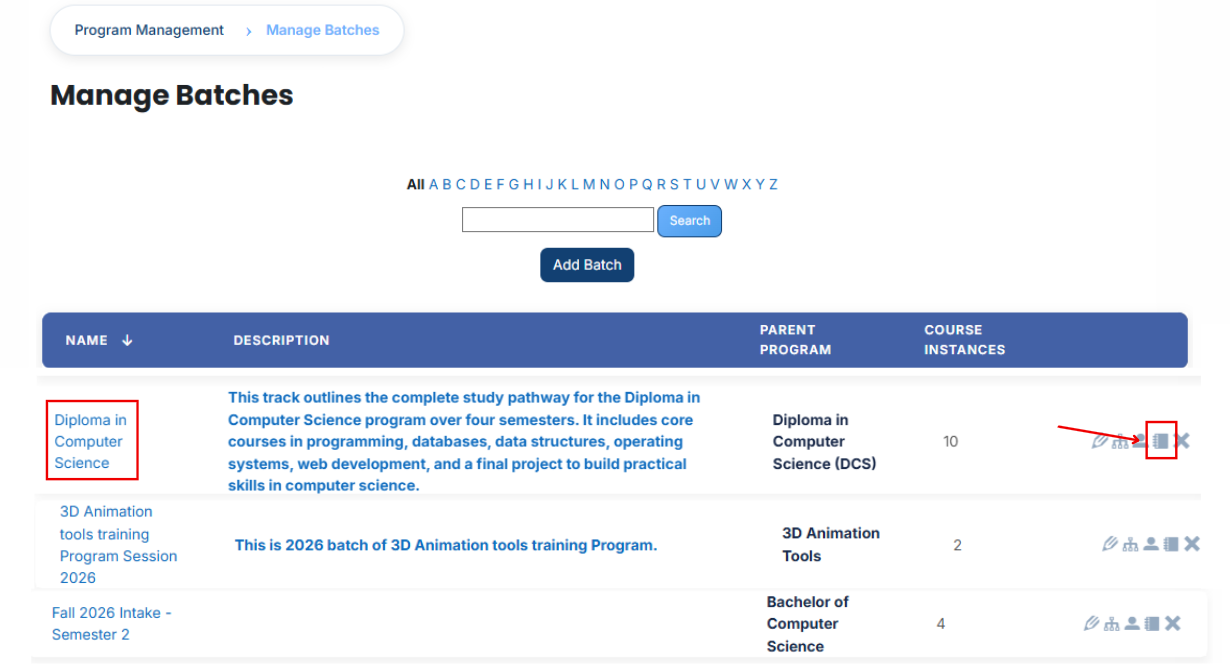
After opening the course instances tab, you will see the course instances currently assigned to the batch. To assign additional course instances, click the Available to Assign button.

A list of available course instances will be displayed. Select the course instance you want to assign.
Click the arrow icon to move the course instance to the assignment area.
After clicking the arrow, the following option will appear:
1. Auto-enroll users into this course instance when they are added to this batch
Enable this option to automatically enroll users into the course instance when they are added to the batch, ensuring users get access without manual enrollment and keeping batch and class enrollments synchronized.
After selecting the required course instance, click the green tick (✔) to confirm the assignment.

Next, click on the Currently Assigned button to view all course instances that have been successfully assigned to the batch.
Assign course instances Using Filters:
If the required course instance is not visible in the list, click the Add button to apply filters and search for it.
You can search using available fields such as:
- ID Number
- Start Date
- End Date

Once the required course instance appears, click the arrow icon and confirm the assignment using the green tick (✔).
The course instance will then appear in the Currently Assigned section.
Bulk User Action:
Purpose:
Use this feature to assign multiple course instances efficiently.
Method 1:
- Select those course instances you want to assign.
- After making your selections, click the “Add All 11 Selected Items” button to add the selected course instances.
The number displayed in the button (e.g., 11) represents the number of items currently selected and will change depending on how many items you select.

- Then click on the Assign button in the Bulk Assignment Section to move the course instances to the assigned list.

Method 2:
- Click the “Add All 55 Search Results” button to add all course instances with a single click. The number displayed in the button (e.g., 55) may vary depending on the number of course instances available in the search results.
- If you want to clear everything, click the Clear button.
