# How to Assign Program in a Course Description
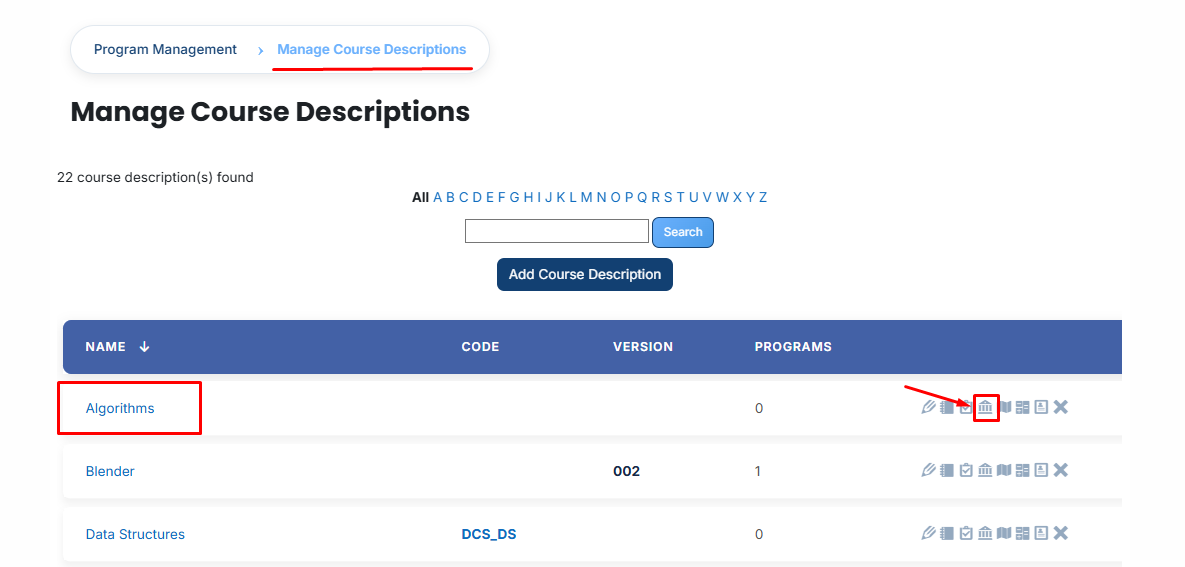
- **Locate your Course:** From the main dashboard, find the specific Course Description you want to work with and click its **Program icon.**
[](https://wiki.paktaleem.net/uploads/images/gallery/2026-07/q1Qimage.png)
- **View Assigned Programs:** Once the tab opens, you will see a list of programs already linked to this course. To add a new one, click the Available to Assign button.
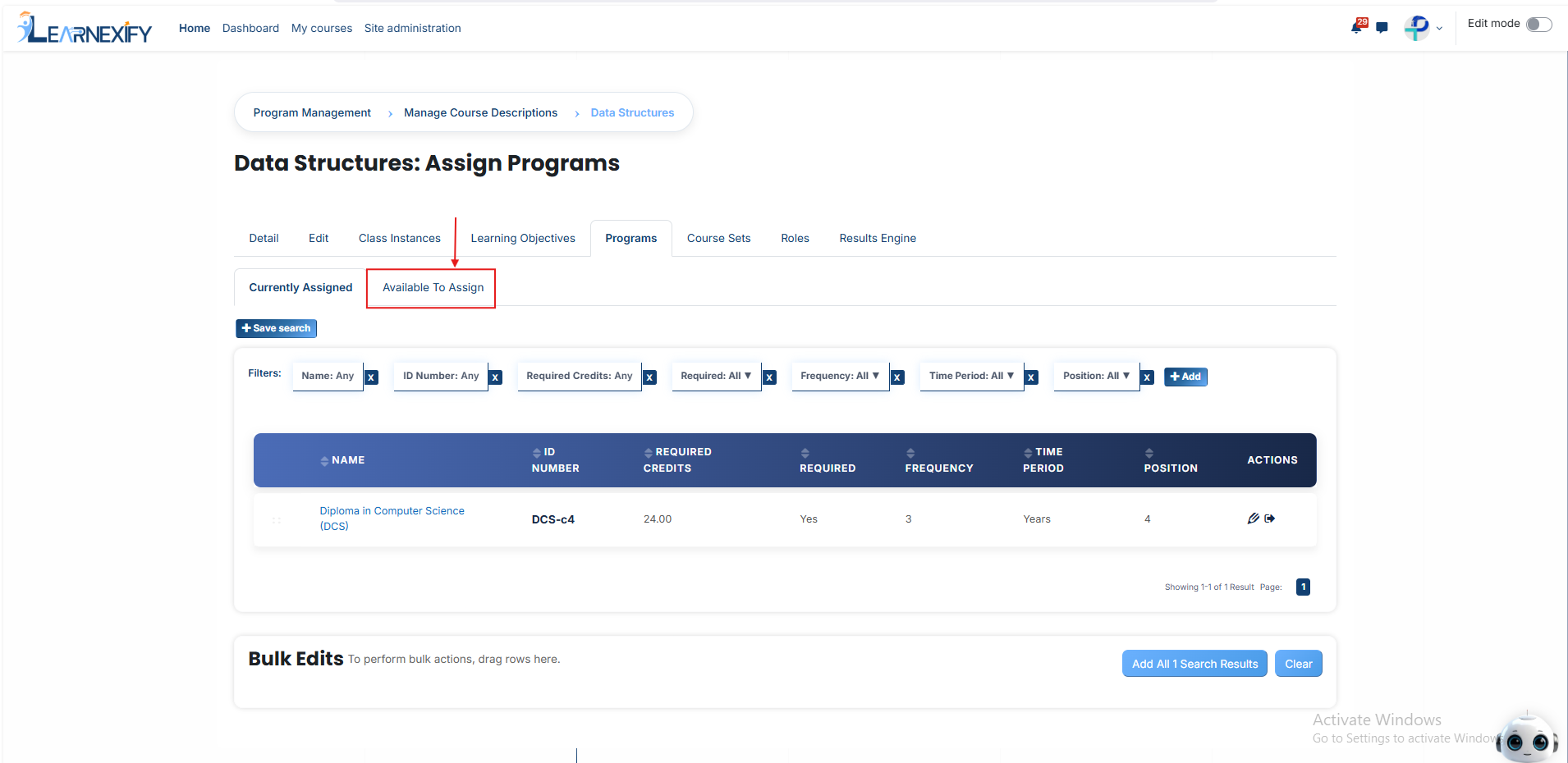
A list of available programs will be displayed. Select the **program** you want to assign.
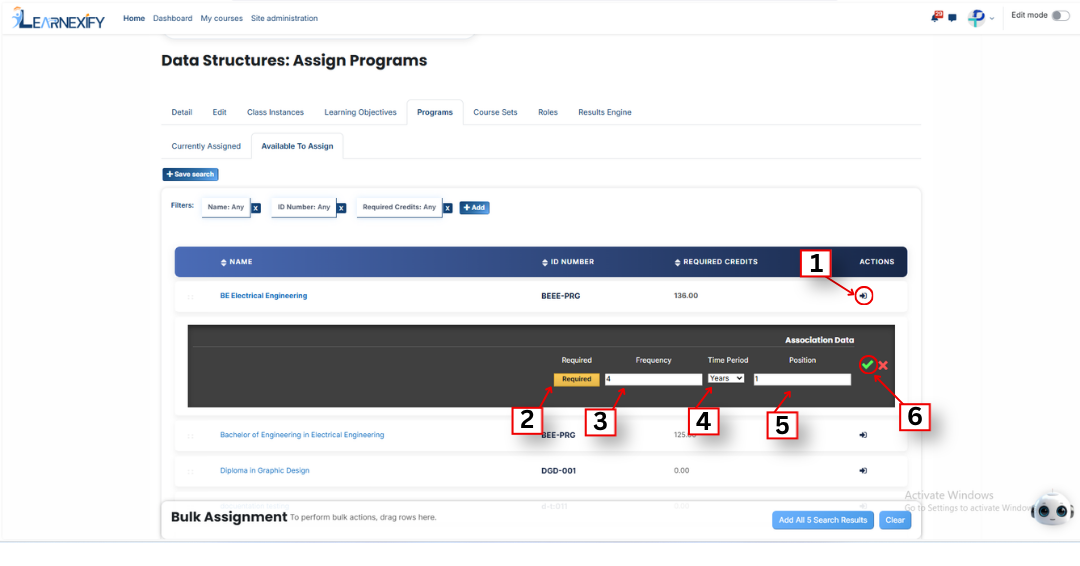
When you click the **arrow icon** in the **program list**, the **Association Data section,** fill in the following details to define how the course fits into the program:
- **Required or not:** Click this button to set whether the course is mandatory for the program.
If it is **highlighted (Yellow),** it is Required, meaning the student must pass this course to finish the program.
If it is **gray,** it is Not Required.
- **Frequency:** Enter a number here to set the time interval for the course.
- **Time Period:** Select a unit of time from the dropdown (such as Years, Months, or Weeks).
Example: If you enter 4 in Frequency and select Years in Time Period, it means the course is valid for 4 years or needs to be retaken every 4 years.
- **Position:** Enter a number to decide where this course appears in the program's list.
Example: Entering 1 will place this course at the very top of the list for that program.
- **Green Tick (✔):** Once you have entered all the details, click this icon to Save and Confirm the assignment. The program will then be officially linked to the course.
- **Red Cross (✖):** Click this icon to Cancel the process. This will close the box without saving any of the information you entered.
- After filling in all **required fields,** click the **green tick (✔)** to confirm and save the assignment.
- Next, click on the **Currently Assigned button.** Here, you can view all programs that have been successfully assigned to the course description .
### **Adding a Program if Not Available**
If the required program is not listed, follow these steps:
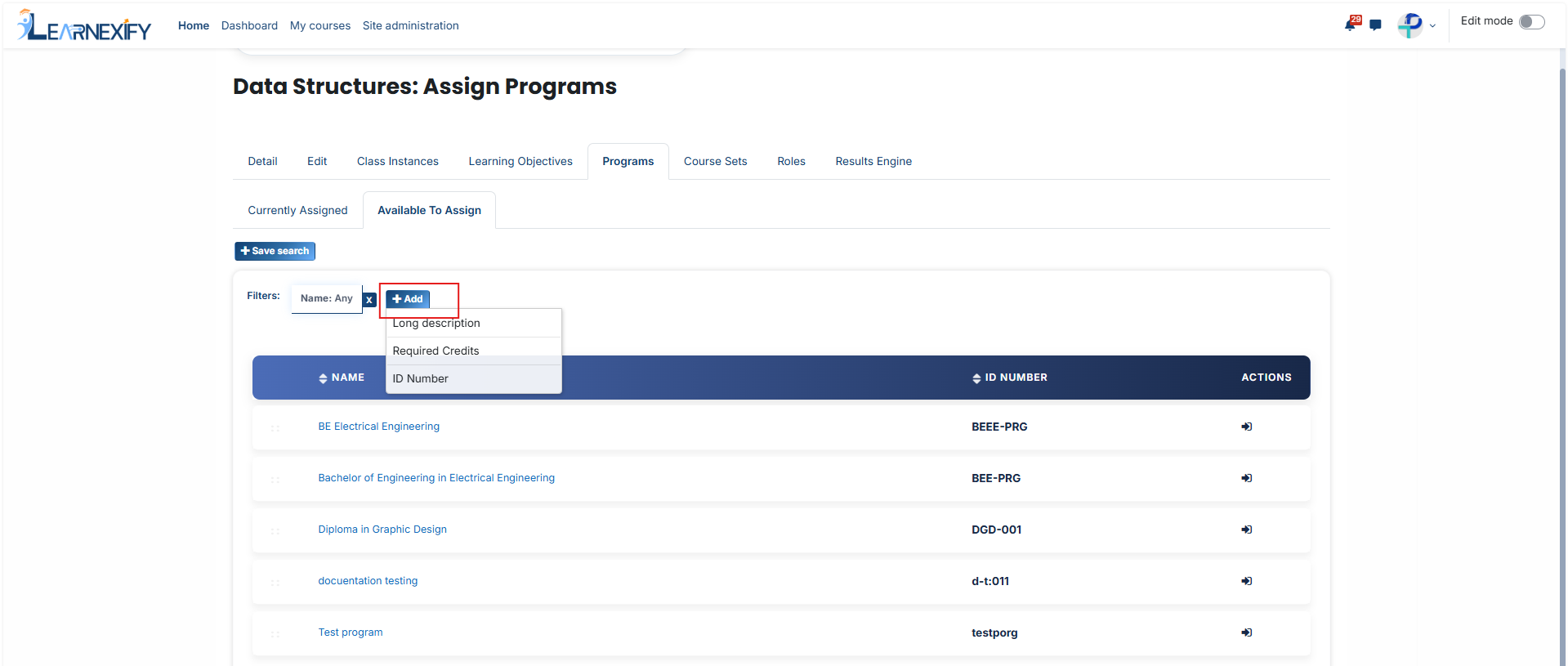
Navigate to the **Available to Assign** section and click the **Add button.**
A new form will appear. Provide the **following details:**
- Name: The official title used to identify the program.
- ID Number: A unique code assigned specifically to this program.
- Long Description: A full summary providing more detail about the program.
- Required Credits: The total number of points a learner must earn to complete the program.
- Once you save these details, the program will appear in the available list. You can then follow the steps above to link it to your course description.
#### **Bulk User Action:**
**Purpose:**
Use this feature to assign multiple programs efficiently.
**Method 1:**
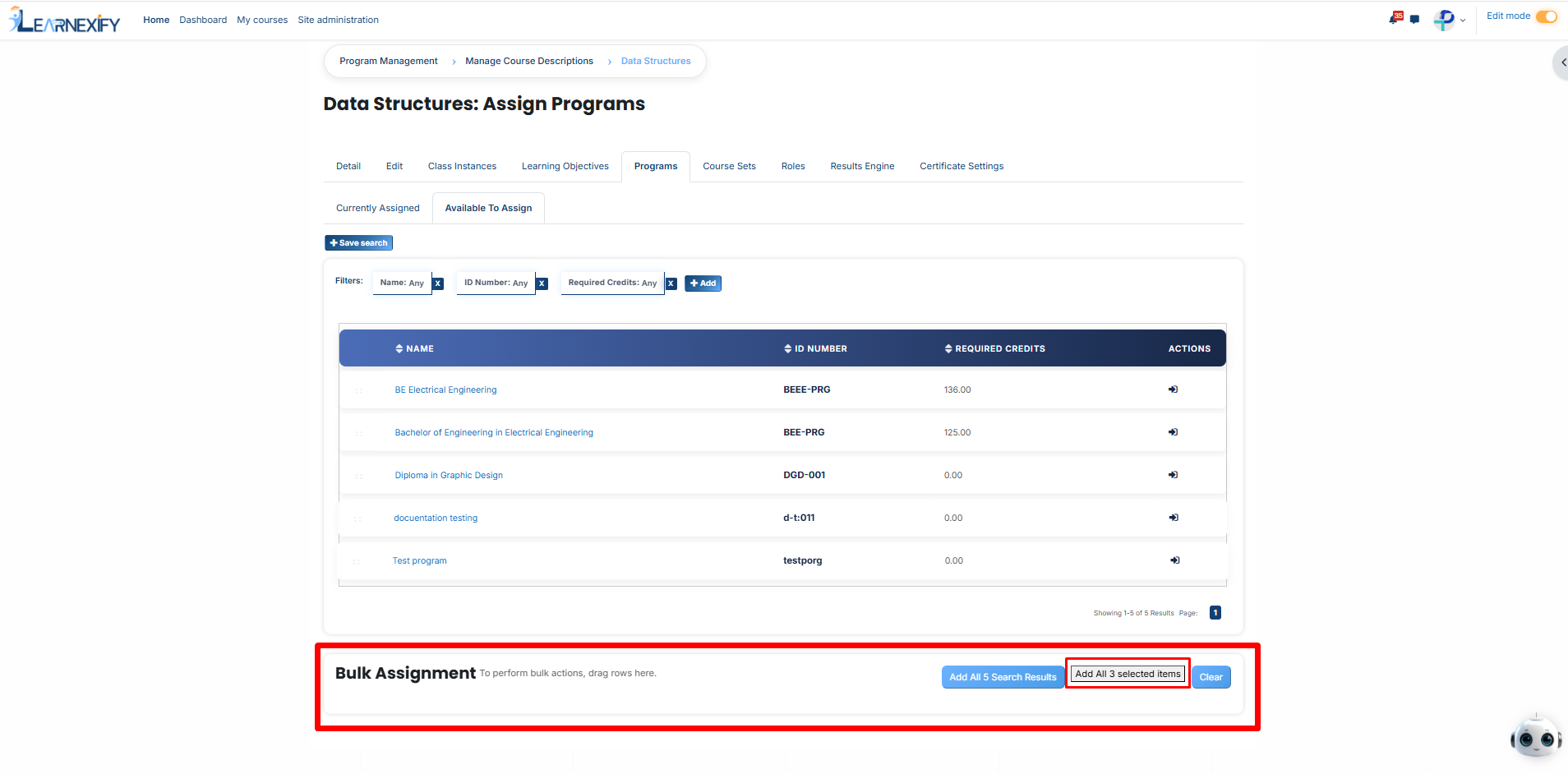
- Select those programs you **want to assign.**
- After making your selections, click the **“Add All 3 Selected Items”** button to add the selected Programs.
The number displayed in the button (e.g., 3) represents the number of items **currently selected** and will change depending on how many items you select.
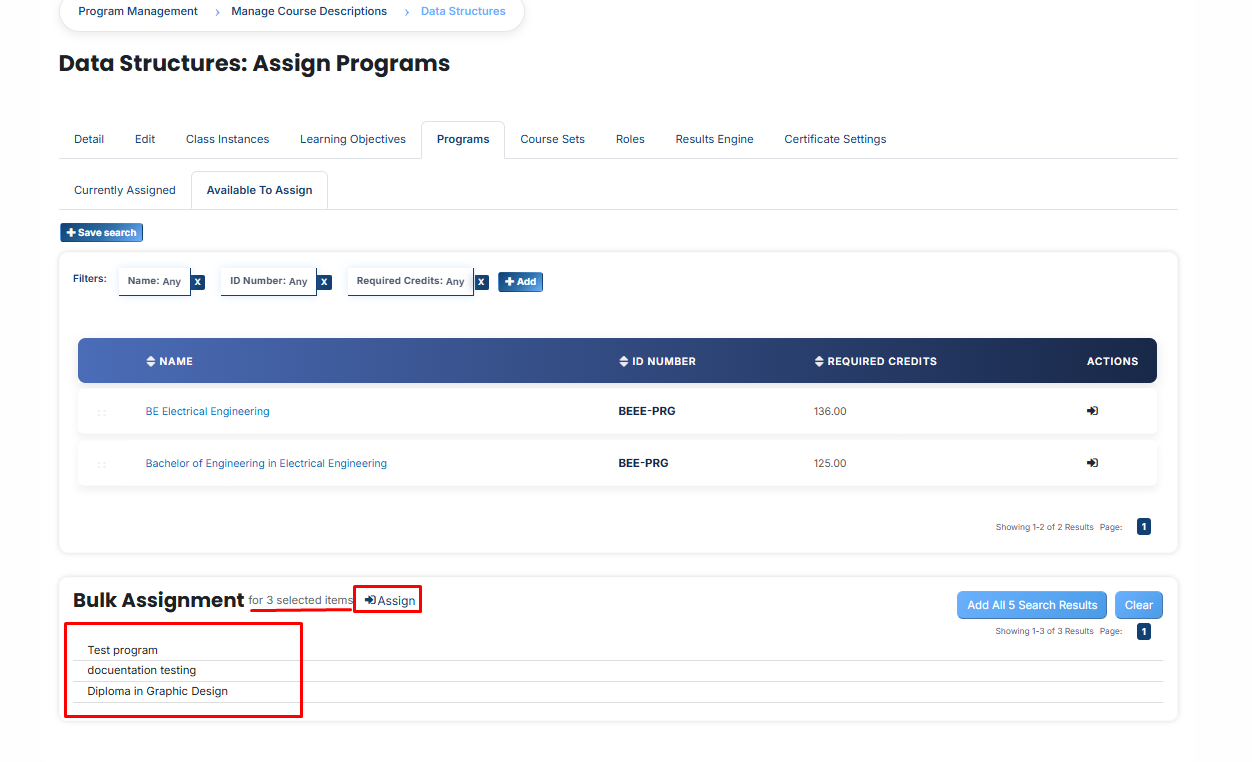
- Then click on the **Assign button** in the **Bulk Assignment Section** to move the programs to the assigned list.
**Method 2:**
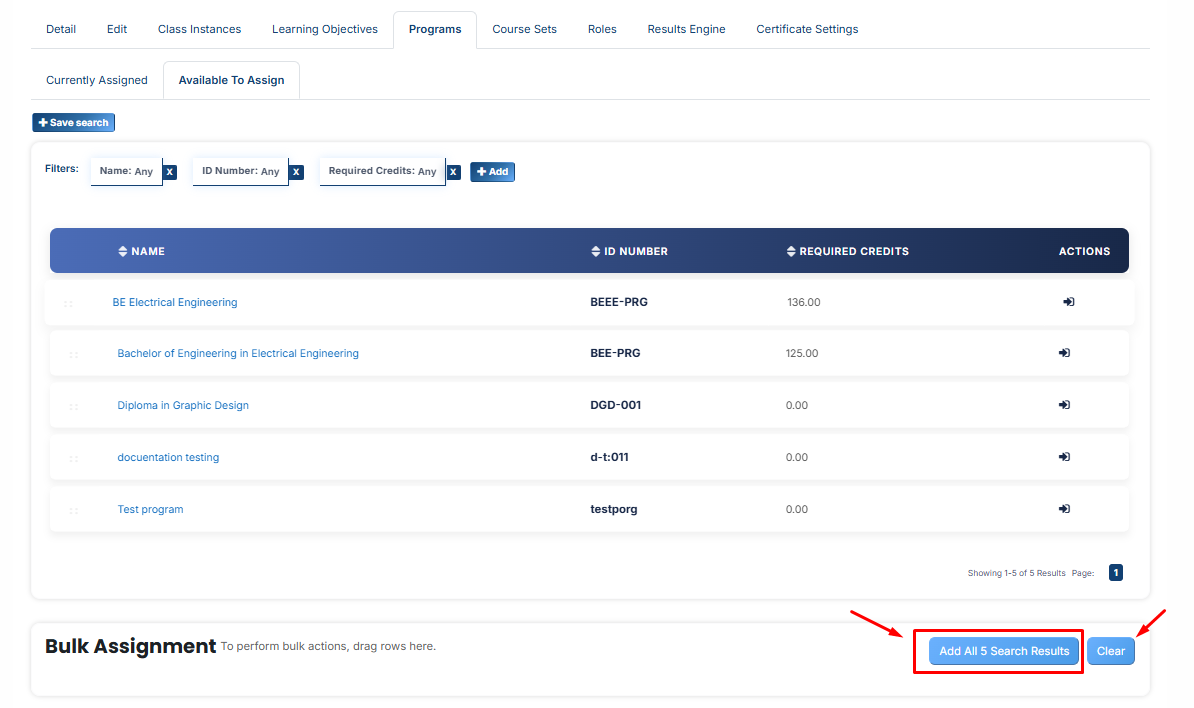
- Click the “Add All 5 Search Results” button to add all programs with a single click. The number displayed in the button (e.g., 5) may vary depending on the number of programs available in the search results.
- If you want to remove all selected programs and reset the search criteria to their default state, click the Clear button. This will clear all current selections.
---