# How to Assign Program in a Course set:
#### **Program:**
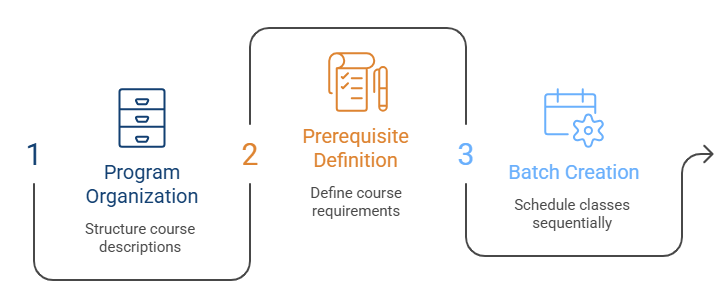
Programs in Learnexify organize Course Descriptions and can lead to certificates or other validations showing learner mastery. They also define pre-requisites and co-requisites and create structured class batches based on a set schedule or sequence.
---
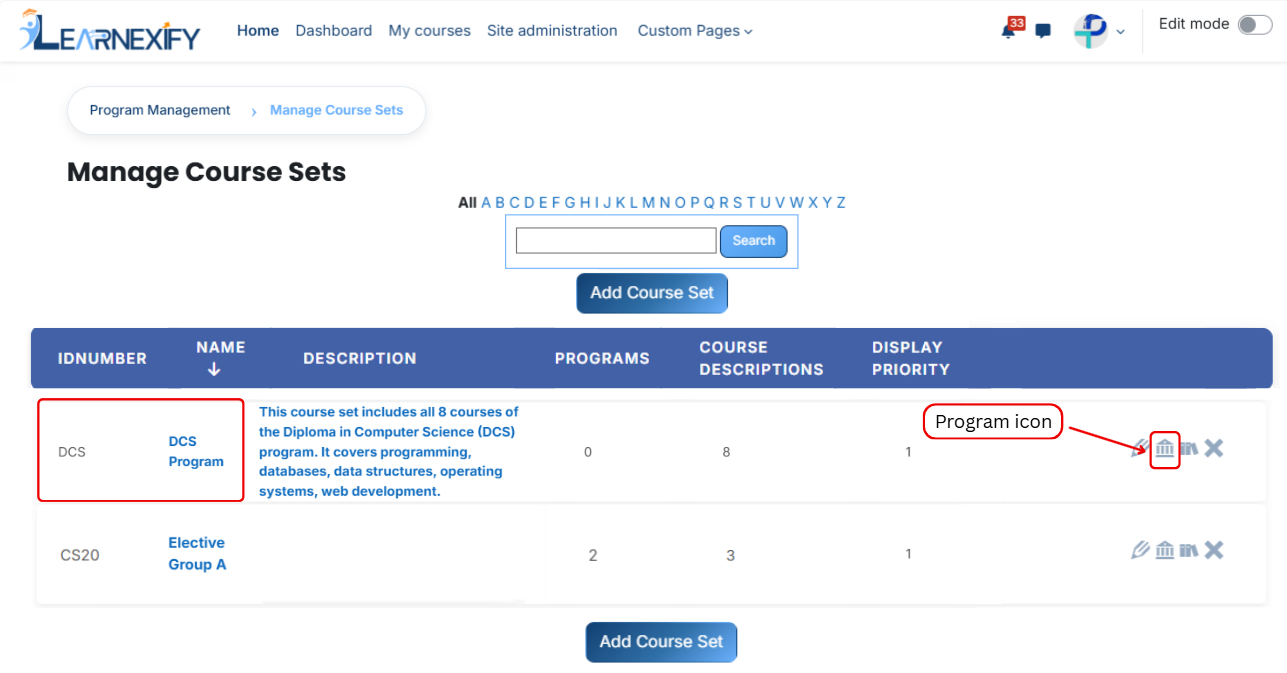
From the list of all **course sets,** click on the **Program icon** of the **course set** to which you want to **assign a program.**
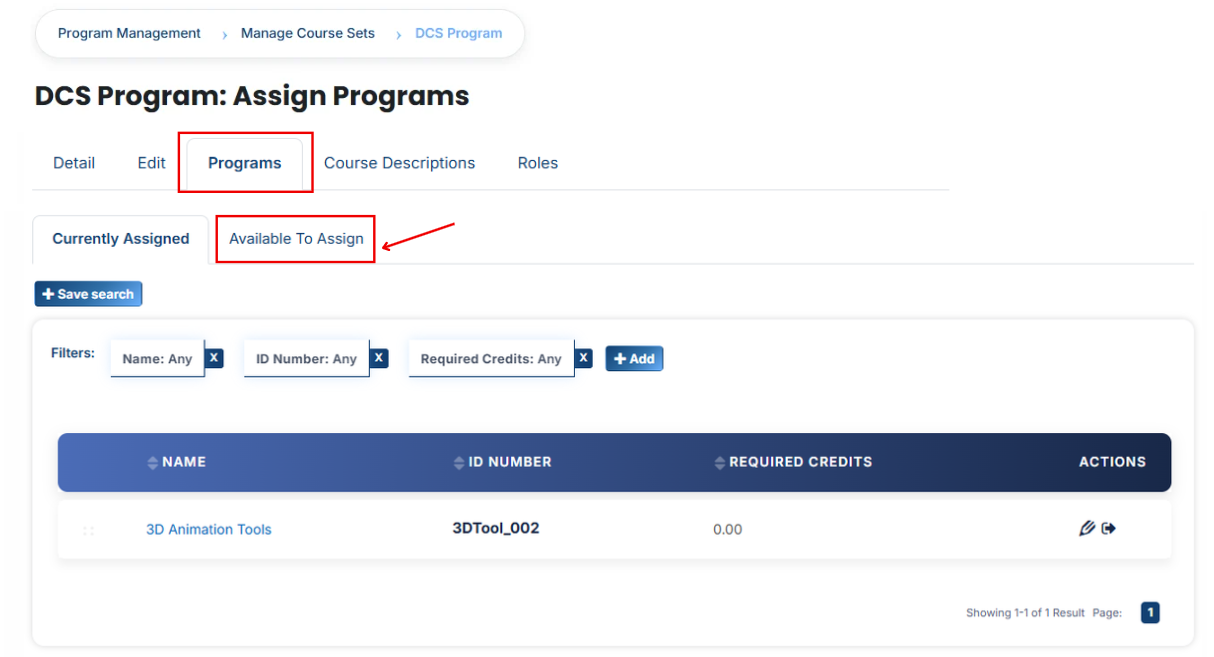
- Once the program **tab opens,** you will see the programs already assigned to that course set. To assign **additional** programs, click on the **Available to Assign button.**
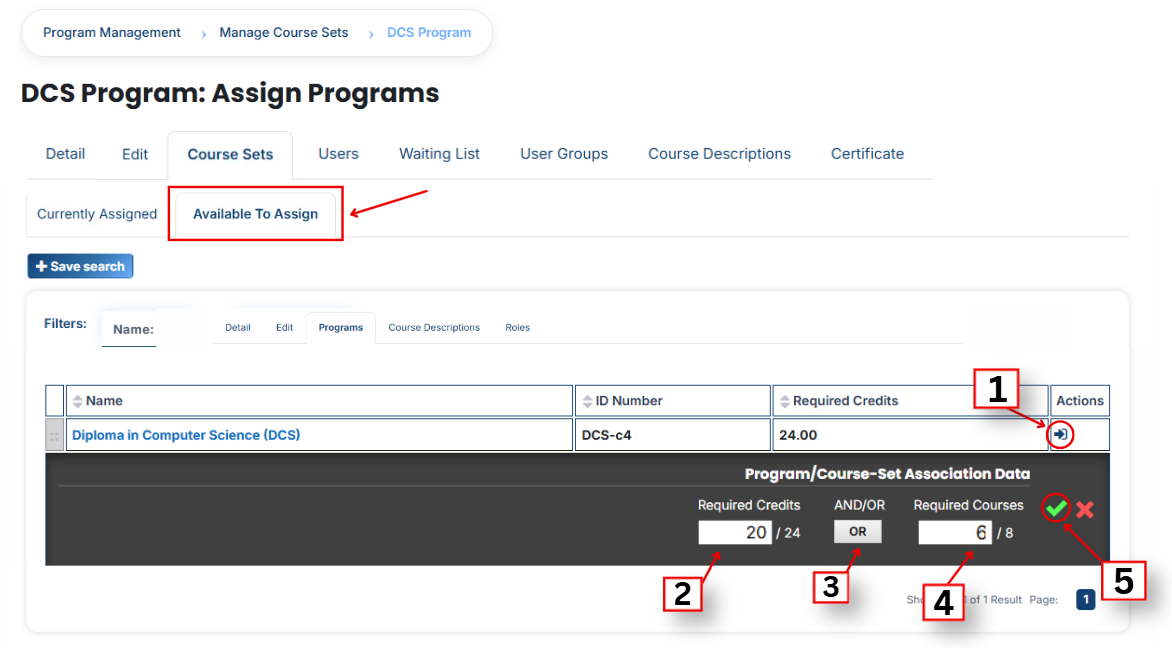
A list of available programs will be displayed. Select the **program** you want to assign.
When you click the **arrow icon** in the program list, the **Program/Course-Set Association panel** will open. This panel is used to assign the program and define its requirements.
#### **Program Requirements**
**Required Credits:**
Specify the number of credits a learner must complete out of the total required (e.g., 18/18).
**AND/OR Condition:**
Defines how the requirements are evaluated:
- AND = All conditions must be completed
- OR = Any one condition can be completed
**Required Courses:**
Define the number of courses that must be completed within the course set (e.g., 6/6).
- After filling in all **required fields**, click the **green tick (✔)** to confirm and **save** the assignment.
- Next, click on the **Currently Assigned button.** Here, you can view all programs that have been successfully **assigned** to the course set.
---