# How to Assign Users to a Batch
From the list of all **batches**, click the **User icon** for the batch to which you want to **assign users.**
[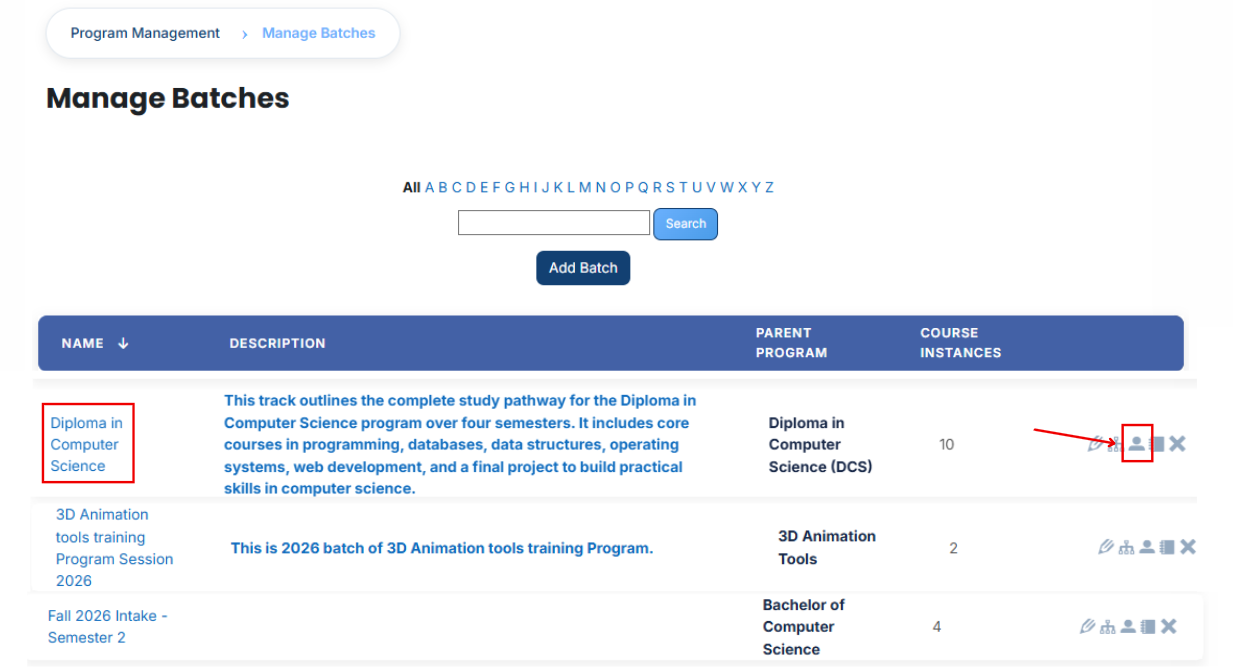](https://wiki.paktaleem.net/uploads/images/gallery/2026-07/qvfimage.png)
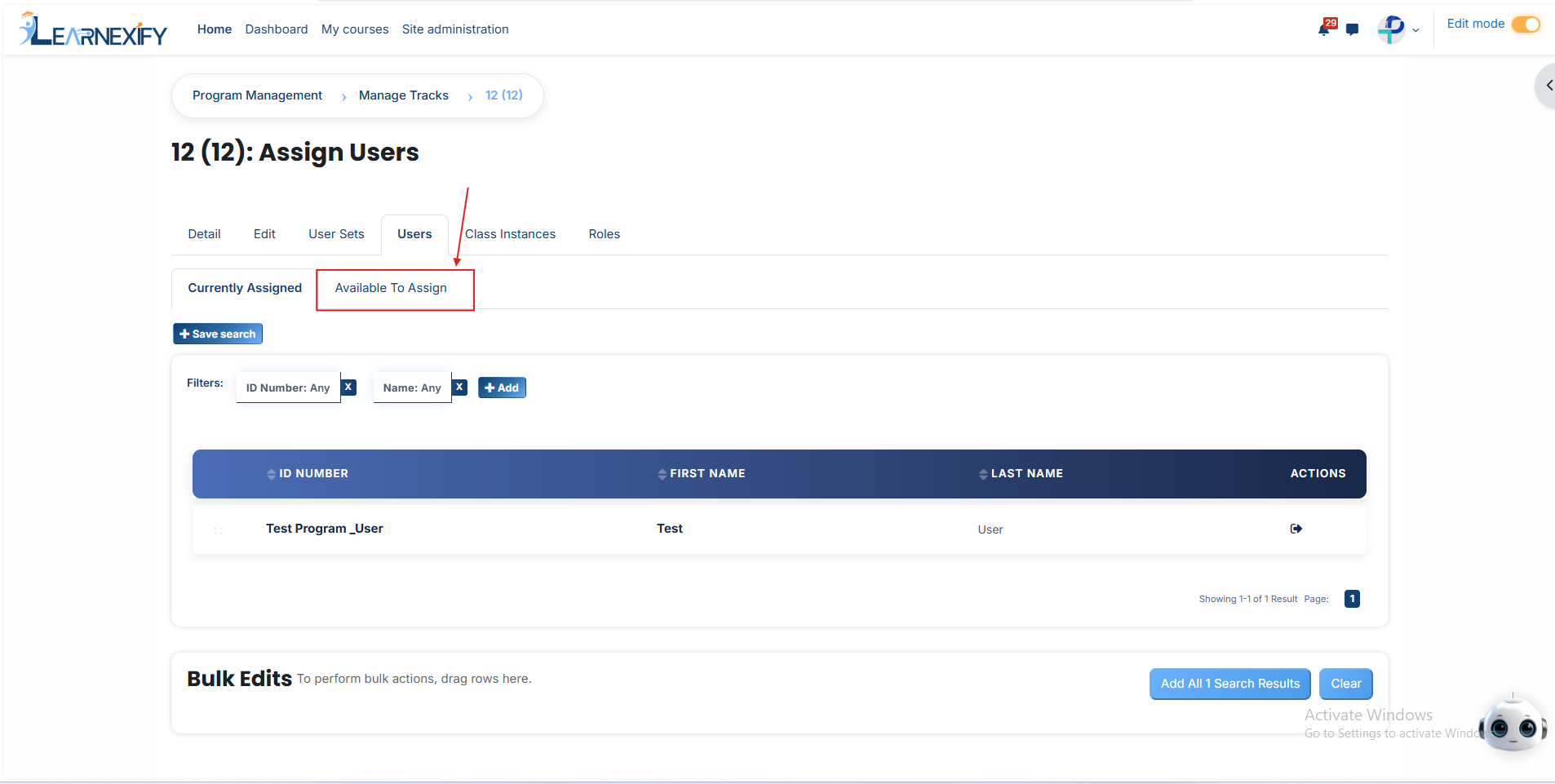
- After opening the **Users tab,** you will see the **users currently assigned** to the batch. To assign additional users, **click** the **Available to Assign button.**
- A list of **available users** will be displayed. Select the user you want to **assign** and click the **arrow icon** to move the user to the assignment area.
- Click the **green tick (✔) to confirm** the assignment.
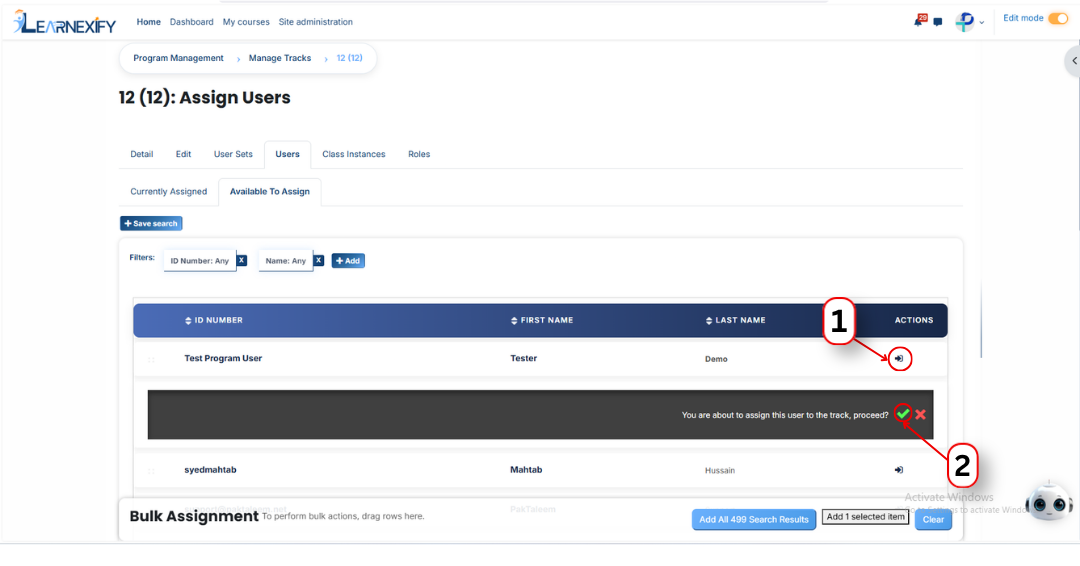
- Next, click on the **Currently Assigned button** to view all users who have been **successfully assigned** to the batch.
#### **Add a user if it is not available in the list**
If the user you want to assign is not visible in the list, follow these steps:
- Click the **Available to Assign button.**
- Click the **Add button.**
- A dropdown list of search fields will appear.
- Select the **appropriate field** (such as Email, Username, City/Town, or Country).
- Enter the user's information in the selected field.
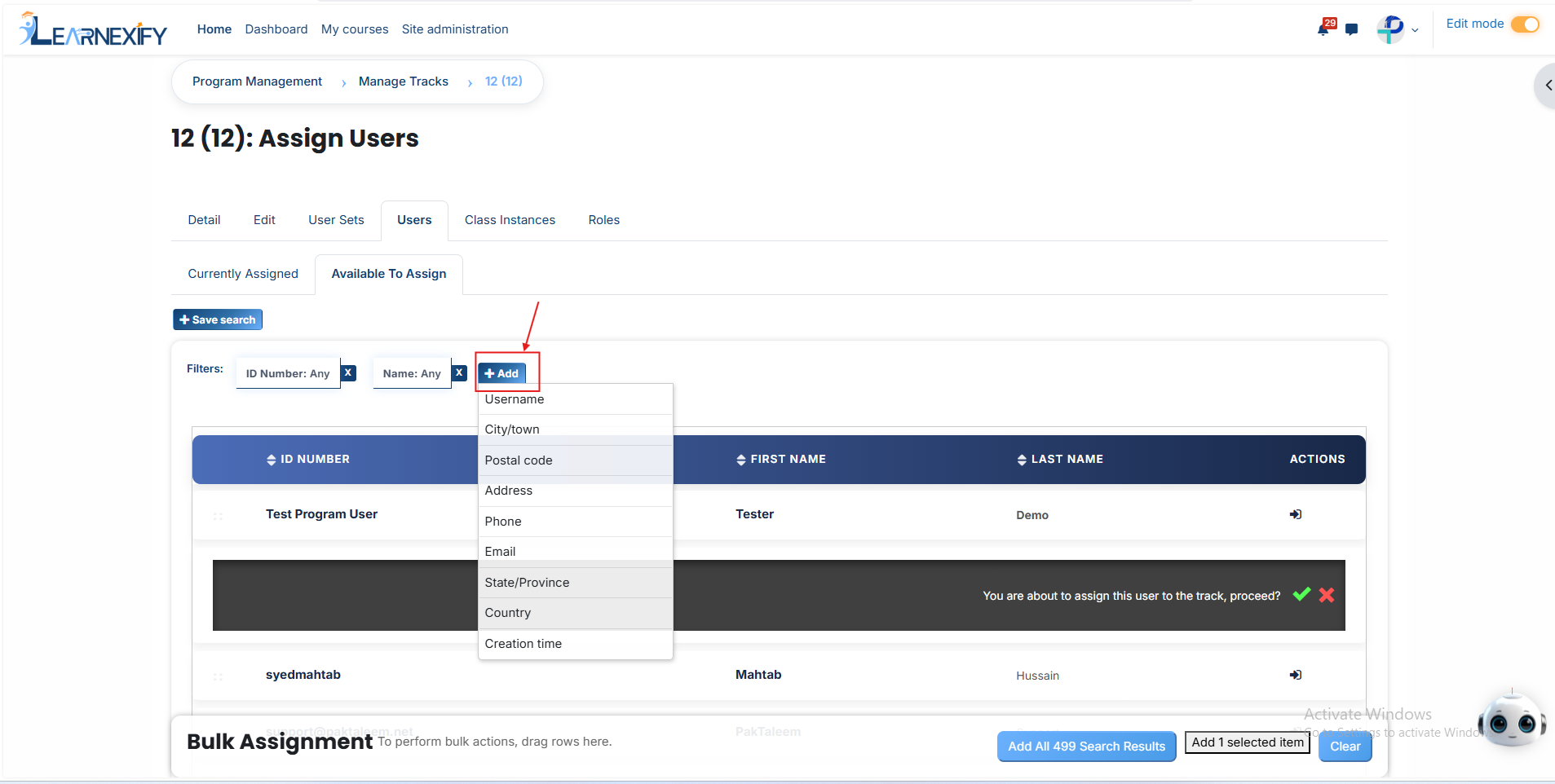
- The **matching user** will appear in the **list.** Select the user and **assign** them to the **batch.**
#### **Bulk User Action:**
**Purpose:** Use this feature to assign multiple Users efficiently.
**Method 1:**
- Select those users you want to assign.
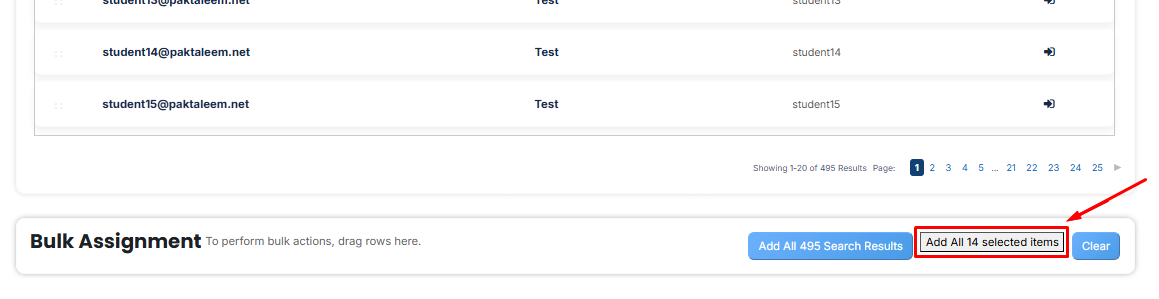
- After making your **selections, click** the **“Add All 14 Selected Items”** button to add the selected users.
The number **displayed** in the **button (e.g., 14) represents** the number of items currently selected and will change depending on how many items you select.
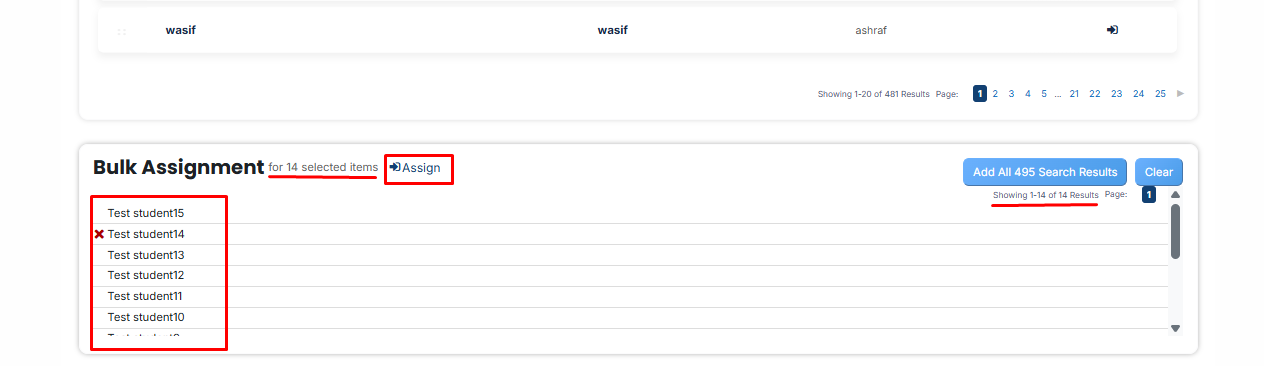
- Then click on the **Assign button** in the **Bulk Assignment Section** to move the **users** to the assigned list.
**Method 2:**
- Click the **“Add All 495 Search Results”** button to add all **users** with a single **click.** The number displayed in the **button (e.g., 495)** may vary **depending** on the number of **users available** in the search results.
- If you want to **clear everything,** click the **Clear button.**

---