# How to Assign Users to a Semester:
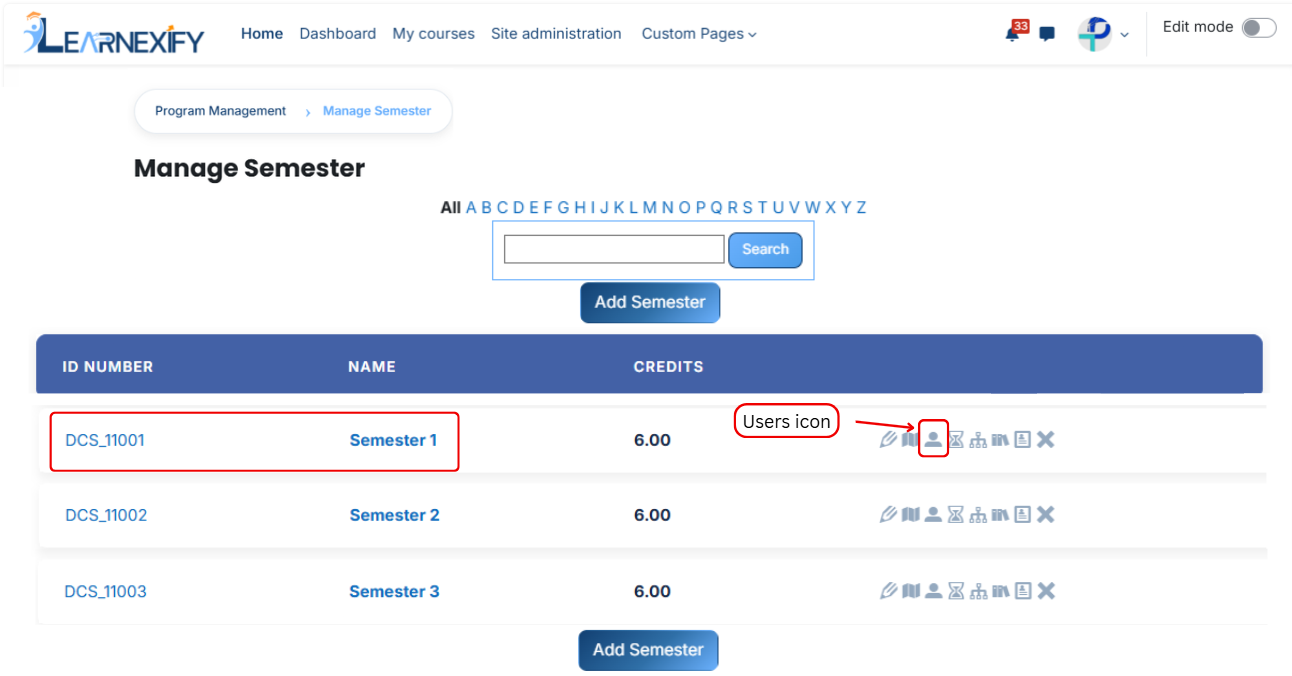
From the list of **all semesters**, click the **users icon** of the **semester** to which you want to **assign users.**
- After opening the **Users tab**
- Here you will see **assigned user** in the program
- If you want to assign more users **Click** on the **Available to Assign button**
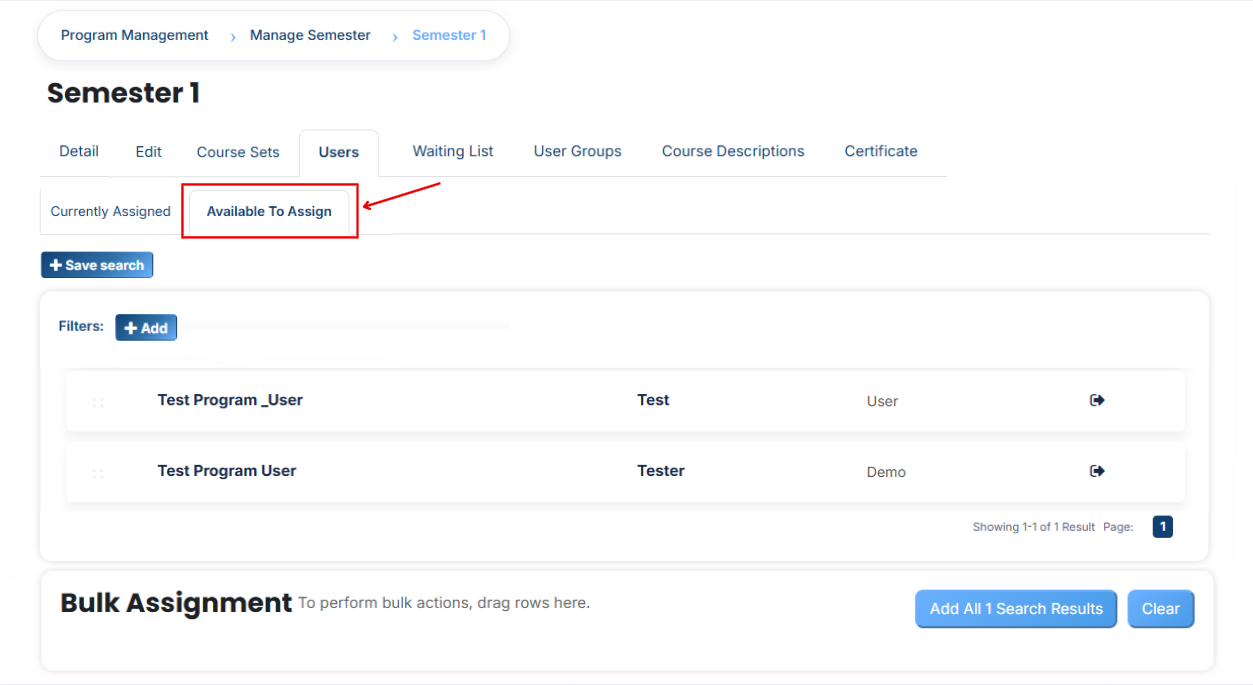
- A list of **available users** will be displayed
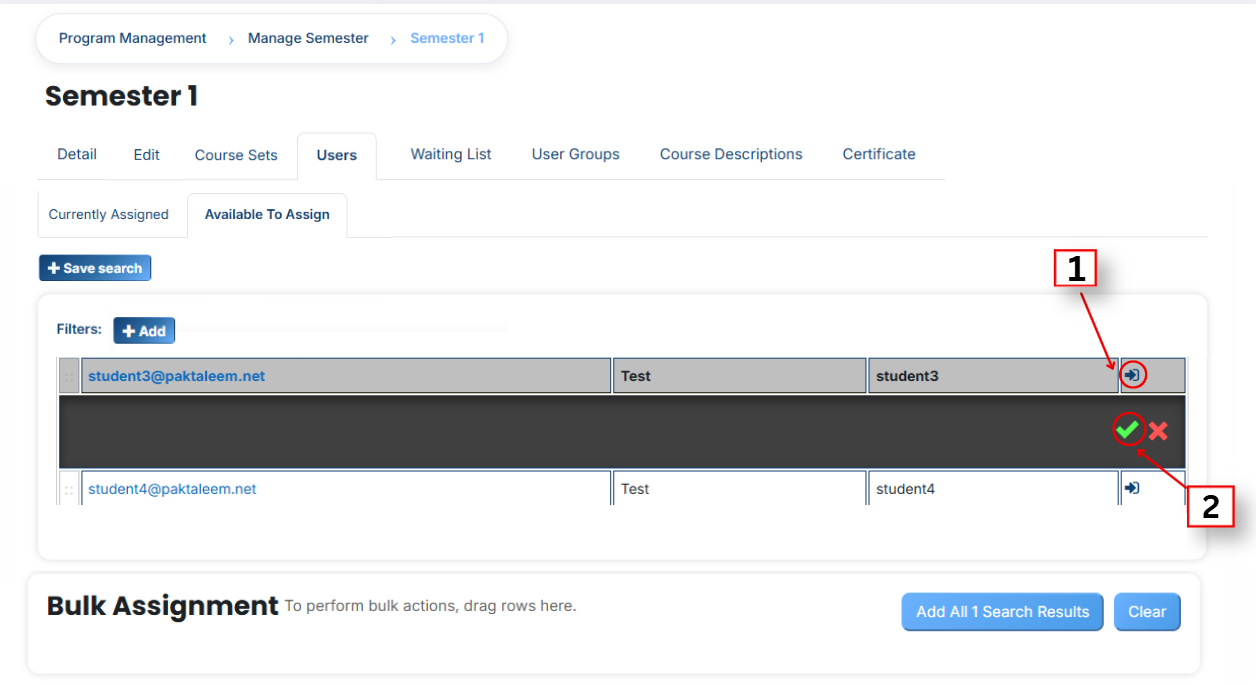
- Select the user you want to **assign**
- First **Click** on the **arrow icon** to move the **user** to the assigned list
- Click on the green tick (✔) to confirm the assignment
- After that, click on the **Currently Assigned button**
- Here, you will see the **users** who have been **successfully assigned** to the semester
### Add a user if it is not available in the list.
If the user you want to assign is not available in the list, follow these steps:
- Click on the **Available to Assign button**
- Then click on the **Add button.**
- A dropdown list will appear
- Select the **required field** (e.g., Email, username, city e.t.c)
- Enter the user’s details in the selected field according to the chosen option.
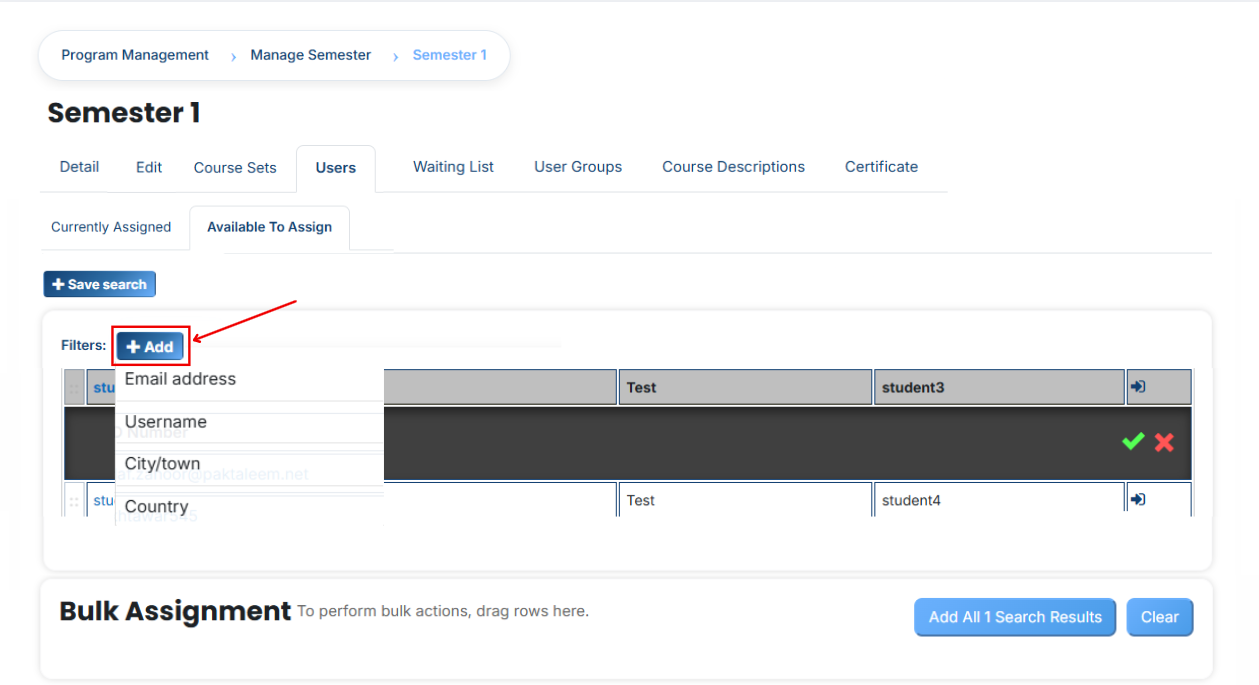
- The user will appear in the list
- Select the user and assign them to the semester
You can also **search** and **add** a user using other **details** such as:
- Email address
- Username
- City/town
- Country e.t.c.
#### **Bulk User Action:**
**Purpose:**
Use this feature to assign multiple Users efficiently.
**Method 1:**
- Select those multiple users you want to assign.
- After making your selections, click the **“Add All 5 Selected Items”** button to add the selected users.
The number **displayed** in the button **(e.g., 5)** represents the number of items currently selected and will change depending on how many items you select.
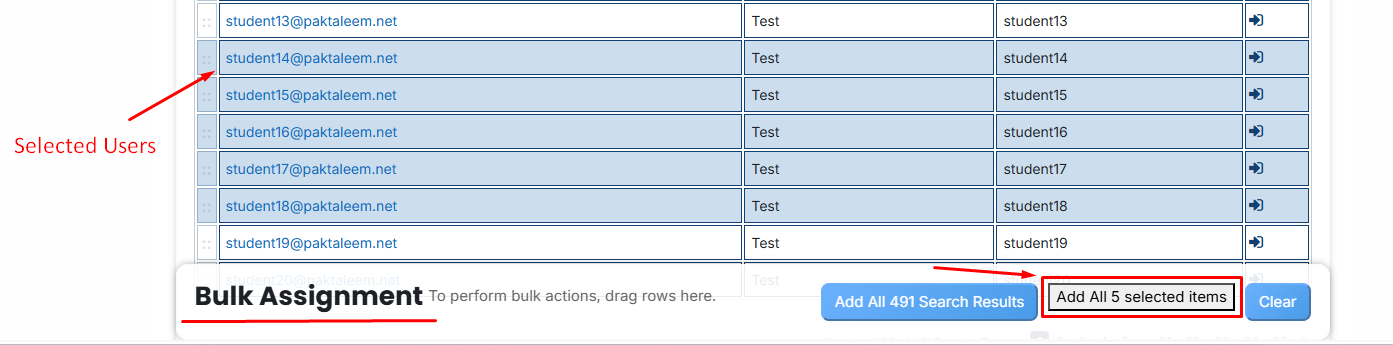
- Then click on the Assign button in the Bulk Assignment Section to move the user to the assigned list.
**Method 2:**
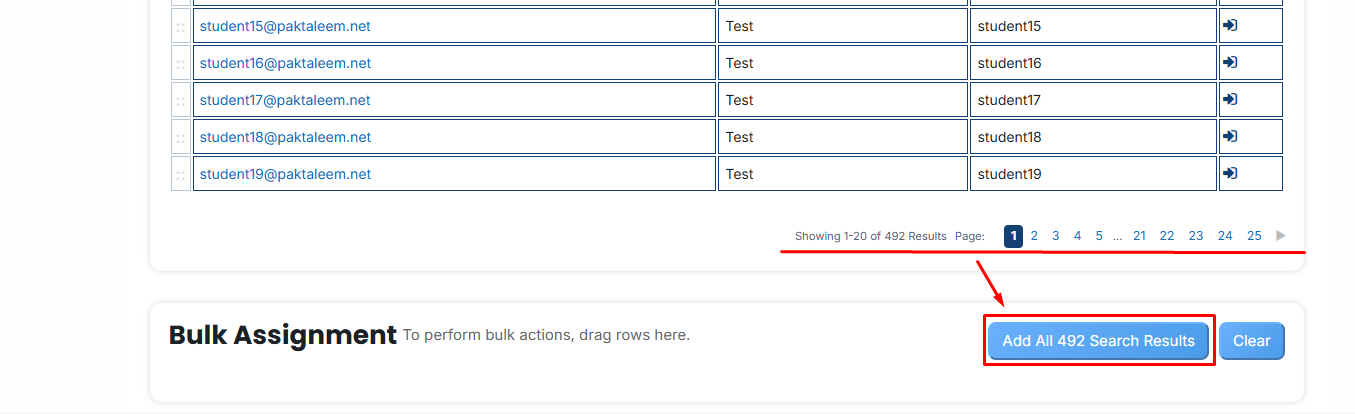
- Click the **“Add All 500 Search Results”** button to **add all users** with a **single** click. The number **displayed** in the button (e.g., 492 ) may vary depending on the number of users available in the search results.
- If you want to **clear everything**, click the **Clear button.**