# How to Configure the Results Engine in a Course Instance
To set up automated workflows, identify your specific course instance and click on the **Results Engine icon.**
[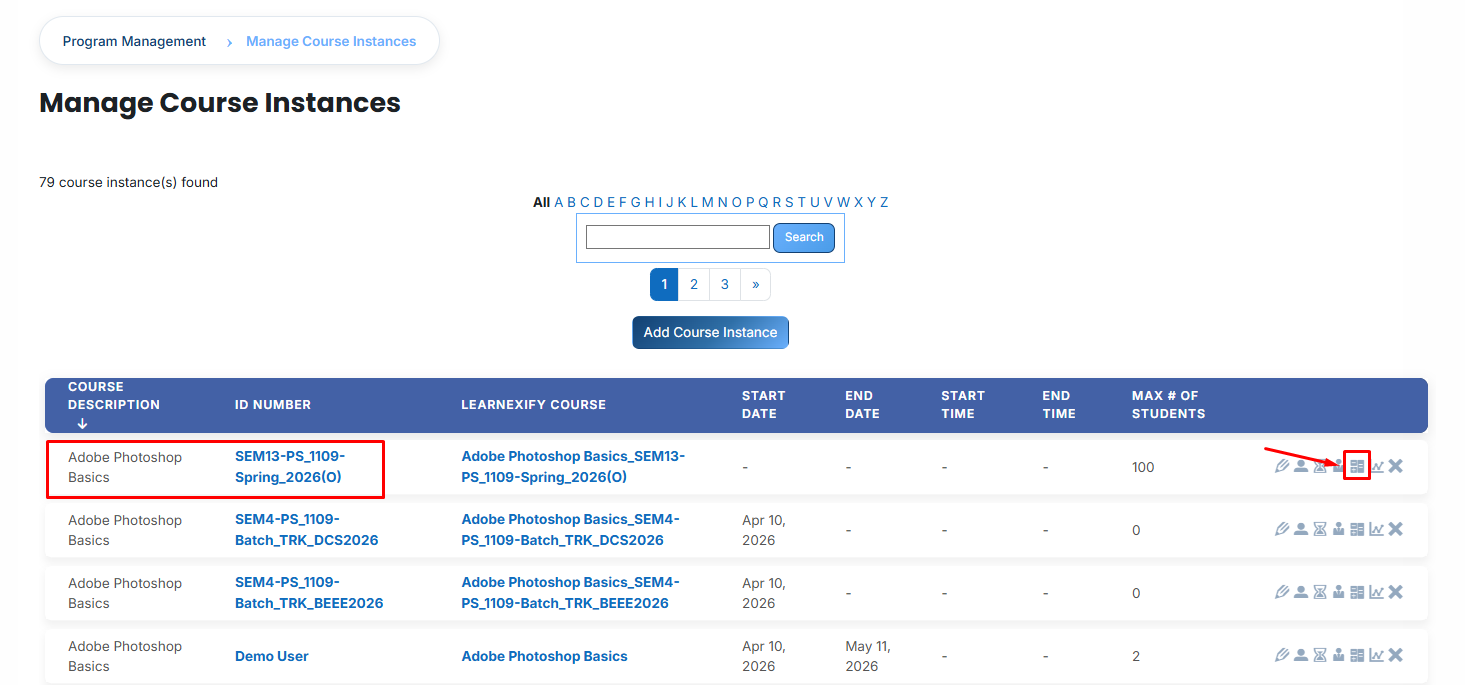](https://wiki.paktaleem.net/uploads/images/gallery/2026-07/eLrimage.png)
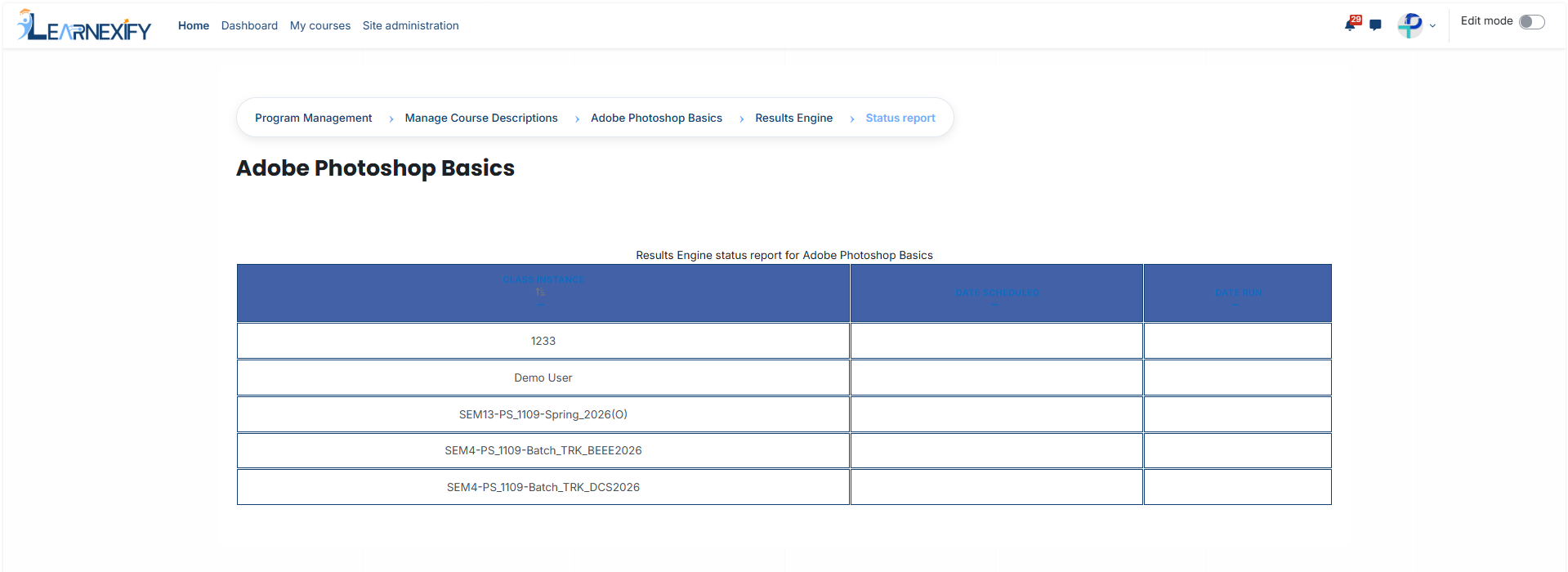
- Utilize the **Results Engine Status Report** link to review the **execution history.** This audit tool provides a **comprehensive overview** of processed course instances, **including scheduled run times** and actual execution dates, which is essential for administrative batching.
#### **Activation Rule:**
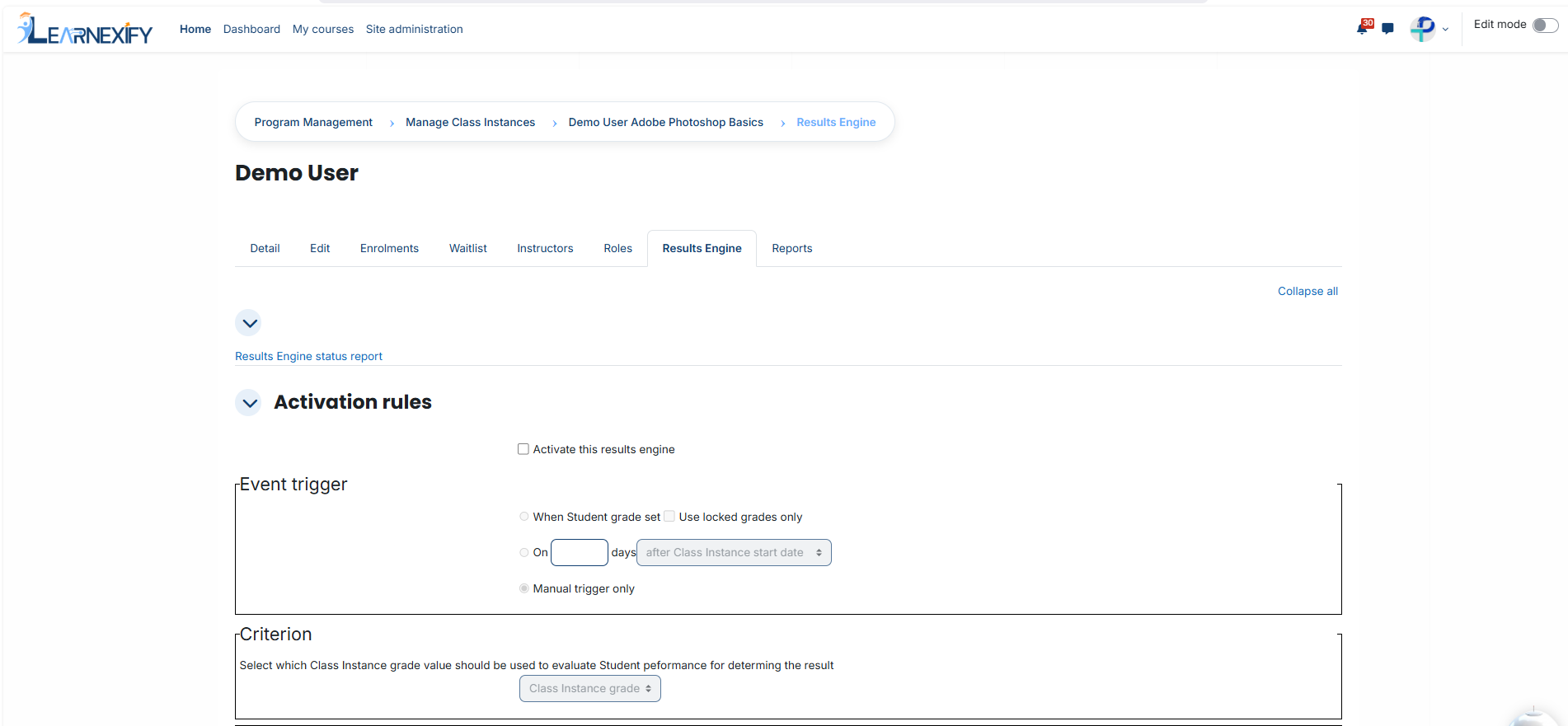
Toggle the Activate this **results engine checkbox** to enable **automated monitoring**. When **active**, the system will automatically evaluate grades based on your defined rules. If **disabled**, the engine remains inactive, and no automated updates will take place.
#### **Event Trigger (Timing Rules): **
Define the specific moment the system should evaluate a learner's performance:
- - **When Student Grade is Set:** The automation triggers immediately upon a score being recorded.
- **Use Locked Grades Only:** When this sub-option is enabled, the system waits until a grade is officially finalized (locked) to prevent actions based on draft or temporary scores.
- **X Days After course instance Start Date:** The evaluation runs after a pre-defined number of days from the official start of the course instance.
- **Manual Trigger Only:** The automation remains passive and will only execute when an administrator manually initiates it via the Status Report.
#### **Evaluation Criterion:**
Select the **data source** for the engine to **monitor**—typically the course instance Grade. This informs the system which specific score value to analyze when determining results.
#### **Automated Actions (The If/Then Logic):**
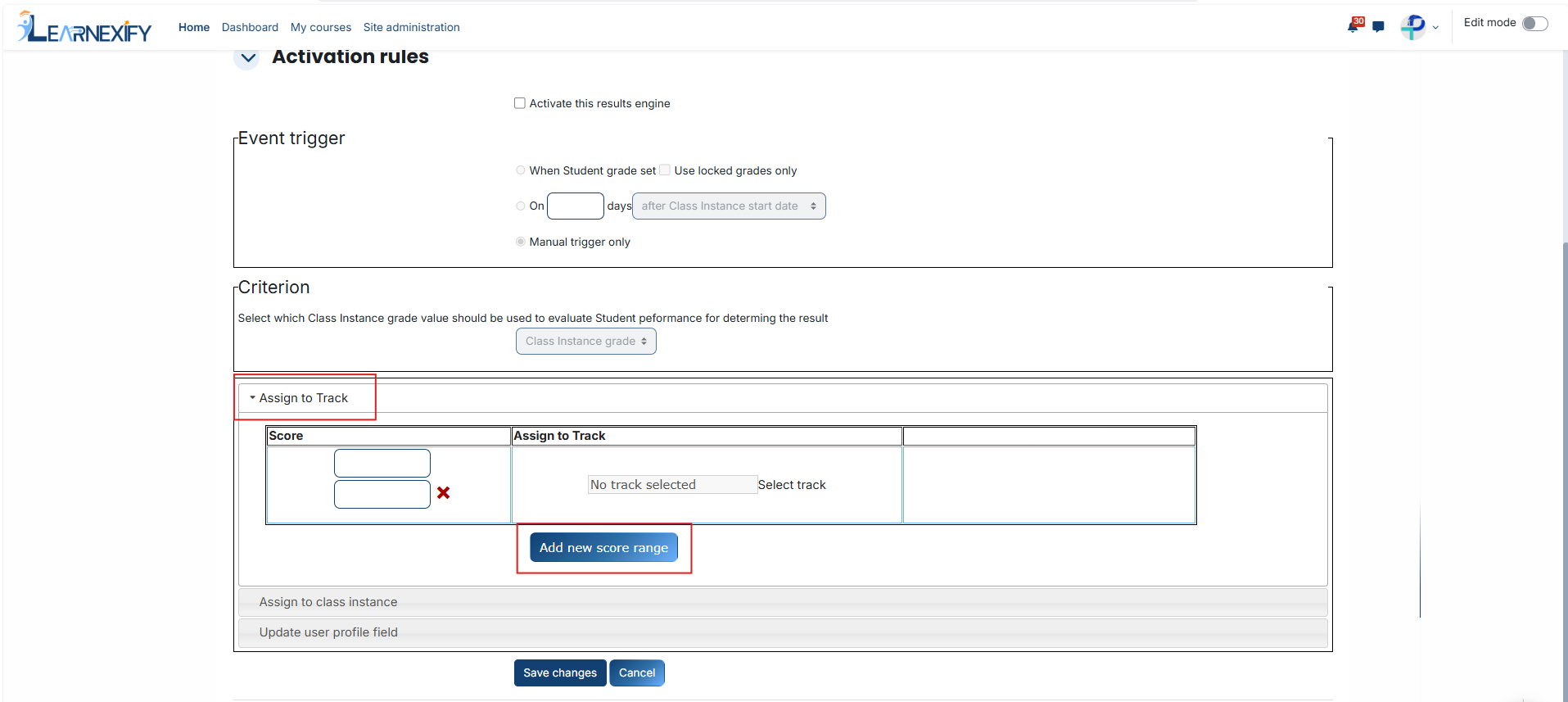
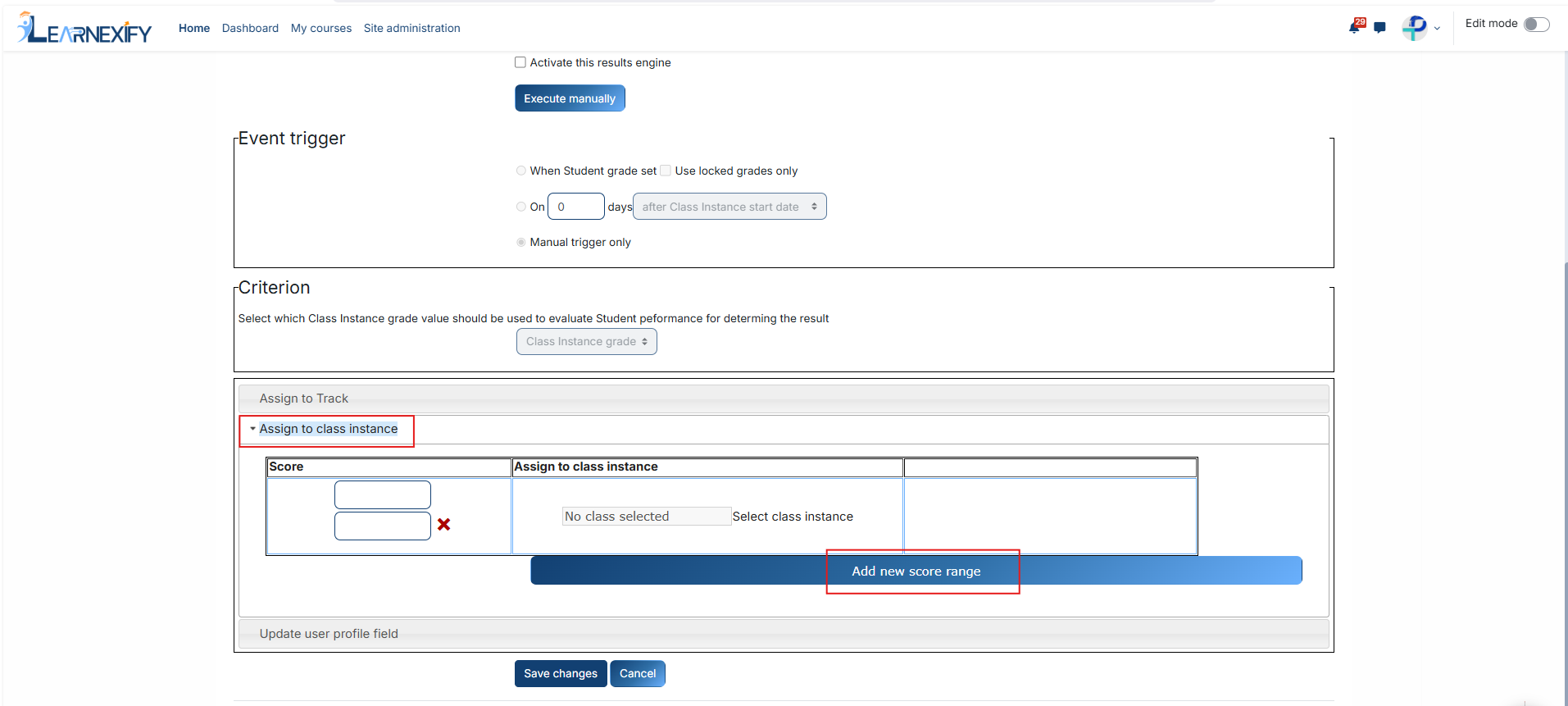
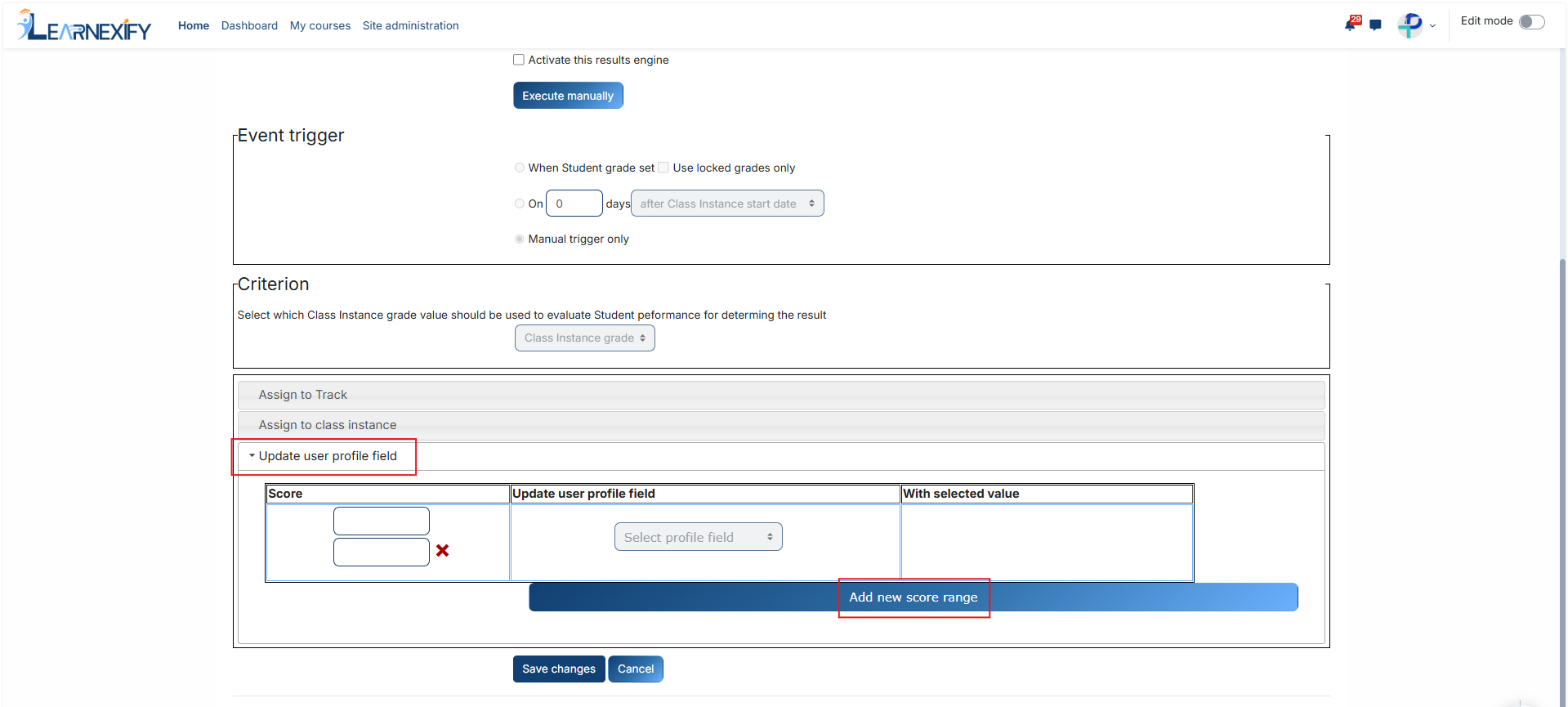
For every rule, you must **establish a Score Range** (Minimum and Maximum). If a **learner's score falls** within these thresholds, the system executes the following actions:
#### **Assign to batch:**
- Automatically moves the **learner** into a **new learning path,** such as a **"Promotion batch"** for high achievers or a "Remediation batch" for those requiring additional support. Use the **search tool** to link the **appropriate batch.**
#### **Assign to course instance:**
- Enrolls the learner directly into a specific batch, such as a "Level 2" or a "Retake" course instance.
#### **Update User Profile Field:**
- Modifies a permanent field in the student's profile (e.g., Skill Level or Certification Status) to reflect their progress. This allows for automated competency batching across institutional reports.
#### **Finalization:**
- Click **Add New Score Range** to create **multiple distinct rules**, such as separate actions for **passing and failing grades.**
- Select **Save Changes** at the bottom of the page to **finalize** your **settings** and activate the automated course instance workflow.
---