Learnexify Batch
Once courses have been set up and added to a program, the next step in Learnexify is to configure batches. A batch represents an instance of a program, and each batch must be linked to a specific program.
In most cases, the course instances within a batch correspond directly to the course descriptions defined in the program. This helps maintain a structured and consistent learning path for learners based on the program setup.
How to Create a Batch:
Before creating a batch, ensure that the program has already been properly set up and that courses/course descriptions have been added to it.
Once this is done, follow these steps:
Go to the Dashboard and open the side drawer menu. Click on Programs and then select Manage batches.
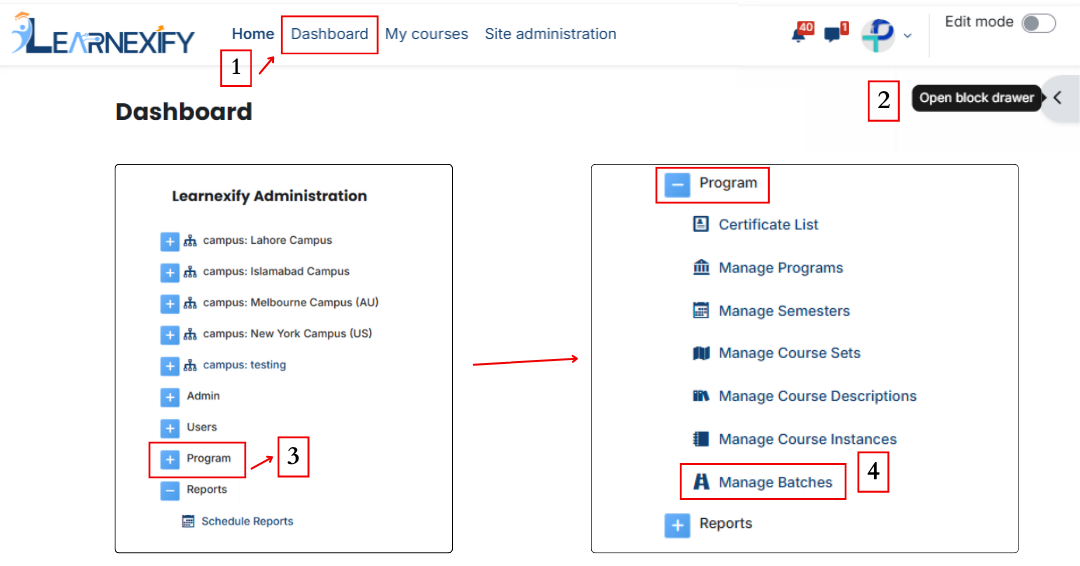
Click on the Add batch button. A form will appear where you need to enter the basic batch details.
Fill in the following fields:
- Program Selection: Select the program from the dropdown list
- ID Number: Enter the unique ID for the batch
- Name: Enter the name of the batch
- Description: Provide a brief description of the batch
- Start Date: Select the start date
- End Date: Select the end date
You will also see two checkbox options:
- Create all course instances:
When selected, this option automatically creates all course instances for the batch based on the program structure, removing the need for manual setup. - Automatically assign semester users:
When selected, all users assigned to the semester will be automatically enrolled in the batch’s course instances, ensuring automatic user assignment without manual effort.
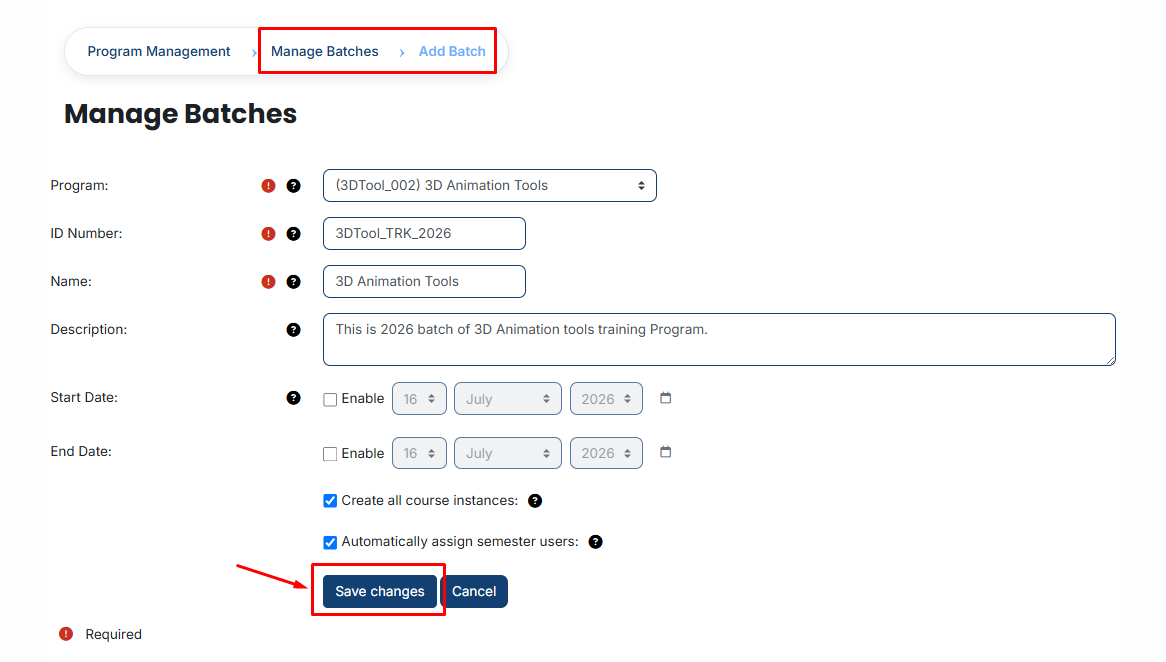
After entering all the required information, click on the Save Changes button.
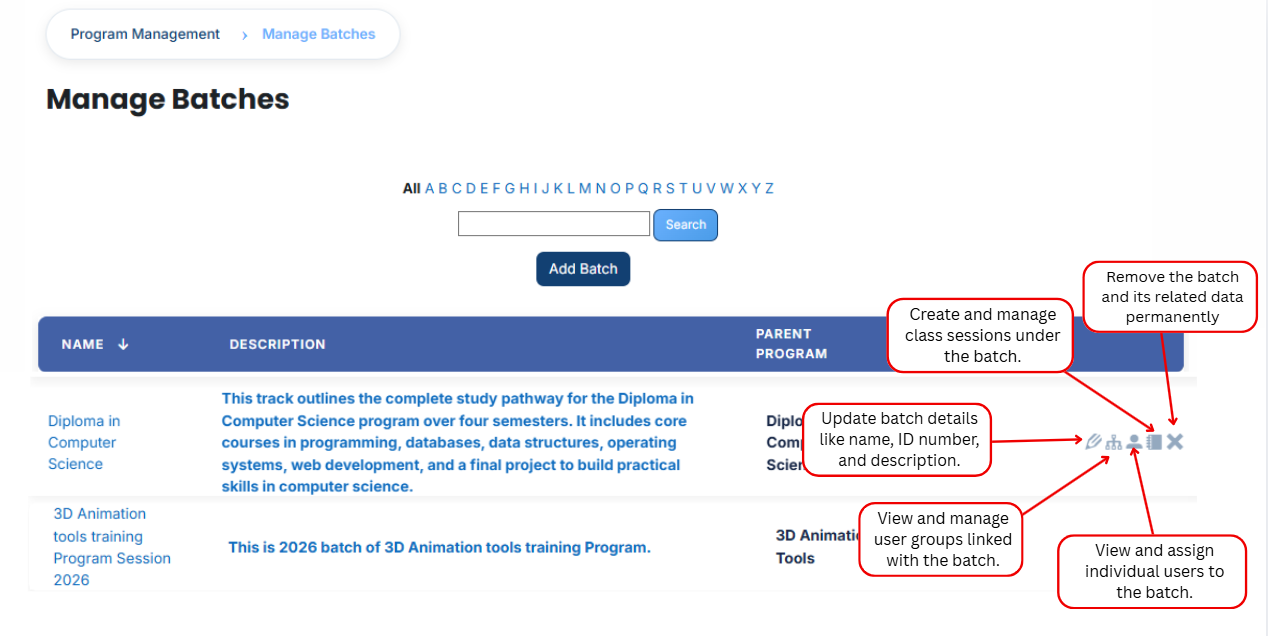
The batch will be created successfully, and the batch will be displayed in the batch List. An explanation of each icon is provided below.