# Learnexify Course Instances
A course instance in Learnexify refers to a specific, active batch or session designed for student enrollment and instruction. It acts as the operational hub for managing schedules, participant limits, daily timings, and academic workflows within a defined timeframe. Essentially, course instances allow for the structured organization and management of all active learning sessions in the system.
---
### **How to Create a course instances**
- After logging in, on the dashboard.
- Open the side drawer.
- Click on Program and select Manage course instances.
[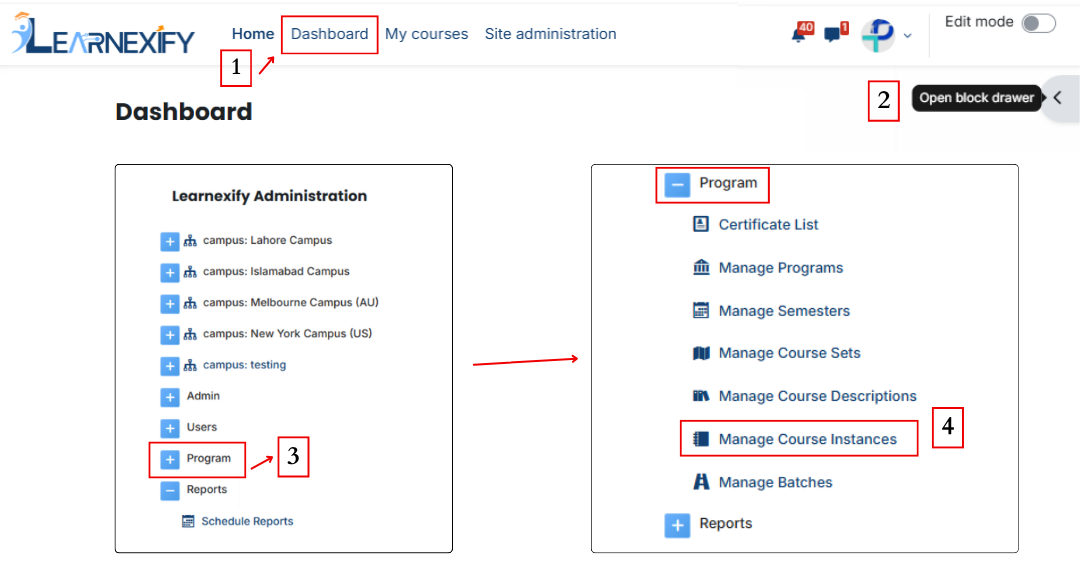](https://wiki.paktaleem.net/uploads/images/gallery/2026-07/page-edits2.png)
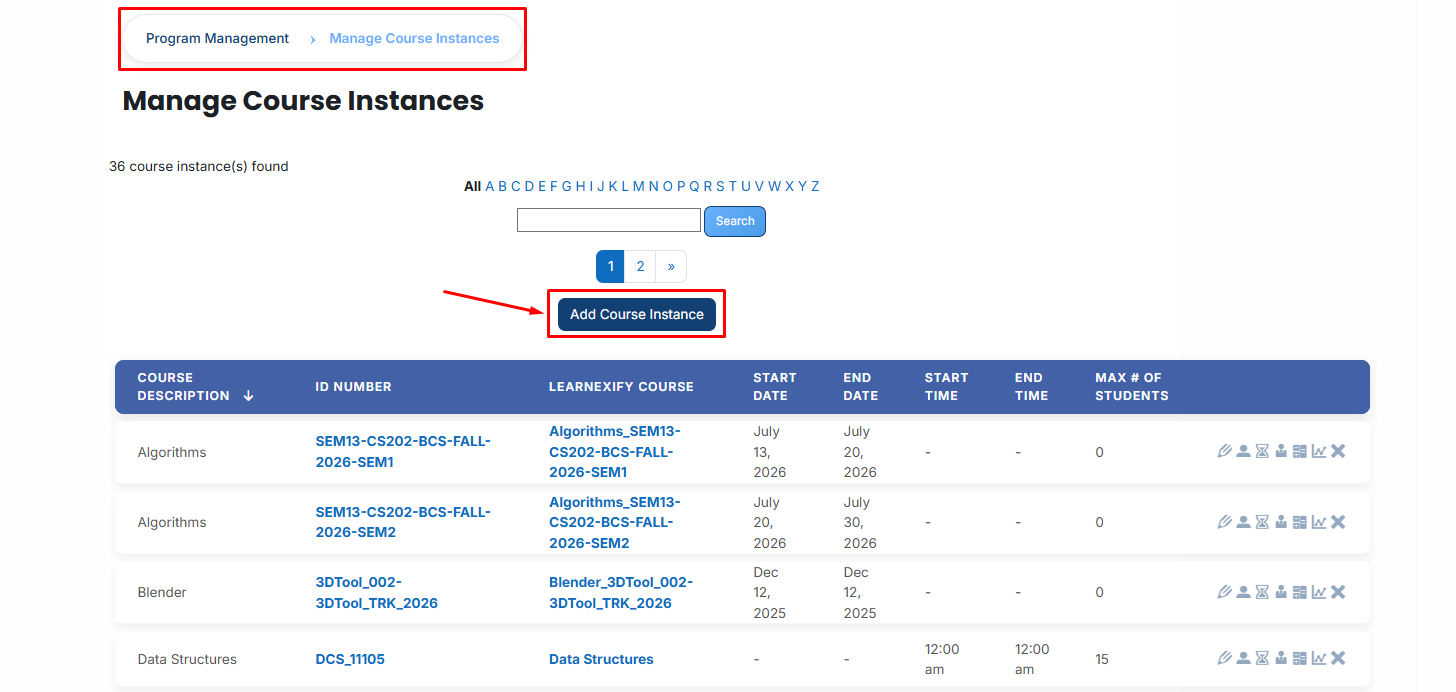
- Upon selection, a management page will be displayed showing a list of all **existing course instances.** To create a new **course instance**, click the “**Add course instance”** button.
[](https://wiki.paktaleem.net/uploads/images/gallery/2026-07/ZO9image.png)
### **Fill in the following details:**
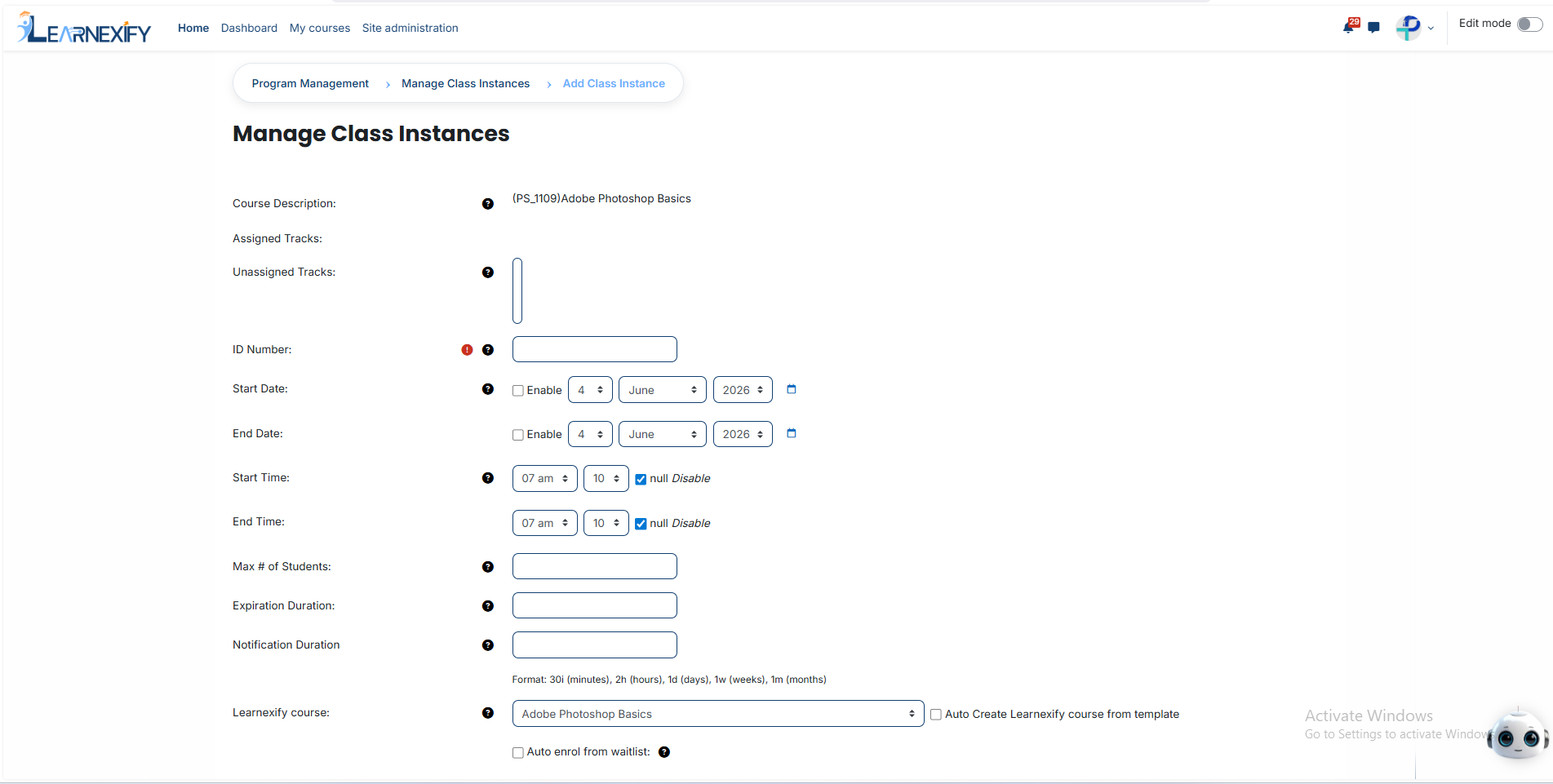
- **Course Description**
This field shows the main course name and code. It acts as a confirmation so you know exactly which parent course you are creating a specific class batch for.
- **Assigned batches**
This section displays the learning batches or groups that are already added to this class.
#### **How to Assign a batch:**
If you need to assign a batch to this course instance, follow these steps:
- From the Learnexify Dashboard, open the Learnexify Administration block from the Side Drawer , click on Program, and then click on Manage batches.
- Open the specific batch you want to assign a course instance to.
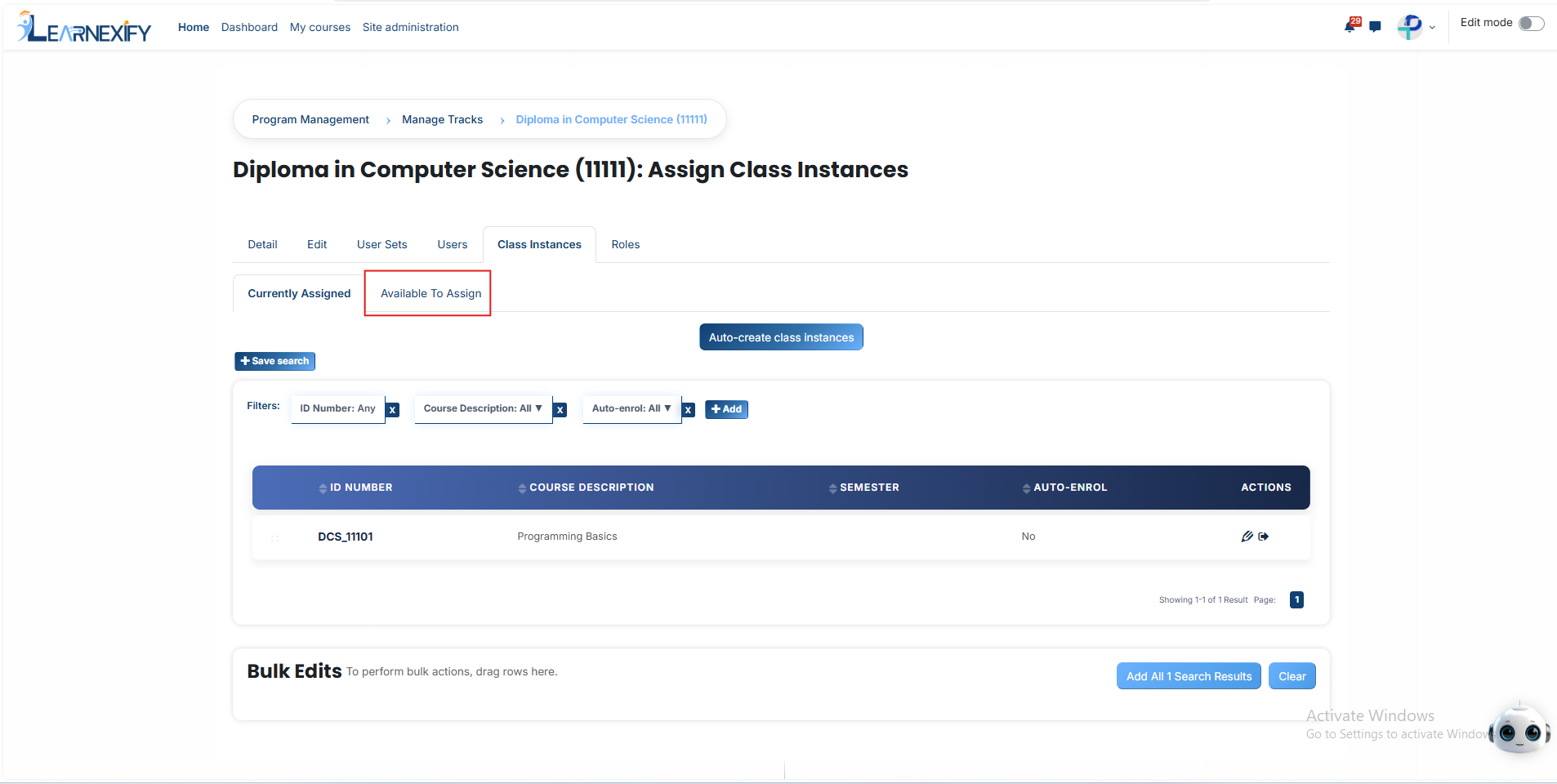
- After opening the batch, click on the course instance tab where you will see your already created instances.
- If you want to assign more, click the Available to Assign button.
- Select the course instance you want to link and click the **arrow button.**
- **An option will appear: "Auto-enroll users into this course instance when they are added to this batch."**
- This allows the system to automatically enroll any student into this specific course instance as soon as they are added to the batch, saving you the time of doing it manually.
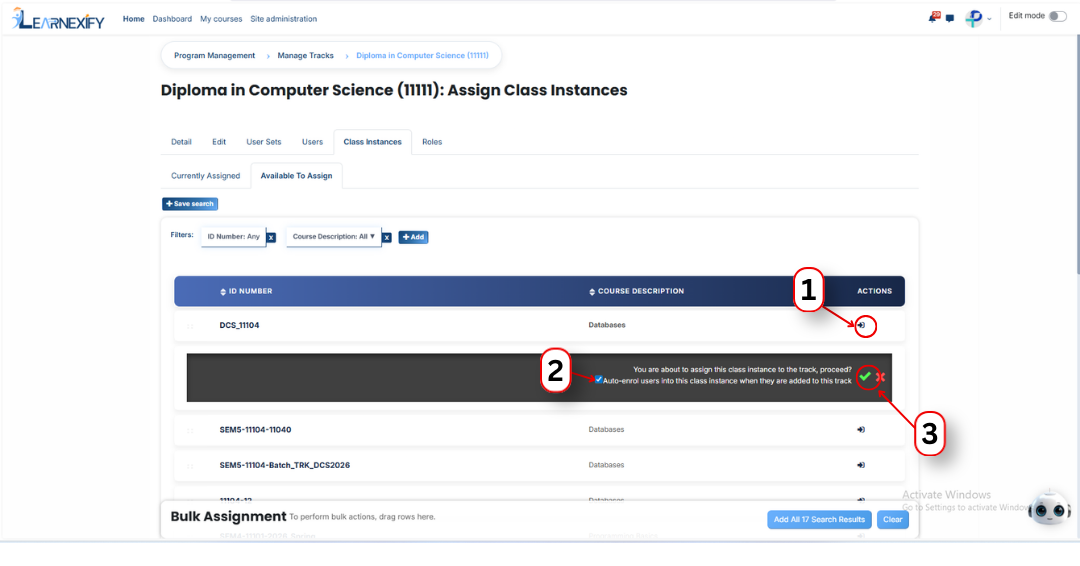
- Select the option and **click the green tick icon.**
Now, go back to the course instance creation form and reload the page; the batch will now show as assigned to this course instance.
- **Unassigned batches**
This field is used to select and add new batches or groups to this class that have not been linked yet.
- **ID Number (Required)** Enter a unique name or number for this class batch (e.g., Batch-01-2024). This field is mandatory and helps the system identify the specific session.
- **Start Date**
Check the 'Enable' box to select the specific calendar date when the course should officially start.
- **End Date**
Check the 'Enable' box to select the date when the course should officially finish.
- **Start Time**
Set the exact time when the class starts daily. Use the ‘Disable’ checkbox if there is no fixed daily time (e.g., for self-paced courses).
- **End Time**
Set the time when the class ends daily. Use ‘Disable’ if there is no fixed finishing time.
- **Max # of Students**
Enter the maximum number of students allowed to join this batch. This helps manage classroom or server capacity.
- **Expiration Duration**
Enter how long a student will have access to the course after they enroll (e.g., enter 1m for 1 month). This ensures students finish their studies within the allotted time.
- **Notification Duration**
Enter how many days or weeks before the course ends a student should receive an automated reminder. (Example: 1w for one week).
- **Learnexify Course**
Select the specific online course module from the dropdown list that you want to connect to this class. This is the material the students will actually study.
- **Auto Create Course from Template**
If checked, the system will automatically create the online course for you using a pre-defined "Master Template," saving you from setting it up manually.
- **Auto Enrol from Waitlist**
If checked, the system will automatically add the next student from the waitlist if a seat becomes empty because another student left.
#### **Finalizing the Process:**
After entering all the required information, scroll to the bottom of the page and click the Save Changes button to successfully create the course instance.
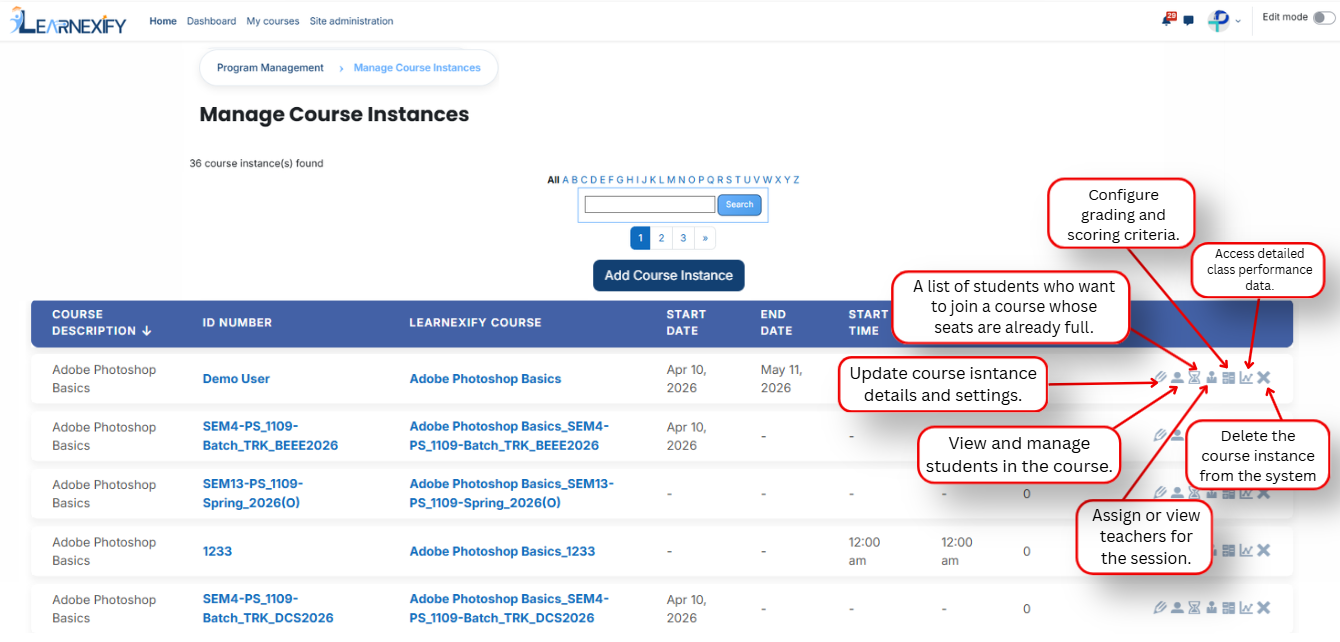
After clicking 'Save Changes', the course instance will be displayed in the course instance list. An explanation of each icon is provided below.
[](https://wiki.paktaleem.net/uploads/images/gallery/2026-07/pfYimage.png)
---