2. Course Reports
2.1 Course Completion Gas Gauge
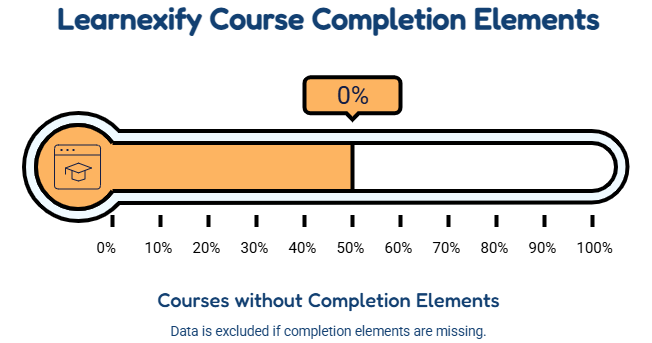
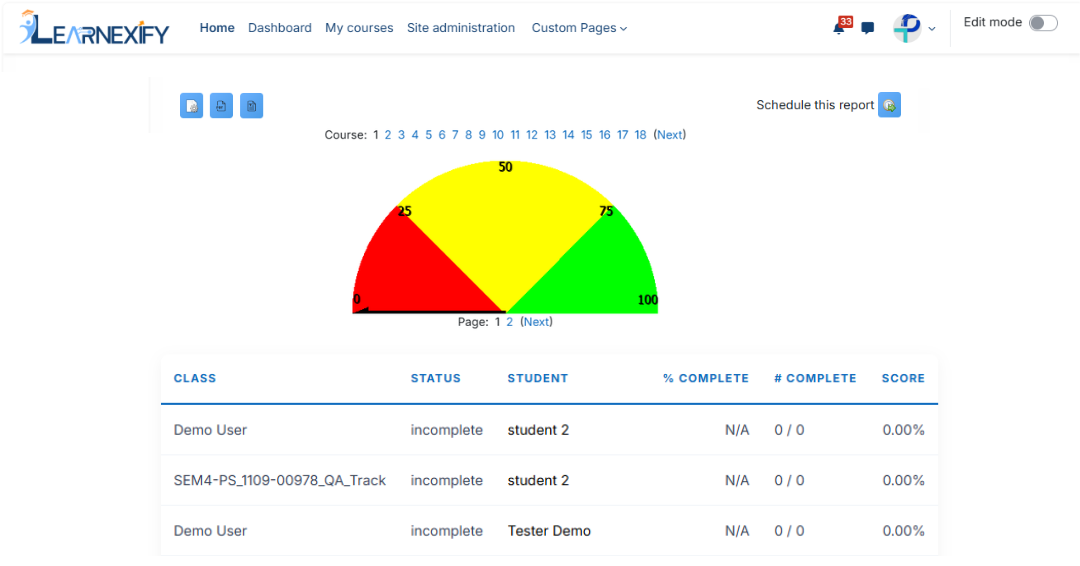
The Course Completion Gas Gauge Report is used to show the status of all users enrolled in a course. It also displays a gas gauge chart that represents the percentage of students who have completed the course.
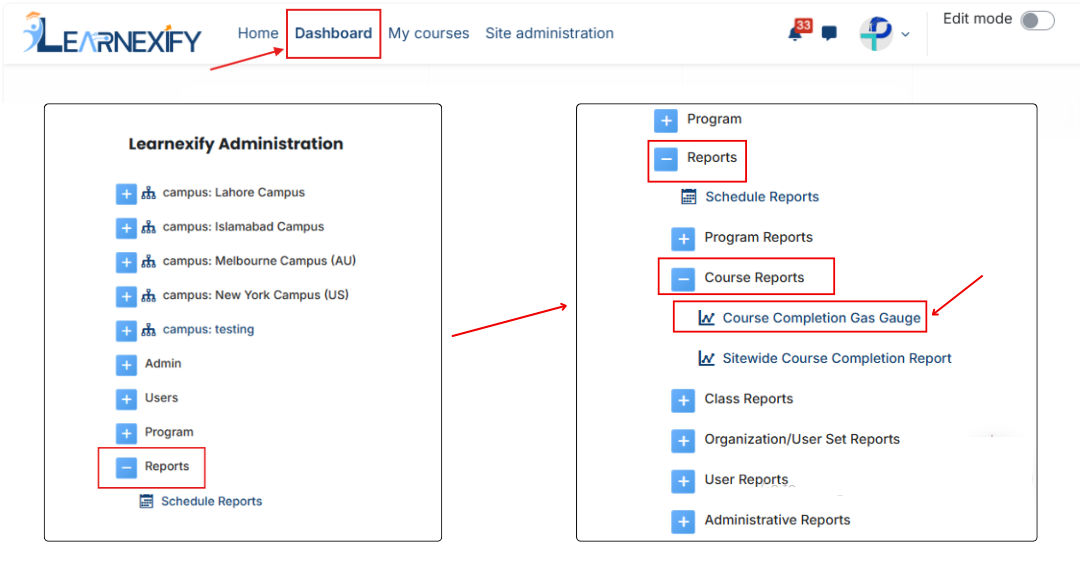
Report Path:
Dashboard > Side drawer > Reports > Course Reports > Course Completion Gas Gauge
Report Requirements:
This report requires completion elements to be available in the Learnexify course.
If a course or class does not contain completion elements, its data will not be included in the report.
Report Filter:
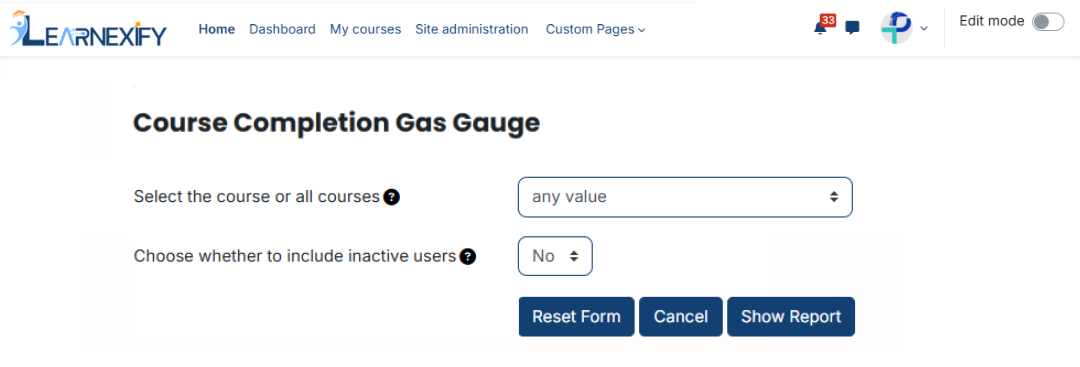
The report filter contains two fields, Course and Inactive. Neither field is required.
To generate a report for all courses on the site, keep the Course field set to “Any Value”.
To generate a report for a specific course, select the required course from the Course dropdown menu.
Active users are always included in the report, and including inactive users is optional.
To view the report, click on the Show Report button located at the bottom of the page.
Explanation of Report Data:
The report displays the status of all users enrolled in the course along with their completion percentage.
Class —----> refers to the class instance in which the learner is enrolled.
Status —----> refers to the learner’s completion status. If the completion requirements are met, the status is shown as “complete”.
Student —-----> refers to the enrolled learners. Clicking on a student’s name opens their Learnexify profile page.
% Complete —----> refers to the percentage of completion elements that the learner has completed.
# Complete —----> refers to the total number of completion elements that have been completed by the learner.
Score —------> refers to the learner’s current percentage grade in the course.
Report Configuration:
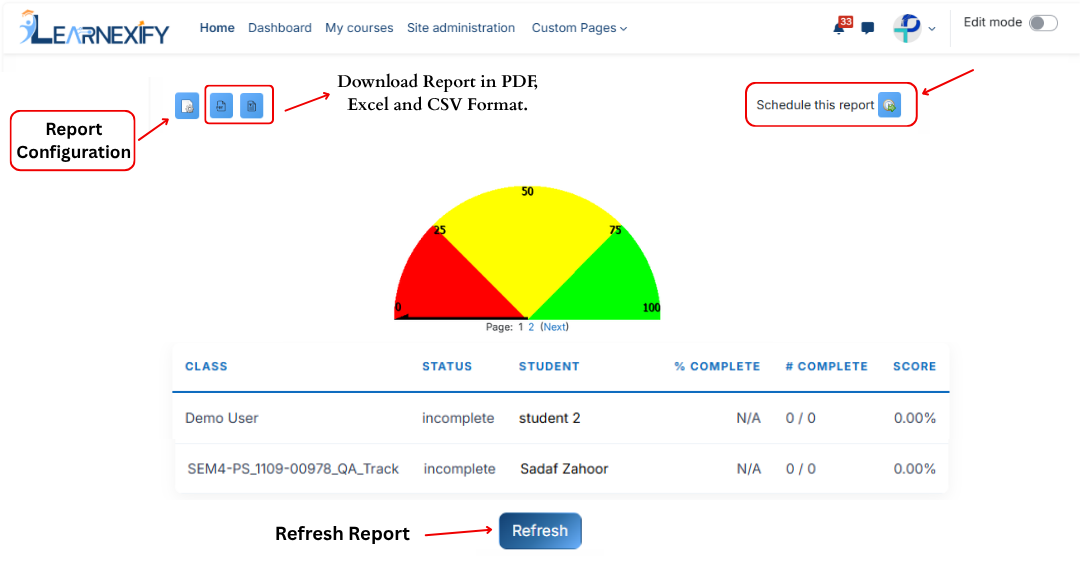
Click on the Configure Parameters icon (top left) to change report settings and apply filters.
Report Scheduling:
Click on the Schedule Reports icon (top right) to schedule the report to run automatically at a specific time.
Export Report:
The report can be downloaded in PDF or CSV format using the download options at the top left of the report.
Report Refresh:
Click the Refresh button at the bottom center to update the report with the latest data.
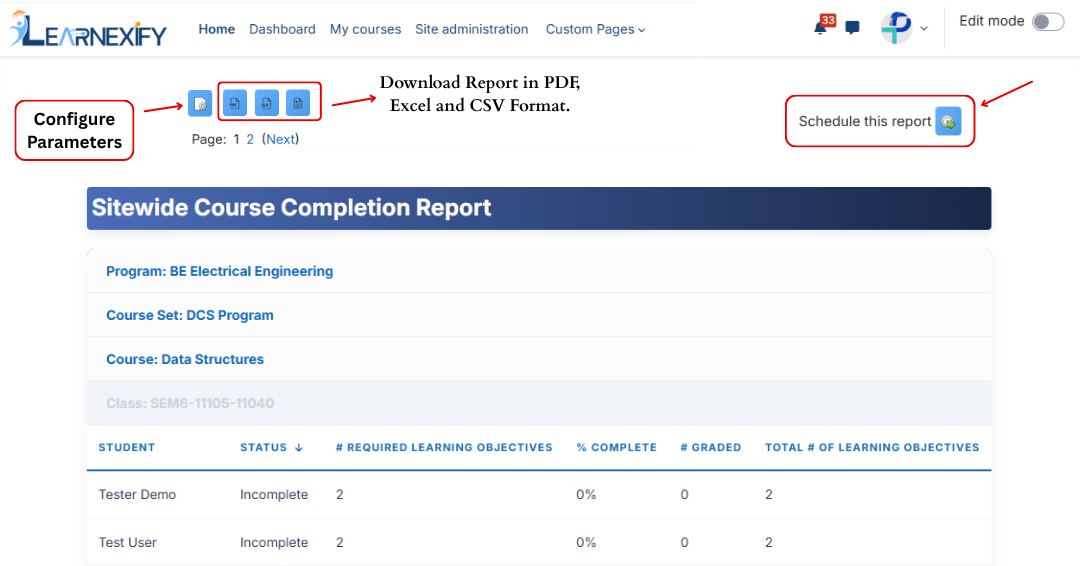
2.2 Sitewide Course Completion Report
The Sitewide Course Completion Report is used to view the status of all users across courses in the system. It displays the completion status of enrolled users for each course.
Report Path:
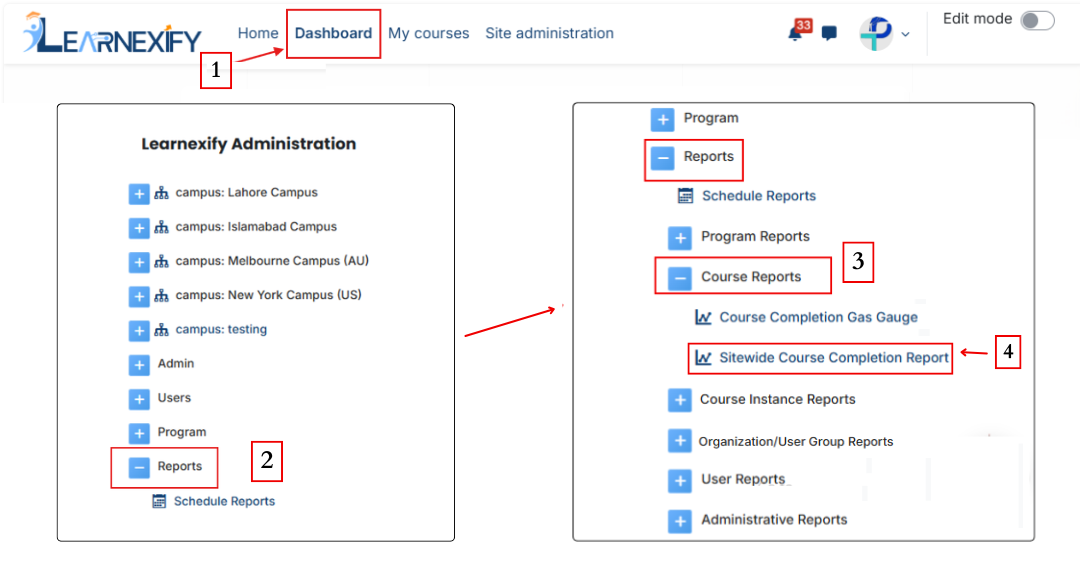
Dashboard ⟶ Side drawer ⟶ Reports ⟶ Course Reports ⟶ Sitewide Course Completion Report
Report Requirements:
This report requires learning objectives to be configured in the course.
If learning objectives are not set up, the report may not display complete or accurate data.
The user status is shown as “complete” when the Learnexify completion grade is achieved. However, to display 100% completion, at least one learning objective must be configured in the course.

Configure Parameters:
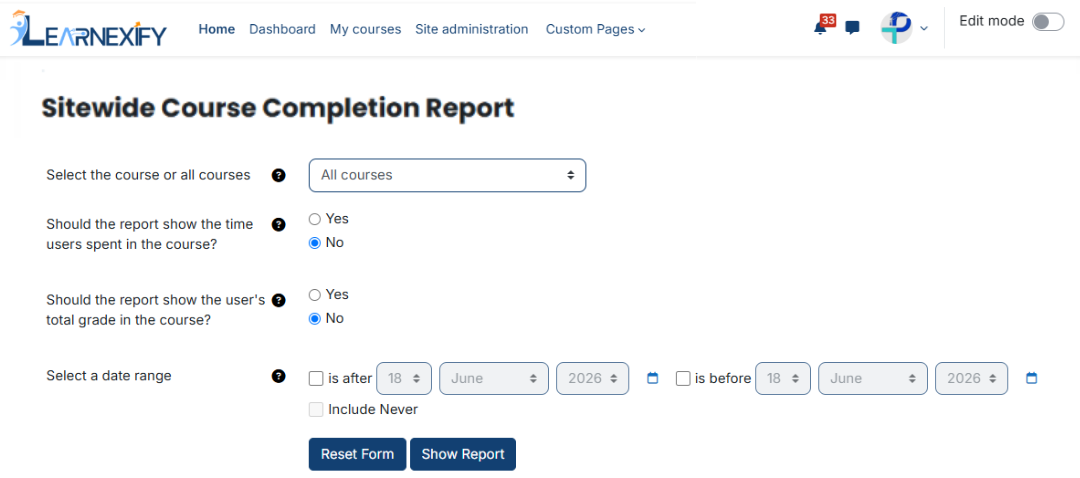
This report includes four configurable parameters:
1. Course Selection:
A specific course can be selected, or all courses can be included. Multi-selection is not allowed.
2. Should the report include users’ time spent in the course?
Select “Yes” to include the time users spent in the course.
Select “No” to exclude this information.
3. Should the report display the user’s overall course grade?
Select “Yes” to display the user’s total course grade.
Select “No” to hide the grade information.
4. Date Range:
This option is used to filter data based on a specific time period.
- Selecting only “is after” shows courses completed after a specific date
- Selecting only “is before” shows courses completed before a specific date
- Selecting both defines a date range for completed courses
- Enabling “Never included” allows inclusion of courses not completed within the selected time frame
Explanation of Report Data:
The report displays course and user data based on the selected filters.
If a course is assigned to a program or course set, that information is also shown along with course details.
- Status → Represents the overall completion status of the student. If completion requirements are met, the status is shown as “complete”.
- # Required Learning Objectives → Shows the number of required learning objectives in the course. All required objectives must be completed for course completion.
- % Complete → Shows the percentage of required learning objectives completed by the learner.
- # Graded → Represents the number of graded learning objectives that have been scored.
- Total # of Learning Objectives → Represents the total number of learning objectives in the course, including both required and optional.
- Time Spent → Shows the amount of time the learner has spent in the course within the selected date range.
- Total Grade → Shows the learner’s overall percentage grade in the course.
Report Scheduling, Configuration & Export:
Similar to other reports, this report also includes the same functionality:
- The report can be scheduled using the Schedule Reports option to be generated at a specified date and time.
- Report settings and filters can be modified using Configure Parameters.
- The report can be exported in PDF, Excel and CSV formats.
- Click the Refresh button at the bottom center to update the report with the latest data.