3. Course Instance Reports
3.1 Course Instance Completion Gas Gauge
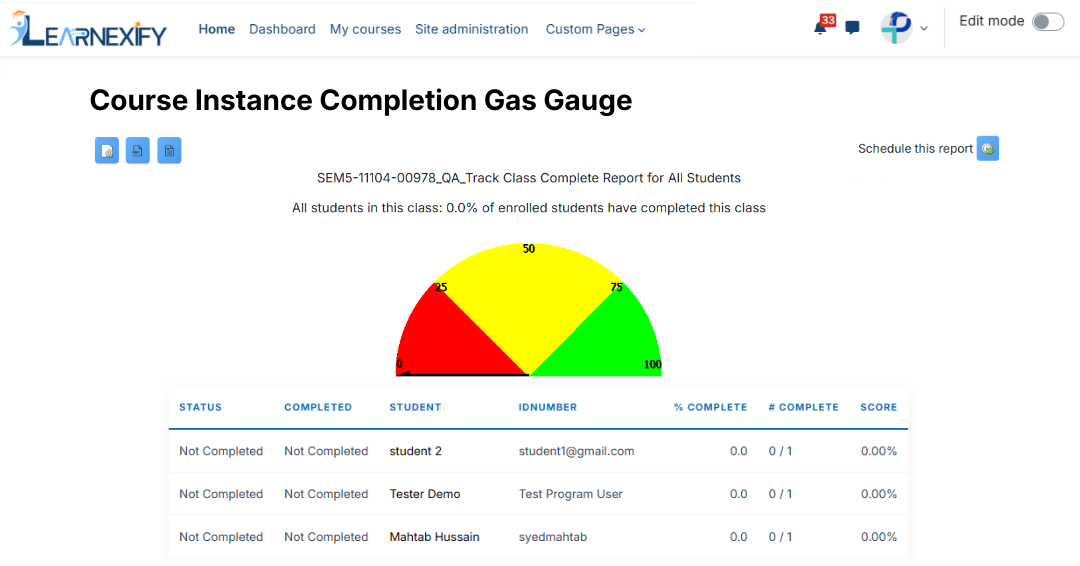
The Class Completion Gas Gauge Report is used to display the completion status of all users enrolled in a specific class. It also shows a gas gauge chart representing the percentage of students who have completed the class.
Report Path:
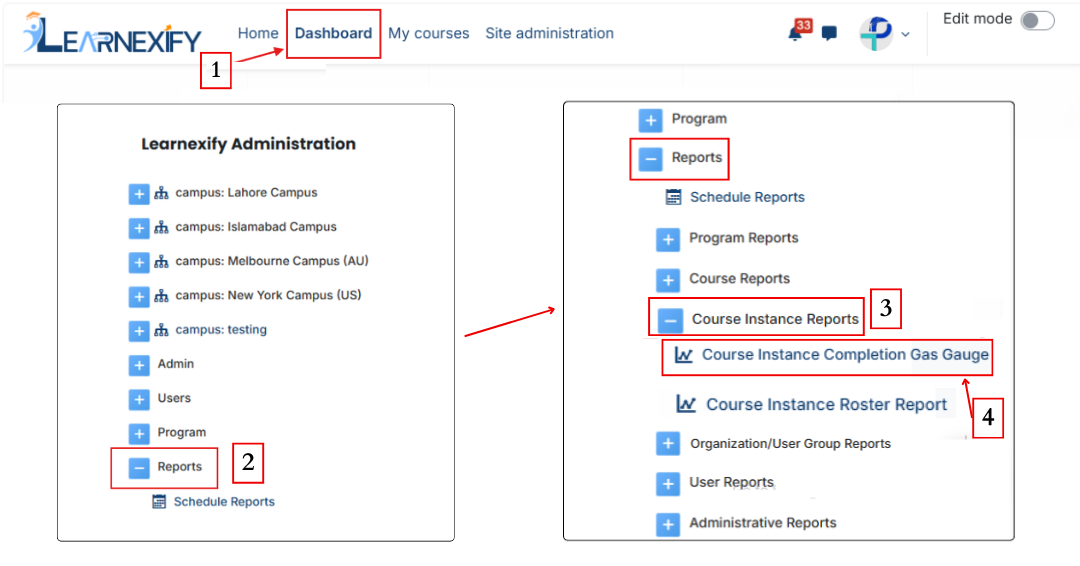
Dashboard ⟶ Side drawer ⟶ Reports ⟶ Class Reports ⟶ Class Completion Gas Gauge
Report Requirements:
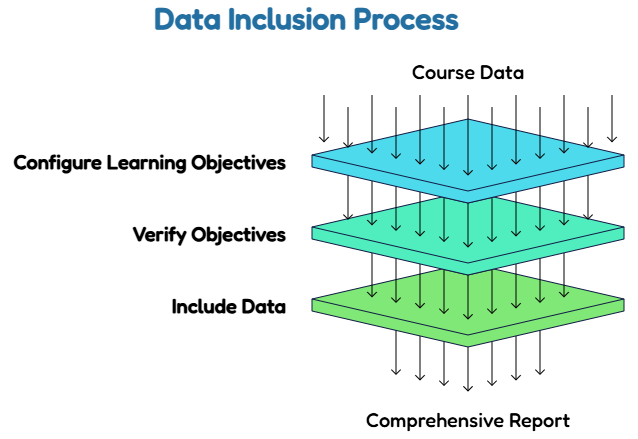
This report requires learning objectives to be configured in the Learnexify course.
If a course or class does not have learning objectives, its data will not be included in this report.
Report Filter:
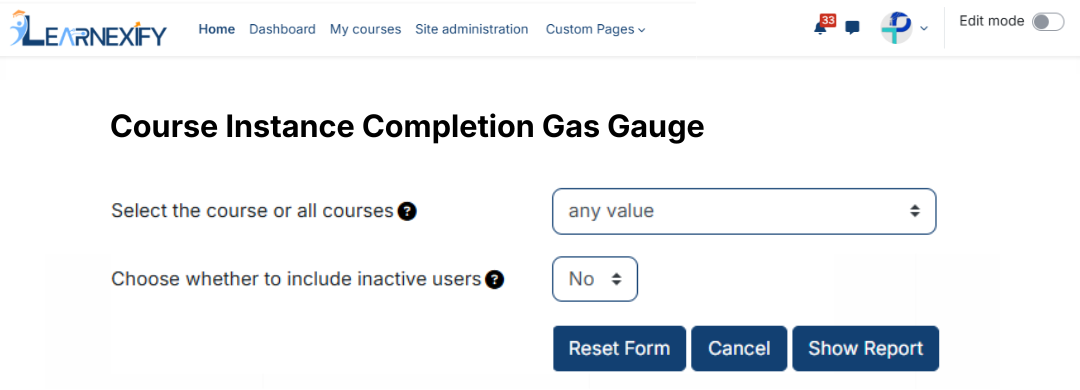
The report filter includes three fields: Course, Class, and Inactive.
First, a course must be selected. After selecting the course, a specific course Instances of that course can be chosen.
For the Include inactive users field, select “Yes” or “No”.
There are no mandatory fields for this report filter.
Running the Report:
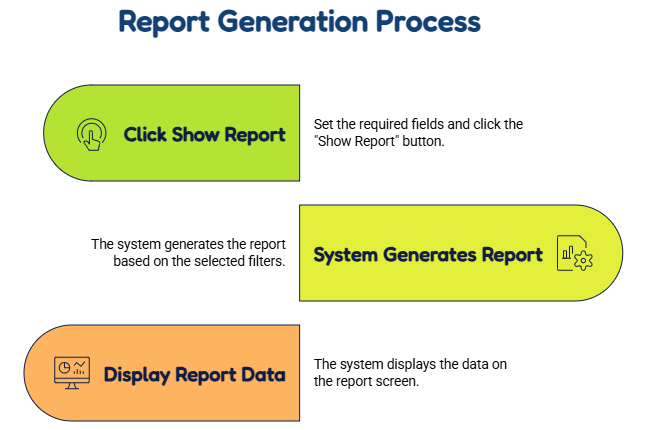
Once the required fields are set, Click the Show Report button.
After clicking this button, the system generates the report based on the selected filters and displays the data on the report screen.
Report View:
The report displays the status of all users in a selected class along with their completion percentage.
- Status → Represents the learner’s completion status in the class. If completion requirements are met, the status is marked as “complete”.
- Student → Represents the individual learners enrolled in the class. Clicking on a student’s name opens their Learnexify user profile page.
- % Complete → Shows the percentage of learning objectives completed by the learner.
- # Complete → Represents the number of learning objectives completed by the learner in the class.
- Score → Shows the learner’s overall percentage score in the class.
Report Actions:
-
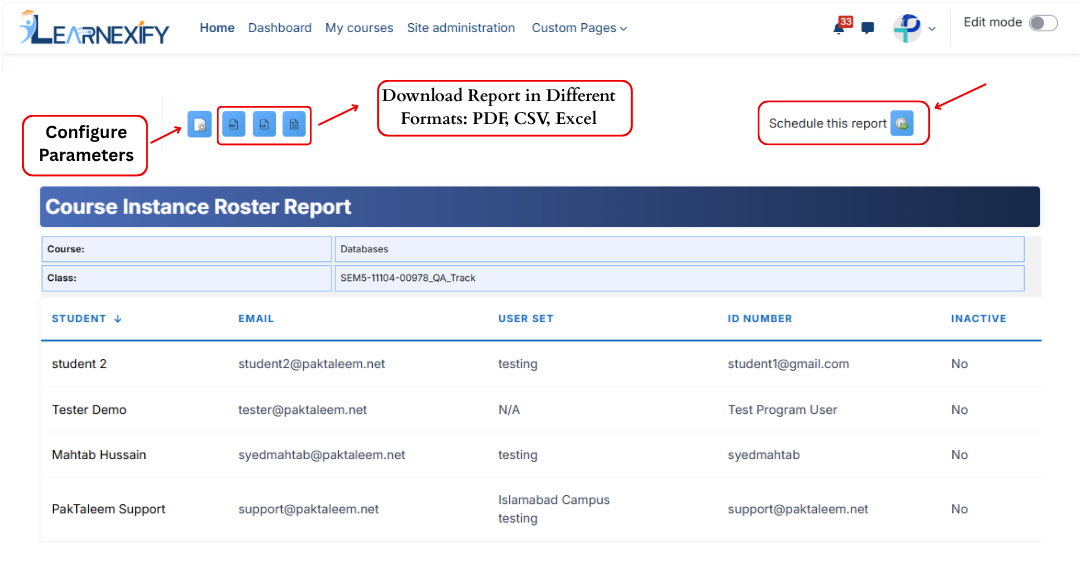
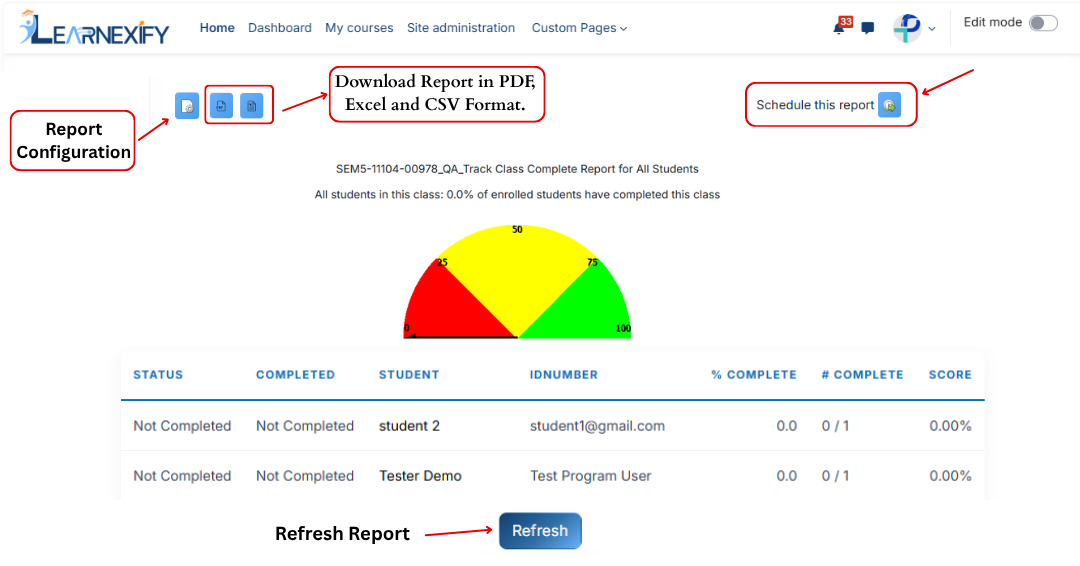
Click on the Configure Parameters icon (top left) to change report settings and apply filters.
-
The report can be scheduled using the Schedule Reports option to be generated at a specified date and time.
-
Click the Refresh button at the bottom center to update the report with the latest data.
- The report can be downloaded in PDF or CSV format using the download options at the top left of the report.
Note: When opening CSV files in Excel, values containing “/” may be interpreted as dates (for example, 1/1 may appear as Jan 01). To avoid this issue, auto-date detection can be disabled in spreadsheet settings if required.
3.2 Course Instance Roster Report
The Class Roster Report displays all users enrolled in a Learnexify class. It also includes each user’s email address, retrieved from their Learnexify profile.
This report includes a Show Advanced option that allows additional fields to be added. It is particularly useful for instructors, especially in classroom or face-to-face learning environments.
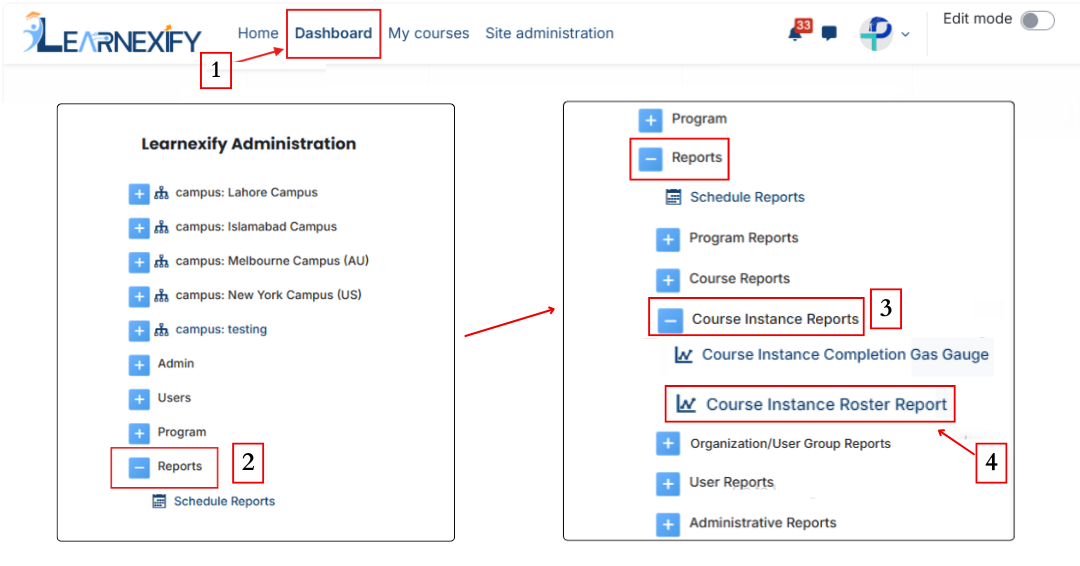
Report Path:
Dashboard ⟶ Side drawer ⟶ Reports ⟶ Course Instance Reports ⟶ Course Instance Roster Report
Report Requirements:
There are no specific requirements for this report.
Report Filter:
The standard Class Roster Report filter includes two fields: Course and Class.
Select the course and class: Choose the specific course and then a specific class instance of that chosen course.
In addition, optional information is available such as email address, username, first name, last name, and other fields. These options appear below the main fields
Selecting these boxes will add the corresponding columns to your generated report:
- User group: Displays the department, campus, or group associated with the student.
- ID number: Shows the unique system or student identification number.
- Username: Includes the unique login ID for each student in the roster.
- Middle initials: Displays the middle name initials of the student.
- Email address 2: Includes the secondary contact email address if provided.
- Address / Address 2: Displays the student's primary or secondary residential address.
- City/town: Includes the name of the city where the student is located.
- State/Province: Shows the state, province, or territory of the student.
- Postal code: Displays the regional zip or postal code.
- Country: Includes the student's country of residence.
- Phone / Phone 2: Lists the primary and secondary contact numbers.
- Fax: Shows the registered fax number for the user.
- Birth date: Displays the student's date of birth.
- Gender: Includes the gender (Male/Female/Other) as specified in the profile.
- Language: Shows the student’s preferred system language.
- Transfer credits: Displays any credits transferred from external institutions.
- Comments: Includes general administrative remarks or feedback for the student.
- Notes: Shows internal, private notes related to the student's record.
- Inactive: Allows the report to include students who are currently deactivated or no longer active in the system.
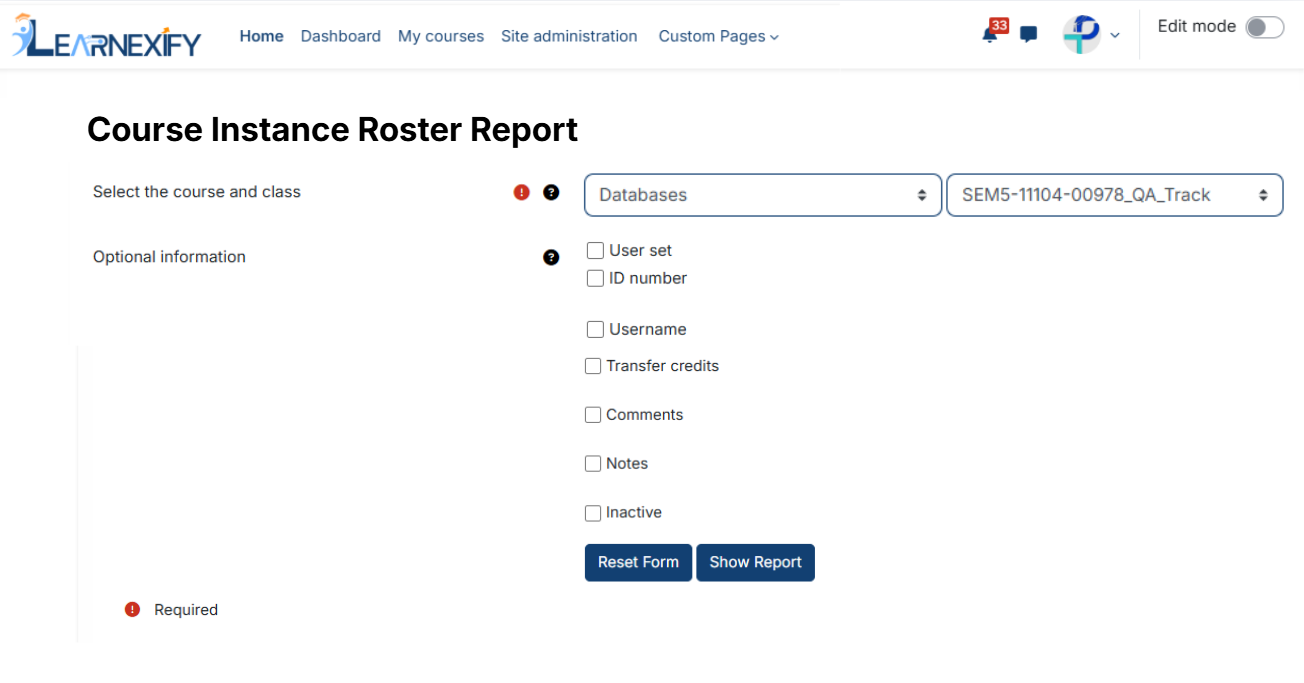
After selecting the required fields, click on the Show Report button.
The system will generate the report based on the selected filters and display the data on the screen.
Report View:
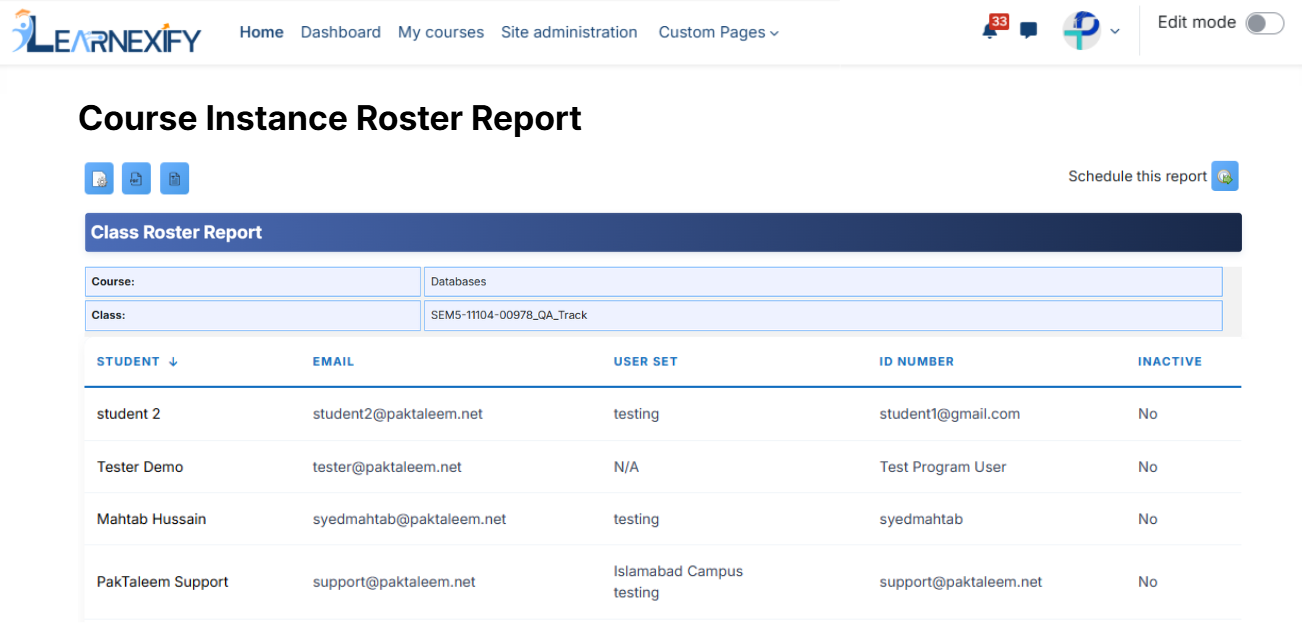
The report displays data for the selected class.
- Course → Displays the course description name.
- Class → Displays the selected course Instances name.
- Student → Displays users enrolled in the class. Clicking on a student’s name opens their Learnexify user profile page.
- Email → Displays the user’s email address from their Learnexify profile.
Any additional fields selected in the filter will also be displayed in the report.
Running the Report:
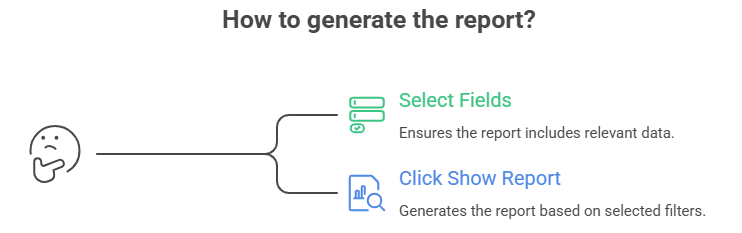
After selecting the required fields, click on the Show Report button.
The system will generate the report based on the selected filters and display the data on the screen.
Report Scheduling, Configuration & Export:
Similar to other reports, this report also includes the following functionalities:
- The report can be scheduled using the Schedule Reports option to be generated at a specified date and time.
- Report settings and filters can be modified using Configure Parameters.
- The report can be downloaded in Excel, PDF and CSV formats.