# 4. Organization/ User Group Report
# 4.1 Course Completion By User Group Report
The Course Completion by user group Report is used to **view course** and **class completion** data for **users grouped**. In this report, **users** are **filtered based** on their **user groups**, and their progress and **completion status** are displayed accordingly.
### **
Report Path: **
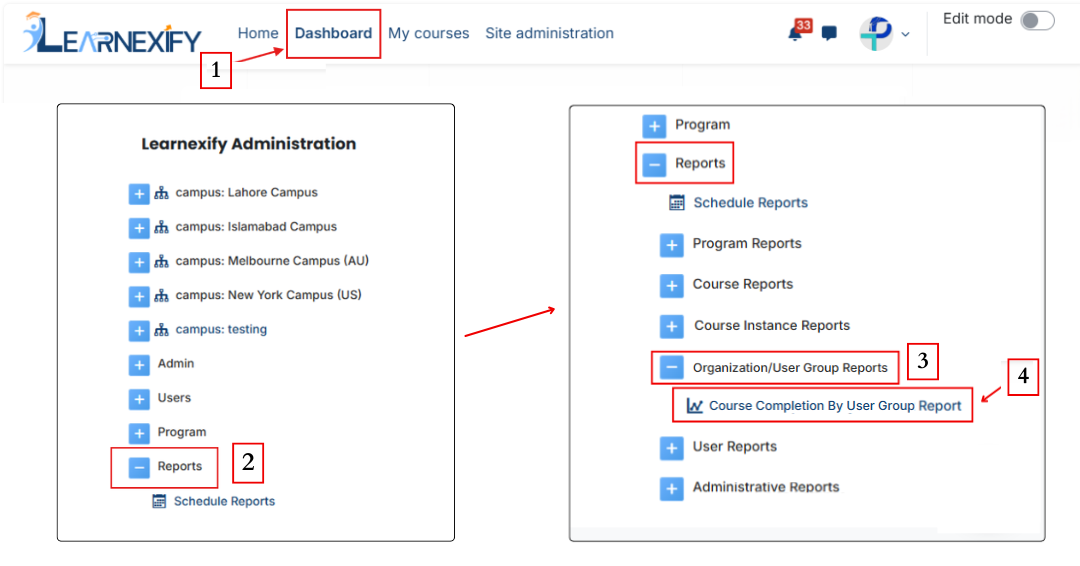
Dashboard ⟶ Side drawer ⟶ Reports ⟶ Organization/User Group Reports ⟶ Course Completion By User Group Report
[](https://wiki.paktaleem.net/uploads/images/gallery/2026-06/dfasvavddf.png)
###
### **Report Requirements:**
This report requires that **users** within a **user group** are **enrolled in courses.**
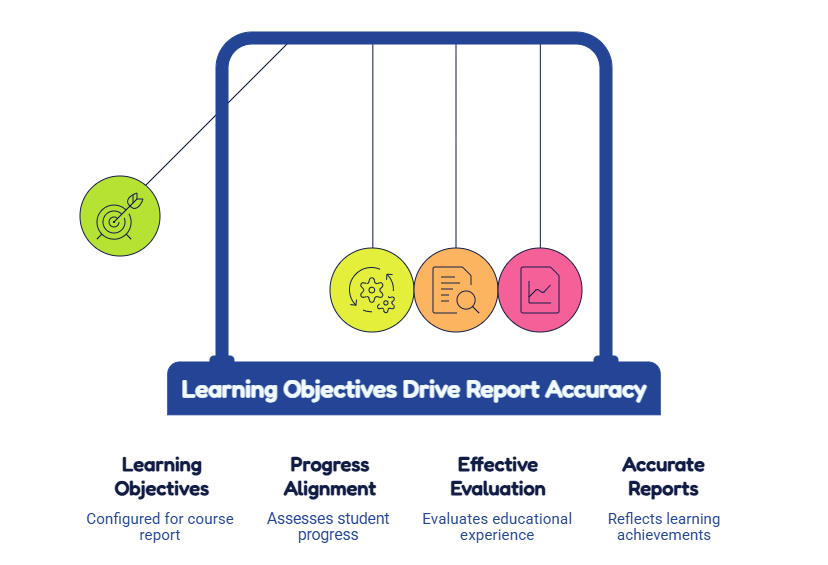
In addition, courses must have **learning objectives** **configured** for the report to function properly.
[](https://wiki.paktaleem.net/uploads/images/gallery/2026-06/visual-selection-7.png)
###
### **Report Filters:**
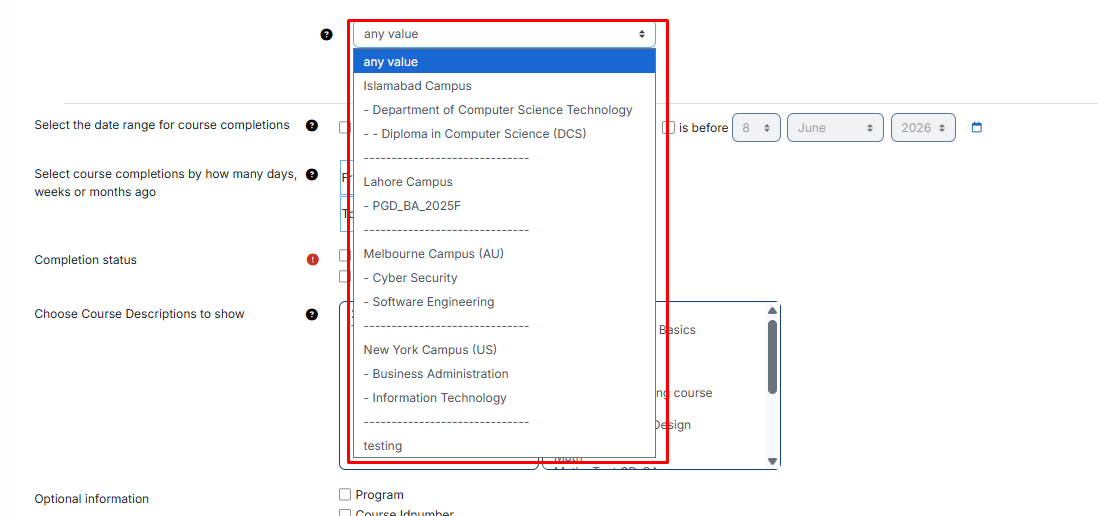
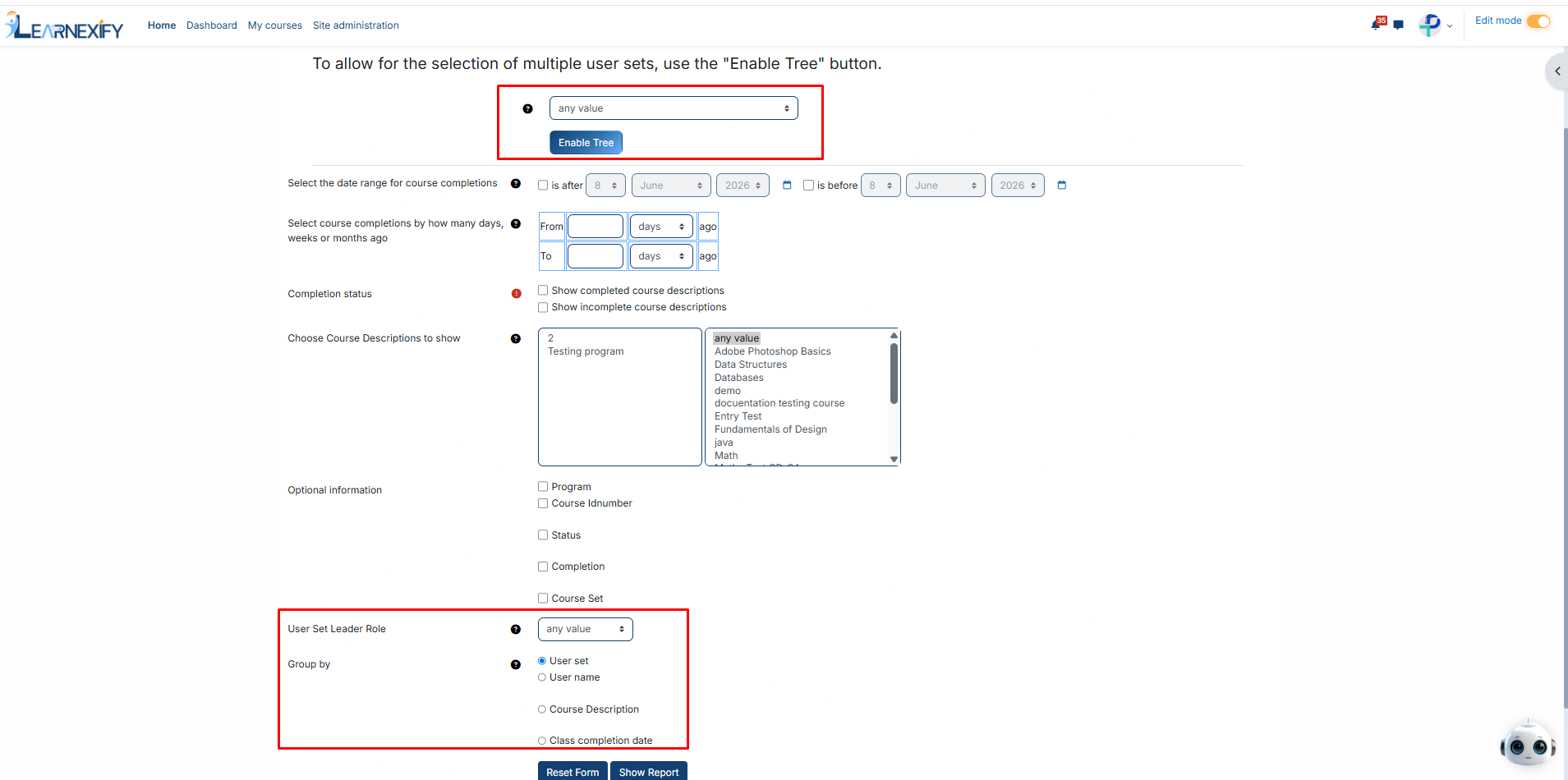
**User groups** can be selected in **two ways:**
**1. Selecting a Single user group**
Using the “any value” button, a specific user group or sub-set can be selected. This will display data only for the selected user group and will not include its sub-sets.
**2. Selecting Multiple or Organizational user groups**
By clicking the **Enable Tree option**, the **complete** **user group** hierarchy is displayed.
From here, multiple user groups can be selected using checkboxes.
Selecting a parent user group will automatically include all its sub-sets.
###
### **Completion Status Selection:**
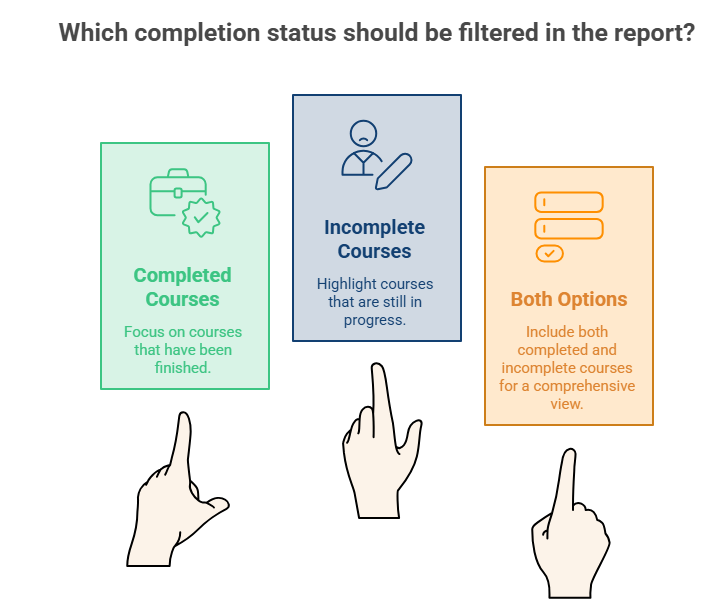
The report allows filtering by **completion status:**
- **Completed courses**
- **Incomplete courses**
One or both options can be selected based on the requirement.
[](https://wiki.paktaleem.net/uploads/images/gallery/2026-06/nAkthe-report-allows-filtering-by-completion-status-visual-selection-1.png)
###
### **Optional Information:**
Additional data fields can be included in the **report:**
- **Program →** Displays courses grouped under the assigned program for each user.
- **Status →** Filters users based on completion status (Completed or Incomplete). If left as default, all users are included.
- **Completion →** Displays the learning objectives column in the report.
- **Course Set →** Adds a column showing the course set assigned to the course.
- **User group Leader Role →** Displays users assigned as leaders for each user group based on the selected role.
###
### **Running the Report:**
After selecting the **required filters** and **parameters**, click on the **Show Report button.** The system will **generate** the report based on the selected **criteria** and **display** the data on the screen.
###
### **View Report:**
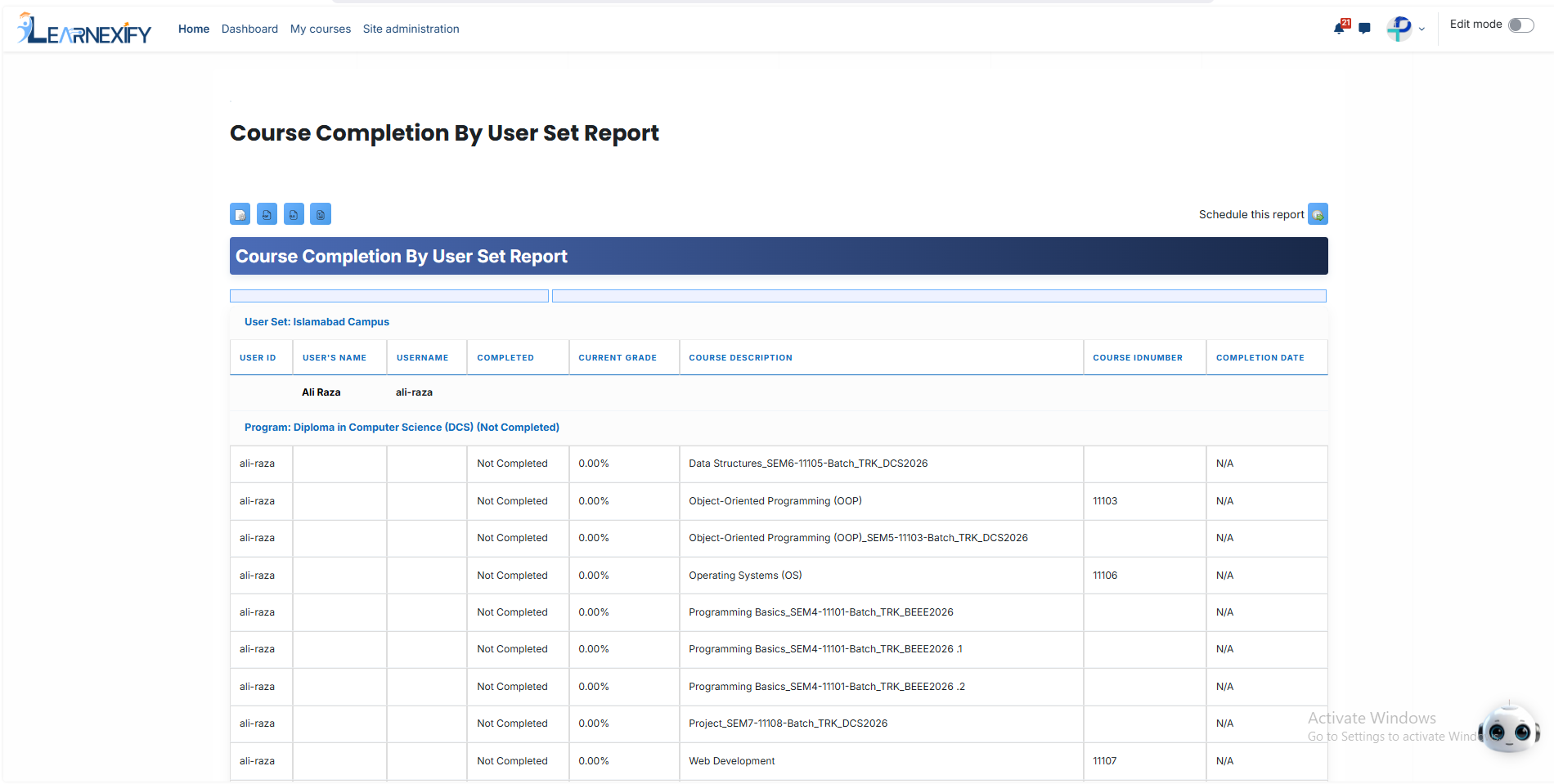
The report displays **user-wise course completion** data filtered by **user groups.** **Courses associated** with **programs** are grouped under program names, while non-program courses are listed separately.
- **User ID →** Displays the user’s ID number.
- **User Name →** Displays the first and last name of the user.
- **Program →** Shows the program name, or “Non Program Courses” if the course is not associated with a program.
- **Course Set →** Displays the course set assigned to the course.
- **Course →** Displays the Learnexify course name.
- **Required →** Indicates whether the course is required in the program (Yes/No or N/A).
- **Class →** Displays the Learnexify class ID number.
- **Completed →** Shows the user’s completion status (Completed, Not Completed, Pass, Failed, or Incomplete).
- **Current Grade →** Displays the user’s current total grade. If no grade is assigned, 0 is shown.
- **Learning Objectives Completed →** Shows completed learning objectives out of total (e.g., 3/5). If none are defined, 0/0 is displayed.
###
### **Report Scheduling, Export & Refresh:**
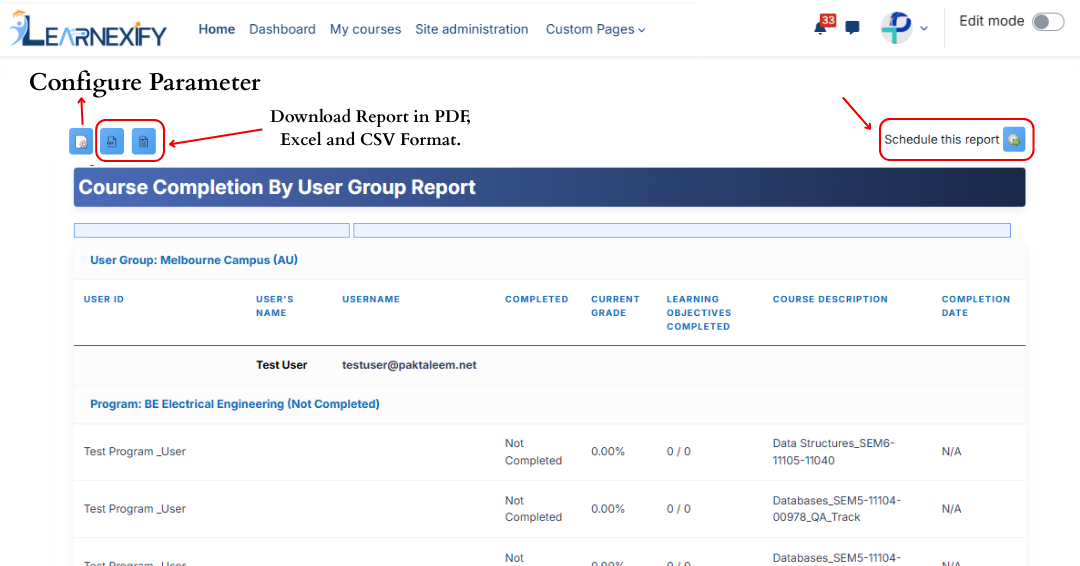
Similar to other reports, this report also includes the following functionalities:
- The report can be scheduled using the **Schedule Reports** option to be generated at a **specified date and time.**
- Report settings and **filters** can be **modified** using **Configure Parameters.**
- The report can be **exported in PDF and CSV formats.**
- Report data can be refreshed using the **Refresh button** without **reapplying parameters.**
[](https://wiki.paktaleem.net/uploads/images/gallery/2026-06/dfdvcv.png)
---