# 5. User Reports
# 5.1 Individual Course Progress Report
Individual Course Progress Report is **used** to see how much **progress a user** is making in their Learnexify **courses.** Through this report, **both administrators and users** can view an overview of their learning activity. This is one of the default reports that **logged-in users** can access for their learning progress.
### **
Report Path: **
Dashboard ⟶ Side drawer ⟶ Reports ⟶ User Reports ⟶ Individual Course Progress Report
[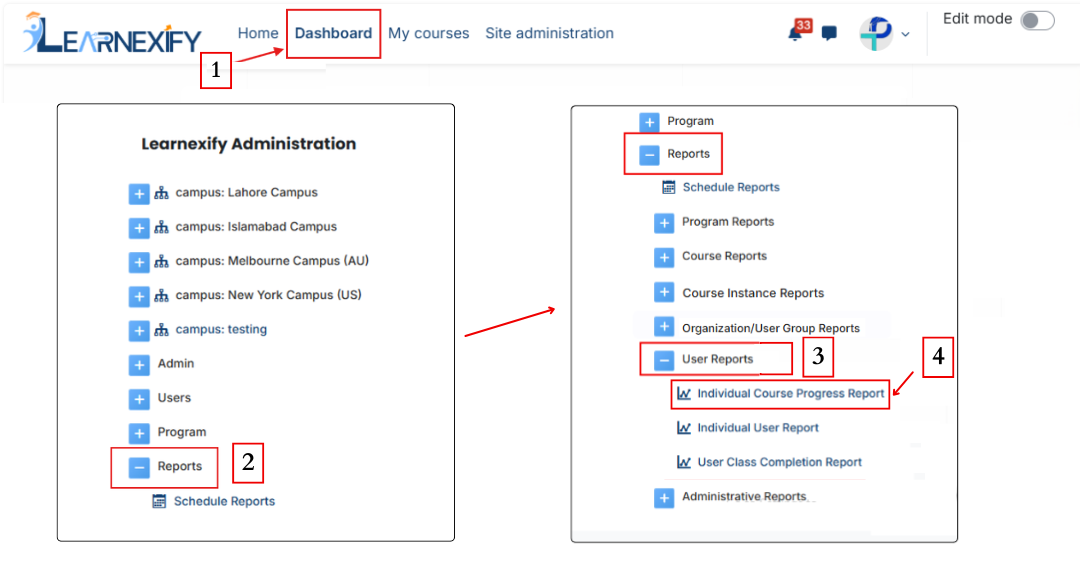](https://wiki.paktaleem.net/uploads/images/gallery/2026-06/1st.png)
###
### **Report Requirements:**
For this report, it is necessary that the user is enrolled in an **Learnexify class**.
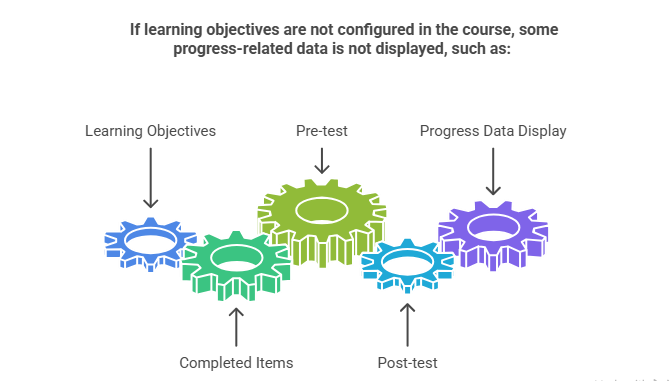
###
### **Report Filters:**
In this report, the filter section includes a **Full Name option**, which is used to select a **specific user** and view their report data.
[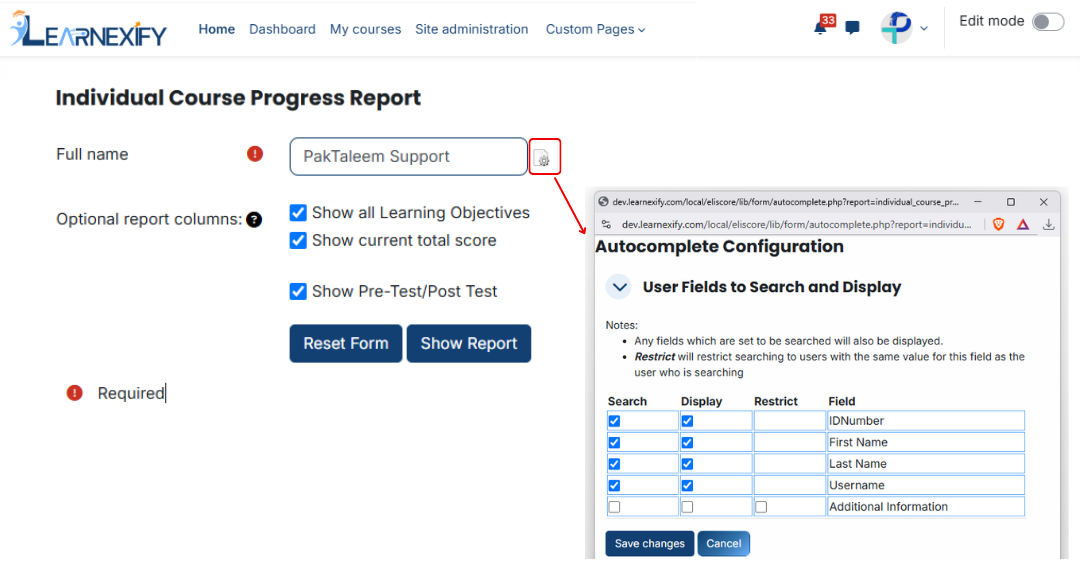](https://wiki.paktaleem.net/uploads/images/gallery/2026-06/course-progress-report-filter.png)
In addition, optional report columns include:
- **Show All Learning Objectives →** Displays data of all learning objectives
- **Show Current Total Score →** Displays the user’s overall current score
- **Show Pre-Test / Post-Test →** Includes pre-test and post-test results in the report
**Required columns** can be selected using **checkboxes.**
[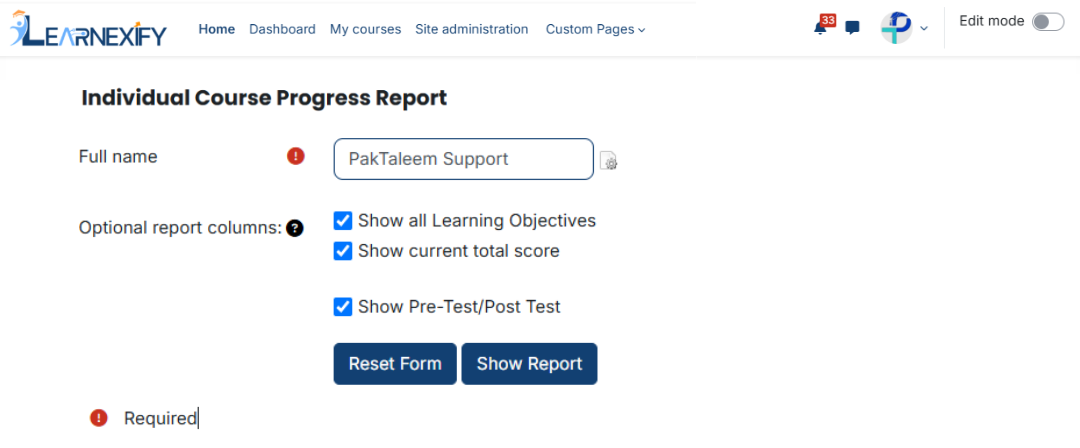](https://wiki.paktaleem.net/uploads/images/gallery/2026-06/Yk0course-progress-report-2nd-filter.png)
###
### **Generate Report:**
When all required settings and fields are selected, click the **Show Report button.**
After this, the system **generates** the report for the **selected user** and displays it on the course progress screen.
###
### **Report View:**
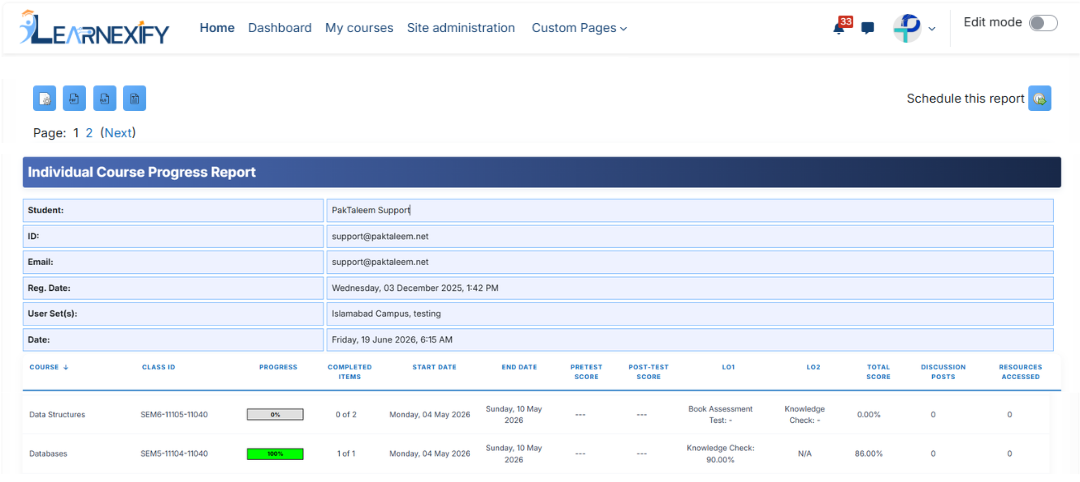
The report shows user course-level progress in detail.
- **Student →** User’s name
- **ID →** User’s unique ID number
- **Email →** User’s email address
- **Reg. Date →** Account creation date
- **User group (s) →** User’s assigned user group s
- **Date →** Report generation date
- **Course →** Course in which the user is enrolled or has completed
- **Class ID →** Related Learnexify class ID number
- **Progress →** Progress based on learning objectives (if available)|
- **Completed Items →** Ratio of completed vs total objectives (if available)
- **Start Date →** Course start or enrollment date
- **End Date →** Course completion date
- **Pretest Score →** Pre-test result (if available)
- **Post-test Score →** Post-test result (if available)
- **LO1 →** Status of first learning objective (e.g., Book Assessment Test, Knowledge Check, or N/A)
- **LO2 →** Status of second learning objective (e.g., Knowledge Check or N/A)
- **Total Score →** Overall percentage score (e.g., 0.00%, 100.00%)
- **Discussion Posts →** Total number of discussion posts
- **Resources Accessed →** Course resources accessed by the user
[](https://wiki.paktaleem.net/uploads/images/gallery/2026-06/47bcourse-progress-report-view.png)
###
### **Report Scheduling, Export & Refresh:**
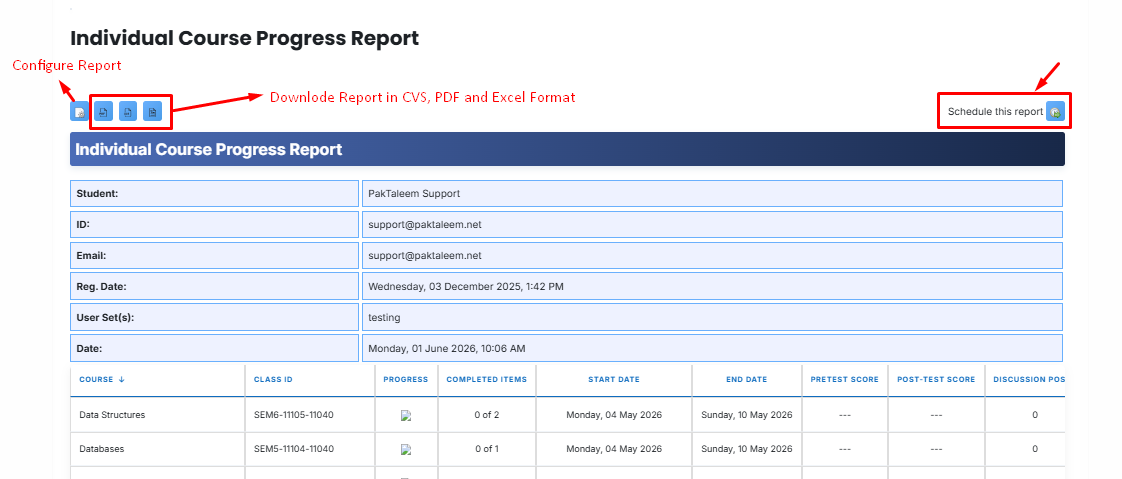
This report **includes** the same options as other reports:
- The report can be scheduled using the **Schedule Reports** option to be generated at a **specified date and time.**
- Report settings and **filters** can be **modified using Configure Parameters.**
- The report can be **exported** in **both PDF and CSV formats.**
- Click the **Refresh button** at the **bottom center** to update the **report** with the latest data.
---
# 5.2 Individual User Report
Individual User Report is used to **view a specific learner’s** program and **course completion information.** This report shows details of the **user’s enrolled** and **completed courses.**
### **Report Path:**
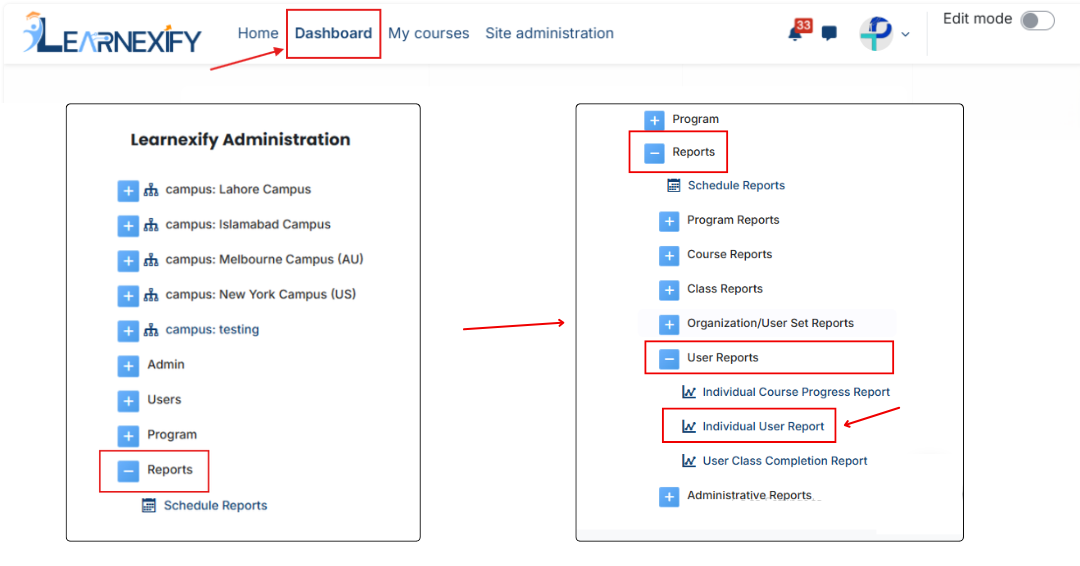
Dashboard ⟶ Side drawer ⟶ Reports ⟶ User Reports ⟶ Individual User Report
[](https://wiki.paktaleem.net/uploads/images/gallery/2026-06/individual-user-report-path.png)
### **Report Requirements:**
For this report, it is **necessary** that the user is **enrolled** or has previously been **enrolled** in a Learnexify course. Only then the user data will be displayed in the report.
### **Report Filter:**
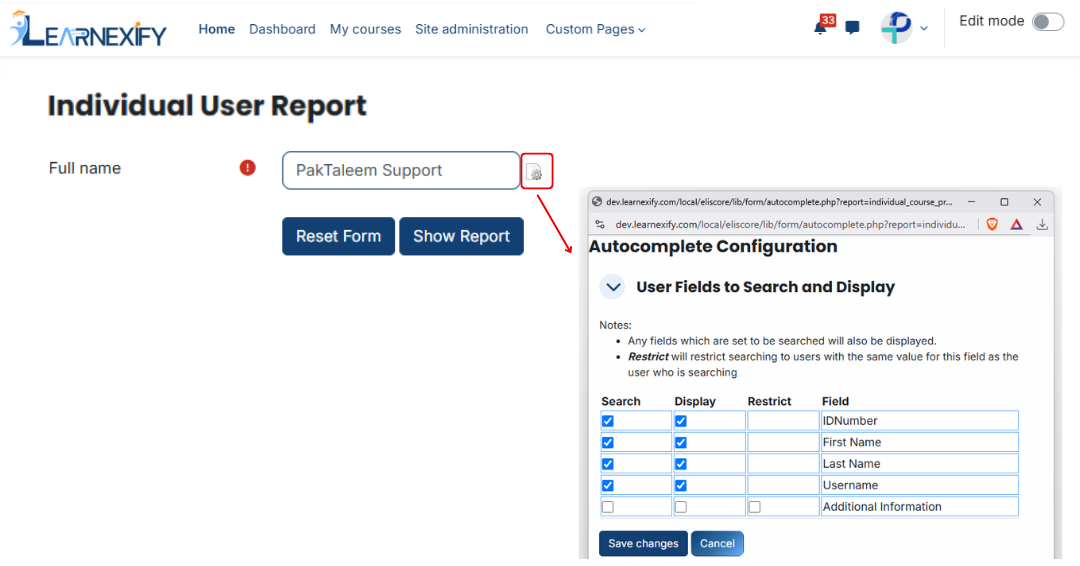
This report has a User selection option where a **specific user** is selected and their data is shown in the report.
Before using the report, click on the **Configure icon** to set user search and display fields. Learnexify **custom user fields** can also be selected here.
[](https://wiki.paktaleem.net/uploads/images/gallery/2026-06/individual-user-report-filter.png)
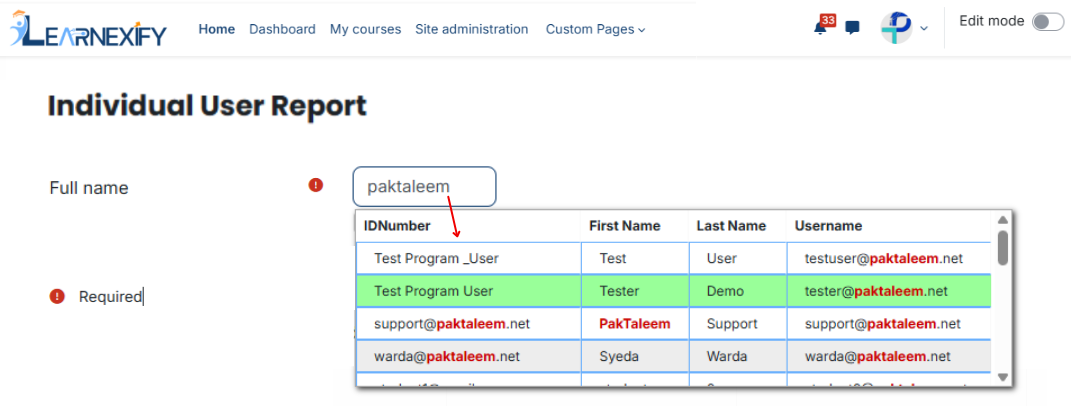
After **configuring the fields,** type the **user name** in the **search box** and **select the required user** from the **pop-up list.**
[](https://wiki.paktaleem.net/uploads/images/gallery/2026-06/individual-user-report-2nd-filter.png)
### **Generate Report:**
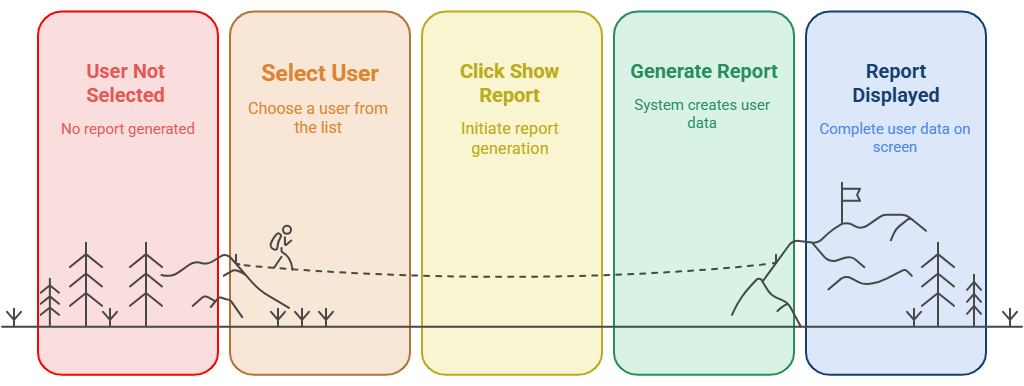
Once the user is selected, click on the **Show Report button.**
After this, the system **generates** the **report** for the **selected user** and **displays the complete data** on the screen.
[](https://wiki.paktaleem.net/uploads/images/gallery/2026-06/kuYvisual-selection-8.png)
### **Report View:**
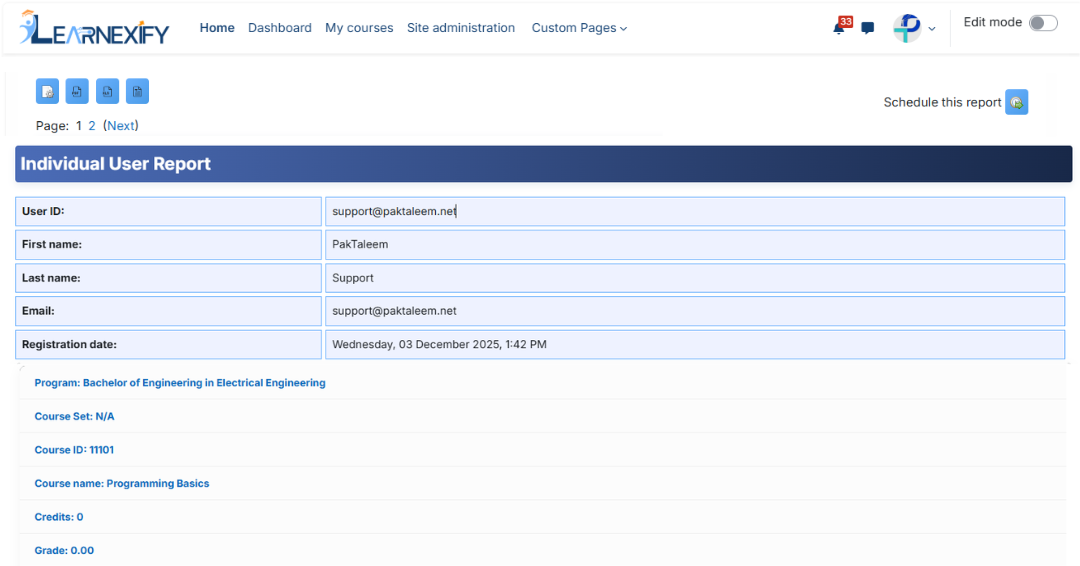
The report shows the **user’s assigned programs** and the courses within them. If a **course** does not belong to a **program,** it is shown under **Non-Program Courses.**
[](https://wiki.paktaleem.net/uploads/images/gallery/2026-06/y7Bvisual-selection-6.png)
### **User Information**
- **User ID →** User’s Learnexify ID number
- **First Name →** User’s first name
- **Last Name →** User’s last name
- **Email →** User’s email address
- **Registration Date →** Date the account was created
### **Class Information**
- **Program →** Name of the Learnexify program
- **Course ID →** Learnexify course ID number
- **Course Name →** Name of the Learnexify course
- **Credits →** Credits earned after course completion
- **Class ID →** Learnexify class ID number
- **Grade →** Current total grade (0 if not assigned)
- **Date Completed →** Course completion date
- **Status →** Completion status (Complete, Incomplete, Overdue)
- **Learning Objectives and Score →** Learning objectives and their scores
- **Expires →** Expiry date of the course or certificate
- **Certificate →** Indicates the certificate status or availability for the completed course
[](https://wiki.paktaleem.net/uploads/images/gallery/2026-06/individual-user-report-view.png)
### **
Report Scheduling, Export & Refresh:**
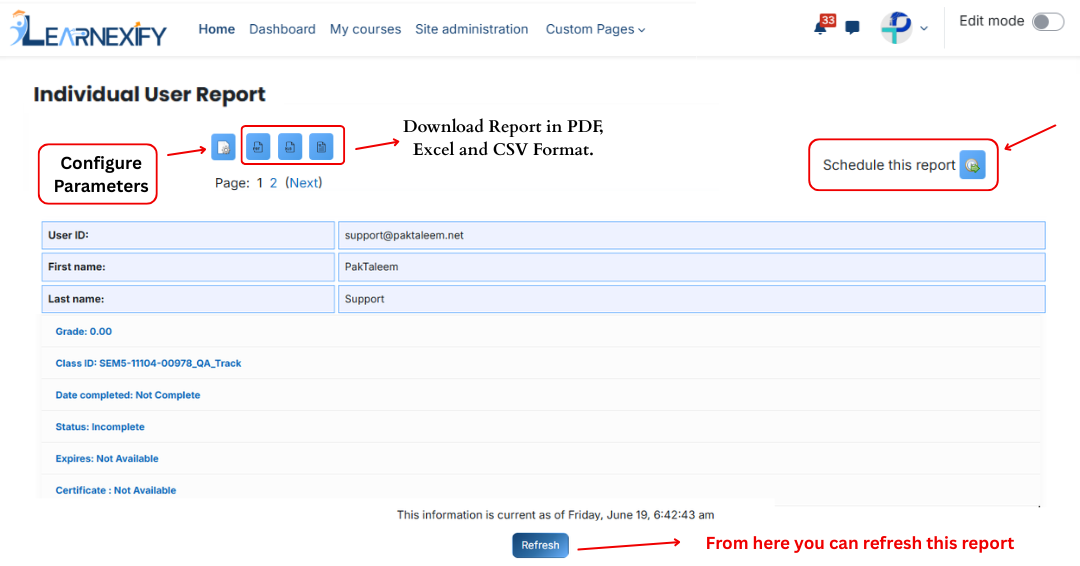
Like other reports, this report also includes the same features:
- The report can be scheduled using the **Schedule Reports** option to be generated at a **specified date and time**
- Report settings and **filters** can be **modified** using **Configure Parameters.**
- The report can be **exported** in both **PDF and CSV formats.**
- Click the **Refresh button** at the **bottom center** to update the **report** with the latest data.
[](https://wiki.paktaleem.net/uploads/images/gallery/2026-06/individual-user-report-actions.png)
**Note:** Individual User Reports can also be generated for inactive users.
# 5.3 User Class Completion Report
User Class Completion Report is a **detailed academic** report that displays **users’ class completion status,** **program progress,** and **earned credits**. The main purpose of this report is to help administrators identify which users **have completed** their **classes**, **Batch program progress,** and view **total credits** earned by learners.
### **
Report Path: **
Dashboard ⟶ Side drawer ⟶ Reports ⟶ User Reports ⟶ User Class Completion Report
[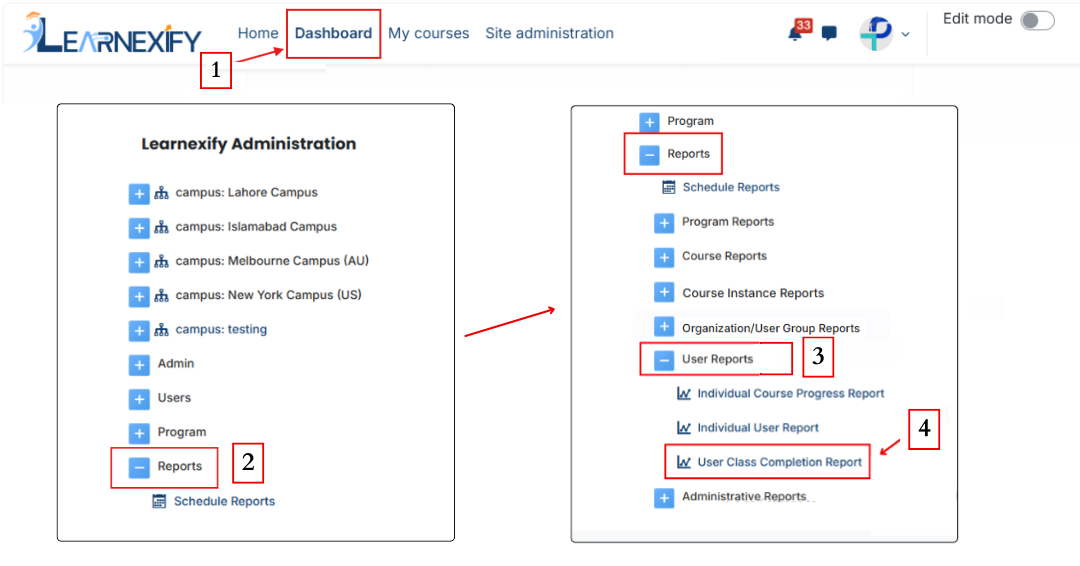](https://wiki.paktaleem.net/uploads/images/gallery/2026-06/3rd.png)
###
### **Report Filters:**
This report **uses** multiple filters to **refine** and **customize** the data:
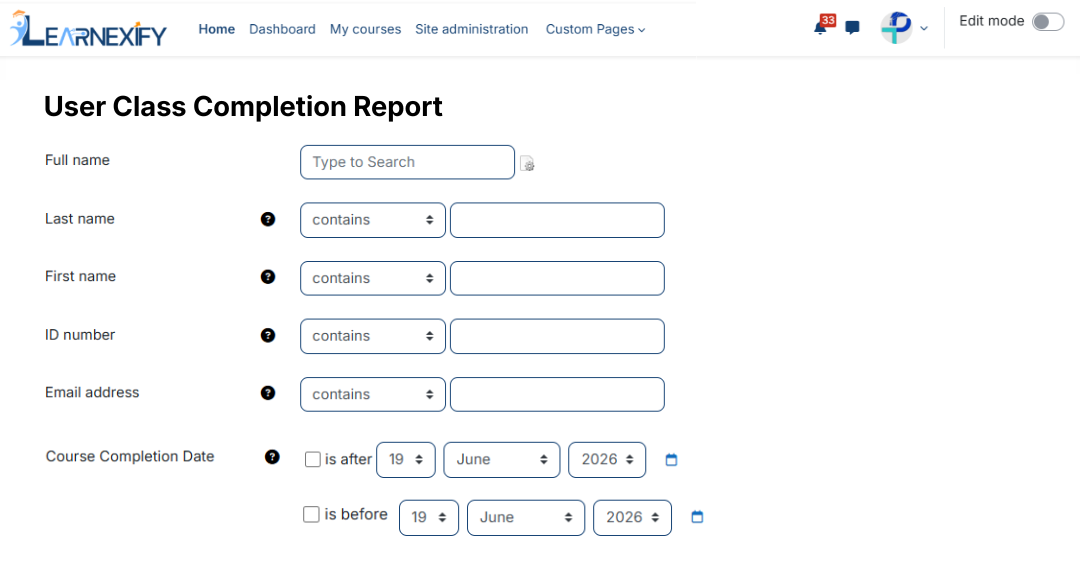
**User Filters (for searching users):**
Full Name, First Name, Last Name, ID Number, Email Address, City/Town, Country, Username, Preferred Language, Inactive Status, user group
**Date Filters (for time-based filtering):**
Course Completion Date (is after / is before), Start Date (is after / is before)
[](https://wiki.paktaleem.net/uploads/images/gallery/2026-06/uesr-class-completion-report-filter.png)
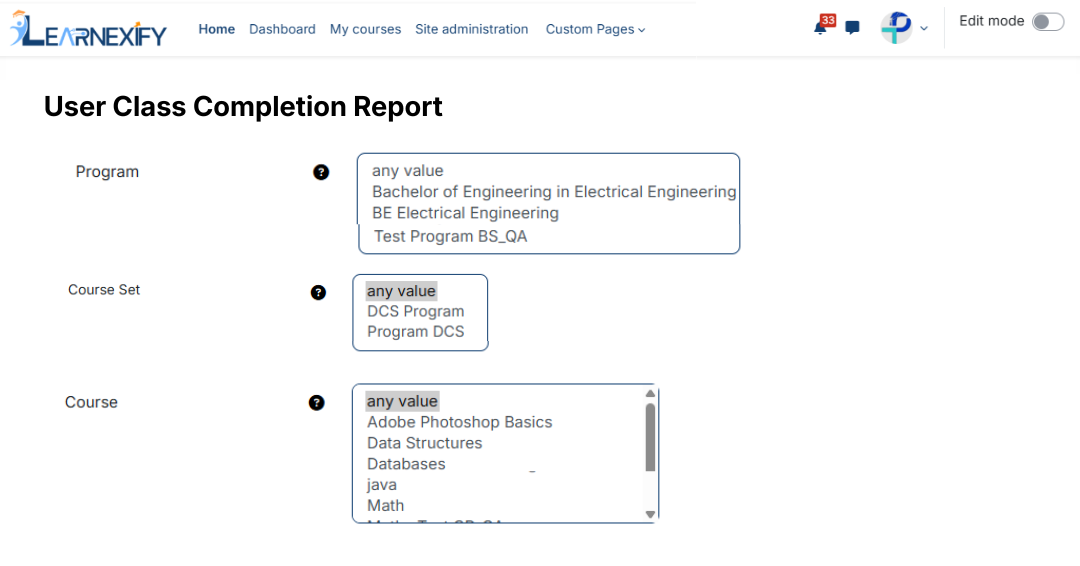
**Academic Filters (for selecting report scope):**
Program, Course Set, Course, Class, Status, Class Completion Status, Pre-test, Post-test
[](https://wiki.paktaleem.net/uploads/images/gallery/2026-06/user-class-completion-report-filter.png)
###
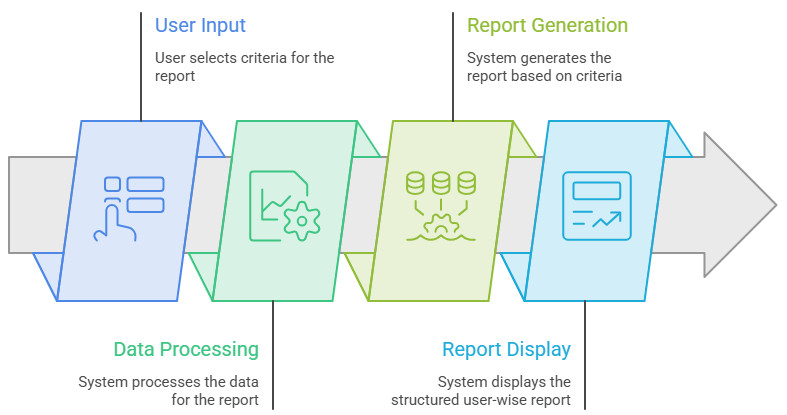
### **Generate Report:**
- Required filters are selected first
- User, program, course, and date range are applied
- The report is generated based on selected criteria
- System processes the data and displays a structured user-wise report
[](https://wiki.paktaleem.net/uploads/images/gallery/2026-06/GHkrequired-filters-are-selected-first-visual-selection.png)
###
### **Report Output:**
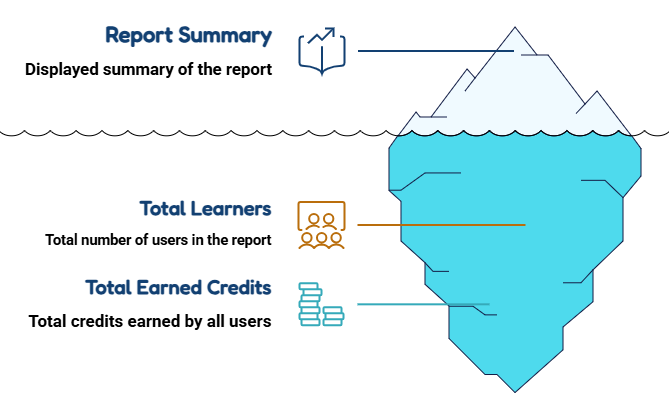
When the **report is generated**, the following **summary is displayed**:
- **Total Learners →** total number of users included in the report
- **Total Earned Credits →** total credits earned by all users
[](https://wiki.paktaleem.net/uploads/images/gallery/2026-06/r9Cwhen-the-report-is-generated-the-following-summary-is-displayed-visual-selection.png)
###
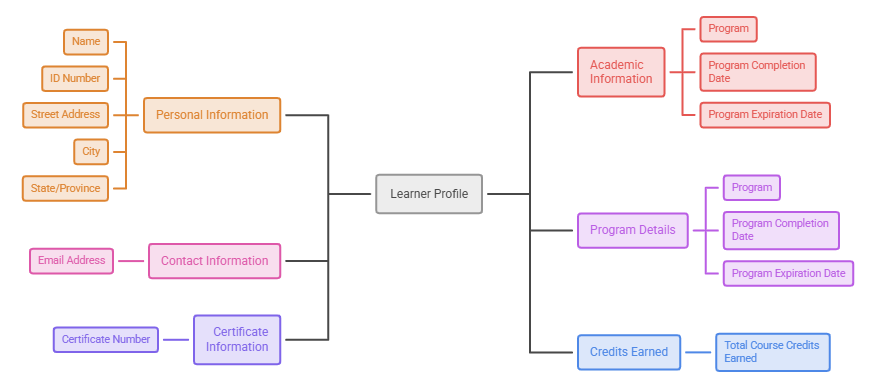
### **Detailed Data Table:**
- **Name →** identifies the learner
- **ID Number →** unique system ID for Batching
- **Street Address →** user address for record reference
- **City →** user’s city location
- **State/Province →** user’s region or province
- **Email Address →** used for communication and identification
- **Program →** shows enrolled academic program
- **Program Completion Date →** completion date of program
- **Program Expiration Date →** program validity/expiry date
- **Certificate Number →** issued certificate reference number
- **Total Course Credits Earned →** total credits earned by the user
[](https://wiki.paktaleem.net/uploads/images/gallery/2026-06/visual-selection-9.png)
###
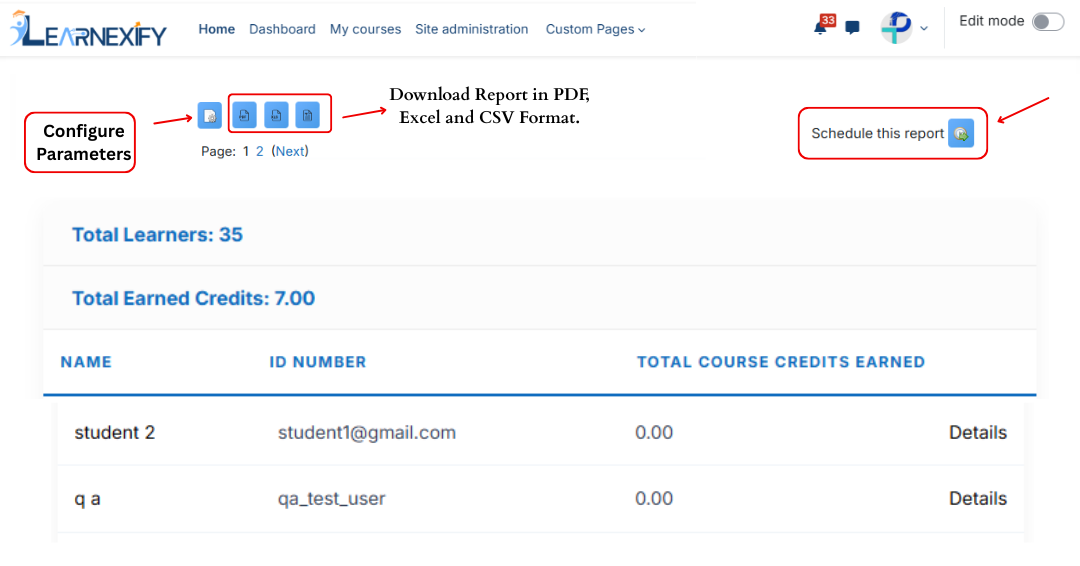
### **Report Actions:**
- **Download Report (PDF / CSV):**
The report can be downloaded in **PDF or CSV format** for offline use, sharing, or record keeping.
- **Schedule Report:**
The report can be scheduled using the **Schedule Reports** option to be generated at a **specified date and time.**
- **Refresh Report:**
The Refresh option updates the report with the latest available data without changing filters or re-running the report from scratch.
[](https://wiki.paktaleem.net/uploads/images/gallery/2026-06/user-class-completion-report-view.png)