# 6. Administrative Report
# 6.1 Absence Report
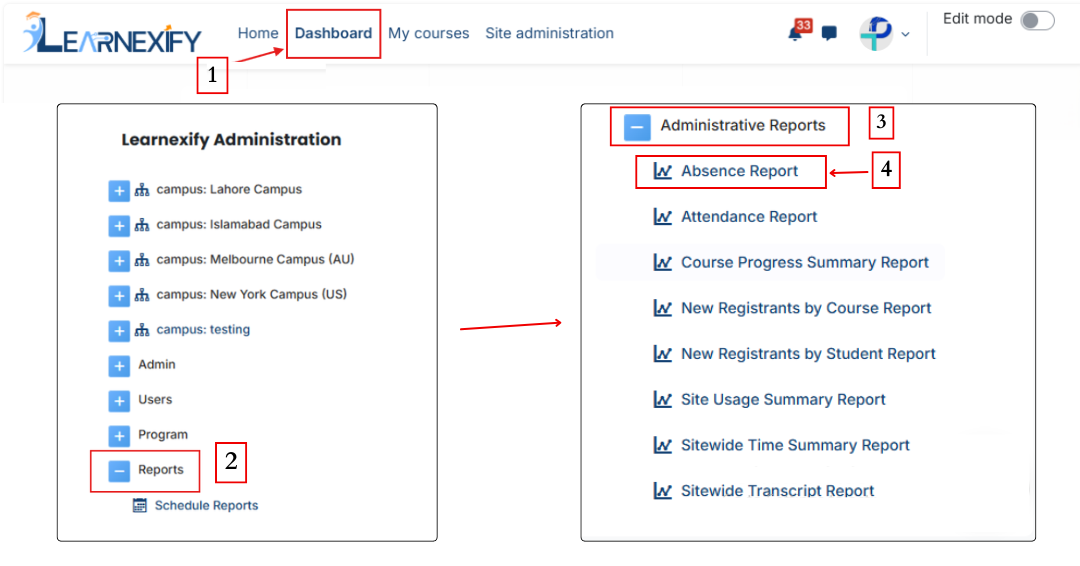
The Absence Report, this report is listed at the top of the Administrative Reports section. Its **main purpose** is to identify **users** who have **not performed any activity** in Learnexify **course Instances** within a selected **time period** defined in the report settings.
This report helps administrators monitor learner engagement and identify inactive users across courses and programs.
### **
Report Path: **
Dashboard ⟶ Side drawer ⟶ Reports ⟶ Administrative Report ⟶ Absence Report
[](https://wiki.paktaleem.net/uploads/images/gallery/2026-06/absence-report.png)
###
### **Report Requirements:**
To be included in this report, a user must meet the following conditions:
- The user must be **enrolled in a Learnexify course Instances.**
- The user must have no recorded activity within the selected date range.
A user is considered **inactive** when:
- There is no activity in the course linked with the Learnexify course Instances, OR
- If no course is linked, then no **Learning Objectives** are marked as completed, OR
- If **no Learning Objectives exist** and no course is linked, the report displays **“N/A”.**
###
### **Report Filters:**
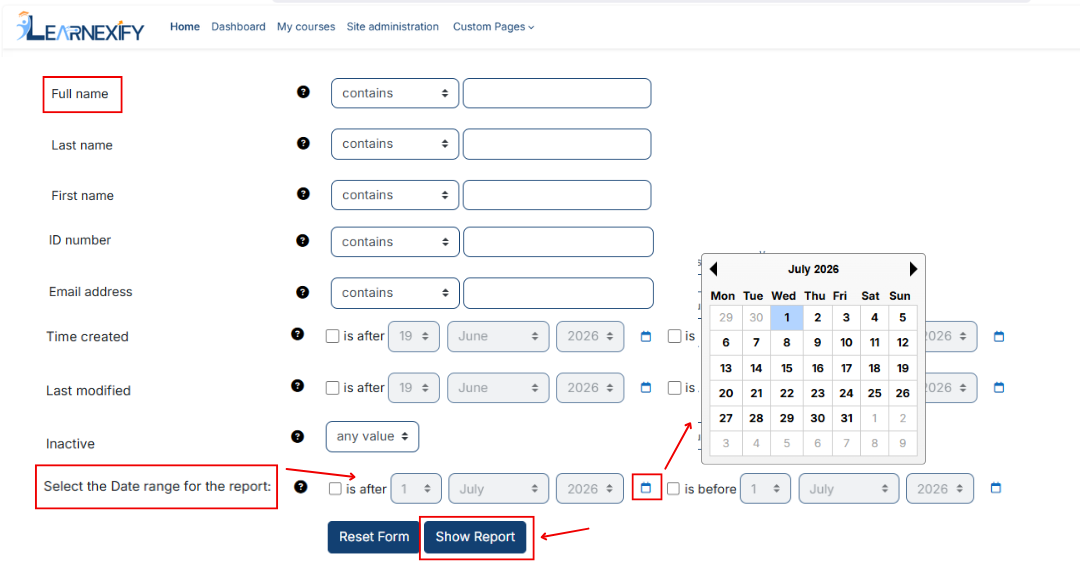
This report includes multiple user-related filters that allow administrators to refine and search data efficiently.
###
### **Purpose of Available Filters:**
- **Name-based Filters (Full Name, First Name, Last Name, Middle Initial)** Used to search users based on their names. Partial text can also be used to find matching records.
- **ID Number** Used to search a user using their unique Learnexify identification number.
- **Email Address / Email Address 2** Used to filter users based on their registered email addresses.
- **Username** Used to locate users through their system login username.
- **Address / Address 2** Used to filter users based on physical address information.
- **City/Town, State/Province, Country** Used for geographical filtering of users. The Country field allows selection of any available value.
- **Zip/Postal Code** Used to filter users based on postal code information.
- **Phone / Phone 2 / Fax** Used to search users based on contact or fax numbers.
###
### **Date Range Filter:**
The report also **includes** a **date range filter:**
- **Is after →** Shows users with no activity after the selected date.
- **Is before →** Shows users with no activity before the selected date.
Date selection is available using Day, Month, and Year fields.
Additionally, more advanced filters can be accessed using the “Show more” option, including custom user fields and standard system fields.
[](https://wiki.paktaleem.net/uploads/images/gallery/2026-07/absence-report-filter-new.png)
###
### **View Report:**
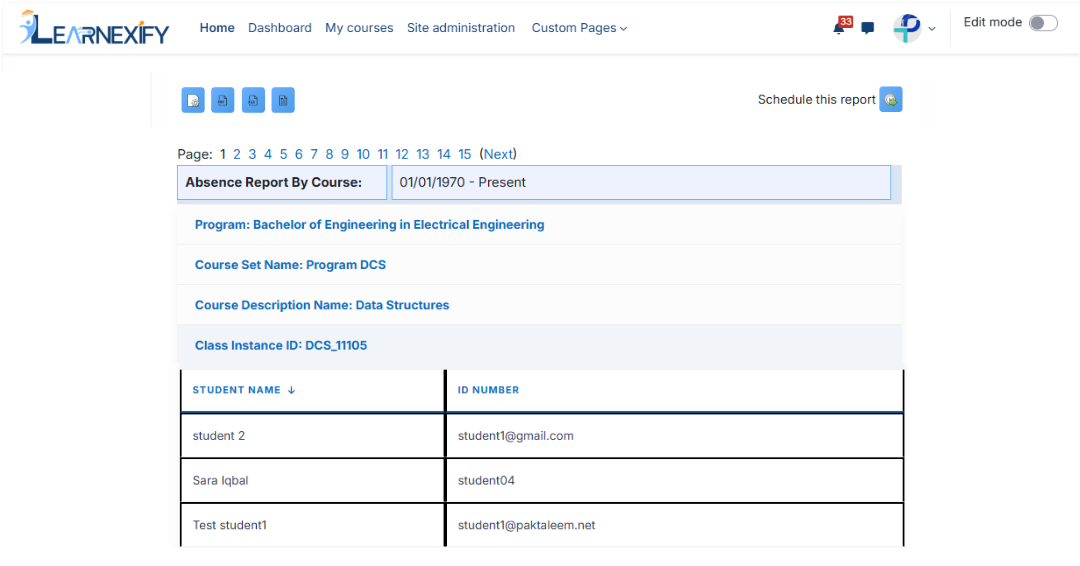
The report displays learners grouped by course. The selected filters and date range appear at the top of the report.
###
### **Program Information:**
- **Program →** The program to which the course belongs
- **Course Set →** The course set associated with the course
###
### **Course Information:**
- **Course Name →** Name of the Learnexify course
- **Course Instances ID →** ID of the Learnexify course Instances
- **Student Name →** Name of inactive user
- **ID Number →** Learnexify user identification number
[](https://wiki.paktaleem.net/uploads/images/gallery/2026-06/absence-report-view.png)
###
### **Report Scheduling, Export & Refresh:**
This report also supports standard reporting features:
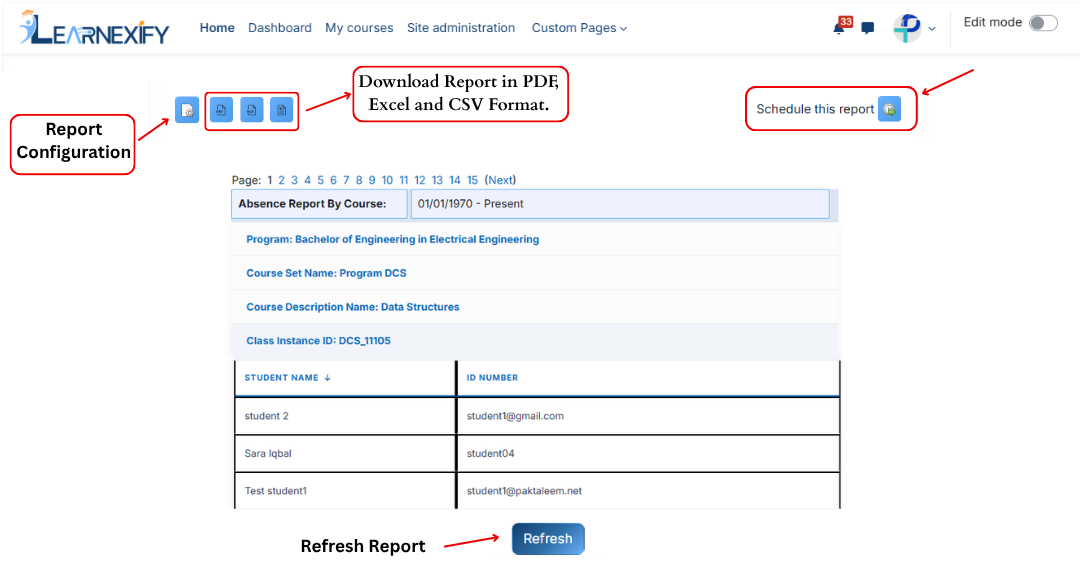
- The report can be scheduled using the **Schedule Reports** option to be generated at a **specified date and time.**
- **Report settings** and filters can be **modified** using **Configure Parameters.**
- The report can be **exported** in **both PDF and CSV formats.**
- Click the **Refresh button** at the **bottom cente**r to update the **report** with the **latest data.**
[](https://wiki.paktaleem.net/uploads/images/gallery/2026-06/absence-report-actions.png)
---
# 6.2 Attendance Report
The Attendance Report **allows administrators** to monitor **student's attendance performance** across their entire academic journey. Unlike standard reports, it groups data by Program and Semester, allowing you to see **how a student is performing** across multiple courses simultaneously. It brings all the attendance data into one page and **organizes** it by the student's Program (Degree) and Semester.
### **
Key Benefits:**
- **Hierarchical View:** Attendance is grouped by Program → Semester → Course.
- **Consolidated Data:** View totals for specific semesters and overall program performance.
- **Real-time Accuracy:** Pulls live data directly from course-level attendance activities.
- **Multi-format Export:** Professional exports for PDF, Excel, and CSV.
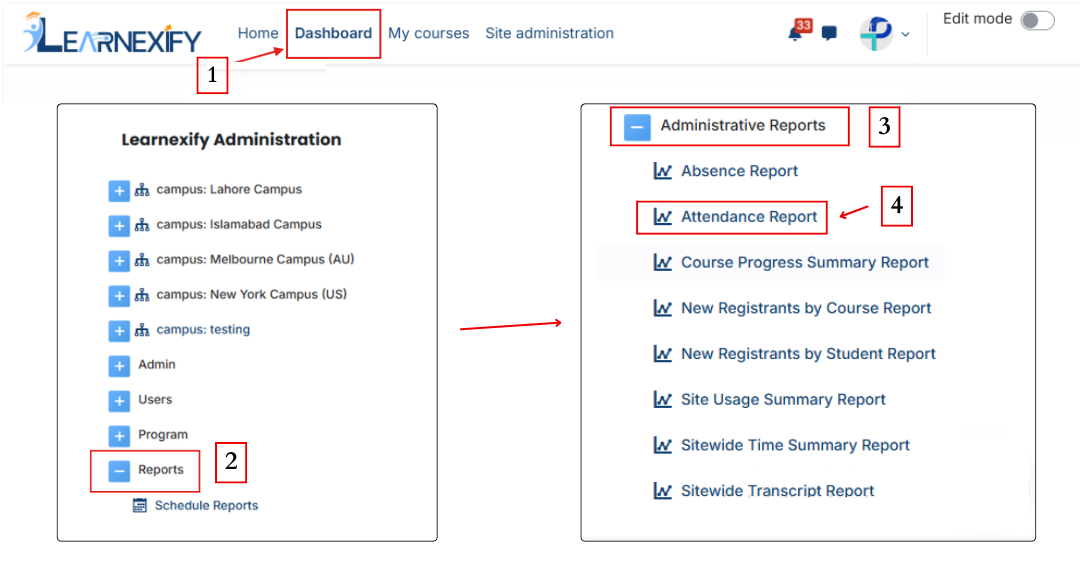
### **How to Open the Report:**
- Open the Learnexify Dashboard.
- Open the Side Drawer (the menu on the left).
- Click on Reports.
- Click on Administrative Report.
- Click on Attendance Report.
[](https://wiki.paktaleem.net/uploads/images/gallery/2026-06/attendenereport.png)
### **
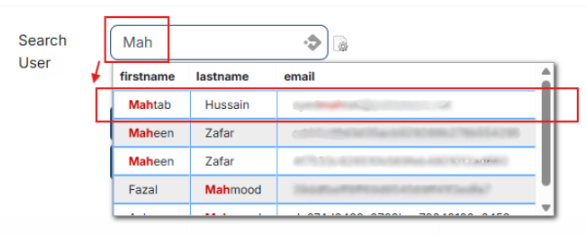
How to Search for a Student:**
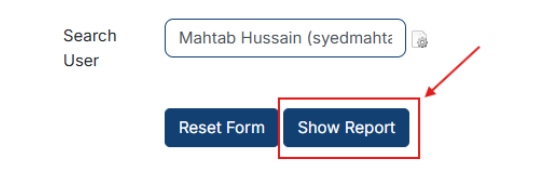
**Once the page opens:**
- Type the **student's Name** or **Email** in the search box.
- Click the student's name when it appears.
- Click the **Show Report button.**
[](https://wiki.paktaleem.net/uploads/images/gallery/2026-07/Gluimage.png)
[](https://wiki.paktaleem.net/uploads/images/gallery/2026-07/Wkmimage.png)
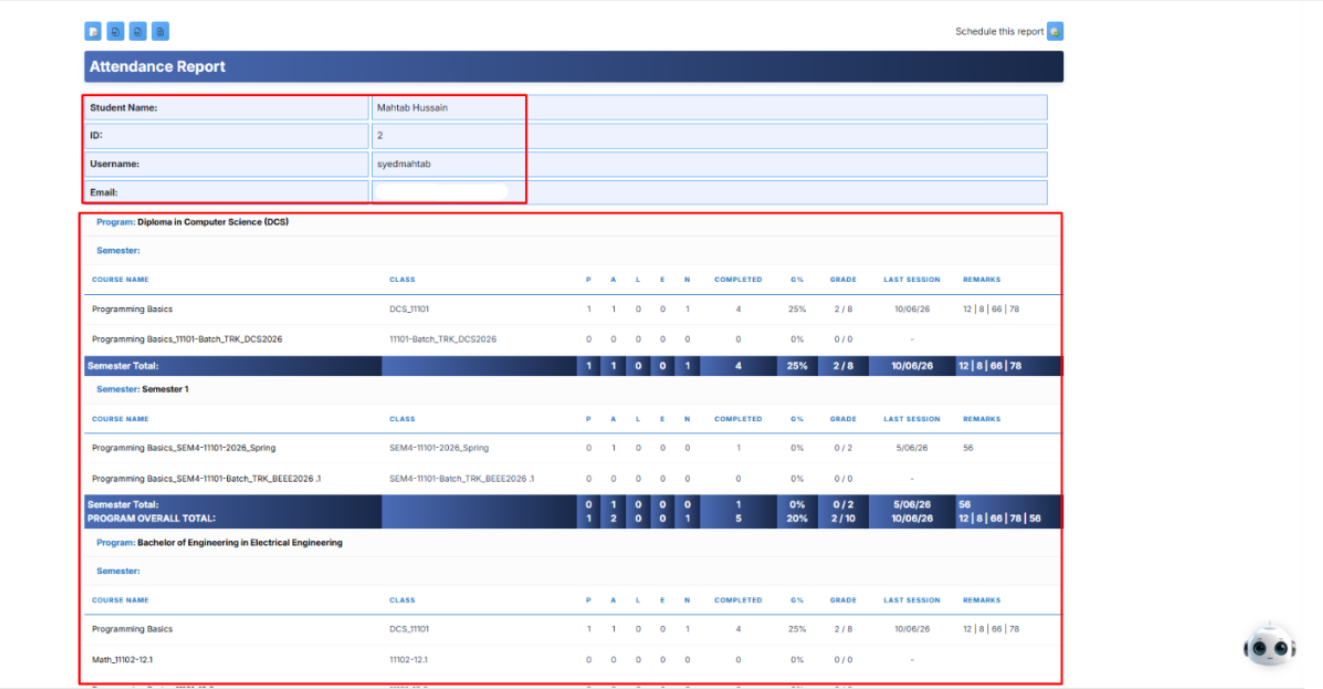
This shows the **main report page** with the **student's name** at the top and their courses listed below.
[](https://wiki.paktaleem.net/uploads/images/gallery/2026-09/fiMJ3u9OqNUWH5Ix-image.png)
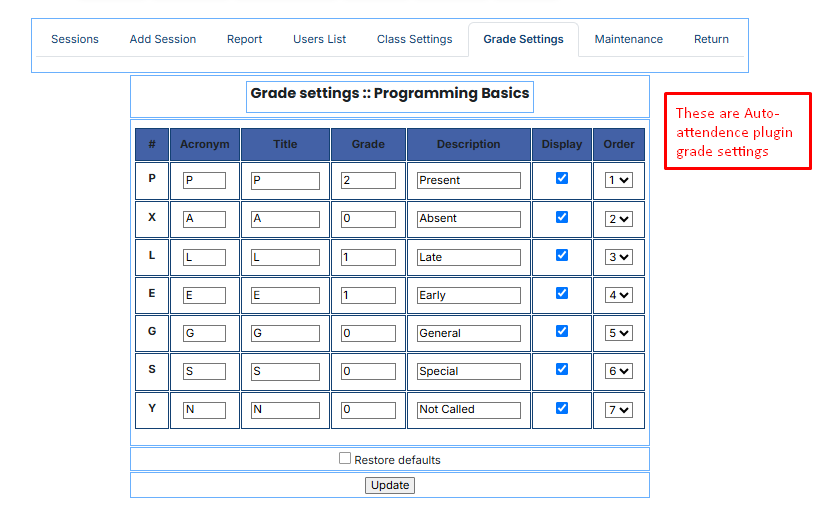
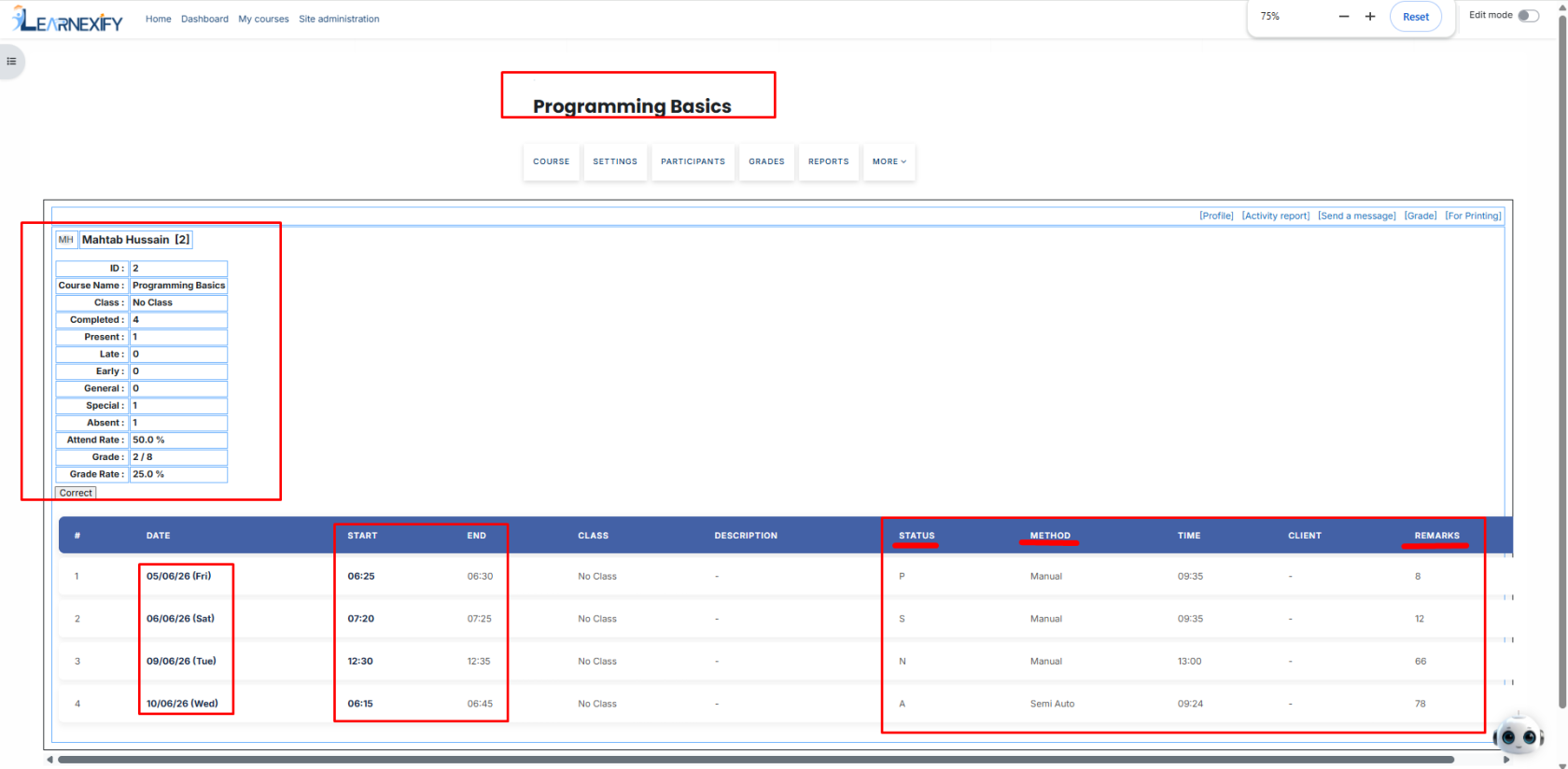
The report collects attendance information directly from the Attendance module configured within each individual course. It uses the following columns to provide a comprehensive view:
- **P (Present):** The student was in class.
- **A (Absent):** The student missed the class.
- **L (Late):** The student arrived after the class started.
- **E (Early):** The student left before the class ended.
- **G%:** This is the total attendance percentage for that specific course.
- **Grade:** The actual numerical grade or points earned based on the attendance settings.
- **Last Session:** Displays the date of the most recent attendance entry for that course.
- ##### **Remarks:** Shows any specific notes or comments recorded by the instructor during the session.
[](https://wiki.paktaleem.net/uploads/images/gallery/2026-07/image-1.png)
[](https://wiki.paktaleem.net/uploads/images/gallery/2026-07/image-2.png)
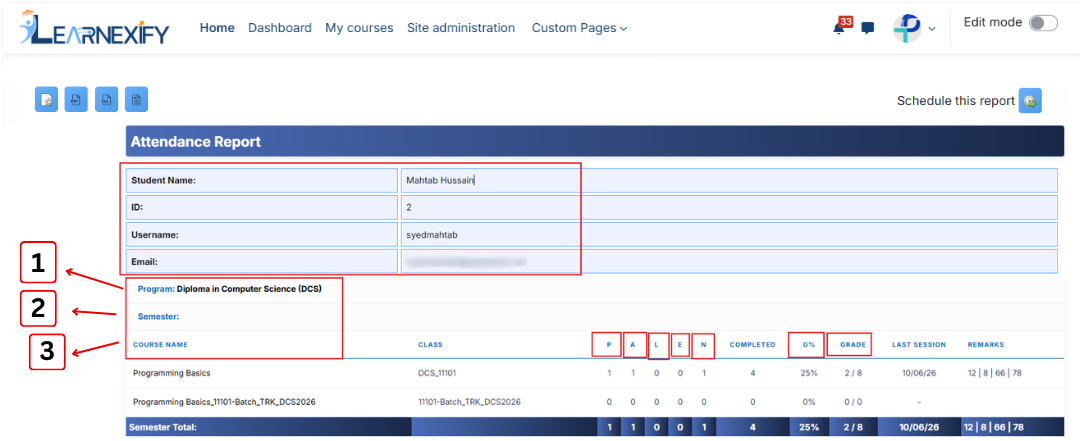
The report is organized like a **tree**, calculating totals at every level to show a student's overall performance:
- **Program Name:** At the top of the tree, the report calculates and presents the user's overall program attendance by aggregating records across all semesters.
- **Semester:** Below the program, the report displays the user's overall attendance for each semester by combining data from all courses within that specific term.
- **Course Name:** Finally, it lists the individual courses where the raw data is pulled from.
[](https://wiki.paktaleem.net/uploads/images/gallery/2026-06/1-2-3.png)
This image shows a close-up of a student's specific attendance record for one course.
###
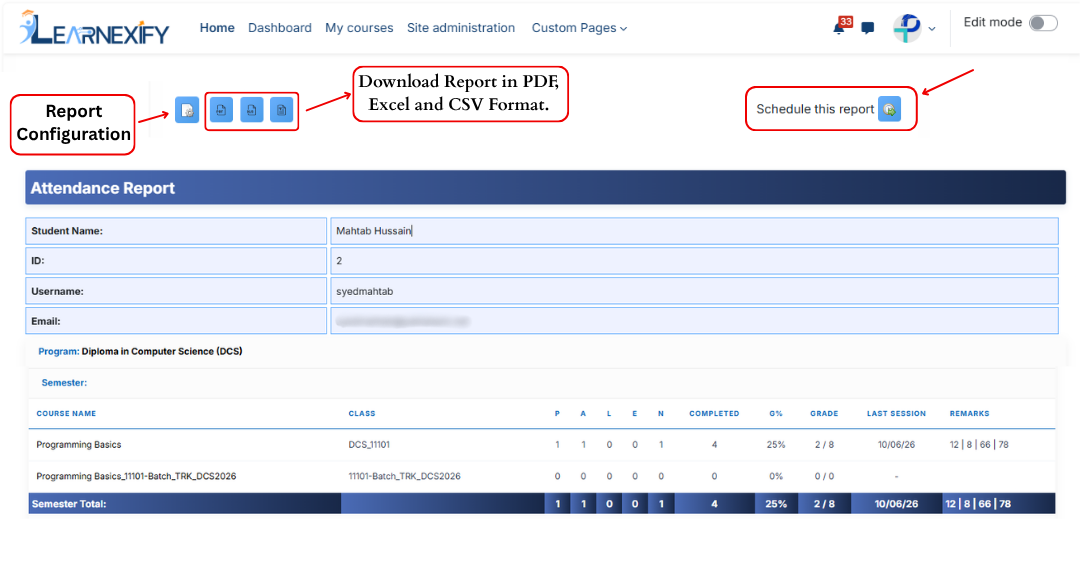
### **Report Actions:**
- **Report settings** and filters can be **modified** using **Configure Parameters.**
- The report can be **exported** in both **PDF and CSV formats.**
- The report can be scheduled using the **Schedule Reports** option to be generated at a **specified date and time.**
These options allow the report to be saved locally on the system.
###
###
### **Refresh the Report Data:**
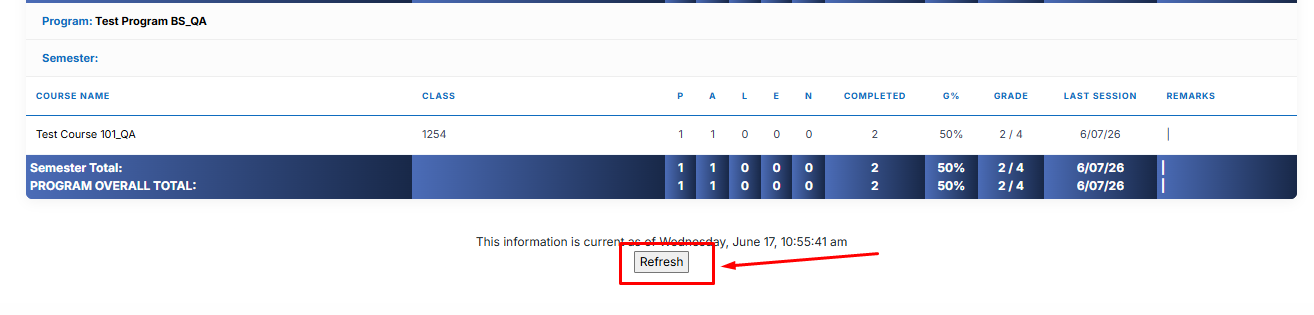
The report data can be **refreshed** to show the latest information **without reopening** or reapplying **parameters.** Click the **Refresh button** at the **bottom center** of the page, and the system will reload the report with updated data automatically.
###
### **Setup Guide: How to Make the Report Work:**
To make the **Attendance Report** work, you must connect your daily classroom activities to your academic degree structure. Follow these steps:
**1. Create a Course**
Create the course that will be used for teaching and classroom activities.
**2. Create a Course Description**
Create a Course Description and fetch the required Course. The Course Description acts as a reusable academic definition that can be assigned to semesters.
**3. Create Semesters**
Create the required semesters and assign the relevant Course Descriptions to each semester.
**4. Create a Program**
Create a Program and add the semesters to build a complete degree structure (for example, a 2-year Diploma or a 4-year Bachelor's degree).
**5. Create a Batch and Configure Automation**
Within the Program, create a batch for a specific student intake or for all batches, as required.
**6. Add All Course Instances**
Click the **"Add All Course Instances"** button. This automatically creates and links all course instances to their respective classrooms, ensuring that attendance data is correctly organized by Program and Semester in the Attendance Report.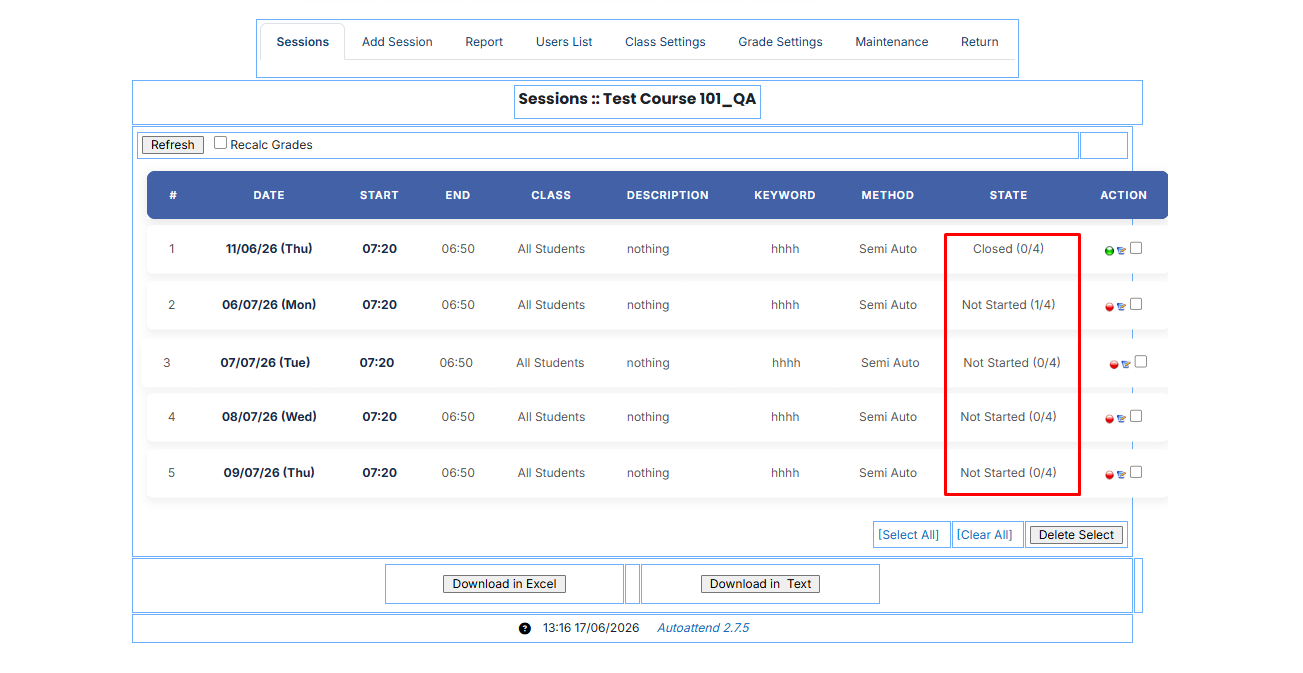
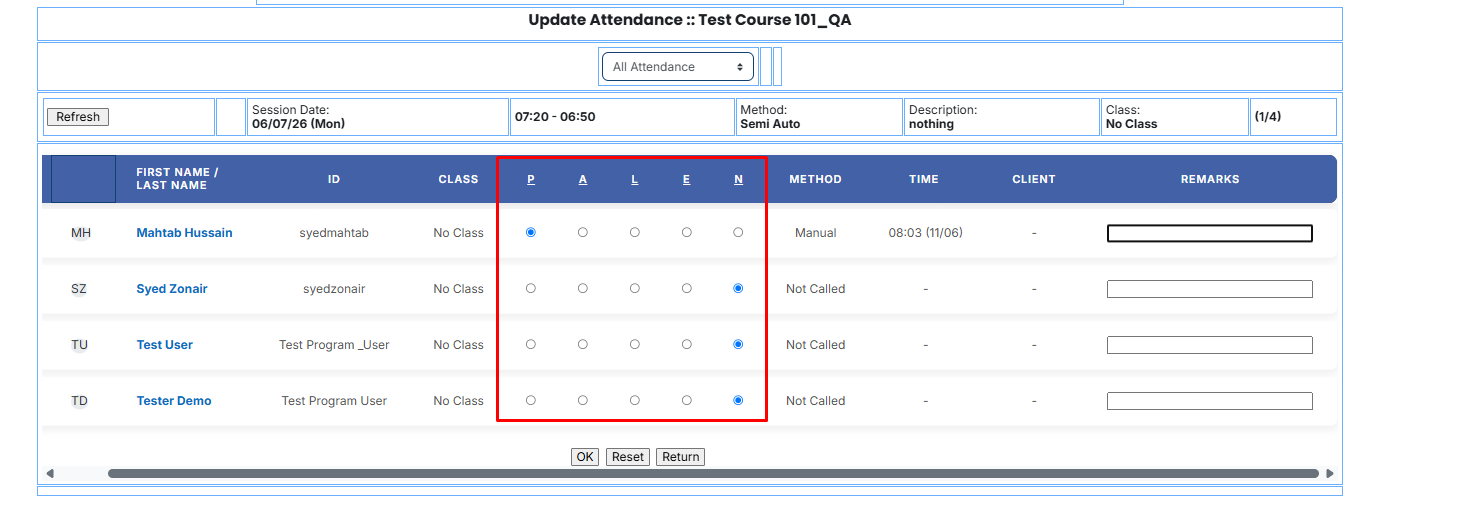
- **Marking Attendance:** The teacher goes into the Learnexify course and marks students as **Present (P)** or **Absent (A) etc.** using the **Auto-Attendance tool.**
##### 
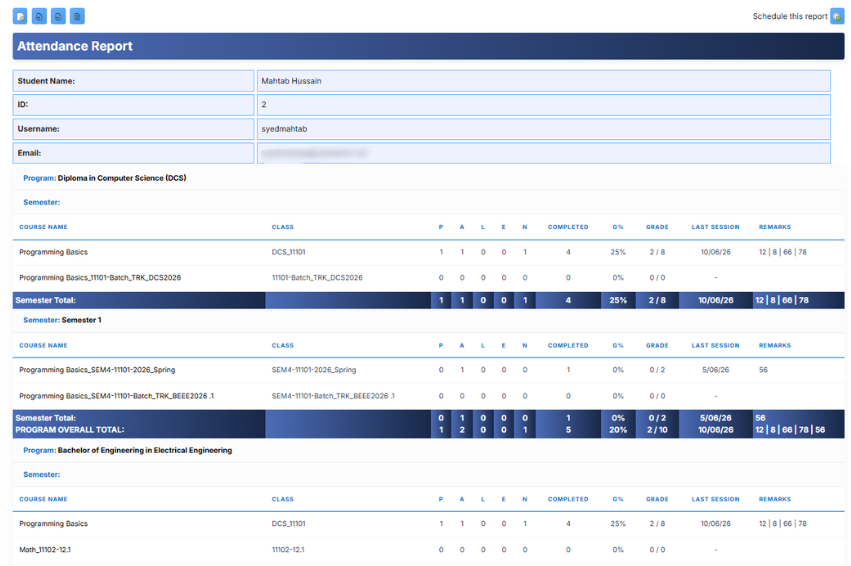
- **Viewing the Report:** Open the **Attendance Report.** You will now see all that **daily data organized** perfectly by Program and Semester.
[](https://wiki.paktaleem.net/uploads/images/gallery/2026-06/1rDfinal-report.png)
# 6.3 Course Progress Summary Report
The Course Description Progress Summary Report provides administrators with a **clear overview of learners’** **overall progress** toward course completion. The main purpose of this report is to monitor student performance and progress within Course Descriptions.
### **
Report Path: **
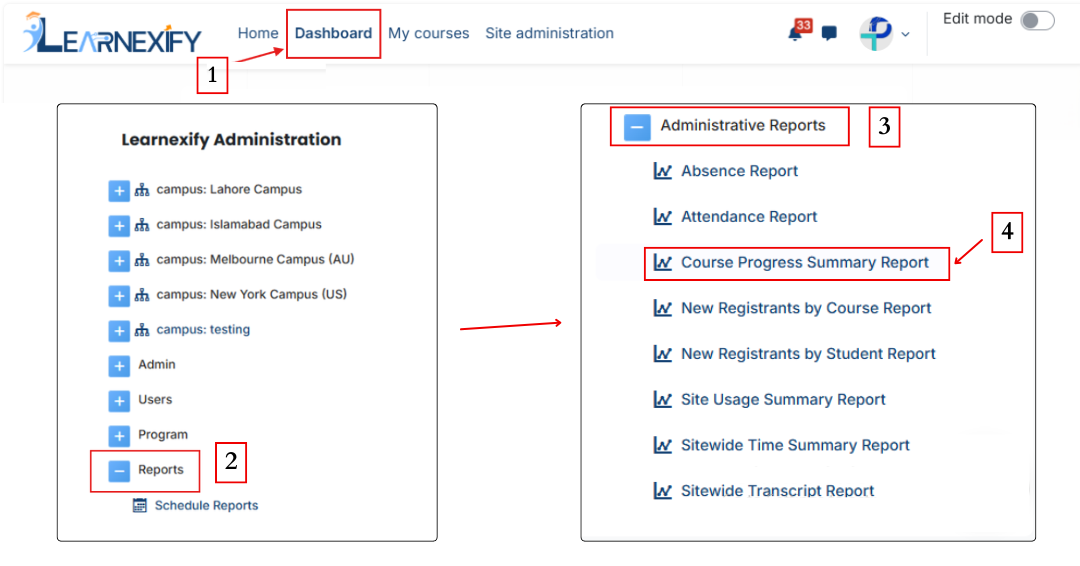
Dashboard ⟶ Side drawer ⟶ Reports ⟶ Administrative Reports ⟶ Course Progress Summary Report
[](https://wiki.paktaleem.net/uploads/images/gallery/2026-06/course-progress-summary-report.png)
### **
Report Requirements:**
If a Program is selected in this report, the following conditions apply:
- The user must be **enrolled** in a **class** whose **parent Course Description** is linked to the **selected Program.**
- The user must be assigned to that **Program or Batch.**
If these conditions are **not met**, the user will not be **included in the report.**
### **
Report Filters:**
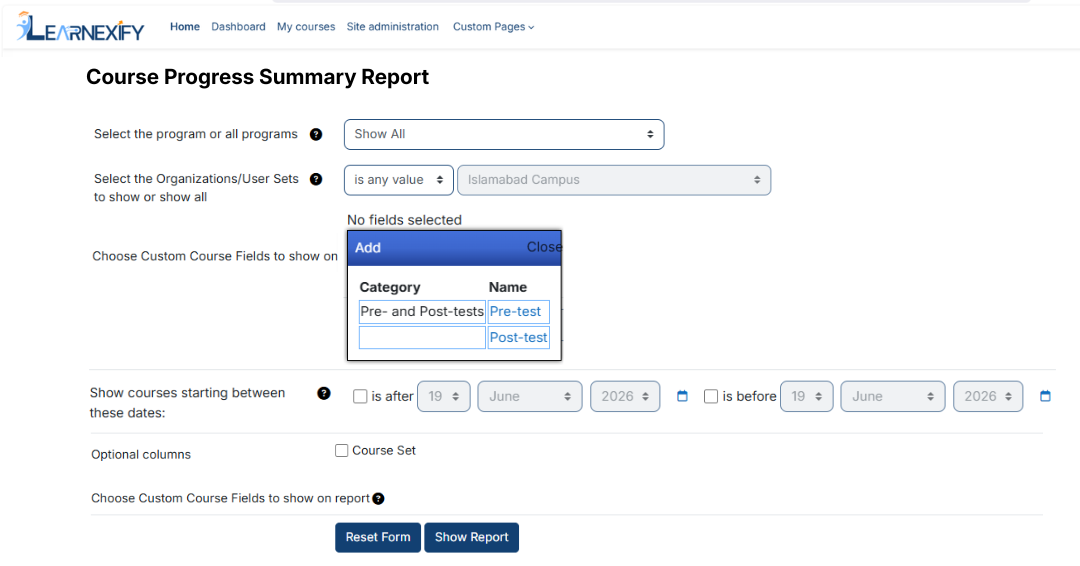
This report includes multiple filters that are used to customize and refine the data:
- **Program Selection (All or Specific Program) →** defines the academic scope by selecting a specific program or all available programs
- **Organizations / User Groups →** filters report data based on campus, department, or specific student batches
- **Custom Course Fields (Add Option) →** allows adding extra course-specific metadata as additional report columns
- **Date Range (Course Start Dates) →** limits the report to courses that officially commenced within a selected timeframe
- **Course Set (optional column) →** displays the sub-grouping of courses within a program for detailed Batching
These filters **allow administrators** to narrow down the report data according to **required criteria.** After selecting the **relevant fields** and applying the **desired filter options**, the report can be generated.
- The system then processes the selected filters and generates the report on screen.
- Once generated, the report displays all relevant Course Description progress data according to the selected criteria.
[](https://wiki.paktaleem.net/uploads/images/gallery/2026-06/course-progress-summary-report-filter.png)
### **
Generate Report:**
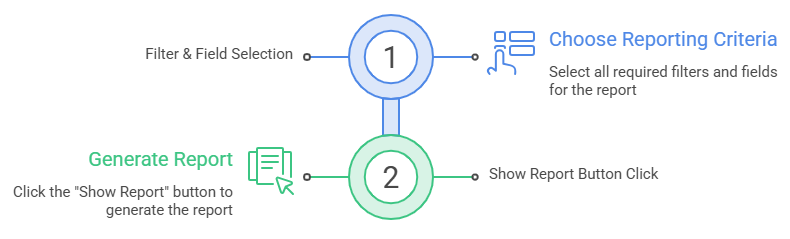
After selecting the **required filters** and fields, the report is generated as **follows:**
- First, all required filters and fields are selected based on the reporting need.
- After selecting the desired options, click on the **Show Report button.**
[](https://wiki.paktaleem.net/uploads/images/gallery/2026-06/after-selecting-the-required-filters-and-fields-the-report-is-generated-as-follows-visual-selection.png)
### **
Report Output:**
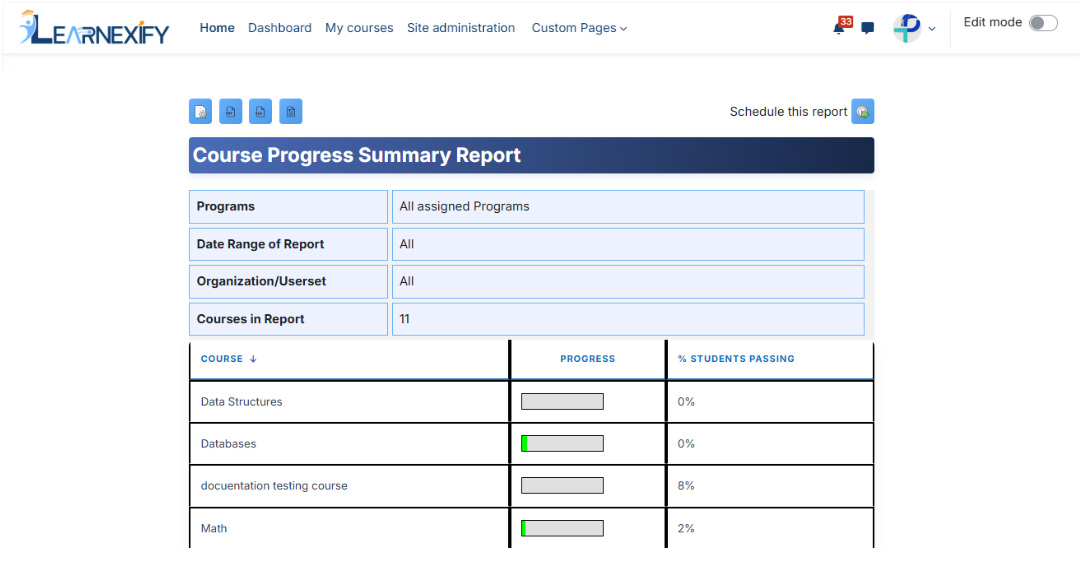
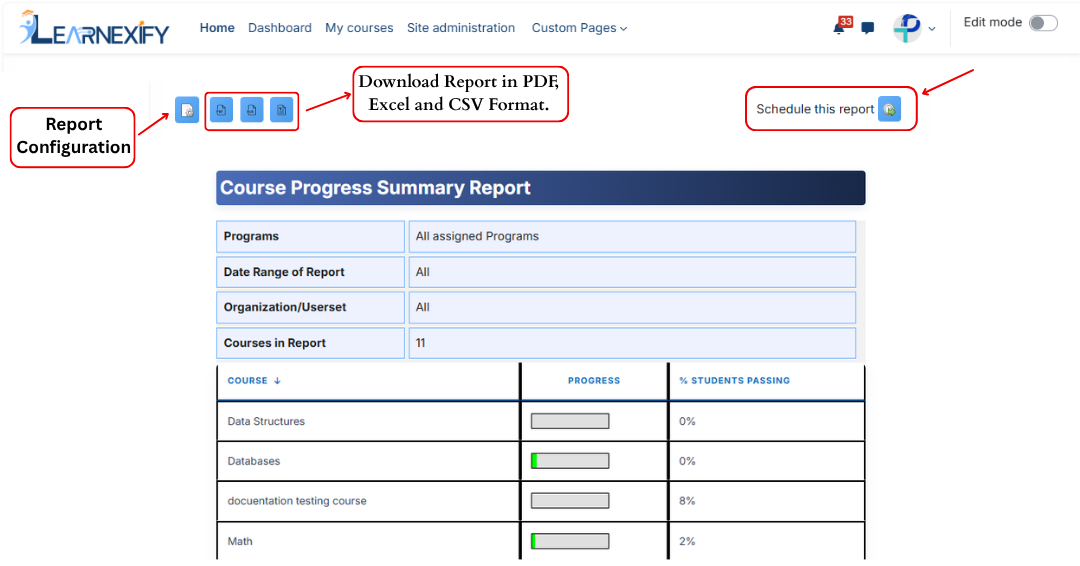
The report displays the **following information** **based** on **selected filters:**
- **Programs →** Selected program or “All” if not selected
- **Date Range of Report →** Selected course start period
- **Organization / User Group →** Selected user group or all users
- **Course Descriptions in Report →** Total number of Course Descriptions included
- **Course Description →** Names of included Learnexify Course Descriptions
- **Progress →** Learner progress based on learning objectives (or “N/A” if not defined)
- **% Students Passing →** Percentage of students meeting required grade criteria (or “N/A” if not set)
[](https://wiki.paktaleem.net/uploads/images/gallery/2026-06/course-progress-summary-report-view.png)
### **
Report Actions (Refresh & Export):
**
- **Report settings** and filters can be **modified** using **Configure Parameters.**
- The report can be **exported** in **both PDF and CSV formats.**
- The report can be scheduled using the **Schedule Reports** option to be generated at a **specified date and time.**
- Click the **Refresh button** at the **bottom center** to update the report with the **latest data.**
[](https://wiki.paktaleem.net/uploads/images/gallery/2026-06/course-progress-summary-report-actions.png)
# 6.4 New Registrants by Course Report
The New Registrants Grouped by Course Description Report **displays** a list of **users** who have **newly** **enrolled** in Learnexify **Course Descriptions** within a **selected time period.** The report groups learners under each Course Description along with their **enrollment (start) date.**
If a Course Description has no new registrants, it will not be included in the report.
### **
Report Path: **
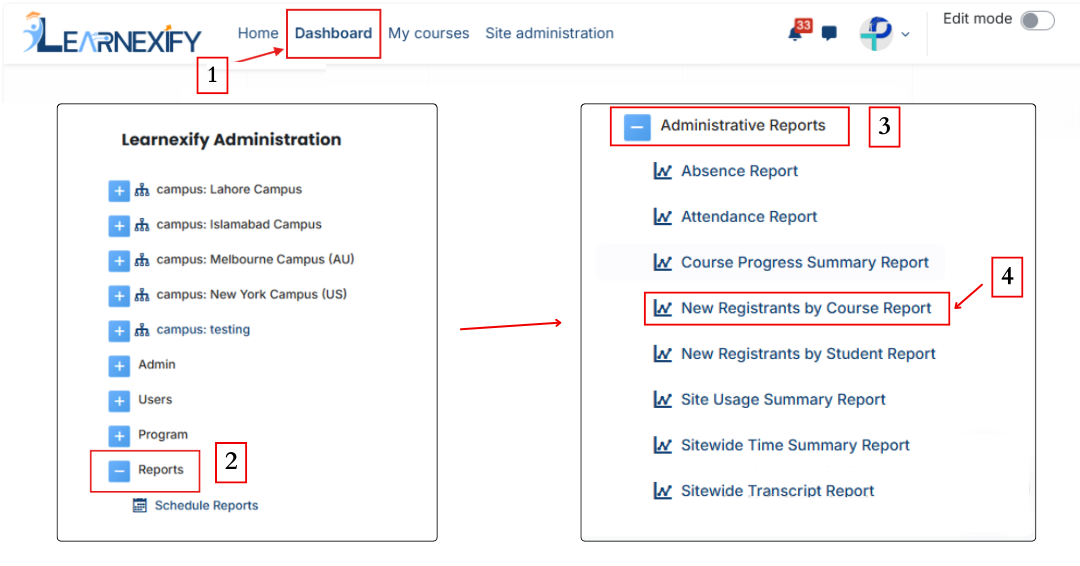
Dashboard ⟶ Side drawer ⟶ Reports ⟶ Administrative Reports ⟶ New Registrants by Course Report
[](https://wiki.paktaleem.net/uploads/images/gallery/2026-06/new-registrants-by-course-report.png)
###
### **Report Requirements:**
To be included in this **report:**
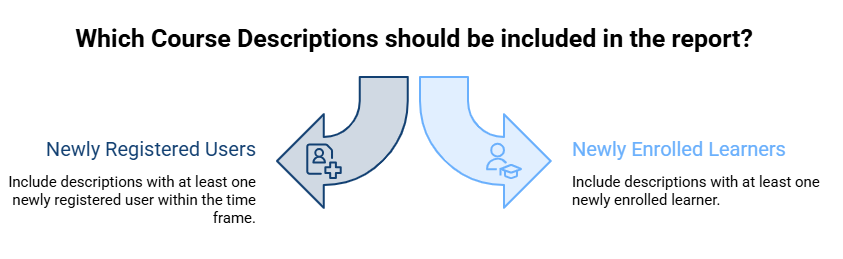
- The user must be **newly registered** in an Learnexify **Course Description** within the selected time frame (if applied).
- Only **Course Descriptions** that have at least **one newly enrolled** learner will appear in the report.
[](https://wiki.paktaleem.net/uploads/images/gallery/2026-06/BKtvisual-selection.png)
###
### **Report Filters:**
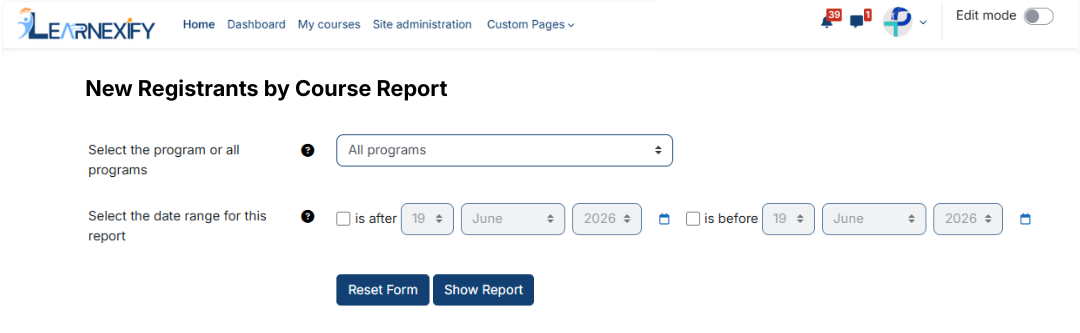
This report includes **two** optional **filters:**
- **Program Selection (All or Specific Program)**
A specific Program can be selected. If selected, only Course Descriptions under that Program with new registrations within the selected time range will be included.
- **Date Range Filter:**
This filter defines the period for new registrations:
- **“Is after” →** shows users enrolled after a specific date
- **“Is before” →** shows users enrolled before a specific date
These filters can be used **individually or together.** If left at default settings, the report will include all Course Descriptions and all enrollment records.
After selecting the **required filters** and fields, the report is **ready** to be **generated.**
[](https://wiki.paktaleem.net/uploads/images/gallery/2026-06/new-registrants-course-report-filter.png)
###
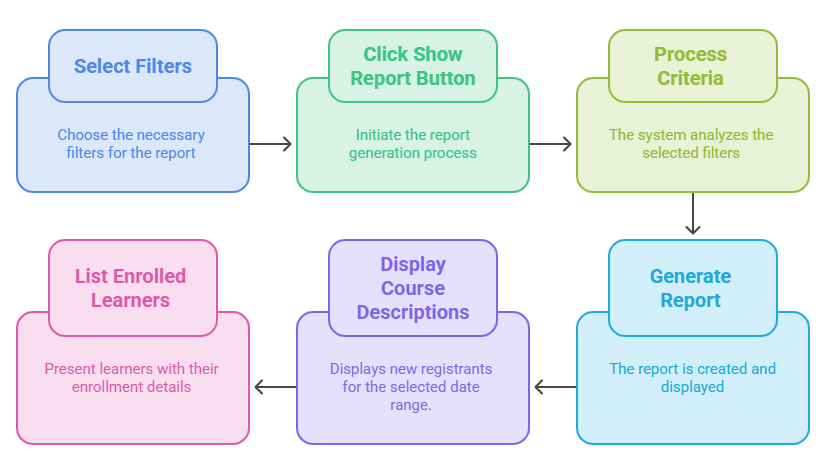
### **Generate Report:**
- First, the required filters are selected
- Then the **Show Report button** is clicked
- The system processes the selected criteria
- The report is **generated** and **displayed** on the screen
- Course Descriptions with **new registrants** are shown based on the **selected date range**
- Under each Course Description, newly enrolled learners are listed with their enrollment details
[](https://wiki.paktaleem.net/uploads/images/gallery/2026-06/generate-report-visual-selection.png)
###
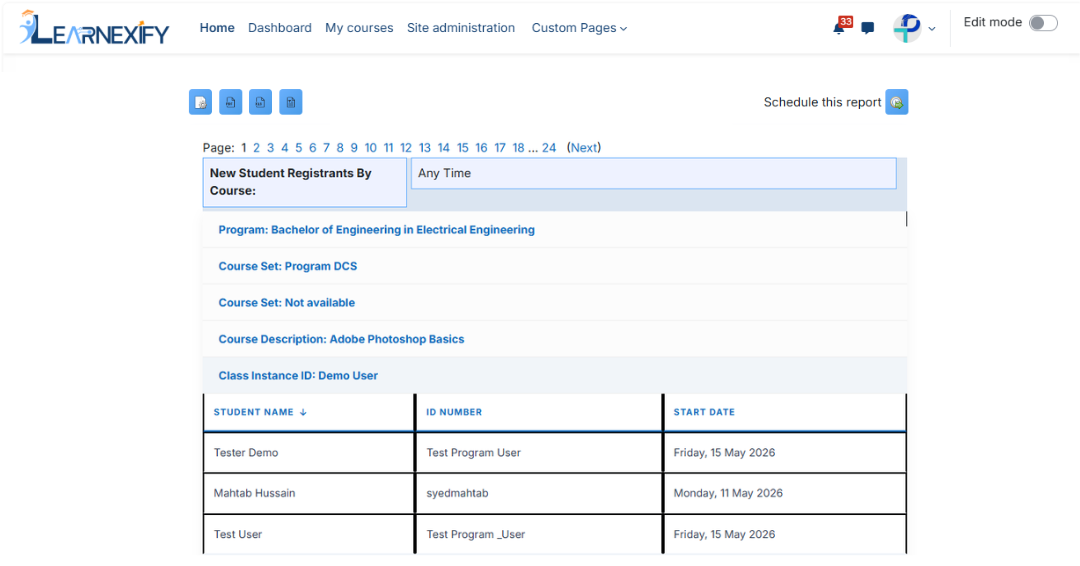
### **Report Output:**
The report **displays** the following **information:**
- **Program →** The program to which the Course Description belongs
- **Course Set →** Grouping of courses under a Course Set within a program
- **Course Description Name →** Name of the Learnexify Course Description
- **Class ID →** Learnexify Class identification number
- **Student Name →** Name of the newly enrolled learner
- **ID Number →** User identification number
- **Start Date →** Date when the learner was enrolled in the class
[](https://wiki.paktaleem.net/uploads/images/gallery/2026-06/new-registrants-course-report-view.png)
###
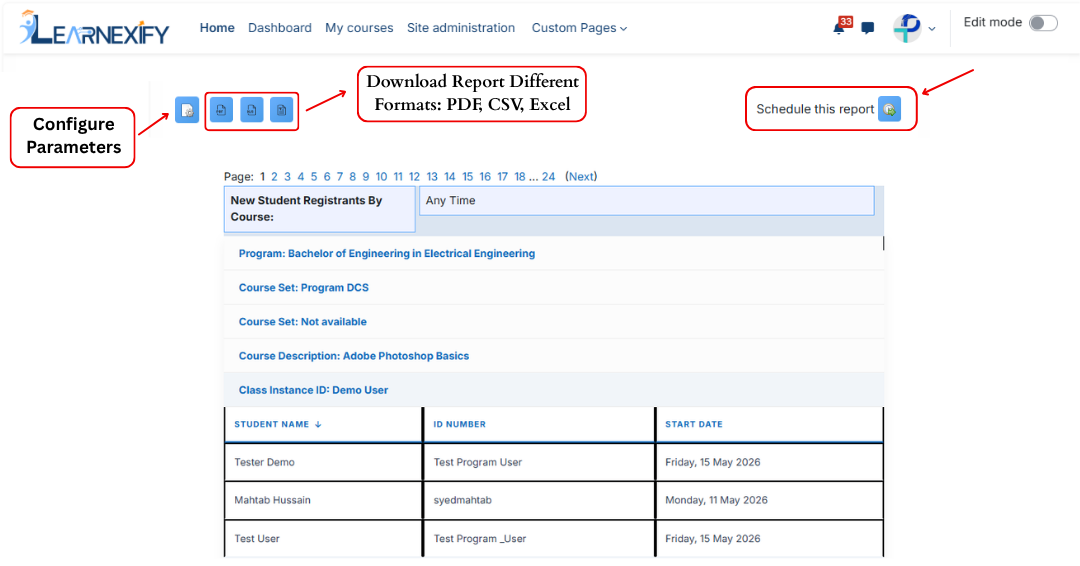
### **Report Actions (Refresh & Export):**
- The **Refresh button** updates the **report** with the latest data
- The report can be **exported** in **PDF and CSV formats**
- The report can be scheduled using the **Schedule Reports** option to be generated at a **specified date and time.**
[](https://wiki.paktaleem.net/uploads/images/gallery/2026-06/new-registrants-course-report-actions.png)
# 6.5 New Registrants by Student Report
The New Registrants Grouped by Student Report displays **a list of users** who have **newly enrolled** in **Learnexify Course Descriptions** within a **selected time period.** The report organizes the **data student-wise,** where each student is listed along with the **Course Descriptions** they have newly enrolled in and their corresponding enrollment dates.
If a user has not **newly enrolled** in any Course Description within the selected **time frame**, that user will not appear in the report.
### **
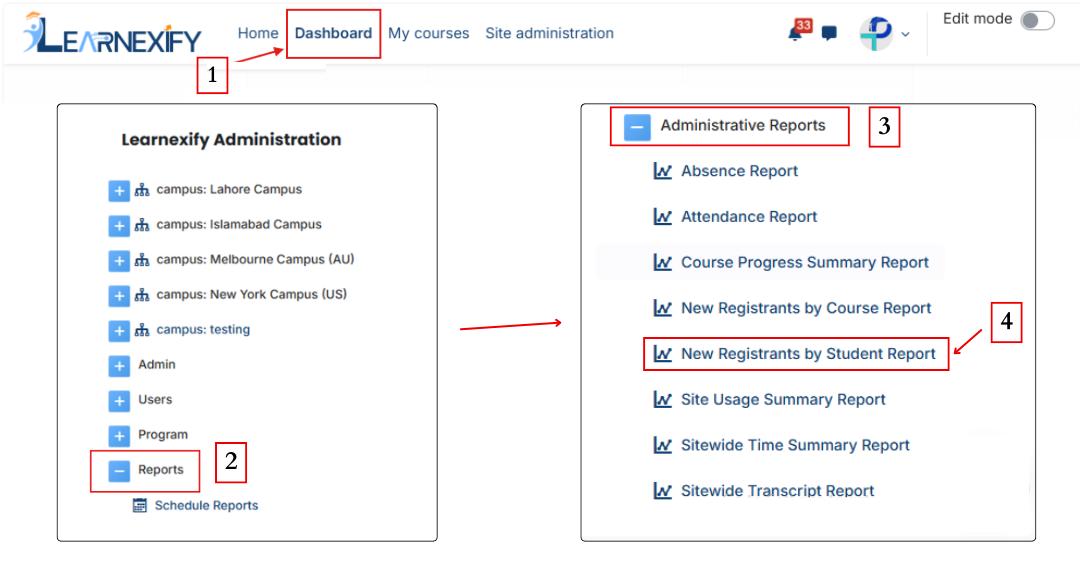
Report Path: **
Dashboard ⟶ Side drawer ⟶ Reports ⟶ Administrative Reports ⟶ New Registrants by Student Report
[](https://wiki.paktaleem.net/uploads/images/gallery/2026-06/new-registrants-by-student.png)
###
### **Report Requirements:**
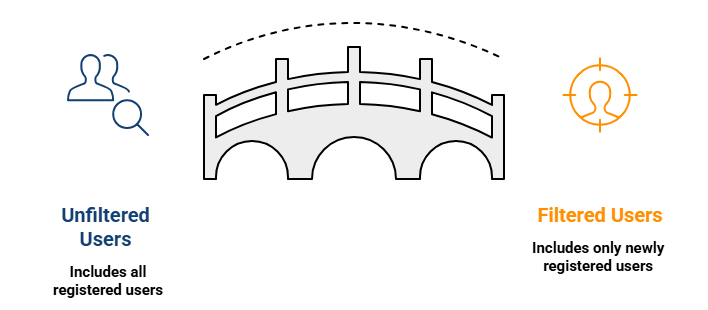
This report includes only **those users** who:
- Have **newly registered** in an Learnexify **Course Description** within the **selected time period** (if a date filter is applied)
[](https://wiki.paktaleem.net/uploads/images/gallery/2026-06/this-report-includes-only-those-users-who-visual-selection.png)
###
### **Report Filters:**
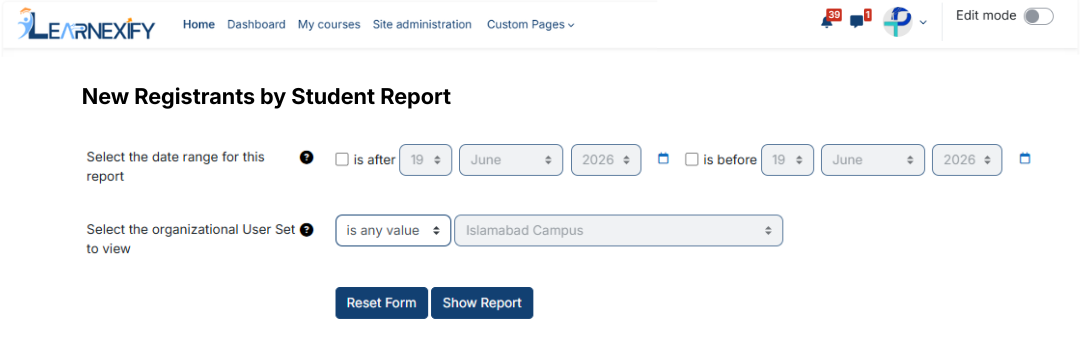
This report includes **two** optional **filters:**
- **Date Range Filter:**
This filter is used to define the time period for new registrations:
- **“Is after” →** shows users enrolled after a specific date
- **“Is before” →** shows users enrolled before a specific date
These options can be used individually or together.
- **Organizational user groups:**
Specific user groups or Sub-Sets can be selected. If a user group is selected, only users within that set who are newly enrolled within the selected time frame will be included in the report.
If **default filters** are used, the system displays **all users** along with **their enrollment history.**
[](https://wiki.paktaleem.net/uploads/images/gallery/2026-06/6XPnew-registrants-student-report-filter.png)
###
### **Generate Report:**
- First, the **required filters** are selected
- Then the **Show Report button** is clicked
- The system processes the selected criteria and generates the report
- The report is grouped student-wise
- Under each student, the list of enrolled Course Descriptions and enrollment dates displayed
###
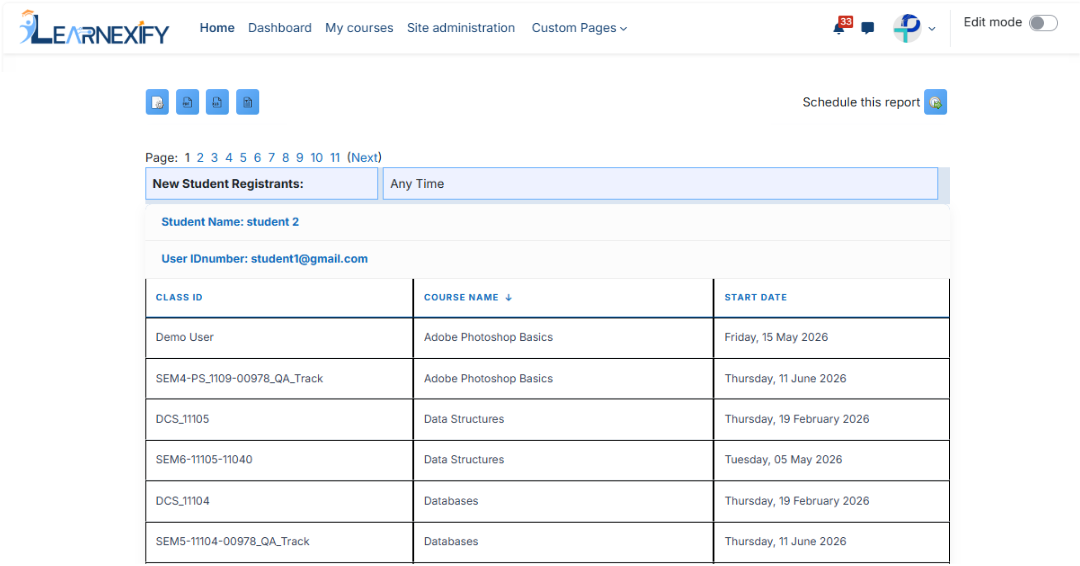
### **Report Output:**
The report displays the **following information:**
- **Student Name →** Name of the newly registered learner
- **User ID Number →** System ID number of the user
- **Class ID →** Learnexify Class identification number
- **Course Name →** Name of the Learnexify Course Description
- **Start Date →** Date when the learner was enrolled
[](https://wiki.paktaleem.net/uploads/images/gallery/2026-06/new-registrants-student-report-view.png)
###
### **Report Actions (Refresh & Export):
**
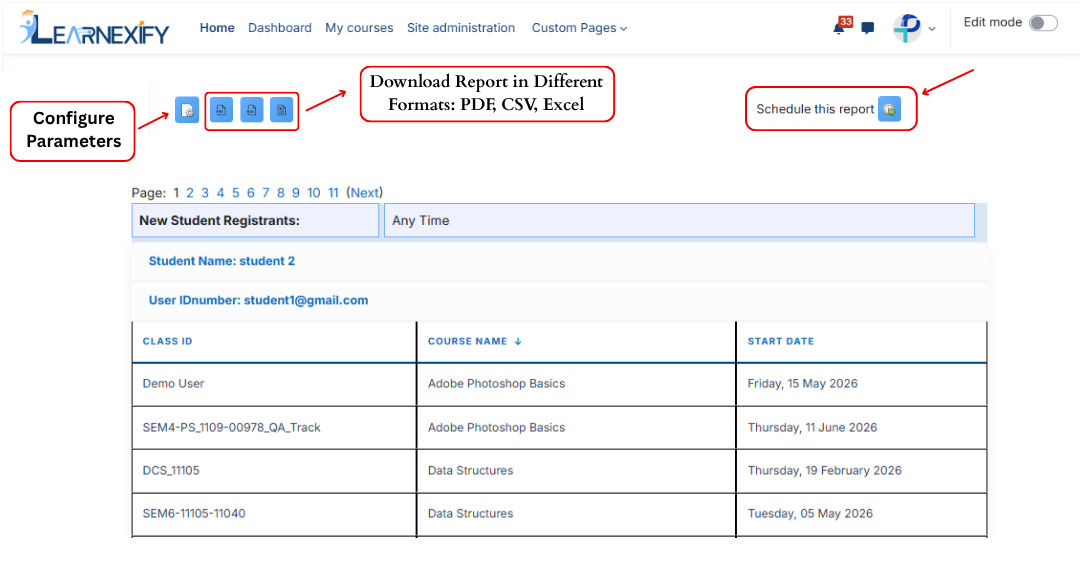
- To modify report options, the **Configure Parameters icon** is used, **located in the upper left corner** of the report.
- The **Refresh button updates** the report with the **latest data**
- The report can be **downloaded** in **PDF and CSV formats**
- The report can be scheduled using the **Schedule Reports** option to be generated at a **specified date and time.**
[](https://wiki.paktaleem.net/uploads/images/gallery/2026-06/new-registrants-student-report-actions.png)
# 6.6 Site Usage Summary Report
The Site Usage Summary Report is a general summary report that **provides administrators** with an overall view of all Course Descriptions accessible according to their **assigned role**. This **report helps administrators** understand how the system is being **used** and **how learners** are **interacting** with courses across the site.
This report is useful for **analyzing learner engagement**, course activity, **scores,** **time spent in courses,** and overall performance trends.
**For example,** if a Program Administrator makes changes to course content or instructional design, this report can be used to compare data before and after the changes to determine whether learner engagement and performance have improved.
### **
Report Path: **
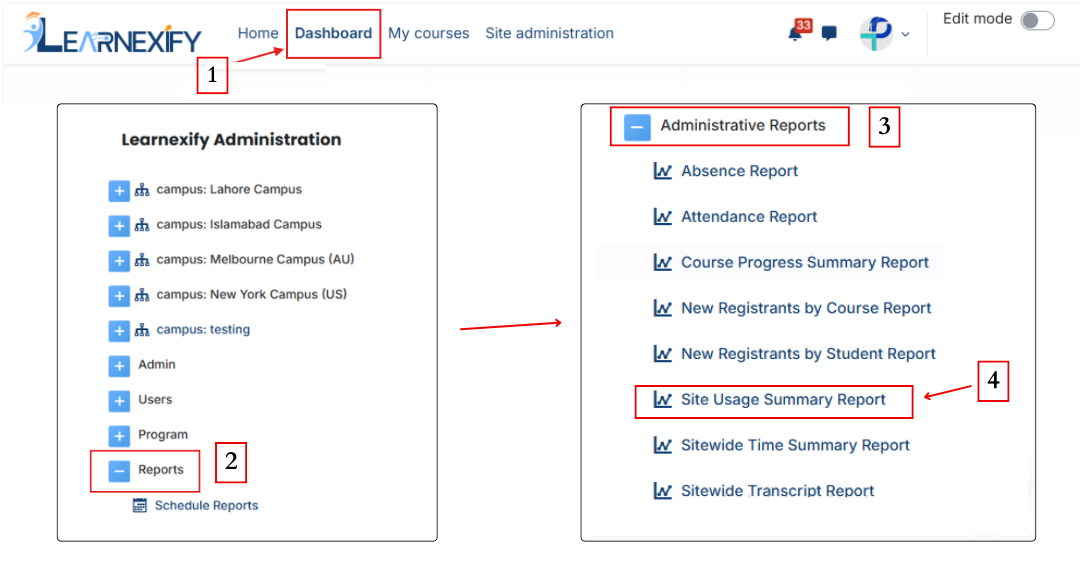
Dashboard ⟶ Side drawer ⟶ Reports ⟶ Administrative Reports ⟶ Site Usage Summary Report
[](https://wiki.paktaleem.net/uploads/images/gallery/2026-06/site-usade-summary-report.png)
###
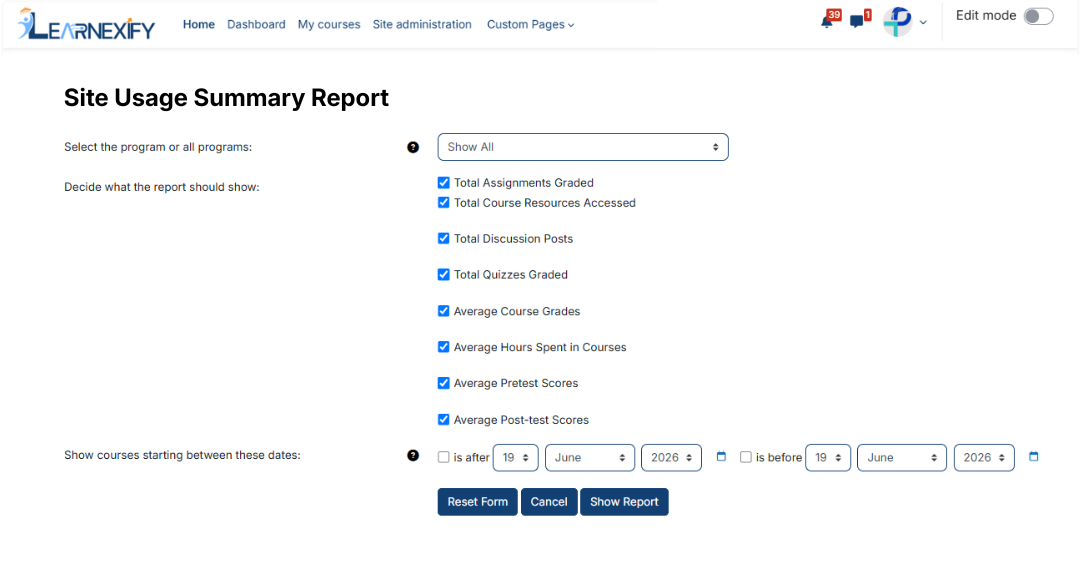
### **Report Filters:**
This report includes the **following filters:**
**Program Selection (All or Specific Program):**
Administrators can select a specific Program - leave to No filtering for all Course Descriptions in all Programs, or choose a program to generate data from.
**Report Display Options:**
This option is used to decide which data should appear in the report. Multiple data fields can be selected, such as:
- Total Course Descriptions Completed
- Average Course Grades e.t.c
**Date Range (Course Start Dates):**
This filter is used to include Course Descriptions that started within a selected time period:
- “Is after” → includes courses starting after a selected date
- “Is before” → includes courses starting before a selected date
After selecting the required filters and display options, the report can be generated.
[](https://wiki.paktaleem.net/uploads/images/gallery/2026-06/site-usage-summary-report-filter.png)
###
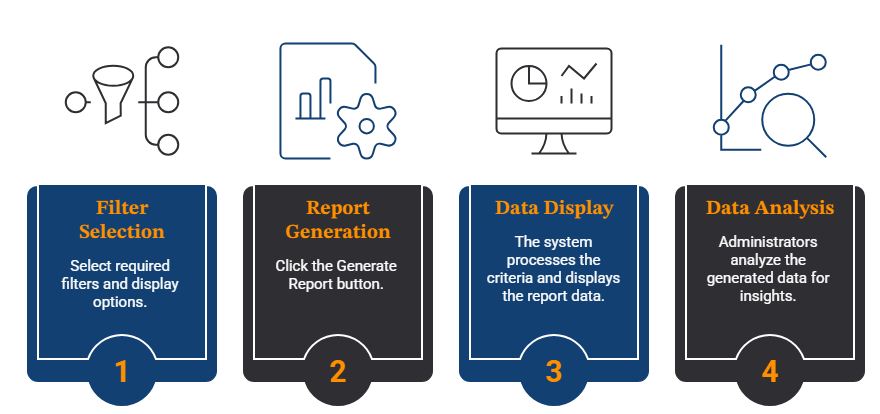
### **Generate Report:**
- First, the **required filters** and display options are **selected**
- Then click the **Show Report button.**
- The system processes the selected criteria and displays the report data on the screen
- Administrators can use the generated data to analyze learner engagement and course activity
[](https://wiki.paktaleem.net/uploads/images/gallery/2026-06/SXRvisual-selection-1.png)
###
### **Report Output:**
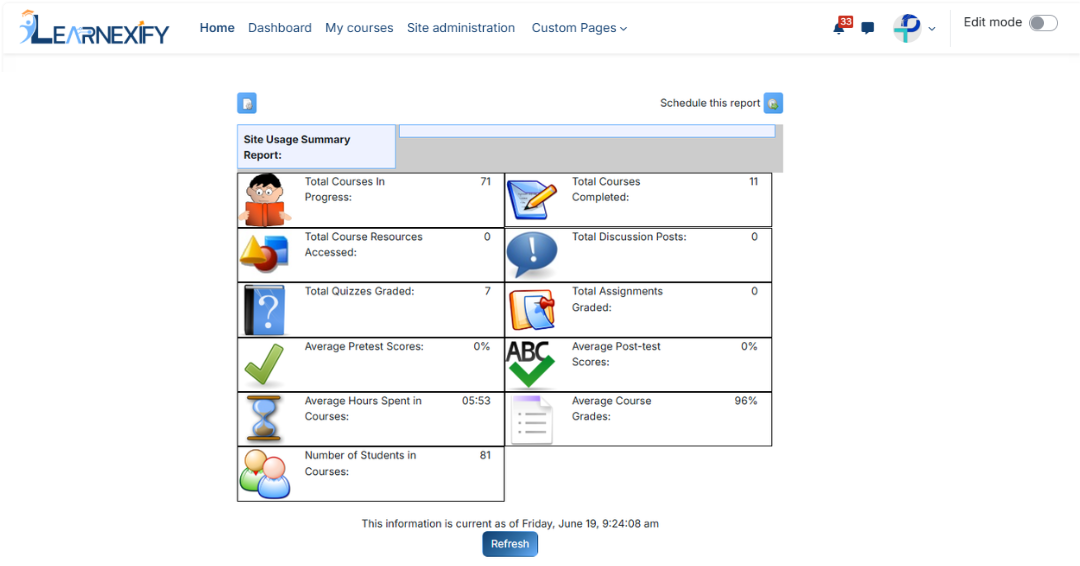
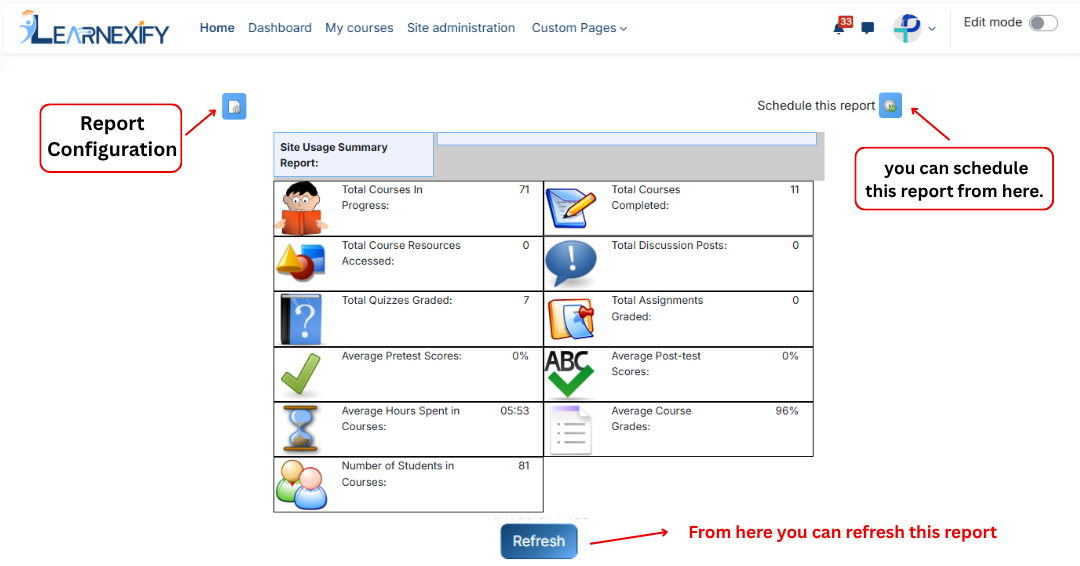
The report displays the following information:
- **Site Usage Summary Report Date →** Selected reporting date range.
- **Total Course Descriptions in Progress →** Total active enrollments that are not yet completed.
- **Total Course Descriptions Completed →** Total number of completed Course Descriptions.
- T**otal Course Resources Accessed →** Total number of resources accessed by users.
- **Total Discussion Posts →** Total number of forum posts, replies, and discussions.
- **Total Assignment Grades →** Total number of graded assignments in the gradebook.
- **Average Pre-test Scores →** Average scores of Learning Objectives used as pre-tests.
- **Average Post-test Scores →** Average scores of Learning Objectives used as post-tests.
- **Average Hours Spent in Course Descriptions →** Average amount of time learners spent in courses.
- **Average Course Grades →** Average completion grades of learners
- **Number of Students in Course Descriptions →** Total number of students enrolled in selected courses
If a learner is enrolled in multiple Course Descriptions, the learner is counted separately for each enrolled course.
[](https://wiki.paktaleem.net/uploads/images/gallery/2026-06/site-usage-summary-report-view.png)
###
### **Report Actions (Refresh & Export):**
- The report can be scheduled using the **Schedule Reports** option to be generated at a **specified date and time.**
- The report settings and filters can be adjusted using the **Configure Parameters** option.
- Click the **Refresh** button at the bottom center to update the report with the most recent data.
[](https://wiki.paktaleem.net/uploads/images/gallery/2026-06/schedule-report.png)
**Important Note:** The report cannot be exported in PDF, Excel or CSV format
# 6.7 Sitewide Time Summary Report
The Sitewide Time Summary Report **generates** a **time-based** **summary** for a **single user** or a **selected User Group**. It helps administrators understand how much time learners are spending in Course Descriptions over a specific period.
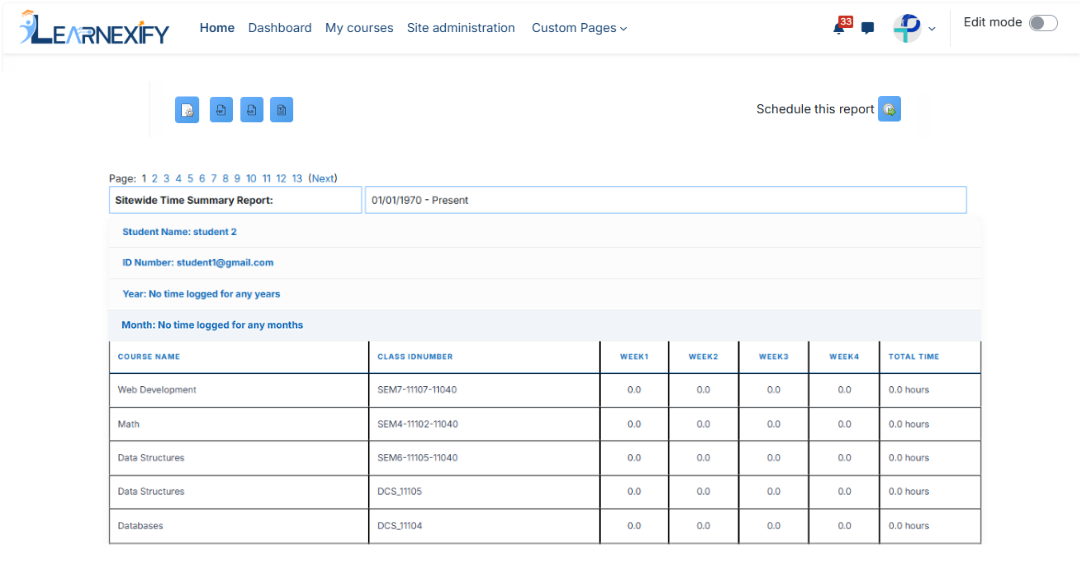
A date range can be applied to generate reports for a specific time period. The report can display data per user, per Course Description, or grouped by week or month depending on configuration.
### **Report Use Cases:**
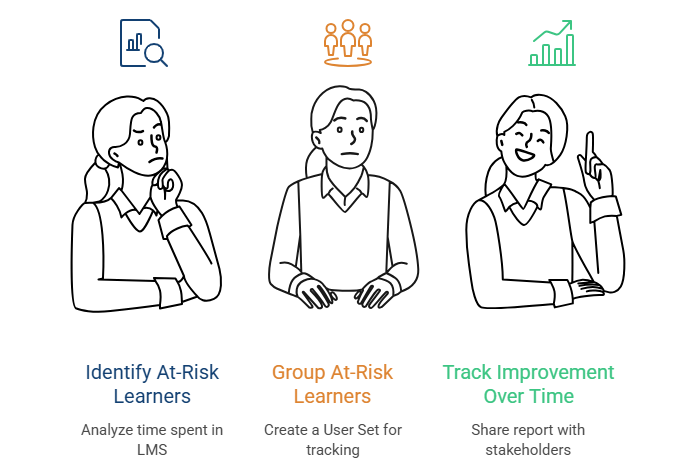
**At-Risk Intervention:** This report is commonly used to identify learners with low engagement. By analyzing time spent in the LMS, administrators can monitor learner activity and determine whether students are actively participating. At-risk learners can be grouped into a User Group, and the report can be shared with learners, managers, or advisors to batch improvement over time. Weekly or monthly segmentation helps evaluate whether interventions are effective.
**Funding Purpose:** This report can also be used to demonstrate learner participation for funding justification in both public and private sector programs. It helps show engagement metrics such as time spent and attendance-related data.
[](https://wiki.paktaleem.net/uploads/images/gallery/2026-06/report-use-cases-visual-selection-1.png)
### **Report Path: **
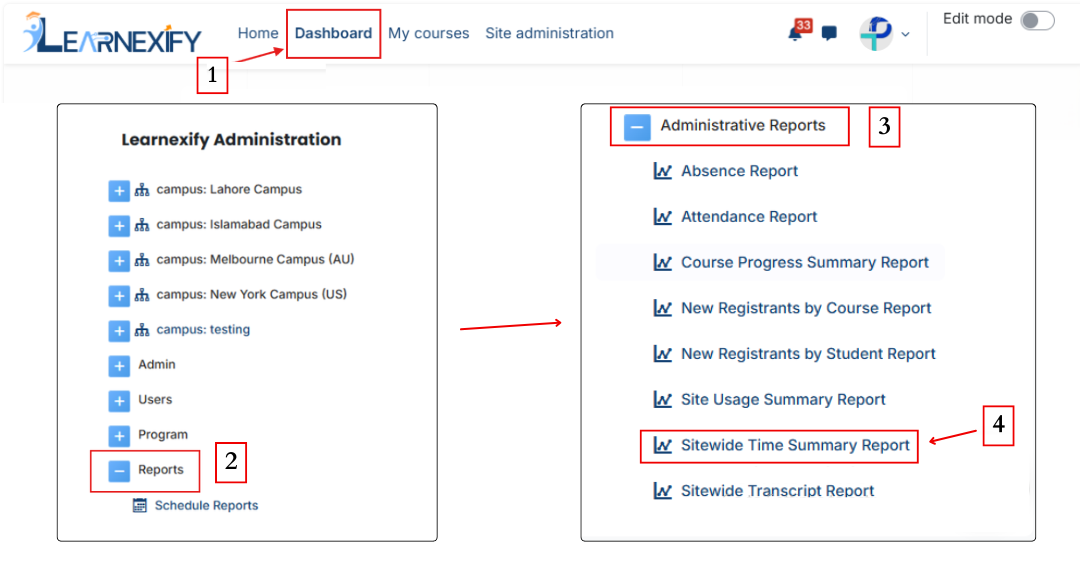
Dashboard ⟶ Side drawer ⟶ Reports ⟶ Administrative Reports ⟶ Sitewide Time Summary Report
[](https://wiki.paktaleem.net/uploads/images/gallery/2026-06/site-wide-time-summary-report.png)
###
### **Report Filters:**
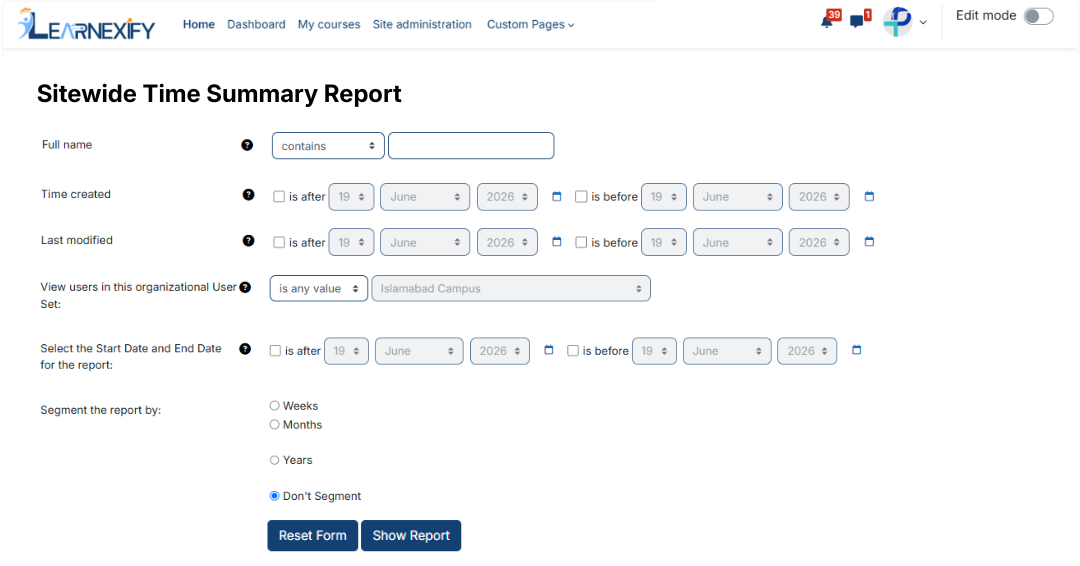
This report includes flexible filtering options and does not require mandatory fields.
- **Full Name ⟶** Search for a specific user or group of users
- **Organizational User Groups ⟶** Select a specific user group
- **Date Range (Start / End Date):**
- **“Is after” ⟶** includes data after a selected date
- **“Is before” ⟶** includes data before a selected date
- **Report Segmentation →** Defines how attendance data is grouped and displayed by Week, Month, Year, or No Segmentation.
- The “Show More” option allows advanced filtering using standard and custom user fields.
[](https://wiki.paktaleem.net/uploads/images/gallery/2026-06/sitewide-time-summary-report-filter.png)
###
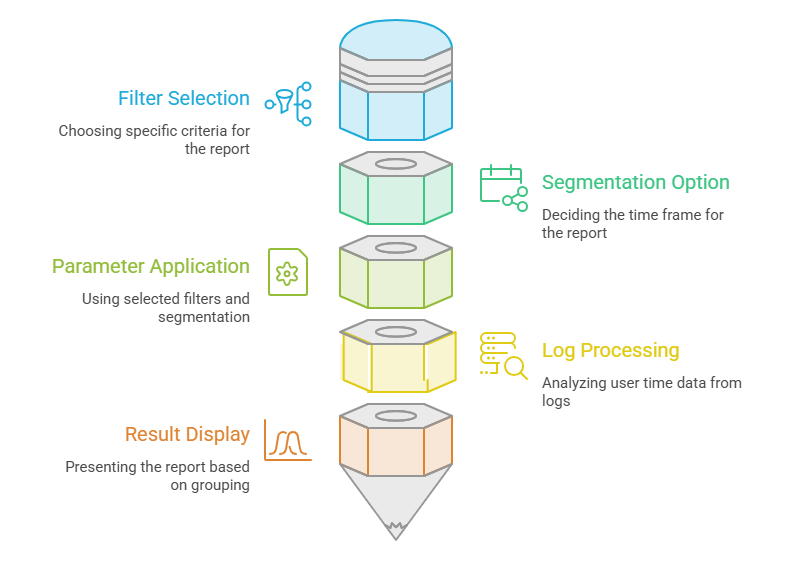
### **Generate Report:**
- Required filters are selected
- **Segmentation option** (week/month/year) is chosen
- The report is generated using **selected parameters**
- Learnexify logs are processed to calculate user time data
- Results are displayed based on selected grouping
[](https://wiki.paktaleem.net/uploads/images/gallery/2026-06/generate-report-visual-selection-1.png)
###
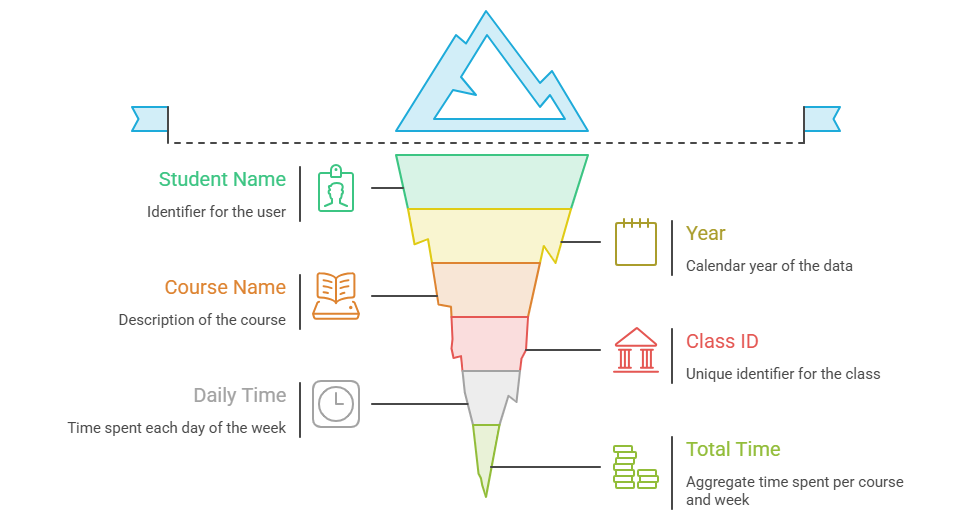
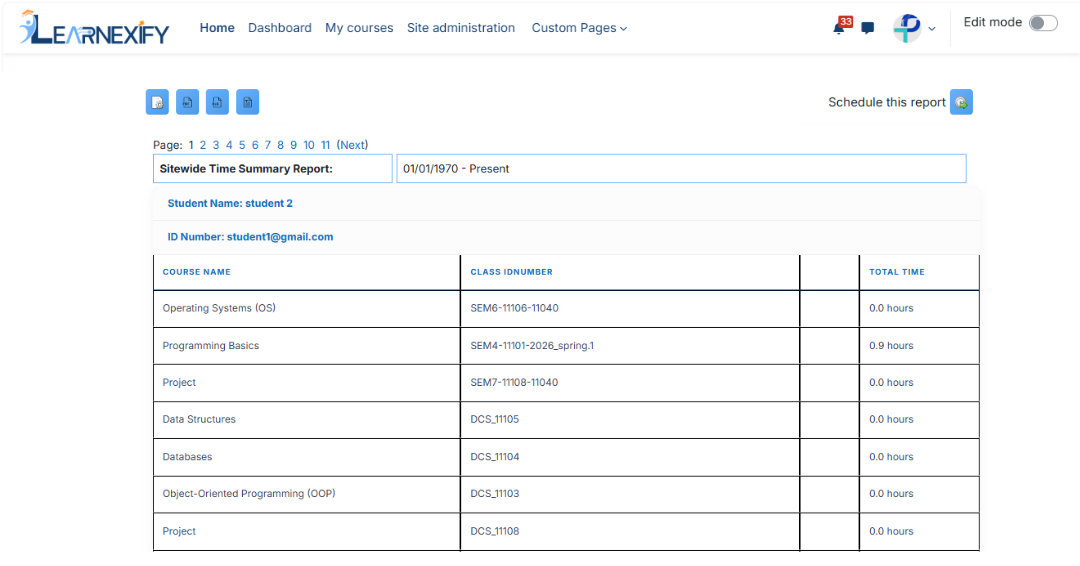
### **Report Output:**
- **Student Name →** Name of the user
- **Year →** Calendar year of data
- **Course Name →** Name of the Course Description student is enrolled in. Only Course Descriptions in which the users have spent some time during the specified time frame are included in the report.
- **Class ID →** Learnexify Course Instance ID
- **Daily Time (Sun–Sat) →** Time spent each day
- **Total Time →** Total time spent per course and per week
[](https://wiki.paktaleem.net/uploads/images/gallery/2026-06/OkDvisual-selection-2.png)
### **Data Calculation Method:**
This report is based on **Learnexify logs.** The system calculates time by analyzing user log entries:
- If the time gap between two log entries is less than 5 minutes, it is considered the same session
- If the gap is greater than 5 minutes, it is treated as a new session
- A maximum of **5 minutes** is added per session gap
[](https://wiki.paktaleem.net/uploads/images/gallery/2026-06/sitewide-time-summary-report-view.png)
[](https://wiki.paktaleem.net/uploads/images/gallery/2026-07/nQ4add-new-edit-page.png)
###
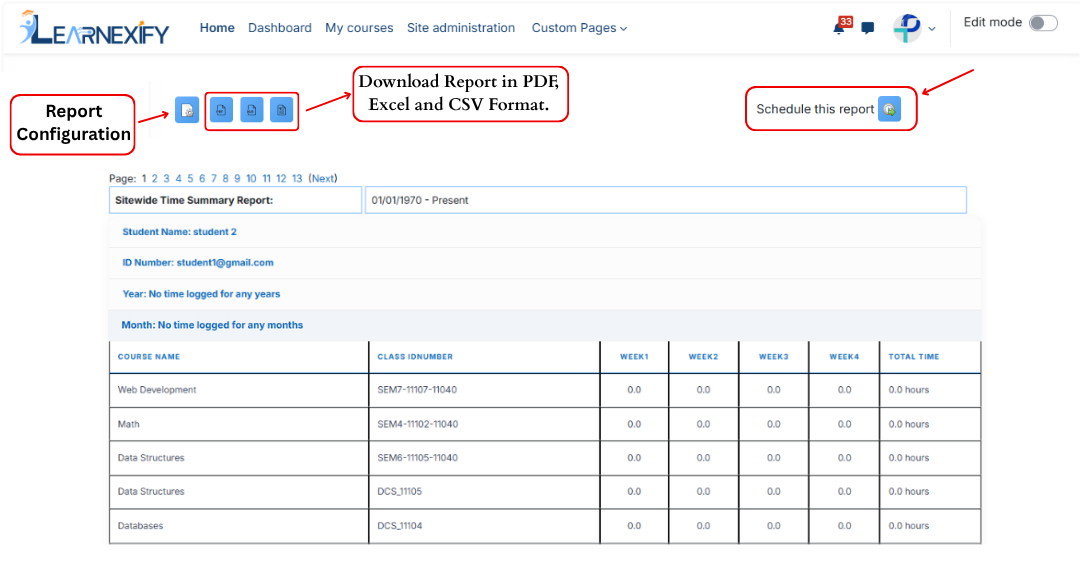
### **Report Actions (Refresh & Export):**
- **Configure Parameters →** Used to modify report settings
- **Schedule Reports →** Allows scheduling reports for future execution
- **Download PDF / CSV →** Report can be exported in both formats
- **Refresh Button →** Updates the report with the latest data without reconfiguration
[](https://wiki.paktaleem.net/uploads/images/gallery/2026-07/MDZnew-edit-page.png)
###
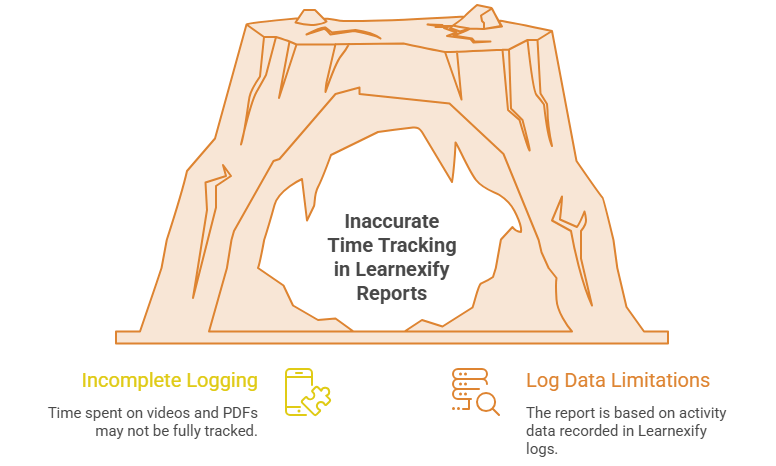
### **Limitations of this report :**
This report is based on Learnexify logs and batch's student activity using the available log data. **Some activities,** such as **watching videos** or **reading lengthy PDF/Acrobat documents**, may not be fully **recorded** in the **Learnexify logs.** As a result, the time spent on these activities may not always be reflected accurately or completely in the report.
[](https://wiki.paktaleem.net/uploads/images/gallery/2026-06/0NIvisual-selection-3.png)
# 6.8 Sitewide Transcript Report
The Sitewide Transcript Report displays a **complete transcript** for **every user** in Learnexify who is **enrolled** in a Learnexify Course Instance. It provides a **system-wide academic** summary of all users, **including enrolled** and **completed Course Descriptions.**
### **
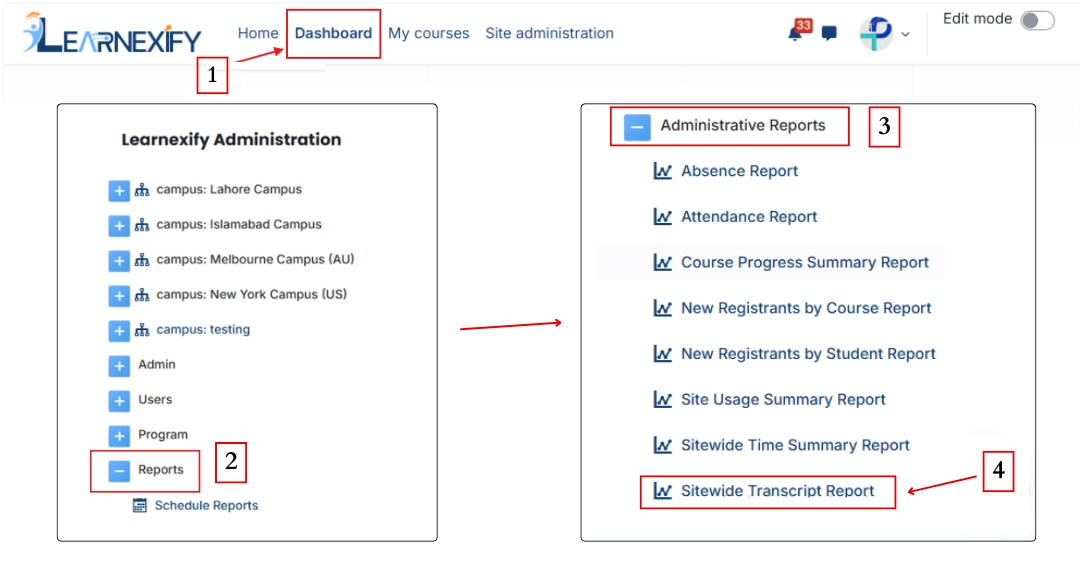
Report Path: **
Dashboard ⟶ Side drawer ⟶ Reports ⟶ Administrative Reports ⟶ Sitewide Time Summary Report
[](https://wiki.paktaleem.net/uploads/images/gallery/2026-06/site-wide-transcript-report.png)
###
### **Report Requirement:**
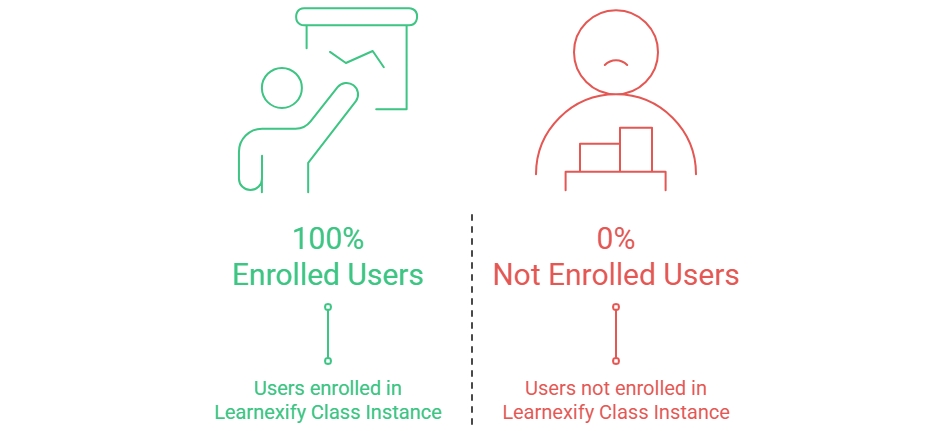
To be included in this report:
- The user must be **enrolled** in an **Learnexify Course Instance**
If the user is not enrolled, they will not appear in the report.
[](https://wiki.paktaleem.net/uploads/images/gallery/2026-06/to-be-included-in-this-report-visual-selection.png)
###
### **Report Filters:**
This report includes one standard optional filter:
- **Full Name** → Used to search and filter users by their full name.
- **Last Name** → Used to search and filter users by their last name.
- **First Name** → Used to search and filter users by their first name.
- **Middle Initial** → Used to search and filter users by their middle initial.
- **ID Number** → Used to search and filter users by their ID number.
- **Email Address** → Used to search and filter users by their primary email address.
- **Email Address 2** → Used to search and filter users by their secondary email address.
- **Username** → Used to search and filter users by their username.
- **Address** → Used to search and filter users by their address.
- **Address 2** → Used to search and filter users by their secondary address. .
- **City/Town** → Used to search and filter users by their city or town.
- **State/Province** → Used to search and filter users by their state or province.
- **Country** → Used to filter users by country. Users can select a specific country or **Any value**.
- **Zip/Postal Code** → Used to search and filter users by their ZIP or postal code.
- **Phone** → Used to search and filter users by their primary phone number.
- **Phone 2** → Used to search and filter users by their secondary phone number.
- **Fax** → Used to search and filter users by their fax number.
- **Preferred Language** → Used to filter users by their preferred language. Users can select a specific language or **Any value**.
- **Time Created** → Used to filter users based on the date their account was created. Users can specify a date range using **is after** and/or **is before**.
- **Last Modified** → Used to filter users based on the date their account was last modified. Users can specify a date range using **is after** and/or **is before**.
- **Inactive** → Used to filter users based on their account status. Users can select the appropriate inactive status or **Any value**.
For text-based filters, the following matching options are available:
- **Contains** → Displays records that include the entered text anywhere in the field.
- **Doesn't contain** → Displays records that do not include the entered text.
- **Is equal to** → Displays records that exactly match the entered text.
- **Starts with** → Displays records that begin with the entered text.
- **Ends with** → Displays records that end with the entered text.
- **Is empty** → Displays records where the selected field has no value.
If no filter is applied, the report displays transcripts for all users enrolled in Learnexify Course Instances.
[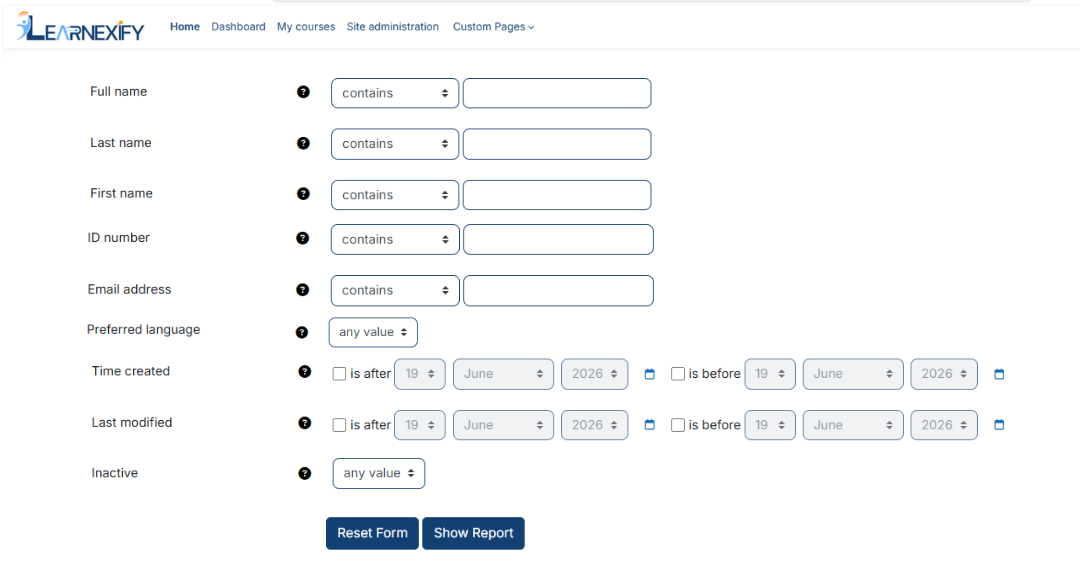](https://wiki.paktaleem.net/uploads/images/gallery/2026-06/sitewide-transcript-report-filter.png)
Advanced filtering options are available under the “**Show More**” section.
###
### **Generate Report:**
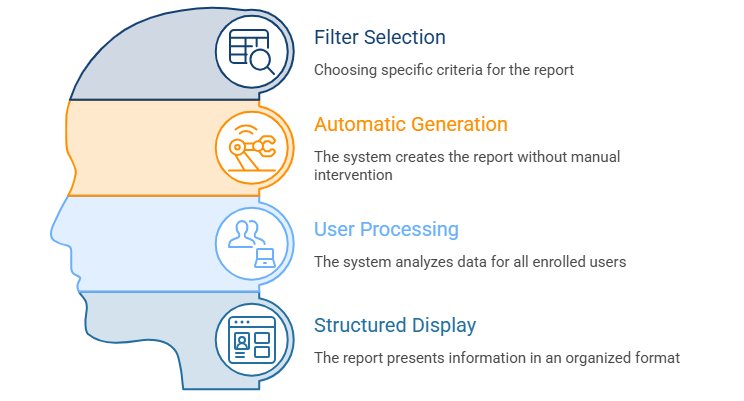
- First, select the relevant filters according to the transcript report you want to generate.
- The report is generated only after the user clicks the **'Show Report'** button.
- The system processes all users enrolled in Learnexify course Instancess
- The transcript data is displayed in a structured, user-wise format
[](https://wiki.paktaleem.net/uploads/images/gallery/2026-06/SLQvisual-selection-4.png)
###
### **Report Output:**
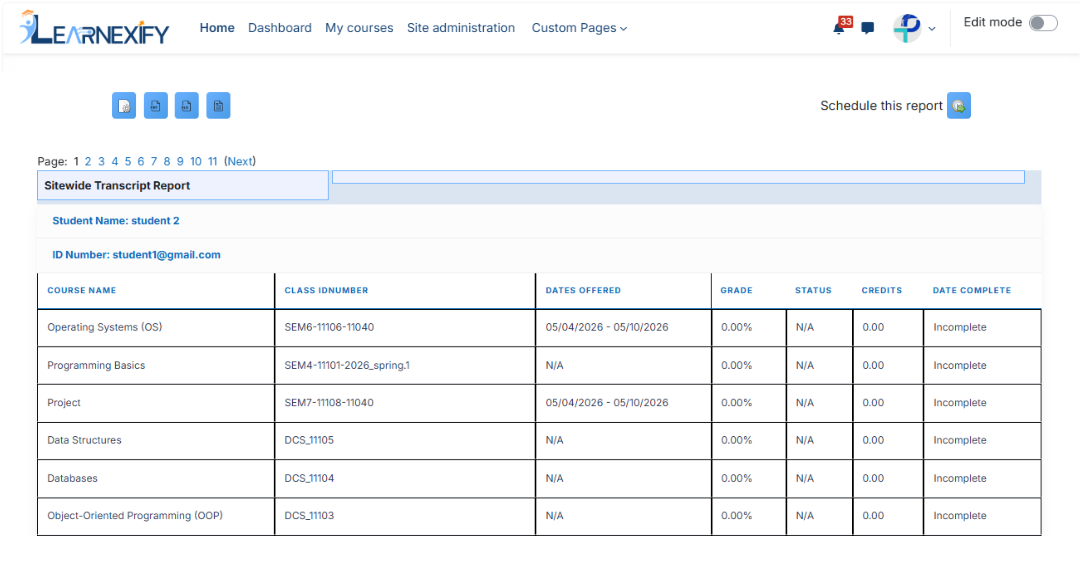
The report includes the following information for each user:
- **ID Number →** User’s unique system ID number
- **Course Name →** All Course Descriptions in which the user is enrolled or has completed
- **Class ID Number →** Unique ID number of each course instance
- **Dates Offered →** Start and end dates of the class (if not available, “N/A” is shown)
- **Grade →** Current grade for each course instance
- **Status →** Pass, Fail, or Incomplete
- **Credits →** Credits earned for each course instance (if applicable)
- **Completed Date →** Date when the course instance was completed
[](https://wiki.paktaleem.net/uploads/images/gallery/2026-06/sitewide-transcript-report-view.png)
###
### **Report Actions (Refresh & Export):**
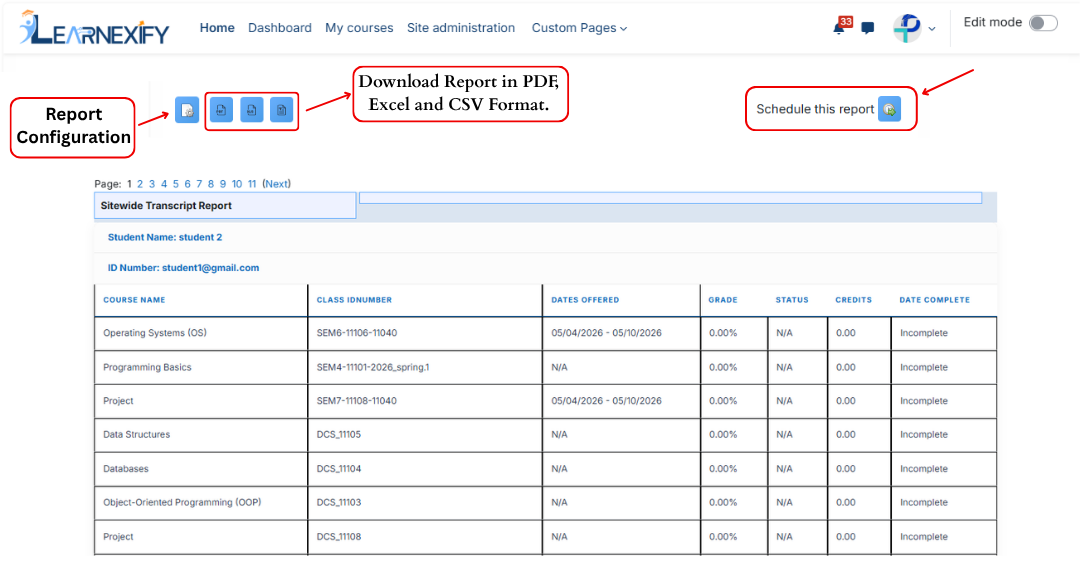
- Report **settings** and **filters** can be modified using **Configure Parameters.**
- The **report** can be **exported** in both **PDF and CSV formats.**
- The report can be scheduled using the Schedule Reports option to be generated at a specified date and time.
- Click the **Refresh button** at the **bottom center** to update the report with the latest data.
[](https://wiki.paktaleem.net/uploads/images/gallery/2026-06/sitewide-transript-report-actions.png)