# 2.1 Course Completion Gas Gauge
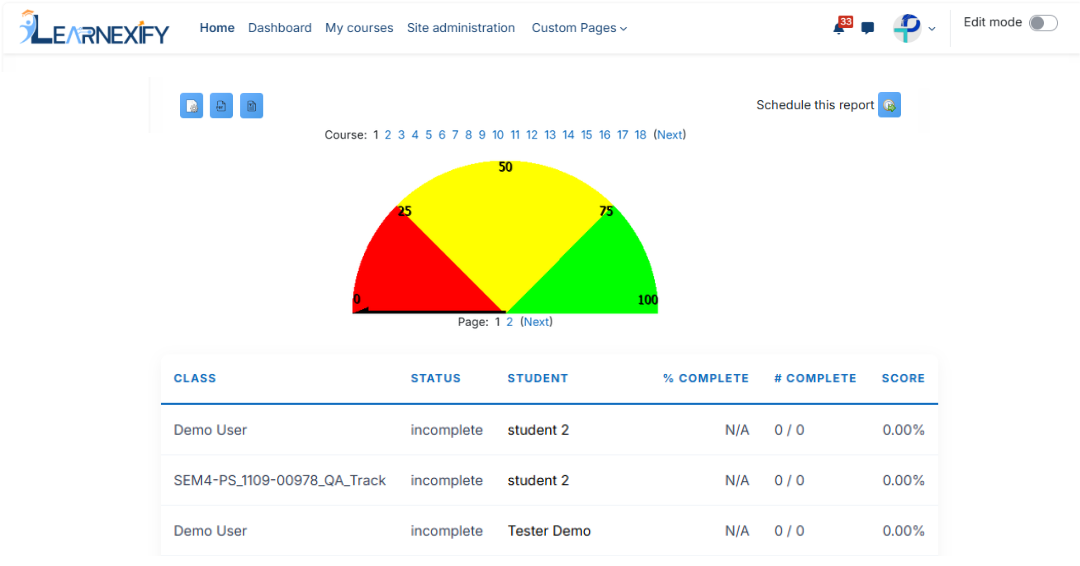
##### The Course Completion Gas Gauge Report is used to show the status of all users enrolled in a course. It also displays a gas gauge chart that represents the percentage of students who have completed the course.
****
---
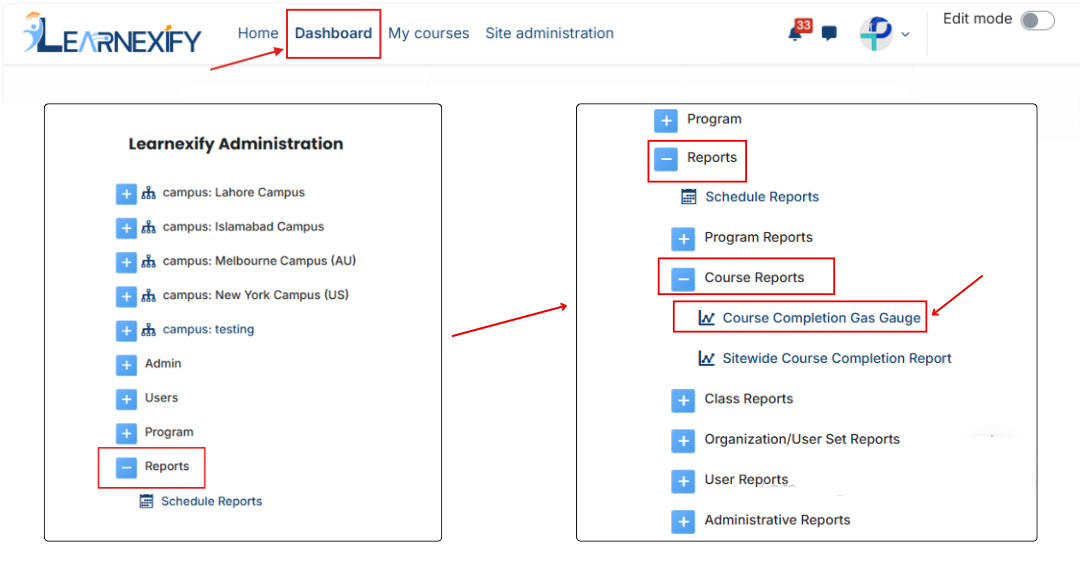
### **Report Path: **
##### Dashboard > Side drawer > Reports > Course Reports > Course Completion Gas Gauge
[](https://wiki.paktaleem.net/uploads/images/gallery/2026-06/course-completion-gas-gauge-report-path.png)
### **Report Requirements:**
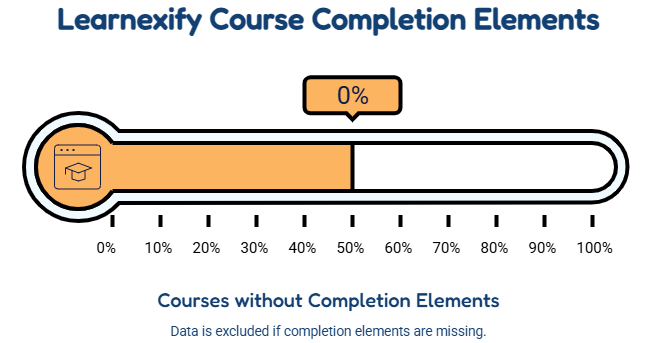
##### This report requires **completion elements** to be available in the Learnexify course.
If a **course or class** **does not** contain **completion elements**, its data will not be included in the report.
[](https://wiki.paktaleem.net/uploads/images/gallery/2026-06/NQxvisual-selection-2.png)
### **Report Filter:**
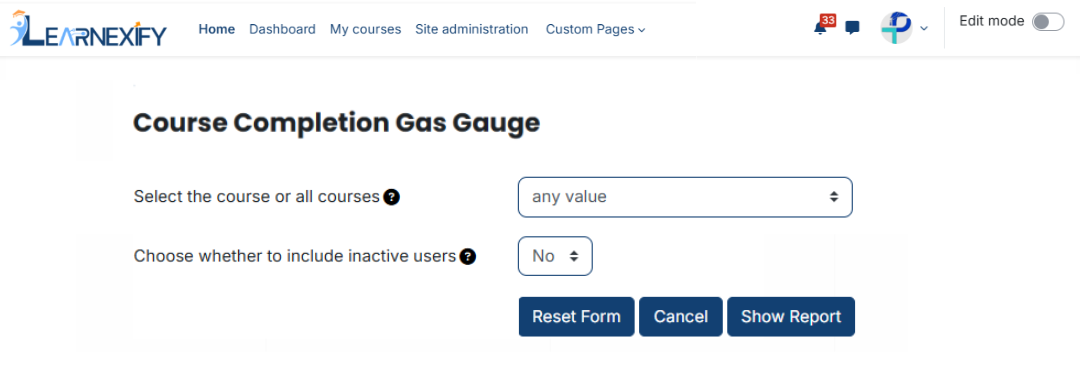
##### The report filter contains two fields, **Course and Inactive.** Neither field is required.
##### To generate a **report for all courses** on the site, keep the Course field set to **“Any Value”.**
##### To generate a report for a specific course, select the required course from the Course dropdown menu.
##### Active users are always included in the report, and including inactive users is optional.
##### To view the report, click on the Show Report button located at the bottom of the page.
[](https://wiki.paktaleem.net/uploads/images/gallery/2026-06/course-completion-filter.png)
### **Explanation of Report Data:**
##### The report displays the status of all users enrolled in the course along with their completion percentage.
##### **Class —---->** refers to the class instance in which the learner is enrolled.
**Status —---->** refers to the learner’s completion status. If the completion requirements are met, the status is shown as “complete”.
**Student —----->** refers to the enrolled learners. Clicking on a student’s name opens their Learnexify profile page.
**% Complete —---->** refers to the percentage of completion elements that the learner has completed.
**\# Complete —---->** refers to the total number of completion elements that have been completed by the learner.
**Score —------>** refers to the learner’s current percentage grade in the course.
[](https://wiki.paktaleem.net/uploads/images/gallery/2026-06/course-completion-report-view.png)
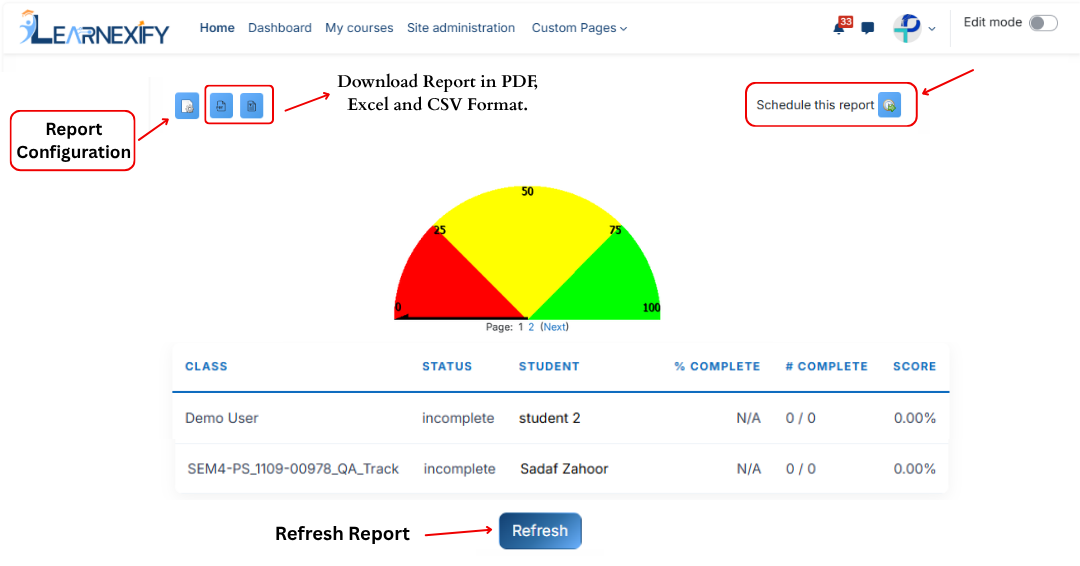
### **Report Configuration:**
##### Click on the **Configure Parameters icon (top left)** to change report settings and apply filters.
### **Report Scheduling:**
##### Click on the **Schedule Reports icon (top right)** to schedule the report to run automatically at a specific time.
### **Export** **Report:**
##### The report can be downloaded in **PDF or CSV format** using the download options at the top left of the report.
### **Report Refresh:**
##### Click the **Refresh button at the bottom center** to update the report with the latest data.
[](https://wiki.paktaleem.net/uploads/images/gallery/2026-06/class-completion-report-actions.png)
---