# 2.2 Sitewide Course Completion Report
The **Sitewide Course Completion Report** is used to view the **status** of all **users across courses** in the **system**. It displays the **completion status** of enrolled users for **each course**.
### **Report Path:**
Dashboard ⟶ Side drawer ⟶ Reports ⟶ Course Reports ⟶ Sitewide Course Completion Report
[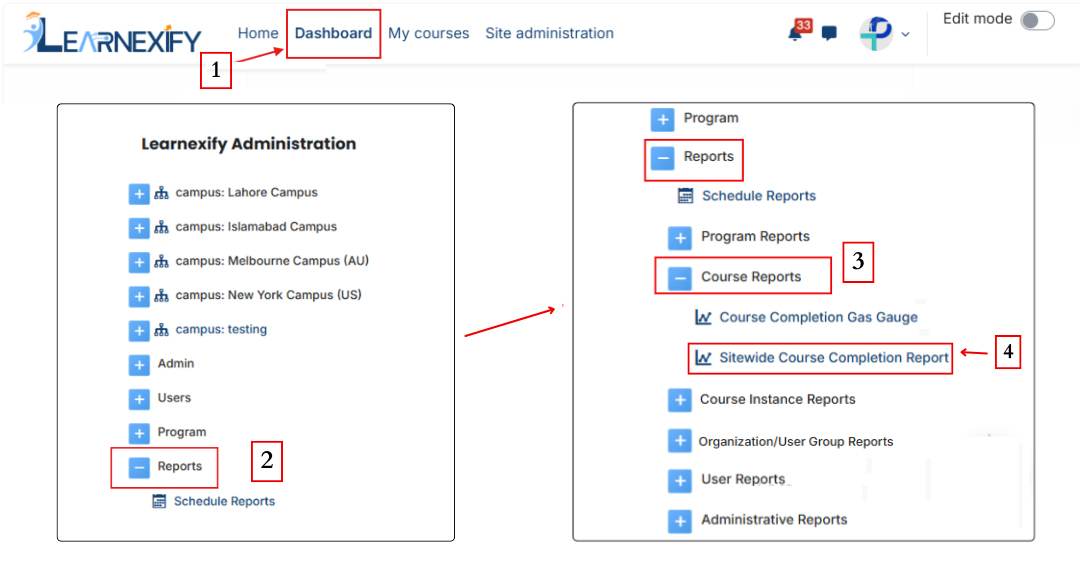](https://wiki.paktaleem.net/uploads/images/gallery/2026-06/course-2nd.png)
### **Report Requirements:**
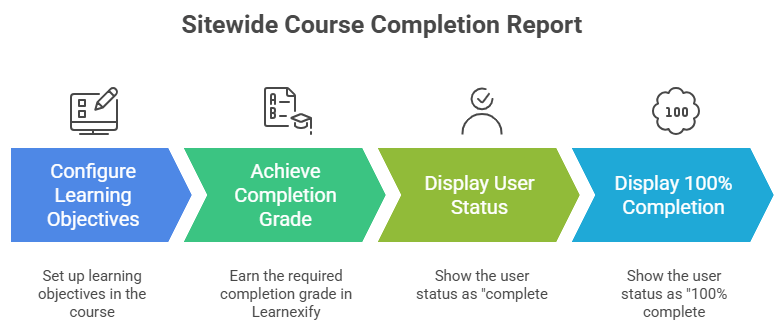
This **report requires** **learning objectives** to be configured in the course.
If learning objectives are not set up, the report may not display complete or accurate data.
The user status is **shown as “complete”** when the Learnexify completion grade is achieved. However, to **display 100% completion**, at least one **learning objective** must be configured in the course.
###
### **Configure Parameters:**
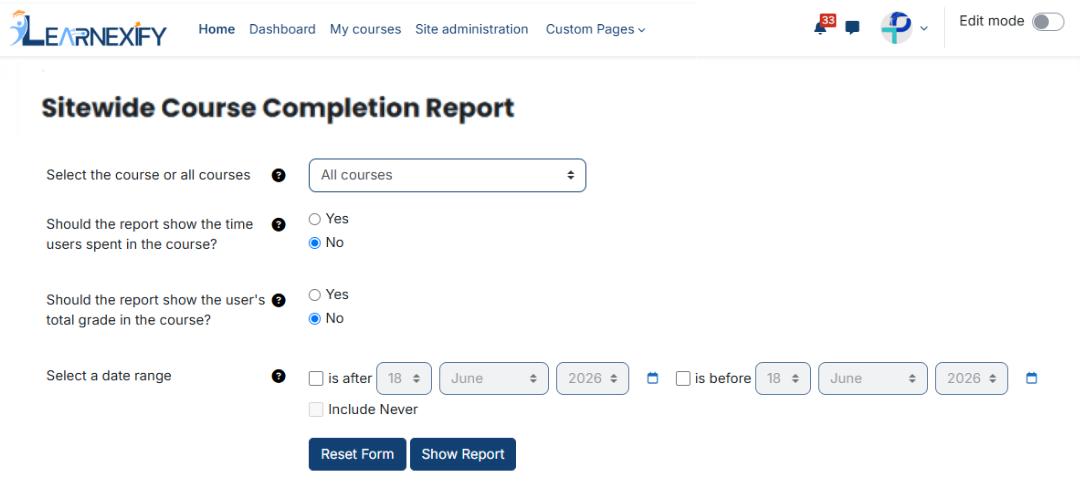
This report includes four configurable parameters:
**1. Course Selection:**
A specific course can be selected, or all courses can be included. Multi-selection is not allowed.
**2. Should the report include users’ time spent in the course?**
Select “Yes” to include the time users spent in the course.
Select “No” to exclude this information.
**3. Should the report display the user’s overall course grade?**
Select “Yes” to display the user’s total course grade.
Select “No” to hide the grade information.
**4. Date Range:**
This option is used to filter data based on a specific time period.
- Selecting only **“is after”** shows **courses completed** after a **specific date**
- Selecting only **“is before” shows courses completed** before a **specific date**
- Selecting both defines a date range for completed courses
- Enabling **“Never included”** allows inclusion of courses not completed within the selected time frame
[](https://wiki.paktaleem.net/uploads/images/gallery/2026-06/sitewide-course-completion-filter.png)
###
### **Explanation of Report Data:**
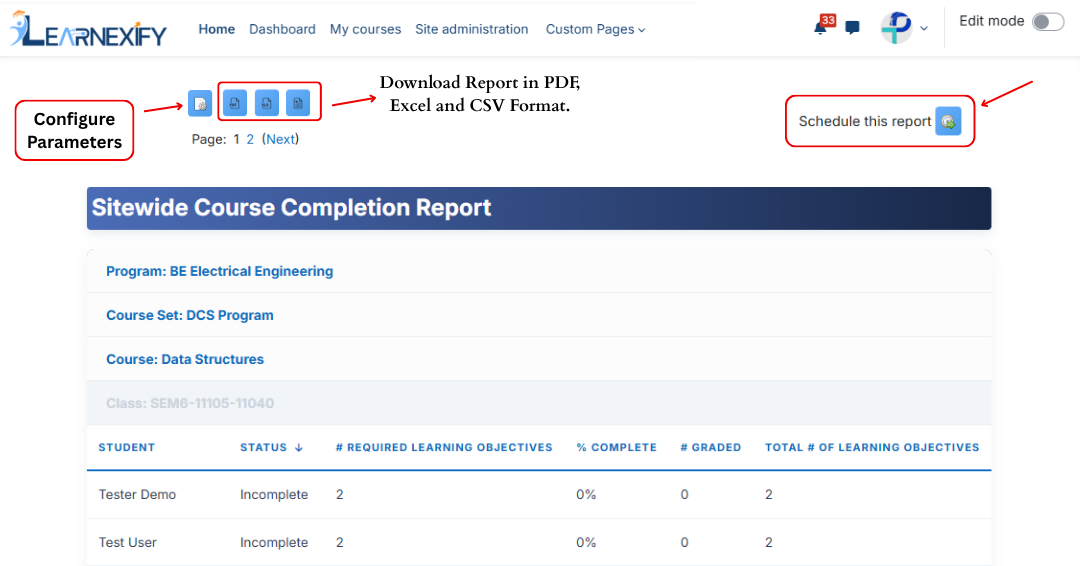
The **report displays** **course** and **user data based** on the **selected filters.**
If a course is **assigned** to a **program or course set**, that information is also shown along with course details.
- **Status →** Represents the overall completion status of the student. If completion requirements are met, the status is shown as “complete”.
- **\# Required Learning Objectives →** Shows the number of required learning objectives in the course. All required objectives must be completed for course completion.
- **% Complete →** Shows the percentage of required learning objectives completed by the learner.
- **\# Graded →** Represents the number of graded learning objectives that have been scored.
- **Total # of Learning Objectives →** Represents the total number of learning objectives in the course, including both required and optional.
- **Time Spent →** Shows the amount of time the learner has spent in the course within the selected date range.
- **Total Grade →** Shows the learner’s overall percentage grade in the course.
### **Report Scheduling, Configuration & Export:
**
Similar to other reports, this report also includes the same functionality:
- The report can be scheduled using the **Schedule Reports** option to be generated at a **specified date and time.**
- Report settings and filters can be modified using **Configure Parameters.**
- The report can be **exported** in **PDF, Excel and CSV formats.**
- Click the **Refresh button** at the **bottom center** to update the **report** with the latest data.
[](https://wiki.paktaleem.net/uploads/images/gallery/2026-06/sitewide-course-completion-report-view.png)
---