# 5.1 Individual Course Progress Report
Individual Course Progress Report is **used** to see how much **progress a user** is making in their Learnexify **courses.** Through this report, **both administrators and users** can view an overview of their learning activity. This is one of the default reports that **logged-in users** can access for their learning progress.
### **
Report Path: **
Dashboard ⟶ Side drawer ⟶ Reports ⟶ User Reports ⟶ Individual Course Progress Report
[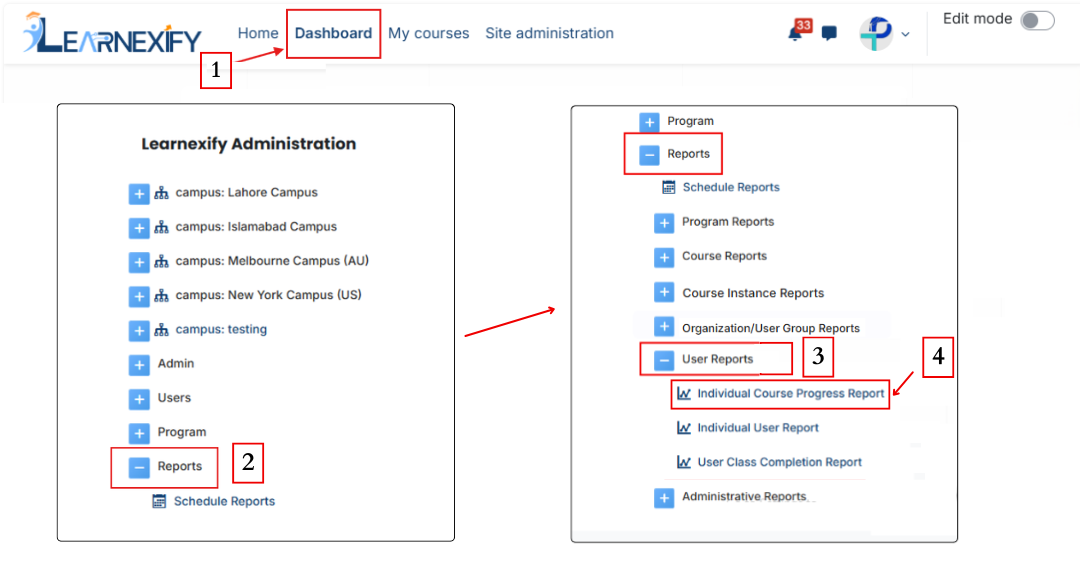](https://wiki.paktaleem.net/uploads/images/gallery/2026-06/1st.png)
###
### **Report Requirements:**
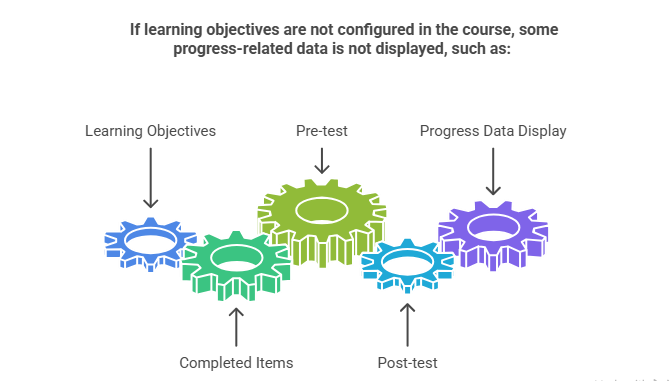
For this report, it is necessary that the user is enrolled in an **Learnexify class**.
###
### **Report Filters:**
In this report, the filter section includes a **Full Name option**, which is used to select a **specific user** and view their report data.
[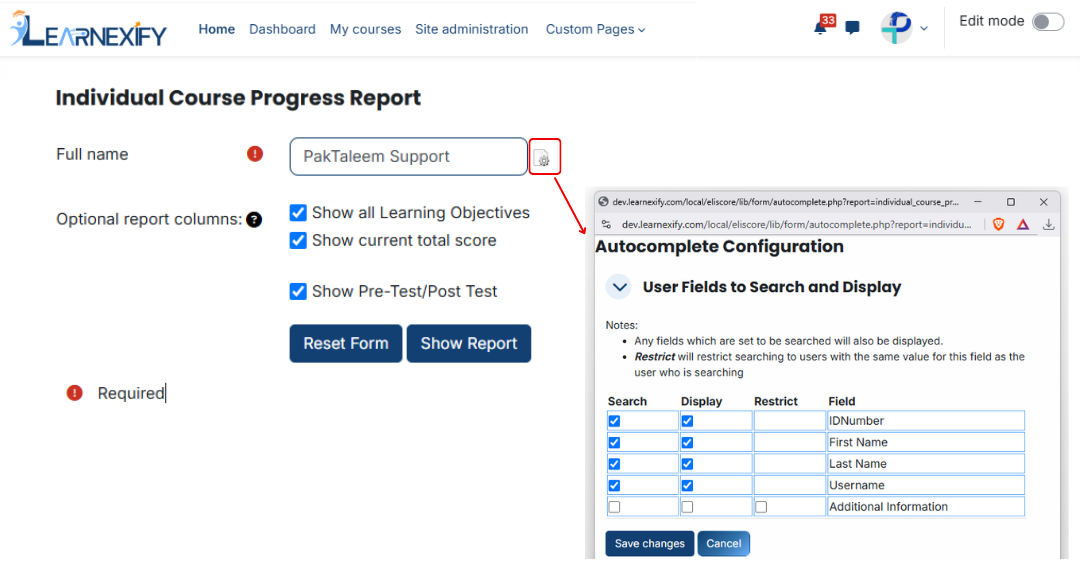](https://wiki.paktaleem.net/uploads/images/gallery/2026-06/course-progress-report-filter.png)
In addition, optional report columns include:
- **Show All Learning Objectives →** Displays data of all learning objectives
- **Show Current Total Score →** Displays the user’s overall current score
- **Show Pre-Test / Post-Test →** Includes pre-test and post-test results in the report
**Required columns** can be selected using **checkboxes.**
[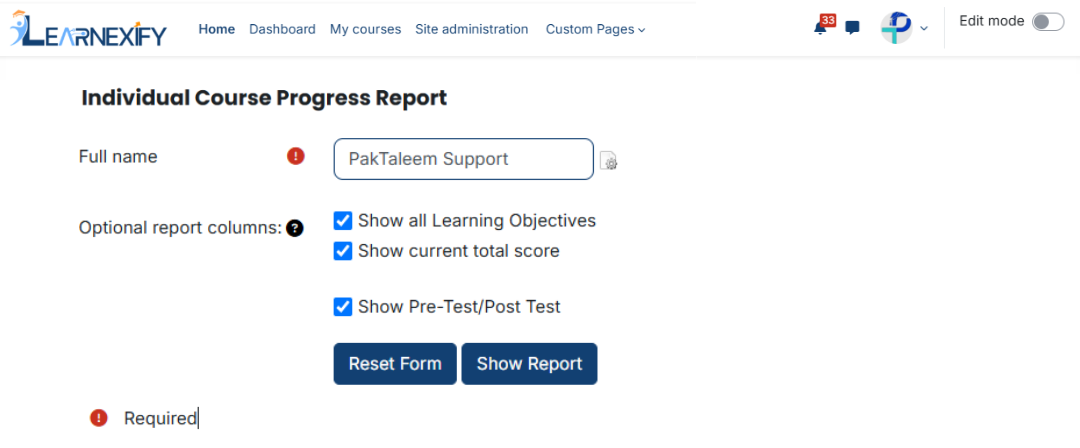](https://wiki.paktaleem.net/uploads/images/gallery/2026-06/Yk0course-progress-report-2nd-filter.png)
###
### **Generate Report:**
When all required settings and fields are selected, click the **Show Report button.**
After this, the system **generates** the report for the **selected user** and displays it on the course progress screen.
###
### **Report View:**
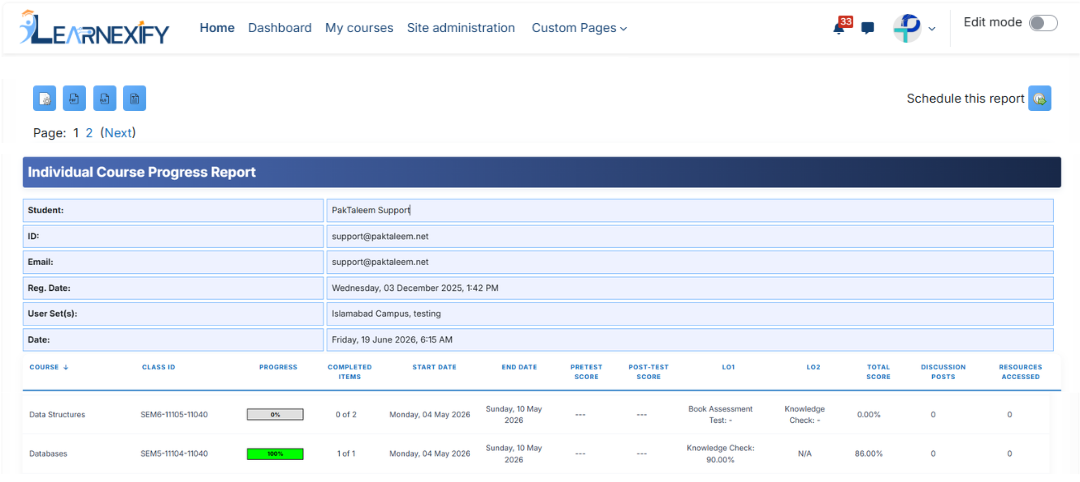
The report shows user course-level progress in detail.
- **Student →** User’s name
- **ID →** User’s unique ID number
- **Email →** User’s email address
- **Reg. Date →** Account creation date
- **User group (s) →** User’s assigned user group s
- **Date →** Report generation date
- **Course →** Course in which the user is enrolled or has completed
- **Class ID →** Related Learnexify class ID number
- **Progress →** Progress based on learning objectives (if available)|
- **Completed Items →** Ratio of completed vs total objectives (if available)
- **Start Date →** Course start or enrollment date
- **End Date →** Course completion date
- **Pretest Score →** Pre-test result (if available)
- **Post-test Score →** Post-test result (if available)
- **LO1 →** Status of first learning objective (e.g., Book Assessment Test, Knowledge Check, or N/A)
- **LO2 →** Status of second learning objective (e.g., Knowledge Check or N/A)
- **Total Score →** Overall percentage score (e.g., 0.00%, 100.00%)
- **Discussion Posts →** Total number of discussion posts
- **Resources Accessed →** Course resources accessed by the user
[](https://wiki.paktaleem.net/uploads/images/gallery/2026-06/47bcourse-progress-report-view.png)
###
### **Report Scheduling, Export & Refresh:**
This report **includes** the same options as other reports:
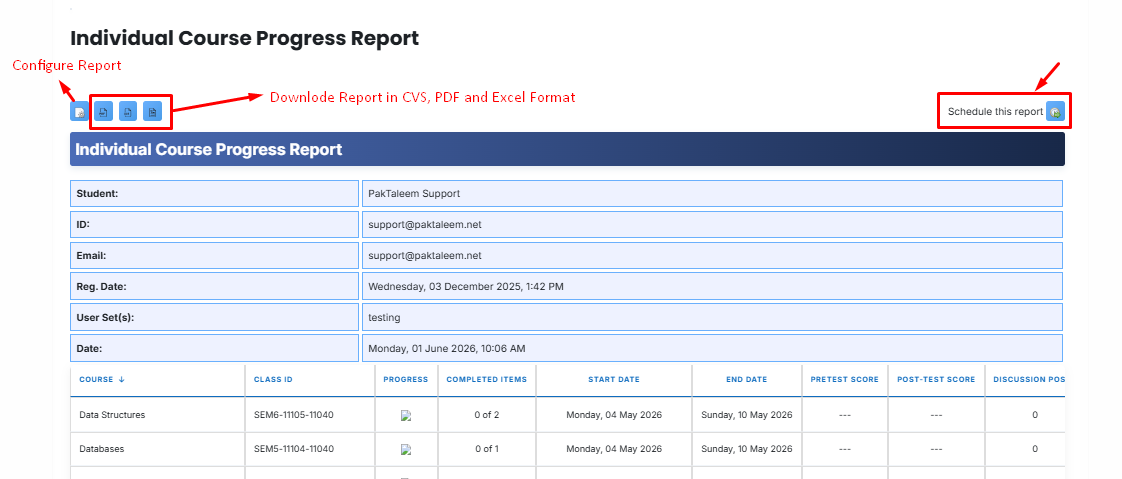
- The report can be scheduled using the **Schedule Reports** option to be generated at a **specified date and time.**
- Report settings and **filters** can be **modified using Configure Parameters.**
- The report can be **exported** in **both PDF and CSV formats.**
- Click the **Refresh button** at the **bottom center** to update the **report** with the latest data.
---