6.2 Attendance Report
The Attendance Report allows administrators to monitor student's attendance performance across their entire academic journey. Unlike standard reports, it groups data by Program and Semester, allowing you to see how a student is performing across multiple courses simultaneously. It brings all the attendance data into one page and organizes it by the student's Program (Degree) and Semester.
Key Benefits:
-
Hierarchical View: Attendance is grouped by Program → Semester → Course.
-
Consolidated Data: View totals for specific semesters and overall program performance.
-
Real-time Accuracy: Pulls live data directly from course-level attendance activities.
-
Multi-format Export: Professional exports for PDF, Excel, and CSV.
How to Open the Report:
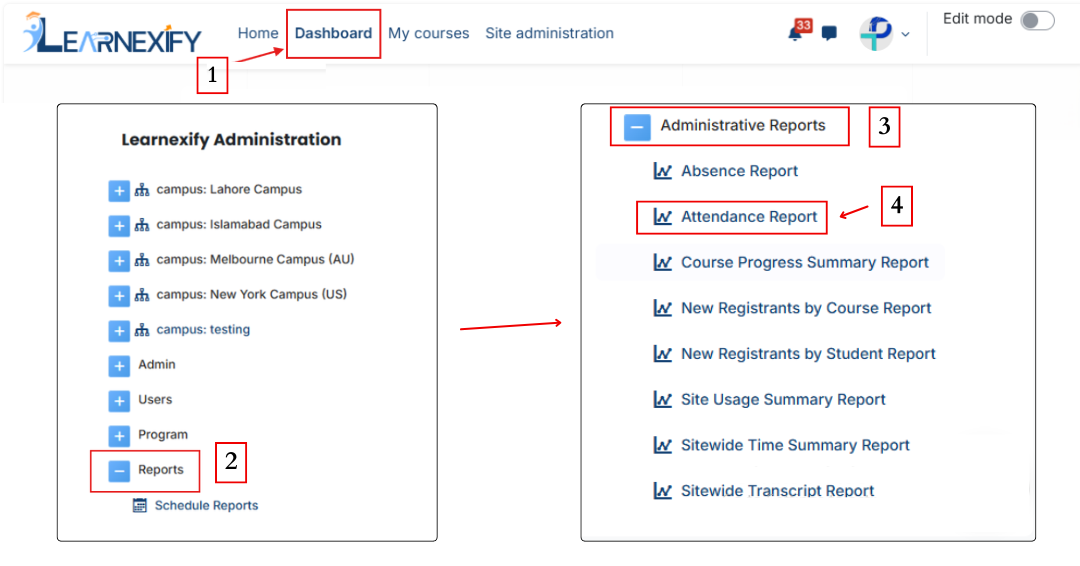
- Open the Learnexify Dashboard.
- Open the Side Drawer (the menu on the left).
- Click on Reports.
- Click on Administrative Report.
- Click on Attendance Report.
How to Search for a Student:
Once the page opens:
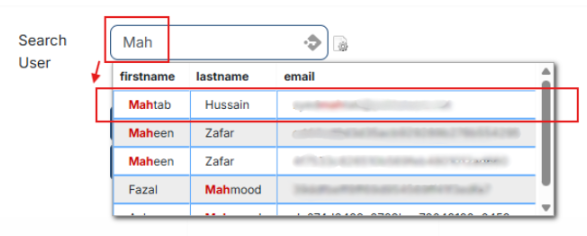
- Type the student's Name or Email in the search box.
- Click the student's name when it appears.
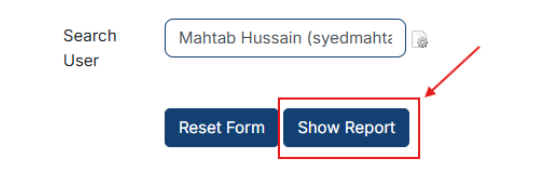
- Click the Show Report button.
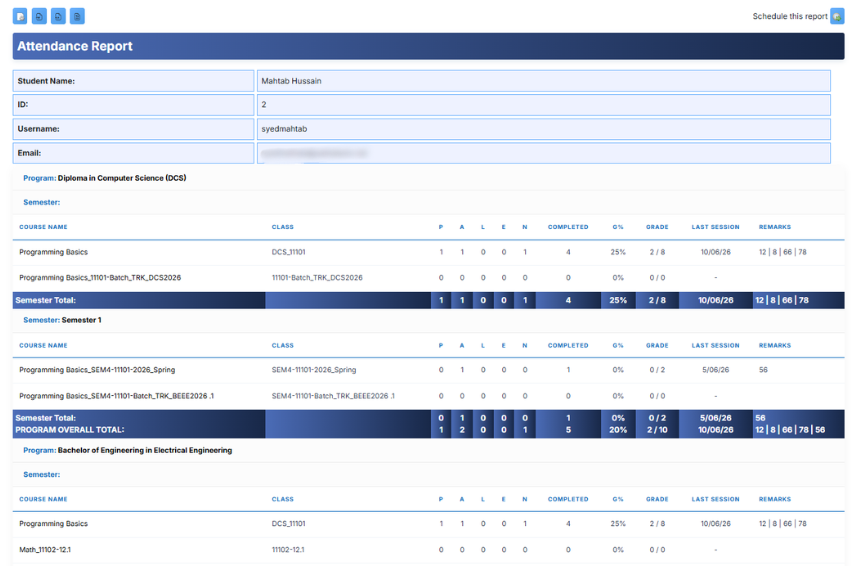
This shows the main report page with the student's name at the top and their courses listed below.
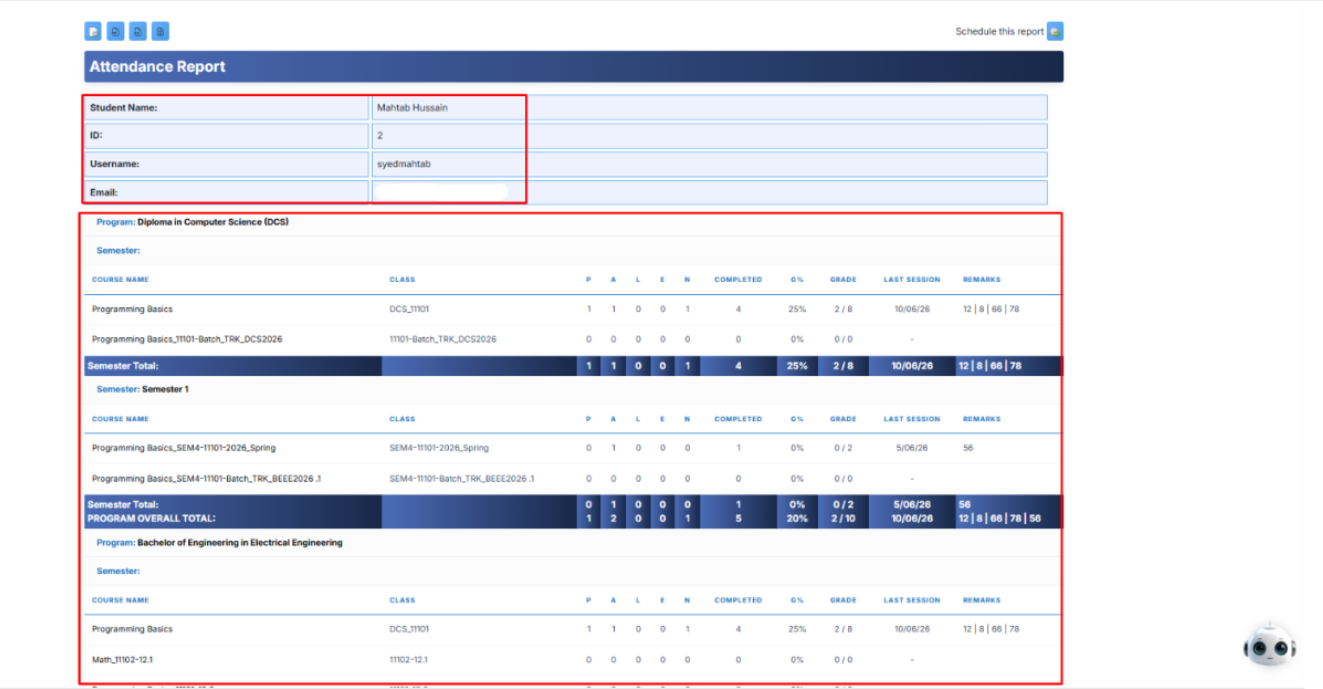
The report collects attendance information directly from the Attendance module configured within each individual course. It uses the following columns to provide a comprehensive view:
- P (Present): The student was in class.
- A (Absent): The student missed the class.
- L (Late): The student arrived after the class started.
- E (Early): The student left before the class ended.
- G%: This is the total attendance percentage for that specific course.
- Grade: The actual numerical grade or points earned based on the attendance settings.
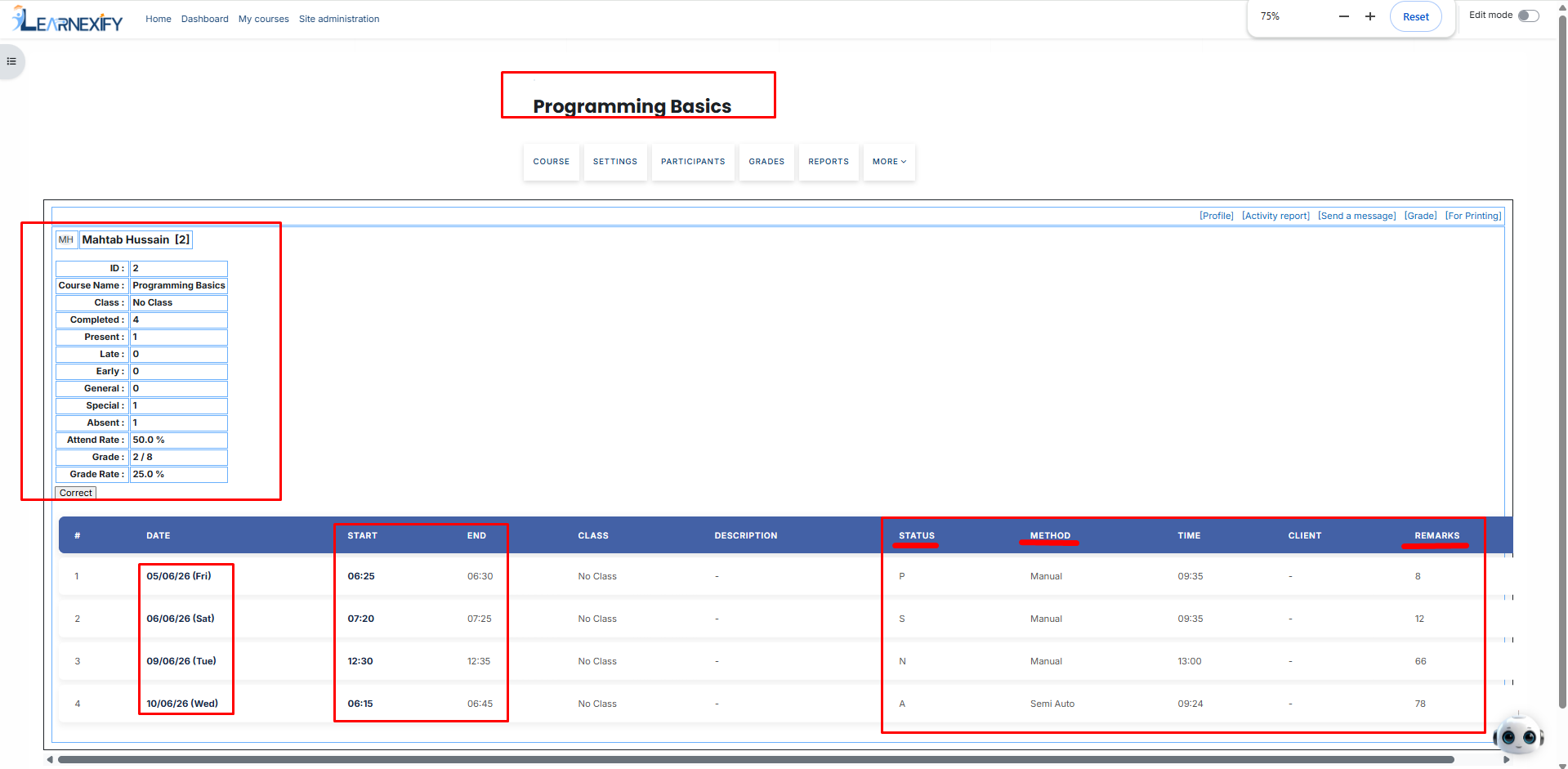
- Last Session: Displays the date of the most recent attendance entry for that course.
-
Remarks: Shows any specific notes or comments recorded by the instructor during the session.
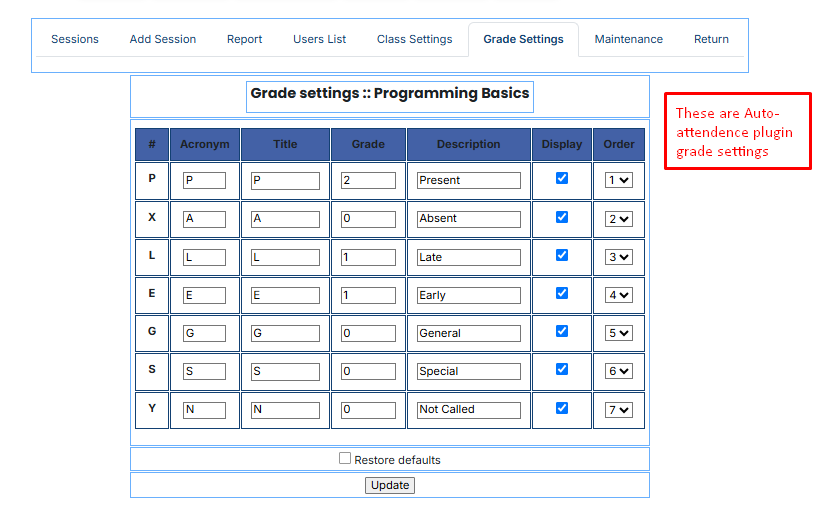
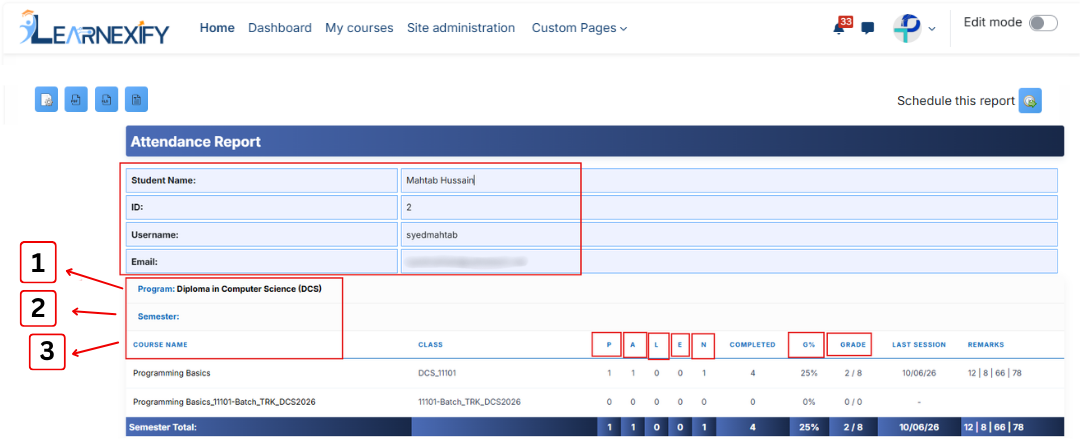
The report is organized like a tree, calculating totals at every level to show a student's overall performance:
- Program Name: At the top of the tree, the report calculates and presents the user's overall program attendance by aggregating records across all semesters.
- Semester: Below the program, the report displays the user's overall attendance for each semester by combining data from all courses within that specific term.
- Course Name: Finally, it lists the individual courses where the raw data is pulled from.
This image shows a close-up of a student's specific attendance record for one course.
Report Actions:
- Report settings and filters can be modified using Configure Parameters.
- The report can be exported in both PDF and CSV formats.
- The report can be scheduled using the Schedule Reports option to be generated at a specified date and time.
These options allow the report to be saved locally on the system.

Refresh the Report Data:
The report data can be refreshed to show the latest information without reopening or reapplying parameters. Click the Refresh button at the bottom center of the page, and the system will reload the report with updated data automatically.

Setup Guide: How to Make the Report Work:
To make the Attendance Report work, you must connect your daily classroom activities to your academic degree structure. Follow these steps:
1. Create a Course
Create the course that will be used for teaching and classroom activities.
2. Create a Course Description
Create a Course Description and fetch the required Course. The Course Description acts as a reusable academic definition that can be assigned to semesters.
3. Create Semesters
Create the required semesters and assign the relevant Course Descriptions to each semester.
4. Create a Program
Create a Program and add the semesters to build a complete degree structure (for example, a 2-year Diploma or a 4-year Bachelor's degree).
5. Create a Batch and Configure Automation
Within the Program, create a batch for a specific student intake or for all batches, as required.
6. Add All Course Instances
Click the "Add All Course Instances" button. This automatically creates and links all course instances to their respective classrooms, ensuring that attendance data is correctly organized by Program and Semester in the Attendance Report.
-
Marking Attendance: The teacher goes into the Learnexify course and marks students as Present (P) or Absent (A) etc. using the Auto-Attendance tool.

-
Viewing the Report: Open the Attendance Report. You will now see all that daily data organized perfectly by Program and Semester.