# 6.2 Attendance Report
The Attendance Report **allows administrators** to monitor **student's attendance performance** across their entire academic journey. Unlike standard reports, it groups data by Program and Semester, allowing you to see **how a student is performing** across multiple courses simultaneously. It brings all the attendance data into one page and **organizes** it by the student's Program (Degree) and Semester.
### **
Key Benefits:**
- **Hierarchical View:** Attendance is grouped by Program → Semester → Course.
- **Consolidated Data:** View totals for specific semesters and overall program performance.
- **Real-time Accuracy:** Pulls live data directly from course-level attendance activities.
- **Multi-format Export:** Professional exports for PDF, Excel, and CSV.
### **How to Open the Report:**
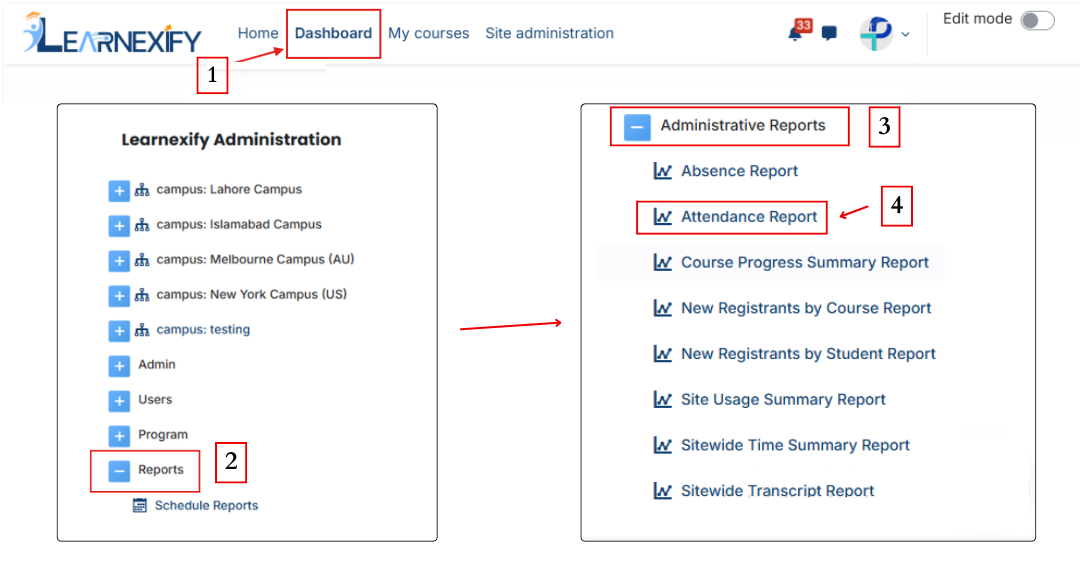
- Open the Learnexify Dashboard.
- Open the Side Drawer (the menu on the left).
- Click on Reports.
- Click on Administrative Report.
- Click on Attendance Report.
[](https://wiki.paktaleem.net/uploads/images/gallery/2026-06/attendenereport.png)
### **
How to Search for a Student:**
**Once the page opens:**
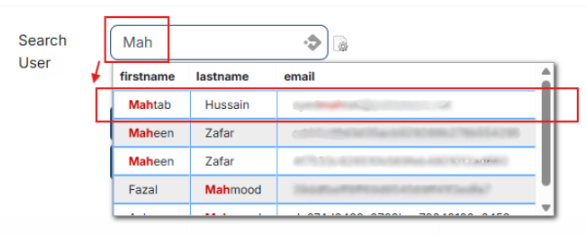
- Type the **student's Name** or **Email** in the search box.
- Click the student's name when it appears.
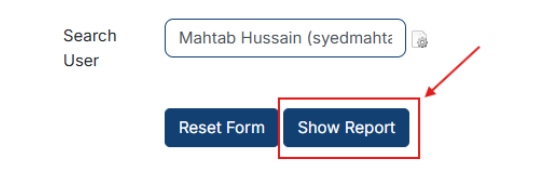
- Click the **Show Report button.**
[](https://wiki.paktaleem.net/uploads/images/gallery/2026-07/Gluimage.png)
[](https://wiki.paktaleem.net/uploads/images/gallery/2026-07/Wkmimage.png)
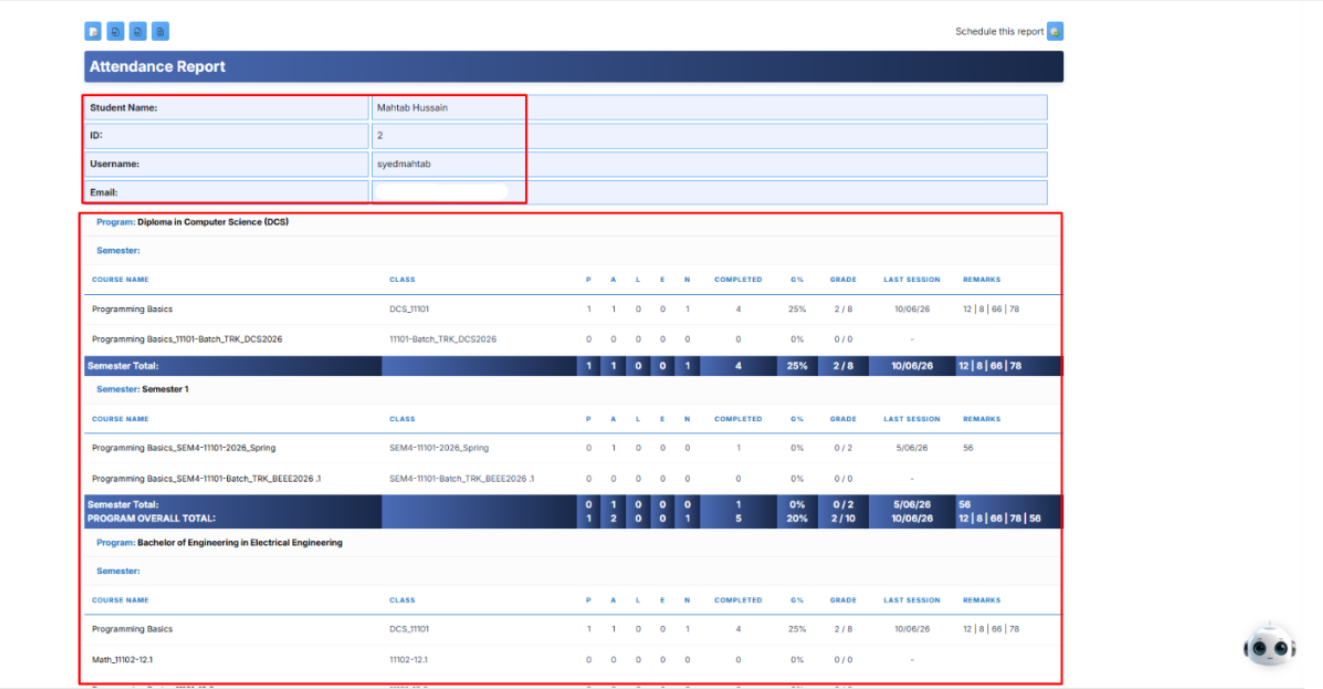
This shows the **main report page** with the **student's name** at the top and their courses listed below.
[](https://wiki.paktaleem.net/uploads/images/gallery/2026-09/fiMJ3u9OqNUWH5Ix-image.png)
The report collects attendance information directly from the Attendance module configured within each individual course. It uses the following columns to provide a comprehensive view:
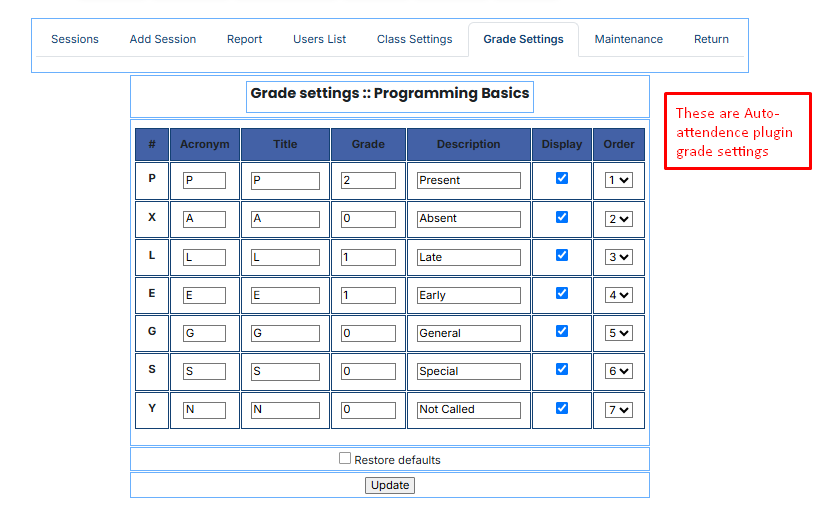
- **P (Present):** The student was in class.
- **A (Absent):** The student missed the class.
- **L (Late):** The student arrived after the class started.
- **E (Early):** The student left before the class ended.
- **G%:** This is the total attendance percentage for that specific course.
- **Grade:** The actual numerical grade or points earned based on the attendance settings.
- **Last Session:** Displays the date of the most recent attendance entry for that course.
- ##### **Remarks:** Shows any specific notes or comments recorded by the instructor during the session.
[](https://wiki.paktaleem.net/uploads/images/gallery/2026-07/image-1.png)
[](https://wiki.paktaleem.net/uploads/images/gallery/2026-07/image-2.png)
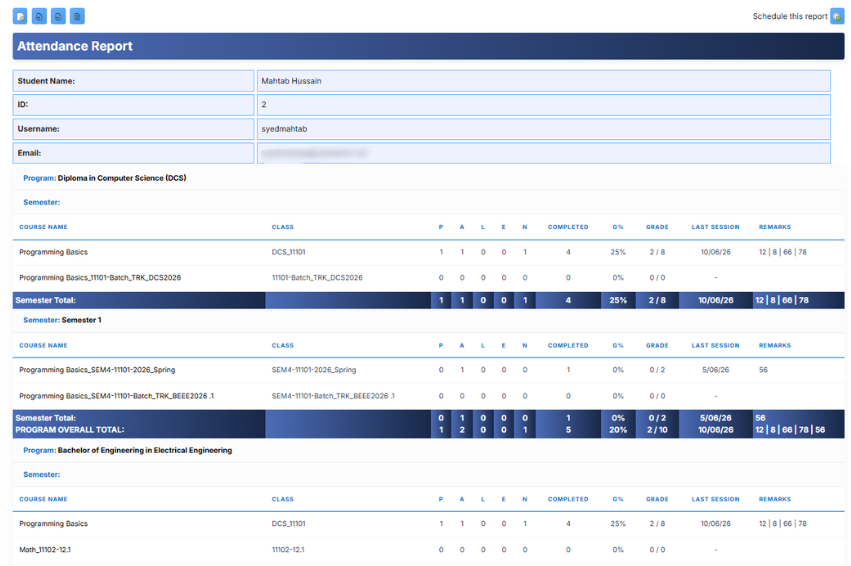
The report is organized like a **tree**, calculating totals at every level to show a student's overall performance:
- **Program Name:** At the top of the tree, the report calculates and presents the user's overall program attendance by aggregating records across all semesters.
- **Semester:** Below the program, the report displays the user's overall attendance for each semester by combining data from all courses within that specific term.
- **Course Name:** Finally, it lists the individual courses where the raw data is pulled from.
[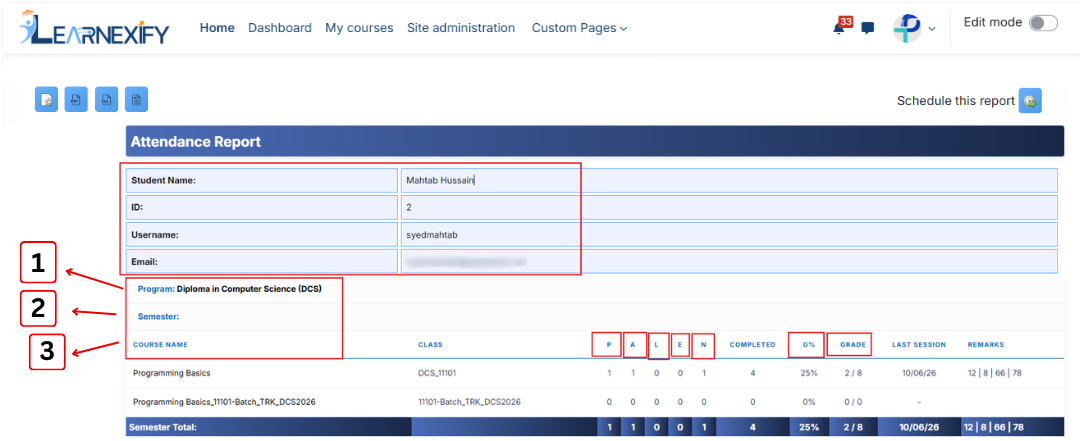](https://wiki.paktaleem.net/uploads/images/gallery/2026-06/1-2-3.png)
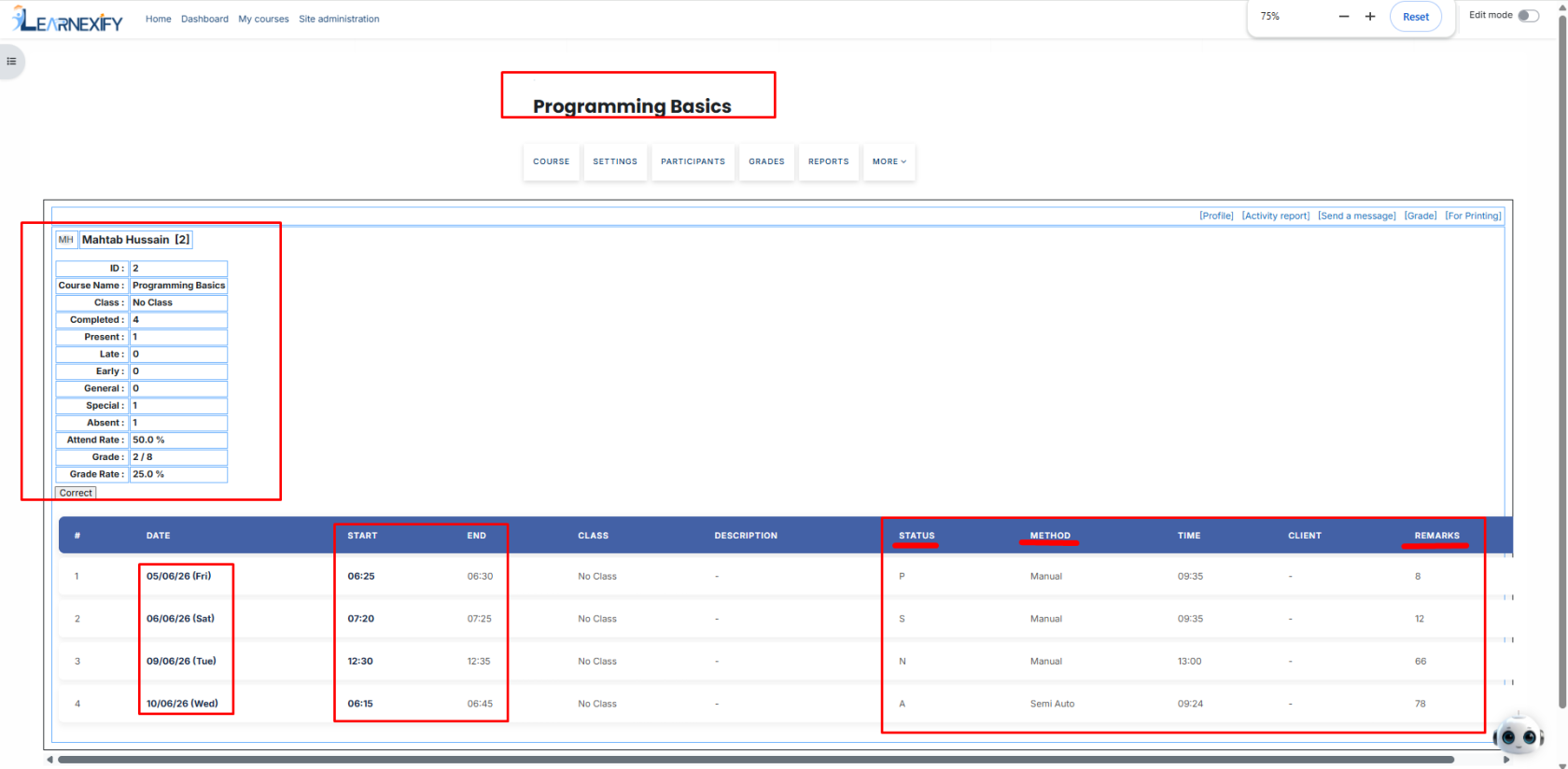
This image shows a close-up of a student's specific attendance record for one course.
###
### **Report Actions:**
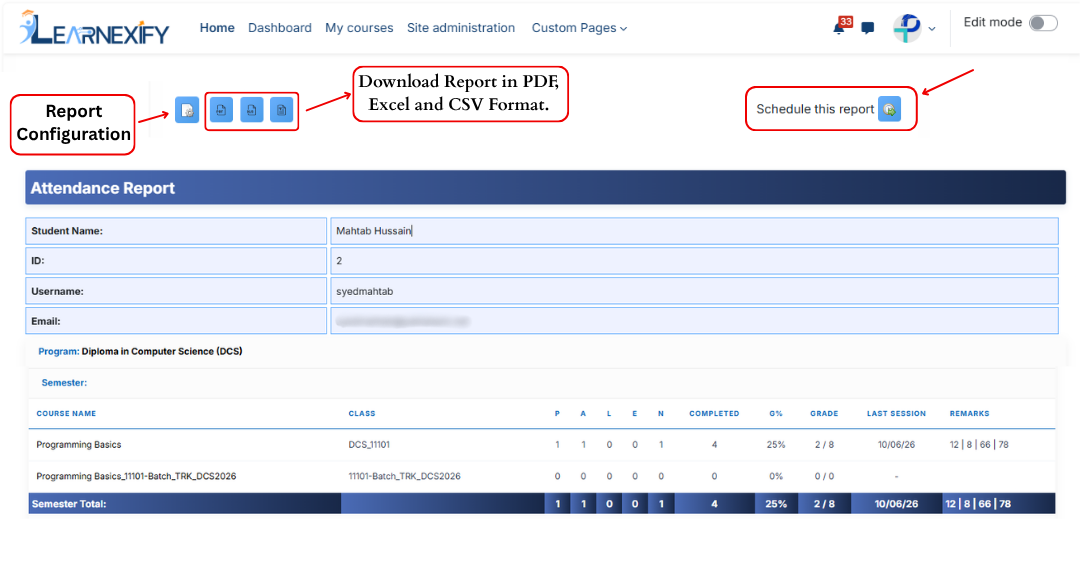
- **Report settings** and filters can be **modified** using **Configure Parameters.**
- The report can be **exported** in both **PDF and CSV formats.**
- The report can be scheduled using the **Schedule Reports** option to be generated at a **specified date and time.**
These options allow the report to be saved locally on the system.
###
###
### **Refresh the Report Data:**
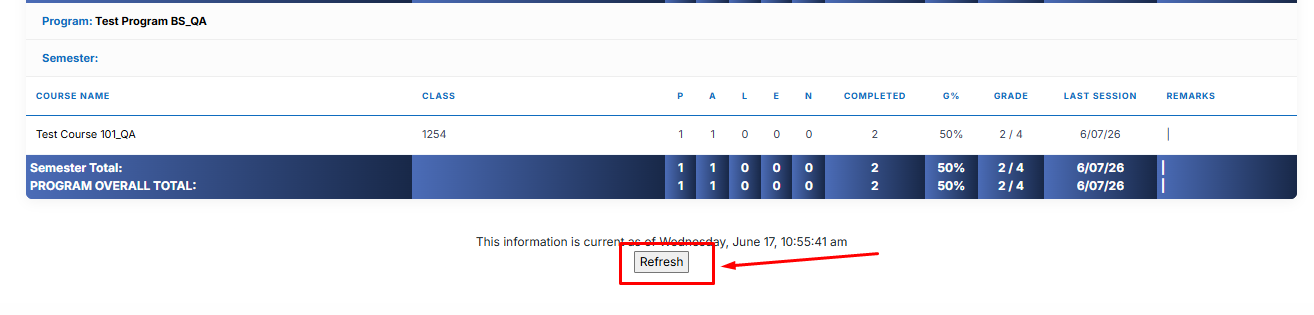
The report data can be **refreshed** to show the latest information **without reopening** or reapplying **parameters.** Click the **Refresh button** at the **bottom center** of the page, and the system will reload the report with updated data automatically.
###
### **Setup Guide: How to Make the Report Work:**
To make the **Attendance Report** work, you must connect your daily classroom activities to your academic degree structure. Follow these steps:
**1. Create a Course**
Create the course that will be used for teaching and classroom activities.
**2. Create a Course Description**
Create a Course Description and fetch the required Course. The Course Description acts as a reusable academic definition that can be assigned to semesters.
**3. Create Semesters**
Create the required semesters and assign the relevant Course Descriptions to each semester.
**4. Create a Program**
Create a Program and add the semesters to build a complete degree structure (for example, a 2-year Diploma or a 4-year Bachelor's degree).
**5. Create a Batch and Configure Automation**
Within the Program, create a batch for a specific student intake or for all batches, as required.
**6. Add All Course Instances**
Click the **"Add All Course Instances"** button. This automatically creates and links all course instances to their respective classrooms, ensuring that attendance data is correctly organized by Program and Semester in the Attendance Report.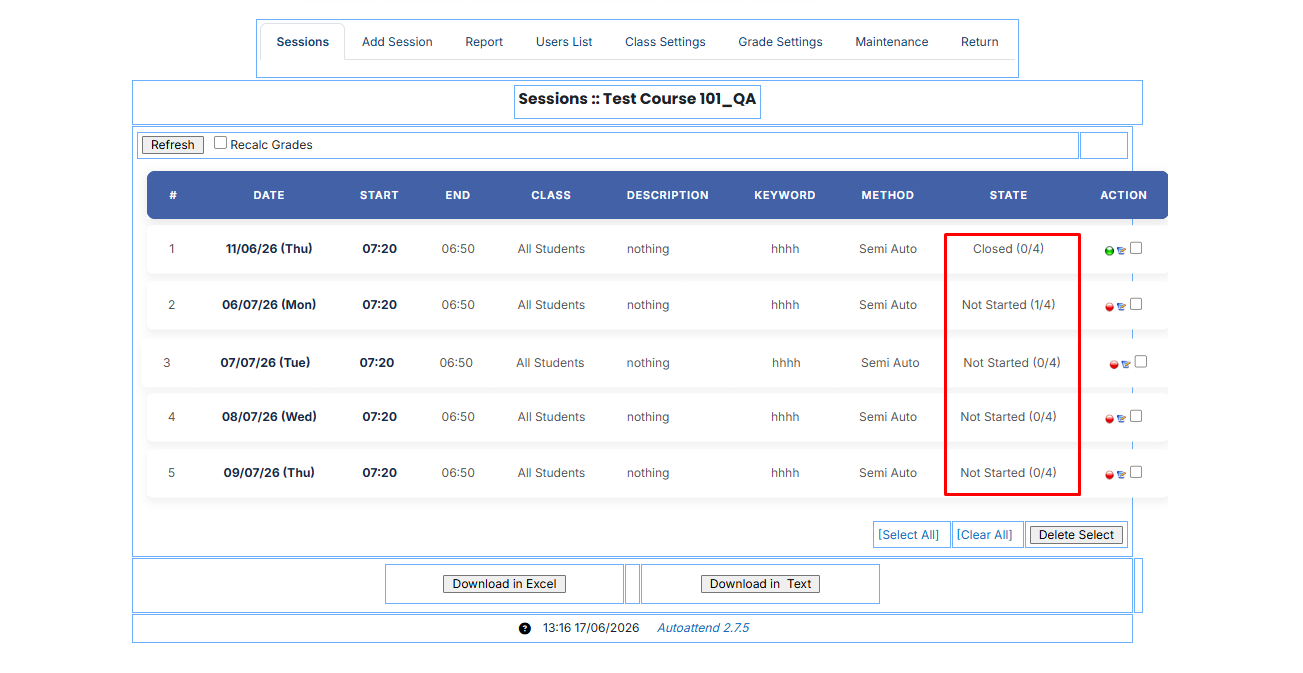
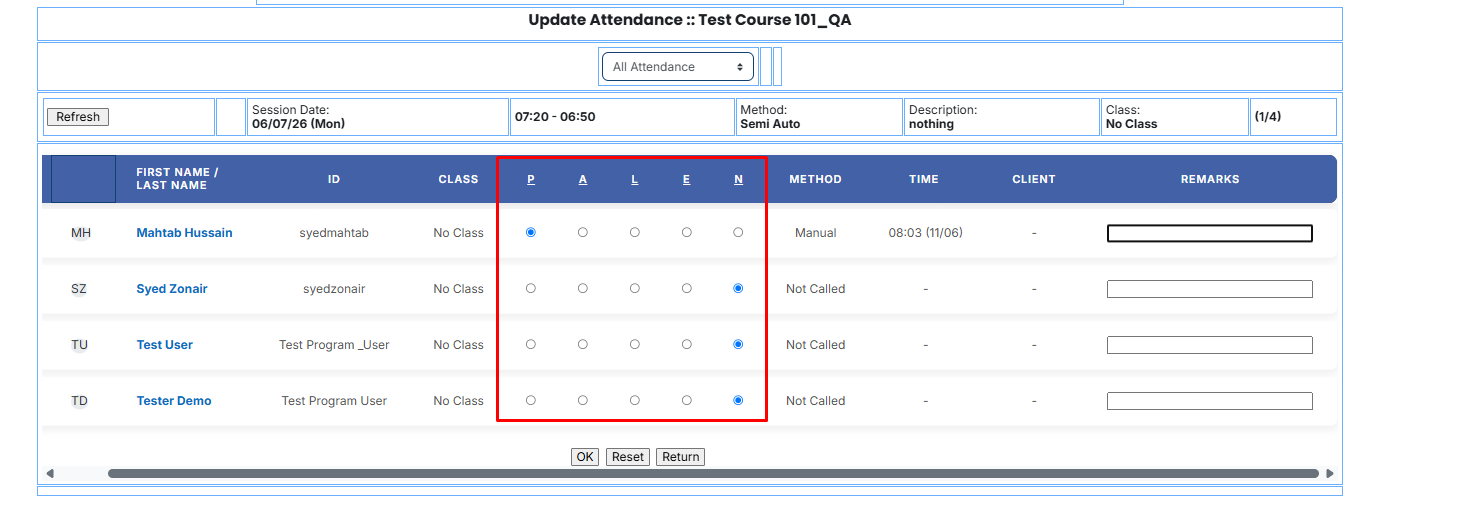
- **Marking Attendance:** The teacher goes into the Learnexify course and marks students as **Present (P)** or **Absent (A) etc.** using the **Auto-Attendance tool.**
##### 
- **Viewing the Report:** Open the **Attendance Report.** You will now see all that **daily data organized** perfectly by Program and Semester.
[](https://wiki.paktaleem.net/uploads/images/gallery/2026-06/1rDfinal-report.png)