# 6.3 Course Progress Summary Report
The Course Description Progress Summary Report provides administrators with a **clear overview of learners’** **overall progress** toward course completion. The main purpose of this report is to monitor student performance and progress within Course Descriptions.
### **
Report Path: **
Dashboard ⟶ Side drawer ⟶ Reports ⟶ Administrative Reports ⟶ Course Progress Summary Report
[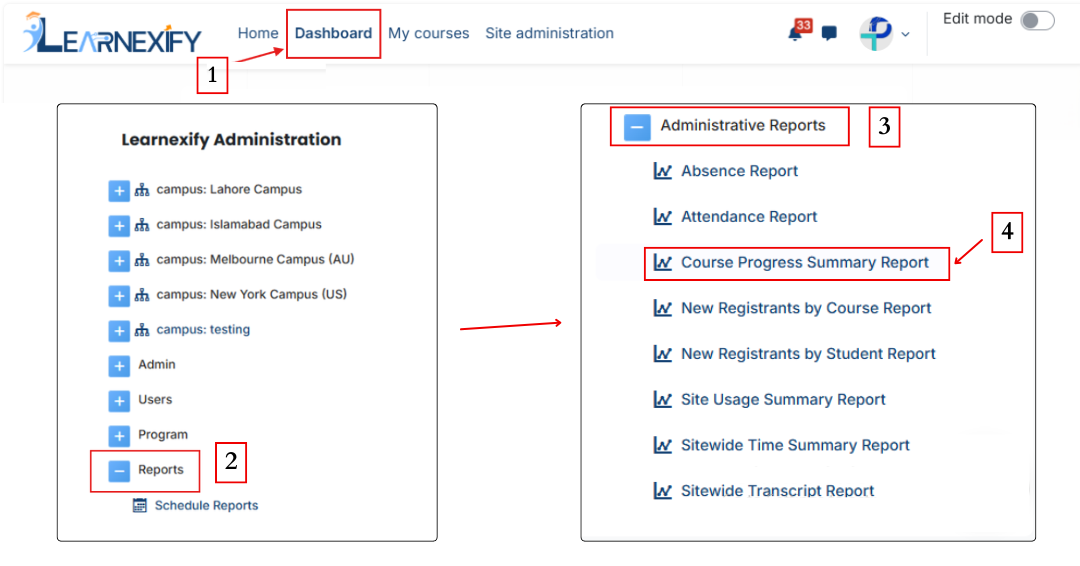](https://wiki.paktaleem.net/uploads/images/gallery/2026-06/course-progress-summary-report.png)
### **
Report Requirements:**
If a Program is selected in this report, the following conditions apply:
- The user must be **enrolled** in a **class** whose **parent Course Description** is linked to the **selected Program.**
- The user must be assigned to that **Program or Batch.**
If these conditions are **not met**, the user will not be **included in the report.**
### **
Report Filters:**
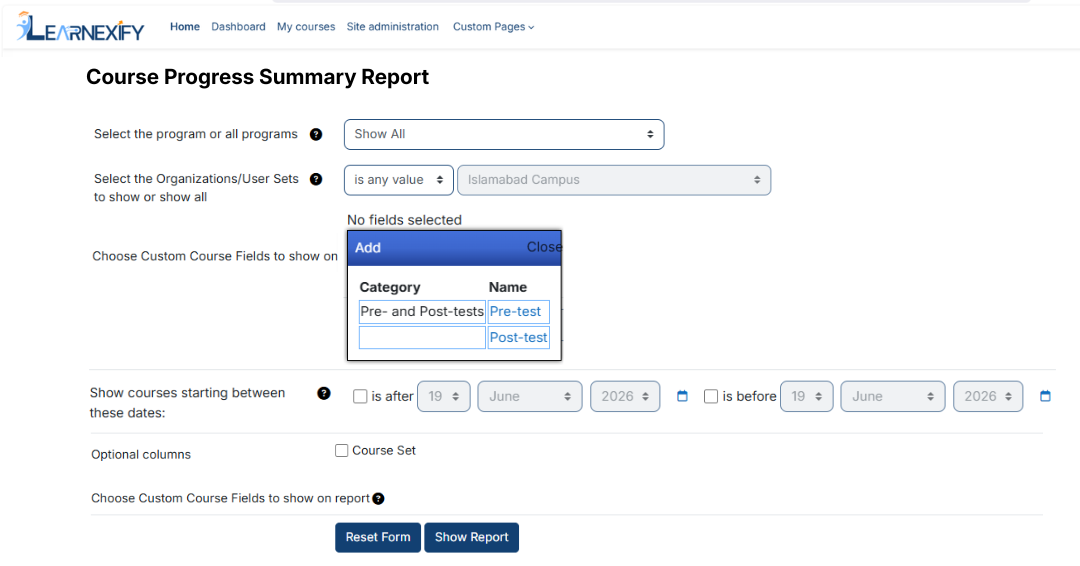
This report includes multiple filters that are used to customize and refine the data:
- **Program Selection (All or Specific Program) →** defines the academic scope by selecting a specific program or all available programs
- **Organizations / User Groups →** filters report data based on campus, department, or specific student batches
- **Custom Course Fields (Add Option) →** allows adding extra course-specific metadata as additional report columns
- **Date Range (Course Start Dates) →** limits the report to courses that officially commenced within a selected timeframe
- **Course Set (optional column) →** displays the sub-grouping of courses within a program for detailed Batching
These filters **allow administrators** to narrow down the report data according to **required criteria.** After selecting the **relevant fields** and applying the **desired filter options**, the report can be generated.
- The system then processes the selected filters and generates the report on screen.
- Once generated, the report displays all relevant Course Description progress data according to the selected criteria.
[](https://wiki.paktaleem.net/uploads/images/gallery/2026-06/course-progress-summary-report-filter.png)
### **
Generate Report:**
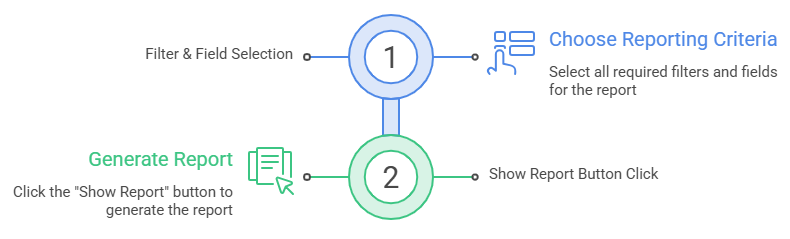
After selecting the **required filters** and fields, the report is generated as **follows:**
- First, all required filters and fields are selected based on the reporting need.
- After selecting the desired options, click on the **Show Report button.**
[](https://wiki.paktaleem.net/uploads/images/gallery/2026-06/after-selecting-the-required-filters-and-fields-the-report-is-generated-as-follows-visual-selection.png)
### **
Report Output:**
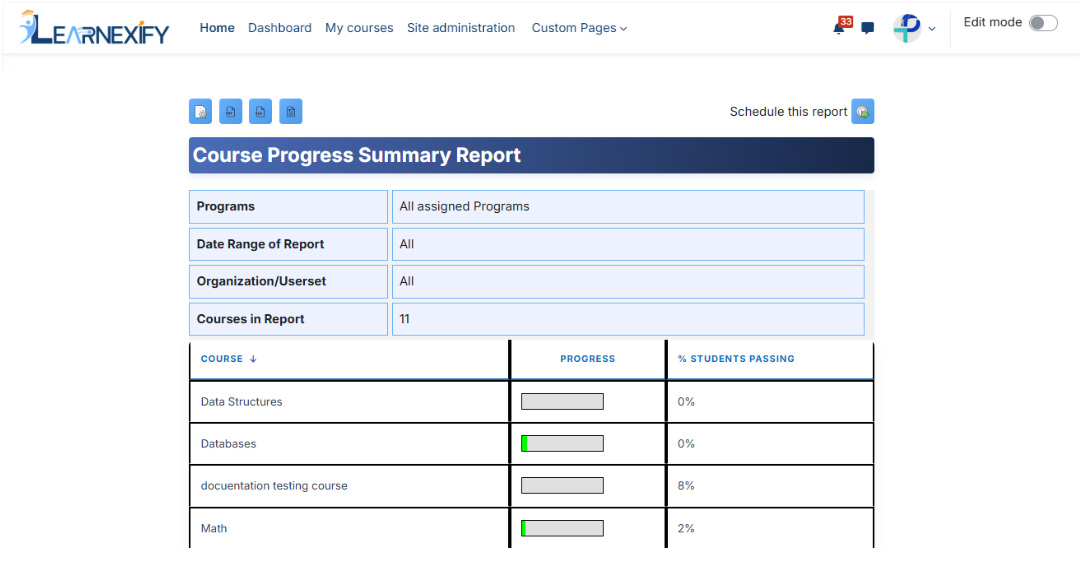
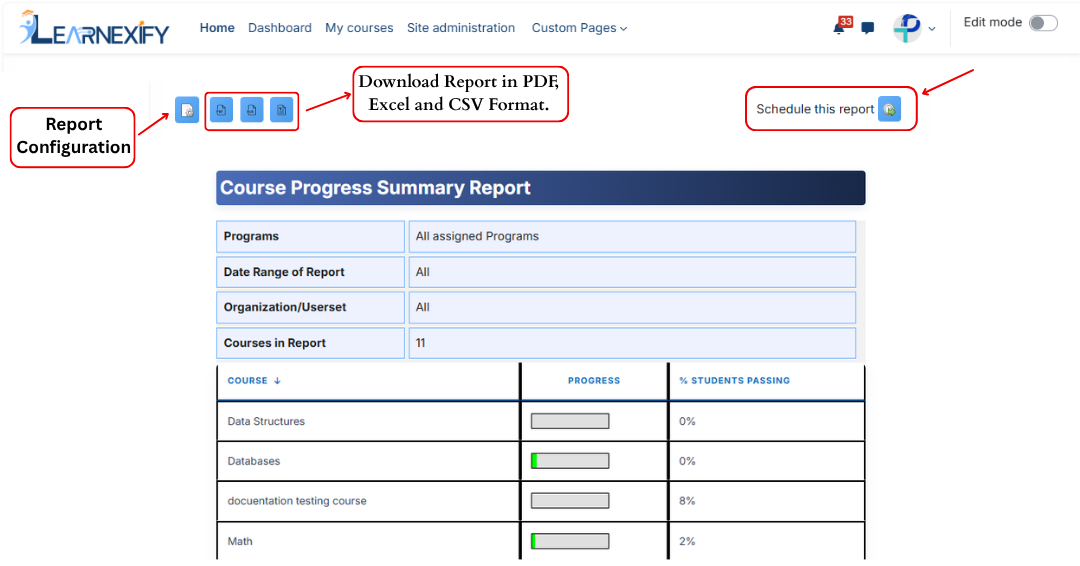
The report displays the **following information** **based** on **selected filters:**
- **Programs →** Selected program or “All” if not selected
- **Date Range of Report →** Selected course start period
- **Organization / User Group →** Selected user group or all users
- **Course Descriptions in Report →** Total number of Course Descriptions included
- **Course Description →** Names of included Learnexify Course Descriptions
- **Progress →** Learner progress based on learning objectives (or “N/A” if not defined)
- **% Students Passing →** Percentage of students meeting required grade criteria (or “N/A” if not set)
[](https://wiki.paktaleem.net/uploads/images/gallery/2026-06/course-progress-summary-report-view.png)
### **
Report Actions (Refresh & Export):
**
- **Report settings** and filters can be **modified** using **Configure Parameters.**
- The report can be **exported** in **both PDF and CSV formats.**
- The report can be scheduled using the **Schedule Reports** option to be generated at a **specified date and time.**
- Click the **Refresh button** at the **bottom center** to update the report with the **latest data.**
[](https://wiki.paktaleem.net/uploads/images/gallery/2026-06/course-progress-summary-report-actions.png)