# 6.5 New Registrants by Student Report
The New Registrants Grouped by Student Report displays **a list of users** who have **newly enrolled** in **Learnexify Course Descriptions** within a **selected time period.** The report organizes the **data student-wise,** where each student is listed along with the **Course Descriptions** they have newly enrolled in and their corresponding enrollment dates.
If a user has not **newly enrolled** in any Course Description within the selected **time frame**, that user will not appear in the report.
### **
Report Path: **
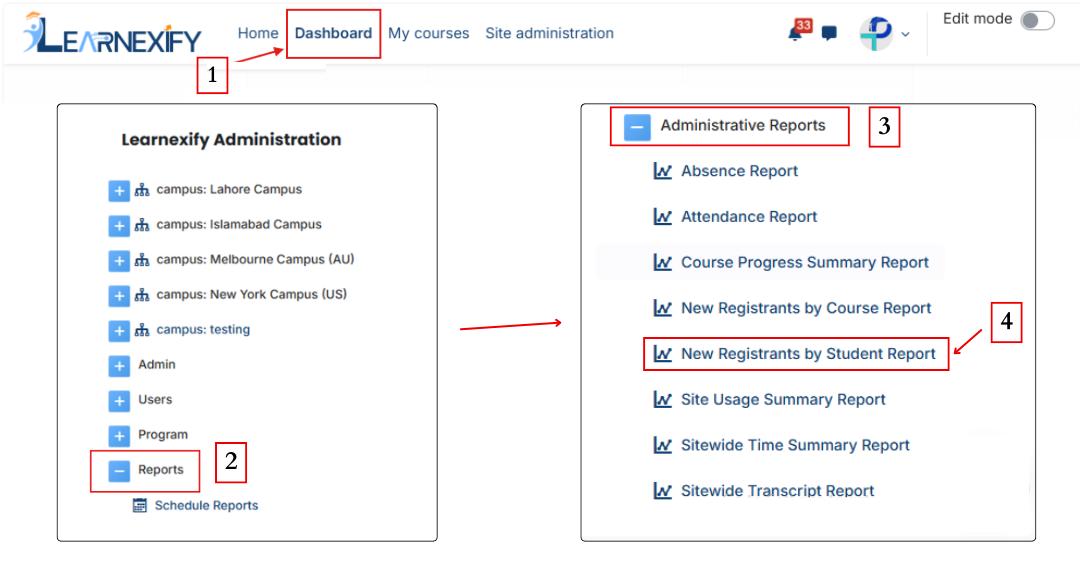
Dashboard ⟶ Side drawer ⟶ Reports ⟶ Administrative Reports ⟶ New Registrants by Student Report
[](https://wiki.paktaleem.net/uploads/images/gallery/2026-06/new-registrants-by-student.png)
###
### **Report Requirements:**
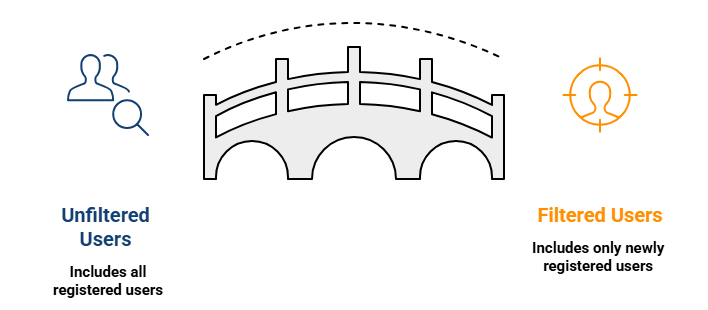
This report includes only **those users** who:
- Have **newly registered** in an Learnexify **Course Description** within the **selected time period** (if a date filter is applied)
[](https://wiki.paktaleem.net/uploads/images/gallery/2026-06/this-report-includes-only-those-users-who-visual-selection.png)
###
### **Report Filters:**
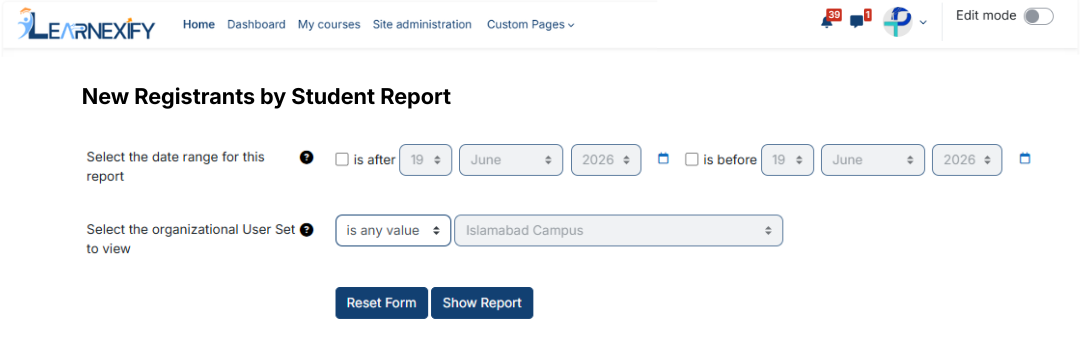
This report includes **two** optional **filters:**
- **Date Range Filter:**
This filter is used to define the time period for new registrations:
- **“Is after” →** shows users enrolled after a specific date
- **“Is before” →** shows users enrolled before a specific date
These options can be used individually or together.
- **Organizational user groups:**
Specific user groups or Sub-Sets can be selected. If a user group is selected, only users within that set who are newly enrolled within the selected time frame will be included in the report.
If **default filters** are used, the system displays **all users** along with **their enrollment history.**
[](https://wiki.paktaleem.net/uploads/images/gallery/2026-06/6XPnew-registrants-student-report-filter.png)
###
### **Generate Report:**
- First, the **required filters** are selected
- Then the **Show Report button** is clicked
- The system processes the selected criteria and generates the report
- The report is grouped student-wise
- Under each student, the list of enrolled Course Descriptions and enrollment dates displayed
###
### **Report Output:**
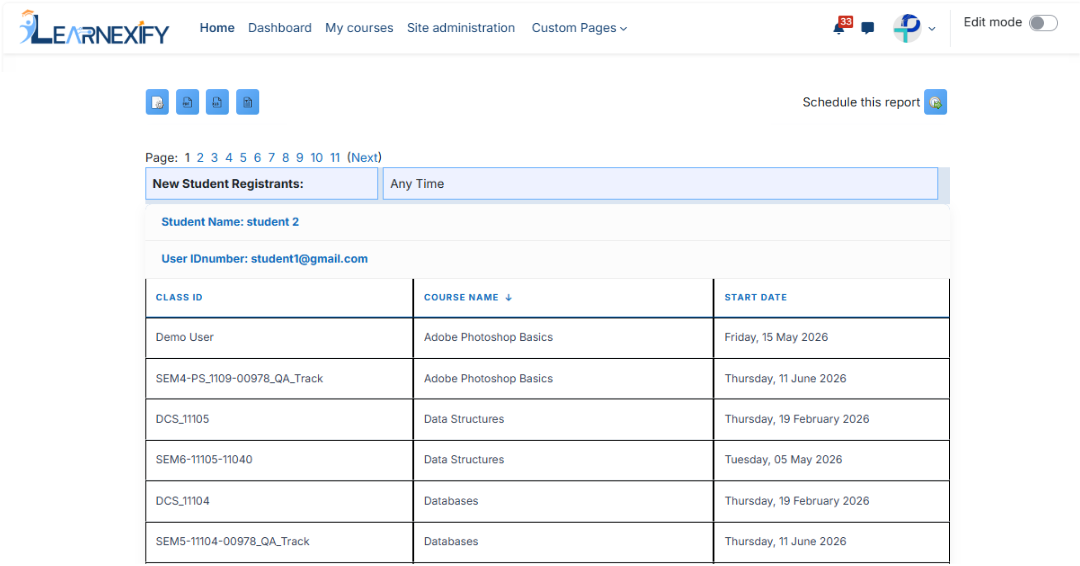
The report displays the **following information:**
- **Student Name →** Name of the newly registered learner
- **User ID Number →** System ID number of the user
- **Class ID →** Learnexify Class identification number
- **Course Name →** Name of the Learnexify Course Description
- **Start Date →** Date when the learner was enrolled
[](https://wiki.paktaleem.net/uploads/images/gallery/2026-06/new-registrants-student-report-view.png)
###
### **Report Actions (Refresh & Export):
**
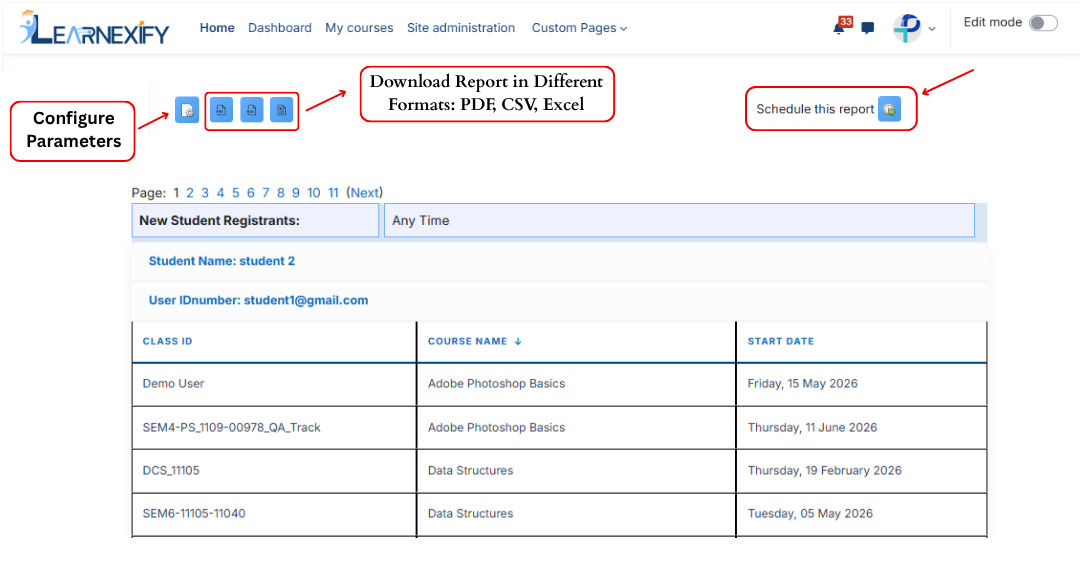
- To modify report options, the **Configure Parameters icon** is used, **located in the upper left corner** of the report.
- The **Refresh button updates** the report with the **latest data**
- The report can be **downloaded** in **PDF and CSV formats**
- The report can be scheduled using the **Schedule Reports** option to be generated at a **specified date and time.**
[](https://wiki.paktaleem.net/uploads/images/gallery/2026-06/new-registrants-student-report-actions.png)