# 6.8 Sitewide Transcript Report
The Sitewide Transcript Report displays a **complete transcript** for **every user** in Learnexify who is **enrolled** in a Learnexify Course Instance. It provides a **system-wide academic** summary of all users, **including enrolled** and **completed Course Descriptions.**
### **
Report Path: **
Dashboard ⟶ Side drawer ⟶ Reports ⟶ Administrative Reports ⟶ Sitewide Time Summary Report
[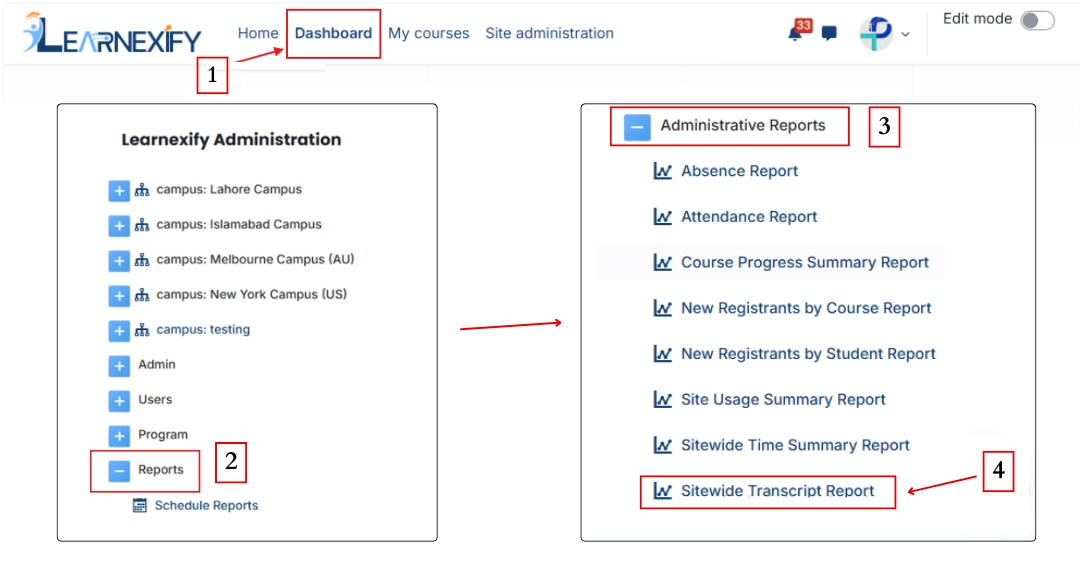](https://wiki.paktaleem.net/uploads/images/gallery/2026-06/site-wide-transcript-report.png)
###
### **Report Requirement:**
To be included in this report:
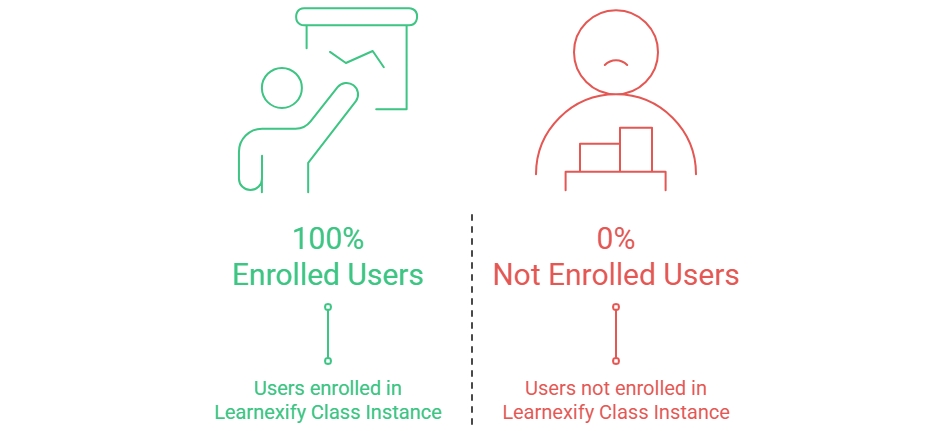
- The user must be **enrolled** in an **Learnexify Course Instance**
If the user is not enrolled, they will not appear in the report.
[](https://wiki.paktaleem.net/uploads/images/gallery/2026-06/to-be-included-in-this-report-visual-selection.png)
###
### **Report Filters:**
This report includes one standard optional filter:
- **Full Name** → Used to search and filter users by their full name.
- **Last Name** → Used to search and filter users by their last name.
- **First Name** → Used to search and filter users by their first name.
- **Middle Initial** → Used to search and filter users by their middle initial.
- **ID Number** → Used to search and filter users by their ID number.
- **Email Address** → Used to search and filter users by their primary email address.
- **Email Address 2** → Used to search and filter users by their secondary email address.
- **Username** → Used to search and filter users by their username.
- **Address** → Used to search and filter users by their address.
- **Address 2** → Used to search and filter users by their secondary address. .
- **City/Town** → Used to search and filter users by their city or town.
- **State/Province** → Used to search and filter users by their state or province.
- **Country** → Used to filter users by country. Users can select a specific country or **Any value**.
- **Zip/Postal Code** → Used to search and filter users by their ZIP or postal code.
- **Phone** → Used to search and filter users by their primary phone number.
- **Phone 2** → Used to search and filter users by their secondary phone number.
- **Fax** → Used to search and filter users by their fax number.
- **Preferred Language** → Used to filter users by their preferred language. Users can select a specific language or **Any value**.
- **Time Created** → Used to filter users based on the date their account was created. Users can specify a date range using **is after** and/or **is before**.
- **Last Modified** → Used to filter users based on the date their account was last modified. Users can specify a date range using **is after** and/or **is before**.
- **Inactive** → Used to filter users based on their account status. Users can select the appropriate inactive status or **Any value**.
For text-based filters, the following matching options are available:
- **Contains** → Displays records that include the entered text anywhere in the field.
- **Doesn't contain** → Displays records that do not include the entered text.
- **Is equal to** → Displays records that exactly match the entered text.
- **Starts with** → Displays records that begin with the entered text.
- **Ends with** → Displays records that end with the entered text.
- **Is empty** → Displays records where the selected field has no value.
If no filter is applied, the report displays transcripts for all users enrolled in Learnexify Course Instances.
[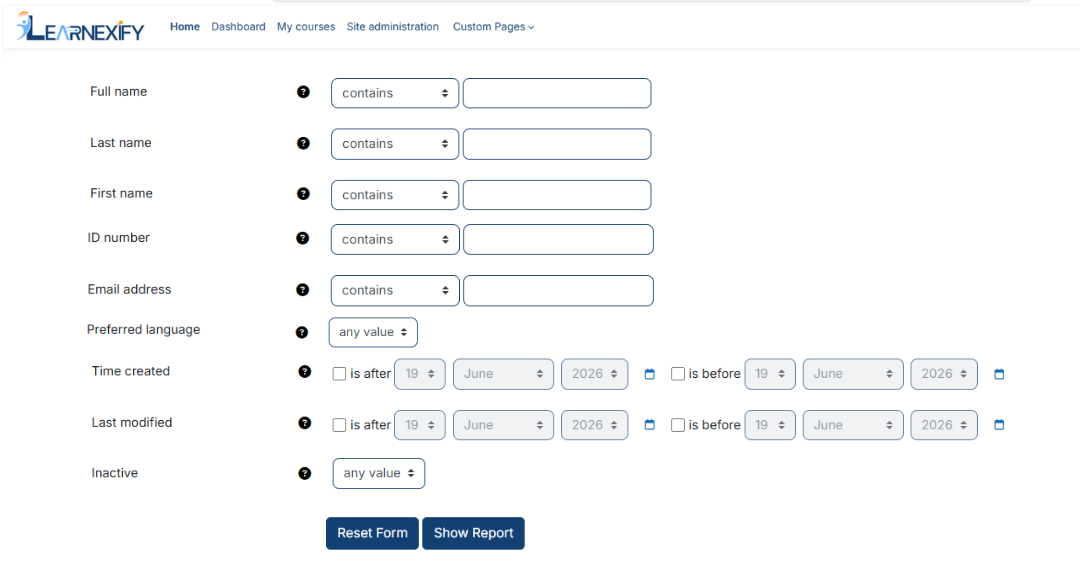](https://wiki.paktaleem.net/uploads/images/gallery/2026-06/sitewide-transcript-report-filter.png)
Advanced filtering options are available under the “**Show More**” section.
###
### **Generate Report:**
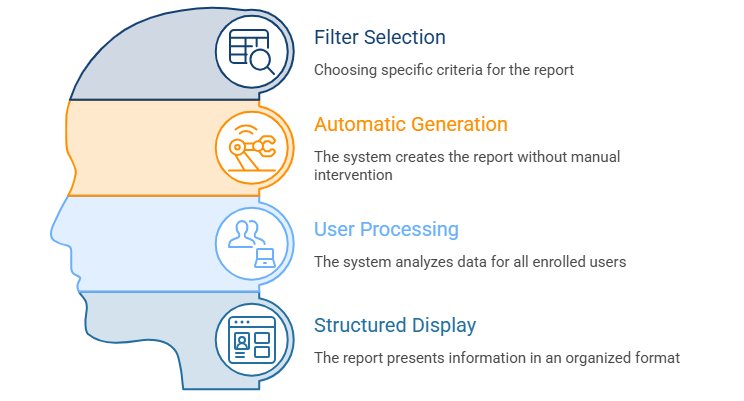
- First, select the relevant filters according to the transcript report you want to generate.
- The report is generated only after the user clicks the **'Show Report'** button.
- The system processes all users enrolled in Learnexify course Instancess
- The transcript data is displayed in a structured, user-wise format
[](https://wiki.paktaleem.net/uploads/images/gallery/2026-06/SLQvisual-selection-4.png)
###
### **Report Output:**
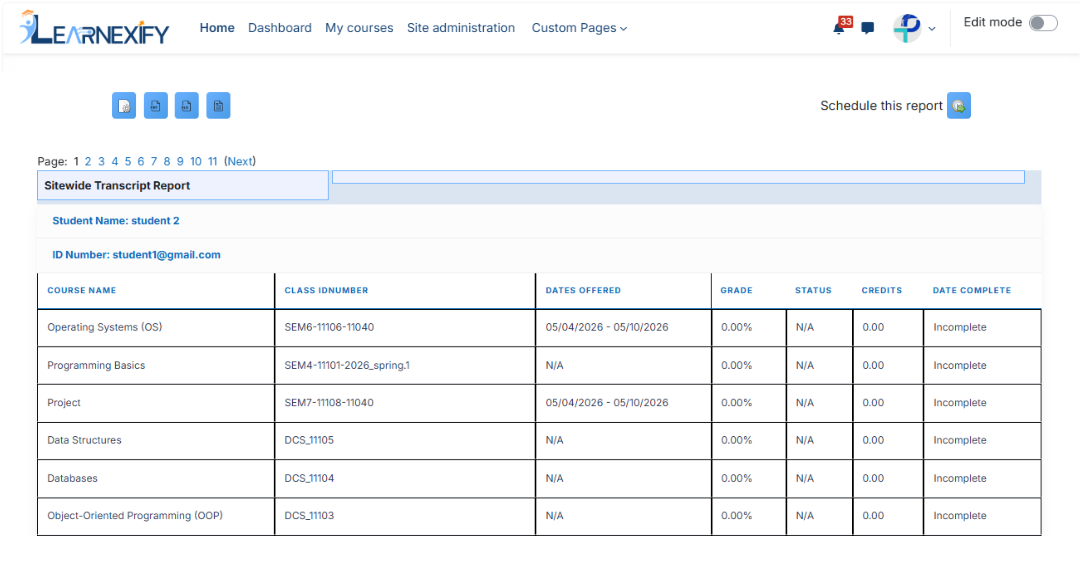
The report includes the following information for each user:
- **ID Number →** User’s unique system ID number
- **Course Name →** All Course Descriptions in which the user is enrolled or has completed
- **Class ID Number →** Unique ID number of each course instance
- **Dates Offered →** Start and end dates of the class (if not available, “N/A” is shown)
- **Grade →** Current grade for each course instance
- **Status →** Pass, Fail, or Incomplete
- **Credits →** Credits earned for each course instance (if applicable)
- **Completed Date →** Date when the course instance was completed
[](https://wiki.paktaleem.net/uploads/images/gallery/2026-06/sitewide-transcript-report-view.png)
###
### **Report Actions (Refresh & Export):**
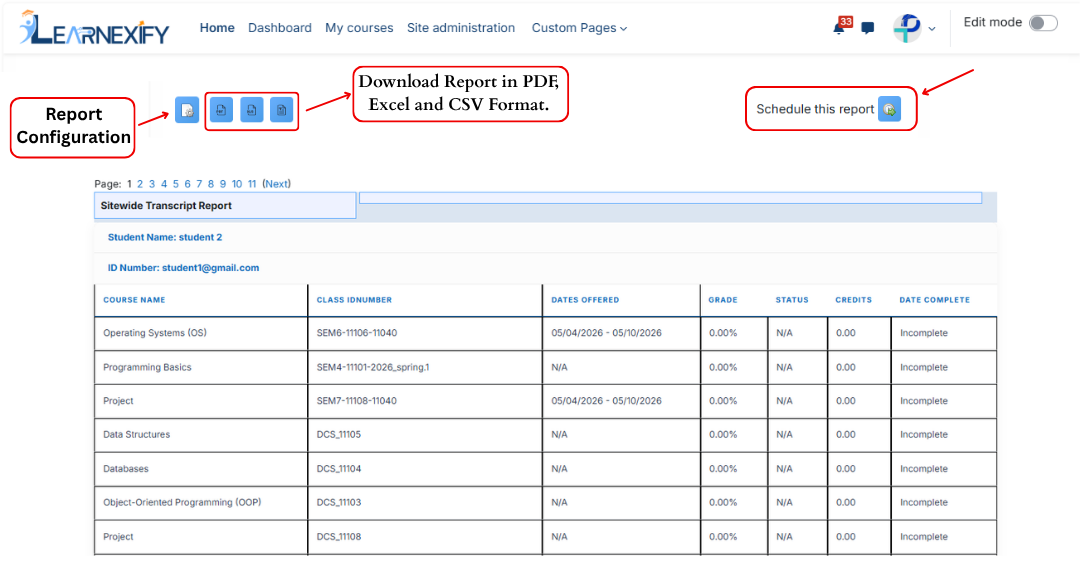
- Report **settings** and **filters** can be modified using **Configure Parameters.**
- The **report** can be **exported** in both **PDF and CSV formats.**
- The report can be scheduled using the Schedule Reports option to be generated at a specified date and time.
- Click the **Refresh button** at the **bottom center** to update the report with the latest data.
[](https://wiki.paktaleem.net/uploads/images/gallery/2026-06/sitewide-transript-report-actions.png)