Session Notes Plugin Documentation
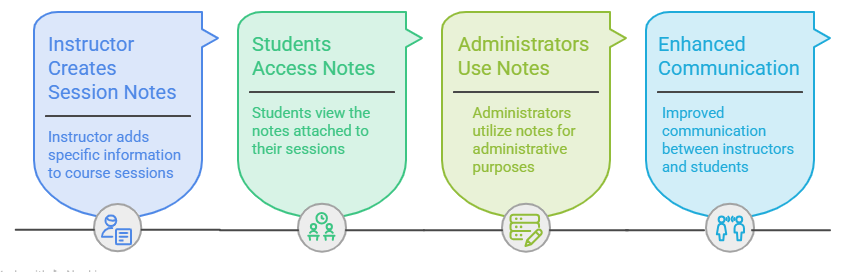
The Session Notes feature is a collaborative tool designed to enhance communication within a course. It allows instructors and administrators to attach specific information, reminders, or instructions directly to course sessions. By using notes, you can keep students informed while simultaneously maintaining private administrative records.
Path: The Session Notes feature is located as a Block within your course page.
-
Open your specific course, and you will find the Session Notes block in the Side Drawer (the right or left sidebar of the screen).
Add External Note
Who is it for? Students and Learners.
Use this to share information that you want your students to see.
Key Functionality:
- Audience Selection: When an instructor adds an external note, they have the flexibility to select specific students or choose all students in the course.
- Instant Alerts: Once the note is saved, the selected students will immediately receive a system notification and an email. This ensures that important updates are never missed.
Example Usage: Providing a "Tip of the Day" sharing extra reading links, or giving specific instructions for an upcoming assignment.
How to Add an External Note

A form will open with the following fields:
Link to Activity/Section:
Lesson Name:
- The title of your session or note.
- Purpose: Give the note a clear, descriptive name (e.g., "Introduction of python book - Session 1") so it is easily identifiable in the list.
Date:
- A date-picker tool.
- Set the specific date for this session. This helps in organizing notes chronologically, allowing students to track their learning progress by date.
Today's Objectives:
- A text area to summarize the day's learning.
- If you taught a lesson today, list the key takeaways here. This helps students who missed the class or those who want to review what they should have learned.
Homework:
- A dedicated section for assignments and tasks.
- Write down any assessments, readings, or projects you want the students to complete.
Next Lesson Objectives:
- A preview of the upcoming lesson.
- Briefly mention what will be covered in the next session. This helps students prepare in advance and stay engaged with the course flow.

Select Students to Notify:
A list of all students enrolled in the course.
This is a advanced communication step.
- You can select all students to send a general update.
- You can select specific students if the note is only relevant to a small group.

After filling in these details, click the Save Notes button. The note will immediately appear in the External Notes section of the block and become visible to the students you chose to notify.

Internal Note:
- Who is it for? Teachers, Managers, and Admins.
- Internal Session Notes are designed as a private workspace for the management and teaching team. These notes are completely invisible to students and serve as a "Staff-Only Log" to ensure smooth coordination between Teachers, Admins, and Manager.

How to Add an Internal Note

A form will open with the following fields:
Link to Activity/Section:
- Allows you to link your private note to a specific activity or section of the course.
- Example: Linking to a "Final Project" to leave a note for the next teacher about how to grade it.
Lesson Name:
- Sets a title for the internal log entry so other staff can find it easily.
- Example: "Staff Review: Batch A - Technical Issues" or "Teacher Handover - Week 4."
Date:
- Records the specific date when this administrative observation or action was made.
- Example: 09 June 2026.
Today's Objectives:
- Used to record what the Instructor actually accomplished or observed during the session.
- Example: "Finished the Python String methods lesson. Students were confused about f-strings; need more practice time."
Homework:
- Acts as an internal "To-Do List" for the management team. It defines what the staff needs to do before the next session.
- Example: "Admin: Please upload the new Python coding exercise file. Teacher: Review the quiz results from today."
Next Lesson Objectives:
- Provides a plan for the next instructor. It ensures a smooth transition so the next teacher knows exactly where to start.
- Example: "Start with the 'List' concept on page 35. Do not skip the live coding demo."

Select Staff to Notify:
- Allows you to pick specific team members (Admins or Managers) to alert about this note.
- The selected staff members will receive an Email and a Notification Bell alert immediately.

After filling in these details, click the Save Notes button.
The note will immediately appear in the Internal Notes section of the block and become visible to the Staff you chose to notify.

Manage Note Fields:
-
By default, Session Notes have standard fields like "Homework" and "Objectives." The Manage Note Fields button allows you to customize the note-taking form by adding your own unique fields. This ensures that the form captures the exact information your organization needs.
How to Customize Note Fields:
To add unique data fields—such as attendance counts, comprehension levels, or specific checklists—to your session note forms, click the Manage Note Fields button.

When you click the Manage Note Fields button, you will see a setup bar with the following options:
Field Name:
The label for your new box (e.g., "Attendance Count").
Options include:
- Text Box: For short, one-line answers.
- Rich Text Area: For long descriptions with formatting (Bold, Bullets, etc.).
- Checkbox: For simple "Yes/No" or "True/False" selections.
- Dropdown Menu: To pick one option from a pre-set list.
- Date Selector: To pick a specific day from a calendar.
- Number: For entering numerical values only.
Sort Order:
-
This defines the position of the field on the form.
-
A field with a Sort Order of 1 will appear at the top. A field with 2 will come after it. This allows you to organize the flow of the form logically.
-
Required:
-
A checkbox to make the field mandatory.
-
If checked, the user must fill in this field before they can save the note.
Current Custom Fields Section
Below, you will see a list of all fields you have already created. From here, you can see their settings at a glance or remove them if they are no longer needed.
