Manage Organizational Hierarchies
- What is Manage Organizational Hierarchies?
- How to Edit a Organizational Hierarchies
- How to Assign User Subsets to a Organizational Hierarchy
- How to Assign a Batch in a Organizational Hierarchy
- How to Assign Users to a Organizational Hierarchy:
- How to Assign Program in a Organizational Hierarchy
- How to Assign Users to Roles in a Organizational Hierarchy
What is Manage Organizational Hierarchies?
Manage Organizational Hierarchy is a powerful organizational tool within Learnexify. Think of a "Organizational Hierarchy" as a folder or a virtual team. Instead of managing hundreds of students one by one, you can group them together based on their location, department, or year of study.
What does it do?
-
Groups Users: Organizes people into logical categories (e.g., "Lahore Campus" or "Marketing Department").
-
Automates Enrollment: You can assign a course to an entire Organizational Hierarchy at once, so everyone inside is automatically enrolled.
-
Hierarchy: You can create "Child" sets inside "Parent" sets (e.g., "Engineering Faculty" is the Parent, and "Electrical Engineering" is the Child).

Accessing Manage Users
To get to the Manage Users page, follow these simple steps:
-
Log in to your Learnexify Dashboard.
-
Open the Side Menu (drawer) on the left.
-
Click on the Users tab to expand the options.
-
Select Manage Organizational Hierarchy.
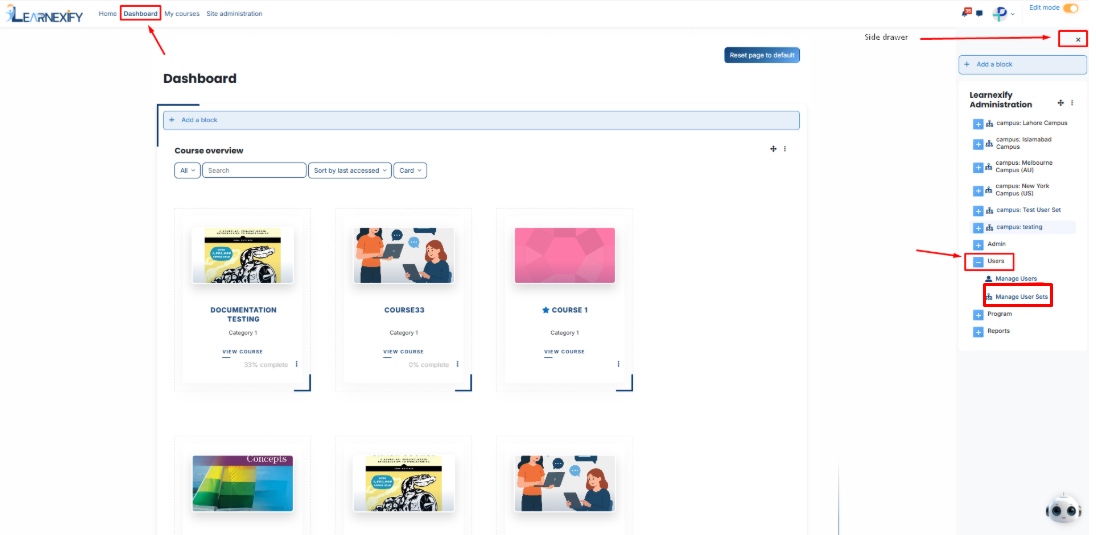
How to Add a New Organizational Hierarchy
To create a new group, click the Add Organizational Hierarchy button found at the top or bottom of the list.
On the main Manage Organizational Hierarchy page, you will see a checkbox labeled "Include all User Subsets in listing."
Think of your groups like folders. Sometimes you have a big folder (like a Campus) with smaller folders inside it (like Departments).
-
When you uncheck the box: You only see the big main folders. You have to click them to see what is inside.
-
When you check the box: The system "opens" all folders for you. It shows every single group and sub-group in one long, easy list.
A form will open with the following sections:
1. Basic Information
-
Name: Give your group a clear title (e.g., Spring 2026 Batch).
-
Description: Briefly explain who belongs in this set and why it was created.
-
Maximum Users: Set a limit on how many people can join this group. Leave it empty if there is no limit.
-
Parent Organizational Hierarchy: If this is a sub-group, select its "Parent" folder here. If it’s a main group, select "Top Level."
2. Configuring User Association and Groups
-
User Association: This defines how people enter this set.
-
Manual: You add them yourself.
-
Auto-associate: The system adds them automatically based on a specific detail in their profile (like their City or Job Title).
-
-
Associated Group: You can link this set to a specific learning group in the system.
-
Enable Corresponding Group: If checked, the system creates a matching group for this set automatically.
-
Auto-enrol users in groupings: Ensures that members are automatically placed into specific study clusters within their courses.

3. Organizational Hierarchy Classification
-
Classification: This tells the system what "kind" of group this is. You can categorize it as a Campus, Department, Program, or Semester. This is very helpful for organized reporting later.
4. Display Priorities and Visual Themes
-
Display Priority: Enter a number to decide the order of this set in the list. (e.g., "1" appears at the top).
-
Theme Priority: This is a critical setting for users who belong to multiple Organizational Hierarchies. If a student is a member of both the "Lahore Campus" (which has a Blue theme) and the "Scholarship Group" (which has a Gold theme), the system needs to know which color to show them. The system ranks all assigned themes based on this numerical value. The theme with the highest priority number will be the one the user sees.
Example: Campus Theme Priority: 10, Special Department Theme Priority: 50, Result: The user will see the Department theme because 50 is higher than 10.
-
Theme: This allows you to select a specific "visual skin" or design (colors, logos, and layout) for a Organizational Hierarchy. You can make the "Medical Faculty" look different from the "Engineering Faculty," providing a personalized experience for different groups.
After filling all required fields and selecting options as needed, click on the “Save Changes” button.
Once saved, the new Organizational Hierarchy will be successfully created and will appear in the Manage Organizational Hierarchy list.

How to Edit a Organizational Hierarchies
- On the Dashboard, open the side drawer, click on User, and select Manage Organizational Hierarchy.
- Click on the Organizational Hierarchy name you want to edit.
- Open the selected Organizational Hierarchy and click on the Edit button.

-
The Organizational Hierarchy details page will open in editable mode.

- Update the required Organizational Hierarchy details.
- Scroll down and click on the Save Changes button to apply the updates.

How to Assign User Subsets to a Organizational Hierarchy
- From the list of all Organizational Hierarchies, click the User subset icon for the userset to which you want to assign user subset.

- Once user subset tab is opened, here you will see assigned User Subsets in the Organizational Hierarchies.
- If you want to add a new User subset click on this Add Organizational Hierarchy Button.

When you click the X (Delete) icon on a Organizational Hierarchy that contains Sub-sets , Learnexify gives you two choices to handle the sub-groups:
Promote User Subsets to top-level Organizational Hierarchies:
It deletes only the "Parent" group but saves all the sub-groups inside it. The sub-groups (eg. Software Engineering) are moved out and become main, independent groups on the top-level list.
Delete User Subsets:
It deletes everything at once. Both the "Parent" group and all the "Child" sub-groups inside it are permanently removed from the system.
After selecting your choice, click the Green Tick (✔) to confirm or the Red (✖) to cancel.

-
If you want to add existing Organizational Hierarchies as user sub-sets click on the Available to Assign button.

- A list of available Organizational Hierarchies will be displayed
- Select the Organizational Hierarchies you want to assign
- Then, click on the arrow icon to move the Organizational Hierarchies to the assigned list
Click on the green tick (✔) to confirm the assignment

- After that, click on the Currently Assigned button
- Here, you will see the existing Organizational Hierarchies as user sub-sets who have been successfully assigned to the Organizational Hierarchy.
In the “Available to Assign” section, if you have a lot of user sub-sets there is a filter section above the user sub-set list , you can use the filter option to search for it.
Click on the Add button, and you will see different filter options:
1. Organizational Hierarchy Classification
If you select this filter and type a value, the system will show only matching Organizational Hierarchies.
For example, if you select “Organizational Hierarchy Classification” and type “campus”, then only campus-related User Groups will appear.
2. Display Priority
This filter is used to find Organizational Hierarchies based on priority.
For example, if you enter “2”, then only Organizational Hierarchies with priority 2 will be shown.
3. Enable Corresponding Group
This filter is used to show Organizational Hierarchies linked with a specific group.
For example, if a group is enabled and you apply this filter, only related Organizational Hierarchies will appear.
4. Auto Enroll User in Grouping
If this option is selected, users inside the Organizational Hierarchy will be automatically enrolled into the program after assignment.
For example, once a Organizational Hierarchy is assigned, users will instantly get access without manual enrollment.
5. Theme Priority
This filter helps to find Organizational Hierarchies based on theme priority.
For example, if you set priority “1”, then Organizational Hierarchies with theme priority 1 will be displayed.
6. Theme
This filter is used to search Organizational Hierarchies based on a theme.
For example, if you type “flexpath”, then all Organizational Hierarchies related to that theme will appear.

Assign User Subsets Using Filters
Once the correct User Subset appears, click on the arrow icon and assign it using the green tick (✔).
The User Subset will then appear in the “Currently Assigned” list.
Bulk User Action:
If you want to assign multiple user subsets in one time then follow these steps:
Method 1:
- Select those multiple user subsets you want to assign
- After making your selections, click the “Add All 5 Selected Items” button to add the selected Organizational Hierarchies.
The number displayed in the button (e.g., 5) represents the number of items currently selected and will change depending on how many items you select.

-
Then click on the Assign as subset(s) in the Bulk Assignment Section to move the Organizational Hierarchies to the assigned list as subsets.

Method 2:
- Click the “Add All 9 Search Results” button to add all user subsets with a single click. The number displayed in the button (e.g., 9) change depending on the number of user subsets available in the search results.
- If you want to clear everything, click the Clear button.

How to Assign a Batch in a Organizational Hierarchy
From the list of all Organizational Hierarchies, click the batch icon for the Organizational Hierarchy to which you want to assign batches.

Once batch tab is open you see currently assign batches.

And if you want to assign any other batch to this Organizational Hierarchy click on this available to assign button.
To assign additional batches, click the Available to Assign button. A list of available batches will be displayed. Select the batches you want to assign.
Click the arrow icon, After clicking the arrow, the following option will appear:
When you select a batch to assign and click the Arrow Icon, a configuration box will appear with two important automation options:
-
Auto-enrol users into this batch when they are added to this Organizational Hierarchy:
If you check this box, any person who is currently in this group—or anyone who joins this group in the future—will be automatically enrolled in this batch. This saves you from having to manually enroll every new student or employee. -
Apply batch association to all User Subsets:
This applies the batch to the entire hierarchy. If your main group (Parent) has smaller groups (Children) inside it, checking this box ensures those sub-groups also get assigned to this batch. This is the fastest way to assign a single learning path to an entire campus and all its departments at once.
-
Click the Green Tick (✔) to save these settings and complete the assignment, Click the Red (✖) to cancel the process.

Next, click on the Currently Assigned button to view all batches that have been successfully assigned to the Organizational Hierarchy
Bulk User Action:
If you want to assign multiple batches in one time then follow these steps:
Method 1:
-
Select those batches you want to assign.
-
After making your selections, click the “Add All 4 Selected Items” button to add the selected batches.
The number displayed in the button (e.g., 4) represents the number of items currently selected and will change depending on how many items you select.

-
Then click on the Assign button in the Bulk Assignment Section to move the batches to the currently assigned list.

Method 2:
-
Click the “Add All 8 Search Results” button to add all batches with a single click. The number displayed in the button (e.g., 8) change depending on the number of batches available in the search results.
-
If you want to clear everything, click the Clear button.

How to Assign Users to a Organizational Hierarchy:
From the list of all Organizational Hierarchies, click the User icon for the Userset to which you want to assign users. 
-
After opening the Users tab, you will see the users currently assigned to the userset. To assign additional users, click the Available to Assign button.

-
A list of available users will be displayed. Select the user you want to assign and click the arrow icon to move the user to the assignment area.
-
Click the green tick (✔) to confirm the assignment.

-
Next, click on the Currently Assigned button to view all users who have been successfully assigned to the batch.
Add a user if your list Is too long and you can,t find a specific user in the list.
If the user you want to assign is not visible in the list, follow these steps:

The matching user will appear in the list. Select the user and assign them to the Userset.
Bulk User Action:
If you want to assign multiple users in one time then follow these steps:
Method 1:
-
Select those users you want to assign.
-
After making your selections, click the “Add All 14 Selected Items” button to add the selected users.
The number displayed in the button (e.g., 14) represents the number of items currently selected and will change depending on how many items you select.

-
Then click on the Assign button in the Bulk Assignment Section to move the users to the assigned list.

Method 2:
-
Click the “Add All 501 Search Results” button to add all users with a single click. The number displayed in the button (e.g., 501) will change depending on the number of users available in the search results.
-
If you want to clear everything, click the Clear button.

How to Assign Program in a Organizational Hierarchy
From the list of all Organizational Hierarchies, click the Program icon for the Userset to which you want to assign Program.

Once the tab opens, you will see a list of programs already linked to this Userset.
You can use the copy button to make a copy of a program and link it to this Organizational Hierarchy.

When you find the program you want to add and click the Arrow Icon.
Two automation options will appear to help manage your enrollments:
-
Auto-enrol users into this program when they are added to this Organizational Hierarchy:
If you check this box, any person who is currently in this group—or anyone who joins in the future—will be automatically enrolled in this program. It ensures that new members get their courses immediately without any manual work from the administrator. -
Apply Program association to all User Subsets:
This pushes the program assignment down to all "Child" groups. If your main group has smaller departments or batches inside it, they will all be linked to this program at once. It is the fastest way to assign a program to an entire campus and every department within it.
-
Select your preferred checkboxes.
-
Click the Green Tick (✔) to save.
-
Next, click on the Currently Assigned button to view that program have been successfully assigned to the batch.
Adding a Program Using Filter:
If the required program is not visible, follow these steps:
In the Available to Assign section, click the Add button.
A new form will appear. Provide the following details:
- Name: The official title used to identify the program.
- ID Number: A unique code assigned specifically to this program.
- Long Description: A full summary providing more detail about the program.
- Required Credits: The total number of points a learner must earn to complete the program.

-
Once you save these details, the program will appear in the available list. You can then follow the steps above to assign program to your Organizational Hierarchy.
Bulk User Action:
If you want to assign multiple programs in one time then follow these steps:
Method 1:
- Select those programs you want to assign.
- After making your selections, click the “Add All 4 Selected Items” button to add the selected Programs.
The number displayed in the button (e.g., 4) represents the number of items currently selected and will change depending on how many items you select.

-
Then click on the Assign button in the Bulk Assignment Section to move the programs to the currently assigned list.

Method 2:
- Click the “Add All 6 Search Results” button to add all programs with a single click. The number displayed in the button (e.g., 6) will change depending on the number of programs available in the search results.
- If you want to clear everything, click the Clear button.

How to Assign Users to Roles in a Organizational Hierarchy
- On the Dashboard, open the side drawer, click on User, and select Manage Organizational Hierarchy.
- Click on the Organizational Hierarchy name you want to edit, then click the Roles tab.

Assigning Users to a Role:
- Review the list of available roles.
- Click on the role to which you want to assign users.

- A page will open displaying all users currently assigned to the selected role.
- To assign additional users, click the Unassigned button. This will display all users who are currently unassigned to the selected role.
- Select the user(s) you want to assign.
- Scroll down and click Assign Roles.


Using Filters:
If you cannot find the required user:
-
Use the Filter option.
-
Add a filter using Email Address, Username, Full Name or Other available user profile fields .
-
Click Add Filter.
-
Select the required user from the filtered results.
-
Scroll down and click Assign Roles to complete the assignment.
