# Manage Users
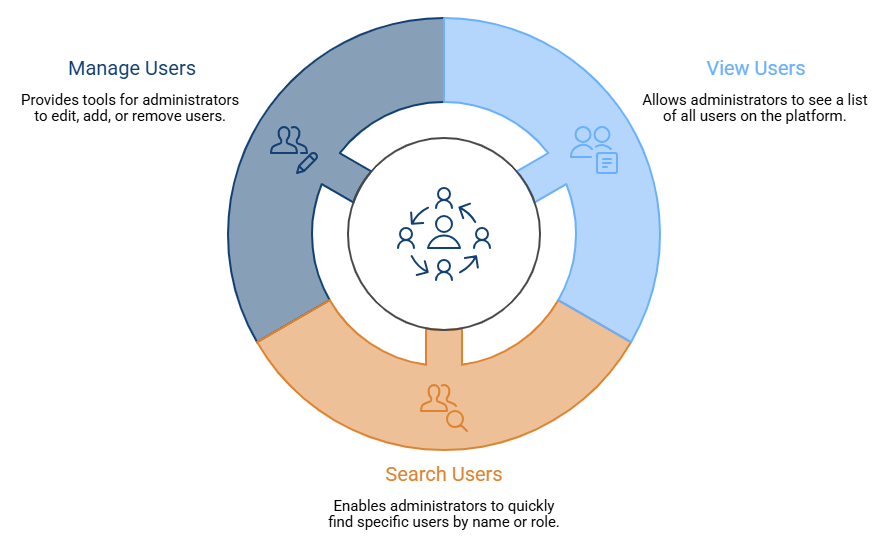
Manage Users is the central control center for all people on your platform. Think of it as a digital directory where administrators can view, search for, and manage every student, teacher, or staff member.
###
**Accessing Manage Users**
To get to the Manage Users page, follow these simple steps:
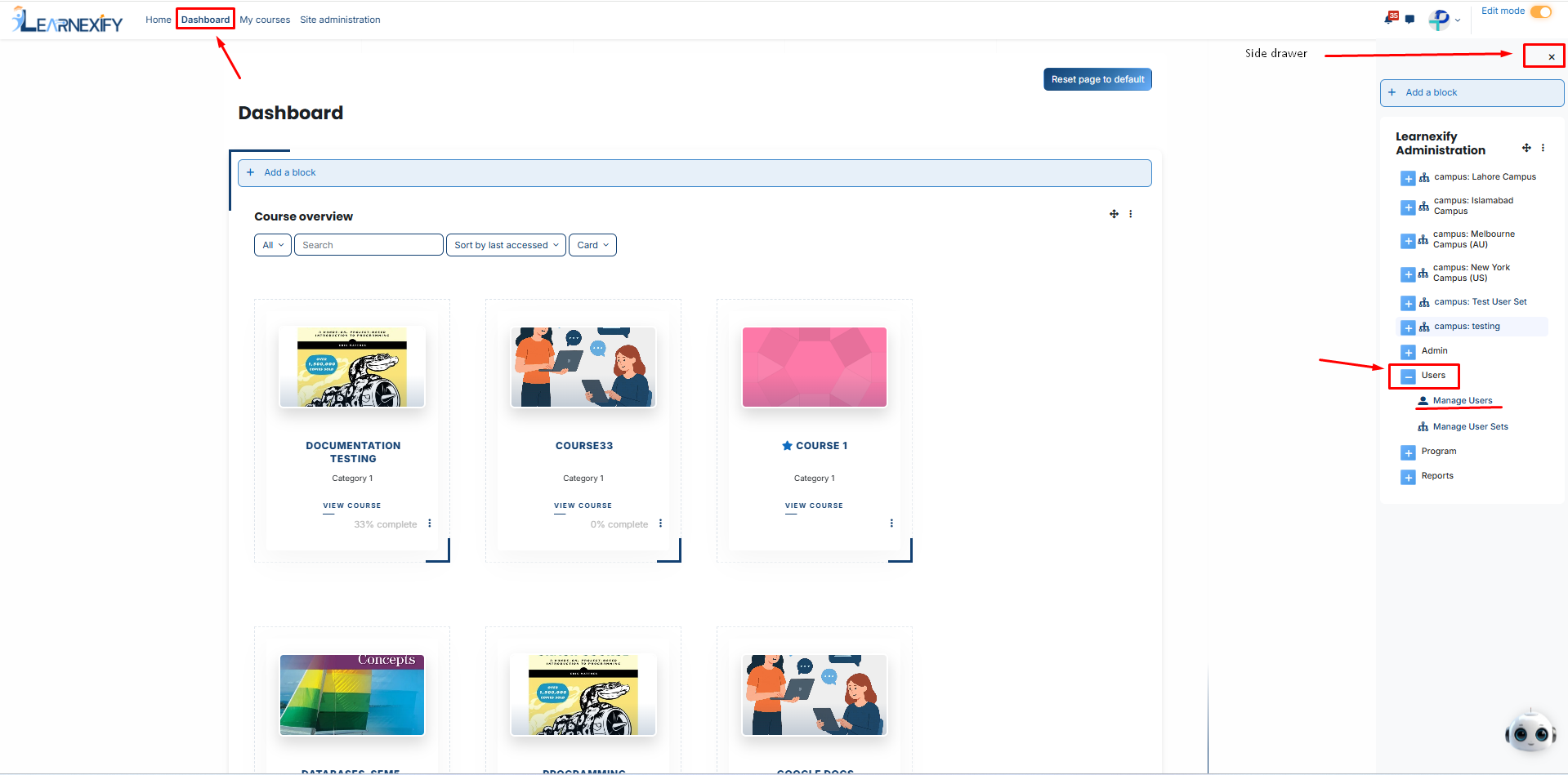
- Login in **Learnexify** and go to **Dashboard**.
- Open the **Side Menu (drawer)** on the **left**.
- Click on the **Users tab** to expand the options.
- Select **Manage Users**.
### **Understanding User Filters**
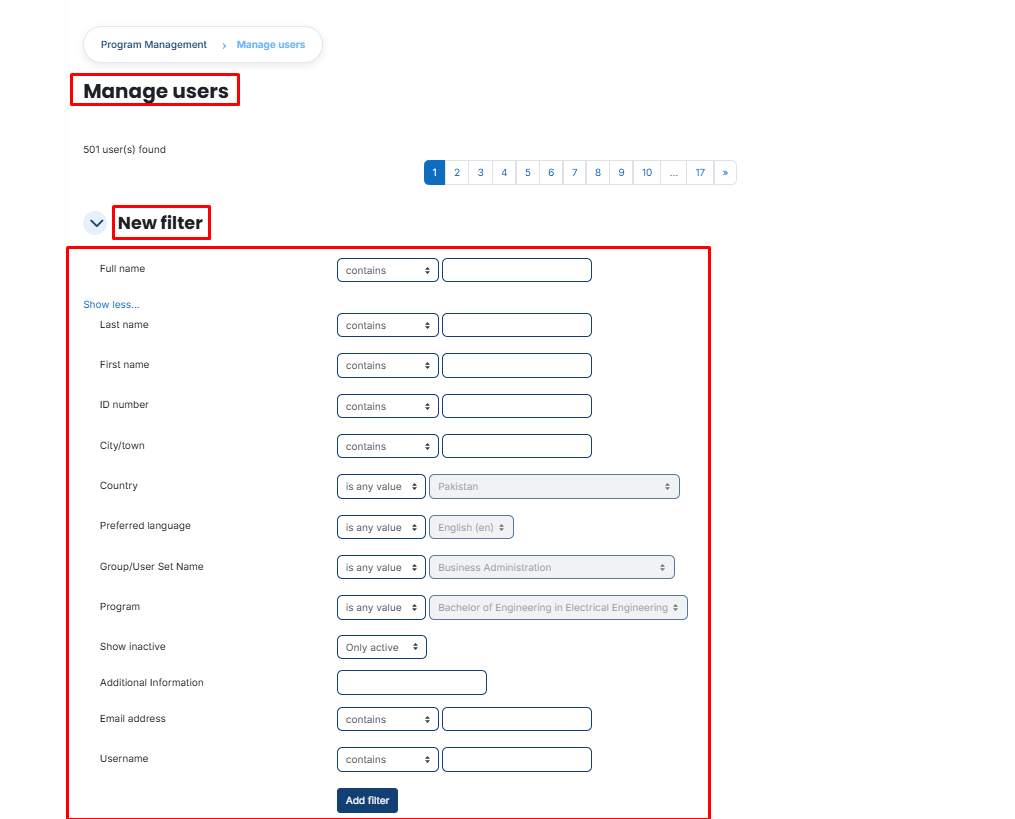
The New Filter section allows you to narrow down your list so you only see the people you need. Here is what each filter does:
- **Full name:** Search for a user by typing their complete name.
- **Last name:** Find users based on their family name or surname.
- **First name:** Find users based on their given name.
- **ID number:** Search using a unique identification number (like a Student ID or Employee Code).
- **City/town:** Filter users based on the specific city they live in.
- **Country:** Select a specific country from the dropdown menu to see users from that region.
- **Preferred language:** Group users by the language they use to view the platform.
- **User Group Name:** Filter users by their department, campus, or specific organizational group.
- **Program:** View only the students enrolled in a specific degree or certification (e.g., Bachelor of Engineering).
- **Show inactive:** Choose to see only Active accounts, or include Inactive accounts (people who no longer have access).
- **Additional Information:** Search through custom notes or extra data attached to a user's profile.
- **Email address:** Find a user by typing in their contact email.
- **Username:** Search for a user using the unique ID they use to log into the system.
**Note:** After entering your information, click the Add Filter button to apply the search.
### **Search Conditions**
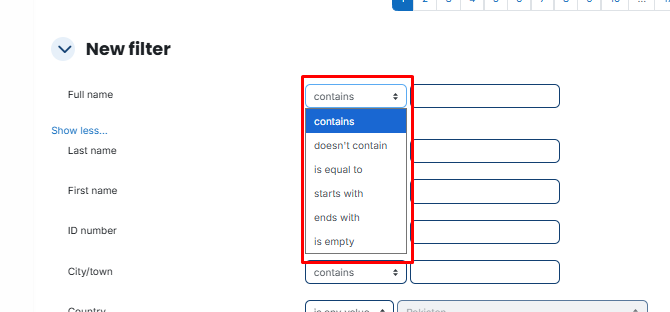
When using the filters to find a user, you will see a dropdown menu next to each field (like Full Name or Email). These options tell the system exactly how to look for the data:
- **Contains:** Finds any user whose information includes the letters or numbers you typed (e.g., searching "John" will find "John Smith" and "Elton John").
- **Doesn't contain:** Shows everyone except those who have the text you typed.
- **Is equal to:** Finds only an exact match. If you type "John," it will not show "Johnathan."
- **Starts with:** Finds users whose information begins with the specific characters you entered.
- **Ends with:** Finds users whose information ends with the characters you entered.
- **Is empty:** Finds users who have no information saved in that specific field.
### How to Add a User
If you need to register a new person on the Learnexify site:
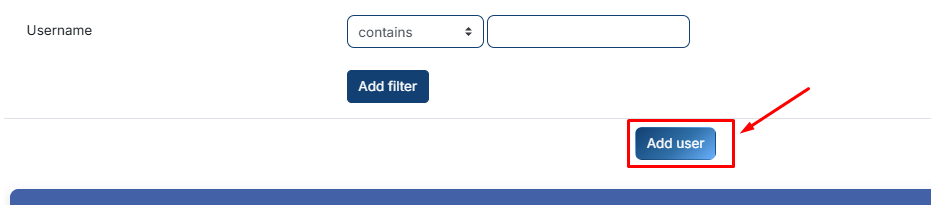
**Click the Add user button.**
[](https://wiki.paktaleem.net/uploads/images/gallery/2026-09/gzUbZaKx3uObSY3K-efc14307-c165-454b-a406-79dff8dba93f.png)
#### **Fill in the details in the form that appears:**
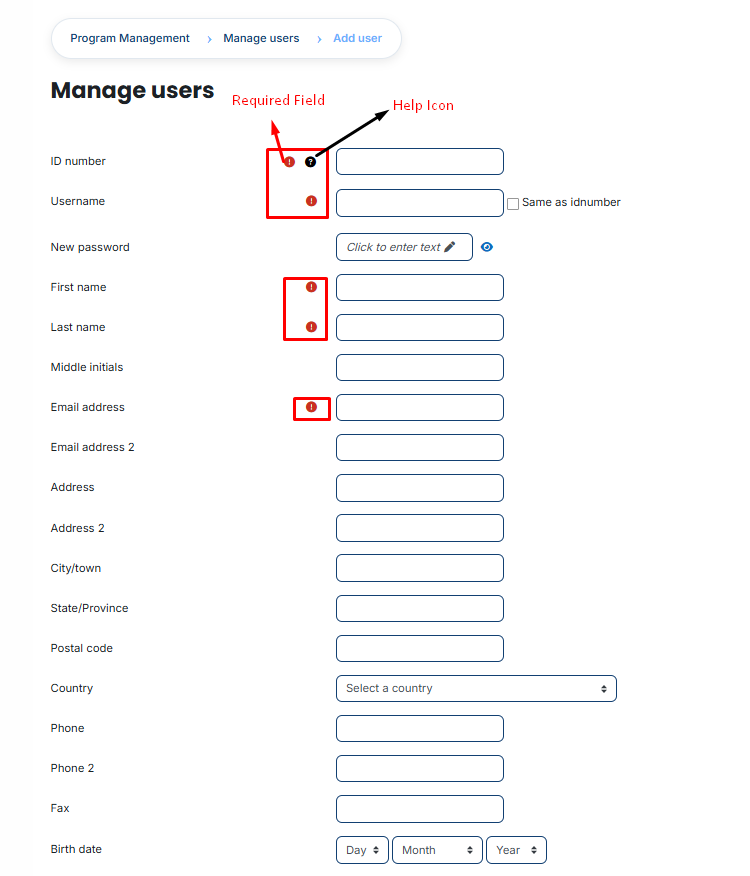
**Required Fields (Marked with a Red Icon):**
- **ID Number:** A unique identification code for the user (e.g., 220-e772).
- **Username:** The unique name the user will use to log in.
- **New Password:** Click the pencil icon to set an initial password for the account.
- **First Name:** The first name of the user.
- **Last Name:** The Last name of the user.
- **Email Address**: The primary email where the user will receive system notifications.
**Optional Information:**
- **Middle Initials:** Added for more precise identification.
- **Email Address 2:** A secondary or backup contact email.
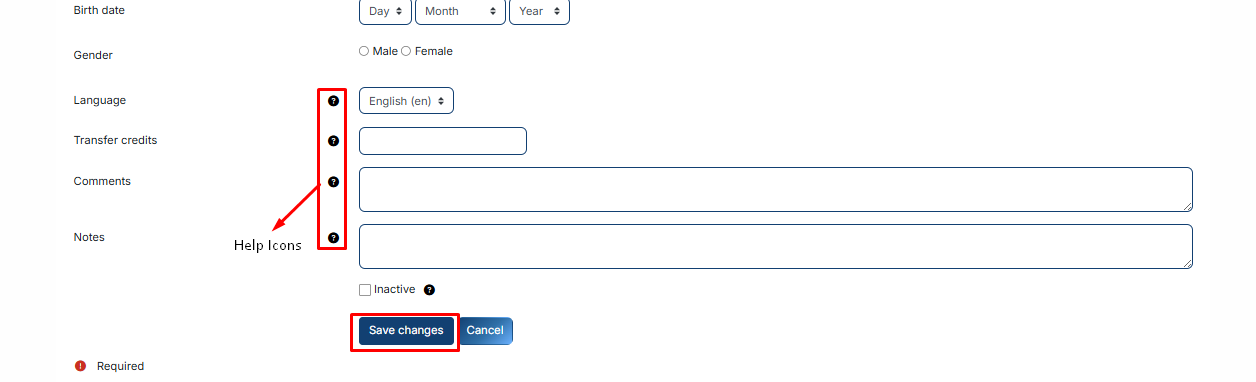
- **Address / Address 2:** The user's residential or mailing address.
- **City/Town, State, Postal Code, & Country:** Used to batch the geographic location of your learners.
- **Phone / Phone 2 / Fax:** Primary and secondary contact numbers.
- **Birth Date:** The user's date of birth.
- **Gender:** Select Male or Female.
- **Language:** Choose the user's preferred language for the platform interface.
- **Transfer Credits:** Manually enter academic credits earned from other institutions.
- **Comments:** General administrative remarks about the user.
- **Notes:** Private, internal notes for administrators only.
- **Inactive Checkbox:** If checked, the user is created but cannot log in until you uncheck it.
Once you have filled in the required fields and any optional data, click the **Save Changes** button at the bottom.