# Batch Enrollment Widget Documentation
The **Batch Enrollment Widget** is a dashboard management block designed to track and display a user's assigned student cohorts, learning tracks, or specializations. It gives learners and administrators immediate visibility into specific cohort timelines, enrollment statuses, and academic program associations directly from the dashboard.
# Overview & Setup
The Batch Enrollment Widget provides a centralized view of a user's assigned learning batches. In an academic or corporate setting, "batches" represent specific batch or specializations.
This widget allows **users** and **admins** to see:
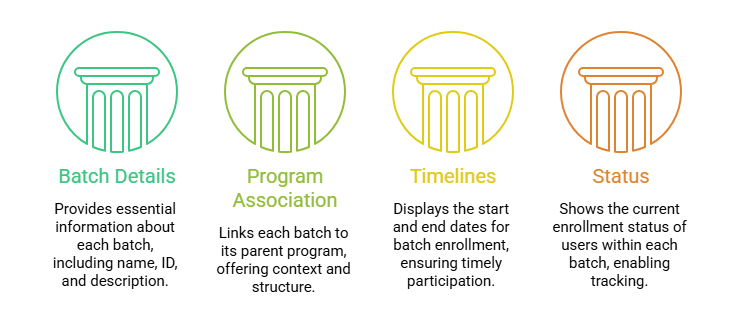
- **Batch Details:** Name, ID Number, and Description.
- **Program Association:** Which main program the batch belongs to.
- **Timelines:** Start and End dates for the specific batch enrollment.
- **Status:** The current state of the user's enrollment within that pathway.
To make this widget visible for instructors, follow these steps:
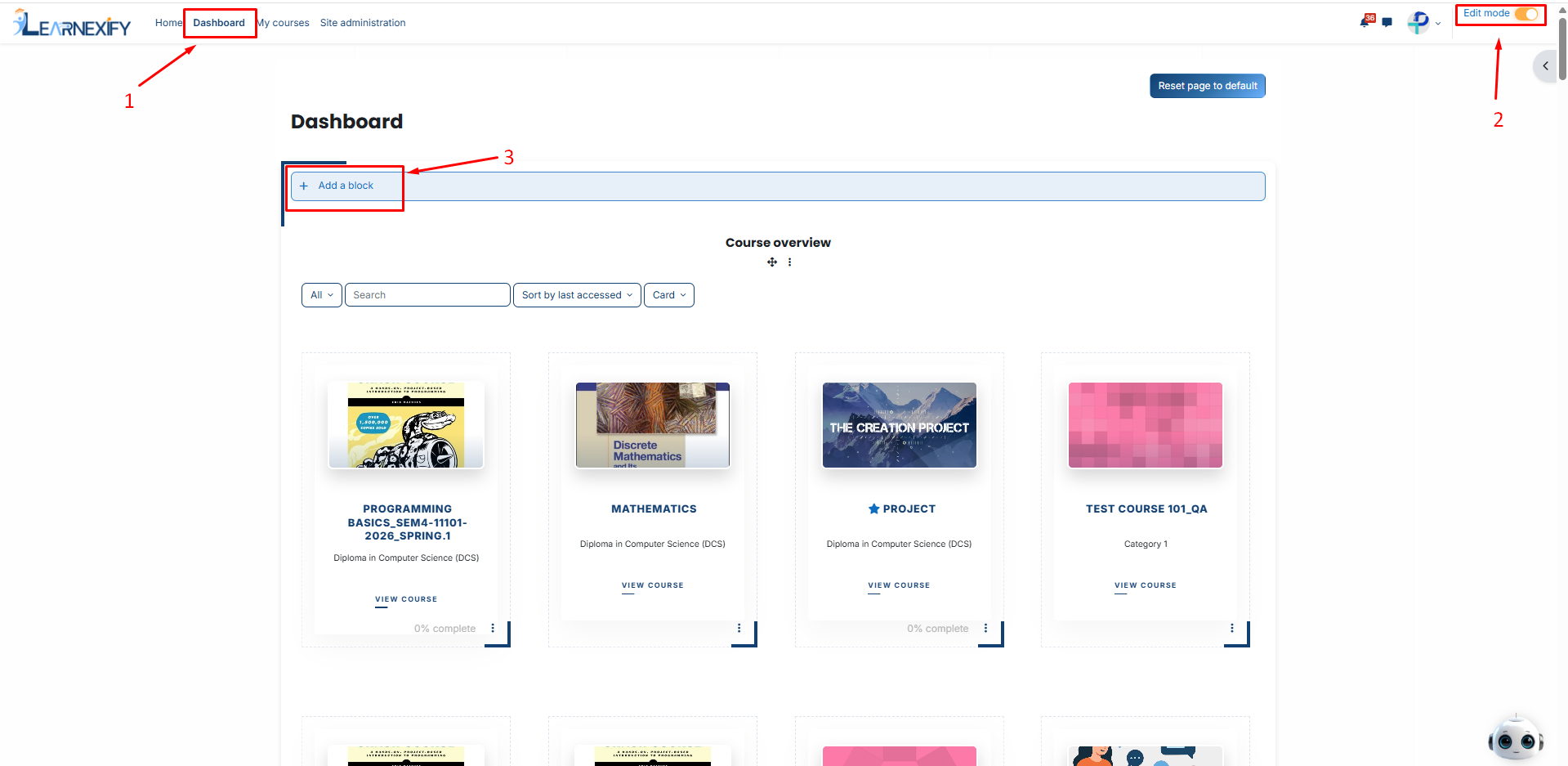
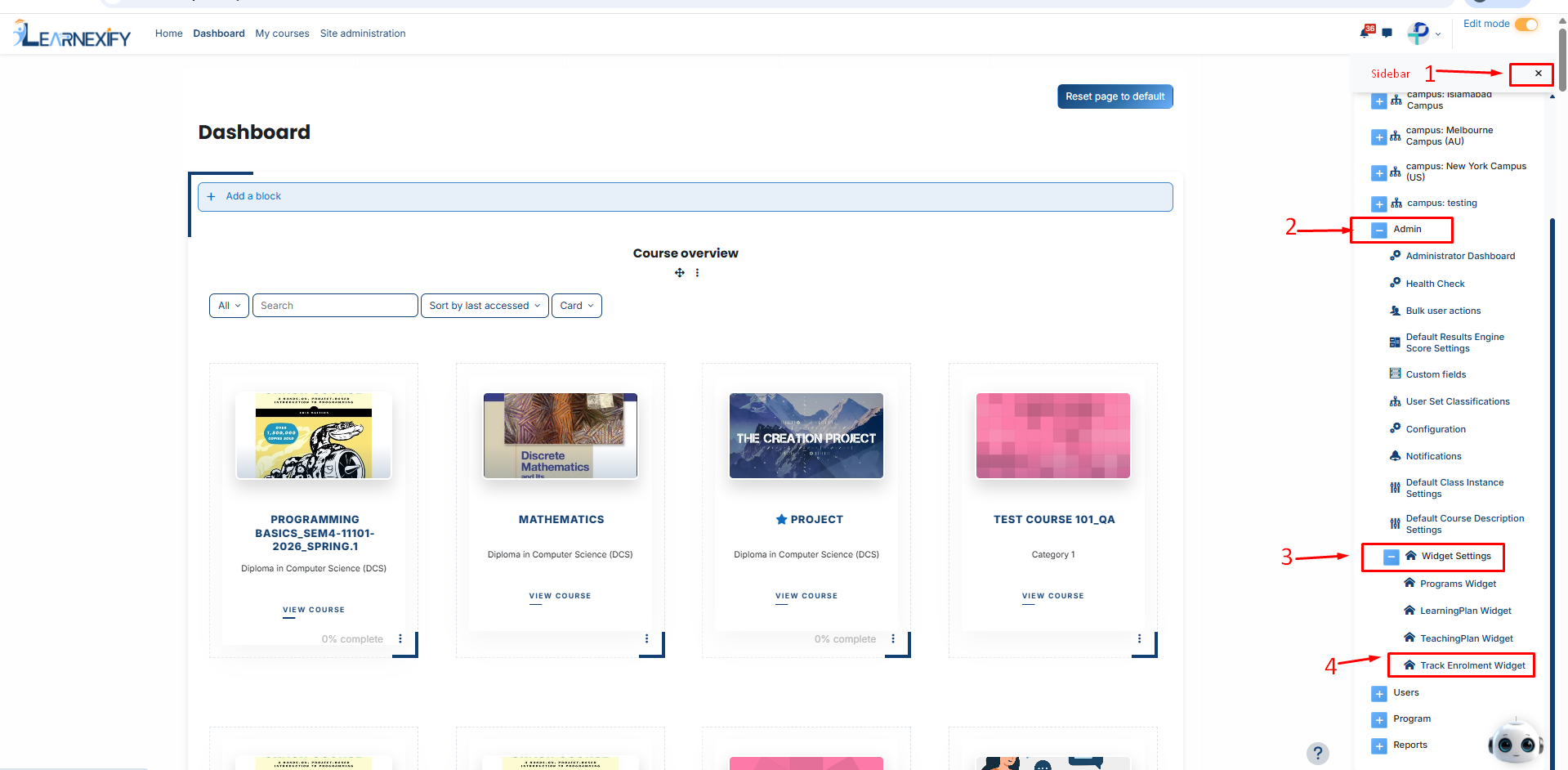
- Navigate to your Dashboard.
- Toggle **Edit Mode** to "**On**" (top right corner).
- Click the **Add a block** button.
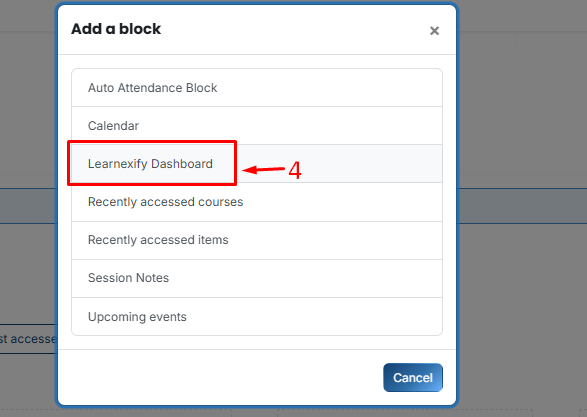
- Then, Select **Learnexify Dashboard**.
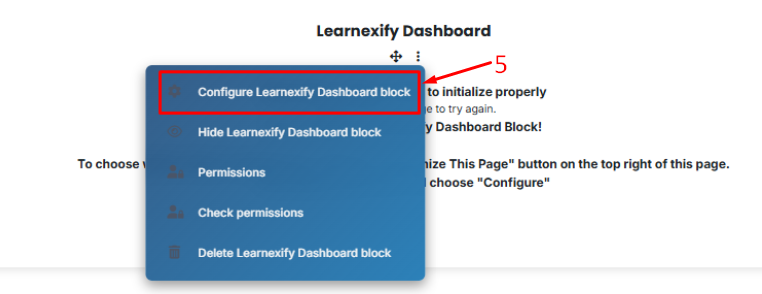
- On the new block, click the **Three-dot menu (⋮)** and select **Configure Learnexify Dashboard block**.
- In the Select Widget dropdown, choose **Batch Enrollment Widget.**
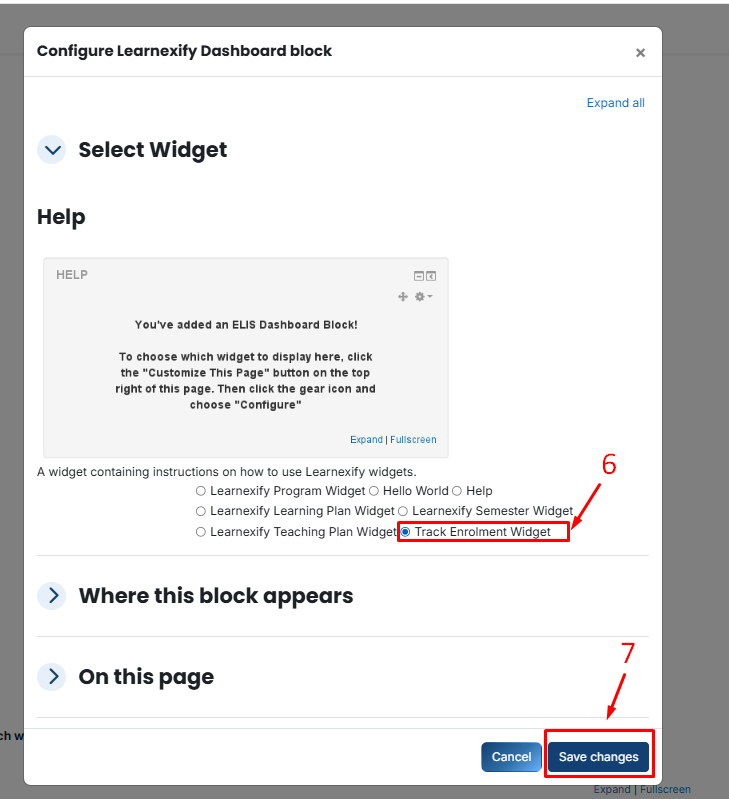
- Click **Save changes.**
# Field Visibility & Search Filter Configuration
Administrators can control exactly what batch information is shown and how the search filters behave.
To access these settings, go to: **Side Menu > Admin > Widgets Settings > batch Enrollment Widget.**
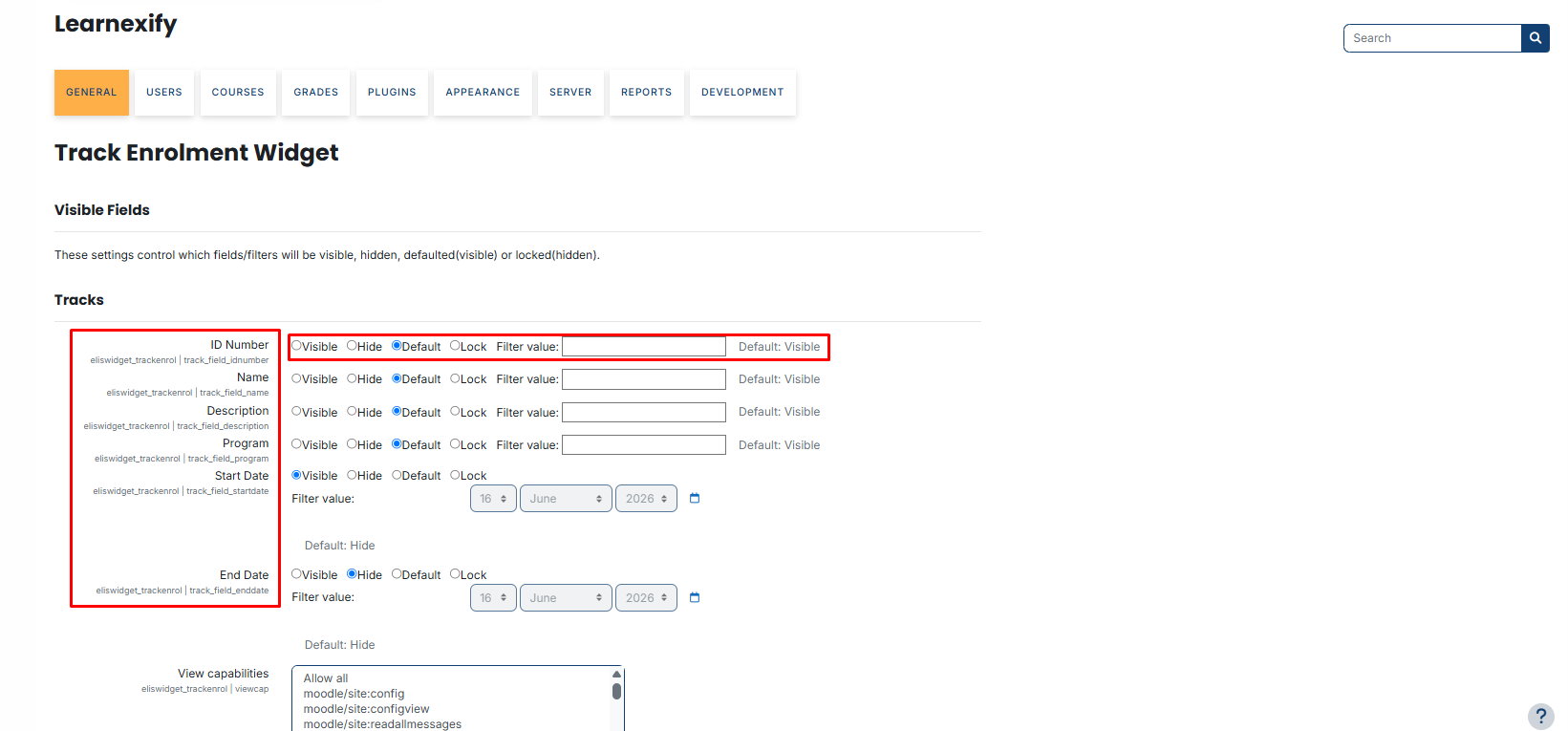
For fields like **ID Number**, **Name**, **Description**, and **Program**, you have **four primary control states**:
- **Visible:** The field and its data are always shown. The user cannot use a search filter for this field.
- **Hide:** The field is completely removed from the user’s dashboard view.
- **Default:** The field follows the system’s original backend settings. A search filter box will be available for the user.
- **Lock:** The field is visible but the search filter is frozen. Users cannot change the results you have pre-defined.
####
**Using Filter Values:**
The Filter Value box allows you to pre-fill the search criteria:
- **With "Default" setting:** If you enter a value (e.g., **batch ID '11111'**), the dashboard will show that result by default, but the user can delete or change it to search for something else.
- **With "Lock" setting:** If you enter a value, the user is forced to see only that specific result. They cannot edit or clear the filter box.
# Advanced Visibility Restrictions
Learnexify allows you to restrict the widget so it only appears in specific areas or for specific groups.
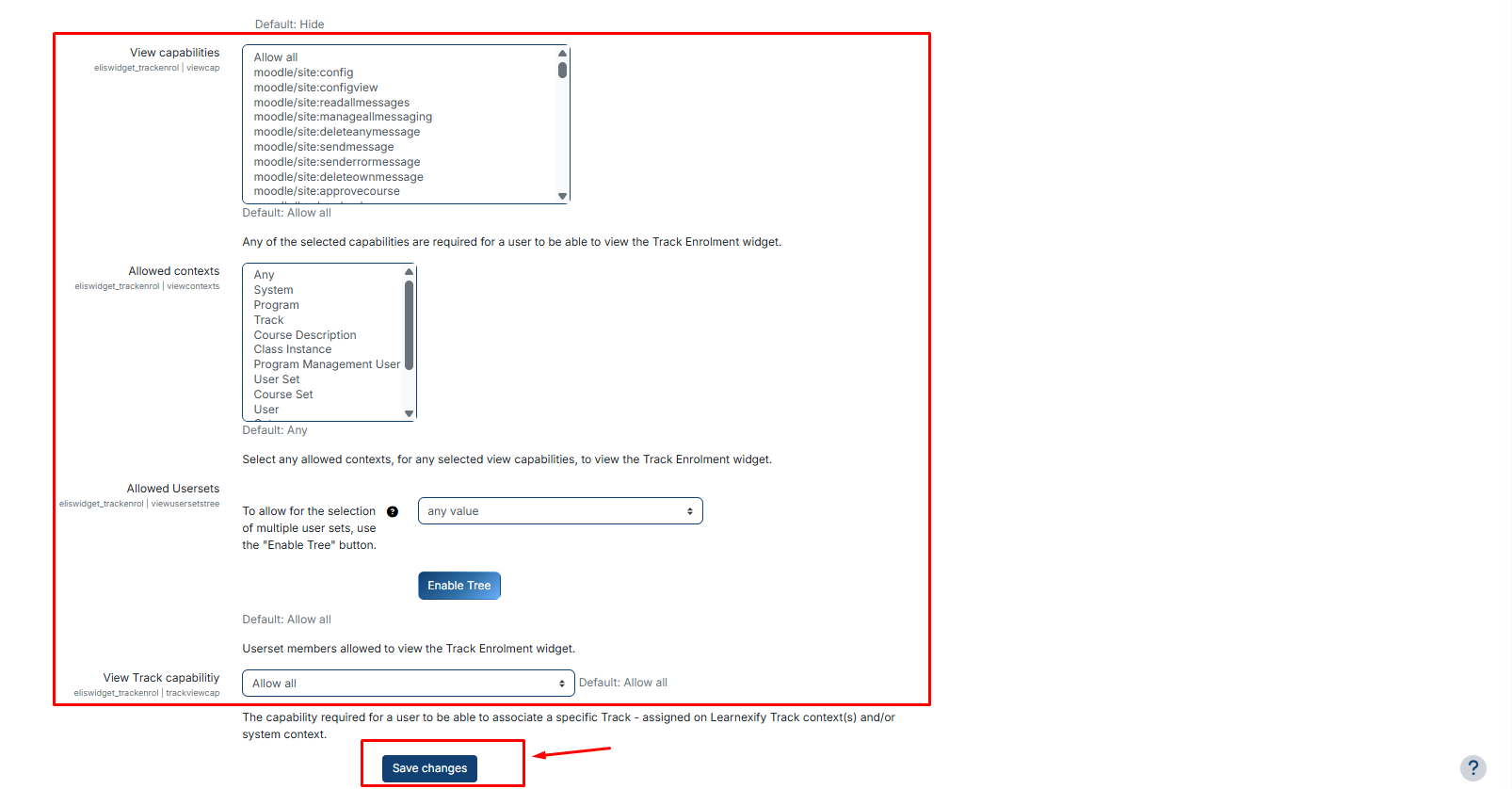
- **View Capabilities:** Define specific system permissions required to see the widget. By default, it is "Allow all," but it can be restricted to authorized staff only.
- **Allowed Contexts:** Choose where the widget is active. For example, selecting "Program" ensures the widget only appears when a user is navigating inside a specific academic program.
- **Allowed Usersets (Hierarchy Control):** Use the "Enable Tree" button to limit the widget to specific departments, faculties, or student batch. This is ideal for showing different data to different campuses.
- **View batch Capability:** Set the specific permission level required for a user to view their own batch association.
After making the necessary changes and selecting the fields, click the **Save button** to save your settings.
# Permission Management & Role Overrides
Permissions control who can view or modify the widget.
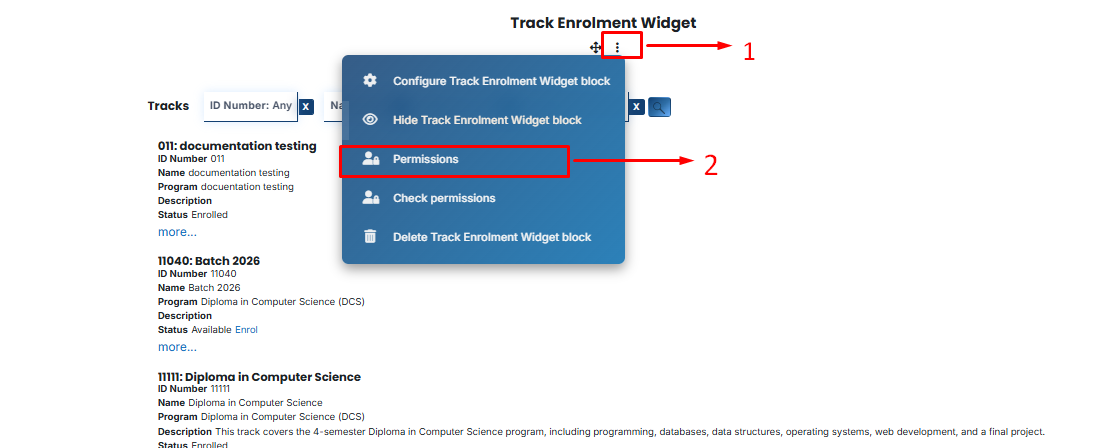
To set these, click the **Three-dot menu (⋮)** on the widget block and select **Permissions**.
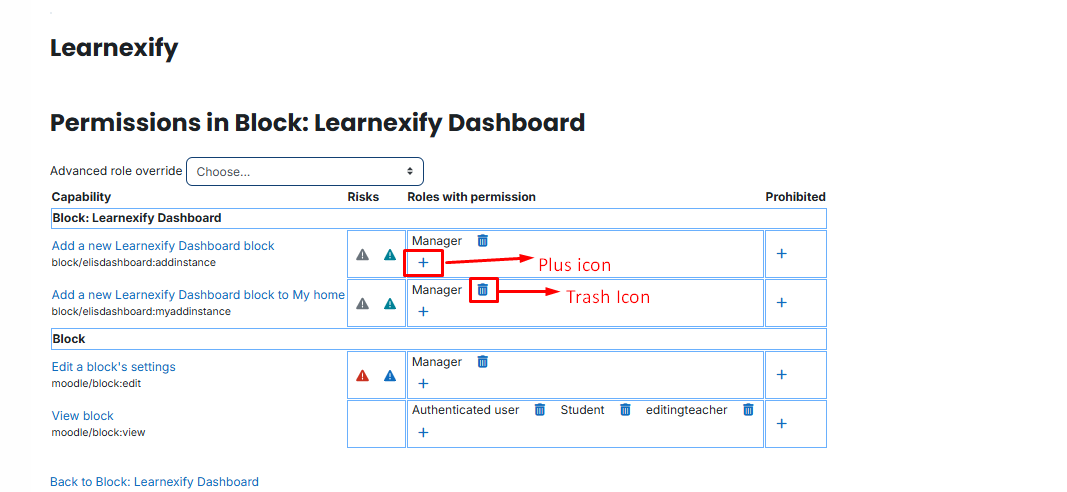
Use the Plus **(+)** Icon to grant a role (like: **Teacher or Manager**) permission, or the **Trash Icon (🗑️)** to remove it.
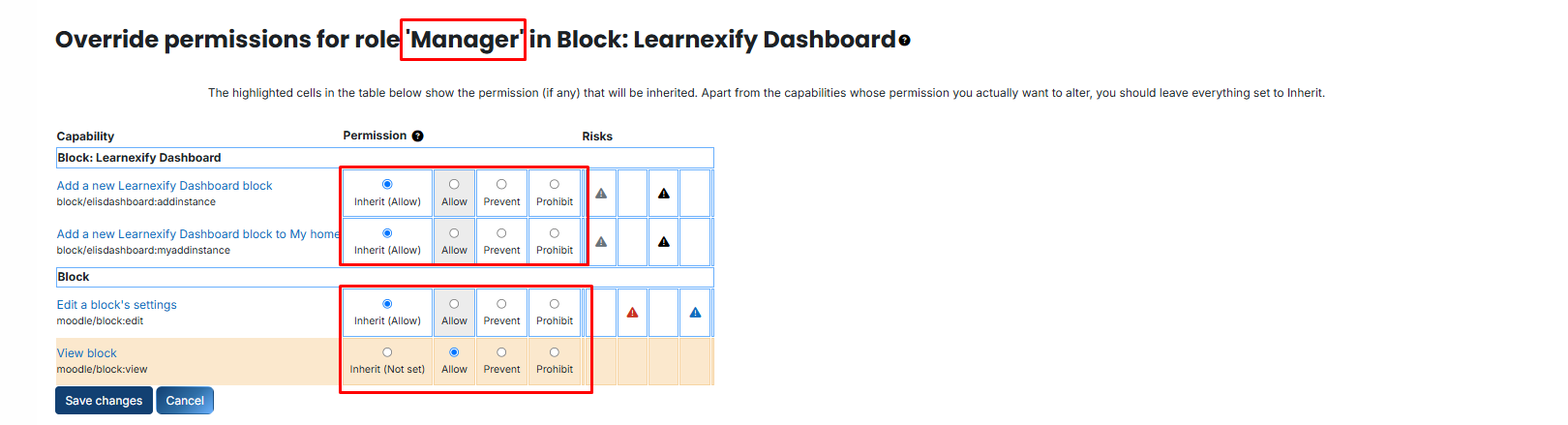
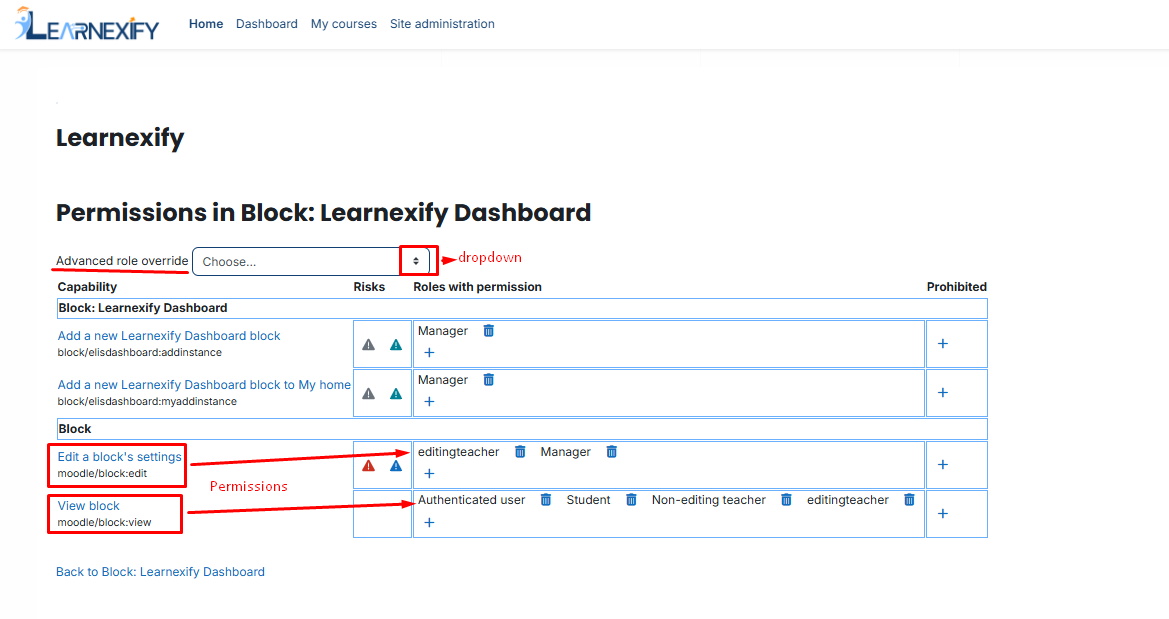
- **View block:** Controls who can see the widget (e.g., Students).
- **Edit a block’s settings:** Controls who can change colors and configurations (e.g., Admins or authorized Managers).
- **Add a new Learnexify Dashboard block to My home:** Determines if users can manually add this block to their personal "My Home" page.
####
#### **Advanced Role Overrides:**
If you need to change permissions for a specific role exclusively for this widget, use the dropdown to select the role.
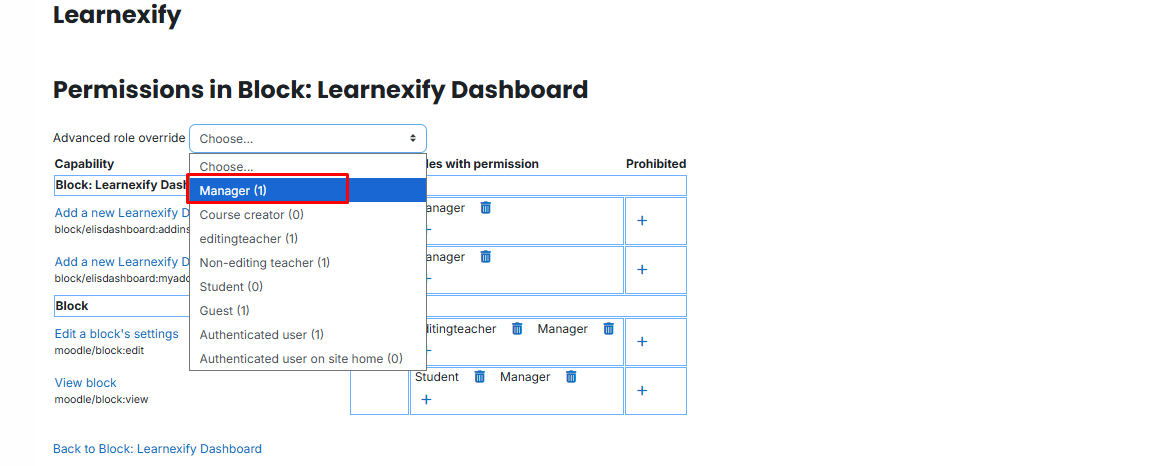
Then, choose one of the following:
- **Inherit:** Use the standard site default.
- **Allow:** Explicitly grant the permission.
- **Prevent/Prohibit:** Block the role from performing the action.