# Semester Widget Documentation
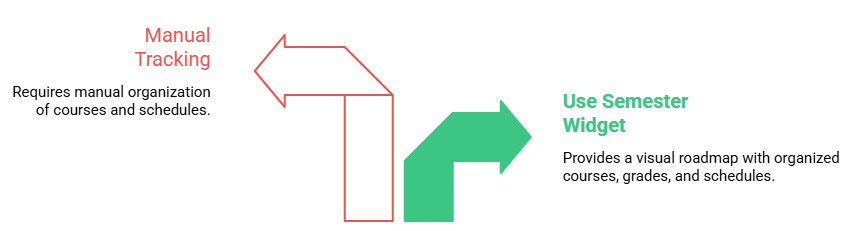
The **Semester Widget** acts as a visual academic roadmap for learners. It dynamically groups and organizes enrolled courses by their respective semesters or academic terms, giving students a clean, structured timeline to track their current grades, course completions, and class schedules without clutter.
# Overview & Setup
The Semester Widget acts as a visual academic roadmap. It automatically organizes a student's courses into their respective semesters, allowing users to track their progress, grades, and upcoming schedules in one organized interface.
####
To make this widget visible for instructors, follow these steps:
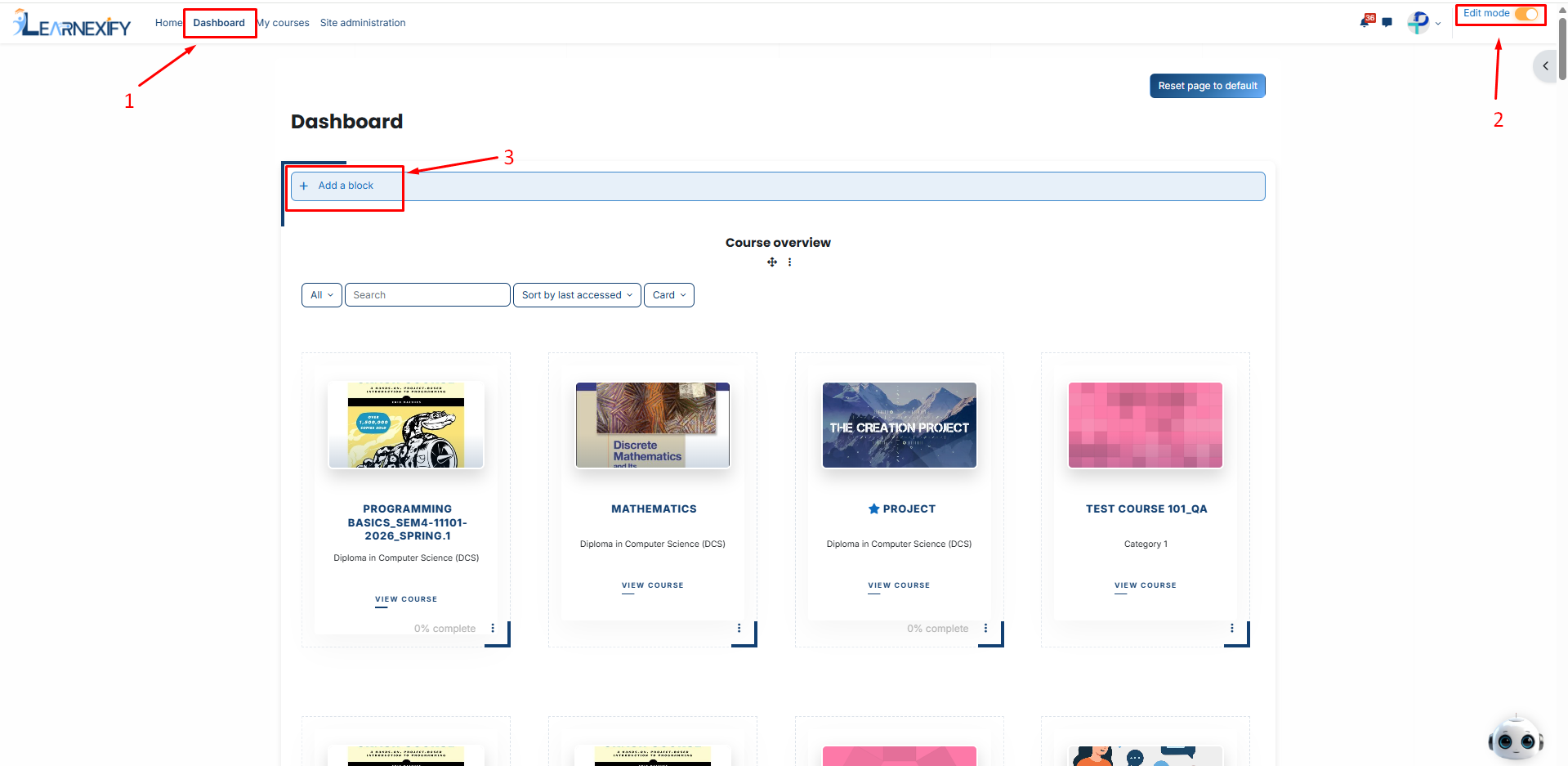
- Navigate to your Dashboard.
- Toggle **Edit** **Mode** to "**On**" (top right corner).
- Click the **Add a block** button.
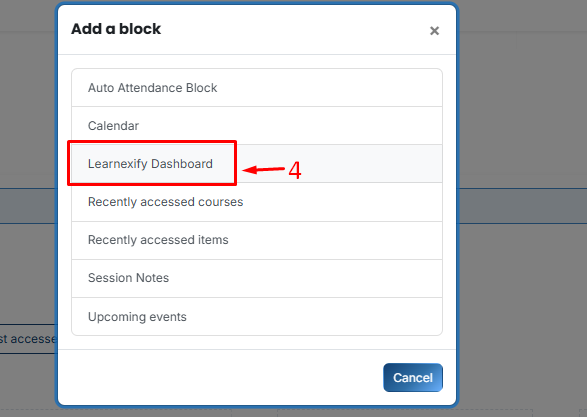
- Then, Select Learnexify Dashboard.
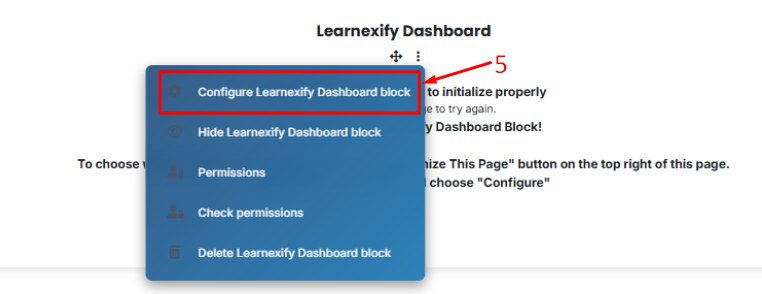
- On the new block, click the **Three-dot menu (⋮)** and select **Configure Learnexify Dashboard block**.
- In the Select Widget dropdown, choose batches **Enrollment Widget**.
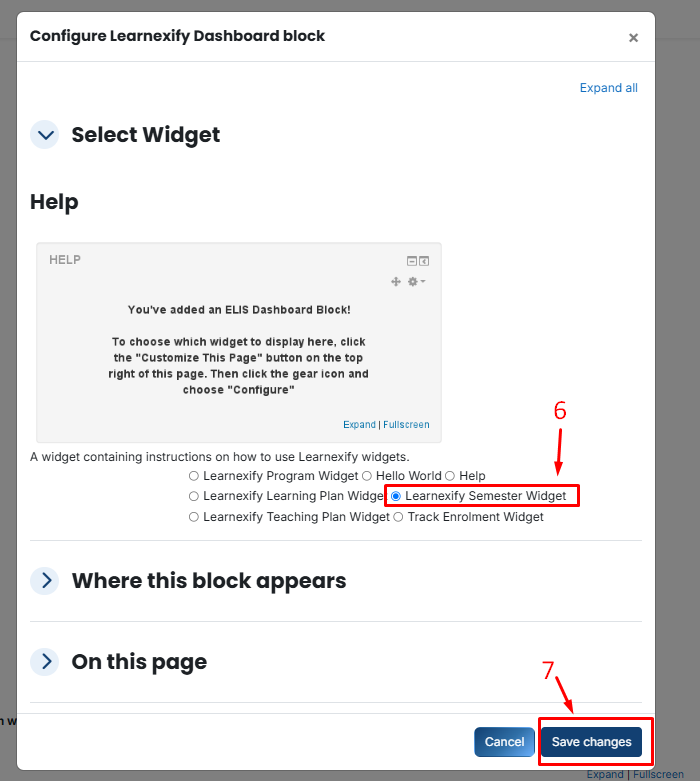
- Click **Save changes.**
# Interface Features & Visual Layout
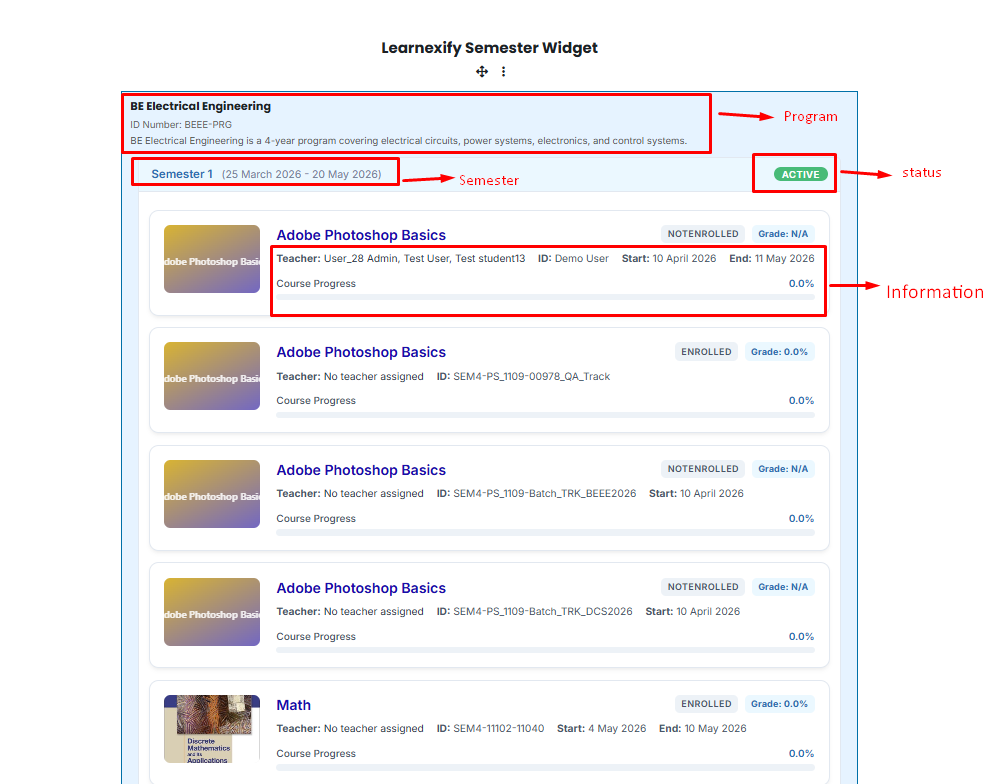
The Semester Widget is designed for high visibility and ease of use. It automatically populates data to provide a seamless experience:
**Program Overview:** The Program Name, ID, and Description are automatically pinned to the top of the widget for context.
**Semester Status Indicators:**
- 🟢 **Green:** Indicates a currently Active semester.
- ⚪ **Grey:** Indicates Inactive semesters (either upcoming or already completed).
**Interactive Course Cards:** Each course within a semester is displayed as a card containing:
- Assigned **Teacher's name**.
- Course **Start** and **End dates**.
- A real-time **Progress Bar**.
- **Current Grade:** Displayed as a percentage in the top right corner of the card.
- **Expand & Collapse:** Users can click any semester header to hide or show the courses inside, keeping the dashboard clean and focused.
# Permission Management & Role Overrides
Permissions control who can view or modify the widget.
To set these, click the Three-dot menu **(⋮)** on the widget block and select **Permissions.**
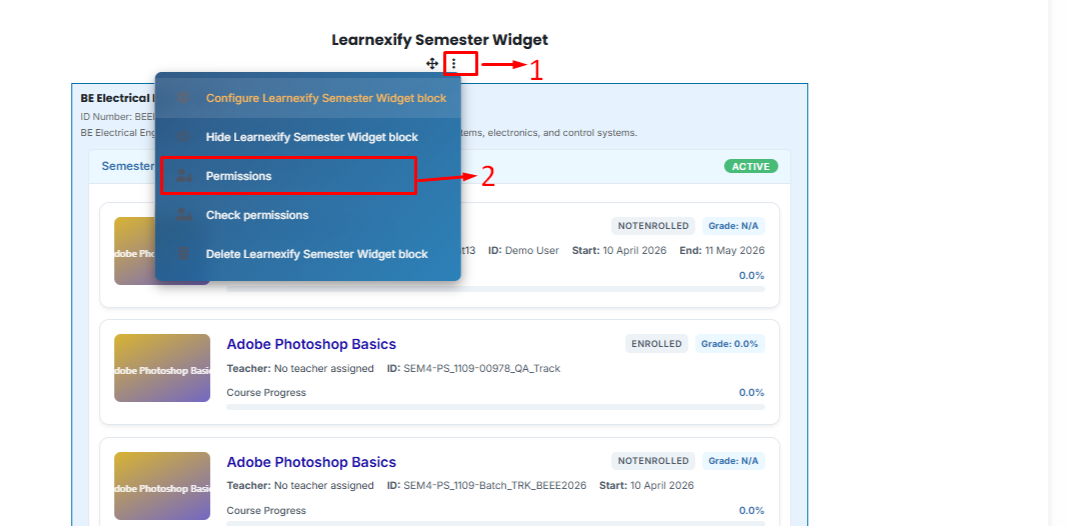
Use the Plus **(+)** Icon to grant a role (like: **Teacher or Manager**) permission, or the to remove it.
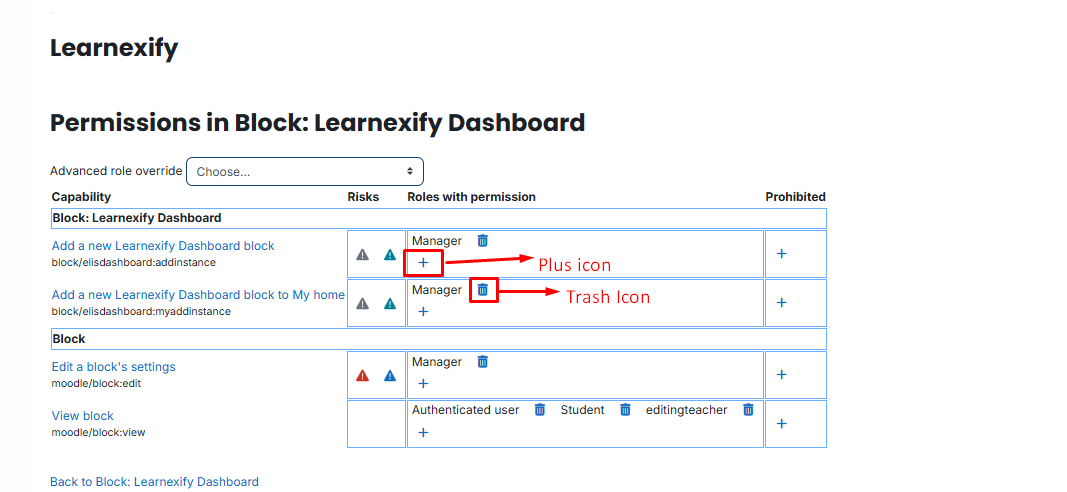
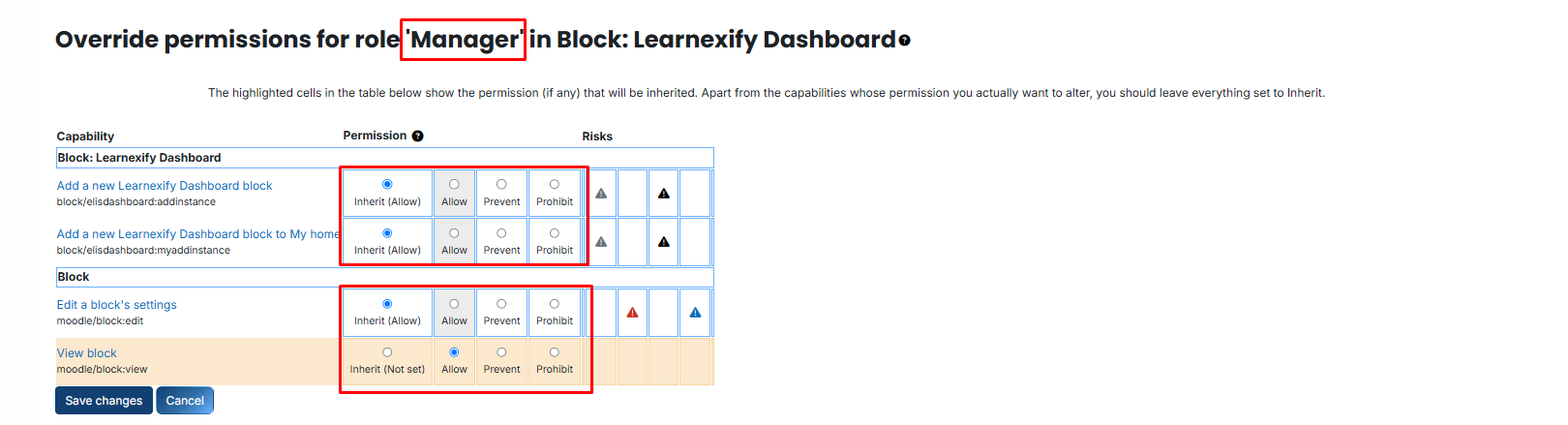
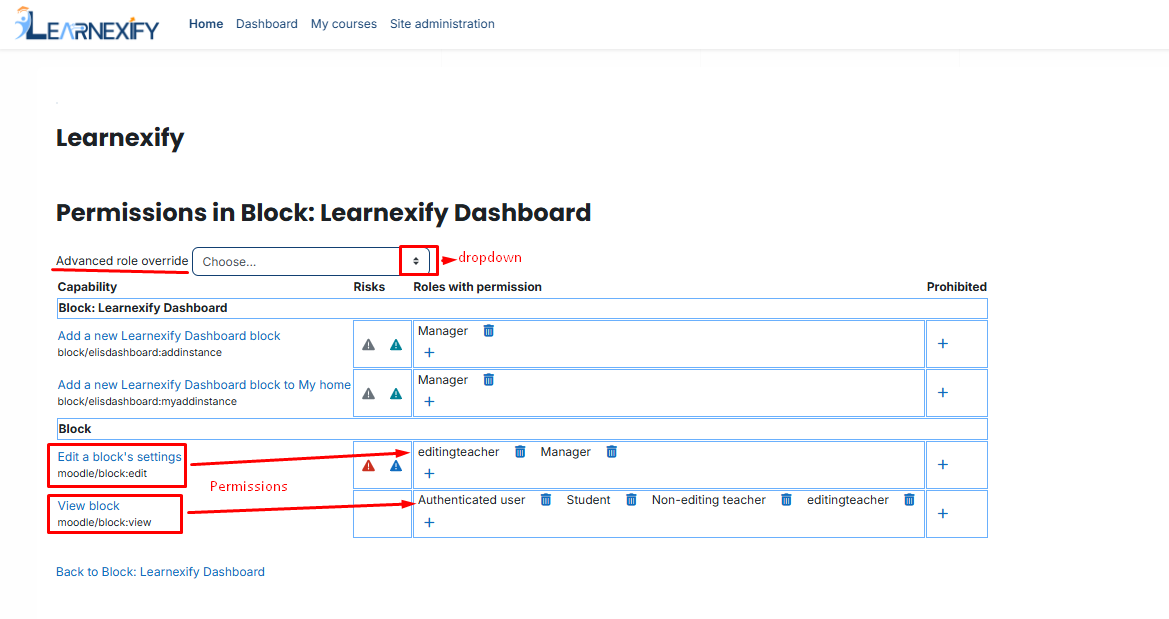
- **View block:** Controls who can see the widget (e.g., Students).
- **Edit a block’s settings:** Controls who can change colors and configurations (e.g., Admins or authorized Managers).
- **Add a new Learnexify Dashboard block to My home:** Determines if users can manually add this block to their personal "My Home" page.
####
**Advanced Role Overrides:**
If you need to change permissions for a specific role exclusively for this widget, use the dropdown to select the role.
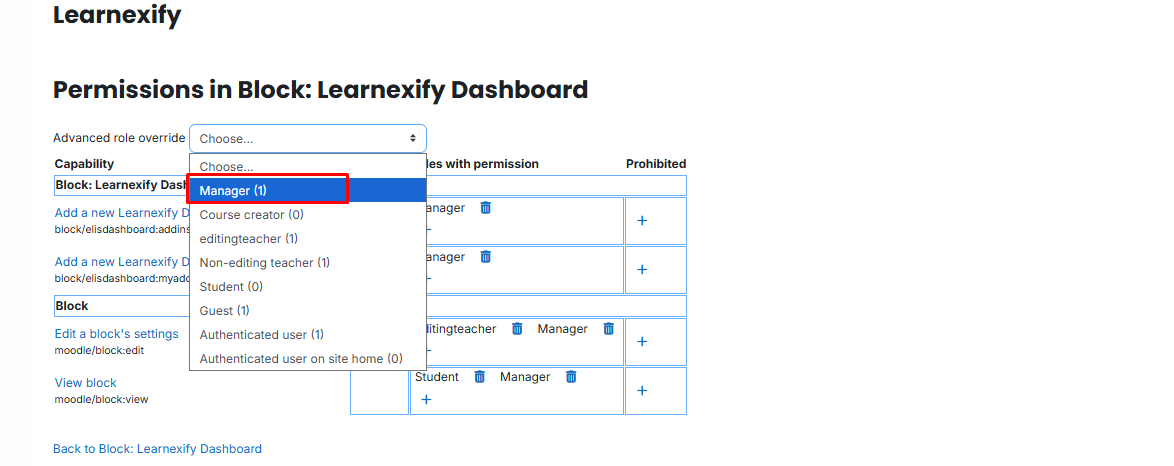
Then, choose one of the following:
- **Inherit:** Use the standard site default.
- **Allow:** Explicitly grant the permission.
- **Prevent/Prohibit:** Block the role from performing the action.