# Teaching Plan Widget Documentation
The **Teaching Plan Widget** is an instructor-focused dashboard tool that acts as a class management cockpit. It gathers and organizes all course instances, daily teaching schedules, student enrollment limits, waiting lists, and co-instructors into a single, clean table on the teacher's dashboard.
# Overview & Setup
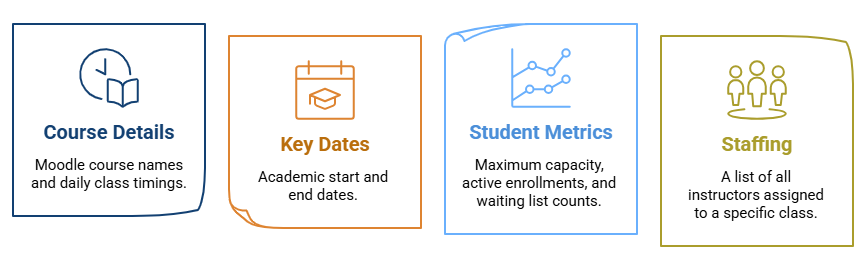
The Teaching Plan Widget is an administrative tool for instructors. It consolidates class data into a single table on the dashboard, allowing instructors to monitor:
- **Course Details:** Moodle course names and daily class timings.
- **Key Dates:** Academic start and end dates.
- **Student Metrics:** Maximum capacity, active enrollments, and waiting list counts.
- **Staffing:** A list of all instructors assigned to a specific class.
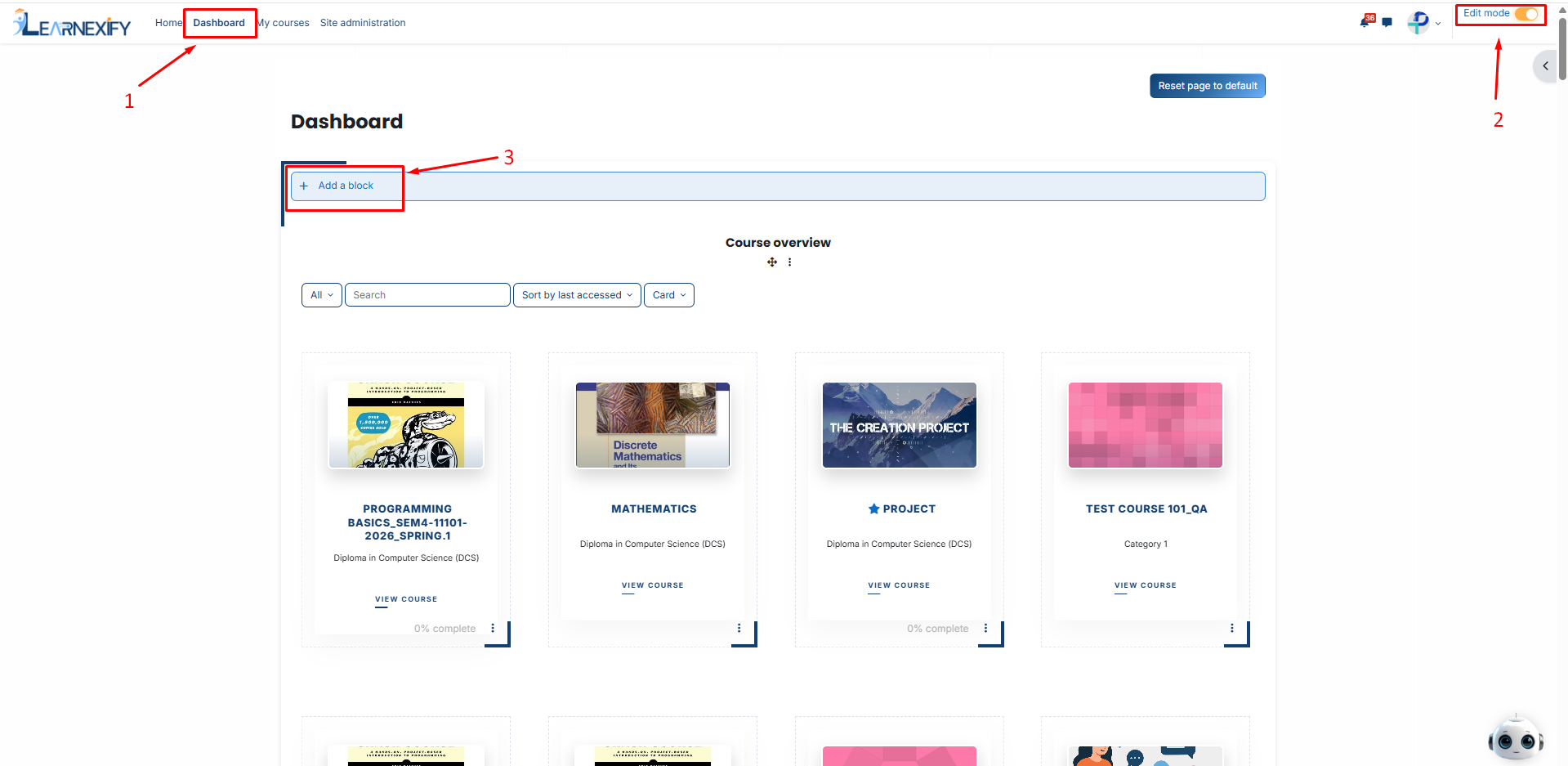
To make this widget visible for instructors, follow these steps:
- Navigate to your **Dashboard.**
- Toggle **Edit Mode** to "**On**" (top right corner).
- Click the **Add a block** button.
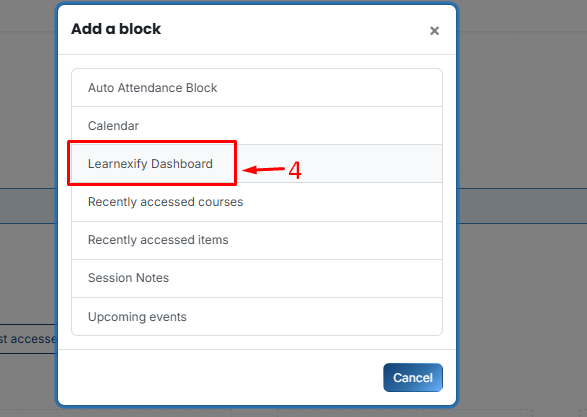
- Then, Select **Learnexify Dashboard**.
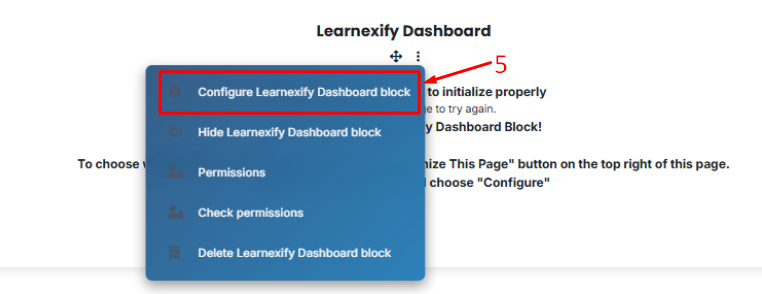
- On the new block, click the **Three-dot menu (⋮)** and select **Configure Learnexify Dashboard block**.
- In the Select Widget dropdown, choose **Teaching Plan Widget**.
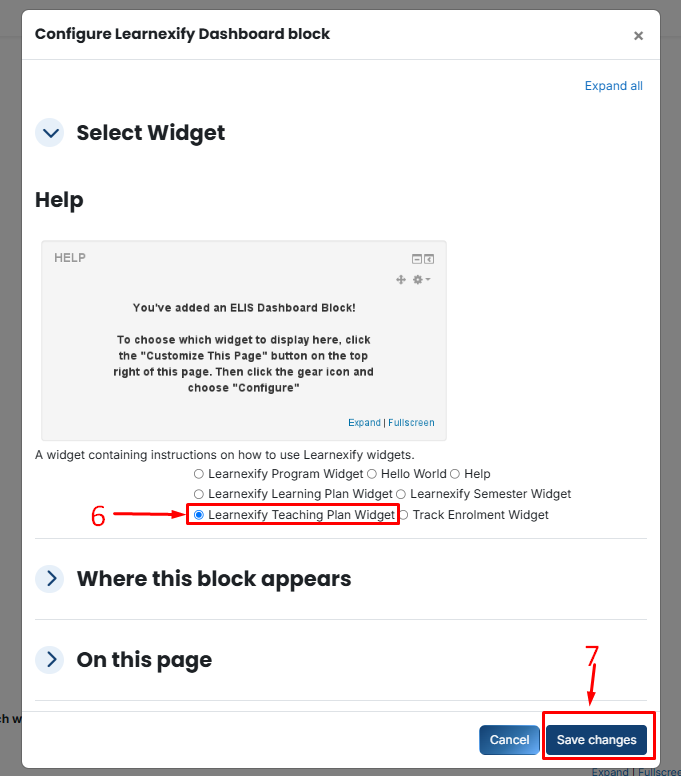
- Click **Save changes**.
# Column Visibility & Field Settings
Administrators can control which data columns are visible to instructors.
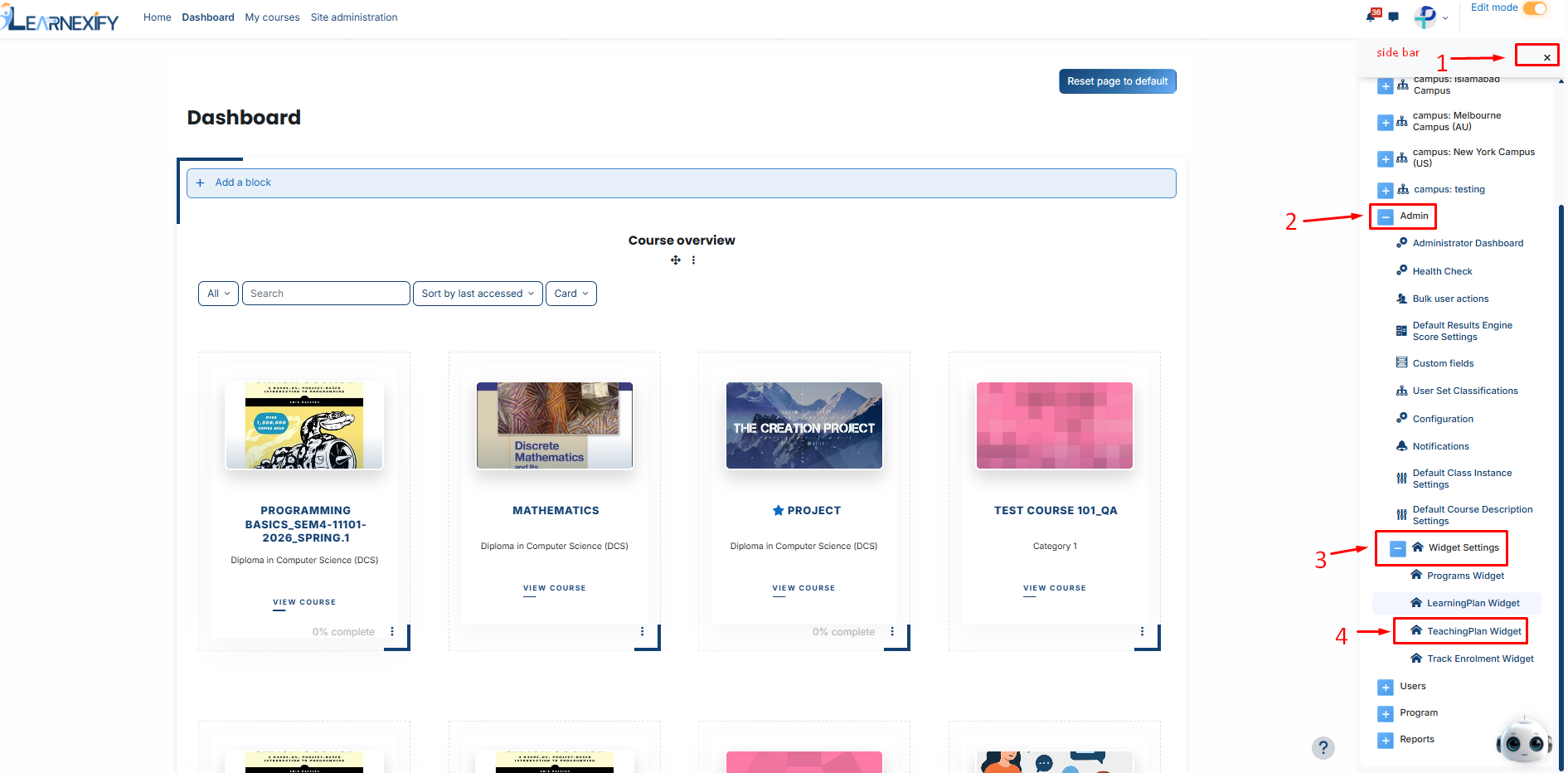
To access these settings, go to: **Side Menu > Admin > Widgets Settings > Teaching Plan Widget.**
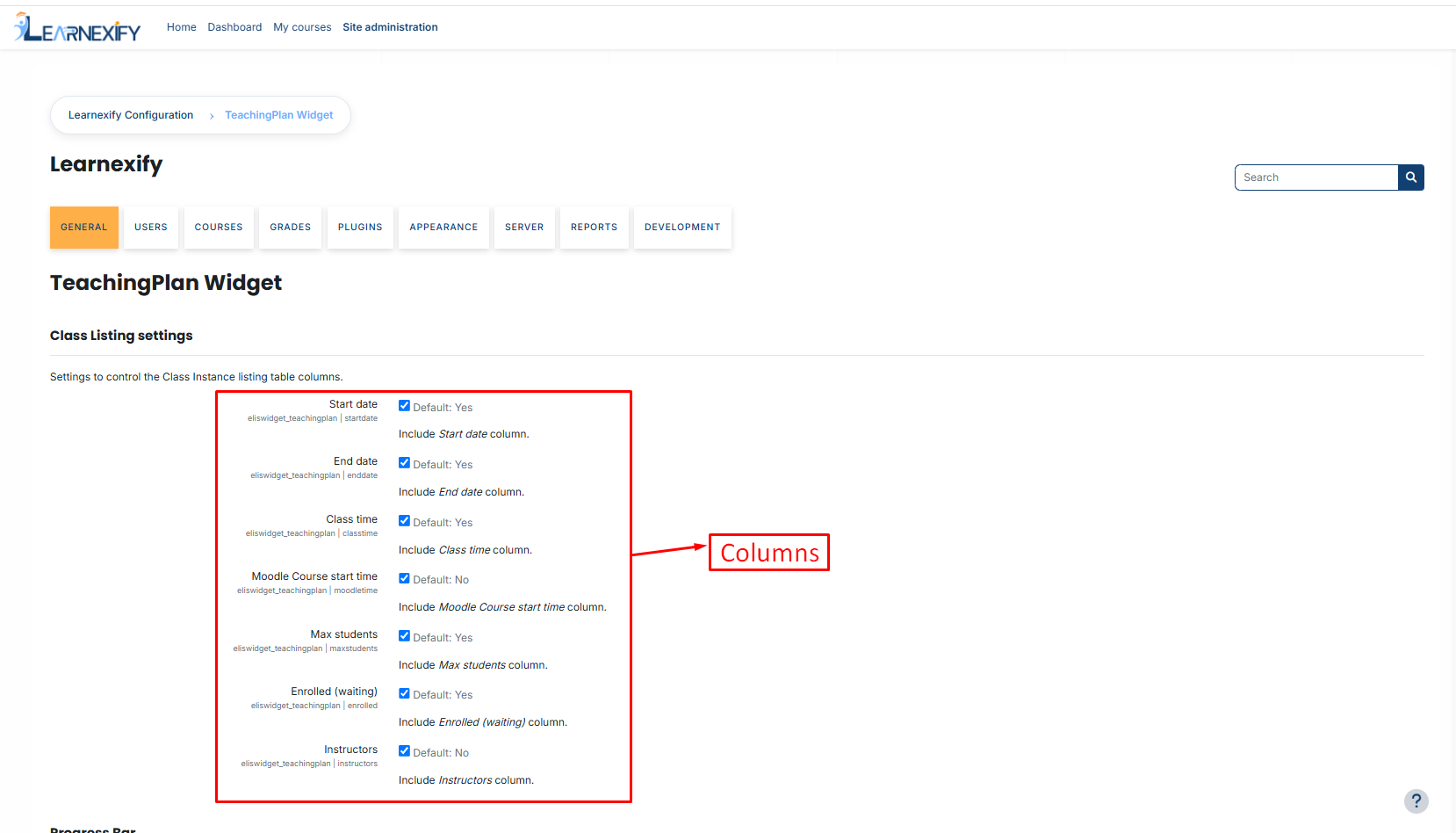
You can toggle the following fields **ON** or **OFF**:
- **Start Date** & **End Date:** Shows the official academic duration of the class.
- **Class Time:** Displays the scheduled daily timing for the class sessions.
- **Max Students:** Displays the total seat limit **(capacity)** for the class.
- **Moodle Course Start Time:** If integrated with Moodle, this displays the specific course launch time.
- **Enrolled (Waiting):** Provides a live count of students who are "**Enrolled**", "**In-Progress**" or on the "**Waiting List**".
- **Instructors:** Lists the names of all teachers assigned to that specific Course Instance.
# Progress Bar Configuration
The progress bar helps instructors track the overall completion percentage of the students within a class.
**Enabled:** Toggle the bar on or off.
**Completion Color Stages:** You can customize the colors to match your institution's branding:
- **0%–49% (Initial Stage):** Displays **Red** when less than half the class has finished.
- **50%–79% (Midway Stage):** Displays **Yellow** as more students reach completion.
- **80%–100% (Success Stage):** Displays **Green** as the class nears full completion.
> **Note:** You can use the **color picker** or enter a specific **Hex Code** to customize these stages.
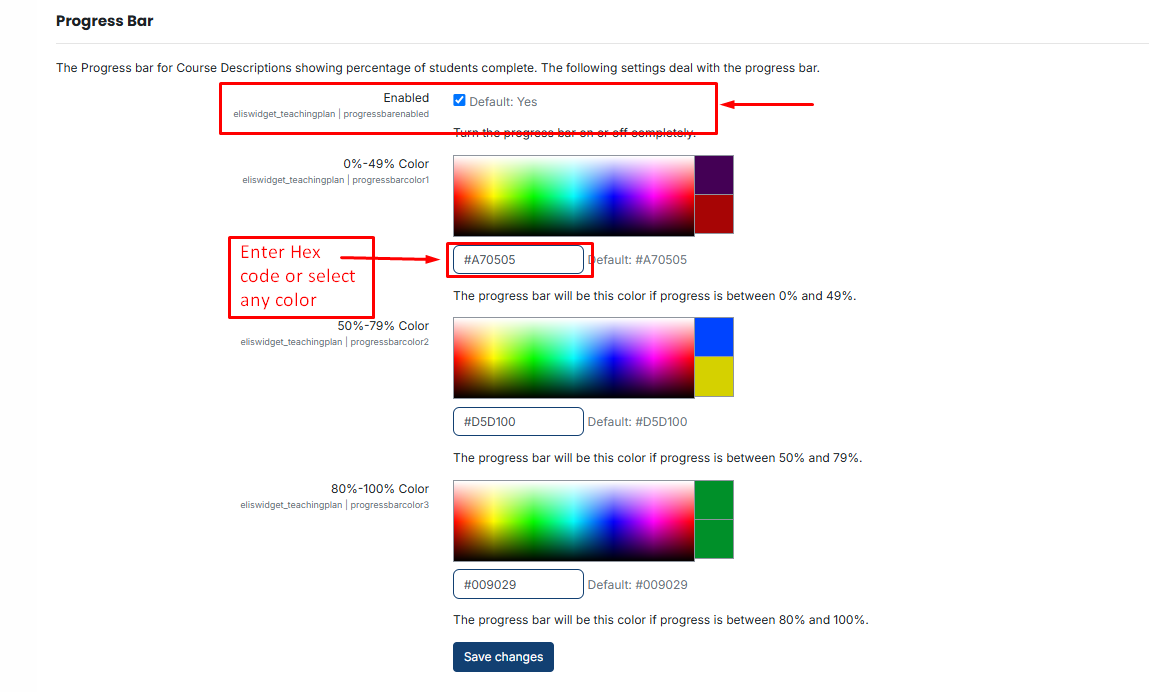
After making the necessary changes and selecting the fields, click the **Save button** to save your settings.
# Permission Management & Role Overrides
Permissions control who can view or modify the widget.
To set these, click the Three-dot menu **(⋮)** on the widget block and select **Permissions**.
Use the Plus **(+)** Icon to grant a role (like: **Teacher or Manager**) permission, or the **Trash Icon (🗑️)** to remove it.
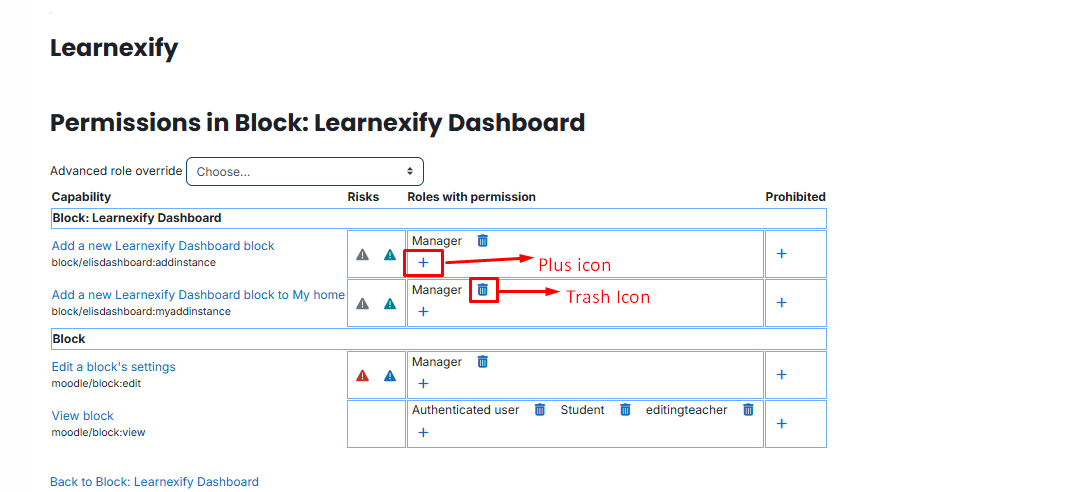
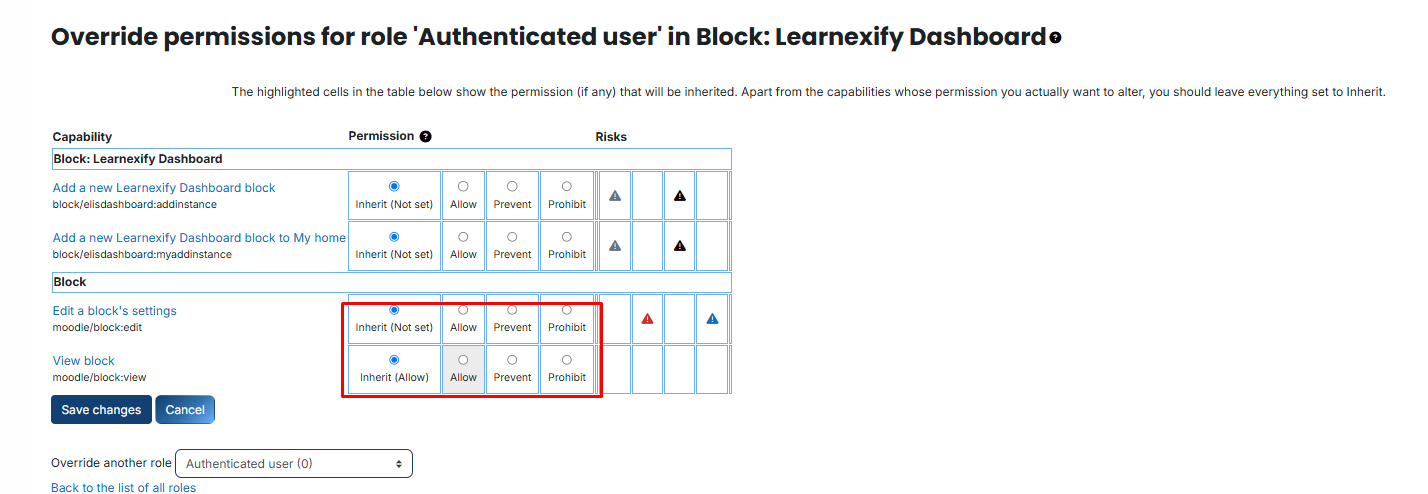
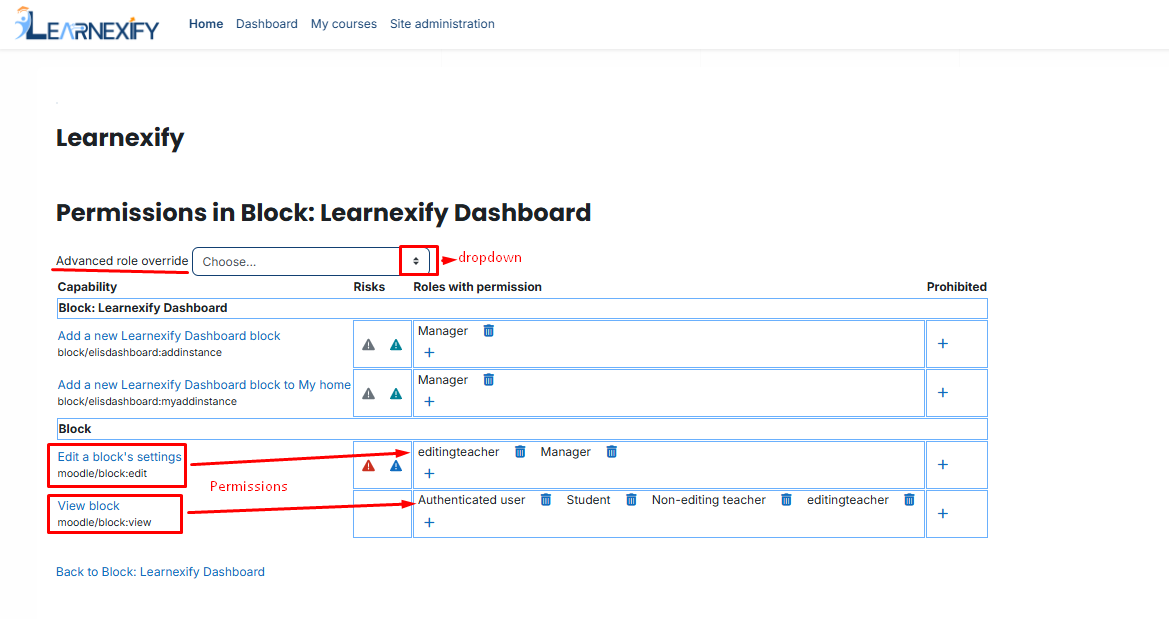
- **View block:** Controls who can see the widget (e.g., Students).
- **Edit a block’s settings:** Controls who can change colors and configurations (e.g., **Admins or authorized Managers**).
- **Add a new Learnexify Dashboard block to My home:** Determines if users can manually add this block to their personal "**My Home**" page.
####
**Advanced Role Overrides:**
If you need to change permissions for a specific role exclusively for this widget, use the dropdown to select the role
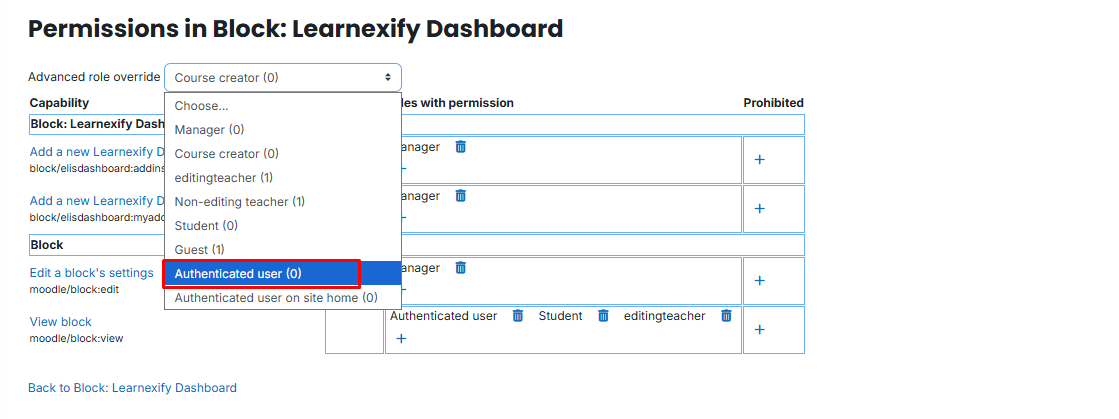
Then, choose one of the following:
- **Inherit:** Use the standard site default.
- **Allow:** Explicitly grant the permission.
- **Prevent/Prohibit:** Block the role from performing the action.