
Default Course Description Settings
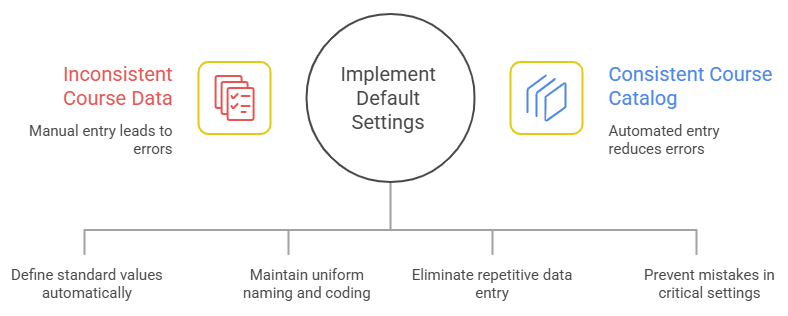
The Default Course Description Settings page allows you to define standard values that will automatically appear every time you create a new course. By pre-filling these fields, you:
- Ensure Consistency: Maintain a uniform naming and coding style across your entire course catalog.
- Save Time: Eliminate the need to type the same repetitive information (like passing grades or cost) for every individual course.
- Reduce Errors: Prevent mistakes in critical settings like credit values or ID formats.
Follow this navigation path:
- Open the Side Drawer menu on your Learnexify dashboard.
- Click on the Admin section.
- Click Default Course Description Settings button.
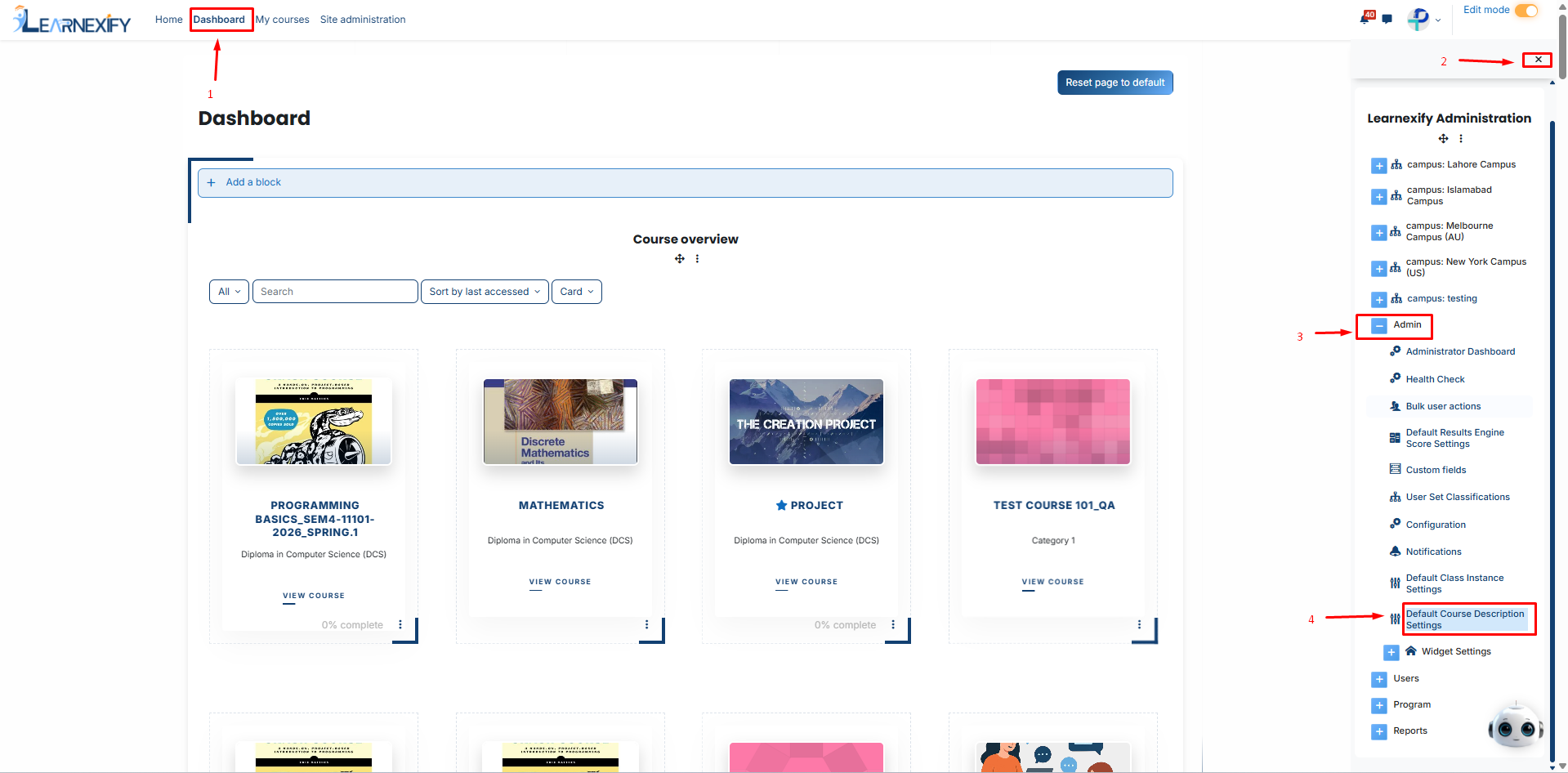
After clicking on the Default Course Description Settings buttony you will see these fields as shown in the image below.
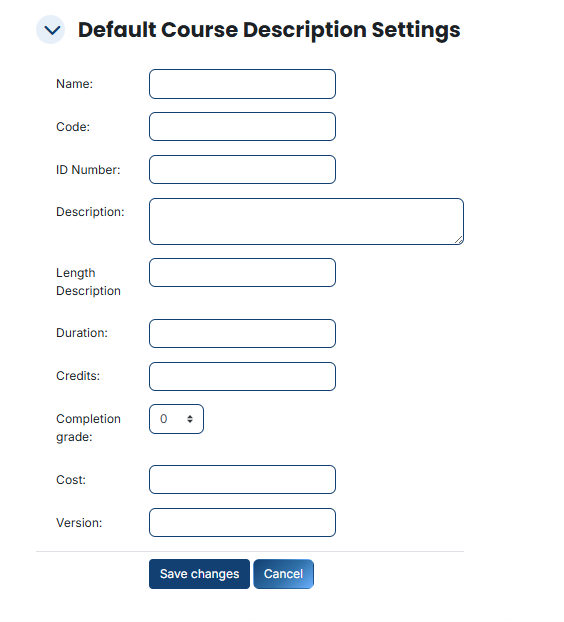
These fields help the system and the users identify and categorize your courses easily:
-
Name: The full title of the course. Setting a default prefix helps group similar courses.
Example: Set it to "Tech Training:" so every new course starts with that title. -
Code: A short, shorthand identifier for quick searching.
Example: Set a prefix like "TECH-" so your courses are automatically coded as TECH-001, TECH-002, etc.
-
ID Number: A unique internal batch number.
Example: Use a year-based format like "2026-ID-" to batch when courses were added. -
Description: The main summary of the course. You can leave a template or instructions here to guide course creators.
Use these fields to establish the "standard" rules for your institution’s learning content:
-
Length Description and Duration: Define the general timeframe.
You can set a default label like "Self-paced" or a specific number of days/hours. -
Credits: If your institution uses a credit-based system, you can set a standard workload value here.
-
Completion Grade: A critical quality control setting.
You can pre-set the passing score (e.g., 70 or 80) so it is automatically applied to all new courses.
-
Cost: If your courses require a fee, set the standard price point here.
-
Version: Used to track content updates. You can set the starting version to "1.0" by default.
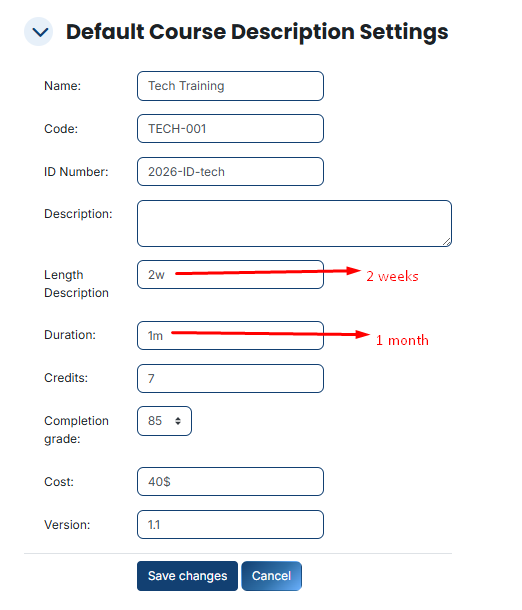
Once you have filled in the values that apply to the majority of your curriculum:
- Review all entries for accuracy.
- Click the Save changes button at the bottom of the page.
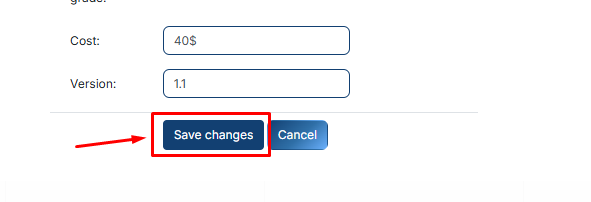
Now, whenever you build a new Course Description, these details will be waiting for you in the form.
You can use them as-is or edit them for that specific course, making your administrative process faster and more professional.