
Admission Module Documentation
The Learnexify Admission Module is a fully configurable system designed for educational institutions to manage the end-to-end recruitment and enrollment process.
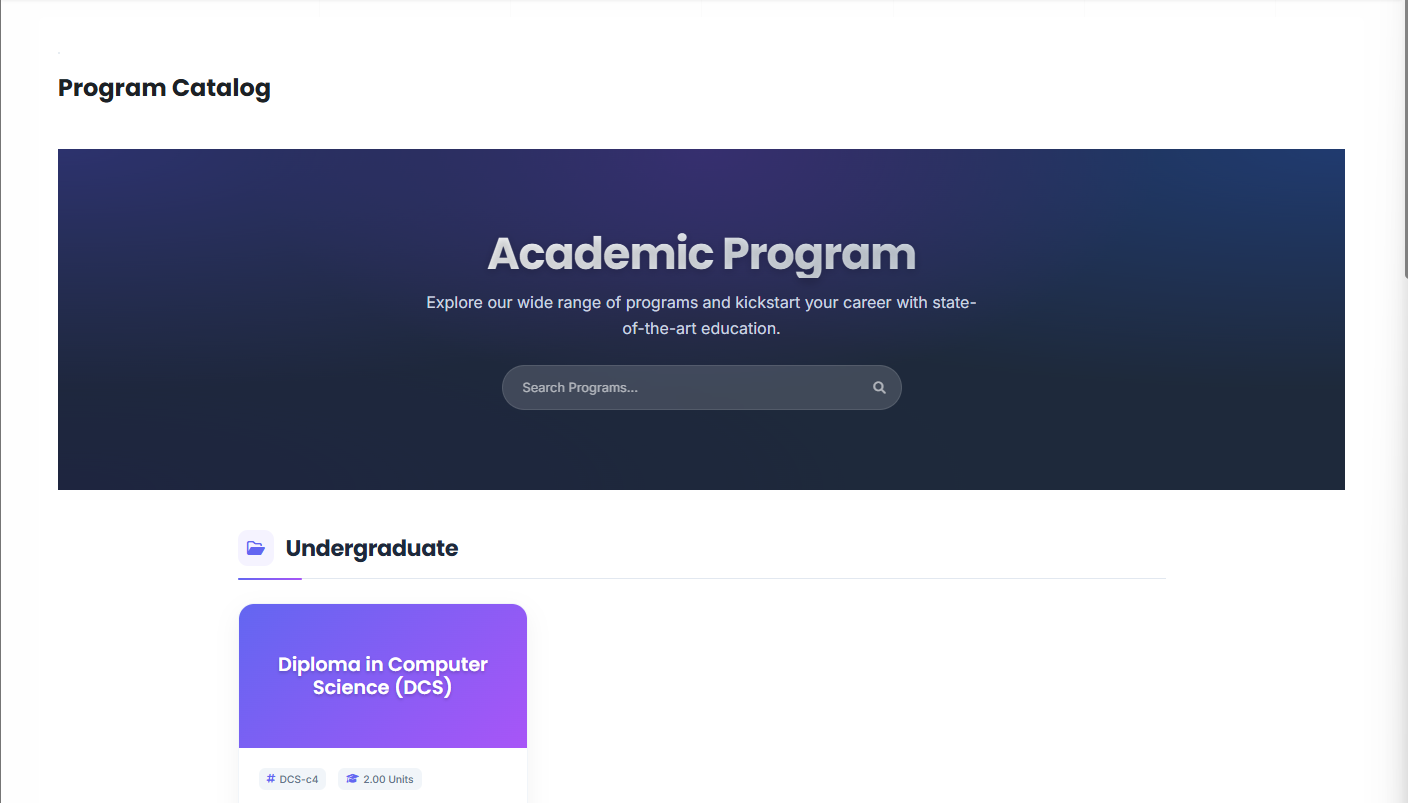
The Admission Catalog is the public-facing portal where potential students can view available programs.
-
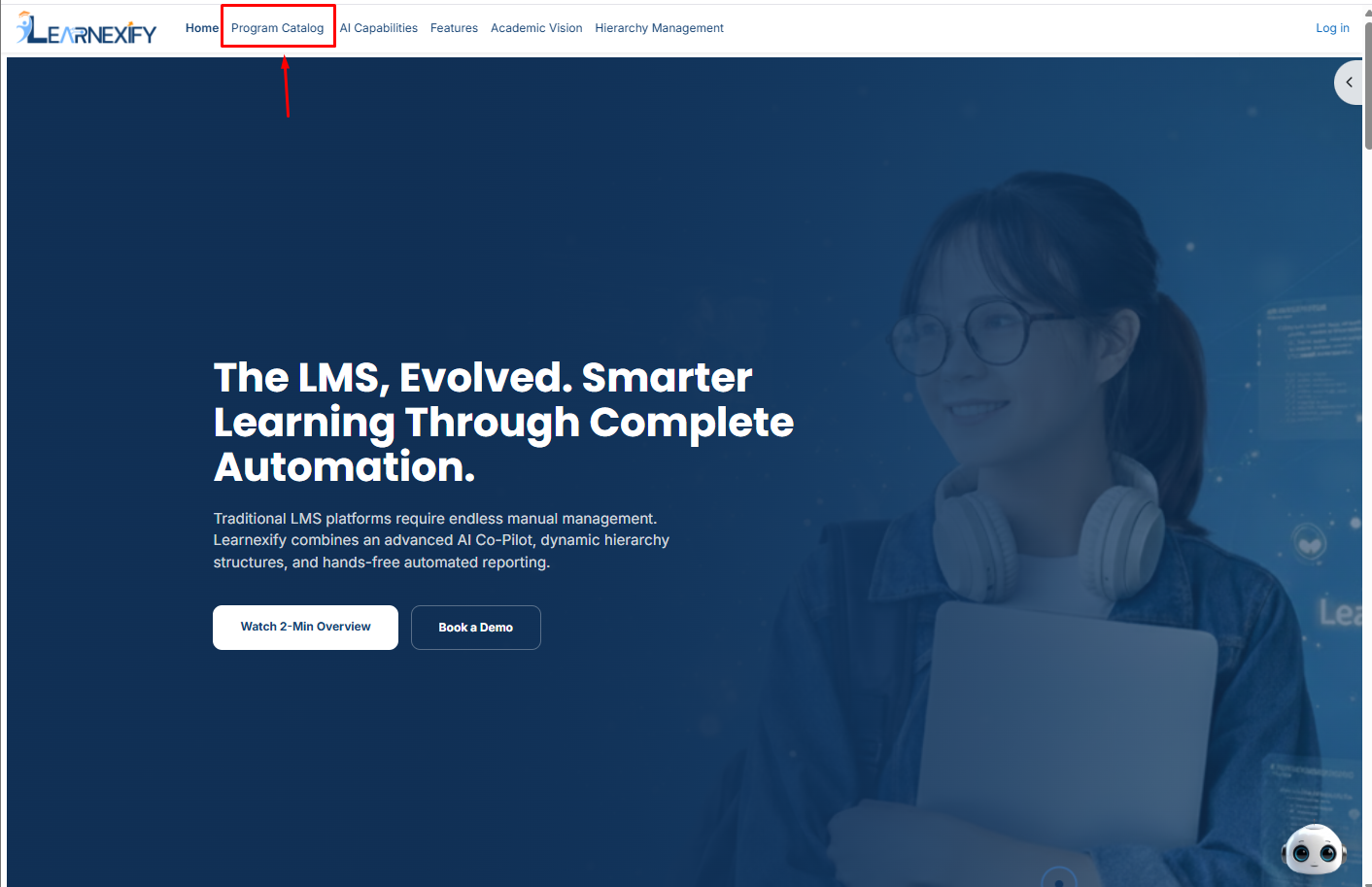
Public Access: Users can access the catalog via the navigation bar on the home page without signing in.
-
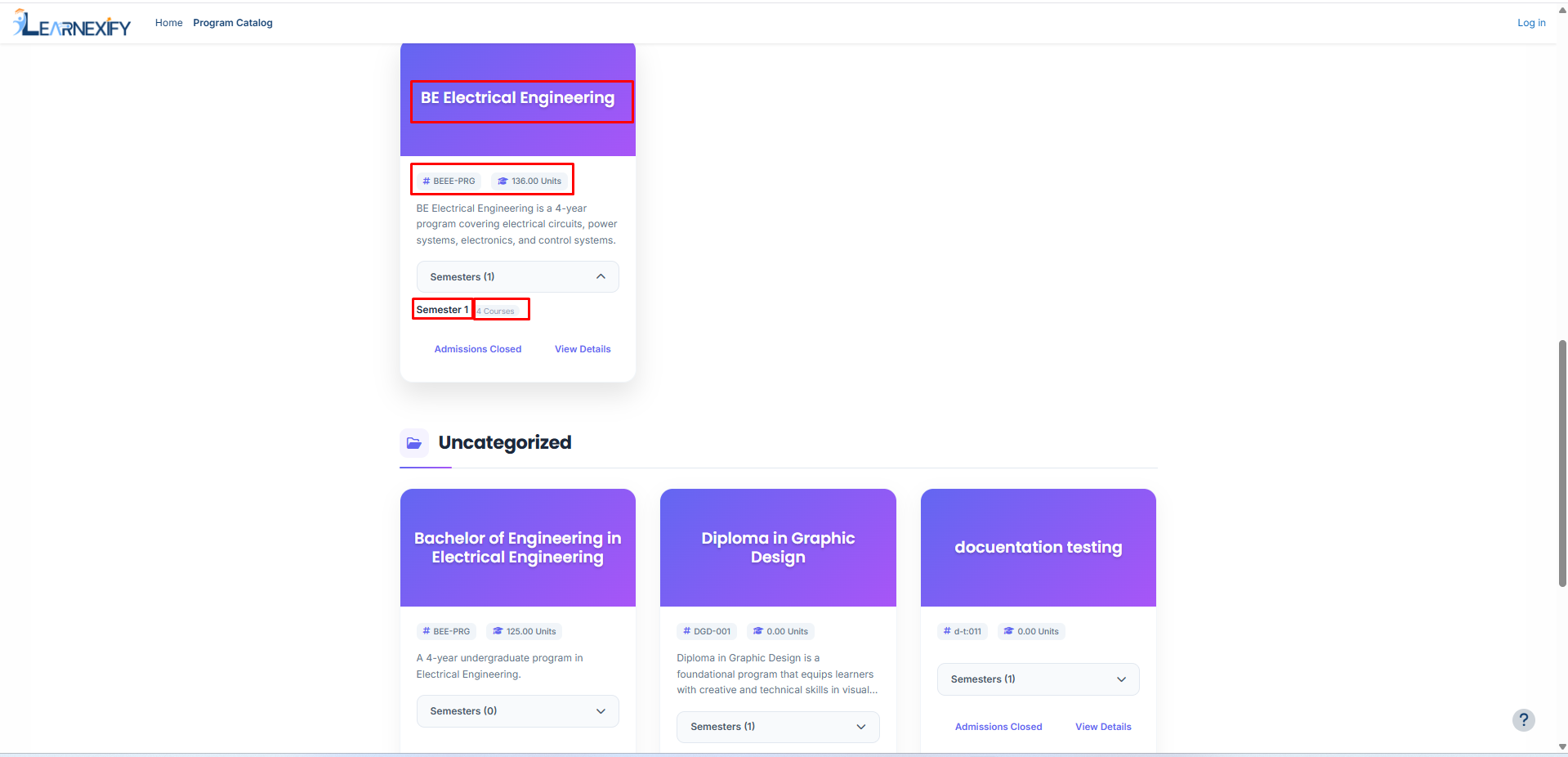
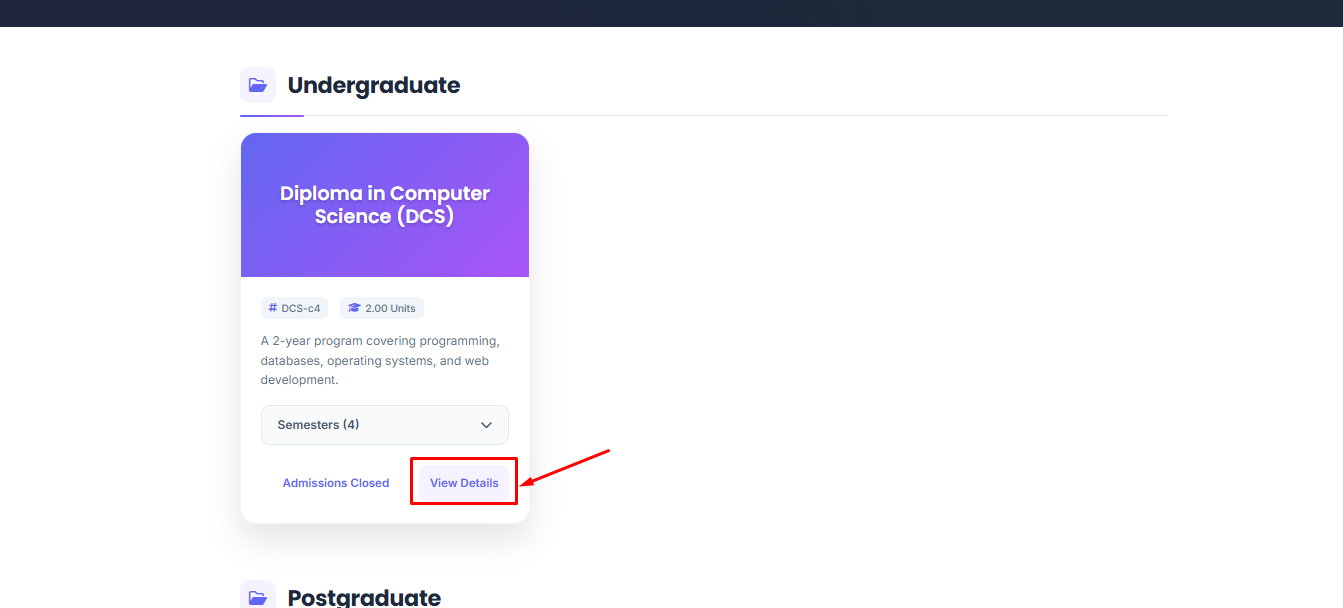
Program Cards: Programs are displayed in a card format containing the full name, short name, required credit hours, description, and a clickable semester summary.
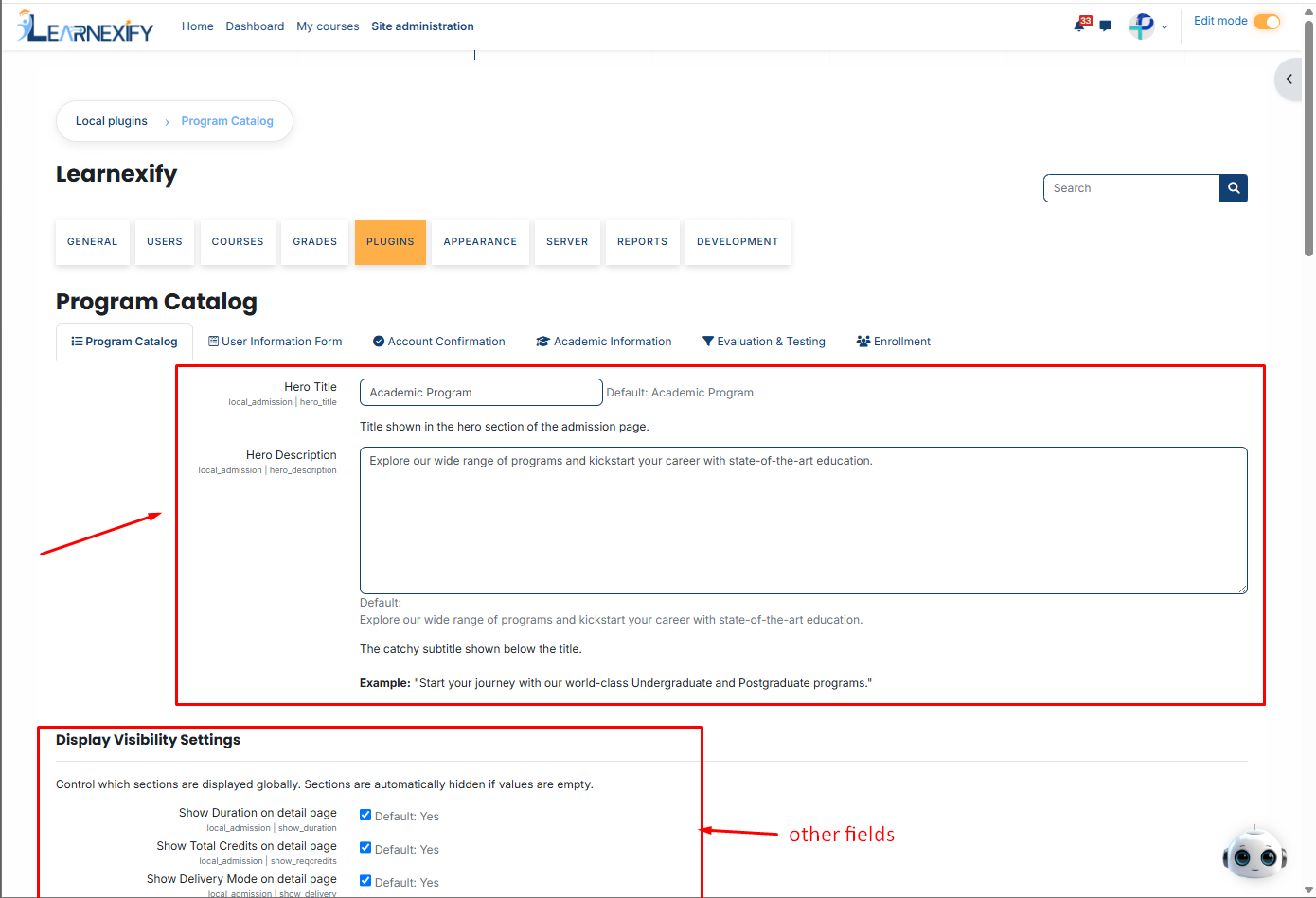
Catalog Header Configuration:
Administrators can customize the top section of the catalog:
-
Path: Site Administration > Plugins > Local Plugins > Admission Catalog


-
Fields: Hero Title and Hero Description.
Program Categorization
To help students find specific fields of study, programs can be grouped into categories.
-
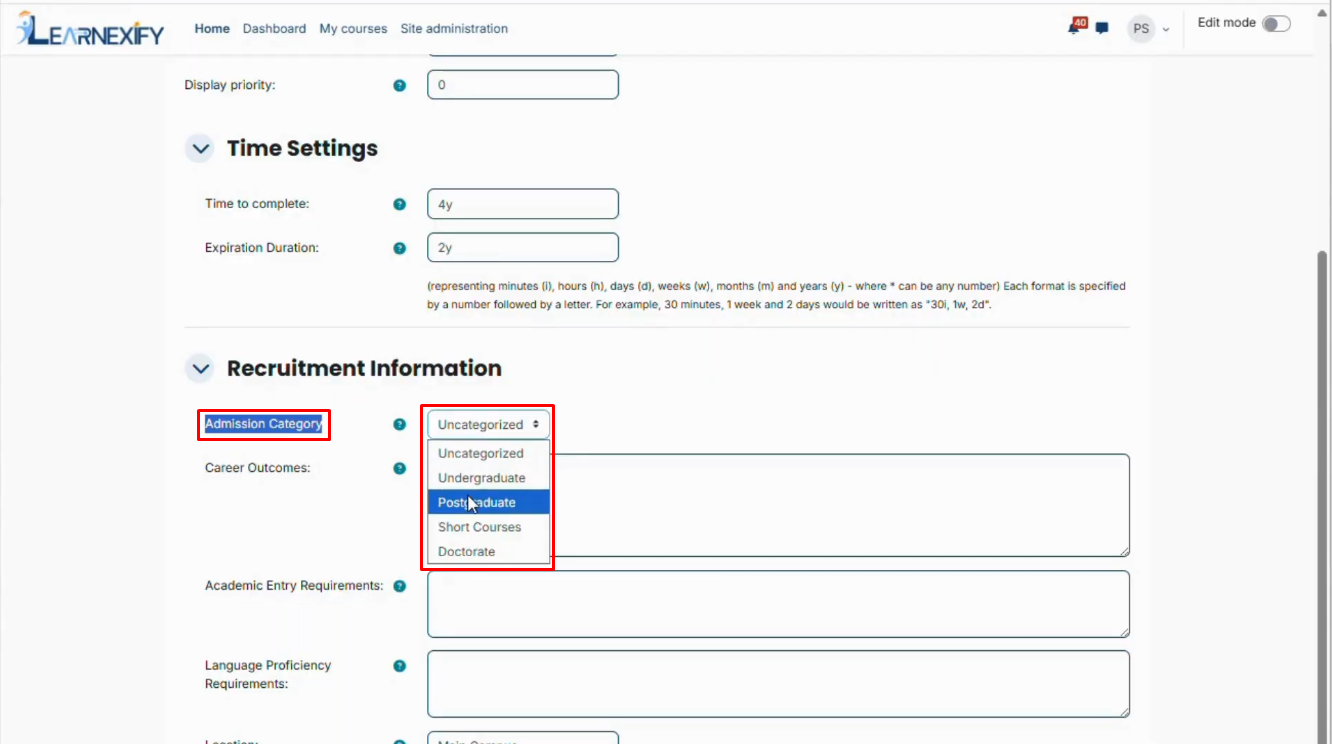
Assigning Categories: Go to Recruitment Information section within individual program settings.
-
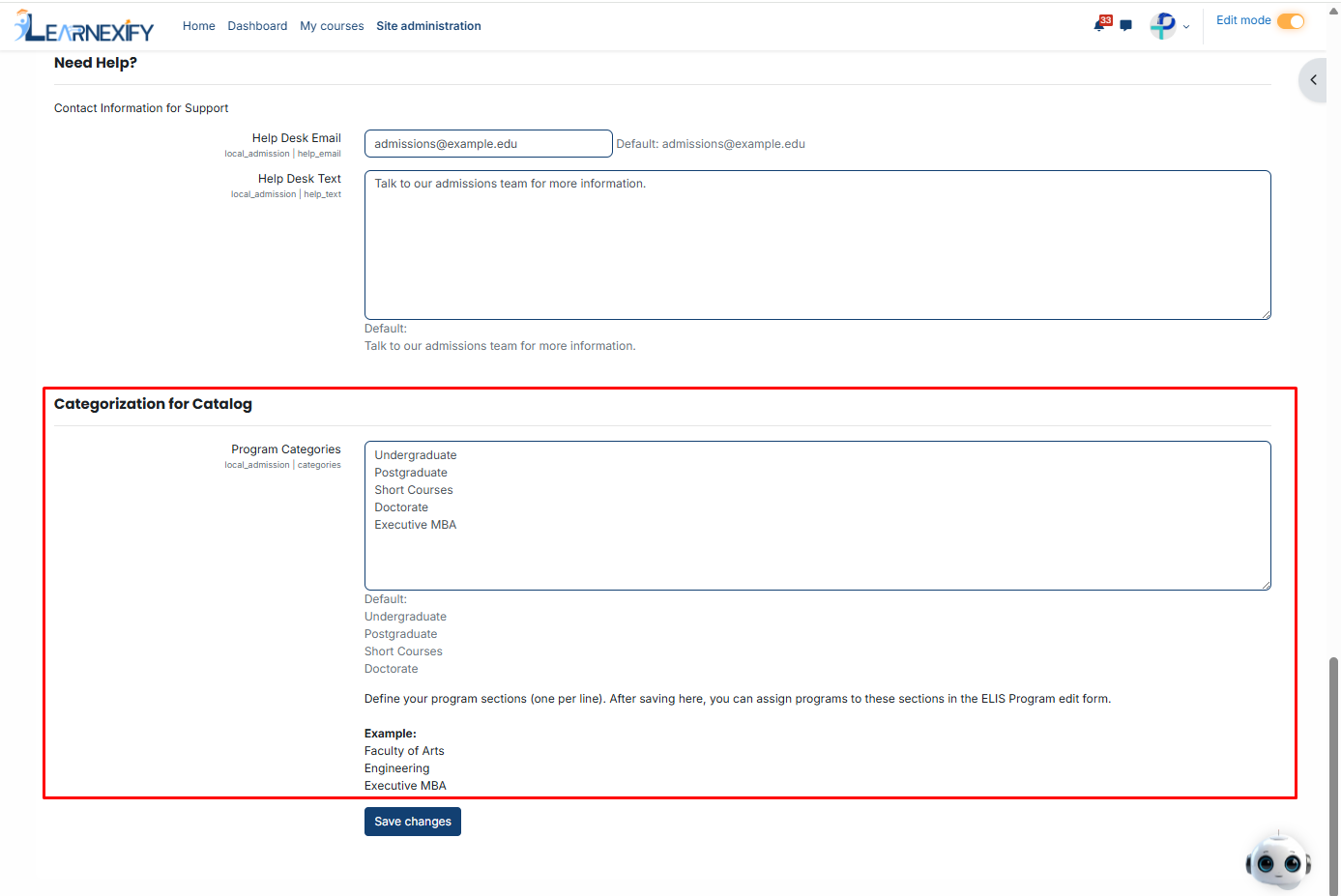
Managing Categories: Add/Remove via Admission Catalog Settings under the Categorization for Catalog section.
Path: Site Administration > Plugins > Local Plugins > Admission Catalog
Program Detail Page Management
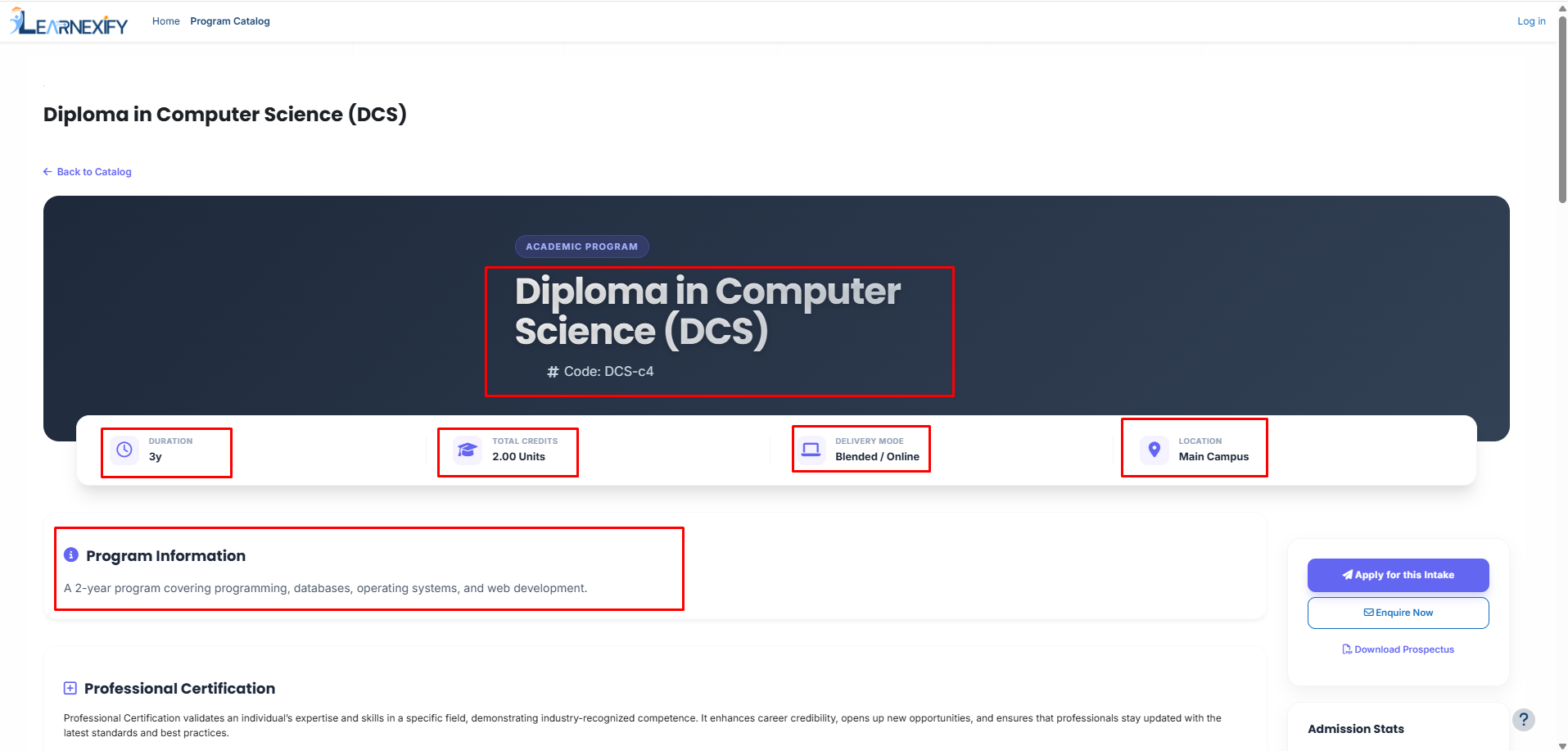
When a user clicks "View Details" on a program card, they see a dedicated information page.
Visibility Controls
Administrators can toggle the visibility of Duration, Total Credits, Delivery Mode, and Location through the Admission Catalog Settings.
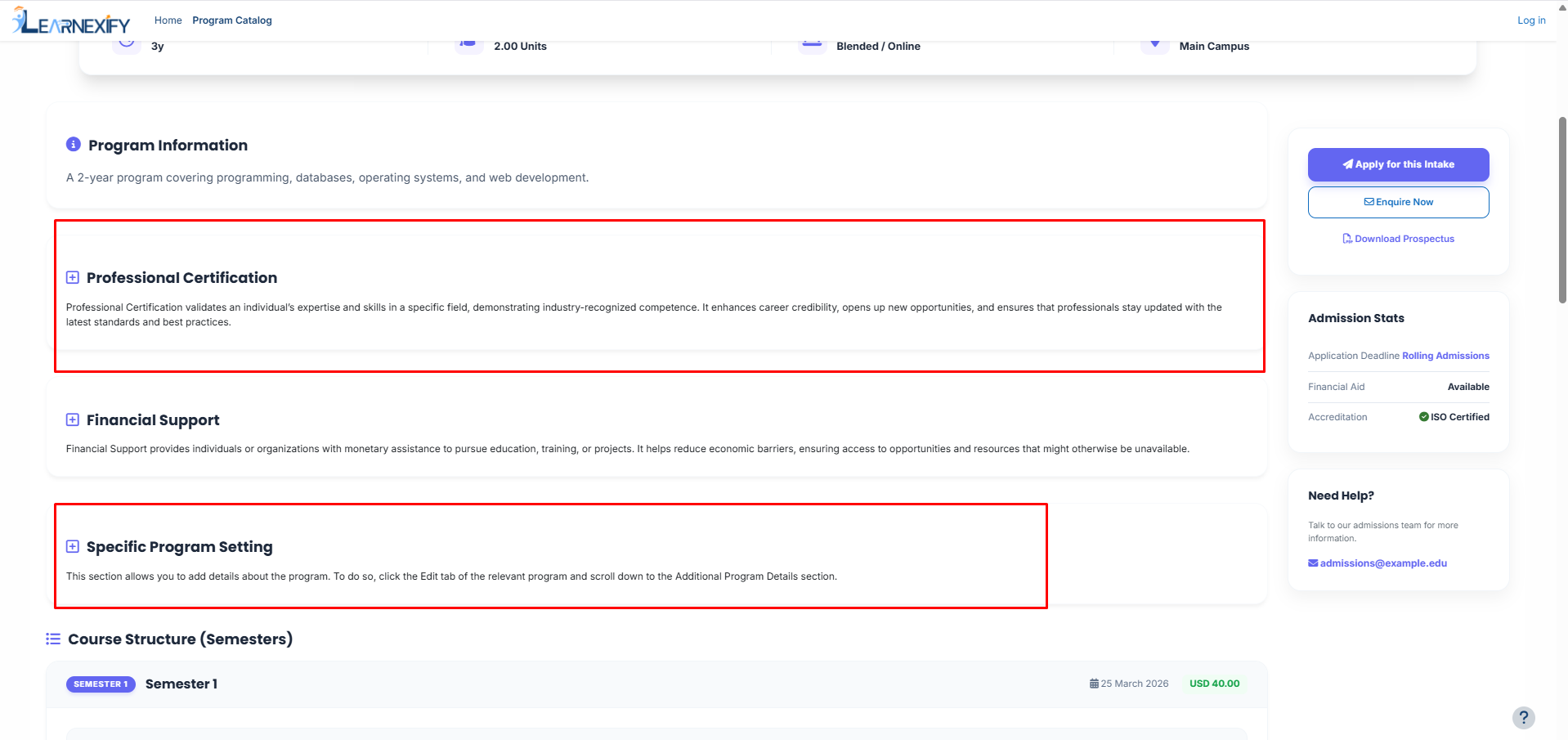
Additional Program Details
-
Global Content: Common info like "Professional Certification" is managed in Admission Catalog Settings.
-
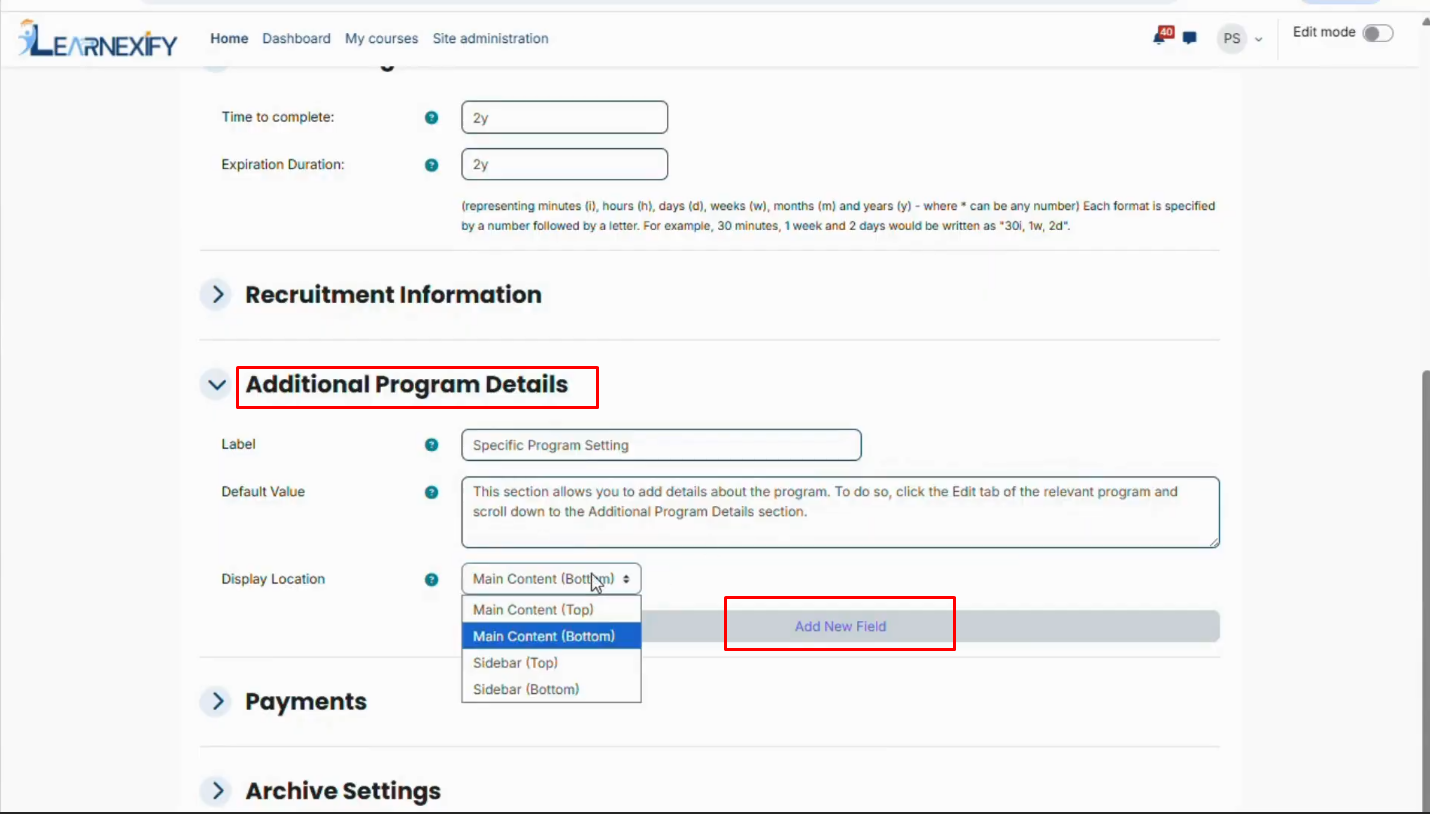
Program-Specific Content: Unique info is managed in Individual Program Settings using the Add Field button.
Course & Semester Structure
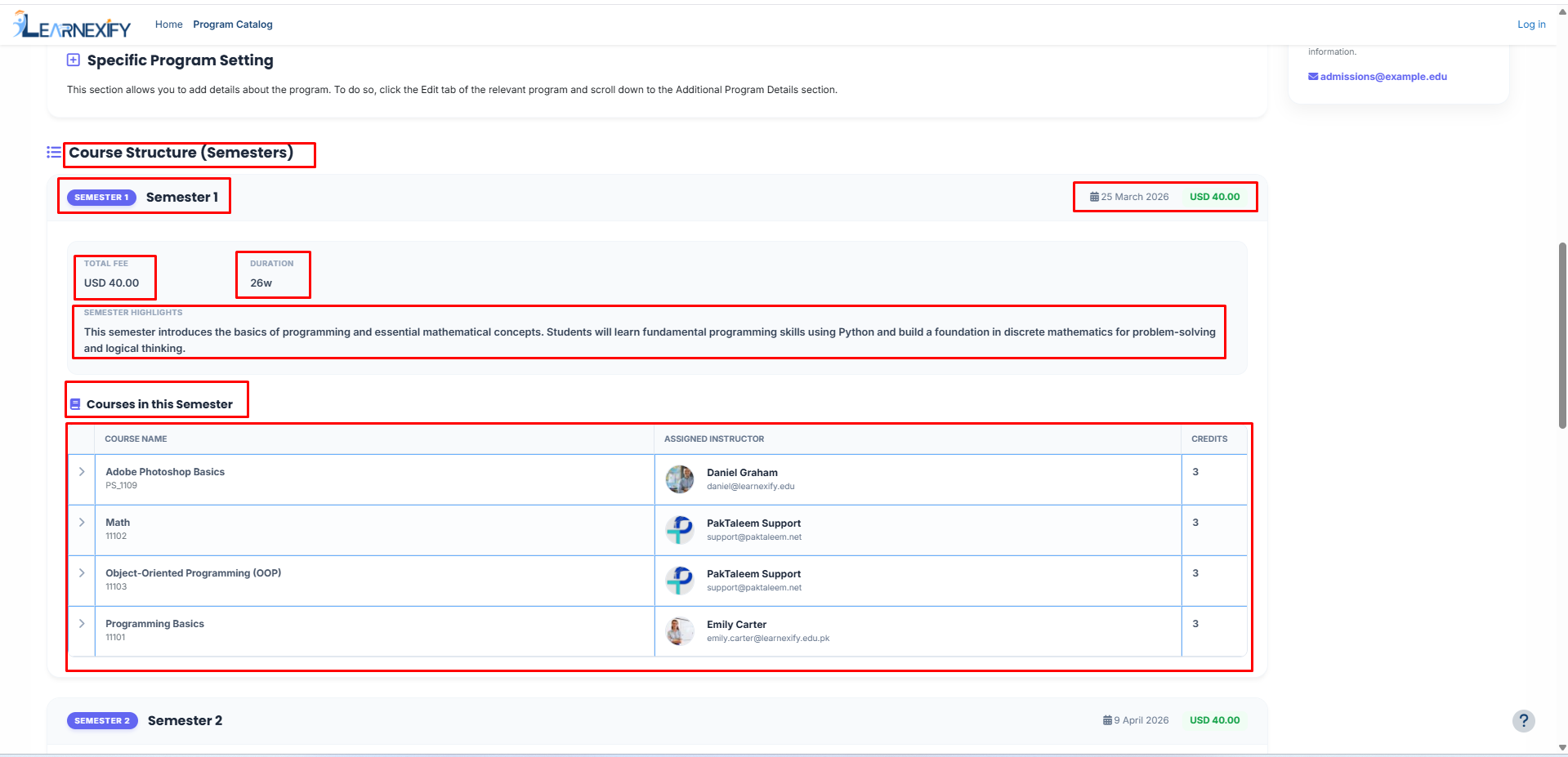
The Course Structure section displays the internal breakdown of the program, including Semester fees, duration, and course instructor details.
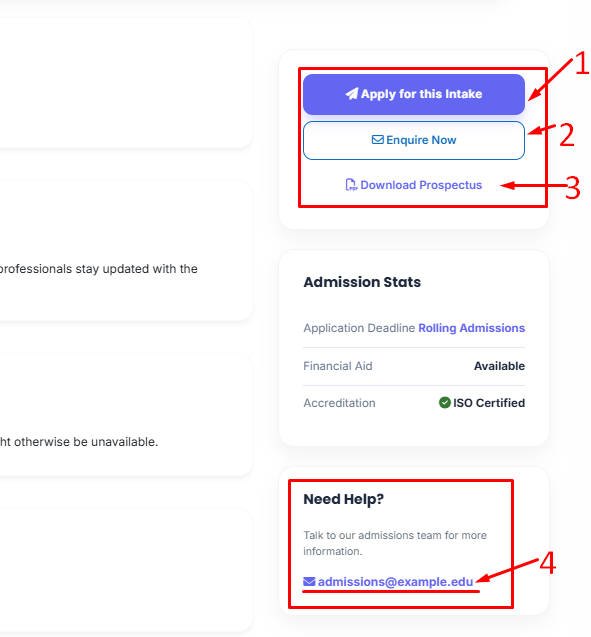
- The first section is "Apply for this program" which directs the user to the admission page to submit their information and apply for the program.
- Next is the "Inquire Now" button, which allows the user to send an email to the university for any questions about the program.
- Users can also download the prospectus from the sidebar.
- If User need nay help he can contact us on the given E-Mail.
Other relevant information can also appear here.
Admission Form Customization
Click on this apply for this intake button of any program you will see form:
The admission form is the primary tool for collecting applicant data (Personal and Guardian info).
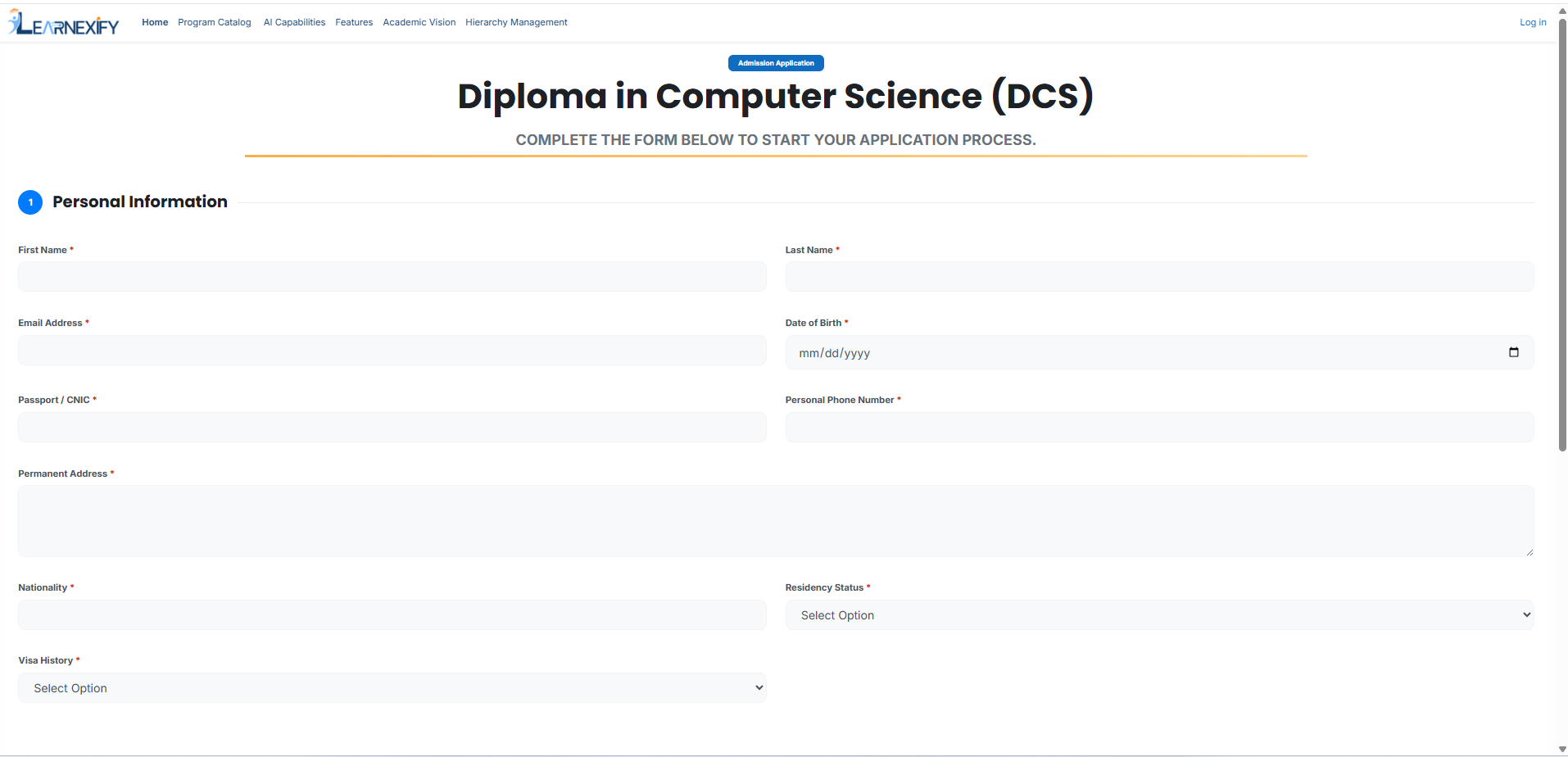
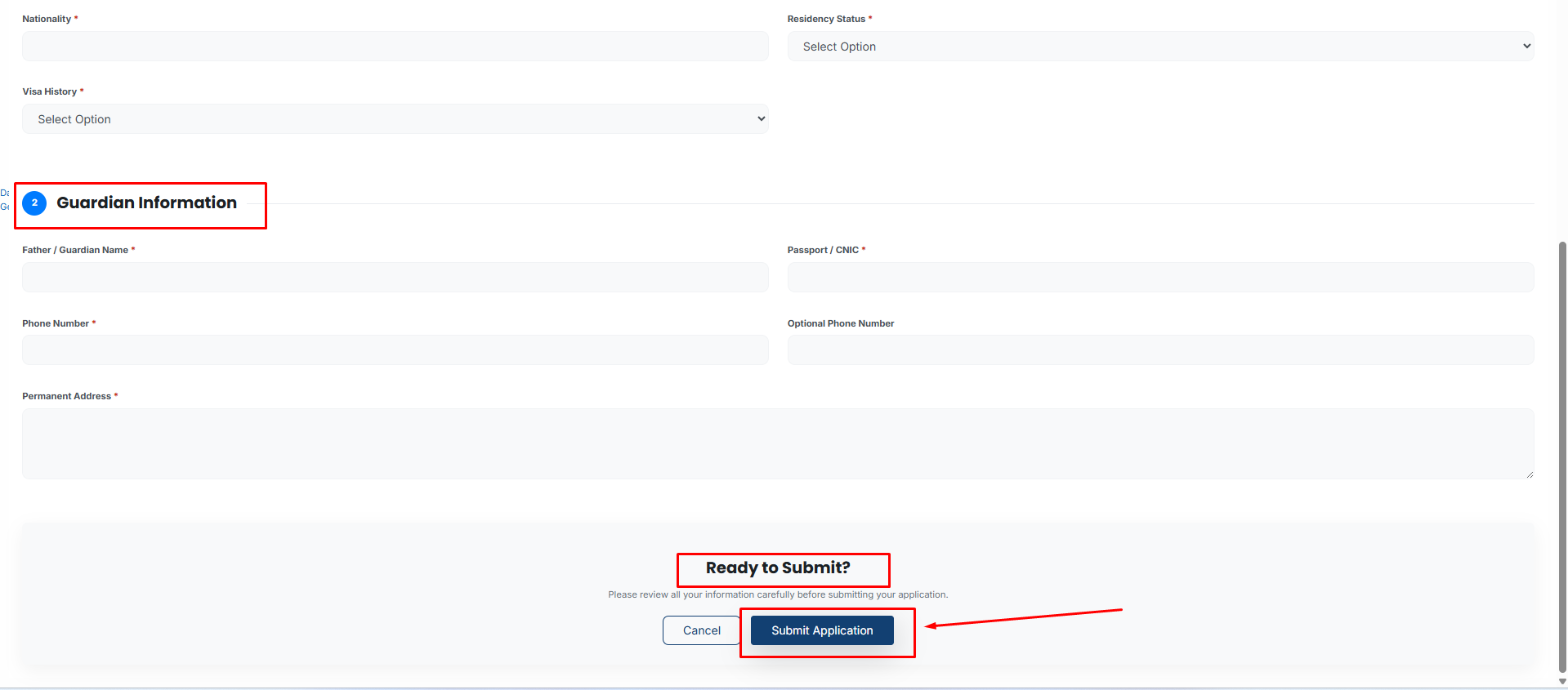
Universities can customize this form by adding or removing fields or sections, this is done through the User Information tab, located next to the Admission Catalog tab.
Here, each section lists the fields with various properties that can be managed: update field name or type,
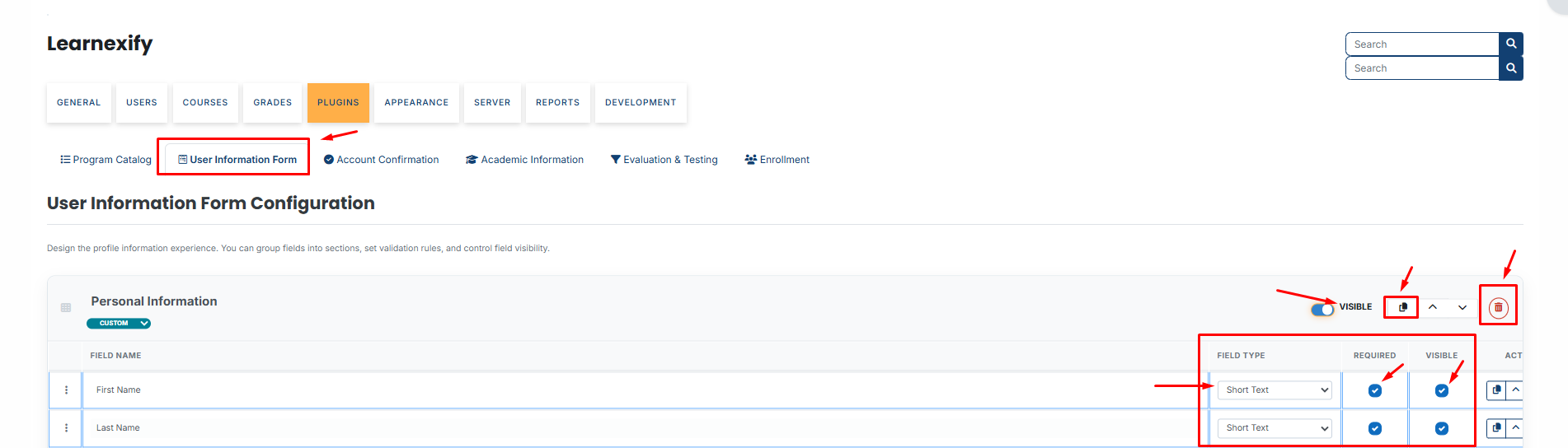
Make a field required or optional, show or hide a field, duplicate a field, move fields up or down within a section, delete individual fields or entire sections.
To add new fields, click the Add Field button below a section. To add new section, use the New Section button at the end of the page.
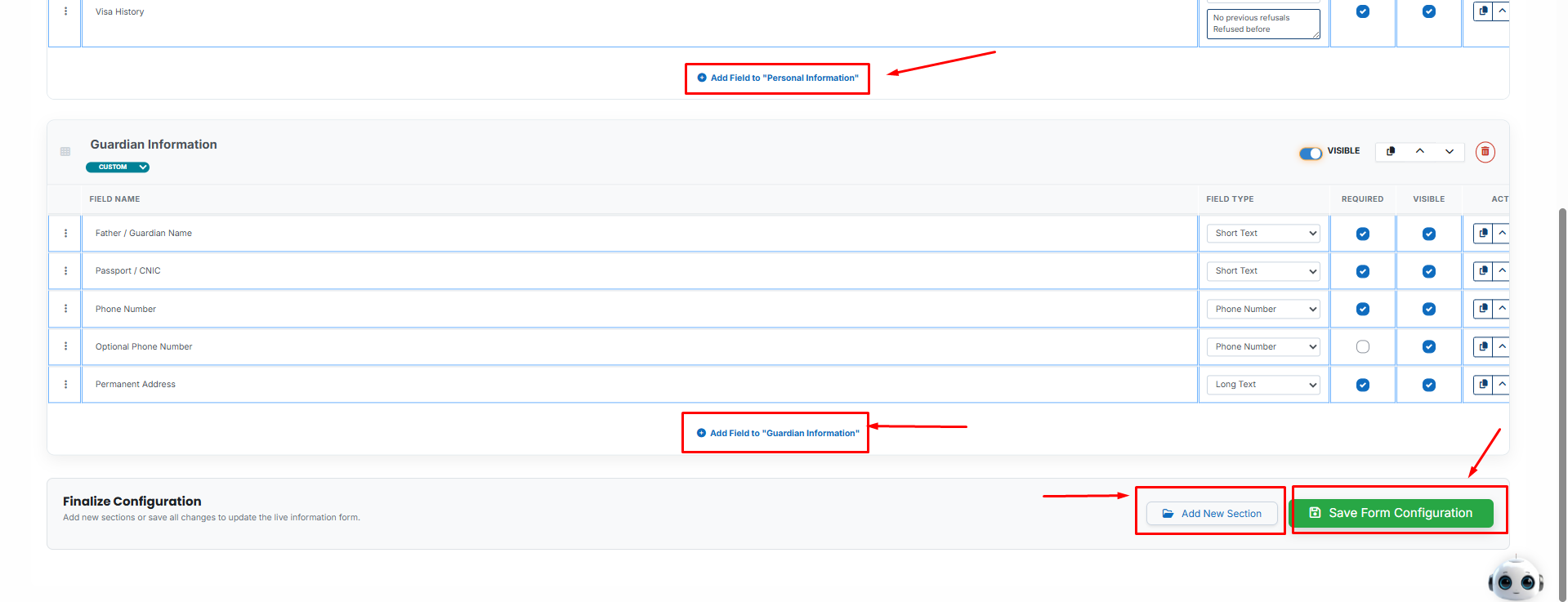
Once all changes are made, click the Save Form Configuration button to apply the updates, which will then appear on the admission form.
Since the user doesn't have any prior record in Learnexify yet, allowing file uploads could introduce risks, corrupted files could affect the site, and there's also a potential for data leaks.
Account Verification & Approval
Once an application is submitted, a verification email is sent to prevent fake users.
There are 2 methods to verify user:
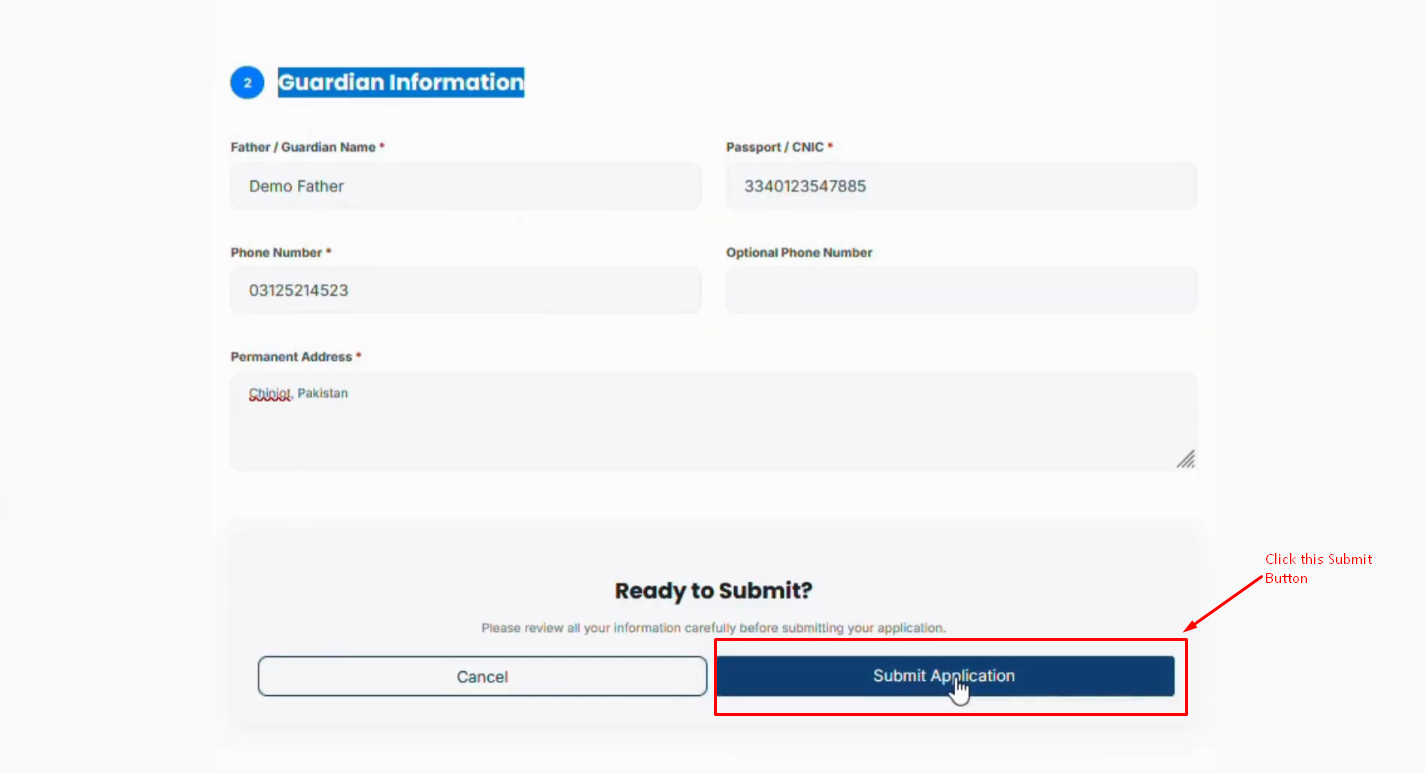
Method 1: Email Verification: User clicks a link.
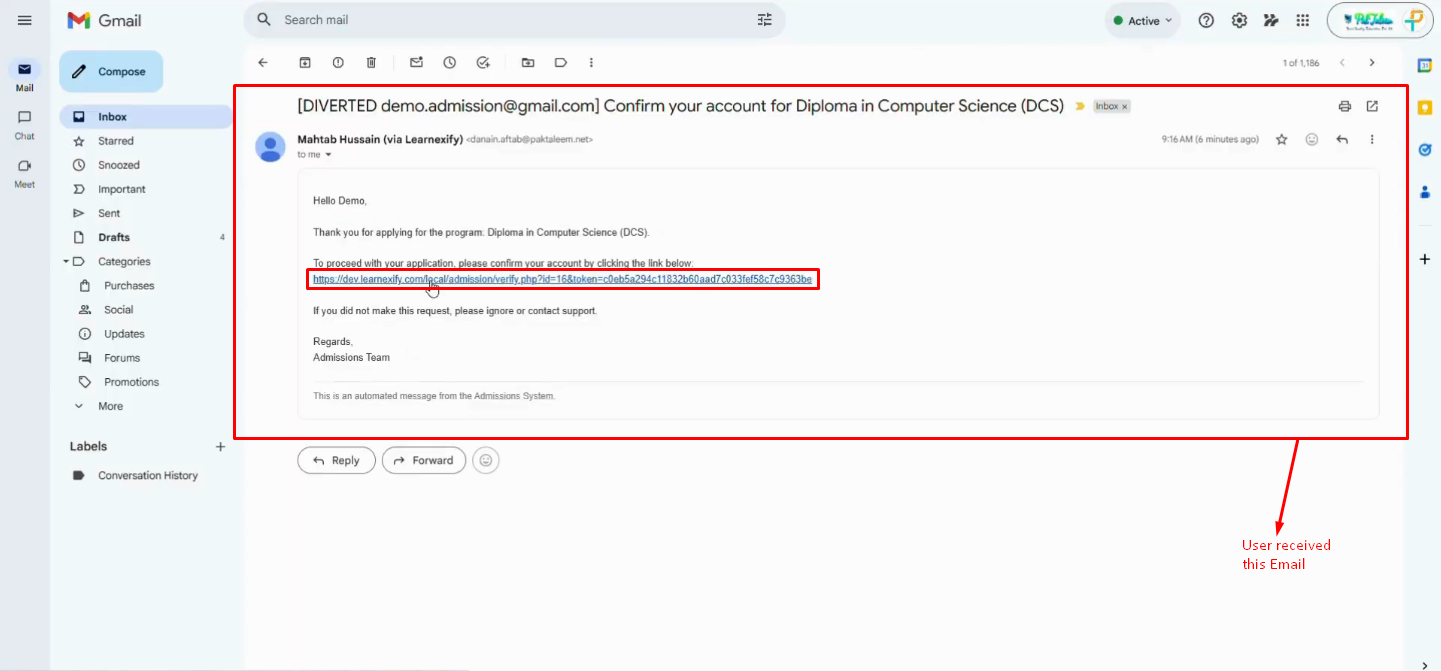
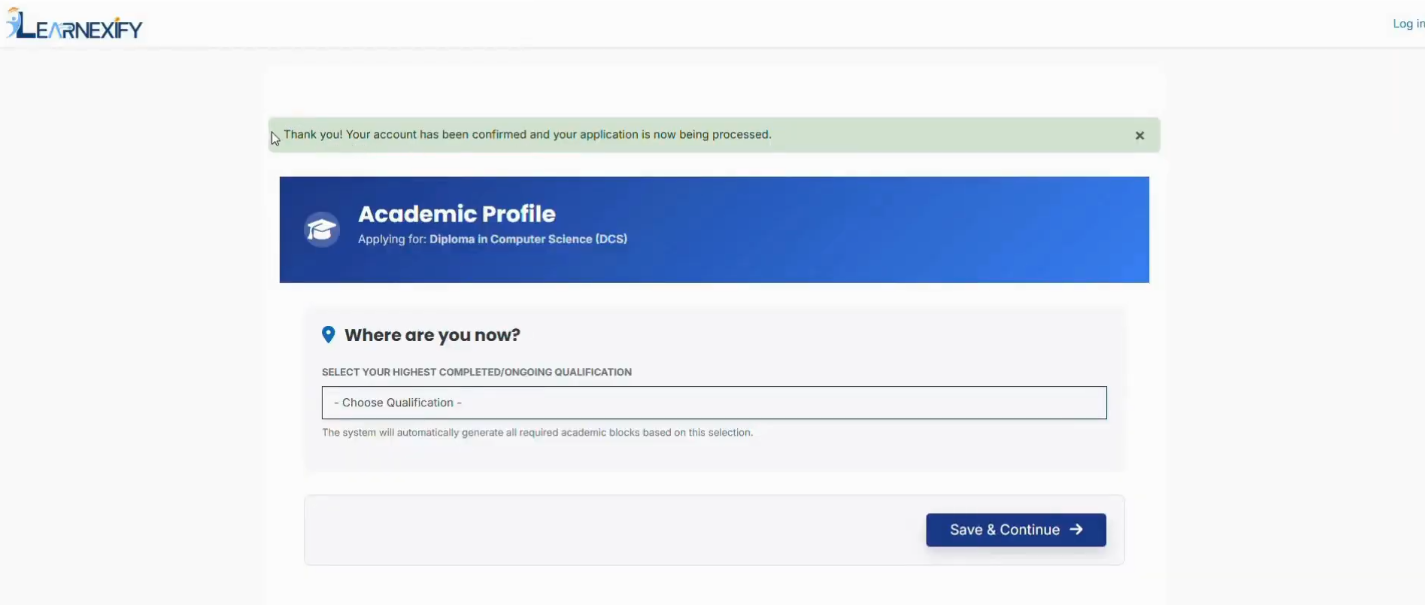
After clicking the link in the email, the user's account is verified and approved, allowing them to proceed to the next steps in the admission module.
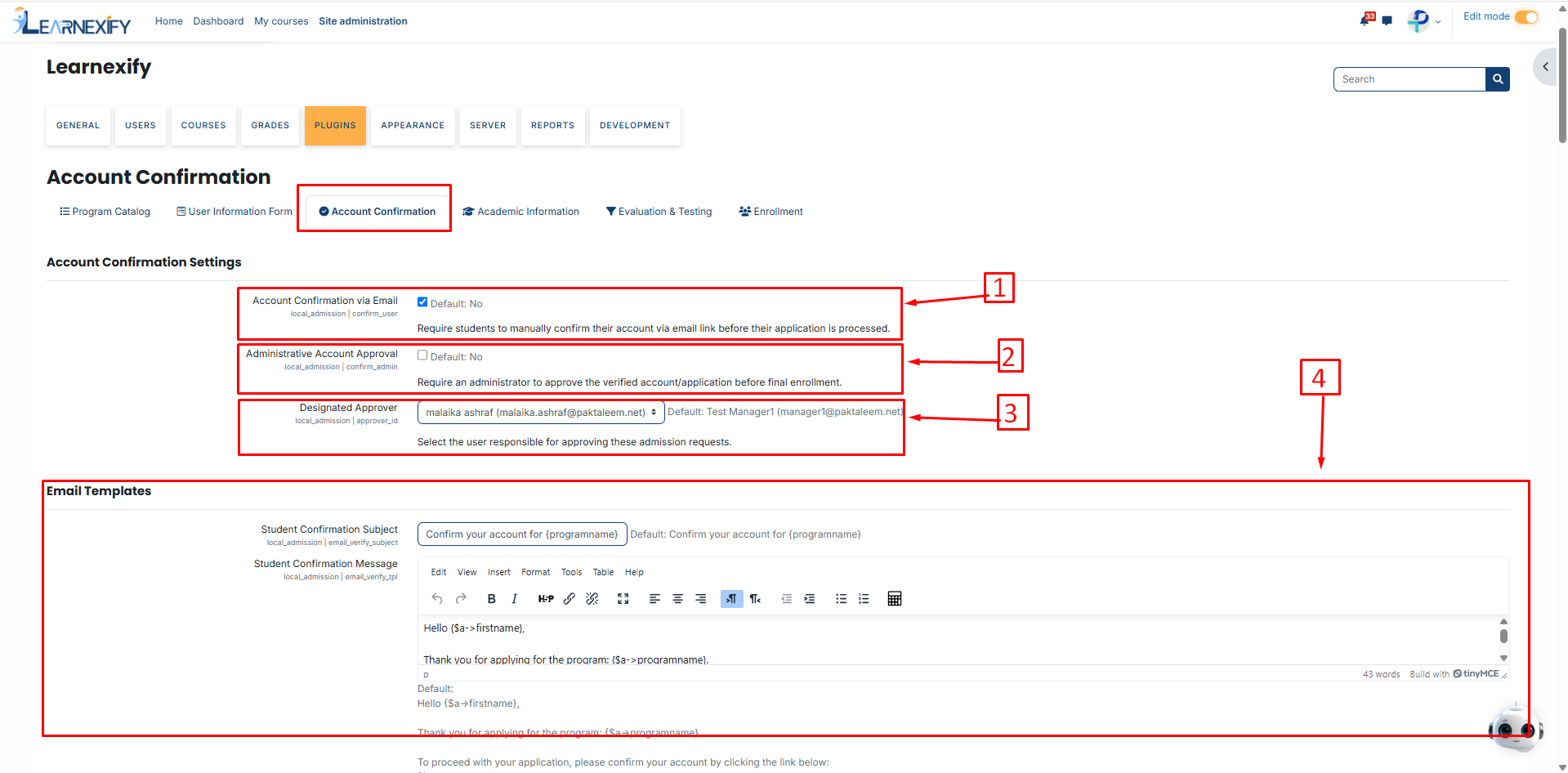
Method 2: Administrative Approval. There's an important point to note. The email verification step that the user just completed can also be handled by admission managers.
To do this, go to the Account Confirmation tab next to the User Information form.
Under Accounts Confirmation Settings, there are three fields.
-
Account confirmation via email: If checked, users must verify their email themselves.
-
Administrative account approval: If checked, training managers can verify user emails manually.
-
Designated approver: You can select a specific person responsible for approving accounts.
-
Email Massage: The email sent for account confirmation can also be customized to match the university's requirements through the Email Templates section, where you can update the account confirmation email content.
This section only handles account confirmation. It does not enroll the user in any program until the next steps are completed.
Eligibility & Entry Testing
After account verification, then student will provide academic details which are checked against the Automated Eligibility criteria for the chosen program.
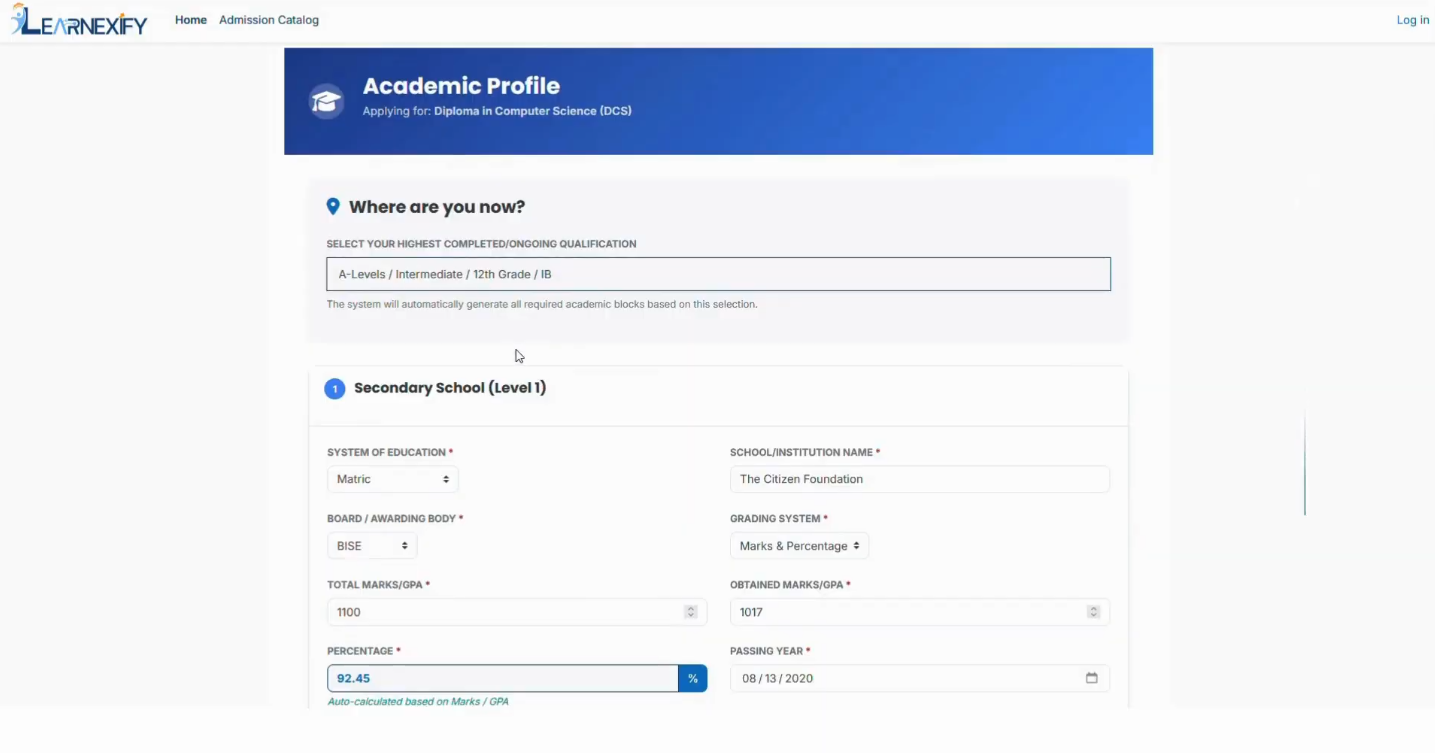
This check is based on the percentage marks provided in their academic details.
If the student is eligible, an email is sent to them, notifying their eligibility and providing their username and password to log into the site.
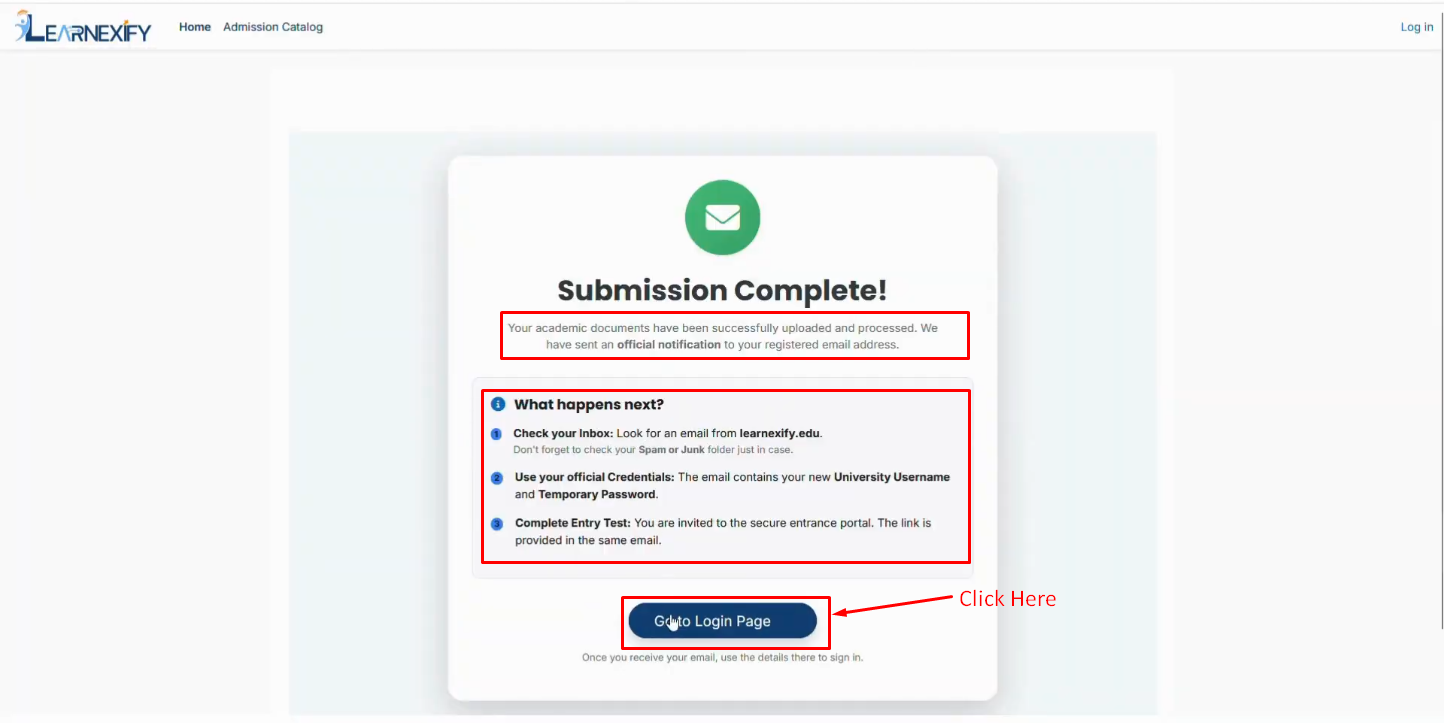
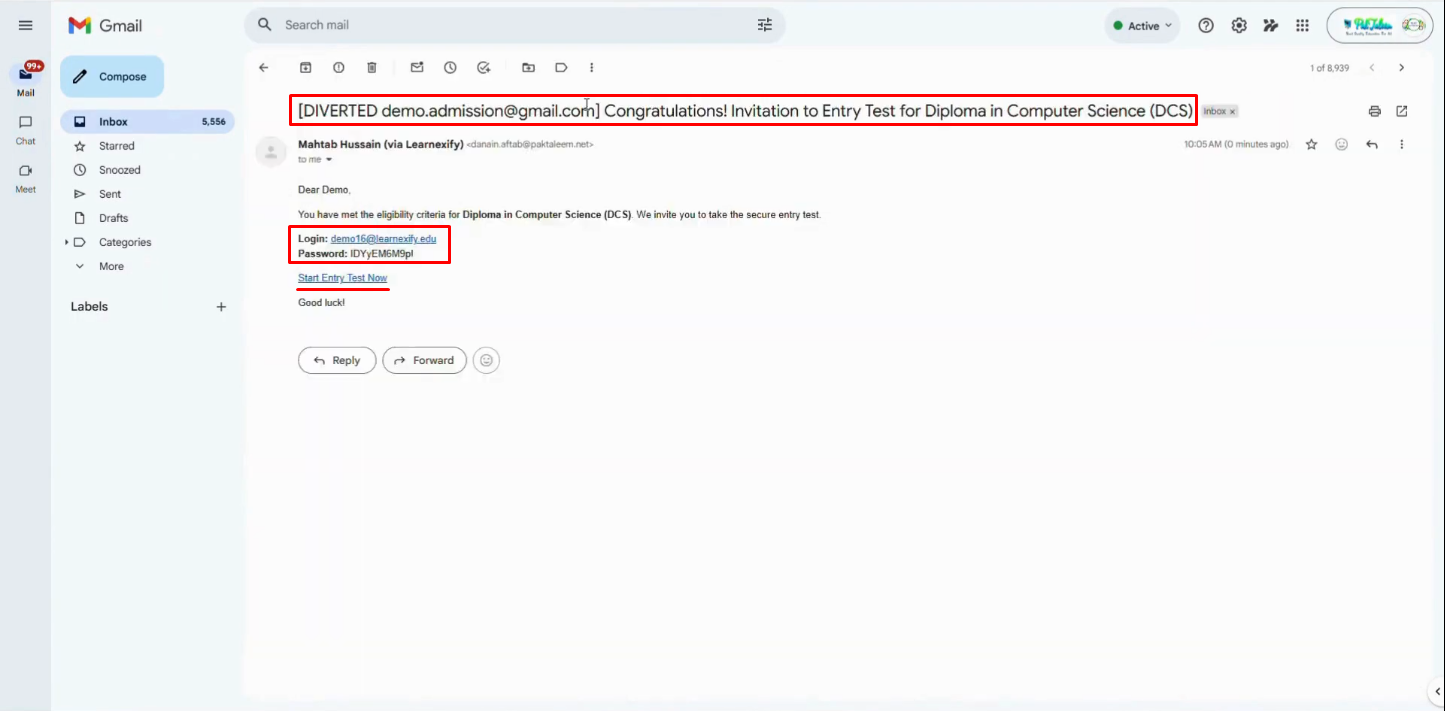
This ensures that only qualified candidates proceed further in the admission process.
As shown in the email, there is a link for the Entry Test. Many programs require an Entry Test, so this link is included only for students who are considered eligible for the program.
After submitting the entry test, the system automatically evaluates whether the student remains eligible. Based on the evaluation results, the next steps are communicated to the student.
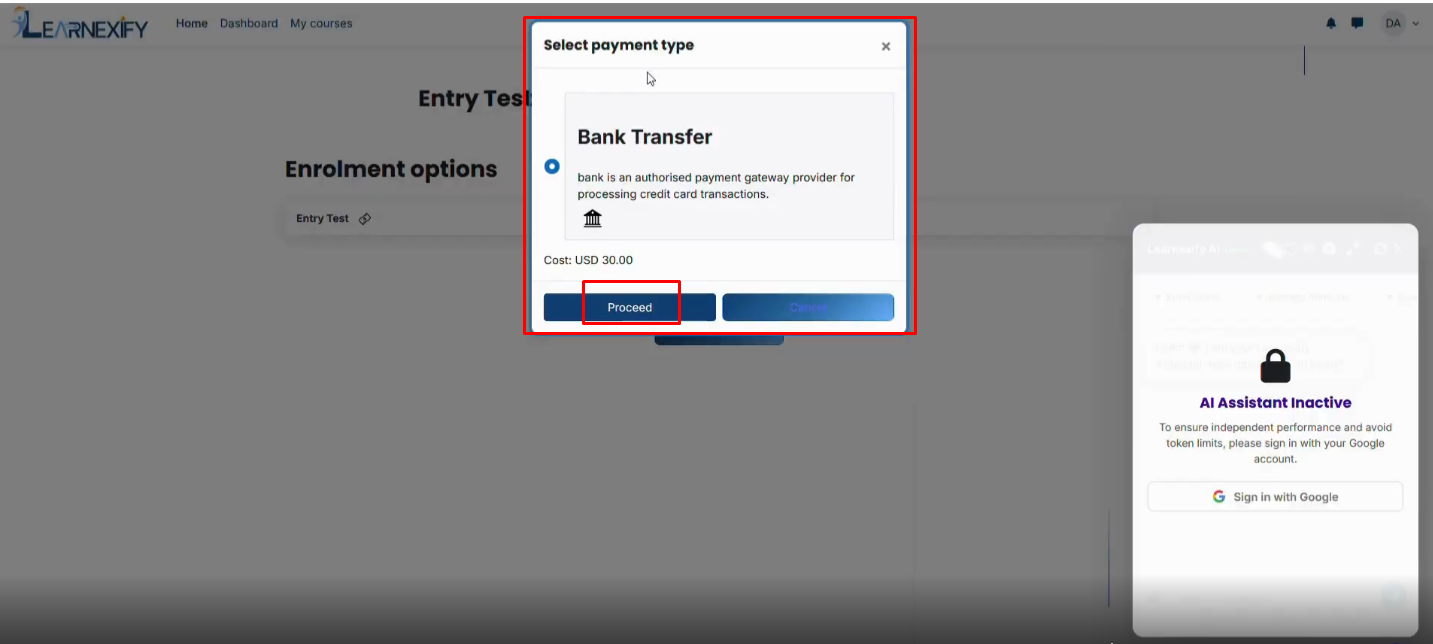
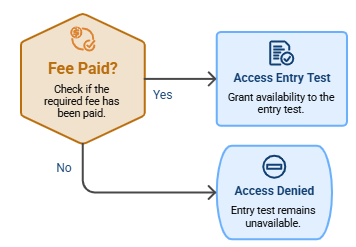
NOTE: If payment is required before the entry test, the entry test will only become available after the required fee has been paid.
After the student pays the fee and completes the entry test, the system generates two emails.
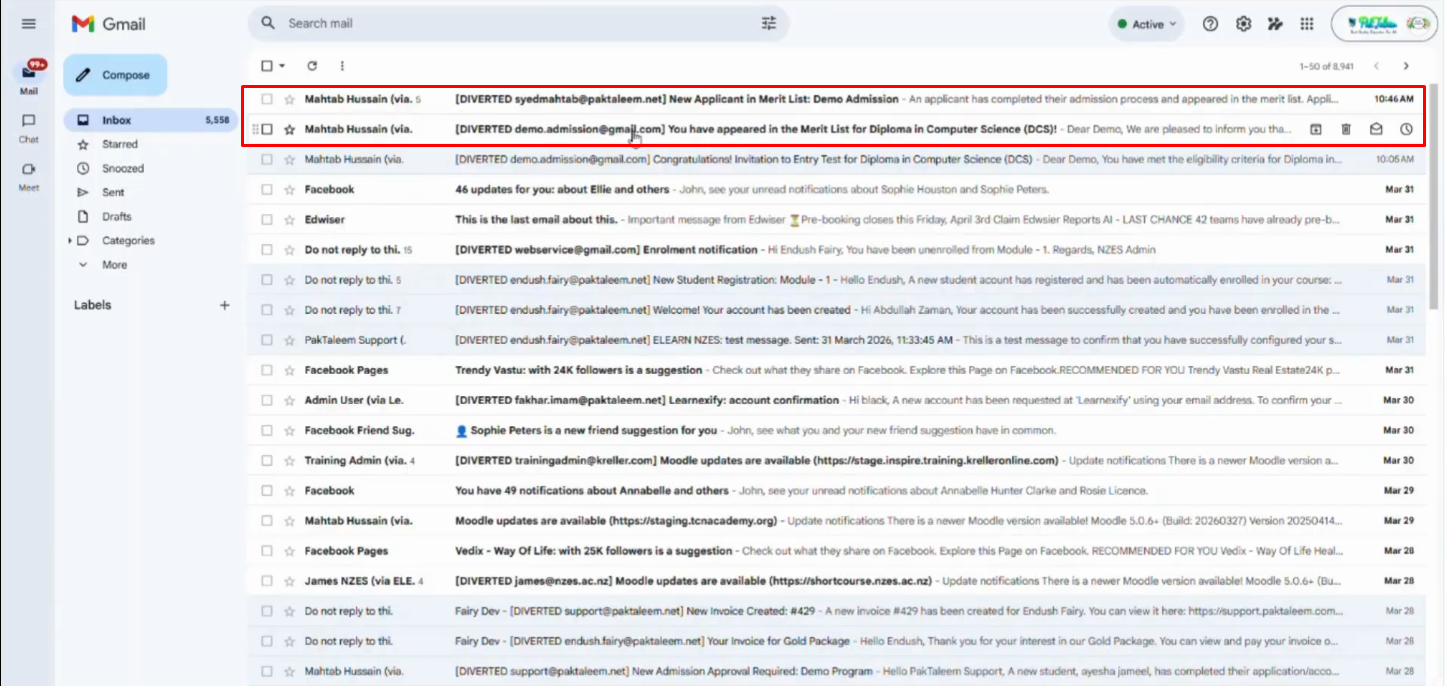
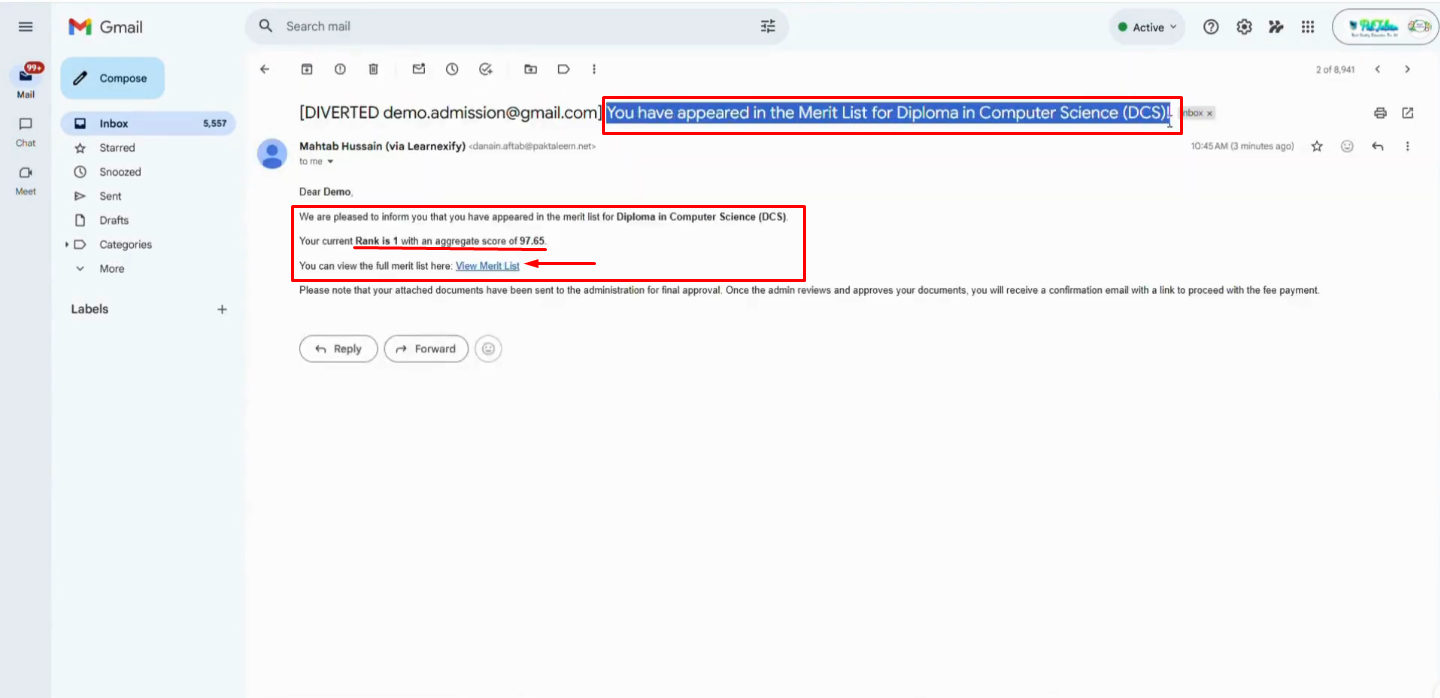
One email is sent to the student, notifying them whether they passed the entry test and remain eligible for the program.
This email also includes their position in the merit list and a link to view the full merit list, allowing the student to check their ranking directly.
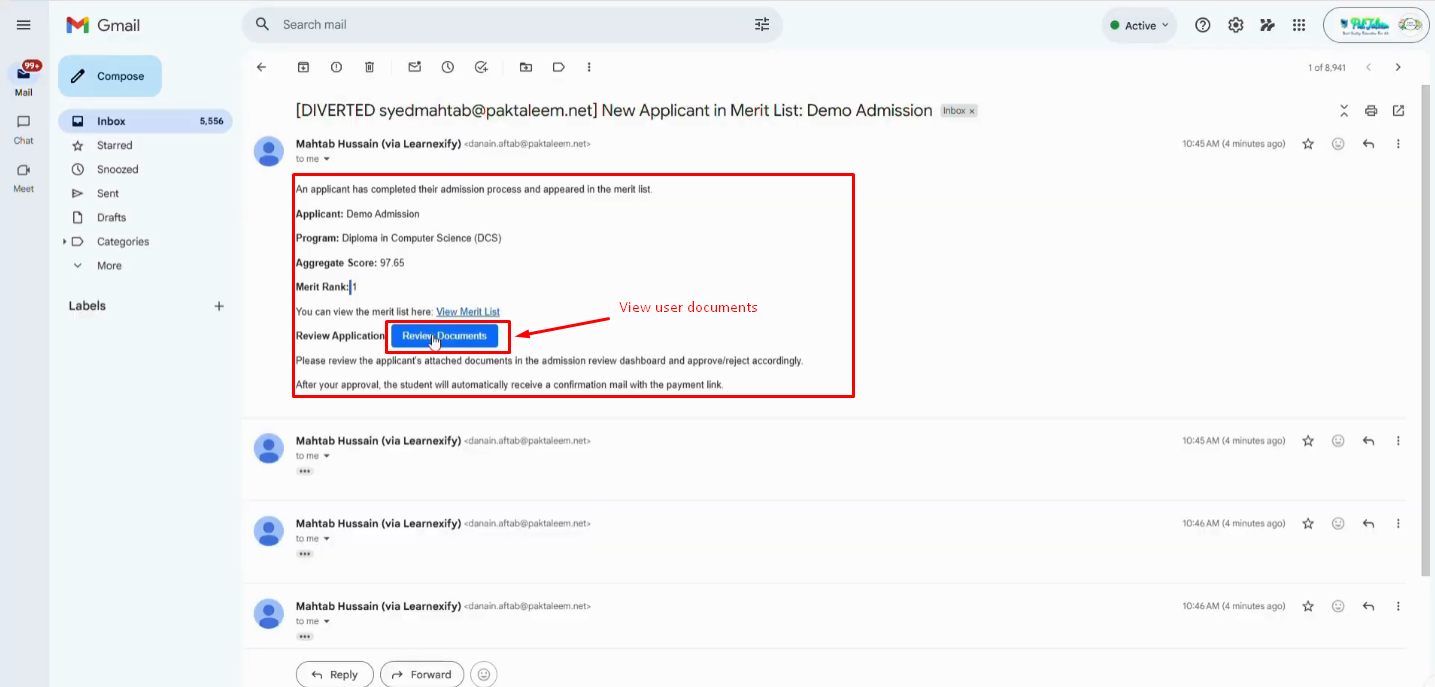
The second email is sent to the admission manager, notifying them that a new user has submitted their application.
Manager Review & Feedback Loop
At this stage, the manager can review the user's information and decide whether to approve the student for the program or reject their application.
Now, the Training Manager reviews all the user's information and submitted documents.
If everything meets the program's requirements, they can approve the application.
If the user does not meet the requirements, the manager can reject it.
If the manager needs the user to update any information, they can send feedback to the relevant section.
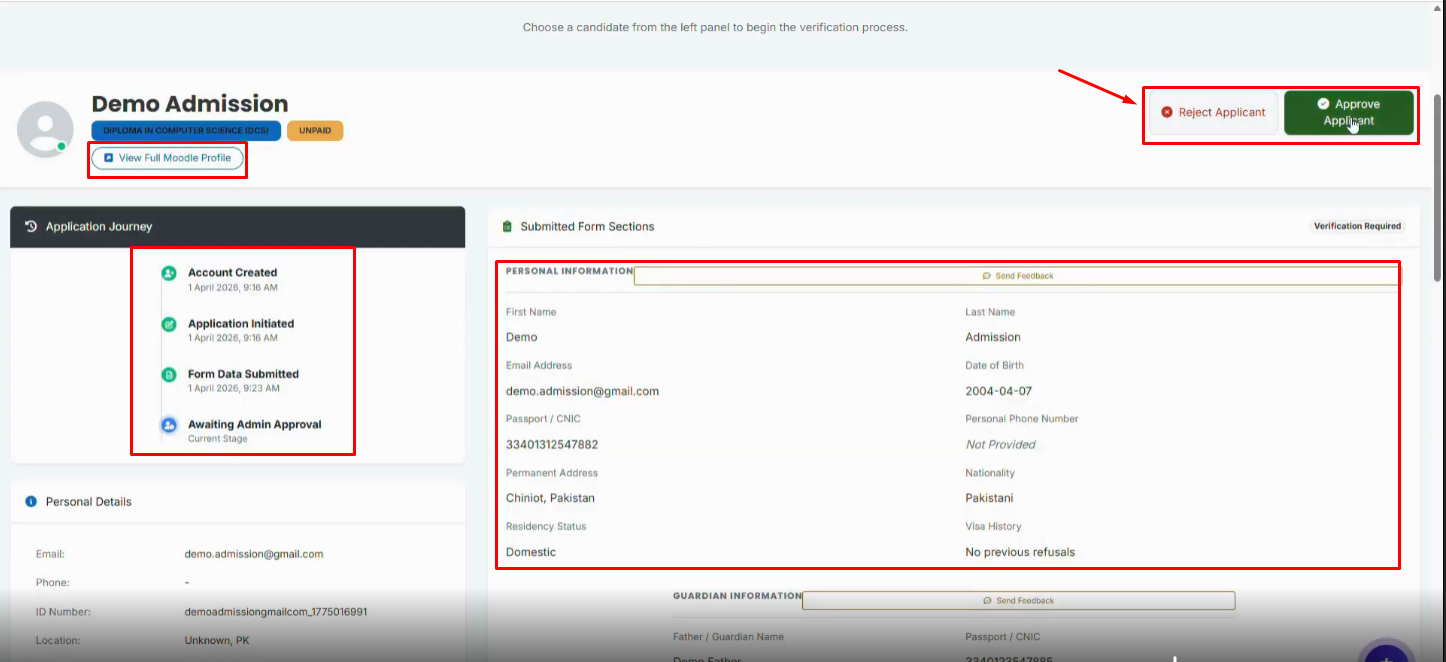
When feedback is provided, the applicant receives an email containing a link to the relevant section of the application form. The applicant can update the required information and resubmit the application.
Upon resubmission, confirmation emails are sent to both the applicant and the Training Manager. The Admission Manager can then review the updated application and, if all requirements are met, approve it.
Once approved, the system sends an email to the applicant notifying them of their application status.
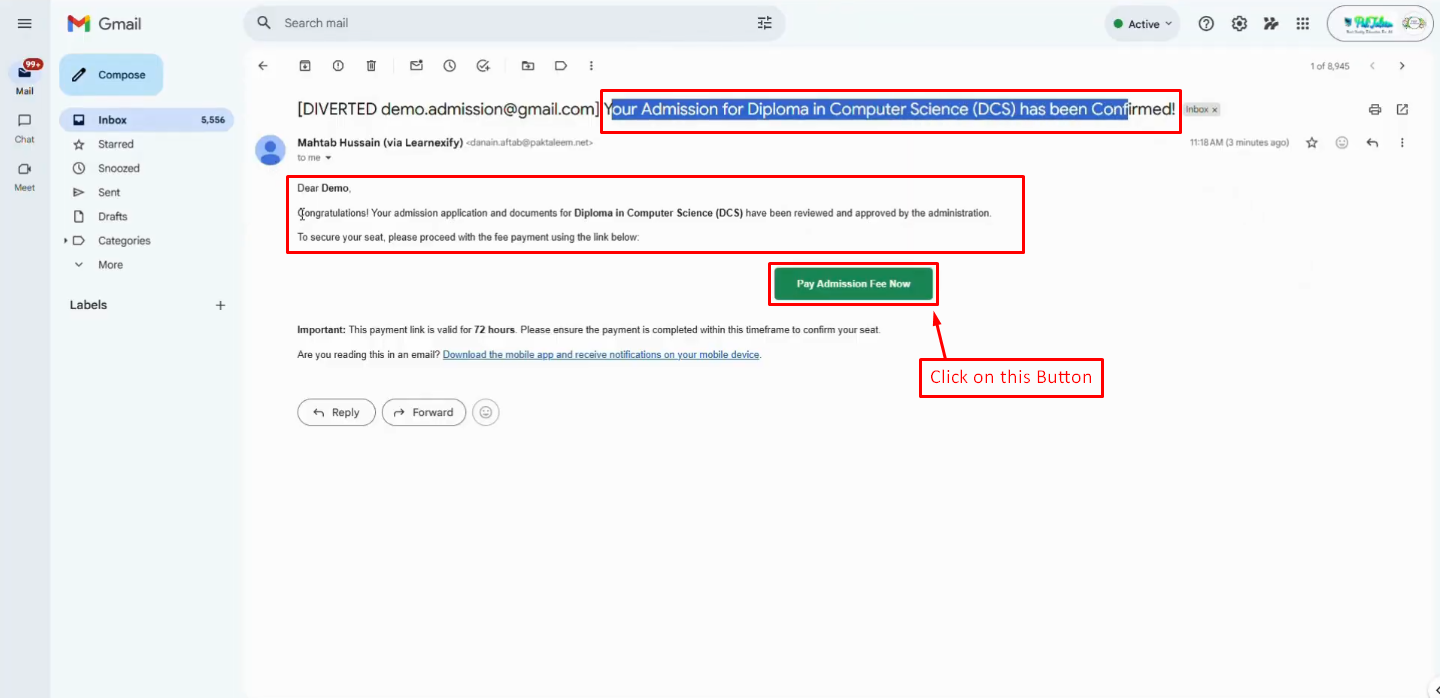
After approval, the applicant receives an email containing a payment link. Clicking the link redirects the applicant to the program payment page to complete the enrollment process.
The payment amount is primarily based on the semester fee. However, additional fees can also be configured at the program or semester level, allowing multiple charges with separate names, amounts, and currencies.
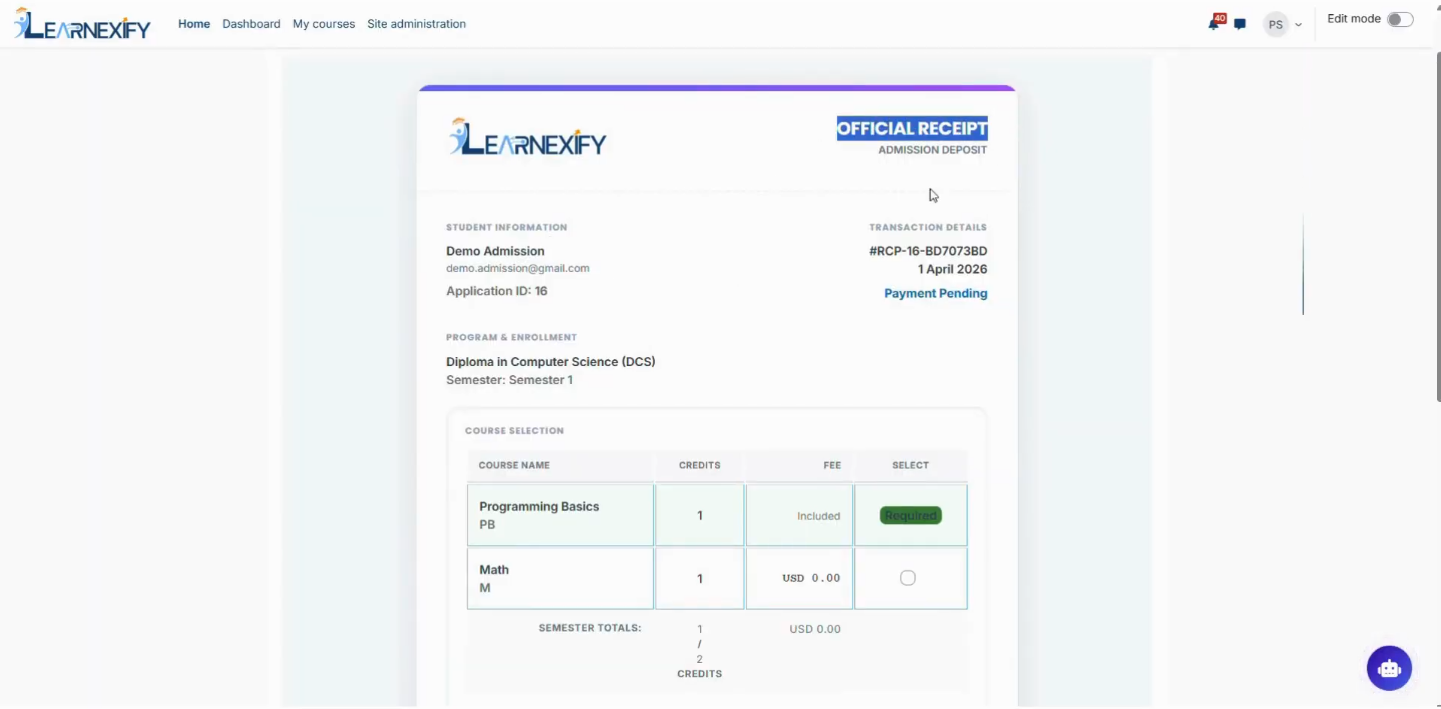
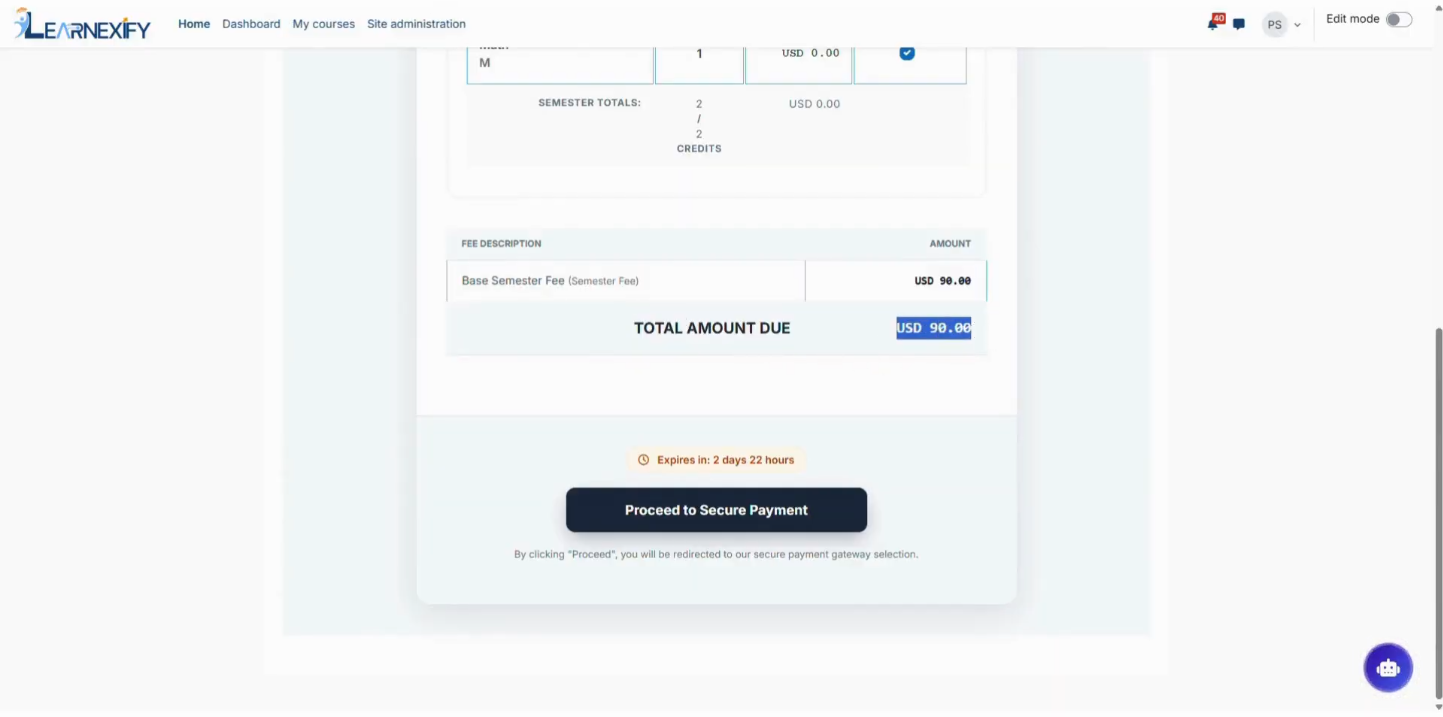
Once the payment is successfully completed, the system generates three emails, two for the applicant and one for the admission team.
The applicant first receives a payment confirmation email.
After that, they receive a second email confirming their enrollment in the selected program.
The third email is sent to the admission manager, notifying them that the user has successfully paid their fees and completed the enrollment process.
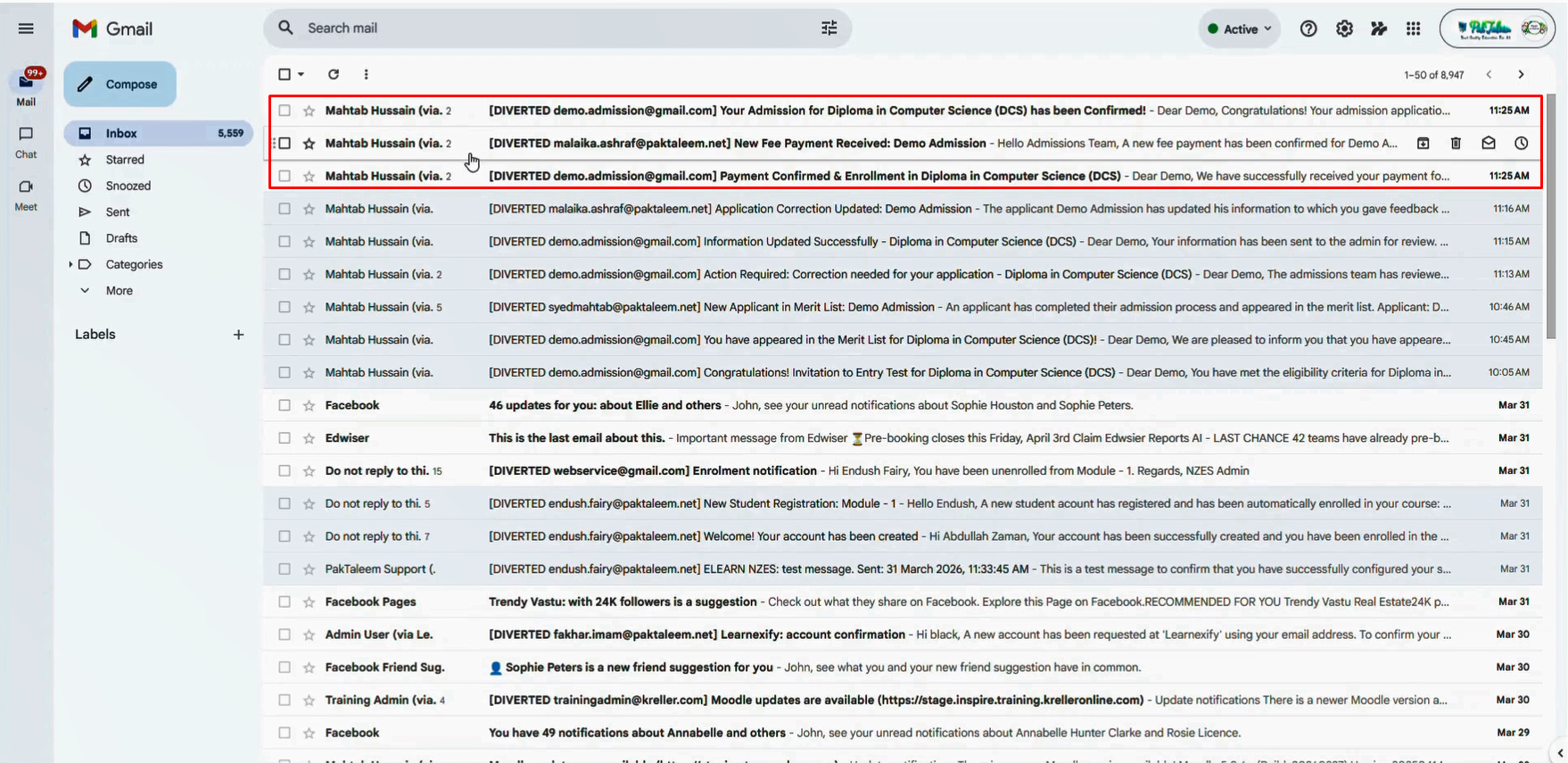
All the emails sent throughout these steps are managed in the Account Confirmation and Enrollment tabs.
Admission managers can update and customize these email templates from these sections according to their requirements.
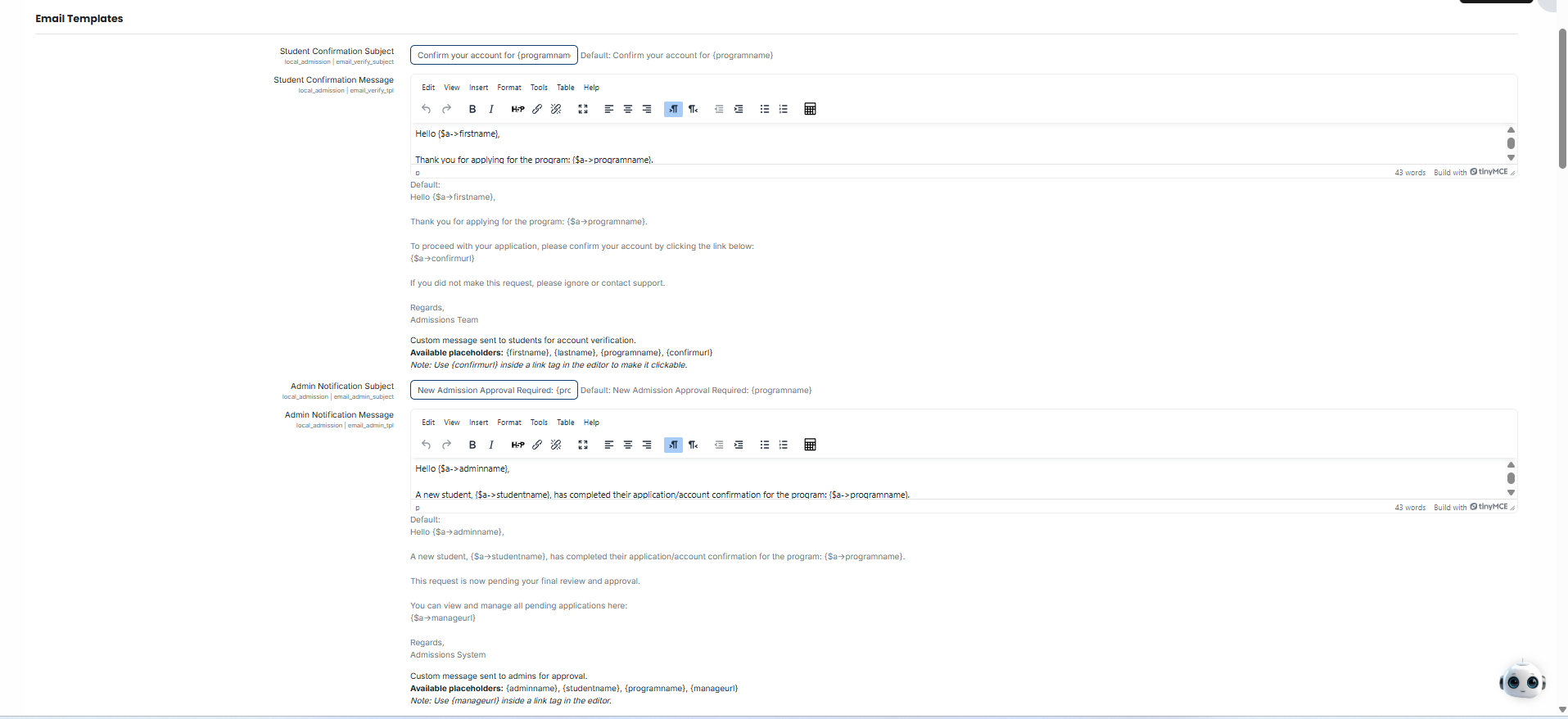
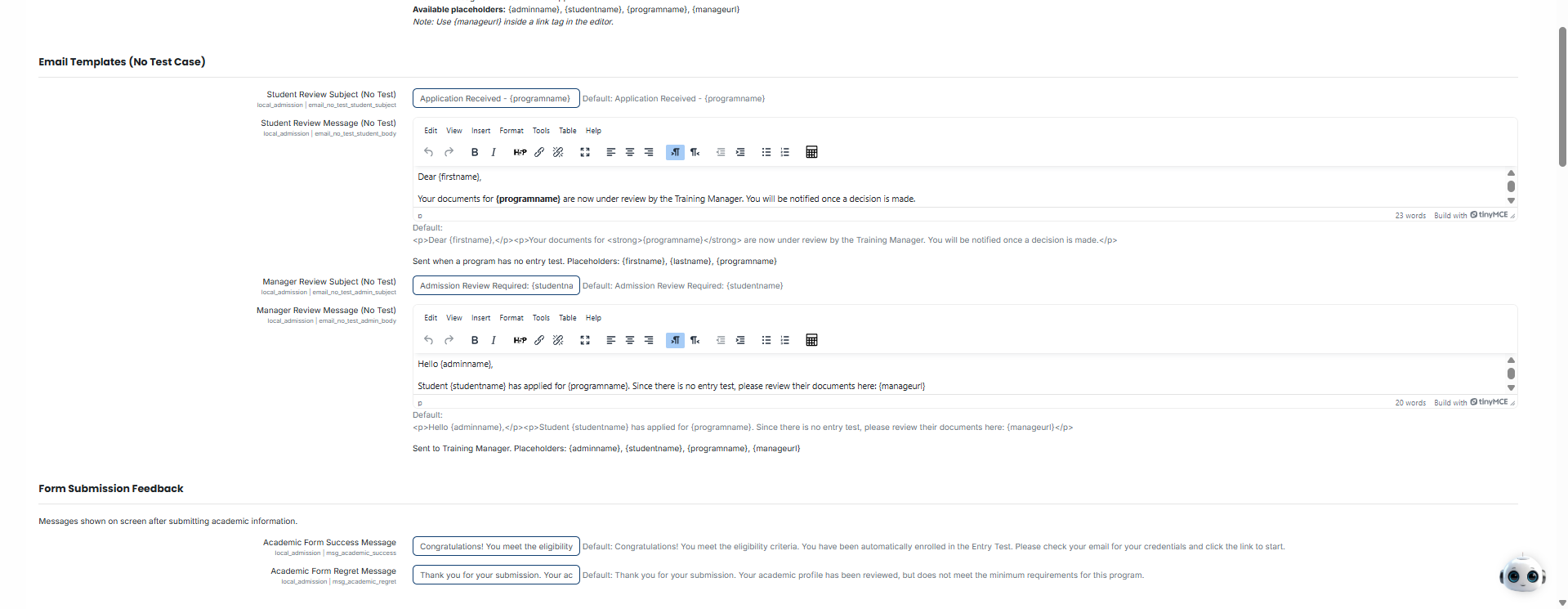
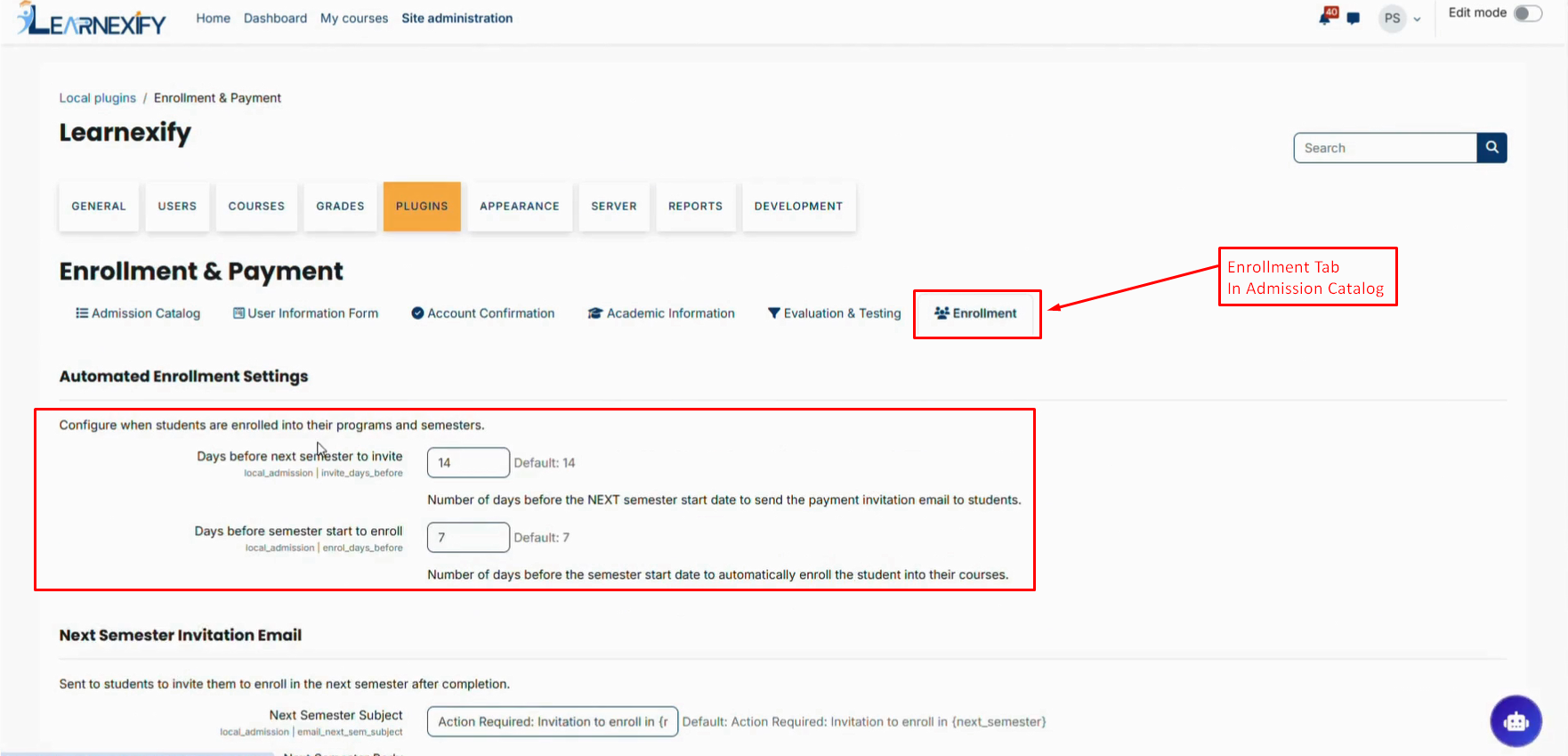
After a student is enrolled in a program, they are not immediately enrolled in the semester.
The enrollment into the semester happens based on the semester start date.
You can configure how many days before the semester start date the student should be enrolled by adjusting the settings in the Enrollment and Payment tab.
This allows better control over when students gain access to their semester courses.
This is how the Admission Module works.
No comments to display
No comments to display