How to Add Student in Waitlist
Waitlist:
The Waitlist is used to manage enrollment when a course instance reaches its maximum student limit. Any additional users attempting to join are placed on the waitlist to maintain an organized queue. Once an existing student completes the course instance or a seat becomes vacant, the students from the waitlist can then be enrolled into the active session.
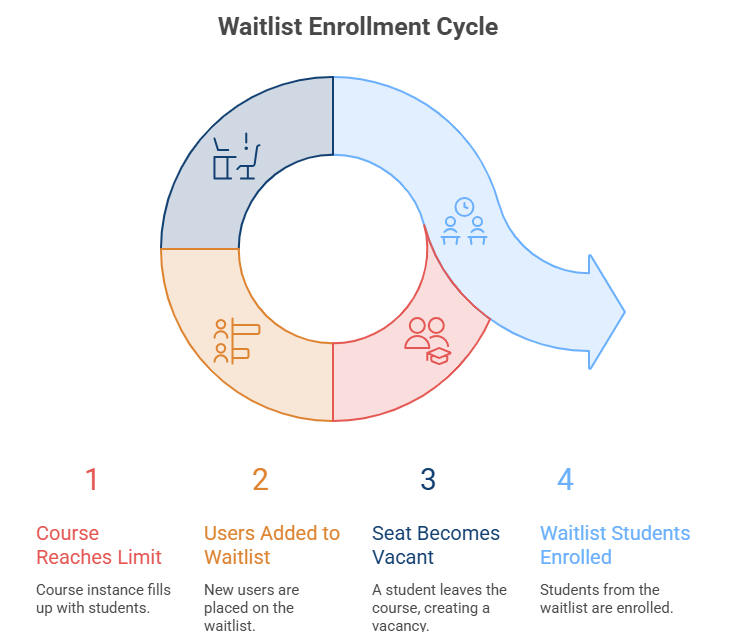
How to Add Student in waitlist:
- Students are placed in the waitlist only when the Maximum Student Limit of a course instance has been reached.
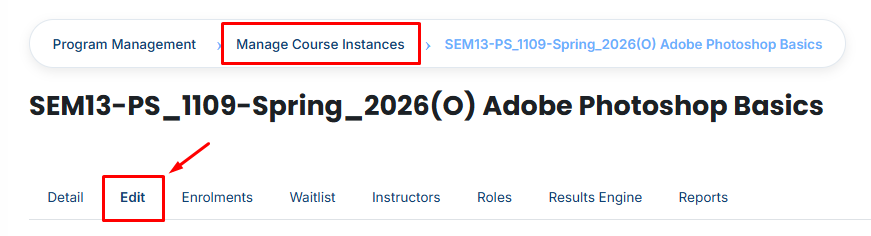
- You can set the maximum number of students for a course instance in the Edit tab.
-
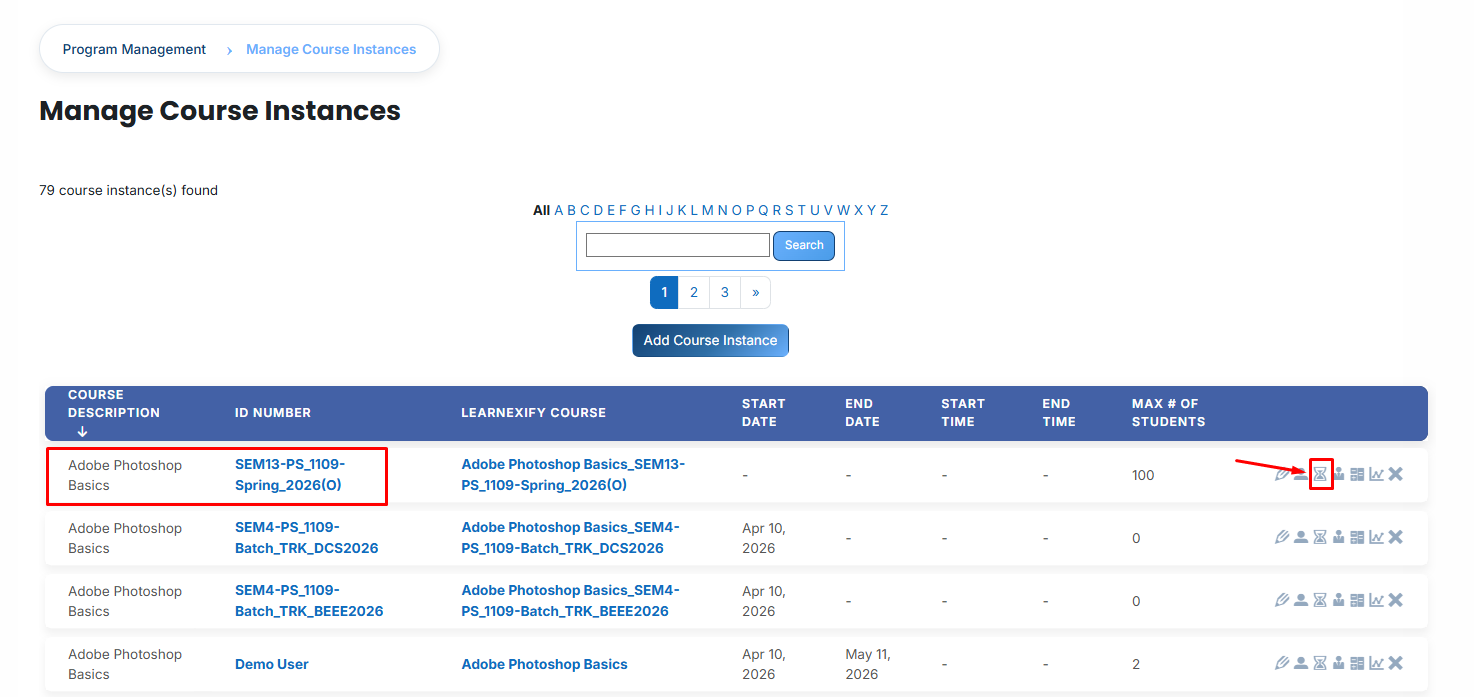
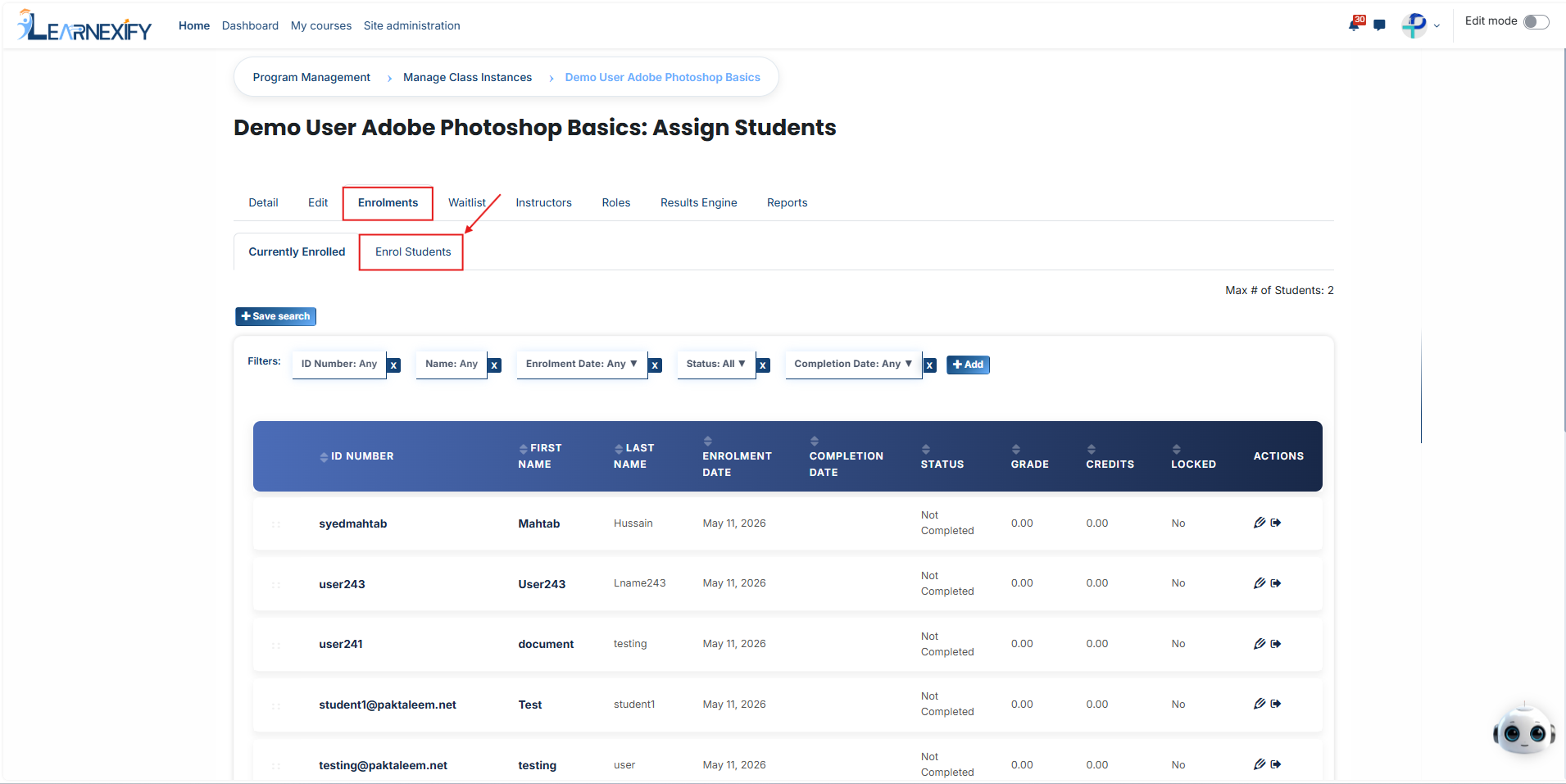
To initiate this process, navigate to the list of all course instances and click the Enrollment icon.
-
Once the enrollment page opens, click the Enroll Student button.
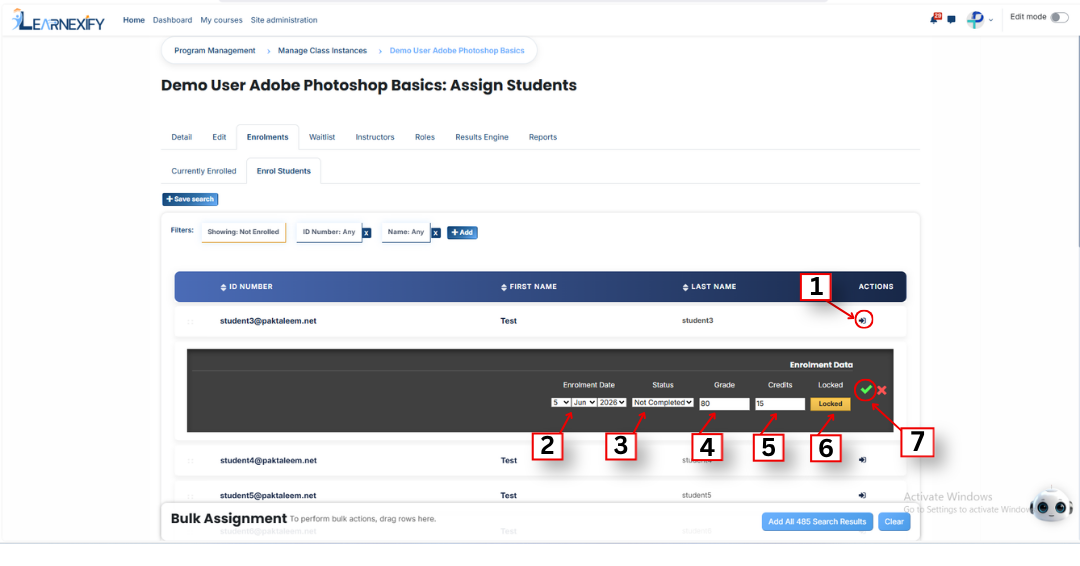
- Find the student you wish to add, click the arrow icon next to their name, fill in the required enrollment details, and click the green tick (✔).
-
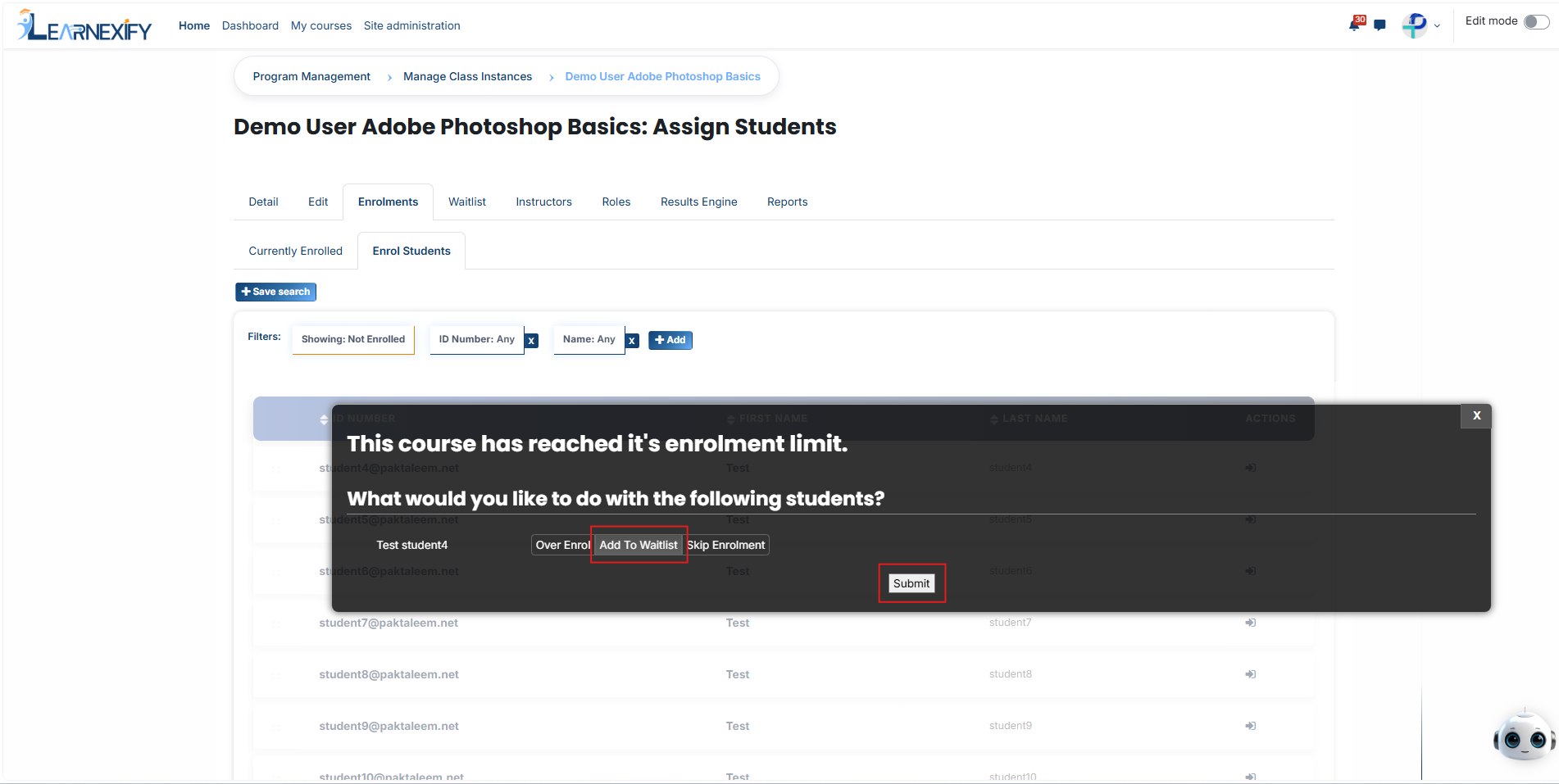
Since the class is at full capacity, an "Enrollment Limit" window will appear with three options:
- Over Enroll: This option moves the student from the waitlist to the enrolled list. This means that when a seat becomes available in the class, the student becomes part of the active enrollment.
- Add To Waitlist: This option adds the student to the waiting list. The student remains on the waitlist and is not automatically added to the active class enrollment.
- Skip Enrolment: This option cancels the process completely and discards any enrollment information that has been entered.
-
To proceed with the waitlist, select the Add To Waitlist option and click the Submit button. The student will now be successfully moved to the waitlist queue.
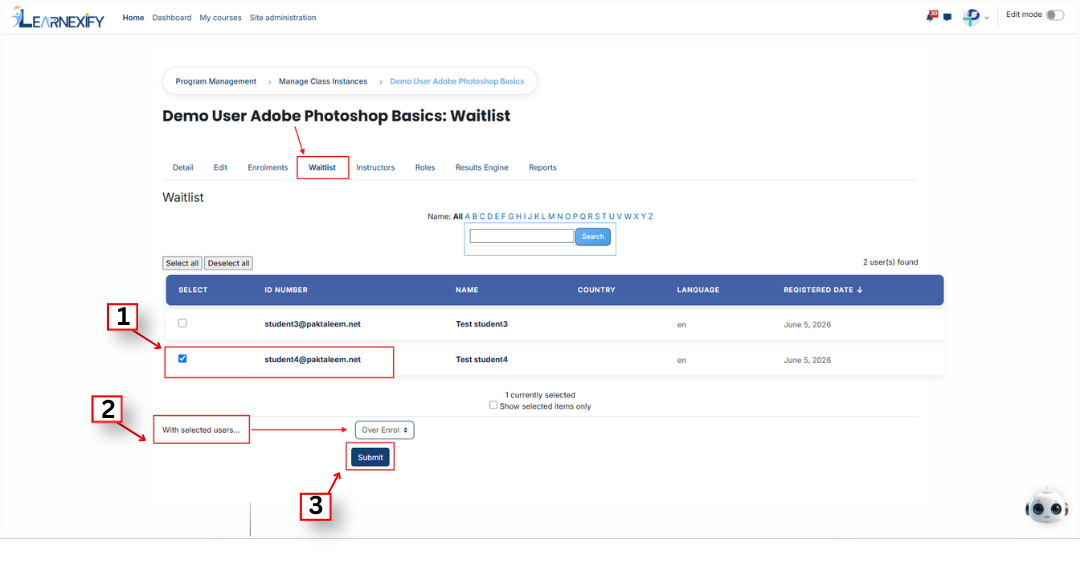
- To finalize their enrollment later, navigate to the Waitlist tab and select the specific student from the list.
- Go to the "With selected users..." dropdown menu at the bottom of the page.
- Select Over Enroll from the dropdown and click Submit to move the student from the waitlist into the active class enrollment list.
- Alternatively, you can select Remove from the dropdown and click Submit if you want to delete the student from the waiting queue entirely.
- After clicking Submit for the Over Enroll action, a confirmation message will appear. Click Yes to complete the process.
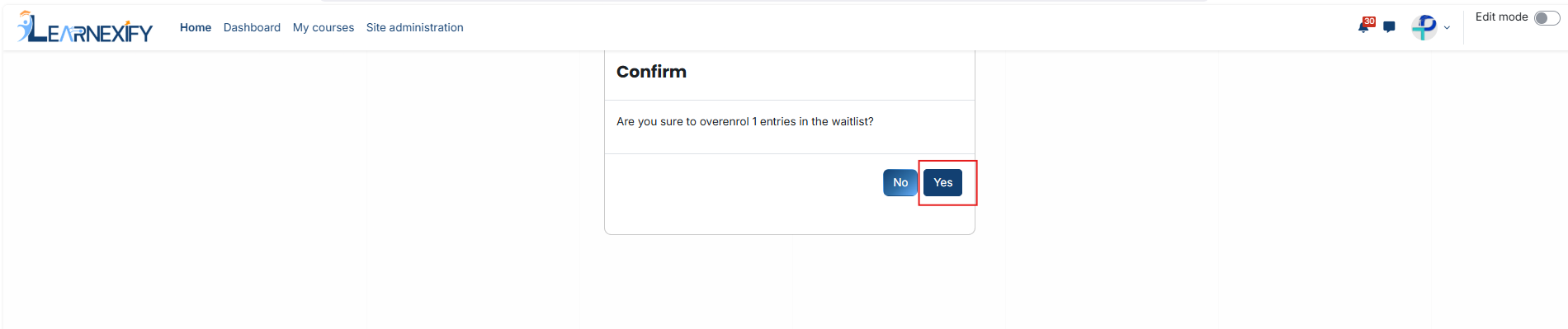
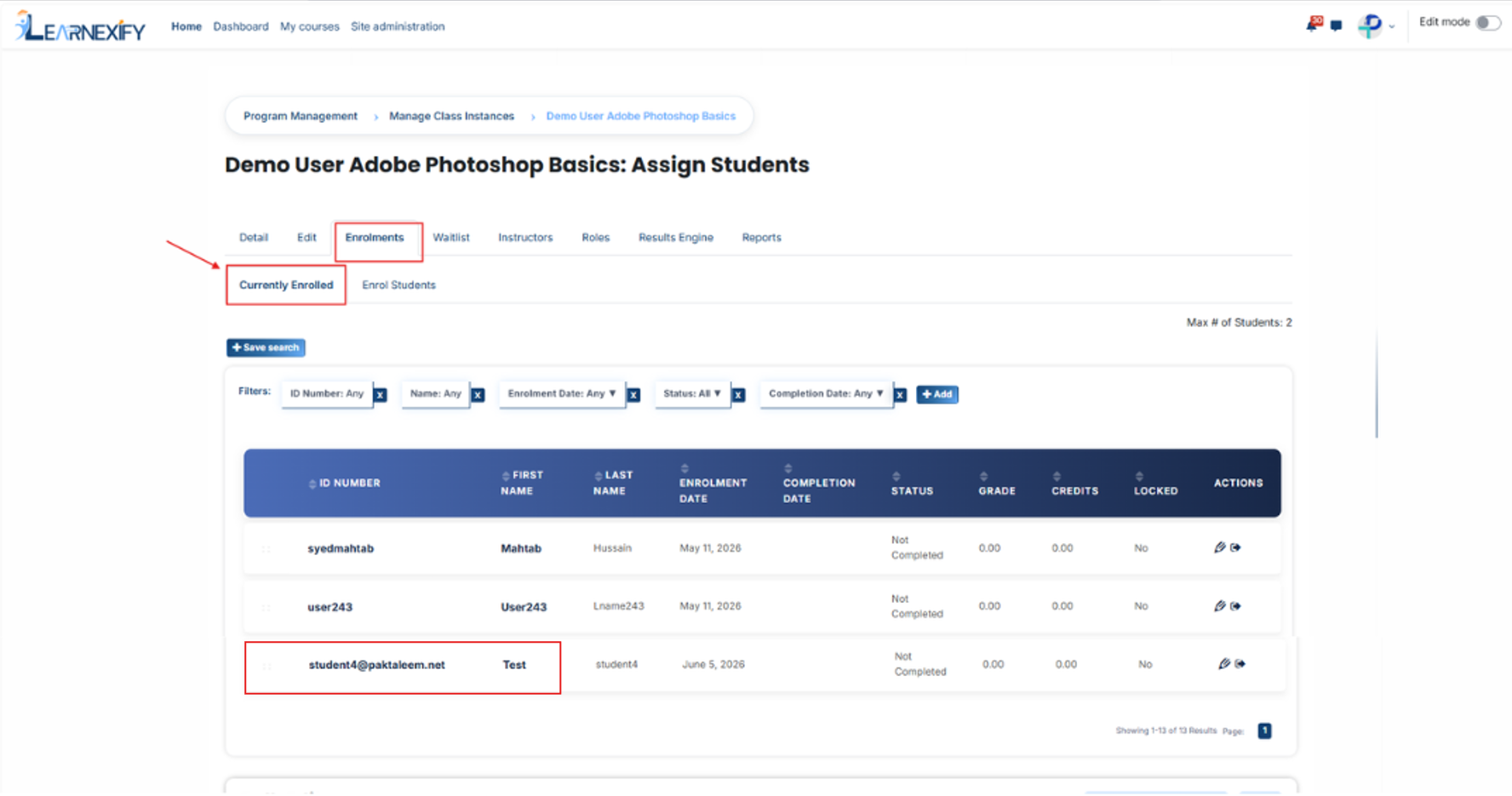
- The student will now be successfully moved from the waitlist and added to the Currently Enrolled list of the course instance.