
How to Add Users to the Waiting List in a Semester
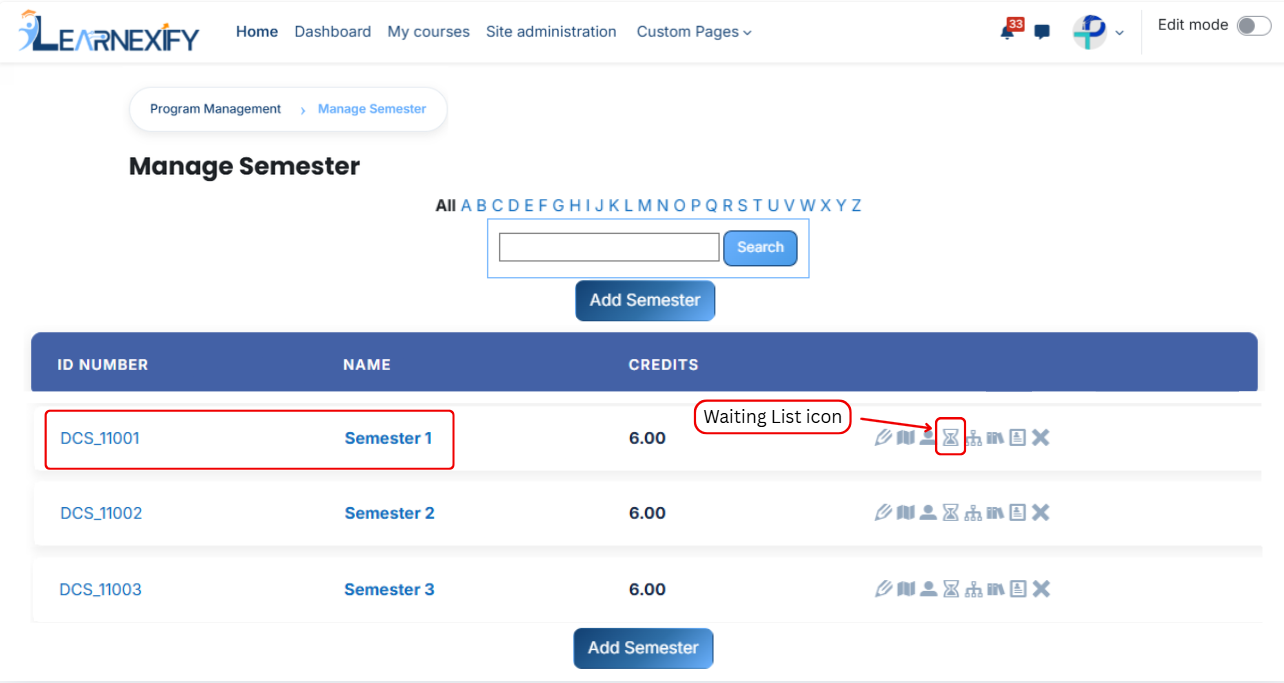
From the list of all semesters,
Clickclick the waiting list icon of the semester to which you want to add users to the waiting list.
After opening the Waiting list tab,Youyou will see the users already assigned to the waiting list for the semester.
If you want to add more users to the waiting list, click on the Available to Assign button.
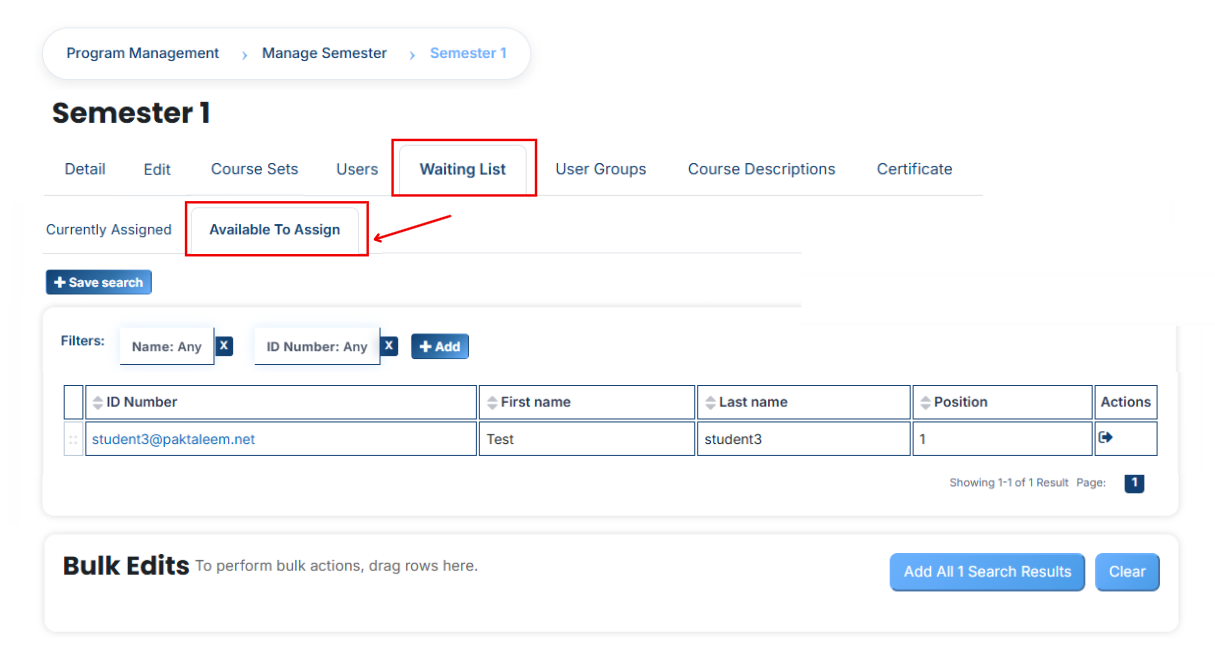
A list of available users will be displayed.
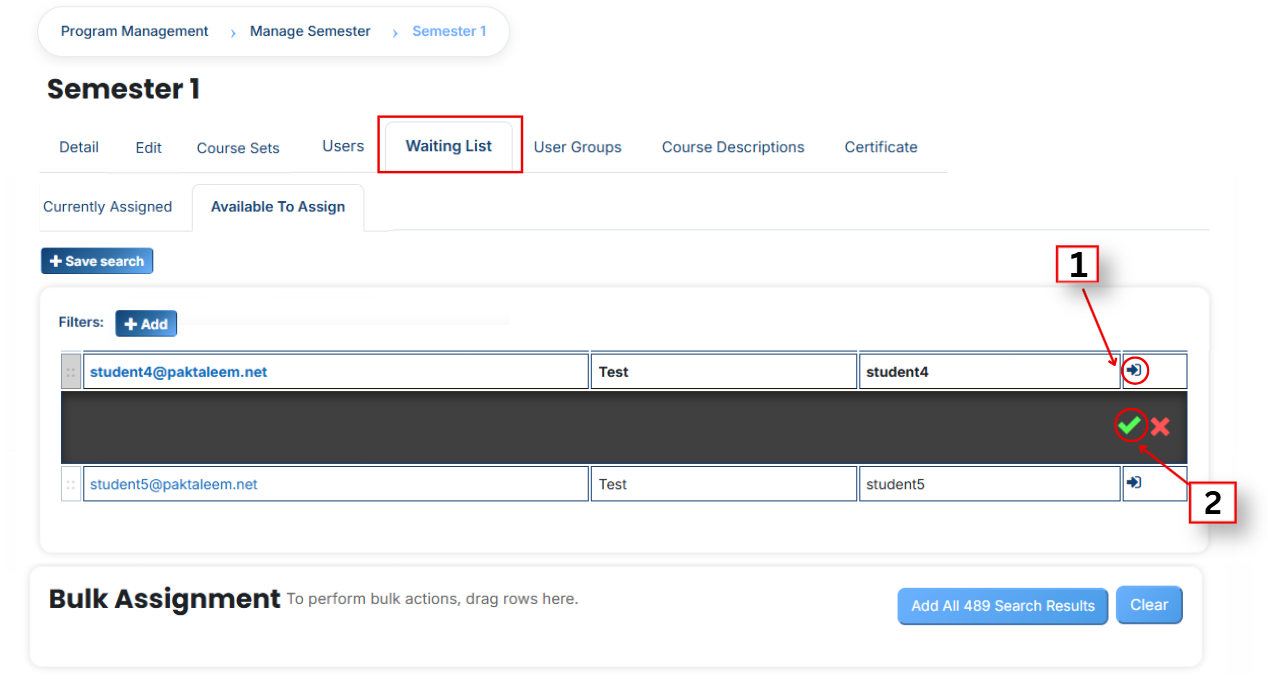
Select the user you want to add to the waiting list.
First, click on the arrow icon to move the user to the waiting list.
Then, click on the green tick (✔) to confirm the assignment.
After that, click on the Currently Assigned button.
Here, you will see the users who have been successfully added to the waiting list.
Add a User if It Is Not Available in the List
If the user you want to add to the waiting list is not available in the list, follow these steps:
- Click on the Available to Assign button.
- Then click on the Add button.
- A dropdown list will appear.
- Select the required field (e.g., Email, Username, City, etc.).
- Enter the user’s details in the selected field according to the chosen option.
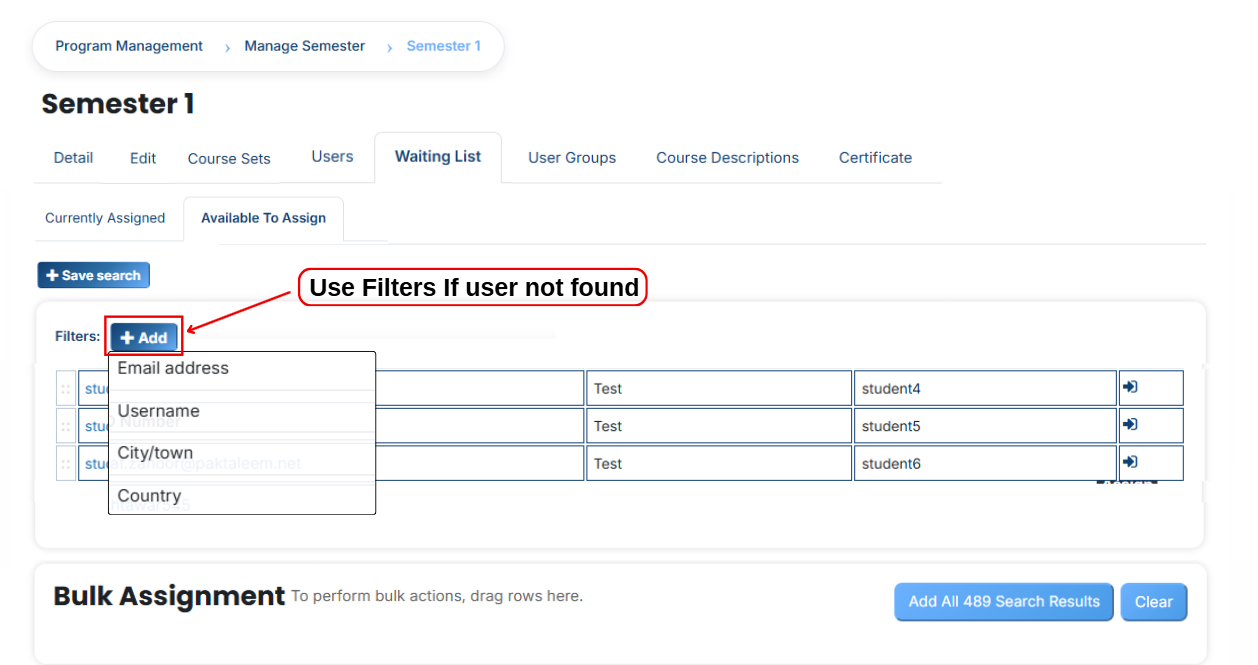
The user will appear in the list.
Select the user and add them to the waiting list.
You can also search and add a user using other details such as:
- Email address
- Username
- City/Town
- Country, etc.