
How to Assign Course Description in a Program
Course Description
A Course Description is a short summary that explains the content, topics, and learning objectives of a course. It helps students and teachers understand what will be taught in the course and what its main purpose is.

Follow these steps to assign a Course Description to a program:
- Open the Learnexify dashboard and go to the user menu. Click on Programs and then select Manage Program. Here you will see the list of all semesters.
- In which program you want to assign Course Description, click on the Course Description icon.
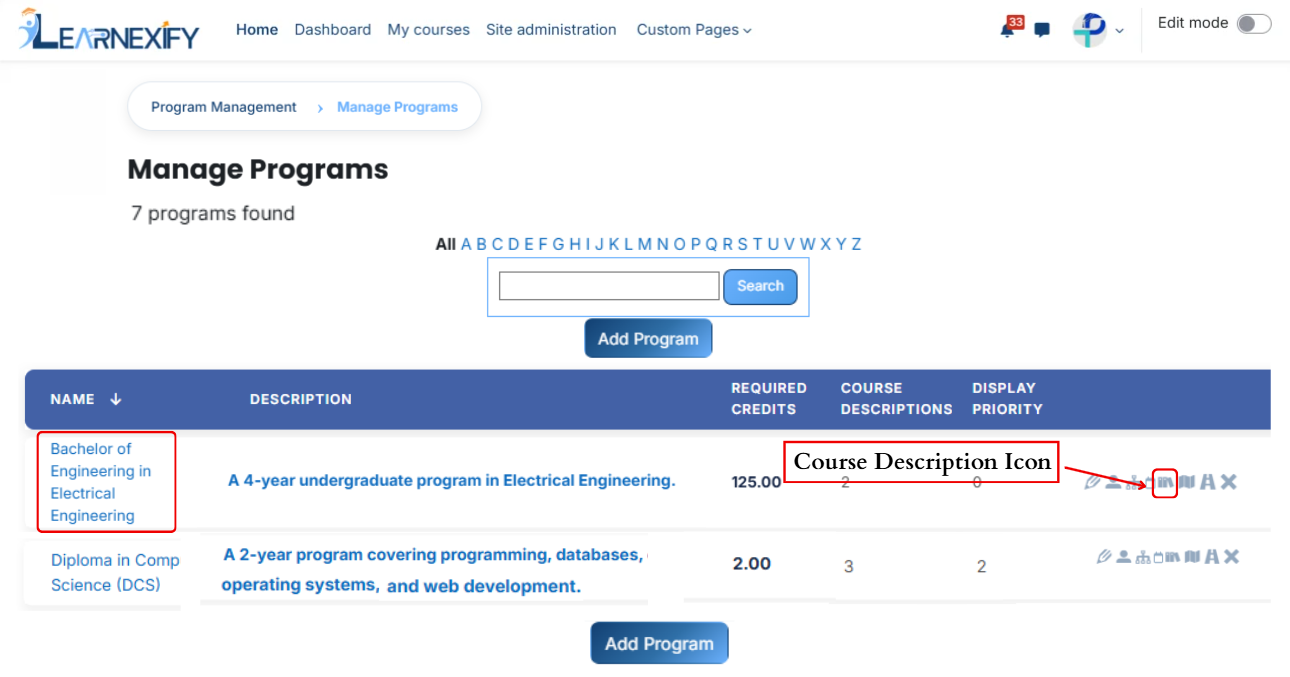
- Here you will see the list of assigned semesters.
-
Click on the Available to Assign button to assign more course descriptions in the program.
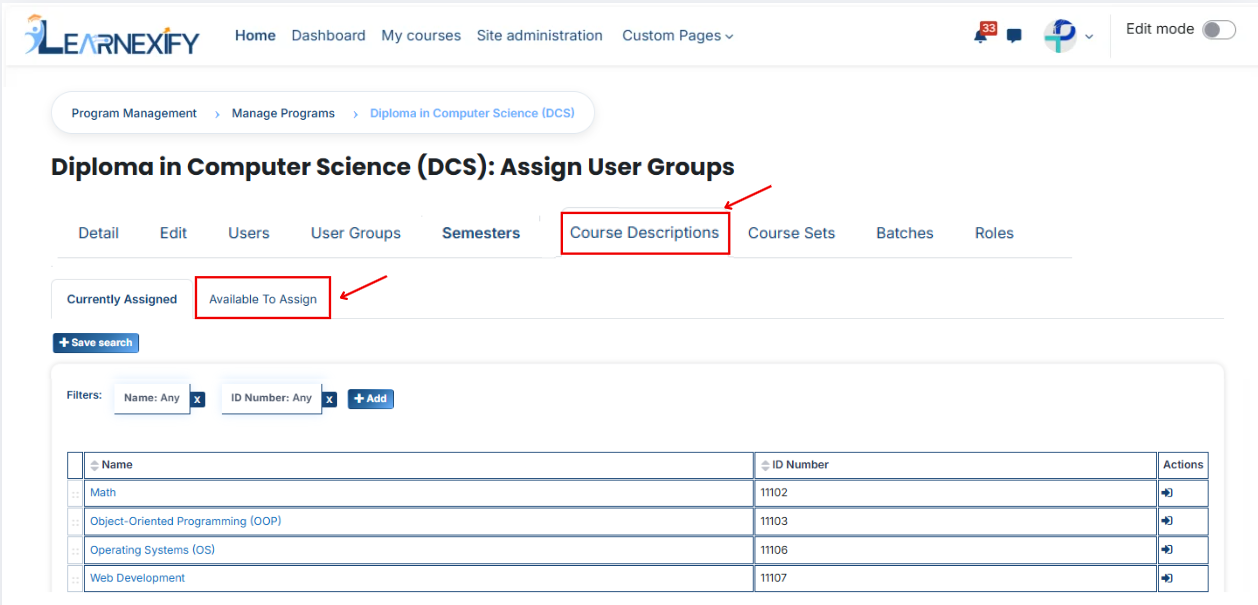
- Select the course description you want to assign to the program.
- Click on the arrow button to move the selected semester.
- Fill the details:
1. Required
This field is used to decide whether the course description is compulsory or optional.
- If a Course Description is set as Required when assigning it in a program, it becomes mandatory for learners to complete it.
- If we select Not Required, then it will be optional and not mandatory.
Example:
If we select Required, then the system will force this course description to be included in the program.
2. Frequency
This field defines how many times the course description should be applied.
Example:
If we enter 2, it means the course description will be applied twice as per the defined time period.
3. Time Period
This field defines the time unit for the frequency.
- Days
- Weeks
- Months
- Years
Example:
If we select Years, and frequency is 1, then the course description will apply once every year.
4. Position
This field defines the order or sequence in which the course description will appear.
Example:
If we enter 1, it will appear first.
If we enter 2, it will appear after the first one.
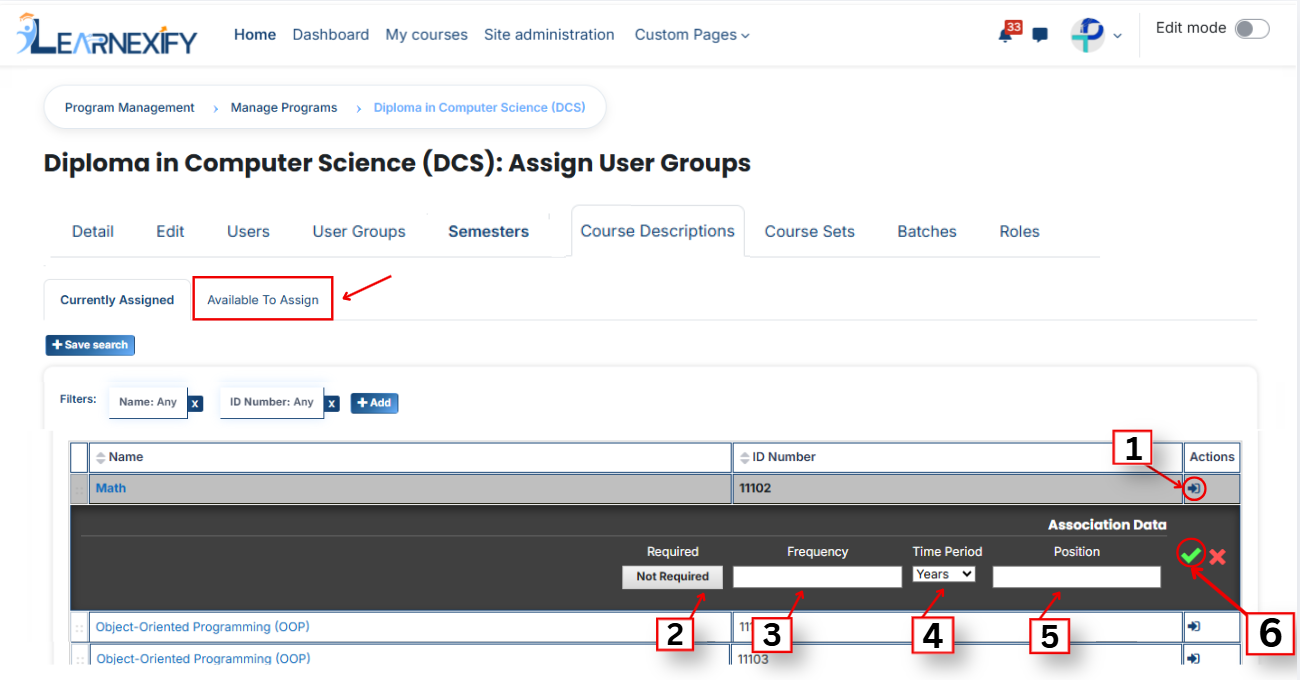
- After filling the details, click on the green tick to confirm the assignment.
- Go to the Currently Assigned section, where you can see the assigned course description.
- If you cannot find your course description, select the required field and enter the details according to the course description on the “Available to Assign” page.
Bulk User Action:
Purpose:
Use this feature to assign multiple course descriptions efficiently.
Method 1:
- Select those multiple course descriptions you want to assign in the program.
- After making your selections, click the “Add All 6 Selected Items” button to add the selected course descriptions.
The number displayed in the button (e.g., 6) represents the number of items currently selected and will change depending on how many items you select.

-
Then click on the Assign button in the Bulk Assignment Section to move the course descriptions to the assigned list.
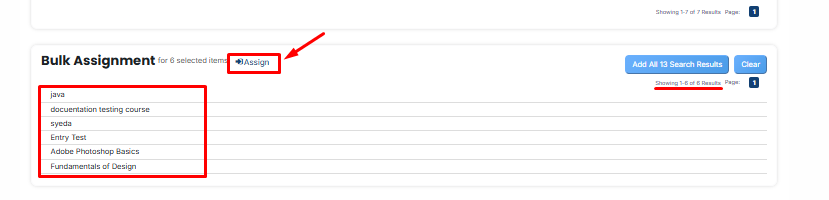
Method 2:
- Click the “Add All 13 Search Results” button to add all course descriptions with a single click. The number displayed in the button (e.g., 13) may vary depending on the number of course descriptions available in the search results.
- If you want to clear everything, click the Clear button.
