
How to Assign Course Sets in a Program
Course sets
Course Set is a group of related courses that are combined together to simplify management and assignment within a program or semester. It allows administrators to assign multiple courses at once instead of adding them individually.

Assigning Course sets to a Program:
-
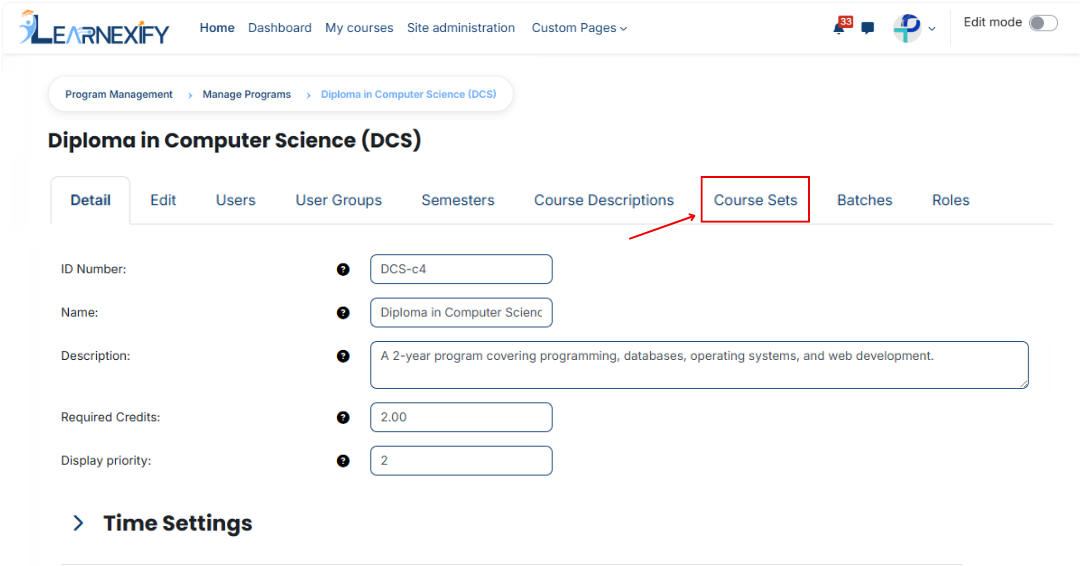
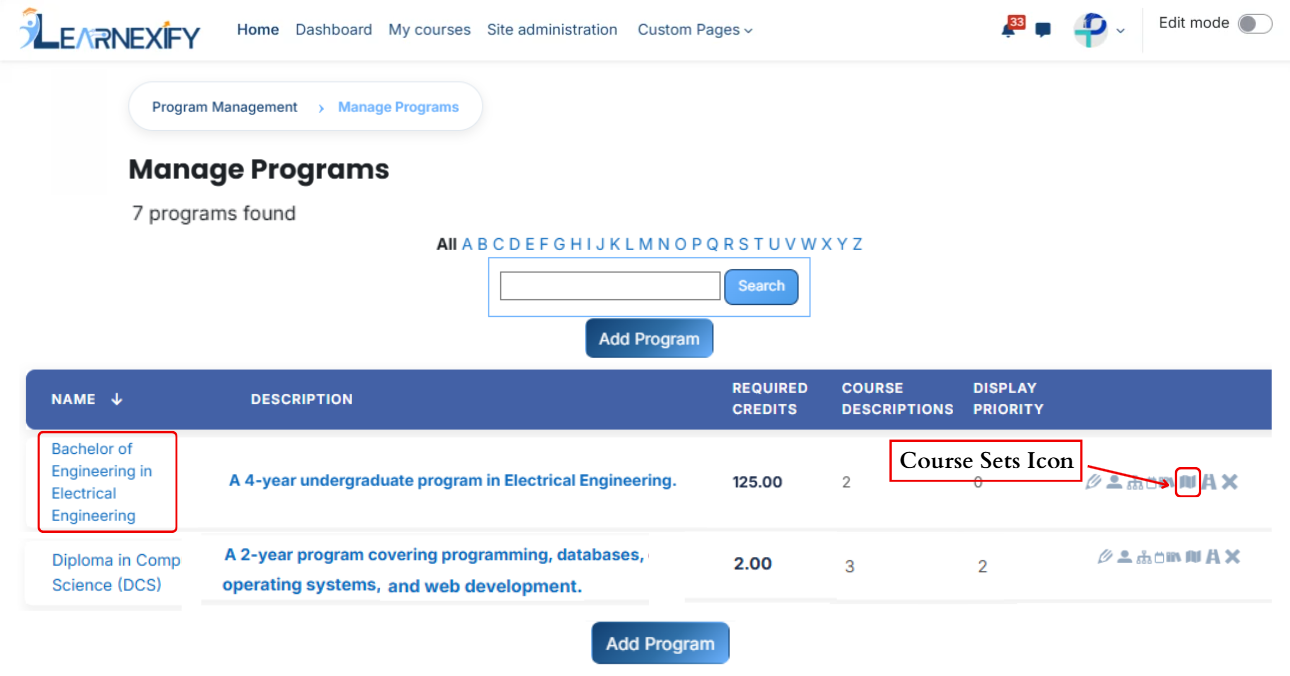
After openingAccess theprogramProgramclickListonand select the Course Sets icon to manage and link course sets directly to your specific program.
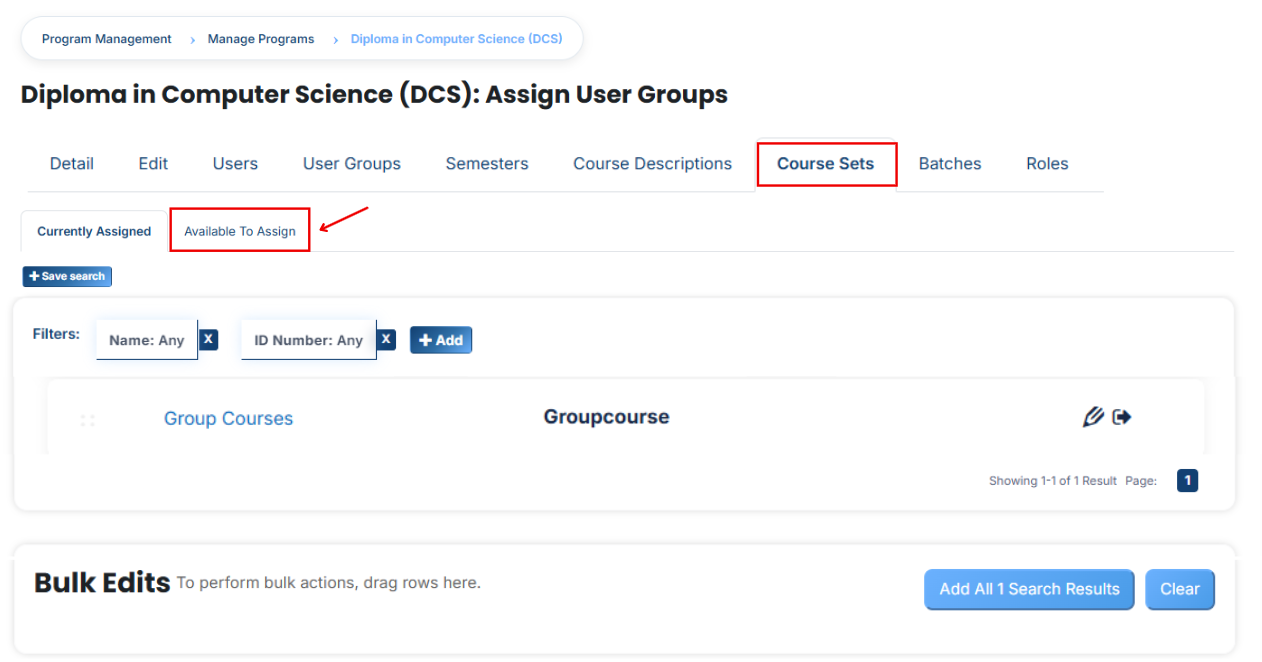
- Here you will see the list of assigned course sets.
- If you want to assign more course sets in the program, Click on the Available to Assign button.
- Select the course sets you want to assign to the program.
- Click on the arrow button to move the selected course set.
- Fill the details:
1. Required Credits
This means the learner must complete a specific number of credits to fulfill the requirement of the program or course set. For example, if 10 credits are required, the student must complete courses totaling 10 credits.
2. AND/OR Condition
This defines how the requirements work together:
- AND means both conditions must be completed (required credits + required courses).
- OR means either condition can be fulfilled (either required credits or required courses).
3. Required Courses
This means specific courses are mandatory. The learner must complete all the listed
courses in the course set.
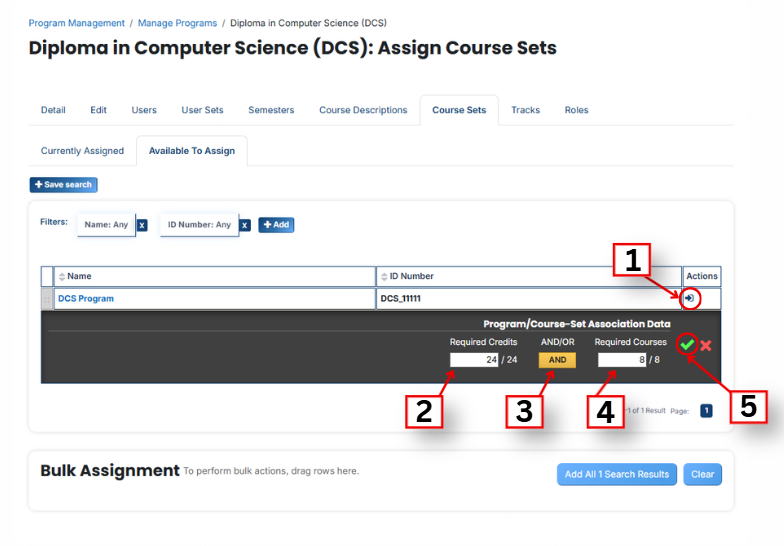
- After clicking the arrow button, click on the green tick to confirm the assignment.
- Go to the Currently Assigned section, where you can see the assigned course sets.
- If you cannot find your course set, select the required field and enter the details according to the course sets on the “Available to Assign” page.
Bulk User Action:
Purpose:
Use this feature to assign multiple Course Sets efficiently.
Method 1:
- Select those multiple course sets you want to assign in the program.
- After making your selections, click the “Add All 2 Selected Items” button to add the selected course sets.
The number displayed in the button (e.g., 2) represents the number of items currently selected and will change depending on how many items you select.

-
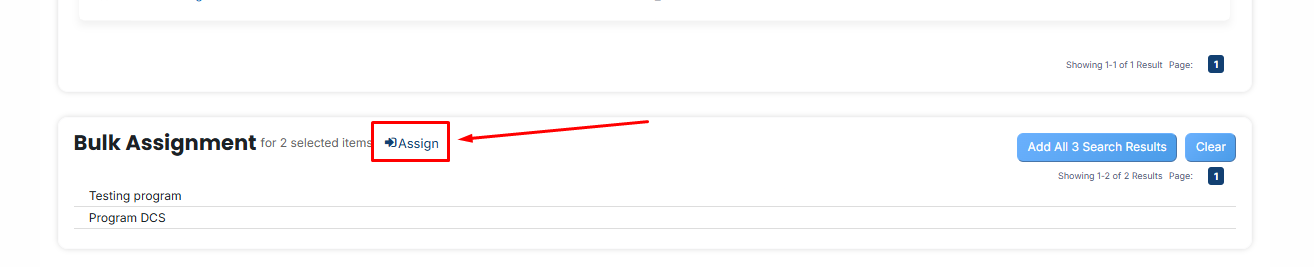
Then click on the Assign button in the Bulk Assignment Section to move the course sets to the assigned list.
Method 2:
- Click the “Add All 13 Search Results” button to add all course sets with a single click. The number displayed in the button (e.g., 13) may vary depending on the number of course sets available in the search results.
- If you want to clear everything, click the Clear button.
