How to Assign Semesters in a Program
Semesters
A Semester is a fixed academic period used in universities to divide an academic year into smaller parts. Each semester represents a specific stage of study in which students take a defined set of courses and complete related academic activities such as lectures, assignments, and exams.
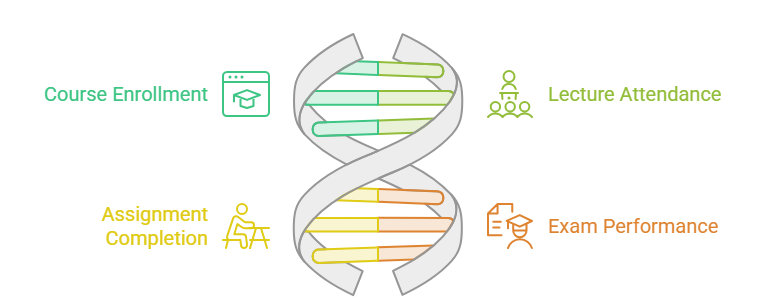
In most universities, a degree program is divided into multiple semesters (for example: Semester 1, Semester 2, Semester 3, etc.), and students progress from one semester to the next as they complete their courses
Steps to Assign User Groups to a Program:
-
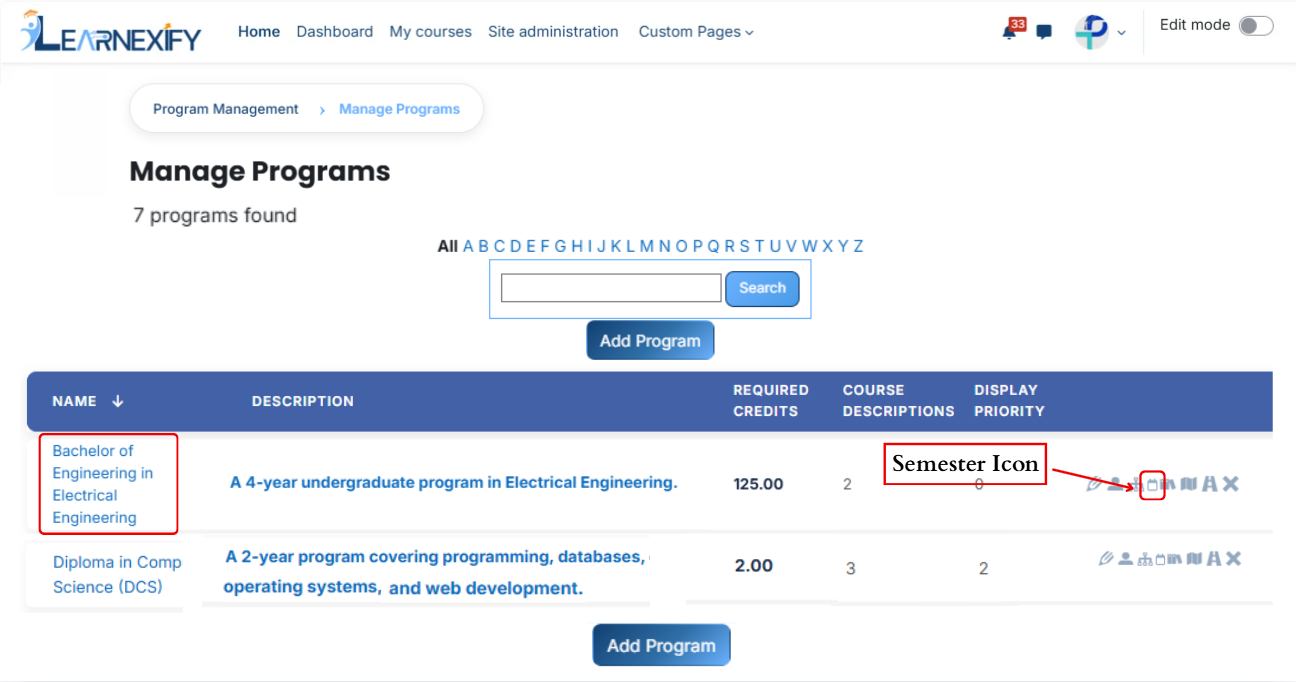
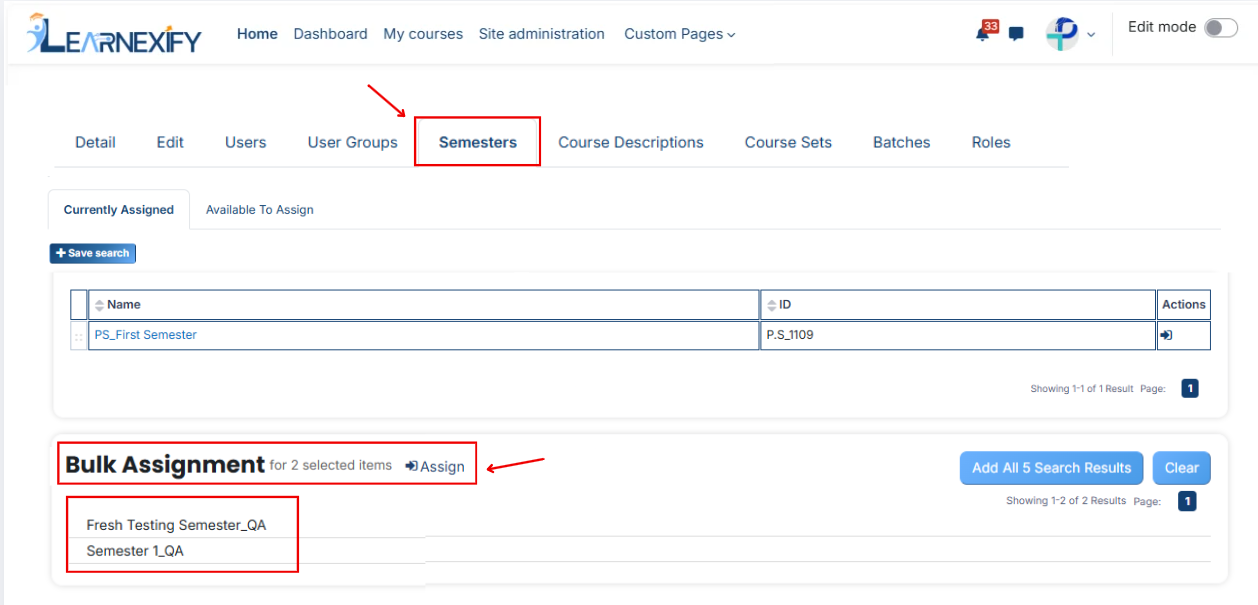
In the Program List, click the Semesters icon for the desired program to open the tab and assign semesters.
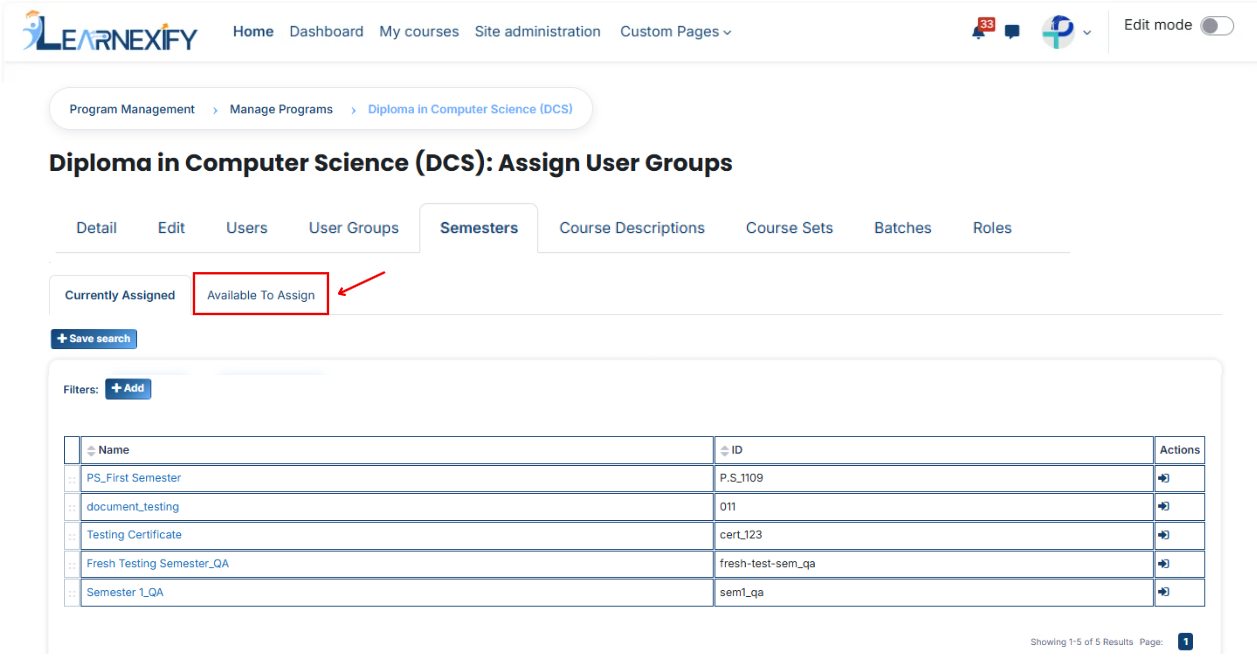
- Here you will see the list of assigned semesters.
- To assign additional semesters, click on the 'Available to Assign' button.
- Select the semester you want to assign to the program.
- Click on the arrow button to move the selected semester.
- After clicking the arrow button, click on the green tick to confirm the assignment.
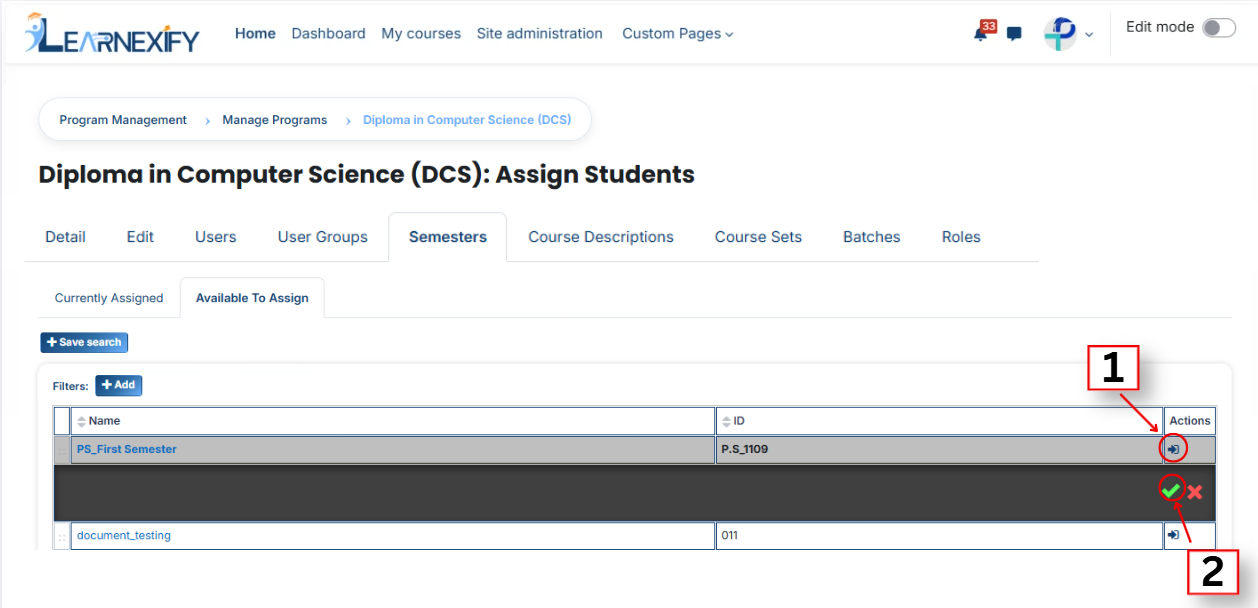
- Go to the Currently Assigned section, where you can see the assigned semester.
- If you don’t find your semester, select the required field and enter the details according to the semester.then assign a semester in the program.
Bulk User Action:
Purpose:
Use this feature to assign multiple Semesters efficiently.
Method 1:
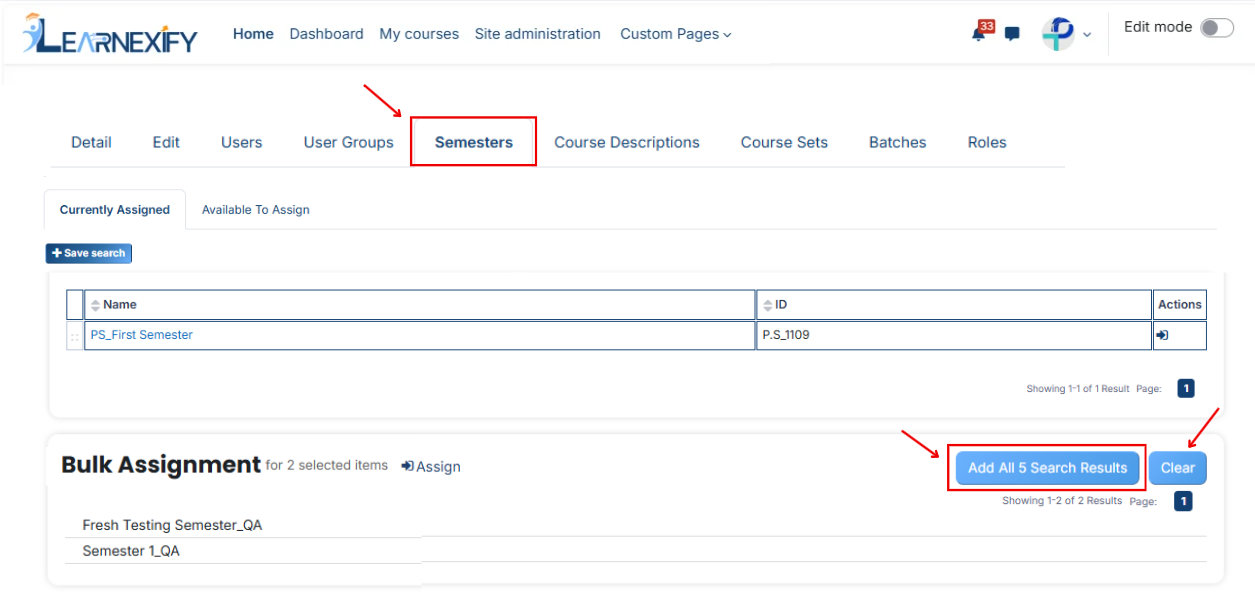
- Select those multiple semesters you want to assign in the program.
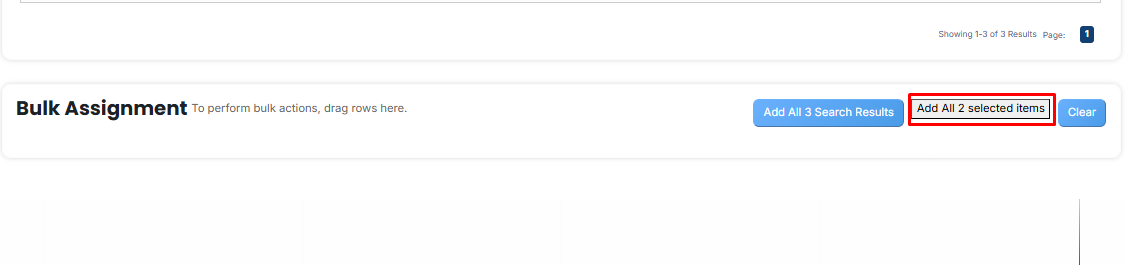
- After making your selections, click the “Add All 2 Selected Items” button to add the selected semesters.
The number displayed in the button (e.g., 2) represents the number of items currently selected and will change depending on how many items you select.
- Then click on the Assign button in the Bulk Assignment Section to move the semesters to the assigned list.
Method 2:
- Click the “Add All 3 Search Results” button to add all semesters with a single click. The number displayed in the button (e.g., 3) may vary depending on the number of semesters available in the search results.
- If you want to clear everything, click the Clear button.