How to Assign Users Group to a Program
User Groups
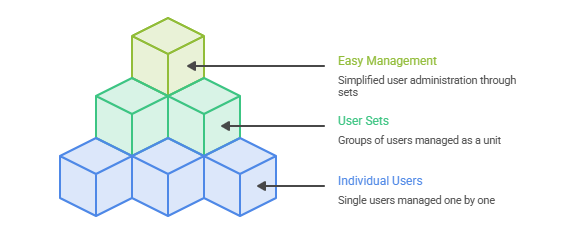
A user group is a group of users that are combined together for easy management. Instead of assigning users one by one, multiple users can be grouped into a set and managed as a single unit.
Example:
For example, a university creates a user group that contains 20 users. Instead of assigning each user manually to a program or semester, the admin can assign the entire user group at once.
By assigning this user group to a program, all 20 users are automatically added to that program or semester in a single step. This saves time compared to assigning users individually.
Steps to Assign User Groups to a Program:
To assign user groups to a program, follow these steps:
- Click on the user groups tab
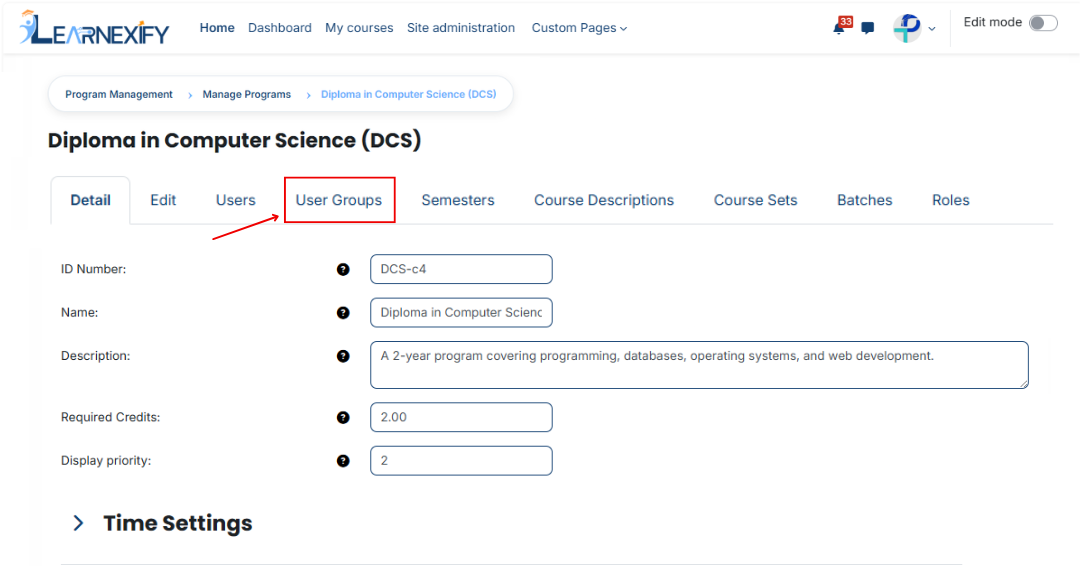
- After opening this tab here you will see assigned user groups in the program
- If you want to assign more user groups Click on the Available to Assign button.
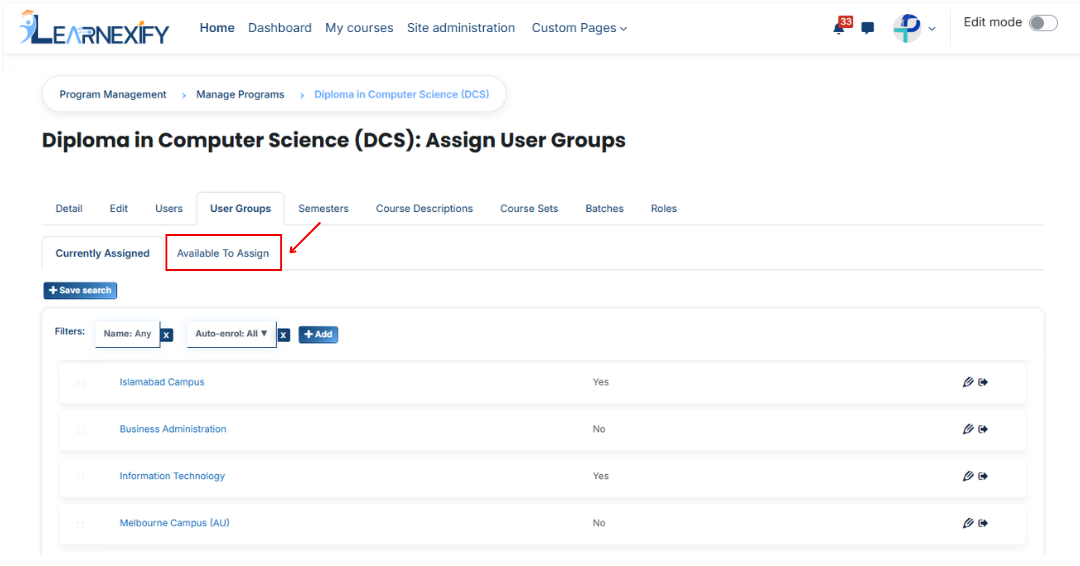
- A list of available user groups will be displayed
- Select the user groups you want to assign
- First, Click on the arrow icon to move the user to the assigned list
- Select an option (choose one):
1. Auto-enroll users into this program when they are added to this program
When this option is enabled, users are automatically enrolled into the program immediately after they are assigned.
This means:
- No manual enrollment is required after assigned.
- Users gain access to the program content instantly
- Enrollment happens automatically in the background
2. Apply program association to all User subsets
When this option is enabled, the program is linked not only to directly assigned users but also to all related User Subsets.
This means:
- The program is applied across all subsets within the selected user group
- Users belonging to different subsets will also be associated with the program
- Ensures consistent program distribution across grouped users
Click on the green tick (✔) to confirm the assignment
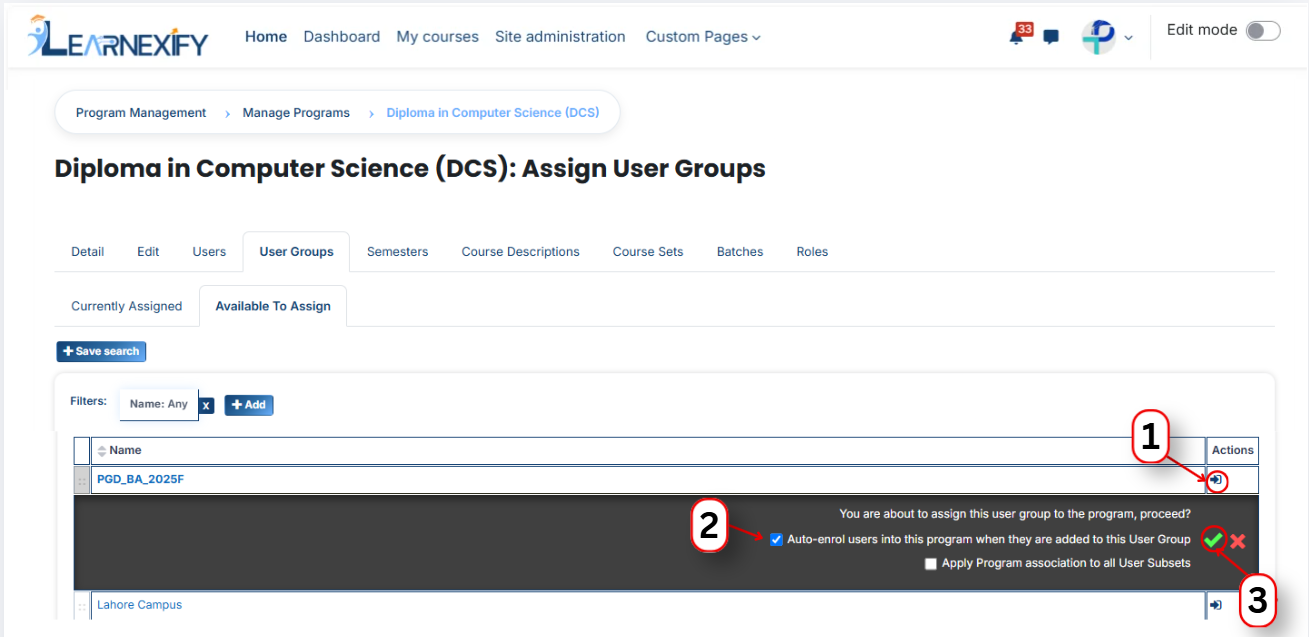
- After that, click on the Currently Assigned button
- Here, you will see the user groups who have been successfully assigned to the program
Assign User Groups Using Filters
In the “Available to Assign” section, if the required user group is not visible in the list, you can use the filter option to search for it.
Click on the Add button, and you will see different filter options:
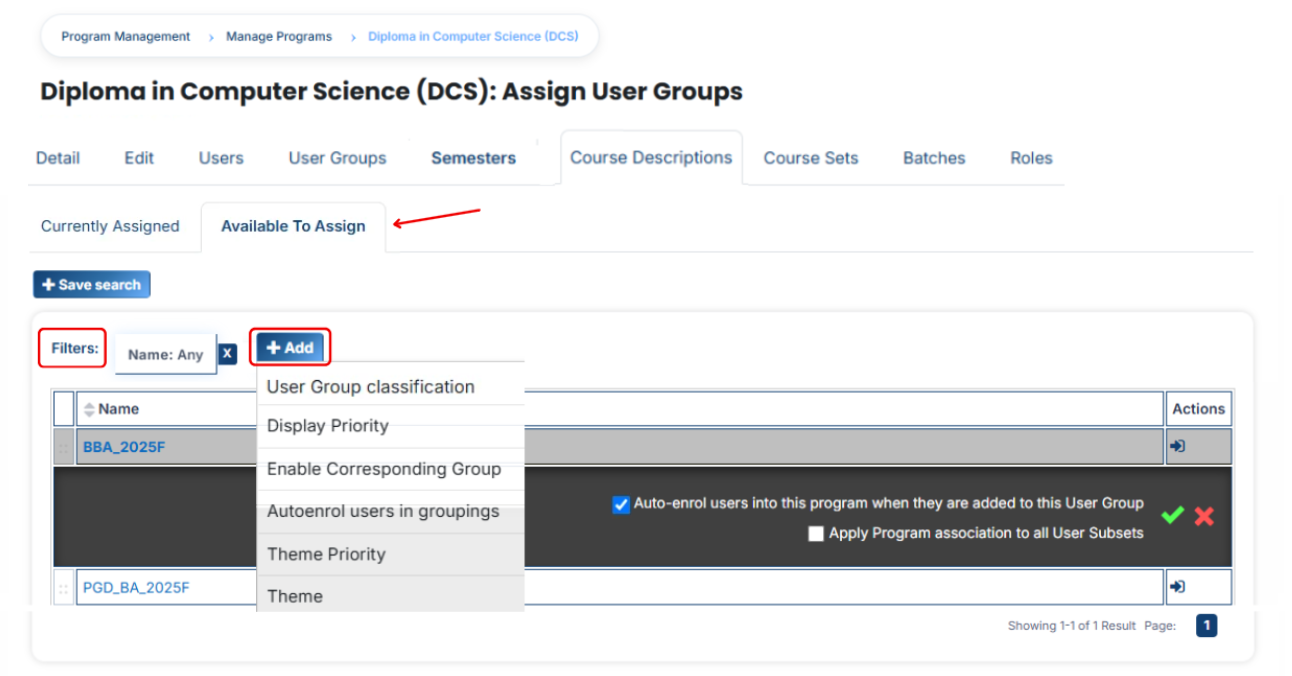
1. User Set Classification
If you select this filter and type a value, the system will show only matching user groups.
For example, if you select “user group Classification” and type “campus”, then only campus-related user groups will appear.
2. Display Priority
This filter is used to find user groups based on priority.
For example, if you enter “2”, then only user groups with priority 2 will be shown.
3. Enable Corresponding Group
This filter is used to show user groups linked with a specific group.
For example, if a group is enabled and you apply this filter, only related user groups will appear.
4. Auto Enroll User in Grouping
If this option is selected, users inside the user group will be automatically enrolled into the program after assignment.
For example, once a user group is assigned, users will instantly get access without manual enrollment.
5. Theme Priority
This filter helps to find user groups based on theme priority.
For example, if you set priority “1”, then user groups with theme priority 1 will be displayed.
6. Theme
This filter is used to search user groups based on a theme.
For example, if you type “flexpath”, then all user groups related to that theme will appear.
Once the correct user group appears, click on the arrow icon and assign it using the green tick (✔).
The user group will then appear in the “Currently Assigned” list.
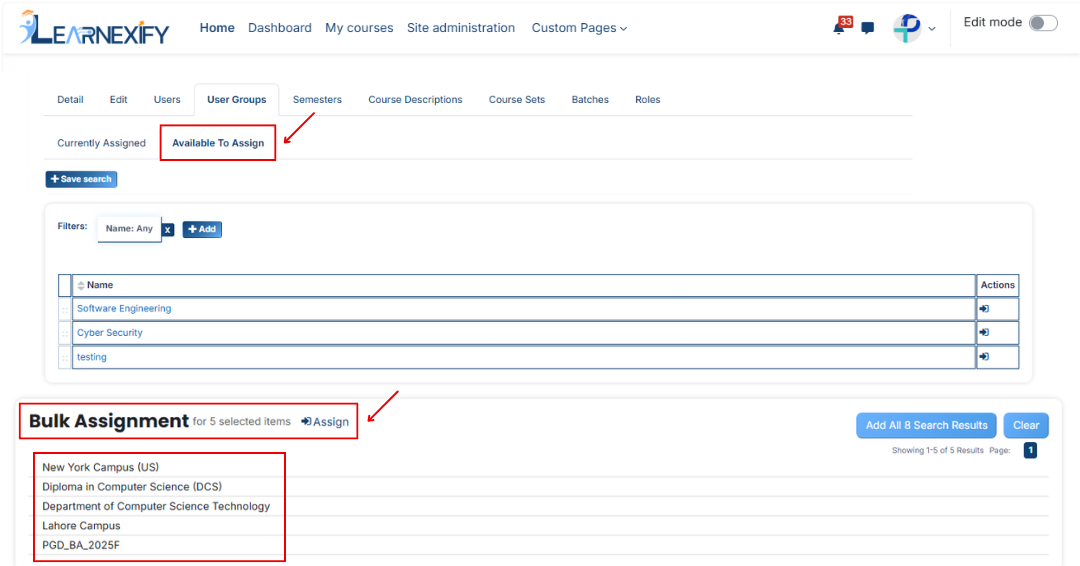
Bulk User Action:
Purpose:
Use this feature to assign multiple user sets efficiently.
Method 1:
- Select those multiple user groups you want to assign
- After making your selections, click the “Add All 5 Selected Items” button to add the selected user groups.
The number displayed in the button (e.g., 5) represents the number of items currently selected and will change depending on how many items you select.

-
Then click on the Assign button in the Bulk Assignment Section to move the user groups to the assigned list.
Method 2:
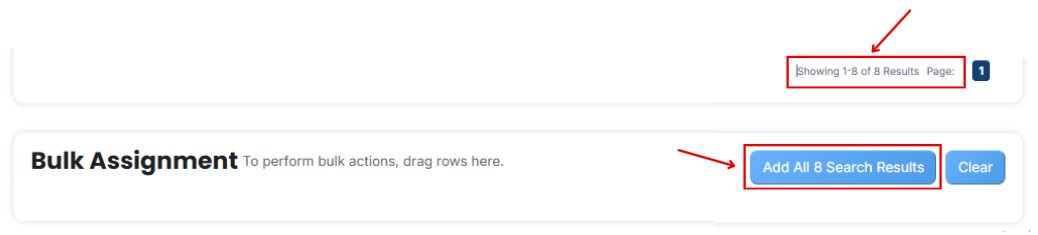
- Click the “Add All 10 Search Results” button to add all user groups with a single click. The number displayed in the button (e.g., 10 ) may vary depending on the number of user groups available in the search results.
- If you want to clear everything, click the Clear button.