How to Enroll Students in a Course Instance
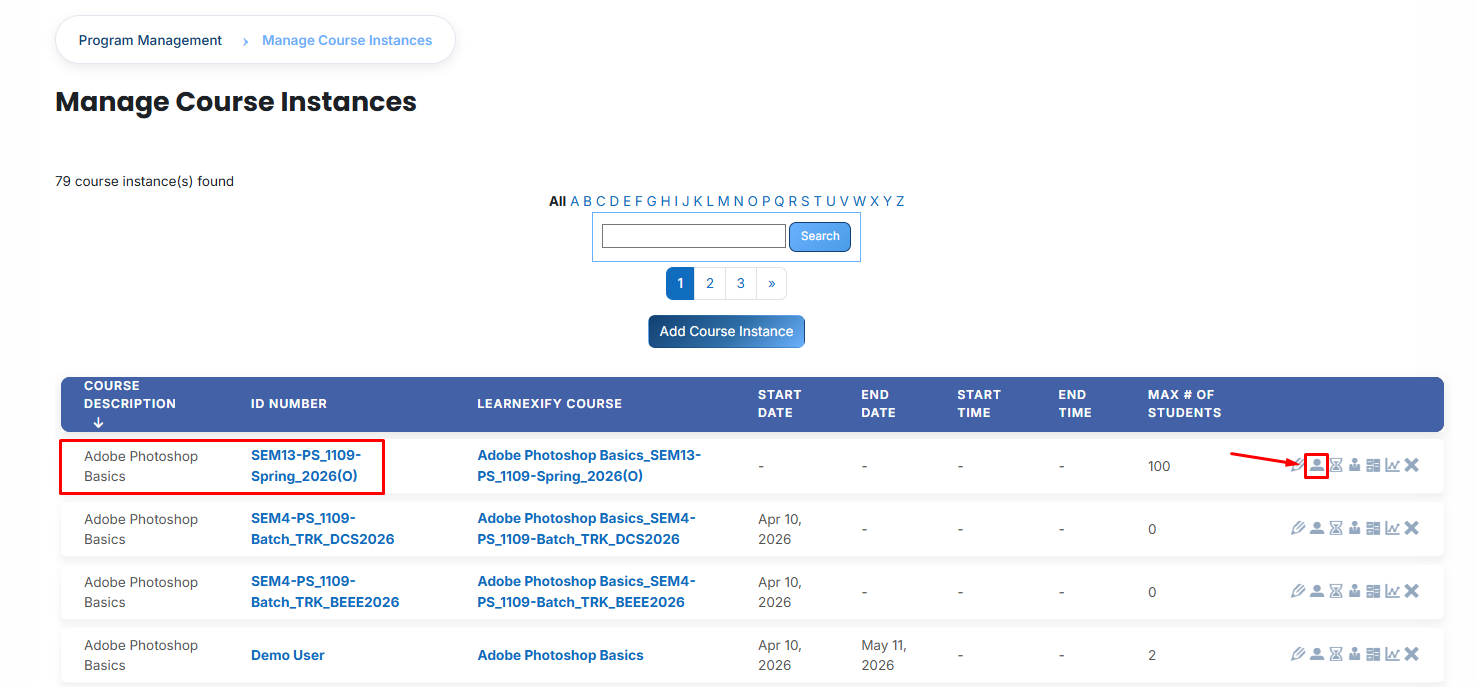
From the list of all course instances, click the Enrollment icon for the specific course instance to which you want to enroll students.
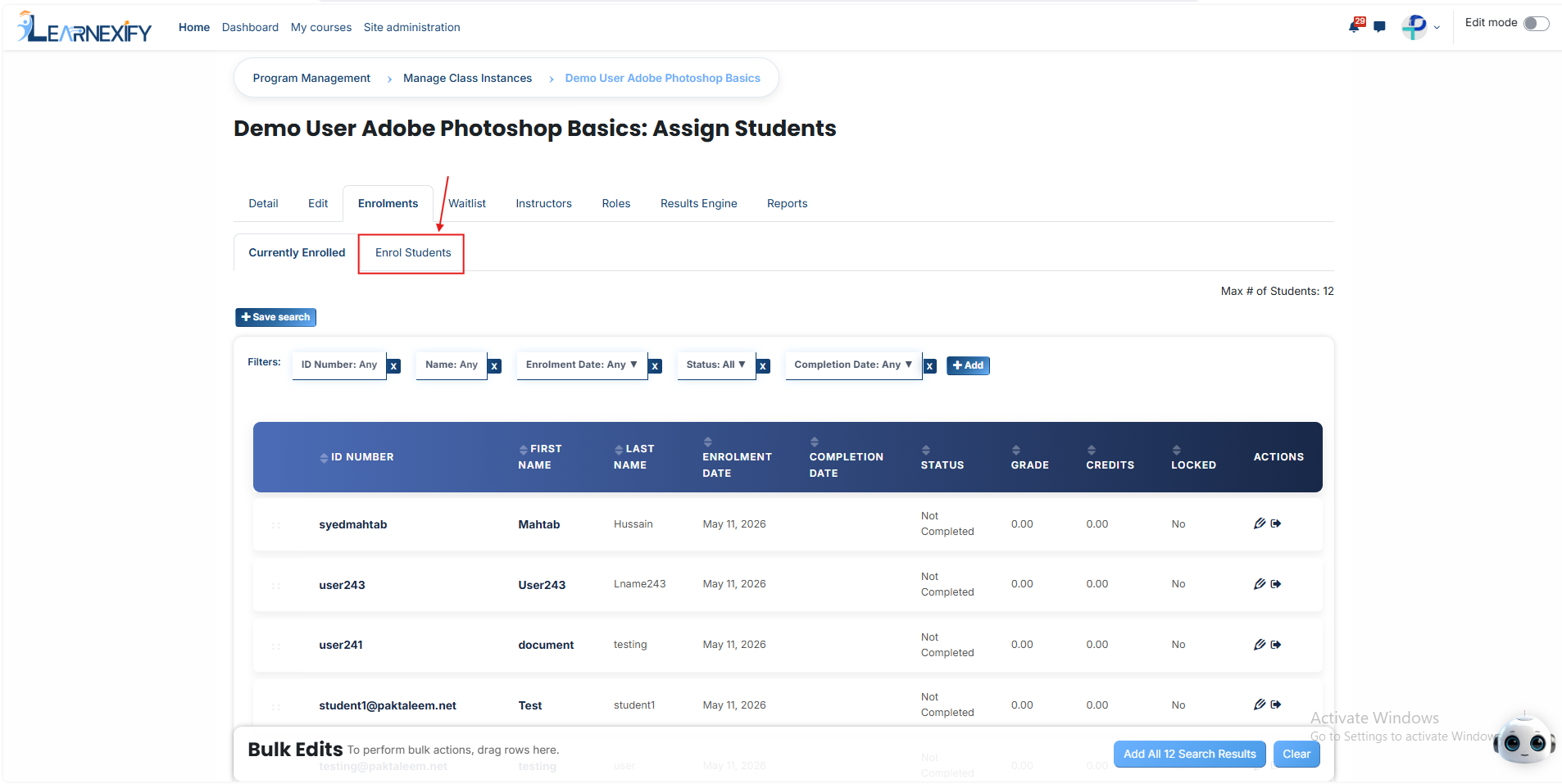
Navigating the Enrollment Interface:
After opening the Enrollment tab, you will see a list of users who are currently registered in the course instance. To add additional students, click the Enroll Student button.
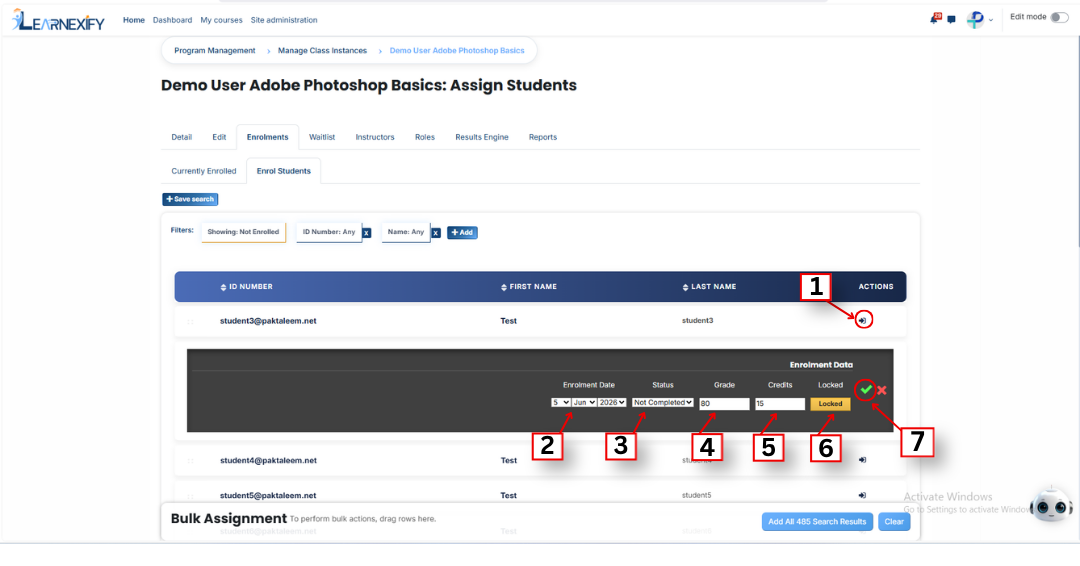
A list of available users will be displayed. Identify the student you want to enroll and click the arrow icon next to their name to open the enrollment configuration area.
Before finalizing, you must fill in the following academic and administrative details:
- Enrollment Date: Select the official date the student begins their participation in the course instance.
- Status: Define the current state of the enrollment, such as Active, Pending, or Inactive.
- Grade: Record the student’s performance or marks achieved in the course instance.
- Credits: Enter the academic workload or credit value assigned to the student for this course instance.
- Locked: Enable this toggle to freeze the enrollment data, preventing any further changes to the student's record.
- Waitlist: This feature is used to manage students when the course instance has reached its maximum seat capacity, placing additional users in an organized queue.
Click the green tick (✔) to confirm the enrollment and save the details. If you decide not to proceed, click the red cross.
To confirm that the process was successful, click on the Currently Enrolled button. This will display all users who have been successfully added to the course instance and are now active participants.
Searching for Specific Users:
If the student you want to enroll is not visible in the initial list, follow these steps to locate them:
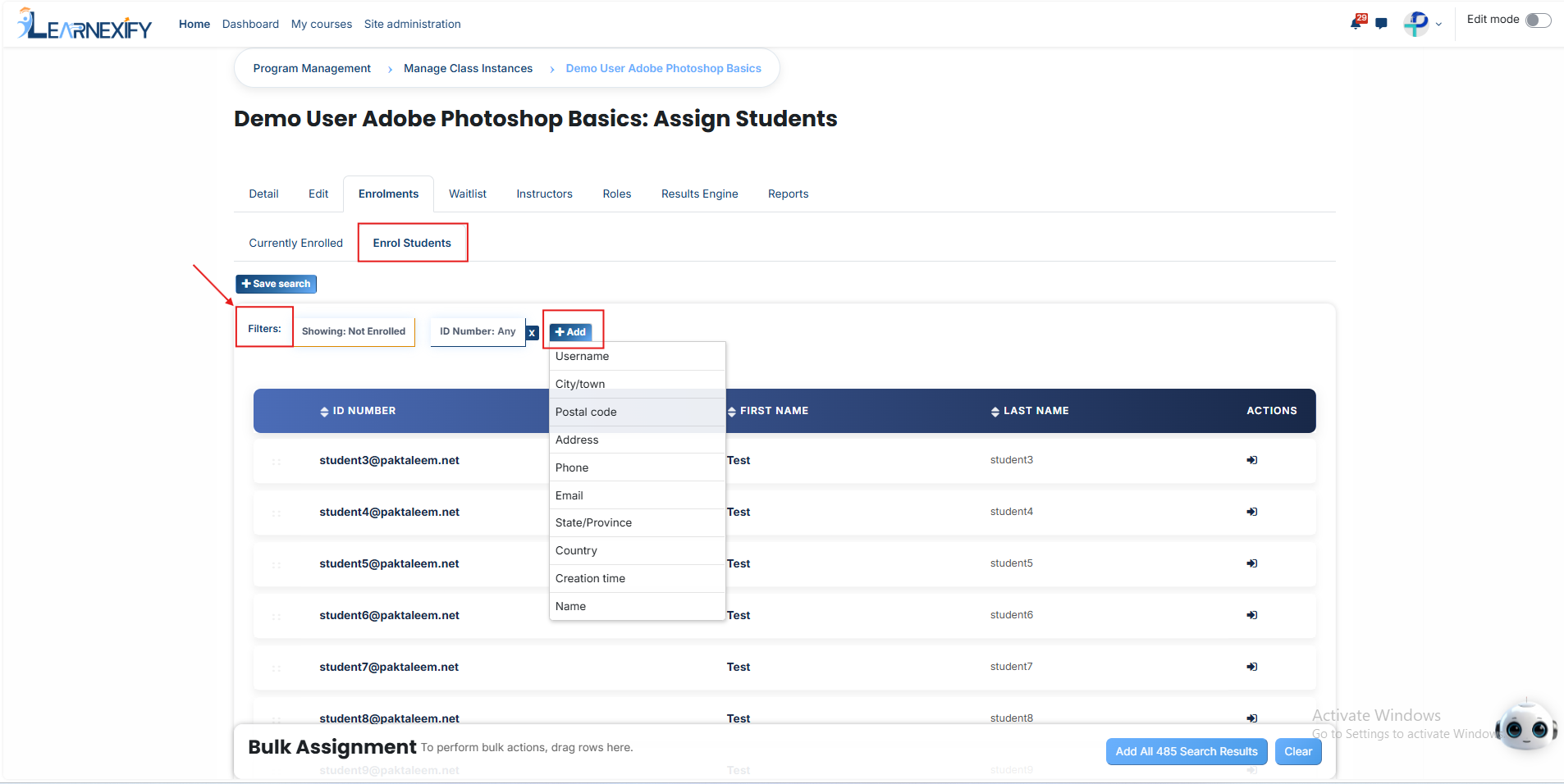
- Click the Enroll Student button.
- Click the Add button located in the filter section.
- A dropdown list of search fields will appear. Select the appropriate criteria, such as:
- Email Address
- Username
- City/Town
- Country
- Enter the user's specific information in the selected field.
Once the matching user appears in the results, select them using the arrow icon, fill in the enrollment details, and click the green tick (✔) to complete the assignment.
Bulk User Action:
Purpose:
Use this feature to assign multiple Users efficiently.
Method 1:
- Select those users you want to assign.
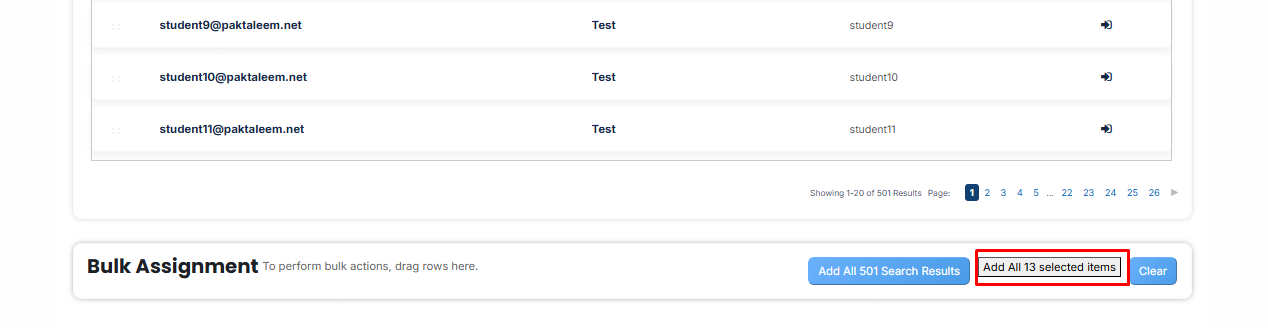
- After making your selections, click the “Add All 13 Selected Items” button to add the selected users.
The number displayed in the button (e.g., 13) represents the number of items currently selected and will change depending on how many items you select.
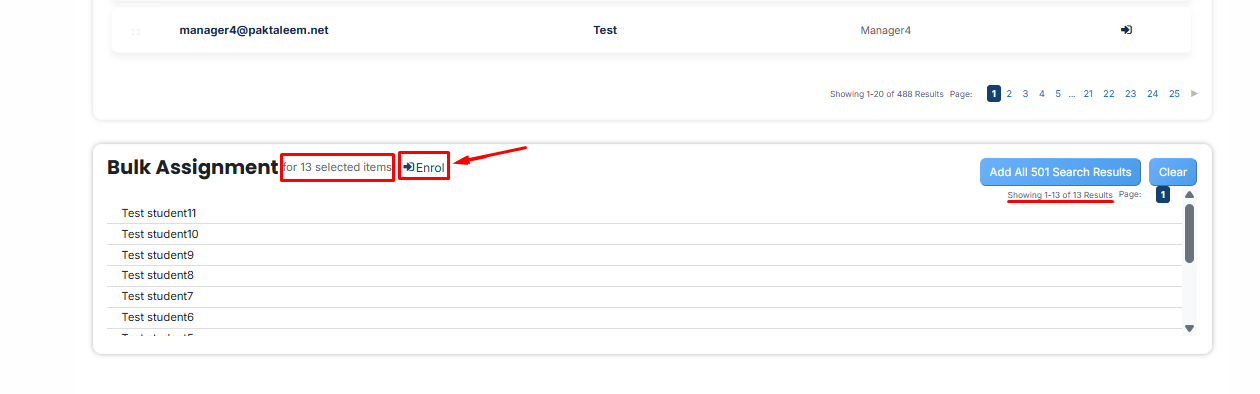
- Then click on the Assign button in the Bulk Assignment Section to move the users to the assigned list.
Method 2:
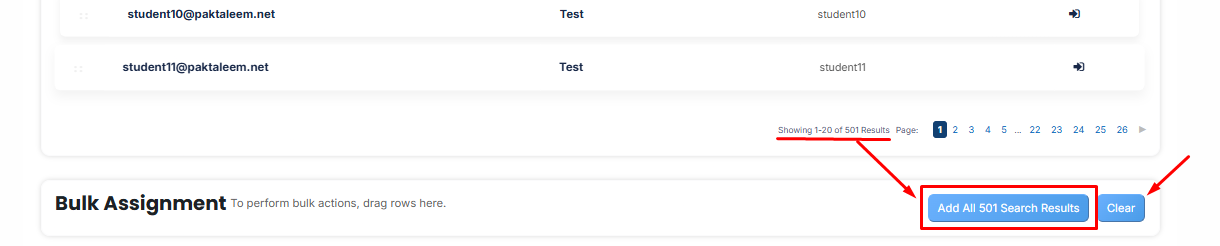
- Click the “Add All 501 Search Results” button to add all users with a single click. The number displayed in the button (e.g., 501) may vary depending on the number of users available in the search results.
- If you want to clear everything, click the Clear button.