How to Create a Program
Program:
Programs in Learnexify are used to organize Course Descriptions in different ways. In many cases, a collection of Course Descriptions leads to a certificate or another form of validation, indicating that a learner has achieved a certain level of mastery in the subjects included within the Program.
Additionally, Programs are used to define pre-requisite and co-requisite Course Descriptions, as well as to create batches of course instances that run according to a specific schedule or sequence.
Creating Programs Steps:
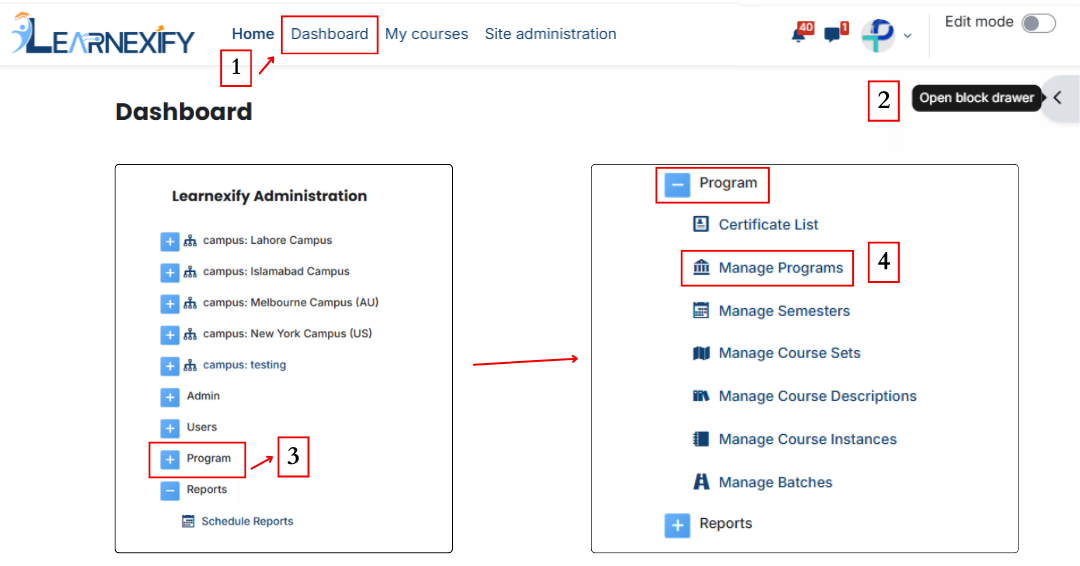
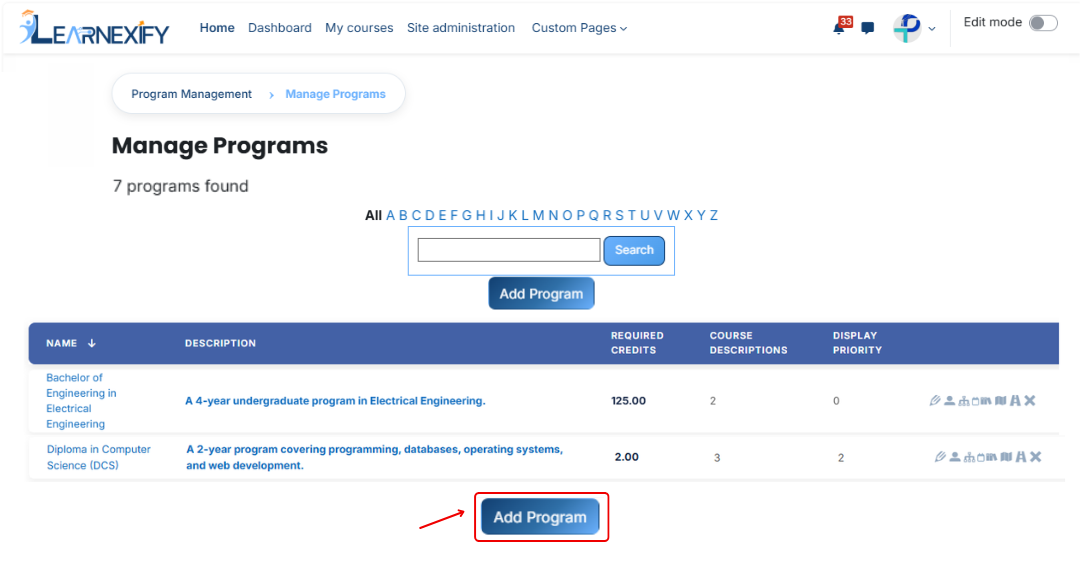
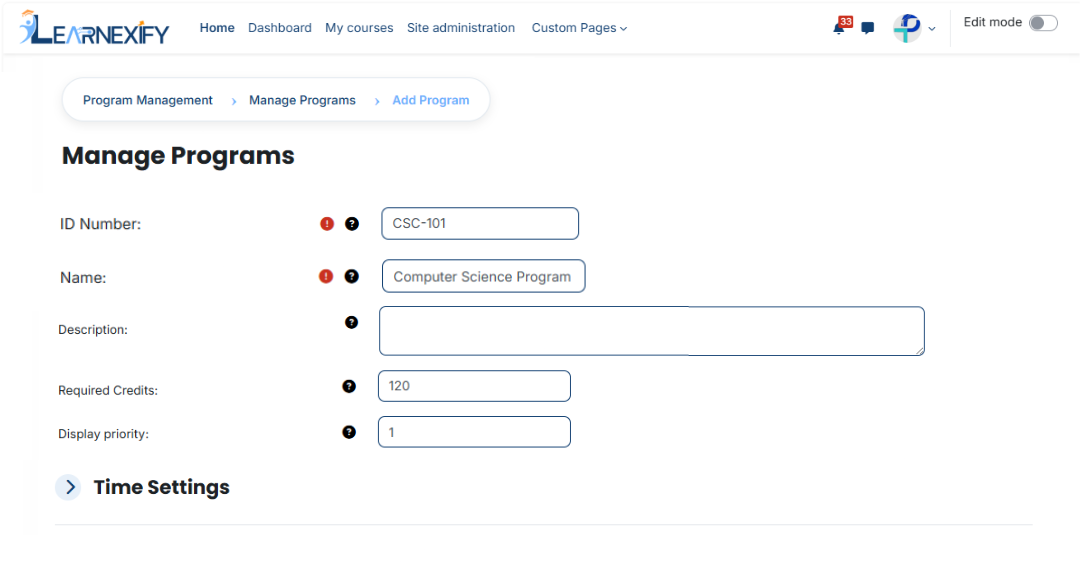
Fill in the details (Required):
The ID Number is a unique code used to uniquely identify each program in the system.
Example: CS-101 Name
The Name field defines the title of the program and helps users identify it easily.
Example: Computer Science Program Description
The Description provides an overview of the program and explains what students
will learn.
Example: This is a Computer Science degree program covering programming,
databases, and software development. Required Credits
Required Credits indicate the total number of credit hours needed to complete the program.
Example: 120 Display Priority
Display Priority defines the order of programs in the list. Higher numbers appear first.
Example: 1
Time setting:
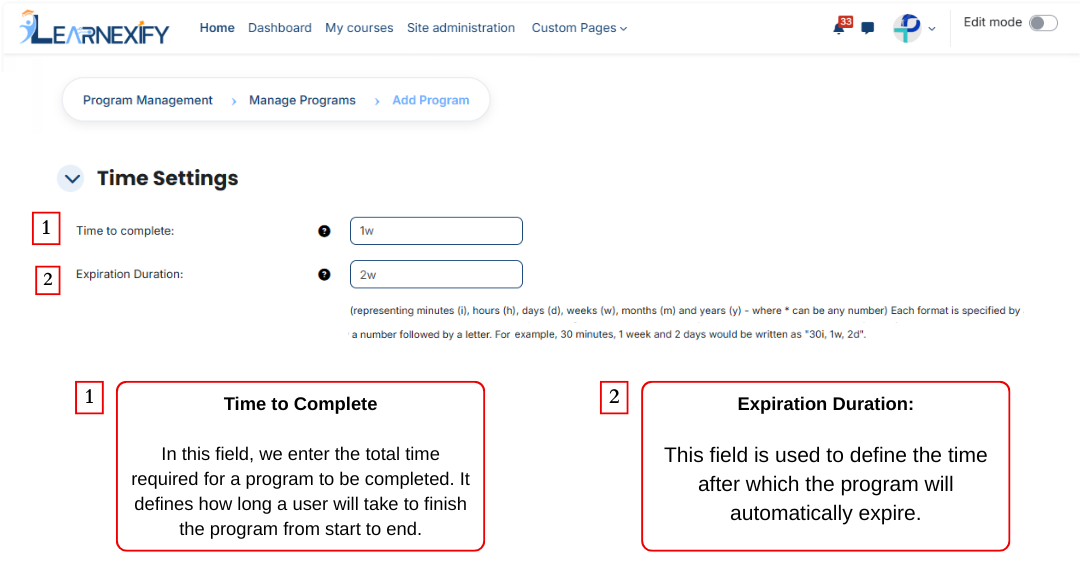
The next feature is Time Setting, and it is used to control the duration of a program. It defines how long a program will remain active and how much time a user gets to complete it. With this feature, the program is properly time-managed and works within a fixed schedule. These are the two fields of the Time Setting feature.
To specify a duration, use the following abbreviations:
Examples: 2y (2 years) or 1w 2d (1 week and 2 days).
For additional information, a document has been prepared for this expiration duration feature. You can view it by clicking on the given link.
Recruitment Information:
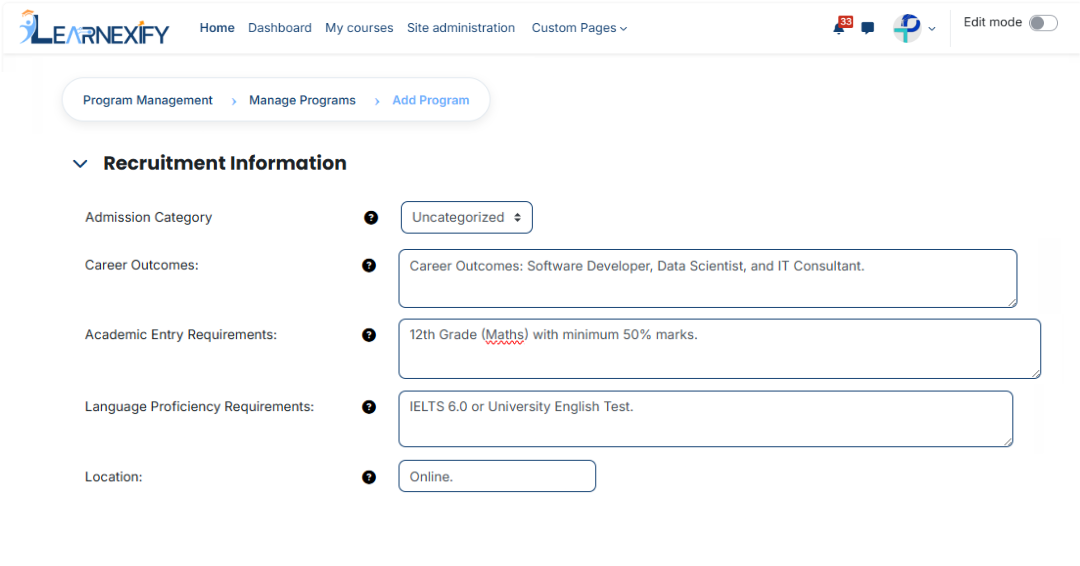
Recruitment Information feature is used in a program to define and manage all important details related to admission or enrollment. It helps students clearly understand which qualification is required before joining the program.
It also explains what benefits or career outcomes a student will get after completing the program.
This feature contains 5 fields:
1. Admission Category
This field is used to define the admission category of the program.
Purpose:
Example:
Uncategorized
2. Career Outcomes
This field is used to inform students about the career opportunities they may get after completing the program.
Purpose:
Example:
Software Developer, Web Developer, Data Analyst
3. Academic Entry Requirements
This field is used to define the required educational qualification for admission.
Purpose:
Example:
Intermediate or Bachelor’s degree
4. Language Proficiency Requirements
This field is used to define the required language proficiency for students.
Purpose:
Example:
Basic English understanding or IELTS score (if required)
5. Location
This field is used to define the location where the program is available.
Purpose:
Example:
Online / Chiniot