
Learnexify Program
Programs in Learnexify are used to organize Course Descriptions in different ways. In many cases, a collection of Course Descriptions leads to a certificate or another form of validation, indicating that a learner has achieved a certain level of mastery in the subjects included within the Program.
Additionally, Programs are used to define pre-requisite and co-requisite Course Descriptions, as well as to create batches of course instances that run according to a specific schedule or sequence.
Creating Programs Steps:
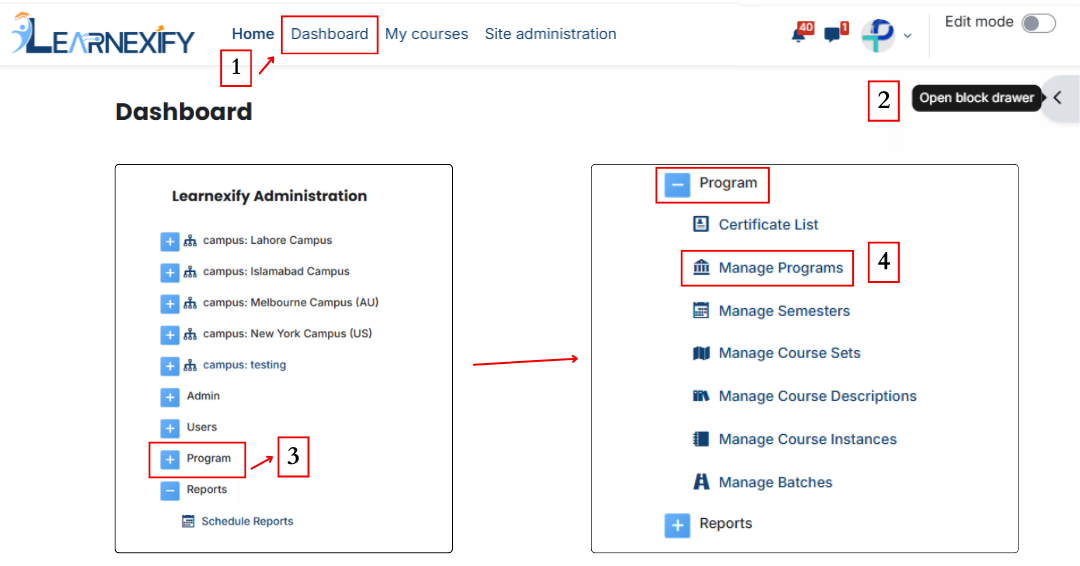
- After logging in, you will see the dashboard.
- Open the side drawer.
- Click on Programs and then select Manage Program.
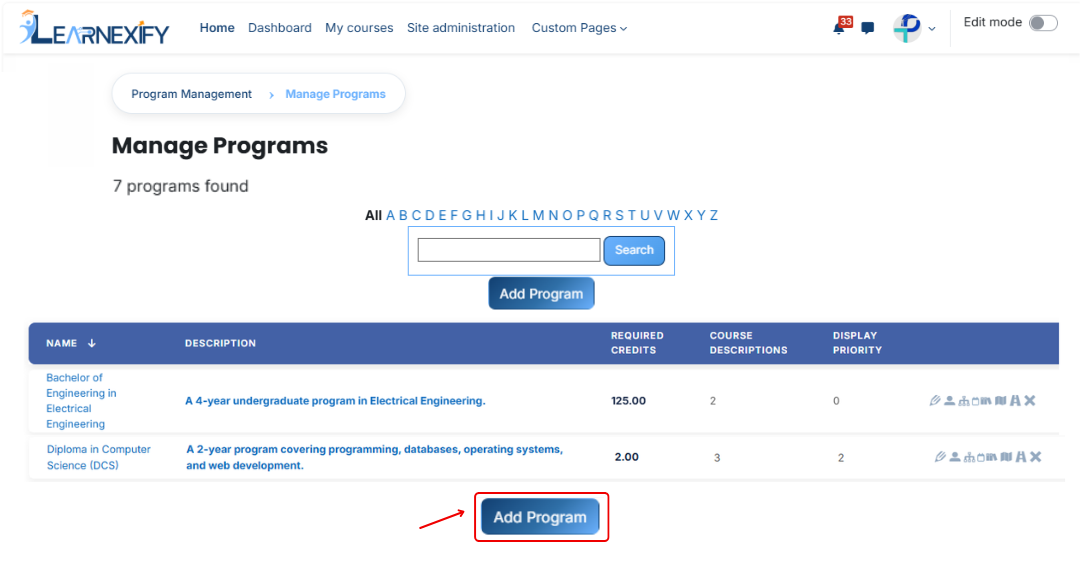
- To create a new program, click on the “Add Program” option.
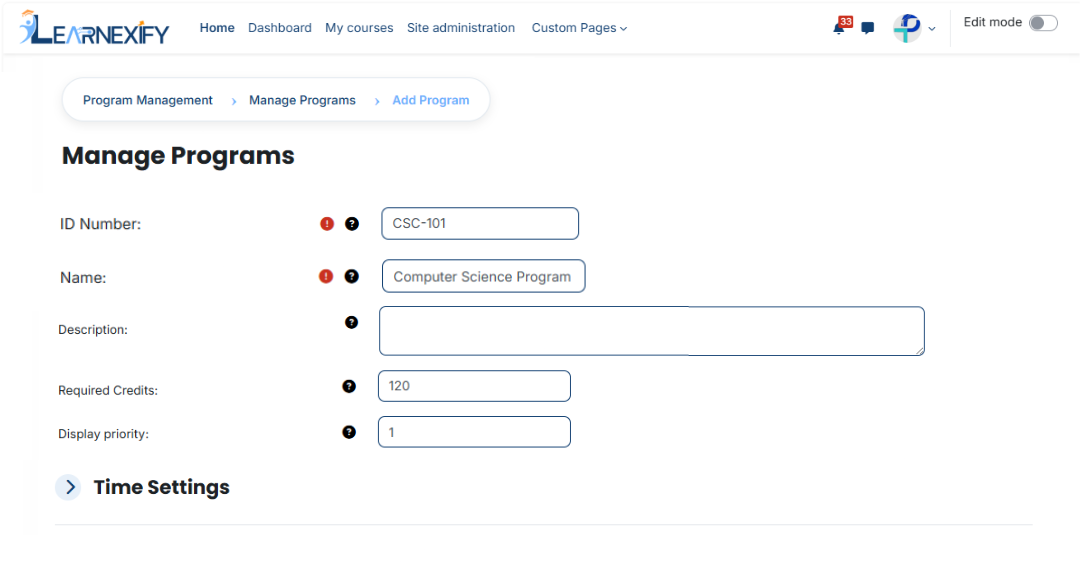
After clicking the 'Add Program' button, a form will open containing the following fields:
- ID Number
The ID Number is a unique code used to uniquely identify each program in the system.
Example: CS-101 - Name
The Name field defines the title of the program and helps users identify it easily.
Example: Computer Science Program - Description
The Description provides an overview of the program and explains what students
will learn.
Example: This is a Computer Science degree program covering programming,
databases, and software development. - Required Credits
Required Credits indicate the total number of credit hours needed to complete the program.
Example: 120 - Display Priority
Display Priority defines the order of programs in the list. Higher numbers appear first.
Example: 1
Time setting:
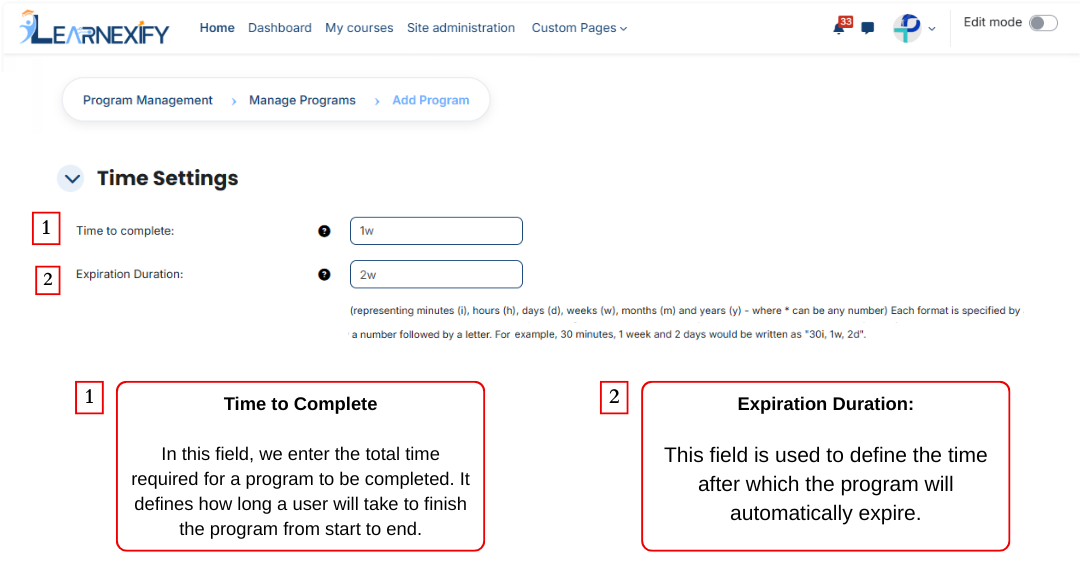
The next feature is Time Setting, and it is used to control the duration of a program. It defines how long a program will remain active and how much time a user gets to complete it. With this feature, the program is properly time-managed and works within a fixed schedule. These are the two fields of the Time Setting feature.
To specify a duration, use the following abbreviations:
- i = Minutes
- h = Hours
- d = Days
- w = Weeks
- m = Months
- y = Years
Examples: 2y (2 years) or 1w 2d (1 week and 2 days).
For additional information, a document has been prepared for this expiration duration feature. You can view it by clicking on the given link.
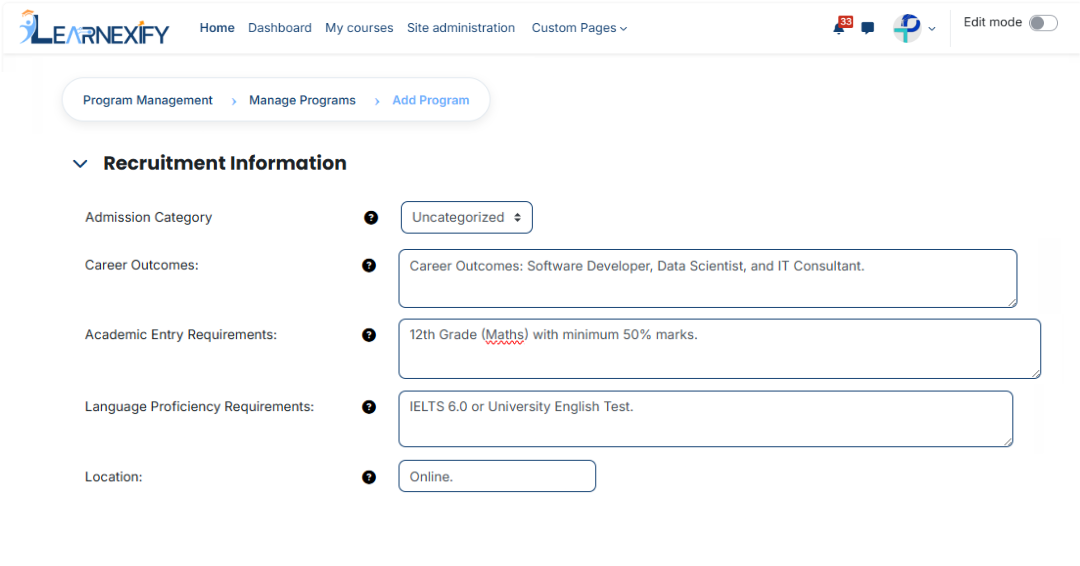
Recruitment Information:
Recruitment Information feature is used in a program to define and manage all important details related to admission or enrollment. It helps students clearly understand which qualification is required before joining the program.
It also explains what benefits or career outcomes a student will get after completing the program.
This feature contains 5 fields:
1. Admission Category
This field is used to define the admission category of the program.
Purpose:
- Define the type of admission
- Categorize programs
- Maintain organization in the system
Example:
Uncategorized
2. Career Outcomes
This field is used to inform students about the career opportunities they may get after completing the program.
Purpose:
- Guide students about outcomes after program completion
- Show future career opportunities
Example:
Software Developer, Web Developer, Data Analyst
3. Academic Entry Requirements
This field is used to define the required educational qualification for admission.
Purpose:
- Set eligibility criteria
- Define required education level
Example:
Intermediate or Bachelor’s degree
4. Language Proficiency Requirements
This field is used to define the required language proficiency for students.
Purpose:
- Set required language level
- Improve learning understanding
Example:
Basic English understanding or IELTS score (if required)
5. Location
This field is used to define the location where the program is available.
Purpose:
- Show program location
- Define online or campus availability
Example:
Online / Chiniot
Additional Program Details:
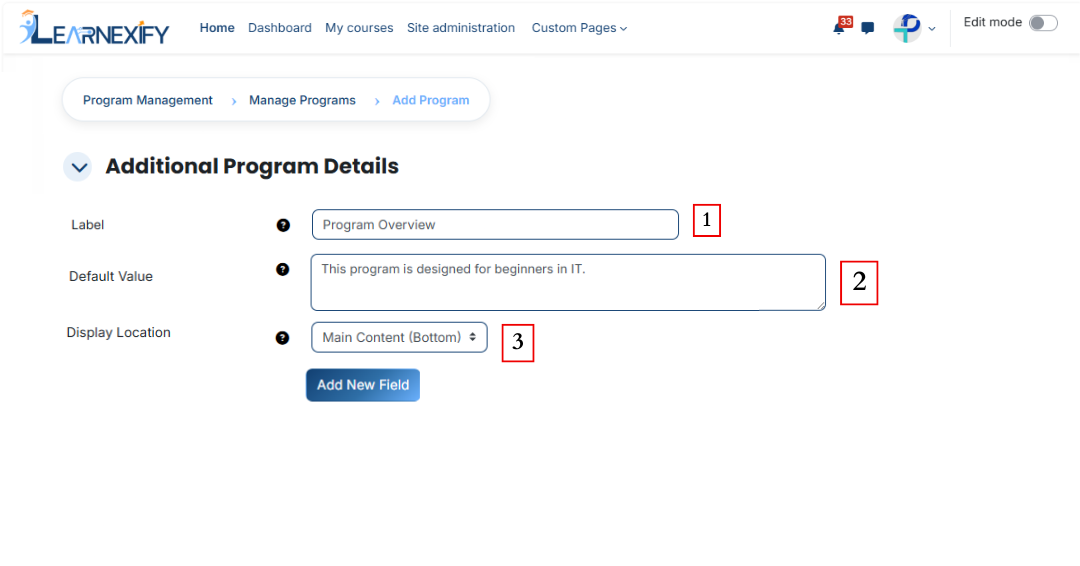
Additional Program Details feature is used to add extra information about a program apart from the main description. It also defines where this extra information will be displayed in the program interface so that users can easily view it in the relevant section of the program page. In this feature, you can also add new fields.
1. Label
This field is used to define the name or title of additional information. It helps identify what the added information is related to.
Purpose:
- To identify the field
- To define the title of the information
- To maintain clarity in the system
Example:
Program Overview, Duration Info, Requirements
2. Default Value
This field is used to set a predefined value for the label, which is automatically displayed when an additional program detail is created.
Purpose:
- To provide pre-filled content in the field
- To make data entry easier
Example:
This program is designed for beginners in IT.
3. Display Location
This field is used to define where the additional information will be displayed within the program content. It allows us to decide whether the extra information should appear above or below the main content, or in the sidebar at the top or bottom.
Purpose:
- To set the exact position of additional information on the page
- To organize the page layout properly
- To display information in the correct section for better user experience.
Options:
- Main Content (Top)
- Main Content (Bottom)
- Sidebar (Top)
- Sidebar (Bottom)
Example:
Displays the information above the main program content when Main Content (Top) is selected.
- New field:
If you want to add a new field, you can add it by clicking the “Add New Field” button.
Payments:
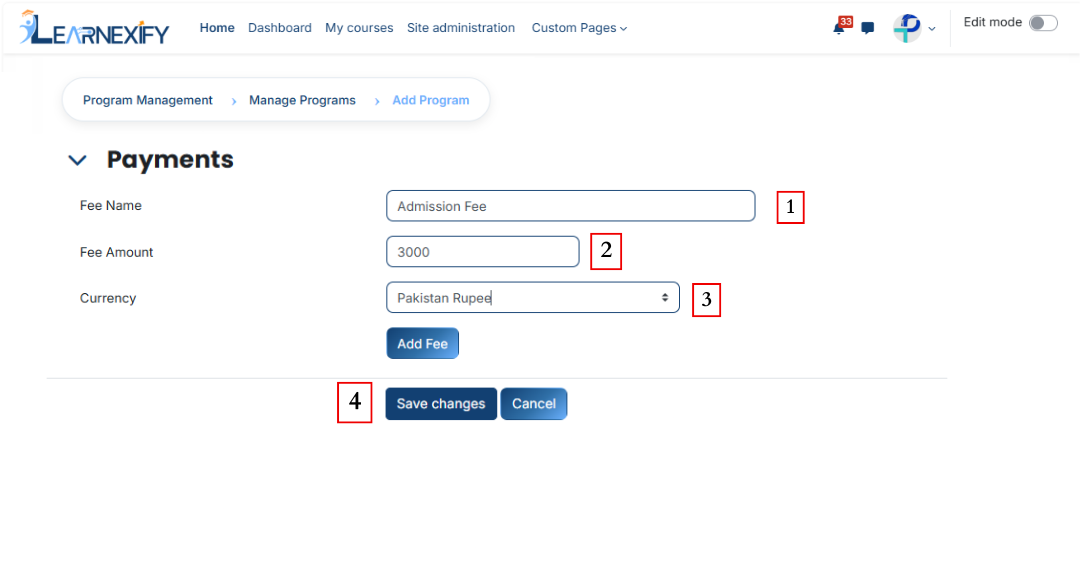
Payments feature is used to manage and configure admission fee-related settings. In this section, we define the admission fee that is charged from students for enrolling in a program.
1. Fee Name
Fee Name is used to define the title of the payment. It tells what type of fee is being charged from students.
Purpose:
- To make it clear to students what the fee is for
Example:
Admission Fee
2. Fee Amount
This field is used to define the total admission fee amount that a student needs to pay.
Purpose:
- To set the exact fee value
- To help in payment and calculation
Example:
3000
3. Currency
This field is used to define the currency in which the student will pay the fee.
Purpose:
- To specify the payment currency
- To ensure correct financial transactions
Example:
Pakistani Rupee
-
To complete this process, scroll down and click on the Save Changes button.