Learnexify Semester
A semester is a fixed academic period used in universities to divide an academic year into smaller parts, where students take specific courses and complete learning, assignments, and exams. Its main purpose is to keep the academic system structured and manageable.
A degree program has multiple semesters (such as Semester 1, Semester 2, Semester 3, etc.), and students progress step by step until they complete their program.
How to create a semester:
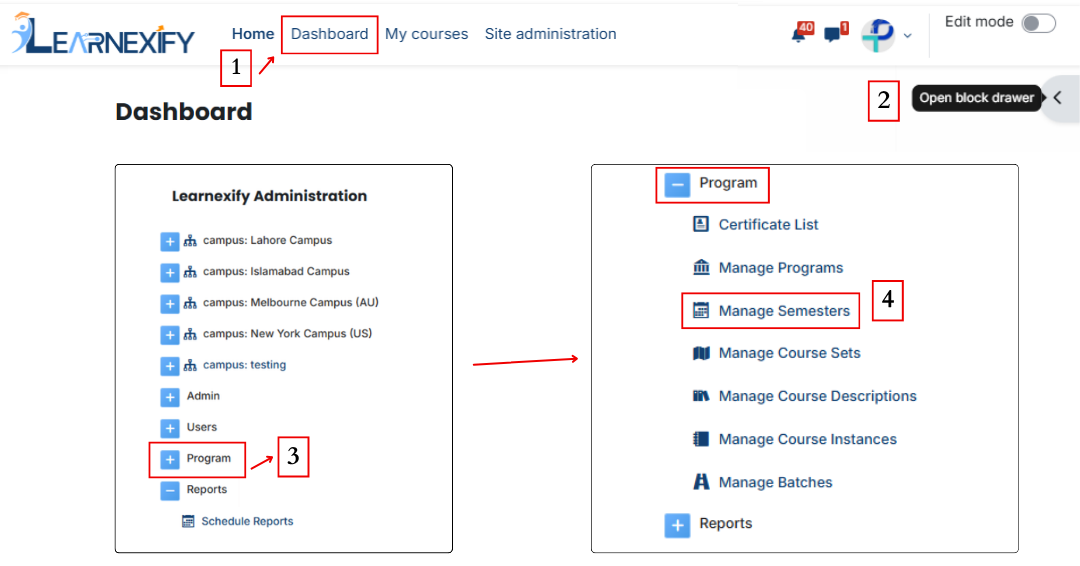
- After login, the dashboard will open.
- Open the side drawer menu.
- Click on Programs and then select Manage Semesters.
- Click the Add Semester button.
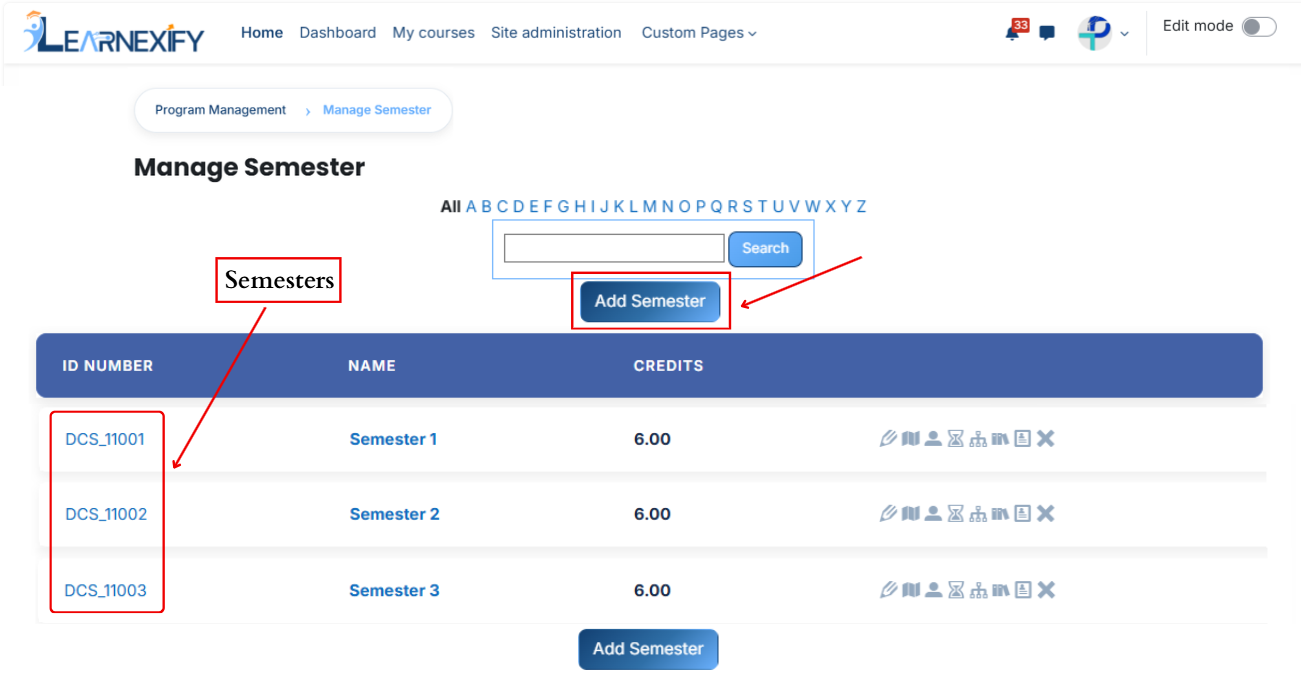
- The semester creation page will be displayed.
- Fill in the details:
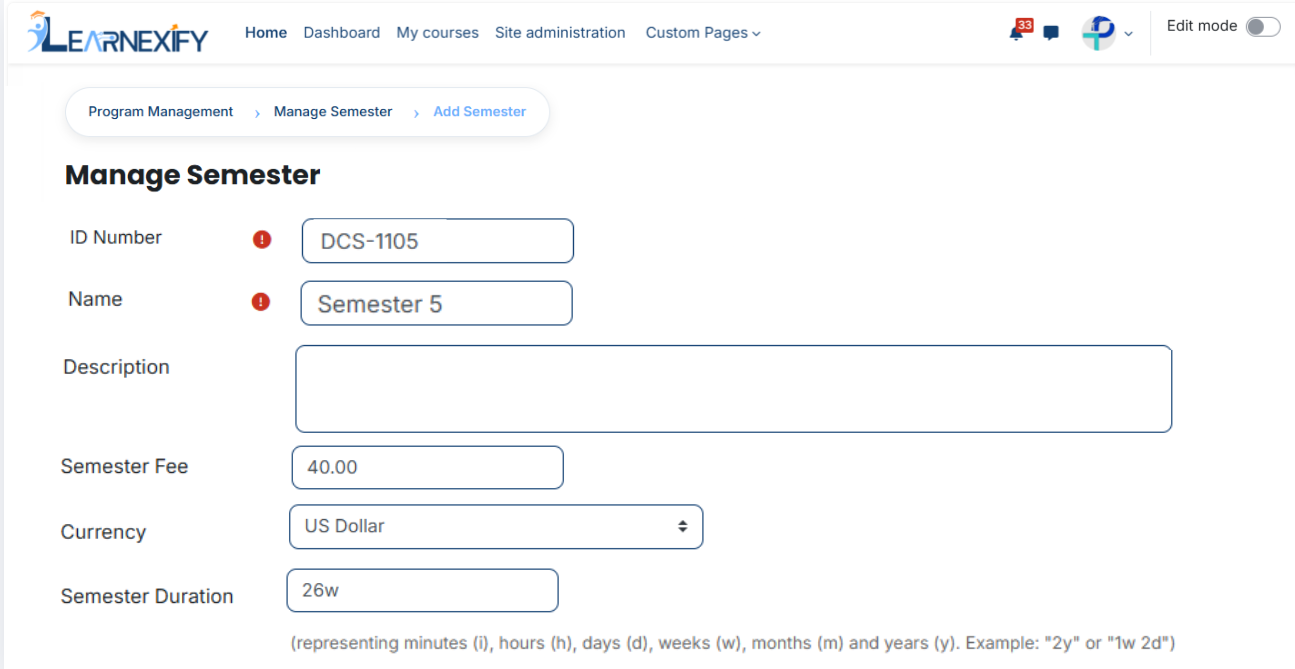
- ID Number
The ID Number is a unique identifier used to distinguish each semester in the system so that no two semesters have the same identity.
Example: SEM-EE-001 - Name
The Name field is used to define the semester title, which helps users easily recognize and differentiate it from other semesters.
Example: Semester 1 – Electrical Engineering - Description
The Description field gives a brief explanation of the semester, including its level and the purpose of studies during this period.
Example: This semester introduces basic electrical engineering concepts and provides foundational knowledge for higher-level studies. - Semester Fee
The Semester Fee defines the total amount required to enroll in the semester.
Example: 2000 - Currency
The Currency field specifies the payment currency in which the semester fee is charged.
Example: US Dollar - Semester Duration
Semester Duration defines how long the semester will run using time formats such as weeks, months, or years.
Example: 1y,
To specify a duration, use the following abbreviations:
- i = Minutes
- h = Hours
- d = Days
- w = Weeks
- m = Months
- y = Years
Examples: 2y (2 years) or 1w 2d (1 week and 2 days).
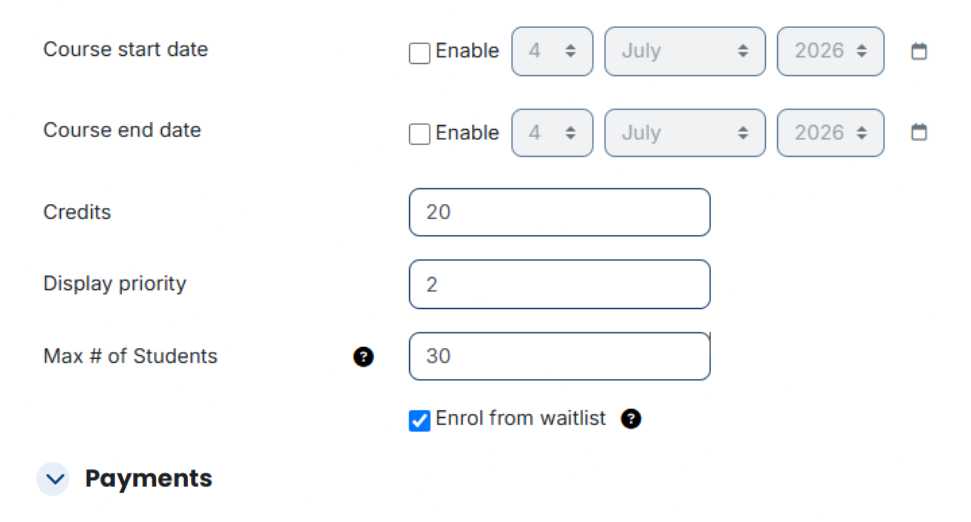
- Course Start Date
The Course Start Date indicates the date when semester courses begin.
Example: 15 April 2026 - Course End Date
The Course End Date indicates the date when semester courses finish.
Example: 15 April 2027 - Credits
Credits represent the academic workload assigned to the semester based on course completion requirements.
Example: 18.00 - Display Priority
Display Priority defines the order in which the semester appears in lists or menus within the system.
Example: 1 - Max # of Students
This field defines the maximum number of students that can be enrolled in a semester.
Example: 50 - Enrol from Waitlist
This option allows students from the waitlist to be automatically enrolled when seats become available in the semester.
Example: Enabled
Payments:
Payments feature is used to manage and configure semester fee settings within the system. In this section, administrators can define the fee amount, set the currency, and control how the semester fee is applied to students. It helps ensure that all students are charged correctly when they enroll in a semester and allows easy management of fee-related settings.
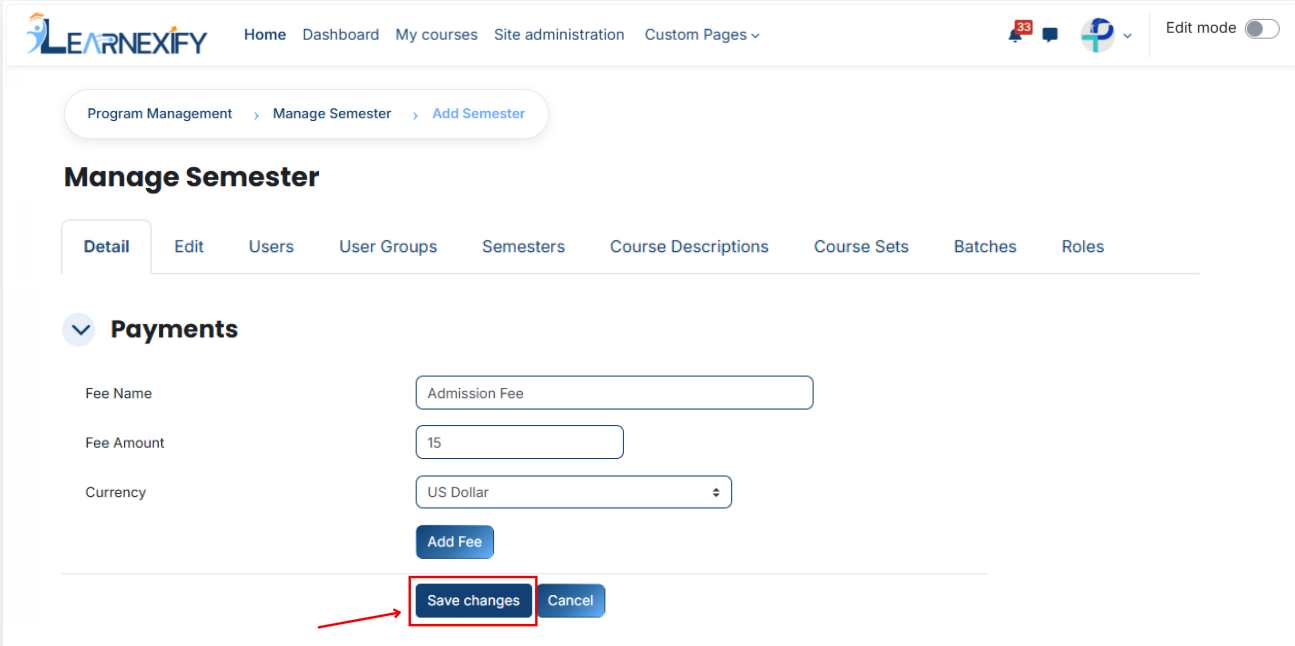
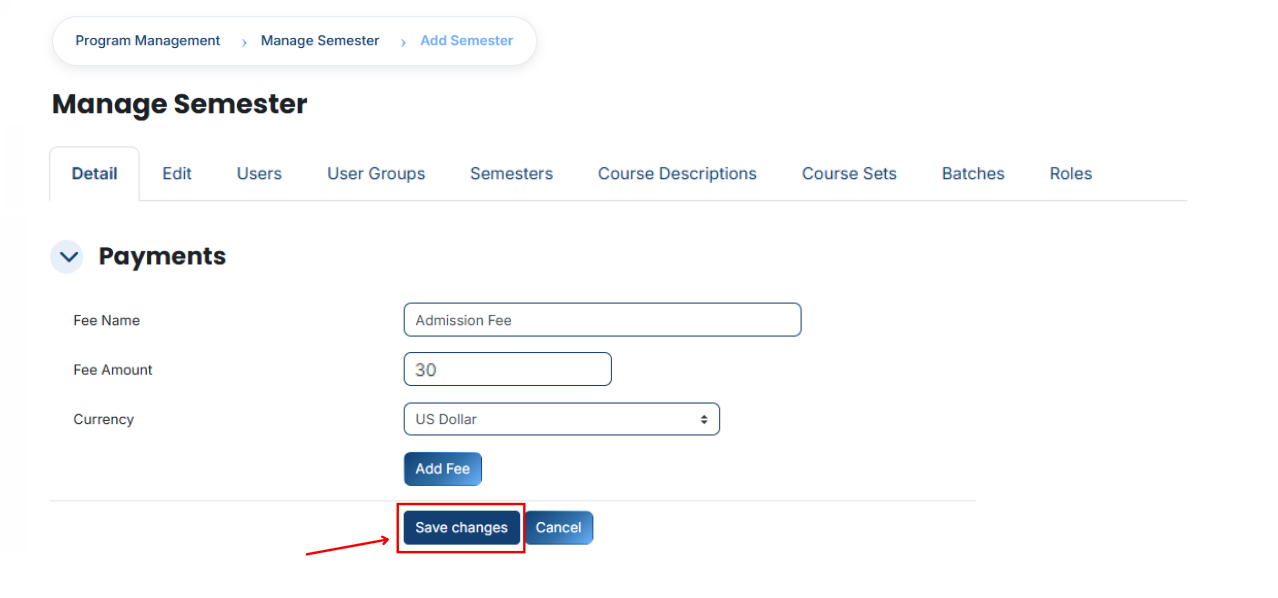
1. Fee Name
Fee Name is the title that defines the type of payment, helping identify what the fee is being charged for.
Example:
Semester Fee
2. Fee Amount
Fee Amount is the total amount that a student has to pay for a specific fee.
Example:200030
3. Currency
Currency defines the type of money in which the fee will be charged.
Example:PakistaniUSD RupeeDollar
- To finish the process, scroll down and click on the Save Changes button to save the changes.
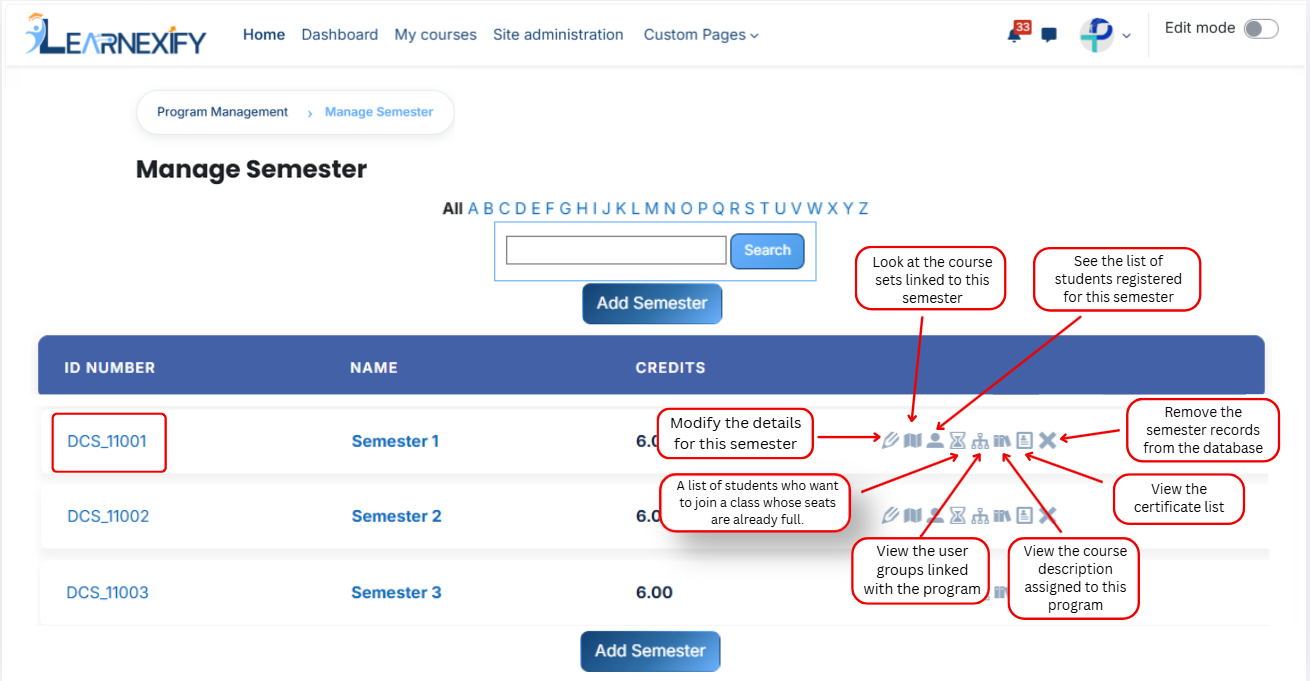
- After clicking 'Save Changes', the semester will be displayed in the semester List. An explanation of each icon is provided below.