The Programs Report is used to view individual program-Levellevel data of users enrolled in the system. Through this report, the enrollment, progress, and completion details of each user can be easily tracked.
Accessing the Report:
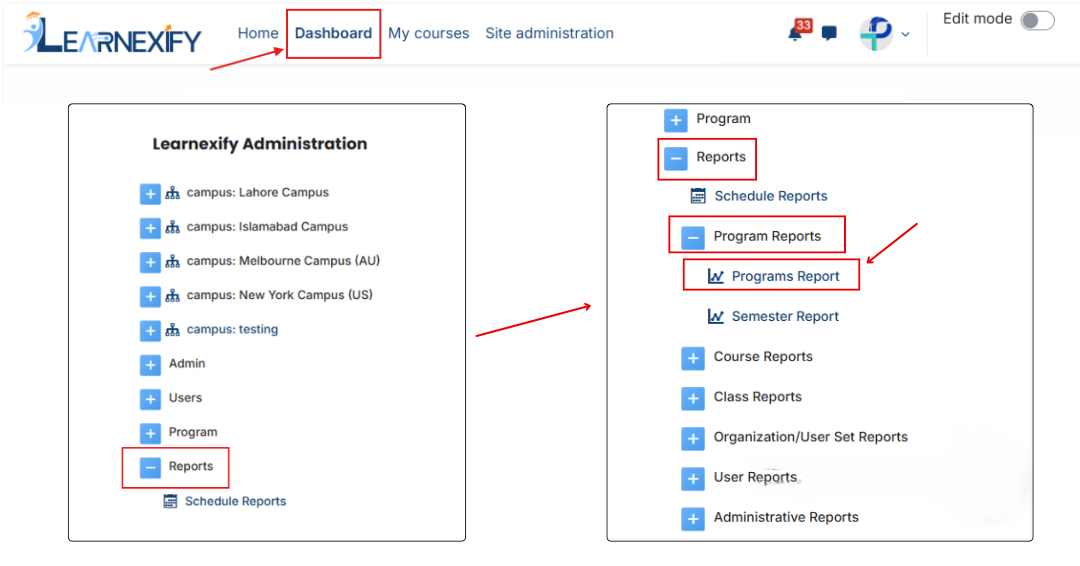
From the side drawer, click on Reports, then select Program ReportsReports, and then open Program Report.
Report Requirements:
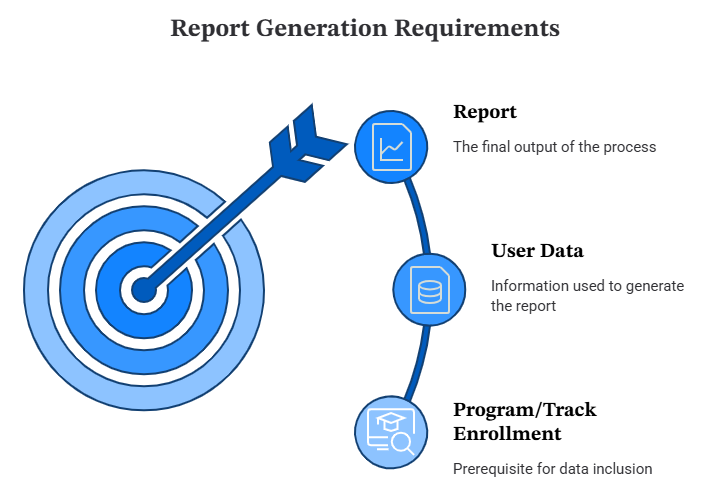
To generate this report, it is required that users are enrolled in programs or tracks. If a user is not enrolled in any program or track, their data will not be included in the report.
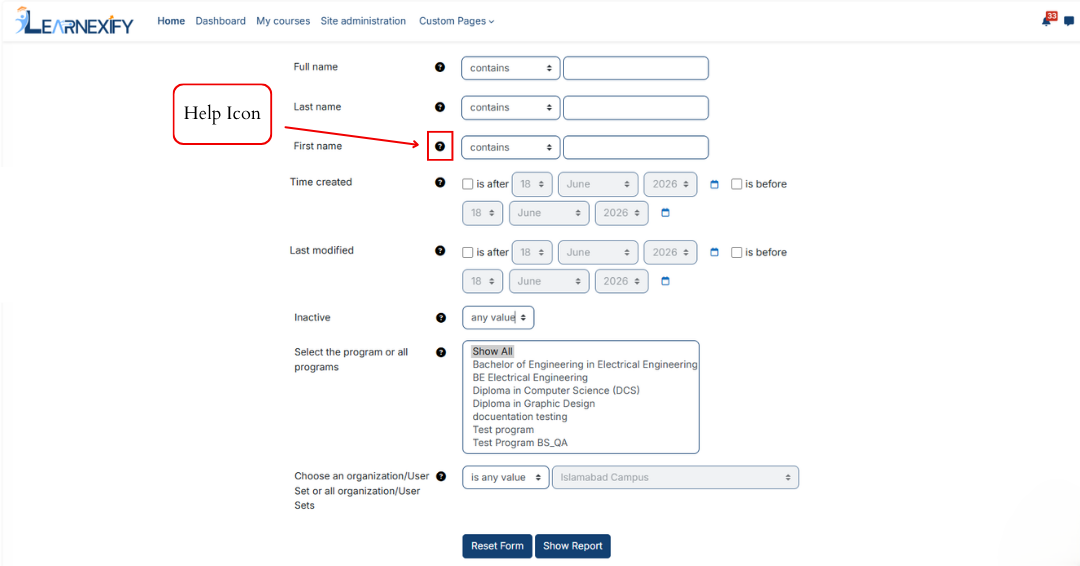
Report Filter:Filters:
HereThe following is thea brief,brief documentationdescription forof each filter in the Programs Report:
Full name: Search for specific users by entering their complete name.
Last name: Filter the report to include users with a specific surname.
First name: Narrow down results based on a user's given name.
Middle Initial: Refine search results using the user's middle initial.
ID number: Filter the report using unique employee or system identification numbers.
Email address: Generate a report for users linked to a specific primary email.
Email address 2: Search for users based on their secondary or alternative email address.
Username: View report data for specific accounts using their unique login ID.
Address / Address 2: Filter users based on their primary or secondary street address details.
City/town: Generate a regional report for users located in a specific city.
State/Prov: Filter the report by a particular state, province, or territory.
Country: Narrow the report scope to users within a specific country.
Zip/Postal Code: Filter the report by specific postal or zip code regions.
Phone / Phone 2: Search for users using their primary or secondary contact numbers.
Fax: Identify users associated with a specific fax number.
Preferred language: Group report results based on the user’s selected system language.
Time created: Filter the report by the date and time the user account was first registered.
Last modified: View users whose records were updated within a specific timeframe.
Inactive: Specify whether to include active, inactive, or all user accounts in the report.
Select theProgram:program or all programs: Choose the specific programs or certifications you wish to analyze in the report.
Choose an organization/Organization/User Set: Narrow the report data to a specific campus, department, or user group.
Note: Each field includes a help icon that explains its functionality.
The “"Select Program”Program" filter is mandatory for generating the Program Report. Users must either select a specific program or choose the “"All Programs”Programs" option. If this field is left empty, the system will not be able to generate the report. All other filtering fields are optional."
Programs Report View:
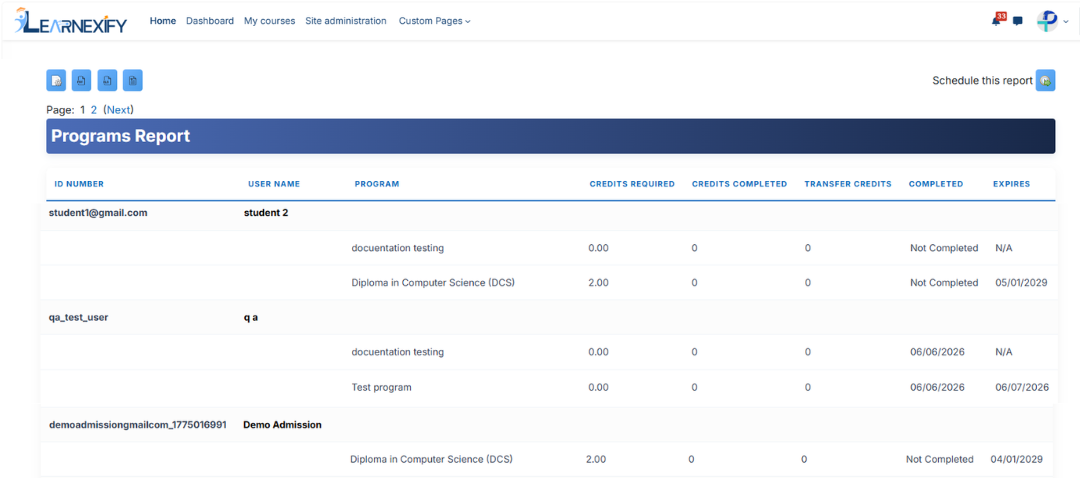
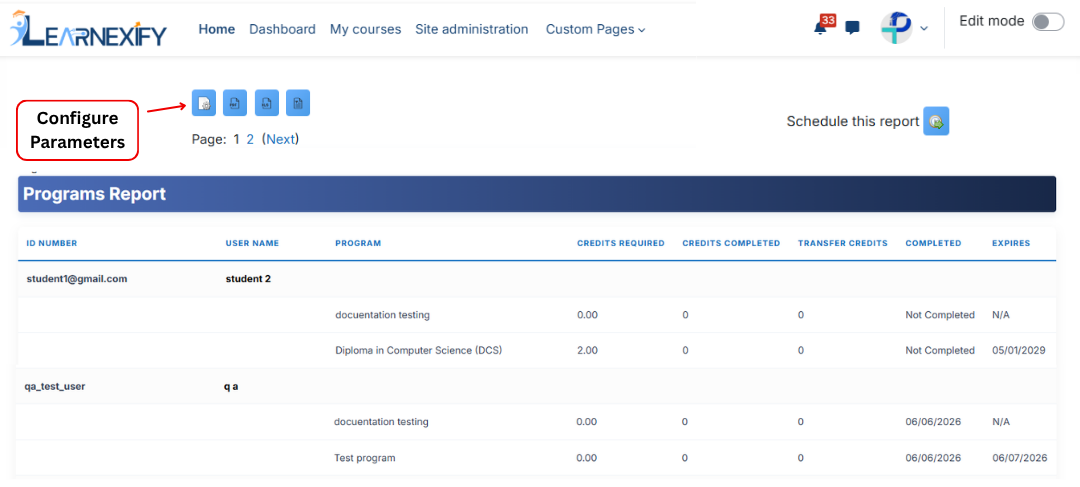
After generating the report, program-level data for the selected users is displayed.
Under each user’s name, the list of enrolled programs is shown. Next to each program, the following details are displayed:
ID Number →Number: Unique identification number of that useruser.
User Name→Name: Name of the user as displayed in the systemsystem.
ProgramProgram:→ Program name where the user is enrolled.
Credits RequiredRequired:→ Total credits required to complete the programprogram.
Credits Completed →Completed: Number of credits the user has completed so farfar.
Transfer CreditsCredits:→ Displays any transferred credits, if applicableapplicable.
CompletedCompleted:→ Date when the program was completedcompleted.
ExpiredExpired:→ Date when the completion status expiresexpires.
Clicking on any user’s name redirects to that user’s individual detailed report page.
Report Configuration:
To modify report options, use the Configure Parameters icon is used, located in the upper left corner of the report.
This option allows updatingyou to update filters and parameters to generate the requiredspecific data.
Report Scheduling:
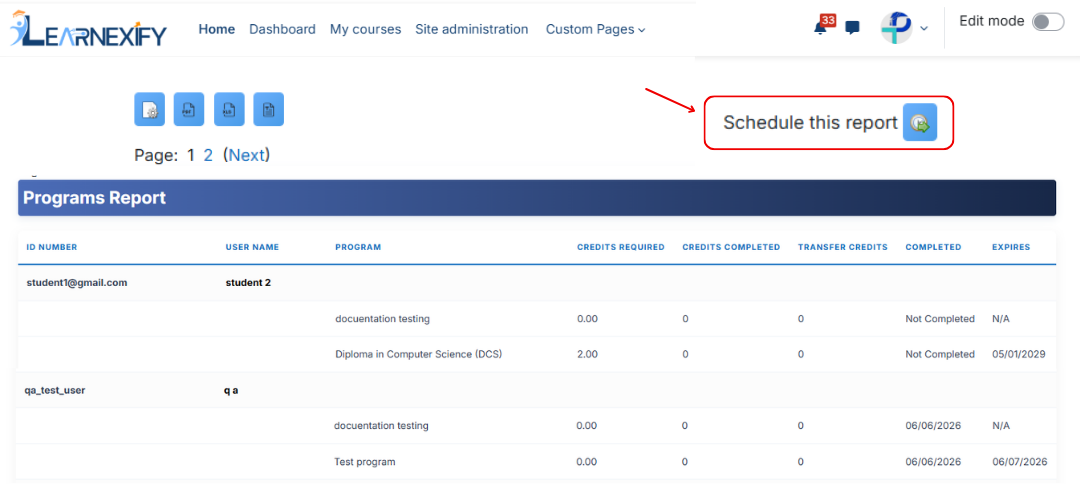
To run the report automatically at a specific time in the future, use the Schedule Reports icon is used, located in the upper right corner.
This feature is used to automateautomates report generation based on a predefined schedule.
Report Export:
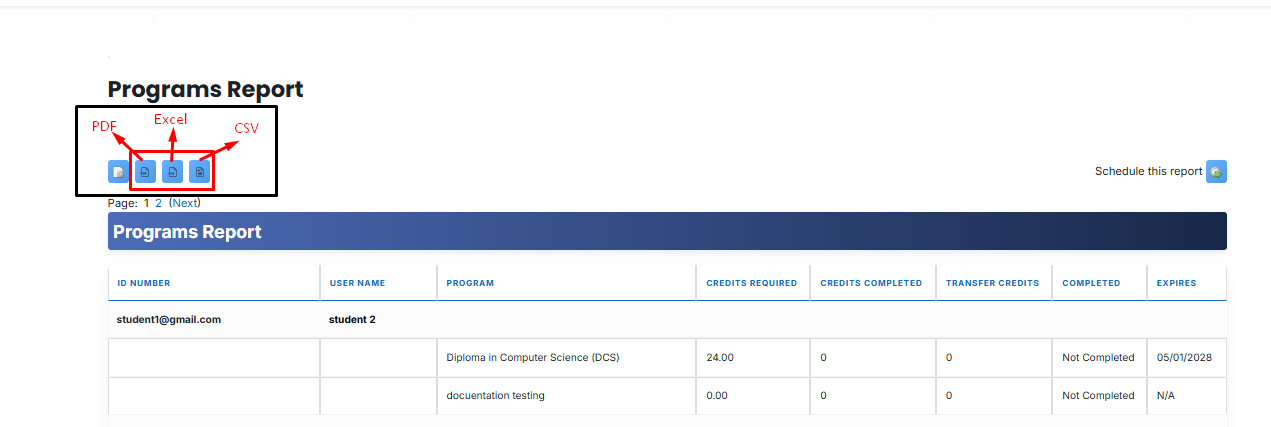
The report can be downloaded in PDF, CSV, and Excel formats:
formats. These options allow the report to be saved locally on theyour system.
Refresh the Report Data:
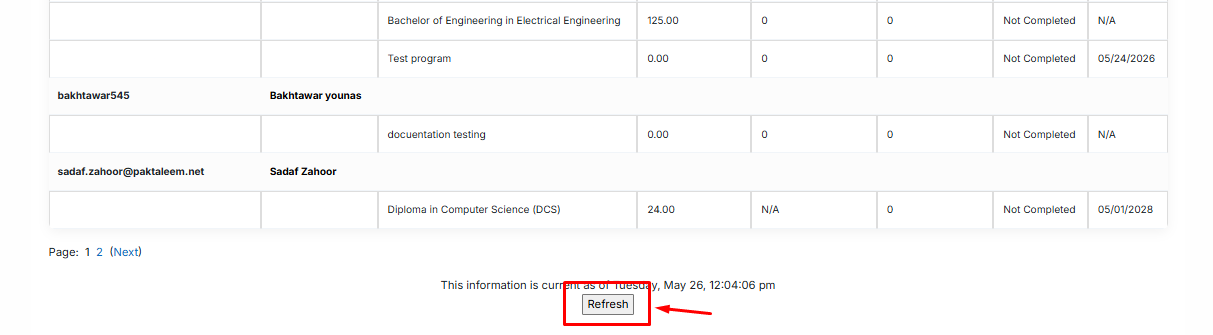
The report data can be refreshed to show the latest information without reopening or reapplying parameters. Click the Refresh button at the bottom center of the page, and the system will reload the report with updated data automatically.