1.2 Semester Report
Report Overview:
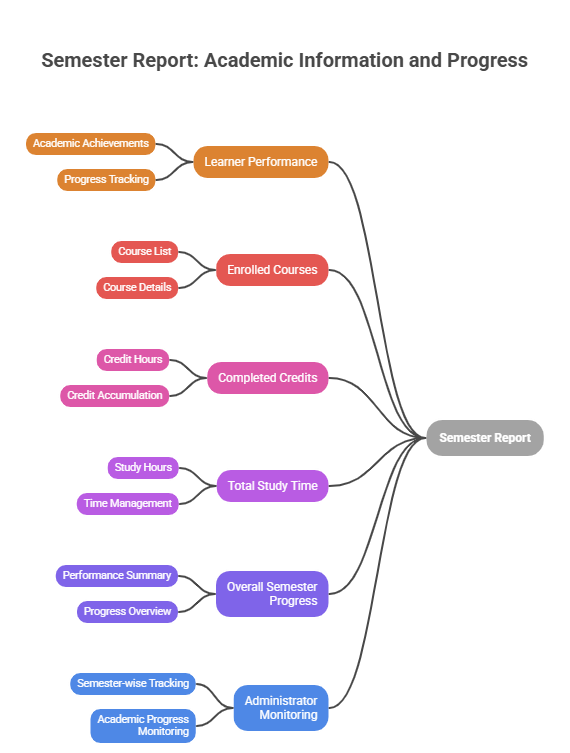
The Semester Report displays semester-related academic information and progress for a selected user. The main purpose of this report is to summarize learner performance, enrolled courses, completed credits, total study time, and overall semester progress in a single report.
This report helps administrators to monitor semester-level learner performance and track academic progress.
Accessing the Report:
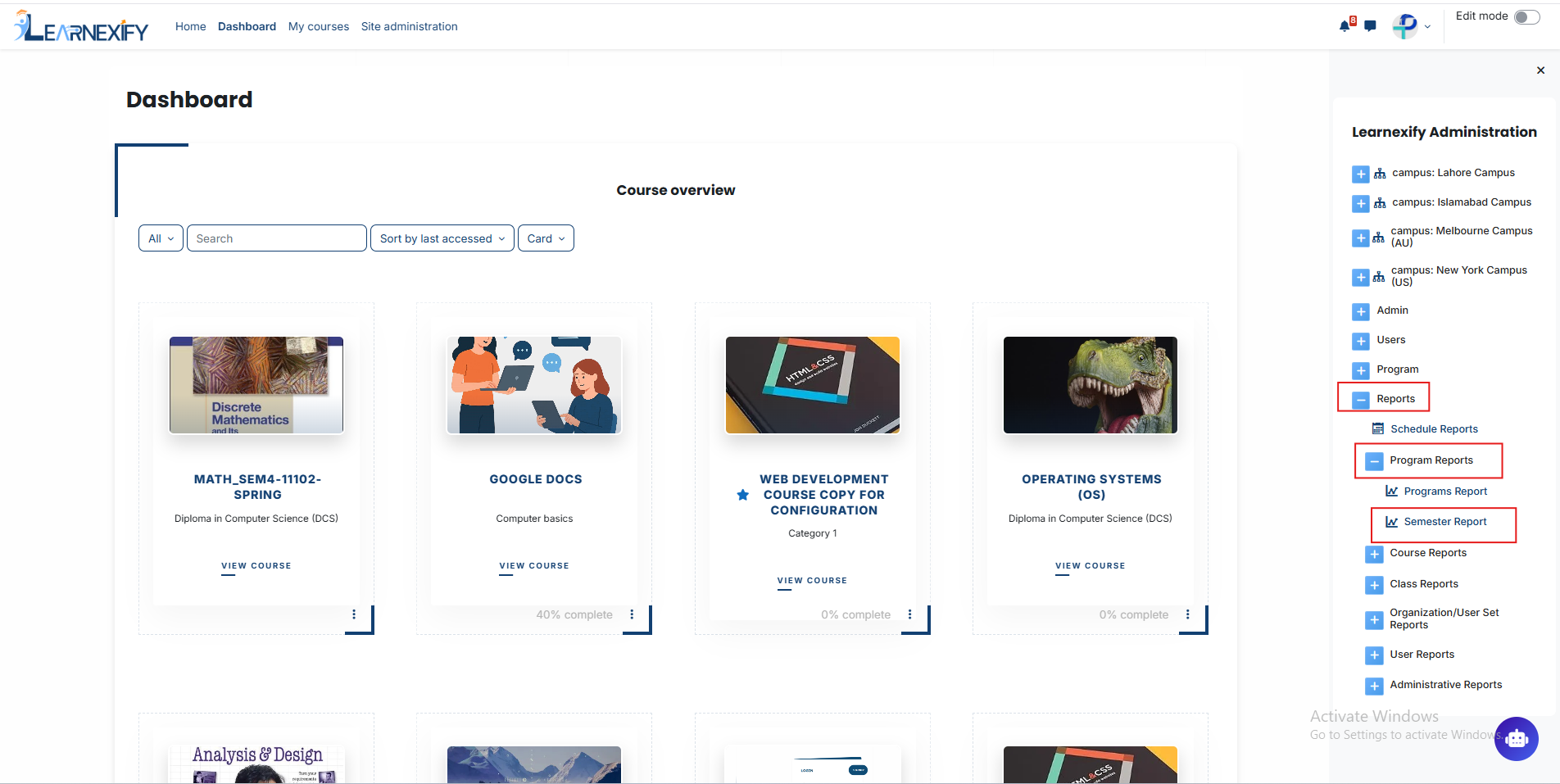
FromNavigate theto: sideDashboard drawer,> clickLearnexify onAdministration Reports,> thenReports select> Program Reports and> open Semester Report.Report.
Report Requirements:
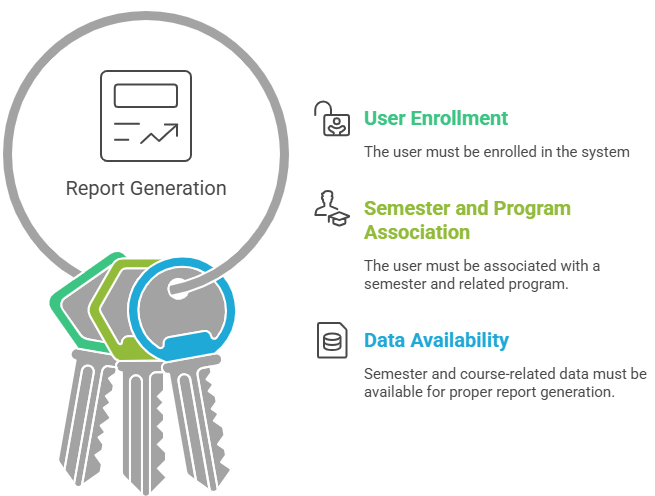
The following requirements are needed to generate Semester report:
Report Filters:
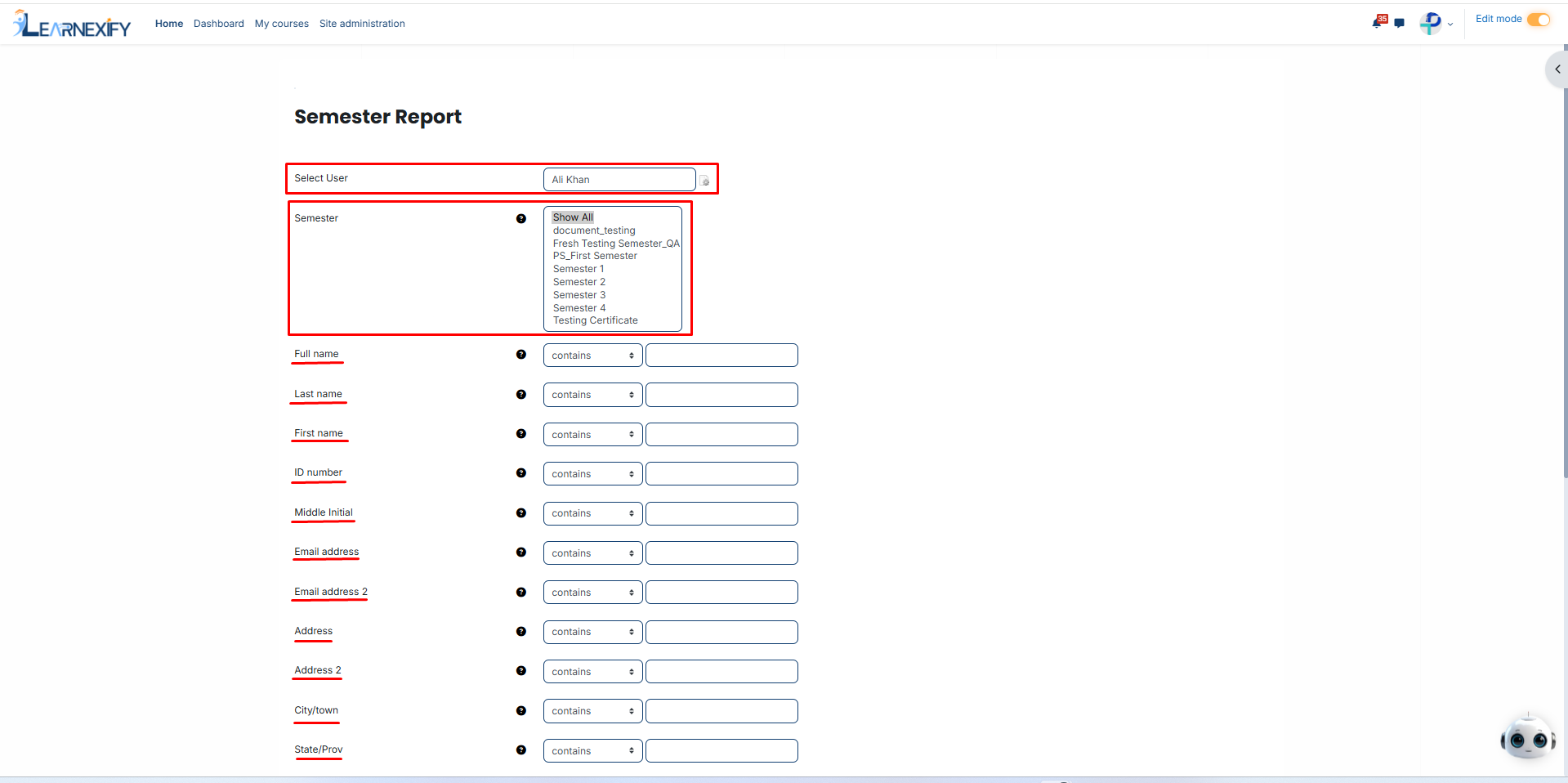
This report includes the following fields and filters:
-
Select User → Used to select a specific learner
-
Semester Selection →
-
Show All
-
PS_First Semester
-
Semester 1
- Semester 2
-
Additional User Filtering Options:
The report also includes multiple filters for searching and refining user data, such as:
-
Name fields (Full Name, First Name, Last Name, Middle Initial)
-
User identification details (ID Number, Username)
-
Contact information (Email Address, Phone, Fax, Address, City, State, Country, Zip Code)
-
Account-related fields (Preferred Language, Time Created, Last Modified, Inactive Status)
Most text-based fields use the “contains” option, while date fields include:
-
“Is after”
-
“Is before”
These filters are used to customize and narrow down report data according to specific users or semesters.
After completing all the configuration, click on the Show Report button to display the report.
Report Output:
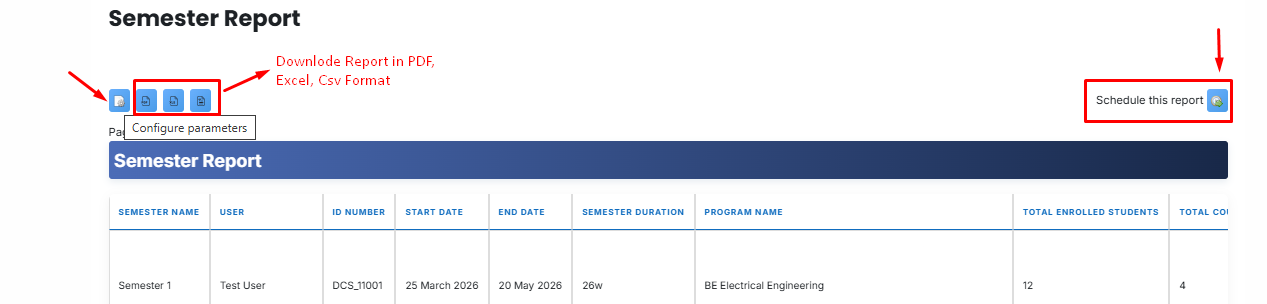
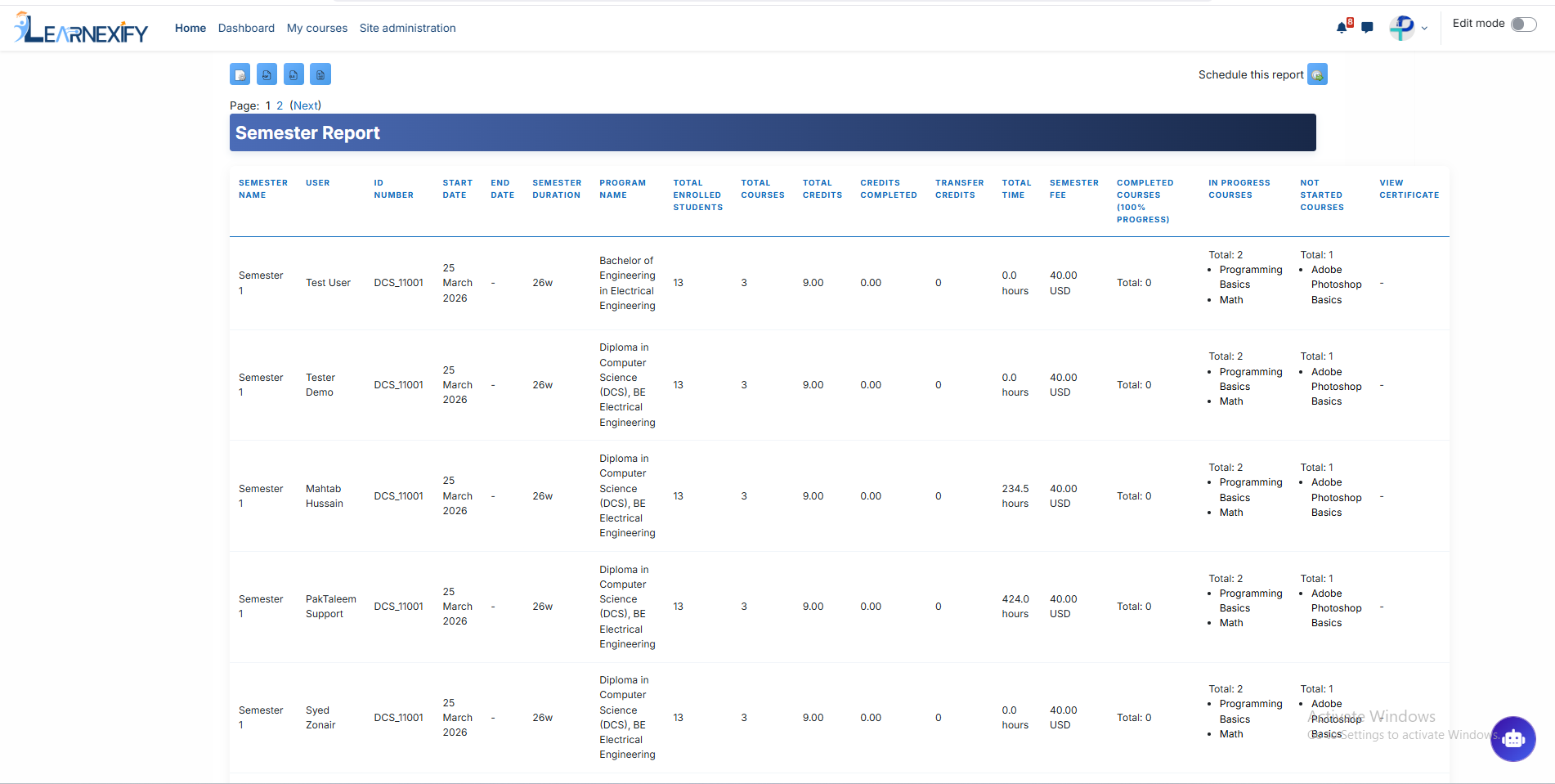
The report displays the following information:
Semester Name → Name of the selected semester
User → Name of the learner
ID Number → User’s unique ID number
Start Date → Semester start date
End Date → Semester end date
Semester Duration → Total semester duration
Program Name → Name of the related program
Total Enrolled Students → Total students enrolled in the semester
Total Courses → Total number of semester courses
Total Credits → Total semester credits
Credits Completed → Credits completed by the learner
Transfer Credits → Details of transferred credits
Total Time → Total learning/study time
Semester Fee → Semester fee details
Completed Courses (100% Progress) → Fully completed courses
In Progress Courses → Courses currently in progress
Not Started Courses → Courses not yet started
View Certificate → Option to view certificates
Post-Generation Report Actions:
Once the report is generated, you can manage it using the following tools:
-
Reconfigure Parameters: Use the icon in the upper left corner to update filters and regenerate data.
-
Automated Scheduling: Use the icon in the upper right corner to set a specific time for the report to run automatically.
-
Export Options: Download the report in PDF, CSV, or Excel formats using the icons located in the upper right corner for offline storage and analysis.
-
Data Refresh: Click the Refresh button at the bottom center to instantly update the report with the latest system data without re-entering parameters.