3.1 Class Completion Gas Gauge
Report Overview:
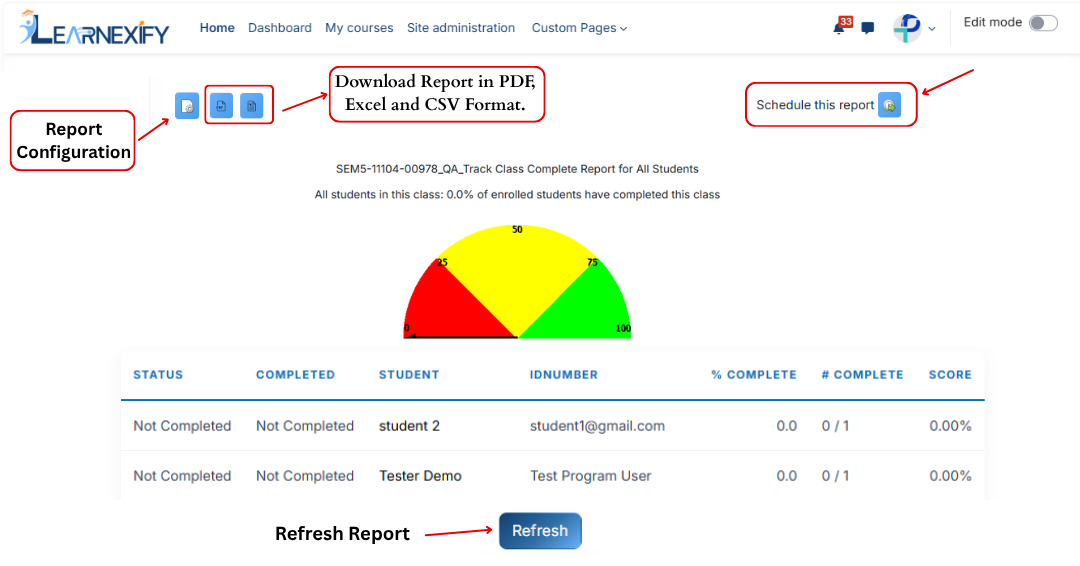
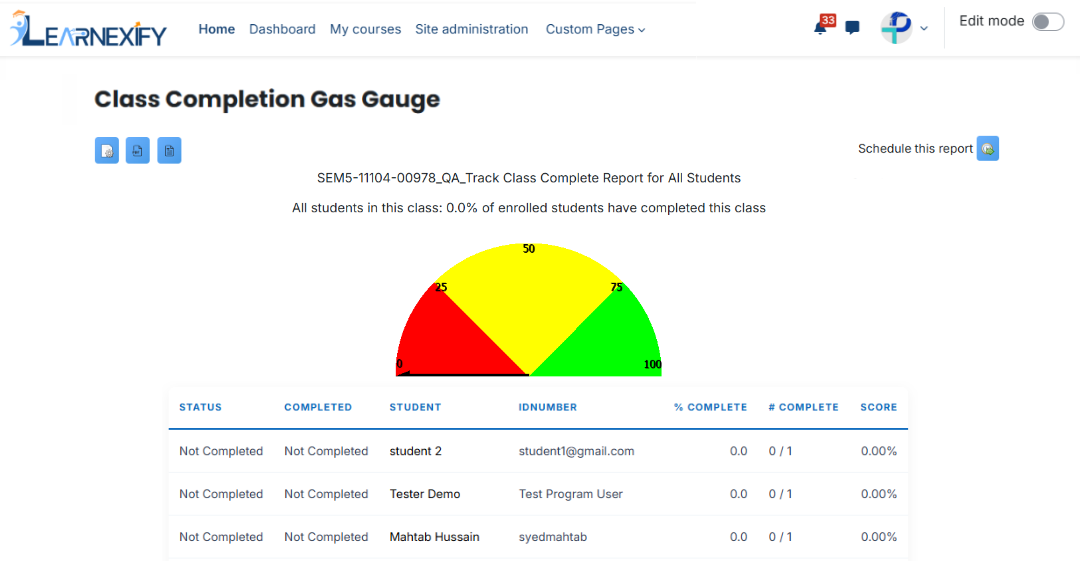
The Class Completion Gas Gauge Report is used to display the completion status of all users enrolled in a specific class. It also shows a gas gauge chart representing the percentage of students who have completed the class.
Class Completion Gas Gauge Report Video:
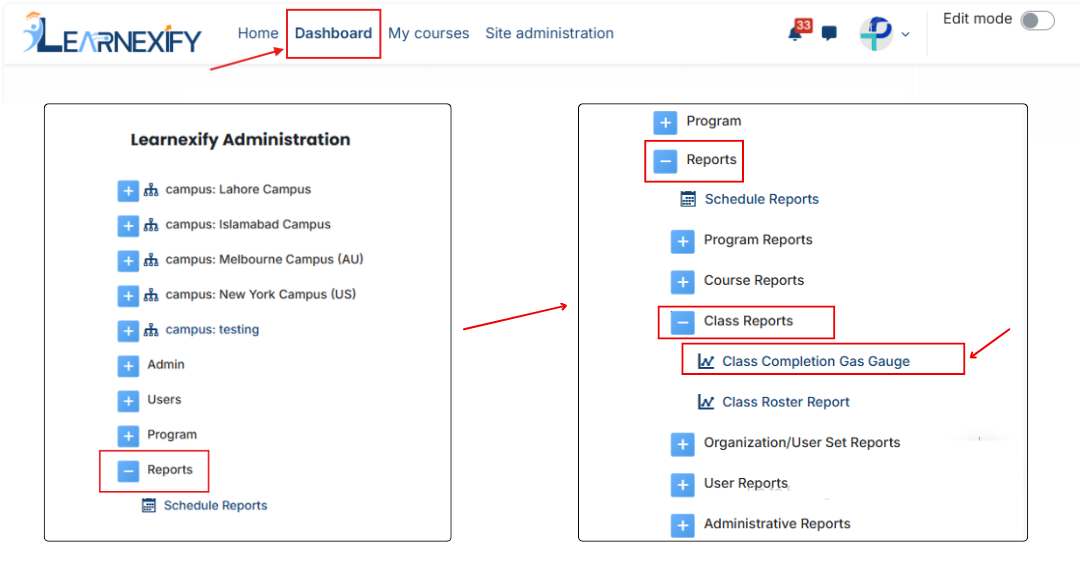
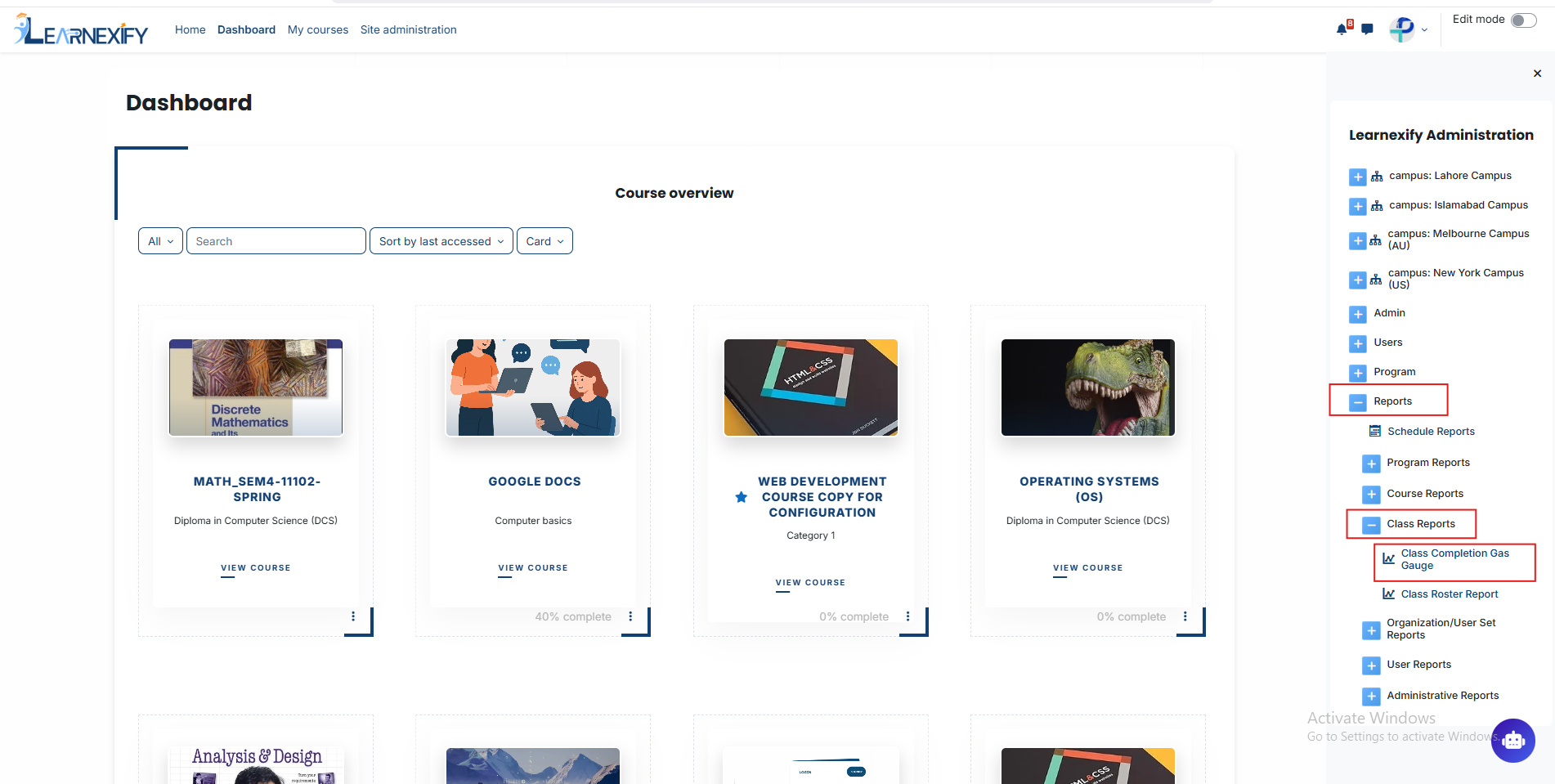
Report Path:
Dashboard > Side drawer > Reports > Class Reports > Class Completion Gas Gauge
Report Requirements:
This report requires learning objectives to be configured in the Learnexify course.
If a course or class does not have learning objectives, its data will not be included in this report.
Report Filter:
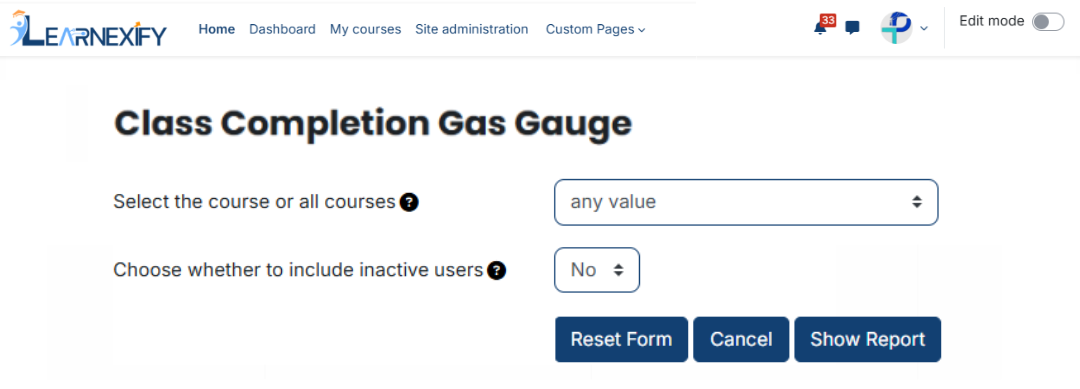
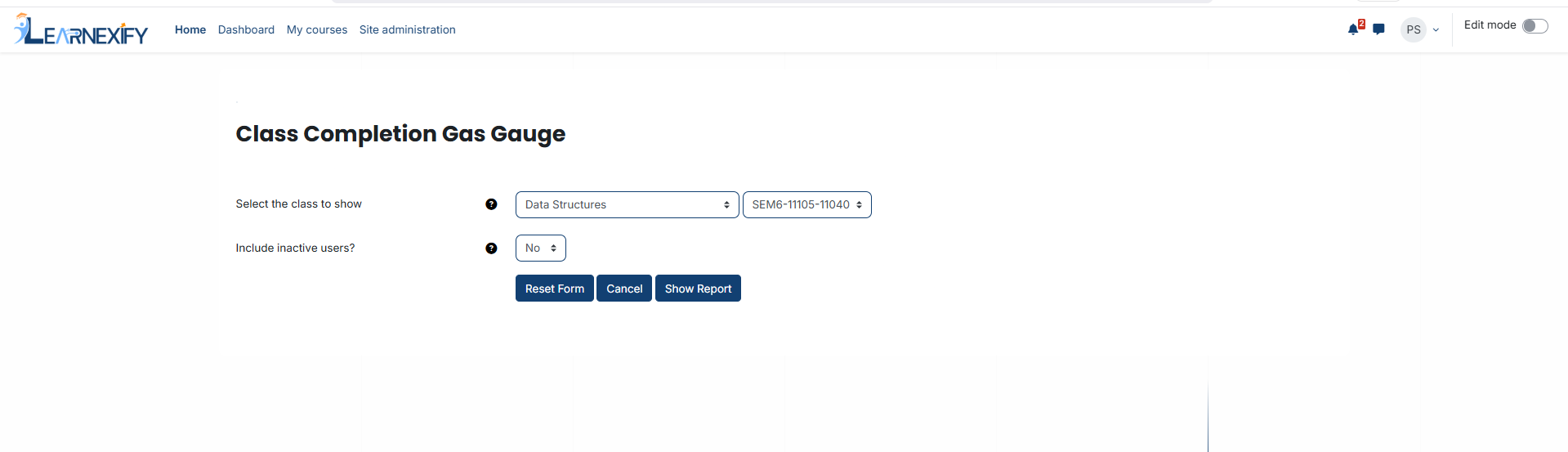
The report filter includes three fields: Course, Class, and Inactive.
First, a course must be selected. After selecting the course, a specific class instance of that course can be chosen.
For the Include inactive users field, select “Yes” or “No”.
There are no mandatory fields for this report filter.
Running the Report:
Once the required fields are set, Click the Show Report button.
After clicking this button, the system generates the report based on the selected filters and displays the data on the report screen.
Report View:
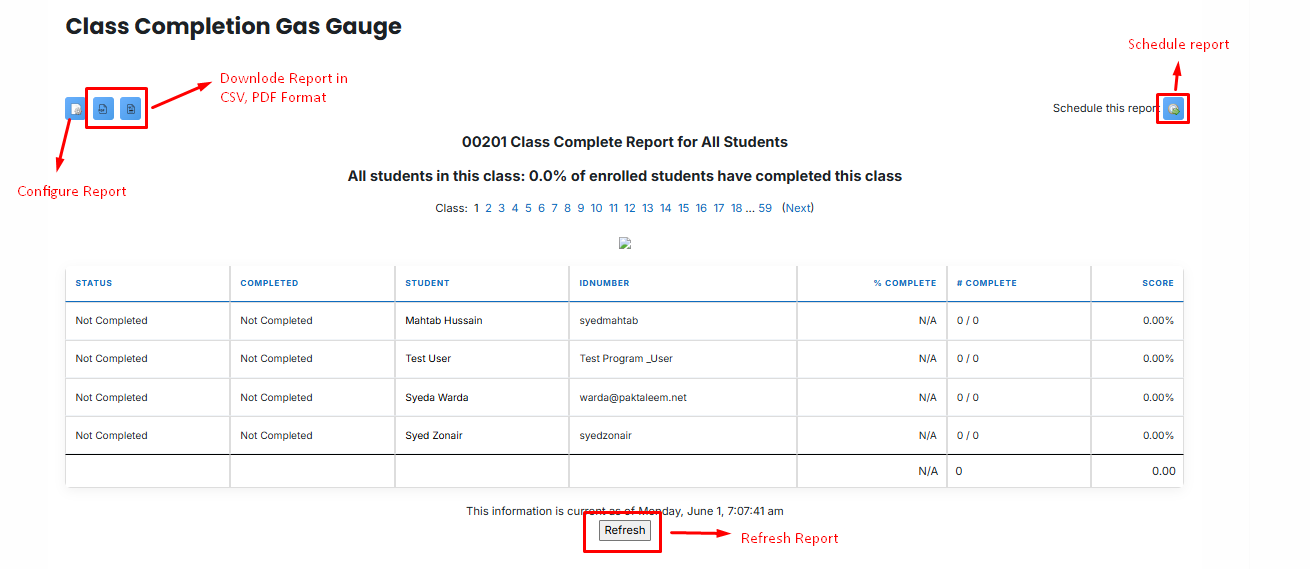
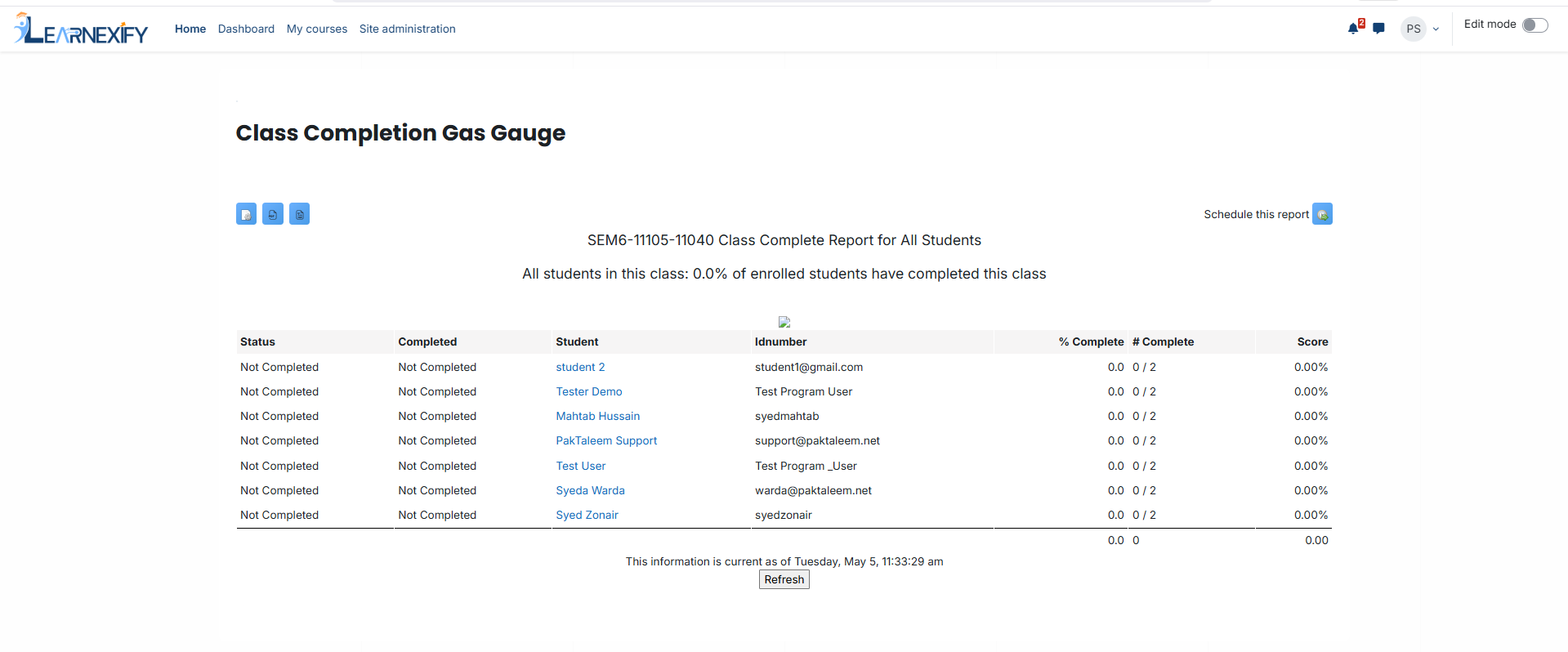
The report displays the status of all users in a selected class along with their completion percentage.
-
Status → Represents the learner’s completion status in the class. If completion requirements are met, the status is marked as “complete”.
-
Student → Represents the individual learners enrolled in the class. Clicking on a student’s name opens their Learnexify user profile page.
-
% Complete → Shows the percentage of learning objectives completed by the learner.
-
# Complete → Represents the number of learning objectives completed by the learner in the class.
-
Score → Shows the learner’s overall percentage score in the class.
Report Scheduling:
To schedule the report to run at a specific time in the future, select the Schedule Reports icon located in the upper right corner of the report.
Report Export:
The report can be exported in PDF or CSV format.
To export the report, select either Download PDF or Download CSV from the upper left corner of the report. The file will be downloaded locally to the computer.
Note: When opening CSV files in Excel, values containing “/” may be interpreted as dates (for example, 1/1 may appear as Jan 01). To avoid this issue, auto-date detection can be disabled in spreadsheet settings if required.
Report Refresh:
Report data can be updated automatically without returning to the report parameters by clicking the Refresh button located at the bottom center of the report page.